

小米鐳射投影儀150'' FAQ
一、遥控器
I. Remote control
二、端口
II. Ports
三、开机引导
III. Booting
3.1.蓝牙遥控器配对
3.1 Bluetooth remote control pairing
- 蓝牙配对界面,如图所示,按住返回键和应用键(输入源键),直到听到“滴”声,配对成功,遥控器可以正常使用。
- Bluetooth pairing interface is shown as follows. Press the keys of “Return” and “Application” (input source key) until you hear the sound of “drip”. At this time, pairing is successful, and remote control can work normally.
3.2.调焦
3.2 Focusing
- 按左键/右键对焦,直到四角显示文字均清晰。
- Pressing the left key/the right key to focus until four-corner words all are clear.
3.3.梯形校正
3.3 Keystone correction
- 选中任意一点,按遥控器确定键,开始调整。
- Choose any point, then press the key of “Sure” on the remote control to adjust.
- 调整完成之后,返回键退出调整状态。
- After finishing adjustment, press the key of “Return” to exit the state of adjusting.
- 选中“确定”按钮,按遥控器确认键,保存设置。
- Choose the button of “OK”, then press the key of “Sure” on the remote control to save settings.
- 点击八点/四点,可以切换八点校正模式/四点校正模式。
- Click on “eight points/four points” to switch to the “eight points correction mode” / “four points correction mode”.
3.4.语言设置
3.4 Language setting
- 上下键选择语言,按确定键保存,进入下一页面。
- Use “Up and Down” keys to choose language, press the key of “Sure” to save. After that, enter the next page.
- 连接LAN网,直接进入Google服务更新界面。
- Connect to LAN, directly enter Google update interface.
- 连接WiFi,显示网络设置界面,上下键选择WiFi,确认键进入密码输入界面,网络连接成功,进入Google服务更新界面。
- Connect WiFi, the interface of network setting will display. At this moment, use “Up and Down” keys to select “WiFi”, press the key of “Sure” to enter the interface of Passwords Inputting. After successfully connecting “WiFi”, enter Google update interface.
- 有更新服务时,自动开始更新。
- If there are updating services, the system will update automatically.
- 无更新服务时,进入下一界面。
- If there is no updating service, it will enter the next page.
- 通过手机/电脑登录Google账号,输入密码。
- Login the Google accounts by a mobile phone/a computer, then input the passwords.
- 通过遥控器输入Google账号,输入密码。
- Input the Google accounts by a remote control, then input the passwords.
3.5.网络连接
3.5 Network connecting
- 连接LAN网,直接进入Google服务更新界面。
- Connect to LAN, directly enter Google update interface.
- 连接WiFi,显示网络设置界面,上下键选择WiFi,确认键进入密码输入界面,网络连接成功,进入Google服务更新界面。
- Connect WiFi, the interface of network setting will display. At this moment, use “Up and Down” keys to select “WiFi”, press the key of “Sure” to enter the interface of Passwords Inputting. After successfully connecting “WiFi”, enter Google update interface.
- 有更新服务时,自动开始更新。
- If there are updating services, the system will update automatically.
- 无更新服务时,进入下一界面。
- If there is no updating service, it will enter the next page.
- 通过手机/电脑登录Google账号,输入密码。
- Login the Google accounts by a mobile phone/a computer, then input the passwords.
- 通过遥控器输入Google账号,输入密码。
- Input the Google accounts by a remote control, then input the passwords.
3.6.Google服务更新
3.6 Google service updating
- 有更新服务时,自动开始更新。
- If there are updating services, the system will update automatically.
- 无更新服务时,进入下一界面。
- If there is no updating service, it will enter the next page.
- 通过手机/电脑登录Google账号,输入密码。
- Login the Google accounts by a mobile phone/a computer, then input the passwords.
- 通过遥控器输入Google账号,输入密码。
- Input the Google accounts by a remote control, then input the passwords.
3.7.账号登录
3.7 Accounts login
- 通过手机/电脑登录Google账号,输入密码。
- Login the Google accounts by a mobile phone/a computer, then input the passwords.
- 通过遥控器输入Google账号,输入密码。
- Input the Google accounts by a remote control, then input the passwords.
3.8.Google服务确认&电视名称设置
3.8 Google service confirmation & TV name setting
四、光机设置
IV. Optical machines setting
设置中可以进行调焦,梯形校正,投影方式,红外人体感应开关等设置。
Setting items: focusing, trapezoidal correction, projection type, infrared body sensor switches, etc.
- 调焦,如开机引导-调焦。
- Focusing, for example, booting - focusing.
- 梯形校正,如开机引导-梯形校正。(注:调整之后,按返回键或者主页键不保存设置;
- Trapezoidal correction, for example, booting - trapezoidal correction. (Notes: After adjusting, press the key of “Return”/ “Homepage”; Do not save settings.)
- 复位和四点/八点调整,立即生效。)
- Resetting and four points/eight points adjusting. The settings are effective immediately.
- 投影方式,有四种投影方式,可以根据投影电视摆放位置选择。
- Projection type. There are four projection modes for users to choose. Users can make a choice according to the position of the projection TV.
- 红外人体感应开关,默认开启,当人体靠近时,投影亮度关闭,按遥控器任意键可点亮屏幕。
- Infrared body sensor switch. By default, it opens. When people are near it, projection light disappears. When pressing any key on the remote control, the screen will light up.
五、主页
V. Homepage
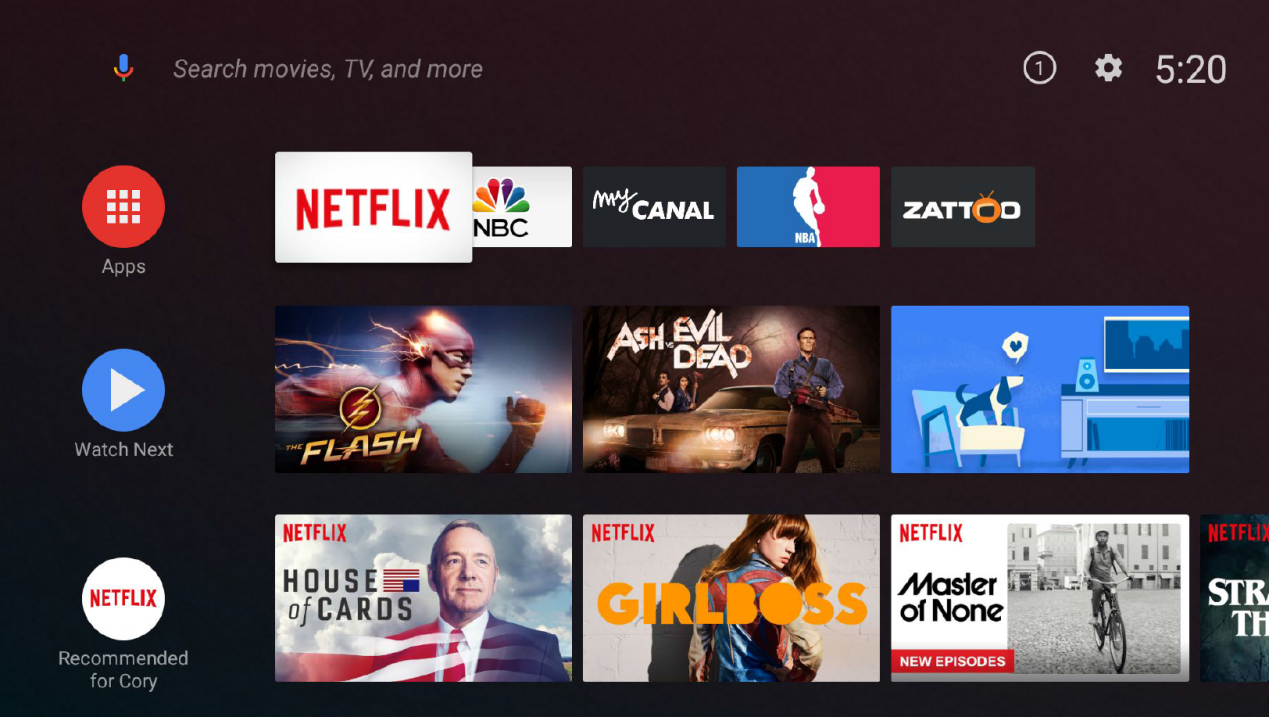
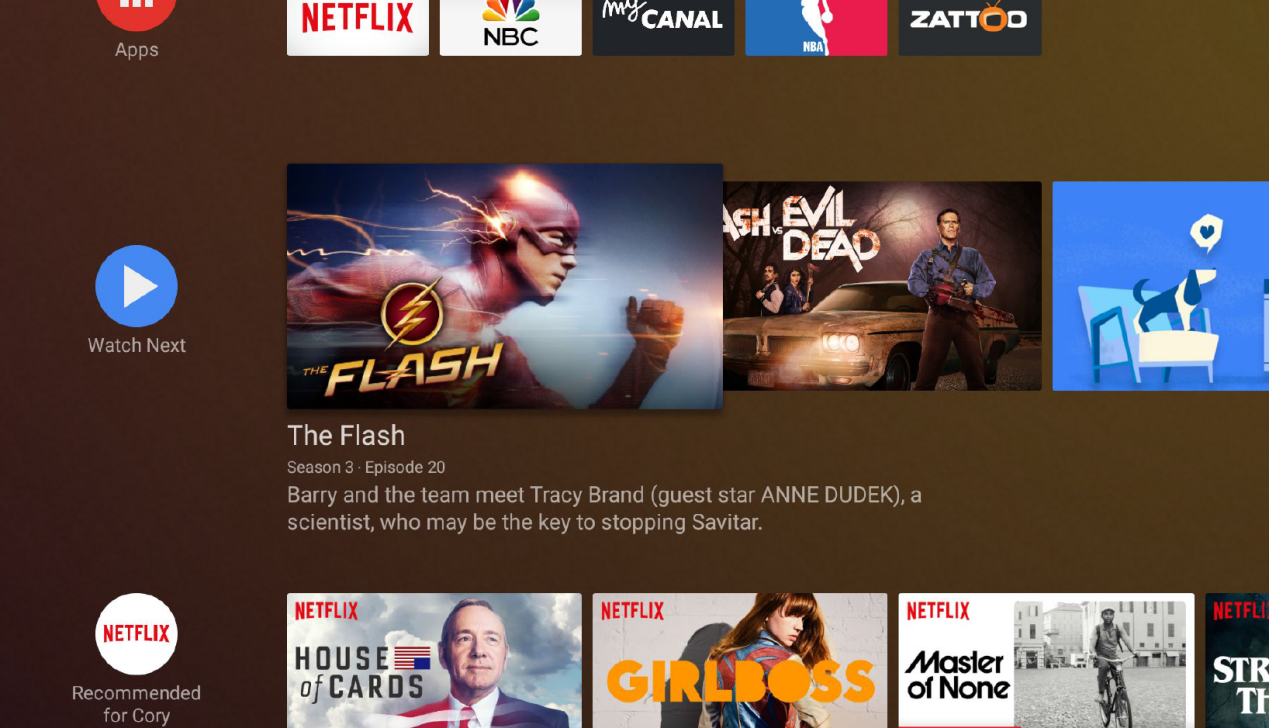
- 方向键移动焦点,确定键进入下一级界面。
- Press the key of “Direction” to move focus; press the key of “Sure” to enter the next page.
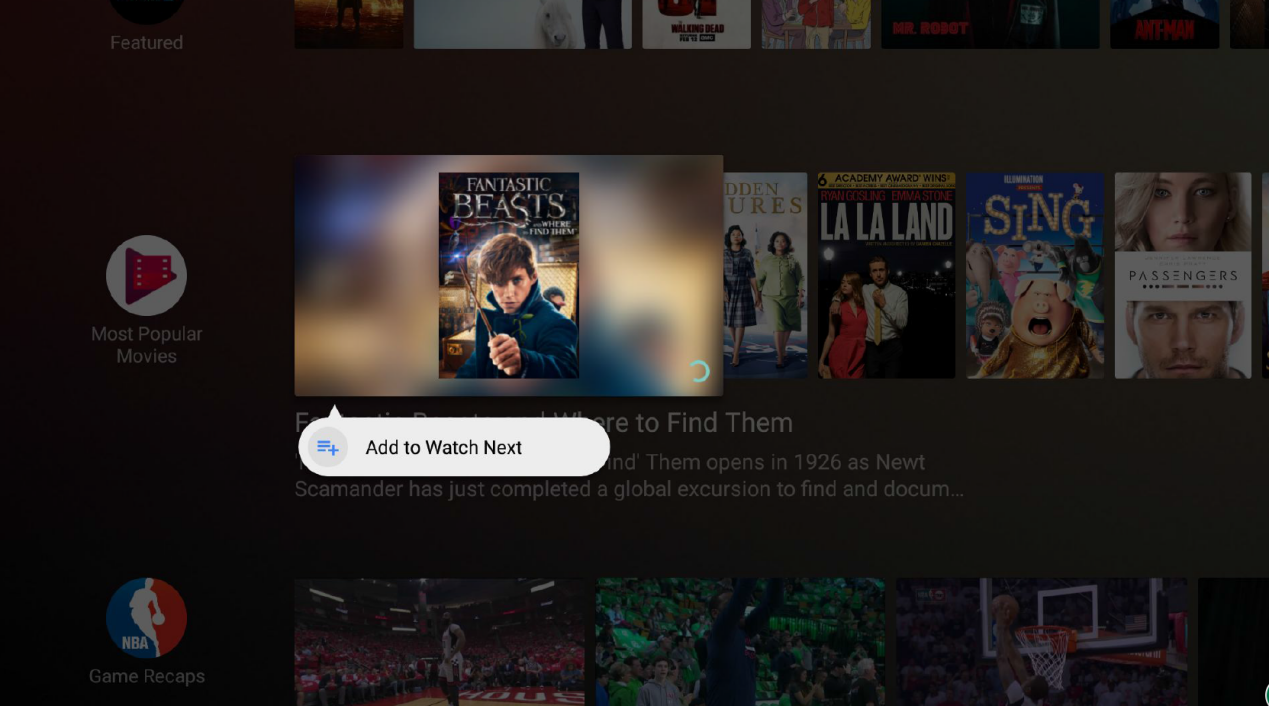
- 选中海报或者应用,长按确定键,可以调出设置菜单。
- Select a poster or application, then long press the key of “Sure” to callout the setting menu.
- 移动到行的最左侧,可以设置本行的位置,或者取消本行在桌面的显示。
- Move to the leftmost side of the row, so as to set this row’s position or to cancel this row’s display on the desktop.
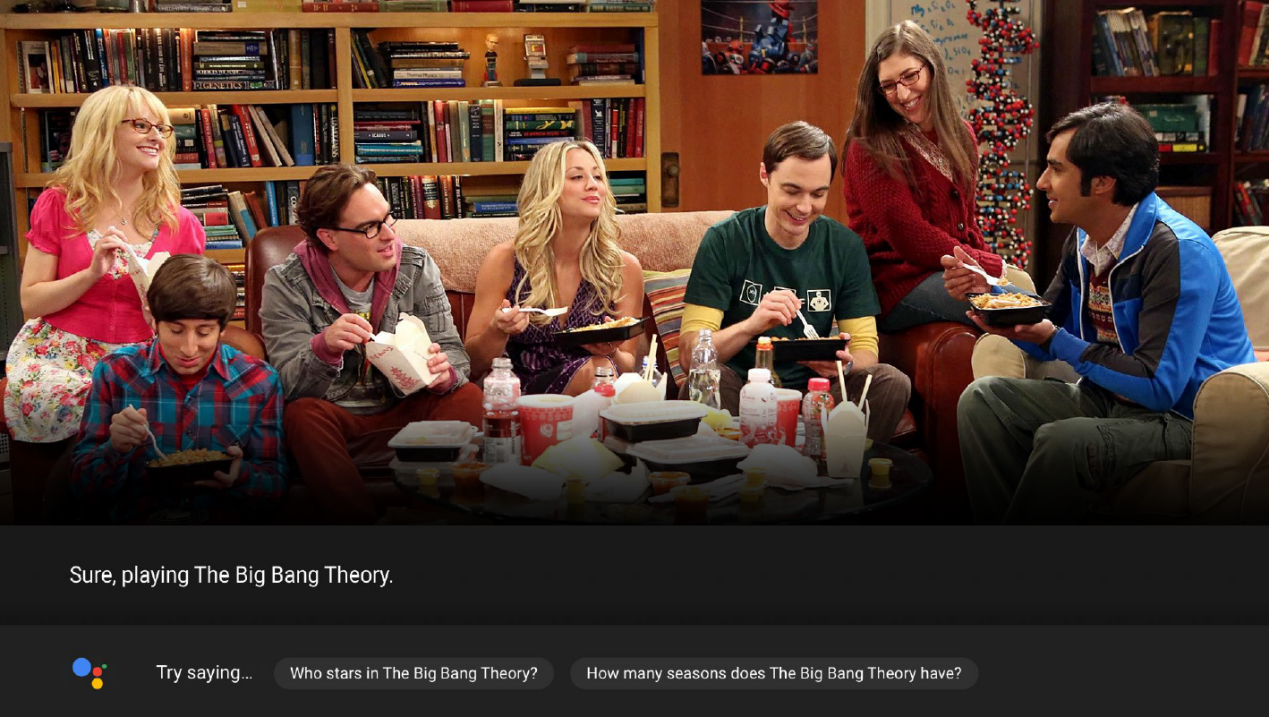
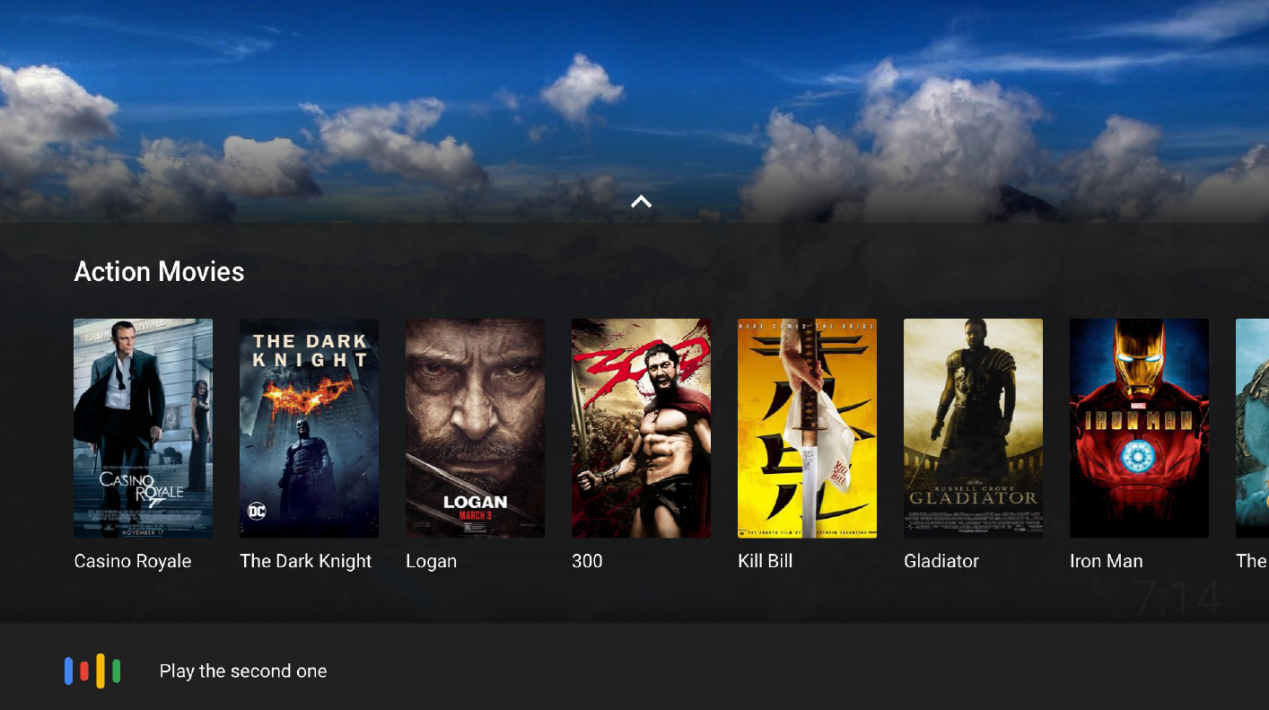
- 按遥控器语音键,可以调出语音搜索界面,输入语音指令之后,电视开始执行搜索。(语音输入“help”,可以查看不同语音指令)
六、语音
VI. Voice
Press the key of “Voice” on the remote control to callout the interface of voice search. After inputting a voice command, TV starts searching (Input voice “help”, then you can view different voice commands).

七、设置
VII. Setting
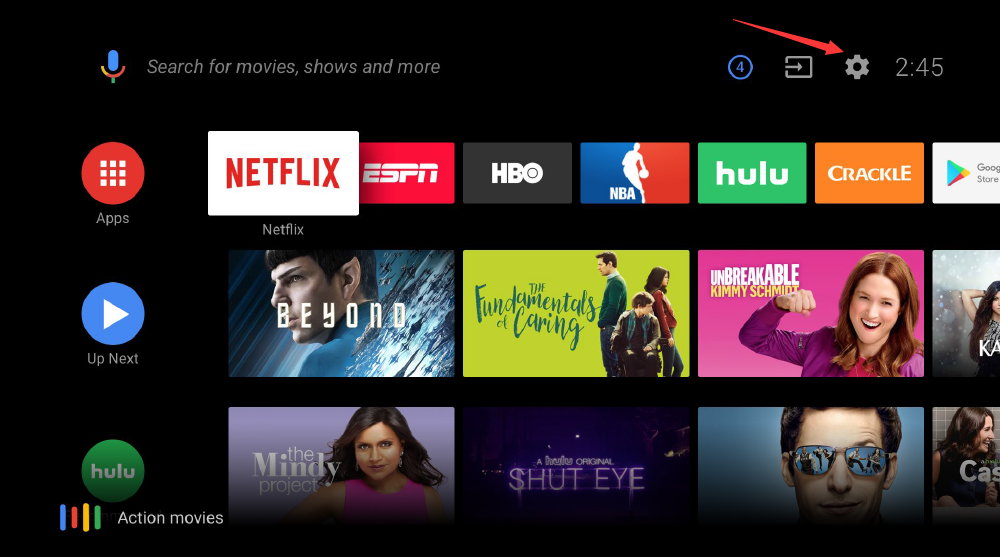
- 焦点移动到主页的设置图标,按确定键进入,可进行时间,语言,图像,声音等设置。
- Move the focus to the icon of “Setting” on the homepage, then press the key of “Sure” to enter the interface to set items such as “time, language, image, voice, etc.
八、输入源
VIII. Input source
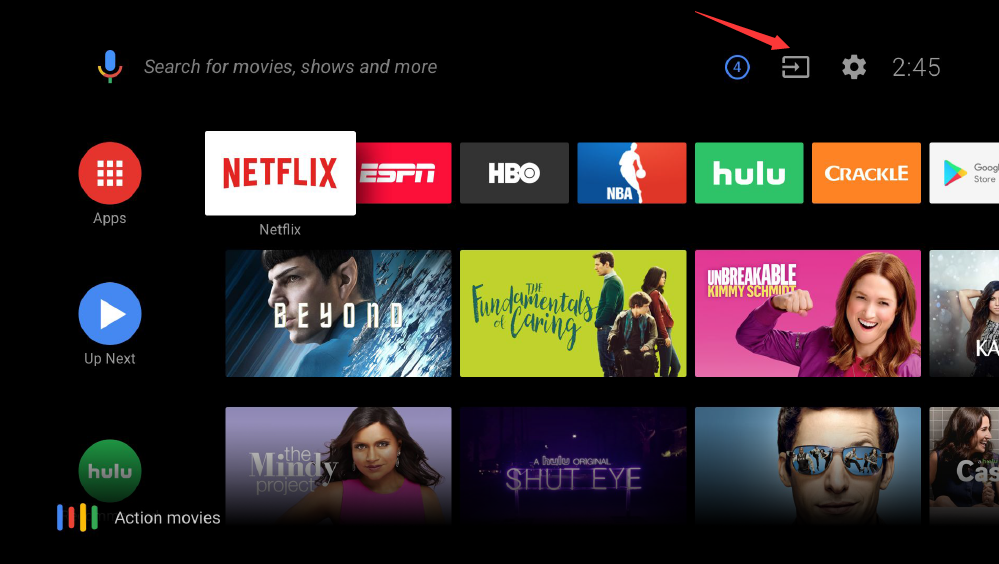
- 焦点移动到输入源图标,按确定键可以打开输入源列表,选择对应输入源进入。
- Move the focus to the icon of “Input Source”, press the key of “Sure” to open the list of “Input Source”, then choose the corresponding input source.
8.1.U盘升级
8.1 U disk upgrade
- FAT32格式U盘,U盘根目录放入update包和升级配置文件:
FAT32 format U disk. U disk root directory shall be put into the update package and the upgrade configuration file.
- U盘插入usb2.0口。(user版本,侧口和后边usb口均可,userdebug版本,插入后面usb口)
- Insert U disk into the usb2.0 port. (user version: usb ports on the side or behind are available; userdebug version: insert it into the usb port behind.
- 上电前,先重新安装一次遥控器电池,断开蓝牙配对连接。
- Before connecting to electricity, users should re-install batteries in the remote control, disconnect the Bluetooth pairing connection.
- 按住遥控器的确定键和返回键,电视上电。
- Press on the keys of “Sure” and “Return” on the remote control, TV is powered.
- 电视进入升级界面,松开遥控器按键。
- When TV enters the upgrade interface, loose the keys on the remote control.
- 升级完成之后,自动开机。
- After completing upgrading, it boots automatically.
- 有在线升级推送时,电视自动检测,进入设置-关于-系统更新,手动下载升级包,下载完成后重启更新。
8.2.在线升级
8.2 Online upgrade
If there are notices of online upgrade, TV will automatically detect, then enter the interface of “Setting”, search the items “About” - “System update”. Users need to manually download the upgrade package. After downloading, re-start the system to complete updating.
如果有在線升級通知,電視會自動檢測,然後進入“設置”界面,搜索“關於”-“系統更新”項。 用戶需要手動下載升級包。 下載完成後,重啟系統即可完成更新。
有幫助嗎?