

Xiaomi Robot Vacuum S60 FAQ
Basic Information
Q1: What are the selling points of the Xiaomi Robot Vacuum S60?
A: The Xiaomi Robot Vacuum S60 features the following selling points:
1. 28,000 Pa powerful suction for rapid dust collection:
The robot vacuum features an upgraded suction system with a powerful 28,000 Pa fan, delivering strong suction to pick up dust and debris in a single pass.
2. High-frequency sonic vibration mopping for removing sticky stains:
The robot vacuum features an upgraded mopping system that combines high-frequency scrubbing with an electronically controlled water tank to leave floors looking bright and clean.
3. Multi-dimensional anti-tangle technology for hands-free maintenance:
The robot vacuum features an upgraded side brush that stays extended during cleaning to help prevent tangles and reach deep into corners.
Its V-shaped main brush and high-density comb teeth work together to remove hair and help prevent tangling effectively.
Q2: How does the automatic hair-cutting anti-tangle main brush of the Xiaomi Robot Vacuum S60 work?
A: The Xiaomi Robot Vacuum S60 features an integrated rubber-and-bristle main brush with a comb-tooth structure to reduce hair tangling.
The side brush uses an anti-tangle two-prong design to prevent tangling. Regularly clean hair from the main brush and side brush. It is recommended to replace the main brush every 6-12 months, and the side brush every 3-6 months.
Q3: What is the maximum suction power of the Xiaomi Robot Vacuum S60? How many levels are available?
A: The Xiaomi Robot Vacuum S60 has a maximum suction power of ≥ 28 kPa.
There are 4 suction levels available:
1. Silent mode (≥0.8 kPa).
2. Standard mode (≥1.2 kPa).
3. Strong mode (≥2.0 kPa).
4. Turbo mode (4 kPa).
Q4: What is the climbing ability and obstacle crossing height of the Xiaomi Robot Vacuum S60?
A: The Xiaomi Robot Vacuum S60 has the following climbing and obstacle crossing capabilities:
Obstacle crossing height: 20 mm in dry conditions and 18 mm in wet conditions (applicable to vertical steps, round pipes, square pipes, sliding door tracks, etc.)
Climbing angle: ≤10°.
Product Appearance
Q1: What are the dimensions of the Xiaomi Robot Vacuum S60?
A: The main unit of the Xiaomi Robot Vacuum S60 measures 340 × 340 × 98 mm, while the charging dock measures 130 × 121 × 95 mm.
Q2: What is the water tank capacity of the Xiaomi Robot Vacuum S60?
A: The water tank capacity of the Xiaomi Robot Vacuum S60 is 270 ml.
Q3: What are the main functional components of the Xiaomi Robot Vacuum S60 main unit?
A: The main functional components of the Xiaomi Robot Vacuum S60 main unit include:
1. LDS laser sensor, which is located on the top of the main unit.
2. Front collision sensor, which is located on the front; collision buffering and obstacle detection.
3. Dust compartment and filter, which is located under the top cover; collects dust and hair and filters exhaust air.
4. Water tank and mop pad, which are located at the bottom of the main unit. The mop pad is attached to the water tank, and the water tank supplies water to the mop pad during mopping.
5. Main brush, which is located at the bottom center suction port; peels off dirt, hair, and particles from the floor.
6. Side brush, which is located on the bottom front right, sweeps dust from corners and edges to the suction area.
7. Drive wheels and caster wheel: The drive wheels are on the bottom left and right, and the caster wheel is located at the center of the front underside; for drive movement, steering, and obstacle crossing.
8. Cliff sensors (× 3), which are located on the bottom edge, prevent the robot vacuum from falling off elevated surfaces.
Power Related
Q1: What is the battery capacity and battery life of the Xiaomi Robot Vacuum S60?
A: The Xiaomi Robot Vacuum S60 is equipped with a high-performance lithium-ion battery (18650) with the following specifications:
1. Nominal capacity: 5,200 mAh.
2. Rated capacity: 4,800 mAh.
3. Voltage: 14.4 V.
In Standard mode, it provides a vacuuming runtime of ≥180 minutes and a vacuuming & mopping runtime of >150 minutes. With the water flow set to Level 1, the water tank supports a runtime of >160 minutes, and the robot vacuum is suitable for areas larger than 180 m².
Q2: What is the power rating of the Xiaomi Robot Vacuum S60?
A: The Xiaomi Robot Vacuum S60 has a rated power of 70 W. The charging dock has a charging power of 20 W.
Q3: How to turn the Xiaomi Robot Vacuum S60 on or off?
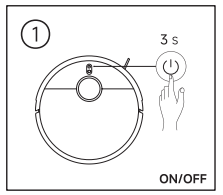
A: To turn on the Xiaomi Robot Vacuum S60, press and hold the On/Off button on the main unit for 3 seconds. The robot vacuum will turn on after a voice prompt is heard.
To turn off the robot vacuum, press and hold the On/Off button on the main unit for 3 seconds.
Q4: Why does the Xiaomi Robot Vacuum S60 consume battery quickly during cleaning?
A: The Xiaomi Robot Vacuum S60 can consume battery quickly during cleaning for the following reasons:
1. Using Strong or Turbo suction levels will increase battery consumption.
2. Enabling the mopping function increases power consumption as the water pump operates continuously.
3. Complex floor environments, such as carpets or areas with many obstacles, can cause the robot vacuum to frequently adjust its route and navigate obstacles.
4. Battery aging can reduce battery capacity after more than 500 charge cycles.
5. Low ambient temperatures below 0 °C could affect battery discharge efficiency.
Note:
For daily use, it is recommended to use Standard mode and adjust the suction power according to the level of dirt to help extend battery life.
Q5: Why does the Xiaomi Robot Vacuum S60resume cleaning after recharging mid-session?
A: This is the "cleanup resumption" feature of the Xiaomi Robot Vacuum S60. This feature is enabled by default. If the battery runs low during a cleaning cycle, the main unit automatically returns to the dock to charge. Once the battery reaches 80% capacity, it resumes the unfinished task.
Q6: Why does the Xiaomi Robot Vacuum S60 main unit automatically shut down?
A: The Xiaomi Robot Vacuum S60 main unit may automatically shut down for the following reasons:
1. When the battery level is critically low, the robot vacuum will automatically power off to protect the battery.
2. If sleep mode exceeds 12 hours, it will automatically shut down.
Q7: What to do if the Xiaomi Robot Vacuum S60 cannot be powered on?
A: If the Xiaomi Robot Vacuum S60 cannot be powered on, please try the following:
1. If the Xiaomi Robot Vacuum has insufficient battery power. Please place it on the charging dock and fully charge it before use.
2. If the ambient temperature is too low (below 0 °C) or too high (above 40 °C), please use the Xiaomi Robot Vacuum in an environment with an ambient temperature between 0 °C and 40 °C.
3. If the issue persists, please contact the after-sales service center for further assistance.
Q8: What to do if the Xiaomi Robot Vacuum S60 cannot charge?
A: If the Xiaomi Robot Vacuum S60 cannot charge, please refer to the following steps to troubleshoot:
1. If the robot vacuum fails to return to the charging dock on the first attempt, please observe whether it can eventually return and charge successfully. If it can return to the dock properly after a short period, this is considered normal. If it repeatedly fails to return to the dock, further troubleshooting is required.
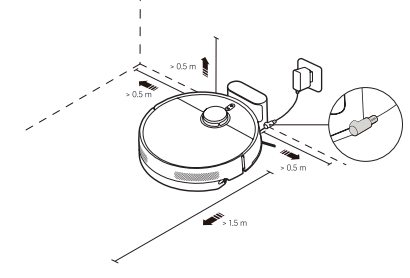
2. Do not place the charging dock in direct sunlight. Make sure there are no objects within 0.5 m on either side and 1.5 m in front of the charging dock, and avoid placing the dock near reflective or mirrored surfaces.
3. Check whether the charging dock is located in an area that the robot vacuum cannot reach, and make sure there are no obstacles along the route to the dock that could prevent the robot vacuum from returning.
4. Check whether the infrared charging sensors on the robot vacuum and charging dock are dirty or blocked by foreign objects.
5. Check whether the left and right drive wheels are tangled with foreign objects and whether they can rotate and operate properly.
6. Make sure you are using the original power adapter. Ensure that both ends of the power cable are properly connected and that the power is switched on. You can also try using a different power outlet.
7. Check and clean the charging contacts on both the charging dock and the robot vacuum. Make sure they are free of dust and that the charging contacts on the dock can spring back properly. If there are any black oxidation marks, please contact the after-sales service center.
8. If the issue persists after completing the above steps, please contact the after-sales service center for further assistance.
Q9: Does the Xiaomi Robot Vacuum S60 shut down after returning to the charging dock?
A: After the Xiaomi Robot Vacuum S60 returns to the charging dock, it will automatically start charging and remain in standby mode rather than powering off. To turn it off, remove the robot vacuum from the charging dock first, then press and hold the On/Off button for 3 seconds. The robot vacuum cannot be powered off while it is charging.
Cleaning Modes
Q1: Does the Xiaomi Robot Vacuum S60 support the use of cleaning agents?
A: The Xiaomi Robot Vacuum S60 doesn't support adding cleaning agents in the water tank. Please fill the water tank with clean tap water only. Do not add water containing visible impurities, hot water, cleaning agents, disinfectants, or other substances, as this can damage the water tank.
Q2: What cleaning modes does the Xiaomi Robot Vacuum S60 support?
A: The Xiaomi Robot Vacuum S60 supports the four cleaning modes: Vacuuming, Vacuuming & Mopping, Vacuuming before mopping, and Mopping.
Q3: How to use the Vacuuming & Mopping mode on the Xiaomi Robot Vacuum S60?
A: To use the Vacuuming & Mopping mode on the Xiaomi Robot Vacuum S60:
1. After refilling the water tank, install it onto the main unit.
2. Go to the Xiaomi Home App >> select the device >> [Modes] >> select [Vacuuming & Mopping].
3. Press the On/Off button on the robot vacuum or tap [Start cleanup] in the App. The robot vacuum will vacuum and mop simultaneously.
Q4: How to set the Vacuuming before mopping mode on the Xiaomi Robot Vacuum S60?
A: To set the Vacuuming before mopping mode on the Xiaomi Robot Vacuum S60:
1. After refilling the water tank, install it onto the main unit.
2. Go to the Xiaomi Home App >> select the device >> [Modes] >> select [Vacuuming before mopping].
3. Press the On/Off button on the robot vacuum or tap [Start cleanup] in the App. The robot vacuum will first complete vacuuming the entire home, then automatically switch to mopping mode.
This mode is suitable for areas with a lot of dust, as vacuuming before mopping provides better cleaning results.
Q5: How to enable the Vacuuming mode on the Xiaomi Robot Vacuum S60?
A: To enable the Vacuuming mode on the Xiaomi Robot Vacuum S60, please refer to the following methods:
1. Go to the Xiaomi Home App >> select the device >> [Modes] >> select [Vacuuming].
2. Alternatively, remove the water tank and mop pad assembly, then press the On/Off button on the robot vacuum. The robot vacuum will perform the vacuuming function only.
Q6: How to enable the mopping mode on the Xiaomi Robot Vacuum S60?
A: To enable the mopping mode on the Xiaomi Robot Vacuum S60, please refer to the following steps:
1. After refilling the water tank, install it onto the main unit.
2. Go to the Xiaomi Home App >> select the device >> [Modes] >> select [Mopping], then set the suction power level and water flow level.
3. Press the On/Off button on the robot vacuum or tap [Start cleanup] in the App. The robot vacuum will perform the mopping function only.
Q7: Can water be added to the Xiaomi Robot Vacuum S60 during cleaning?
A: Yes. If you need to add water during cleaning, pause the Xiaomi Robot Vacuum S60, remove the water tank, fill it with water, and reinstall it before resuming cleaning. It is recommended to fill the water tank before starting a cleaning task to avoid frequently adding water during cleaning.
Map Management
Q1: How to quickly create a map with the Xiaomi Robot Vacuum S60? What are the precautions for first-time use?
A: To quickly create a map with the Xiaomi Robot Vacuum S60, please refer to the following information:
Quick map creation:
1. After connecting the robot vacuum to the network for the first time, follow the instructions in the Xiaomi Home App to start quick map creation. The robot vacuum will create the map without cleaning.
2. Once the robot vacuum automatically returns to the charging dock, map creation is complete, and the map will be saved automatically.
Preparation before map creation:
1. Make sure the robot vacuum has sufficient battery power and starts from the charging dock.
2. Open all room doors, put away loose items on the floor, and remove any objects that can interfere with the robot vacuum's operation.
3. It is recommended to block off areas where the robot vacuum can become stuck.
Settings after map creation:
1. It is recommended to set virtual walls or restricted areas around high-pile carpets, carpets with fringes, or areas where the robot vacuum can become stuck.
2. Before mopping, set virtual walls or restricted areas around carpeted areas to prevent the carpets from getting wet.
Q2: How many maps can the Xiaomi Robot Vacuum S60 save? How to create multi-floor maps?
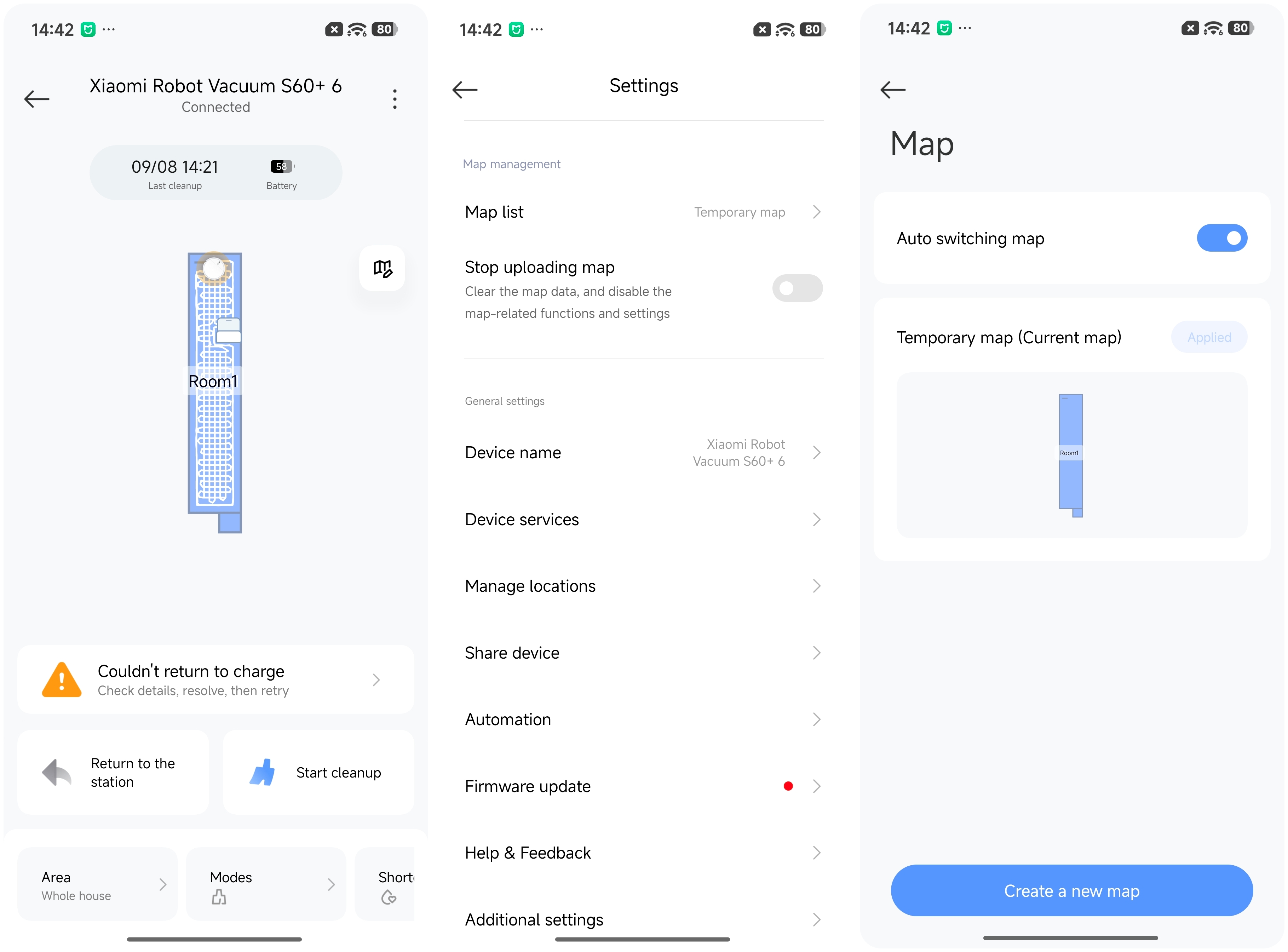
A: The Xiaomi Robot Vacuum S60 supports creating multi-floor maps, saving up to 4 permanent maps and 1 temporary map.
Open the Xiaomi Home App >> tap the three-dot icon in the upper-right corner >> [Map list] >> [Create a new map] or [Auto switching map].
Q3: How to set virtual walls and restricted areas for the Xiaomi Robot Vacuum S60?
A: You can set virtual walls and restricted areas for the Xiaomi Robot Vacuum S60 through the following methods:
Method 1:
1. Go to the Xiaomi Home App.
2. Select the device.
3. Tap the Map icon.
4. Switch to [Edit].
5. Select [Restricted areas & virtual walls].
Method 2:
1. Go to the Xiaomi Home App.
2. Select the device.
3. Tap the three dots icon in the upper right corner to enter settings
4. Switch to [Map list].
5. Select the map.
6. Choose [Restricted area].
Available options:
Virtual wall: Draw a line on the map. The robot vacuum will not cross the line.
Vacuuming & mopping restricted area: Draw an area on the map. The robot vacuum will not enter the area in Vacuuming & Mopping mode.
Mopping restricted area: Draw an area on the map. The robot vacuum will not enter the area in Mopping mode, but it can still enter the area when vacuuming.
Q4: How to set carpet recognition and carpet preferences for the Xiaomi Robot Vacuum S60?
A: The Xiaomi Robot Vacuum S60 does not have an ultrasonic carpet detection sensor. However, you can configure carpet settings in the Xiaomi Home App by going to [Map list] >> select a map >> [Carpet].
You can mark carpeted areas on the map and then set the cleaning preference for those areas. Available options include [Vacuums only on carpets], [Carpet avoidance], [Carpet crossing], and [Ignore carpets].
Q5: How to edit, merge, divide, or rename rooms on the Xiaomi Robot Vacuum S60?
A: To merge, split, or rename rooms on the Xiaomi Robot Vacuum S60 map, please refer to the following steps:
1. Go to the Xiaomi Home App >> select the robot vacuum >> tap the map icon in the top-right corner >> [Edit] >> [Edit room]. Alternatively, go to Settings >> [Map list] >> select the corresponding map >> [Room].
2. Divide, merge, or rename rooms as needed.
Q6: How to add furniture to the map of the Xiaomi Robot Vacuum S60?
A: To add furniture to the map of the Xiaomi Robot Vacuum S60, please refer to the following steps:
Go to the Xiaomi Home App >> select the robot vacuum >> tap the map icon >> [Edit] >> [Edit furniture]. You can add the corresponding furniture models.
Q7: How to set floor materials on the map of the Xiaomi Robot Vacuum S60?
A: To set floor materials on the map of the Xiaomi Robot Vacuum S60:
Go to the Xiaomi Home App >> select the robot vacuum >> tap the map icon in the top-right corner >> [Edit] >> [Edit floor material]. Alternatively, go to Settings >> [Map list] >> select the corresponding map >> [Materials]. Floor materials can be set for different areas.
Q8: How to delete a map on the Xiaomi Robot Vacuum S60?
A: To delete a map on the Xiaomi Robot Vacuum S60, please refer to the following methods:
Method 1:
In the Xiaomi Home App >> select the robot vacuum >> tap the map icon in the top-right corner >> [Edit] >> [Map list] >> tap the corresponding map >> delete the map. After confirming, the map will be removed, and you will need to create a new map.
Method 2:
In the Xiaomi Home App >> select the robot vacuum >> tap the three-dot icon in the upper right corner to enter [Settings] >> [Map list] >> tap the corresponding map >> delete the map. After confirming, the map will be removed.
Note:
The map will need to be recreated after deletion. Please proceed with caution and confirm that the map is no longer needed before deleting it.
Q9: What to do if the map of the Xiaomi Robot Vacuum S60 is skewed?
A: If the map of the Xiaomi Robot Vacuum S60 is skewed, it is recommended to select a saved map from the map list and tap [Restore], or delete it and create a new map.
Q10: Why is the map incomplete when quickly creating a map with the Xiaomi Robot Vacuum S60?
A: If the map is incomplete when quickly creating a map with the Xiaomi Robot Vacuum S60, the following could be the cause:
1. Room doors are closed, preventing the robot vacuum from entering certain areas.
2. Objects or obstacles on the floor are blocking the robot vacuum's path.
3. The ambient lighting is too bright or too dim, which may affect the LiDAR sensor.
4. The robot vacuum returns to the charging dock due to insufficient battery power before completing the full-home mapping.
It is recommended to clear obstacles from the floor, open all room doors, ensure that the robot vacuum has sufficient battery power, and then create the map again.
Navigation and Obstacle Avoidance
Q1: What is the LiDAR on the Xiaomi Robot Vacuum S60? What does it do?
A: The LiDAR is a rotating laser distance sensor located on the top of the main unit. It scans the surrounding environment by emitting laser beams, measures distances in real time, and builds a map of the room to enable precise positioning and systematic navigation.
The Xiaomi Robot Vacuum S60 uses LiDAR navigation together with a planned cleaning route (edge cleaning first, followed by a zigzag pattern), providing more comprehensive coverage and higher cleaning efficiency.
Q2: What is the working principle of the obstacle avoidance system on the Xiaomi Robot Vacuum S60?
A: The Xiaomi Robot Vacuum S60 uses a combination of LiDAR and a mechanical bumper for obstacle avoidance:
1. The LiDAR scans the surrounding environment to detect large obstacles such as furniture and walls, and plans a route to navigate around them.
2. When the mechanical bumper comes into contact with an obstacle, it triggers a collision signal, causing the main unit to move backward and change direction.
Q3: What to do if the laser sensor of the Xiaomi Robot Vacuum S60 is abnormal?
A: If the laser sensor of the Xiaomi Robot Vacuum S60 is abnormal, please refer to the following steps to troubleshoot:
1. Manually rotate the top laser sensor to check for and clear away any foreign objects.
2. Restart the robot vacuum and attempt to run a cleaning cycle again
3. If the issue persists, please contact the after-sales service center.
It is recommended to regularly wipe the main unit's top cover to prevent small debris from entering the LDS and causing laser sensor malfunctions.
Q4: Why does the Xiaomi Robot Vacuum S60 still collide with or scratch furniture even with the obstacle-avoidance sensors?
A: The Xiaomi Robot Vacuum S60 uses LiDAR and a mechanical bumper for obstacle avoidance. The mechanical bumper is triggered only when it comes into physical contact with an object. The following situations can result in collisions:
1. Small objects (such as chair legs, scales, and cables) can not be detected by the LiDAR.
2. Dark-colored or reflective objects can affect LiDAR detection.
3. Objects that are too low can be below the LiDAR’s scanning range and therefore can not be detected.
Before cleaning, it is recommended to remove small objects from the floor. For valuable or delicate furniture, set up virtual walls or restricted areas around them to help prevent collisions.
Q5: What is the cliff sensor of the Xiaomi Robot Vacuum S60?
A: The cliff sensors are located on the bottom of the main unit and consist of three sets of infrared sensors. They detect differences in floor height to prevent the main unit from falling down stairs or steps.
Detection capability:
1. Black or gray surfaces: height differences greater than 20 mm can be detected.
2. Pure white surfaces: height differences below 85 mm can be detected.
It is recommended to regularly wipe the cliff sensor windows with a dry cloth to keep them clean and ensure reliable detection.
Q6: What is the function of the bumper on the Xiaomi Robot Vacuum S60?
A: The bumper (mechanical bumper) is located at the front of the robot vacuum. When the main unit comes into contact with an obstacle, the bumper is pressed inward and triggers the collision switch. After receiving the signal, the robot vacuum moves backward and changes direction to help protect both the device and furniture.
Q7: Why can't the Xiaomi Robot Vacuum S60 enter some narrow areas?
A: If the Xiaomi Robot Vacuum S60 cannot enter certain narrow areas, the reasons are as follows:
1. The passage is narrower than the main unit’s diameter (340 mm), so the main unit cannot pass through.
2. The obstacle was lower than the LiDAR, so the main unit failed to detect it, resulting in a collision and the subsequent abandonment of the task.
3. The threshold or step is higher than the device’s maximum obstacle-crossing height.
4. The area has been set as a virtual wall or restricted area.
Q8: Why does the Xiaomi Robot Vacuum S60 run over obstacles during cleaning?
A: For small objects that cannot be detected by the LDS, such as cables, socks, and small toys. The robot vacuum can run over them directly. It is recommended to clear clutter from the floor before cleaning, especially items such as power cords, charging cables, balloons, and small toys, which can become tangled in or damage the main unit.
Q9: Why is the cleaning path of the Xiaomi Robot Vacuum S60 abnormal?
A: If the cleaning path of the Xiaomi Robot Vacuum S60 is abnormal, please refer to the following reasons:
1. The LiDAR sensor is obstructed or dirty, affecting positioning.
2. Significant environmental changes (e.g., moving furniture, new obstacles) have caused a mismatch between the map and the actual layout.
3. The unit lost its location after being moved.
4. The wheels are slipping or have foreign objects entangled in them.
Recommended actions: Clean the sensors, update the map, clear the drive wheels, and try again.
Q10: Why does the Xiaomi Robot Vacuum S60 enter restricted areas or virtual walls?
A: If the Xiaomi Robot Vacuum S60 enters restricted areas or virtual walls, please refer to the following reasons:
1. The virtual wall or restricted area is inaccurately positioned, deviating from the actual environment.
2. Map drift has caused positioning errors.
It is recommended to recalibrate the map and adjust the placement of the virtual wall or restricted area, ensuring sufficient clearance.
Q11: Does the Xiaomi Robot Vacuum S60 support automatic mop lifting?
A: The Xiaomi Robot Vacuum S60 does not support automatic mop lifting.
Xiaomi Home App
Q1: How does the Xiaomi Robot Vacuum S60 automatically resume cleaning when the battery is low?
A: The cleanup resumption feature of the Xiaomi Robot Vacuum S60 is enabled by default. If the battery level becomes low during cleaning, the main unit will automatically return to the charging dock to recharge. Once the battery reaches 80%, it will automatically resume and continue the unfinished cleaning task.
Q2: What to do if the map loads slowly or fails to load on the Xiaomi Robot Vacuum S60?
A: If the map loads slowly or fails to load on the Xiaomi Robot Vacuum S60, please refer to the following steps to troubleshoot:
1. Check whether the phone’s network connection is working properly.
2. Make sure the robot vacuum is connected to Wi-Fi properly (the indicator should remain blue).
3. Restart the Xiaomi Home App or refresh the page.
4. If the connection frequently fails, try resetting the device’s Wi-Fi settings and reconnecting it to the network.
Q3: How to connect the Xiaomi Robot Vacuum S60 to the Xiaomi Home App?
A: The Xiaomi Robot Vacuum S60 connects to Xiaomi Home and can be controlled through the App.
To connect the Xiaomi Robot Vacuum S60 to the Xiaomi Home App, please refer to the following steps:
1. Scan the QR code to download and install the Xiaomi Home App. If the Xiaomi Home App is already installed, you will be directed to the device connection page. Alternatively, search for “Xiaomi Home” in the Google Play Store or Apple App Store to download and install the App.
2. Open the Xiaomi Home App, tap the [+] icon in the upper-right corner, and follow the in-app instructions to add the device.
Note:
1. The product supports 2.4 GHz Wi-Fi networks only.
2. Due to updates and upgrades to the Xiaomi Home App, the actual operation can differ slightly from the description above. Please follow the instructions provided in the latest version of the App.
3. Once the robot vacuum is successfully connected to the Xiaomi Home App, it is also successfully connected to the network. You can disconnect it from the network by resetting its Wi-Fi settings.
Q4: Can the Xiaomi Robot Vacuum S60 be controlled by voice? Which voice assistants are supported?
A: The Xiaomi Robot Vacuum S60 supports voice control via Alexa and Google Assistant.
You can link your Xiaomi account in the Alexa or Google Home App to use voice commands to start cleaning, return the robot vacuum to the charging dock, and perform other operations.
Q5: What to do if the Xiaomi Home App shows the Xiaomi Robot Vacuum S60 is offline?
A: If the Xiaomi Home App shows the Xiaomi Robot Vacuum S60 is offline, please try the following steps to troubleshoot:
1. Weak Wi-Fi signal: Ensure the main unit is located in an area with good Wi-Fi coverage.
2. Abnormal Wi-Fi connection: Reset the Wi-Fi, download the latest version of the Xiaomi Home App, and then try reconnecting.
3. Ensure the main unit is powered on. It enters offline mode when powered off.
Q6: What is the whole house function of the Xiaomi Robot Vacuum S60?
A: The whole house function of the Xiaomi Robot Vacuum S60 refers to cleaning the entire home.
The robot vacuum starts from the charging dock and follows the planned cleaning route to cover the entire mapped area. Once cleaning is complete, it automatically returns to the station.
Q7: What is the custom area cleaning function of the Xiaomi Robot Vacuum S60?
A: Custom area cleaning allows you to manually select one or more rectangular areas on the map. The Xiaomi Robot Vacuum S60 will clean only the selected areas.
Go to the Xiaomi Home App >> select the robot vacuum >> [Area] >> [Custom area]. Then draw the areas you want to clean on the map.
Q8: How to adjust the cleaning modes of the Xiaomi Robot Vacuum S60?
A: To adjust the cleaning modes of the Xiaomi Robot Vacuum S60, you can open the Xiaomi Home App >> select the robot vacuum >> [Modes].
You can adjust the following items:
1. Cleaning mode: Vacuuming, Vacuuming & Mopping, Vacuuming before mopping, and Mopping.
2. Suction levels: Silent, Standard, Strong, Turbo.
3. Water output for mopping: Level 1, Level 2, Level 3.
4. Cleaning path: Quick, Standard, Deep.
5. Cleaning times: Once, Twice.
Q9: How to view cleaning records of the Xiaomi Robot Vacuum S60?
A: To view the cleaning records of the Xiaomi Robot Vacuum S60, please refer to the following steps:
Go to the Xiaomi Home App >> select the robot vacuum >> tap the three-dot icon >> [Cleaning history].
The cleaning history includes start time, cleaning duration, and cleaned area.
It supports [Cleanup details], allowing you to view an animation of the cleaning path.
Q10: How to set Do Not Disturb periods on the Xiaomi Robot Vacuum S60?
A: To set the DND periods on the Xiaomi Robot Vacuum S60, please go to the Xiaomi Home App >> select the robot vacuum >> tap the three dots icon >> [DND period] >> enable [DND].
During a DND period, the robot vacuum will lower the voice volume and turn off the indicators. The scheduled cleanups will be invalid. After the DND period, the robot vacuum will resume the cleanup task where it left off.
Q11: How to manage consumables usage time on the Xiaomi Robot Vacuum S60?
A: To manage consumables usage time on the Xiaomi Robot Vacuum S60, please go to the Xiaomi Home App >> select the robot vacuum >> tap the three dots icon >> [Consumables management].
You can view the usage duration and remaining lifespan of various consumables, including the main brush, side brush, filter, and mop pad.
The app will send a reminder to replace the consumables when the recommended replacement interval is reached.
Q12: How to change the voice language of the Xiaomi Robot Vacuum S60?
A: To change the voice language of the Xiaomi Robot Vacuum S60, please go to the Xiaomi Home App >> select the robot vacuum >> three dots icon >> [Robot vacuum voice] >> select a language. This device supports English, French, Spanish, Italian, Japanese, Korean, Cantonese, etc. You can switch the language within the Xiaomi Home App.
Q13: How to set the voice volume on the Xiaomi Robot Vacuum S60?
A: To set the voice volume on the Xiaomi Robot Vacuum S60, please go to the Xiaomi Home App >> select the robot vacuum >> three dots icon >> [Robot vacuum voice].
You can adjust the volume level and tap [Listen] to listen to the current volume level.
Q14: Does the Xiaomi Robot Vacuum S60 support remote control?
A: The Xiaomi Robot Vacuum S60 supports remote control.
You can go to the Xiaomi Home App >> select the robot vacuum >> tap the three dots icon >> [More functions] >> [Remote control]. Manually control the movement direction of the robot vacuum.
Q15: Does the Xiaomi Robot Vacuum S60 support the Find robot vacuum function?
A: The Xiaomi Robot Vacuum S60 supports the Find robot vacuum function.
You can go to the Xiaomi Home App >> select the robot vacuum >> tap the three dots icon >> [More functions] >> [Find robot vacuum] >> tap [Broadcast]. The robot vacuum will emit a broadcast sound, making it easy to locate.
Q16: How to change the name of the Xiaomi Robot Vacuum S60?
A: To change the name of the Xiaomi Robot Vacuum S60, please go to the Xiaomi Home App >> select the robot vacuum >> tap the three dots icon >> [Device name]. Enter the desired name and save.
Q17: How to manage the location of the Xiaomi Robot Vacuum S60?
A: To change the location of the Xiaomi Robot Vacuum S60:
Path: Go to the Xiaomi Home App >> select the robot vacuum >> tap the three dots icon >> [Manage locations]. You can manage the location of the devices, which facilitates the management of multiple devices.
Q18: How to share the Xiaomi Robot Vacuum S60 with others?
A: To share the Xiaomi Robot Vacuum S60 with others:
Path 1: Open the Xiaomi Home App >> press and hold the device card on the home page >> [More] >> [Share] >> enter the other person's Xiaomi account (phone number, email, or Xiaomi ID).
Path 2: Open the Xiaomi Home App >> select the robot vacuum >> tap the three-dot icon >> [Share device] >> enter the other person's Xiaomi account (phone number, email, or Xiaomi ID). Confirming the share means sharing control of the device.
Q19: How to upgrade the firmware of the Xiaomi Robot Vacuum S60?
A: To upgrade the firmware of the Xiaomi Robot Vacuum S60, please go to the Xiaomi Home App >> select the robot vacuum >> tap the three dots icon >> [Firmware update]. You can check for updates or view the current firmware version. If a new version is available, you can upgrade by following the prompts.
Do not disconnect the power during the upgrade process.
Q20: How to submit feedback for the Xiaomi Robot Vacuum S60 through the App?
A: To submit feedback for the Xiaomi Robot Vacuum S60 through the Xiaomi Home App, please go to the Xiaomi Home App >> select the robot vacuum >> tap the three dots icon >> [Help & Feedback]. You can submit feedback and suggestions.
Q21: How to check the plugin version of the Xiaomi Robot Vacuum S60?
A: To check the plugin version of the Xiaomi Robot Vacuum S60:
Path: Go to the Xiaomi Home App >> select the robot vacuum >> three dots icon >> [Additional settings] >> [Plugin version].
The current plugin version number will be displayed.
Q22: How to set the time zone for the Xiaomi Robot Vacuum S60?
A: To set the time zone for the Xiaomi Robot Vacuum S60:
Path: Go to the Xiaomi Home App >> select the robot vacuum >> tap the three dots icon >> [Additional settings] >> [Device time zone].
Select the appropriate region to set the time zone for the device.
Q23: How to add a shortcut to the Xiaomi Robot Vacuum S60 on your phone's home screen?
A: To add a shortcut to the Xiaomi Robot Vacuum S60 on the home screen:
Path 1: Xiaomi Home App >> select the robot vacuum >> three-dot icon >> [Additional settings] >> [Add to Home screen].
Path 2: Xiaomi Home App >> press and hold the device card >> [More] >> [Add to Home Screen].
Q24: What to do if the firmware upgrade of the Xiaomi Robot Vacuum S60 fails?
A: If the firmware upgrade of the Xiaomi Robot Vacuum S60 fails, please check the following steps to troubleshoot:
1. Ensure the main unit has sufficient battery (recommended >50%), a stable network connection, and is currently charging.
2. Restart the main unit and the app, then dock the robot vacuum to recharge before trying again.
3. If the attempt fails repeatedly, contact the after-sales service center for assistance.
Q25: What to do if data fails to load when using the Xiaomi Robot Vacuum S60 in the Xiaomi Home App?
A: If data fails to load when using the Xiaomi Robot Vacuum S60 in the Xiaomi Home App, please try the following steps to troubleshoot:
1. Check the phone’s network connection and make sure it is stable.
2. Make sure the main unit is online.
3. Restart the Xiaomi Home App or clear its cache.
4. If the issue persists, uninstall and reinstall the App.
Charging Dock
Q1: What does the charging dock of the Xiaomi Robot Vacuum S60 look like?
A: The Xiaomi Robot Vacuum S60 is equipped with a standalone charging dock that provides charging only. It does not include a dust collection function. The charging dock requires connection to a power adapter (20 V/1 A/20 W).
Q2: What are the placement requirements for the Xiaomi Robot Vacuum S60 charging dock?
A: The charging dock of the Xiaomi Robot Vacuum S60 should be placed according to the following requirements:
1. Place it against a wall on a hard, level surface.
2. Reserve a clearance of at least 0.5 m on both the left and right sides of the charging dock, and at least 1.5 m at the front, to ensure proper access to the main unit.
3. Place it near a power outlet with a good Wi-Fi signal.
4. Avoid direct sunlight and humid environments.
Q3: Why does the Xiaomi Robot Vacuum S60 Wi-Fi disconnect?
A: The Xiaomi Robot Vacuum S60 Wi-Fi may disconnect for the following reasons:
1. The router signal is unstable, or there is interference on the 2.4 GHz Wi-Fi network.
2. The robot vacuum is too far from the router, or the signal is blocked by walls.
3. The router has restarted, or the network connection has been interrupted.
It is recommended to place the router in a suitable location and ensure a stable 2.4 GHz Wi-Fi connection. If necessary, reset the Wi-Fi settings and reconnect the robot vacuum to the network.
Usage Scenarios
Q1: Can the Xiaomi Robot Vacuum S60 operate in dark environments? What scenarios are recommended?
A: Yes, the Xiaomi Robot Vacuum S60 can operate in dark environments. The robot vacuum uses LiDAR navigation and does not rely on visible light, allowing it to navigate and clean properly in low-light environments (5 lux).
You should note the following information:
1. Under strong light conditions (≥20,000 lux, such as direct sunlight), make sure the LiDAR sensor can operate properly.
2. Operating temperature: 0–40 °C; operating humidity: <95%.
3. The robot vacuum is intended for use only on dry, flat indoor floors.
4. Use in bathrooms, on balconies, or outdoors is not recommended.
5. When mopping carpeted areas, set the carpeted areas as restricted areas.
Cleaning and Maintenance
Q1: How to clean the main unit components of the Xiaomi Robot Vacuum S60?
A: To clean the main unit components of the Xiaomi Robot Vacuum S60, please refer to the following information:
1. Turn off the robot vacuum and unplug the charging dock from the power supply.
2. Use a dry cloth to wipe the robot vacuum's exterior, LiDAR cover, and bumper.
3. Remove and empty the dust compartment. Rinse the dust compartment and filter with clean water, allow them to dry completely, and then reinstall them.
4. Remove any hair tangled around the main brush, side brush, caster wheel, and drive wheels. A cleaning tool can be used if necessary.
5. Remove the water tank and mop assembly, wash the mop pad, allow it to dry completely, and then reinstall it.
6. Use a dry cloth to wipe the charging contacts and cliff sensors on the bottom of the robot vacuum.
Note:
Do not rinse the robot vacuum directly with water or use cleaning agents or sprays.
Q2: How to clean the sensors and charging contacts of the Xiaomi Robot Vacuum S60?
A: To clean the sensors and charging contacts of the Xiaomi Robot Vacuum S60, please refer to the following information:
1. LiDAR cover: Gently wipe it with a clean, soft cloth. Do not touch the lens directly with your hands.
2. Cliff sensors (3 sets on the bottom): Wipe the cliff sensors with a dry cloth.
3. Charging contacts (on the bottom): Wipe them with a dry cloth to remove dust.
4. Infrared charging sensor (behind the bumper's transparent window): Wipe it with a dry cloth.
It is recommended to clean the sensors regularly to maintain optimal detection performance.
Q3: How to clean the charging contacts of the Xiaomi Robot Vacuum S60?
A: Wipe the charging contacts on the bottom of the Xiaomi Robot Vacuum S60 and the spring contacts on the charging dock with a clean, dry cloth to remove dust. If any black oxidation marks appear, please contact the after-sales service center for further assistance.
Q4: How to clean the caster wheel of the Xiaomi Robot Vacuum S60?
A: To clean the caster wheel of the Xiaomi Robot Vacuum S60, please refer to the following steps:
1. Turn the main unit upside down and remove the caster wheel.
2. Remove any tangled hair and debris.
3. Wipe the caster wheel and wheel slot with a dry cloth.
4. Reinstall the caster wheel and make sure it rotates smoothly.
Q5: How often should the mop pad of the Xiaomi Robot Vacuum S60 be replaced?
A: It is recommended to wash the mop pad of the Xiaomi Robot Vacuum S60 after each use and replace it every 3-6 months, or promptly when it shows signs of wear, to ensure optimal mopping performance.
Q6: What are the recommended cleaning frequencies and replacement cycles for the consumables of the Xiaomi Robot Vacuum S60?
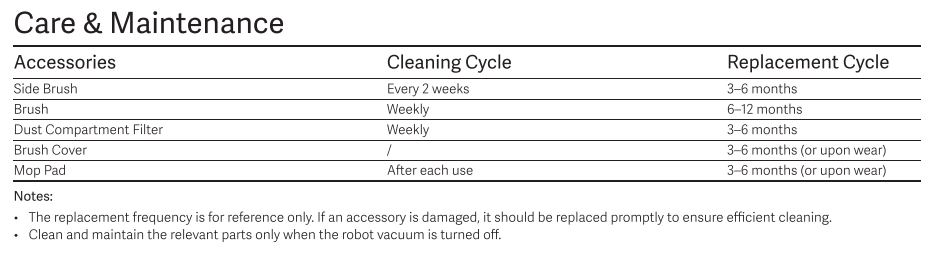
A: The recommended cleaning frequencies and replacement cycles for the Xiaomi Robot Vacuum S60 consumables are:
1. Side brush: Clean every 2 weeks. Replace every 3-6 months.
2. Brush: Clean weekly. Replace every 6-12 months.
3. Dust compartment filter: Clean weekly. Replace every 3-6 months.
4. Brush cover: Replace every 3-6 months or upon wear.
5. Mop pad: Clean after each use. Replace every 3-6 months or upon wear.
Note:
1. The replacement frequency is for reference only. If an accessory is damaged, it should be replaced promptly to ensure efficient cleaning.
2. Clean and maintain the relevant parts only when the robot vacuum is turned off.
Q7: How to maintain the lithium battery of the Xiaomi Robot Vacuum S60? How to store it when not in use for a long time?
A: To maintain the lithium battery of the Xiaomi Robot Vacuum S60, please refer to the following information:
1. During daily use, keep the robot vacuum on the charging dock to charge. The robot vacuum supports overcharge protection and automatically switches to low-current maintenance charging when fully charged.
2. If the robot vacuum will not be used for an extended period, fully charge it, power it off, and store it in a cool, dry place at 0-40 °C.
3. Charge the robot vacuum at least once every 3 months to prevent battery damage caused by over-discharge.
4. The battery has a cycle life of more than 500 cycles. If the battery becomes aged, please contact the after-sales service center for replacement.
5. Do not disassemble the battery yourself or use a third-party battery.
Cleaning Performance
Q1: What is the maximum suction power of the Xiaomi Robot Vacuum S60? How many levels are available?
A: The Xiaomi Robot Vacuum S60 has a maximum suction power of ≥28 kPa.
There are 4 suction levels available: Silent, Standard, Strong, Turbo.
Q2: What is the noise level of the Xiaomi Robot Vacuum S60?
A: The noise level of the Xiaomi Robot Vacuum S60 in Vacuuming & Mopping mode:
1. Silent mode: ≤62 dB(A).
2. Standard mode: ≤62 dB(A).
3. Strong mode: ≤68 dB(A).
4. Turbo mode: ≤71 dB(A).
The noise level is ≤58 dB(A) in the Mopping mode.
Q3: Does the Xiaomi Robot Vacuum S60 have reduced cleaning efficiency in complex environments?
A: In complex environments, such as areas with dense furniture, many objects on the floor, or carpets, the Xiaomi Robot Vacuum S60 needs to frequently adjust its route and navigate obstacles, resulting in longer cleaning times while maintaining cleaning coverage.
For optimal cleaning efficiency, it is recommended to remove objects from the floor before starting a cleaning task.
Q4: Why does the Xiaomi Robot Vacuum S60 make abnormal noise during cleaning?
A: When the Xiaomi Robot Vacuum S60 operates on smooth tile or wooden floors, slight noise can occur due to friction between the bottom scraper and the floor. When the robot vacuum passes over joints between tiles or flooring, the scraper may come into contact with and clean these gaps, which can also produce slight noise. These sounds do not affect the robot vacuum's normal operation.
If the noise becomes noticeably louder or an obvious abnormal sound occurs, please pause the cleaning task immediately and perform the following checks:
1. Check whether the main brush, side brush, or drive wheels are tangled with or have picked up any foreign objects. Remove the main brush cover and check the inside of the main brush compartment. If any foreign objects are found, remove them promptly. If the side brush, main brush cover, or main brush is damaged, replace it promptly.
2. Check whether the filter is dirty or clogged. It is recommended to clean the filter once a week and replace it every 3-6 months. To ensure effective cleaning, the robot vacuum is equipped with a high-suction-power fan, which provides strong dust collection but can result in relatively higher operating noise. To reduce noise, lower the suction power level or use Mopping mode.
Q5: Why does the floor get dirtier when mopping with the Xiaomi Robot Vacuum S60?
A: If the floor gets dirtier when mopping with the Xiaomi Robot Vacuum S60, please try the following:
1. Please clean the main brush and mop pad regularly.
2. If the dust compartment is full, check and empty it promptly.
3. If the filter is clogged, check and clean it promptly.
4. If the main brush is tangled with foreign objects, check and clean it promptly.
Q6: Why does the Xiaomi Robot Vacuum S60 have reduced cleaning performance or miss dust?
A: If the Xiaomi Robot Vacuum S60 has reduced cleaning performance or misses dust, please check the following:
1. Check and empty the dust compartment, and remove any hair or debris tangled around the main brush. Check whether the dust compartment filter is dirty or clogged, and clean or replace it if necessary. It is recommended to clean the filter once a week and replace it every 3-6 months to ensure optimal cleaning performance.
2. Select the [Vacuuming before mopping] mode to allow the robot vacuum to complete vacuuming the entire home before mopping. If the floor is particularly dirty, select [Vacuuming] mode and run the robot vacuum multiple times.
3. Check the mop pad. A heavily soiled mop pad can affect mopping performance. Wash the mop pad thoroughly and allow it to dry completely before use. It is recommended to replace the mop pad every 3-6 months to maintain optimal mopping performance.
Buttons and Indicators
Q1: What do the different colors/states of the indicator on the Xiaomi Robot Vacuum S60 mean?
A: The indicator on the Xiaomi Robot Vacuum S60 displays the following colors and states:
The main unit's buttons feature backlighting (white, orange, and blue).
White: Normal state.
Breathing white: Charging (medium/high battery level).
Blinking white: Locating/Recharging.
Orange: Wi-Fi offline.
Blinking orange: Low battery level/Waiting for network connection/Error.
Breathing orange: Charging (low battery level).
Blinking blue: Connecting to Wi-Fi/Updating.
Blue: Wi-Fi connected.
Off: Shut down/Sleep.
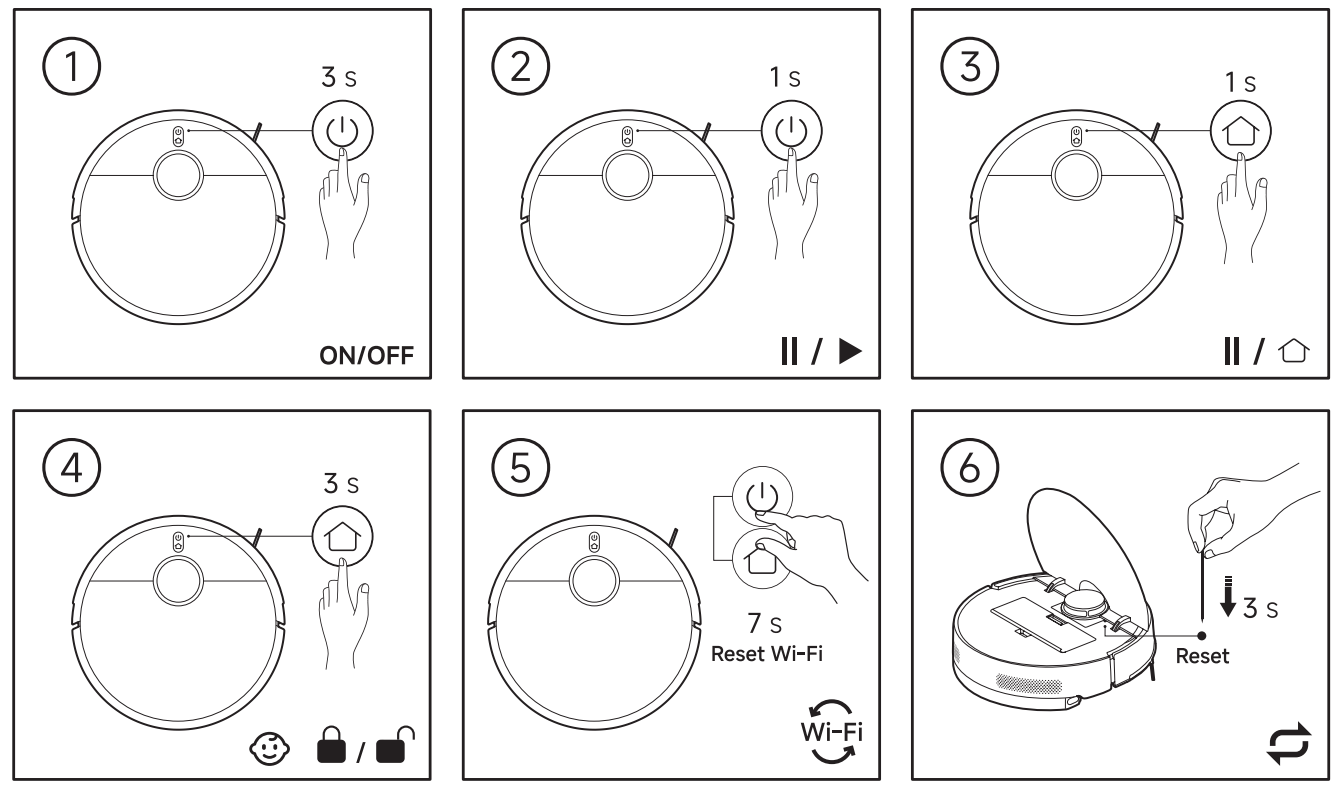
Q2: What are the functions of the buttons on the Xiaomi Robot Vacuum S60?
A: The Xiaomi Robot Vacuum S60 has three buttons:
On/Off button:
1. Press to start cleaning or pause cleaning while turned on.
2. Press and hold for 3 seconds to turn on or turn off the robot vacuum.
Recharge button:
1. Press this button to make the main unit return to the charging dock or pause.
2. Press and hold for 3 seconds to enable or disable the child lock.
Reset button:
Press and hold for 3 seconds with a pin-shaped object to restore the robot vacuum to factory settings.
Button combination:
Press and hold (Recharge button + On/Off button) for 7 seconds: Reset Wi-Fi and enter network configuration mode.
Accessory Compatibility
Q1: Which accessories of the Xiaomi Robot Vacuum S60 are compatible with other products?
A: The following accessories of the Xiaomi Robot Vacuum S60 are compatible with the Xiaomi Robot Vacuum S40:
1. Main brush.
2. Main brush cover.
3. Dust compartment filter.
4. Mop pad.
Note:
The side brush uses a newly developed mold and is compatible with the Xiaomi Robot Vacuum S60+.
Frequently Asked Questions
Q1: What to do if a threshold higher than 2 cm or an obstacle prevents the Xiaomi Robot Vacuum S60 from returning to the charging dock?
A: The obstacle-crossing capability of the Xiaomi Robot Vacuum S60 is 20 mm in dry conditions and 18 mm in wet conditions (applicable to vertical steps, round pipes, square pipes, sliding door tracks, etc.). Since the robot vacuum cannot cross thresholds exceeding 2 cm, setting up a virtual restricted zone is recommended. Please set this area as a restricted area in the Xiaomi Home App to prevent the device from entering the area.
Q2: What to do if the Xiaomi Robot Vacuum S60 fails to cross a threshold that is too wide, or gets stuck when the LiDAR height is level with the lower edge of furniture at around 10 cm?
A: Please set the affected area as a restricted area to prevent the Xiaomi Robot Vacuum S60 from entering.
Q3: What to do if the Xiaomi Robot Vacuum S60 cannot detect low-lying obstacles such as cables, small toys, and books?
A: Before starting a cleaning task, please remove small objects from the floor to prevent them from getting caught in the Xiaomi Robot Vacuum S60.
Q4: What to do if the suction power of the Xiaomi Robot Vacuum S60 weakens during use?
A: If the suction power of the Xiaomi Robot Vacuum S60 weakens during use, please follow these troubleshooting steps:
1. Use a clean microfiber cloth to wipe away dust and debris from the exterior of the robot vacuum.
2. Regularly clean the dust compartment and filter. Replace the filter periodically to maintain cleaning performance.
3. Remove any hair or foreign objects tangled around the main brush and its ends.
4. Check the side brush for tangled hair or other debris and remove them if necessary.
5. Make sure the robot vacuum is not set to a low suction mode. Switch to a higher suction level and check whether the suction power improves.
6. Inspect the suction inlet and air duct for dust, hair, paper, or other debris that can be blocking the airflow. Remove any blockage if found.
7. After completing the above steps, restart the robot vacuum and test the suction power again.
8. If the issue persists, please contact the after-sales service center for assistance.
Q5: What to do if the Xiaomi Robot Vacuum S60 does not return to the charging dock or spends a long time exploring outside the charging dock?
A: If the Xiaomi Robot Vacuum S60 does not return to the charging dock or spends a long time exploring outside the charging dock, please refer to the following steps to troubleshoot:
1. This could be caused by prolonged obstruction of the robot vacuum's return path or by moving the charging dock to another room or area. Make sure the robot vacuum's return path is clear of obstacles.
2. Check whether the firmware is up to date under [Settings] >> [Firmware update]. If an update is available, upgrade to the latest firmware. The latest firmware has optimized path selection for different home environments.
Q6: What to do if the Xiaomi Robot Vacuum S60 fails to return to the charging dock and the charging dock appears to have been moved or tilted?
A: If the Xiaomi Robot Vacuum S60 does not return to the charging dock or spends a long time exploring outside the charging dock, please refer to the following steps to troubleshoot:
1. The robot vacuum may have dragged or displaced the power cord of the charging dock during cleaning. Keep the charging dock cord properly organized and, if necessary, place the charging dock on a floor surface with better traction to help prevent it from being moved.
2. Check whether the firmware is up to date under [Settings] >> [Firmware update]. If an update is available, upgrade to the latest firmware. The latest firmware has appropriately expanded the charging dock's protection area to help prevent the robot vacuum from colliding with or displacing the charging dock.
Q7: What to do if the Xiaomi Robot Vacuum S60 fails to climb over high thresholds or obstacles such as table and chair legs, or frequently gets stuck and triggers a trapped alert?
A: If the Xiaomi Robot Vacuum S60 fails to climb over high thresholds or obstacles such as table and chair legs, or frequently gets stuck and triggers a trapped alert, please refer to the following steps to troubleshoot:
1. High or irregularly shaped thresholds can make it difficult for the robot vacuum to climb over them. Try enabling obstacle escape and setting a virtual threshold to help the device navigate through these areas. To set a virtual threshold, go to the Xiaomi Home App >> choose the robot vacuum>> tap the three dots icon >> tap [More functions] 10 times to open the hidden menu, then select [Edit threshold] and set the virtual threshold as needed.
2. Check whether the firmware is up to date under [Settings] >> [Firmware update]. If an update is available, upgrade to the latest firmware. The latest firmware enables the robot vacuum to automatically adjust its direction when one side of the robot vacuum encounters an obstacle, helping improve its ability to navigate around obstacles.
Q8: What to do if the Xiaomi Robot Vacuum S60 needs to rebuild the map?
A: If the Xiaomi Robot Vacuum S60 needs to rebuild the map, please refer to the following information:
1. If the environment where the robot vacuum is operating has changed, the robot vacuum may need to remap the area to keep the map consistent with the current home environment.
2. The latest firmware also includes optimizations to improve mapping and matching accuracy. It is recommended to upgrade to the latest firmware.
Q9: What to do if hair or carpet fibers easily get tangled around the edges of the Xiaomi Robot Vacuum S60's main brush and are difficult to remove?
A: If hair or carpet fibers easily get tangled around the edges of the Xiaomi Robot Vacuum S60's main brush and are difficult to remove, please refer to the following steps to troubleshoot:
1. Hair and fibers may become tangled in the gap between the main brush end cap and the bristles. Use scissors or other suitable tools to manually remove the tangled hair and debris promptly.
2. Refer to the maintenance and cleaning instructions in the instruction manual for guidance on cleaning the main brush.
Q10: What to do if the water tank of the Xiaomi Robot Vacuum S60 easily comes loose or falls off during cleaning?
A: When installing the water tank of the Xiaomi Robot Vacuum S60, make sure you hear a click from the clips on both sides, indicating that the water tank is securely installed. In rare cases, the water tank can come loose if it is bumped or rubbed against an obstacle while the robot is turning. Reinstall the water tank according to the installation instructions on the water tank label.
Q11: What to do if the Xiaomi Robot Vacuum S60 takes a long time to clean in mopping mode and the drive wheels slip?
A: If the Xiaomi Robot Vacuum S60 takes a long time to clean in mopping mode and the drive wheels slip, please refer to the following steps to troubleshoot:
1. Pet hair, fibers, grease, or other dirt on the drive wheels can reduce traction and cause the wheels to slip. It is recommended to regularly clean the surface of the drive wheel tires with a brush.
2. Check whether the firmware is up to date under [Settings] >> [Firmware update]. If an update is available, upgrade to the latest firmware.
Does it help?
Yes
No