

Xiaomi Robot Vacuum 5 Pro FAQ
Product knowledge
Q1: What is liftable LiDAR on the Xiaomi Robot Vacuum 5 Pro?
A: The liftable laser radar is located directly above the robot vacuum. It is a laser radar component with a mechanical lifting structure. It achieves the core function of "balancing passability and high-precision perception" by dynamically adjusting the height.
When high-precision environmental modeling is required, the radar is raised to scan the surrounding space 360°. When entering low areas (such as under beds and sofas), the radar is lowered, allowing the drone to lower its height to avoid collisions. This allows for low-lying passage, reduces the risk of getting stuck, and improves cleaning coverage.
Note:
The liftable LiDAR will lower when the main unit is idle, charging on the omni station, or cleaning low areas. When lowering to clean low areas, do not move the main unit to affect positioning.
Q2: What is a collision buffer plate on the Xiaomi Robot Vacuum 5 Pro?
A: The collision buffer plate is located in the C-shaped movable board in front of the robot vacuum, which can pass through obstacles and protect the device and furniture by buffering.
The collision switch can be triggered to avoid obstacles. The collision buffer plate can be combined with other obstacle avoidance sensors to form a complete obstacle avoidance function.
Q3: What is the structured light obstacle avoidance module on the Xiaomi Robot Vacuum 5 Pro?
A: The structured light obstacle avoidance module, also known as a line laser, is located at the front of the robot vacuum and is covered with a dark lens. It consists of a structured light obstacle avoidance sensor and a structured light projector.
The structured light obstacle avoidance module uses infrared laser emitters for intelligent obstacle avoidance. It is primarily used to sense obstacles in the surrounding environment in real time and plan paths. It supports the recognition of low obstacles (such as slippers and toys) to reduce collisions and jams.
Q4: What is the AI triple-camera obstacle avoidance module on the Xiaomi Robot Vacuum 5 Pro?
A: The AI triple-camera obstacle avoidance module consists of an AI high-definition camera, an AI infrared camera, and an AI structured light projector. It's located directly in front of the robot vacuum. Compared to the structured light obstacle avoidance module, it offers the advantages of obstacle recognition, floor dirt detection, and video calling.
The AI triple-camera obstacle avoidance module uses infrared laser emitters for intelligent obstacle avoidance. It is primarily used to sense obstacles in the surrounding environment in real time and plan paths. It supports identifying low obstacles (such as slippers and toys) to reduce collisions or jams.
Q5: What is an edge sensor on the Xiaomi Robot Vacuum 5 Pro?
A: The edge sensor is located on the front right side of the robot vacuum and is covered by a dark lens. It detects the distance to obstacles by sending and receiving infrared signals. It is primarily used to detect the edges of walls and furniture, allowing the robot vacuum to clean along these edges more efficiently, reducing collisions and enabling a "running close to the edge" feature.
Q6: What is ultrasound on the Xiaomi Robot Vacuum 5 Pro?
A: The ultrasonic wave is located near the caster wheel at the bottom of the robot vacuum, and it determines the material of the ground by sending and receiving ultrasonic signals. It is mainly used to detect and distinguish different types of floor tiles, carpets, etc. By identifying the carpet, the functions of carpet avoidance, carpet lifting and carpet pressure cleaning can be realized.
Q7: What is a cliff sensor on the Xiaomi Robot Vacuum 5 Pro?
A: Cliff sensors are located at the bottom of the robot vacuum. There are 4 of them. They detect the height of the bottom by sending and receiving infrared signals to prevent the robot vacuum cleaner from falling from a high place and causing damage.
Q8: What is a charging contacts on the Xiaomi Robot Vacuum 5 Pro?
A: The charging contacts are located at the rear of the robot vacuum and forms a pair with the charging electrode on the omni station. Charging is achieved through contact between the electrodes. The center area of the electrode is the infrared signal transceiver, ensuring accurate omni stationing when the robot vacuum returns to the omni station.
Q9: What is the automatic water filling port on the Xiaomi Robot Vacuum 5 Pro?
A: The automatic water refill port is located on the rear of the robot vacuum, paired with the omni station water inlet. The initial mop cleaning will fill the main unit's small water tank with water. During mopping, the small tank keeps the mop moist, achieving constant-wet mopping. After the mop is complete, the small tank is completely drained.
Q10: What is antiscalant on the Xiaomi Robot Vacuum 5 Pro?
A: Antiscalants are used to inhibit the formation of scale from dissolved metal ions such as calcium and magnesium in water, preventing scale from accumulating inside the heating module and affecting the water heating function.
Q11: What is a double scraper arm washboard on the Xiaomi Robot Vacuum 5 Pro?
A: The washboard has added a pair of scraping arms. When cleaning the mop pad, the double scraping arms are driven to rotate and clean the omni station, which is not easy to leave stains, reduces the odor of the omni station, and alleviates the trouble of frequent cleaning.
Product usage
Q1: What are the buttons of the Xiaomi Robot Vacuum 5 Pro?
A: The Xiaomi Robot Vacuum 5 Pro has an On/Off button, a recharge button, and a reset button.
Q2: How to use the power button of the Xiaomi Robot Vacuum 5 Pro?
A: Press and hold on the power button for 3s to turn on/off the Xiaomi Robot Vacuum 5 Pro.
Press it after turning on, to clean or pause.
Q3: How to use the recharge button of the Xiaomi Robot Vacuum 5 Pro?
A:
1. Press the recharge button of the Xiaomi Robot Vacuum 5 Pro during operation to enter pause state;
2. Press during pause to start recharging;
3. Press during recharging to stop recharging.
Q4: How to turn on the child lock function of the Xiaomi Robot Vacuum 5 Pro?
A: Press and hold the recharge button for 3 seconds to activate or deactivate the child lock.
Note:
When the child lock is turned on, the buttons on the robot vacuum will be invalid and can be controlled through the APP.
Q5: What does the indicator of the Xiaomi Robot Vacuum 5 Pro mean?
A: The meanings of the indicator of the Xiaomi Robot Vacuum 5 Pro are as follows:
White: Working/Work completed/Charging completed;
Flashing in white: Recharging/Repositioning/Firmware upgrading;
Breathing in white: Charging;
Breathing in orange: Charging (low battery);
Orange: Wi-Fi disconnected;
Flashing in orange: Abnormal status/Awaiting to connection/Wi-Fi connecting;
Purple: Microphone disabled;
Blue: Wi-Fi is connected;
Flashing in blue: Waiting for connection/Wi-Fi connecting;
Off: The device is not connected.
Q6: What is the reset button/Wi-Fi indicator of the Xiaomi Robot Vacuum 5 Pro?
A: Press and hold the reset button in the Xiaomi Robot Vacuum 5 Pro for 3 seconds to restore to factory settings.
Press and hold for 10 seconds to force shutdown and restore to factory settings.
Q7: How to install the mop pad assembly on the Xiaomi Robot Vacuum 5 Pro?
A: To install the mop pad assembly on the robot vacuum, please refer to the steps:
1. Install the mop pad assembly into the mop pad holder mounting hole until you hear a "click" sound, indicating that it is installed in place;
2. Please stick the mop pad in the center of the mop pad holder. If it is offset, there can be blind spots that cannot be mopped;
3. Please use the official original mop pad. A mop pad that is too thick or too thin can affect the mopping effect or the normal operation of the mop motor.
Q8: Why should the protective cover be removed when using the Xiaomi Robot Vacuum 5 Pro?
A: Before use, please be sure to remove all protective objects on the Xiaomi Robot Vacuum 5 Pro, otherwise it will not work properly.
Q9: How to save the complete map on the Xiaomi Robot Vacuum 5 Pro?
A: To save the complete map on the Xiaomi Robot Vacuum 5 Pro, please refer to the following information:
1. Before use, please open the door of the area to be cleaned to ensure the integrity of the map;
2. When using it for the first time, after connecting to the Xiaomi Home App, follow the beginner's guide to use the quick mapping function. When the robot vacuum quickly builds a map, it will explore the home environment and only build the map without vacuuming. The entire mapping process takes about 5-15 minutes. After the map is built, the robot vacuum returns to the omni station and can generate a recognized partition map;
3. If you press the button on the robot vacuum to start cleaning, or press Start in the Xiaomi Home App and select Start cleanup, the robot vacuum will start the cleaning task from the omni station and return to the omni station autonomously, and a complete partition map will also be generated;
4. If you manually recharge or move the map back to the omni station, it will only be a temporary map. Temporary maps do not have automatic partitioning, and functions such as clearing selected areas, adjusting/renaming partitions, etc. cannot be used.
Q10: What are the differences between the Xiaomi Robot Vacuum 5 Pro cleaning with and without a map?
A: The differences are as follows:
1. Cleaning method when there is no map: When cleaning for the first time without a map, the robot vacuum will first extend the edge of a fixed area, and then use a bow-shaped cleaning method until all areas are covered;
2. Cleaning method after map: After starting, the robot vacuum will clean by room, starting with the side rooms. In vacuum and mop modes, the cleaning order of the rooms is different from that in vacuum mode to avoid secondary contamination by the robot vacuum passing through the rooms that have already been cleaned.
Q11: Can the Xiaomi Robot Vacuum 5 Pro be charged continuously?
A: You can leave the Xiaomi Robot Vacuum 5 Pro on the omni station to charge. If you're going out for a short time or away from home for an extended period, it's recommended to turn off the power and press and hold the power button to shut down the main unit. The robot vacuum has overcharge protection and will automatically switch to a low current charge when fully charged.
Q12: Does the Xiaomi Robot Vacuum 5 Pro have an overload protection function?
A: All motors on the Xiaomi Robot Vacuum 5 Pro have overload protection function, including the main brush motor, side brush motor, main wheel motor, and mop motor. When foreign objects enter or serious blockage causes overload, the protection will automatically start to prevent motor damage. At the same time, the voice/APP will prompt the corresponding motor to be wound. Please follow the user manual instructions to promptly clean any tangled hair or foreign objects.
Q13: What are the precautions when using the Xiaomi Robot Vacuum 5 Pro for the first time?
A: The precautions when using the Xiaomi Robot Vacuum 5 Pro are as follows:
1. Before use, press and hold the On/Off button on the robot vacuum for 3 seconds to turn on the device;
2. After turning on the device, align the charging contacts of the robot vacuum with the charging spring of the omni station;
3. When you hear the voice announcement that charging has started, the main unit is successfully connected to the omni station;
4. Please fully charge the main unit before starting to clean from the omni station. Before cleaning, please tidy up your home furniture and put away fragile items and debris on the floor in advance.
Note:
It is recommended to fully charge the battery before first use;
If the battery is exhausted and the device cannot be turned on, manually align the device and place it on the omni station to charge for a while;
If the robot vacuum is in charging state, it will automatically turn on and cannot be turned off.
Q14: How to turn on/off the Xiaomi Robot Vacuum 5 Pro?
A: To turn on/off the Xiaomi Robot Vacuum 5 Pro, please refer to the following information:
Press and hold the On/Off button for 3 seconds to turn on the device. The indicator on the robot vacuum will light up and the device will enter standby mode;
When the robot vacuum is not charging and paused, press and hold the On/Off button for 3 seconds to shut down.
Note:
If the robot vacuum is in charging state, it will automatically turn on and cannot be turned off;
If the robot vacuum is not charging or in paused mode for more than 10 minutes, it will automatically enter sleep mode. The indicator on the robot vacuum will go out during sleep mode. You can wake it up by pressing any button on the robot vacuum. If it stays in sleep mode for more than 12 hours, it will automatically shut down.
Q15: How to pause the Xiaomi Robot Vacuum 5 Pro?
A: When the Xiaomi Robot Vacuum 5 Pro is in running state, press any button on the robot vacuum to pause.
Note:
It is not recommended to lift or move the robot vacuum during a pause to avoid positioning deviations that can cause the robot vacuum to be unable to recharge or map loss.
Q16: How to quickly build a map on the Xiaomi Robot Vacuum 5 Pro?
A: After connecting to the internet for the first time, follow the app's instructions to quickly build a map. The main unit will only build the map without cleaning. When the main unit automatically returns to the omni station, the map is built and saved automatically.
Note:
Make sure the robot vacuum is fully charged and powered from the omni station;
Before building the map, please collect scattered items on the ground, open the door, and block areas that are not suitable for the robot vacuum to enter;
During the construction of the map, please do not follow, move or interrupt the robot vacuum, and do not move the omni station;
After mapping, please set virtual walls or restricted areas in areas that are prone to trapping, bumping, or otherwise unsuitable for the robot to enter;
Please set up virtual walls or restricted areas in areas with long-haired carpets or fringed carpets to prevent the robot vacuum from being entangled.
Q17: How to resume cleanup on the Xiaomi Robot Vacuum 5 Pro?
A: When the battery is too low during cleaning, the Xiaomi Robot Vacuum 5 Pro will automatically return to the omni station to charge. After charging to the appropriate level, the robot vacuum will automatically return to the breakpoint to continue cleaning.
Because the cleaning area is too large and the vacuuming before mopping mode is used, the continuous working time exceeds the battery endurance. When the battery is too low, the robot vacuum will return to the omni station to charge first, and then continue to work after it is charged to a suitable level and lights up.
Q18: How to use the vacuuming and mopping function of the Xiaomi Robot Vacuum 5 Pro?
A: To use the vacuuming and mopping function of the Xiaomi Robot Vacuum 5 Pro, pleas refer to the following steps:
Make sure the robot vacuum has installed the mop pad assembly and other components;
Select the vacuuming and mopping mode in the App, then use the App or press the On/Off button on the robot vacuum to start cleaning;
The robot vacuum will start from the omni station and perform the cleaning task according to the optimal cleaning plan based by the built map.
Note:
1. For the first time use, it is recommended to follow the robot vacuum throughout the whole process and assist in cleaning up items that can affect the operation of the robot vacuum;
2. If there are areas where the robot vacuum can get stuck or scratch the furniture surface when the robot vacuum is running, you can set a restricted area in the app to prevent the robot vacuum from entering such areas;
3. The robot vacuum will wet the mop pad before departure, please wait patiently;
4. Before starting, make sure the omni station is powered on and the robot vacuum is connected to the omni station;
5. To ensure that the robot vacuum returns to the omni station smoothly after completing vacuuming and mopping, it is recommended that the robot vacuum start from the omni station. Do not move the omni station at will during the operation of the robot vacuum;
6. You can turn on the hot water mop pad washing function in the app. After turning it on, do not touch the mop pad washing outlet on the omni station to avoid burns.
Q19: Why does the Xiaomi Robot Vacuum 5 Pro automatically return to washing midway?
A: During the cleaning process, the Xiaomi Robot Vacuum 5 Pro can automatically return to the omni station to clean the mop pad according to the area cleaned, and continue to perform the cleaning task after cleaning is completed.
Q20: How does the Xiaomi Robot Vacuum 5 Pro collect dust and clean and dry the mop pad automatically?
A: After the Xiaomi Robot Vacuum 5 Pro completes the cleaning task and recharges, the omni station starts to automatically collect dust, then washes and dries the mop pad.
Q21: How to set the vacuuming before mopping mode on the Xiaomi Robot Vacuum 5 Pro?
A: To set the vacuuming before mopping mode on the Xiaomi Robot Vacuum 5 Pro, please refer to the information:
1. Make sure the main unit has been installed with the mop assembly and other components, and the water tank has been filled with water;
2. Select the vacuuming before mopping mode in the APP, then use the APP or press the On/Off button on the robot vacuum to start cleaning. The robot vacuum will lift the mop component to start cleaning;
3. After cleaning is completed, the robot vacuum returns to the omni station for automatic dust collection and mop wetting, then lowers the mop module to start mopping.
Q22: How to set the vacuuming mode on the Xiaomi Robot Vacuum 5 Pro?
A: To set the vacuuming mode on the Xiaomi Robot Vacuum 5 Pro, please refer to the following information:
1. In the Xiaomi Home App, select the vacuuming mode, then start cleaning via the app or by pressing the On/Off button on the main unit;
2. The main unit will lift the mop pad module, depart from the omni station to start vacuuming, and will automatically return to the omni station for dust collection after the cleaning task is completed.
Q23: How to set the mopping mode on the Xiaomi Robot Vacuum 5 Pro?
A: To set the mopping mode on the Xiaomi Robot Vacuum 5 Pro, please refer to the following information:
1. Make sure the main unit has the mop module and other components installed, and the clean water tank is filled;
2. In the Xiaomi Home App, select the mopping mode, then start cleaning via the app or by pressing the On/Off button on the main unit. The main unit will first automatically wet the mop pad, then depart from the omni station to start mopping;
3. After the mopping task is completed, it will return to the station to wash and dry the mop pad.
Q24: How to maintain the battery of the Xiaomi Robot Vacuum 5 Pro?
A: The Xiaomi Robot Vacuum 5 Pro is equipped with a high-performance lithium-ion battery. To maintain battery performance, please keep the main unit connected to the station during daily use.
Note:
Note:
If not used for a long time, please fully charge the device and shut it down for storage. Recharge the device at least once every three months to prevent the battery from being damaged by over-discharge.
Q25: How does the Xiaomi Robot Vacuum 5 Pro return to the omni station for charging?
A: After cleaning, the main unit will automatically return to the omni station for charging. In the suspended state, press the recharging button to start recharging.
You can also manually place the main unit back onto the omni station, with the mop module facing the omni station’s washboard. The main unit will automatically dock.
Start charging:
Start charging:
When the main unit starts charging, it will announce “Start charging,” and the power button will pulse, indicating a successful connection to the station.
Note:
If the main unit does not find the omni station, it will automatically return to the starting position of cleaning (this is an occasional occurrence, not a product performance fault, and can be related to environmental factors). Please manually put the main unit back into the omni station for charging.
Q26: What does the indicator on the omni station of the Xiaomi Robot Vacuum 5 Pro mean?
A: The following are the indicator meanings on the omni station of the Xiaomi Robot Vacuum 5 Pro:
1. The indicator is in white: the station is operating in normal;
2. Flashing in orange: the station is operating abnormally.
Note:
Flashing in orange does not indicate a product malfunction. Please restart both the main unit and the station, and try again using the correct instructions.
Q27: What are the components in the washboard area of the Xiaomi Robot Vacuum 5 Pro?
A: The washboard area of the Xiaomi Robot Vacuum 5 Pro contains the following components:
Rebound plate, signaling area, water injection port, positioning post, auto-empty vent, latch, waterproof sealing strip, and sewage extraction pipe.
Q28: What type of power cord does the Xiaomi Robot Vacuum 5 Pro use?
A: Please use the officially supplied 2-prong power cord to connect to the power source, and wrap any excess cable around the cord reel.
Q29: How to use the disposable bag of the Xiaomi Robot Vacuum 5 Pro?
A: To use the disposable bag of the Xiaomi Robot Vacuum 5 Pro, please refer to the following steps:
1. A new disposable bag is pre-installed in the omni station at the factory. When the disposable bag needs to be replaced, open the dust cabinet cover via the latch, remove the disposable bag, and replace it with a new one;
2. Pull the disposable bag handle to close the disposable bag opening, then discard it;
3. When the disposable bag is properly inserted, it will press the internal detection switch, and the dust collection function can be used properly once the disposable bag is recognized as installed.
Note:
After 60 dust collections, the app will notify you to replace the disposable bag. Check the disposable bag’s condition, if it is full, please purchase and replace it promptly. If it can still be used, simply turn off the notification.
Q30: How to use the anti-tangle hair-cutting brush of the Xiaomi Robot Vacuum 5 Pro?
A: The Xiaomi Robot Vacuum 5 Pro is equipped with an anti-tangle hair-cutting brush and supports hair-cutting function.
The brush structure includes: bristles, comb teeth, a removable end cap on one side, and a non-removable end cap on the other side.
Note:
A combined rubber-and-bristle roller brush can also be used.
A combined rubber-and-bristle roller brush can also be used.
Working principle:
The anti-tangle hair-cutting brush has a built-in reciprocating gear mechanism, where the blade moves back and forth. As the roller brush rotates continuously, hair longer than the brush’s circumference will gradually wrap around the comb teeth. When tightened, the blade will cut the hair and it will be sucked into the dust compartment.
While this design reduces hair tangling, hair that is not tightly wound or is wrapped around the ends of the roller shaft cannot be cut automatically and should be removed manually.
The anti-tangle hair-cutting brush has a built-in reciprocating gear mechanism, where the blade moves back and forth. As the roller brush rotates continuously, hair longer than the brush’s circumference will gradually wrap around the comb teeth. When tightened, the blade will cut the hair and it will be sucked into the dust compartment.
While this design reduces hair tangling, hair that is not tightly wound or is wrapped around the ends of the roller shaft cannot be cut automatically and should be removed manually.
Q31: How to connect the Xiaomi Robot Vacuum 5 Pro to power?
A: After placing and installing the omni station of the Xiaomi Robot Vacuum 5 Pro properly, connect the power cord assembly and turn on the power. Firmly insert the power cord assembly until the station’s indicator remains solid white.
Q32: What is the placement requirements for the omni station of the Xiaomi Robot Vacuum 5 Pro?
A: Place the omni station of the Xiaomi Robot Vacuum 5 Pro against a wall, on a hard, level surface (such as flooring or tiles), close to a power outlet and in an area with a good Wi-Fi signal.
Q33: What is the dust collection function of the Xiaomi Robot Vacuum 5 Pro?
A: After the Xiaomi Robot Vacuum 5 Pro completes a vacuuming & moping, vacuuming before moping, or vacuuming task and automatically returns to charge, the omni station will automatically start dust collection.
Note:
When the main unit returns to wash the mop pad mid-task, the omni station will not automatically collect dust;
If the automatic dust collection function is turned off in the app, the omni station will not automatically collect dust;
You can adjust the dust collection frequency in the app, and the omni station will collect dust according to the set frequency.
Q34: Does the Xiaomi Robot Vacuum 5 Pro consume power when always on the omni station?
A: When the main unit is always on the omni station, the omni station supplies power to the main unit. In standby mode, power consumption is extremely low, and the battery enters a dormant state to maintain optimal performance.
Q35: How does the Xiaomi Robot Vacuum 5 Pro automatically wash the mop pad?
A: The Xiaomi Robot Vacuum 5 Pro automatically washes the mop in the following ways:
1. Initial cleaning: Before each vacuum & mop or mop task begins, the main unit will wash and wet the mop pad;
2. Mid-task washing: During the entire mopping task, the main unit will automatically return to the omni station to wash the mop pad to keep it relatively clean, ensuring better mopping results. After each wash, it will return to the previous position to continue the unfinished work. The washing frequency can be set in the Xiaomi Home App;
3. End of task: After the main unit finishes the mopping task and returns to charge, it will start self-cleaning, and the omni station will thoroughly wash and dry the mop pad.
Q36: Why does the Xiaomi Robot Vacuum 5 Pro still collide sometimes?
A: Although the Xiaomi Robot Vacuum 5 Pro is designed with advanced obstacle avoidance technology, collisions can still occur due to the following reasons:
1. Please wipe the obstacle avoidance sensor lens on the front of the main unit with a soft, dry cloth to ensure no fingerprints or dust remain;
2. Some dark-colored or highly reflective surfaces (such as metal), transparent objects (like glass walls), small table or chair legs, and some low obstacles, or obstacles appearing in detection blind spots, can occasionally be undetected, causing collisions;
3. In low ambient light conditions, the ability to detect six types of objects: fabric items, power cords, pet waste, shoes, the omni station, and weighing scales-decreases;
4. When encountering soft obstacles like curtains or slightly open doors, the robot vacuum will slow down and gently bump or even avoid contact; slight touches in these cases are normal;
5. In complex home environments with many floor obstacles trapping the robot vacuum, collisions can occur during escape attempts;
6. If the obstacle avoidance sensors fail, collisions could happen even when obvious obstacles are present.
Q37: When does the Xiaomi Robot Vacuum 5 Pro dry the mop pad?
A: The Xiaomi Robot Vacuum 5 Pro will dry the mop pad in the following conditions:
After completing a mopping task, the omni station will automatically start drying the mop;
You can manually start or stop the drying task via the Xiaomi Home App.
Q38: When does the Xiaomi Robot Vacuum 5 Pro perform dust collection?
A: The dust collection information of the Xiaomi Robot Vacuum 5 Pro is as follows:
1. After the main unit finishes a vacuuming task and returns to the omni station, the station and main unit will automatically start dust collection. The dust collection lasts about 10 seconds. To keep the dust channel clear, periodic dust collection time can extend to around 20 seconds. You can disable automatic dust collection or adjust the dust collection frequency in the Xiaomi Home App according to your needs;
2. You can manually start or stop the dust collection task via the Xiaomi Home app;
3. When dust collection reaches 60 times, a notification to replace the disposable bag will appear. Please check if the disposable bag needs replacing. You can close the notification by tapping the icon in the top right corner of the app. If your phone is in dark mode and the [X] icon is not visible, switch to light mode or directly tap the top right corner to close it.
Q39: How to maintain the components of the Xiaomi Robot Vacuum 5 Pro?
A: The recommended maintenance guidelines of the Xiaomi Robot Vacuum 5 Pro are as follows:
Parts | Cleaning Frequency | Replacement Frequency |
Dirty Water Tank | Clean after each use | / |
Clean Water Tank | Clean once every 2 weeks | / |
Washboard | Clean once every 1 to 2 weeks | / |
Anti-tangle Hair-cutting Brush | Clean once every 2 weeks | 3 to 6 months |
Side Brush | Clean once every 2 weeks | 3 to 6 months |
Dust Compartment | Clean as required | / |
Filter (Pre-insatlled on the dust compartment) | Clean once every 2 weeks | 6 to 12 months |
Mop Pad | / | 6 to 12 months |
Caster Wheel | Clean every month | / |
Auto-height Adjustable Laser Rader | ||
Edge Sensor | ||
AI Triple-camera Obstacle Avoidance Module | ||
Cliff Sensor | ||
Robot Vacuum’s Charging Contacts | Depending on actual use | / |
Bumper | ||
Auto-empty Vent of Robot Vacuum | ||
Auto Water Inlet of Robot Vacuum | ||
Bottom of Robot Vacuum | ||
Omni Station | ||
Auti-empty Vent of Omni Station | ||
Omni Station’s Charging Contacts | ||
Omni Station’s Signaling Area | ||
Disposable Bag | / | Replace about every 2.5 months depending on actual use |
Note:
The replacement frequency id for reference only. If a part is damaged, it should be replaced promptly to ensure efficient cleaning;
To move or ship the robot vacuum, empty the clean and dirty water tanks to avoid the robot vacuum getting damaged in transit.
Q40: How to clean the anti-tangle hair-cutting brush and the side brush of the Xiaomi Robot Vacuum 5 Pro?
A: To clean the anti-tangle hair-cutting Brush of the Xiaomi Robot Vacuum 5 Pro, please refer to the following steps:
1. Remove the main brush cover and the main brush;
2. Take off the detachable end cap of the main brush;
3. Use an appropriate tool to clean the ends of the main brush and the gaps between the comb teeth;
4. After reinstalling the removable end cap on the main brush, put the main brush and the main brush cover back and secure them firmly.
Note:
If hair is tangled too tightly, do not pull forcefully to avoid damaging the main brush;
If the anti-tangle hair-cutting brush is severely tangled with hair, first check whether the dust compartment or disposable bag is full. Empty the dust compartment and replace the disposable bag promptly to ensure the automatic dust collection function works properly.
Cleaning the side brush:
Flip the main unit over, pull out the side brush upward, and clean it.
Reinstall the side brush back onto the main unit.
Q41: How to clean the dust compartment and filter of the Xiaomi Robot Vacuum 5 Pro?
A: To clean the dust compartment and filter of the Xiaomi Robot Vacuum 5 Pro, please refer to the following steps:
1. Open the top cover of the main unit, press the dust compartment release button, and pull out the dust compartment;
2. Remove the filter from the filter clip, gently tap the filter frame to knock out dirt, and empty the trash inside the dust compartment;
3. If necessary, rinse the dust compartment and filter with clean water.
Note:
1. Do not use brushes, fingers, or other tools to clean the filter;
2. Frequent washing of the filter is not recommended to avoid damage;
3. Use only clean water to wash the dust compartment and filter; do not add any detergents;
4. Make sure the dust compartment and filter are completely dry before reinstalling.
Q42: How to clean the caster wheel of the Xiaomi Robot Vacuum 5 Pro?
A: To clean the caster wheel of the Xiaomi Robot Vacuum 5 Pro, please refer to the following steps:
1. Flip the main unit over and use an appropriate tool to pry out the caster wheel;
2. Clean hair and dirt from the wheel body and axle;
3. Reinstall the caster wheel and press it firmly back into place.
Note:
1. If needed, you can use a small screwdriver or similar tool to pry out the wheel axle for cleaning, but do not use excessive force;
2. You can rinse it with tap water and dry it thoroughly before reinstalling.
Q43: How to replace the mop pad of the Xiaomi Robot Vacuum 5 Pro?
A: Remove the mop pad holder on the Xiaomi Robot Vacuum 5 Pro. The mop pad is fixed to the mop pad holder with Velcro. Simply peel it off for cleaning or replace it with a new mop cloth. Align the center hole and stick it back into place.
Q44: How to clean the sensors and the charging contacts of the Xiaomi Robot Vacuum 5 Pro?
A: Using a soft, dry cloth to to clean the sensor and charging contacts on the Xiaomi Robot Vacuum 5 Pro.
The sensors on the Xiaomi Robot Vacuum 5 Pro, include:
Cliff sensors at the bottom of the main unit;
Liftable LiDAR on the top of the main unit;
Bumper and structured light obstacle avoidance module at the front of the main unit;
Edge sensors on the sides of the main unit;
The charging contacts on the back of the main unit.
Q45: How to clean the omni station of the Xiaomi Robot Vacuum 5 Pro?
A: Wipe the signaling area, charging contacts, and dust collection port on the omni station of the Xiaomi Robot Vacuum 5 Pro with a soft dry cloth.
Q46: How to maintain the battery of the Xiaomi Robot Vacuum 5 Pro?
A: The Xiaomi Robot Vacuum 5 Pro is equipped with a high-performance lithium-ion battery pack. To maintain battery performance, please keep the main unit charged during daily use.
Note:
If not used for a long time, fully charge and power off the device for storage, and recharge at least once every three months to prevent battery damage from over-discharge.
Omni Station
Q1: How to clean the dirty water tank of the Xiaomi Robot Vacuum 5 Pro?
A: After washing and drying the mop, please clean the dirty water tank of the Xiaomi Robot Vacuum 5 Promptly to avoid unpleasant odors.
Q2: Does the Xiaomi Robot Vacuum 5 Pro support automatic water supply and drainage installation?
A: The Xiaomi Robot Vacuum 5 Pro does not support the installation of automatic water supply and drainage systems. Please confirm the appropriate station type for your home setup before purchasing.
Q3: How to refill the clean water tank of the Xiaomi Robot Vacuum 5 Pro station?
A: Open the top cover of the Xiaomi Robot Vacuum 5 Pro station, and use the handle to remove the clean water tank. Pull the latch outward to open the lid. Fill the tank with clean water up to the MAX line (approx. 4L at the orange line). Tap the lid firmly to snap it shut and place the tank back into the station using the handle.
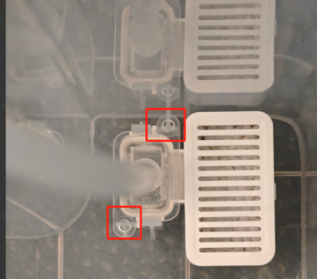
Q4: What is the function of the clean water tank filter in the Xiaomi Robot Vacuum 5 Pro?
A: The filter of the Xiaomi Robot Vacuum 5 Pro removes impurities from the water. The white granules are scale inhibitors.
You can pull the filter straight up to remove it, align it with the positioning columns, and then press down vertically to install.
Note:
Do not overfill past the MAX line;
Do not use hot water to avoid deforming the tank.
Q5: What is the function of the floater in the Xiaomi Robot Vacuum 5 Pro clean water tank?
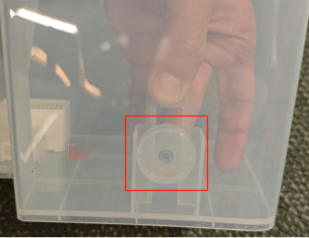
A: The floater in the Xiaomi Robot Vacuum 5 Pro clean water tank contains a magnet and moves with the water level to detect low water or missing tank.
To remove the floater, reach inside the tank, pull the latch outward with your thumb and lift the floater with your middle finger. Reverse to reinstall.
If the floater moves out of the defined position, it will cause a warning that the clean water tank is not installed. If the floater seal fails and water enters, it will cause a warning that the clean water tank is short of water.
Q6: How to empty the dirty water tank of the Xiaomi Robot Vacuum 5 Pro?
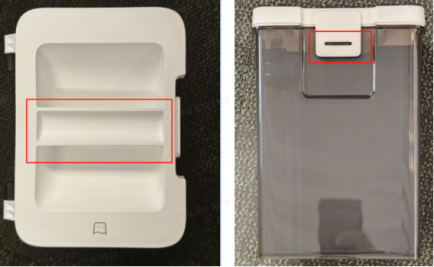
A: Open the Xiaomi Robot Vacuum 5 Pro station’s top cover, remove the dirty water tank via the handle, pull the latch outward to open the lid, and pour wastewater into a suitable drain. Tap the dirty water tank cover to snap it shut (check whether the latch is in place), lift the armrest and install it back into the station.
Q7: What is the function of the floater in the Xiaomi Robot Vacuum 5 Pro dirty water tank?
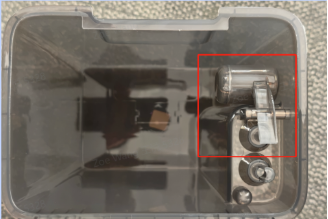
A: The sealed floater in the Xiaomi Robot Vacuum 5 Pro dirty water tank is completely sealed and contains a magnet that moves with the rising water level to detect a full tank or tank removal.
Wastewater extraction principle:
When the water level is low, the dirty water tank is evacuated by an air pump, and the dirty water flows back from the cleaning disc through the sewage hole into the sewage tank. When the dirty water reaches a certain level, the floater rises and blocks the vacuum port, triggering a full dirty water tank alert.
Note:
If the seal ring on the dirty water tank lid is lost, damaged, or deformed, wastewater cannot be extracted properly. Please do not remove it unless necessary.
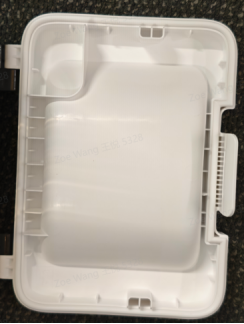
Q8: How many times can the Xiaomi Robot Vacuum 5 Pro's clean water tank wash the mop?
A: The Xiaomi Robot Vacuum 5 Pro's clean water tank can wash the mop approx. 30 times (for reference only). The station dispenses 180 milliliters of water during the initial wash and 120 milliliters during mid-cycle rinses. The actual water usage will vary depending on the cleaning frequency.
Q9: How to install the washboard base extender of the Xiaomi Robot Vacuum 5 Pro?
A: Install the washboard base extender of the Xiaomi Robot Vacuum 5 Pro to the station as shown in the guide. After installation, the washboard base extender should be flush with the station bottom without protrusions. If it's stuck, press it into place firmly.
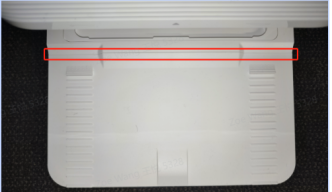
Q10: How to clean the clean and dirty water tanks of the Xiaomi Robot Vacuum 5 Pro?
A: To clean the clean and dirty water tanks of the Xiaomi Robot Vacuum 5 Pro, please refer to the following information:
Remove both the clean and dirty water tanks, open their covers, and pour out the water;
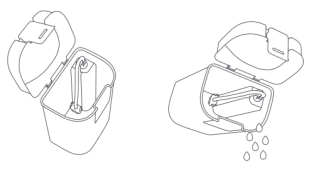
Use clean water to completely wash the tanks, then wipe the outside of the tanks dry before reinserting them into the station.
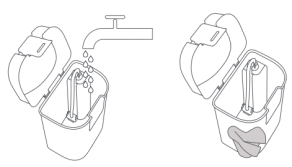
Note:
Both the floater in the clean water tank and the float ball in the dirty water tank are movable parts. Do not apply too much force when cleaning them to avoid damaging them.
Q11: How to clean the washboard of the Xiaomi Robot Vacuum 5 Pro?
A: To clean the washboard of the Xiaomi Robot Vacuum 5 Pro, please refer to the following information:
1. Select the Station's assisted washing in the Xiaomi Home App and the robot vacuum will automatically leave the station. Manually remove the washboard, and then the station will automatically inject water into the washboard base. Use a cloth or brush to clean any dirt from the station and washboard;
2. Wait for three minutes and the station will automatically drain away the dirty water. Use a dry cloth to wipe clean the washboard base and the washboard, then reinstall the washboard. Please ensure that the station sewage pipe is located in the groove of the cleaning plate to prevent the sewage pipe from tilting and affecting use.
Note:
Do not tilt the station during daily use or cleaning. If water collects in the washboard base, wipe it dry with a cloth.
Q12: How to replace the disposable bag of the Xiaomi Robot Vacuum 5 Pro?
A: To replace the disposable bag of the Xiaomi Robot Vacuum 5 Pro, please refer to the following information:
1. When the disposable bag is full, pull the cover out from the dust cabinet opening. Remove the disposable bag using the handle, and discard it. Then use a dry cloth to wipe away any dirt from the filter;
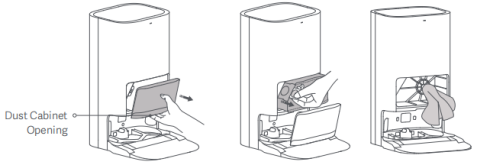
Note:
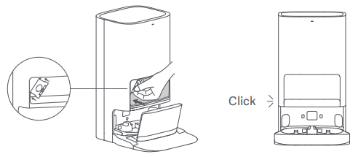
2. Pulling the handle of the disposable bag will seal the bag to prevent the dust and debris from accidentally falling out.
Install a new disposable bag as illustrated and insert the handle of the bag into the slot. Then put the dust cabinet cover back, and it is properly installed when you hear a "click".
Xiaomi Home App related
Q1: How to connect the Xiaomi Robot Vacuum 5 Pro to the Xiaomi Home App?
A: The Xiaomi Robot Vacuum 5 Pro works with the Xiaomi Home App and you can control your device with it.
To connect the Xiaomi Robot Vacuum 5 Pro, please refer to the following information:
1. Download and install the Xiaomi Home App. If you have already installed the APP, it will take you directly to the device connection interface. Alternatively, you can search for "Xiaomi Home" in the APP store/Google Play store to download and install it;
2. Open the home interface of the Xiaomi Home App, tap the [+] icon at the top right corner of the screen, and follow the on-screen instructions to add the Xiaomi Robot Vacuum 5 Pro.
Note:
This product connects to the Xiaomi Home app and supports smartphones with Android 9.0 or iOS 12.0 and above;
This product only supports connecting to 2.4GHz Wi-Fi networks. It also supports dual-band unified Wi-Fi networks;
Due to upgrades and updates of the Xiaomi Home App, actual operations can slightly differ from the descriptions above. Please follow the instructions within the current app.
Q2: How to reset the Wi-Fi on the Xiaomi Robot Vacuum 5 Pro?
A: When the Xiaomi Robot Vacuum 5 Pro’s network is disconnected or you need to change the network:
Please open the top cover of the main unit to expose the Wi-Fi indicator;
Press and hold both the On/Off button and the recharge button simultaneously for 7 seconds until you hear the voice prompt “Waiting to configure network.” The Wi-Fi indicator flashing indicates the reset was successful.
Q3: How to restore factory settings of the Xiaomi Robot Vacuum 5 Pro?
A: To restore factory settings of the Xiaomi Robot Vacuum 5 Pro, please refer to the following information:
If the main unit malfunctions and cannot be used in normal, press and hold the reset button for 3 seconds until the voice prompt starts restoring factory settings. The main unit will be restored to its factory state;
If factory settings cannot be restored, press and hold the reset button for 10 seconds to force shut down and restore factory settings.
Q4: How to force shutdown the Xiaomi Robot Vacuum 5 Pro?
A: Open the front cover and use tweezers or a toothpick to press and hold the reset button for 10 seconds to force shutdown the Xiaomi Robot Vacuum 5 Pro.
Q5: How to report issues and upload logs of the Xiaomi Robot Vacuum 5 Pro through the Xiaomi Home App?
A: To report issues and upload logs of the Xiaomi Robot Vacuum 5 Pro through the Xiaomi Home App, please follow the methods:
Method 1:
Open the Xiaomi Home App >> [Profile] >> [Help & Feedback] >> select the corresponding model >> report a problem, fill in the problem description and video or picture, check the option to send the problem log, and tap [Submit] to complete.
Method 2:
Open the Xiaomi Home App >> tap the device card >> go to [Settings] >> [Help & Feedback].
Q6: How to upgrade the firmware of the Xiaomi Robot Vacuum 5 Pro?
A: You can upgrade the firmware of the Xiaomi Robot Vacuum 5 Pro by using the Xiaomi Home App. Before upgrading, ensure the main unit is charging in the station and has a battery level above 30%. The buttons will flash during the firmware upgrade. We recommend upgrading to the latest firmware.
Path: In the app >> tap the device card >> go to [Settings] >> [Firmware update]. You can view the current version and the firmware version history in the upper right corner.
Q7: Does the Xiaomi Robot Vacuum 5 Pro support quick map creation?
A: Yes. After using the Xiaomi Home App to configure the network for the first time, the homepage will prompt you to quickly build a map. You can also tap the [Map] icon on the right and select [Edit], enter [Map list] >> [Create a new map] >> start quick map building.
Note:
When exploring and building maps, please do not get too close to the device, otherwise it will affect the efficiency and accuracy of the map;
To better use the product, it is recommended to use the quick map creation method. After quickly creating a home environment map, you can enjoy a more intelligent and efficient experience;
The map created quickly can be slightly incomplete, but it will not affect the use. The map will be automatically improved during subsequent whole-house cleaning.
During the quick map creation process, the device will explore your home environment, creating a map without vacuuming. The entire map creation process takes approximately 5-15 minutes. Once the map is complete, the device returns to the omni station and generates a complete map of the areas.
Q8: How many maps can be saved on the Xiaomi Robot Vacuum 5 Pro?
A: Currently, the Xiaomi Robot Vacuum 5 Pro supports saving one temporary map and four permanent maps. When using it for the first time, you can quickly create a map or clean and create a map globally.
If you need multiple maps, you can create and manage new maps in the Xiaomi Home App >> tap the device card >> go to [Settings] >> [Map list]. You can also tap the [Map] icon on the right and select [Edit], enter [Map list] >> [Create a new map] >> start quick map building.
Q9: What is the whole-house cleanup mode of the Xiaomi Robot Vacuum 5 Pro?
A: If you do not save the map, select global cleaning and the Xiaomi Robot Vacuum 5 Pro will clean the square area one by one. After saving the map in the app, select global cleaning and the robot vacuum will automatically plan the path to clean each room, and return to the omni station after cleaning.
Q10: What is zone cleaning feature of the Xiaomi Robot Vacuum 5 Pro?
A: You can set up zone cleaning in the Xiaomi Home App, and the Xiaomi Robot Vacuum 5 Pro will clean the selected area.
Select [Area] in the main interface of Xiaomi Home App. The area can be selected as the [Whole house], [Room], or [Custom area];
Set up zone cleaning, and the robot vacuum will clean according to the planned area;
After tapping the custom area, a drawing area will appear. Follow the prompts to adjust the area size or position or delete it. Zone cleaning supports customizing 1 to 5 areas;
Tap [Start cleanup] to start the task. The robot vacuum will announce "Start area cleaning".
Note:
During cleaning, the robot vacuum can go beyond the marked area. Please pay attention to clear the ground obstacles around the marked area. The markings in this area cannot serve as a safety isolation.
Q11: How to reset the map on the Xiaomi Robot Vacuum 5 Pro?
A: To reset the map on the Xiaomi Robot Vacuum 5 Pro, please refer to the following methods:
Method 1:
Open the Xiaomi Home App >> tap the device card >> tap the [Map] icon on the right and select [Edit] >> [Map list] >> select a map >> select [Delete] in Settings. Tap [OK] and the map will disappear. You need to rebuild the map.
Method 2:
Open the Xiaomi Home App >> tap the device card >> [Settings] >> [Map list] >> select a map >> select [Delete] in Settings. Tap [OK] and the map will disappear. You need to rebuild the map.
Q12: How to backup the map of the Xiaomi Robot Vacuum 5 Pro?
A: To backup the map on the Xiaomi Robot Vacuum 5 Pro, please refer to the following steps:
Open the Xiaomi Home App >> tap the device card >> [Settings] >> [Map list] >> select a map >> tap [Backup].
Q13: What does it mean if the Xiaomi Robot Vacuum 5 Pro appears message "Map loading, please wait"?
A: If the Xiaomi Robot Vacuum 5 Pro appears message "Map loading, please wait", please refer to the following information:
The principle path of map loading can be understood as follows: access the plug-in >> send a request to the server through the mobile network >> the server sends a command to the router >> the router accesses the local area of the robot vacuum and sends back the map information.
If the "Map loading, please wait" prompt flashes by, it is normal. This can occur if you operate too quickly or exit and enter frequently;
If the "Map loading, please wait" prompt persists for more than ten seconds or longer before the map appears, it can be caused by slow uplink and downlink data of the mobile phone/router. It is recommended to check the network status of the mobile phone and router;
If the map cannot be loaded, it is recommended to reset Wi-Fi and use the mobile phone hotspot to connect to the robot vacuum and try again. If it recovers, check the network status, submit log feedback, and analyze the network problem. If it does not recover, submit log feedback and analyze whether the firmware version is abnormal.
Q14: How to create multiple maps for the Xiaomi Robot Vacuum 5 Pro? How to work on other maps without moving the omni station?
A: To create multiple maps for the Xiaomi Robot Vacuum 5 Pro, please refer to the information:
Move the main unit and omni station to the new environment, plug in the omni station power supply, and connect the main unit to the omni station;
Open the Xiaomi Home App >> tap the device card >> [Settings] >> [Map list] >> tap [Create a new map]. It is recommended to use the quick mapping function to create the second or third map;
After the map is saved successfully, if you need to clean a certain floor, move the device to the vicinity of the starting position when the map was created on that floor, and manually select the corresponding map in the map list to start cleaning.
To work on other maps without moving the omni station:
If you do not want to move the omni station to a new environment for cleaning, you can only move the main unit to the new environment;
Open the Xiaomi Home App >> tap the device card >> [Settings] >> [Map list] >> tap [Create a new map];
After the map is created, if you need to clean a certain floor, move the device to that floor, manually select the corresponding map in the map list, and go to the Xiaomi Home App >> tap the device card >> [Settings] >> [Mop cleaning settings] >> Turn off auto mop pad cleaning. After turning off automatic mop washing, the main unit will directly start vacuuming and mopping/mopping/vacuuming tasks without washing the mop or collecting dust in the middle.
Q15: Does the Xiaomi Robot Vacuum 5 Pro support vacuuming and mopping mode?
A: The Xiaomi Robot Vacuum 5 Pro supports vacuuming and mopping mode.
You can set it in the Xiaomi Home App:
Vacuuming and mopping mode: vacuuming, vacuuming and mopping, vacuuming before mopping, moping;
There are four gears of suction: quiet, standard, strong, and turbo;
Water output for mopping: level 1, level 2, level 3;
Cleaning path: quick, standard, deep;
Cleaning times: once, twice.
Note:
Vacuuming before mopping, or cleaning twice, counts as one task. If the two cleaning routes are the same, the map route will be displayed in a grid pattern. If the two cleaning routes are different, the map will remain in a bow pattern.
The difference between cleaning paths is that the finer the cleaning path, the higher the cleaning coverage and the longer the time taken.
Q16: How to set up custom cleanup for the Xiaomi Robot Vacuum 5 Pro?
A: When you have saved or existing partition maps on the Xiaomi Robot Vacuum 5 Pro, the custom cleanup has the following advantages:
Different rooms can be set with different cleaning modes, suction power, cleaning times and other vacuuming and mopping modes;
You can adjust the order in which rooms are cleaned;
You can choose a customized cleaning plan when making a cleaning appointment.
The setting path is as follows:
Swipe up on the main interface, custom cleanup and tap [Create] >> enter a name >> add a task.
Q17: How to delete tasks in custom cleanup mode of the Xiaomi Robot Vacuum 5 Pro?
A: To delete tasks in custom cleanup mode for the Xiaomi Robot Vacuum 5 Pro, please tap the Trash icon in the custom cleanup interface.
Q18: How to adjust the map display of the Xiaomi Robot Vacuum 5 Pro?
A: To adjust the map display of the Xiaomi Robot Vacuum 5 Pro, please refer to the information:
Open the Xiaomi Home App >> tap the device card >> tap the Edit Map icon on the right >> [Display]. Select 2D or 3D map according to your preference (you can switch to 3D map after saving the map);
Select whether room names, furniture, floor materials, and carpets should be displayed on the map. After selecting the floor material, the texture will be displayed on the 3D map.
Q19: How to set up virtual walls/restricted areas of the Xiaomi Robot Vacuum 5 Pro?
A: You can set up virtual walls in the Xiaomi Home App to prevent the Xiaomi Robot Vacuum 5 Pro from entering areas you don’t want it to clean.
Note:
A saved map in the app is required before using this feature;
Moving the robot vacuum or significantly changing your home environment can invalidate the original map and cause the virtual walls/restricted areas to be lost.
Virtual wall: Add a virtual wall to prevent the robot vacuum from passing through.
Vacuuming and ,oping restricted area: Add a Vacuuming and ,oping restricted area, preventing the robot vacuum from entering the area when vacuuming or mopping.
Moping restricted area: Add a mop restricted area, preventing the robot vacuum from entering the area when mopping.
Quick access: On the home page, tap the [Map] icon on the right and select [Edit] >> select [Restricted area]. Tap [Virtual wall], [Vacuuming & moping restricted area], or [Moping restricted area] to automatically add a dotted line or a box of the corresponding color to the map >> tap and drag to move the area >> tap the pull-down icon in the lower-right corner to adjust the size. Tap [X] in the upper-left corner to delete the area. Once the setting is complete, confirm it to take effect;
Open the Xiaomi Home App >> tap the device card >> tap the three dots icon in the upper right corner to enter [Settings] >> [Map list] >> select the map >> set the restricted areas/rooms/furniture/material.
Q20: How to edit, merge, divide, or rename a room of the Xiaomi Robot Vacuum 5 Pro?
A: To edit, merge, divide, or rename a room of the Xiaomi Robot Vacuum 5 Pro, please refer to the information:
Quick access: On the home page, tap the [Map] icon and select [Edit] >> [Edit room].
Note:
Merge: To merge areas, select the target area (it will turn gray after tapping it). When the merge icon lights up, tap [Merge];
Divide: To divide an area, select the target area (it will turn gray after tapping it). After the divide icon lights up, tap it to display a divide line on the map. Adjust the divide line and tap [Divide].
Note:
After merging rooms, the custom cleanup and scheduled cleanup functions of the selected room will become invalid and need to be reset.
Rename: To rename an area, select the target area (it will turn gray after taping it). When the rename icon lights up, tap [Rename] to select the default name or customize it.
After the settings are completed, confirm to take effect.
Go to [Settings] >> [Map list] >> select [Room] >> Set Merge/Divide/Rename.
Q21: How to add furniture to the room for the Xiaomi Robot Vacuum 5 Pro?
A: To add furniture to the room for the Xiaomi Robot Vacuum 5 Pro, please refer to the steps:
On the home page, tap the [Map] icon and select [Edit] >> select [Edit furniture] >> select the target in the furniture list and confirm, it will be displayed on the map.
Adjust the furniture icon in the lower right corner, adjust the direction in the upper right corner. Delete in the upper left corner, tap the icon to move the position.
Q22: How to set the floor material of the Xiaomi Robot Vacuum 5 Pro?
A: To set the floor material of the Xiaomi Robot Vacuum 5 Pro, please refer to the steps:
On the home page, tap the [Map] icon >> select [Edit] >> select [Edit furniture]. You can choose from a variety of options including tiles, flooring, and other materials.
Q23: How to set up the carpet of the Xiaomi Robot Vacuum 5 Pro?
A: To set up the carpet of the Xiaomi Robot Vacuum 5 Pro, please refer to the steps:
On the home page, tap the [Map] icon >> select [Edit] >> select [Edit carpet]. You can set the carpet area and cleaning preferences.
1. Carpet area: A carpet area is added to the map. Tap the icon to move it, drag the lower right corner to resize it and the upper left corner to delete it;
2. Carpet preferences (Path 2: [Settings] >> [Map list] >> select a map >> [Carpet area] >> [Carpet preferences]):
(1). Vacuums only on carpet: The robot vacuum will automatically recognize carpet areas and restrict cleaning to carpets only, without cleaning hard floors;
(2). Carpet avoidance: When encountering a carpet area, the robot vacuum will avoid and no longer clean the carpet;
(3). Carpet crossing: When encountering carpet areas, the robot vacuum stops cleaning and directly crosses the carpet;
(4). Ignore carpets: When encountering carpet areas, the robot ignores the carpet and cleans normally;
(5). Supports carpet boost mode, automatically increasing suction to max power when in quiet or standard mode;
(6). Supports deep carpet cleaning, with the robot cleaning once horizontally and once vertically;
(7). Supports cleaning carpets first, cleaning all carpets before wetting the mop.
Q24: How to adjust the cleaning mode of the Xiaomi Robot Vacuum 5 Pro?
A: You can adjust the cleaning mode of the Xiaomi Robot Vacuum 5 Pro in the app:
Vacuuming and mopping mode: vacuuming, vacuuming and mopping, vacuuming before mopping, moping;
There are four gears of suction: quiet, standard, strong, and turbo;
Water output for mopping: level 1, level 2, level 3;
Cleaning path: quick, standard, deep;
Note:
Water output for mopping: The drying time and water output for washing the mop pad are different.
Cleaning times: once, twice.
Note:
The main impact of the mode setting is the extended cleaning time. The task can not be completed in one go when the battery is fully charged;
When the battery drops to 20%, it will trigger a low-battery recharge. At this time, you will find that the task is not completed but it enters the charging state. This is normal;
When the battery is charged to a certain level, it will trigger a resumption cleanup. Remember to avoid the Do Not Disturb mode time period, otherwise you will not be able to continue cleaning.
Q25: How to manually turn on dust collection/mop pad cleaning/drying functions of the Xiaomi Robot Vacuum 5 Pro?
A: To manually turn on dust collection/mop pad cleaning/drying functions of the Xiaomi Robot Vacuum 5 Pro, please refer to the steps:
Go to the app homepage >> [Station] >> manually execute dust collection/mop cleaning/drying functions (drying can be manually ended). Tap [Settings], you can set the dust collection, mop cleaning and mop drying.
Q26: How to clean the selected areas on the Xiaomi Robot Vacuum 5 Pro?
A: To clean the selected areas on the Xiaomi Robot Vacuum 5 Pro, please refer to the steps:
You can go to the APP homepage >> [Area] >> select [Room]/[Custom area];
You can select one or more rooms according to the partition, and tap [Start cleanup] after confirmation;
Add one or more areas to the custom area, adjust the position and size, and tap [Start cleanup] after confirmation.
Q27: How to turn on or off the dry function manually of the Xiaomi Robot Vacuum 5 Pro?
A: To turn on or off the dry function manually of the Xiaomi Robot Vacuum 5 Pro, please refer to the steps:
To end the current drying process, tap [Station] on the homepage to end the drying process;
If you do not need the drying function, turn off [Auto drying the mop] in the drying settings;
To adjust [Drying duration], adjust the drying time to 2/3/4 hours in the drying settings.
Q28: How to set up custom cleanup of the Xiaomi Robot Vacuum 5 Pro?
A: Custom cleanup of the Xiaomi Robot Vacuum 5 Pro allows you to set up multiple cleaning plans. Each plan can add multiple tasks and start them with one tap. Cleaning tasks support setting cleaning mode, area selection, and number of cleanings. After the task is completed, you can choose auto dust collection/auto mop pad cleaning.
Q29: How to set up scheduled cleanup of the Xiaomi Robot Vacuum 5 Pro?
A: To set up scheduled cleanup of the Xiaomi Robot Vacuum 5 Pro, please refer to the steps:
Use the Xiaomi Home App homepage to quickly set the scheduled cleanup time, repeat and cleanup mode. The robot vacuum will automatically start cleaning at the specified time and automatically return to the omni station when cleaning is completed;
Open the Xiaomi Home App >> select the device card >> tap the three dots icon at the upper right corner >> [Scheduled cleanup] can also be set.
Note:
If the Do Not Disturb mode is turned on, scheduled cleanup will not be performed during the Do Not Disturb time period.
Q30: How to reset the consumables life of the Xiaomi Robot Vacuum 5 Pro?
A: To reset the consumables life of the Xiaomi Robot Vacuum 5 Pro, please refer to the steps:
Open the Xiaomi Home App >> select the device card >> tap the three dots icon at the upper right corner >> [Consumables management] >> you can view the estimated service life of the main brush, side brush, filter, mop pad, and disposable bag.
If you replace consumables, enter the corresponding consumables interface to reset.
Q31: How to set the dust collection function of the Xiaomi Robot Vacuum 5 Pro?
A: Open the Xiaomi Home App >> select the device card >> tap the three dots icon at the upper right corner >> [Dust collection].
Automatic dust collection: Once enabled, the robot vacuum will automatically collect dust after cleaning and recharging;
Dust collection frequency: The robot vacuum will collect dust after cleaning 1/2/3 times.
Note:
After collecting dust 60 times, you will be notified to replace the disposable bag. Please check the disposable bag status. If it is full of dust, please buy a replacement in time. If you can continue to use it, please close the notification.
Q32: How to adjust the water output for moping on the Xiaomi Robot Vacuum 5 Pro?
A: You can select the water output for mop washing in the app by going to [Settings] in the upper right corner and then going to [Mop cleaning settings]. Deep mop washing is suitable for occasional deep cleaning and uses a larger amount of water. Daily mop washing is suitable for daily cleaning and uses a moderate amount of water.
Q33: How to set the mop cleaning of the Xiaomi Robot Vacuum 5 Pro?
A: To set the mop cleaning of the Xiaomi Robot Vacuum 5 Pro, please refer to the following steps:
1. Open the Xiaomi Home App >> select the device card >> tap the three dots icon at the upper right corner >> [Mop cleaning settings].
2. Turn on or off [Auto cleaning the mop]. If the robot vacuum cannot return to the station, you can turn off this switch. For cleaning duplexes or inaccessible areas, you can simply move the main unit to clean;
3. Type of returning to clean the mop is available by area, by time, or by room. Set them based on your desired cleaning efficiency and effectiveness;
(1). By area: 20㎡, 10 ㎡, 15 ㎡, 25㎡;
(2). By time: 10 minutes, 15 minutes, 20 minutes, 25 minutes;
(3). By room: Re-wash after cleaning a room.
4. Water temp for mop washing: Room temp, Warm, Hot, and Smart. Set it based on your desired cleaning efficiency and effectiveness.
(1). Room temp: No heating, wash the mop at room temperature, saving energy and electricity;
(2). Warm: Wash the mop with warm water to dissolve common stains;
(3). Hot: Wash the mop at high temperature for better cleaning results;
(4). Smart: Dynamically adjusts the water temperature for intelligent mop cleaning.
5. The water output for mop washing can be divided into Deep mop washing (suitable for occasional deep cleaning, with a larger water volume) and Daily mop washing (suitable for daily cleaning, with a moderate water volume).
Q34: Does the Xiaomi Robot Vacuum 5 Pro support turning off the Auto cleaning the mop function?
A: The Xiaomi Robot Vacuum 5 Pro supports turning off the Auto cleaning the mop function. If the main unit cannot return to the station, this switch can be turned off.
Path: Open the Xiaomi Home App >> select the device card >> tap the three dots icon at the upper right corner >> [Mop cleaning settings] >> [Auto cleaning the mop].
Q35: Does the Xiaomi Robot Vacuum 5 Pro support remote control function?
A: The Xiaomi Robot Vacuum 5 Pro supports remote control. When you enter the remote control function, you can select forward, left, and right movement. The remote control principle is that the Xiaomi Home server uploads commands to the main unit, and the server sends commands to the main unit. Due to significant network environment impact, delays and unresponsiveness can occur.
Path: Open the Xiaomi Home App >> select the device card >> tap the three dots icon at the upper right corner >> [More functions] >> [Remote control].
Q36: Does the Xiaomi Robot Vacuum 5 Pro support child lock?
A: The Xiaomi Robot Vacuum 5 Pro supports child lock.
Path: Open the Xiaomi Home App >> select the device card >> tap the three dots icon at the upper right corner >> [More functions] >> [Child lock] (off by default). When the device is stationary, the buttons are locked to prevent accidental activation. When the device is operating, you can press any button to stop it.
Q37: Does the Xiaomi Robot Vacuum 5 Pro support finding robot vacuum?
A: The Xiaomi Robot Vacuum 5 Pro supports finding robot vacuum. Tap this option to find the device while it is emitting a beep. Please search for it based on the direction of the sound.
Path: Open the Xiaomi Home App >> select the device card >> tap the three dots icon at the upper right corner >> [More functions] >> [Find robot vacuum].
Q38: Does the Xiaomi Robot Vacuum 5 Pro support volume adjustment?
A: Yes, the Xiaomi Robot Vacuum 5 Pro supports volume adjustment.
Q39: Does the Xiaomi Robot Vacuum 5 Pro support the corners & edges focus function?
A: The Xiaomi Robot Vacuum 5 Pro supports the corners & edges focus function. Path: Open the Xiaomi Home App >> select the device card >> tap the three dots icon at the upper right corner >> [Corners & edges focus].
When enabled, the main unit automatically swings outwards when mopping corners, increasing coverage and minimizing missed corners. You can set the mop and brush to swing outwards separately. You can perform this function every seven days or with every cleaning task.
Q40: What is the Station’s assisted washing function of the Xiaomi Robot Vacuum 5 Pro?
A: Before using the Station’s assisted washing function of the Xiaomi Robot Vacuum 5 Pro, ensure the main unit is in the station.
1. Start the Station’s assisted washing. Remove the main unit from the station and the station will automatically fill with water;
2. Use a brush or rag to clean the washboard and rinse tank;
3. Three minutes after the station’s assisted washing begins, the station will automatically pump out the wastewater. Do not return the main unit to the station during this time;
4. After pumping out the wastewater, return the main unit to the station to complete the cleaning process.
If any larger particles of debris remain, you will need to manually clean them.
Q41: Does the Xiaomi Robot Vacuum 5 Pro support changing the device name?
A: The Xiaomi Robot Vacuum 5 Pro supports changing the device name.
Path: Open the Xiaomi Home App >> select the device card >> tap the three dots icon at the upper right corner >> [Device name].
Q42: What to do if the Xiaomi Robot Vacuum 5 Pro reports "Area is too small to be divided" when dividing the rooms?
A: If the Xiaomi Robot Vacuum 5 Pro reports "Area is too small to be divided" , please refer to the following steps to troubleshoot:
1. Rebuild the map;
2. Check if there are any glass doors around and temporarily block them to build the map.
Q43: How to build or clean other floors of a duplex without moving the omni station of the Xiaomi Robot Vacuum 5 Pro?
A: If you don't want to move the omni station to a new cleaning location, you can just move the main unit to the new location. Open the Xiaomi Home App, go to [Settings] in the upper right corner, then tap [Map list], and then tap [Create a new map]. Once the map is created, move the device to the floor you want to clean, manually select the corresponding map in the app's Map list. Go to [Settings] in the app, then in the omni station settings, turn off the [Auto cleaning the mop] function. The main unit will start vacuuming & mopping, vacuuming, or mopping tasks immediately without washing the mop pad or collecting dust.
Troubleshooting
Q1: How does carpet recognition work on the Xiaomi Robot Vacuum 5 Pro and how to solve common problems?
A: The Xiaomi Robot Vacuum 5 Pro can identify carpets through ultrasonic sensors (located near the caster wheels).
How to set up in the Xiaomi Home App:
1. The mop pad holder of the robot vacuum supports lifting. If the carpet setting is not made, the main unit will not automatically lift when encountering a carpet. You need to add a carpet area in the Xiaomi Home App >> select the device card >> tap three dots icon at the upper right corner >> [Map list] at the upper right corner and set the carpet cleaning preferences according to your needs;
2. The mop pad will be lifted when the main unit is quickly mapping, relocating, recharging, navigating to the mopping location, and getting out of trouble to avoid secondary contamination.
Frequently Asked Questions:
1. Ultrasonic identification of carpet anomalies: First check whether the carpet recognition and avoidance functions are enabled in the app. If enabled, contact the after-sales service center;
2. Map positioning and carpet identification do not require after-sales guidance. The app can check whether there is a carpet on the ground and the corresponding carpet identification and avoidance functions.
Q2: Why does the main unit of the Xiaomi Robot Vacuum 5 Pro shut down automatically?
A: If the main unit is in a non-charging state/pause state for more than 10 minutes, it will automatically enter a dormant state. The robot vacuum indicator will go out in the dormant state. You can wake up it by pressing any button on the main unit. If the dormant time exceeds 12 hours, the main unit will automatically shut down.
1. If the main unit automatically shuts down in the omni station, it can be caused by poor charging. It is recommended to use a paper towel/mop to wipe the charging poles and black lenses of the robot vacuum and omni station;
2. If the main unit automatically shuts down while performing a task outside the omni station, it can be caused by being trapped. It is recommended to check whether there are carpets, wiring harnesses, or thresholds blocking the trapped location, and observe whether there are relevant prompts in the app;
3. If the troubleshooting is ineffective, it is recommended to apply for the after-sales repair.
Q3: What to do if the Xiaomi Robot Vacuum 5 Pro is unable to be turned on?
A: If the Xiaomi Robot Vacuum 5 Pro is unable to be turned on, please refer to the following information:
1. Please charge before use;
2. Please use in an environment above 0℃ and below 40℃.
Q4: What to do if the Xiaomi Robot Vacuum 5 Pro is unable to be charged?
A: If the Xiaomi Robot Vacuum 5 Pro is unable to be charged, please refer to the following information:
1. Please confirm whether both ends of the omni station cable assembly are plugged in properly;
2. Please clean the charging contacts on the omni station and the charging poles on the main unit.
Q5: What to do if the Xiaomi Robot Vacuum 5 Pro is unable to connect to the network?
A: If the Xiaomi Robot Vacuum 5 Pro is unable to connect to the network, please refer to the following information:
1. Confirm whether the Wi-Fi password entered when connecting is correct. The Wi-Fi username cannot contain Chinese characters or special characters such as @¥% in the password setting. If so, please reset it to English or an account and password with numbers or letters and try again;
2. Check whether the router's external network connection is normal. You can try to open a web browser on your mobile phone or a computer connected to Wi-Fi to see if it is smooth;
3. Confirm whether the distance between the router and the robot is too far (outside the range of 5 meters or there is a wall in between). You can try to move the machine within 1-2 meters of the router and try to reconnect;
4. Try connecting to the mobile phone's Wi-Fi hotspot;
5. Check whether the router is connected to too many smart devices, causing the network to slow down or the router to be unresponsive. You can restart the router and try again;
6. Currently, the device does not support company EAP802.1x certified networks, 5G signal networks, or public Wi-Fi networks that require web authentication. You need to switch networks again and try to connect;
8. After the network is disconnected, if the device does not reconnect within 1 hour, the Wi-Fi module will disable its network connection function, and the Wi-Fi indicator will start flashing. The connection can only be restored after restarting the device;
9. Check whether the mobile phone has restricted the app's permissions, such as network access and location. Please allow these permissions and try again;
10. Connection failures can also be related to the phone model. Try connecting with another phone of a different model.
If you are still unable to connect to the network, try resetting the main unit and then reconnecting.
Q6: What to do if the Xiaomi Robot Vacuum 5 Pro cannot find the omni station and is unable to return to the omni station?
A: If the Xiaomi Robot Vacuum 5 Pro cannot return to the omni station, please refer to the following information:
1. Place the omni station in an open area, ensuring at least 5 cm of clearance on both sides and 1.5 m of unobstructed space in front;
2. Wipe the signaling area of the omni station to prevent dust or dirt buildup;
3. Make sure the omni station is connected to power;
4. Manually place the main unit back onto the omni station for charging.
Q7: What to do if the Xiaomi Robot Vacuum 5 Pro gets stuck in front of the omni station and cannot return?
A: If the Xiaomi Robot Vacuum 5 Pro gets stuck in front of the omni station and cannot return, please refer to the following information:
1. Place the omni station in an open area, ensuring at least 5cm of charging contacts on both sides and 1.5m of unobstructed space in front;
2. Manually place the main unit back onto the omni station for charging;
3. It is recommended to clean any water on the floor;
4. After correctly positioning the omni station, try again.
Q8: What to do if the Xiaomi Robot Vacuum 5 Pro cannot be turned off?
A: If the Xiaomi Robot Vacuum 5 Pro cannot be turned off, please refer to the following information:
1. The main unit can only be turned off when it is not charging. Remove the main unit from the omni station, then press and hold the power button for 3 seconds to turn it off. If it still cannot be turned off, press and hold the reset button for 10 seconds to force shutdown;
2. If the main unit is in motion, you need first press any button to pause it, and then press and hold the power button to turn it off.
Q9: What to do if the Xiaomi Robot Vacuum 5 Pro is unable to charge or charges slowly?
A: If the Xiaomi Robot Vacuum 5 Pro is unable to charge or charges slowly, please refer to the following information:
1. Charging the main unit from low battery to full normally takes about 6 hours;
2. When used in high or low temperature environments, the main unit will automatically reduce the charging speed to extend battery life. This is a normal phenomenon;
3. Wipe the charging contacts and charging plates with a dry cloth.
Q10: What to do if the side brush of the Xiaomi Robot Vacuum 5 Pro falls off?
A: If the side brush of the Xiaomi Robot Vacuum 5 Pro falls off, please refer to the following information:
1. Reinstall the side brush. You will hear a “click” sound indicating it is securely installed;
2. Before use, remove any foreign objects from the floor.
Q11: What to do if the Xiaomi Robot Vacuum 5 Pro misses cleaning in rooms? Why does it only clean one room?
A: After the Xiaomi Robot Vacuum 5 Pro completes mapping for the first time, it cleans according to the mapped rooms.
If this issue occurs, please first update the firmware to the latest version, and then check:
1. Whether the partitions are incorrect, adjust the room partitions in the app if necessary;
2. Whether the room door is closed, preventing entry;
3. Whether there is a threshold in the room that could occasionally cause crossing failure, adding an auxiliary ramp will help;
4. Whether there is a dark-colored doorway threshold that can occasionally be misidentified as a cliff, clean the cliff sensors or change the floor color.
Q12: Why does the cleaning path of the Xiaomi Robot Vacuum 5 Pro have repeated back-and-forth movements?
A: The Xiaomi Robot Vacuum 5 Pro cleans according to its planned route. It will navigate to uncleaned areas, and visually this can appear as back-and-forth movement, but it is not actually repeated cleaning.
Q13: What to do if the Xiaomi Robot Vacuum 5 Pro enters restricted zones or crosses virtual walls by mistake?
A: If the Xiaomi Robot Vacuum 5 Pro enters restricted zones or crosses virtual walls by mistake, please refer to the following information:
1. Check the map in the app. If abnormalities are found, delete the problematic map from the map list and create a new one;
2. Due to map scaling, virtual walls or restricted zones can deviate from the intended position. We recommend adjusting the boundaries based on the main unit’s movement path and actual home layout, ensuring all potential trap areas (such as sunken steps or under furniture) are included.
Q14: What to do if the scheduled cleaning of the Xiaomi Robot Vacuum 5 Pro does not work?
A: If the scheduled cleaning of the Xiaomi Robot Vacuum 5 Pro does not work, please refer to the following information:
1. If the battery level is below 30%, scheduled cleaning will not start. Please fully charge the battery;
2. If Do Not Disturb mode is enabled, scheduled cleaning will not work during the DND period. Please disable Do Not Disturb mode.
Q15: Why does the Xiaomi Robot Vacuum 5 Pro interrupt its current task during cleaning?
A: If the current task of the Xiaomi Robot Vacuum 5 Pro is interrupted during cleaning, please refer to the following information:
1. Please make sure the main unit is not in Do Not Disturb mode. Cleaning will not resume during the Do Not Disturb period;
2. Manual recharging or returning the main unit to the omni station will not resume cleaning;
3. Please confirm that the charging status is stable. Poor contact can cause charging interruption or charging to less than the specified level.
Q16: Why does the Xiaomi Robot Vacuum 5 Pro not resume the cleanup after recharging?
A: The Xiaomi Robot Vacuum 5 Pro will not resume cleanup if the Do Not Disturb mode is enabled or if it is manually placed back in the station to charge.
Q17: What to do if the omni station indicator of the Xiaomi Robot Vacuum 5 Pro is flashing in orange?
A: If the omni station indicator of the Xiaomi Robot Vacuum 5 Pro is flashing in orange, please refer to the following information:
1. Please add water to the clean water tank in time;
2. Please install the clean water tank and dirty water tank in place;
3. Please clean the dirty water tank.
Q18: What to do if the water tank level in the Xiaomi Robot Vacuum 5 Pro reports false?
A: If the water tank level in the Xiaomi Robot Vacuum 5 Pro reports false, please refer to the following information:
1. Please manually reset the float;
2. If the problem persists, please contact the after-sales service center.
Q19: What to do if there is abnormal water level in the omni station washboard of the Xiaomi Robot Vacuum 5 Pro?
A: If there is abnormal water level in the omni station washboard of the Xiaomi Robot Vacuum 5 Pro, please refer to the following information:
1. Clean the washboard and omni station washboard;
2. Reinstall the dirty water tank;
3. Install the dirty water tank sealing ring in place;
4. If the problem cannot be solved, please contact the after-sales service center.
Q20: What to do if the automatic dust collection of the Xiaomi Robot Vacuum 5 Pro fails?
A: If the the automatic dust collection of the Xiaomi Robot Vacuum 5 Pro fails, please refer to the following steps to troubleshoot:
1. Replace the disposable bag;
2. If the disposable bag is not full, please check and clean all dust collection ports.
Q21: Why does the dust collection time of the Xiaomi Robot Vacuum 5 Pro become longer?
A: After the omni station of the Xiaomi Robot Vacuum 5 Pro has been used for a period of time, to maintain smooth operation, the dust collection time could be extended, which is normal.
Q22: Why can’t the Xiaomi Robot Vacuum 5 Pro enter some narrow areas during cleaning?
A: The minimum clearance for the main unit of the Xiaomi Robot Vacuum 5 Pro is slightly larger than the diameter of the body. It can not be able to pass through areas that are too narrow.
Q23: Will the cleaning efficiency of the Xiaomi Robot Vacuum 5 Pro be reduced in complex environments?
A: To ensure cleaning coverage, the Xiaomi Robot Vacuum 5 Pro will clean every corner. In complex environments, it will increase the number of turns and edges, which can reduce cleaning efficiency.
It is recommended to tidy up your home furniture environment before cleaning and put away fragile items and debris on the floor in advance.
Q24: What to do if the Xiaomi Robot Vacuum 5 Pro takes a long time to clean the whole house?
A: Long cleaning times are mainly caused by the cleaning area, complex environment, and app settings.
If the Xiaomi Robot Vacuum 5 Pro takes a long time to clean the whole house, please refer to the following steps to troubleshoot:
1. It is recommended to tidy up your home furniture and put away fragile items and debris on the floor before cleaning;
2. You can adjust suction power, corner coverage, cleaning strategy, and mop settings through the app to increase battery life;
3. If the cleaning area is too large and the previous two items are not resolved, the robot vacuum will not complete the cleaning task and will automatically recharge when the battery is low. When it is fully charged, it will continue to clean at the same point where it left off and complete the cleaning task. This is the normal working logic of the product.
Q25: Why does the Xiaomi Robot Vacuum 5 Pro experience rapid battery consumption during cleaning?
A: The reasons for rapid battery consumption of the Xiaomi Robot Vacuum 5 Pro are as follows:
1. After charging the main unit and leaving it for a long time, the battery can drop rapidly during the first few minutes of cleaning. This is normal and will return to normal after a few minutes;
2. When using the strong or turbo settings for cleaning, the main unit's battery will be consumed more quickly;
3. Clogged dust compartment and filter will reduce battery endurance. Clean or replace the filter promptly.
Q26: What to do if there is abnormal or loud noise on the Xiaomi Robot Vacuum 5 Pro during operation?
A: If there is abnormal noises on the Xiaomi Robot Vacuum 5 Pro during operation, please refer to the following steps to troubleshoot:
1. First, remove the mop pad, main brush, main brush cover, and side brush from the bottom of the robot vacuum. If the noise stops after removing the bottom accessories, please clean any hair or foreign objects entangled in the accessories and reinstall them one by one to confirm the noise. If any accessories are damaged, please replace them promptly;
2. When the main unit is operating on smooth tile or wooden floors, the scraper blades can make a slight noise as they rub against the floor. This is normal;
3. A slight gear noise can be heard as the side brush and mop pad expand outward. This is normal;
4. When the main unit passes over uneven joints between tiles and floors, a slight "clicking" sound could be heard;
Sudden abnormal noises can be caused by the inhalation of large foreign objects. Please remove them immediately.
If there is loud noise on the Xiaomi Robot Vacuum 5 Pro during operation, please refer to the following steps to troubleshoot:
1. Clean the dust compartment. Remove the filter and repeatedly tap it against a trash can. Once it is clean, rinse it with clean water, let it dry, and reinstall it. If the filter is seriously damaged, please replace it in time;
2. After checking and confirming, the suction gear of the main unit can be appropriately lowered to standard or quiet gear.
Q27: What to do if the Xiaomi Robot Vacuum 5 Pro gets stuck while cleaning?
A: If the Xiaomi Robot Vacuum 5 Pro gets stuck while cleaning, please refer to the following steps to troubleshoot:
1. When the robot vacuum is cleaning, slippers, plastic bags and other debris in the home can be stuck. After resolving the stuck problem, try to place the robot vacuum in a nearby cleaned area to continue cleaning;
2. Please try to tidy up the debris in your home before cleaning to avoid the robot vacuum getting stuck during cleaning.
Q28: What to do if the Xiaomi Robot Vacuum 5 Pro gets stuck on the surface while cleaning?
A: When the Xiaomi Robot Vacuum 5 Pro encounters the bottom of furniture that is close to the height of the main unit, it can get stuck on the surface. Please set up a virtual wall to prevent the main unit from entering again.
Q29: What to do if the side brush and main brush of the Xiaomi Robot Vacuum 5 Pro get tangled during cleaning?
A: When the Xiaomi Robot Vacuum 5 Pro is cleaning, the side brush and main brush can get entangled with the power cord, charging cable, etc. in your home. After correcting the entanglement problem, try to place the main unit near the cleaned area and continue cleaning. Please try to tidy up the debris in your home before cleaning to avoid the main unit getting entangled while cleaning.
Q30: What to do if the omni station power cord gets tangled around the Xiaomi Robot Vacuum 5 Pro while cleaning?
A: Please roll up the excess power cord into the cable trough and do not place it on the floor.
Q31: Why does the Xiaomi Robot Vacuum 5 Pro repeat the cleaning process after moving?
A: The Xiaomi Robot Vacuum 5 Pro will reposition itself after being moved. If the repositioning is successful, it will continue cleaning. If the repositioning fails, it will restart cleaning.
Q32: Why does the Xiaomi Robot Vacuum 5 Pro fail to relocate?
A: If the main unit of the Xiaomi Robot Vacuum 5 Pro is moved to an area that has not been cleaned before, repositioning will fail. Please try to move it to an area that has been cleaned before. When repositioning the main unit, please avoid pets/children following it, otherwise it will cause positioning errors.
Q33: What to do if the mop pad holder or the mop pad on the Xiaomi Robot Vacuum 5 Pro falls off?
A: If the mop pad holder or the mop pad on the Xiaomi Robot Vacuum 5 Pro falls off, please refer to the following steps to troubleshoot:
1. If the mop pad holder falls off, please check whether it is located on the door threshold, carpet, or harness edge. If so, tidy up the environment;
2. If the mop pad holder falls off while cleaning the mop, please make sure the washboard of the omni station is installed in place;
3. If the mop pad holder falls off naturally after a period of use, please replace it left and right to check whether the suction of the mop pad holder has weakened;
4. If the mop pad falls off, please make sure that the mop pad is firmly attached to the mop pad holder before working. If the mop pad cannot be firmly attached or is uneven after multiple uses, please replace the mop pad or mop pad holder assembly in time.
Q34: What to do if the Xiaomi Robot Vacuum 5 Pro cannot clean the stubborn stains?
A: The cleaning ability of the Xiaomi Robot Vacuum 5 Pro is limited. Stubborn stains can not be mopped clean because they are in blind spots and are too difficult to clean. It can also be because the mop pad is worn and its ability to retain moisture and clean is reduced.
Therefore, please note the following when using it:
1. Do not use the robot vacuum for "post-renovation cleaning" or cleaning on floors that are too dirty. It is recommended to manually clean the dust and garbage on the floor before using the sweeper for daily maintenance;
2. Be sure to regularly clean the dust compartment, clean and replace the filter and mop pad to ensure a good using experience.
Q35: What to do if the cleaning ability of the Xiaomi Robot Vacuum 5 Pro decreases or it leaks dust?
A: If the cleaning ability of the Xiaomi Robot Vacuum 5 Pro decreases or it leaks dust, please refer to the following information:
The suction power of the robot vacuum decreases and dust leaks during cleaning:
1. Use a clean fiber cloth to wipe away dust and particulate matter attached to the surface of the main unit;
2. Clean the dust compartment and filter and replace them regularly, otherwise the cleaning effect will be affected;
3. Clean the main brush and any hair or foreign matter entangled at both ends. The main unit is leaking dust at the floor connection:
There is a height difference at the floor connection, causing the robot vacuum to bump and leak when passing. Clean the dust compartment and check that the dust shield is intact.
The main unit is not vacuuming the area around the omni station:
1. Check the software version and update to the latest version;
2. Check the omni station position on the App to see if it is accurate in the actual scene;
3. Submit a feedback log through Help & Feedback in the Xiaomi Home App. Do not operate the robot vacuum within 15 minutes after submitting the feedback.
The omni station is not collecting dust properly:
1. Check the dust collection ports of the main unit and omni station for foreign objects and clean them;
2. Check if the disposable bag is full and replace it in time;
3. Check whether wet garbage, excessive hair, or lint has been sucked in and adhered to the dust collection channel. It is recommended to clean it manually. This type of garbage can easily cause blockage.
Q36: Can the Xiaomi Robot Vacuum 5 Pro run in a dimly lit environment?
A: The Xiaomi Robot Vacuum 5 Pro can run in a dimly lit environment. The LDS laser sensor is not affected by light. However, in low-light environments, it can be less effective in identifying and avoiding obstacles such as power cords and shoes.
Q37: What to do if the firmware upgrade of the Xiaomi Robot Vacuum 5 Pro fails?
A: If the firmware upgrade of the Xiaomi Robot Vacuum 5 Pro fails, please refer to the following information:
1. The firmware upgrade requires the main unit to be on the omni station and the battery level to be above 30%;
2. Check your home network and try using a different mobile hotspot.
Q38: What to do if the map of the Xiaomi Robot Vacuum 5 Pro cannot be loaded when using the app?
A: The information is stored inside the main unit. If you load data through the app, you need to ensure that the Xiaomi Robot Vacuum 5 Pro is connected to the Internet and the network is unobstructed. If you cannot load, check whether your home network is normal, exit the APP and try again, uninstall and reinstall the APP and try again.
The map data displayed on the Xiaomi Home App is stored inside the robot vacuum. The command transmission path can be simply understood as: when entering the plug-in to view the map, the mobile phone sends a command >> server >> router >> the robot vacuum, and vice versa.
When troubleshooting the map failure and the function settings are not effective, please refer to the path node troubleshooting:
1. Make sure the mobile phone network is normal;
2. Reset Wi-Fi, connect to the mobile phone hotspot, and confirm whether the map can be loaded;
3. Submit the exception record through Help & Feedback.
Q39: What to do if there is odor in the Xiaomi Robot Vacuum 5 Pro?
A: The main sources of odor are the dirty water tank, washboard, mop pad, dust compartment, filter and other parts that garbage often comes into contact with. They should be cleaned promptly after work is completed.
If there is odor in the Xiaomi Robot Vacuum 5 Pro, please refer to the following methods:
1. It is recommended to dump and rinse the water tank in time after each use;
2. It is recommended to clean the washboard every 2-3 times of mopping;
3. It is recommended to dry the mop pad after cleaning.
Note:
If the area or season you are in is relatively humid, the mop can not be completely dried. It is recommended to manually clean and dry it regularly to avoid long-term dampness and odor. Please wipe the omni station and clean the washboard regularly.
Q40: What to do if the map on the Xiaomi Robot Vacuum 5 Pro is skewed?
A: If the map on the Xiaomi Robot Vacuum 5 Pro is skewed, please refer to the following steps to troubleshoot:
1. Mirror reflections and similar conditions can cause mapping errors. It is recommended to cover the bottom 15cm of the device;
2. If the map shows overlaps, rotation, or distortion after being used for some time, you can restore it to a historical map in map management. The map will be rebuilt during the next cleaning process;
3. Regularly check whether there is dirt on the sides of the navigation scanning components. You can wipe them with a clean mop cloth or tissue;
4. Restart or reset the robot vacuum.
Q41: What to do if the walking path of the Xiaomi Robot Vacuum 5 Pro is abnormal?
A: Normal route: On the map, a normal walking path will be a straight edge-following line or a zigzag (bow-shaped) pattern. When moving around obstacles such as table or sofa legs, the route will be circular. When avoiding irregular obstacles or escaping from being stuck, the route will appear messy, as long as the device can avoid obstacles or free itself, it is not a fault.
If the walking path of the Xiaomi Robot Vacuum 5 Pro is abnormal, please refer to the following steps to troubleshoot:
Check the environment:
1. Before use, tidy up the floor. Scattered objects can interfere with the device’s normal operation;
2. Manually remove any standing water on the floor to prevent slipping, which could cause the device to skid.
Check the main unit:
1. Check whether the caster wheels are entangled with any objects;
2. Confirm whether the LDS (laser distance sensor) is rotating properly. Lightly press the lidar sensor cover to check whether it rebounds properly;
3. Check for any foreign objects or hair in the LDS rotating part that can cause it to rotate poorly or stop. Remove them if present;
4. Ensure there are no uneven or lifted stickers, or large objects placed on the surface of the device;
5. Gently tap the bumper to confirm that it can rebound freely;
6. Use a clean, soft cloth to wipe the structured light obstacle-avoidance module;
7. Try restarting the main unit and test again.
Q42: What to do if the bumper of the Xiaomi Robot Vacuum 5 Pro reports an error?
A: If the bumper of the Xiaomi Robot Vacuum 5 Pro reports an error, please refer to the following steps to troubleshoot:
1. Try tapping the bumper to confirm it can rebound properly;
2. Try restarting the main unit and test again.
Q43: What to do if the side brush of the Xiaomi Robot Vacuum 5 Pro reports an error?
A: If the side brush of the Xiaomi Robot Vacuum 5 Pro reports an error, please refer to the following steps to troubleshoot:
1. Remove the side brush and check whether there are any foreign objects or tangled hair inside the brush or its components;
2. Try restarting the main unit and test again.
Q44: Does the Xiaomi Robot Vacuum 5 Pro support multi-user connection?
A: The Xiaomi Robot Vacuum 5 Pro does not support multi-user connection, but you can share it with others.
Please refer to the following to share the device:
Open the Xiaomi Home App >> select the device card >> tap the three dots icon at the upper right corner >> [Share device]. Shared persons can perform basic operations and settings on the device, such as starting, pausing, and ending cleaning, as well as adjusting suction power and water level.
Q45: What to do if the Xiaomi Home App shows that the Xiaomi Robot Vacuum 5 Pro is offline?
A: The possible causes for the offline of the Xiaomi Robot Vacuum 5 Pro are as follows:
1. When the robot vacuum is powered off, the app cannot connect to it;
2. The robot vacuum’s online/offline status depends on the strength and stability of the network signal where the robot vacuum is located. If the signal is weak or unstable, the robot vacuum will go offline;
3. The home Wi-Fi has no internet connection.
Solutions:
1. Check whether the robot vacuum is powered off. If it is, press and hold the power button to turn it on;
2. If the robot vacuum goes offline while cleaning, it will continue to work properly. Once the network signal improves, it will automatically come back online;
3. You can add or reset the network for the robot vacuum, selecting a router network that is close to the robot for pairing;
4. Check whether your home Wi-Fi is working properly.
Q46: Why is the quick map creation of the Xiaomi Robot Vacuum 5 Pro incomplete?
A: During quick mapping of the Xiaomi Robot Vacuum 5 Pro, make sure all doors are fully open (not half-open or ajar) and avoid standing too close to or following the robot vacuum. If mapping is incomplete, you can delete the map in the map list and remap. If you do not remap, you can also perform a full clean on the existing map. It will automatically update and complete the missing areas and zones.
Q47: Why are there watermarks after mopping with the Xiaomi Robot Vacuum 5 Pro?
A: After mopping with the Xiaomi Robot Vacuum 5 Pro, it is normal for some water marks to remain on the floor once the moisture evaporates. The visibility of these marks depends largely on the type of flooring and lighting conditions. It is recommended to set scheduled cleaning and replace the mop pad in time. Over time, the floor will get cleaner and water stains will become less noticeable.
Q48: What to do if the Xiaomi Robot Vacuum 5 Pro often enters restricted areas or cross virtual walls?
A: If the Xiaomi Robot Vacuum 5 Pro often enters restricted areas or cross virtual walls, please refer to the following steps to troubleshoot:
1. Check the map in the app. If there are abnormalities, delete the map in the map list and remap;
2. When setting a virtual wall or restricted area, compare it with the actual home layout and adjust boundaries to include all areas where the robot vacuum can get stuck (e.g., sunken steps, under furniture, etc.).
Q49: Why is there water left inside the station after removing the water tank of the Xiaomi Robot Vacuum 5 Pro?
A: When removing the clean water tank or dirty water tank from the station, a small amount of water around the sealing ring is normal. A small amount of water remaining inside the compartment is also normal. If the water level is too high, it will drain into the washboard through the drain outlet to prevent odor buildup.
Q50: What to do if the laser sensor on the Xiaomi Robot Vacuum 5 Pro is abnormal?
A: If the laser sensor on the Xiaomi Robot Vacuum 5 Pro is abnormal, please refer to the following steps to troubleshoot:
1. Restart or force restart the robot vacuum;
2. Check for and install the latest firmware update;
3. Check and remove any foreign objects, hair, or debris from the top lidar. Wipe the black lenses on the front and sides of the robot, and check for wear.
4. If the problem persists, contact the after-sales support. If the error disappears but recurs occasionally, submit feedback through the Xiaomi Home App’s Help & Feedback section.
Q51: Is it normal for the dust compartment of the Xiaomi Robot Vacuum 5 Pro to feel tight when taking it out?
A: To ensure better dust sealing of the Xiaomi Robot Vacuum 5 Pro, the dust compartment can feel tight when being installed or removed, especially for people with less grip strength. This is normal.
Q52: What to do if the newly purchased side brush for the Xiaomi Robot Vacuum 5 Pro can not be installed?
A: If the newly purchased side brush for the Xiaomi Robot Vacuum 5 Pro can not be installed, please refer to the following information:
1. Check whether the side brush you purchased is suitable for the model you are using. The structure of the side brushes of different models is different and can not be installed. Just check whether the interface is consistent;
2. Check if there is any broken part of the side brush left on the main unit, which makes it impossible to install. You can remove the broken part and then install it;
3. Check whether the brush interface on the robot vacuum is broken. In such cases, you need to contact the after-sales service center for repair.
Q53: Why does the Xiaomi Robot Vacuum 5 Pro with a line laser/AI recognition sensor still collide with and scratch or damage furniture?
A: The reasons for the issues are as follows:
1. Line lasers cannot recognize items such as cables (power cords, data cables, etc.), highly reflective or very bright surfaces, and black objects. Virtual walls or restricted zones are still needed after cleaning to isolate such areas;
2. When in use, excess lengths of power cords should be neatly organized and stored.
Note:
1. For first-time use, it is recommended to follow the robot vacuum throughout the cleaning process to help remove objects that can interfere with its operation;
2. If certain areas can trap the robot vacuum or if the robot vacuum’s movement could scratch furniture surfaces, set these areas as restricted zones in the mobile app to prevent entry.
Precautions (from the user manual):
1. Before use, tidy up and store away any cables on the floor. Using the robot vacuum on power cords can cause hazards;
2. Remove fragile items and clutter from the floor to avoid damage to valuable belongings during operation;
3. Examples of possible issues: hitting a piano, colliding with silver furniture legs, breaking glass or ceramic items, or tangling with power cords;
4. Line lasers (especially single-line lasers) can miss certain areas in reflective environments. This is not a product quality issue and can be resolved by changing the environment or adjusting the software.
Q54: Why does the Xiaomi Robot Vacuum 5 Pro emit light while in standby mode at night?
A: In standby mode, the laser sensors (line laser, edge sensors) on the Xiaomi Robot Vacuum 5 Pro remain active rather than shutting down. Light emission at night in this state is normal.
Q55: What to do if the dust collection of the Xiaomi Robot Vacuum 5 Pro is not working?
A: If the dust collection of the Xiaomi Robot Vacuum 5 Pro is not working, please refer to the following information:
1. Make sure the omni station is powered on, and during dust collection, ensure the dust compartment cover is closed and the disposable bag is properly installed;
2. Check whether the disposable bag is full. If full, replace it and try again;
3. Check whether the dust collection ports on both the main unit and the omni station, as well as the dust compartment outlet, are blocked. Clean them before use;
4. In the app, go to [Settings] >> check if [Automatic dust collection] is turned off. If it is, turn it on and try again;
5. Check for dirt on the charging contact, if dirty, the signal can fail to transmit. Clean with a dry tissue and try again;
6. If your home has a high amount of dust or debris, it is recommended to set the dust collection frequency to every time after cleaning.
Q56: Why does the Xiaomi Robot Vacuum 5 Pro dock twice when returning to charge?
A: When the Xiaomi Robot Vacuum 5 Pro returns to charge, the charging contacts needs to align precisely with the station. The robot vacuum will automatically adjust its docking route based on the station’s signal. If docking is not perfect on the first attempt, it will back off and re-dock, this is normal. Please ensure the station is placed on a level surface, and that there is no standing water on or near it to avoid slipping.
Q57: Will the Xiaomi Robot Vacuum 5 Pro shut down after returning to the omni station?
A: After cleaning, the Xiaomi Robot Vacuum 5 Pro will automatically return to the station to charge. After some time, the robot will enter low-power mode, and the station’s indicator will turn off. The station only powers off when unplugged. If you want to turn off the station, unplug its power cable. Once the station is powered off, the robot vacuum will no longer charge, and prolonged downtime can cause its battery to drain completely. Before next use, reconnect the station to power and charge the robot vacuum.
Q58: What to do if the mop pad of the Xiaomi Robot Vacuum 5 Pro is still damp after drying?
A: If the mop pad of the Xiaomi Robot Vacuum 5 Pro is still damp after drying, please adjust the drying duration: 2h/3h/4h in the [Drying settings].
1. The robot vacuum will only wash and dry the mop after completing a cleaning task and returning to the station. If cleaning is paused, drying will not start;
2. Drying tasks take time, please wait patiently until they are completed;
3. If the mop pad is still slightly damp after automatic drying, you can start a manual drying cycle on the station to extend the drying time, or remove the mop pad to air-dry it manually.
Q59: What to do if the clean water tank of the Xiaomi Robot Vacuum 5 Pro is abnormal?
A: If the clean water tank of the Xiaomi Robot Vacuum 5 Pro is abnormal, the possible causes are the clean water tank is not installed, or there is not enough water.
Please refer to the following steps to troubleshoot:
1. Remove the clean water tank and check whether the float and float magnet at the bottom are in place. If missing, contact the after-sales support;
2. If the water level is insufficient to complete the task, the robot vacuum will show an error. Add enough clean water, then press the power button or tap [Start cleanup] in the app to continue;
3. Reinstall the clean water tank and press it gently into place;
4. If the water tank still shows an error even with water, unplug the station, wait 1 minute, then plug it back in and try again;
5. If the problem persists, contact the after-sales service center for support.
Q60: What to do if there is no water output during mop washing on the Xiaomi Robot Vacuum 5 Pro?
A: If the clean water tank is full and no error is shown on the main unit or app during mop washing, follow these steps:
1. In [Settings] >> enable [Station’s assisted washing]. After the main unit leaves the station, check whether water comes out;
2. If there is no water output, check whether the sealing ring is missing or damaged (replace if needed), then press the clean water tank back into place;
3. During mop washing, if the system shows “Pause mop washing,” remove the main unit and wipe the charging contacts on both the main unit and the station, then place it back in position;
4. Check whether excessive cleaning solution, non-official cleaning solution, or strong acid/alkaline cleaners have been added, as they can cause blockage or corrosion in the water path. Rinse with clean water immediately and try again. If the issue remains, contact after-sales support.
Q61: What to do if the dirty water tank of the Xiaomi Robot Vacuum 5 Pro is abnormal?
A: If the dirty water tank of the Xiaomi Robot Vacuum 5 Pro is abnormal, please refer to the following information:
1. Remove the dirty water tank and check if the sealing ring is deformed, warped, or not properly plugged in. If so, re-seal the ring before use;
2. After confirming that there are no abnormalities in the dirty water tank, buckle the dirty water tank cover, replace it, and gently press it to ensure that the dirty water tank is installed to the bottom;
3. Remove the washboard from the omni station and check if the bottom is clogged with dirt. If it is clogged, clean it before use;
4. Wipe any residual water inside the omni station with a dry mop and replace the washboard.
Q62: What to do if the dirty water tank cannot pump water during mop washing or the washboard water level is abnormal on the Xiaomi Robot Vacuum 5 Pro?
A: If the dirty water tank cannot pump water during mop washing or the washboard water level is abnormal on the Xiaomi Robot Vacuum 5 Pro, please refer to the following information:
1. Remove the dirty water tank and check whether the sealing ring is deformed, lifted, or not properly seated. If so, reseat the sealing ring before use;
2. After confirming the dirty water tank is normal, close its top cover, reinstall it, and press it down gently to ensure it is fully in place;
3. Remove the washboard from the station and check whether debris is blocking the bottom. If blocked, clean it before use;
4. Wipe away any residual water inside the station with a dry mop cloth, then reinstall the washboard.
Q63: What to do if the washboard water level is high on the Xiaomi Robot Vacuum 5 Pro?
A: If the washboard water level is high on the Xiaomi Robot Vacuum 5 Pro, please refer to the following information:
1. Please take out the washboard and wipe the water accumulated at the location of the metal electrode of the omni station with a dry cloth. Rinse the washboard thoroughly and wipe it with a dry mop;
2. Check if there is any dirt blocking the bottom of the cleaning plate and wipe the inside of the omni station with a dry mop;
3. Place the washboard back into the omni station;
4. Check whether the dirty water tank/dirty water tank sealing strip is damaged and whether the float in the dirty water tank has water in it. If it is damaged or water in it, please contact after-sales service; if everything is normal, gently press the dirty water tank to ensure it is installed in place.
Q64: What to do if the Xiaomi Robot Vacuum 5 Pro cannot return to the omni station?
A: Recharge failures manifest as an inability to find the omni station, being unable to climb onto the omni station, docking incorrectly, or not charging. If recharging is normal, the main unit's indicator light will illuminate and show a white breathing pattern after docking.
If any anomalies are detected, follow the steps below to troubleshoot:
1. For first-time use, be sure to remove the orange sticker covering the Xiaomi Robot Vacuum 5 Pro. Allow the main unit to start from the omni station, complete mapping, and then automatically return to the omni station;
2. If there are too many obstacles near the omni station, place the omni station in an open area, ensuring there are no obstacles within 5 cm on either side and 1.5 meters in front of it;
3. If the main unit did not start from the omni station before cleaning and did not find the omni station during cleaning, try to start cleaning from the omni station; 4. If the main unit was moved during cleaning and failed to reposition when continuing to clean, start a new task.
If there is water on the omni station or the ground in front is wet, causing the wheels to slip, please refer to the following:
1. Check the power supply of the omni station. Please confirm whether both ends of the omni station power cord are plugged in properly and the indicator is in white;
2. Wipe the charging contacts and black lens of the omni station and main unit. If they are dirty or worn, recharging abnormalities will occur;
3. Observe whether the omni station position on the map is consistent with the actual scene. If there is drift, you can change the omni station position;
4. Please install the omni station ramp extension pad for the first use and install it in place with a flat seam, otherwise you will not be able to climb up the omni station. Wipe the ground and extension pad, water stains will cause recharging abnormalities due to slipping;
5. If recharging failure occurs due to abnormal walking, or recharging fails to dock successfully multiple times, please check and clean the caster wheels and universal wheels. If foreign objects enter the interior of the device, please contact the after-sales service center for on-site disassembly and cleaning.
Q65: Why does the omni station of the Xiaomi Robot Vacuum 5 Pro has unusual or loud noise during the operation?
A: The following unusual/loud noises are normal. If they interfere with your rest, please interrupt the task and perform it at another time.
1. The omni station cleaning mop water pump will pump water into the washboard, accompanied by the sound of the water pump vibrating;
2. The cleaning mop motor assembly drives the cleaning disc to rotate, cleaning the washboard ribs through friction;
3. The sewage air pump uses negative pressure to draw the sewage from the washboard into the dirty water tank, accompanied by a "humming" sound;
4. The dust collection fan uses negative pressure to suck the dust compartment garbage into the disposable bag, accompanied by the sound of the fan working;
5. In the drying state, the fan blows out hot air, which can cause slight noise.
Q66: Why does the Xiaomi Robot Vacuum 5 Pro report water shortage even though there is water in the water tank?
A: If the Xiaomi Robot Vacuum 5 Pro reports water shortage even though there is water in the water tank, please refer ti the information:
1. When the remaining water level in the clean water tank is about 500 ml or less, the clean water tank will be reported as lack of water. This is to remind users to add water in advance to avoid the water being completely used up and affecting subsequent cleaning;
2. If the clean water tank is full and the water level is reported as lack of water, please check whether the float is floating or falling off.
Q67: Why is there a scratch on the inside of the Xiaomi Robot Vacuum 5 Pro’s omni station cover?
A: After opening the omni station cover, you can see some appearance issues such as square scratches and glue overflow. This is the gate location and is a normal process phenomenon. We will continue to optimize it.
Q68: Is it normal to hear a short abnormal sound after cleaning the mop pad of the Xiaomi Robot Vacuum 5 Pro?
A: After the mop pad is cleaned, it will rotate and retract, which could cause scratches on the washboard, causing occasional short-term abnormal noises. This is not a product performance malfunction. We will continue to optimize it.
Q69: What to do if there are unusual squealing and high-frequency noises that occur when cleaning the mop pad on the Xiaomi Robot Vacuum 5 Pro?
A: The high-frequency noise produced by cleaning the mop pad mainly comes from the gear friction of the double swing arm.
Please follow the methods to resolve the issue:
1. It is recommended to turn on the hot water wash function, and this problem will disappear;
2. It is recommended to replace the washboard.
Q70: What to do if the mop pad of the Xiaomi Robot Vacuum 5 Pro does not swing outwards along the edge?
A: If the edge sensor detects a wall, the side brush and mop swing functions are turned on in the app, the side brush and mop pad will swing outward.
1. If the sensor mistakenly identifies a wall (when there is no wall), it is recommended to wipe the black lens along the edge sensor to solve the problem;
2. If the sensor is along the wall but does not detect the wall and frequently collides with it, it is recommended to wipe the black lens of the edge sensor to solve the problem;
3. If the problem is not solved, you need to apply for after-sales processing.
Q71: What to do if the Xiaomi Robot Vacuum 5 Pro gets stuck in a low space?
A: If the Xiaomi Robot Vacuum 5 Pro gets stuck in a low space, please refer to the following steps to troubleshoot:
1. Due to the differences in furniture height and bottom structure, the low space that the host can enter is subject to actual experience. If it is affected during use, you can set a restricted area or virtual wall in the Xiaomi Home App;
2. If you cannot enter a scene that is accessible, you can submit a log issue through Help & Feedback in the Xiaomi Home App or contact the customer service for feedback.
Q72: Why does the Xiaomi Robot Vacuum 5 Pro miss cleaning the area near the omni station?
A: The Xiaomi Robot Vacuum 5 Pro can determine the location of the omni station through positioning and mapping, and display it on the map. When the robot vacuum is cleaning around the omni station, it cannot avoid bumping into the omni station, causing problems such as displacement, distorted power cords, and falling off. The robot vacuum will reserve some space, and this part of the space is the reason for the missed cleaning.
Q73: Why does Xiaomi Robot Vacuum 5 Pro take so long to clean once? Why does it start charging before the cleaning is complete?
A: The Xiaomi Robot Vacuum 5 Pro will charge when the battery is low, and will continue to work after it is charged to the appropriate level. The area of a normal home is within 150 square meters, and the cleanable area is half of the house area. A full charge can basically complete the task in one go.
The reasons for starting to charge before the cleaning cycle is complete are as follows:
1. If the working time of a single task exceeds the battery endurance, vacuuming before mopping, or vacuuming twice is more likely to trigger low-battery recharging, and then continuing to vacuum from the breakpoint to continue working, the working time becomes longer. This is a normal phenomenon;
2. If the cleaning mode is turned on with super suction and fine vacuuming and mopping, the power consumption increases, which can also cause the inability to complete the recharging of a single task;
3. The battery endurance will decrease with the number of charge and discharge times, which can also cause the inability to complete the recharging of a single task.
Q74: When does the Xiaomi Robot Vacuum 5 Pro trigger low space cleaning?
A: The Xiaomi Robot Vacuum 5 Pro triggers low space cleaning under the following circumstances:
1. When the robot vacuum detects that the height of a low area is not less than 9.5cm from the ground, it can automatically lower the laser radar and enter the area for cleaning;
2. Before the first cleaning, you need to create a map. When creating a map, the robot vacuum will not enter low areas, and the created map will not display low areas;
3. When the robot vacuum is cleaning, it will clean the general area first, and then clean the low areas. After completing a full house cleaning, the low areas that have been cleaned will be added to the map;
4. Due to the complex use environment, the performance of the robot vacuum in low areas can vary from person to person. Please refer to the actual situation. If there is any impact during use, you can set a restricted area or virtual wall in the Xiaomi Home App to prevent the robot vacuum from entering the relevant area.
Q75: Why cannot the Xiaomi Robot Vacuum 5 Pro enter some low area?
A: The low-profile area identified by the line laser is approximately 9.5-11.5cm high, 80cm wide (including pillars on both sides), and 30cm deep. This type of scenario has a higher success rate in triggering the radar to raise or lower. If there are unusually shaped objects in the middle, the non-low-profile area will be deemed ineligible for entry.
Soft furniture, such as beds and sofas, is often affected by the curved edges. The Xiaomi Robot Vacuum 5 Pro sensor is affected by these curved and irregular structures, and the detection height can be lower than 9.5cm. To reduce the risk of getting stuck and affecting the cleaning experience, the robot vacuum can not be able to enter the area for cleaning.
Q76: Why can the Xiaomi Robot Vacuum 5 Pro occasionally enter the narrow spaces (unlike low areas)?
A: The diameter of the Xiaomi Robot Vacuum 5 Pro is 35cm, and the minimum width for passing through narrow areas is 40cm. If the width is less than 40cm, it cannot pass. If the width is between 40cm, it can pass or fail with probability. If the width is greater than 40cm, it can pass.
Q77: Why is there a buzzing sound in mopping mode of the Xiaomi Robot Vacuum 5 Pro?
A: When the Xiaomi Robot Vacuum 5 Pro is in the mopping mode (vacuuming and mopping, vacuuming before mopping, or mopping), the internal small water tank will fill the mop pad with water, and the water pump will produce a buzzing sound. In the mopping mode, the fan is not working, so the sound of the water pump will be more obvious, which is normal.
Q78: How to solve the problem of cockroaches in the Xiaomi Robot Vacuum 5 Pro?
A: If there are cockroaches in the Xiaomi Robot Vacuum 5 Pro, the following suggestions are for reference only and will minimize the impact on the product:
1. It is recommended to place mothballs in the main unit dust compartment and omni station dust collection bin. When in operation, the smell will circulate throughout the entire device, achieving an insect repellent effect;
2. Add a small amount of dinotefuran to the water tank to achieve an insecticidal effect through daily cleaning. It is recommended to use it according to the instructions and no more than once a month. Do not add excessive amounts.
Q79: Are there any alternatives to cleaning agents adding to the Xiaomi Robot Vacuum 5 Pro?
A: The following suggestions are for reference only and will minimize the impact on the product:
1. If you need to remove odors and oil stains lightly, you can add baking soda to the water tank;
2. We recommend a 1:50 ratio (1 g baking soda: 50 ml water). Do not add more than once a month;
3. Set the mop pad to warm and start the task.
Q80: Is it normal for the side brush of the Xiaomi Robot Vacuum 5 Pro to keep turning?
A: It is normal for the side brush of the Xiaomi Robot Vacuum 5 Pro to rotate slowly when in mopping mode or recharging.
Q81: Why does the Xiaomi Robot Vacuum 5 Pro show a neat square 2D map, different from other models?
A: The Xiaomi Robot Vacuum 5 Pro supports automatic map beautification, which optimizes irregular areas and scanned outdoor environments automatically, resulting in a better map display.
Q82: How to switch map automatically on the Xiaomi Robot Vacuum 5 Pro?
A: To switch map automatically on the Xiaomi Robot Vacuum 5 Pro, please follow the steps:
1. Open the Xiaomi Home App >> tap the device card >> [Map] >> navigate to [Edit] >> [Map list] >> turn on [Auto switching map];
2. Open the Xiaomi Home App >> tap the device card >> the three dots icon >> [Map list] >> turn on [Auto switching map]
After enabling auto switching map, moving the robot vacuum to any environment will automatically switch to the map of the current environment. If not enabled, the current map will be automatically updated after cleaning is completed.
Q83: How to set the rewash mop pads function of the Xiaomi Robot Vacuum 5 Pro?
A: To set the rewash mop pads function of the Xiaomi Robot Vacuum 5 Pro, please follow the steps:
1. Open the Xiaomi Home App >> tap the device card >> the three dots icon >> [Mop cleaning settings] >> turn on [Rewash mop pads];
2. Open the Xiaomi Home App >> tap the device card >> [Station] >> [Settings] >> [Mop cleaning settings] >> turn on [Rewash mop pads]. When enabled, the robot vacuum will automatically rewash the mop based on its dirtiness level.
Q84: How to set the AI recognition on the Xiaomi Robot Vacuum 5 Pro?
A: To set the AI recognition on the Xiaomi Robot Vacuum 5 Pro, please follow the steps:
Open the Xiaomi Home App >> tap the device card >> the three dots icon >> [AI recognition] >> turn on [Enable AI recognition] and [Dirt recognition].
The robot vacuum is equipped with an AI camera that can recognize objects and dirt. Based on the identified objects, the robot vacuum will adopt different cleaning strategies. To improve recognition accuracy, images of certain types of dirt (such as liquid dirt) will be uploaded to the cloud for assisted recognition. You can view the obstacles or dirt detected by AI by tapping the AI icon on the homepage map. If a face or body part is detected, the system will immediately blur the areas outside the labeled region for privacy protection.
Please refer to the following recognition types:
1. Obstacles: The robot recognizes obstacles and displays them on the map;
2. Dirt recognition: During operation, the robot identifies floor dirt and executes different cleaning strategies based on the dirt type.
Q85: How to use the Video manager feature of the Xiaomi Robot Vacuum 5 Pro?
A: After enabling Video manager, you can use the robot vacuum’s camera to monitor your home environment, take photos and videos, and make calls with family members. We strictly follow the privacy policy to respect and protect your legal rights.
Steps to enable Video manager:
1. Open the Xiaomi Home App and select the device card;
2. Tap the three dots icon at the upper right corner;
3. Tap [Video manager];
4. Permission confirmation: After enabling, you can view the home environment, take photos/videos, and talk with family via the robot’s camera. We adhere strictly to the privacy policy to protect your rights;
5. Physical activation: Press the robot’s power button briefly within 5 minutes; when you hear the voice prompt, Video manager is successfully enabled;
6. Set a password: To ensure privacy and security, please set a password before entering the video feature;
7. Disable Video manager: When disabled, the video password and related settings will be cleared and cannot be restored. To use the feature again, you need to re-authorize it.
8. Access path: Tap the video icon on the main interface to enter the video screen.
Video screen introduction:
1. Voice: Turn on to speak through the device;
2. Fill light: Three modes-off, on, auto, improves video quality;
3. Album: Photos and videos are saved locally on your phone and can be viewed in the album;
4. Video format: MP4 / 1920 × 1080 px;
5. Photo format: JPG / 2670 × 1200 px.
Q86: How to share the Video manager feature of the Xiaomi Robot Vacuum 5 Pro?
A: This feature is disabled by default and requires the device owner to share it.
The path to set it up is as follows:
1. Open the Xiaomi Home App and select the device card;
2. Tap the three dots icon at the upper right corner;
3. Enable [Video manager];
4. Turn on [Sharing video manager].
Q87: What’s the difference between turning carpet recognition on and off on the Xiaomi Robot Vacuum 5 Pro?
A: The difference between turning carpet recognition on and off on the Xiaomi Robot Vacuum 5 Pro is as follows:
1. When carpet recognition is on, the ultrasonic sensor is active, enabling the robot to detect carpets and execute preset cleaning strategies (adaptive carpet, avoid carpet, cross carpet, ignore carpet). If carpet recognition is inaccurate or based on user habits, manual carpet editing is available;
2. When carpet recognition is off, the ultrasonic sensor is disabled, so the robot cannot actively detect carpets but you can still achieve carpet cleaning effects by manually setting carpet areas.
Q88: How to use the obstacle avoidance strategy of the Xiaomi Robot Vacuum 5 Pro?
A: To use the obstacle avoidance strategy of the Xiaomi Robot Vacuum 5 Pro, please follow the steps:
Open the Xiaomi Home App >> tap the device card >> the three dots icon >> [Obstacle avoidance strategy] >> choose [Less collision mode]/[High coverage mode].
Less collision mode: The robot vacuum reduces collisions with furniture and obstacles but can miss cleaning in narrow areas;
High coverage mode: The robot vacuum attempts to clean the entire home, including narrow areas, which can increase collisions or scrapes.
Q89: How to quickly zoom out the map of the Xiaomi Robot Vacuum 5 Pro?
A: Zoom in on the map on the main interface and tap the red box on the right side to quickly zoom the map.
Q90: How to check the cleaning history of the Xiaomi Robot Vacuum 5 Pro?
A: To check the cleaning history of the Xiaomi Robot Vacuum 5 Pro, please follow the steps:
Open the Xiaomi Home App >> tap the device card >> tap the three dots icon at the upper right corner >> [Cleaning history].
Note:
1. Cleaning records display total accumulated time, total area cleaned, and total times;
2. Work time, area, and number of sessions can be viewed on a weekly basis;
3. Entering any cleaning record shows the map (supports dynamic display of the planned path), route, start time of the task, duration, area cleaned, number of mop washes, and general settings.
Q91: What do the elements on the map represent of the Xiaomi Robot Vacuum 5 Pro?
A: The elements’ meanings on the map of the Xiaomi Robot Vacuum 5 Pro are as follows:
Path display:
(1). When vacuuming only, the map shows a line path;
(2). When mopping only, the map shows a smudge path;
(3). When vacuuming and mopping simultaneously, both line and smudge paths are displayed.
AI recognition display:
The map will show AI-recognized obstacles, dirty areas, and mop drop-off positions. The robot vacuum will adopt different cleaning strategies based on the type identified. Mop drop-off positions, certain dirty areas, and obstacles need to be manually handled in time.
Dirt map:
The degree of dirtiness on the floor is represented through different color intensities. The darker the color, the dirtier the area.
Q92: Why can't the Xiaomi Robot Vacuum 5 Pro recognize the carpet?
A: Due to the limitations of the ultrasonic carpet recognition technology, some carpet materials may not be recognized (such as yoga mats and play mats, which have a relatively flat surface and are not significantly different from hard floors). If the above steps do not resolve the issue, we recommend manually setting the carpet area by drawing it on the map in the corresponding location. The cleaning process will then be based on the manually set carpet location.
Working logic
Q1: What is the working logic of the lifting radar on the Xiaomi Robot Vacuum 5 Pro?
A: When the Xiaomi Robot Vacuum 5 Pro cleans low areas, it needs to complete mapping first. When cleaning, the robot vacuum will prioritize cleaning non-low areas before cleaning low areas. Due to the different influences of the actual home environment, the radar lifting function will be triggered when the height of the low space is within the range of 9.5-11.5 cm.
Solution:
1. Due to the differences in furniture height, bottom structure, etc., the low space that the host can enter is based on actual experience. If it is affected during use, you can set a restricted area or virtual wall in the Xiaomi Home App;
2. If you cannot enter a scene that can be passed through, you can submit a log issue through Help and Feedback in the Xiaomi Home App or contact customer service for feedback.
(1). Upload the height of the low area and the scene picture;
(2). Upload a log once after cleaning is completed.
Q2: What is the working logic of the mop swing on the Xiaomi Robot Vacuum 5 Pro?
A: When detecting an edge (along a wall), if the app turns on the mop swing function, the right mop pad will expand outward to mop the floor, reducing the missed area when mopping along the edge (along the wall).
Q3: What is the working logic of the side brush swing on the Xiaomi Robot Vacuum 5 Pro?
A: When an inner right angle is detected, if the app turns on the side brush swing function, the right side brush will expand outward to reduce the missed scanning area of the inner right angle.
Q4: What is the cleaning logic of the Xiaomi Robot Vacuum 5 Pro?
A: The cleaning logic of the Xiaomi Robot Vacuum 5 Pro is as follows:
1. Start cleaning >> Memory map >> Relocation successful >> Clean by area;
2. Start cleaning >> No map memorized >> Start quick map building >> Explore map building >> Recharge >> Station calibration successful >> Save map >> End;
3. Start cleaning >> No map memorized >> Clean in 6 cm × 6 cm sections, starting with the edges and then covering >> Complete cleaning of all areas >> Recharge >> Station calibration successful >> Save map >> End.
Q5: What is the recharge logic of the Xiaomi Robot Vacuum 5 Pro?
A: The recharge logic of the Xiaomi Robot Vacuum 5 Pro is as follows:
1. Start >> Start recharge >> Is there a memory map? >> Yes, navigate to the station location on the memory map / No, explore recharge >> Is there an infrared signal? >> Aim for recharge >> Recharge successful >> End;
2. Start >> Start recharge >> Is there a memory map? >> Yes, navigate to the station location on the memory map / No, explore recharge >> Is there an infrared signal? >> No >> Explore recharge >> Explore point >> Navigate to the next explore point >> Is there an infrared signal? >> Align recharge >> Recharge successful >> End.
Q6: What is the mapping logic of the Xiaomi Robot Vacuum 5 Pro?
A: The mapping logic of the Xiaomi Robot Vacuum 5 Pro is as follows:
Start >> Start map creation >> located current location map >> Generate exploration points based on the current location map >> Is there an exploration point >> If there is a discovery point, navigate to it./If there is no discovery point, map creation is complete and the map is restored. >> Restore is successful and the map is saved./ Restore failed and the map is terminated.
Q7: What is the function of the built-in small water tank in the Xiaomi Robot Vacuum 5 Pro?
A: The Xiaomi Robot Vacuum 5 Pro has a built-in 80 ml (the actual effective capacity is not less than 75 ml) small water tank that continuously replenishes water to the mop during mopping, keeping the mop moist and enhancing its cleaning ability.
Q8: Can the scheduled cleanup be executed by the Xiaomi Robot Vacuum 5 Pro when the network is disconnected?
A: Scheduled cleanup and custom cleanup tasks will be saved locally and will continue to execute normally even when the network is disconnected. It is recommended to maintain a network connection to ensure the best experience.
Q9: What does the omni station indicator of the Xiaomi Robot Vacuum 5 Pro mean?
A: The meanings of the omni station and the main unit indicators are as follows:
1. If the main unit is not on the omni station, the omni station indicator will remain on;
2. The main unit is at the omni station and in Do Not Disturb mode, and the indicator on the omni station and main unit are off;
3. Special instructions for the main unit in the omni station: If the main unit is removed when it is dormant, the omni station light will remain off;
4. If you take it out when the main unit is in sleep mode, the station light will remain off. Wake up the main unit and put it back in the station so that the indicator will light up.
FAQ
Q1: What are the selling points of the Xiaomi Robot Vacuum 5 Pro?
A: The selling points of the Xiaomi Robot Vacuum 5 Pro are as follows:
1. It is equipped with an AI triple-camera intelligent sensing system, enabling AI-powered obstacle recognition, precise obstacle avoidance, and AI dirt detection. 2. Based on recognition results, it automatically executes different cleaning strategies;
3. It comes with dual mechanical arms for vacuuming and mopping, as well as an intelligent lifting radar, ensuring more comprehensive coverage of corners and low spaces;
4. The upgraded smart station features self-cleaning for the washboard and automatic mop re-washing when dirt is detected. The main unit adopts a dual anti-tangling design with an anti-tangle side brush and a hair-cutting main brush for better maintenance-free performance;
5. It supports hot washing at up to 80℃ and fast hot-air drying in as little as 2 hours;
6. The device supports Xiaomi HyperOS Connect, Xiaomi Home App smart control;
7. The new video butler feature supports remote-control cleaning, remote item searching, and pet recording.
Q2: What are the package contents of the Xiaomi Robot Vacuum 5 Pro?
A: The package contents of the Xiaomi Robot Vacuum 5 Pro are as follows:
Main unit, omni station (with disposable bag, clean water tank, dirty water tank, and washboard already installed), accessories installed on the main unit: dust compartment, filter (already installed on the dust compartment), side brush, auto anti-tangle hair-cutting brush, and main brush cover.
Other accessories: Power cord assembly, Washboard base extender, mop pad holder × 2 (mop pad× 2 installed), instruction manual, quick start guide.
Q3: What are the environmental requirements for placing the omni station of the Xiaomi Robot Vacuum 5 Pro?
A: The environmental requirements for placing the omni station of the Xiaomi Robot Vacuum 5 Pro are as follows:
Place the omni station against a wall on a hard, level surface (such as floor, tile, etc.) near a power outlet and a good Wi-Fi signal area;
The minimum installation size needs to meet the following requirements:
Reserve a space with a height of more than 0.82 m, a length of more than 1.47 m, and a width of more than 0.44 m for the robot vacuum.
Q4: What are the requirements for installing the Xiaomi Robot Vacuum 5 Pro in a cabinet?
A: Please refer to the following information for the requirements:
1. The minimum cabinet space required for the Xiaomi Robot Vacuum 5 Pro is 370 mm wide, 800 mm high (the top cover can be opened without moving the omni station), and 280 mm deep (the base extender should extend beyond the cabinet). If the omni station's upper area is to be shielded, a 300 mm clearance can be reserved for disposable bag replacement and main unit recharging;
2. Exceeding the recommended dimensions can make installation and placement of the omni station difficult.
Q5: Does the Xiaomi Robot Vacuum 5 Pro recognize dirt on the floor and prioritize cleaning?
A: The Xiaomi Robot Vacuum 5 Pro features an AI triple-camera intelligent sensing system that enables AI-powered obstacle recognition, precise obstacle avoidance, and AI dirt detection, and automatically executes different cleaning strategies based on the recognition results.
Q6: Why does the Xiaomi Robot Vacuum 5 Pro rotate when returning to the omni station?
A: After upgrading to the latest version, the mop rotation auxiliary recharging function has been added on the Xiaomi Robot Vacuum 5 Pro. This is normal and can bring a better recharging experience.
1. When granular debris is detected, the app status changes to “Cleaning dirt.”
(1). The mop pad is lifted, the side brush is lifted (it rotates during edge cleaning but does not rotate during zigzag cleaning), the main brush remains lowered, and the fan power is increased. The cleaning area is defined based on the detected region, expanding 12.5cm in all four directions, and a crosshatch (grid) cleaning pattern is performed.
(2). The app map displays a marker icon and shows the dirt area;
(3). After the crosshatch cleaning is completed, the robot resumes normal cleaning, and the app status returns to “Cleaning.”
2. When liquid debris is detected, the app status changes to “Cleaning dirt.”
(1). The side brush and main brush are lifted, the mop pad is lowered, and the fan is turned off. The robot defines a cleaning area (expanding 12.5 cm in all four directions from the detected liquid area) and performs one round of crosshatch cleaning, then the app status changes to “Switching task” and the robot vacuum returns to the station to wash the mop pad;
(2). After washing, it returns to the detected liquid spot for a second round of crosshatch cleaning, then returns to the station again to wash the mop pad;
(3). After mop washing is completed, the robot vacuum resumes normal cleaning;
(4). The app map displays a marker icon and shows the dirt area.
3. When solid–liquid mixtures (e.g., ketchup, congee) are detected, they are marked on the map and avoided — no cleaning is performed.
Cleaning solid liquid mixtures can cause contamination to spread, so the robot vacuum only marks them without cleaning.
Q7: How to clean if there is a lot of dust on the ground when using the Xiaomi Robot Vacuum 5 Pro for the first time?
A: Please note the following when using the Xiaomi Robot Vacuum 5 Pro for the first time:
1. This product is not recommended for fresh cleaning, especially in newly renovated rooms. If there are hard particles or metal wires on the ground, they can get caught in the body and scratch the ground. Therefore, it is recommended to manually clean large particles of ground debris and stubborn stains first;
2. There is a lot of residual dust in the room after cleaning. It is recommended to vacuum twice before mopping the floor.
Q8: Is the video calling function of the Xiaomi Robot Vacuum 5 Pro safe?
A: The Video manager function of the Xiaomi Robot Vacuum 5 Pro has passed the German TÜV Rheinland EN303645 security and privacy certification. The video calling function requires physical authorization from you, and the transmitted video data is encrypted with RSA2048 + SHA256, making it extremely difficult to crack. The transmission uses real-time streaming, and no information is stored.
Q9: What types of objects and obstacles can the Xiaomi Robot Vacuum 5 Pro recognize?
A: The Xiaomi Robot Vacuum 5 Pro can identify a wide range of object categories such as shoes, cables, earphones, power strips, textiles, weighing scales, bases, plant leaves/stems, and pet feces. In addition, it can detect common household floor messes including solid particles, liquids, and solid-liquid mixtures.
For example:
Shoes: Slippers, sneakers, high heels, leather shoes, boots, etc;
Cables: Data cables, power cords, network cables, shoelaces, lanyards, earphone cables, etc;
Earphones: TWS earphones, neckband earphones, etc;
Power strips: Rectangular, round, and vertical power strips, etc;
Textiles: Tops, pants, underwear, socks, towels, etc;
Weighing scales: Square and round types, etc;
Bases: Bases of floor fans, desk lamps, clothes racks, bar stools, etc;
Plant leaves/stems: Hanging leaves and stems of potted floor plants, such as pothos and spider plants.
Floor messes include:
1. Solid particles: Cat litter, pet food, sunflower seed shells, etc;
2. Liquids: Milk, coffee, soy sauce, vinegar, tea, etc;
3. Solid-liquid mixtures: Porridge, ketchup, and other pastes or mixed spills.
Note:
AI misrecognition is more likely in certain scenarios, such as black glossy tiles, patterned tiles, bright light spots with high contrast, and reflections.
Q10: Why can’t the Xiaomi Robot Vacuum 5 Pro detect the obstacles and dirt?
A:Please make sure AI recognition is enabled. This function can be turned on in the Xiaomi Home App >> device card >> tap the three dots icon at the upper right corner >> [AI recognition] >> [Enable AI recognition] and [Dirt recognition].
The AI recognition of obstacles and dirt can be affected by the working angle of the Xiaomi Robot Vacuum 5 Pro, as well as scenarios such as black high-gloss tiles, patterned tiles, strong light spots with high contrast, reflections, or dark environments. The recognition performance can vary depending on the lighting angle or intensity. If after cleaning, the obstacle or dirt icons displayed on the Xiaomi Home App map do not match the actual situation, you can tap the icon to upload the error information in one tap to help the AI learn and continuously improve recognition accuracy.
Q11: Why does the Xiaomi Robot Vacuum 5 Pro return to the station to wash the mop pad when it encounters liquid dirt during cleaning?
A: The reasons for the Xiaomi Robot Vacuum 5 Pro returning to the station to wash the mop pad when it encounters liquid dirt are as follows:
In the factory default version, the logic was:
during a vacuuming task, if liquid dirt was detected, the robot vacuum would return to the station to wash the mop pad and then proceed to mop the area.
In the latest version, the logic is:
(1). During a vacuuming-only task, if liquid dirt is detected, the robot will avoid the area without mopping and display the liquid dirt on the map;
(2). During a vacuuming before mopping task, if liquid dirt is detected during the vacuuming phase, the robot vacuum will avoid the area without mopping and display the liquid dirt on the map. When the mopping phase begins, all icons on the map will be refreshed and re-identified.
Scenarios of misidentifying liquid dirt or obstacles:
(1). It is recommended that after the first cleaning task is completed, deleting the liquid dirt marker from the map (icons generated while the robot vacuum is working cannot be ignored and will not be displayed).
(2). Actively provide feedback for correction and upload it to the cloud to help continuously improve the product.
Q12: Why does the Xiaomi Robot Vacuum 5 Pro frequently return to the station to clean the mop after selecting the Vacuum mode to clean?
A: Because the Xiaomi Robot Vacuum 5 Pro features AI binocular recognition, when vacuuming, if it detects liquid on the floor, it will prioritize mopping with the mop. After mopping clean, it will return to the station to clean the mop. Once the floor is clean, it will resume vacuuming. This is normal. To improve the using experience, future firmware updates will optimize the system so that only vacuuming is performed when you select the vacuuming function.
Does it help?
Yes
No