

Xiaomi Robot Vacuum X20+ FAQ
Xiaomi Robot Vacuum X20+ FAQ
1Q: What is the Xiaomi Robot Vacuum X20+?
A: Xiaomi Robot Vacuum X20+ is a Eco product whose comprehensive performance is superior to the vacuuming and mopping series and the Xiaomi washing-free series. Xiaomi Robot Vacuum X20+ has the ability to avoid obstacles and perform planned cleaning tasks. It can autonomously perform vacuuming and mopping tasks in home layouts, and supports functions such as automatic dust collection and automatic cloth washing. This greatly helps you reduce the burden of cleaning the floor at home.
2Q: What are the key features of the Xiaomi Robot Vacuum X20+?
A: On the Xiaomi Robot Vacuum X20+, there are various highly accurate motion sensors and there is an LDS laser navigation algorithm, accurately recording motion trajectories and creating cleaning maps. Xiaomi Robot Vacuum X20+ is designed for use in complex home environments, with obstacle avoidance, strong obstacle-crossing ability, and escape ability. It uses a dual-disc rotating floor mop for thorough cleaning, automatically returning to the Omni station for washing after work. During washing, the mop can be lifted to reduce secondary pollution.
On the Omni station, various abilities such as mop cleaning, automatic dust collection, and mop drying are integrated, which can fully free up hands and reduce maintenance work. In addition, in terms of software functions, you can check the cleaning map, set scheduled cleaning, switch cleaning modes, set customized cleaning modes, and manage the cleaning of the entire home at any time through the Mi Home app.
3Q: What is LDS laser navigation technology on Xiaomi Robot Vacuum X20+?
A: LDS laser navigation technology on Xiaomi Robot Vacuum X20+ has high-speed 360 degree continuous rotation to release invisible lasers while receiving reflected light. It measures the relative positions of boundaries and the machine itself, draws a complete map of the boundaries, and accurately determines the machine's position on the map in real time.
4Q: What are the advantages of LDS laser navigation on Xiaomi Robot Vacuum X20+ compared to VSLAM/visual navigation?
A: Xiaomi Robot Vacuum X20+ uses laser navigation technology, which offers more accurate positioning and faster mapping compared to VSLAM/visual navigation. Additionally, the map function operations are more stable.
5Q: What are the standard accessories included with the Xiaomi Robot Vacuum X20+?
A: The Xiaomi Robot Vacuum X20+ includes: Xiaomi Robot Vacuum X20+ and the Omni Station. Accessories installed on Xiaomi Robot Vacuum X20+ include the main brush, main brush cover, and dust compartment. Components installed on the Omni station include the clean water tank, dirty water tank, cleaning stand, and disposable bag. Other accessories include side brushes, power cord set, mop holder x2, mop pad x2 (installed on the mop holder), and washboard extender.
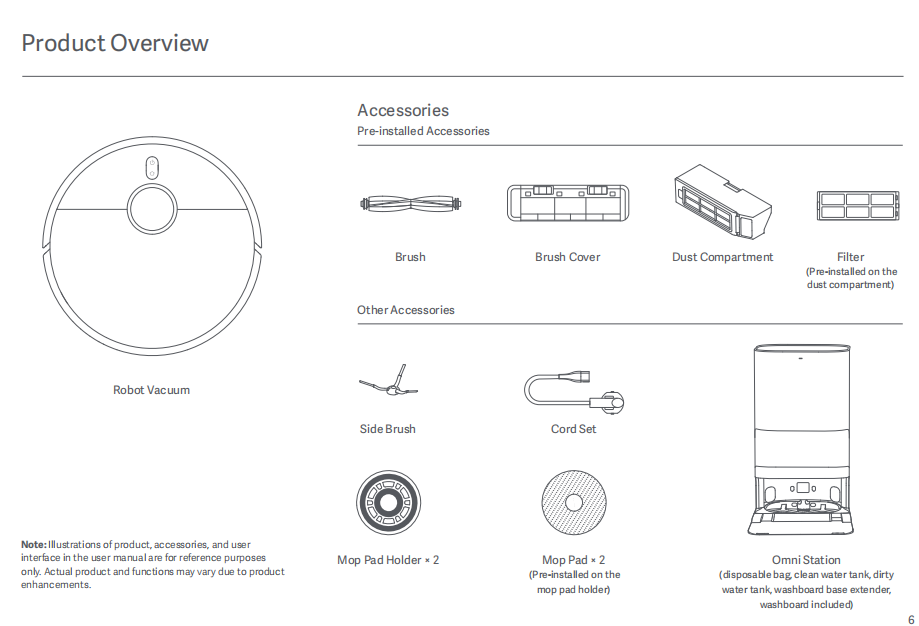
6Q: What is the Xiaomi Robot Vacuum X20+ Omni station?
A: The Xiaomi Robot Vacuum X20+ Omni Station is evolved from the traditional charging dock. It not only supports charging but also integrates more complex functions, such as supporting mop cleaning, collecting dirty water, collecting dust from the robot vacuum, and drying the mop.
7Q: What is the size of Xiaomi Robot Vacuum X20+?
A: 427 x 350 x 586mm (When Xiaomi Robot Vacuum X20+ is placed on the Omni Station);
350 x 350 x 97mm (main unit);
427 x 340 x 586mm (Omni Station).
8Q: How to use the buttons on the Xiaomi Robot Vacuum X20+?
A: 1. Power button:
(1). Press and hold it for three seconds to turn on or off;
(2). Press it to start cleaning or pause while turned on.
2. Home button:
(1). Press it to pause while running;
(2). Press it while paused to return the robot vacuum to the Omni station for charging;
(3). Press it to stop docking while returning to the Omni station;
(4). Press and hold it for three seconds to enable or disable the child lock.
9Q: What does the status of the indicator mean on the Xiaomi Robot Vacuum X20+?
A: White: Cleaning/Cleanup completed/ Fully charged;
Blinking white: Returning to charge/ Repositioning/ Updating firmware/ Awaiting Wi-Fi connection/Connecting to Wi-Fi.;
Breathing white: Charging (medium/high battery level);
Blinking in orange: Robot vacuum is in error;
Orange: Wi-Fi is disconnected;
Breathing orange: Charging (low battery level).
10Q: How to set up the Xiaomi Robot Vacuum X20+?
A: Setting up a robot vacuum is essential to ensure proper functionality and optimal cleaning performance. It involves configuring settings such as cleaning schedules, cleaning modes, and mapping features to suit your home's layout and cleaning needs. Proper setup also helps prevent issues and ensures that the robot vacuum operates smoothly.
You can refer to the following steps to set up Xiaomi Robot Vacuum X20+:
Download the [Mi Home] App >> open the [Mi Home] App and sign in or create an account >> tap on the [+] icon to add a new device >> select [Vacuum Cleaner] from the list of available devices >> follow the on-screen instructions to connect the vacuum cleaner to your Wi-Fi network.
11Q: How to use Xiaomi Robot Vacuum X20+ Omni station?
A: Press and hold the power button on Xiaomi Robot Vacuum X20+ for three seconds to turn it on. Once the robot vacuum is on, place it onto the Omni station, and make sure the charging contacts on the robot vacuum and the station are fully aligned. The robot vacuum connects to the Omni station successfully when you hear a voice prompt for starting charging. Fill the clean water tank with clean water up to the maximum water level mark.
Note:
1. Xiaomi Robot Vacuum X20+ will not be turned off when connected to the Omni station;
2. Do not exceed the maximum (MAX) water level line when filling water;
3. Do not use hot water as it may cause the tank to deform;
4. Do not add any substance like detergents other than clean water to avoid damaging the robot vacuum.
12Q: How to use the Do Not Disturb mode on Xiaomi Robot Vacuum X20+?
A: The Do Not Disturb mode is enabled by default on Xiaomi Robot Vacuum X20+. With a default time period of 22:00-08:00. During the Do Not Disturb period, Xiaomi Robot Vacuum X20+ will not initiate cleaning tasks, the voice volume will be lowered, and the indicators on the vacuum cleaner will be turned off. Scheduled cleanings will not take place during this time, but resumption of interrupted cleanings will continue after the Do Not Disturb period ends.
You can disable the Do Not Disturb mode or modify the time period in the Mi Home app by the following steps:
Open the [Mi Home] app >> select [Xiaomi Robot Vacuum X20+] >> enter [Settings] at the upper right corner >> select [Do Not Disturb] >> adjust your time period.
13Q: How to save the map on Xiaomi Robot Vacuum X20+?
A: Saving the map on Xiaomi Robot Vacuum X20+ allows you to store the layout of your home for future cleaning sessions. This is useful for creating efficient cleaning schedules, setting up no-go zones, and ensuring the robot vacuum cleans specific areas as needed. Saving the map also helps the robot vacuum navigate more effectively, leading to better cleaning performance.
Please refer to the following steps to save map on Xiaomi Robot Vacuum X20+:
1. Ensure that the doors in the areas where should be cleaned are opened to ensure the integrity of the mapping;
2. During fast mapping, Xiaomi Robot Vacuum X20+ will explore the home environment. It will map without cleaning. The entire mapping process takes about 5-15 minutes. After mapping is complete, the robot vacuum will return to the Omni station and generate a partition map;
3. If you start cleaning by pressing the button on the Xiaomi Robot Vacuum X20+ or select full-cleaning after tapping start in the Mi Home app, the Xiaomi Robot Vacuum X20+ will start the cleaning task and return to the Omni station autonomously after finishing cleaning and generating a complete map;
4. If you manually return the robot vacuum to the Omni station or move it back manually during cleaning process, only a temporary map will be generated. A temporary map does not have automatic partitioning and cannot use functions such as area selection cleaning or partition adjustment or renaming.
14Q: How Xiaomi Robot Vacuum X20+ clean the entire house?
A: When cleaning for the first time without a map, Xiaomi Robot Vacuum X20+ will initially clean along the edges of a 4.5 x 4.5m area, then adopt a square shaped cleaning pattern until all areas are covered;
When there is a map, Xiaomi Robot Vacuum X20+ will clean by room, starting with edge cleaning and then using a bow-shaped pattern to complete the room's cleaning. In mop and mop cleaning modes, to avoid the robot vacuum passing through already cleaned rooms and causing secondary pollution, the cleaning sequence of rooms differs from the vacuuming mode.
15Q: Can the Xiaomi Robot Vacuum X20+ stay charged in all the time?
A: Xiaomi Robot Vacuum X20+ can be left on the Omni station for standby charging. For short-term trips or long periods away from home, it is recommended to turn off the power (press and hold the power button to shut down the robot vacuum). The Xiaomi Robot Vacuum X20+ supports overcharge protection, and will automatically switch to trickle charging once the battery is fully charged.
16Q: What battery does Xiaomi Robot Vacuum X20+ uses?
A: Xiaomi Robot Vacuum X20+ uses a lithium-ion 5200 mAH battery.
17Q: How long does Xiaomi Robot Vacuum X20+ take to be charged fully?
A: It takes approximately 6.5 hours to fully charge the Xiaomi Robot Vacuum X20+.
18Q: Does Xiaomi Robot Vacuum X20+ have motor overload protection?
A: All motors on the Xiaomi Robot Vacuum X20+, including the main brush motor, side brush motor, main wheel motor, and mop motor, have overload protection. When foreign objects enter or severe blockages cause overload, the protection will automatically start to prevent motor damage.
19Q: Does the Xiaomi Robot Vacuum X20+ require consumables that need to be replaced regularly?
A: Regularly replacing consumables such as brushes, filters, and mops on a robot vacuum is important to maintain its cleaning performance and extend its lifespan. Over time, these parts can wear out or become clogged with dirt and debris, reducing the vacuum's effectiveness. By replacing consumables regularly, you can ensure that your robot vacuum continues to clean efficiently and effectively.
Please check the following list of consumables items that need to be maintained and replaced:
1. Dust Compartment: Clean as required;
2. Filter (Pre-installed on the dust compartment): Clean every two weeks. Replace every 3-6 months;
3. Clean water tank: Clean every two weeks;
4. Dirty water tank: Recommended to clean after each use;
5. Washboard: Clean every 1-2 weeks;
6. Brush: Clean every two weeks, Replace every 6-12 months;
7. Side Brush: Clean every two weeks, Replace every 3-6 months;
8. Mop Pad: Replace Every 3-6 months;
9. Caster Wheel: Clean every month;
10. LDS Laser Sensor: Clean every month;
11. Line Laser Sensor: Clean every month;
12. Cliff Sensor: Clean every month;
13. Robot vacuum’s charging port: Clean every month;
14. Bumper: Clean every month;
15. Auto-empty vents: Clean every month;
16. Bottom of the robot vacuum: Clean every month;
17. Omni station: Clean every month;
18. Omni station power port: Clean every month;
19. Omni station signaling area: Clean every month;
20. Disposable bag: Replace every 2.5 months depending on actual use.
20Q: How to use the vacuum and mop synchronization function on the Xiaomi Robot Vacuum X20+?
A: 1. Ensure the Xiaomi Robot Vacuum X20+ has the mop component installed. Select the vacuum and mop function in the app, then start the cleaning using the app or by pressing the power button on the robot vacuum. The robot vacuum will start from the Omni station and execute the cleaning task according to the optimal cleaning plan planned on the created map;
Note:
If certain areas may block the robot vacuum or if it may scratch the surface of furniture during operation, you can set up no-go zones in the app to prevent it from entering these areas.
2. During the cleaning process, the robot vacuum will automatically return to the Omni Station to clean the mop Omni stationd on the cleaned area and then continue the cleaning task;
3. After completing the cleaning task, the robot vacuum will automatically collect dust, clean the mop, and then air dry it;
4. After the robot vacuum completes the automatic cleaning, please clean the dirty water tank promptly to avoid odors.
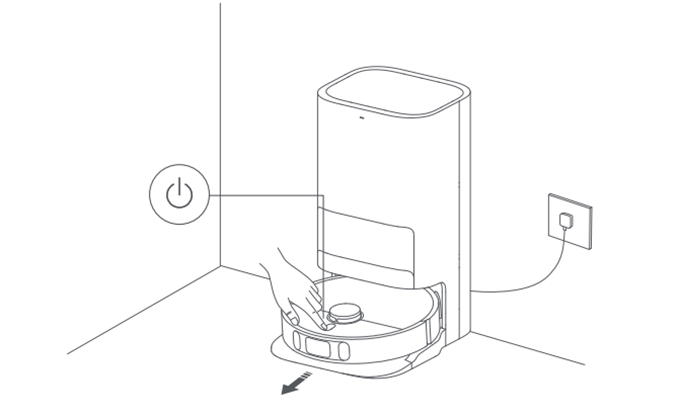
Note:
1. Before starting, ensure that the Omni Station is powered on and Xiaomi Robot Vacuum X20+ is connected to the Omni Station.
2. Before starting the cleaning cycle, Xiaomi Robot Vacuum X20+ will first clean the mop. Please be patient.
3. To ensure the robot vacuum returns to the Omni Station after vacuuming and mopping smoothly, it is recommended that using it starts from the Omni Station. Do not move the robot vacuum during the cleaning process.
21Q: How to set Xiaomi Robot Vacuum X20+ vacuum before mopping?
A: Please refer to the following steps to enable vacuum before mopping on Xiaomi Robot Vacuum X20+:
1. Ensure that robot vacuum has the mop component installed;
2. Select the vacuum before mopping in the app, then start the cleaning by using the app or pressing the power button on the robot vacuum. The robot vacuum will raise the mop component to begin vacuuming;
3. After the cleaning task is completed, the robot vacuum will return to the Omni station for automatic dust collection and mop cleaning. Then, it will lower the mop component to start mopping the floor.
22Q: How to use the Vacuuming mode on Xiaomi Robot Vacuum X20+?
A: To use the vacuuming mode on the Xiaomi Robot Vacuum X20+, start the cleaning using the app or by pressing the power button. Xiaomi Robot Vacuum X20+ will raise the mop component and start sweeping from the Omni station. After the cleaning task is completed, Xiaomi Robot Vacuum X20+ will return to the Omni station for automatic dust collection.
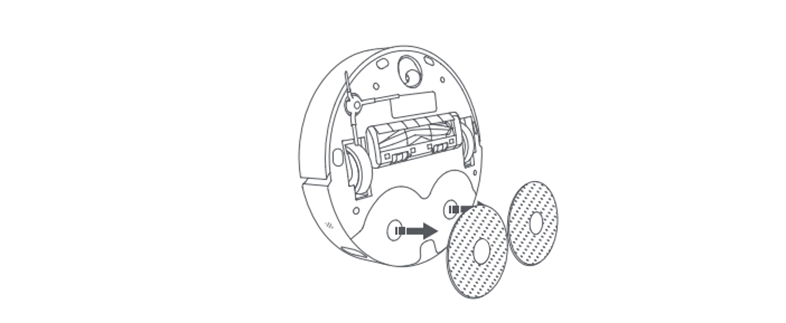
Note:
If you remove the mop component, the robot vacuum will automatically only perform the vacuuming task after starting.
23Q: How to use the Mopping mode on the Xiaomi Robot Vacuum X20+?
A: Ensure the robot vacuum has the mop installed. Select the mopping mode in the Mi home app, then start cleaning using the app or by pressing the power button on the robot vacuum. The robot vacuum will automatically clean the mop. After the mopping task is completed, the robot vacuum will return to the Omni station for mop cleaning and air drying.
24Q: How does the Xiaomi Robot Vacuum X20+ return to charge?
A: After cleaning is completed, the robot vacuum will automatically return to the Omni Station to charge. In pause mode, press the robot vacuum's home button to charge button to start the return to charge process. You can also manually place the robot vacuum back on the Omni Station. With the mop component facing the cleaning stand position on the Omni Station, the robot vacuum will automatically dock. When the robot vacuum is charging, it will prompt voice command (Start charging) and the power button will flash slowly, indicating successful connection to the Omni Station.
Note:
If the robot vacuum cannot find the Omni Station, it will automatically return to the starting point of cleaning. Please manually place the robot vacuum back on the Omni Station for charging.
25Q: How does Xiaomi Robot Vacuum X20+ automatically clean the mop? Why does it need frequent cleaning?
A: 1. Before each mopping or vacuum task, the robot vacuum will clean and dampen the mop;
2. During the mopping task, the robot vacuum will automatically return to the Omni Station for cleaning to maintain a clean state for better mopping results. After each cleaning is completed, it will return to its previous position to continue unfinished work. The frequency of cleaning can be set in the Mi Home app;
3. After completing the mopping task and returning to charge, the robot vacuum will begin self-cleaning, and the Omni Station will thoroughly clean the mop and air dry it.
26Q: Does Xiaomi Robot Vacuum X20+ automatically lift the mop when encountering carpets? When does it lift?
A: The mop holder of the robot vacuum supports auto lifting. If carpet settings have not been set, the robot vacuum will not lift the mop when encountering carpets. You need to add carpet areas in the Mi Home app.
If you wish to enable this feature please refer to the following steps:
Go to the [Mi Home] app >> [Settings] >> [Carpet Editing] >> set carpet cleaning preferences as needed.
The robot vacuum lifts the mop during fast mapping, repositioning, returning to Omni station, navigating to mop locations, and escaping from tight spots.
27Q: When does the Omni station start drying the mop?
A: After the robot vacuum completes the mopping task, the Omni station will automatically start drying the mop. You can manually stop or start the drying task through the Mi Home app.
28Q: When does the Xiaomi Robot Vacuum X20+ start collecting dust?
A: After the robot vacuum completes the vacuuming task and returns to the Omni station, the Omni station will automatically start the dust collection process. The dust collection process lasts for about 10 seconds. To ensure the dust collection duct remains clear, the dust collection time is extended to around 20 seconds during regular dust collection. You can disable automatic dust collection or modify the dust collection frequency in the Mi Home app according to your needs.
29Q: Does the Xiaomi Robot Vacuum X20+ have obstacle avoidance function?
A: The Xiaomi Robot Vacuum X20+ is equipped with obstacle avoidance sensors on its front as known as the line laser sensor, which can sense various obstacles on the ground, measure the distance to them, and autonomously plan to decelerate in advance to avoid collisions.
30Q: Why does the Xiaomi Robot Vacuum X20+ still collide despite having obstacle avoidance sensors?
A: Please refer to the following troubleshooting steps to solve this issue.
1. Please use a soft dry cloth to wipe the lens of the laser sensor to remove fingerprints or dust;
2. Some surfaces with darker colors, high reflectivity (such as metal), transparent objects (glass walls), small table or chair legs and some low obstacles, or obstacles appearing in blind spots, may occasionally not be detected, leading to collisions;
3. When the ambient light is weak, the recognition ability for mesh-like objects, power cords, feces, shoes, Omni stationboards, and weight scales decreases;
4. When the robot vacuum encounters flexible obstacles like curtains or slightly open doors, it will slow down and lightly touch or avoid contact altogether. If there is slight contact is normal;
5. If your home environment is complex with many obstacles on the ground, the robot vacuum may encounter collisions when trying to free itself from being stuck.
31Q: How to maintain the main brush of the Xiaomi Robot Vacuum X20+?
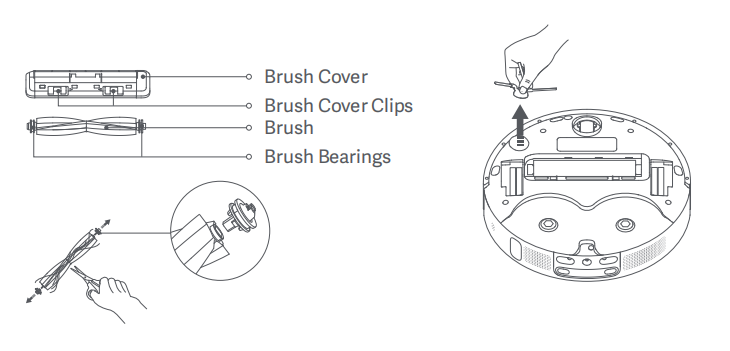
A: It is recommended to clean the main brush every 2 weeks and replace it every 6-12 months to ensure cleaning efficiency. When there is too much or too tight hair wrapped around it, do not pull it forcefully to avoid damaging the main brush.
Please refer to the following steps to maintain the brush of the Xiaomi Robot Vacuum X20+:
1. Turn the robot vacuum upside down and press the buckle to remove the main brush cover;
2. Lift out the main brush, remove the bearings at both ends, and clean the main brush bearings;
3. Use scissors to cut off the hair wrapped around the main brush and remove any debris;
4. Reinstall the main brush and firmly press the main brush cover to lock it in place.
32Q: How to maintain the dust compartment and filter of the Xiaomi Robot Vacuum X20+?
A: It’s recommended to clean the Xiaomi Robot Vacuum X20+ dust compartment and filter every 2 weeks for to prevent the filter from clogging. Gently tap the dustbin when emptying it. Do not clean with a brush, fingers during this process.
Please refer to the following steps to clean your dust compartment and filter:
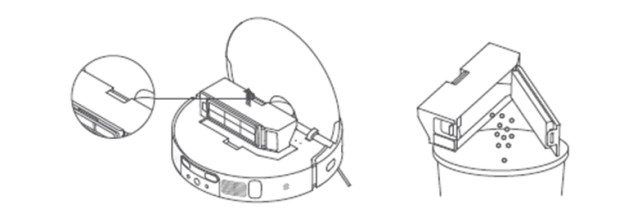
1. Lift the main cover of the robot vacuum, press the dustbin release button, and pull out the dustbin to empty the garbage;
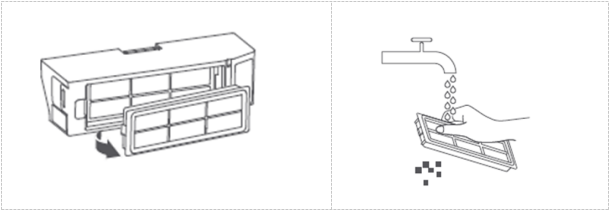
2. Remove the filter as shown in the picture, rinse it repeatedly, and gently tap the edge of the filter frame to remove dirt until it is clean.
33Q: How to maintain the wheel of the Xiaomi Robot Vacuum X20+?
A: Maintaining the wheel of the robot vacuum ensures smooth and efficient navigation, helping it clean effectively and prolonging its lifespan.
Please refer to the following steps to clean the wheel on the Xiaomi Robot Vacuum X20+:
1. Ensure the device is turned off;
2. Flip the robot vacuum and pull out the wheel gently;
3. Clean the hair and dirt from the wheel body and axle;
4. Reinstall the wheel and press it firmly.
34Q: How to maintain the side brush of the Xiaomi Robot Vacuum X20+?
A: Cleaning the side brush of the Xiaomi Robot Vacuum X20+ helps prevent debris buildup, ensuring optimal cleaning performance and preventing damage to the brush or the vacuum itself. It is recommended to clean the side brush monthly and replace it every 3-6 months to ensure cleaning effectiveness.
Please refer to the following steps to clean the Xiaomi Robot Vacuum X20+ side brush:
1. Ensure the device is turned off;
2. Flip the robot vacuum over and pull out the side brush to clean it;
3. Use a small cleaning tool to remove any hair, dust, or debris around the brush;
4. Once the brush is clean and dry, reattach it to the robot vacuum.
35Q: How to maintain the mop of the Xiaomi Robot Vacuum X20+?
A: Maintaining the mop of the Xiaomi Robot Vacuum X20+ ensures that it remains free of debris and tangled hair, allowing it to effectively mop and clean floors without clogging or losing cleaning efficiency. It is recommended to replace the mop every 1-3 months to ensure cleaning effectiveness.
Please refer to the following steps to clean the Xiaomi Robot Vacuum X20+ mop:
1. Ensure the device is turned off;
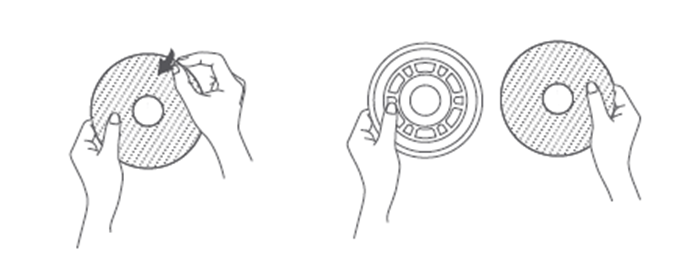
2. Take out the mop from the mop holder by gently pulling it off;
3. Place a new mop onto the mop holder, ensuring it is securely attached.
36Q: How to clean and maintain the sensors and charging contacts of the Xiaomi Robot Vacuum X20?
A: To clean the sensor and charging contacts on Xiaomi Robot Vacuum X20+, use a soft, dry cloth to wipe the sensors on Xiaomi Robot Vacuum X20+, including:
1. LDS laser sensor:
Located on the top of the robot vacuum, it's a circular sensor that spins to map the room;
2. Bumper sensors:
These are located around the front of the robot vacuum and detect when the robot bumps into obstacles;
3. Charging contacts:
These are the metal contacts on the underside of the robot vacuum connect to the charging dock;
4. Cliff sensors:
Located around the edges of the robot vacuum underside and prevent it from falling down stairs or edges.
37Q: How to clean and maintain the cleaning stand of the Xiaomi Robot Vacuum X20+?
A: Cleaning the cleaning stand of the Xiaomi Robot Vacuum X20+ is important to prevent dust and debris buildup, ensuring optimal performance and hygiene.
Please refer to the following steps to clean the Xiaomi Robot Vacuum X20+ cleaning stand:
1. Ensure the device is turned off;
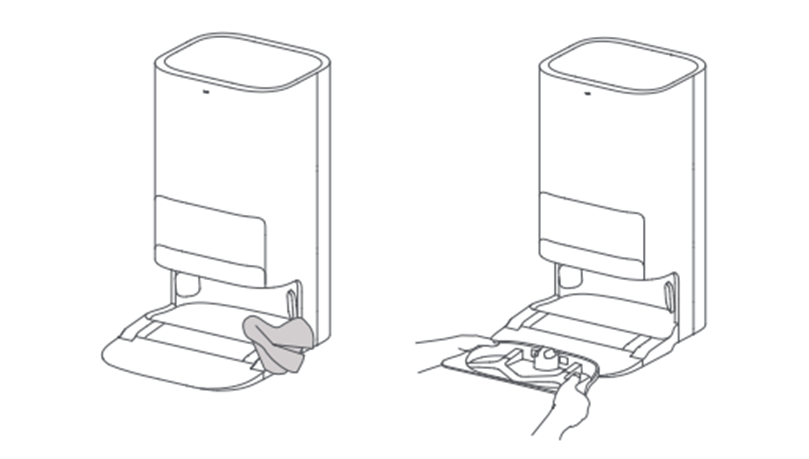
2. In the app, tap on [Omni station Cleaning]. The robot vacuum will exit the Omni station, and the Omni station will start filling with water;
3. Remove the cleaning stand, clean any dirt or stains on the stand with a mop or brush, and then wipe it dry with a dry cloth;
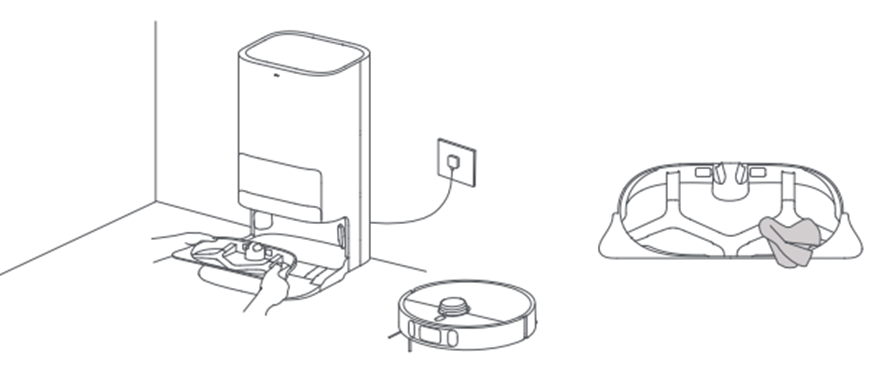
4. Wait for 3 minutes. The Omni station will automatically drain the dirty water. Use a dry cloth to wipe the bottom of the Omni station clean, and then reinstall the cleaning stand.
38Q: How to clean the clean water tank of the Xiaomi Robot Vacuum X20+?
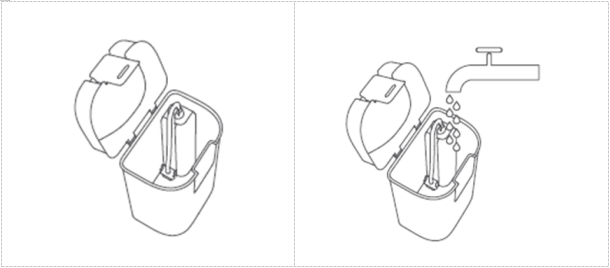
A: Cleaning the clean water tank on Xiaomi Robot Vacuum X20+ is essential to prevent the growth of bacteria and mold, ensuring that your floors are cleaned effectively and hygienically. The float in the clean water tank is a movable part. When cleaning, do not apply excessive force.
Please refer to the following steps to clean the Xiaomi Robot Vacuum X20+ clean water tank:
1. Remove the tank from the robot vacuum and empty any remaining water;
2. Rinse the tank with clean water to remove any dirt or residue;
3. Use a soft brush to clean the inside of the tank. Rinse thoroughly afterward.
4. Wait for the tank to dry completely before reassembling it.
39Q: How to clean the dirty water tank of the Xiaomi Robot Vacuum X20+?
A: Cleaning the dirty water tank of the robot vacuum is important to maintain its suction power and prevent unpleasant odors caused by accumulated dirt and debris.
Please refer to the following steps to clean the Xiaomi Robot Vacuum X20+ dirty water tank:
1. Remove the tank from the robot vacuum and empty the dirty water;
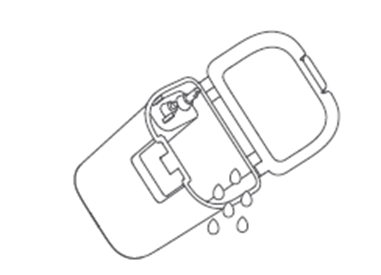
2. Rinse the tank with clean water to remove any dirt or residue;
3. Use a soft brush to clean the inside of the tank. Rinse thoroughly afterward;
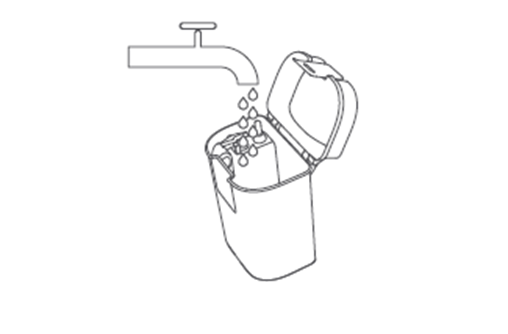
4. Wait for the tank to dry completely before refilling with clean water.
40Q: How to maintain Xiaomi Robot Vacuum X20+ battery?
A: Xiaomi Robot Vacuum X20+ is equipped with a high-performance lithium-ion rechargeable battery. To maintain battery performance during daily use, it's recommended to keep the robot vacuum charged.
If not in use for an extended period of time, power off and store the device. Charge it at least once every three months to prevent battery degradation due to discharging.
41Q: Does the Xiaomi Robot Vacuum X20+ support child lock?
A: Xiaomi Robot Vacuum X20+ supports child lock function. When child lock is enabled, none of the buttons on the robot vacuum can be operated.
If you wish to enable or disable child lock function, please refer to the following steps:
1. Press and hold the robot vacuum's home button for 3 seconds;
2. Open the [Mi Home] app >> [Setting] >> [Accessibility] >> [Child Lock].
42Q: How to connect the Xiaomi Robot Vacuum X20+ to the Mi Home app?
A: Xiaomi Robot Vacuum X20+ is compatible with the Mi Home app, which allows you to control and integrate it with other smart devices.
Please refer to the following steps to connect Xiaomi Robot Vacuum X20+ to the Mi Home app.
1. Scan the QR code to download and install the [Mi Home] app. If you already have the app installed, you will be directed to the device connection page. Alternatively, search for [Mi Home] in your app store to download and install the app;
2. Open the [Mi Home] app and tap the [+] icon at the upper right corner of the home page. Follow the app's instructions to locate your device;
3. Once locate the Xiaomi Robot Vacuum X20+, the Mi Home app will prompt you to enter Wi-Fi information for it to set up connect to the robot vacuum.
43: How to reset the Wi-Fi on the Xiaomi Robot Vacuum X20+?
A: If the router's configuration is changed, the password is forgotten, or for other reasons the phone cannot connect to Xiaomi Robot Vacuum X20+, please open the top cover to expose the Wi-Fi indicator light. Press and hold the home button and the reset button for 5-7seconds until you hear the voice prompt (waiting for connection). Wait for the Wi-Fi indicator to start blinking again, indicating that the reset is successful.
Open the [Mi Home] app and tap the [+] icon at the upper right corner of the home page. Follow the app's instructions to add a Wi-Fi to Xiaomi Robot Vacuum X20+.
44Q: How to update the firmware of the Xiaomi Robot Vacuum X20+?
A: You can update the Xiaomi Robot Vacuum X20+ firmware using the Mi Home app. Before updating, ensure that Xiaomi Robot Vacuum X20+ is on the Omni station and has more than 15% battery. During the firmware update, all buttons will be in flashing state.
Please refer to the following steps to update firmware on Xiaomi Robot Vacuum X20+:
Go to the [Mi Home] app >> [Settings] >> [General Settings] >> [Firmware Update].
45Q: How to reset the factory on the Xiaomi Robot Vacuum X20+?
A: Open the lid of the Xiaomi Robot Vacuum X20+ and press and hold the reset button with a tool until you hear the voice prompt (device reset successfully) and Xiaomi Robot Vacuum X20+ will be restored to its factory state.
46Q: How to restart the Xiaomi Robot Vacuum X20+?
A: Press and hold the power button on the Xiaomi Robot Vacuum X20+ for 15 seconds to force shutdown, then press the power button for 3 seconds to turn it back on.
47Q: Does Xiaomi Robot Vacuum X20+ support quick mapping?
A: Xiaomi Robot Vacuum X20+ supports quick mapping. After connecting to the Mi Home app, you can follow the guide to perform the quick mapping operation. During quick mapping, it will explore the home environment, only mapping without cleaning. The entire mapping process takes about 5-15 minutes. After mapping is completed, Xiaomi Robot Vacuum X20+ returns to the Omni station and can generate a map.
48Q: How many maps does Xiaomi Robot Vacuum X20+ can save?
A: Xiaomi Robot Vacuum X20+ supports saving up to 3 maps. For first time uses, you can either perform a quick mapping or a full cleaning mapping.
If you wish to add more than three map, please refer to the following steps:
Open the [Mi Home] app >> [Map Management] >> [Map List].
49Q: What is the whole house cleaning function?
A: When there is no saved map, selecting whole house cleaning will cause the Xiaomi Robot Vacuum X20+ to clean in a square area of 4.5m x 4.5m. After saving the map in the app, selecting whole house cleaning will cause the robot vacuum to automatically plan a path to clean room by room, and return to the Omni station after cleaning is completed.
50Q: What is zone cleaning on Xiaomi Robot Vacuum X20+?
A: Zone cleaning allows to specify particular areas or rooms for Xiaomi Robot Vacuum X20+ to clean. You can draw zones on the map in the app, and the robot will clean those areas specifically. This feature is useful for targeting specific areas that need more frequent cleaning or avoiding certain areas.
Note:
During cleaning, the robot may go beyond the designated area. Please ensure the area around the designated zone is clear of obstacles.
51Q: What is the scheduled cleaning function on Xiaomi Robot Vacuum X20+?
A: You can set the scheduled cleaning time, repetition mode, and cleaning area using the Mi Home app. Xiaomi Robot Vacuum X20+ will start cleaning automatically at the specified time and return to the charging dock when cleaning is completed.
Note:
If the Do Not Disturb mode is enabled, scheduled cleaning will not be executed during the specified quiet hours.
52Q: What is the virtual walls/prohibited area function on Xiaomi Robot Vacuum X20+?
A: Using the Mi Home app, you can set up virtual walls/prohibited areas to prevent Xiaomi Robot Vacuum X20+ from entering areas where cleaning is not needed.
To enable this feature, please refer to the following steps:
Go to the [Mi Home] app >> [Settings] >> [Map management] >> [Virtual walls/prohibited areas].
1. To add prohibited area/virtual wall, tap on the virtual wall/prohibited area. Move the virtual wall line/body of the prohibited area to the appropriate area (you can enlarge or shrink the length of the virtual wall/prohibited area). Tap the [√] in the upper right corner to save;
2. To delete prohibited area/virtual wall setting page, tap on the virtual wall/prohibited area to be deleted. Tap the [X] icon in the upper right corner of the virtual wall/prohibited area to delete. Tap the [√] in the upper right corner to save.
53Q: How to edit map with Xiaomi Robot Vacuum X20+?
A: Editing the map on Xiaomi Robot Vacuum X20+ allows you to customize cleaning areas, set no-go zones, and optimize cleaning routes for more efficient and effective cleaning.
Please refer to the following steps to edit a map on Xiaomi Robot Vacuum X20+:
1. To merge areas, open the [Mi Home] app >> [Settings] >> [Map management] >> [Area Editing] >> tap on two adjacent areas you want to merge >> tap [Merge];
2. To split areas, open the [Mi Home] app >> [Settings] >> [Map management] >> [Area Editing] >> select the area you want to split and split points are on the boundary of the area >> tap [√] at the upper right corner to confirm;
3. To rename an area, open the [Mi Home] app >> [Settings] >> [Map management] >> [Area Editing] >> select the area you want to rename and enter a new name.
54Q: How to reset a map on Xiaomi Robot Vacuum X20+?
A: Deleting the map on Xiaomi Robot Vacuum X20+ may be necessary when you want to reset cleaning zones, remove outdated maps, or if there are changes in your home's layout that require a new map to be created.
Please refer to the following steps to delete the map on Xiaomi Robot Vacuum X20+:
Open the [Mi Home] app >> [Settings] >> [Map management] >> [Map List] >> select the map to be reset >> tap the [Trash can] icon in the upper right corner >> tap [Confirm].
55Q: How to create multiple maps with Xiaomi Robot Vacuum X20+?
A: Creating multiple maps on a Xiaomi Robot Vacuum X20+ allows you to store different floor plans for various levels or areas of your home, enabling more efficient and customized cleaning routines without the need to scan each time you change floors.
Please refer to the following steps to create a new map on Xiaomi Robot Vacuum X20+:
Open the [Mi Home] app >> [Settings] >> [Map management] >> [Create Map].
Note:
It is recommended to use the fast mapping function to create the second or third map. After the map is successfully saved, if you need to clean a specific floor, move the robot vacuum to the starting position near that floor when mapping, and manually select the corresponding map in the app's map list to start cleaning.
56Q: How many suction modes does Xiaomi Robot Vacuum X20+ have?
A: There are four suction levels for Xiaomi Robot Vacuum X20+: Quiet, Standard, Strong, and Max.
57Q: How to set the custom mode of Xiaomi Robot Vacuum X20+?
A: After saving or having a partitioned map, you can customize settings for each area. Different rooms can have different cleaning modes, suction levels, and cleaning frequencies. You can also manually adjust the cleaning order for each room in the cleaning sequence.
58Q: Can the Xiaomi Robot Vacuum X20+ adjust the amount of water used for mopping?
A: Xiaomi Robot Vacuum X20+ can set the water usage preference in the app. Deep cleaning uses more water, suitable for heavily soiled floors for a thorough mopping. Daily cleaning is suitable for regular environments, with balanced water usage, making it suitable for basic cleaning and maintenance of ordinary household floors.
59Q: Can the Xiaomi Robot Vacuum X20+ adjust the frequency of rinsing the mop?
A: Adjusting the frequency of rinsing the mop of Xiaomi Robot Vacuum X20+ allows you to customize the cleaning schedule Omni stationd on the level of dirt and floor type, ensuring optimal cleaning performance and prolonging the lifespan of the mop.
Please refer to the following steps to create adjust the frequency of rinsing the mop on Xiaomi Robot Vacuum X20+:
Open the [Mi Home] app >> [Settings] >> [Mop settings] >> [Enable/Disable]. You can also set the area for rinsing to be 10 square meters, 8 square meters, or 5 square meters.
60Q: What should I do if the Xiaomi Robot Vacuum X20+ cannot connect to the network?
A: If your Xiaomi Robot Vacuum X20+ encounter this problem, please refer to the following troubleshooting steps:
1. Make sure the Wi-Fi password entered during connection is correct. Wi-Fi usernames cannot contain Chinese characters, and passwords should not contain special characters like @, ¥, %. If they do, reset them to alphanumeric formats and try again;
2. Check if the router's internet connection is normal. You can try opening a web page on your phone or a device connected to the Wi-Fi to see if it's working properly;
3. Ensure that the distance between the router and the robot is not too far (within 5 meters or with walls in between). Try moving the robot closer to the router (1-2 meters) and reconnecting;
4. Try connecting it to your phone's Wi-Fi hotspot.
5. Check if the router is connected to too many smart devices, causing the network to slow down or the router to be unresponsive. Try restarting the router and then reconnecting.
6. Currently, the device does not support corporate EAP802.1x authenticated networks, 5G networks, or public Wi-Fi networks that require web page authentication. Switch to a different network and try connecting again.
7. If the device has been offline for more than 1 hour, the Wi-Fi module will automatically close the network connection function, and the Wi-Fi indicator will blink. Restart the device to restore the connection;
8. Check if your phone has restricted the app's permissions, such as internet access and location. Allow these permissions and try again;
9. Connection failure may also be related to the phone model. Try using a different phone model to connect;
10. If you still cannot connect, try resetting the robot and then reconnecting to the network.
61Q: What should I do if the Xiaomi Robot Vacuum X20+ has charging abnormalities?
A: Please check if the charging contacts on the Omni station and the robot vacuum are dirty. When they are dirty, charging abnormalities can occur, so please wipe them clean before use. If the Omni station is not powered, please check if both ends of the power cord are properly plugged in.
62Q: What should I do if Xiaomi Robot Vacuum X20+ shows a high water level warning in the cleaning tray?
A: If Xiaomi Robot Vacuum X20+ is showing a high water level warning in the cleaning tray, it's likely that there is excess water in the tray that needs to be emptied.
If your Xiaomi Robot Vacuum X20+ encounters this problem, please refer to the following troubleshooting steps:
1. Remove the cleaning bracket and rinse it thoroughly, then wipe it dry with a cloth;
2. Check if there is any blockage at the bottom of the cleaning bracket and wipe the inside of the Omni station with a dry cloth;
3. Put the cleaning bracket back into the Omni station;
4. Check if the seal of the wastewater tank is damaged and if the float ball in the wastewater tank has water inside. If there is damage or water inside, please contact customer service. If everything is normal, gently press the wastewater tank to ensure it is installed correctly;
5. Do not use any cleaning agents or disinfectants;
6. If the issue cannot be resolved, please contact after-sales service.
63Q: What precautions should be taken before using the Xiaomi Robot Vacuum X20+ for cleaning?
A: Please ensure Xiaomi Robot Vacuum X20+ is fully charged before starting cleaning from the Omni station. Before cleaning, please tidy up the furniture and remove any fragile items from the floor.
64Q: Do I need to charge Xiaomi Robot Vacuum X20+ for 16 hours before the first three uses?
A: The lithium battery can be charged as needed, without memory effect. It can be used as soon as it is fully charged without waiting for 16 hours.
65Q: What is the battery life of the Xiaomi Robot Vacuum X20+ in vacuuming and mopping mode?
A: Quiet mode: about 140 minutes;
Standard mode: about 120 minutes;
Strong mode: about 105 minutes;
Turbo mode: about 70 minutes.
The actual working time depends on the actual condition and cleaning environment
66Q: What is the battery life of the Xiaomi Robot Vacuum X20+ in vacuuming mode?
A: Quiet mode: about 210 minutes;
Standard mode: about 190 minutes;
Strong mode: about 150 minutes;
Turbo mode: about 85 minutes.
The actual working time depends on the actual conditions and cleaning environment.
67Q: What is the battery life of the Xiaomi Robot Vacuum X20+ in mopping mode?
A: In the mopping mode, the battery life is about 190 minutes. The actual working time depends on the actual conditions and cleaning environment.
68Q: Do I need to upgrade Xiaomi Robot Vacuum X20+ to the new firmware version when it's available?
A: The new firmware version usually contains optimizations. It is recommended to upgrade to the new firmware version promptly after it's available to ensure the best cleaning experience.
69Q: What should I do if my Xiaomi Robot Vacuum X20+ starts cleaning another room before completing one room?
A: After the setup map on Xiaomi Robot Vacuum X20+, it will clean rooms one by one. If this behavior occurs, check the partitioning in the app. If there's a partitioning error, adjust the room partitioning in the app promptly.
70Q: What should I do If my Xiaomi Robot Vacuum X20+ seems to repeat its cleaning path back and forth?
A: Xiaomi Robot Vacuum X20+ navigates to areas that haven't been cleaned yet according to its planned path. This may appear as repeated back-and-forth movements, but it's part of its cleaning process and not actual repeated cleaning.
71Q: What should I do if my Xiaomi Robot Vacuum X20+ can't enter some narrow areas during cleaning?
A: Xiaomi Robot Vacuum X20+ can pass through spaces with a minimum width of approximately 37cm. Areas narrower than this may be inaccessible to the robot vacuum.
72Q: Does the cleaning efficiency of the Xiaomi Robot Vacuum X20+ decrease in complex environments?
A: To ensure thorough cleaning coverage, Xiaomi Robot Vacuum X20+ will clean all corners and may increase turning and edge-cleaning actions in complex environments, which may reduce cleaning efficiency.
73Q: What should I do if my Xiaomi Robot Vacuum X20+ makes loud noises during cleaning?
A: If your Xiaomi Robot Vacuum X20+ encounter this problem, please refer to the following steps:
1. Check if the brush is tangled with foreign objects, causing abnormal noise. Clean the brush promptly to avoid damage;
2. To improve cleaning effectiveness, the robot uses a high-power fan for stronger suction, resulting in slightly louder noise. You can use the quieter (Quiet mode) during cleaning.
74Q: What should I do if my Xiaomi Robot Vacuum X20+ makes strange noises during cleaning?
A: When Xiaomi Robot Vacuum X20+ works on smooth tile floors or wooden floors, it may generate slight noise from the contact between the bottom brush and the floor. When the robot passes over tile or floor joints, it may make a slight clicking noise as it contacts and cleans these joints. These noises do not affect the normal use of the machine.
75Q: What should I do if my Xiaomi Robot Vacuum X20+ gets stuck during cleaning?
A: Xiaomi Robot Vacuum X20+ may get stuck on items such as slippers or plastic bags while cleaning. After resolving the issue, place the robot back in a cleared area to continue cleaning. Try to tidy up loose items before cleaning to prevent the robot from getting stuck.
76Q: How should I handle it if my Xiaomi Robot Vacuum X20+ gets stuck on objects at its body height during cleaning?
A: When Xiaomi Robot Vacuum X20+ encounters obstacles as same as its body height during cleaning, you can set up virtual walls to prevent it from entering those areas again.
77Q: What should I do if my Xiaomi Robot Vacuum X20+ gets entangled with the side brush or main brush during cleaning?
A: The side brush and main brush may get stuck with items such as power cords or charging cables during cleaning. After resolving the entanglement, place the robot back in a cleared area to continue cleaning. Try to tidy up loose items before cleaning to prevent entanglement.
78Q: How can I prevent my Xiaomi Robot Vacuum X20+ from getting entangled with the power cord of the Omni station during cleaning?
A: Before cleaning, please organize the excess power cord of the Omni station and avoid placing it on the floor.
79Q: Why does my Xiaomi Robot Vacuum X20+ repeat cleaning in areas that have already been cleaned after being moved?
A: After being moved, Xiaomi Robot Vacuum X20+ will perform repositioning. If the repositioning is successful, it will continue cleaning. If the repositioning fails, it will start cleaning again.
80Q: What are the reasons for the repositioning failure of my Xiaomi Robot Vacuum X20+?
A: Repositioning failure can occur if Xiaomi Robot Vacuum X20+ is moved to an area that has not been cleaned before. Please try to ensure that the robot vacuum is moved to an area that has been cleaned before. Also, ensure that no one is standing next to the robot vacuum during repositioning.
81Q: What is the maximum height of obstacles that the Xiaomi Robot Vacuum X20+ can overcome?
A: Xiaomi Robot Vacuum X20+ can overcome obstacles up to 20mm in height.
82Q: Why does the Xiaomi Robot Vacuum X20+ mop bracket fall off during operation?
A: The mop bracket may fall off when Xiaomi Robot Vacuum X20+ climbs over carpets, door thresholds, or small steps. Before cleaning, please tidy up the floor cables to prevent entanglement that may cause the mop bracket to fall off.
83Q: Why does the Xiaomi Robot Vacuum X20+ mop bracket fall off inside the Omni station?
A: When removing Xiaomi Robot Vacuum X20+ from the Omni station, the mop bracket may get caught. It is recommended to use the ejection key to remove the robot vacuum from the Omni station and use the home key to return it to the Omni station.
84Q: Why does the Xiaomi Robot Vacuum X20+ mop fall off?
A: Please make sure the mop is properly attached to the mop bracket before operation. If the mop cannot be attached properly or is not flat after multiple uses, please replace it with a new mop.
85Q: What is the reason for my Xiaomi Robot Vacuum X20+ encountering obstacles and colliding during cleaning?
A: Xiaomi Robot Vacuum X20+ has LDS laser sensors and line laser sensors, which can detect obstacles and decelerate in advance to avoid collisions. However, some dark-colored, reflective, or small obstacles such as table and chair legs may not be detected, leading to collisions without prior deceleration, which is normal.
86Q: What should I do if my Xiaomi Robot Vacuum X20+ cannot be turned on?
A: If the battery is low, please charge it on the Omni station before use. Ensure the environmental temperature is between 0-40°C for proper operation.
87Q: Why does my Xiaomi Robot Vacuum X20+ consume power quickly during cleaning?
A: After the Xiaomi Robot Vacuum X20+ is fully charged and has been idle for a long time, the battery may initially deplete quickly in the first few minutes of cleaning, which is normal. The power consumption will return to normal after a few minutes. Using the strong or turbo mode for cleaning will also result in faster power consumption.
88Q: Does my Xiaomi Robot Vacuum X20+ consume power while it is always on the Omni station?
A: When Xiaomi Robot Vacuum X20+ is on the Omni station, it is powered by the station. It consumes very low power in sleep mode to maintain optimal performance.
89Q: What could be the reason for the failure of my Xiaomi Robot Vacuum X20+ to return to the Omni station?
A: There are too many obstacles near the Omni station. Please place the Omni station in an open area, ensuring there are no obstacles within 5 cm on both sides and 1.5 meters in front of the Omni station.
Xiaomi Robot Vacuum X20+ does not start cleaning from the Omni station before cleaning, and the Omni station was not found during the cleaning process. Please try to start the cleaning from the Omni station.
If the robot was moved during cleaning, the robot's repositioning failed, and a new task was started.
There is water accumulation on the Omni station or the ground in front of it is wet, causing the wheels to slip. Please dry it and try again.
90Q: How can I open the dustbin of my Xiaomi Robot Vacuum X20+ more easily?
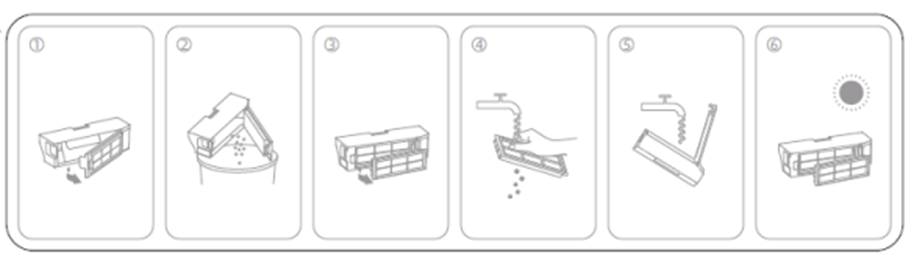
A: Pay attention to the markings on the dust compartment's opening and open it correctly. Do not try to open the dustbin by removing the dustbin filter.
91Q: What should I do if my Xiaomi Robot Vacuum X20+ cannot remove stubborn stains while mopping?
A: For stubborn stains that cannot be removed while mopping, manual cleaning assistance is needed.
92Q: How can I deal with the floor getting dirtier as my Xiaomi Robot Vacuum X20+ mops?
A: If the floor is too dirty, please clean the mop regularly while mopping.
93Q: How long does it take for the mop of my Xiaomi Robot Vacuum X20+ to dry?
A: After cleaning, the mop of the Xiaomi Robot Vacuum X20+ will automatically air dry in the Omni station for about 4 hours.
94Q: What should I do if the overflow water sensor terminal of my Xiaomi Robot Vacuum X20+ Omni station turns yellow?
A: The yellowing of the overflow water sensor terminal of the Omni station is a normal phenomenon and does not affect normal use. You can wipe it with a damp cloth before using it.
95Q: Why is the scheduled cleaning not working on my Xiaomi Robot Vacuum X20+?
A: It may be due to low battery power. Scheduled cleaning will only start when the remaining battery power is above 15%. It may be because the do not disturb mode is enabled. Scheduled cleaning does not work during the do not disturb period.
96Q: What could be the reason for my Xiaomi Robot Vacuum X20+ to return to the Omni station due to low battery during cleaning but not resume cleaning afterward?
A: Please make sure the Xiaomi Robot Vacuum X20+ is not in the Do Not Disturb mode, as it will not resume cleaning during the mode period. Manual return to the Omni station or placing the robot back on the Omni station will not resume cleaning.
97Q: What could be the reason for the cleaning ability of my Xiaomi Robot Vacuum X20+ to decrease or for it to leak dust?
A: 1. The dustbin is full, and the dustbin filter is clogged. Please clean the dustbin and filter;
2. The main brush is entangled with debris. Please clean the main brush;
3. The dust collection port of the robot may be blocked by foreign objects. Please clean the dust collection port.
98Q: Can the Xiaomi Robot Vacuum X20+ operate in environments with low light?
A: Xiaomi Robot Vacuum X20+ uses LDS laser sensor which will not affected by light. However, the line laser sensor may have reduced recognition and obstacle avoidance capabilities for power lines, shoes, and other obstacles in low-light environments.
99Q: Can I manually turn on or off the air drying feature of my Xiaomi Robot Vacuum X20+?
A: If you find the air drying sound too loud, you can adjust it to end the air drying in the Mi Home app within the home-Omni station settings.
100Q: What could be the reason for the firmware upgrade failure of my Xiaomi Robot Vacuum X20+?
A: During the firmware upgrade, Xiaomi Robot Vacuum X20+ must be on the Omni station and have a battery level greater than 15% to upgrade successfully. Also, check your network.
101Q: What should I do if the data cannot be loaded when using the app for my Xiaomi Robot Vacuum X20+?
A: Please check if your network is working properly. Try exiting the app and then reopening it.
102Q: What should I do if my Xiaomi Robot Vacuum X20+ reports being stuck?
A: In narrow spaces, Xiaomi Robot Vacuum X20+ may get stuck between objects. If the space is less than 37cm, it may be difficult for the robot to escape, and you may need to help it continue cleaning.
103Q: What could be the reason for the odor coming from the mop and dustbin of my Xiaomi Robot Vacuum X20+?
A: The abnormal smell from the mop may be due to dirty floors. If Xiaomi Robot Vacuum X20+ sucks in liquids during cleaning and the dustbin is not cleaned promptly, it may produce odor smell. Please clean the dustbin and mop promptly after cleaning.
104Q: What should I do if the map of the Xiaomi Robot Vacuum X20+ is tilted?
A: If your Xiaomi Robot Vacuum X20+ encounter this problem, please refer to the following troubleshooting steps:
1. Mirror reflections and other factors can cause mapping errors. It is recommended to cover the bottom 15 cm;
2. After a period of time, if the map has overlapping or rotation issues, you can restore it to a previous version in the map management section. The next cleaning process will re-map;
3. Regularly check if there is dirt on the side of the navigation scanning component and clean it with a clean cloth or tissue;
4. Restart or reset the Xiaomi Robot Vacuum X20+.
105Q: What should I do if the Xiaomi Robot Vacuum X20+ has an abnormal path?
A: If your Xiaomi Robot Vacuum X20+ encounter this problem, please refer to the following troubleshooting steps:
1. Check and confirm whether there are any foreign objects wrapped around the drive wheel;
2. Check if the LDS (laser distance sensor) is rotating properly. You can lightly tap the cover of the LDS to check if it rebounds properly;
3. Check if there are any foreign objects or hair obstructing the rotation of the LDS. If so, remove them;
4. Ensure there are no irregularities or raised stickers on the surface of the robot;
5. Try tapping the collision bumper to ensure it rebounds properly;
6. Wipe the line laser sensor;
7. Try restarting the Xiaomi Robot Vacuum X20+.
106Q: What should I do if the Xiaomi Robot Vacuum X20+ reports a collision bumper abnormally?
A: Try tapping the collision bumper to ensure it rebounds properly and try to restart the Xiaomi Robot Vacuum X20+ if the issue persists.
107Q: What should I do if the Xiaomi Robot Vacuum X20+ reports a side brush abnormally?
A: Remove the side brush and check for any obstructions or entangled hair try to restart the Xiaomi Robot Vacuum X20+ if the issue persists.
108Q: How to deal with the error of cleaning the water tank abnormally when cleaning the mop of the Xiaomi Robot Vacuum X20+?
A: It may be due to the clean water tank not being installed or the water level in the clean water tank being insufficient.
If your Xiaomi Robot Vacuum X20+ encounter this problem, please refer to the following troubleshooting steps:
1. Remove the clean water tank and check if the float at the bottom of the clean water tank and the float magnet are in place;
2. If the water level in the clean water tank is not enough to complete the job, an error message will be prompted. Add enough clean water and then tap the power button on the Omni station or in the app to continue;
3. Re-position the clean water tank and press lightly;
4. If the water tank still reports a fault with water inside, unplug the power of the Omni station, wait for 1 minute, and then plug it back in to retry;
5. If the problem persists, please visit after sales for inspection.
109Q: How to deal with the error of dirty water tank abnormal when cleaning the mop of the Xiaomi Robot Vacuum X20+?
A: If your Xiaomi Robot Vacuum X20+ encounter this problem, please refer to the following steps:
1. If the dirty water tank is full, please empty the dirty water;
2. Fill in with clean water and place the dirty water tank back in place and press lightly;
3. Tap the [Start] button in the [Mi Home] app to continue the cleaning task.
110Q: How to deal with the error of being unable to draw water from the dirty water tank or abnormal water level in the cleaning tray when cleaning the mop of the Xiaomi Robot Vacuum X20+?
A: If your Xiaomi Robot Vacuum X20+ encounter this problem, please refer to the following steps:
1. Remove the dirty water tank and check if the sealing ring is deformed or not properly inserted. If so, reinsert the sealing ring properly. If the dirty water tank is damaged, please contact customer service;
2. After confirming that the dirty water tank is normal, close the lid of the dirty water tank and gently press it back in place to ensure that the dirty water tank is installed properly;
3. Remove the cleaning tray from the Omni station station and check if the bottom is blocked by dirt. If there is any blockage, clean it before using it again;
4. Use a dry cloth to wipe the residual water inside the Omni station station and reinstall the cleaning tray;
5. Tap the mop cleaning button to try cleaning the mop. If the problem persists and cannot be resolved, please contact customer service;
111Q: Does the Xiaomi Robot Vacuum X20+ support multiple connections?
A: Xiaomi Robot Vacuum X20+ does not support multiple connections, but it can be shared with others.
Please refer to the following steps to enable device sharing for Xiaomi Robot Vacuum X20+
Go to the [Mi Home] app >> [Settings] >> [General Settings] >> [Device Sharing].
Shared users can perform basic operations and settings on the robot vacuum, such as starting, pausing, and ending cleaning, as well as adjusting suction power and humidity.
112Q: How to deal with Xiaomi Robot Vacuum X20+ shows offline?
A: If your Xiaomi Robot Vacuum X20+ encounter this problem, please refer to the following steps:
1. Check if the robot vacuum is turned off. If it is, press and hold the power button to turn it on;
2. The robot vacuum can continue cleaning even when offline. When the network signal improves, the robot vacuum will automatically return online;
3. Try adding or resetting the network for the robot vacuum, selecting the router network closest to the robot vacuum for configuration;
4. Check if the Wi-Fi is working properly.
113Q: What should I do If the Xiaomi Robot Vacuum X20+ makes strange noises during operation?
A: If your Xiaomi Robot Vacuum X20+ encounter this problem, please refer to the following steps:
1. Check if the main brush/side brush are stuck with hair or debris, and clean it.
2. If there is still noise after cleaning, remove the main brush/side brush, clean the hair or debris inside, and then reinstall it.
114Q: Why Xiaomi Robot Vacuum X20+ makes strange noises during docking?
A: It is normal. Because the Xiaomi Robot Vacuum X20+ will turn on its water pump in advance during docking, which will cause the noise.
115Q: Why Xiaomi Robot Vacuum X20+ mop is still wet after drying?
A: 1. Xiaomi Robot Vacuum X20+ will only wash and dry the mop after completing the cleaning task and returning to the Omni station. If it is in a cleaning pause state, it will not perform the drying task;
2. The drying task takes 4 hours, so please be patient;
3. If the mop still feels slightly damp after automatic drying, you can manually start the drying again on the Omni station, extend the drying time, or manually remove the mop for air drying.
116Q: What should I do if the Xiaomi Robot Vacuum X20+ or Omni station powers off?
A: After the Xiaomi Robot Vacuum X20+ completes the cleaning task, it will return to the Omni station for charging. After a period of time, the robot vacuum will enter a low-power mode, and the Omni station will automatically turn off the indicator. The Omni station will only shut down when the power is disconnected. If you want to turn off the Omni station, please unplug the power cord. After the Omni station is disconnected from power, the robot vacuum will not be able to continue charging. If left disconnected for a long time, the robot vacuum may run out of power and shut down. When you use it next time, please plug in the Omni station power and charge the robot vacuum.
117Q: Why does the robot vacuum automatically shut down?
A: If your Xiaomi Robot Vacuum X20+ encounter this problem, please refer to the following steps:
1. Place the robot vacuum back on the Omni station for charging;
2. If the robot vacuum automatically shuts down while on the Omni station, please check if the Omni station is not connected to power, or if the robot vacuum is not in full contact with the Omni station.
118Q: What to do if the Omni station of the Xiaomi Robot Vacuum X20+ produces an abnormal smell?
A: It is recommended to empty and rinse the dirty water tank promptly after each use. Clean the cleaning bracket regularly. It is recommended to clean the cleaning bracket once every 2-3 uses of the mopping function.
119Q: Why does the dirty water tank of the robot vacuum have an abnormal smell?
A: In areas or seasons with relatively high humidity, the mop may not completely dry. It is recommended to manually clean and air dry it regularly to avoid long-term dampness and odors. Please also regularly wipe the Omni station and clean the cleaning bracket.
120Q: What should I do if Xiaomi Robot Vacuum X20+ fails to collect dust?
A: If your Xiaomi Robot Vacuum X20+ encounter this problem, please refer to the following steps:
1. Ensure that the Omni station is powered and executing the dust collection task. The dust cover of the dust bin and the dust bag should be properly covered and installed;
2. Check if the dust bag is full. If it is full, replace it and try again;
3. Check if the dust collection port of Xiaomi Robot Vacuum X20+ and the Omni station, and the dust collection outlet of the dust bin are blocked. Please clean them before use;
4. Check if the auto-dust collection setting in the app is turned off. If it is off, please turn it on and try again;
5. Check if the charging electrode window is dirty, which may prevent signal transmission. Clean it with a dry tissue and try again;
6. If there is a large amount of dust and dirt in your home, it is recommended to set the dust collection frequency to collect dust every time.
121Q: Why does Xiaomi Robot Vacuum X20+ return twice on the Omni station when returning to recharge?
A: When Xiaomi Robot Vacuum X20+ returns to recharge, it needs to ensure that the charging electrodes are in contact accurately, which requires a high level of precision. The Xiaomi Robot Vacuum X20+ will automatically correct the return-to-charge route Omni station. In cases where the return-to-charge docking is not perfect, Xiaomi Robot Vacuum X20+ will back off and dock a second time. This is a normal phenomenon. Please ensure that the Omni station station is placed on a level surface and there is no residual water around the Omni station to avoid slipping.
122Q: Q: Why is the Xiaomi Robot Vacuum X20+ map incomplete when using quick mapping?
A: When using quick mapping, all room doors need to be fully opened and not partially open or half open. People should not stand too close to the robot vacuum or follow the robot vacuum. If the map is incomplete, you can delete the map from the map list and then rebuild it. If you do not rebuild the map, you can directly perform a global vacuum on the original map. The map will be automatically updated to complete the missing areas and divide the areas.
123Q: Why does Xiaomi Robot Vacuum X20+ leave watermarks and streaks after mopping?
A: After mopping, the water on the floor evaporates, leaving some watermarks, which is normal. The degree of watermarking depends largely on the floor material and lighting. It is recommended to set a scheduled cleaning with the robot vacuum and replace the mop in time. The cleaner the floor becomes, the less noticeable the watermarks will be.
124Q: What should I do if I can’t find the Omni station extension cushion?
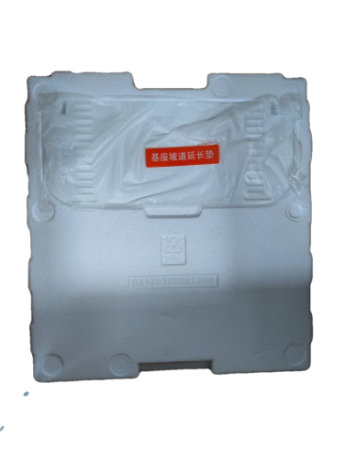
A: The Omni station ramp cushion is located on top of the protective foam of the whole machine after opening the front of the machine. It has a red sticker label (white packaging). When unpacking, you can see it when taking out the device from the top of the device.
125Q: What should I do if the Xiaomi Robot Vacuum X20+ prompts that the cleaning tray water level is high after period of time use?
A: After using the Omni station, Xiaomi Robot Vacuum X20+ and mop for a period of time, there may be slight sediment and dirt accumulation in the cleaning tray. If the device prompts cleaning tray water level is too high after some time of use, it is recommended to regularly clean the bottom of the Omni station cleaning tray.
1Q: What is the Xiaomi Robot Vacuum X20+?
A: Xiaomi Robot Vacuum X20+ is a Eco product whose comprehensive performance is superior to the vacuuming and mopping series and the Xiaomi washing-free series. Xiaomi Robot Vacuum X20+ has the ability to avoid obstacles and perform planned cleaning tasks. It can autonomously perform vacuuming and mopping tasks in home layouts, and supports functions such as automatic dust collection and automatic cloth washing. This greatly helps you reduce the burden of cleaning the floor at home.
2Q: What are the key features of the Xiaomi Robot Vacuum X20+?
A: On the Xiaomi Robot Vacuum X20+, there are various highly accurate motion sensors and there is an LDS laser navigation algorithm, accurately recording motion trajectories and creating cleaning maps. Xiaomi Robot Vacuum X20+ is designed for use in complex home environments, with obstacle avoidance, strong obstacle-crossing ability, and escape ability. It uses a dual-disc rotating floor mop for thorough cleaning, automatically returning to the Omni station for washing after work. During washing, the mop can be lifted to reduce secondary pollution.
On the Omni station, various abilities such as mop cleaning, automatic dust collection, and mop drying are integrated, which can fully free up hands and reduce maintenance work. In addition, in terms of software functions, you can check the cleaning map, set scheduled cleaning, switch cleaning modes, set customized cleaning modes, and manage the cleaning of the entire home at any time through the Mi Home app.
3Q: What is LDS laser navigation technology on Xiaomi Robot Vacuum X20+?
A: LDS laser navigation technology on Xiaomi Robot Vacuum X20+ has high-speed 360 degree continuous rotation to release invisible lasers while receiving reflected light. It measures the relative positions of boundaries and the machine itself, draws a complete map of the boundaries, and accurately determines the machine's position on the map in real time.
4Q: What are the advantages of LDS laser navigation on Xiaomi Robot Vacuum X20+ compared to VSLAM/visual navigation?
A: Xiaomi Robot Vacuum X20+ uses laser navigation technology, which offers more accurate positioning and faster mapping compared to VSLAM/visual navigation. Additionally, the map function operations are more stable.
5Q: What are the standard accessories included with the Xiaomi Robot Vacuum X20+?
A: The Xiaomi Robot Vacuum X20+ includes: Xiaomi Robot Vacuum X20+ and the Omni Station. Accessories installed on Xiaomi Robot Vacuum X20+ include the main brush, main brush cover, and dust compartment. Components installed on the Omni station include the clean water tank, dirty water tank, cleaning stand, and disposable bag. Other accessories include side brushes, power cord set, mop holder x2, mop pad x2 (installed on the mop holder), and washboard extender.
6Q: What is the Xiaomi Robot Vacuum X20+ Omni station?
A: The Xiaomi Robot Vacuum X20+ Omni Station is evolved from the traditional charging dock. It not only supports charging but also integrates more complex functions, such as supporting mop cleaning, collecting dirty water, collecting dust from the robot vacuum, and drying the mop.
7Q: What is the size of Xiaomi Robot Vacuum X20+?
A: 427 x 350 x 586mm (When Xiaomi Robot Vacuum X20+ is placed on the Omni Station);
350 x 350 x 97mm (main unit);
427 x 340 x 586mm (Omni Station).
8Q: How to use the buttons on the Xiaomi Robot Vacuum X20+?
A: 1. Power button:
(1). Press and hold it for three seconds to turn on or off;
(2). Press it to start cleaning or pause while turned on.
2. Home button:
(1). Press it to pause while running;
(2). Press it while paused to return the robot vacuum to the Omni station for charging;
(3). Press it to stop docking while returning to the Omni station;
(4). Press and hold it for three seconds to enable or disable the child lock.
9Q: What does the status of the indicator mean on the Xiaomi Robot Vacuum X20+?
A: White: Cleaning/Cleanup completed/ Fully charged;
Blinking white: Returning to charge/ Repositioning/ Updating firmware/ Awaiting Wi-Fi connection/Connecting to Wi-Fi.;
Breathing white: Charging (medium/high battery level);
Blinking in orange: Robot vacuum is in error;
Orange: Wi-Fi is disconnected;
Breathing orange: Charging (low battery level).
10Q: How to set up the Xiaomi Robot Vacuum X20+?
A: Setting up a robot vacuum is essential to ensure proper functionality and optimal cleaning performance. It involves configuring settings such as cleaning schedules, cleaning modes, and mapping features to suit your home's layout and cleaning needs. Proper setup also helps prevent issues and ensures that the robot vacuum operates smoothly.
You can refer to the following steps to set up Xiaomi Robot Vacuum X20+:
Download the [Mi Home] App >> open the [Mi Home] App and sign in or create an account >> tap on the [+] icon to add a new device >> select [Vacuum Cleaner] from the list of available devices >> follow the on-screen instructions to connect the vacuum cleaner to your Wi-Fi network.
11Q: How to use Xiaomi Robot Vacuum X20+ Omni station?
A: Press and hold the power button on Xiaomi Robot Vacuum X20+ for three seconds to turn it on. Once the robot vacuum is on, place it onto the Omni station, and make sure the charging contacts on the robot vacuum and the station are fully aligned. The robot vacuum connects to the Omni station successfully when you hear a voice prompt for starting charging. Fill the clean water tank with clean water up to the maximum water level mark.
Note:
1. Xiaomi Robot Vacuum X20+ will not be turned off when connected to the Omni station;
2. Do not exceed the maximum (MAX) water level line when filling water;
3. Do not use hot water as it may cause the tank to deform;
4. Do not add any substance like detergents other than clean water to avoid damaging the robot vacuum.
12Q: How to use the Do Not Disturb mode on Xiaomi Robot Vacuum X20+?
A: The Do Not Disturb mode is enabled by default on Xiaomi Robot Vacuum X20+. With a default time period of 22:00-08:00. During the Do Not Disturb period, Xiaomi Robot Vacuum X20+ will not initiate cleaning tasks, the voice volume will be lowered, and the indicators on the vacuum cleaner will be turned off. Scheduled cleanings will not take place during this time, but resumption of interrupted cleanings will continue after the Do Not Disturb period ends.
You can disable the Do Not Disturb mode or modify the time period in the Mi Home app by the following steps:
Open the [Mi Home] app >> select [Xiaomi Robot Vacuum X20+] >> enter [Settings] at the upper right corner >> select [Do Not Disturb] >> adjust your time period.
13Q: How to save the map on Xiaomi Robot Vacuum X20+?
A: Saving the map on Xiaomi Robot Vacuum X20+ allows you to store the layout of your home for future cleaning sessions. This is useful for creating efficient cleaning schedules, setting up no-go zones, and ensuring the robot vacuum cleans specific areas as needed. Saving the map also helps the robot vacuum navigate more effectively, leading to better cleaning performance.
Please refer to the following steps to save map on Xiaomi Robot Vacuum X20+:
1. Ensure that the doors in the areas where should be cleaned are opened to ensure the integrity of the mapping;
2. During fast mapping, Xiaomi Robot Vacuum X20+ will explore the home environment. It will map without cleaning. The entire mapping process takes about 5-15 minutes. After mapping is complete, the robot vacuum will return to the Omni station and generate a partition map;
3. If you start cleaning by pressing the button on the Xiaomi Robot Vacuum X20+ or select full-cleaning after tapping start in the Mi Home app, the Xiaomi Robot Vacuum X20+ will start the cleaning task and return to the Omni station autonomously after finishing cleaning and generating a complete map;
4. If you manually return the robot vacuum to the Omni station or move it back manually during cleaning process, only a temporary map will be generated. A temporary map does not have automatic partitioning and cannot use functions such as area selection cleaning or partition adjustment or renaming.
14Q: How Xiaomi Robot Vacuum X20+ clean the entire house?
A: When cleaning for the first time without a map, Xiaomi Robot Vacuum X20+ will initially clean along the edges of a 4.5 x 4.5m area, then adopt a square shaped cleaning pattern until all areas are covered;
When there is a map, Xiaomi Robot Vacuum X20+ will clean by room, starting with edge cleaning and then using a bow-shaped pattern to complete the room's cleaning. In mop and mop cleaning modes, to avoid the robot vacuum passing through already cleaned rooms and causing secondary pollution, the cleaning sequence of rooms differs from the vacuuming mode.
15Q: Can the Xiaomi Robot Vacuum X20+ stay charged in all the time?
A: Xiaomi Robot Vacuum X20+ can be left on the Omni station for standby charging. For short-term trips or long periods away from home, it is recommended to turn off the power (press and hold the power button to shut down the robot vacuum). The Xiaomi Robot Vacuum X20+ supports overcharge protection, and will automatically switch to trickle charging once the battery is fully charged.
16Q: What battery does Xiaomi Robot Vacuum X20+ uses?
A: Xiaomi Robot Vacuum X20+ uses a lithium-ion 5200 mAH battery.
17Q: How long does Xiaomi Robot Vacuum X20+ take to be charged fully?
A: It takes approximately 6.5 hours to fully charge the Xiaomi Robot Vacuum X20+.
18Q: Does Xiaomi Robot Vacuum X20+ have motor overload protection?
A: All motors on the Xiaomi Robot Vacuum X20+, including the main brush motor, side brush motor, main wheel motor, and mop motor, have overload protection. When foreign objects enter or severe blockages cause overload, the protection will automatically start to prevent motor damage.
19Q: Does the Xiaomi Robot Vacuum X20+ require consumables that need to be replaced regularly?
A: Regularly replacing consumables such as brushes, filters, and mops on a robot vacuum is important to maintain its cleaning performance and extend its lifespan. Over time, these parts can wear out or become clogged with dirt and debris, reducing the vacuum's effectiveness. By replacing consumables regularly, you can ensure that your robot vacuum continues to clean efficiently and effectively.
Please check the following list of consumables items that need to be maintained and replaced:
1. Dust Compartment: Clean as required;
2. Filter (Pre-installed on the dust compartment): Clean every two weeks. Replace every 3-6 months;
3. Clean water tank: Clean every two weeks;
4. Dirty water tank: Recommended to clean after each use;
5. Washboard: Clean every 1-2 weeks;
6. Brush: Clean every two weeks, Replace every 6-12 months;
7. Side Brush: Clean every two weeks, Replace every 3-6 months;
8. Mop Pad: Replace Every 3-6 months;
9. Caster Wheel: Clean every month;
10. LDS Laser Sensor: Clean every month;
11. Line Laser Sensor: Clean every month;
12. Cliff Sensor: Clean every month;
13. Robot vacuum’s charging port: Clean every month;
14. Bumper: Clean every month;
15. Auto-empty vents: Clean every month;
16. Bottom of the robot vacuum: Clean every month;
17. Omni station: Clean every month;
18. Omni station power port: Clean every month;
19. Omni station signaling area: Clean every month;
20. Disposable bag: Replace every 2.5 months depending on actual use.
20Q: How to use the vacuum and mop synchronization function on the Xiaomi Robot Vacuum X20+?
A: 1. Ensure the Xiaomi Robot Vacuum X20+ has the mop component installed. Select the vacuum and mop function in the app, then start the cleaning using the app or by pressing the power button on the robot vacuum. The robot vacuum will start from the Omni station and execute the cleaning task according to the optimal cleaning plan planned on the created map;
Note:
If certain areas may block the robot vacuum or if it may scratch the surface of furniture during operation, you can set up no-go zones in the app to prevent it from entering these areas.
2. During the cleaning process, the robot vacuum will automatically return to the Omni Station to clean the mop Omni stationd on the cleaned area and then continue the cleaning task;
3. After completing the cleaning task, the robot vacuum will automatically collect dust, clean the mop, and then air dry it;
4. After the robot vacuum completes the automatic cleaning, please clean the dirty water tank promptly to avoid odors.
Note:
1. Before starting, ensure that the Omni Station is powered on and Xiaomi Robot Vacuum X20+ is connected to the Omni Station.
2. Before starting the cleaning cycle, Xiaomi Robot Vacuum X20+ will first clean the mop. Please be patient.
3. To ensure the robot vacuum returns to the Omni Station after vacuuming and mopping smoothly, it is recommended that using it starts from the Omni Station. Do not move the robot vacuum during the cleaning process.
21Q: How to set Xiaomi Robot Vacuum X20+ vacuum before mopping?
A: Please refer to the following steps to enable vacuum before mopping on Xiaomi Robot Vacuum X20+:
1. Ensure that robot vacuum has the mop component installed;
2. Select the vacuum before mopping in the app, then start the cleaning by using the app or pressing the power button on the robot vacuum. The robot vacuum will raise the mop component to begin vacuuming;
3. After the cleaning task is completed, the robot vacuum will return to the Omni station for automatic dust collection and mop cleaning. Then, it will lower the mop component to start mopping the floor.
22Q: How to use the Vacuuming mode on Xiaomi Robot Vacuum X20+?
A: To use the vacuuming mode on the Xiaomi Robot Vacuum X20+, start the cleaning using the app or by pressing the power button. Xiaomi Robot Vacuum X20+ will raise the mop component and start sweeping from the Omni station. After the cleaning task is completed, Xiaomi Robot Vacuum X20+ will return to the Omni station for automatic dust collection.
Note:
If you remove the mop component, the robot vacuum will automatically only perform the vacuuming task after starting.
23Q: How to use the Mopping mode on the Xiaomi Robot Vacuum X20+?
A: Ensure the robot vacuum has the mop installed. Select the mopping mode in the Mi home app, then start cleaning using the app or by pressing the power button on the robot vacuum. The robot vacuum will automatically clean the mop. After the mopping task is completed, the robot vacuum will return to the Omni station for mop cleaning and air drying.
24Q: How does the Xiaomi Robot Vacuum X20+ return to charge?
A: After cleaning is completed, the robot vacuum will automatically return to the Omni Station to charge. In pause mode, press the robot vacuum's home button to charge button to start the return to charge process. You can also manually place the robot vacuum back on the Omni Station. With the mop component facing the cleaning stand position on the Omni Station, the robot vacuum will automatically dock. When the robot vacuum is charging, it will prompt voice command (Start charging) and the power button will flash slowly, indicating successful connection to the Omni Station.
Note:
If the robot vacuum cannot find the Omni Station, it will automatically return to the starting point of cleaning. Please manually place the robot vacuum back on the Omni Station for charging.
25Q: How does Xiaomi Robot Vacuum X20+ automatically clean the mop? Why does it need frequent cleaning?
A: 1. Before each mopping or vacuum task, the robot vacuum will clean and dampen the mop;
2. During the mopping task, the robot vacuum will automatically return to the Omni Station for cleaning to maintain a clean state for better mopping results. After each cleaning is completed, it will return to its previous position to continue unfinished work. The frequency of cleaning can be set in the Mi Home app;
3. After completing the mopping task and returning to charge, the robot vacuum will begin self-cleaning, and the Omni Station will thoroughly clean the mop and air dry it.
26Q: Does Xiaomi Robot Vacuum X20+ automatically lift the mop when encountering carpets? When does it lift?
A: The mop holder of the robot vacuum supports auto lifting. If carpet settings have not been set, the robot vacuum will not lift the mop when encountering carpets. You need to add carpet areas in the Mi Home app.
If you wish to enable this feature please refer to the following steps:
Go to the [Mi Home] app >> [Settings] >> [Carpet Editing] >> set carpet cleaning preferences as needed.
The robot vacuum lifts the mop during fast mapping, repositioning, returning to Omni station, navigating to mop locations, and escaping from tight spots.
27Q: When does the Omni station start drying the mop?
A: After the robot vacuum completes the mopping task, the Omni station will automatically start drying the mop. You can manually stop or start the drying task through the Mi Home app.
28Q: When does the Xiaomi Robot Vacuum X20+ start collecting dust?
A: After the robot vacuum completes the vacuuming task and returns to the Omni station, the Omni station will automatically start the dust collection process. The dust collection process lasts for about 10 seconds. To ensure the dust collection duct remains clear, the dust collection time is extended to around 20 seconds during regular dust collection. You can disable automatic dust collection or modify the dust collection frequency in the Mi Home app according to your needs.
29Q: Does the Xiaomi Robot Vacuum X20+ have obstacle avoidance function?
A: The Xiaomi Robot Vacuum X20+ is equipped with obstacle avoidance sensors on its front as known as the line laser sensor, which can sense various obstacles on the ground, measure the distance to them, and autonomously plan to decelerate in advance to avoid collisions.
30Q: Why does the Xiaomi Robot Vacuum X20+ still collide despite having obstacle avoidance sensors?
A: Please refer to the following troubleshooting steps to solve this issue.
1. Please use a soft dry cloth to wipe the lens of the laser sensor to remove fingerprints or dust;
2. Some surfaces with darker colors, high reflectivity (such as metal), transparent objects (glass walls), small table or chair legs and some low obstacles, or obstacles appearing in blind spots, may occasionally not be detected, leading to collisions;
3. When the ambient light is weak, the recognition ability for mesh-like objects, power cords, feces, shoes, Omni stationboards, and weight scales decreases;
4. When the robot vacuum encounters flexible obstacles like curtains or slightly open doors, it will slow down and lightly touch or avoid contact altogether. If there is slight contact is normal;
5. If your home environment is complex with many obstacles on the ground, the robot vacuum may encounter collisions when trying to free itself from being stuck.
31Q: How to maintain the main brush of the Xiaomi Robot Vacuum X20+?
A: It is recommended to clean the main brush every 2 weeks and replace it every 6-12 months to ensure cleaning efficiency. When there is too much or too tight hair wrapped around it, do not pull it forcefully to avoid damaging the main brush.
Please refer to the following steps to maintain the brush of the Xiaomi Robot Vacuum X20+:
1. Turn the robot vacuum upside down and press the buckle to remove the main brush cover;
2. Lift out the main brush, remove the bearings at both ends, and clean the main brush bearings;
3. Use scissors to cut off the hair wrapped around the main brush and remove any debris;
4. Reinstall the main brush and firmly press the main brush cover to lock it in place.
32Q: How to maintain the dust compartment and filter of the Xiaomi Robot Vacuum X20+?
A: It’s recommended to clean the Xiaomi Robot Vacuum X20+ dust compartment and filter every 2 weeks for to prevent the filter from clogging. Gently tap the dustbin when emptying it. Do not clean with a brush, fingers during this process.
Please refer to the following steps to clean your dust compartment and filter:
1. Lift the main cover of the robot vacuum, press the dustbin release button, and pull out the dustbin to empty the garbage;
2. Remove the filter as shown in the picture, rinse it repeatedly, and gently tap the edge of the filter frame to remove dirt until it is clean.
33Q: How to maintain the wheel of the Xiaomi Robot Vacuum X20+?
A: Maintaining the wheel of the robot vacuum ensures smooth and efficient navigation, helping it clean effectively and prolonging its lifespan.
Please refer to the following steps to clean the wheel on the Xiaomi Robot Vacuum X20+:
1. Ensure the device is turned off;
2. Flip the robot vacuum and pull out the wheel gently;
3. Clean the hair and dirt from the wheel body and axle;
4. Reinstall the wheel and press it firmly.
34Q: How to maintain the side brush of the Xiaomi Robot Vacuum X20+?
A: Cleaning the side brush of the Xiaomi Robot Vacuum X20+ helps prevent debris buildup, ensuring optimal cleaning performance and preventing damage to the brush or the vacuum itself. It is recommended to clean the side brush monthly and replace it every 3-6 months to ensure cleaning effectiveness.
Please refer to the following steps to clean the Xiaomi Robot Vacuum X20+ side brush:
1. Ensure the device is turned off;
2. Flip the robot vacuum over and pull out the side brush to clean it;
3. Use a small cleaning tool to remove any hair, dust, or debris around the brush;
4. Once the brush is clean and dry, reattach it to the robot vacuum.
35Q: How to maintain the mop of the Xiaomi Robot Vacuum X20+?
A: Maintaining the mop of the Xiaomi Robot Vacuum X20+ ensures that it remains free of debris and tangled hair, allowing it to effectively mop and clean floors without clogging or losing cleaning efficiency. It is recommended to replace the mop every 1-3 months to ensure cleaning effectiveness.
Please refer to the following steps to clean the Xiaomi Robot Vacuum X20+ mop:
1. Ensure the device is turned off;
2. Take out the mop from the mop holder by gently pulling it off;
3. Place a new mop onto the mop holder, ensuring it is securely attached.
36Q: How to clean and maintain the sensors and charging contacts of the Xiaomi Robot Vacuum X20?
A: To clean the sensor and charging contacts on Xiaomi Robot Vacuum X20+, use a soft, dry cloth to wipe the sensors on Xiaomi Robot Vacuum X20+, including:
1. LDS laser sensor:
Located on the top of the robot vacuum, it's a circular sensor that spins to map the room;
2. Bumper sensors:
These are located around the front of the robot vacuum and detect when the robot bumps into obstacles;
3. Charging contacts:
These are the metal contacts on the underside of the robot vacuum connect to the charging dock;
4. Cliff sensors:
Located around the edges of the robot vacuum underside and prevent it from falling down stairs or edges.
37Q: How to clean and maintain the cleaning stand of the Xiaomi Robot Vacuum X20+?
A: Cleaning the cleaning stand of the Xiaomi Robot Vacuum X20+ is important to prevent dust and debris buildup, ensuring optimal performance and hygiene.
Please refer to the following steps to clean the Xiaomi Robot Vacuum X20+ cleaning stand:
1. Ensure the device is turned off;
2. In the app, tap on [Omni station Cleaning]. The robot vacuum will exit the Omni station, and the Omni station will start filling with water;
3. Remove the cleaning stand, clean any dirt or stains on the stand with a mop or brush, and then wipe it dry with a dry cloth;
4. Wait for 3 minutes. The Omni station will automatically drain the dirty water. Use a dry cloth to wipe the bottom of the Omni station clean, and then reinstall the cleaning stand.
38Q: How to clean the clean water tank of the Xiaomi Robot Vacuum X20+?
A: Cleaning the clean water tank on Xiaomi Robot Vacuum X20+ is essential to prevent the growth of bacteria and mold, ensuring that your floors are cleaned effectively and hygienically. The float in the clean water tank is a movable part. When cleaning, do not apply excessive force.
Please refer to the following steps to clean the Xiaomi Robot Vacuum X20+ clean water tank:
1. Remove the tank from the robot vacuum and empty any remaining water;
2. Rinse the tank with clean water to remove any dirt or residue;
3. Use a soft brush to clean the inside of the tank. Rinse thoroughly afterward.
4. Wait for the tank to dry completely before reassembling it.
39Q: How to clean the dirty water tank of the Xiaomi Robot Vacuum X20+?
A: Cleaning the dirty water tank of the robot vacuum is important to maintain its suction power and prevent unpleasant odors caused by accumulated dirt and debris.
Please refer to the following steps to clean the Xiaomi Robot Vacuum X20+ dirty water tank:
1. Remove the tank from the robot vacuum and empty the dirty water;
2. Rinse the tank with clean water to remove any dirt or residue;
3. Use a soft brush to clean the inside of the tank. Rinse thoroughly afterward;
4. Wait for the tank to dry completely before refilling with clean water.
40Q: How to maintain Xiaomi Robot Vacuum X20+ battery?
A: Xiaomi Robot Vacuum X20+ is equipped with a high-performance lithium-ion rechargeable battery. To maintain battery performance during daily use, it's recommended to keep the robot vacuum charged.
If not in use for an extended period of time, power off and store the device. Charge it at least once every three months to prevent battery degradation due to discharging.
41Q: Does the Xiaomi Robot Vacuum X20+ support child lock?
A: Xiaomi Robot Vacuum X20+ supports child lock function. When child lock is enabled, none of the buttons on the robot vacuum can be operated.
If you wish to enable or disable child lock function, please refer to the following steps:
1. Press and hold the robot vacuum's home button for 3 seconds;
2. Open the [Mi Home] app >> [Setting] >> [Accessibility] >> [Child Lock].
42Q: How to connect the Xiaomi Robot Vacuum X20+ to the Mi Home app?
A: Xiaomi Robot Vacuum X20+ is compatible with the Mi Home app, which allows you to control and integrate it with other smart devices.
Please refer to the following steps to connect Xiaomi Robot Vacuum X20+ to the Mi Home app.
1. Scan the QR code to download and install the [Mi Home] app. If you already have the app installed, you will be directed to the device connection page. Alternatively, search for [Mi Home] in your app store to download and install the app;
2. Open the [Mi Home] app and tap the [+] icon at the upper right corner of the home page. Follow the app's instructions to locate your device;
3. Once locate the Xiaomi Robot Vacuum X20+, the Mi Home app will prompt you to enter Wi-Fi information for it to set up connect to the robot vacuum.
43: How to reset the Wi-Fi on the Xiaomi Robot Vacuum X20+?
A: If the router's configuration is changed, the password is forgotten, or for other reasons the phone cannot connect to Xiaomi Robot Vacuum X20+, please open the top cover to expose the Wi-Fi indicator light. Press and hold the home button and the reset button for 5-7seconds until you hear the voice prompt (waiting for connection). Wait for the Wi-Fi indicator to start blinking again, indicating that the reset is successful.
Open the [Mi Home] app and tap the [+] icon at the upper right corner of the home page. Follow the app's instructions to add a Wi-Fi to Xiaomi Robot Vacuum X20+.
44Q: How to update the firmware of the Xiaomi Robot Vacuum X20+?
A: You can update the Xiaomi Robot Vacuum X20+ firmware using the Mi Home app. Before updating, ensure that Xiaomi Robot Vacuum X20+ is on the Omni station and has more than 15% battery. During the firmware update, all buttons will be in flashing state.
Please refer to the following steps to update firmware on Xiaomi Robot Vacuum X20+:
Go to the [Mi Home] app >> [Settings] >> [General Settings] >> [Firmware Update].
45Q: How to reset the factory on the Xiaomi Robot Vacuum X20+?
A: Open the lid of the Xiaomi Robot Vacuum X20+ and press and hold the reset button with a tool until you hear the voice prompt (device reset successfully) and Xiaomi Robot Vacuum X20+ will be restored to its factory state.
46Q: How to restart the Xiaomi Robot Vacuum X20+?
A: Press and hold the power button on the Xiaomi Robot Vacuum X20+ for 15 seconds to force shutdown, then press the power button for 3 seconds to turn it back on.
47Q: Does Xiaomi Robot Vacuum X20+ support quick mapping?
A: Xiaomi Robot Vacuum X20+ supports quick mapping. After connecting to the Mi Home app, you can follow the guide to perform the quick mapping operation. During quick mapping, it will explore the home environment, only mapping without cleaning. The entire mapping process takes about 5-15 minutes. After mapping is completed, Xiaomi Robot Vacuum X20+ returns to the Omni station and can generate a map.
48Q: How many maps does Xiaomi Robot Vacuum X20+ can save?
A: Xiaomi Robot Vacuum X20+ supports saving up to 3 maps. For first time uses, you can either perform a quick mapping or a full cleaning mapping.
If you wish to add more than three map, please refer to the following steps:
Open the [Mi Home] app >> [Map Management] >> [Map List].
49Q: What is the whole house cleaning function?
A: When there is no saved map, selecting whole house cleaning will cause the Xiaomi Robot Vacuum X20+ to clean in a square area of 4.5m x 4.5m. After saving the map in the app, selecting whole house cleaning will cause the robot vacuum to automatically plan a path to clean room by room, and return to the Omni station after cleaning is completed.
50Q: What is zone cleaning on Xiaomi Robot Vacuum X20+?
A: Zone cleaning allows to specify particular areas or rooms for Xiaomi Robot Vacuum X20+ to clean. You can draw zones on the map in the app, and the robot will clean those areas specifically. This feature is useful for targeting specific areas that need more frequent cleaning or avoiding certain areas.
Note:
During cleaning, the robot may go beyond the designated area. Please ensure the area around the designated zone is clear of obstacles.
51Q: What is the scheduled cleaning function on Xiaomi Robot Vacuum X20+?
A: You can set the scheduled cleaning time, repetition mode, and cleaning area using the Mi Home app. Xiaomi Robot Vacuum X20+ will start cleaning automatically at the specified time and return to the charging dock when cleaning is completed.
Note:
If the Do Not Disturb mode is enabled, scheduled cleaning will not be executed during the specified quiet hours.
52Q: What is the virtual walls/prohibited area function on Xiaomi Robot Vacuum X20+?
A: Using the Mi Home app, you can set up virtual walls/prohibited areas to prevent Xiaomi Robot Vacuum X20+ from entering areas where cleaning is not needed.
To enable this feature, please refer to the following steps:
Go to the [Mi Home] app >> [Settings] >> [Map management] >> [Virtual walls/prohibited areas].
1. To add prohibited area/virtual wall, tap on the virtual wall/prohibited area. Move the virtual wall line/body of the prohibited area to the appropriate area (you can enlarge or shrink the length of the virtual wall/prohibited area). Tap the [√] in the upper right corner to save;
2. To delete prohibited area/virtual wall setting page, tap on the virtual wall/prohibited area to be deleted. Tap the [X] icon in the upper right corner of the virtual wall/prohibited area to delete. Tap the [√] in the upper right corner to save.
53Q: How to edit map with Xiaomi Robot Vacuum X20+?
A: Editing the map on Xiaomi Robot Vacuum X20+ allows you to customize cleaning areas, set no-go zones, and optimize cleaning routes for more efficient and effective cleaning.
Please refer to the following steps to edit a map on Xiaomi Robot Vacuum X20+:
1. To merge areas, open the [Mi Home] app >> [Settings] >> [Map management] >> [Area Editing] >> tap on two adjacent areas you want to merge >> tap [Merge];
2. To split areas, open the [Mi Home] app >> [Settings] >> [Map management] >> [Area Editing] >> select the area you want to split and split points are on the boundary of the area >> tap [√] at the upper right corner to confirm;
3. To rename an area, open the [Mi Home] app >> [Settings] >> [Map management] >> [Area Editing] >> select the area you want to rename and enter a new name.
54Q: How to reset a map on Xiaomi Robot Vacuum X20+?
A: Deleting the map on Xiaomi Robot Vacuum X20+ may be necessary when you want to reset cleaning zones, remove outdated maps, or if there are changes in your home's layout that require a new map to be created.
Please refer to the following steps to delete the map on Xiaomi Robot Vacuum X20+:
Open the [Mi Home] app >> [Settings] >> [Map management] >> [Map List] >> select the map to be reset >> tap the [Trash can] icon in the upper right corner >> tap [Confirm].
55Q: How to create multiple maps with Xiaomi Robot Vacuum X20+?
A: Creating multiple maps on a Xiaomi Robot Vacuum X20+ allows you to store different floor plans for various levels or areas of your home, enabling more efficient and customized cleaning routines without the need to scan each time you change floors.
Please refer to the following steps to create a new map on Xiaomi Robot Vacuum X20+:
Open the [Mi Home] app >> [Settings] >> [Map management] >> [Create Map].
Note:
It is recommended to use the fast mapping function to create the second or third map. After the map is successfully saved, if you need to clean a specific floor, move the robot vacuum to the starting position near that floor when mapping, and manually select the corresponding map in the app's map list to start cleaning.
56Q: How many suction modes does Xiaomi Robot Vacuum X20+ have?
A: There are four suction levels for Xiaomi Robot Vacuum X20+: Quiet, Standard, Strong, and Max.
57Q: How to set the custom mode of Xiaomi Robot Vacuum X20+?
A: After saving or having a partitioned map, you can customize settings for each area. Different rooms can have different cleaning modes, suction levels, and cleaning frequencies. You can also manually adjust the cleaning order for each room in the cleaning sequence.
58Q: Can the Xiaomi Robot Vacuum X20+ adjust the amount of water used for mopping?
A: Xiaomi Robot Vacuum X20+ can set the water usage preference in the app. Deep cleaning uses more water, suitable for heavily soiled floors for a thorough mopping. Daily cleaning is suitable for regular environments, with balanced water usage, making it suitable for basic cleaning and maintenance of ordinary household floors.
59Q: Can the Xiaomi Robot Vacuum X20+ adjust the frequency of rinsing the mop?
A: Adjusting the frequency of rinsing the mop of Xiaomi Robot Vacuum X20+ allows you to customize the cleaning schedule Omni stationd on the level of dirt and floor type, ensuring optimal cleaning performance and prolonging the lifespan of the mop.
Please refer to the following steps to create adjust the frequency of rinsing the mop on Xiaomi Robot Vacuum X20+:
Open the [Mi Home] app >> [Settings] >> [Mop settings] >> [Enable/Disable]. You can also set the area for rinsing to be 10 square meters, 8 square meters, or 5 square meters.
60Q: What should I do if the Xiaomi Robot Vacuum X20+ cannot connect to the network?
A: If your Xiaomi Robot Vacuum X20+ encounter this problem, please refer to the following troubleshooting steps:
1. Make sure the Wi-Fi password entered during connection is correct. Wi-Fi usernames cannot contain Chinese characters, and passwords should not contain special characters like @, ¥, %. If they do, reset them to alphanumeric formats and try again;
2. Check if the router's internet connection is normal. You can try opening a web page on your phone or a device connected to the Wi-Fi to see if it's working properly;
3. Ensure that the distance between the router and the robot is not too far (within 5 meters or with walls in between). Try moving the robot closer to the router (1-2 meters) and reconnecting;
4. Try connecting it to your phone's Wi-Fi hotspot.
5. Check if the router is connected to too many smart devices, causing the network to slow down or the router to be unresponsive. Try restarting the router and then reconnecting.
6. Currently, the device does not support corporate EAP802.1x authenticated networks, 5G networks, or public Wi-Fi networks that require web page authentication. Switch to a different network and try connecting again.
7. If the device has been offline for more than 1 hour, the Wi-Fi module will automatically close the network connection function, and the Wi-Fi indicator will blink. Restart the device to restore the connection;
8. Check if your phone has restricted the app's permissions, such as internet access and location. Allow these permissions and try again;
9. Connection failure may also be related to the phone model. Try using a different phone model to connect;
10. If you still cannot connect, try resetting the robot and then reconnecting to the network.
61Q: What should I do if the Xiaomi Robot Vacuum X20+ has charging abnormalities?
A: Please check if the charging contacts on the Omni station and the robot vacuum are dirty. When they are dirty, charging abnormalities can occur, so please wipe them clean before use. If the Omni station is not powered, please check if both ends of the power cord are properly plugged in.
62Q: What should I do if Xiaomi Robot Vacuum X20+ shows a high water level warning in the cleaning tray?
A: If Xiaomi Robot Vacuum X20+ is showing a high water level warning in the cleaning tray, it's likely that there is excess water in the tray that needs to be emptied.
If your Xiaomi Robot Vacuum X20+ encounters this problem, please refer to the following troubleshooting steps:
1. Remove the cleaning bracket and rinse it thoroughly, then wipe it dry with a cloth;
2. Check if there is any blockage at the bottom of the cleaning bracket and wipe the inside of the Omni station with a dry cloth;
3. Put the cleaning bracket back into the Omni station;
4. Check if the seal of the wastewater tank is damaged and if the float ball in the wastewater tank has water inside. If there is damage or water inside, please contact customer service. If everything is normal, gently press the wastewater tank to ensure it is installed correctly;
5. Do not use any cleaning agents or disinfectants;
6. If the issue cannot be resolved, please contact after-sales service.
63Q: What precautions should be taken before using the Xiaomi Robot Vacuum X20+ for cleaning?
A: Please ensure Xiaomi Robot Vacuum X20+ is fully charged before starting cleaning from the Omni station. Before cleaning, please tidy up the furniture and remove any fragile items from the floor.
64Q: Do I need to charge Xiaomi Robot Vacuum X20+ for 16 hours before the first three uses?
A: The lithium battery can be charged as needed, without memory effect. It can be used as soon as it is fully charged without waiting for 16 hours.
65Q: What is the battery life of the Xiaomi Robot Vacuum X20+ in vacuuming and mopping mode?
A: Quiet mode: about 140 minutes;
Standard mode: about 120 minutes;
Strong mode: about 105 minutes;
Turbo mode: about 70 minutes.
The actual working time depends on the actual condition and cleaning environment
66Q: What is the battery life of the Xiaomi Robot Vacuum X20+ in vacuuming mode?
A: Quiet mode: about 210 minutes;
Standard mode: about 190 minutes;
Strong mode: about 150 minutes;
Turbo mode: about 85 minutes.
The actual working time depends on the actual conditions and cleaning environment.
67Q: What is the battery life of the Xiaomi Robot Vacuum X20+ in mopping mode?
A: In the mopping mode, the battery life is about 190 minutes. The actual working time depends on the actual conditions and cleaning environment.
68Q: Do I need to upgrade Xiaomi Robot Vacuum X20+ to the new firmware version when it's available?
A: The new firmware version usually contains optimizations. It is recommended to upgrade to the new firmware version promptly after it's available to ensure the best cleaning experience.
69Q: What should I do if my Xiaomi Robot Vacuum X20+ starts cleaning another room before completing one room?
A: After the setup map on Xiaomi Robot Vacuum X20+, it will clean rooms one by one. If this behavior occurs, check the partitioning in the app. If there's a partitioning error, adjust the room partitioning in the app promptly.
70Q: What should I do If my Xiaomi Robot Vacuum X20+ seems to repeat its cleaning path back and forth?
A: Xiaomi Robot Vacuum X20+ navigates to areas that haven't been cleaned yet according to its planned path. This may appear as repeated back-and-forth movements, but it's part of its cleaning process and not actual repeated cleaning.
71Q: What should I do if my Xiaomi Robot Vacuum X20+ can't enter some narrow areas during cleaning?
A: Xiaomi Robot Vacuum X20+ can pass through spaces with a minimum width of approximately 37cm. Areas narrower than this may be inaccessible to the robot vacuum.
72Q: Does the cleaning efficiency of the Xiaomi Robot Vacuum X20+ decrease in complex environments?
A: To ensure thorough cleaning coverage, Xiaomi Robot Vacuum X20+ will clean all corners and may increase turning and edge-cleaning actions in complex environments, which may reduce cleaning efficiency.
73Q: What should I do if my Xiaomi Robot Vacuum X20+ makes loud noises during cleaning?
A: If your Xiaomi Robot Vacuum X20+ encounter this problem, please refer to the following steps:
1. Check if the brush is tangled with foreign objects, causing abnormal noise. Clean the brush promptly to avoid damage;
2. To improve cleaning effectiveness, the robot uses a high-power fan for stronger suction, resulting in slightly louder noise. You can use the quieter (Quiet mode) during cleaning.
74Q: What should I do if my Xiaomi Robot Vacuum X20+ makes strange noises during cleaning?
A: When Xiaomi Robot Vacuum X20+ works on smooth tile floors or wooden floors, it may generate slight noise from the contact between the bottom brush and the floor. When the robot passes over tile or floor joints, it may make a slight clicking noise as it contacts and cleans these joints. These noises do not affect the normal use of the machine.
75Q: What should I do if my Xiaomi Robot Vacuum X20+ gets stuck during cleaning?
A: Xiaomi Robot Vacuum X20+ may get stuck on items such as slippers or plastic bags while cleaning. After resolving the issue, place the robot back in a cleared area to continue cleaning. Try to tidy up loose items before cleaning to prevent the robot from getting stuck.
76Q: How should I handle it if my Xiaomi Robot Vacuum X20+ gets stuck on objects at its body height during cleaning?
A: When Xiaomi Robot Vacuum X20+ encounters obstacles as same as its body height during cleaning, you can set up virtual walls to prevent it from entering those areas again.
77Q: What should I do if my Xiaomi Robot Vacuum X20+ gets entangled with the side brush or main brush during cleaning?
A: The side brush and main brush may get stuck with items such as power cords or charging cables during cleaning. After resolving the entanglement, place the robot back in a cleared area to continue cleaning. Try to tidy up loose items before cleaning to prevent entanglement.
78Q: How can I prevent my Xiaomi Robot Vacuum X20+ from getting entangled with the power cord of the Omni station during cleaning?
A: Before cleaning, please organize the excess power cord of the Omni station and avoid placing it on the floor.
79Q: Why does my Xiaomi Robot Vacuum X20+ repeat cleaning in areas that have already been cleaned after being moved?
A: After being moved, Xiaomi Robot Vacuum X20+ will perform repositioning. If the repositioning is successful, it will continue cleaning. If the repositioning fails, it will start cleaning again.
80Q: What are the reasons for the repositioning failure of my Xiaomi Robot Vacuum X20+?
A: Repositioning failure can occur if Xiaomi Robot Vacuum X20+ is moved to an area that has not been cleaned before. Please try to ensure that the robot vacuum is moved to an area that has been cleaned before. Also, ensure that no one is standing next to the robot vacuum during repositioning.
81Q: What is the maximum height of obstacles that the Xiaomi Robot Vacuum X20+ can overcome?
A: Xiaomi Robot Vacuum X20+ can overcome obstacles up to 20mm in height.
82Q: Why does the Xiaomi Robot Vacuum X20+ mop bracket fall off during operation?
A: The mop bracket may fall off when Xiaomi Robot Vacuum X20+ climbs over carpets, door thresholds, or small steps. Before cleaning, please tidy up the floor cables to prevent entanglement that may cause the mop bracket to fall off.
83Q: Why does the Xiaomi Robot Vacuum X20+ mop bracket fall off inside the Omni station?
A: When removing Xiaomi Robot Vacuum X20+ from the Omni station, the mop bracket may get caught. It is recommended to use the ejection key to remove the robot vacuum from the Omni station and use the home key to return it to the Omni station.
84Q: Why does the Xiaomi Robot Vacuum X20+ mop fall off?
A: Please make sure the mop is properly attached to the mop bracket before operation. If the mop cannot be attached properly or is not flat after multiple uses, please replace it with a new mop.
85Q: What is the reason for my Xiaomi Robot Vacuum X20+ encountering obstacles and colliding during cleaning?
A: Xiaomi Robot Vacuum X20+ has LDS laser sensors and line laser sensors, which can detect obstacles and decelerate in advance to avoid collisions. However, some dark-colored, reflective, or small obstacles such as table and chair legs may not be detected, leading to collisions without prior deceleration, which is normal.
86Q: What should I do if my Xiaomi Robot Vacuum X20+ cannot be turned on?
A: If the battery is low, please charge it on the Omni station before use. Ensure the environmental temperature is between 0-40°C for proper operation.
87Q: Why does my Xiaomi Robot Vacuum X20+ consume power quickly during cleaning?
A: After the Xiaomi Robot Vacuum X20+ is fully charged and has been idle for a long time, the battery may initially deplete quickly in the first few minutes of cleaning, which is normal. The power consumption will return to normal after a few minutes. Using the strong or turbo mode for cleaning will also result in faster power consumption.
88Q: Does my Xiaomi Robot Vacuum X20+ consume power while it is always on the Omni station?
A: When Xiaomi Robot Vacuum X20+ is on the Omni station, it is powered by the station. It consumes very low power in sleep mode to maintain optimal performance.
89Q: What could be the reason for the failure of my Xiaomi Robot Vacuum X20+ to return to the Omni station?
A: There are too many obstacles near the Omni station. Please place the Omni station in an open area, ensuring there are no obstacles within 5 cm on both sides and 1.5 meters in front of the Omni station.
Xiaomi Robot Vacuum X20+ does not start cleaning from the Omni station before cleaning, and the Omni station was not found during the cleaning process. Please try to start the cleaning from the Omni station.
If the robot was moved during cleaning, the robot's repositioning failed, and a new task was started.
There is water accumulation on the Omni station or the ground in front of it is wet, causing the wheels to slip. Please dry it and try again.
90Q: How can I open the dustbin of my Xiaomi Robot Vacuum X20+ more easily?
A: Pay attention to the markings on the dust compartment's opening and open it correctly. Do not try to open the dustbin by removing the dustbin filter.
91Q: What should I do if my Xiaomi Robot Vacuum X20+ cannot remove stubborn stains while mopping?
A: For stubborn stains that cannot be removed while mopping, manual cleaning assistance is needed.
92Q: How can I deal with the floor getting dirtier as my Xiaomi Robot Vacuum X20+ mops?
A: If the floor is too dirty, please clean the mop regularly while mopping.
93Q: How long does it take for the mop of my Xiaomi Robot Vacuum X20+ to dry?
A: After cleaning, the mop of the Xiaomi Robot Vacuum X20+ will automatically air dry in the Omni station for about 4 hours.
94Q: What should I do if the overflow water sensor terminal of my Xiaomi Robot Vacuum X20+ Omni station turns yellow?
A: The yellowing of the overflow water sensor terminal of the Omni station is a normal phenomenon and does not affect normal use. You can wipe it with a damp cloth before using it.
95Q: Why is the scheduled cleaning not working on my Xiaomi Robot Vacuum X20+?
A: It may be due to low battery power. Scheduled cleaning will only start when the remaining battery power is above 15%. It may be because the do not disturb mode is enabled. Scheduled cleaning does not work during the do not disturb period.
96Q: What could be the reason for my Xiaomi Robot Vacuum X20+ to return to the Omni station due to low battery during cleaning but not resume cleaning afterward?
A: Please make sure the Xiaomi Robot Vacuum X20+ is not in the Do Not Disturb mode, as it will not resume cleaning during the mode period. Manual return to the Omni station or placing the robot back on the Omni station will not resume cleaning.
97Q: What could be the reason for the cleaning ability of my Xiaomi Robot Vacuum X20+ to decrease or for it to leak dust?
A: 1. The dustbin is full, and the dustbin filter is clogged. Please clean the dustbin and filter;
2. The main brush is entangled with debris. Please clean the main brush;
3. The dust collection port of the robot may be blocked by foreign objects. Please clean the dust collection port.
98Q: Can the Xiaomi Robot Vacuum X20+ operate in environments with low light?
A: Xiaomi Robot Vacuum X20+ uses LDS laser sensor which will not affected by light. However, the line laser sensor may have reduced recognition and obstacle avoidance capabilities for power lines, shoes, and other obstacles in low-light environments.
99Q: Can I manually turn on or off the air drying feature of my Xiaomi Robot Vacuum X20+?
A: If you find the air drying sound too loud, you can adjust it to end the air drying in the Mi Home app within the home-Omni station settings.
100Q: What could be the reason for the firmware upgrade failure of my Xiaomi Robot Vacuum X20+?
A: During the firmware upgrade, Xiaomi Robot Vacuum X20+ must be on the Omni station and have a battery level greater than 15% to upgrade successfully. Also, check your network.
101Q: What should I do if the data cannot be loaded when using the app for my Xiaomi Robot Vacuum X20+?
A: Please check if your network is working properly. Try exiting the app and then reopening it.
102Q: What should I do if my Xiaomi Robot Vacuum X20+ reports being stuck?
A: In narrow spaces, Xiaomi Robot Vacuum X20+ may get stuck between objects. If the space is less than 37cm, it may be difficult for the robot to escape, and you may need to help it continue cleaning.
103Q: What could be the reason for the odor coming from the mop and dustbin of my Xiaomi Robot Vacuum X20+?
A: The abnormal smell from the mop may be due to dirty floors. If Xiaomi Robot Vacuum X20+ sucks in liquids during cleaning and the dustbin is not cleaned promptly, it may produce odor smell. Please clean the dustbin and mop promptly after cleaning.
104Q: What should I do if the map of the Xiaomi Robot Vacuum X20+ is tilted?
A: If your Xiaomi Robot Vacuum X20+ encounter this problem, please refer to the following troubleshooting steps:
1. Mirror reflections and other factors can cause mapping errors. It is recommended to cover the bottom 15 cm;
2. After a period of time, if the map has overlapping or rotation issues, you can restore it to a previous version in the map management section. The next cleaning process will re-map;
3. Regularly check if there is dirt on the side of the navigation scanning component and clean it with a clean cloth or tissue;
4. Restart or reset the Xiaomi Robot Vacuum X20+.
105Q: What should I do if the Xiaomi Robot Vacuum X20+ has an abnormal path?
A: If your Xiaomi Robot Vacuum X20+ encounter this problem, please refer to the following troubleshooting steps:
1. Check and confirm whether there are any foreign objects wrapped around the drive wheel;
2. Check if the LDS (laser distance sensor) is rotating properly. You can lightly tap the cover of the LDS to check if it rebounds properly;
3. Check if there are any foreign objects or hair obstructing the rotation of the LDS. If so, remove them;
4. Ensure there are no irregularities or raised stickers on the surface of the robot;
5. Try tapping the collision bumper to ensure it rebounds properly;
6. Wipe the line laser sensor;
7. Try restarting the Xiaomi Robot Vacuum X20+.
106Q: What should I do if the Xiaomi Robot Vacuum X20+ reports a collision bumper abnormally?
A: Try tapping the collision bumper to ensure it rebounds properly and try to restart the Xiaomi Robot Vacuum X20+ if the issue persists.
107Q: What should I do if the Xiaomi Robot Vacuum X20+ reports a side brush abnormally?
A: Remove the side brush and check for any obstructions or entangled hair try to restart the Xiaomi Robot Vacuum X20+ if the issue persists.
108Q: How to deal with the error of cleaning the water tank abnormally when cleaning the mop of the Xiaomi Robot Vacuum X20+?
A: It may be due to the clean water tank not being installed or the water level in the clean water tank being insufficient.
If your Xiaomi Robot Vacuum X20+ encounter this problem, please refer to the following troubleshooting steps:
1. Remove the clean water tank and check if the float at the bottom of the clean water tank and the float magnet are in place;
2. If the water level in the clean water tank is not enough to complete the job, an error message will be prompted. Add enough clean water and then tap the power button on the Omni station or in the app to continue;
3. Re-position the clean water tank and press lightly;
4. If the water tank still reports a fault with water inside, unplug the power of the Omni station, wait for 1 minute, and then plug it back in to retry;
5. If the problem persists, please visit after sales for inspection.
109Q: How to deal with the error of dirty water tank abnormal when cleaning the mop of the Xiaomi Robot Vacuum X20+?
A: If your Xiaomi Robot Vacuum X20+ encounter this problem, please refer to the following steps:
1. If the dirty water tank is full, please empty the dirty water;
2. Fill in with clean water and place the dirty water tank back in place and press lightly;
3. Tap the [Start] button in the [Mi Home] app to continue the cleaning task.
110Q: How to deal with the error of being unable to draw water from the dirty water tank or abnormal water level in the cleaning tray when cleaning the mop of the Xiaomi Robot Vacuum X20+?
A: If your Xiaomi Robot Vacuum X20+ encounter this problem, please refer to the following steps:
1. Remove the dirty water tank and check if the sealing ring is deformed or not properly inserted. If so, reinsert the sealing ring properly. If the dirty water tank is damaged, please contact customer service;
2. After confirming that the dirty water tank is normal, close the lid of the dirty water tank and gently press it back in place to ensure that the dirty water tank is installed properly;
3. Remove the cleaning tray from the Omni station station and check if the bottom is blocked by dirt. If there is any blockage, clean it before using it again;
4. Use a dry cloth to wipe the residual water inside the Omni station station and reinstall the cleaning tray;
5. Tap the mop cleaning button to try cleaning the mop. If the problem persists and cannot be resolved, please contact customer service;
111Q: Does the Xiaomi Robot Vacuum X20+ support multiple connections?
A: Xiaomi Robot Vacuum X20+ does not support multiple connections, but it can be shared with others.
Please refer to the following steps to enable device sharing for Xiaomi Robot Vacuum X20+
Go to the [Mi Home] app >> [Settings] >> [General Settings] >> [Device Sharing].
Shared users can perform basic operations and settings on the robot vacuum, such as starting, pausing, and ending cleaning, as well as adjusting suction power and humidity.
112Q: How to deal with Xiaomi Robot Vacuum X20+ shows offline?
A: If your Xiaomi Robot Vacuum X20+ encounter this problem, please refer to the following steps:
1. Check if the robot vacuum is turned off. If it is, press and hold the power button to turn it on;
2. The robot vacuum can continue cleaning even when offline. When the network signal improves, the robot vacuum will automatically return online;
3. Try adding or resetting the network for the robot vacuum, selecting the router network closest to the robot vacuum for configuration;
4. Check if the Wi-Fi is working properly.
113Q: What should I do If the Xiaomi Robot Vacuum X20+ makes strange noises during operation?
A: If your Xiaomi Robot Vacuum X20+ encounter this problem, please refer to the following steps:
1. Check if the main brush/side brush are stuck with hair or debris, and clean it.
2. If there is still noise after cleaning, remove the main brush/side brush, clean the hair or debris inside, and then reinstall it.
114Q: Why Xiaomi Robot Vacuum X20+ makes strange noises during docking?
A: It is normal. Because the Xiaomi Robot Vacuum X20+ will turn on its water pump in advance during docking, which will cause the noise.
115Q: Why Xiaomi Robot Vacuum X20+ mop is still wet after drying?
A: 1. Xiaomi Robot Vacuum X20+ will only wash and dry the mop after completing the cleaning task and returning to the Omni station. If it is in a cleaning pause state, it will not perform the drying task;
2. The drying task takes 4 hours, so please be patient;
3. If the mop still feels slightly damp after automatic drying, you can manually start the drying again on the Omni station, extend the drying time, or manually remove the mop for air drying.
116Q: What should I do if the Xiaomi Robot Vacuum X20+ or Omni station powers off?
A: After the Xiaomi Robot Vacuum X20+ completes the cleaning task, it will return to the Omni station for charging. After a period of time, the robot vacuum will enter a low-power mode, and the Omni station will automatically turn off the indicator. The Omni station will only shut down when the power is disconnected. If you want to turn off the Omni station, please unplug the power cord. After the Omni station is disconnected from power, the robot vacuum will not be able to continue charging. If left disconnected for a long time, the robot vacuum may run out of power and shut down. When you use it next time, please plug in the Omni station power and charge the robot vacuum.
117Q: Why does the robot vacuum automatically shut down?
A: If your Xiaomi Robot Vacuum X20+ encounter this problem, please refer to the following steps:
1. Place the robot vacuum back on the Omni station for charging;
2. If the robot vacuum automatically shuts down while on the Omni station, please check if the Omni station is not connected to power, or if the robot vacuum is not in full contact with the Omni station.
118Q: What to do if the Omni station of the Xiaomi Robot Vacuum X20+ produces an abnormal smell?
A: It is recommended to empty and rinse the dirty water tank promptly after each use. Clean the cleaning bracket regularly. It is recommended to clean the cleaning bracket once every 2-3 uses of the mopping function.
119Q: Why does the dirty water tank of the robot vacuum have an abnormal smell?
A: In areas or seasons with relatively high humidity, the mop may not completely dry. It is recommended to manually clean and air dry it regularly to avoid long-term dampness and odors. Please also regularly wipe the Omni station and clean the cleaning bracket.
120Q: What should I do if Xiaomi Robot Vacuum X20+ fails to collect dust?
A: If your Xiaomi Robot Vacuum X20+ encounter this problem, please refer to the following steps:
1. Ensure that the Omni station is powered and executing the dust collection task. The dust cover of the dust bin and the dust bag should be properly covered and installed;
2. Check if the dust bag is full. If it is full, replace it and try again;
3. Check if the dust collection port of Xiaomi Robot Vacuum X20+ and the Omni station, and the dust collection outlet of the dust bin are blocked. Please clean them before use;
4. Check if the auto-dust collection setting in the app is turned off. If it is off, please turn it on and try again;
5. Check if the charging electrode window is dirty, which may prevent signal transmission. Clean it with a dry tissue and try again;
6. If there is a large amount of dust and dirt in your home, it is recommended to set the dust collection frequency to collect dust every time.
121Q: Why does Xiaomi Robot Vacuum X20+ return twice on the Omni station when returning to recharge?
A: When Xiaomi Robot Vacuum X20+ returns to recharge, it needs to ensure that the charging electrodes are in contact accurately, which requires a high level of precision. The Xiaomi Robot Vacuum X20+ will automatically correct the return-to-charge route Omni station. In cases where the return-to-charge docking is not perfect, Xiaomi Robot Vacuum X20+ will back off and dock a second time. This is a normal phenomenon. Please ensure that the Omni station station is placed on a level surface and there is no residual water around the Omni station to avoid slipping.
122Q: Q: Why is the Xiaomi Robot Vacuum X20+ map incomplete when using quick mapping?
A: When using quick mapping, all room doors need to be fully opened and not partially open or half open. People should not stand too close to the robot vacuum or follow the robot vacuum. If the map is incomplete, you can delete the map from the map list and then rebuild it. If you do not rebuild the map, you can directly perform a global vacuum on the original map. The map will be automatically updated to complete the missing areas and divide the areas.
123Q: Why does Xiaomi Robot Vacuum X20+ leave watermarks and streaks after mopping?
A: After mopping, the water on the floor evaporates, leaving some watermarks, which is normal. The degree of watermarking depends largely on the floor material and lighting. It is recommended to set a scheduled cleaning with the robot vacuum and replace the mop in time. The cleaner the floor becomes, the less noticeable the watermarks will be.
124Q: What should I do if I can’t find the Omni station extension cushion?
A: The Omni station ramp cushion is located on top of the protective foam of the whole machine after opening the front of the machine. It has a red sticker label (white packaging). When unpacking, you can see it when taking out the device from the top of the device.
125Q: What should I do if the Xiaomi Robot Vacuum X20+ prompts that the cleaning tray water level is high after period of time use?
A: After using the Omni station, Xiaomi Robot Vacuum X20+ and mop for a period of time, there may be slight sediment and dirt accumulation in the cleaning tray. If the device prompts cleaning tray water level is too high after some time of use, it is recommended to regularly clean the bottom of the Omni station cleaning tray.
Does it help?
Yes
No