

Xiaomi 4K Monitor A27Ui FAQ
Product Overview
1. Q: What are the selling points of the Xiaomi 4K Monitor A27Ui?
A: The selling points of the Xiaomi 4K Monitor A27Ui are as follows:
1. You can experience stunning 4K UHD resolution with 3840 × 2160 clarity that brings exceptional detail to every image;
2. The monitor delivers vivid and accurate colors with 100% sRGB, 95% DCI-P3 coverage, and ΔE<1 for highly precise color reproduction;
3. Its IPS hard screen ensures wide 178° viewing angles and smooth color gradients, maintaining image quality from virtually any angle;
4. True 10-bit color depth is achieved through 8-bit + FRC technology, supporting 1.07 billion colors for natural and seamless transitions;
5. A full-featured USB-C port supports audio, video, and data transmission while providing up to 90W fast charging for connected laptops;
6. The monitor includes multiple connectivity options, such as HDMI 2.0, DP 1.4, USB 2.0, a 3.5mm headphone jack, and more to meet diverse needs;
7. TÜV Low Blue Light Certification and DC dimming help reduce eye strain, while HDR10 support enhances contrast and detail in compatible content;
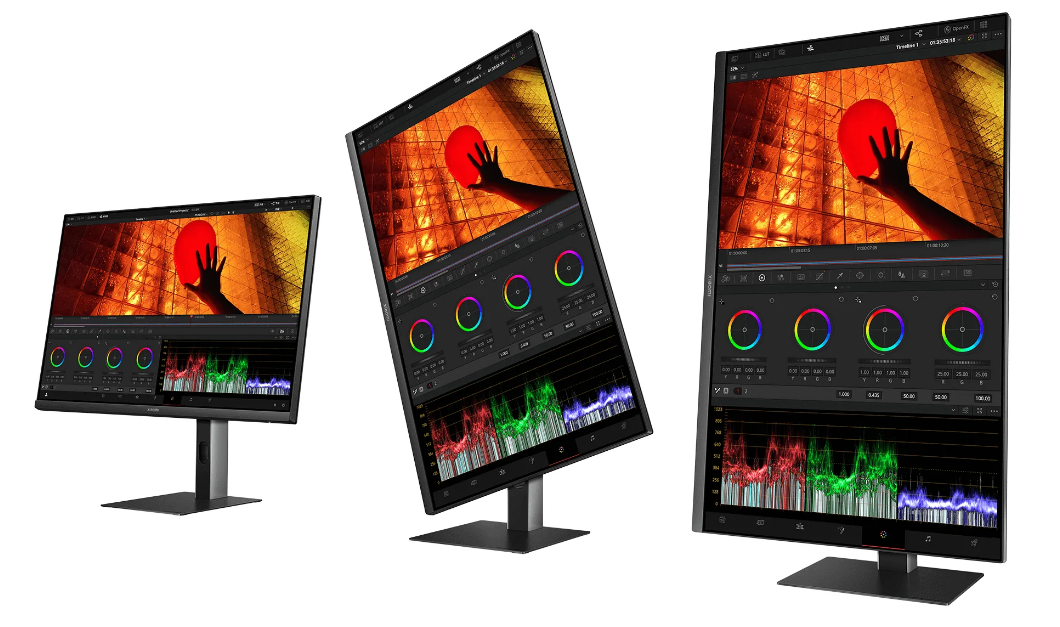
8. The ergonomic stand allows for height adjustment, tilt, swivel, pivot, and wall mounting to accommodate various viewing preferences and setups.
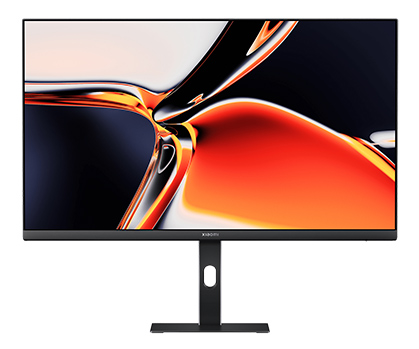
2. Q: What does the appearance of the Xiaomi 4K Monitor A27Ui look like?
A: The appearance of the Xiaomi 4K Monitor A27Ui is shown in the image below:
1. You can experience stunning 4K UHD resolution with 3840 × 2160 clarity that brings exceptional detail to every image;
2. The monitor delivers vivid and accurate colors with 100% sRGB, 95% DCI-P3 coverage, and ΔE<1 for highly precise color reproduction;
3. Its IPS hard screen ensures wide 178° viewing angles and smooth color gradients, maintaining image quality from virtually any angle;
4. True 10-bit color depth is achieved through 8-bit + FRC technology, supporting 1.07 billion colors for natural and seamless transitions;
5. A full-featured USB-C port supports audio, video, and data transmission while providing up to 90W fast charging for connected laptops;
6. The monitor includes multiple connectivity options, such as HDMI 2.0, DP 1.4, USB 2.0, a 3.5mm headphone jack, and more to meet diverse needs;
7. TÜV Low Blue Light Certification and DC dimming help reduce eye strain, while HDR10 support enhances contrast and detail in compatible content;
8. The ergonomic stand allows for height adjustment, tilt, swivel, pivot, and wall mounting to accommodate various viewing preferences and setups.
2. Q: What does the appearance of the Xiaomi 4K Monitor A27Ui look like?
A: The appearance of the Xiaomi 4K Monitor A27Ui is shown in the image below:
3. Q: What are the package contents of the Xiaomi 4K Monitor A27Ui?
A: The standard package of the Xiaomi 4K Monitor A27Ui includes 1 Xiaomi 4K Monitor A27Ui, 1 power adapter, 1 base with stand, 1 screw set, 1 HDMI cable, 1 USB-C cable, 1 user manual, and 1 color calibration card.
Note:
Package contents can vary by region.
Note:
Package contents can vary by region.
4. Q: How to install the Xiaomi 4K Monitor A27Ui?
A: To install the Xiaomi 4K Monitor A27Ui, please follow these steps:
1. Secure the base to the bottom of the stand using the base screw;
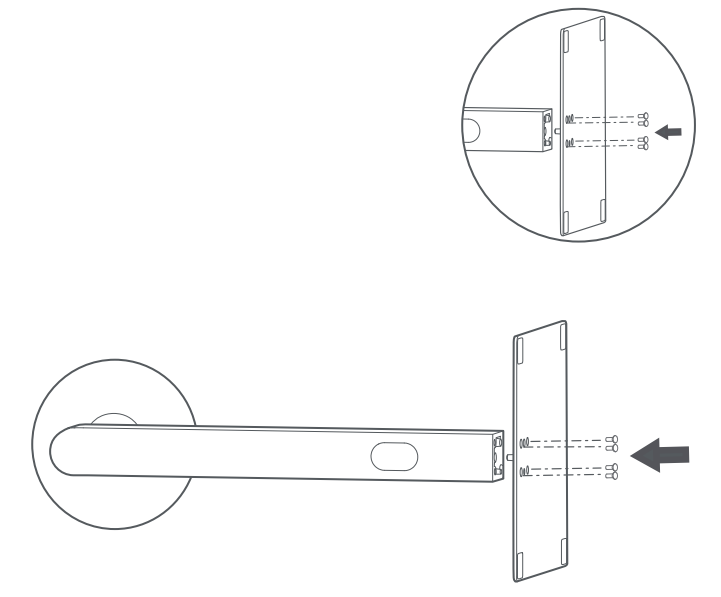
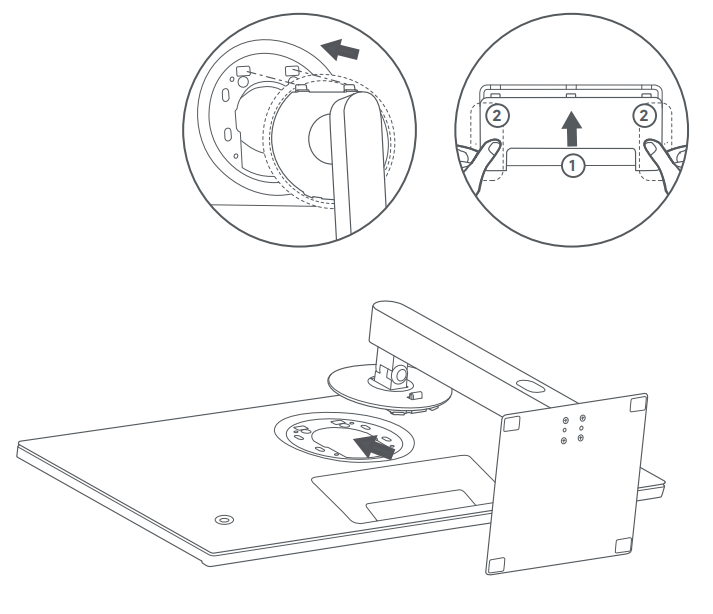
2. Attach the assembled base and stand to the slot on the back of the monitor. Make sure the metal plate at the top of the stand aligns flatly with the slot, then insert it until you hear a “click”. At this point, the top of the stand and the bottom of the monitor should be flush. Gently shake the stand to ensure it is properly installed.
Note:
1. To ensure the stability of the monitor, a certain amount of force will be required during installation. Please make sure the stand is fully and securely installed to avoid the risk of the monitor falling;
2. When attaching the decorative cover, align the three clips with the corresponding slots and push them in. Then, press down on the raised bumps on both inner ends to complete the installation.
3. After installation, you can adjust the monitor angle as needed.
Note:
1. When adjusting the angle, it is recommended to hold the base with one hand while adjusting the monitor with the other. Adjusting with one hand can cause the monitor to tip over;
2. Before rotating the monitor to portrait orientation, be sure to raise it to its highest position and tilt it to the maximum upward angle to prevent damaging the screen.
1. Secure the base to the bottom of the stand using the base screw;
2. Attach the assembled base and stand to the slot on the back of the monitor. Make sure the metal plate at the top of the stand aligns flatly with the slot, then insert it until you hear a “click”. At this point, the top of the stand and the bottom of the monitor should be flush. Gently shake the stand to ensure it is properly installed.
Note:
1. To ensure the stability of the monitor, a certain amount of force will be required during installation. Please make sure the stand is fully and securely installed to avoid the risk of the monitor falling;
2. When attaching the decorative cover, align the three clips with the corresponding slots and push them in. Then, press down on the raised bumps on both inner ends to complete the installation.
3. After installation, you can adjust the monitor angle as needed.
Note:
1. When adjusting the angle, it is recommended to hold the base with one hand while adjusting the monitor with the other. Adjusting with one hand can cause the monitor to tip over;
2. Before rotating the monitor to portrait orientation, be sure to raise it to its highest position and tilt it to the maximum upward angle to prevent damaging the screen.
5. Q: How can the Xiaomi 4K Monitor A27Ui be wall mounted?
A: To mount the Xiaomi 4K Monitor A27Ui on the wall, please follow the steps below:
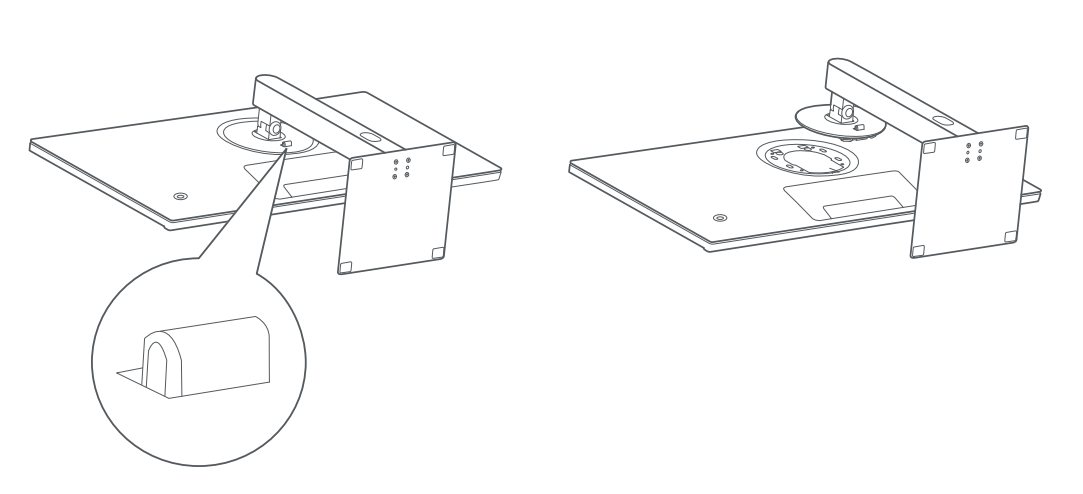
1. Place the monitor face down on a flat surface. While pushing upward on the spring latch of the stand attachment, pull the stand out along the plane of the slot to detach it;
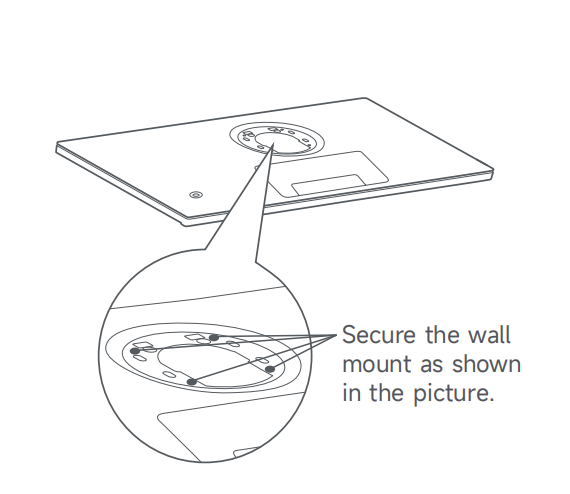
2. Follow the instructions provided with the separately purchased wall mount bracket to install it onto the embedded mounting studs on the back of the monitor;
Note:
1. This product is compatible with VESA wall mounts that have a hole spacing of 75 × 75 mm;
2. The supported wall mounting screw specification is M4×10. Both the wall mount bracket and screws must be purchased separately.
3. Refer to the wall mount bracket instructions and hang the assembled unit on a solid wall. Do not press directly on the screen with your hands during the mounting process to avoid damaging the display.
Note:
1. To prevent the monitor from falling while wall-mounted, ensure the bracket is securely installed and appropriate safety precautions are taken;
2. Do not place or hang any objects on the wall mount bracket. The wall-mounted installation height should not exceed 2 meters.
1. Place the monitor face down on a flat surface. While pushing upward on the spring latch of the stand attachment, pull the stand out along the plane of the slot to detach it;
2. Follow the instructions provided with the separately purchased wall mount bracket to install it onto the embedded mounting studs on the back of the monitor;
Note:
1. This product is compatible with VESA wall mounts that have a hole spacing of 75 × 75 mm;
2. The supported wall mounting screw specification is M4×10. Both the wall mount bracket and screws must be purchased separately.
3. Refer to the wall mount bracket instructions and hang the assembled unit on a solid wall. Do not press directly on the screen with your hands during the mounting process to avoid damaging the display.
Note:
1. To prevent the monitor from falling while wall-mounted, ensure the bracket is securely installed and appropriate safety precautions are taken;
2. Do not place or hang any objects on the wall mount bracket. The wall-mounted installation height should not exceed 2 meters.
6. Q: How to organize the cables of the Xiaomi 4K Monitor A27Ui?
A: To organize the cables of the Xiaomi 4K Monitor A27Ui, please follow these steps:
1. To organize the cables, first open the decorative cover on the back of the monitor. Route the power and signal cables through the hole in the stand and connect them to the monitor. After arranging the cables neatly, reattach the decorative cover;
2. Make sure the cables are not too tight. If the cables experience excessive tension when passing through the cable management hole in the base, the I/O cover can be pulled during monitor movement, potentially causing it to fall off;
3. To check this, gently pull the cables after connecting them to the I/O ports on the back of the monitor. If they feel too tight, adjust the cable length to allow some slack. It is recommended to leave a bit of extra cable length between the monitor and the base to prevent the cables from being stretched;
4. Since the cover is installed on the back of the monitor, it’s important to install it with a clear view of the alignment. Otherwise, the tabs and clips can not line up correctly, making installation difficult or damaging the clips;
5. It is recommended to stand behind the monitor during installation or ensure the assembly process is visible. During installation, gravity can cause the I/O cover to drop, so use both hands to support the two bottom tabs. Push the cover upward into position, then press on the two tabs to snap it into place securely.
1. To organize the cables, first open the decorative cover on the back of the monitor. Route the power and signal cables through the hole in the stand and connect them to the monitor. After arranging the cables neatly, reattach the decorative cover;
2. Make sure the cables are not too tight. If the cables experience excessive tension when passing through the cable management hole in the base, the I/O cover can be pulled during monitor movement, potentially causing it to fall off;
3. To check this, gently pull the cables after connecting them to the I/O ports on the back of the monitor. If they feel too tight, adjust the cable length to allow some slack. It is recommended to leave a bit of extra cable length between the monitor and the base to prevent the cables from being stretched;
4. Since the cover is installed on the back of the monitor, it’s important to install it with a clear view of the alignment. Otherwise, the tabs and clips can not line up correctly, making installation difficult or damaging the clips;
5. It is recommended to stand behind the monitor during installation or ensure the assembly process is visible. During installation, gravity can cause the I/O cover to drop, so use both hands to support the two bottom tabs. Push the cover upward into position, then press on the two tabs to snap it into place securely.
7. Q: Can the Xiaomi 4K Monitor A27Ui be adjusted for height, tilt, portrait mode, and rotation?
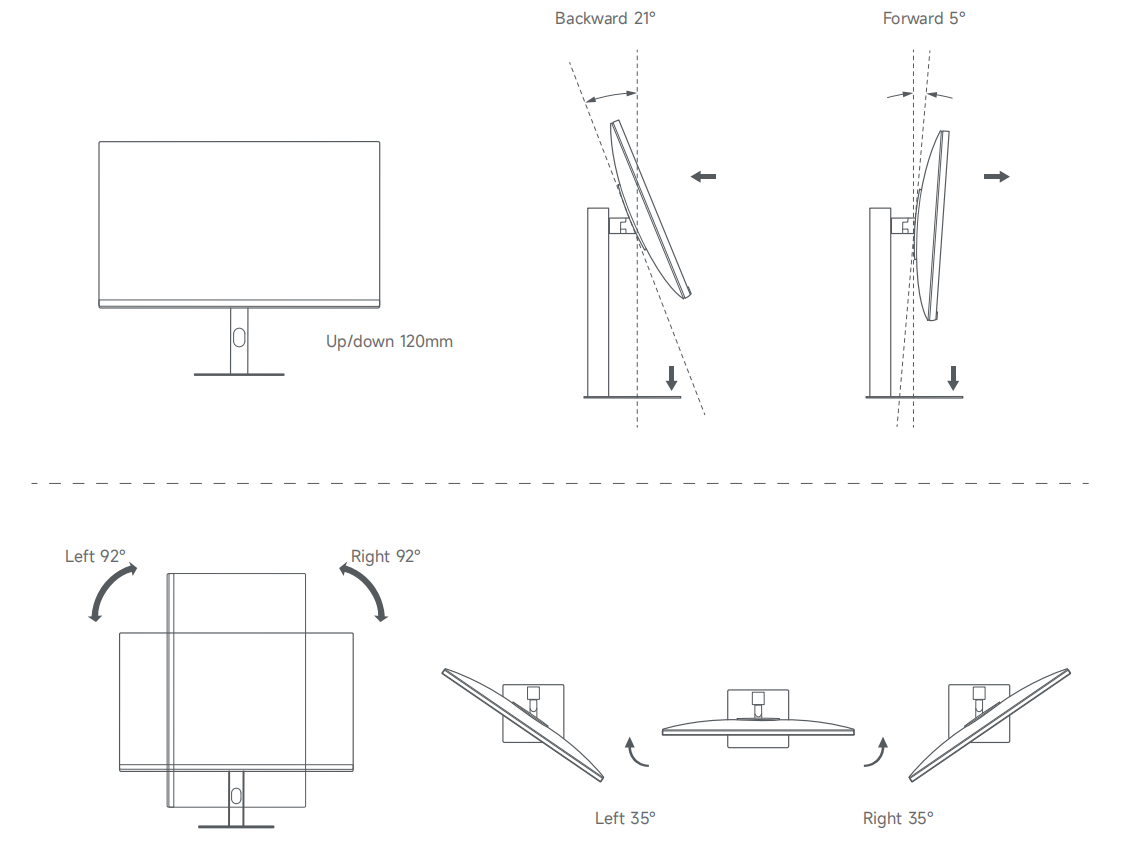
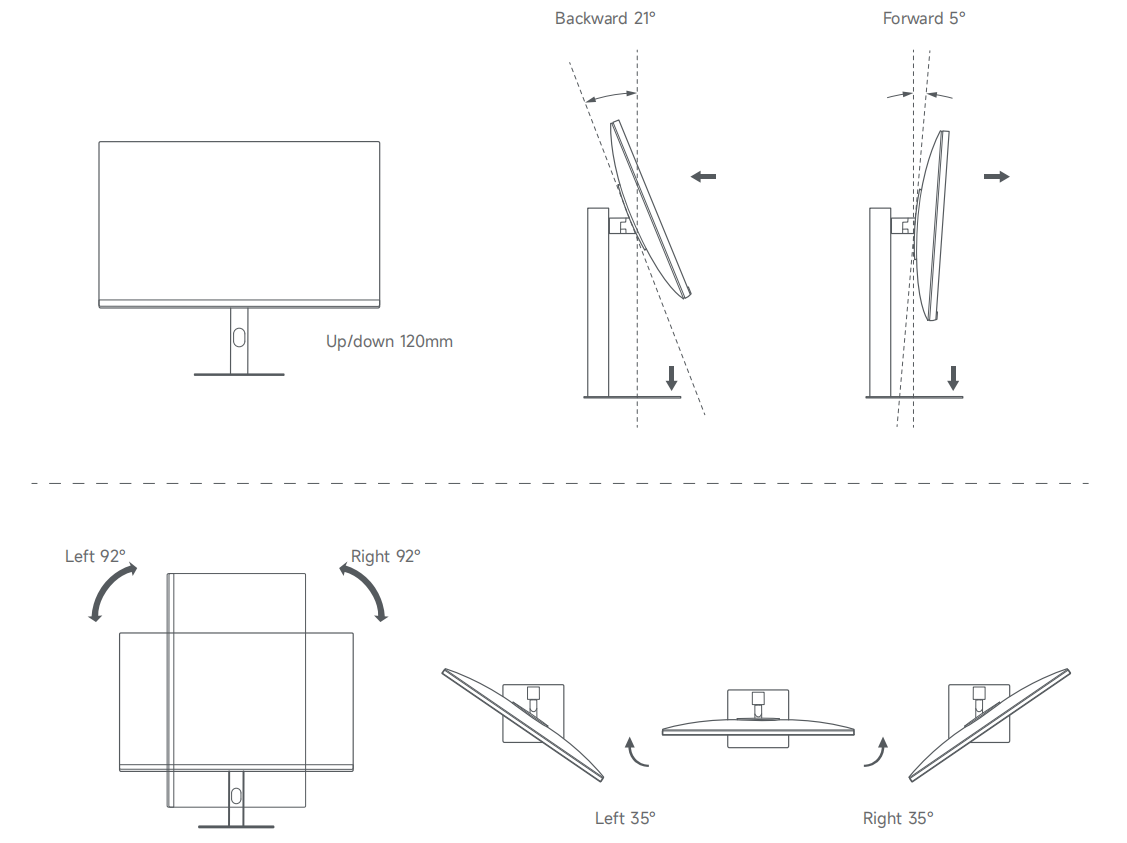
A: Yes, the Xiaomi 4K Monitor A27Ui supports height adjustment with a vertical range of 12 cm, tilt adjustment from -5° to +21°, 35° horizontal swivel to the left and right, and 92° rotation for portrait mode.
Note:
To adjust the height or switch to portrait mode, simply push the monitor up or down directly. When switching to portrait mode, please raise the monitor to its highest position before rotating it to avoid hitting the desk.
Note:
To adjust the height or switch to portrait mode, simply push the monitor up or down directly. When switching to portrait mode, please raise the monitor to its highest position before rotating it to avoid hitting the desk.
8. Q: What ports does the Xiaomi 4K Monitor A27Ui have?
A: The Xiaomi 4K Monitor A27Ui includes 2 HDMI 2.0 ports, 1 DP 1.4 port, 1 Type-C port, 1 DC IN power port, 1 3.5mm audio headphone jack, and 2 USB-A ports.
Note:
1. The HDMI 2.0, DP 1.4, and Type-C ports support a maximum resolution of 3840 × 2160 at up to 60Hz;
2. The USB-A ports support 5V output at 500mA and 1A, but do not support screen light bars or high-power devices;
3. To use the USB-A ports for data transmission, the monitor must be connected to a computer via a full-featured Type-C cable.

Note:
1. The HDMI 2.0, DP 1.4, and Type-C ports support a maximum resolution of 3840 × 2160 at up to 60Hz;
2. The USB-A ports support 5V output at 500mA and 1A, but do not support screen light bars or high-power devices;
3. To use the USB-A ports for data transmission, the monitor must be connected to a computer via a full-featured Type-C cable.
9. Q: What devices can the Xiaomi 4K Monitor A27Ui be connected to?
A: The Xiaomi 4K Monitor A27Ui comes with HDMI and Type-C signal cables. A DP cable needs to be purchased separately. It can be connected to desktops, laptops, set-top boxes, PS4, and other output devices that support HDMI, DP, or Type-C ports.
Note:
Due to differences in internal chipsets, reverse conversion using adapters is not supported.
Note:
Due to differences in internal chipsets, reverse conversion using adapters is not supported.
10. Q: How to use the button of the Xiaomi 4K Monitor A27Ui?
A: The Xiaomi 4K Monitor A27Ui has one Five-way button.
To use the Five-way button, please refer to the following methods:
1. When the screen is not displaying any menu, the Five-way button functions as follows:
(1). Pressing the button to the right briefly will display the OSD (On-screen Display) menu on the screen;
(2). Pressing the button up or down briefly will bring up the brightness adjustment bar;
(3). Pressing the button to the left briefly will open the input source switch list.
(4). Briefly pressing the center of the button will either turn on the monitor or open the quick access menu;
(5). Pressing and holding the center of the button for about 3 seconds will power off the monitor;
2. When the screen is already showing the OSD menu, the Five-way button functions differently:
(1). Pressing the button to the right briefly will enter or select a highlighted menu item;
(2). Pressing the button up or down briefly will allow you to navigate through the menu or adjust values;
(3). Pressing the button to the left briefly will take you back to the previous menu;
(4). Briefly pressing the center of the button will confirm your selection;
(5). Pressing and holding the center of the button for about 3 seconds will power off the monitor.
To use the Five-way button, please refer to the following methods:
1. When the screen is not displaying any menu, the Five-way button functions as follows:
(1). Pressing the button to the right briefly will display the OSD (On-screen Display) menu on the screen;
(2). Pressing the button up or down briefly will bring up the brightness adjustment bar;
(3). Pressing the button to the left briefly will open the input source switch list.
(4). Briefly pressing the center of the button will either turn on the monitor or open the quick access menu;
(5). Pressing and holding the center of the button for about 3 seconds will power off the monitor;
2. When the screen is already showing the OSD menu, the Five-way button functions differently:
(1). Pressing the button to the right briefly will enter or select a highlighted menu item;
(2). Pressing the button up or down briefly will allow you to navigate through the menu or adjust values;
(3). Pressing the button to the left briefly will take you back to the previous menu;
(4). Briefly pressing the center of the button will confirm your selection;
(5). Pressing and holding the center of the button for about 3 seconds will power off the monitor.
11. Q: What are the indicator statuses of the Xiaomi 4K Monitor A27Ui?
A: The Xiaomi 4K Monitor A27Ui’s indicator has two modes: On and Energy saver. You can configure these settings in the OSD menu by navigating to [System] and selecting [Power indicator light].
For your reference, here are the meanings of the monitor's indicator statuses:
1. When the power indicator is in On mode, the indicator shows the following statuses:
(1). If the indicator lights up, the monitor is powered on;
(2). If the indicator is off, the monitor is powered off;
(3). If the indicator flashes, the monitor is in standby mode;
2. When the power indicator is in Energy saver mode, the indicator behaves as follows:
(1). If the indicator is off, the monitor is either off or on;
(2). If the indicator flashes for 1 minute and then turns off, the monitor is in standby mode;
(3). If the indicator lights up for 2 seconds and then turns off, the monitor is powered on.
For your reference, here are the meanings of the monitor's indicator statuses:
1. When the power indicator is in On mode, the indicator shows the following statuses:
(1). If the indicator lights up, the monitor is powered on;
(2). If the indicator is off, the monitor is powered off;
(3). If the indicator flashes, the monitor is in standby mode;
2. When the power indicator is in Energy saver mode, the indicator behaves as follows:
(1). If the indicator is off, the monitor is either off or on;
(2). If the indicator flashes for 1 minute and then turns off, the monitor is in standby mode;
(3). If the indicator lights up for 2 seconds and then turns off, the monitor is powered on.
12. Q: What are the dimensions and weight of the Xiaomi 4K Monitor A27Ui?
A: The dimensions and weight specifications of the Xiaomi 4K Monitor A27Ui are listed below:
1. The dimensions of the monitor including the base are 613 × 185 × 511 mm (L × W × H);
2. The dimensions of the monitor without the base are 613 × 50 × 364 mm (L × W × H);
3. The packing size of the monitor is 867 × 140 × 452 mm (L × W × H);
4. The weight of the monitor including the base is 5.5 ± 0.3 kg;
5. The weight of the monitor without the base is 3.6 ± 0.3 kg;
6. The total weight including the packing is 7.8 kg.
1. The dimensions of the monitor including the base are 613 × 185 × 511 mm (L × W × H);
2. The dimensions of the monitor without the base are 613 × 50 × 364 mm (L × W × H);
3. The packing size of the monitor is 867 × 140 × 452 mm (L × W × H);
4. The weight of the monitor including the base is 5.5 ± 0.3 kg;
5. The weight of the monitor without the base is 3.6 ± 0.3 kg;
6. The total weight including the packing is 7.8 kg.
13. Q: What is the brightness of the Xiaomi 4K Monitor A27Ui?
A: The brightness of the Xiaomi 4K Monitor A27Ui is 300 nits (minimum) and 360 nits (typical). The backlight type is side entry.
14. Q: What are the lengths of the HDMI cable and power cable for the Xiaomi 4K Monitor A27Ui?
A: The HDMI cable included in the Xiaomi 4K Monitor A27Ui package is 1.5 meters long. The power cable length is also 1.5 meters, while the Type-C cable is approximately 1 meter long.
15. Q: Why does a buzzing or crackling noise occur, or why is one audio channel silent when connecting speakers to the audio jack of the Xiaomi 4K Monitor A27Ui?
A: When using a speaker plug to connect to the audio port of the Xiaomi 4K Monitor A27Ui, you can hear a buzzing or crackling noise, or one audio channel can be silent. If this happens, first try connecting headphones to check if the same issue occurs. If the problem persists with headphones, it can be a fault with the monitor itself, and you should contact after-sales service for inspection. If the problem disappears when using headphones, the speaker plug’s soft rubber part can be oversized, preventing the plug from fully inserting into the monitor’s audio jack. We recommend replacing the speaker plug in this case.
Display Introduction
1. Q: What is the optimal resolution of the Xiaomi 4K Monitor A27Ui?
A: The optimal resolution of the Xiaomi 4K Monitor A27Ui is 3840 × 2160. At this resolution, it supports a maximum refresh rate of 60Hz.
Note:
1. Higher resolution means the monitor can display more pixels, producing a sharper and more detailed image while showing more information within the same screen area;
2. A higher refresh rate reduces flicker on the screen and improves stability, which in turn provides better protection for your eyesight.
2. Q: What is the maximum refresh rate of the Xiaomi 4K Monitor A27Ui?
A: The maximum supported refresh rate is 60Hz when the Xiaomi 4K Monitor A27Ui is connected via HDMI, DP, or Type-C interfaces. This is subject to the condition that the output device, such as a PC graphics card, also supports 60Hz.
To change the refresh rate in a Windows 10 environment, please follow these steps:
1. Open the start menu and click on the settings icon;
2. Navigate to [System], then select [Display];
3. Scroll down and click on [Advanced display settings];
4. Select the monitor for which you want to change the refresh rate. Take Display 1 as an example;
5. Left-click on [Display adapter properties for Display 1];
6. In the new window, click [List All Modes];
7. Select the desired resolution and refresh rate, such as 2560 × 1440 @ 100Hz and click [OK].
To change the refresh rate in a Windows 11 environment, please follow these steps:
1. Click the start menu at the far left of the taskbar;
2. In the pop-up menu, click on [Settings];
3. In the settings window, click on [Display] on the right-hand side;
4. Under the related settings section, click on [Advanced display];
5. Scroll down to the [Choose a refresh rate] section and click the dropdown menu on the right;
6. From the list of options, select the desired refresh rate value.
3. Q: What settings are available through the OSD menu on the Xiaomi 4K Monitor A27Ui?
A: The OSD menu on the Xiaomi 4K Monitor A27Ui provides access to the following settings:
1. Under [Picture mode], you can adjust [Select mode], [Brightness], [Contrast], [Color temperature], [Hue], [Saturation], [Gamma], [G to G response time], [Sharpness], [DCR], [Color space], and choose to [Restore default];
2. Under [HDR], you can turn HDR [On] or [Off], or set it to [Automatic];
3. Under [Input source], you can select from [HDMI1], [HDMI2], [DP], or [Type-C], or enable [Auto switch input];
4. Under [Menu settings], you can configure [Menu rotation], [Transparency], and [Menu position];
5. Under [System], you have options for [Languages], [Aspect ratio], [Standby mode], [Volume], [Power indicator light], [About device], and [Factory reset].
4. Q: What is the contrast ratio of the Xiaomi 4K Monitor A27Ui? What is static contrast ratio?
A: The Xiaomi 4K Monitor A27Ui features a static contrast ratio of 1200:1 for BOE panels and 1500:1 for HKC panels. Its dynamic contrast ratio reaches up to the million level.
To adjust the monitor’s contrast ratio, open the OSD menu, navigate to [Picture mode], select [Contrast], and modify the value to your preference.
Note:
1. Static contrast ratio is the ratio of the brightness of the white screen (at its brightest) to the black screen (at its darkest). Higher contrast ratios result in better display effects (color and gradation);
2. Dynamic contrast ratio refers to the brightness ratio of the brightest and darkest areas of the screen at a specific moment in certain conditions. Too much black can cause a loss of detail, while too little black can make the image appear flat.
5. Q: How to adjust the Color temperature on the Xiaomi 4K Monitor A27Ui?
A: The Xiaomi 4K Monitor A27Ui supports Standard, Cool, and Warm Color temperature modes, as well as a Custom mode that allows you to manually adjust the red, green, and blue levels. Generally, higher color temperatures are referred to as "cool" (bluish tones), while lower color temperatures are considered "warm" (yellowish tones).
To adjust the color temperature on the monitor, navigate to the OSD menu, then select [Picture mode] and choose [Color temperature] to make your changes.
6. Q: What is chromaticity or hue on the Xiaomi 4K Monitor A27Ui?
A: On the Xiaomi 4K Monitor A27Ui, chromaticity refers to the aspect of color that describes hue without considering brightness.
To adjust the chromaticity on the monitor, navigate to the OSD menu, then select [Picture mode] and choose [Hue] to make your changes.
7. Q: What is Saturation on the Xiaomi 4K Monitor A27Ui?
A: On the Xiaomi 4K Monitor A27Ui, Saturation represents the purity of a color. Higher Saturation results in more vivid and vibrant colors, while lower Saturation appears more muted or dull.
To adjust the Saturation on the monitor, navigate to the OSD menu, then select [Picture mode] and choose [Saturation] to make your changes.
8. Q: What is the purpose of Gamma adjustment on the Xiaomi 4K Monitor A27Ui?
A: On the Xiaomi 4K Monitor A27Ui, Gamma adjustment is a curve optimization feature that assists with brightness and contrast. It allows for subtle adjustments to light and dark levels, helping to control overall contrast and make the image appear more vivid and three-dimensional.
To adjust the Gamma value on the monitor, open the OSD menu, navigate to [Picture mode], and select [Gamma] to modify the setting.
9. Q: How to adjust the Aspect ratio on the Xiaomi 4K Monitor A27Ui?
A: You can adjust the Aspect ratio on the Xiaomi 4K Monitor A27Ui by navigating to the OSD menu >> [System] >> [Aspect ratio].
Note:
1. In Full screen mode, the image is stretched to fill the entire screen in a 16:9 aspect ratio regardless of the output resolution;
2. In Auto mode, the image is stretched horizontally or vertically based on the output resolution to fit the screen, and images with non-16:9 resolutions will not be distorted;
3. To adjust the output resolution, you need to change the settings in your graphics card configuration. For Intel graphics, first open the start menu and search for [Intel Graphics Command Center]. Once the application opens, navigate to the [Display] section. Under the [General] tab, locate the [Resolution] setting. From the dropdown menu, select your preferred resolution. Finally, click [Yes] to confirm and apply your selection.
10. Q: How to adjust the Xiaomi 4K Monitor A27Ui for optimal picture quality?
A: To adjust the Xiaomi 4K Monitor A27Ui for optimal picture quality, you can manually adjust Contrast, Brightness, Hue, and Saturation, or choose your preferred option from the monitor’s Color space settings.
To adjust the Color space, open the OSD menu, navigate to [Picture mode] >> [Color space] and select your preferred setting.
11. Q: What is gray-to-gray (GTG) response time on the Xiaomi 4K Monitor A27Ui?
A: On the Xiaomi 4K Monitor A27Ui, it is the time it takes for each pixel on the screen to transition from one shade of gray to another. This process is what we commonly refer to as response time. Since images on the screen are made up of varying shades of gray, the response time here specifically refers to the GTG response time.
12. Q: What is the response time of the Xiaomi 4K Monitor A27Ui?
A: The response time of the Xiaomi 4K Monitor A27Ui is 6ms. To ensure optimal motion performance, the gray-to-gray (GTG) response time can vary depending on the refresh rate. You can adjust the response time level in the OSD menu by navigating to [Picture mode] >> [G to G response time], where the default setting is [Standard].
Different levels (Standard, Fast, Faster, Fastest) are set based on the refresh rate to reduce white trailing artifacts caused by excessively fast response times at lower refresh rates.
13. Q: What is the purpose of Sharpness adjustment on the Xiaomi 4K Monitor A27Ui?
A: To adjust the Sharpness on the Xiaomi 4K Monitor A27Ui, open the OSD menu, go to [Picture mode] >> [Sharpness] and make your desired changes.
The Sharpness adjustment in the monitor’s OSD menu mainly serves the following purposes:
1. Enhancing image detail:
(1). Sharpness adjustment can highlight edge contours:
a. Sharpness adjustment can make the edges of objects in the image more defined and clearer. For example, when viewing a landscape photo, features such as distant mountain outlines or the edges of leaves become more distinct, making the overall image appear more three-dimensional and vivid;
b. For images containing text, such as web pages or documents, increasing the sharpness can make the strokes of the characters more crisp and easier to read, reducing blurriness and improving reading comfort;
(2). Sharpness adjustment can enhance texture details:
a. It helps to bring out the textures on the surface of objects. For example, when viewing a photo of a rock, the stone’s texture and grain become more pronounced, adding realism and depth to the image;
b. When viewing portraits, skin texture and fabric details also become more noticeable, making the image appear more refined;
2. Optimizing visual experience:
(1). Sharpness adjustment can help you adapt to different viewing distances:
a. Depending on how far you are from the monitor, adjusting sharpness can improve visual clarity. If you’re viewing from a greater distance, increasing sharpness can help maintain image clarity. If you're closer, you can fine-tune the sharpness to avoid excessive sharpness that can cause visual fatigue;
b. For example, in office environments where you sit close to the monitor, sharpness should not be set too high to avoid eye strain. In larger spaces like meeting rooms or home theaters, where the viewing distance is greater, increasing sharpness can enhance the viewing experience;
(2). Sharpness adjustment can meet personal aesthetic preferences:
a. Different people have different preferences for image clarity. Some can prefer a soft, natural look, while others prefer sharp, crisp visuals. The sharpness adjustment allows you to customize the image according to your personal aesthetic needs, delivering a more personalized visual experience;
b. For instance, when viewing artwork or movies, you can prefer a softer image for an artistic ambiance. When gaming or working on graphic design, higher sharpness can help reveal more detail, improving accuracy and control.
14. Q: How many output device screens can the Xiaomi 4K Monitor A27Ui display simultaneously at most?
A: The Xiaomi 4K Monitor A27Ui can connect up to four display cables simultaneously but supports only one screen display at a time. You can switch between input sources in the OSD menu by going to [Input source].
Auto switch input is a practical feature that allows the monitor to automatically switch the display based on the signal input from different connected devices.
The principle behind how Auto switch input works is as follows:
The monitor continuously monitors the signal strength and activity of each input port. When one input becomes active and stable while others are weak or inactive, the monitor automatically switches to the active source. If multiple sources are active at the same time, manual switching can be required.
The factors affecting the Auto switch input are as follows:
1. The signal stability of input devices affects switching behavior. If a device has an unstable or intermittent signal, it can lead to unexpected switching;
2. Monitors with better hardware and software compatibility are able to switch between input sources more quickly and accurately.
Auto switch input can be used in the following scenarios:
1. In an office environment, a monitor can be connected to both a laptop and a desktop computer. When the laptop is powered on, the monitor will automatically switch to the laptop’s input source;
2. In a home entertainment setting, a monitor can be connected to both a gaming console and a TV box. When the gaming console is turned on, the monitor will automatically switch to display its screen.
Note:
1. To enable the monitor to automatically switch input sources, turn on the Auto switch input feature in the [Input Source] section of the OSD menu;
2. Some monitors can have limitations on the number of input sources that can be connected simultaneously.
15. Q: Does the Xiaomi 4K Monitor A27Ui support switching the OSD menu’s language?
A: The Xiaomi 4K Monitor A27Ui allows you to change the OSD menu’s language by navigating to [System] >> [Language] in the settings.
16. Q: What is the OSD (On-Screen Display) adjustment method for the Xiaomi 4K Monitor A27Ui?
A: The OSD (On-Screen Display) adjustment method allows you to rotate the Xiaomi 4K Monitor A27Ui’s OSD menu by 90°, 180°, or 270°, and adjust the menu position both horizontally and vertically.
To adjust the position of the OSD menu, go to the OSD menu and navigate to [Menu settings] >> [Menu rotation] to change the orientation. You can also go to [Menu settings] >> [Menu position] to move the OSD menu to your preferred location by adjusting its horizontal and vertical position.
17. Q: How to use headphones with the Xiaomi 4K Monitor A27Ui after connecting them?
A: The audio is transmitted to the Xiaomi 4K Monitor A27Ui via DP or HDMI cable. After the monitor receives the audio, you need to select the corresponding input source in the settings. If there is no sound, please switch the playback device on the audio output device.
Note:
A device can output audio to only one destination at a time. When headphones are connected to the monitor, the PC’s built-in speakers and headphone jack will be disabled. To use those instead, you must switch the audio output back to the PC in its settings.
18. Q: How to adjust the volume after connecting an audio output device to the Xiaomi 4K Monitor A27Ui?
A: To adjust the volume after connecting an audio output device to the Xiaomi 4K Monitor A27Ui, you can control the volume directly from the computer. If the volume is still too high or too low, you can adjust it in the monitor’s OSD menu by going to [System] >> [Audio output]. The computer volume and monitor volume are adjusted independently and are not synchronized.
Note:
When using the monitor’s audio output port, you also need to adjust the audio volume within the monitor’s OSD menu. If external speakers support volume control, you should adjust the speaker volume as well.
19. Q: What information can be viewed in the [About device] section of the Xiaomi 4K Monitor A27Ui?
A: In the [About device] section of the Xiaomi 4K Monitor A27Ui’s OSD menu, you can view information such as the device model, current resolution (3840 × 2160 @ 60Hz), input signal source like HDMI, and TÜV Low Blue Light Certification.
20. Q: How to restore the Xiaomi 4K Monitor A27Ui to factory settings?
A: To restore the Xiaomi 4K Monitor A27Ui to factory settings, open the OSD menu, navigate to [System] >> [Factory Reset], and select [Confirm] to complete the process.
FAQ
1. Q: What to do if the top, left, or right side of the Xiaomi 4K Monitor A27Ui’s back cover becomes detached from the module?
A: When tilting the Xiaomi 4K Monitor A27Ui back and forth, hold the top and bottom of the monitor with your hands. Avoid pinching or pulling on the edges of the back cover, especially outward. The structural design used in this monitor is common in the industry, and the back cover will remain securely attached under normal use.
If you're concerned about whether the module will fall off on its own, rest assured that it won't under normal use. Xiaomi has conducted rigorous testing at the factory, including vibration and drop tests, load-bearing tests, and wall-mounting tests.
2. Q: What to do if the I/O cover of the Xiaomi 4K Monitor A27Ui is difficult to install, and forcing it can cause the clips to break?
A: Since the cover is located on the back of the Xiaomi 4K Monitor A27Ui, it should be installed while clearly visible. Otherwise, the tabs and clips can not align properly, making installation difficult. Forcing the cover without proper alignment can lead to broken clips.
It is recommended to install the cover while standing behind the monitor or making sure you can clearly see the installation process.
During installation, the I/O cover can drop due to gravity. Use both hands to support the two bottom tabs of the cover, push it upward into place, then press the tabs firmly to secure the clips.
3. Q: What to do if the Xiaomi 4K Monitor A27Ui won’t turn on?
A: If the Xiaomi 4K Monitor A27Ui does not power on, please follow these troubleshooting steps:
1. Check whether the cables are too tight. If the cable is routed through the cable management hole in the stand and is under significant tension, it can pull on the I/O cover when the monitor is moved, potentially causing it to detach. To check, after plugging the cable into the I/O port on the back of the monitor through the stand’s cable hole, gently pull the cable to see if it is too tight. If it is, adjust the cable until it has some slack. It is recommended to leave extra length between the monitor body and the stand to avoid keeping the cable in a stretched state;
2. Observe the monitor’s power indicator to determine whether it is powered on, in standby mode, or turned off;
3. Disconnect the signal cable from the monitor and keep the power cable connected. If the startup logo appears, it indicates that the monitor is functioning properly, and the issue can lie with a poor video signal connection. Check the signal cable port, the cable itself, and the signal source;
4. Change to another HDMI port;
5. Change to another DP port;
6. Change different cables;
7. Change to another signal source;
8. Try removing the adapter and check again.
Note:
To enable the monitor’s indicator, go to the OSD menu, then navigate to [System] >> [Power indicator light], and set it to either [On] or [Energy saver].
4. Q: What to do if the Xiaomi 4K Monitor A27Ui cannot select the optimal resolution?
A: If your Xiaomi 4K Monitor A27Ui cannot select the optimal resolution, please try the following steps:
1. Check the graphics driver:
Ensure your graphics card driver is up to date. Visit the official website of your graphics card manufacturer to download and install the latest driver that matches your graphics card model and operating system. For example, if you are using an NVIDIA graphics card, visit the NVIDIA website; for AMD graphics cards, visit the AMD website;
2. Confirm the connection method:
Check the cable connecting your monitor and computer. For 4K resolution, it is recommended to use HDMI 2.0 or above, or DisplayPort 1.4 or above. Using older or lower-spec cables can prevent the monitor from supporting 4K at 60Hz;
3. Check operating system settings:
(1). On Windows, right-click on the desktop and select [Display Settings]. Under the [Resolution] option, check if 4K 60Hz is available. If not, click on [Advanced display settings] to see more resolution options;
(2). On macOS, click the Apple menu, select [System Preferences], then click [Displays] to view available resolution settings;
4. Check the monitor settings:
Some monitors can require manual configuration to display the optimal resolution. Open the monitor’s OSD menu and look for settings related to resolution or display mode. Ensure it is set to Auto or 4K 60Hz.
5. Try a different port:
If both your computer and monitor support multiple ports (such as HDMI and DP), try switching to a different one to see if it resolves the issue.
6. Restart the computer and monitor:
In some cases, a simple restart can fix temporary display issues.
5. Q: What to do if the Xiaomi 4K Monitor A27Ui shows a washed-out white tint on pure black screens when viewed from an angle?
A: The Xiaomi 4K Monitor A27Ui can display a white tint on pure black screens when viewed from wide angles. This effect is caused by the arrangement of liquid crystal molecules and their optical properties. Known as “viewing angle deviation”, this phenomenon is common among LCD monitors. We are continuously working to improve our technology to minimize this effect and provide you with a better viewing experience.
6. Q: How to fix color tint issues on the Xiaomi 4K Monitor A27Ui?
A: You can adjust the Color temperature to match your personal preferences. To adjust the color to your preferred temperature, open the OSD menu and navigate to [Picture mode] >> [Color temperature] >> [Custom], then fine-tune the red, green, and blue levels to achieve your desired color balance.
7. Q: What are the white dots on both sides at the top of the Xiaomi 4K Monitor A27Ui screen?
A: The Xiaomi 4K Monitor A27Ui has white dots on both sides at the top of the screen, which are mark points formed during the manufacturing process. These serve as positioning references and are not a product defect.
8. Q: Why does the Xiaomi 4K Monitor A27Ui display no image after powering on?
A: If the Xiaomi 4K Monitor A27Ui’s power indicator is on but there is no image on the screen, check whether the video cable is properly connected and whether the video output device has been powered on. You can also try connecting a different output device for testing.
9. Q: Why does the screen appear dim when using the Xiaomi 4K Monitor A27Ui?
A: To resolve the issue of a dim screen while using the Xiaomi 4K Monitor A27Ui, please follow these steps:
1. Try increasing the screen brightness and contrast settings;
2. Check whether the current display mode is set to the appropriate standard;
3. Turn off HDR and see if the display returns to normal;
4. Restore the monitor to its factory settings through the OSD menu.
10. Q: Why does the Xiaomi 4K Monitor A27Ui show image flickering or ripple effects during use?
A: If the Xiaomi 4K Monitor A27Ui displays flickering or ripple effects during use, try adjusting its placement to keep it away from nearby electrical devices that can cause electromagnetic interference.
11. Q: What does the [Out of Range] message mean on the Xiaomi 4K Monitor A27Ui during use?
A: The [Out of Range] message appears on the Xiaomi 4K Monitor A27Ui because the resolution setting is incorrect. You can fix this by adjusting to the recommended resolution on your computer or other video output device.
12. Q: Does the Xiaomi 4K Monitor A27Ui support wireless screen casting?
A: The Xiaomi 4K Monitor A27Ui does not support wireless screen casting.
13. Q: Why does the display color look different after replacing the Xiaomi 4K Monitor A27Ui?
A: The difference in display color between the Xiaomi 4K Monitor A27Ui and your previous monitor is primarily due to variations in the screen’s Color temperature settings. You can restore your preferred color appearance by adjusting the Color temperature in the monitor’s OSD menu >> [Picture mode] >> [Color temperature].
14. Q: How to clean the screen of the Xiaomi 4K Monitor A27Ui?
A: To clean the Xiaomi 4K Monitor A27Ui’s screen, please follow these steps:
1. Make sure the monitor is turned off;
2. Evenly spray a specialized screen cleaning solution;
3. Use a dedicated screen-cleaning cloth that has good water absorption and dust-attracting properties to gently wipe the screen. This type of cloth helps remove dust effectively without redistributing it on the screen and prevents dust particles from scratching the LCD surface during repeated wiping.
Note:
It is not recommended to use plain water. Alkaline or chemical cleaning solutions are strictly prohibited, as they can cause short circuits or corrosion.
15. Q: Is it better to use warm or cool Color temperature on the Xiaomi 4K Monitor A27Ui?
A: If the indoor lighting is strong, it is recommended to use a cool Color temperature on the Xiaomi 4K Monitor A27Ui, which makes colors appear clearer and brighter. If the indoor lighting is dim, a warm Color temperature is preferable, as it provides a softer and more comfortable viewing experience.
16. Q: What panel type and materials are used in the Xiaomi 4K Monitor A27Ui?
A: The Xiaomi 4K Monitor A27Ui uses an IPS panel. Xiaomi selects materials and suppliers based on strict quality standards and a commitment to high-quality components. You can purchase with confidence.
17. Q: What to do if video playback on the Xiaomi 4K Monitor A27Ui is not smooth?
A: If video playback on the Xiaomi 4K Monitor A27Ui is not smooth, first verify whether other devices play these videos normally. Try using a different video source and ensure you are using a standard HDMI cable or a direct Type-C connection. If you are using a video adapter, check that the connection is secure and consider replacing the adapter with another one.
18. Q: How to handle white spots or unlit black spots on the Xiaomi 4K Monitor A27Ui?
A: If you notice white spots, black spots, or discolored pixels on the Xiaomi 4K Monitor A27Ui, perform a screen test by switching to different background colors to determine if it is a display issue. If the pixel behavior appears abnormal, please seek assistance from after-sales service for further inspection.
Note:
Bright spots, dark spots, or discolored pixels usually require observation with a 15X magnifying glass to confirm. A professional assessment by an after-sales technician is necessary.
19. Q: Why does the Xiaomi 4K Monitor A27Ui show colored stripes when photographed with a phone or camera?
A: This is a normal physical phenomenon for the Xiaomi 4K Monitor A27Ui known as moiré patterns. Almost all devices will show such stripes when capturing a computer screen due to differences in refresh rates. A video is essentially made up of many sequential photos captured over time, with an average shutter speed of about 30 frames per second. Meanwhile, monitor screens have a refresh rate around 50Hz to 60Hz. When these two frequencies are not aligned, it causes visible flickering or scanning lines in the video. To reduce this effect, you can try adjusting the camera's shutter speed or frame rate to match the screen’s refresh rate.
20. Q: How to fix screen stuttering and trailing on the Xiaomi 4K Monitor A27Ui?
A: If you experience noticeable stuttering and trailing on the Xiaomi 4K Monitor A27Ui, it is usually caused by missing graphics card drivers on the computer or the quality of the adapter cable. Check the graphics card driver in your PC’s device manager. If you are using an adapter cable, try testing without it or replace the adapter cable.
21. Q: Why does the Xiaomi 4K Monitor A27Ui’s screen brightness fluctuates between bright and dark?
A: If the Xiaomi 4K Monitor A27Ui’s screen brightness fluctuates between bright and dark, please check whether the video signal cable is properly connected.
22. Q: Does the Xiaomi 4K Monitor A27Ui support adaptive-Sync, FreeSync, or G-Sync?
A: The Xiaomi 4K Monitor A27Ui does not support adaptive-Sync, FreeSync, or G-Sync.
23. Q: What to do if there is no sound after connecting headphones to the Xiaomi 4K Monitor A27Ui?
A: If there is no sound after connecting headphones to the Xiaomi 4K Monitor A27Ui, please try the following methods:
Method 1:
1. Check if the output device volume is too low and adjust it accordingly;
2. Adjust the volume in the monitor’s OSD menu;
3. Open the control panel >> [System] >> [Sound] >> [Output], and set “MI 24.5HF2” as the default playback device;
4. If the monitor audio is not recognized, try restarting the output device or updating the audio driver.
Method 2:
Click the speaker icon in the bottom-right corner of your computer and adjust the volume.
24. Q: Why does prolonged use of the Xiaomi 4K Monitor A27Ui cause dizziness?
A: Dizziness can occur when using the Xiaomi 4K Monitor A27Ui due to a mismatch between what the eyes see and what the body physically experiences. When the balance signals from the inner ear and the visual signals sent to the brain are inconsistent, it can lead to a sensation of dizziness. If this happens, it is recommended to take a break and resume use only after the symptoms have subsided.
25. Q: What to do if the Xiaomi 4K Monitor A27Ui displays a distorted or scrambled screen?
A: If the Xiaomi 4K Monitor A27Ui shows a distorted screen, try the following steps:
1. Check whether there is any physical damage to the monitor’s exterior;
2. It is recommended to use the official HDMI or Type-C cable provided with the monitor;
3. Verify that the display driver is functioning correctly. Open Device Manager to check and update the display adapter driver. You can also try connecting the monitor to another output device to see if the issue persists.
26. Q: What to do if the Xiaomi 4K Monitor A27Ui goes black during use?
A: If the screen on your Xiaomi 4K Monitor A27Ui turns black during use, try the following troubleshooting steps:
1. First, check the monitor’s indicator. If the indicator is flashing, it means the monitor is not receiving a signal. Please check whether the output device is properly connected. Try unplugging and replugging the power cable and video cable to ensure a stable connection;
2. If the indicator stays on without blinking, it can suggest a problem with the graphics card or output device. Try connecting a different video output device to test.
3. If you are using an adapter, try removing or replacing it to see if the issue is resolved.
27. Q: Why does the screen brightness decrease after enabling dynamic contrast on the Xiaomi 4K Monitor A27Ui?
A: The dynamic contrast feature on the Xiaomi 4K Monitor A27Ui adjusts the screen brightness based on the ratio of bright to dark areas in the input signal. The greater the proportion of bright areas, the brighter the screen; the greater the proportion of dark areas, the dimmer the screen.
28. Q: Why are there visible vertical stripes on the Xiaomi 4K Monitor A27Ui during a 256 grayscale test?
A: If visible vertical stripes appear on the Xiaomi 4K Monitor A27Ui during a 256 grayscale test, please try the following steps:
1. Right-click on the desktop and select [Intel Graphics Settings];
2. Go to the [Display] section;
3. Choose the monitor labeled [MI 24.5 HF1];
4. Set the [Quantization Range] to [Full Range];
After completing these steps, check the grayscale test again. The vertical stripes should no longer appear.
29. Q: Why is there no noticeable difference after enabling the GTG response time modes (Fastest/Faster/Fast/Standard) on the Xiaomi 4K Monitor A27Ui?
A: If enabling the GTG response time settings on the Xiaomi 4K Monitor A27Ui does not show a noticeable improvement, you can verify the effect using third-party testing software with the following steps:
1. Launch the test software [ScreenTest.exe];
2. Select [Response Time], then choose the test tool on the right side;
3. Click [Start] to begin the test;
4. Open the monitor’s OSD menu and go to [Picture mode] >> [G to G response time], then switch between [Fastest], [Faster], [Fast] and [Standard].
You will notice that the trailing blur behind the moving square is significantly reduced when selecting faster response time settings.
30. Q: Why are the text and images blurry or unclear on the Xiaomi 4K Monitor A27Ui?
A: If the text and images appear blurry or unclear on the Xiaomi 4K Monitor A27Ui, please follow these troubleshooting steps:
1. Right-click on the desktop and select [Personalize];
2. Navigate to [Fonts];
3. Follow the on-screen instructions to choose the clearest font based on your visual experience. Click [Next] after the selection;
5. Select the monitor you want to apply the settings to, then click [Next] again;
6. Continue selecting the clearest text sample through four rounds. Once completed, the ClearType text settings will be applied;
7. If the screen still appears blurry, go to Windows [Display settings] and set the resolution to 3840 × 2160, which is the recommended resolution;
8. If you notice blurry fonts when using small font sizes, it can be due to Windows font optimization. To fix this, go to [Personalize] >> [Fonts] >> [Adjust ClearType Text], and uncheck [Enable ClearType].
31. Q: How to set the Xiaomi 4K Monitor A27Ui as the primary display when using two monitors at the same time?
A: To set the Xiaomi 4K Monitor A27Ui as the primary display, please follow these steps:
1. Right-click on the desktop and select [Display settings];
2. Select the monitor labeled [MI 24.5HF2];
3. Choose [Make this my main display]. After this, the taskbar will appear on the monitor. If desktop icons do not appear, select all icons and drag them to the main screen manually.
32. Q: When will the Xiaomi 4K Monitor A27Ui’s wall mount be available, and is installation service provided?
A: Xiaomi has not released an official wall mount or mounting service for the Xiaomi 4K Monitor A27Ui. However, you can use a third-party wall mount from a reputable brand that supports a weight capacity of over 5 kg and has a 75mm × 75mm VESA mounting pattern for self-installation.
33. Q: What dimming method does the Xiaomi 4K Monitor A27Ui use?
A: The Xiaomi 4K Monitor A27Ui uses DC dimming.
34. Q: Does the Xiaomi 4K Monitor A27Ui come with a protective film out of the box?
A: The Xiaomi 4K Monitor A27Ui does not come with a protective film. The surface of the screen is covered with a polarizing film, which is part of the display structure. An LCD screen is composed of three main components including the backlight, the liquid crystal layer, and the polarizing film. Polarizers, or polarizing films, are essential parts of the display. Every LCD has a front and rear polarizer attached to the liquid crystal glass. Without either of these polarizers, the monitor would not be able to display an image.
35. Q: How to enter and exit Factory Mode on the Xiaomi 4K Monitor A27Ui?
A: To enter Factory Mode on the Xiaomi 4K Monitor A27Ui, please follow these steps:
1. While the monitor is powered off and not connected to any signal source, push the Five-way button to the right and plug in the power. The monitor will automatically cycle through red, green, blue, white, and black screens, with each screen displayed for approximately 2 seconds. You can also manually switch between these colors by pressing the [→] button to check for display abnormalities;
2. Once this screen cycle appears, connect the signal source, then push the Five-way button to the right again. After that, press [△] button to navigate through the menu. When the letter [F] is highlighted, press the [→] button again. You will see panel and firmware version information in the top-left corner.
To exit Factory mode on the monitor, please follow these steps:
1. To close the current popup window, highlight [EXIT] in red and press the [→] button;
2. To completely exit Factory Mode, you can either turn off the monitor and turn it back on, or navigate to the OSD menu, go to [System], and select [Factory Reset].
36. Q: How to change the screen resolution in Windows?
A: To change the screen resolution in Windows 10, please follow these steps:
1. Right-click on the desktop and then left-click on [Display settings];
2. If you are using multiple displays, click [Identify] to confirm which monitor is currently connected to your PC, then select that display;
3. Left-click on [Advanced display settings];
4. Left-click on [Display adapter properties for Display 1];
5. In the new window, click [List All Modes];
6. Select the desired resolution and refresh rate, such as [2560 × 1440 @ 100Hz] and click [OK];
7. Click the [Monitor] tab and choose the desired vertical refresh rate for your monitor, then click [OK];
8. In the pop-up dialog box, click [Keep changes] to save the new settings. If you do not wish to keep the new resolution, click [Revert] instead.
37. Q: How to change the screen resolution on a MacBook?
A: To change the screen resolution on a MacBook, please follow these steps:
1. Click to open [System Preferences];
2. Left-click on the [Displays] option;
3. Click on the [Arrangement] tab at the top. If the checkbox for [Mirror Displays] in the bottom-left corner is selected, it means the external monitor is currently mirroring the MacBook's display. If the box is unchecked, the external monitor is in extended mode. In this case, you need to proceed to Step 5 to adjust the resolution;
4. To adjust the resolution, please continue with these steps:
(1). You will see all displays currently connected to the MacBook, including the built-in display. Select the display for which you want to change the resolution;
(2). Choose the [Scaled] option;
(3). In the white box, select the resolution you want to apply.
5. To adjust settings specifically for the external display, please follow these steps:
(1). Select [Display Settings];
(2). Click the [Gather Windows] button in the lower right corner, then adjust the resolution of the external monitor connected to your MacBook;
6. To adjust the resolution and refresh rate, please follow these steps:
(1). Choose the [Scaled] option;
(2). In the white box, select the resolution you wish to switch to;
(3). Then, select the vertical refresh rate. If the refresh rate option appears grayed out, it means only one refresh rate is available for the selected resolution.
38. Q: Can the power adapter of the Xiaomi 4K Monitor A27Ui be shared with other models?
A: The power adapter of the Xiaomi 4K Monitor A27Ui cannot be shared with other models. The voltage and current output of the adapter differ from other models, and the DC connector size is also different. Using an adapter from another model can cause the monitor to be damaged or fail to power on. Please make sure to use the original adapter.
The specifications of the Xiaomi 4K Monitor A27Ui’s adapter are: 24V, 5A, with a maximum power output of 120W.
39. Q: Why is the center brightness of the Xiaomi 4K Monitor A27Ui higher than the sides?
A: The Xiaomi 4K Monitor A27Ui uses a bottom-edge lighting system, where the LEDs are evenly distributed along the bottom. Since the LED light-emitting angle is approximately 120 degrees, the center of the screen receives light from both the center and sides of the LEDs, resulting in relatively higher brightness. In contrast, the sides of the screen only receive light from the center and nearby LEDs, resulting in comparatively lower brightness.
This phenomenon is common in the industry and offers several advantages:
1. The monitor adapts to human vision because you usually focus your eyes on the center of the screen. Increased brightness in this central area enhances clarity and detail, improving the overall viewing experience;
2. It also helps reduce eye strain by lowering brightness around the edges, which minimizes distractions and overstimulation to peripheral vision;
3. Additionally, by adjusting brightness across different areas of the screen, the monitor can deliver better energy efficiency while maintaining the same power usage.
40. Q: Why does setting the color range to [Limited] in the PC graphics card settings on the Xiaomi 4K Monitor A27Ui cause color banding or reduced contrast?
A: The color range, also known as dynamic range, determines how many levels of brightness and contrast can be displayed in an image on the Xiaomi 4K Monitor A27Ui. In signal source settings, there are usually two options available: [Limited] and [Full].
In Limited range mode, the display’s color values are restricted to a narrower range, from 16 to 235, which is a common standard for TVs to ensure signal stability and compatibility, especially in analog transmission. However, this limitation means that black is not fully black (0) and white is not fully white (255), resulting in reduced contrast and less detail in both bright and dark areas.
In contrast, Full range mode uses the complete 0 to 255 color scale, allowing for greater detail, richer colors, and improved image quality. If both the monitor and graphics card are set to [Limited] by default, it can lead to poor visual performance and a loss of detail in shadows and highlights.
By manually switching the setting to 0–255 (Full Range), you can significantly enhance image clarity. Choosing [Full] ensures that all possible detail is retained and displayed, while [Limited] can result in lost details, especially in scenes with strong light and dark contrasts. For instance, in an image with a bright sun and deep shadows, using Limited range can make the shadows look flat and the sun appear dull, which is commonly referred to as color banding.
Additionally, the color format of the signal source can affect image rendering on the screen. Different sources can support formats like YCbCr420 or YCbCr422, which will impact how colors are displayed and can cause color shifts or a reduction in color accuracy on LCD monitors.
To change the color range on a computer with an NVIDIA graphics card, right-click on the desktop, select [NVIDIA Control Panel], go to [Adjust video color settings], and then adjust the color range as needed.
41. Q: Why does the Xiaomi 4K Monitor A27Ui sometimes fail to respond to USB mouse and keyboard devices after unplugging and reconnecting a Type-C Mac Mini (M1) or MacBook Pro (M1)?
The issue can be described as follows:
When the Xiaomi 4K Monitor A27Ui is connected simultaneously to a Type-C Mac Mini (M1) or MacBook Pro (M1) and USB keyboard and mouse devices, the USB-connected mouse and keyboard can occasionally become unresponsive after unplugging and reconnecting the Type-C laptop.
The cause of this problem is as follows:
This issue occurs because Mac M1 devices sometimes fail to properly re-establish the USB handshake after the VBus stabilizes, resulting in the mouse and keyboard becoming unresponsive. This behavior is specific to these laptops and does not occur with other laptops.
The recommended solutions are as follows:
If this problem occurs, you are advised to try one or more of the following actions to restore normal function: unplug and replug the Type-C cable, restart the computer, or power cycle the monitor by turning it off and on using AC or DC power.
A: The optimal resolution of the Xiaomi 4K Monitor A27Ui is 3840 × 2160. At this resolution, it supports a maximum refresh rate of 60Hz.
Note:
1. Higher resolution means the monitor can display more pixels, producing a sharper and more detailed image while showing more information within the same screen area;
2. A higher refresh rate reduces flicker on the screen and improves stability, which in turn provides better protection for your eyesight.
2. Q: What is the maximum refresh rate of the Xiaomi 4K Monitor A27Ui?
A: The maximum supported refresh rate is 60Hz when the Xiaomi 4K Monitor A27Ui is connected via HDMI, DP, or Type-C interfaces. This is subject to the condition that the output device, such as a PC graphics card, also supports 60Hz.
To change the refresh rate in a Windows 10 environment, please follow these steps:
1. Open the start menu and click on the settings icon;
2. Navigate to [System], then select [Display];
3. Scroll down and click on [Advanced display settings];
4. Select the monitor for which you want to change the refresh rate. Take Display 1 as an example;
5. Left-click on [Display adapter properties for Display 1];
6. In the new window, click [List All Modes];
7. Select the desired resolution and refresh rate, such as 2560 × 1440 @ 100Hz and click [OK].
To change the refresh rate in a Windows 11 environment, please follow these steps:
1. Click the start menu at the far left of the taskbar;
2. In the pop-up menu, click on [Settings];
3. In the settings window, click on [Display] on the right-hand side;
4. Under the related settings section, click on [Advanced display];
5. Scroll down to the [Choose a refresh rate] section and click the dropdown menu on the right;
6. From the list of options, select the desired refresh rate value.
3. Q: What settings are available through the OSD menu on the Xiaomi 4K Monitor A27Ui?
A: The OSD menu on the Xiaomi 4K Monitor A27Ui provides access to the following settings:
1. Under [Picture mode], you can adjust [Select mode], [Brightness], [Contrast], [Color temperature], [Hue], [Saturation], [Gamma], [G to G response time], [Sharpness], [DCR], [Color space], and choose to [Restore default];
2. Under [HDR], you can turn HDR [On] or [Off], or set it to [Automatic];
3. Under [Input source], you can select from [HDMI1], [HDMI2], [DP], or [Type-C], or enable [Auto switch input];
4. Under [Menu settings], you can configure [Menu rotation], [Transparency], and [Menu position];
5. Under [System], you have options for [Languages], [Aspect ratio], [Standby mode], [Volume], [Power indicator light], [About device], and [Factory reset].
4. Q: What is the contrast ratio of the Xiaomi 4K Monitor A27Ui? What is static contrast ratio?
A: The Xiaomi 4K Monitor A27Ui features a static contrast ratio of 1200:1 for BOE panels and 1500:1 for HKC panels. Its dynamic contrast ratio reaches up to the million level.
To adjust the monitor’s contrast ratio, open the OSD menu, navigate to [Picture mode], select [Contrast], and modify the value to your preference.
Note:
1. Static contrast ratio is the ratio of the brightness of the white screen (at its brightest) to the black screen (at its darkest). Higher contrast ratios result in better display effects (color and gradation);
2. Dynamic contrast ratio refers to the brightness ratio of the brightest and darkest areas of the screen at a specific moment in certain conditions. Too much black can cause a loss of detail, while too little black can make the image appear flat.
5. Q: How to adjust the Color temperature on the Xiaomi 4K Monitor A27Ui?
A: The Xiaomi 4K Monitor A27Ui supports Standard, Cool, and Warm Color temperature modes, as well as a Custom mode that allows you to manually adjust the red, green, and blue levels. Generally, higher color temperatures are referred to as "cool" (bluish tones), while lower color temperatures are considered "warm" (yellowish tones).
To adjust the color temperature on the monitor, navigate to the OSD menu, then select [Picture mode] and choose [Color temperature] to make your changes.
6. Q: What is chromaticity or hue on the Xiaomi 4K Monitor A27Ui?
A: On the Xiaomi 4K Monitor A27Ui, chromaticity refers to the aspect of color that describes hue without considering brightness.
To adjust the chromaticity on the monitor, navigate to the OSD menu, then select [Picture mode] and choose [Hue] to make your changes.
7. Q: What is Saturation on the Xiaomi 4K Monitor A27Ui?
A: On the Xiaomi 4K Monitor A27Ui, Saturation represents the purity of a color. Higher Saturation results in more vivid and vibrant colors, while lower Saturation appears more muted or dull.
To adjust the Saturation on the monitor, navigate to the OSD menu, then select [Picture mode] and choose [Saturation] to make your changes.
8. Q: What is the purpose of Gamma adjustment on the Xiaomi 4K Monitor A27Ui?
A: On the Xiaomi 4K Monitor A27Ui, Gamma adjustment is a curve optimization feature that assists with brightness and contrast. It allows for subtle adjustments to light and dark levels, helping to control overall contrast and make the image appear more vivid and three-dimensional.
To adjust the Gamma value on the monitor, open the OSD menu, navigate to [Picture mode], and select [Gamma] to modify the setting.
9. Q: How to adjust the Aspect ratio on the Xiaomi 4K Monitor A27Ui?
A: You can adjust the Aspect ratio on the Xiaomi 4K Monitor A27Ui by navigating to the OSD menu >> [System] >> [Aspect ratio].
Note:
1. In Full screen mode, the image is stretched to fill the entire screen in a 16:9 aspect ratio regardless of the output resolution;
2. In Auto mode, the image is stretched horizontally or vertically based on the output resolution to fit the screen, and images with non-16:9 resolutions will not be distorted;
3. To adjust the output resolution, you need to change the settings in your graphics card configuration. For Intel graphics, first open the start menu and search for [Intel Graphics Command Center]. Once the application opens, navigate to the [Display] section. Under the [General] tab, locate the [Resolution] setting. From the dropdown menu, select your preferred resolution. Finally, click [Yes] to confirm and apply your selection.
10. Q: How to adjust the Xiaomi 4K Monitor A27Ui for optimal picture quality?
A: To adjust the Xiaomi 4K Monitor A27Ui for optimal picture quality, you can manually adjust Contrast, Brightness, Hue, and Saturation, or choose your preferred option from the monitor’s Color space settings.
To adjust the Color space, open the OSD menu, navigate to [Picture mode] >> [Color space] and select your preferred setting.
11. Q: What is gray-to-gray (GTG) response time on the Xiaomi 4K Monitor A27Ui?
A: On the Xiaomi 4K Monitor A27Ui, it is the time it takes for each pixel on the screen to transition from one shade of gray to another. This process is what we commonly refer to as response time. Since images on the screen are made up of varying shades of gray, the response time here specifically refers to the GTG response time.
12. Q: What is the response time of the Xiaomi 4K Monitor A27Ui?
A: The response time of the Xiaomi 4K Monitor A27Ui is 6ms. To ensure optimal motion performance, the gray-to-gray (GTG) response time can vary depending on the refresh rate. You can adjust the response time level in the OSD menu by navigating to [Picture mode] >> [G to G response time], where the default setting is [Standard].
Different levels (Standard, Fast, Faster, Fastest) are set based on the refresh rate to reduce white trailing artifacts caused by excessively fast response times at lower refresh rates.
13. Q: What is the purpose of Sharpness adjustment on the Xiaomi 4K Monitor A27Ui?
A: To adjust the Sharpness on the Xiaomi 4K Monitor A27Ui, open the OSD menu, go to [Picture mode] >> [Sharpness] and make your desired changes.
The Sharpness adjustment in the monitor’s OSD menu mainly serves the following purposes:
1. Enhancing image detail:
(1). Sharpness adjustment can highlight edge contours:
a. Sharpness adjustment can make the edges of objects in the image more defined and clearer. For example, when viewing a landscape photo, features such as distant mountain outlines or the edges of leaves become more distinct, making the overall image appear more three-dimensional and vivid;
b. For images containing text, such as web pages or documents, increasing the sharpness can make the strokes of the characters more crisp and easier to read, reducing blurriness and improving reading comfort;
(2). Sharpness adjustment can enhance texture details:
a. It helps to bring out the textures on the surface of objects. For example, when viewing a photo of a rock, the stone’s texture and grain become more pronounced, adding realism and depth to the image;
b. When viewing portraits, skin texture and fabric details also become more noticeable, making the image appear more refined;
2. Optimizing visual experience:
(1). Sharpness adjustment can help you adapt to different viewing distances:
a. Depending on how far you are from the monitor, adjusting sharpness can improve visual clarity. If you’re viewing from a greater distance, increasing sharpness can help maintain image clarity. If you're closer, you can fine-tune the sharpness to avoid excessive sharpness that can cause visual fatigue;
b. For example, in office environments where you sit close to the monitor, sharpness should not be set too high to avoid eye strain. In larger spaces like meeting rooms or home theaters, where the viewing distance is greater, increasing sharpness can enhance the viewing experience;
(2). Sharpness adjustment can meet personal aesthetic preferences:
a. Different people have different preferences for image clarity. Some can prefer a soft, natural look, while others prefer sharp, crisp visuals. The sharpness adjustment allows you to customize the image according to your personal aesthetic needs, delivering a more personalized visual experience;
b. For instance, when viewing artwork or movies, you can prefer a softer image for an artistic ambiance. When gaming or working on graphic design, higher sharpness can help reveal more detail, improving accuracy and control.
14. Q: How many output device screens can the Xiaomi 4K Monitor A27Ui display simultaneously at most?
A: The Xiaomi 4K Monitor A27Ui can connect up to four display cables simultaneously but supports only one screen display at a time. You can switch between input sources in the OSD menu by going to [Input source].
Auto switch input is a practical feature that allows the monitor to automatically switch the display based on the signal input from different connected devices.
The principle behind how Auto switch input works is as follows:
The monitor continuously monitors the signal strength and activity of each input port. When one input becomes active and stable while others are weak or inactive, the monitor automatically switches to the active source. If multiple sources are active at the same time, manual switching can be required.
The factors affecting the Auto switch input are as follows:
1. The signal stability of input devices affects switching behavior. If a device has an unstable or intermittent signal, it can lead to unexpected switching;
2. Monitors with better hardware and software compatibility are able to switch between input sources more quickly and accurately.
Auto switch input can be used in the following scenarios:
1. In an office environment, a monitor can be connected to both a laptop and a desktop computer. When the laptop is powered on, the monitor will automatically switch to the laptop’s input source;
2. In a home entertainment setting, a monitor can be connected to both a gaming console and a TV box. When the gaming console is turned on, the monitor will automatically switch to display its screen.
Note:
1. To enable the monitor to automatically switch input sources, turn on the Auto switch input feature in the [Input Source] section of the OSD menu;
2. Some monitors can have limitations on the number of input sources that can be connected simultaneously.
15. Q: Does the Xiaomi 4K Monitor A27Ui support switching the OSD menu’s language?
A: The Xiaomi 4K Monitor A27Ui allows you to change the OSD menu’s language by navigating to [System] >> [Language] in the settings.
16. Q: What is the OSD (On-Screen Display) adjustment method for the Xiaomi 4K Monitor A27Ui?
A: The OSD (On-Screen Display) adjustment method allows you to rotate the Xiaomi 4K Monitor A27Ui’s OSD menu by 90°, 180°, or 270°, and adjust the menu position both horizontally and vertically.
To adjust the position of the OSD menu, go to the OSD menu and navigate to [Menu settings] >> [Menu rotation] to change the orientation. You can also go to [Menu settings] >> [Menu position] to move the OSD menu to your preferred location by adjusting its horizontal and vertical position.
17. Q: How to use headphones with the Xiaomi 4K Monitor A27Ui after connecting them?
A: The audio is transmitted to the Xiaomi 4K Monitor A27Ui via DP or HDMI cable. After the monitor receives the audio, you need to select the corresponding input source in the settings. If there is no sound, please switch the playback device on the audio output device.
Note:
A device can output audio to only one destination at a time. When headphones are connected to the monitor, the PC’s built-in speakers and headphone jack will be disabled. To use those instead, you must switch the audio output back to the PC in its settings.
18. Q: How to adjust the volume after connecting an audio output device to the Xiaomi 4K Monitor A27Ui?
A: To adjust the volume after connecting an audio output device to the Xiaomi 4K Monitor A27Ui, you can control the volume directly from the computer. If the volume is still too high or too low, you can adjust it in the monitor’s OSD menu by going to [System] >> [Audio output]. The computer volume and monitor volume are adjusted independently and are not synchronized.
Note:
When using the monitor’s audio output port, you also need to adjust the audio volume within the monitor’s OSD menu. If external speakers support volume control, you should adjust the speaker volume as well.
19. Q: What information can be viewed in the [About device] section of the Xiaomi 4K Monitor A27Ui?
A: In the [About device] section of the Xiaomi 4K Monitor A27Ui’s OSD menu, you can view information such as the device model, current resolution (3840 × 2160 @ 60Hz), input signal source like HDMI, and TÜV Low Blue Light Certification.
20. Q: How to restore the Xiaomi 4K Monitor A27Ui to factory settings?
A: To restore the Xiaomi 4K Monitor A27Ui to factory settings, open the OSD menu, navigate to [System] >> [Factory Reset], and select [Confirm] to complete the process.
FAQ
1. Q: What to do if the top, left, or right side of the Xiaomi 4K Monitor A27Ui’s back cover becomes detached from the module?
A: When tilting the Xiaomi 4K Monitor A27Ui back and forth, hold the top and bottom of the monitor with your hands. Avoid pinching or pulling on the edges of the back cover, especially outward. The structural design used in this monitor is common in the industry, and the back cover will remain securely attached under normal use.
If you're concerned about whether the module will fall off on its own, rest assured that it won't under normal use. Xiaomi has conducted rigorous testing at the factory, including vibration and drop tests, load-bearing tests, and wall-mounting tests.
2. Q: What to do if the I/O cover of the Xiaomi 4K Monitor A27Ui is difficult to install, and forcing it can cause the clips to break?
A: Since the cover is located on the back of the Xiaomi 4K Monitor A27Ui, it should be installed while clearly visible. Otherwise, the tabs and clips can not align properly, making installation difficult. Forcing the cover without proper alignment can lead to broken clips.
It is recommended to install the cover while standing behind the monitor or making sure you can clearly see the installation process.
During installation, the I/O cover can drop due to gravity. Use both hands to support the two bottom tabs of the cover, push it upward into place, then press the tabs firmly to secure the clips.
3. Q: What to do if the Xiaomi 4K Monitor A27Ui won’t turn on?
A: If the Xiaomi 4K Monitor A27Ui does not power on, please follow these troubleshooting steps:
1. Check whether the cables are too tight. If the cable is routed through the cable management hole in the stand and is under significant tension, it can pull on the I/O cover when the monitor is moved, potentially causing it to detach. To check, after plugging the cable into the I/O port on the back of the monitor through the stand’s cable hole, gently pull the cable to see if it is too tight. If it is, adjust the cable until it has some slack. It is recommended to leave extra length between the monitor body and the stand to avoid keeping the cable in a stretched state;
2. Observe the monitor’s power indicator to determine whether it is powered on, in standby mode, or turned off;
3. Disconnect the signal cable from the monitor and keep the power cable connected. If the startup logo appears, it indicates that the monitor is functioning properly, and the issue can lie with a poor video signal connection. Check the signal cable port, the cable itself, and the signal source;
4. Change to another HDMI port;
5. Change to another DP port;
6. Change different cables;
7. Change to another signal source;
8. Try removing the adapter and check again.
Note:
To enable the monitor’s indicator, go to the OSD menu, then navigate to [System] >> [Power indicator light], and set it to either [On] or [Energy saver].
4. Q: What to do if the Xiaomi 4K Monitor A27Ui cannot select the optimal resolution?
A: If your Xiaomi 4K Monitor A27Ui cannot select the optimal resolution, please try the following steps:
1. Check the graphics driver:
Ensure your graphics card driver is up to date. Visit the official website of your graphics card manufacturer to download and install the latest driver that matches your graphics card model and operating system. For example, if you are using an NVIDIA graphics card, visit the NVIDIA website; for AMD graphics cards, visit the AMD website;
2. Confirm the connection method:
Check the cable connecting your monitor and computer. For 4K resolution, it is recommended to use HDMI 2.0 or above, or DisplayPort 1.4 or above. Using older or lower-spec cables can prevent the monitor from supporting 4K at 60Hz;
3. Check operating system settings:
(1). On Windows, right-click on the desktop and select [Display Settings]. Under the [Resolution] option, check if 4K 60Hz is available. If not, click on [Advanced display settings] to see more resolution options;
(2). On macOS, click the Apple menu, select [System Preferences], then click [Displays] to view available resolution settings;
4. Check the monitor settings:
Some monitors can require manual configuration to display the optimal resolution. Open the monitor’s OSD menu and look for settings related to resolution or display mode. Ensure it is set to Auto or 4K 60Hz.
5. Try a different port:
If both your computer and monitor support multiple ports (such as HDMI and DP), try switching to a different one to see if it resolves the issue.
6. Restart the computer and monitor:
In some cases, a simple restart can fix temporary display issues.
5. Q: What to do if the Xiaomi 4K Monitor A27Ui shows a washed-out white tint on pure black screens when viewed from an angle?
A: The Xiaomi 4K Monitor A27Ui can display a white tint on pure black screens when viewed from wide angles. This effect is caused by the arrangement of liquid crystal molecules and their optical properties. Known as “viewing angle deviation”, this phenomenon is common among LCD monitors. We are continuously working to improve our technology to minimize this effect and provide you with a better viewing experience.
6. Q: How to fix color tint issues on the Xiaomi 4K Monitor A27Ui?
A: You can adjust the Color temperature to match your personal preferences. To adjust the color to your preferred temperature, open the OSD menu and navigate to [Picture mode] >> [Color temperature] >> [Custom], then fine-tune the red, green, and blue levels to achieve your desired color balance.
7. Q: What are the white dots on both sides at the top of the Xiaomi 4K Monitor A27Ui screen?
A: The Xiaomi 4K Monitor A27Ui has white dots on both sides at the top of the screen, which are mark points formed during the manufacturing process. These serve as positioning references and are not a product defect.
8. Q: Why does the Xiaomi 4K Monitor A27Ui display no image after powering on?
A: If the Xiaomi 4K Monitor A27Ui’s power indicator is on but there is no image on the screen, check whether the video cable is properly connected and whether the video output device has been powered on. You can also try connecting a different output device for testing.
9. Q: Why does the screen appear dim when using the Xiaomi 4K Monitor A27Ui?
A: To resolve the issue of a dim screen while using the Xiaomi 4K Monitor A27Ui, please follow these steps:
1. Try increasing the screen brightness and contrast settings;
2. Check whether the current display mode is set to the appropriate standard;
3. Turn off HDR and see if the display returns to normal;
4. Restore the monitor to its factory settings through the OSD menu.
10. Q: Why does the Xiaomi 4K Monitor A27Ui show image flickering or ripple effects during use?
A: If the Xiaomi 4K Monitor A27Ui displays flickering or ripple effects during use, try adjusting its placement to keep it away from nearby electrical devices that can cause electromagnetic interference.
11. Q: What does the [Out of Range] message mean on the Xiaomi 4K Monitor A27Ui during use?
A: The [Out of Range] message appears on the Xiaomi 4K Monitor A27Ui because the resolution setting is incorrect. You can fix this by adjusting to the recommended resolution on your computer or other video output device.
12. Q: Does the Xiaomi 4K Monitor A27Ui support wireless screen casting?
A: The Xiaomi 4K Monitor A27Ui does not support wireless screen casting.
13. Q: Why does the display color look different after replacing the Xiaomi 4K Monitor A27Ui?
A: The difference in display color between the Xiaomi 4K Monitor A27Ui and your previous monitor is primarily due to variations in the screen’s Color temperature settings. You can restore your preferred color appearance by adjusting the Color temperature in the monitor’s OSD menu >> [Picture mode] >> [Color temperature].
14. Q: How to clean the screen of the Xiaomi 4K Monitor A27Ui?
A: To clean the Xiaomi 4K Monitor A27Ui’s screen, please follow these steps:
1. Make sure the monitor is turned off;
2. Evenly spray a specialized screen cleaning solution;
3. Use a dedicated screen-cleaning cloth that has good water absorption and dust-attracting properties to gently wipe the screen. This type of cloth helps remove dust effectively without redistributing it on the screen and prevents dust particles from scratching the LCD surface during repeated wiping.
Note:
It is not recommended to use plain water. Alkaline or chemical cleaning solutions are strictly prohibited, as they can cause short circuits or corrosion.
15. Q: Is it better to use warm or cool Color temperature on the Xiaomi 4K Monitor A27Ui?
A: If the indoor lighting is strong, it is recommended to use a cool Color temperature on the Xiaomi 4K Monitor A27Ui, which makes colors appear clearer and brighter. If the indoor lighting is dim, a warm Color temperature is preferable, as it provides a softer and more comfortable viewing experience.
16. Q: What panel type and materials are used in the Xiaomi 4K Monitor A27Ui?
A: The Xiaomi 4K Monitor A27Ui uses an IPS panel. Xiaomi selects materials and suppliers based on strict quality standards and a commitment to high-quality components. You can purchase with confidence.
17. Q: What to do if video playback on the Xiaomi 4K Monitor A27Ui is not smooth?
A: If video playback on the Xiaomi 4K Monitor A27Ui is not smooth, first verify whether other devices play these videos normally. Try using a different video source and ensure you are using a standard HDMI cable or a direct Type-C connection. If you are using a video adapter, check that the connection is secure and consider replacing the adapter with another one.
18. Q: How to handle white spots or unlit black spots on the Xiaomi 4K Monitor A27Ui?
A: If you notice white spots, black spots, or discolored pixels on the Xiaomi 4K Monitor A27Ui, perform a screen test by switching to different background colors to determine if it is a display issue. If the pixel behavior appears abnormal, please seek assistance from after-sales service for further inspection.
Note:
Bright spots, dark spots, or discolored pixels usually require observation with a 15X magnifying glass to confirm. A professional assessment by an after-sales technician is necessary.
19. Q: Why does the Xiaomi 4K Monitor A27Ui show colored stripes when photographed with a phone or camera?
A: This is a normal physical phenomenon for the Xiaomi 4K Monitor A27Ui known as moiré patterns. Almost all devices will show such stripes when capturing a computer screen due to differences in refresh rates. A video is essentially made up of many sequential photos captured over time, with an average shutter speed of about 30 frames per second. Meanwhile, monitor screens have a refresh rate around 50Hz to 60Hz. When these two frequencies are not aligned, it causes visible flickering or scanning lines in the video. To reduce this effect, you can try adjusting the camera's shutter speed or frame rate to match the screen’s refresh rate.
20. Q: How to fix screen stuttering and trailing on the Xiaomi 4K Monitor A27Ui?
A: If you experience noticeable stuttering and trailing on the Xiaomi 4K Monitor A27Ui, it is usually caused by missing graphics card drivers on the computer or the quality of the adapter cable. Check the graphics card driver in your PC’s device manager. If you are using an adapter cable, try testing without it or replace the adapter cable.
21. Q: Why does the Xiaomi 4K Monitor A27Ui’s screen brightness fluctuates between bright and dark?
A: If the Xiaomi 4K Monitor A27Ui’s screen brightness fluctuates between bright and dark, please check whether the video signal cable is properly connected.
22. Q: Does the Xiaomi 4K Monitor A27Ui support adaptive-Sync, FreeSync, or G-Sync?
A: The Xiaomi 4K Monitor A27Ui does not support adaptive-Sync, FreeSync, or G-Sync.
23. Q: What to do if there is no sound after connecting headphones to the Xiaomi 4K Monitor A27Ui?
A: If there is no sound after connecting headphones to the Xiaomi 4K Monitor A27Ui, please try the following methods:
Method 1:
1. Check if the output device volume is too low and adjust it accordingly;
2. Adjust the volume in the monitor’s OSD menu;
3. Open the control panel >> [System] >> [Sound] >> [Output], and set “MI 24.5HF2” as the default playback device;
4. If the monitor audio is not recognized, try restarting the output device or updating the audio driver.
Method 2:
Click the speaker icon in the bottom-right corner of your computer and adjust the volume.
24. Q: Why does prolonged use of the Xiaomi 4K Monitor A27Ui cause dizziness?
A: Dizziness can occur when using the Xiaomi 4K Monitor A27Ui due to a mismatch between what the eyes see and what the body physically experiences. When the balance signals from the inner ear and the visual signals sent to the brain are inconsistent, it can lead to a sensation of dizziness. If this happens, it is recommended to take a break and resume use only after the symptoms have subsided.
25. Q: What to do if the Xiaomi 4K Monitor A27Ui displays a distorted or scrambled screen?
A: If the Xiaomi 4K Monitor A27Ui shows a distorted screen, try the following steps:
1. Check whether there is any physical damage to the monitor’s exterior;
2. It is recommended to use the official HDMI or Type-C cable provided with the monitor;
3. Verify that the display driver is functioning correctly. Open Device Manager to check and update the display adapter driver. You can also try connecting the monitor to another output device to see if the issue persists.
26. Q: What to do if the Xiaomi 4K Monitor A27Ui goes black during use?
A: If the screen on your Xiaomi 4K Monitor A27Ui turns black during use, try the following troubleshooting steps:
1. First, check the monitor’s indicator. If the indicator is flashing, it means the monitor is not receiving a signal. Please check whether the output device is properly connected. Try unplugging and replugging the power cable and video cable to ensure a stable connection;
2. If the indicator stays on without blinking, it can suggest a problem with the graphics card or output device. Try connecting a different video output device to test.
3. If you are using an adapter, try removing or replacing it to see if the issue is resolved.
27. Q: Why does the screen brightness decrease after enabling dynamic contrast on the Xiaomi 4K Monitor A27Ui?
A: The dynamic contrast feature on the Xiaomi 4K Monitor A27Ui adjusts the screen brightness based on the ratio of bright to dark areas in the input signal. The greater the proportion of bright areas, the brighter the screen; the greater the proportion of dark areas, the dimmer the screen.
28. Q: Why are there visible vertical stripes on the Xiaomi 4K Monitor A27Ui during a 256 grayscale test?
A: If visible vertical stripes appear on the Xiaomi 4K Monitor A27Ui during a 256 grayscale test, please try the following steps:
1. Right-click on the desktop and select [Intel Graphics Settings];
2. Go to the [Display] section;
3. Choose the monitor labeled [MI 24.5 HF1];
4. Set the [Quantization Range] to [Full Range];
After completing these steps, check the grayscale test again. The vertical stripes should no longer appear.
29. Q: Why is there no noticeable difference after enabling the GTG response time modes (Fastest/Faster/Fast/Standard) on the Xiaomi 4K Monitor A27Ui?
A: If enabling the GTG response time settings on the Xiaomi 4K Monitor A27Ui does not show a noticeable improvement, you can verify the effect using third-party testing software with the following steps:
1. Launch the test software [ScreenTest.exe];
2. Select [Response Time], then choose the test tool on the right side;
3. Click [Start] to begin the test;
4. Open the monitor’s OSD menu and go to [Picture mode] >> [G to G response time], then switch between [Fastest], [Faster], [Fast] and [Standard].
You will notice that the trailing blur behind the moving square is significantly reduced when selecting faster response time settings.
30. Q: Why are the text and images blurry or unclear on the Xiaomi 4K Monitor A27Ui?
A: If the text and images appear blurry or unclear on the Xiaomi 4K Monitor A27Ui, please follow these troubleshooting steps:
1. Right-click on the desktop and select [Personalize];
2. Navigate to [Fonts];
3. Follow the on-screen instructions to choose the clearest font based on your visual experience. Click [Next] after the selection;
5. Select the monitor you want to apply the settings to, then click [Next] again;
6. Continue selecting the clearest text sample through four rounds. Once completed, the ClearType text settings will be applied;
7. If the screen still appears blurry, go to Windows [Display settings] and set the resolution to 3840 × 2160, which is the recommended resolution;
8. If you notice blurry fonts when using small font sizes, it can be due to Windows font optimization. To fix this, go to [Personalize] >> [Fonts] >> [Adjust ClearType Text], and uncheck [Enable ClearType].
31. Q: How to set the Xiaomi 4K Monitor A27Ui as the primary display when using two monitors at the same time?
A: To set the Xiaomi 4K Monitor A27Ui as the primary display, please follow these steps:
1. Right-click on the desktop and select [Display settings];
2. Select the monitor labeled [MI 24.5HF2];
3. Choose [Make this my main display]. After this, the taskbar will appear on the monitor. If desktop icons do not appear, select all icons and drag them to the main screen manually.
32. Q: When will the Xiaomi 4K Monitor A27Ui’s wall mount be available, and is installation service provided?
A: Xiaomi has not released an official wall mount or mounting service for the Xiaomi 4K Monitor A27Ui. However, you can use a third-party wall mount from a reputable brand that supports a weight capacity of over 5 kg and has a 75mm × 75mm VESA mounting pattern for self-installation.
33. Q: What dimming method does the Xiaomi 4K Monitor A27Ui use?
A: The Xiaomi 4K Monitor A27Ui uses DC dimming.
34. Q: Does the Xiaomi 4K Monitor A27Ui come with a protective film out of the box?
A: The Xiaomi 4K Monitor A27Ui does not come with a protective film. The surface of the screen is covered with a polarizing film, which is part of the display structure. An LCD screen is composed of three main components including the backlight, the liquid crystal layer, and the polarizing film. Polarizers, or polarizing films, are essential parts of the display. Every LCD has a front and rear polarizer attached to the liquid crystal glass. Without either of these polarizers, the monitor would not be able to display an image.
35. Q: How to enter and exit Factory Mode on the Xiaomi 4K Monitor A27Ui?
A: To enter Factory Mode on the Xiaomi 4K Monitor A27Ui, please follow these steps:
1. While the monitor is powered off and not connected to any signal source, push the Five-way button to the right and plug in the power. The monitor will automatically cycle through red, green, blue, white, and black screens, with each screen displayed for approximately 2 seconds. You can also manually switch between these colors by pressing the [→] button to check for display abnormalities;
2. Once this screen cycle appears, connect the signal source, then push the Five-way button to the right again. After that, press [△] button to navigate through the menu. When the letter [F] is highlighted, press the [→] button again. You will see panel and firmware version information in the top-left corner.
To exit Factory mode on the monitor, please follow these steps:
1. To close the current popup window, highlight [EXIT] in red and press the [→] button;
2. To completely exit Factory Mode, you can either turn off the monitor and turn it back on, or navigate to the OSD menu, go to [System], and select [Factory Reset].
36. Q: How to change the screen resolution in Windows?
A: To change the screen resolution in Windows 10, please follow these steps:
1. Right-click on the desktop and then left-click on [Display settings];
2. If you are using multiple displays, click [Identify] to confirm which monitor is currently connected to your PC, then select that display;
3. Left-click on [Advanced display settings];
4. Left-click on [Display adapter properties for Display 1];
5. In the new window, click [List All Modes];
6. Select the desired resolution and refresh rate, such as [2560 × 1440 @ 100Hz] and click [OK];
7. Click the [Monitor] tab and choose the desired vertical refresh rate for your monitor, then click [OK];
8. In the pop-up dialog box, click [Keep changes] to save the new settings. If you do not wish to keep the new resolution, click [Revert] instead.
37. Q: How to change the screen resolution on a MacBook?
A: To change the screen resolution on a MacBook, please follow these steps:
1. Click to open [System Preferences];
2. Left-click on the [Displays] option;
3. Click on the [Arrangement] tab at the top. If the checkbox for [Mirror Displays] in the bottom-left corner is selected, it means the external monitor is currently mirroring the MacBook's display. If the box is unchecked, the external monitor is in extended mode. In this case, you need to proceed to Step 5 to adjust the resolution;
4. To adjust the resolution, please continue with these steps:
(1). You will see all displays currently connected to the MacBook, including the built-in display. Select the display for which you want to change the resolution;
(2). Choose the [Scaled] option;
(3). In the white box, select the resolution you want to apply.
5. To adjust settings specifically for the external display, please follow these steps:
(1). Select [Display Settings];
(2). Click the [Gather Windows] button in the lower right corner, then adjust the resolution of the external monitor connected to your MacBook;
6. To adjust the resolution and refresh rate, please follow these steps:
(1). Choose the [Scaled] option;
(2). In the white box, select the resolution you wish to switch to;
(3). Then, select the vertical refresh rate. If the refresh rate option appears grayed out, it means only one refresh rate is available for the selected resolution.
38. Q: Can the power adapter of the Xiaomi 4K Monitor A27Ui be shared with other models?
A: The power adapter of the Xiaomi 4K Monitor A27Ui cannot be shared with other models. The voltage and current output of the adapter differ from other models, and the DC connector size is also different. Using an adapter from another model can cause the monitor to be damaged or fail to power on. Please make sure to use the original adapter.
The specifications of the Xiaomi 4K Monitor A27Ui’s adapter are: 24V, 5A, with a maximum power output of 120W.
39. Q: Why is the center brightness of the Xiaomi 4K Monitor A27Ui higher than the sides?
A: The Xiaomi 4K Monitor A27Ui uses a bottom-edge lighting system, where the LEDs are evenly distributed along the bottom. Since the LED light-emitting angle is approximately 120 degrees, the center of the screen receives light from both the center and sides of the LEDs, resulting in relatively higher brightness. In contrast, the sides of the screen only receive light from the center and nearby LEDs, resulting in comparatively lower brightness.
This phenomenon is common in the industry and offers several advantages:
1. The monitor adapts to human vision because you usually focus your eyes on the center of the screen. Increased brightness in this central area enhances clarity and detail, improving the overall viewing experience;
2. It also helps reduce eye strain by lowering brightness around the edges, which minimizes distractions and overstimulation to peripheral vision;
3. Additionally, by adjusting brightness across different areas of the screen, the monitor can deliver better energy efficiency while maintaining the same power usage.
40. Q: Why does setting the color range to [Limited] in the PC graphics card settings on the Xiaomi 4K Monitor A27Ui cause color banding or reduced contrast?
A: The color range, also known as dynamic range, determines how many levels of brightness and contrast can be displayed in an image on the Xiaomi 4K Monitor A27Ui. In signal source settings, there are usually two options available: [Limited] and [Full].
In Limited range mode, the display’s color values are restricted to a narrower range, from 16 to 235, which is a common standard for TVs to ensure signal stability and compatibility, especially in analog transmission. However, this limitation means that black is not fully black (0) and white is not fully white (255), resulting in reduced contrast and less detail in both bright and dark areas.
In contrast, Full range mode uses the complete 0 to 255 color scale, allowing for greater detail, richer colors, and improved image quality. If both the monitor and graphics card are set to [Limited] by default, it can lead to poor visual performance and a loss of detail in shadows and highlights.
By manually switching the setting to 0–255 (Full Range), you can significantly enhance image clarity. Choosing [Full] ensures that all possible detail is retained and displayed, while [Limited] can result in lost details, especially in scenes with strong light and dark contrasts. For instance, in an image with a bright sun and deep shadows, using Limited range can make the shadows look flat and the sun appear dull, which is commonly referred to as color banding.
Additionally, the color format of the signal source can affect image rendering on the screen. Different sources can support formats like YCbCr420 or YCbCr422, which will impact how colors are displayed and can cause color shifts or a reduction in color accuracy on LCD monitors.
To change the color range on a computer with an NVIDIA graphics card, right-click on the desktop, select [NVIDIA Control Panel], go to [Adjust video color settings], and then adjust the color range as needed.
41. Q: Why does the Xiaomi 4K Monitor A27Ui sometimes fail to respond to USB mouse and keyboard devices after unplugging and reconnecting a Type-C Mac Mini (M1) or MacBook Pro (M1)?
The issue can be described as follows:
When the Xiaomi 4K Monitor A27Ui is connected simultaneously to a Type-C Mac Mini (M1) or MacBook Pro (M1) and USB keyboard and mouse devices, the USB-connected mouse and keyboard can occasionally become unresponsive after unplugging and reconnecting the Type-C laptop.
The cause of this problem is as follows:
This issue occurs because Mac M1 devices sometimes fail to properly re-establish the USB handshake after the VBus stabilizes, resulting in the mouse and keyboard becoming unresponsive. This behavior is specific to these laptops and does not occur with other laptops.
The recommended solutions are as follows:
If this problem occurs, you are advised to try one or more of the following actions to restore normal function: unplug and replug the Type-C cable, restart the computer, or power cycle the monitor by turning it off and on using AC or DC power.
Does it help?
Yes
No