

What to do if the Mi TV 4S 50 cannot automatically update software or apps?
If your Mi TV 4S 50 cannot automatically update software or apps, you can try the following troubleshooting methods to resolve the issue:
1. Ensure that your TV is connected to a stable and active network;
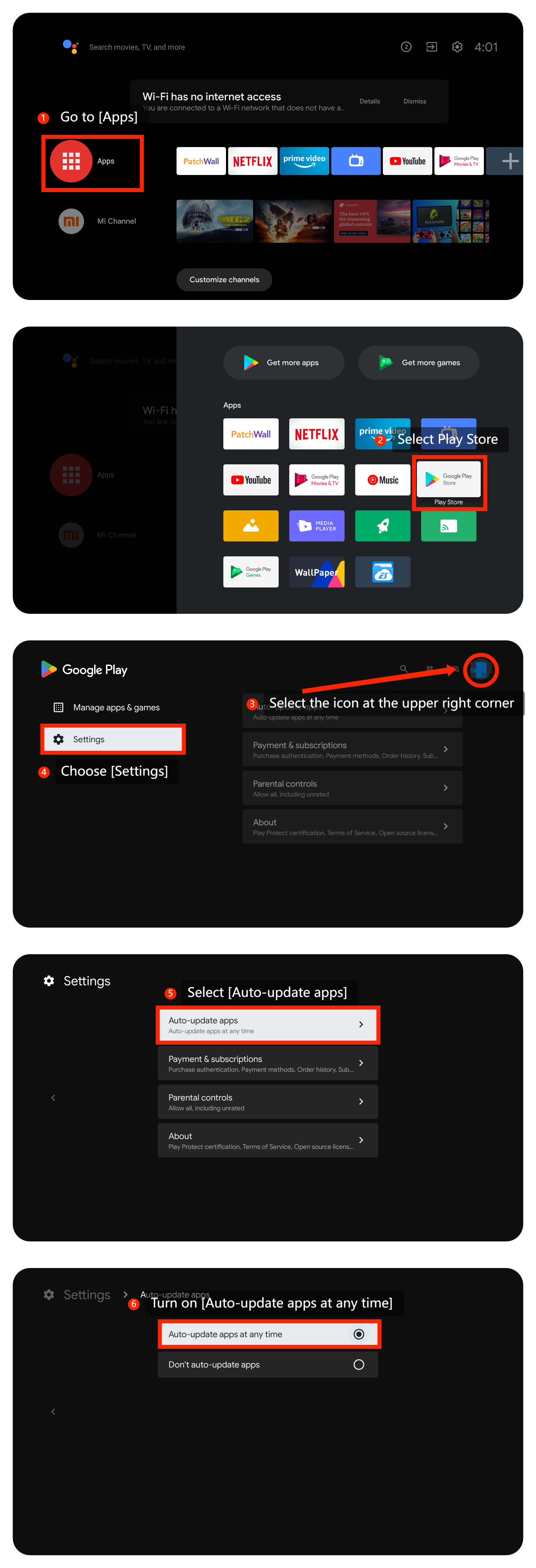
2. Enable the built-in [Auto-update apps] feature on your TV by navigating to [Apps] >> select Play Store >> select the icon at the upper right corner >> [Settings] >> [Auto-update apps] >> [Auto-update apps at any time];
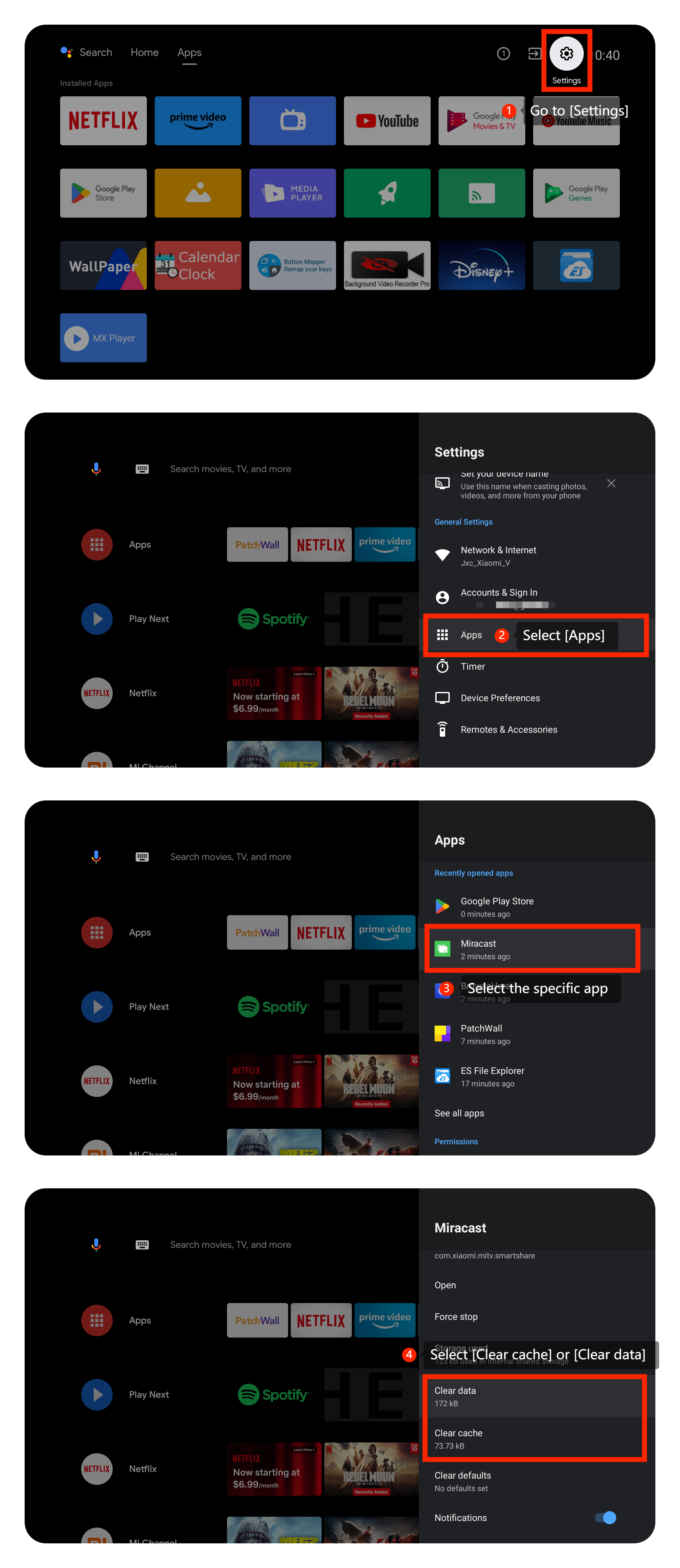
3. Sometimes, accumulated cache and data can interfere with app updates. Go to the [Settings] >> [Apps] >> select the app you want to update >> select [Clear data] or [Clear cache] (Please save or back up the data in advance);
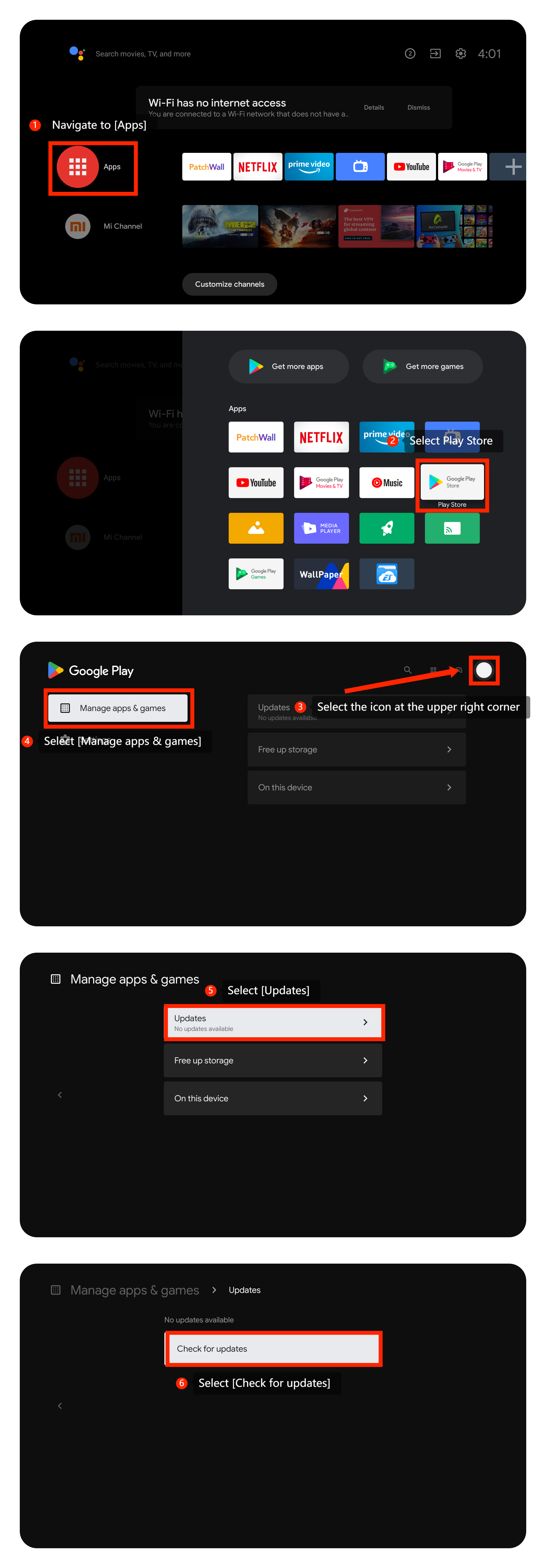
4. You can try manually updating the apps. Navigate to [Apps] >> select Play Store >> select the icon at the upper right corner >> [Manage apps & games] >> [Updates] >> [Check for updates];
5. If clearing the app’s cache and data and checking for updates manually doesn’t work, you can uninstall the app and reinstall it from the Play Store;
6. Make sure your TV’s operating system is up-to-date. Please navigate to [Settings] >> [Device Preferences] >> [About] >> [System update] >> search for an available update and then select the download and install option to update the system;
7. As a last resort, you can try performing a factory reset on your TV. Navigate to [Settings] >> [Device Preferences] >> [Reset]. Be aware that this will erase all your settings and data, so make sure to back up any important data before proceeding.
We hope the above methods can resolve the issue. If the issue still persists, you could submit your feedback on your TV by going to [Settings] >> [Device Preferences] >> [Home screen] >> [Send feedback].
1. Ensure that your TV is connected to a stable and active network;
2. Enable the built-in [Auto-update apps] feature on your TV by navigating to [Apps] >> select Play Store >> select the icon at the upper right corner >> [Settings] >> [Auto-update apps] >> [Auto-update apps at any time];
3. Sometimes, accumulated cache and data can interfere with app updates. Go to the [Settings] >> [Apps] >> select the app you want to update >> select [Clear data] or [Clear cache] (Please save or back up the data in advance);
4. You can try manually updating the apps. Navigate to [Apps] >> select Play Store >> select the icon at the upper right corner >> [Manage apps & games] >> [Updates] >> [Check for updates];
5. If clearing the app’s cache and data and checking for updates manually doesn’t work, you can uninstall the app and reinstall it from the Play Store;
6. Make sure your TV’s operating system is up-to-date. Please navigate to [Settings] >> [Device Preferences] >> [About] >> [System update] >> search for an available update and then select the download and install option to update the system;
7. As a last resort, you can try performing a factory reset on your TV. Navigate to [Settings] >> [Device Preferences] >> [Reset]. Be aware that this will erase all your settings and data, so make sure to back up any important data before proceeding.
We hope the above methods can resolve the issue. If the issue still persists, you could submit your feedback on your TV by going to [Settings] >> [Device Preferences] >> [Home screen] >> [Send feedback].
Does it help?
Yes
No