

What to do if the Mi TV Bezel-less screen flashes or flickers?
If you experience screen flashing or flickering issue on the Mi TV Bezel-less, please refer to the following troubleshooting steps:
Scenario 1:
If the issue occurs when you are using apps on your TV, please refer to the following methods:
1. Ensure that the TV is connected to a stable and active internet;
2. Try to restart your TV. Unplug the TV from the power source, wait for about 10-15 seconds, and then plug the TV back in and turn it on;
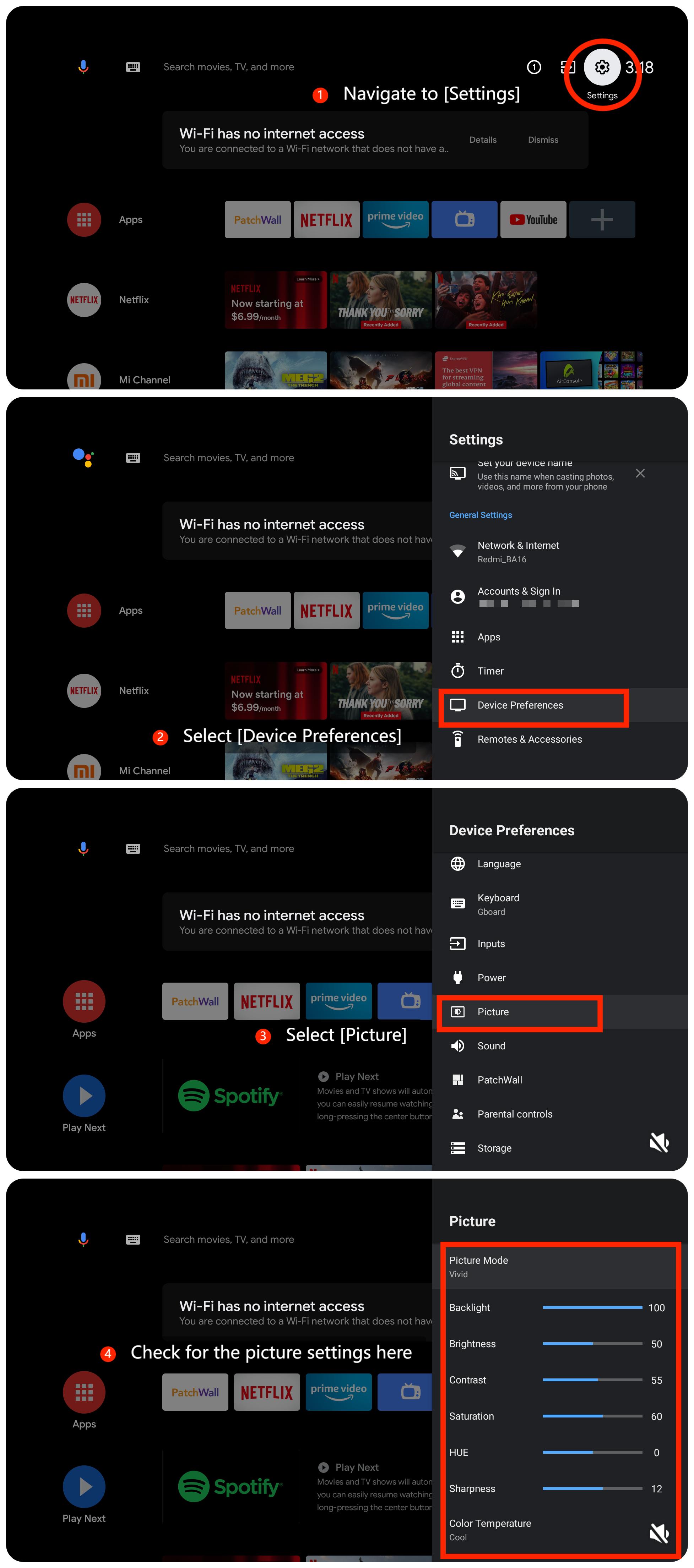
3. Ensure that the brightness, contrast, and other display settings are adjusted correctly. Please navigate to [Settings] >> [Device Preferences] >> [Picture] >> check for the picture settings here;
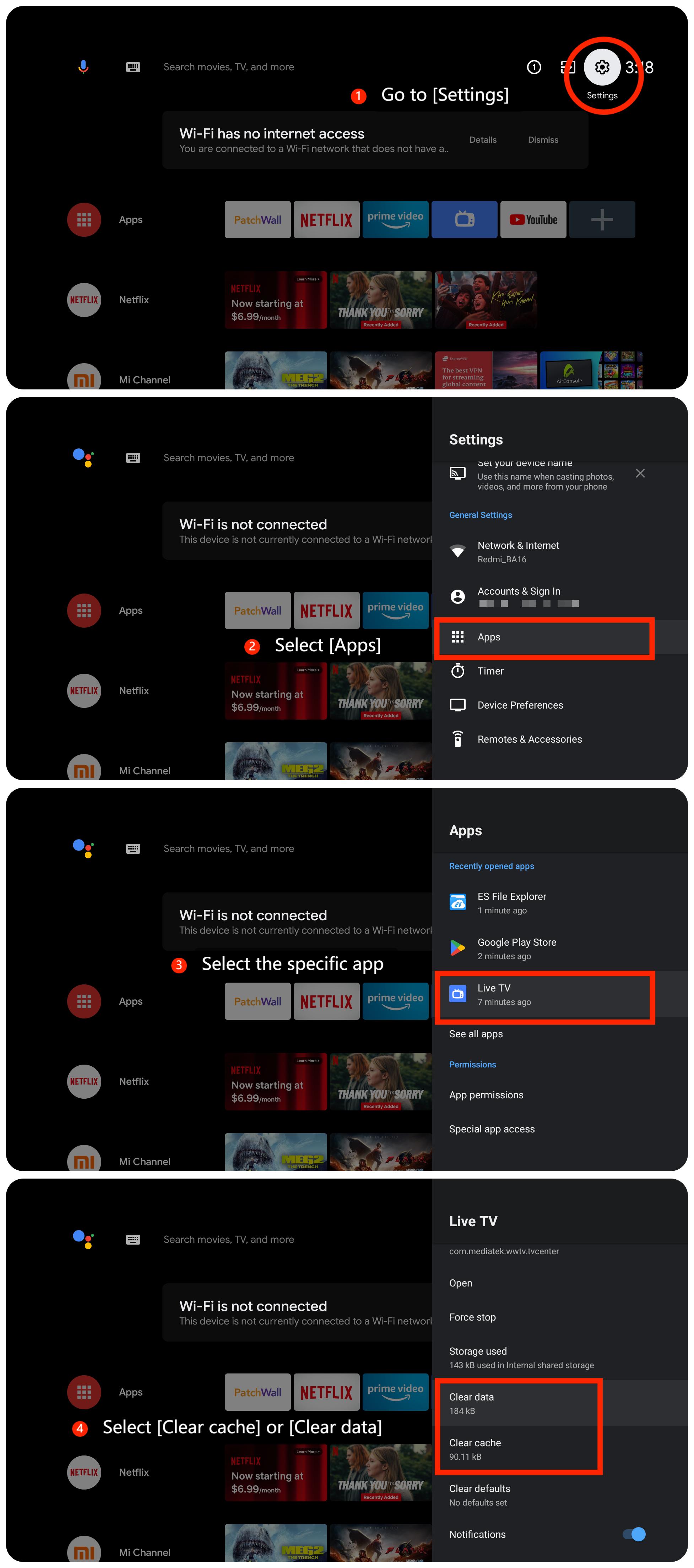
4. If the issue persists with a specific app, please clear the cache or data of the app by navigating to [Settings] >> [Apps] >> select the specific app >> [Clear cache] or [Clear data];
5. If the issue is specific to an app, make sure the app is up to date;
6. If the issue persists, try uninstalling the app and then reinstalling it;
7. Check for system updates by going to [Settings] >> [Device Preferences] >> [About] >> [System update];
8. If other troubleshooting steps do not resolve the issue, you can consider performing a factory reset. Please go to [Settings] >> [Device Preferences] >> [Reset].
Scenario 2:
If the issue occurs when you are using an external device like a DVD player or game console, please refer to the following methods:
1. Ensure that the HDMI cable is securely connected to both the device and the TV. Connect the device to a different HDMI port on your TV to rule out issues with a specific port;
2. Use a different HDMI cable to see if the issue is related to the cable;
3. Adjust the picture settings on your external devices to see if the issue can be resolved.
Scenario 3:
If the issue occurs when you are using casting on your TV, please refer to the following methods:
1. Please ensure that both the casting device such as your computer or your smartphone and your TV are connected to the same Wi-Fi network;
2. Nearby electronic devices, fluorescent lights, or other sources of interference can sometimes affect the display. Move other electronic devices away from the TV and see if the flickering improves;
3. Check the casting device (e.g., smartphone, tablet, or computer) for any picture settings.
Friendly Tips:
The recommended bit rates of the video stream are shown as below:
1. The 4K UHD video stream requires 10Mbps;
2. The 2K video stream requires 5Mbps;
3. The 720p video stream requires 2.5Mbps.
If the above troubleshooting methods can’t resolve the issue, please contact our local official service center or your seller for further assistance. They will help you in this regard.
Scenario 1:
If the issue occurs when you are using apps on your TV, please refer to the following methods:
1. Ensure that the TV is connected to a stable and active internet;
2. Try to restart your TV. Unplug the TV from the power source, wait for about 10-15 seconds, and then plug the TV back in and turn it on;
3. Ensure that the brightness, contrast, and other display settings are adjusted correctly. Please navigate to [Settings] >> [Device Preferences] >> [Picture] >> check for the picture settings here;
4. If the issue persists with a specific app, please clear the cache or data of the app by navigating to [Settings] >> [Apps] >> select the specific app >> [Clear cache] or [Clear data];
5. If the issue is specific to an app, make sure the app is up to date;
6. If the issue persists, try uninstalling the app and then reinstalling it;
7. Check for system updates by going to [Settings] >> [Device Preferences] >> [About] >> [System update];
8. If other troubleshooting steps do not resolve the issue, you can consider performing a factory reset. Please go to [Settings] >> [Device Preferences] >> [Reset].
Scenario 2:
If the issue occurs when you are using an external device like a DVD player or game console, please refer to the following methods:
1. Ensure that the HDMI cable is securely connected to both the device and the TV. Connect the device to a different HDMI port on your TV to rule out issues with a specific port;
2. Use a different HDMI cable to see if the issue is related to the cable;
3. Adjust the picture settings on your external devices to see if the issue can be resolved.
Scenario 3:
If the issue occurs when you are using casting on your TV, please refer to the following methods:
1. Please ensure that both the casting device such as your computer or your smartphone and your TV are connected to the same Wi-Fi network;
2. Nearby electronic devices, fluorescent lights, or other sources of interference can sometimes affect the display. Move other electronic devices away from the TV and see if the flickering improves;
3. Check the casting device (e.g., smartphone, tablet, or computer) for any picture settings.
Friendly Tips:
The recommended bit rates of the video stream are shown as below:
1. The 4K UHD video stream requires 10Mbps;
2. The 2K video stream requires 5Mbps;
3. The 720p video stream requires 2.5Mbps.
If the above troubleshooting methods can’t resolve the issue, please contact our local official service center or your seller for further assistance. They will help you in this regard.
Does it help?
Yes
No