

What to do if the Mi TV 4S 50 cannot watch online videos smoothly or the content buffers for too long?
If you experience issues with online video playback on your Mi TV 4S 50, such as videos not playing smoothly or buffering for extended periods, please refer to the following methods to troubleshoot the issue:
1. Make sure your TV is connected to a high-speed and stable Wi-Fi network. You can also use an Ethernet cable for a wired connection if possible, as it tends to be more stable. Physical obstructions such as walls can also affect the Wi-Fi signal strength. Consider relocating the router or using Wi-Fi range extenders if needed;
2. Power cycle your TV and router by turning them off and unplugging them for a minute. Then, plug them back in and turn them on;
3. Experiment with streaming content from various platforms and modifying the video quality. The suggested bit rates for the video streams are as follows: 10Mbps for the 4K UHD video stream, 5Mbps for the 2K video stream, and 2.5Mbps for the 720p video stream;
4. Disconnect or limit the number of devices using your network simultaneously, especially bandwidth-heavy activities like large downloads or online gaming, which can affect streaming quality;
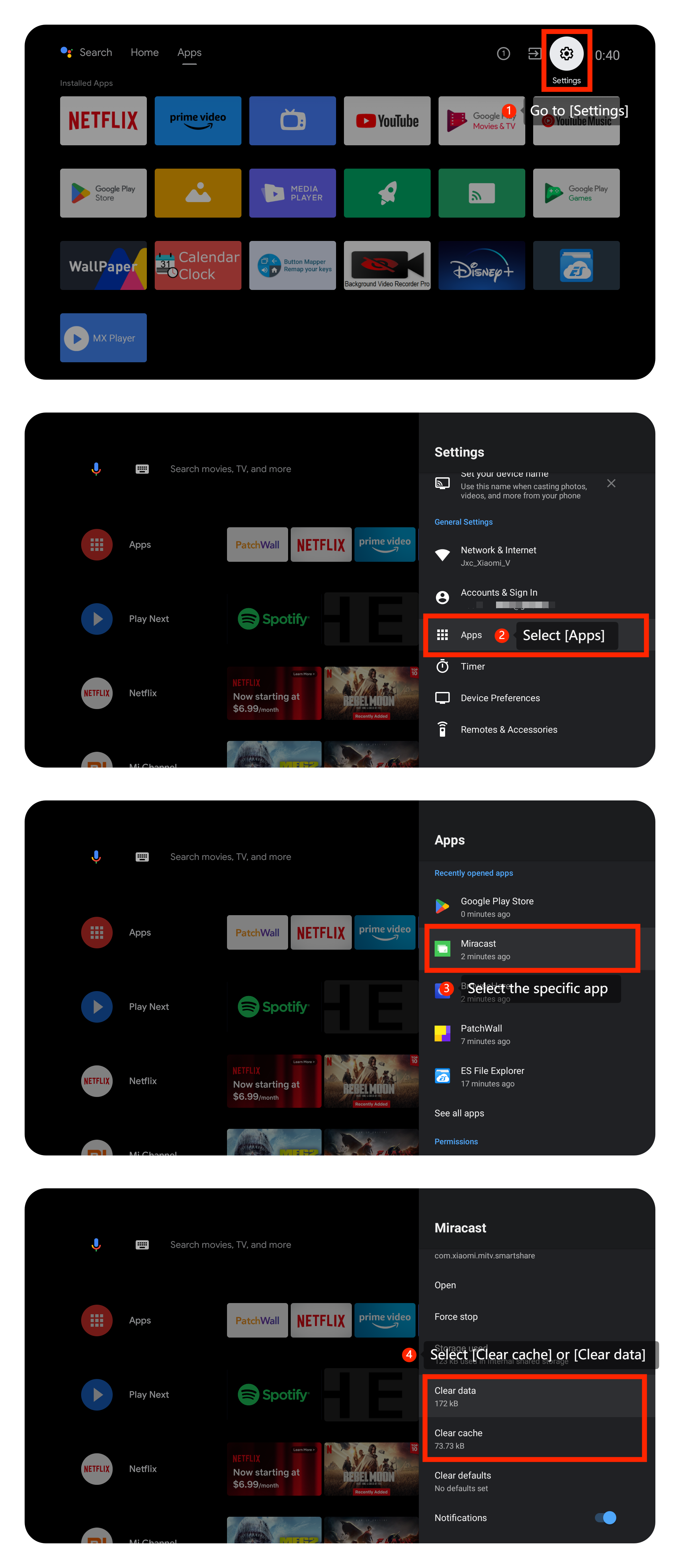
5. Clear cache or data by navigating to [Settings] >> [Apps] >> select the specific app >> [Clear cache] or [Clear data] (Please save or back up the data in advance);
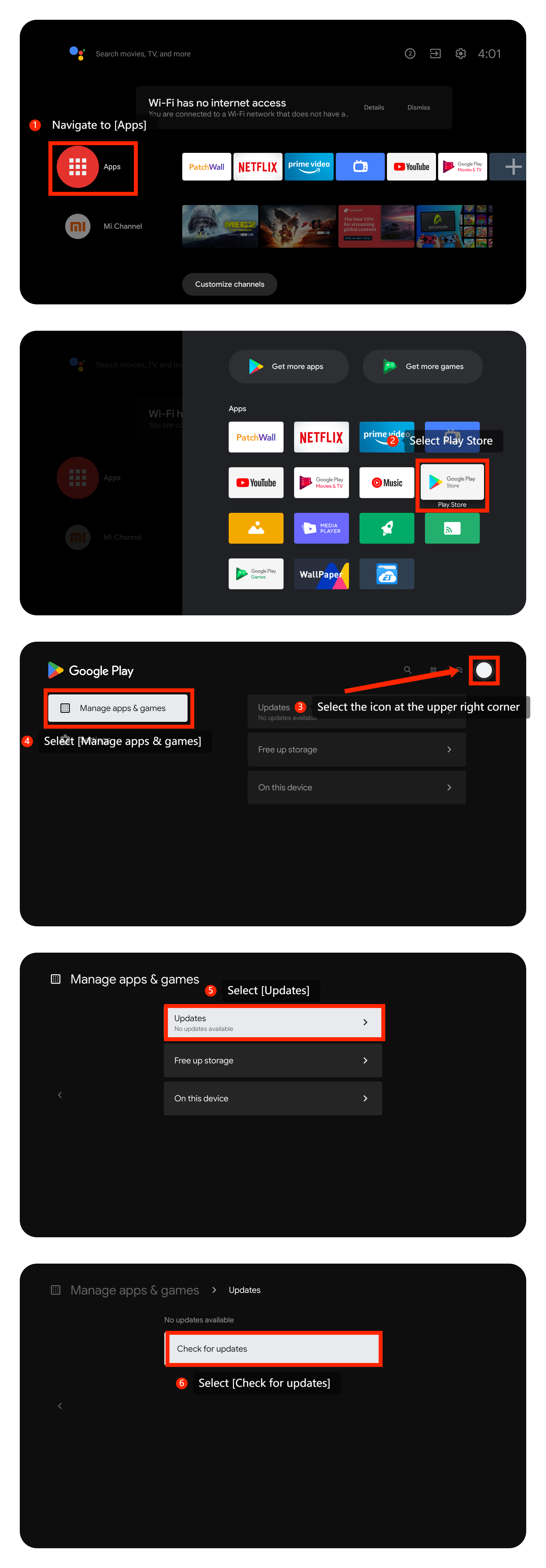
6. Make sure the streaming app you’re using is up to date. Please navigate to [Apps] >> select Play Store >> select the icon at the upper right corner >> [Manage apps & games] >> [Updates] >> [Check for updates];
7. If the app is up to date and clearing the app’s cache and data doesn’t work, you can uninstall the app and reinstall it from the Play Store;
8. Make sure your TV’s operating system is up-to-date. Please navigate to [Settings] >> [Device Preferences] >> [About] >> [System update] >> search for an available update and then select the download and install option to update the system;
9. As a last resort, you can try performing a factory reset on your TV. Navigate to [Settings] >> [Device Preferences] >> [Reset]. Be aware that this will erase all your settings and data, so make sure to back up any important data before proceeding.
If the above troubleshooting methods can’t resolve the issue, please contact our local official service center or your seller for further assistance. They will help you in this regard.
1. Make sure your TV is connected to a high-speed and stable Wi-Fi network. You can also use an Ethernet cable for a wired connection if possible, as it tends to be more stable. Physical obstructions such as walls can also affect the Wi-Fi signal strength. Consider relocating the router or using Wi-Fi range extenders if needed;
2. Power cycle your TV and router by turning them off and unplugging them for a minute. Then, plug them back in and turn them on;
3. Experiment with streaming content from various platforms and modifying the video quality. The suggested bit rates for the video streams are as follows: 10Mbps for the 4K UHD video stream, 5Mbps for the 2K video stream, and 2.5Mbps for the 720p video stream;
4. Disconnect or limit the number of devices using your network simultaneously, especially bandwidth-heavy activities like large downloads or online gaming, which can affect streaming quality;
5. Clear cache or data by navigating to [Settings] >> [Apps] >> select the specific app >> [Clear cache] or [Clear data] (Please save or back up the data in advance);
6. Make sure the streaming app you’re using is up to date. Please navigate to [Apps] >> select Play Store >> select the icon at the upper right corner >> [Manage apps & games] >> [Updates] >> [Check for updates];
7. If the app is up to date and clearing the app’s cache and data doesn’t work, you can uninstall the app and reinstall it from the Play Store;
8. Make sure your TV’s operating system is up-to-date. Please navigate to [Settings] >> [Device Preferences] >> [About] >> [System update] >> search for an available update and then select the download and install option to update the system;
9. As a last resort, you can try performing a factory reset on your TV. Navigate to [Settings] >> [Device Preferences] >> [Reset]. Be aware that this will erase all your settings and data, so make sure to back up any important data before proceeding.
If the above troubleshooting methods can’t resolve the issue, please contact our local official service center or your seller for further assistance. They will help you in this regard.
Does it help?
Yes
No