

What to do if there is a watermark on the screen of the Mi TV 4 32?
If you notice a watermark on the screen of your Mi TV 4 32, please refer to the following scenarios and their troubleshooting methods:
Scenarios 1:
If the issue occurs when you are using apps on your TV, please refer to the following methods:
1. Check if there is anything wrong with the application settings. It is worth attention that some applications have watermarks by default to protect copyright when playing videos;
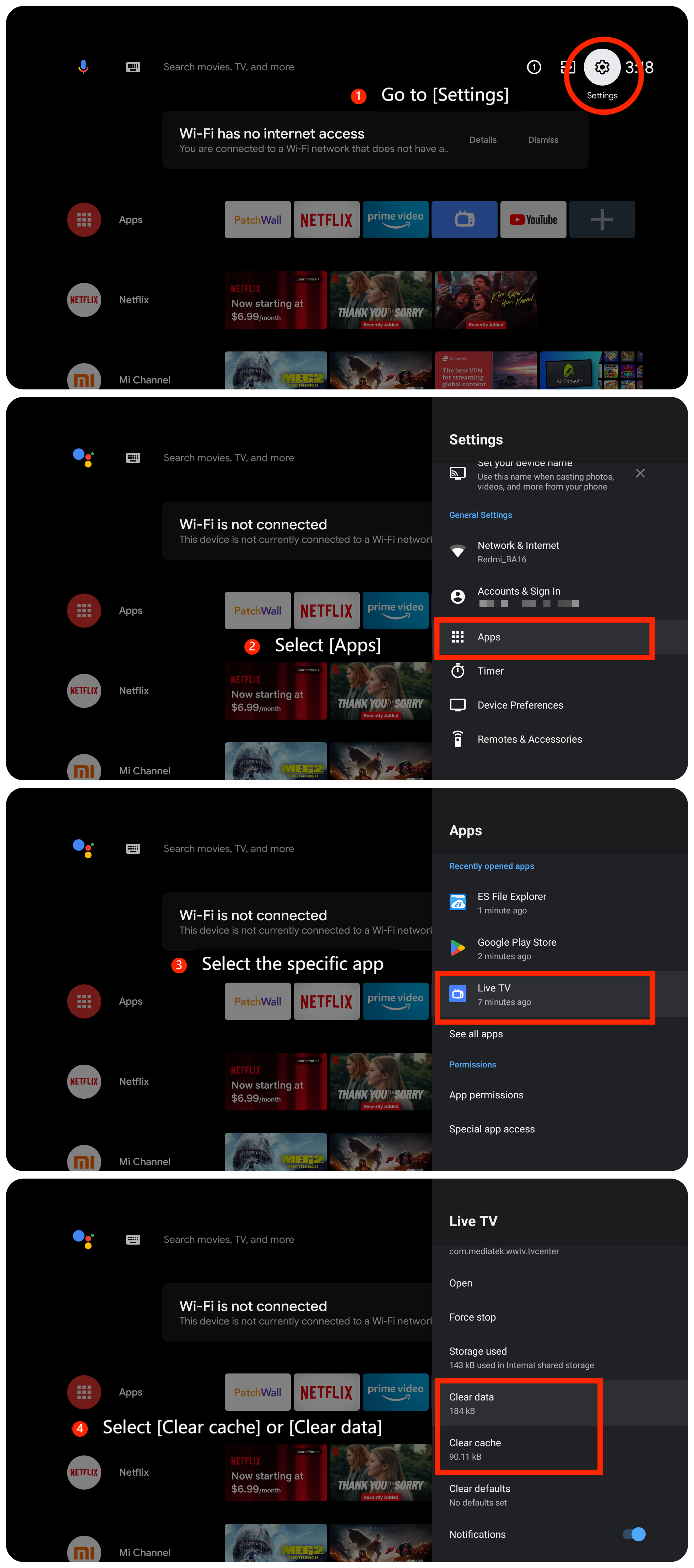
2. If the issue persists with a specific app, please clear the cache or data of the app by navigating to [Settings] >> [Apps] >> select the specific app >> [Clear cache] or [Clear data];
3. Ensure that the apps you are using are up to date. Sometimes, app updates may include fixes for issues such as unwanted watermarks;
4. If the issue persists, try uninstalling the app and then reinstalling it;
5. A simple restart can sometimes resolve temporary glitches. Turn off your TV, unplug it from the power source, wait for a minute, and then plug it back in. Power it on and check if the watermark persists;
6. Check for system updates by going to [Settings] >> [Device Preferences] >> [About] >> [System update];
7. If other troubleshooting steps do not resolve the issue, you can consider performing a factory reset. Please go to [Settings] >> [Device Preferences] >> [Reset].
Scenario 2:
If the issue occurs when you are using an external device like a DVD player or game console, please refer to the following methods:
1. Ensure that the HDMI cable connecting the external device (DVD player, game console) to your TV is securely plugged in. Try using a different HDMI cable to rule out a cable issue;
2. Check if there are any wrongs from the external devices. You can try to change and play other content, or adjust its settings to confirm the origin of the problem;
3. Check if the device you’re using has any specific settings for watermarks. It is worth attention that some platforms and devices have watermarks by default to protect copyright when playing content.
Scenario 3:
If the issue occurs when you are using casting on your TV, please refer to the following methods:
1. Ensure that the content being played from the casting device doesn't have a watermark embedded in it. Media files might have watermarks from their source or might be affected during downloading or copying;
2. Restart the device you are casting from (e.g., smartphone, tablet, computer). Sometimes, issues with casting can be resolved by restarting the source device;
3. If you are using a specific casting app, check its settings for any options related to watermarks or overlays. Some casting apps may have features that superimpose information on the screen.
Friendly Tips:
The recommended bit rates of the video stream are shown as below:
1. The 4K UHD video stream requires 10Mbps;
2. The 2K video stream requires 5Mbps;
3. The 720p video stream requires 2.5Mbps.
If the above troubleshooting methods can’t resolve the issue, please contact our local official service center or your seller for further assistance. They will help you in this regard.
Scenarios 1:
If the issue occurs when you are using apps on your TV, please refer to the following methods:
1. Check if there is anything wrong with the application settings. It is worth attention that some applications have watermarks by default to protect copyright when playing videos;
2. If the issue persists with a specific app, please clear the cache or data of the app by navigating to [Settings] >> [Apps] >> select the specific app >> [Clear cache] or [Clear data];
3. Ensure that the apps you are using are up to date. Sometimes, app updates may include fixes for issues such as unwanted watermarks;
4. If the issue persists, try uninstalling the app and then reinstalling it;
5. A simple restart can sometimes resolve temporary glitches. Turn off your TV, unplug it from the power source, wait for a minute, and then plug it back in. Power it on and check if the watermark persists;
6. Check for system updates by going to [Settings] >> [Device Preferences] >> [About] >> [System update];
7. If other troubleshooting steps do not resolve the issue, you can consider performing a factory reset. Please go to [Settings] >> [Device Preferences] >> [Reset].
Scenario 2:
If the issue occurs when you are using an external device like a DVD player or game console, please refer to the following methods:
1. Ensure that the HDMI cable connecting the external device (DVD player, game console) to your TV is securely plugged in. Try using a different HDMI cable to rule out a cable issue;
2. Check if there are any wrongs from the external devices. You can try to change and play other content, or adjust its settings to confirm the origin of the problem;
3. Check if the device you’re using has any specific settings for watermarks. It is worth attention that some platforms and devices have watermarks by default to protect copyright when playing content.
Scenario 3:
If the issue occurs when you are using casting on your TV, please refer to the following methods:
1. Ensure that the content being played from the casting device doesn't have a watermark embedded in it. Media files might have watermarks from their source or might be affected during downloading or copying;
2. Restart the device you are casting from (e.g., smartphone, tablet, computer). Sometimes, issues with casting can be resolved by restarting the source device;
3. If you are using a specific casting app, check its settings for any options related to watermarks or overlays. Some casting apps may have features that superimpose information on the screen.
Friendly Tips:
The recommended bit rates of the video stream are shown as below:
1. The 4K UHD video stream requires 10Mbps;
2. The 2K video stream requires 5Mbps;
3. The 720p video stream requires 2.5Mbps.
If the above troubleshooting methods can’t resolve the issue, please contact our local official service center or your seller for further assistance. They will help you in this regard.
Does it help?
Yes
No