

What to do if apps cannot be updated automatically on the Xiaomi TV A Pro 55?
If the apps cannot be updated automatically on the Xiaomi TV A Pro 55, you can refer to the following steps to troubleshoot the issue:
1. Please make sure that the [Auto-update] function is enabled on the TV. Go to [Settings] >> [Apps] >> [Google Play Store] >> tap the profile icon at the upper right corner >> [Settings] >> [Auto-update apps] >> toggle on [Auto-update apps at any time];
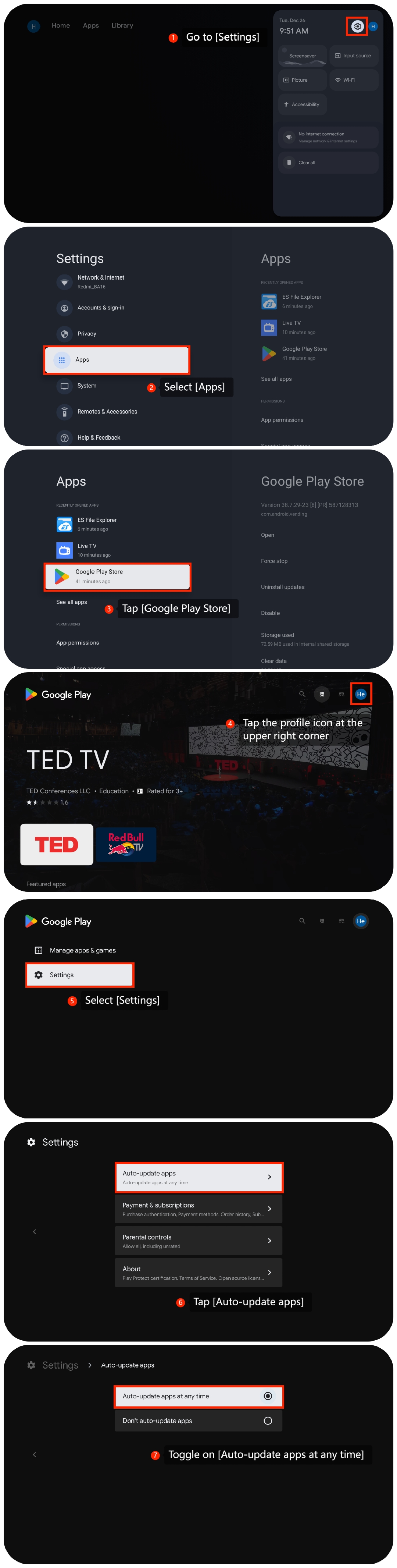
1. Please make sure that the [Auto-update] function is enabled on the TV. Go to [Settings] >> [Apps] >> [Google Play Store] >> tap the profile icon at the upper right corner >> [Settings] >> [Auto-update apps] >> toggle on [Auto-update apps at any time];
2. Ensure that your TV is connected to the internet as a stable internet connection is necessary for app updates. You can test the connection by opening other apps or websites on your TV;
3. You can update the firmware and apps. Make sure that both the TV firmware and the streaming apps are up to date as Xiaomi often releases new apps to improve glitches and bugs. Please go to [Settings] >> [System] >> [About] >> [System update];
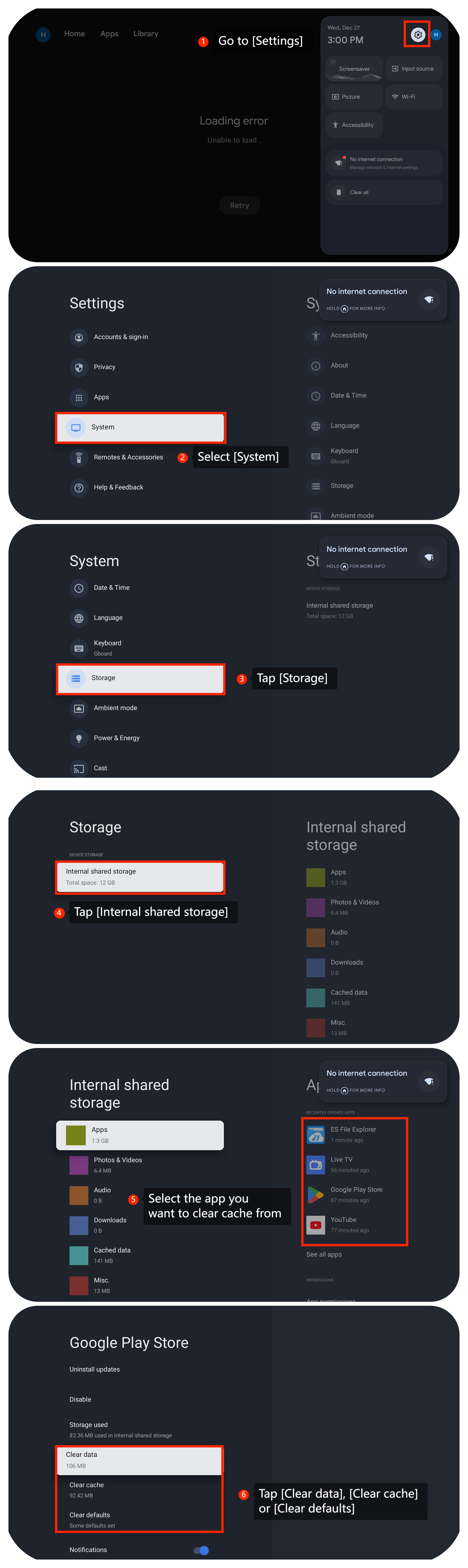
4. Clear the cache and data of the streaming app experiencing issues by going to [Settings] >> [System] >> [Storage] >> tap [Internal shared storage] >> select the app you want to clear cache from >> tap [Clear data], [Clear cache] or [Clear defaults];
3. You can update the firmware and apps. Make sure that both the TV firmware and the streaming apps are up to date as Xiaomi often releases new apps to improve glitches and bugs. Please go to [Settings] >> [System] >> [About] >> [System update];
4. Clear the cache and data of the streaming app experiencing issues by going to [Settings] >> [System] >> [Storage] >> tap [Internal shared storage] >> select the app you want to clear cache from >> tap [Clear data], [Clear cache] or [Clear defaults];
5. Rebooting the TV to refresh the system often resolves temporary glitches or issues;
6. You can update the firmware of the TV. Please go to [Settings] >> [System] >> [About] >> [System update] to have the latest version;
7. As a last resort, you can try performing a factory reset on your TV. Go to [Settings] >> [System] >>[About] >> [Reset] >> [Factory reset]. Be aware that this will erase all your settings and data, so make sure to back up any important data before proceeding.
We hope the above methods can resolve the issue. If the issue still persists, you could submit your feedback on your TV by going to [Settings] >> [Help & Feedback] >> [Send feedback], you can upload logs with your feedback.
6. You can update the firmware of the TV. Please go to [Settings] >> [System] >> [About] >> [System update] to have the latest version;
7. As a last resort, you can try performing a factory reset on your TV. Go to [Settings] >> [System] >>[About] >> [Reset] >> [Factory reset]. Be aware that this will erase all your settings and data, so make sure to back up any important data before proceeding.
We hope the above methods can resolve the issue. If the issue still persists, you could submit your feedback on your TV by going to [Settings] >> [Help & Feedback] >> [Send feedback], you can upload logs with your feedback.
Does it help?
Yes
No