

What to do if the Mi TV 4 32’s screen has dark edges or an incomplete display?
If the Mi TV 4 32’s screen has dark edges or an incomplete display, please refer to the following scenarios and their troubleshooting methods:
Scenarios 1:
If the issue occurs when you are using apps on your TV, please refer to the following methods:
1. Check if there is anything wrong with the application’s picture settings. It is worth attention that some applications’ content has specific aspect ratios so that the video may have dark edges or an incomplete display when you are playing it;
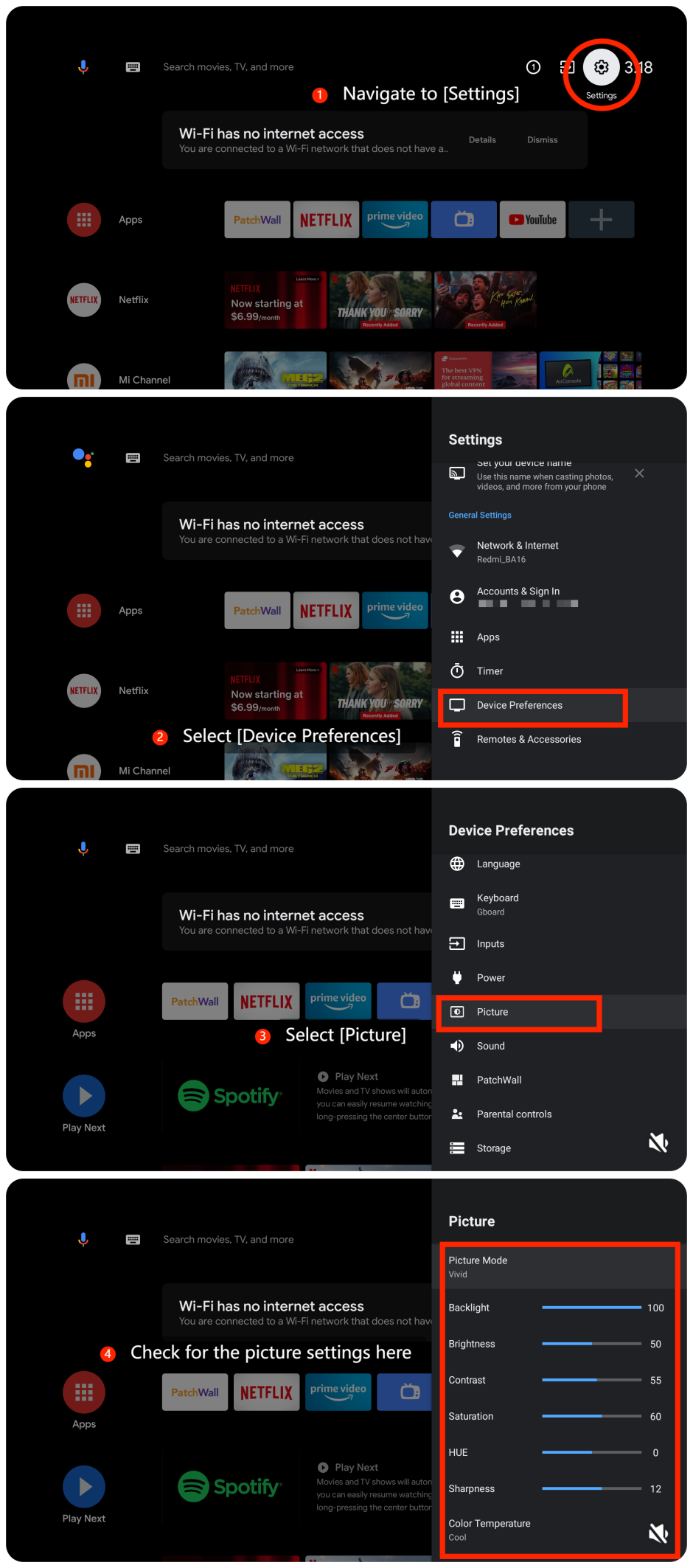
2. Ensure that the brightness, contrast, and other display settings are adjusted correctly. Please navigate to [Settings] >> [Device Preferences] >> [Picture] >> check for the picture settings here;
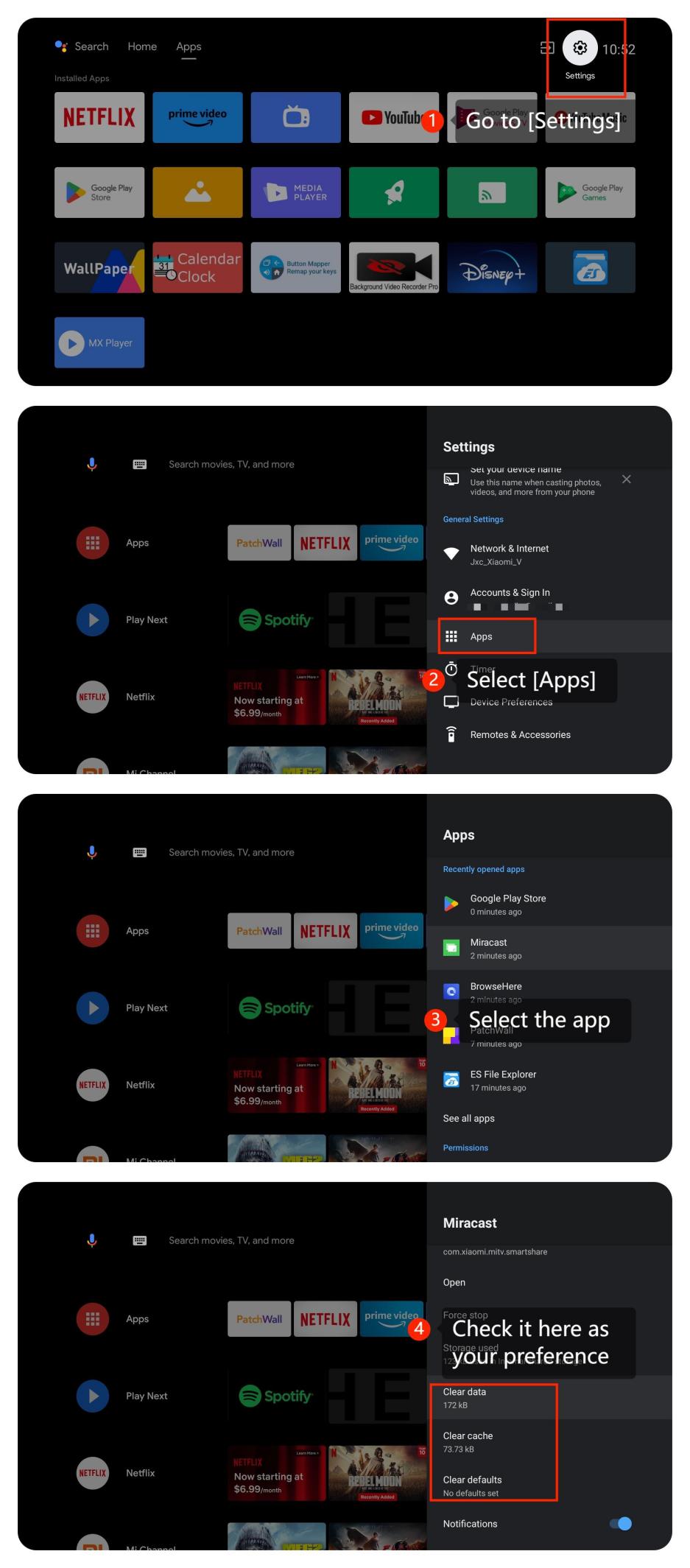
3. Please try clearing the app cache and data by going to [Settings] >> [Apps] >> [Clear data], [Clear cache], [Clear defaults] >> [OK];
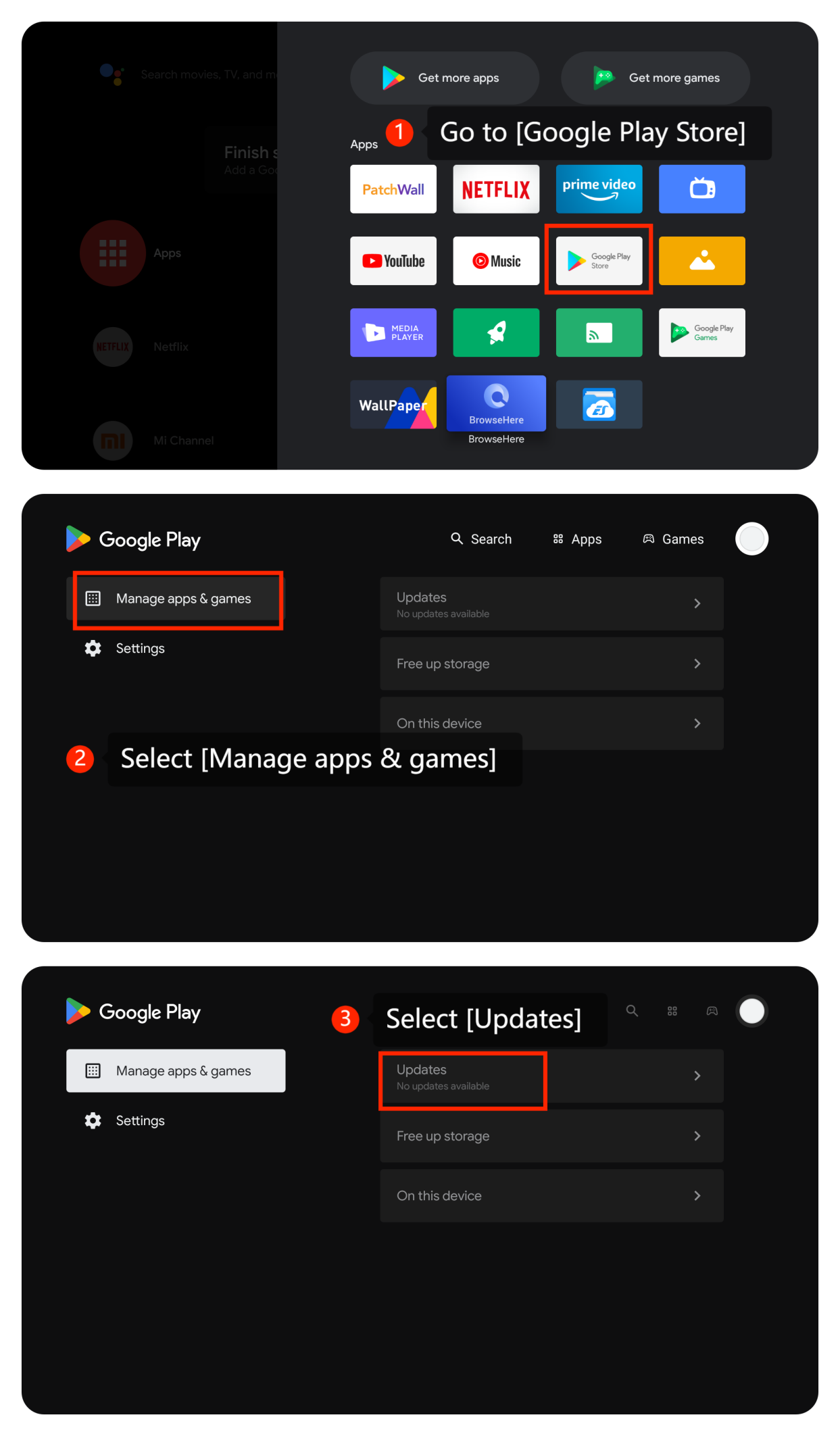
4. Ensure that the app is the latest version by going to [Google Play Store] >> [Manage apps and games] >> [Updates];
5. If the issue persists, try uninstalling the app and then reinstalling it;
6. Check for system updates by going to [Settings] >> [Device Preferences] >> [About] >> [System update];
7. As a last resort, you can try performing a factory reset. Navigate to [Settings] >> [Device Preferences] >> [Reset]. Be aware that this will erase all your settings and data, so make sure to back up any important data before proceeding.
Scenario 2:
If the issue occurs when you are using an external device like a DVD player or game console, please refer to the following methods:
1. Ensure the cables connecting external devices to your TV are firmly and correctly plugged into the appropriate ports;
2. Check if there are any wrongs from the external devices. You can try to change and play other content, or adjust its settings to confirm the origin of the problem;
3. Check if the device you’re using has any specific picture settings for streaming content;
4. Ensure that your HDMI cable is in good condition. If possible, try using a different HDMI cable to see if the issue persists.
Scenario 3:
If the issue occurs when you are using casting on your TV, please refer to the following methods:
1. Reboot your casting device and your TV and check if the issue persists;
2. Ensure that your TV and external device are connected to a stable and high-speed network connection;
3. Ensure that the content being played from the casting device doesn't have display issues from their source or affected during downloading or copying;
4. Check the casting device (e.g., smartphone, tablet, or computer) for any display or casting settings. Make sure the casting device is set to the correct picture settings;
5. Test casting with a different device to see if the issue persists. If the issue doesn’t occur, it indicates that the TV is in good condition;
6. Ensure the casting compatibility with your external device. The device system version must be Android 4.2/Windows 10 or above and must also have a built-in cast feature. If possible, try connecting it to another display and determine if the issue is specific to one device.
If the above troubleshooting methods can't resolve the issue, please contact our local official service center or your seller for further assistance. They will help you in this regard.
Scenarios 1:
If the issue occurs when you are using apps on your TV, please refer to the following methods:
1. Check if there is anything wrong with the application’s picture settings. It is worth attention that some applications’ content has specific aspect ratios so that the video may have dark edges or an incomplete display when you are playing it;
2. Ensure that the brightness, contrast, and other display settings are adjusted correctly. Please navigate to [Settings] >> [Device Preferences] >> [Picture] >> check for the picture settings here;
3. Please try clearing the app cache and data by going to [Settings] >> [Apps] >> [Clear data], [Clear cache], [Clear defaults] >> [OK];
4. Ensure that the app is the latest version by going to [Google Play Store] >> [Manage apps and games] >> [Updates];
5. If the issue persists, try uninstalling the app and then reinstalling it;
6. Check for system updates by going to [Settings] >> [Device Preferences] >> [About] >> [System update];
7. As a last resort, you can try performing a factory reset. Navigate to [Settings] >> [Device Preferences] >> [Reset]. Be aware that this will erase all your settings and data, so make sure to back up any important data before proceeding.
Scenario 2:
If the issue occurs when you are using an external device like a DVD player or game console, please refer to the following methods:
1. Ensure the cables connecting external devices to your TV are firmly and correctly plugged into the appropriate ports;
2. Check if there are any wrongs from the external devices. You can try to change and play other content, or adjust its settings to confirm the origin of the problem;
3. Check if the device you’re using has any specific picture settings for streaming content;
4. Ensure that your HDMI cable is in good condition. If possible, try using a different HDMI cable to see if the issue persists.
Scenario 3:
If the issue occurs when you are using casting on your TV, please refer to the following methods:
1. Reboot your casting device and your TV and check if the issue persists;
2. Ensure that your TV and external device are connected to a stable and high-speed network connection;
3. Ensure that the content being played from the casting device doesn't have display issues from their source or affected during downloading or copying;
4. Check the casting device (e.g., smartphone, tablet, or computer) for any display or casting settings. Make sure the casting device is set to the correct picture settings;
5. Test casting with a different device to see if the issue persists. If the issue doesn’t occur, it indicates that the TV is in good condition;
6. Ensure the casting compatibility with your external device. The device system version must be Android 4.2/Windows 10 or above and must also have a built-in cast feature. If possible, try connecting it to another display and determine if the issue is specific to one device.
If the above troubleshooting methods can't resolve the issue, please contact our local official service center or your seller for further assistance. They will help you in this regard.
Does it help?
Yes
No