

How to resolve the brightness or contrast can’t be adjusted issue on the Xiaomi TV F2 32?
If the Xiaomi TV F2 32 can’t adjust the brightness or contrast, please refer to the following scenarios and their troubleshooting methods:
Scenario 1:
If the issue occurs when you are using apps on your TV, please refer to the following methods:
1. Update the App, please go to the Home screen >> select the [Search for] icon with your remote >> go to [Appstore] >> select the app you want to update >> press the three-horizontal-lined button on the remote control >> select the [More Info] option and update the App;
2. Ensure that the app you are using has the necessary permissions to access the internet and other required resources on your TV.
Scenario 2:
If the issue occurs when you are using an external device like a DVD player or game console, please refer to the following methods:
1. Ensure that the external device is configured correctly. Check the settings on the external device to see if there are options related to brightness and contrast;
2. Ensure that the HDMI cable connecting the external device to the TV is in good condition. Try using a different HDMI cable to rule out any cable-related issues;
3. Ensure that the external device is compatible with your TV.
Scenario 3:
If the issue occurs when you are using casting on your TV, please refer to the following methods:
1. Make sure that both your casting device and the TV are connected to the same Wi-Fi network;
2. On your casting device, check the screen mirroring or casting settings. Make sure you have selected the correct TV or casting device;
3. Ensure that both the device you are casting from and the TV support the same screencasting technology;
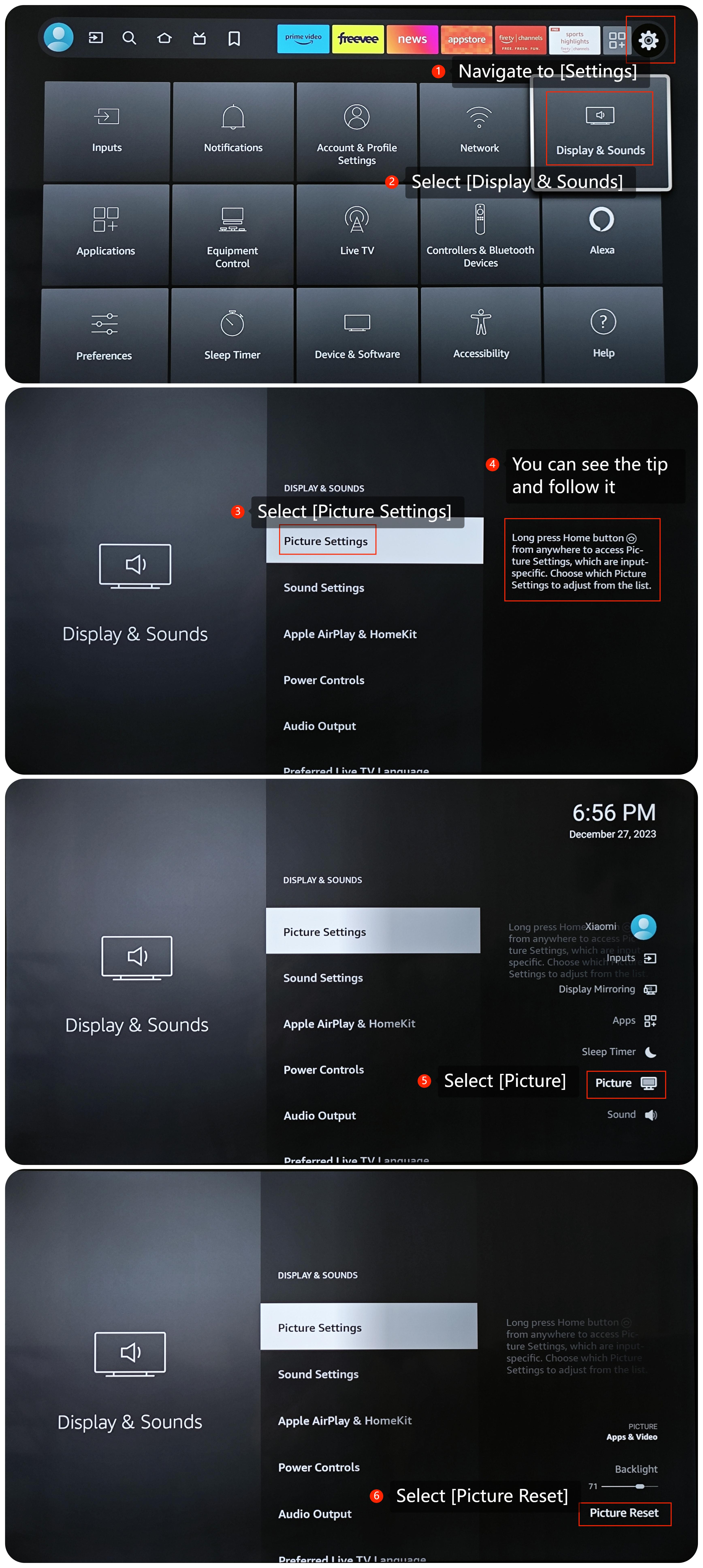
4. Reset Display Settings, please navigate to the [Settings] icon >> [Display and Sounds] >> [Picture Settings] >> press and hold down the [Home] button on your remote to access picture settings >> select [Picture] >> [Picture Reset];
5. Check for Updates, navigate to the [Settings] icon >> select [Device and Software] >> [About] >> [Check for Updates];
6. Navigate to [Settings] >> [Device and Software] >> [Reset to Factory Defaults] >> [Reset]. Be aware that this will erase all data and settings on your TV, so make sure to back up anything important before doing this.
If the above troubleshooting methods can’t resolve the issue, please contact our local official service center or your seller for further assistance. They will help you in this regard.
Scenario 1:
If the issue occurs when you are using apps on your TV, please refer to the following methods:
1. Update the App, please go to the Home screen >> select the [Search for] icon with your remote >> go to [Appstore] >> select the app you want to update >> press the three-horizontal-lined button on the remote control >> select the [More Info] option and update the App;
2. Ensure that the app you are using has the necessary permissions to access the internet and other required resources on your TV.
Scenario 2:
If the issue occurs when you are using an external device like a DVD player or game console, please refer to the following methods:
1. Ensure that the external device is configured correctly. Check the settings on the external device to see if there are options related to brightness and contrast;
2. Ensure that the HDMI cable connecting the external device to the TV is in good condition. Try using a different HDMI cable to rule out any cable-related issues;
3. Ensure that the external device is compatible with your TV.
Scenario 3:
If the issue occurs when you are using casting on your TV, please refer to the following methods:
1. Make sure that both your casting device and the TV are connected to the same Wi-Fi network;
2. On your casting device, check the screen mirroring or casting settings. Make sure you have selected the correct TV or casting device;
3. Ensure that both the device you are casting from and the TV support the same screencasting technology;
4. Reset Display Settings, please navigate to the [Settings] icon >> [Display and Sounds] >> [Picture Settings] >> press and hold down the [Home] button on your remote to access picture settings >> select [Picture] >> [Picture Reset];
5. Check for Updates, navigate to the [Settings] icon >> select [Device and Software] >> [About] >> [Check for Updates];
6. Navigate to [Settings] >> [Device and Software] >> [Reset to Factory Defaults] >> [Reset]. Be aware that this will erase all data and settings on your TV, so make sure to back up anything important before doing this.
If the above troubleshooting methods can’t resolve the issue, please contact our local official service center or your seller for further assistance. They will help you in this regard.
Does it help?
Yes
No