

What to do if you fail to use AirPlay on Xiaomi TV A Pro 32?
If you're encountering issues using AirPlay on your Xiaomi TV A Pro 32, please refer to the following scenarios and troubleshooting methods:
Scenario 1:
If the issue occurs when you are unable to find your Xiaomi Google TV as an available AirPlay device:
1. Ensure both your Xiaomi Google TV and the device you're using for AirPlay are connected to the same Wi-Fi network. Inconsistent network connections can prevent device discovery;
2. Restart both your Xiaomi Google TV and the device you're attempting to AirPlay from. This simple step often resolves minor connectivity issues;
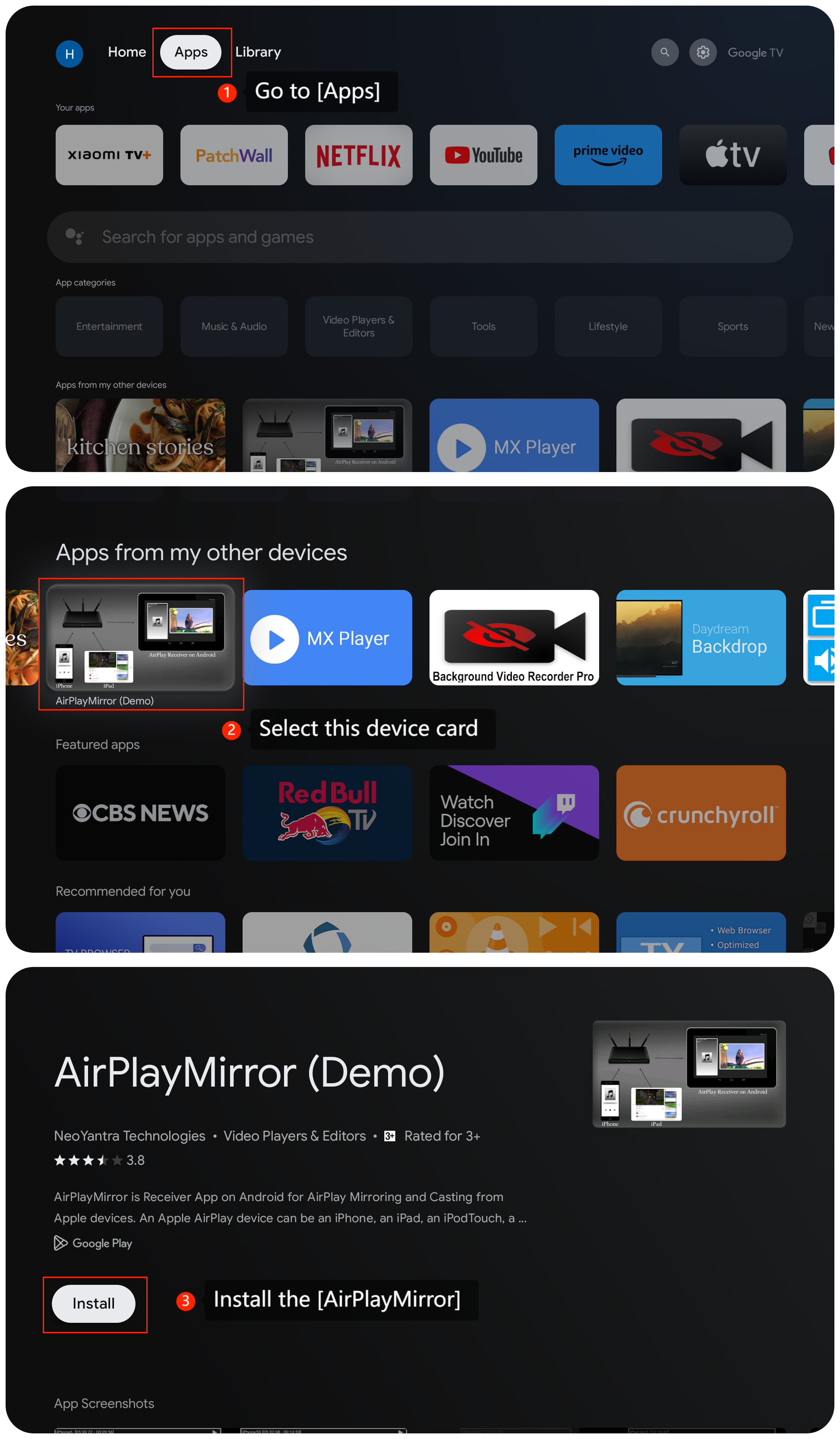
3. Confirm that AirPlay is enabled on your Xiaomi Google TV. Navigate to the settings menu and check for any options related to AirPlay or screen mirroring. Ensure it's turned on by going to [Apps] >> [AirPlayMirror].
Scenario 2:
If the issue occurs when you successfully connect but experience playback or stability issues:
1. Ensure your Xiaomi Google TV's firmware and the app you're using for AirPlay are updated to the latest versions. Updates often contain bug fixes that may resolve these issues;
2. Check for any interference or congestion on your Wi-Fi network. Move closer to the router or consider using a wired connection for better stability;
3. Disable AirPlay on your Xiaomi Google TV, wait for a few moments, and then enable it again. Sometimes, restarting the service resolves playback or connection instability. You can also disable it by going to the task center on your iPhone and tap the [Screen Mirroring] icon, then tap [Stop Mirroring].
We hope all the above methods can resolve the issue. If the issue still persists, you could submit your feedback on TV by going to [Settings] >> [Help & Feedback] >> [Send feedback]. In this way, you can upload logs with your feedback.
Scenario 1:
If the issue occurs when you are unable to find your Xiaomi Google TV as an available AirPlay device:
1. Ensure both your Xiaomi Google TV and the device you're using for AirPlay are connected to the same Wi-Fi network. Inconsistent network connections can prevent device discovery;
2. Restart both your Xiaomi Google TV and the device you're attempting to AirPlay from. This simple step often resolves minor connectivity issues;
3. Confirm that AirPlay is enabled on your Xiaomi Google TV. Navigate to the settings menu and check for any options related to AirPlay or screen mirroring. Ensure it's turned on by going to [Apps] >> [AirPlayMirror].
Scenario 2:
If the issue occurs when you successfully connect but experience playback or stability issues:
1. Ensure your Xiaomi Google TV's firmware and the app you're using for AirPlay are updated to the latest versions. Updates often contain bug fixes that may resolve these issues;
2. Check for any interference or congestion on your Wi-Fi network. Move closer to the router or consider using a wired connection for better stability;
3. Disable AirPlay on your Xiaomi Google TV, wait for a few moments, and then enable it again. Sometimes, restarting the service resolves playback or connection instability. You can also disable it by going to the task center on your iPhone and tap the [Screen Mirroring] icon, then tap [Stop Mirroring].
We hope all the above methods can resolve the issue. If the issue still persists, you could submit your feedback on TV by going to [Settings] >> [Help & Feedback] >> [Send feedback]. In this way, you can upload logs with your feedback.
Does it help?
Yes
No