

What to do if you fail to use Miracast on the Mi TV 4S 65?
If you fail to use Miracast on your Mi TV 4S 65, there are some methods you can take to troubleshoot and resolve the issue:
1. Sometimes, simply restarting your device can resolve connectivity issues;
2. Ensure that both your TV and casting device (e.g., smartphone, tablet, or computer) are connected to the same Wi-Fi network;
3. Make sure both your TV and casting device are in an area with a strong Wi-Fi signal. Weak signals can lead to connectivity problems;
4. Ensure the Miracast compatibility with your external device. The device system version must be Android 4.2/Windows 10 or above and must also have built-in Miracast. If possible, try connecting it to another display and determine if the issue is specific to one device;
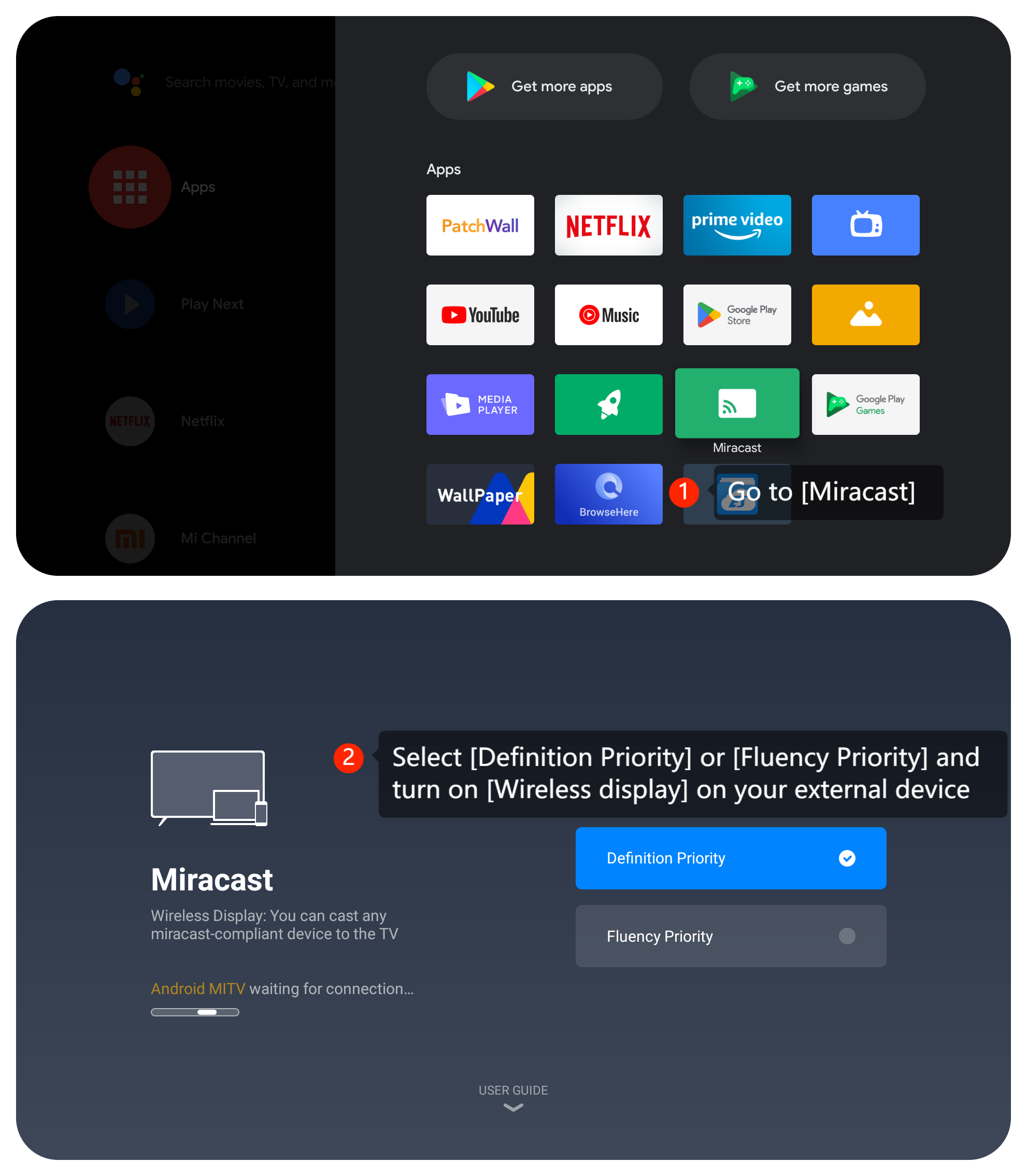
5. Reconnect Miracast on your TV as follows: open [Miracast] app on your TV >> select [Definition Priority] or [Fluency Priority] as your preference >> select [Connect to a wireless display] on your external device >> select your TV from the device list;
6. Ensure that your TV’s software is up to date. Go to [Settings] >> [Device Preferences] >> [About] >> [System update];
7. As a last resort, you can try performing a factory reset on your TV. Navigate to [Settings] >> go to [Device Preferences] >> select [Reset]. Be aware that this will erase all your settings and data, so make sure to back up any important data before proceeding.
We hope the above methods can resolve the issue. If the issue still persists, you could submit your feedback on your TV by going to [Settings] >> [Device Preferences] >> [Home screen] >> [Send feedback].
1. Sometimes, simply restarting your device can resolve connectivity issues;
2. Ensure that both your TV and casting device (e.g., smartphone, tablet, or computer) are connected to the same Wi-Fi network;
3. Make sure both your TV and casting device are in an area with a strong Wi-Fi signal. Weak signals can lead to connectivity problems;
4. Ensure the Miracast compatibility with your external device. The device system version must be Android 4.2/Windows 10 or above and must also have built-in Miracast. If possible, try connecting it to another display and determine if the issue is specific to one device;
5. Reconnect Miracast on your TV as follows: open [Miracast] app on your TV >> select [Definition Priority] or [Fluency Priority] as your preference >> select [Connect to a wireless display] on your external device >> select your TV from the device list;
6. Ensure that your TV’s software is up to date. Go to [Settings] >> [Device Preferences] >> [About] >> [System update];
7. As a last resort, you can try performing a factory reset on your TV. Navigate to [Settings] >> go to [Device Preferences] >> select [Reset]. Be aware that this will erase all your settings and data, so make sure to back up any important data before proceeding.
We hope the above methods can resolve the issue. If the issue still persists, you could submit your feedback on your TV by going to [Settings] >> [Device Preferences] >> [Home screen] >> [Send feedback].
Does it help?
Yes
No