

What to do if the application update fails on the Mi TV 4 55?
If the application doesn’t update properly on your Mi TV 4 55, please refer to the following troubleshooting steps:
1. Ensure that the TV is connected to a stable and active internet. You can check the internet by navigating to [Settings] >> [Network & Internet] >> check if the Wi-Fi is turned on and connect to your network;
2. You can clear the cache and data of the app by navigating to [Settings] >> [Apps] >> [See all apps] >> select the specific app >> [Clear data] and [Clear cache] >> [OK];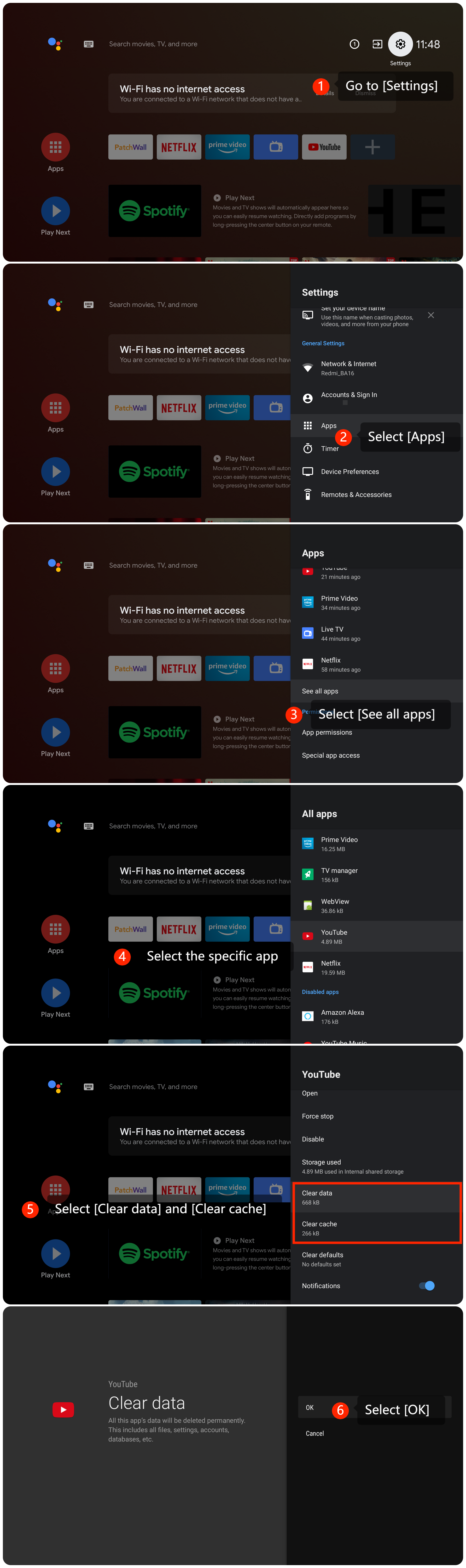
3. Clear cache and data for Google Play Store by going to [Settings] >> [Apps] >> [See all apps] >> [Google Play Store] >> [Clear data] and [Clear cache] >> [OK];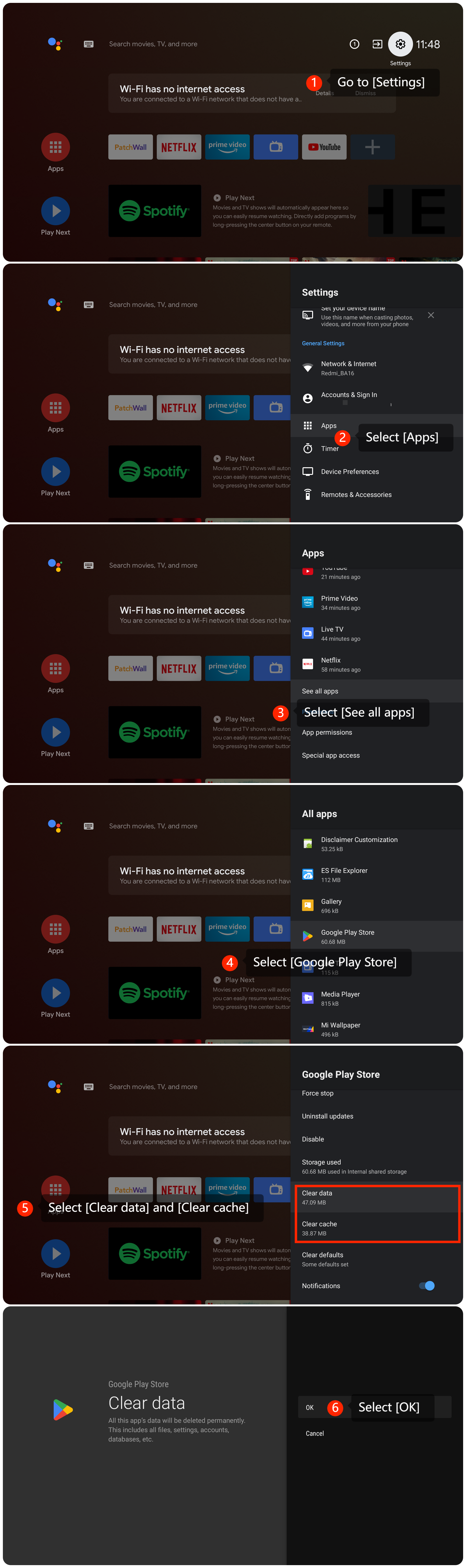
4. If the issue persists, try uninstalling the app and then reinstalling it;
5. You can check storage space by navigating to [Settings] >> [Device Preferences] >> [Storage] >> [Internal shared storage] and you can check information about the available storage on your TV. If the available storage is insufficient, you can clear [Cached data];
6. You can check for system updates by going to [Settings] >> [Device Preferences] >> [About] >> [System update]. If it is the latest version, a message will appear on the screen indicating that your system is up to date;
7. If other troubleshooting steps do not resolve the issue, you may consider performing a factory reset. Please go to [Settings] >> [Device Preferences] >> [Reset]. Please note that the operation will erase all data on the TV, so be sure to back up important information before proceeding.
We hope the above methods can resolve the issue. If the issue still persists, you could submit your feedback on your TV by going to [Settings] >> [Device Preferences] >> [Home screen] >> [Send feedback].
Does it help?