

How to take screenshots on the REDMI 12?
Taking advantage of the screenshot feature on your REDMI 12 allows you to share and store information efficiently, enhancing the overall experience.
Here are several methods you can refer to:
1. Full-screen screenshot:
(1). Press the Volume Down button and the Power button simultaneously and hold them for a second or two. You'll hear a camera shutter sound, and a notification will appear confirming that the screenshot has been taken.
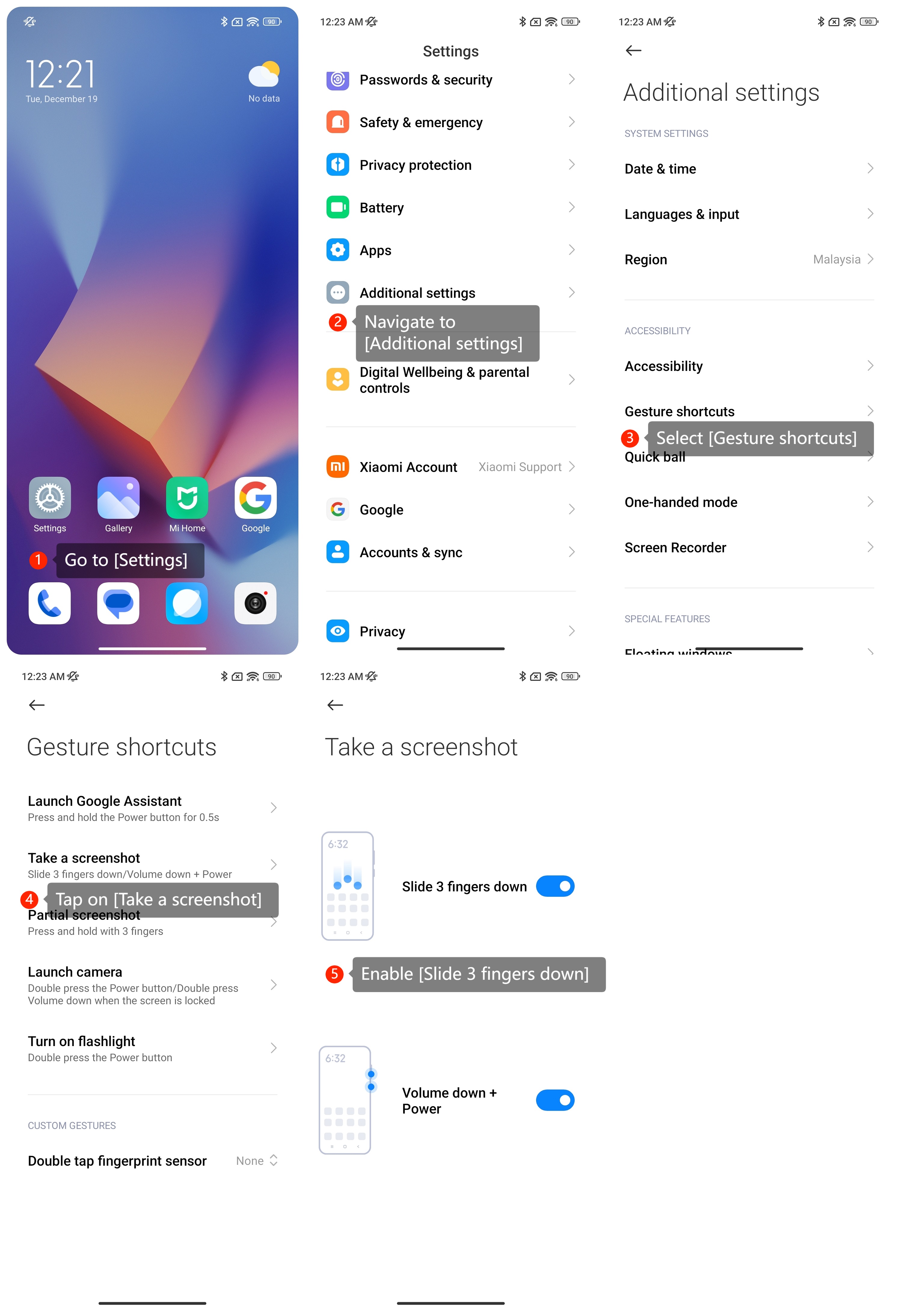
(2). You can swipe down the screen with three fingers to take a screenshot by going to [Settings] >> [Additional settings] >> [Gesture shortcuts] >> [Take a screenshot] >> [Slide 3 fingers down].
Here are several methods you can refer to:
1. Full-screen screenshot:
(1). Press the Volume Down button and the Power button simultaneously and hold them for a second or two. You'll hear a camera shutter sound, and a notification will appear confirming that the screenshot has been taken.
(2). You can swipe down the screen with three fingers to take a screenshot by going to [Settings] >> [Additional settings] >> [Gesture shortcuts] >> [Take a screenshot] >> [Slide 3 fingers down].
2. Partial screenshot:
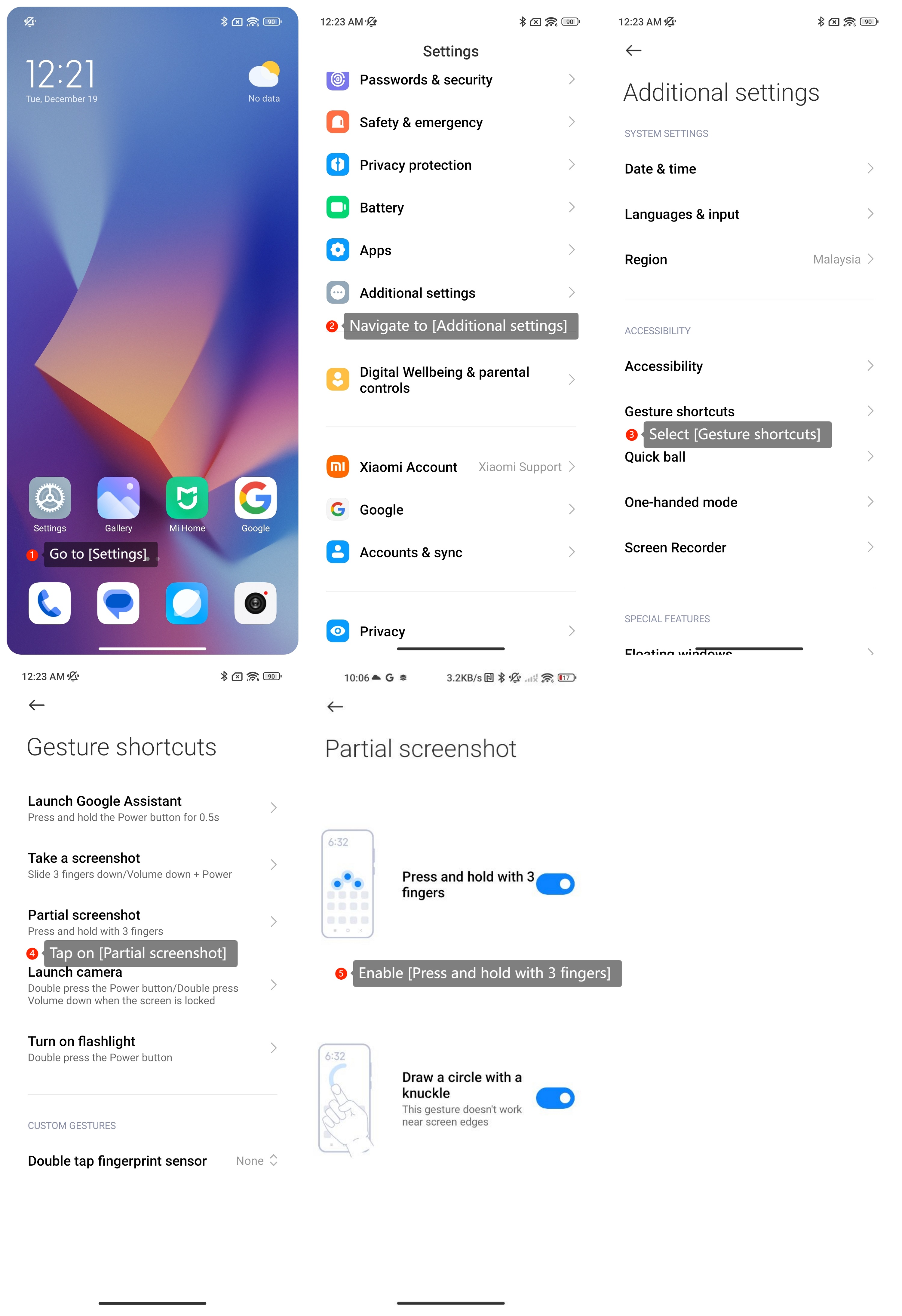
(1). You can turn on this shortcut by going to [Settings] >> [Additional settings] >> [Gesture shortcuts] >> [Partial screenshot] >> [Press and hold with 3 fingers];
(2). You can also turn on this shortcut by going to [Settings] >> [Additional settings] >> [Gesture shortcuts] >> [Partial screenshot] >> [Draw a circle with a knuckle].
3. Take a long screenshot:
You could tap on [Scroll] after taking a screenshot. Some interfaces do not support long screenshots.
Note:
- After taking the screenshot, you can find it in the Gallery App or in the Screenshots folder in the Photos App.
- Long screenshots aren't supported in all scenarios. For example, some banking, financial, and payment apps don't allow screenshots for security reasons. Also, long screenshots aren't supported when the current page isn't scrollable.
Does it help?
Yes
No