

Introduction to using Accessibility features on the phone
Overview
Q1: How to find accessibility features on the Xiaomi phone?
A: The accessibility features in Xiaomi phones are primarily designed to make it easier for users with different visual, hearing, mobility, or operating habits to use the phone.
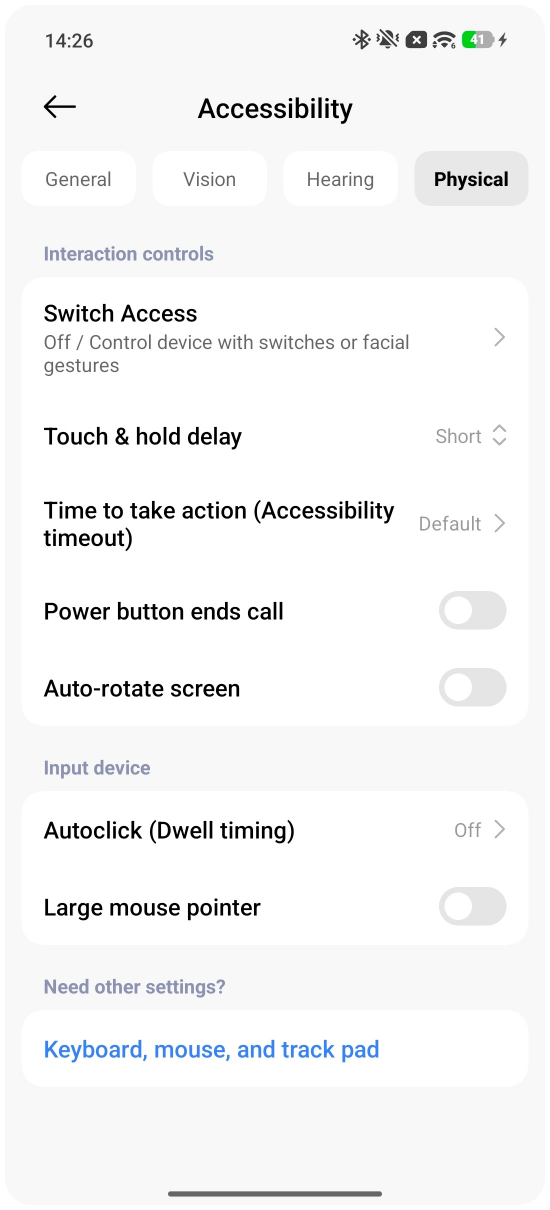
To find accessibility features on the Xiaomi phone, please open the [Settings] App >> [Accessibility] >> there are four sections: [General], [Vision], [Hearing], and [Physical].
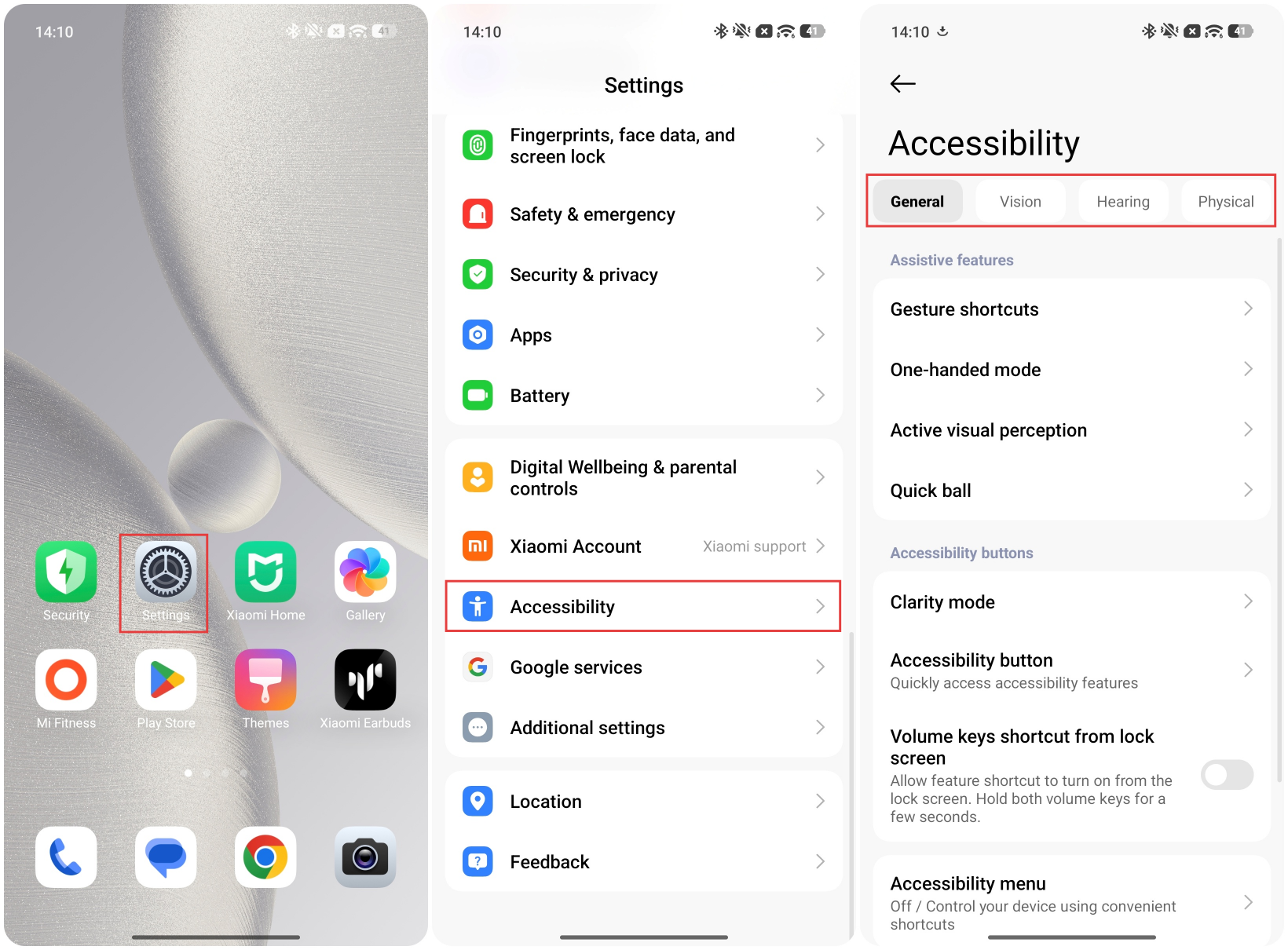
Note:
1. The specific path may vary slightly depending on the HyperOS version and device model.
2. Available features in accessibility mode vary by device model.
Q2: What accessibility features are available on the Xiaomi phone?
A: The following are all the accessibility features on the phone:
General
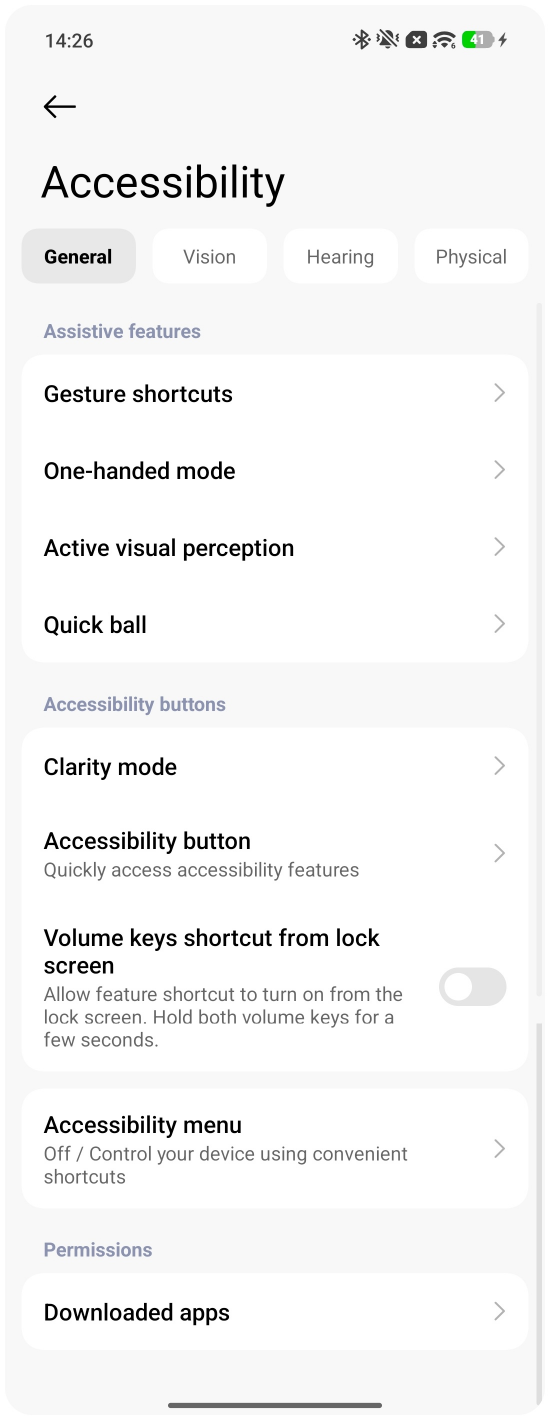
Gesture shortcuts, One-handed mode, Active visual perception, Quick ball, Clarity mode, Accessibility button, Volume keys shortcut from lock screen, Accessibility menu, Downloaded apps.
Vision
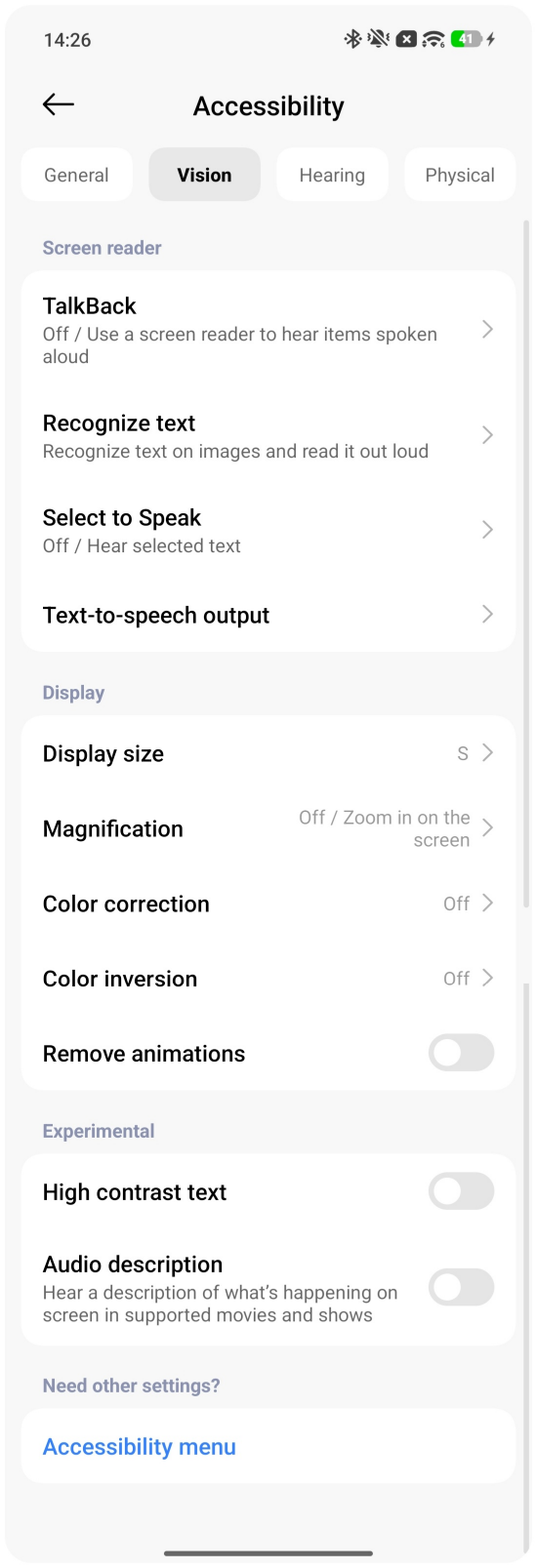
TalkBack, Recognise text, Select to Speak, Text-to-speech output, Display size, Magnification, Color correction, Color inversion, Remove animations, High-contrast text, Audio description.
Hearing
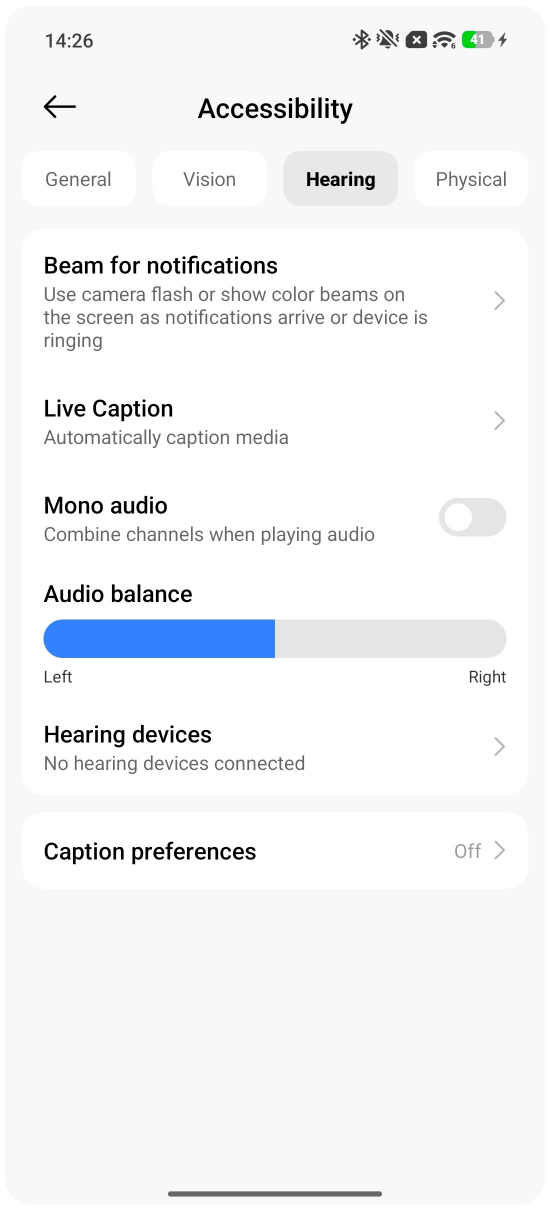
Beam for notifications, Live Caption, Mono audio, Audio balance, Hearing devices, Caption preferences.
Physical
Switch Accsee, Touch and hold delay, Time to take action (Accessibility timeout), Power button ends call, Auto-rotate screen, Autoclick (dwell timing), Large mouse cursor.
Introduction to the features of the [General] section
Q1: Gesture shortcuts
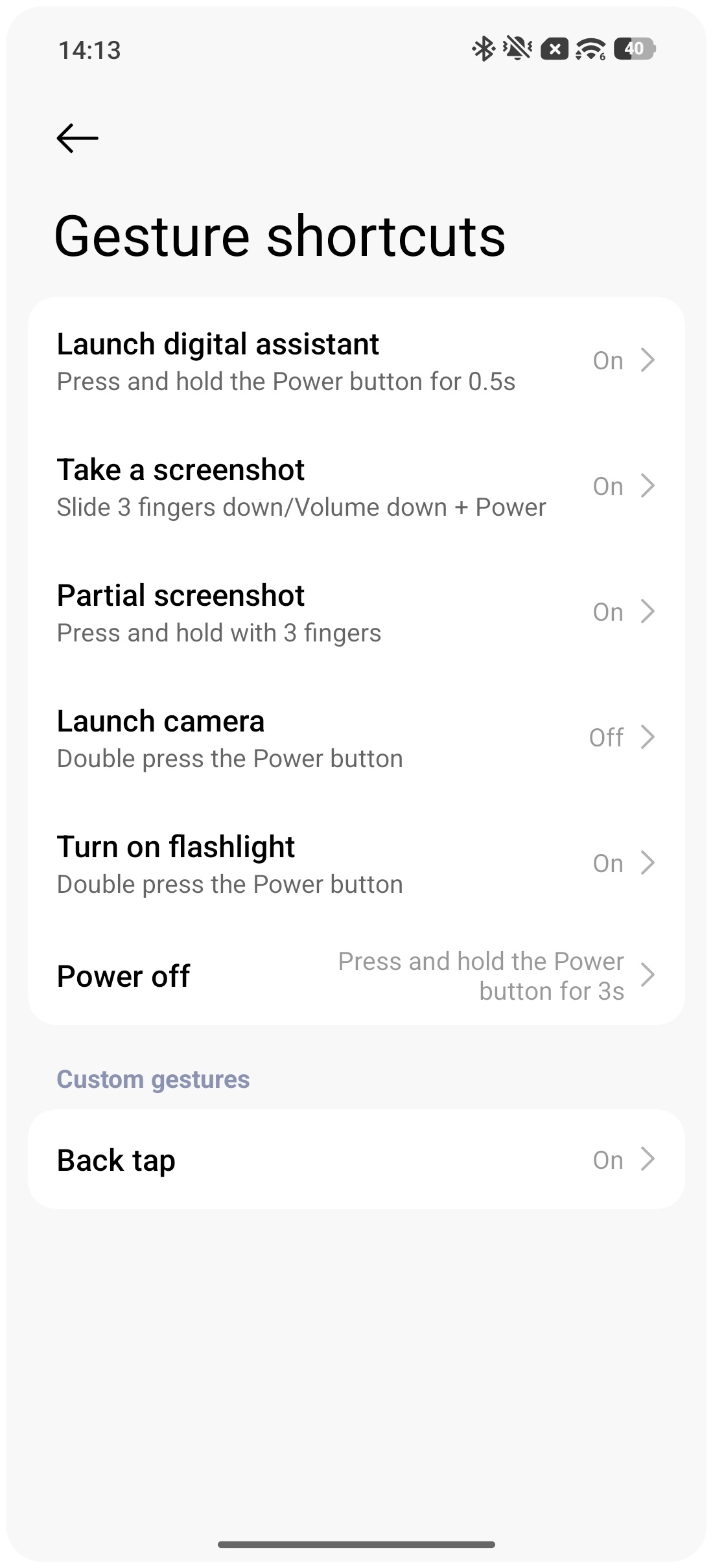
A: After entering [Gesture shortcuts], you can set up some quick gestures, such as "press and hold the power button for 0.5s to launch the digital assistant", "slide three fingers down or press the volume down button and the power button to take a screenshot", "press and hold the screen with three fingers to take a partial screenshot", "double press the power button or double press the volume down button when the screen is locked to launch camera", "double press the power button to turn on torch", "set shutdown method", or "set a shortcut gesture for tapping the back cover".
Note:
The specific shortcut gestures that can be configured vary by device.
Q2: One-handed mode
A: To enable One-handed mode, please tap [One-handed mode] in the [General] section and enable [One-handed mode].
After enabling [One-handed mode], if you are currently using gesture navigation on your phone, you can enter one-handed mode by swiping down on the full-screen indicator. If you are currently using button navigation on your phone, you can enter one-handed mode by swiping left or right from the center of the navigation panel. When one-handed mode is enabled, the phone shrinks the entire touchable area of the screen to the bottom, making it easier to operate with one hand, even on larger phones, by using your thumb to reach areas that would otherwise be far away.
Note:
1. The one-handed mode won't work if the full-screen indicator is hidden. To enable or disable the full-screen indicator, please open the [Settings] App >> [Home screen] >> [System navigation] >> [Gestures] to find this feature.
2. The settings for the full-screen indicator vary by device. Some devices lack a toggle and do not allow the indicator to be turned off.
To exit the one-handed mode, please swipe up from the bottom of the screen or tap anywhere above the app.
Q3: Active visual perception
A: After entering [Active visual perception], you can enable [Detect gaze]. "Detect gaze" is a feature that prevents the device from locking the screen when it detects that you are looking at it.
Note:
After enabling battery saver mode, the Detect gaze feature will no longer work.
Q4: Quick ball
A: Quick ball is an assistive feature on Xiaomi phones that provides quick access to various functions. It displays a draggable, semi-transparent floating circle at the edge of the screen, which expands to reveal multiple shortcut buttons when tapped.
Question 1: How to enable Quick ball?
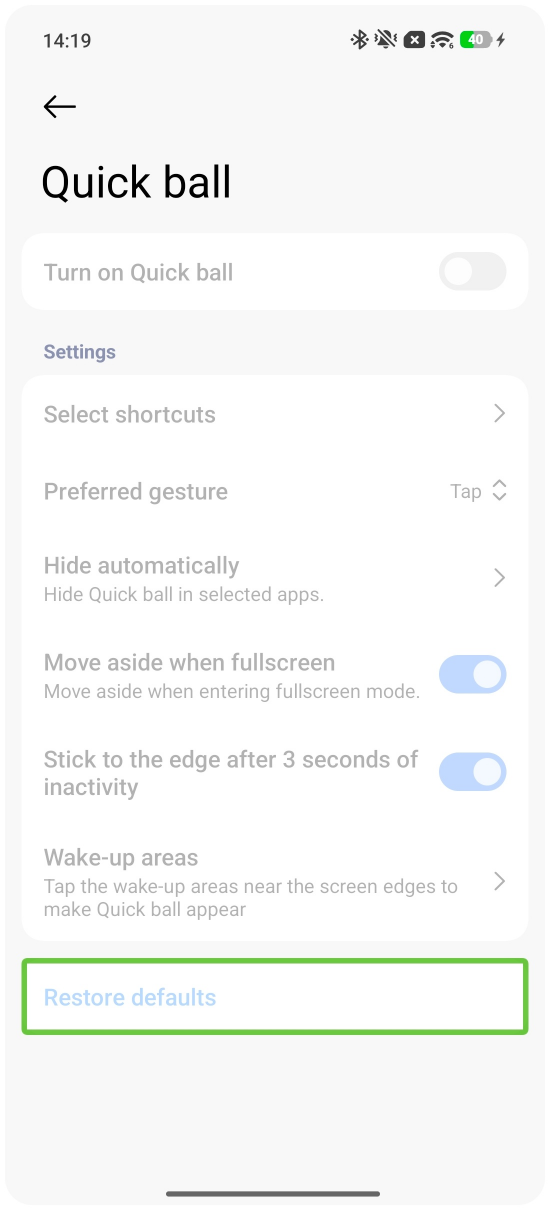
To enable Quick ball, please open the [Settings] App >> [Accessibility] >> [Quick ball] >> enable [Turn on Quick ball].
Question 2: How to set up shortcuts for the Quick ball?
Tap [Select shortcuts] >> you can set up five shortcuts. The default shortcuts are [Home], [Menu], [Wi-F], [Lock], and [Back]. You can drag the three-l ine icon on the left to adjust the position up or down.
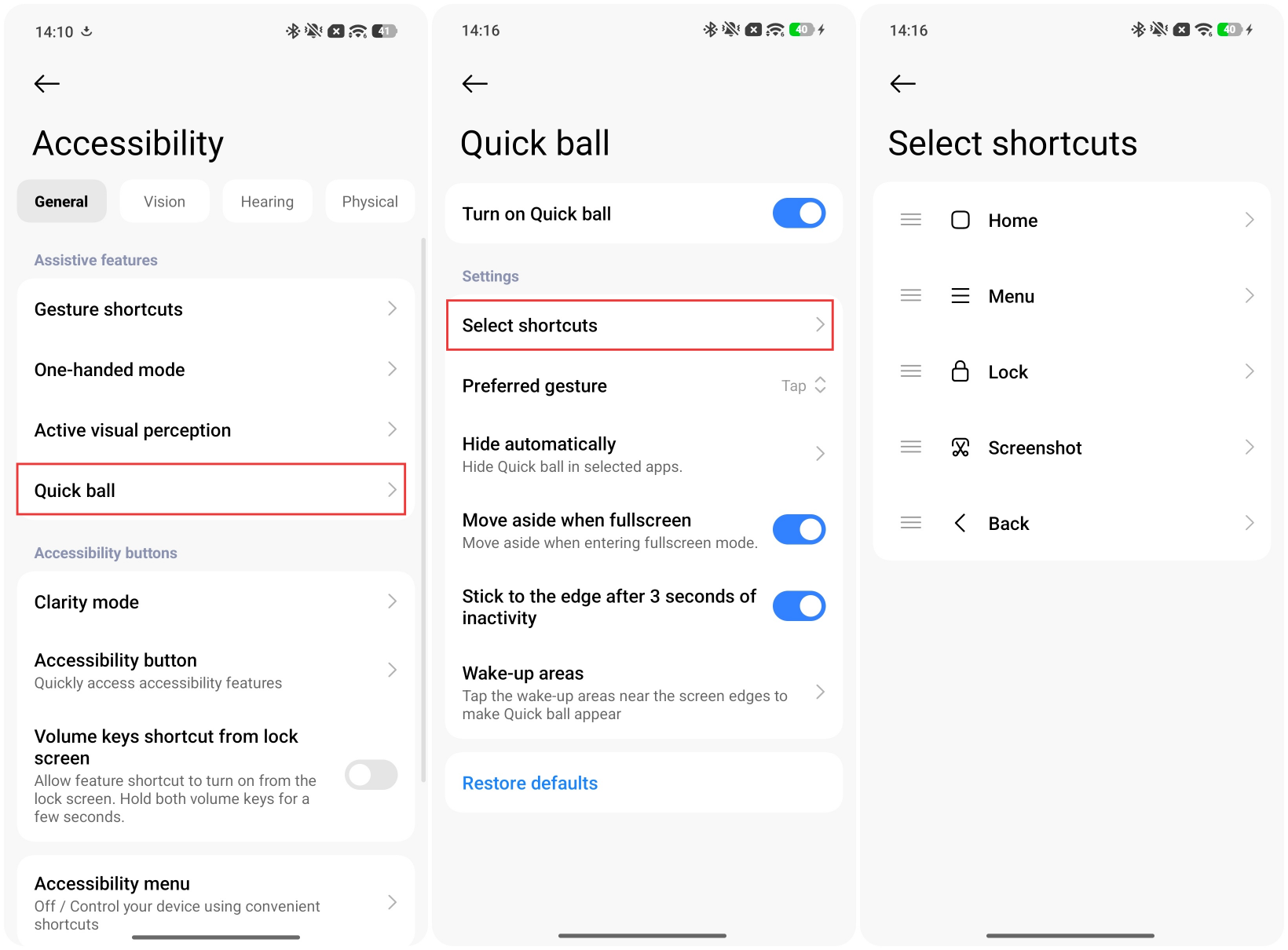
The shortcuts that can be set up are as follows:
System settings: Wi-Fi, Mobile data, Bluetooth, Silent, Lock orientation.
Quick settings: Lock, Screenshot, Torch, Long press the Power button, Clear cache, Back, Home, Menu, One-handed mode.
You can also add apps that you have installed on the phone.
Note:
These shortcut gestures cannot be set repeatedly.
Question 3: How to configure the method for activating the Quick ball?
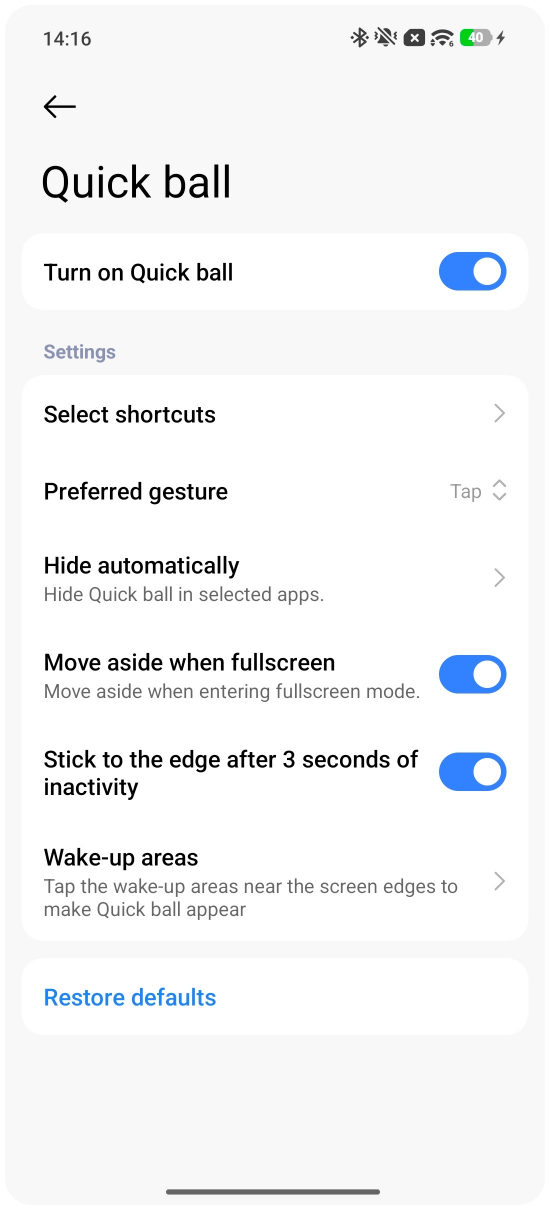
There are two methods available for activating the Quick Ball: tap and swipe. You can tap [Preferred gesture] to select between [Tap] and [Swipe].
Question 4: How to hide the Quick ball?
To prevent the Quick ball from obscuring app content or interfering with operations, you can set the Quick ball to automatically hide when you open specific apps. Please tap [Hide automatically] and select apps that you want to hide Qucik ball from.
Question 5: How to set the Quick ball to move aside when in fullscreen?
You can enable [Move aside when fullscreen]. When the app enters full screen mode, the Quick ball will automatically move to the edge of the screen and minimize the obstruction of content.
Question 6: Why does the Quick ball not automatically snap to the screen edge?
You can enable [Stick to edge after 3 seconds of inactivity], then the Quick ball will retract to the edge of the screen.
Question 7: How to set the wake-up areas for Quick ball?
You can set the wake-up areas for Quick ball. The wake-up area by default is the screen edge and you can adjust the size of the wake-up areas near the screen edges.
Question 8: How to restore all settings of the Quick ball to default?
You can tap [Restore defaults] ato restore default settings, including shortcuts and their order. App data on your device won't be affected.
Question 9: How to adjust the position of the Quick ball?
You can press and hold the Quick ball and drag it to the desired position. You can drag up and down, or adjust the Quick ball to the left and right sides of the screen
Question 10: Why is the Quick ball switch gray and unable to open?
The gray Quick ball setting on the phone cannot be opened because TalkBack, which is visually accessible, is enabled. Disabling TalkBack can solve this problem.
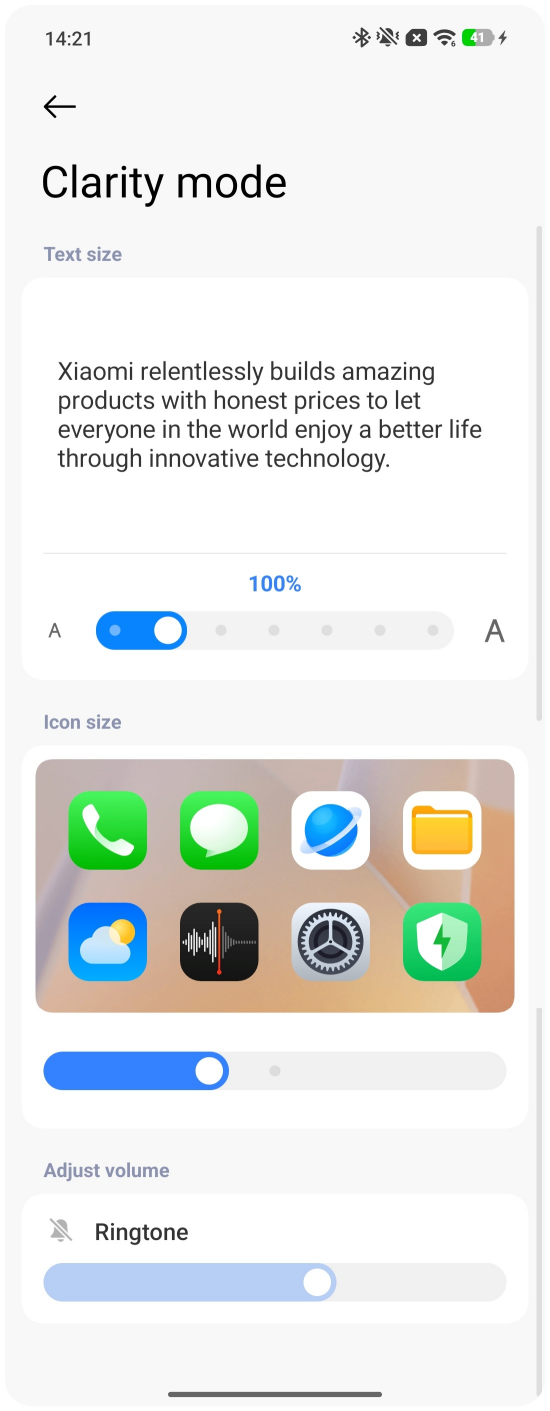
Q5: Clarity mode
A: The Clarity mode on Xiaomi phones is primarily designed for older adults. It allows you to adjust the size of fonts, icons, and ringtones; by optimizing the display and user experience, it makes it easier for elderly users to see the content on the screen and operate the device.
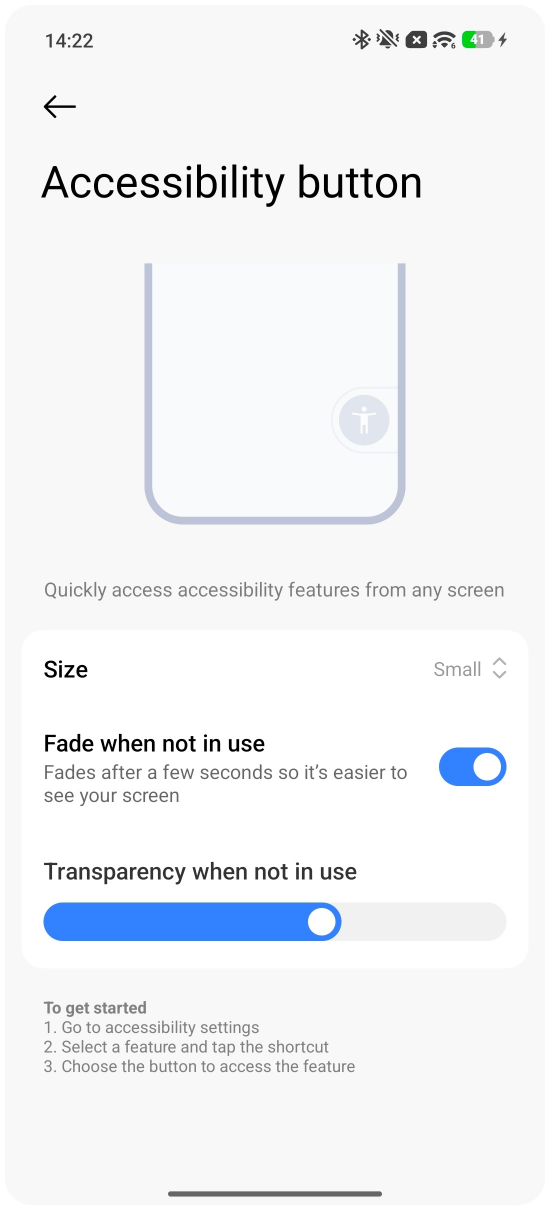
Q6: Accessibility button
A: You can adjust the size and transparency of the accessibility button.
Q7: Volume keys shortcut from lock screen
A: This feature allows you to turn off certain accessibility features, such as TalkBack, by pressing and holding the volume up and down buttons on the lock screen.
Q8: Accessibility menu
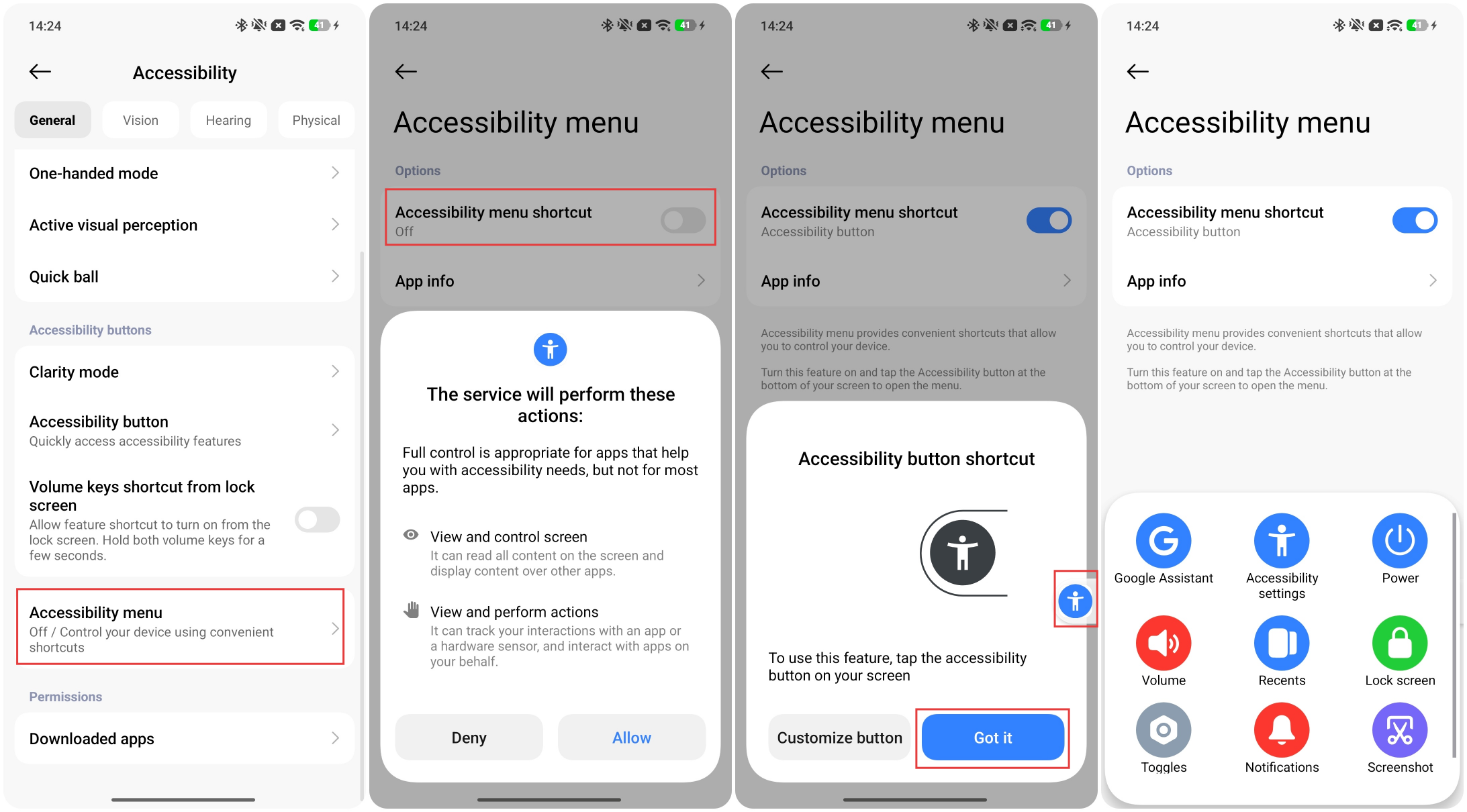
A: The accessibility menu provides convenient shortcuts that allow you to control your device. In the [Accessibility menu], you can enable [Accessibility menu shortcut] and tap [App info] to check the detailed information of the [Settings] App.
After enabling [Accessibility menu shortcut], there is an accessibility button on your screen, and you can tap it to access and use some shortcut functions.
Note:
1. Full control is appropriate for apps that help you with accessibility needs, but not for most apps.
2. It can read all content on the screen and display content over other apps.
3. It can track your interactions with an app or a hardware sensor, and interact with apps on your behalf.
4. The features in the accessibility menu cannot be customized.
Q9: Downloaded apps
A: In [Downloaded apps], you can see a list of apps that support accessibility services. Tapping on an app allows you to enable or disable its accessibility service.
Note:
Apps granted accessibility service permissions possess significant capabilities to read interface information and perform actions.
Introduction to the features of the [Vision] section
Q1: TalkBack
A: TalkBack is a screen-reading accessibility feature provided on Xiaomi phones, designed primarily to assist users with visual impairments or those who have difficulty seeing the screen clearly. Once enabled, TalkBack provides spoken feedback, reading the content displayed on the screen aloud.
Question 1: How to use TalkBack?
1. After enabling the TalkBack feature, swipe left or right to navigate between items. Whenever an item is selected, the phone announces what that item is.
2. Standard tapping behavior changes when TalkBack is enabled. Tap twice to activate an item; for example, after swiping to select [Settings], double-tap anywhere on the screen to confirm the selection.
3. Use two fingers to swipe and scroll through pages. Take the Home screen as an example: swipe down with two fingers to open the notification panel and control center. When using gesture navigation, swipe up with two fingers to return to the Home screen.
4. Tap the screen with three fingers to enable the TalkBack menu.
Friendly tips:
1. When you press and hold an area, TalkBack automatically focuses on that content. Once you are familiar with the interface, pressing and holding on can help improve operational efficiency. If you are not yet familiar with the layout of the current screen, it is recommended to swipe between items to avoid navigation issues.
2. It is recommended to use the button navigation setting ([Settings] >> [Home screen] >> [System navigation] >> [Buttons]).
Question 2: How to turn off TalkBack?
1. Press and hold the "Volume Up" and "Volume Down" buttons simultaneously for several seconds to disable TalkBack.
2. Open the [Settings] App >> [Accessibility] >> [Vision] >> [TalkBack] >> disable [Use TalkBack].
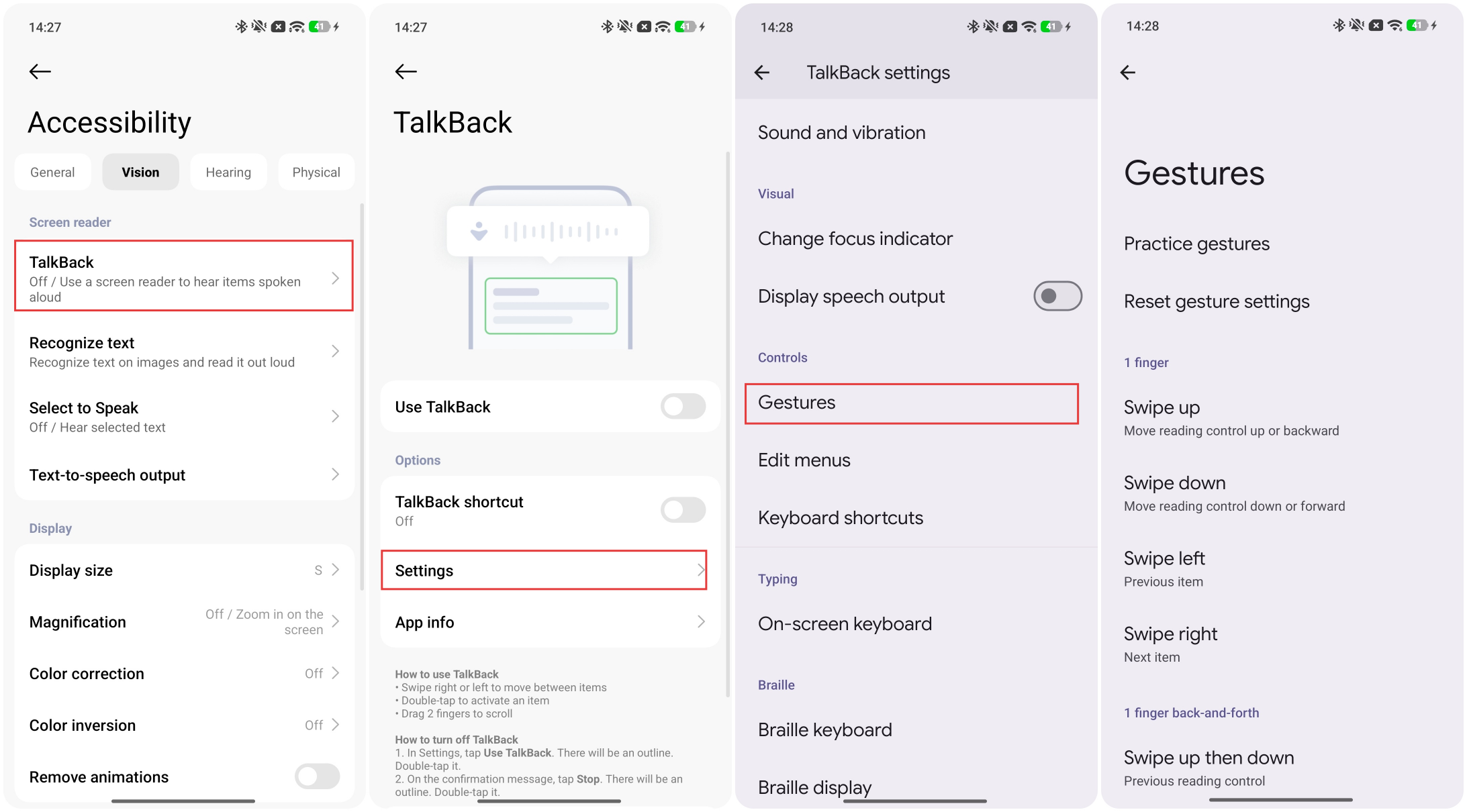
Question 3: How to adjust the gestures of TalkBack?
You can get automatic descriptions when you focus on an image or icon, and automatic descriptions work without an internet connection. In [TalkBack] >> [Settings] >> [Gestures] >> you can view all default gestures, adjust them, practice using them, or reset the gesture settings.
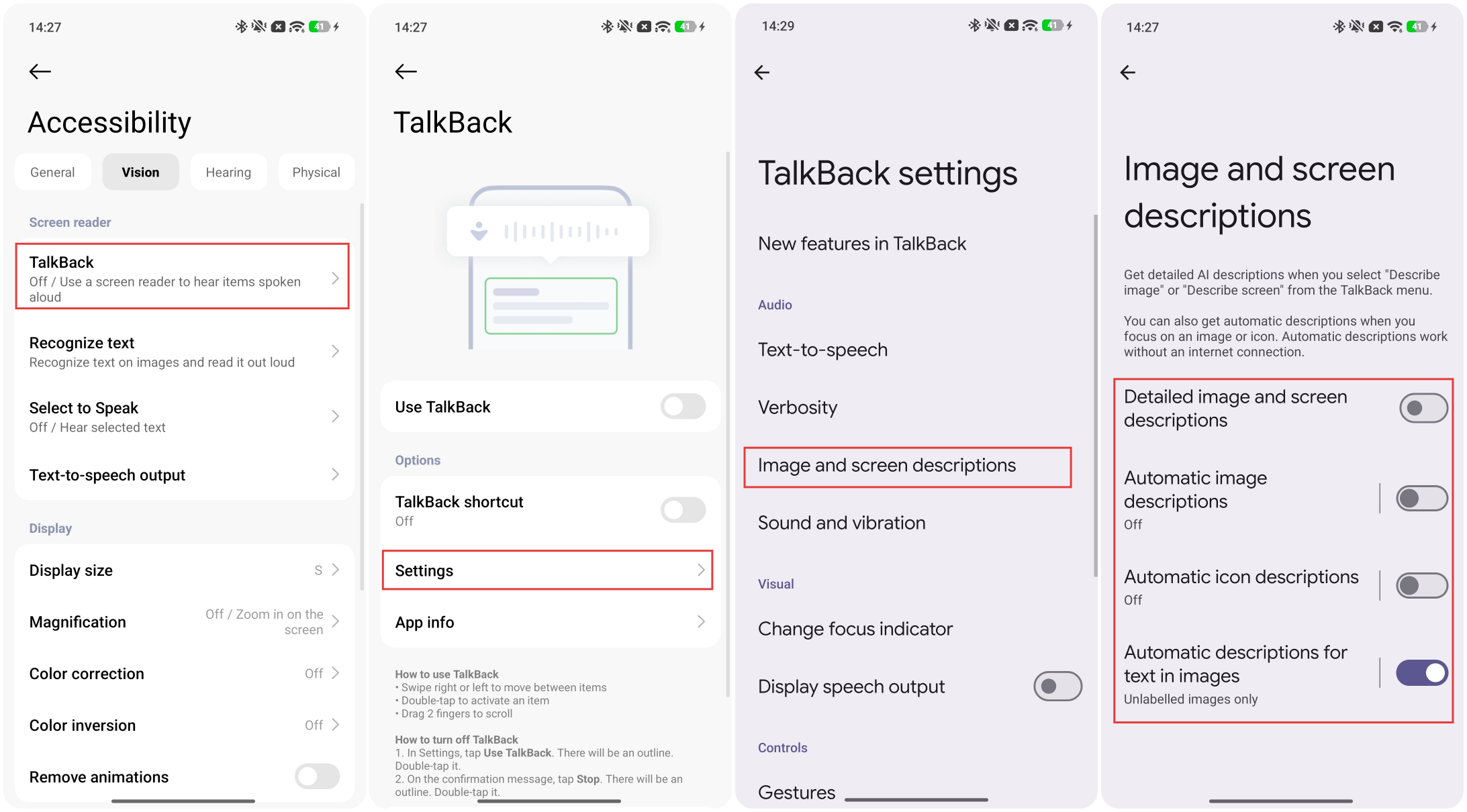
Question 4: How to set up TalkBack to describe the content of images and icons?
In [TalkBack] >> [Settings] >> [Automatic descriptions] >> enable [Detailed image descriptions] >> and adjust [Automatic image descriptions], [Automatic icon descriptions], and [Automatic descriptions for text in images] as needed.
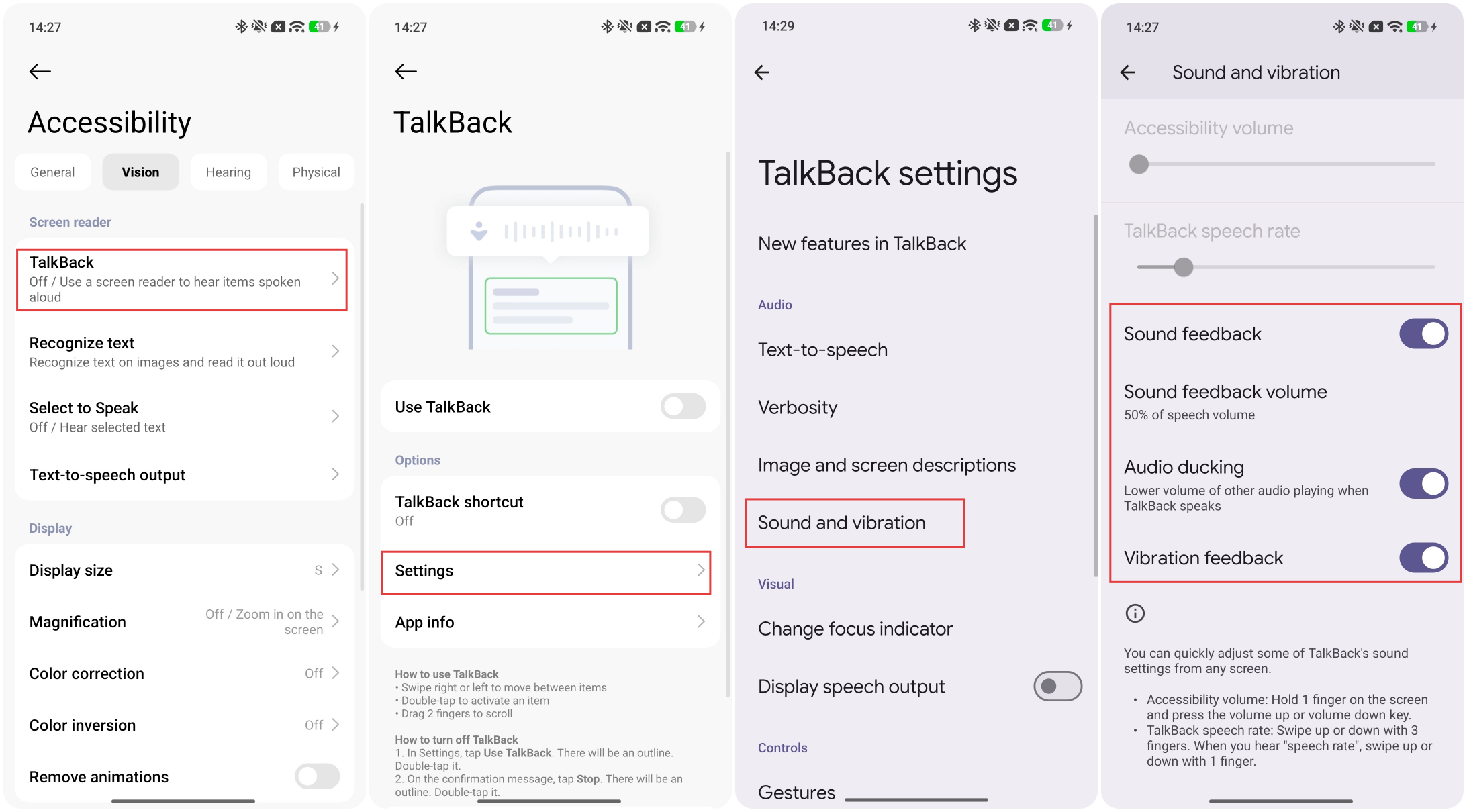
Question 5: How to enable sound and vibration feedback on TalkBack?
In [TalkBack] >> [Settings] >> [Sound and vibration] >> you can enable or disable [Sound feedback] and [Vibration feedback] >> tap [Sound feedback volume] to adjust speech volume >> you can also enable [Audio ducking], then the volume of other audio will be lower when TalkBack speaks.
Q2: Recognize text
A: Tap [Recognize text] and you will enter [Automatic descriptions] of TalkBack.
Q3: Select to Speak
A: Once [Select to Speak] is enabled, simply tap specific content on the screen, and the system will read it aloud.
To use [Select to Speak], please refer to the following information:
Tap [Select to Speak] >> enable [Select to Speak shortcut] >> tap the shortcut >> you will see the [Select to Speak] toolbar on the screen >> simply tap on specific content to have it read. You can also tap the left-arrow button on the left side of the toolbox. Here are the buttons for start/pause, fast-forward/rewind, and adjusting the reading speed. Tap the red button to stop the reading.
To select content to read aloud, please refer to the following methods:
1. Tap a specific item, like text or an image.
2. Drag your finger across the screen to select multiple items
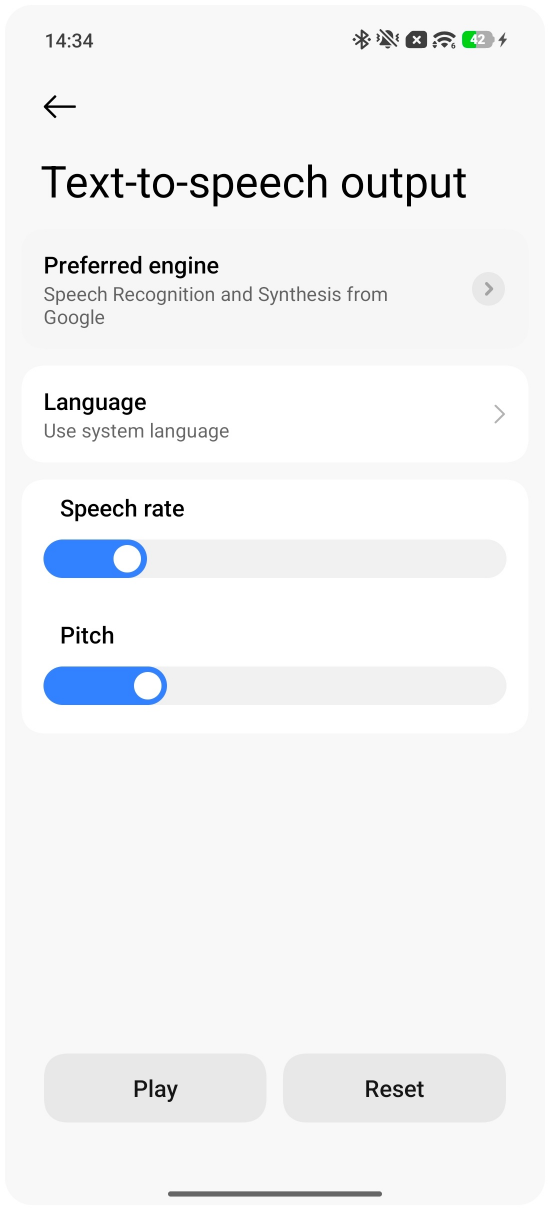
Q4: Text-to-speech output
A: In the [Text-to-speech output] interface, you can select your preferred engine, the speech language, and adjust the speech rate and pitch.
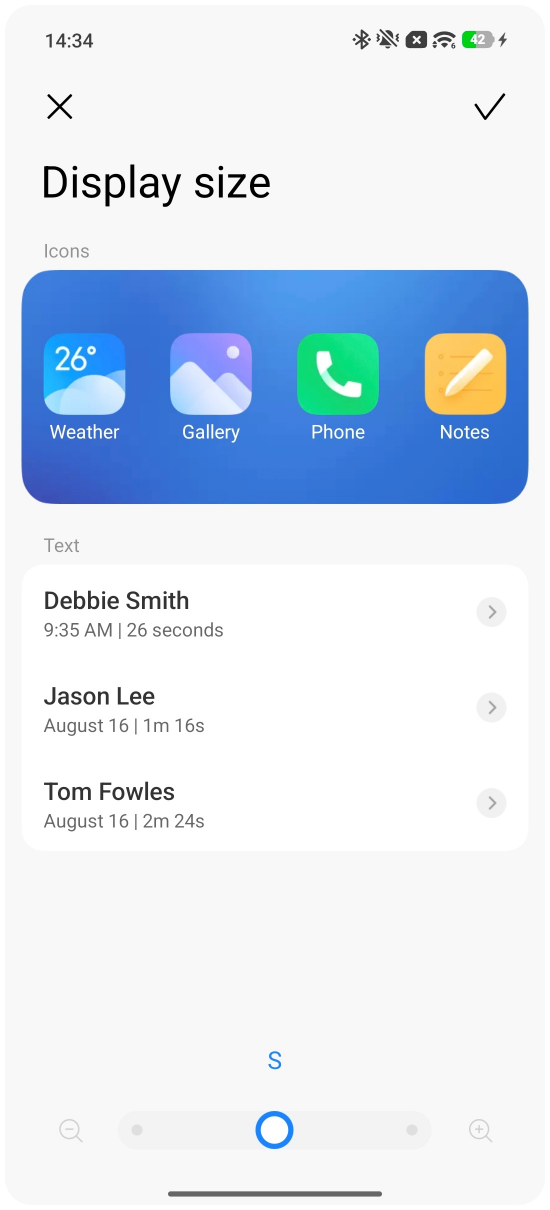
Q5: Display size
A: You can adjust the size of both the app icons and the text at the same time.
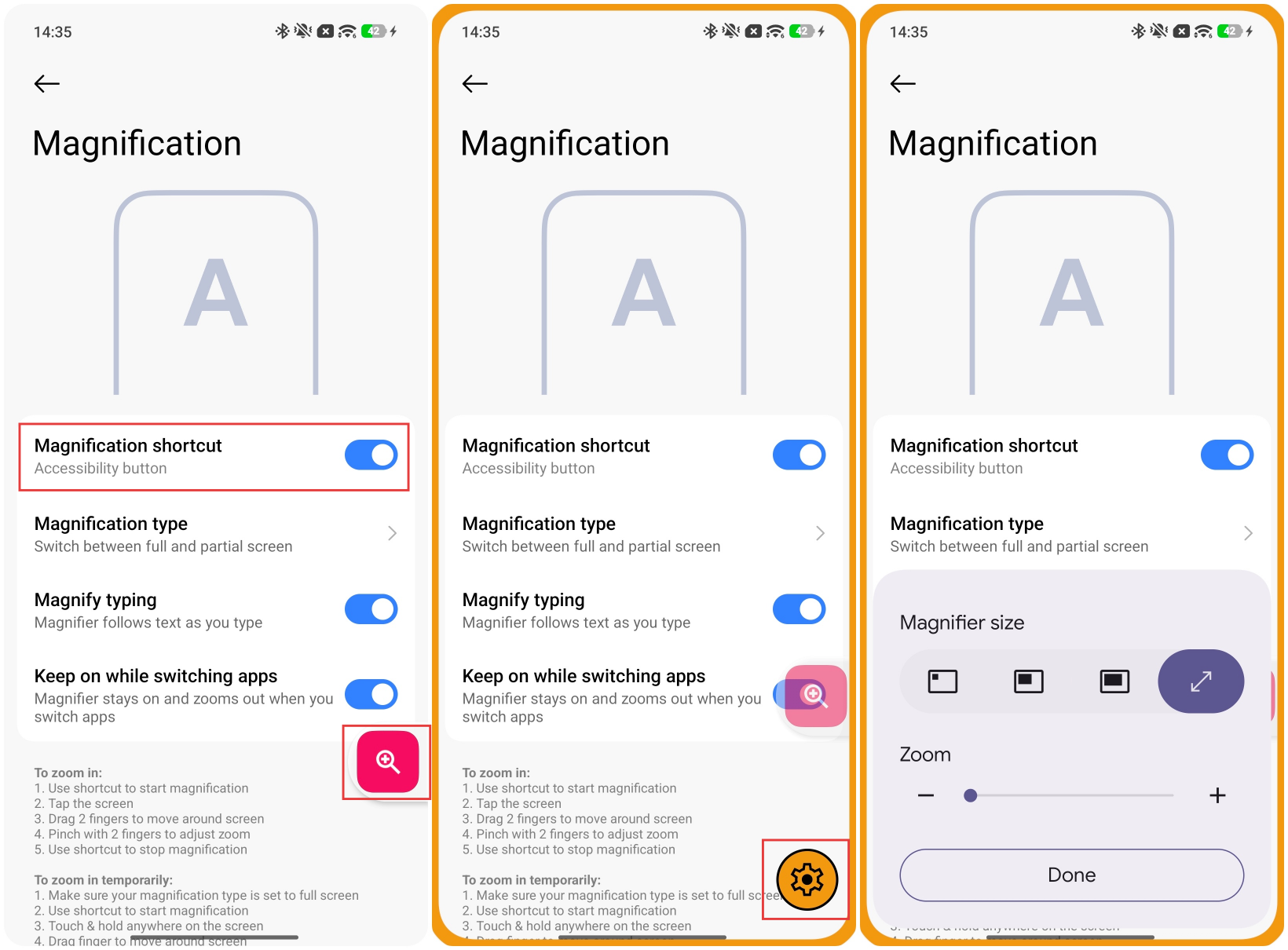
Q6: Magnification
A: 1. Tap [Magnification] >> enable [Magnification shortcut] >> a "Magnifier" button will appear on the screen >> tap the "Magnifier" button to enable the magnification feature.
2. Tap the screen to zoom in, and drag with two fingers to move around the screen.
3. Pinch with two fingers to adjust the size of the content.
4. Tap the shortcut button again to turn off the magnification feature.
5. You can tap the settings icon to adjust the magnification ratio and magnifier size.
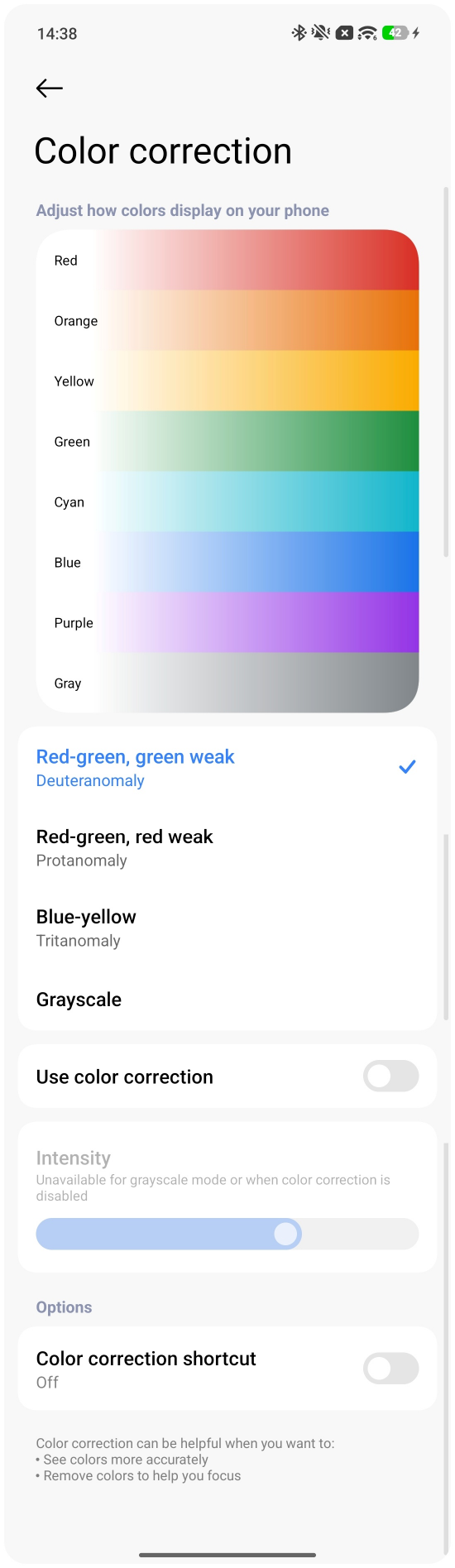
Q7: Color correction
A: The color correction feature is designed to help users with color vision deficiencies distinguish color information on the screen. Once enabled, you can manually adjust settings for protanomaly (red-weak), deuteranomaly (green-weak), or tritanomaly (blue-weak) vision. The screen displays previews showing how different colors appear under each setting.
In [Color correction], you can select [Red-green, green weak], [Red-green, red weak], [Blue-yellow], and [Grayscale] and tap [Use color correction] to enable this feature. You can also adjust the intensity of color correction.
Q8: Color inversion
A: When the color inversion feature is enabled, the system will invert display colors across all interfaces, which may result in some visual irregularities. If you simply wish to improve viewing comfort in low-light environments, you can enable Dark mode under [Settings] >> [Display & brightness].
Note:
1. Colors will change in media and images.
2. Color inversion works on all apps.
3. This feature can't be combined with AOD mode.
Q9: Remove animations
A: Enabling this feature will disable various system transition animations.
Q10: High contrast text
A: Once enabled, it distinguishes the text from the background color, making the displayed text stand out more clearly.
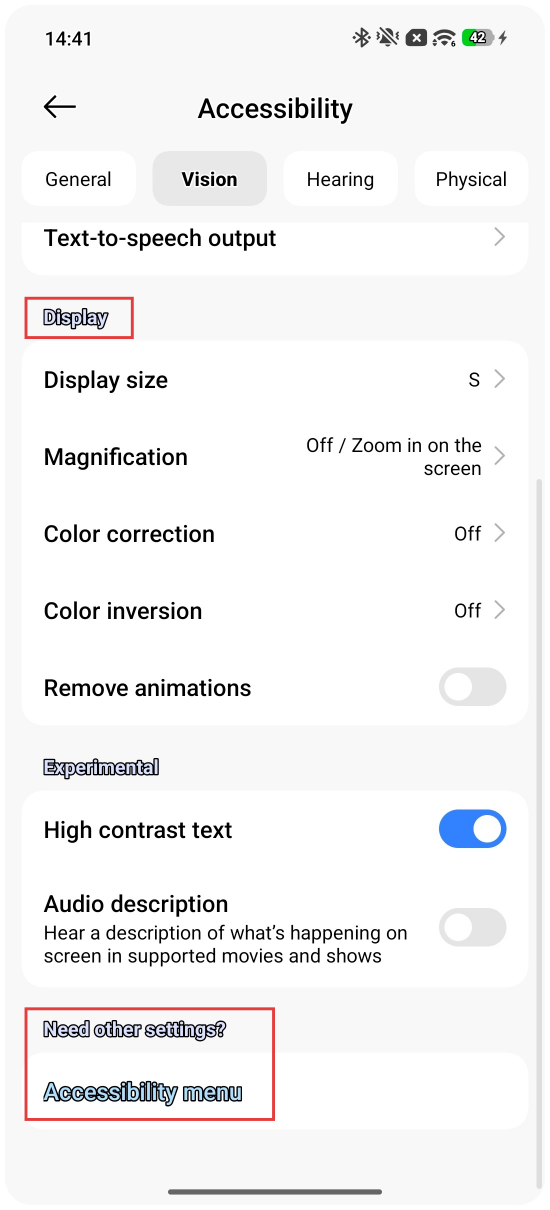
Q11: Audio description
A: Once enabled, you will hear a description of what's happening on screen in supported movies and shows.
Introduction to the features of the [Hearing] section
Q1: Beam for notifications
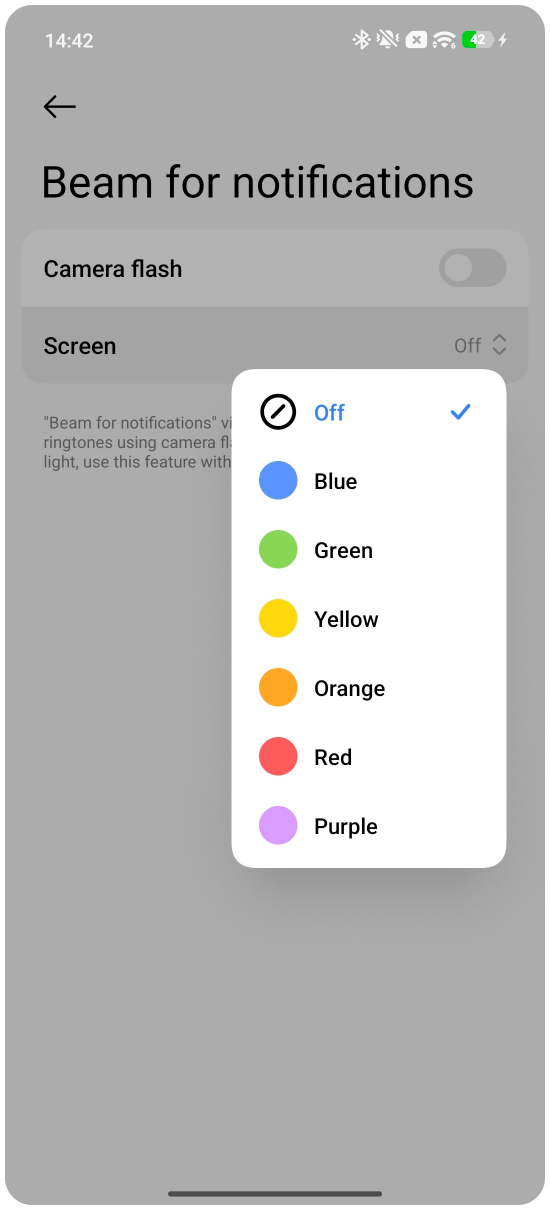
A: [Beam for notifications] visualizes notification sounds and ringtones using the camera flash and shows color beams on the screen. If you are sensitive to light, please use this feature with caution. You can enable [Camera flash] and adjust the color of the screen flicker.
Q2: Live Caption
A: Live Caption will detect the speed on your device and automatically generate captions. You can use it on media like videos, podcasts, phone calls, video calls, and audio messages. When you use “Live Caption” for the first time, you need to connect to Wi-Fi to download the default language pack.
Turn on Live Caption
Please open the [Settings] App >> [Accessibility] >> [Hearing] >> [Live Caption] >> enable [Use Live Caption].
1. To move the caption box: Touch and hold, then drag up or down.
2. To resize the caption box: Drag the bar at the bottom of the caption box.
Expressive captions
You can use this feature to better understand the tone and non-speech sounds. It will add styles to captions to better convey tone and label non-speech sounds.
Set up Live Caption for phone calls
To talk with someone on the phone, type responses in real time. The system reads your messages aloud. This feature doesn’t translate and only allows you to converse in your current language.
During calls, to type in the Live Caption dialog box, tap the Keyboard icon.
Type responses during calls
Use this feature to make calls without speech. You get captions of what the other person says and you can type in responses in real time. Your messages are read aloud by the system. This feature doesn’t translate and only allows you to converse in your current language.
During calls, a notification informs you that the call captions feature is on. To start typing, tap the Keyboard icon.
Note:
1. Live Caption increases battery usage.
2. All captions are processed locally, never stored, and never leave your device.
3. Song lyrics aren't captioned.
4. Live Caption isn't intended for calls with more than one other person.
5. Live Caption works best on audio with clear speech and low background noise.
6. During calls, if you mute your side during the captions disclosure announcement, the announcement is muted. Make sure that the other person knows captions are on.
7. Captions might be unavailable for some media and calling apps.
8. Live Caption doesn't use mobile data or an internet connection. All audio and captions are processed on the device and are never stored or sent to Google.
Q3: Mono audio
A: When playing audio, the dual stereo speakers combine channels and output sound through the bottom speaker. For phones with a single speaker, since stereo sound may also be available, it will be combined into two channels when enabled. If headphones are used, the two channels will be combined, so this applies not only to models with dual stereo speakers.
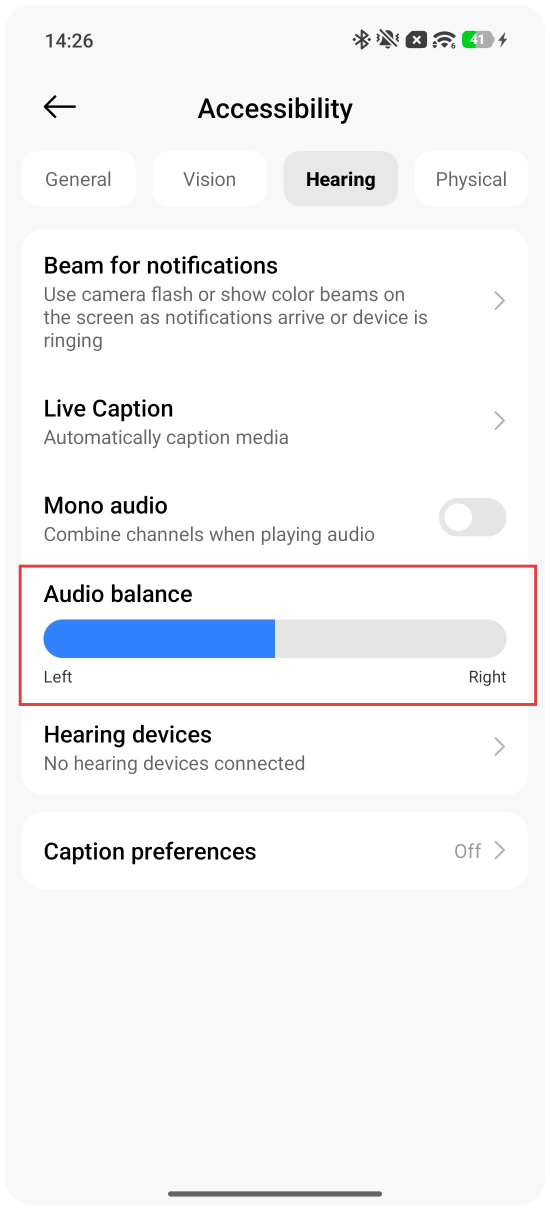
Q4: Audio balance
A: Audio balance is primarily used to adjust the volume ratio between the left and right channels. If you feel the sound between the left and right channels is inconsistent, you can check and adjust the audio balance.
Q5: Hearing devices
A: You can use hearing aids, cochlear implants, and other sound enhancement devices with your mobile phone.
Note:
The availability of this feature and the compatibility of external devices vary by device.
Introduction to the features of the [Physical] section
Q1: Switch Access
A: With "Switch Access", you can use one or more switches to scan and select content, scroll, type, and more.
You can choose a switch type from [USB switch], [Bluetooth switch], and [Camera Switch] >> choose the number of switches between one switch and two switches >> select [Linear scanning (except keyboard)], [Row-column scanning], and [Group selection (advanced)].
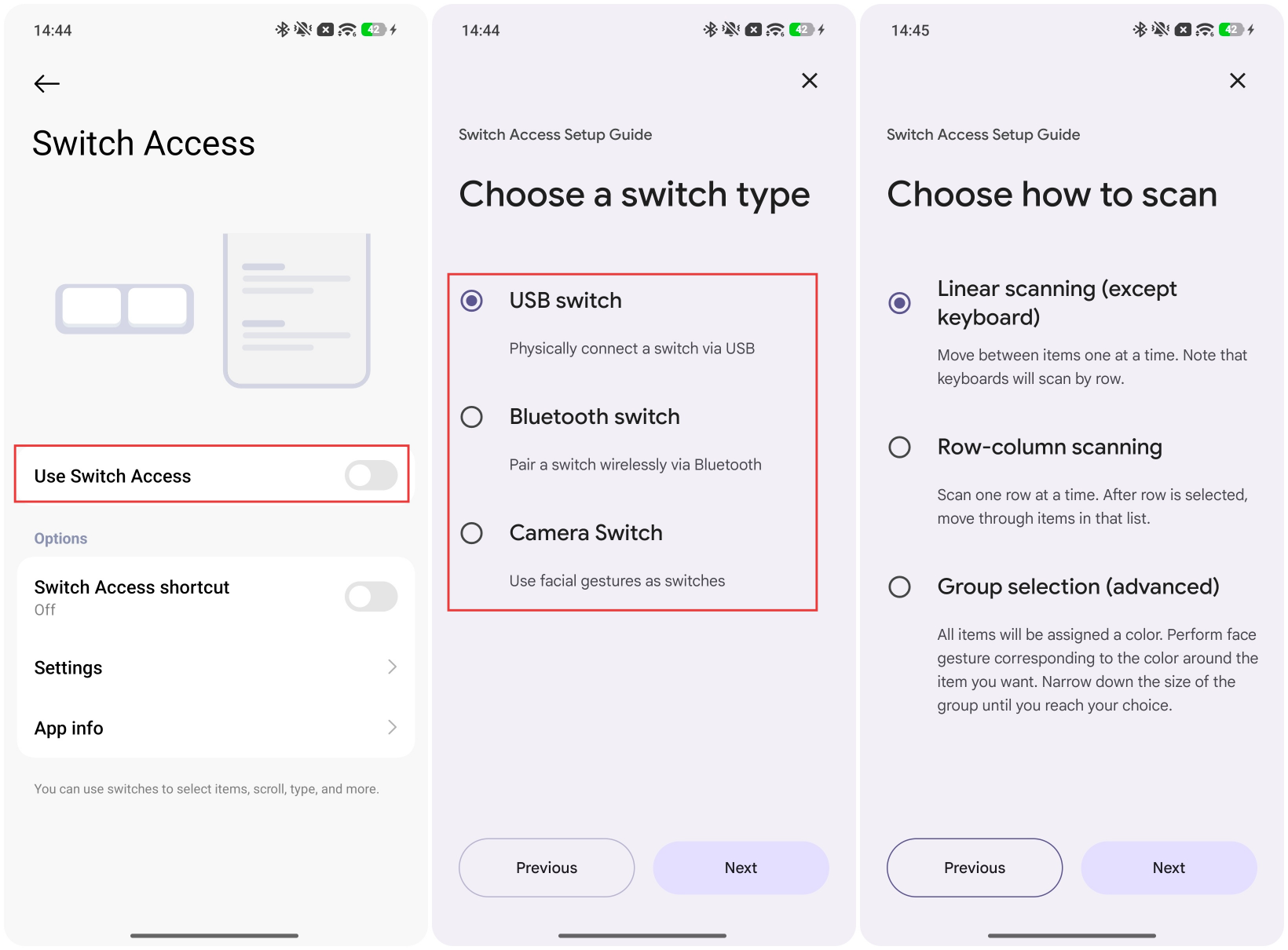
USB switch: You should connect a switch via USB physically.
Bluetooth switch: Pair a switch wirelessly via Bluetooth.
Camera Switch: Use facial gestures as switches.
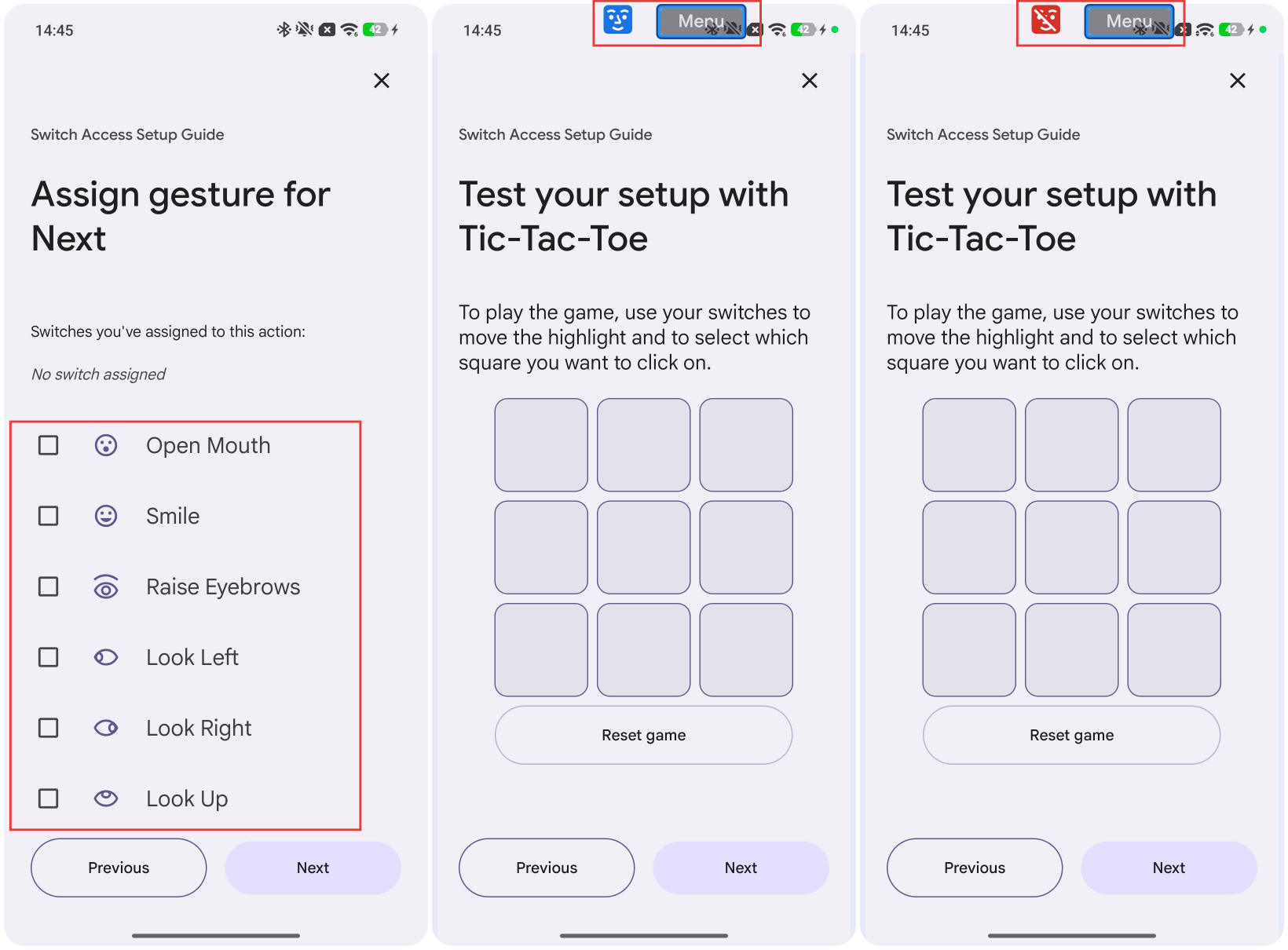
After selecting [Camera Switch], you can use a facial gesture to start auto-scanning, automatically move the highlight through the items on the screen, and perform the gesture a second time to select. You can configure different facial expression switches to perform different actions.
Once configuration is complete, a face icon will appear at the top of the phone screen; it turns blue when a face is detected and red when no face is detected. When your facial expressions trigger an action, a menu icon will appear on the phone screen.
Q2: Touch & hold delay
A: You can use this option to adjust the duration required to touch and hold an item.
For example, when adding a widget to the Home screen, if the [Touch & hold delay] is set to [Short], a long press of about 2 seconds is sufficient to add it; if set to [Long], a long press of about 4 seconds is required for the phone to recognize the touch-and-hold action and successfully add the widget.
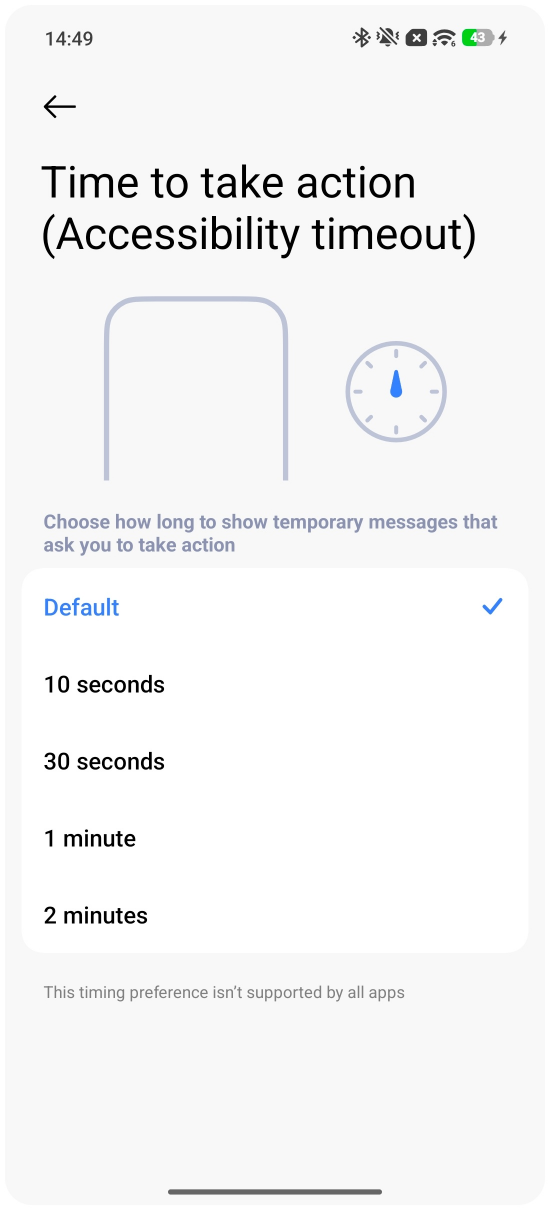
Q3: Time to take action (Accessibility timeout)
A: You can choose how long to show temporary messages that ask you to take action. If the system prompt on the screen does not disappear after a long time, please open the [Settings] App >> [Accessibility] >> [Physical] >> [Time to take action (Accessibility timeout)] >> [Default], [10 seconds], [30 seconds], [1 minute], or [2 minutes].
Note:
This timing preference isn't supported by all apps.
Q4: Power button ends call
A: After enabling this feature, you can end calls by pressing the power button.
Q5: Auto-rotate screen
A: If you enable [Auto-rotate screen], when you rotate your phone, the screen rotates automatically as well.
Note:
The effect achieved by this feature is the opposite of the [Lock orientation] feature in Control center. If you enable the [Lock orientation], the [Auto-rotate screen] will turn off automatically.
Q6: Autoclick (Dwell timing)
A: Once enabled, the phone will automatically perform a tap when the mouse cursor is over a specific location on the screen for the set duration.
Q7: Large mouse pointer
A: When a mouse is connected, the mouse cursor displayed on the screen is enlarged.
Does it help?
Yes
No