

REDMI Smart Pen FAQ
Q1. What is the appearance of the REDMI Smart Pen?
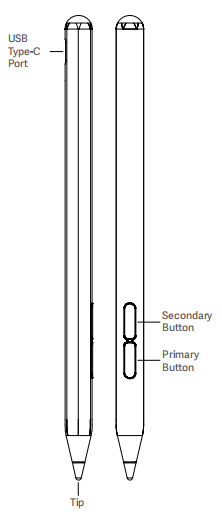
A: The REDMI Smart Pen features a sleek, minimalist design with a clean, matte white finish. The branding is subtle, with a light gray "REDMI" logo printed near the top end.
On the lower side of the barrel, there are two physical buttons with a slight concave shape. At the top, there is a USB-C charging port, accompanied by a tiny indicator just below it to display battery status.

Q2. How to connect the REDMI Smart Pen with the pad?
A: Press and hold the [Primary button] or [Secondary button] for 3 seconds. Once the tablet screen pops up to indicate the stylus has been detected, tap [Connect] and wait for the connection to complete. After connecting, you can enter the Bluetooth settings menu to view the stylus battery level.
Q3. Why does the battery level of the REDMI Smart Pen drop quickly when not in use?
A: To ensure a smoother writing experience and superior writing and drawing performance, we have increased the stylus's motion sensitivity. This prevents it from entering sleep mode during subtle movements—which would disrupt your experience—and allows for quick, responsive resumption of use after a pause. Because the stylus is frequently woken up even when not actively writing, it consumes some power during idle periods. We are continuously optimizing the stylus's sleep logic, so please look forward to future system updates.
Q4. Which tablets are compatible with the REDMI Smart Pen?
A: The REDMI Smart Pen is compatible with the Xiaomi Pad Mini, REDMI Pad Pro, REDMI Pad Pro 5G, REDMI Pad 2, REDMI Pad 2 4G, REDMI Pad 2 Pro, and REDMI Pad 2 Pro 5G.
Q5. How to check the battery level of the REDMI Smart Pen?
A: You can check the battery level of the REDMI Smart Pen via the indicator on the stylus. When the stylus battery is low, the indicator on the body will flash red to alert you.
You can also check the battery level of the REDMI Smart Pen in the Bluetooth settings menu on the tablet.
Q6. What color is the charging indicator on the REDMI Smart Pen?
A: The indicator on the REDMI Smart Pen turns yellow when charging begins, green when fully charged, and flashes red when the battery is low.
Q7. How to charge the REDMI Smart Pen?
A: The REDMI Smart Pen supports wired charging via the USB Type-C port, and it doesn't support magnetic wireless charging.
Q8. How to restore the REDMI Smart Pen to factory settings?
A: You can press and hold the [Secondary button] for 15 seconds to reset the REDMI Smart Pen.
Q9. Why does the battery level of the REDMI Smart Pen drop rapidly when the battery is low?
A: A flashing red indicator is designed to signal low battery levels; the alternating light pattern alerts you that the stylus needs charging. Since the indicator consumes power while active, the battery level will drop relatively quickly when the charge is low; this is normal behavior, so please use the device with confidence.
Q10. How to check the SN of the REDMI Smart Pen?
A: You can check the SN of the REDMI Smart Pen on the package box and the label on the device body.
Q11. How to use the buttons on the REDMI Smart Pen?
A: The REDMI Smart Pen has two buttons. Press and hold the [Primary button] and touch the display to open the Mi Canvas App. Press the [Primary button] on the Mi Canvas App to switch brushes. Press and hold the [Secondary button] and touch the display to quickly take a screenshot. Press the [Secondary button] in the Mi Canvas App to switch colors. You can also press the [Primary button] or [Secondary button] to scroll through documents and articles.
Note:
The features of switching brushes and colors are only applicable in the Mi Canvas App. The shortcut key for the page flipping feature may vary in actual use due to differences in software compatibility, app restrictions, and software versions. Please refer to the actual product.
Q12. Why does the tablet screen respond even when the REDMI Smart Pen tip is not touching the screen?
A: When the REDMI Smart Pen tip approaches the screen (without making contact), the corresponding area on the screen will be highlighted or inverted. This is the stylus's "hover" feature, designed to help you see exactly which area is being targeted; please feel free to use it with confidence.
Q13. How to update the firmware version of the REDMI Smart Pen?
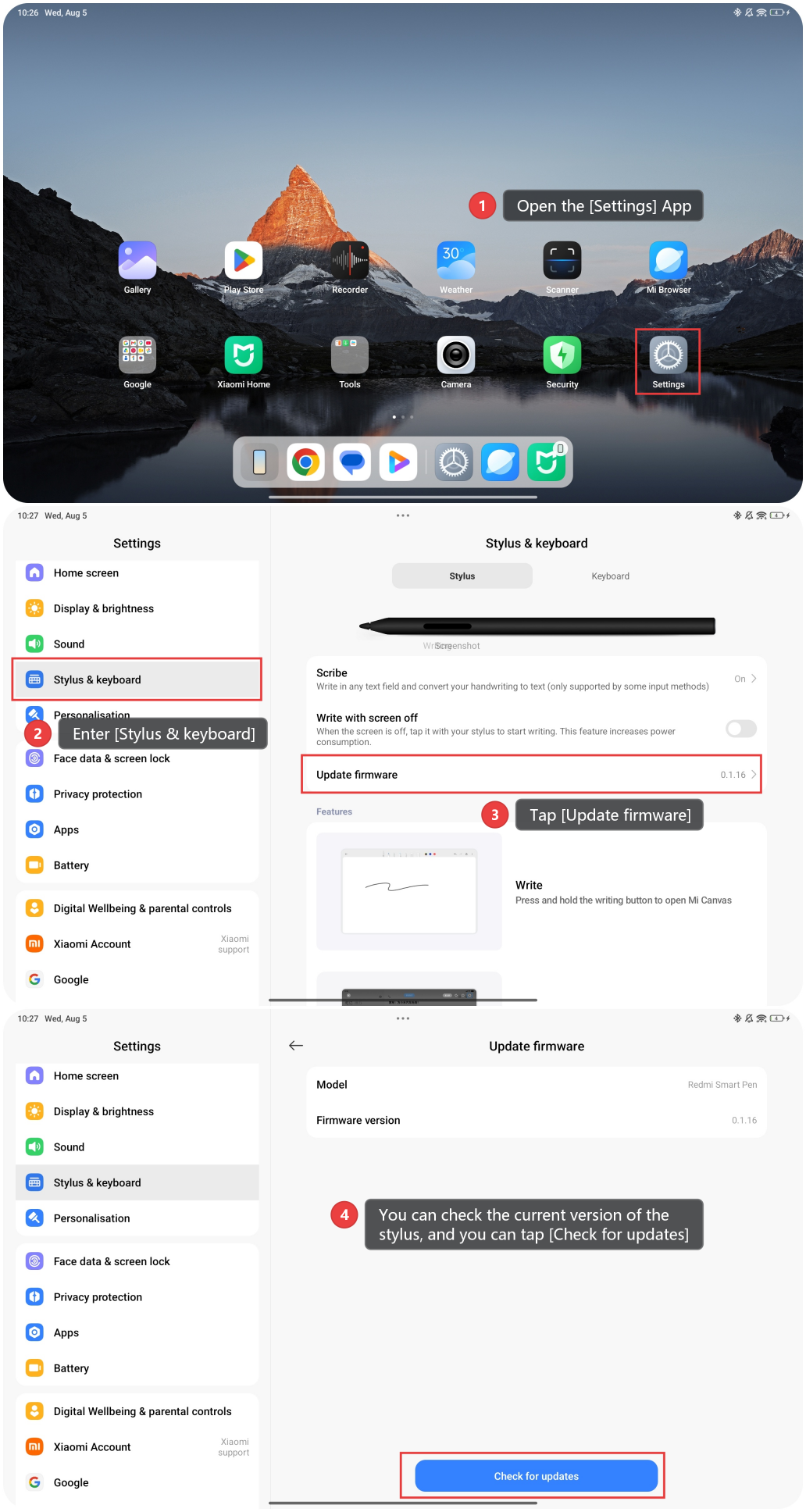
A: To update the firmware version of the REDMI Smart Pen, please refer to the following steps:
1. After connecting, open the [Settings] App on the tablet.
2. Enter [Stylus & keyboard].
3. Tap [Update firmware].
4. You can check the current version of the stylus, and you can tap [Check for updates].
Q14. How to use the REDMI Smart Pen when the tablet screen turns off?
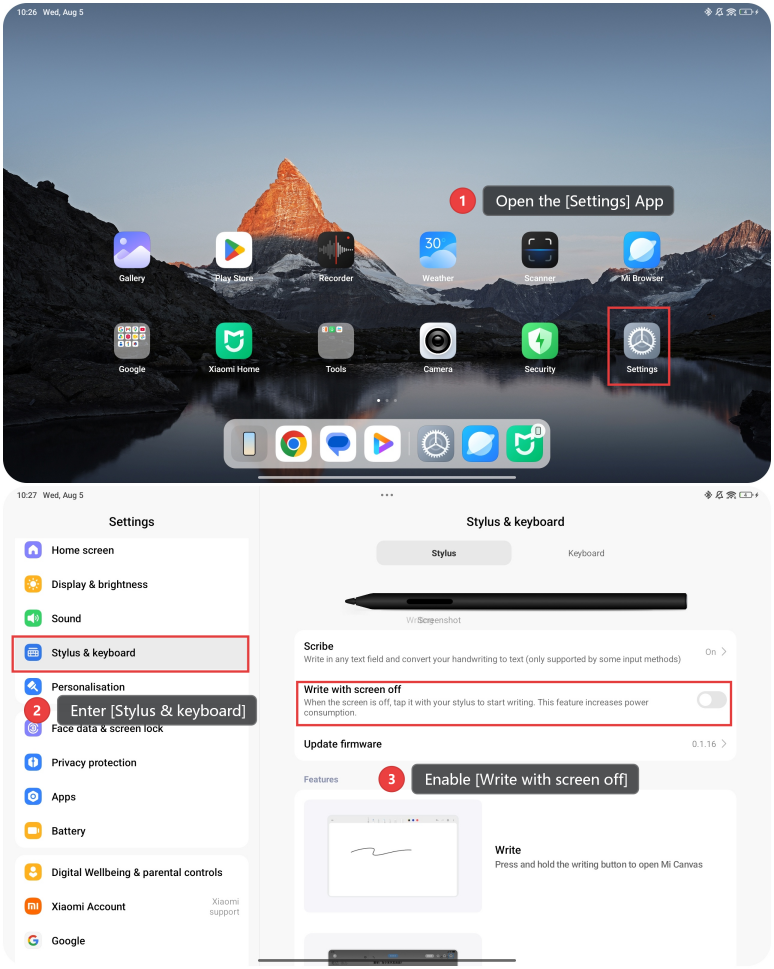
A: The REDMI Smart Pen supports the [Write with screen off] feature. When the tablet screen is off, you can tap it with your stylus to start writing. This feature will increase power consumption.
To enable this feature, please refer to the following steps:
1. After connecting, open the [Settings] App on the tablet.
2. Enter [Stylus & keyboard].
3. Enable [Write with screen off].
Q15. How to use the scribe feature of the REDMI Smart Pen?
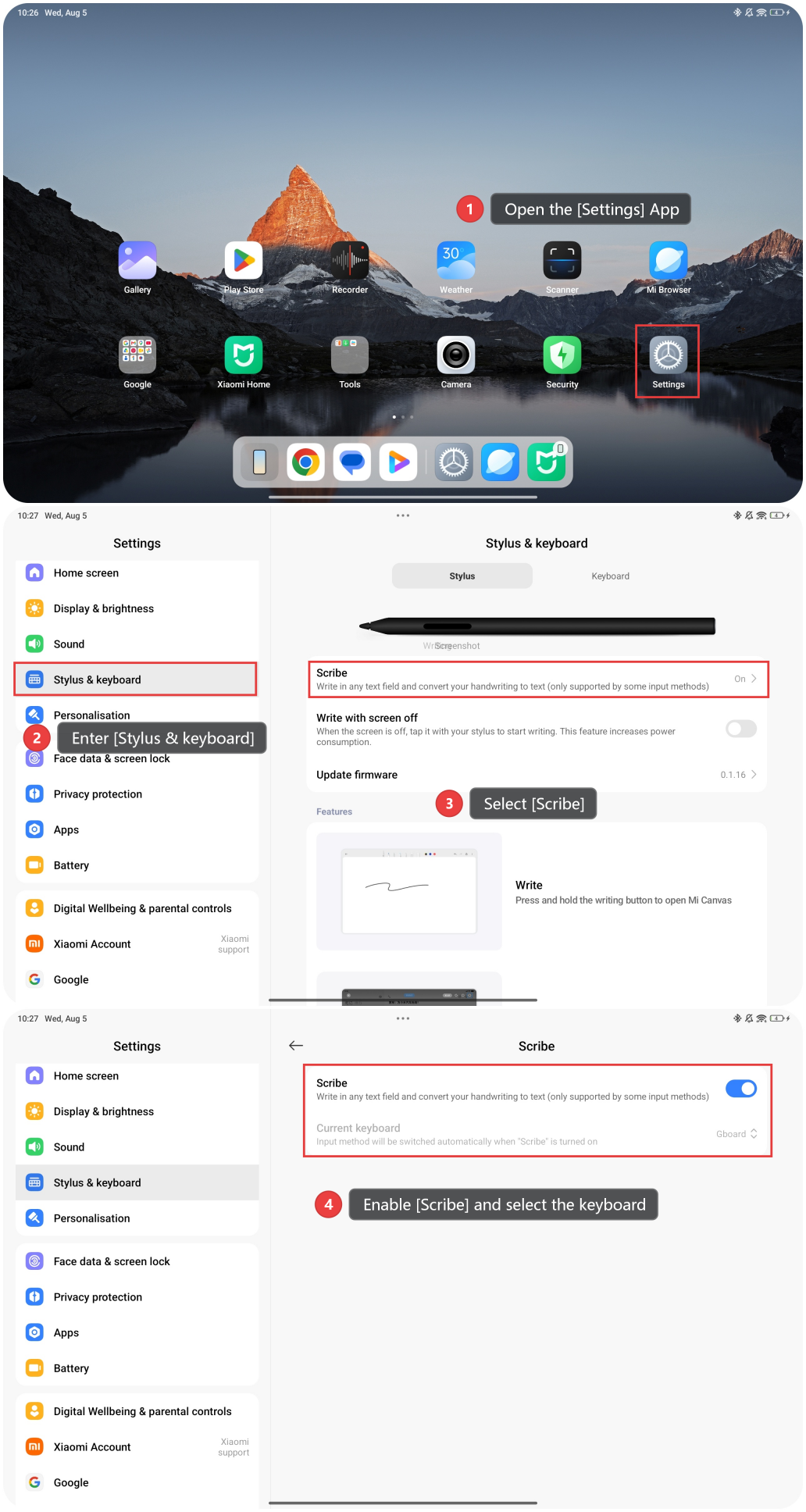
A: The REDMI Smart Pen supports the scribe feature. With this feature, you can write in any text field and convert your handwriting to text.
To enable this feature, please refer to the following steps:
1. After connecting, open the [Settings] App on the tablet.
2. Enter [Stylus & keyboard].
3. Select [Scribe].
4. Enable [Scribe] and select the keyboard.
Note:
The scribe feature is only supported by some input methods.
Does it help?
Yes
No