

Xiaomi Share Function Introduction FAQ
Q1. What is Xiaomi Share?
A: Xiaomi Share is a short-range wireless file transfer feature provided by Xiaomi. It enables high-speed file sharing between Xiaomi phones, tablets, and certain Android and Apple devices without the need for a data cable, mobile data, or an internet connection. It relies primarily on Wi-Fi Direct and Bluetooth to establish connections for fast and stable transfers.
Q2. What is the transmission principle of Xiaomi Share?
A: The transmission principle of Xiaomi Share is as follows. It uses Bluetooth to discover nearby devices and uses Wi-Fi Direct to transfer files.
Q3. Which devices does Xiaomi Share support?
A: Xiaomi Share supports the following devices:
1. Xiaomi phones and Xiaomi tablets.
2. Apple devices, including iPhone, iPad, and Mac.
3. Other Android devices from brands such as vivo, realme, OPPO, and others. Please refer to each brand's official website for detailed support information.
Q4. What file formats does Xiaomi Share support?
A: Xiaomi Share supports a wide variety of file formats, including photos, documents, videos, music, and more. There are no restrictions on file size or the number of files that can be transferred. However, private albums, private notes, and other privacy-protected content are not supported for transfer.
Q5. How to enable Xiaomi Share on Xiaomi phones?
A: Xiaomi Share can be turned on using either of the following methods:
Method 1:
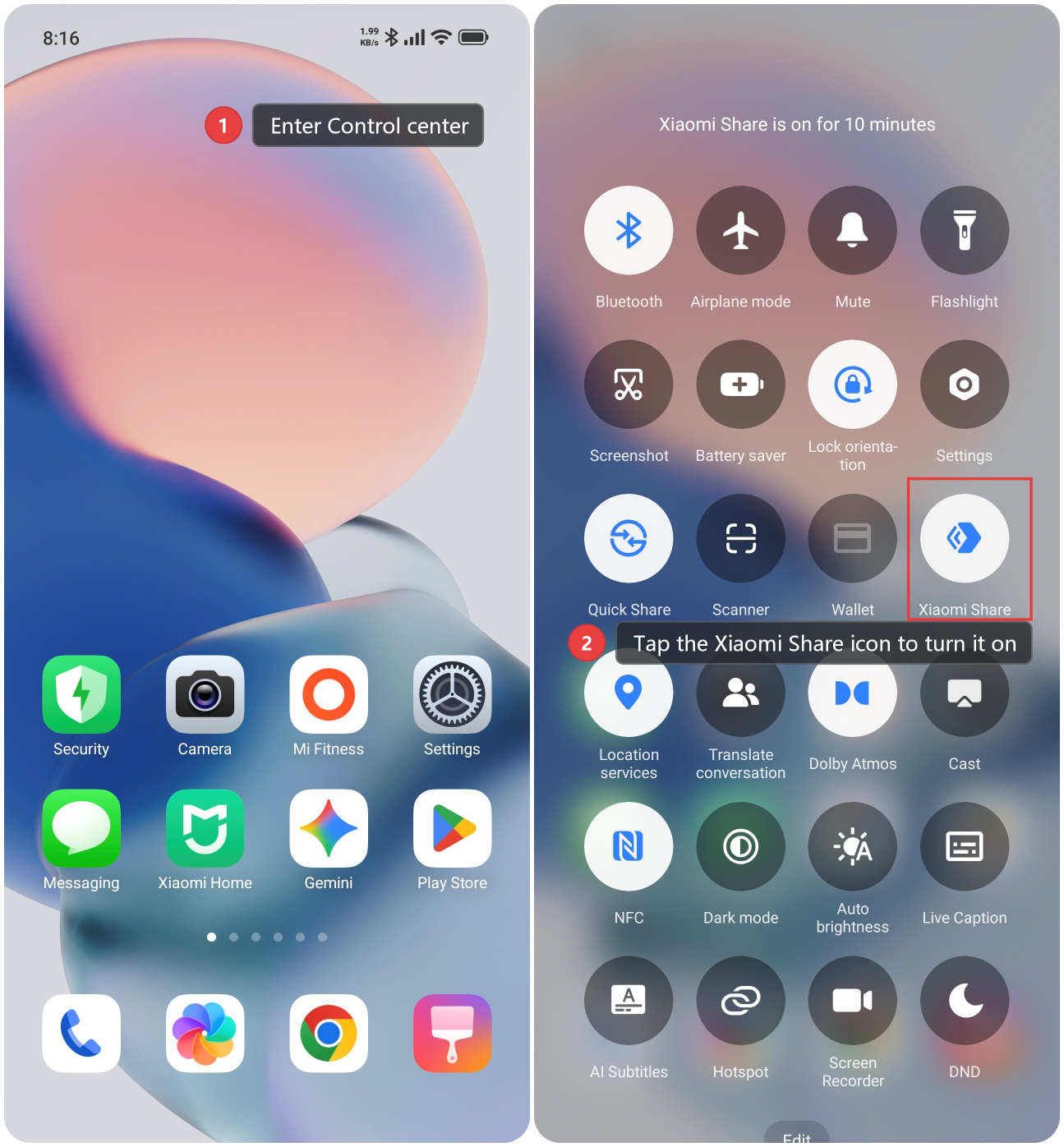
In the Control center on a Xiaomi phone, tap the Xiaomi Share icon to turn it on. By default, visibility is set to [From anyone (for 10 mins)].
Method 2:
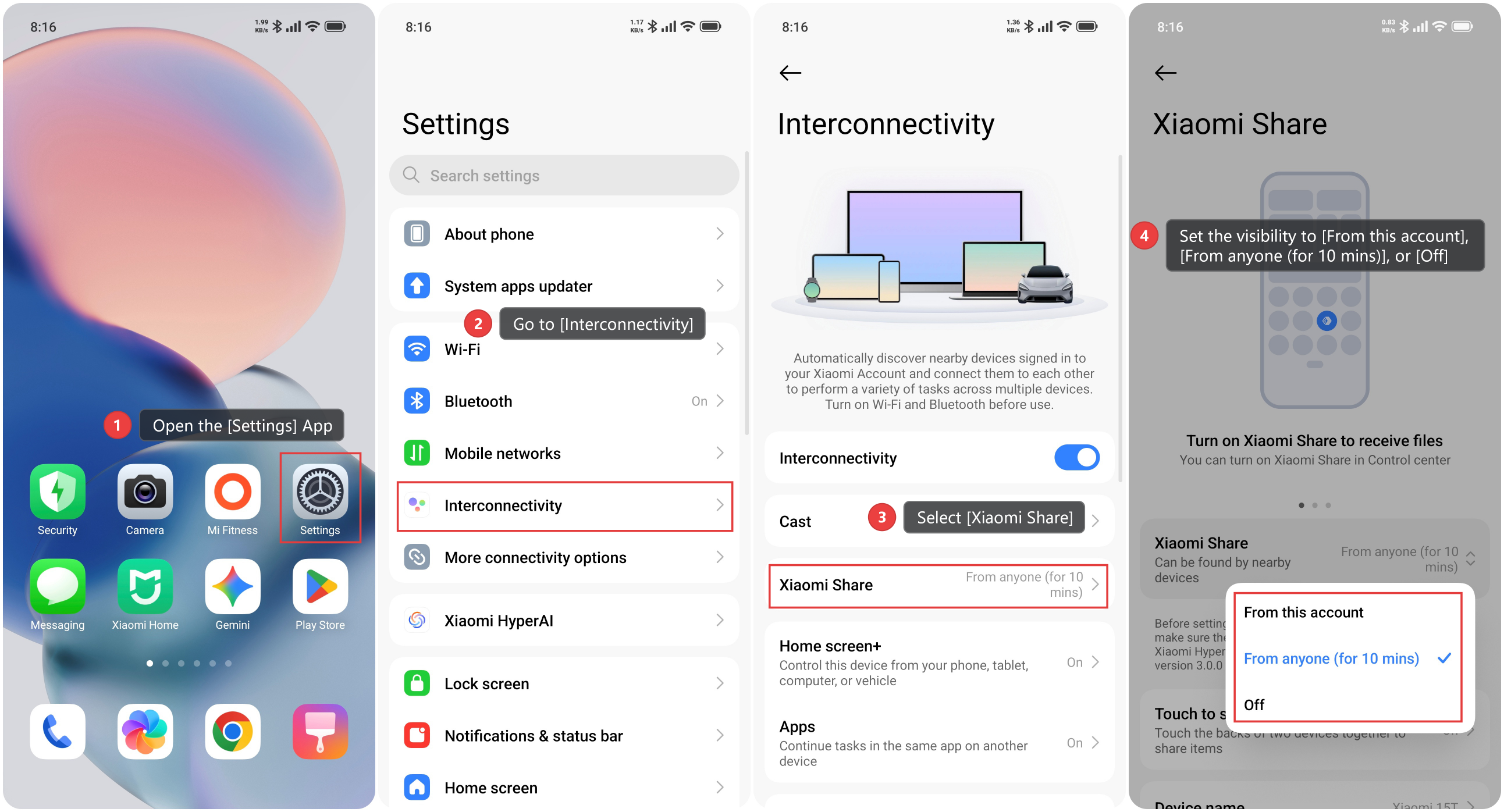
1. Open the [Settings] App.
2. Go to [Interconnectivity].
3. Select [Xiaomi Share].
4. Set the visibility to [From this account], [From anyone (for 10 mins)], or [Off].
Note:
When the receiving status is set to [From this account], both devices must be running Xiaomi HyperOS or later, and the Xiaomi Share version must be 3.0.0 or later.
Q6. How are files transferred using Xiaomi Share?
A: To transfer files using Xiaomi Share, take the following steps using photos as an example:
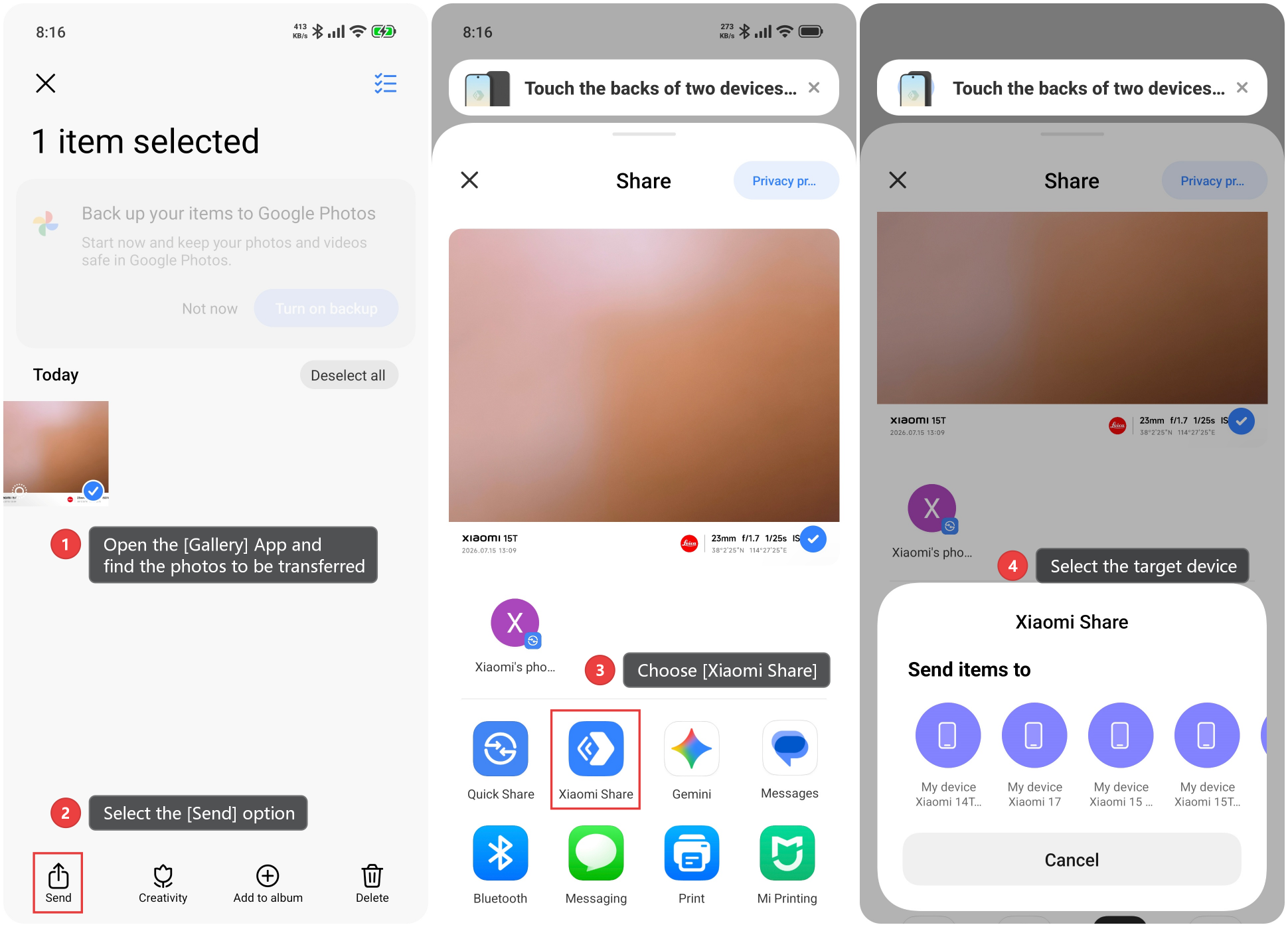
1. Open the [Gallery] App and find the photos to be transferred.
2. Select the [Send] option.
3. Choose [Xiaomi Share] as the sharing method.
4. Select the target device from the list of available devices.
Q7. How are files received using Xiaomi Share?
A: When receiving files using Xiaomi Share, a pop-up window will appear on the receiving device asking whether to accept the incoming files. Tap [Receive] to start the transfer. The transfer progress and results can be checked in the notification panel. All received files can be found at any time in [File Manager] >> [Download] >> [MiShare] folder.
Q8. Does Xiaomi Share compress files during transfer?
A: No, files are not compressed during transfer. The file size is displayed during the transfer, and all data remains unchanged.
Q9. What is the transfer speed of Xiaomi Share?
A: The transfer speed of Xiaomi Share is approximately 20 MB/s. In practical tests, transferring 100 photos achieves a speed of about 10 MB/s, while transferring a single file achieves about 20 MB/s. The maximum number of files that can be selected for a single transfer is 300.
Note:
Actual transfer speed depends on the device model and Wi-Fi performance.
Q10. What to do if Xiaomi Share cannot find nearby devices?
A: If Xiaomi Share cannot find nearby devices, the following steps should be taken:
1. Confirm that Wi-Fi and Bluetooth on both devices are turned on.
2. Check that Xiaomi Share is turned on and set visibility to [From anyone (for 10 mins)].
3. Check whether Bluetooth is functioning properly and can discover other Bluetooth devices.
4. Check whether the necessary permissions have been granted to Xiaomi Share. In the app settings, find Xiaomi Share and grant the [Nearby devices] permission.
5. Try clearing the Bluetooth and Wi-Fi cache.
6. If an iPhone cannot be found, ensure that both devices are on the same network.
7. If the issue persists, back up device data and try restoring factory settings.
Q11. What to do if the transfer is interrupted when using Xiaomi Share?
A: If the transfer is interrupted when using Xiaomi Share, the following steps should be taken:
1. Check the network environment. Bring the two devices closer together, ensuring there are no obstructions or sources of signal interference between them.
2. Ensure that both devices have Wi-Fi and Bluetooth turned on. Do not turn off Wi-Fi or Bluetooth during the transfer.
3. Check the available storage space. The receiving device must have sufficient free storage space.
4. Check for software conflicts. Try entering safe mode and then retry the file transfer.
5. Try clearing the Xiaomi Share cache, restarting both devices, and then initiating the transfer again.
6. Protocol incompatibility may occur if the system versions are too far apart. Ensure both devices have been updated to the latest system versions, and that Xiaomi Share has also been updated to the latest version.
7. The probability of interruption is higher when transferring large files. For large files, it is recommended to transfer them in batches. If the transfer is consistently interrupted around a specific file, that file may be corrupted. Try skipping that file and attempting the transfer again.
8. Some enterprise Wi-Fi networks may cause interference. Try switching to a home Wi-Fi network or disconnecting from Wi-Fi.
Q12. How can Xiaomi devices transfer photos or files to Apple devices using Xiaomi Share?
A: Xiaomi devices upgraded to Xiaomi HyperOS 2 that support Xiaomi Share can transfer photos and files bidirectionally with Apple devices.
Usage requirements:
1. iPhone, iPad, and Mac can download and install the Xiaomi Interconnectivity App from the App Store.
2. To use the interconnectivity features, the Xiaomi Interconnectivity App must be installed and running on the iPhone, iPad, or Mac, and Bluetooth must be enabled.
3. The Xiaomi device and the Apple device must be connected to the same local area network (LAN).
4. Xiaomi devices need to be upgraded to Xiaomi HyperOS 2.
To share files from a Xiaomi device to an Apple device:
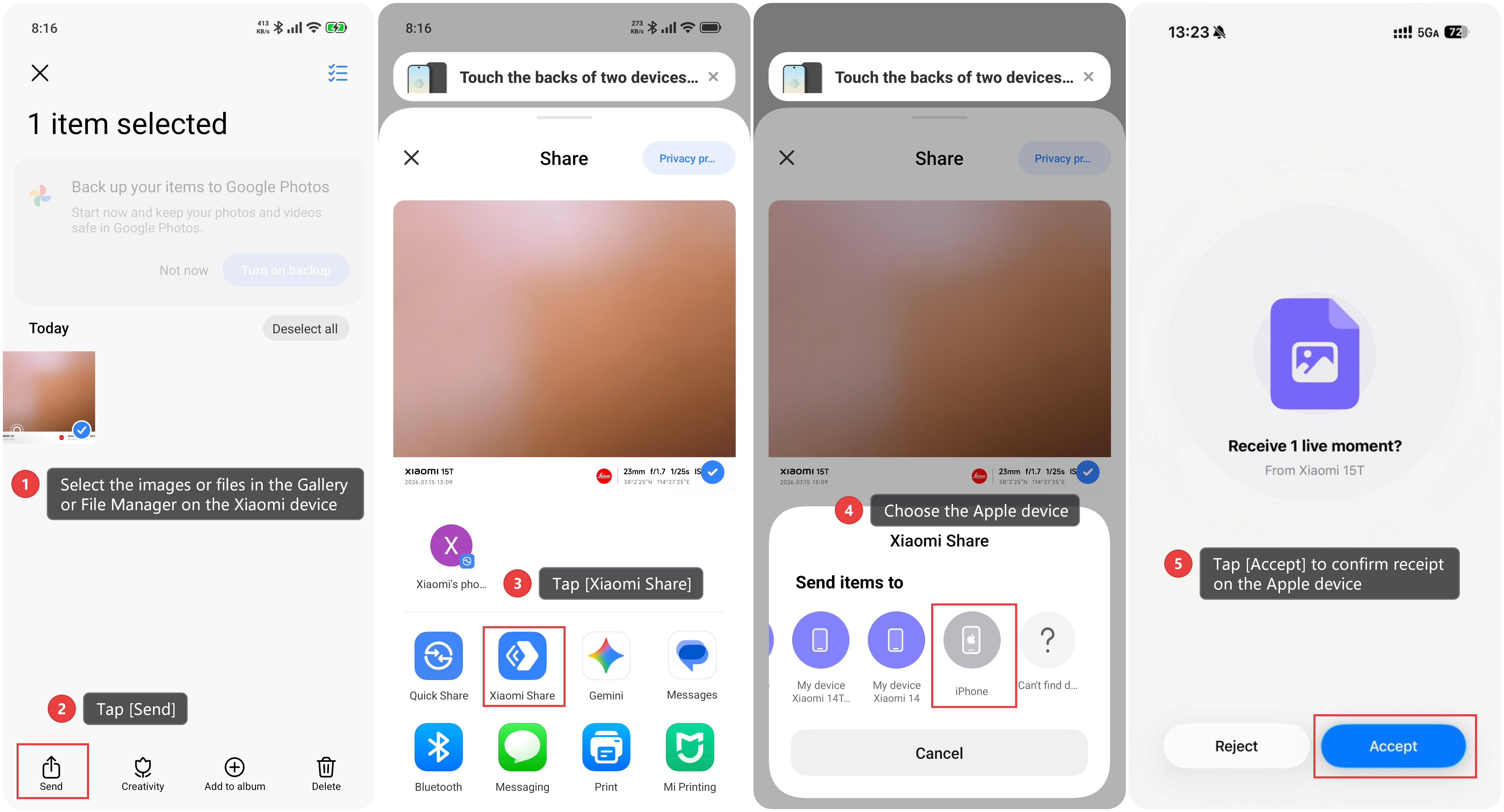
1. Enable the [Xiaomi Interconnectivity] App on the Apple device.
2. Select the images or files in the Gallery or File Manager on the Xiaomi device.
3. Tap [Send].
4. Tap [Xiaomi Share].
5. Choose the Apple device. Finally, tap [Accept] to confirm receipt on the Apple device.
To share files from an Apple device to a Xiaomi device:
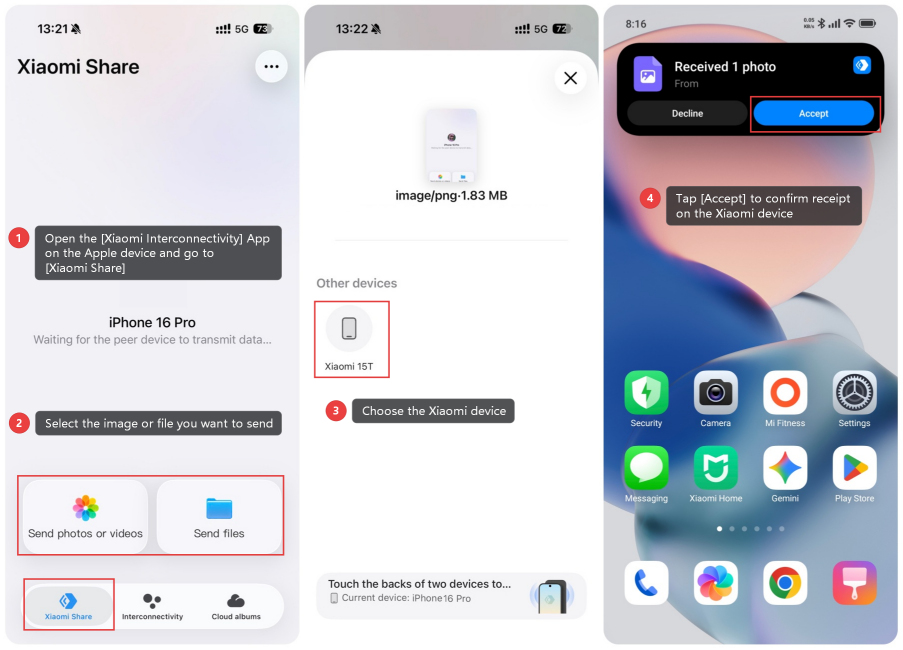
1. Enable [Xiaomi Share] on the Xiaomi device and set it to [From anyone (for 10 mins)].
2. Open the [Xiaomi Interconnectivity] App on the Apple device and go to [Xiaomi Share].
3. Select the image or file you want to send.
4. Choose the Xiaomi device. Finally, tap [Accept] to confirm receipt on the Xiaomi device.
Q13. What are the usage conditions for Xiaomi Share?
A: The usage conditions for Xiaomi Share are as follows.
1. Both devices must support Xiaomi Share.
2. Bluetooth must be turned on on both devices.
3. WLAN (Wi-Fi) must be turned on on both devices.
4. Xiaomi Share must be turned on and visibility set as needed.
5. The two devices must be within close proximity, typically within a few meters.
Q14. Does Xiaomi Share consume mobile data?
A: No, Xiaomi Share does not consume mobile data. It uses local wireless connections such as Wi-Fi Direct or local area networks for data transfer, so mobile data is not used.
Q15. Can the phone be used while a Xiaomi Share transfer is in progress?
A: Most operations, such as browsing the web or chatting, can be performed normally during a Xiaomi Share transfer. However, it is recommended not to turn off Wi-Fi or Bluetooth, enable airplane mode, restart the device, or forcibly close the Xiaomi Share interface, as these actions may interrupt the transfer.
Q16. Why can't I find the file after the transfer is complete when using Xiaomi Share?
A: Received files are saved in the File Manager App on Xiaomi devices. Please open the [File Manager] App >> [Download] >> the [MiShare] folder. Transferred files can be found in this folder.
Q17. Can the screen be locked when transferring files using Xiaomi Share?
A: It is recommended that both the sending and receiving devices remain unlocked when transferring files using Xiaomi Share. Some devices may restrict background network activity when the screen is locked, which can slow down or interrupt the transfer. It is recommended to keep the screen on until the transfer is complete.
Q18. Can Live Photos be transferred between Xiaomi phones and iPhones using Xiaomi Share?
A: Xiaomi HyperOS 2 adds support for transferring Live Photos between Xiaomi phones, Xiaomi tablets, iPhones, and iPads. The dynamic effects of Live Photos are preserved when transferred across different ecosystems. Ensure that the Xiaomi phone or tablet has been updated to the latest version and that the Xiaomi Interconnectivity App has also been updated to the latest version.
Q19. Is it safe to transfer files using Xiaomi Share?
A: Xiaomi Share uses a point-to-point connection between devices during transfer. Data is transmitted only between the sender and receiver and is not uploaded to the cloud. This ensures that the transfer process is secure.
Q20. Why does a Live Photo taken with a Xiaomi phone turn into static photos when sent to another phone via Xiaomi Share?
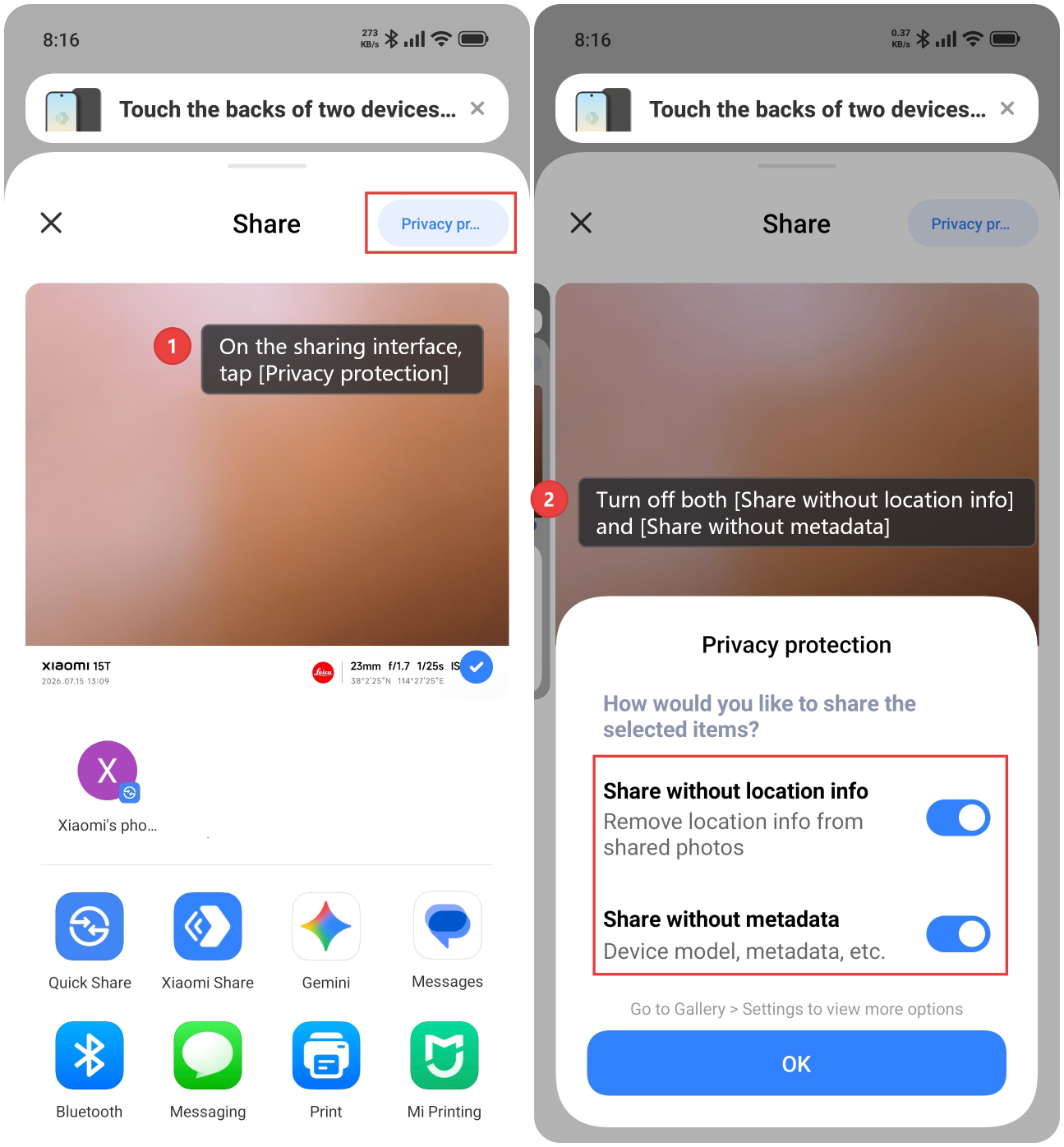
A: When sending photos from the Gallery, privacy protection is enabled by default. The default privacy protection removes photo metadata, and the marker used to identify Live Photos is part of this metadata. Once removed, the receiving device cannot recognize the photo as a Live Photo, so the Live Photo becomes a regular still photo after sharing. Disabling the relevant privacy protection settings resolves this issue.
Method 1:
1. On the sharing interface, tap [Privacy protection].
2. Turn off both [Share without location info] and [Share without metadata], then tap [OK] and share. The receiving device will receive the file as a Live Photo.
Method 2:
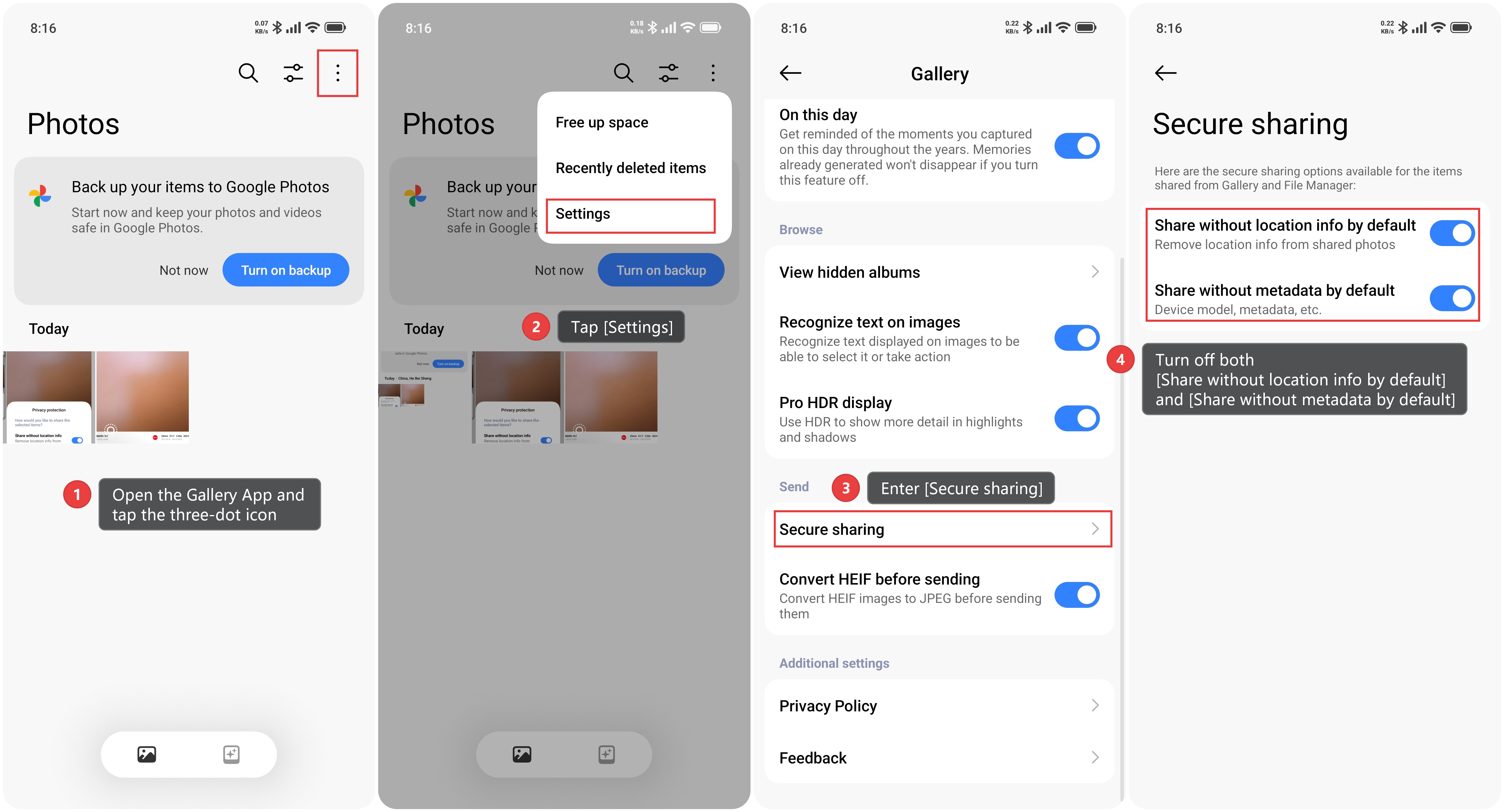
1. Open the Gallery App and tap the three-dot icon.
2. Tap [Settings].
3. Enter [Secure sharing].
4. Turn off both [Share without location info by default] and [Share without metadata by default].
Q21. What is "Touch to share"?
A: "Touch to share" is a feature that allows quick file sharing by touching the backs of two compatible devices with NFC enabled. And the supported devices include Xiaomi phones and iPhones.
To use [Touch to share], the following device conditions must be met:
1. Both devices must be unlocked with the screen on, and NFC, Bluetooth, and Wi-Fi must be enabled.
2. Xiaomi phones must be upgraded to Xiaomi HyperOS 3 or later. To check compatibility, search for [Xiaomi Share] in the [Settings] App and look for the [Touch to share] settings page.
3. iPhones must be iPhone 12 or later, running iOS 17 or later, with the latest version of Xiaomi Interconnectivity App installed.
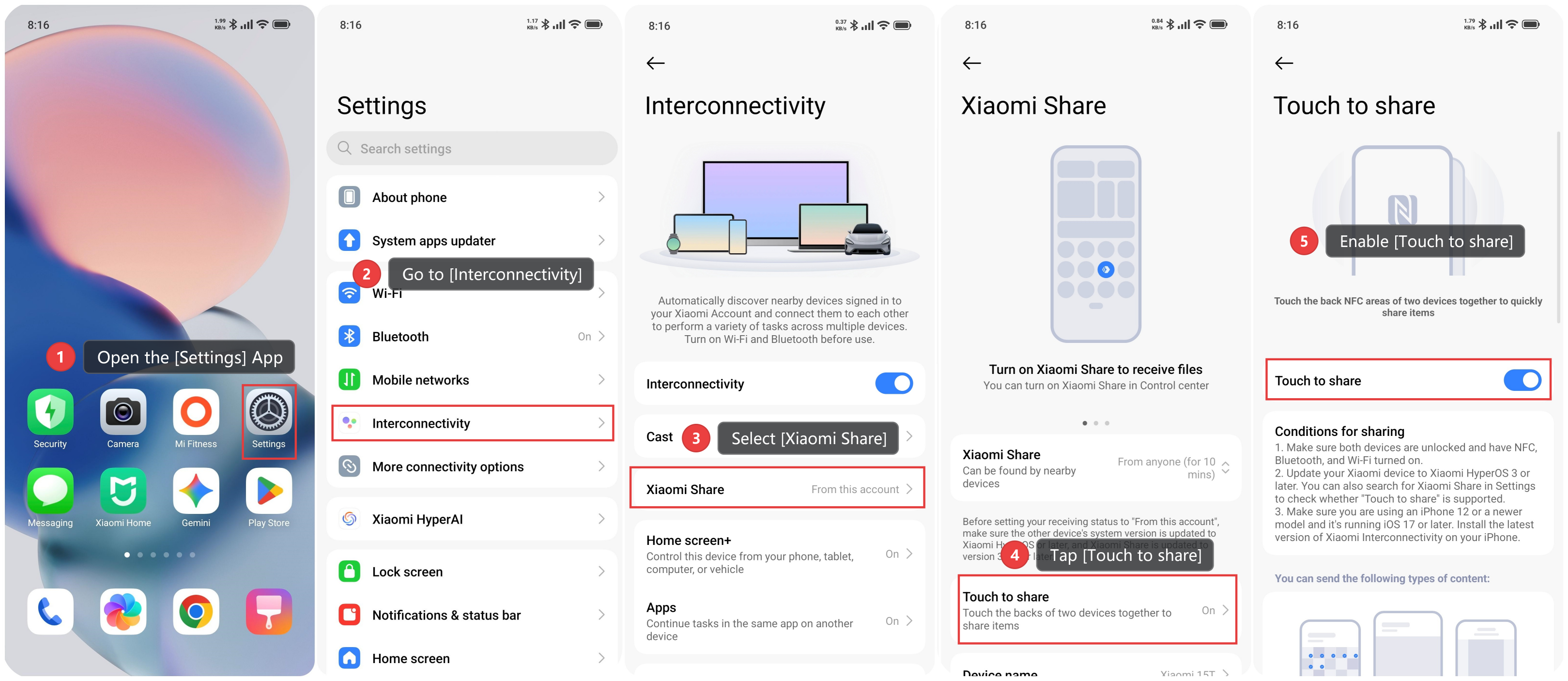
To enable [Touch to share] on the Xiaomi phone, please refer to the following steps:
1. Open the [Settings] App.
2. Go to [Interconnectivity].
3. Select [Xiaomi Share].
4. Tap [Touch to share].
5. Enable [Touch to share].
"Touch to share" supports sharing the following content:
1. Photos and videos.
2. Files.
3. Wi-Fi passwords.
4. Contacts.
5. Web pages.
The usage methods for [Touch to share] are as follows:
Sharing content from a Xiaomi phone to an iPhone via "Touch to share":
1. To share photos or videos, open the [Gallery] App, select the photos or videos you want to send, and tap [Send]. When there is a pop-up window prompting "Touch the backs of two devices together to share items", touch the back NFC areas of two devices together to quickly share items.
2. To share files, open the [File Manager] App, select the files you want to send, and tap [Send]. When there is a pop-up window prompting "Touch the backs of two devices together to share items", touch the back NFC areas of two devices together to quickly share items.
3. To share a Wi-Fi password, open the Wi-Fi list page while connected to a Wi-Fi network, press and hold the connected Wi-Fi. When there is a pop-up window prompting "Touch the backs of two devices together to share items", touch the back NFC areas of two devices together to quickly share items.
4. To share a contact, open the [Contacts] App, select the contact you want to send, and tap [Share contact]. When there is a pop-up window prompting "Touch the backs of two devices together to share items", touch the back NFC areas of two devices together to quickly share items.
5. To share a web page, open the [Mi Browser] App and navigate to the web page. Select the web page you want to send, and tap [Send]. When there is a pop-up window prompting "Touch the backs of two devices together to share items", touch the back NFC areas of two devices together to quickly share items.
Sharing content from an iPhone to a Xiaomi phone via "Touch to share":
Open the [Photos], [Files], [Contacts], or [Safari] Apps on the iPhone, select the content you want to share, and select the [Xiaomi Interconnectivity] App, and then touch the NFC areas of the iPhone and the Xiaomi phone.
Q22. Do both Xiaomi phones need to be logged into the same Xiaomi account when using "Touch to share"?
A: No, both Xiaomi phones do not need to be logged into the same Xiaomi account when using "Touch to share".
Q23. Do both devices need to be connected to the same Wi-Fi network when using "Touch to share"?
A: No, both devices do not need to be connected to the same Wi-Fi network when using "Touch to share". However, Bluetooth must be turned on.
Q24. If the NFC contact is released during a "Touch to share" transfer, will the transfer continue?
A: Yes, the devices can be separated from the NFC area during the transfer without affecting the data transmission.
Q25. Can compressed files be transferred using "Touch to share" between Xiaomi phones, and is there a file size limit?
A: Yes, compressed files can be transferred using "Touch to share". There is no limit on the file size for transfers using this feature.
Q26. Does "Touch to share" support sharing public Wi-Fi networks, such as those requiring web-based authentication?
A: No, "Touch to share" does not currently support sharing public Wi-Fi networks that require account and password verification.
Does it help?
Yes
No