

Why can't the Xiaomi Watch S5 46mm receive call notifications?
If the Xiaomi Watch S5 46mm can not receive incoming call notifications, please refer to the following troubleshooting steps:
1. Check the basic connection and mode.
(1). Confirm that the Bluetooth connection between the watch and your phone is functioning correctly; the Mi Fitness App should display a "Connected" status.
(2). Disable the DND mode on the watch. The path is: Go to [Settings] >> [Sound and vibration] >> [DND].
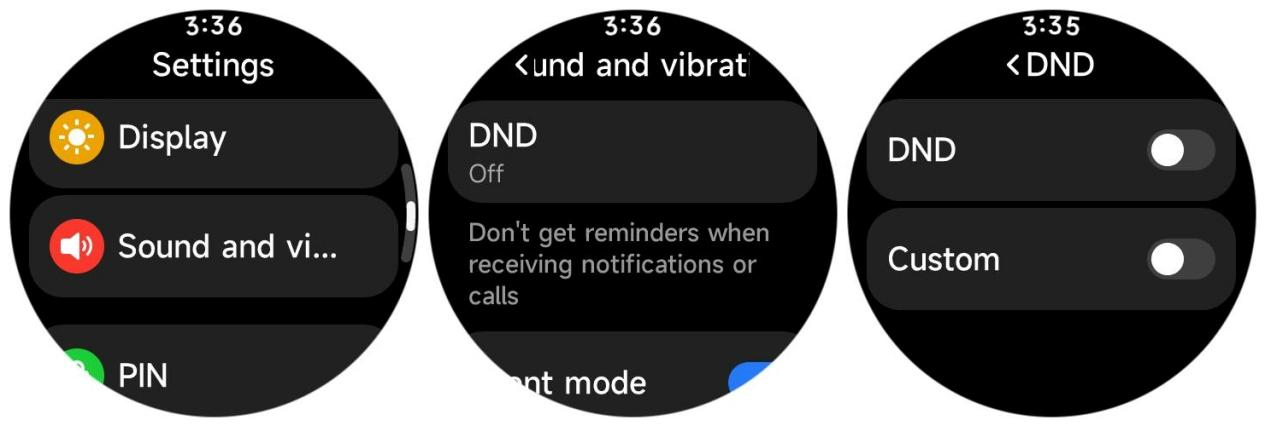
(3). Disable the Silent mode or the Battery saver mode on your phone.
(4). Restart both the watch and the phone, then re-establish the Bluetooth connection to resolve any temporary communication glitches.
2. Check the core Settings in the Mi Fitness App
(1). Open the Mi Fitness App >> [Devices] >> [Notifications and calls] >> [Incoming calls] >> Ensure [Optimize incoming call notifications] and [Show contact info] are enabled.
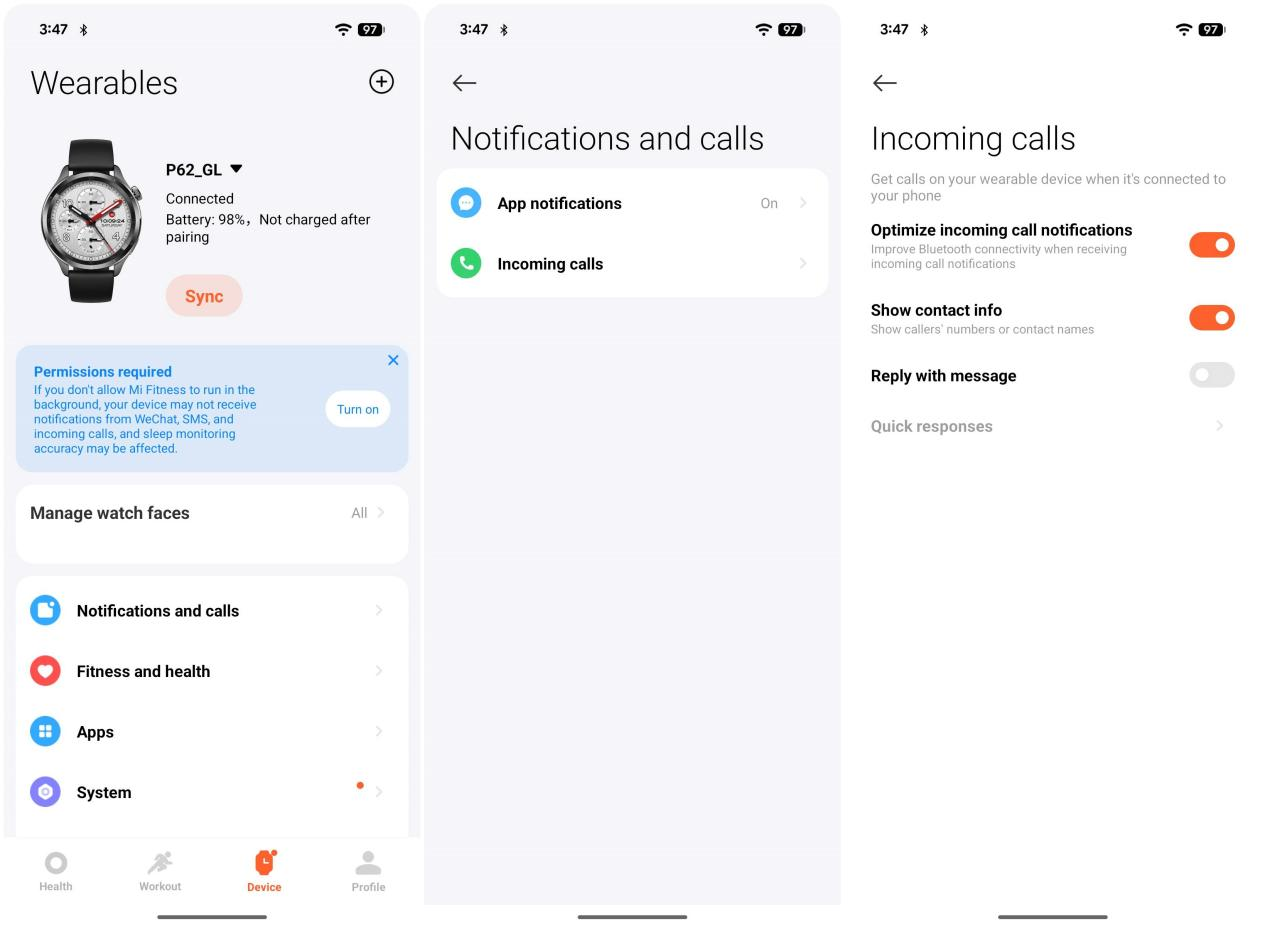
(2). Check the Notify only when worn setting to ensure it matches your usage preferences. If this feature is enabled, notifications will only be received when the watch is being worn; no notifications will be received when it is not being worn.
3. Check the system permission configurations of the iPhone and Android phone
Check the iOS (iPhone) exclusive settings:
(1). Check if the [Share System Notifications] is enabled. Enter [Settings] >> [Bluetooth] >> Locate "Xiaomi Watch S5 46mm" >> Tap the i icon on the right >> Enable [Share System Notifications].
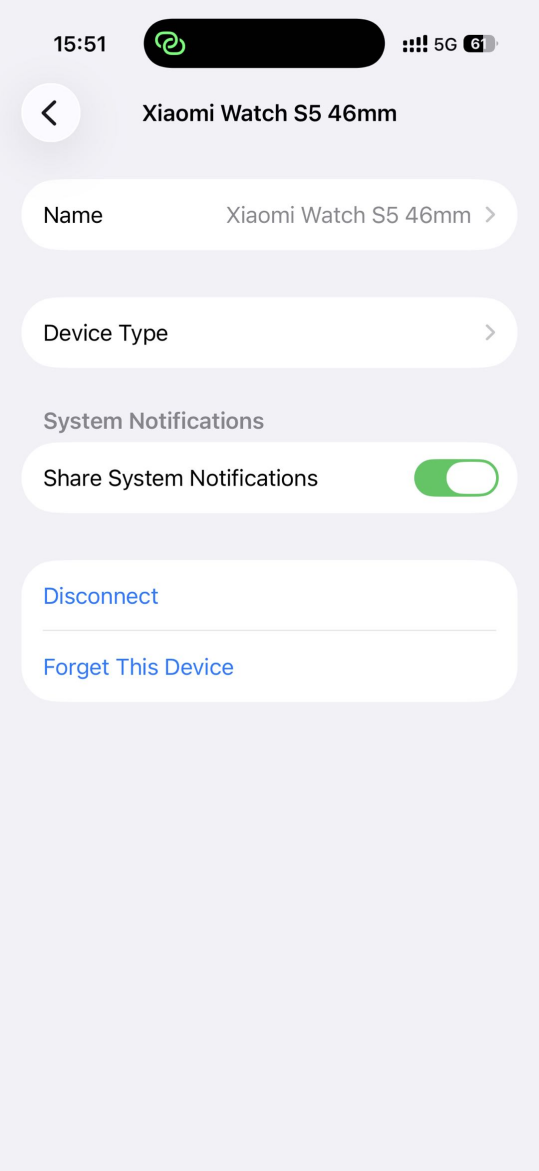
(2). Check the Mi Fitness App permissions. Enter [Settings] >> [Notifications] >> [Mi Fitness] App >> enable [Allow Notifications] and set [Show Previews] to [Always].
(3). Enter [Settings] >> [General] >> [Background App Refresh] >> enable background refresh permissions for Mi Fitness App.
Check the Android system-specific settings:
(1). Check if Notification Access Authorization is enabled. Enter [Settings] >> [Apps] >> [Mi Fitness] >> [App permissions] >> [Call log] >> select [Allow].
(2). Check background activity permissions. Enable [Background autostart], [Display pop-up windows], and [Open new windows while running in the background] to prevent the system from restricting the App's processes. Enter [Battery] >> locate [Mi Fitness] >> select [No restrictions] to ensure the App continues running in the background.
Does it help?
Yes
No