

Xiaomi Robot Vacuum H50 FAQ
Overview
Q1: What is the Xiaomi Robot Vacuum H50?
A: The Xiaomi Robot Vacuum H50 is a flagship model with an omni station, designed to meet household floor cleaning and automated maintenance needs. It is equipped with LDS smart navigation, which efficiently plans cleaning paths and improves cleaning coverage. It also features a mechanical collision obstacle detection system to effectively avoid obstacles in the home. In addition, the Xiaomi Robot Vacuum H50 comes with a fully functional self-cleaning omni station that supports automatic dust collection, mop washing, and air drying, enabling a fully automated process from cleaning to self-maintenance and providing you with a convenient and effortless smart cleaning experience.
Q2: What are the features of the Xiaomi Robot Vacuum H50?
A: The features of the Xiaomi Robot Vacuum H50 are as follows:
1. It uses LDS laser navigation technology to build accurate maps and intelligently plan efficient cleaning paths.
2. It features a maximum suction power of 10 kPa, with suction levels adjustable through the Xiaomi Home App (Silent, Standard, Strong, and Turbo modes) for stronger suction and cleaner results.
3. It is equipped with a 280 mL+ dust compartment in the robot vacuum and a 2.5 L disposable bag in the omni station for automatic dust collection, enabling up to 75 days without manual dust disposal.
4. It uses high-speed rotating dual mop pads to effectively remove stubborn stains.
5. It features automatic mop washing, allowing the robot vacuum to return to the omni station for cleaning without manual intervention.
6. It is equipped with a 5200 mAh large-capacity battery for long-lasting operation.
7. It supports remote control and customizable cleaning modes via the Xiaomi Home App.
Q3: How to use the On/Off button of the Xiaomi Robot Vacuum H50?
A: To use the On/Off button of the Xiaomi Robot Vacuum H50, please refer to the following information:
Power On/Off:
1. Press and hold the On/Off button for 3 seconds to turn it on; the indicator will turn on.
2. When the robot vacuum is not charging and is paused, press and hold the On/Off button for 3 seconds to turn it off.
Pause:
1. When the robot vacuum is cleaning, press the On/Off button to pause the cleaning.
2. Press the button again to resume cleaning.
Note:
1. The robot vacuum cannot be powered off while charging.
2. Press any button to pause the robot vacuum when cleaning, returning to the station, or spot cleaning.
Q4: How to use the Recharging button of the Xiaomi Robot Vacuum H50?
A: To use the Recharging button of the Xiaomi Robot Vacuum H50, please refer to the following information:
Recharging:
1. Press to start recharging when it is paused.
2. Press to pause cleaning while running, and press the Recharging button again, and the robot vacuum will start returning to the omni station. Based on the cleaning mode, it will determine whether the mop pads need to be washed.
3. Press to stop recharging when it returns to the omni station.
Child lock:
Press and hold for 3 seconds to enable or disable the child lock. After the child lock is enabled, the buttons on the robot vacuum will be disabled to prevent accidental operation. To disable the child lock, first press any button briefly to pause, then press and hold the Recharging button for 3 seconds.
Note:
Press any button to pause the robot vacuum when cleaning, returning to the station, or spot cleaning.
Q5: What do the indicators on the Xiaomi Robot Vacuum H50 mean?
A: The meanings of the indicators on the Xiaomi Robot Vacuum H50 are as follows:
Robot vacuum indicator:
1. White: Working normally.
2. Orange: Network disconnected.
3. Blue for 2 seconds: Network connected.
4. Breathing in white: Charging (medium/high battery level).
5. Breathing in orange: Charging (low battery level).
6. Breathing in blue: Connecting to the network.
7. Blinking in white: Docking/Updating firmware/Restoring factory settings.
8. Blinking in orange: Robot vacuum error.
9. Blinking in blue: Resetting Wi-Fi/Awaiting network connection.
10. When the child lock is enabled, the indicator will flash orange when the robot vacuum button is pressed.
Station indicator:
1. White: Station works normally.
2. Blinking in orange: Station has an error.
Product introduction and use
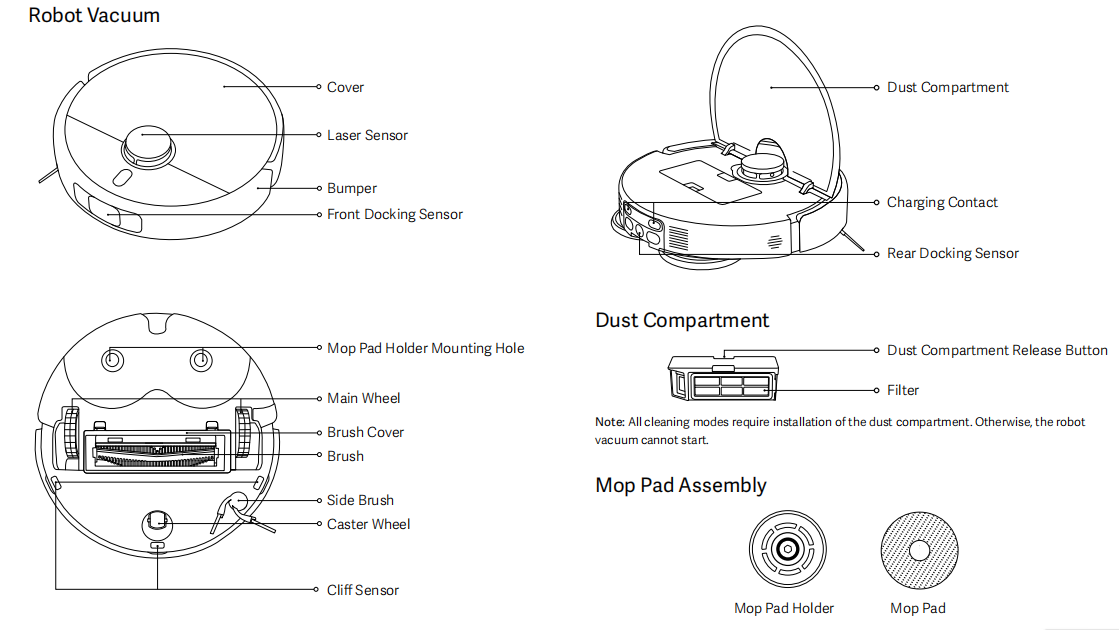
Q1: What are the main functional components of the Xiaomi Robot Vacuum H50?
A: The main functional components of the Xiaomi Robot Vacuum H50 include navigation, obstacle avoidance, mobility, and the cleaning & mopping module.
Appearance and Core Sensing Components:
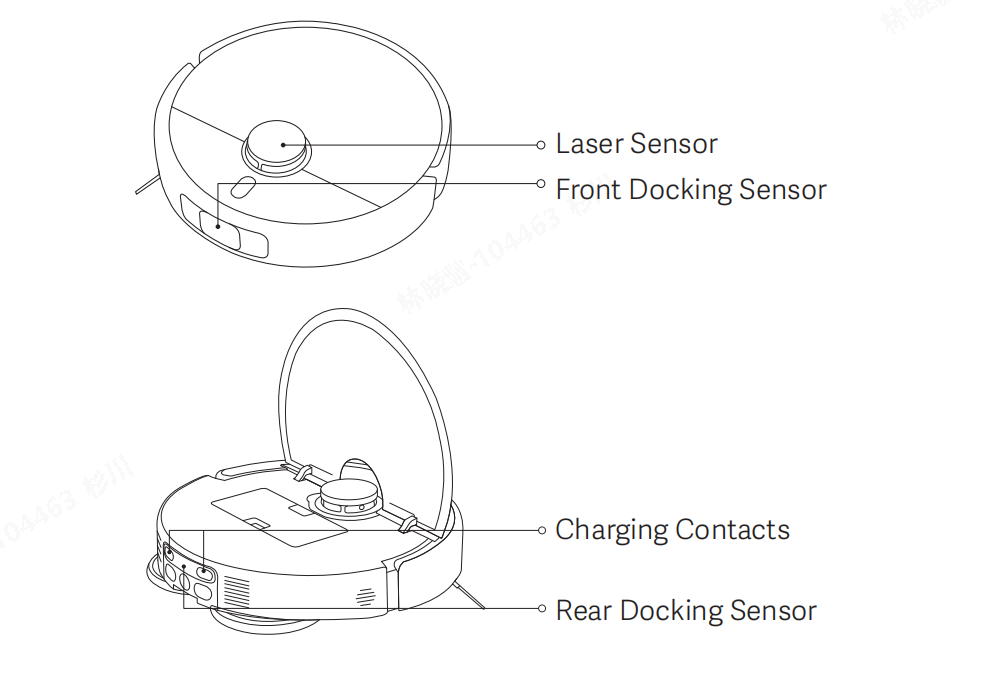
The top features a Cover with a central Laser Sensor for mapping and navigation. The sides have a Bumper and a Front Docking Sensor to avoid obstacles and assist in docking.
Bottom Components:
The Main Wheel and Caster Wheel provide mobility, while the Brush, Side Brush, and Brush Cover handle dust and debris. The Cliff Sensor prevents falls. A Mop Pad Holder Mounting Hole allows installation of the mop pad assembly.
Dust Compartment and Charging Components:
The robot vacuum contains 2 Charging Contacts and a Rear Docking Sensor. The dust compartment contains a Dust Compartment Release Button and a Filter. It must be installed for all cleaning modes. Otherwise, the robot vacuum cannot start.
Mop Pad Assembly:
The robot vacuum includes the Mop Pad Holder and the Mop Pad for wet mopping.
Q2: What is the station for the Xiaomi Robot Vacuum H50?
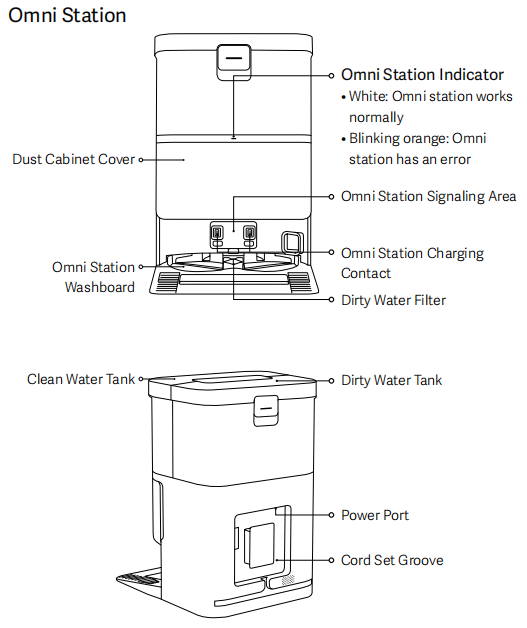
A: The station for the Xiaomi Robot Vacuum H50 is an evolution of the traditional station. In addition to supporting charging, it integrates more advanced functions, such as mop washing, dirty water tank collection, and trash collection, making the robot vacuum's cleaning capabilities even more powerful.
Omni Station:
The omni station is a multifunctional device composed of several key components. It includes an omni station indicator. The station also features a dust cabinet cover and an omni station signaling area. Additional parts include the omni station washboard and the omni station charging contact, as well as a dirty water filter. For water management, it is equipped with a clean water tank and a dirty water tank. For power connection, the omni station has a power port and a cord set groove to ensure organized and efficient operation.
Q3: How to check the SN of the Xiaomi Robot Vacuum H50?
A: To check the SN of the Xiaomi Robot Vacuum H50, please refer to the following method:
1. You can find the SN on the label on the bottom of the robot vacuum.
2. You can find the SN on the label at the bottom of the omni station.
3. You can find the SN on the product's outer packaging.
Q4: Can the Xiaomi Robot Vacuum H50 be used directly after unboxing?
A: The Xiaomi Robot Vacuum H50 can be used immediately. It is recommended that after unboxing, you first check whether all standard accessories are included. Then power on the device and connect it to the network via the Xiaomi Home App to learn how to use it.
Note:
For first-time use, follow the instructions to properly place the station. Manually position the robot vacuum on the station so that the charging contacts align. Fully charge the robot vacuum before starting cleaning or mapping. After the initial full charge, perform cleaning mapping or quick mapping from the station. Charging from 0% to 100% typically takes about 3–6 hours.
Q5: Which mode is recommended for first-time use of the Xiaomi Robot Vacuum H50?
A: For first-time use of the Xiaomi Robot Vacuum H50, please refer to the following information:
It is recommended to prioritize the vacuuming mode. In areas with heavy dust or debris, temporarily increase the suction power to complete cleaning, then return to standard mode. Do not use the mopping function on first use. After completing the overall cleaning in vacuuming mode, attach the mop pad and select vacuuming & mopping mode.
Note:
During the first use, organize items in the area to prevent entanglement or blockage. It is recommended to perform mapping first and plan the route, adding virtual walls and restricted areas if necessary, before using the device.
Q6: Why does the Xiaomi Robot Vacuum H50 need to have its exterior wiped regularly?
A: The Xiaomi Robot Vacuum H50 performs vacuuming, mopping, and debris collection tasks. Regularly emptying the dust compartment and cleaning the mop pad, the main and side brushes help maintain its cleaning performance.
The robot vacuum is equipped with various sensors around its body to explore the surrounding environment, build maps, avoid obstacles, and detect cliffs to prevent falling. When the device becomes dirty, please clean the surrounding dust and remove any foreign objects with a wrung-out damp cloth to restore the robot vacuum's obstacle avoidance and recognition capabilities.
Note:
Do not use detergents, sprays, or other chemical cleaners for cleaning.
Q7: How does the Xiaomi Robot Vacuum H50 enter standby mode after completing a task?
A: After completing a task, it is recommended to place the Xiaomi Robot Vacuum H50 back on the station to charge and enter standby mode, ensuring the battery is sufficiently charged.
Q8: What to do if the side brush of the Xiaomi Robot Vacuum H50 becomes entangled?
A: If the side brush of the Xiaomi Robot Vacuum H50 becomes entangled, please promptly remove any debris and check whether the bristles are damaged or have fallen off. Before the next cleaning session, it's recommended to remove easily entangled items such as yarn or thin strings from the floor in advance.
Q9: Why can't the Xiaomi Robot Vacuum H50 be powered off while on the station?
A: When the Xiaomi Robot Vacuum H50 is on the station, it will remain in either a charging or a fully charged state. To power off the device, remove it from the station, then press and hold the power button for 3 seconds to shut it down.
Q10: What types of living scenarios can the Xiaomi Robot Vacuum H50 be used in?
A: The Xiaomi Robot Vacuum H50 is designed exclusively for residential indoor floor cleaning. It should not be used outdoors, in non-residential, commercial, or industrial environments, as doing so can result in malfunctions or loss of the device.
Q11: How to use the Do Not Disturb mode of the Xiaomi Robot Vacuum H50?
A: The Do Not Disturb mode of the Xiaomi Robot Vacuum H50 is enabled by default from 22:00 to 8:00 AM. You can disable the Do Not Disturb mode or adjust its duration through the Xiaomi Home App.
While in Do Not Disturb mode, the robot vacuum will not start scheduled cleaning or resume the cleanup task where it left off. After the Do Not Disturb period ends, the robot vacuum will resume cleaning and broadcast a voice prompt.
During the Do Not Disturb period, the robot vacuum’s voice volume is reduced to 10%. The indicators on both the robot vacuum and the omni station are turned off.
Q12: How to set the scheduled cleanup on the Xiaomi Robot Vacuum H50?
A: The scheduled cleanup of the Xiaomi Robot Vacuum H50 can be set in the Xiaomi Home App. Once a scheduled time is set, the robot vacuum will automatically start cleaning at the specified time and return to the station once the task is complete.
Q13: How to save the complete map on the Xiaomi Robot Vacuum H50?
A: To save the complete map on the Xiaomi Robot Vacuum H50, please refer to the following information:
1. When using the robot vacuum for the first time, after completing the network setup in the Xiaomi Home App, follow the guidance and use the quick map creation function. During quick mapping, the robot vacuum will explore the home environment and create a map without performing cleaning. After mapping is completed, the robot vacuum will return to the omni station and generate a partitioned map of the detected areas.
2. You can press the On/Off button on the robot vacuum to start cleaning or tap [Start cleanup] in the Xiaomi Home App and select [Whole house]. The robot vacuum will start cleaning from the omni station and automatically return to the omni station after the task is completed, and a complete partitioned map will also be generated.
Note:
Please keep the doors of the areas to be cleaned open during cleaning to ensure the completeness of the map.
Q14: How to use the whole-house cleanup mode of the Xiaomi Robot Vacuum H50?
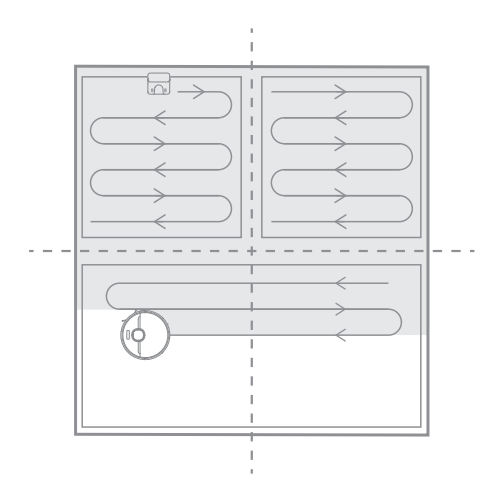
A: During the first startup, the Xiaomi Robot Vacuum H50 will perform edge cleaning first, followed by a zigzag cleaning pattern until all areas are covered. During whole-house cleaning, the robot vacuum will clean room by room, starting with edge cleaning and then switching to a zigzag pattern to complete the cleaning in sequence. After cleaning is finished, the robot vacuum will automatically return to the station.
Q15: Can the Xiaomi Robot Vacuum H50 stay connected to the charger continuously?
A: The Xiaomi Robot Vacuum H50 supports overcharge protection. Once fully charged, it automatically switches to low-current charging.
Q16: Does the Xiaomi Robot Vacuum H50 have motor overload protection?
A: All motors in the Xiaomi Robot Vacuum H50 are equipped with overload protection, including the brush motor, side brush motor, main wheel motors, and the mop motor. If foreign objects or severe blockage cause overload, the protection mechanism will automatically activate.
Q17: Does the Xiaomi Robot Vacuum H50 require regular replacement of consumables?
A: The consumables of the Xiaomi Robot Vacuum H50 include the main brush, side brush, brush cover, HEPA filter, mop pad, and mop pad holder. These components need to be replaced regularly to ensure the normal functioning of the robot vacuum and maintain cleaning performance.
Recommended maintenance guidelines are as follows:
1. The main brush should be cleaned weekly and replaced every 6–12 months to ensure cleaning efficiency.
2. The HEPA filter should be cleaned weekly and replaced every 3–6 months.
3. The side brush should be cleaned monthly and replaced every 3–6 months to maintain cleaning performance.
4. The mop pad should be replaced every 1–3 months to ensure cleaning efficiency.
5. The disposable bag should be checked and replaced approximately every 2.5 months, depending on actual usage. The disposable bag is a disposable consumable.
Q18: How to use the Xiaomi Robot Vacuum H50 station?
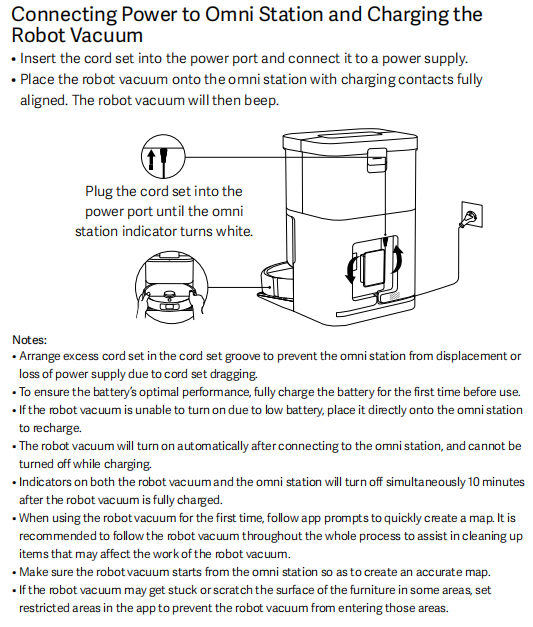
A: Please place the station of the Xiaomi Robot Vacuum H50 on a flat surface against a wall, ensuring adequate space on both sides. Connect the power adapter to the station and then plug it into a power outlet. For better performance, position the station within Wi-Fi coverage.
Please refer to the following information:
1. Install the station in an open area with a strong Wi-Fi signal whenever possible.
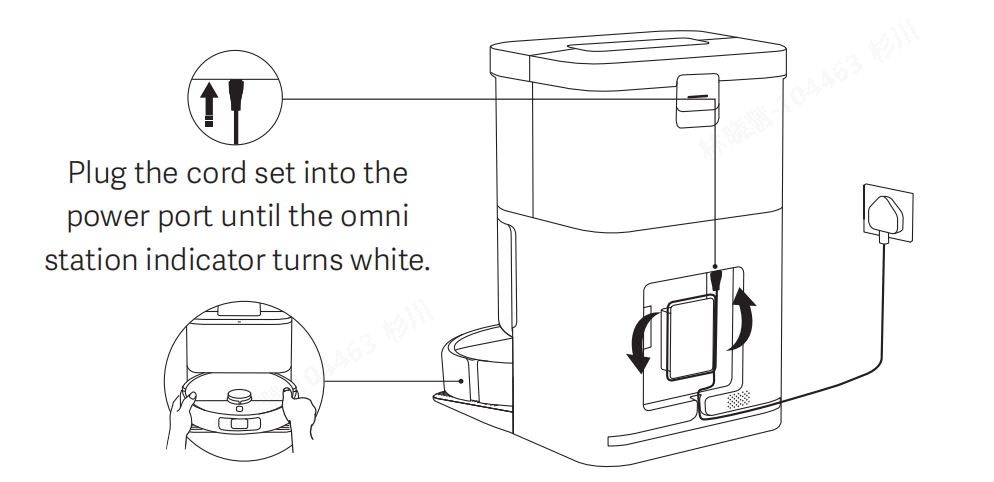
2. Plug the cord set into the power port until the omni station indicator turns white.
3. Place the robot vacuum onto the omni station with charging contacts fully aligned. The robot vacuum will then beep and automatically power on and start charging.
4. After fully charging, the indicator on the robot vacuum will remain on for 10 minutes, then turn off.
Note:
1. Arrange excess cord set in the cord set groove to prevent the omni station from displacement or loss of power supply due to cord set dragging.
2. To ensure the battery's optimal performance, fully charge the battery for the first time before use.
3. If the robot vacuum is unable to turn on due to low battery, place it directly onto the omni station to recharge.
4. The robot vacuum will turn on automatically after connecting to the omni station, and cannot be turned off while charging.
5. Indicators on both the robot vacuum and the omni station will turn off simultaneously 10 minutes after the robot vacuum is fully charged.
6. When using the robot vacuum for the first time, follow the Xiaomi Home App prompts to quickly create a map. It is recommended to follow the robot vacuum throughout the whole process to assist in cleaning up items that can affect the work of the robot vacuum.
7. Make sure the robot vacuum starts from the omni station so as to create an accurate map.
8. If the robot vacuum gets stuck or scratches the surface of the furniture in some areas, set restricted areas in the Xiaomi Home App to prevent the robot vacuum from entering those areas.
Q19: How to charge the Xiaomi Robot Vacuum H50?
A: Insert the power cord assembly into the power port of the omni station, then connect it to the power supply. After the power indicator remains on, place the robot vacuum so that the charging contacts on the robot vacuum align with the charging pins on the omni station. Once properly connected, the robot vacuum will emit a prompt tone.
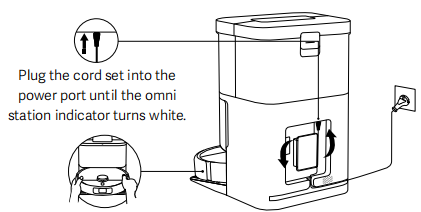
Note:
If the battery is too low, the device can not power on. In this case, place the robot vacuum directly onto the station to charge.
Q20: How to install the mop pad of the Xiaomi Robot Vacuum H50?
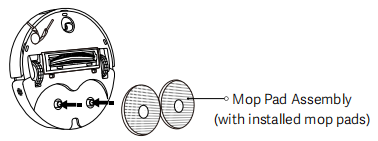
A: As shown in the diagram, attach the mop pad of the Xiaomi Robot Vacuum H50 assembly to the designated latch position indicated in the illustration. They are properly installed when a "click" is heard.
Q21: How to add water to the water tank of the Xiaomi Robot Vacuum H50?
A: Open the clean water tank lid of the Xiaomi Robot Vacuum H50 and fill the tank with water up to just below the maximum water level. After filling, securely close the water tank lid.
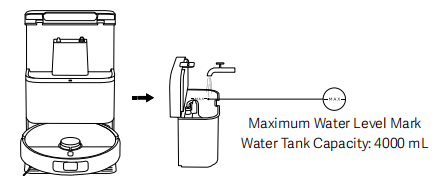
Note:
1. After the water tank is lifted, it is normal for some residual water to remain inside the omni station. The omni station is designed with drainage pipes; residual water will not affect its performance.
2. After closing the lids of the clean water tank and dirty water tank, reinstall them onto the omni station, ensuring that the tanks are properly placed and not tilted or lifted.
3. Do not pour hot water into the clean water tank or dirty water tank, as this can cause deformation of the tanks.
4. Before leaving the factory, new products undergo water flow testing, so a small amount of residual water will remain, which is normal.
5. Do not add non-official cleaning agents, disinfectants, solid cleaning agents, or other cleaning products to avoid corrosion or damage to the device.
6. If there is standing water on the floor, please clean it up before using the vacuuming or mopping function.
7. After mopping is completed, please remove and clean the dirty water tank promptly, and regularly clean the filter and washboard to prevent odors or mold.
Q22: How to start the vacuuming mode on the Xiaomi Robot Vacuum H50?
A: To start vacuuming, press the On/Off button on the Xiaomi Robot Vacuum H50. Press any button during cleaning to pause the operation. After connecting to the Internet, you can start cleaning through the Xiaomi Home App.
When mopping, please set virtual walls or restricted areas for carpeted areas in the Xiaomi Home App. If there is standing water on the floor, please clean it up before using the vacuuming or mopping function.
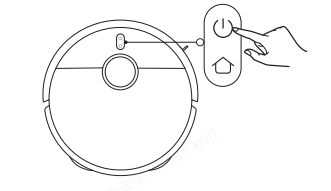
Note:
1. Before cleaning, please ensure the robot vacuum is fully charged and starts from the omni station. During cleaning, do not move the omni station or the robot vacuum, as this can cause mapping errors and prevent the robot vacuum from returning to the omni station.
2. While the robot vacuum is paused, it is recommended not to lift or move the robot vacuum, as this can affect positioning accuracy and cause the robot vacuum to fail to return to the omni station or lose the map.
3. If the battery level is too low, the robot vacuum will not start cleaning. Please charge it first before starting the cleaning task.
Q23: How to return the Xiaomi Robot Vacuum H50 to the station for recharging?
A: When the battery is low during cleaning, the Xiaomi Robot Vacuum H50 will automatically return to the omni station for charging. After charging to a suitable level, it will resume the unfinished cleaning task from where it left off.
While in standby mode, press the Recharging button to start returning to the station. During cleaning, press the Recharging button to pause, then press again to initiate returning to the station. The robot vacuum will also determine whether to wash the mop pads based on the current working mode.
Note:
If the robot vacuum cannot locate the station, please manually place it on the station. When doing so, make sure you hear the voice prompt "Start charging" before leaving.
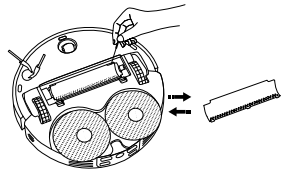
Q24: How to clean the comb on the Xiaomi Robot Vacuum H50?
A: Pry up the comb from the clips with a tool and remove it as illustrated. Clean the comb and reinstall it after ensuring it is dry.
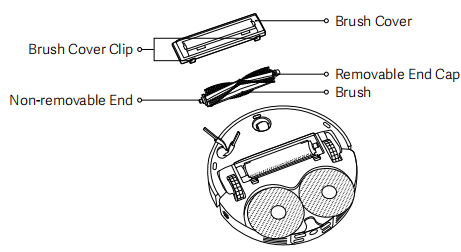
Q25: How to maintain the brush on the Xiaomi Robot Vacuum H50?
A: To maintain the brush on the Xiaomi Robot Vacuum H50, please refer to the following steps:
1. Turn the robot vacuum upside down and pinch two clips to remove the brush cover.
2. Remove the brush and pull out the removable end cap to clean the dirt.
3. Reinstall the removable end cap, the brush, and the brush cover in order after cleaning. The brush cover is installed in place when a “click” is heard.
Note:
The main brush should be cleaned weekly and replaced every 6–12 months to ensure cleaning efficiency.
Q26: How to empty and clean the dust compartment and filter of the Xiaomi Robot Vacuum H50?
A: To empty and clean the dust compartment of the Xiaomi Robot Vacuum H50, please refer to the following steps:
1. Open the cover of the robot vacuum, and press the dust compartment release button to remove the dust compartment from the robot vacuum.
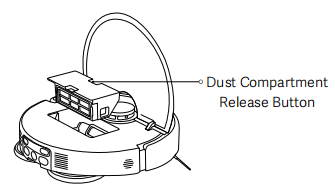
2. Take out the filter as illustrated, remove the dirt from the dust compartment, and clean the filter. Then, wash the dust compartment and the filter with fresh water if needed, and dry them before reinstalling.
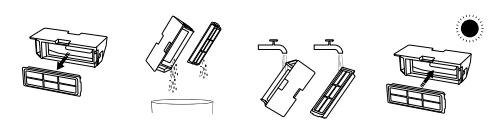
Note:
1. To avoid clogging the filter, gently tap the dust compartment when emptying it.
2. It is recommended to thoroughly clean the dust compartment at least once a week. The HEPA filter is a consumable item and should be cleaned or replaced regularly.
3. When washing the dust compartment and filter with water, do not add any detergent. Do not use the product directly after washing to avoid damage; please ensure the dust compartment and filter are completely dry before use.
4. Do not clean the filter with a brush or your fingers. Frequent washing of the filter is not recommended to avoid damage.
Q27: How to maintain the caster wheel and the side brush of the Xiaomi Robot Vacuum H50?
A: To maintain the caster wheel and the side brush of the Xiaomi Robot Vacuum H50, please refer to the following steps:
1. Turn the robot vacuum upside down and pull out the side brush and caster wheel upwards.
2. Clean any hair or debris that can have gotten stuck on the side brush and caster wheel.
3. Reinstall the side brush and caster wheel.
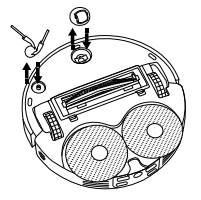
Note:
Reinstall the side brush and caster wheel promptly after cleaning. Reinstall them and press firmly until you hear a "click" sound.
Q28: How to clean the dirty water tank of the Xiaomi Robot Vacuum H50?
A: Remove and clean the dirty water tank promptly when mop pads have been cleaned to prevent odor and mildew. After cleaning the tank, check that the seal ring on the tank lid is properly in place, then securely close the lid and place the tank back into the omni station.
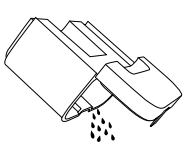
Note:
Both the floater in the clean water tank and the float ball in the dirty water tank are movable. Avoid using excessive force to prevent damage.
Q29: How to clean the dirty water filter of the Xiaomi Robot Vacuum H50?
A: To clean the dirty water filter of the Xiaomi Robot Vacuum H50, please refer to the following steps:
1. Remove the dirty water filter and thoroughly clean any hair and dirt off it.
2. Reinstall the dirty water filter properly after cleaning.
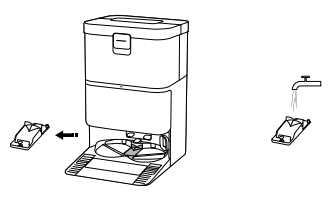
3. Enable the omni station’s assisted cleaning in the Xiaomi Home App and follow instructions to complete cleaning.
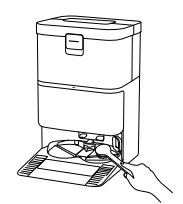
Note:
1. Make sure the robot vacuum is on the omni station.
2. Do not tilt the omni station during daily use or cleaning. If water collects in the omni station washboard, wipe it dry with a cloth.
Q30: How to replace the disposable bag of the Xiaomi Robot Vacuum H50?
A: To replace the disposable bag of the Xiaomi Robot Vacuum H50, please refer to the following steps:
1. When a new disposable bag is needed, open the dust compartment lid of the robot vacuum, pull the disposable bag by its handle, and discard it.
2. Insert a new disposable bag according to the illustration and secure the handle in the slot.
3. Align the top latch of the dust compartment lid first, then press the bottom until a "click" is heard to ensure the dust compartment is fully sealed.
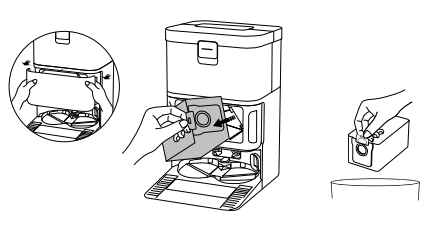
Note:
Pulling the handle upwards will seal the disposable bag to effectively prevent dust or dirt from getting out.
Q31: What omni station abnormal alerts does the Xiaomi Robot Vacuum H50 have?
A: The omni station abnormal alerts of the Xiaomi Robot Vacuum H50 are as follows:
1. Clean water tank and dirty water tank placement detection.
2. Clean water tank low-water detection and dirty water tank full detection.
3. Omni station washboard full-water detection.
4. Disposable bag not installed detection.
5. Dirty water filter not installed detection.
Note:
When an omni station abnormality occurs, the orange indicator will flash as a reminder. Please check the accessories in sequence.
Q32: Will the yellowing of the charging contacts on the Xiaomi Robot Vacuum H50 affect its performance?
A: The charging contacts of the Xiaomi Robot Vacuum H50 are exposed to the environment and can become oxidized or yellow over time with use. This is a normal occurrence and does not affect the charging function. However, it is recommended to regularly wipe the charging contacts with a dry cloth.
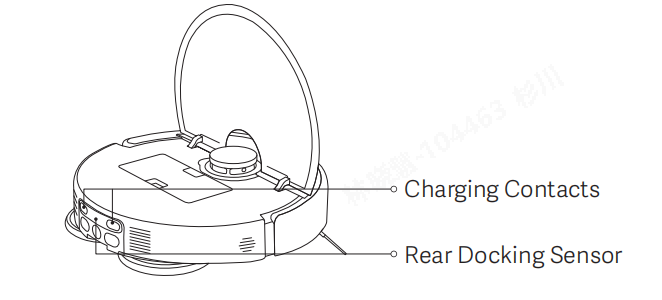
Q33: How to maintain the battery of the Xiaomi Robot Vacuum H50?
A: The Xiaomi Robot Vacuum H50 is equipped with a high-performance lithium-ion rechargeable battery. To maintain optimal battery performance, please keep the device charged during daily use.
Note:
If the device is not used for an extended period, turn off the power. Charge the device at least once every three months to prevent damage from over-discharge.
Q34: How to set up the child lock of the Xiaomi Robot Vacuum H50?
A: The Xiaomi Robot Vacuum H50 supports the child lock function. When the robot vacuum is charging or paused, press and hold the Recharging button for 3 seconds to enable or disable the child lock. You can also enable or disable the child lock through the Xiaomi Home App.
After the child lock is enabled, the physical buttons on the robot vacuum will not respond to operations.
Q35: Why does the Xiaomi Robot Vacuum H50 frequently clean the mop pad?
A: Before each vacuuming & mopping or mopping task, the Xiaomi Robot Vacuum H50 cleans and wets the mop pad.
Mid-task mop cleaning:
During the mopping process, the robot vacuum will automatically return to the self-cleaning omni station to wash the mop pads based on the cleaned area, in order to keep the mop pads relatively clean and maintain better mopping performance. By default, when the mopped area reaches 8 m² (this can be set to 5 m² or 10 m² in the Xiaomi Home App, or based on mopping time, such as 5 min, 8 min, or 10 min, or by room), the robot vacuum will automatically return for mop washing. After the cleaning is completed, it will return to the previous location and continue the unfinished task.
Automatic cleaning after task completion:
After completing a vacuuming and mopping or mopping task and returning to the station, the omni station will perform a thorough mop washing and then dry the mop pads.
Note:
When the battery level drops to 15% during cleaning, the robot vacuum will automatically return to the omni station for recharge. Based on the remaining area to be cleaned, it will be charged to a suitable level, and then the cleanup resumption will start.
Q36: What to do when abnormal conditions occur in the clean/dirty water tanks while the Xiaomi Robot Vacuum H50 is cleaning the mop pad?
A: Cleaning will pause and an alert will be shown if the clean water tank of the Xiaomi Robot Vacuum H50 is low, not installed, or if the dirty water tank is full or not installed. After refilling the clean water tank, emptying the dirty water tank, and properly placing both tanks, you can tap the [Start] in the Xiaomi Home App to resume cleaning and complete the current task.
Note:
The clean water tank only supports adding clean water. Do not add any cleaning agents to avoid damaging the device.
Q37: How to reset the Xiaomi Robot Vacuum H50?
A: Press and hold the Recharging button on the robot vacuum for 10 seconds to restore the device to factory settings and reset the system.
Note:
After restoring factory settings, you will need to reconfigure the network and set up the map again.
Q38: How to reset the map on the Xiaomi Robot Vacuum H50?
A: To reset the map on the Xiaomi Robot Vacuum H50, please refer to the following methods:
1. You can go to the Xiaomi Home App >> select the Xiaomi Robot Vacuum H50 card >> tap the [Edit] icon >> switch to [Edit] >> enter [Map list] >> choose a map >> tap the [Trash] icon in the upper right corner, the map will disappear after tapping [Confirm], and you will need to rebuild it.
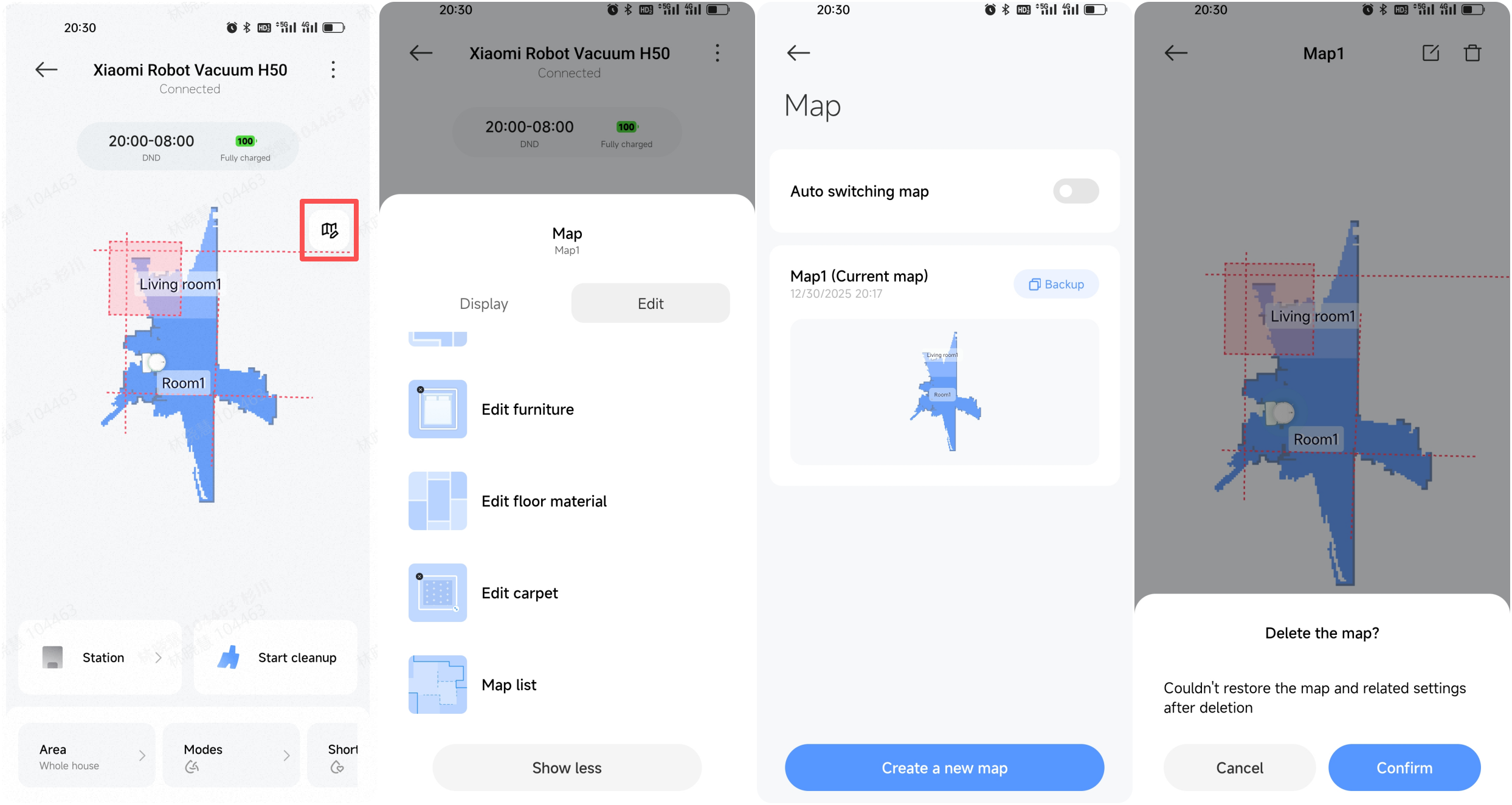
2. You can go to the Xiaomi Home App >> select the Xiaomi Robot Vacuum H50 card >> tap the three-dot icon in the upper-right corner >> enter [Map list] >> choose a map >> tap the [Trash] icon in the upper right corner, the map will disappear after tapping [Confirm], and you will need to rebuild it.
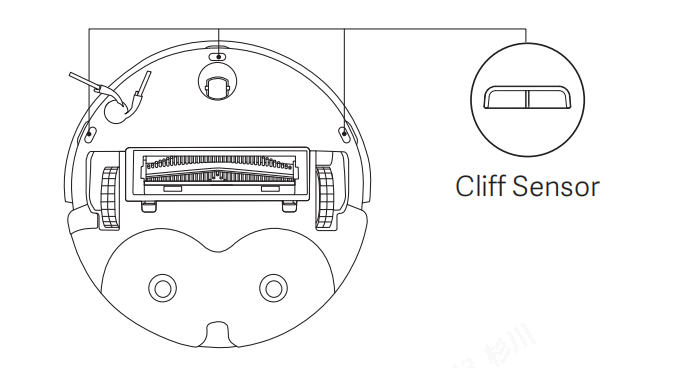
Q39: What is the cliff sensor on the Xiaomi Robot Vacuum H50?
A: There are three cliff sensors on the bottom of the robot vacuum. They detect the height difference beneath the robot vacuum by transmitting and receiving infrared signals, helping to prevent the robot vacuum from falling off edges or stairs and causing damage.
Note:
Please regularly clean the cliff sensors with a soft, dry cloth to prevent dust from covering them.
Q40: Does the Xiaomi Robot Vacuum H50 support carpet boost mode?
A: The Xiaomi Robot Vacuum H50 supports carpet boost mode. First, edit the existing map in the Xiaomi Home App and add the carpet area. Then, select carpet boost mode in the carpet cleaning settings within the Xiaomi Home App.
Q41: Can the stickers be attached to the Xiaomi Robot Vacuum H50?
A: It is not recommended to use stickers, as they can cover the robot vacuum’s top laser sensor or the front and rear docking sensors, which can affect the robot vacuum’s operation.
Q42: Why does the Xiaomi Robot Vacuum H50 back up or turn when it bumps into the radar cover during operation?
A: The Xiaomi Robot Vacuum H50 has a radar cover collision switch. When an obstacle triggers the sensor, the robot vacuum will avoid the obstacle. If there are areas in the environment where the robot vacuum can get stuck, it is recommended to set virtual walls or restricted areas.
Note:
The maximum number of vacuuming & mopping restricted areas, mopping restricted areas, and virtual walls is 10.
Q43: Does the Xiaomi Robot Vacuum H50 support direct rinsing with water?
A: It is strictly prohibited to rinse the Xiaomi Robot Vacuum H50 directly with water, as this can cause water to enter the device and damage or burn out internal electronic components.
If the device becomes dirty, it is recommended to remove and clean the accessories separately, such as the brush cover, brush, side brush, dust compartment, and mop pad. The robot vacuum should be cleaned with a slightly damp cloth that has been wrung out to prevent dripping.
Note:
Do not use disinfectants or similar cleaning products to clean the device, as this can cause damage.
Q44: How many areas does the Xiaomi Robot Vacuum H50 clean before automatic mop pad cleaning?
A: In mopping mode, the Xiaomi Robot Vacuum H50 will automatically return to the omni station to wash the mop pads after cleaning 8 m² by default. In the Xiaomi Home App, this setting can also be adjusted to 10 m² or 5 m².
Note:
The more frequently the robot vacuum returns for washing, the better the cleaning performance, but this will increase battery consumption accordingly.
Q45: How does the Xiaomi Robot Vacuum H50 start a cleanup resumption?
A: During cleaning, when the battery level becomes too low, the robot vacuum will automatically return to the omni station for charging. After charging to a sufficient level, it will automatically return to where it left off and continue the unfinished cleaning task.
When the cleaning area is too large or when using the vacuuming before the mopping mode, the total working time can exceed the battery capacity. In this case, the robot vacuum will first return to the omni station to recharge when the battery is low, and after charging to an appropriate level, it will resume the cleaning task from where it left off.
Q46: Why is the Xiaomi Robot Vacuum H50 omni station loud or making unusual noises during operation?
A: The following sounds are normal during operation. If they disturb your rest, you can pause the task and run it at another time.
1. When the omni station washes the mop pads, the water pump draws water into the washboard, producing a vibrating sound from the pump.
2. During mop washing, the mop motor assembly drives the washboard to rotate, cleaning the mop pads through friction with the ridges in the washboard.
3. The dirty water pump creates negative pressure to suck wastewater from the washboard into the dirty water tank, which can produce a “gurgling” sound.
4. The dust collection fan creates negative pressure to transfer debris from the dust compartment into the disposable bag, producing the sound of the fan operating.
5. During mop air-drying, the fan blows air outward, which can generate slight noise.
If the noise becomes unusually loud, please check whether there are foreign objects in the washboard, verify that the mop pad holder is properly installed, and clean and maintain the product regularly.
Q47: How effective is the Xiaomi Robot Vacuum H50 at cleaning stubborn stains?
A: The mop uses a downward-pressure rotating mop design for cleaning. For stubborn stains, it is recommended to pre-moisten the stain with water to soften it before cleaning.
For better results, you can set cleaning times to twice and select the deep path. You can also set the mop washing frequency to the smallest area interval to increase the mop cleaning frequency.
Q48: What are the precautions when using the Xiaomi Robot Vacuum H50 for the first time?
A: The precautions when using the Xiaomi Robot Vacuum H50 for the first time are as follows:
1. The Xiaomi Robot Vacuum H50 comes with a 5200 mAh battery and is pre-charged to approximately 30% at the factory. It is recommended to fully charge the robot vacuum before its first use.
2. Fill the clean water tank up to the max water level line.
3. Connect the robot vacuum to the Xiaomi Home App and Wi-Fi network, then place the robot vacuum on the station to begin cleaning.
Q49: How to clean the mop pad on the Xiaomi Robot Vacuum H50?
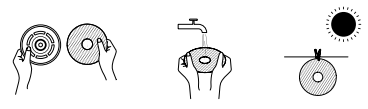
A: Remove the mop pad from the mop pad holder, then wash and dry it.
Q50: How long does the Xiaomi Robot Vacuum H50 take to clean a room?
A: To ensure effective cleaning performance, the Xiaomi Robot Vacuum H50 moves at a speed of 0.3 m/s during standard coverage cleaning and 0.2 m/s during edge cleaning. The actual cleaning time will vary depending on the complexity of the home environment.
Q51: Is it normal to see water residue after removing the water tank from the omni station of the Xiaomi Robot Vacuum H50?
A: A small amount of water residue is normal. During operation, negative pressure forms inside the water pipes of the tank. When the water tank is removed from the omni station, a small amount of water can flow out, which is normal.
The bottom of the omni station is designed with drainage holes, allowing residual water to drain out, which does not affect the product’s performance.
Q52: Will the Xiaomi Robot Vacuum H50 wash the mop every time it returns to the omni station?
A: The Xiaomi Robot Vacuum H50 will determine whether mop washing is required based on the cleaning mode and the task status before returning to the omni station.
If the robot vacuum performs a mopping task, it will wash the mop when it returns to the omni station.
If vacuuming mode is selected in the App and the robot vacuum returns to the omni station after completing the task, the mop washing process will not be triggered.
Q53: Is it normal for the water tank to have water in it when opening the Xiaomi Robot Vacuum H50 for the first time?
A: It is normal for the water tank to have water in it when opening the Xiaomi Robot Vacuum H50 for the first time. The robot vacuum is inspected before leaving the factory, including a water tank inspection using clean water. After the inspection, the water is drained, but some residual moisture can remain inside the tank.
Q54: How to use the disposable bag of the Xiaomi Robot Vacuum H50?
A: To use the disposable bag of the Xiaomi Robot Vacuum H50, please refer to the following information:
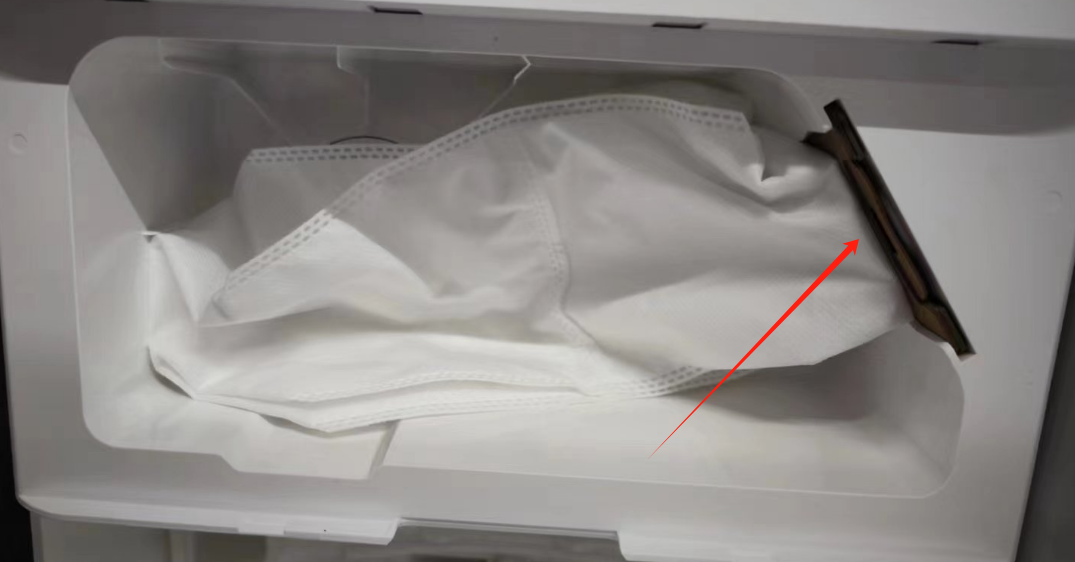
1. The omni station comes pre-installed with one disposable bag. When the disposable bag needs to be replaced, open the dust compartment cover using the latch, remove the old disposable bag, and install a new one.
2. Pull the handle on the disposable bag to seal the bag opening, then dispose of it properly.
3. Once the disposable bag is securely installed, it will press the internal detection switch, allowing the system to recognize that the disposable bag is installed and enabling the dust collection function.
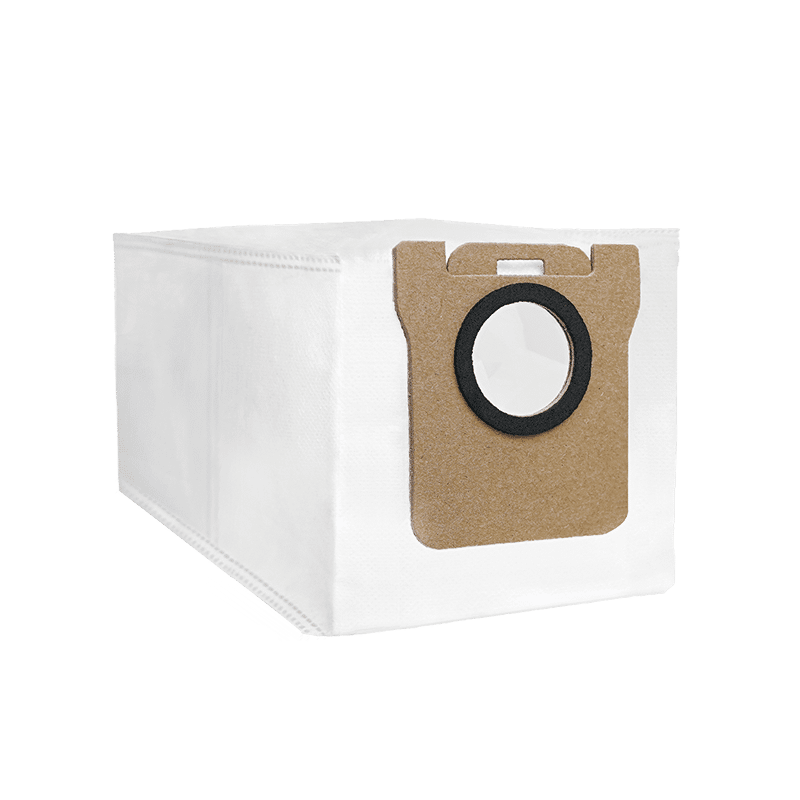
Note:
1. After 60 dust collection cycles, the Xiaomi Home App will send a notification to replace the disposable bag. Please check the disposable bag status. If it is full, replace it promptly. If it can still be used, you can dismiss the notification.
2. The disposable bag does not support remaining lifespan detection; notifications are based only on the number of dust collection cycles.
Q55: Can the Xiaomi Robot Vacuum H50 lift the mop pad?
A: The Xiaomi Robot Vacuum H50 supports mop lifting, with a lift height of 10 mm.
Q56: What is the capacity of the clean water and dirty water tanks of the Xiaomi Robot Vacuum H50?
A: The station of the Xiaomi Robot Vacuum H50 has a 4 L clean water tank and a 3.2 L dirty water tank.
Q57: How many times can the Xiaomi Robot Vacuum H50 mop pad be cleaned when the clean water tank is full?
A: The Xiaomi Robot Vacuum H50 omni station provides three water output levels. The default setting is level 2, which meets the needs of the standard vacuuming and mopping mode.
The actual water consumption for mopping depends on factors such as the selected water output level, the mop washing frequency settings, and the home environment. Under typical conditions, the robot vacuum can cover an estimated mopping area of about 120–180 m² with a full clean water tank.
Q58: What is the cleaning battery endurance of the Xiaomi Robot Vacuum H50?
A: The Xiaomi Robot Vacuum H50 is equipped with a 5200 mAh battery. In standard vacuuming and mopping mode, it can operate for more than 120 minutes.
Q59: What is the function of the float in the clean water tank of the Xiaomi Robot Vacuum H50?
A: The float in the clean water tank is sealed and contains a built-in magnet. As the water level rises or falls, the float moves accordingly and helps the system detect low water levels or whether the clean water tank is not installed, triggering the corresponding notifications.
Xiaomi Home App Related
Q1: How to connect the Xiaomi Robot Vacuum H50 to the Xiaomi Home App?
A: The Xiaomi Robot Vacuum H50 works with the Xiaomi Home App, and you can control your device with it.
To connect the Xiaomi Robot Vacuum H50, please refer to the following steps:
1. Download and install the Xiaomi Home App. If you have already installed the App, it will take you directly to the device connection interface. Alternatively, you can search for "Xiaomi Home" in the App Store/Google Play Store to download and install it.
2. Open the home interface of the Xiaomi Home App, tap the [+] icon at the top right corner of the screen, and follow the on-screen instructions to add the Xiaomi Robot Vacuum H50.
Note:
1. Due to updates to the Xiaomi Home App, actual operations can differ slightly from the descriptions above. Please refer to the current instructions within the App for accurate guidance.
2. Only 2.4 GHz Wi-Fi networks are supported.
3. When the robot vacuum connects with the Xiaomi Home App successfully, it connects with the network successfully. You can reset Wi-Fi to disconnect it from the network.
Q2: How to reset the Wi-Fi on the Xiaomi Robot Vacuum H50?
A: When the router configuration is changed, the password is forgotten, or for other reasons the phone cannot connect to the device, press and hold the Start button and the Recharging button on the Xiaomi Robot Vacuum H50 for 7 seconds until you hear the voice prompt "Reset Wi-Fi, entering network configuration." The button indicator will flash in blue twice.
Q3: Why does the map interface for the Xiaomi Robot Vacuum H50 in the Xiaomi Home App display “Map loading, please wait”?
A: The map loading process works as follows: Enter the Xiaomi Home App device interface >> the phone sends a request to the server through the network >> the server sends instructions to the router >> the router communicates with the robot vacuum locally and returns the map data.
If the map interface for the Xiaomi Robot Vacuum H50 in the Xiaomi Home App displays “Map loading, please wait”, please refer to the following aspects:
1. If the “Map loading, please wait” prompt appears briefly and disappears, it is normal. This can happen if operations are performed too quickly or if you frequently exit and re-enter the interface.
2. If the prompt lasts for more than 10 seconds before the map appears, it will be caused by slow upload/download network speeds on the phone or router. It is recommended to check the network status of the phone and router.
3. If the map cannot be loaded at all, try resetting the Wi-Fi and connecting the robot vacuum using a mobile hotspot. If the map loads normally after connecting to the hotspot, check the current network environment and submit logs for analysis of possible network issues. If the issue still persists, submit logs to check whether there is any abnormal firmware version.
Q4: Does the Xiaomi Robot Vacuum H50 support vacuuming and mopping modes?
A: The Xiaomi Robot Vacuum H50 supports vacuuming and mopping modes. You can configure the vacuuming and mopping modes in the Xiaomi Home App, including the following options:
1. Vacuuming and mopping modes: Vacuuming, Vacuuming & Mopping (default), Vacuuming before mopping, and Mopping.
2. Suction: Silent, Standard (default), Strong, and Turbo.
3. Water output for mopping: Level 1, Level 2 (default), and Level 3.
4. Path: Quick, Standard (default), and Deep.
5. Times: Once (default) and Twice.
Note:
1. Vacuuming before mopping or two cleaning cycles is counted as one task. If the two cleaning routes are the same, the map will show a grid pattern. If the routes are different, the map will remain in a bow-shaped pattern.
2. The more intensive the cleaning path, the higher the coverage rate, but it will take more time to complete.
Q5: How to update the firmware of the Xiaomi Robot Vacuum H50?
A: You can update the firmware of the Xiaomi Robot Vacuum H50 via the Xiaomi Home App. Before updating, make sure the robot vacuum is placed on the station and has at least 30% battery. During the firmware upgrade, all buttons will be flashing in white.
To update the firmware of the robot vacuum, please refer to the steps:
To update the firmware of the robot vacuum, please refer to the steps:
Open the Xiaomi Home App >> select the device card >> tap the three dots icon >> [Firmware update].
Q6: How to quickly create a map with the Xiaomi Robot Vacuum H50?
A: During the first startup, if there is no map in the App, please place the Xiaomi Robot Vacuum H50 on the omni station and select Quick Mapping in the App.
The robot vacuum will perform mapping only (no cleaning). Once mapping is complete, it will automatically return to the station and save the map.
Note:
1. Please ensure the robot vacuum has sufficient battery and starts from the omni station.
2. Before mapping, remove scattered items from the floor, open room doors, and block areas that the robot vacuum should not enter.
3. During mapping, do not follow, move, or interrupt the robot vacuum, and do not move the omni station.
4. After mapping is completed, set virtual walls or restricted areas for places where the robot vacuum will get stuck or scrape against objects.
5. Please set virtual walls or restricted areas for long-pile carpets or carpets with tassels to prevent the robot vacuum from becoming entangled.
Q7: How to set the custom cleanup mode of the Xiaomi Robot Vacuum H50?
A: After saving or generating a partitioned map, you can configure the following custom cleaning settings:
1. Set different cleaning options for different rooms, including cleaning mode, suction, and number of cleaning cycles.
2. Arrange the cleaning order for rooms or selected areas.
3. When setting scheduled cleaning, you can choose a custom cleaning plan.
To set the custom cleanup mode of the Xiaomi Robot Vacuum H50, please refer to the following steps:
1. On the device interface and swipe up >> [Custom cleanup] >> [Create] >> enter a name and tap [Add].
2. In [Sort] of [Cleanup tasks], you can customize the sequence of room cleaning.
3. In Additional settings, you can choose options such as [Collect dust when completing the task] and [Clean the mop when completing the task].
Q8: How to add furniture to a room on the Xiaomi Robot Vacuum H50?
A: You can add furniture to a room by going to the Xiaomi Home App >> select the Xiaomi Robot Vacuum H50 card >> tap the [Edit] icon >> switch to [Edit] >> enter [Edit furniture] >> choose the furniture you want to add.
After selecting furniture, it will be displayed on the map. Adjust the size of the furniture icon in the bottom right corner; adjust its direction in the top right corner; delete it in the top left corner; tap the furniture icon to move its position.
Q9: How to set the floor material on the Xiaomi Robot Vacuum H50?
A: You can set the floor material by going to the Xiaomi Home App >> select the Xiaomi Robot Vacuum H50 card >> tap the [Edit] icon >> switch to [Edit] >> enter [Edit floor material] >> choose the floor material you want to set. There are 6 options available.
Q10: Does the Xiaomi Robot Vacuum H50 support automatic carpet detection via ultrasonic sensors?
A: The Xiaomi Robot Vacuum H50 is equipped with ultrasonic recognition sensors, yet it does not support automatic carpet detection via ultrasonic sensing. You may manually mark carpet areas in the Xiaomi Home App; the mop will automatically retract when cleaning these preset areas to avoid dampening carpets.
A: The Xiaomi Robot Vacuum H50 is equipped with ultrasonic recognition sensors, yet it does not support automatic carpet detection via ultrasonic sensing. You may manually mark carpet areas in the Xiaomi Home App; the mop will automatically retract when cleaning these preset areas to avoid dampening carpets.
Q11: How to set up the carpet area for the Xiaomi Robot Vacuum H50?
A: To set up the carpet area for the Xiaomi Robot Vacuum H50, please refer to the following methods:
1. Going to the Xiaomi Home App >> select the Xiaomi Robot Vacuum H50 card >> tap the [Edit] icon >> switch to [Edit] >> enter [Edit carpet]. Tap [Carpet areas] to add a carpet area, and in [Carpet preference], you can configure settings for carpeted areas.
2. Going to the Xiaomi Home App >> select the Xiaomi Robot Vacuum H50 card >> tap the three-dot icon in the upper-right corner >> enter [Map list] >> choose a map >> tap the [Carpet]. Tap [Carpet areas] to add a carpet area, and in [Carpet preference], you can configure settings for carpeted areas.
Carpet areas:
Tap the [Carpet areas] to add a carpet icon on the map. Tap the icon to move it; drag the bottom-right corner to resize it; tap the top-left corner to delete it.
Carpet preference:
You can choose the carpet cleanup preference: [Vacuums only on carpet], [Carpet avoidance], [Carpet crossing], or [Ignore carpets].
If you select [Vacuums only on carpet], when encountering a carpet area, the robot vacuum will lift the mop and only perform vacuuming tasks. You can also set the options: [Carpet boost], [Carpet deep cleaning], and [Clean carpet first]. When you enable the [Carpet boost], suction auto-boosts to strong mode in silent or standard modes.
If you select [Carpet avoidance], when encountering a carpet area, the robot vacuum will avoid it and stop cleaning the carpet.
Q12: How to enable the collect dust/clean the mop/air dry function of the Xiaomi Robot Vacuum H50?
A: You can go to the Xiaomi Home App >> choose the [Xiaomi Robot Vacuum H50] card >> choose [Station] >> select [Collect dust], [Clean the mop], or [Air dry].
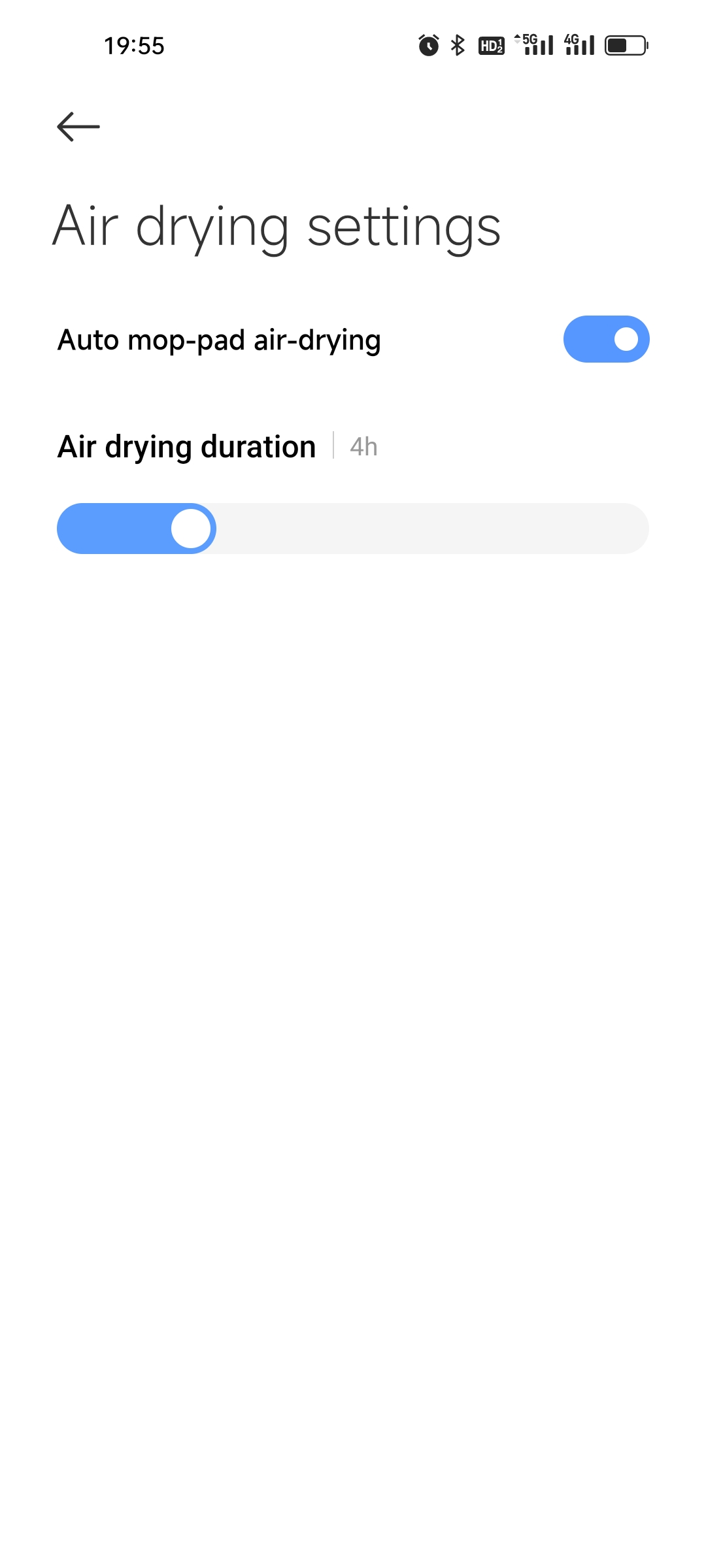
You can manually turn off the drying function, open the Xiaomi Home App >> choose the [Xiaomi Robot Vacuum H50] card >> choose [Station] >> tap [Settings] >> tap [Air drying settings] >> you can set the drying time and turn on/off [Auto mop-pad air-drying]. The drying time of the Xiaomi Robot Vacuum H50 is 2-12 hours, and the default drying time is 4 hours.
Q13: How to select a cleaning area for the Xiaomi Robot Vacuum H50?
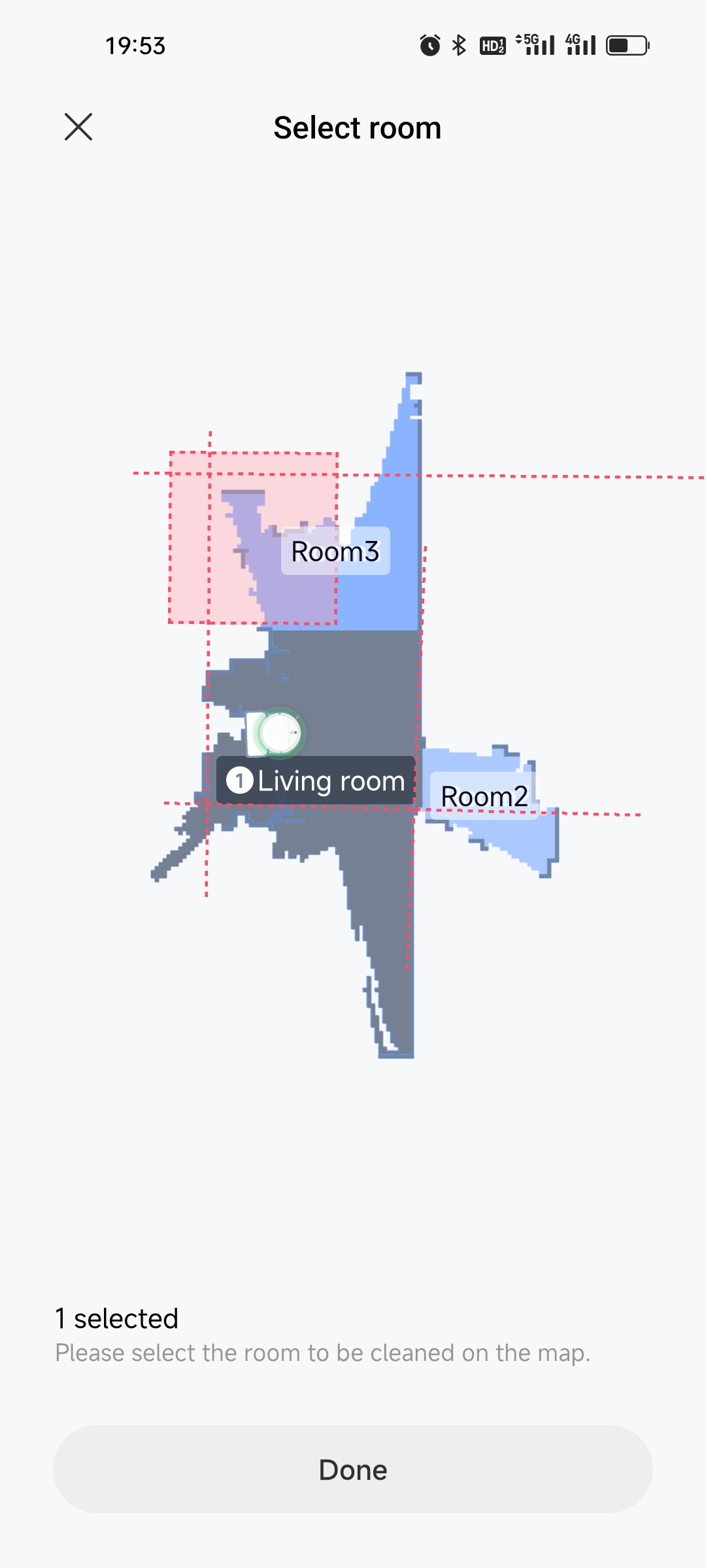
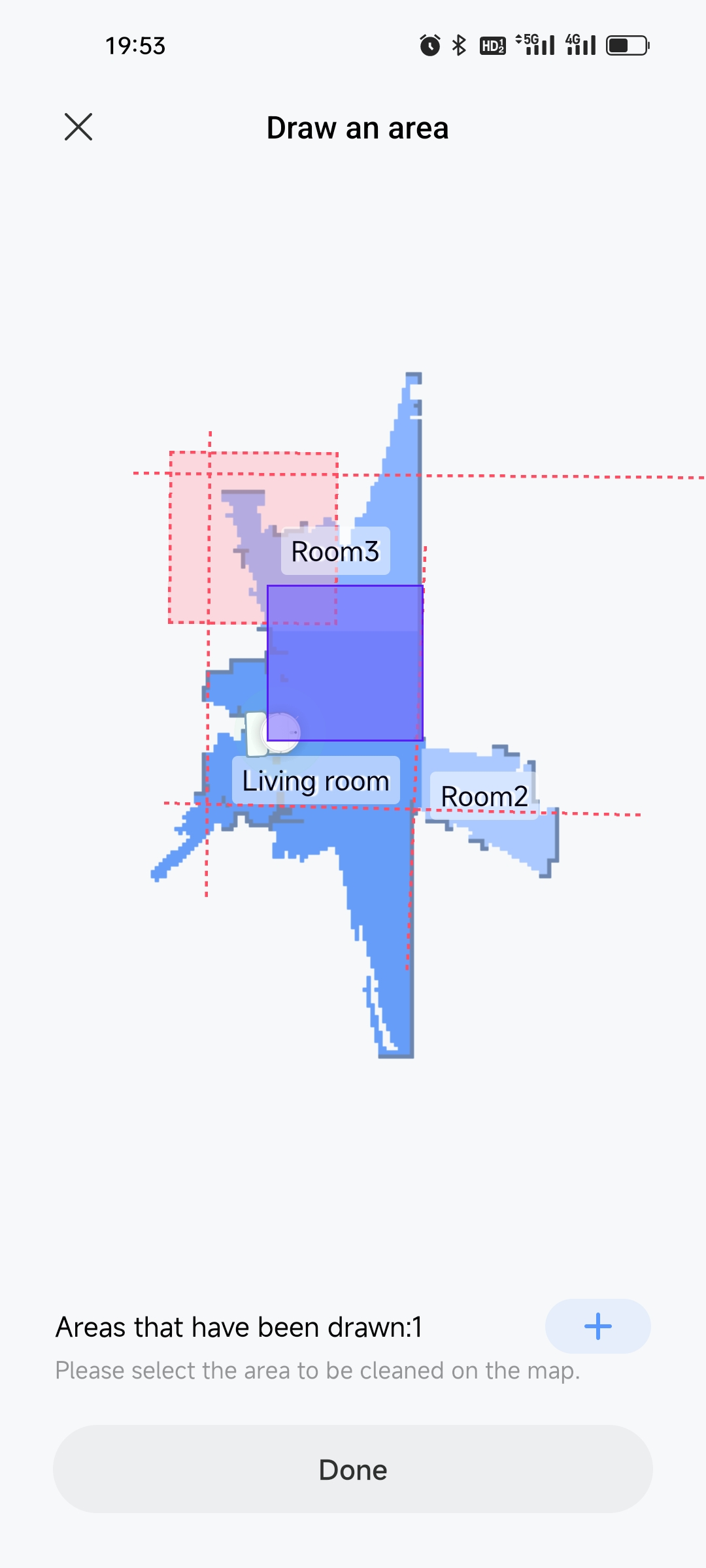
A: You can select a cleaning area for the Xiaomi Robot Vacuum H50 by going to the Xiaomi Home App >> select the Xiaomi Robot Vacuum H50 card >> [Area] >> select [Room] or [Custom area].
If you select [Room], you can select one or multiple rooms according to the mapped partitions. After confirming, tap [Start cleanup].
If you select [Custom area], you can add one or multiple custom zones and adjust the position and size. After confirming, tap [Start cleanup].
Q14: Can the drying function of the Xiaomi Robot Vacuum H50 be manually turned on or off?
A: You can manually turn off the drying function of the Xiaomi Robot Vacuum H50.
You only need to stop the current drying process, tap [Station] on the device interface, and select [End air drying].
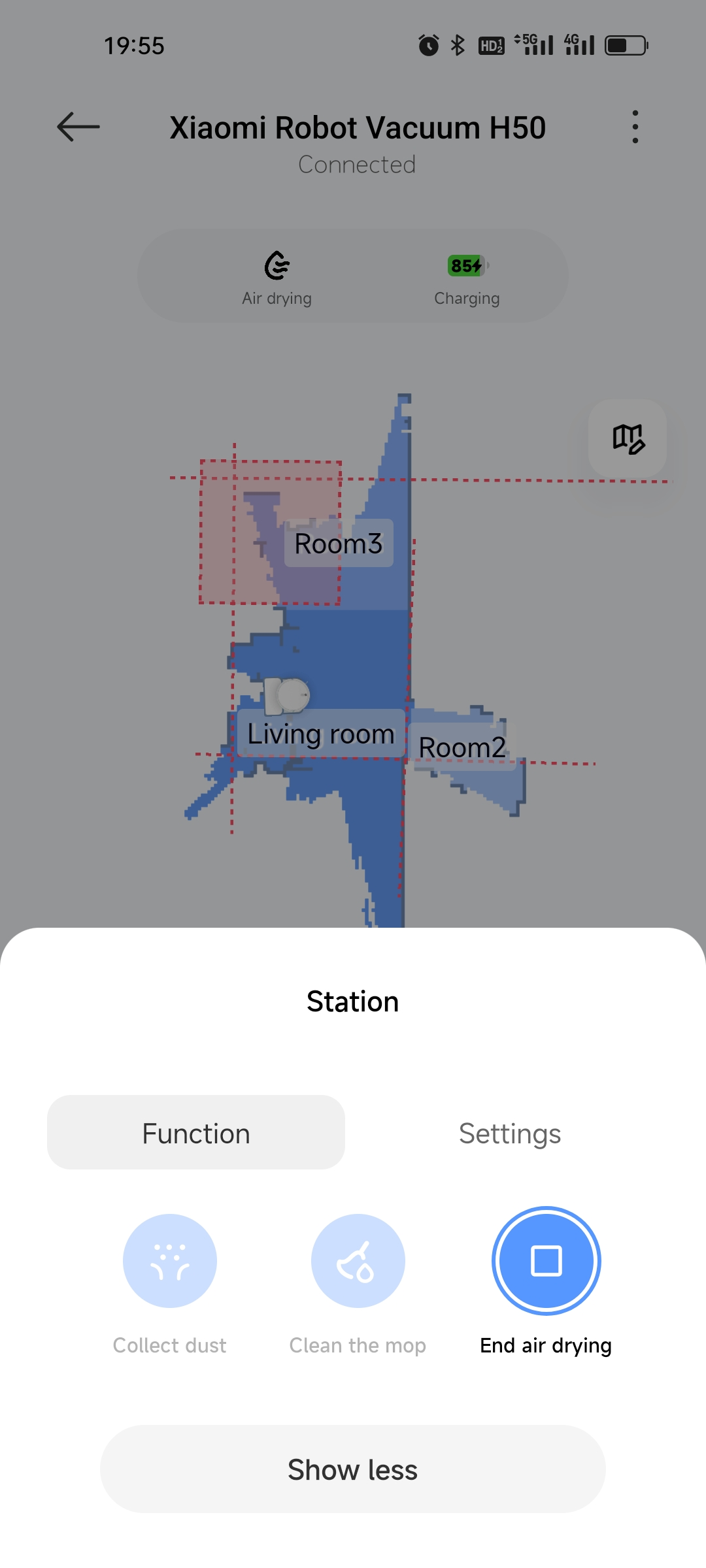
If the drying function is not needed, go to [Station] >> tap [Settings] >> tap [Air drying settings] >> you turn on/off [Auto mop-pad air-drying].
To adjust the drying time, go to [Station] >> tap [Settings] >> tap [Air drying settings] >> you can set the drying time from 2–12 hours.
Q15: How to set the custom cleanup mode of the Xiaomi Robot Vacuum H50?
A: The custom cleanup mode allows you to set up multiple cleaning plans. Each plan can include multiple tasks and can be started with one tap.
For each cleaning task, you can configure the cleaning mode, area selection, and number of cleaning times. After the task is completed, you can choose [Collect dust when completing the task] and [Clean the mop when completing the task].
Q16: What is the Do Not Disturb (DND) mode of the Xiaomi Robot Vacuum H50?
A: During the DND period, the Xiaomi Robot Vacuum H50 will not respond to resuming cleaning, scheduled cleaning, or proactive voice prompts. DND mode is enabled by default, with the preset time from 22:00 to 08:00 in the morning. You can disable DND mode in the Xiaomi Home App.
Q17: What is the Whole house function on the Xiaomi Robot Vacuum H50?
A: If no map has been saved, selecting Whole house cleaning will make the Xiaomi Robot Vacuum H50 clean in fixed square areas one by one. After a map is saved in the App, selecting Whole house cleaning will allow the robot vacuum to automatically plan the path and clean room by room. Once cleaning is complete, it will return to the station.
Q18: What is the map memory function of the Xiaomi Robot Vacuum H50?
A: The Xiaomi Robot Vacuum H50 should start cleaning from the station and complete a full cleaning cycle to save the map. Manual interruptions or moving the robot vacuum back to the station can prevent the map from being saved. Once saved, the map can be edited in the Xiaomi Home App (merge/split rooms or rename).
Q19: What is the Custom area cleaning function of the Xiaomi Robot Vacuum H50?
A: You can set up Custom area cleaning in the Xiaomi Home App. The robot vacuum will clean according to the selected area on the map.
Note:
During cleaning, the robot vacuum can move slightly outside the selected zone. Please make sure to clear obstacles around the designated area. The zone boundary on the map does not serve as a physical safety barrier.
Q20: What is the sleep mode of the Xiaomi Robot Vacuum H50?
A: When not charging and idle for more than 10 minutes, the Xiaomi Robot Vacuum H50 enters sleep mode. If there's no scheduled task, it will automatically power off after 6 hours of sleep. You can wake it up via the button or the App.
Note:
Note:
It will not sleep while on the station.
Q21: What is the scheduled cleanup feature on the Xiaomi Robot Vacuum H50?
A: You can set a scheduled cleanup time in the Xiaomi Home App. The Xiaomi Robot Vacuum H50 will automatically begin cleaning at the specified time and return to the station when finished.
To set the scheduled cleanup, please refer to the steps:
Open the Xiaomi Home App >> select [Xiaomi Robot Vacuum H50] >> tap the three dots icon >> [Scheduled cleanup].
Note:
If DND is enabled, cleaning won't occur during the DND time period.
Q22: What is the virtual walls feature on the Xiaomi Robot Vacuum H50?
A: You can set up virtual walls in the Xiaomi Home App to prevent the Xiaomi Robot Vacuum H50 from entering areas you don’t want it to clean.
Note:
1. A saved map is required before using this feature.
2. Moving the robot vacuum or significant changes in the home environment can invalidate the existing map and cause the loss of restricted areas and virtual walls.
Add a virtual wall to prevent the robot vacuum from passing through.
To set the virtual walls, please refer to the steps:
Open the Xiaomi Home App >> select [Xiaomi Robot Vacuum H50] >> tap the [Map] icon >> switch to [Edit] >> [Restricted area & virtual walls].
To add the virtual walls, please refer to the steps:
Open the Xiaomi Home App >> select [Xiaomi Robot Vacuum H50] >> tap the [Map] icon >> switch to [Edit] >> [Restricted area & virtual walls] >> drag to the target area (you can stretch or shrink its length), and tap [√] to save.
Open the Xiaomi Home App >> select [Xiaomi Robot Vacuum H50] >> tap the [Map] icon >> switch to [Edit] >> [Restricted area & virtual walls] >> drag to the target area (you can stretch or shrink its length), and tap [√] to save.
To delete the virtual walls, please refer to the steps:
Tap [Restricted area & virtual walls] >> tap the restricted area & virtual walls you want to delete >> tap [X] >> tap [√] to save.
Example:
Vacuuming & mopping Restricted Area: Add a vacuuming & mopping restricted area so the robot vacuum will not enter that area when cleaning.
Mopping Restricted Area: Add a mopping restricted area so the robot vacuum will not enter that area when mopping.
Q23: How to edit the cleaning zones of the Xiaomi Robot Vacuum H50?
A: To merge the rooms, please refer to the following instructions:
Open the Xiaomi Home App and choose the [Xiaomi Robot Vacuum H50] card >> tap the [Map] icon >> switch to [Edit] >> choose [Edit room] >> select two adjacent rooms >> tap [Merge].
To divide the rooms, please refer to the following instructions:
Open the Xiaomi Home App and choose the [Xiaomi Robot Vacuum H50] card >> tap the [Map] icon >> switch to [Edit] >> choose [Edit room] >> select a room >> tap [Divide] >> set two split points along borders >> then tap [Divide].
Rename rooms:
Select room >> Rename.
Select room >> Rename.
Q24: How to delete a map on the Xiaomi Robot Vacuum H50?
A: You can delete a map on the Xiaomi Robot Vacuum H50 by performing a factory reset or manually deleting the current map via the Xiaomi Home App.
To delete a map on the App, please refer to the following methods:
1. Open the Xiaomi Home App and choose the [Xiaomi Robot Vacuum H50] card >> tap the three dots at the upper right corner >> choose [Map list] >> select the created map >> tap the delete icon in the upper-right corner.
2. You can go to the Xiaomi Home App >> select the Xiaomi Robot Vacuum H50 card >> tap the [Edit] icon >> switch to [Edit] >> enter [Map list] >> choose a map >> tap the delete icon in the upper right corner.
Q25: How to use custom cleanup on the Xiaomi Robot Vacuum H50?
A: Before using the custom cleanup on the Xiaomi Robot Vacuum H50, you need to save the map. Once the map is saved, room partitions will be automatically created. After that, go to the device interface in the Xiaomi Home App and select [Custom cleanup]. In [Custom cleanup], select a room to set cleaning frequency, mode, and number of passes for each room.
Q26: How many scheduled cleanup tasks are supported by the Xiaomi Robot Vacuum H50?
A: The scheduled cleanup of the Xiaomi Robot Vacuum H50 supports up to 10 scheduled tasks.
It is recommended to leave at least 2 hours between tasks to ensure the previous task completes properly. Shorter intervals can cause task interruption.
Q27: How to rename the map on the Xiaomi Robot Vacuum H50?
A: To rename the map on the Xiaomi Robot Vacuum H50, please refer to the following information:
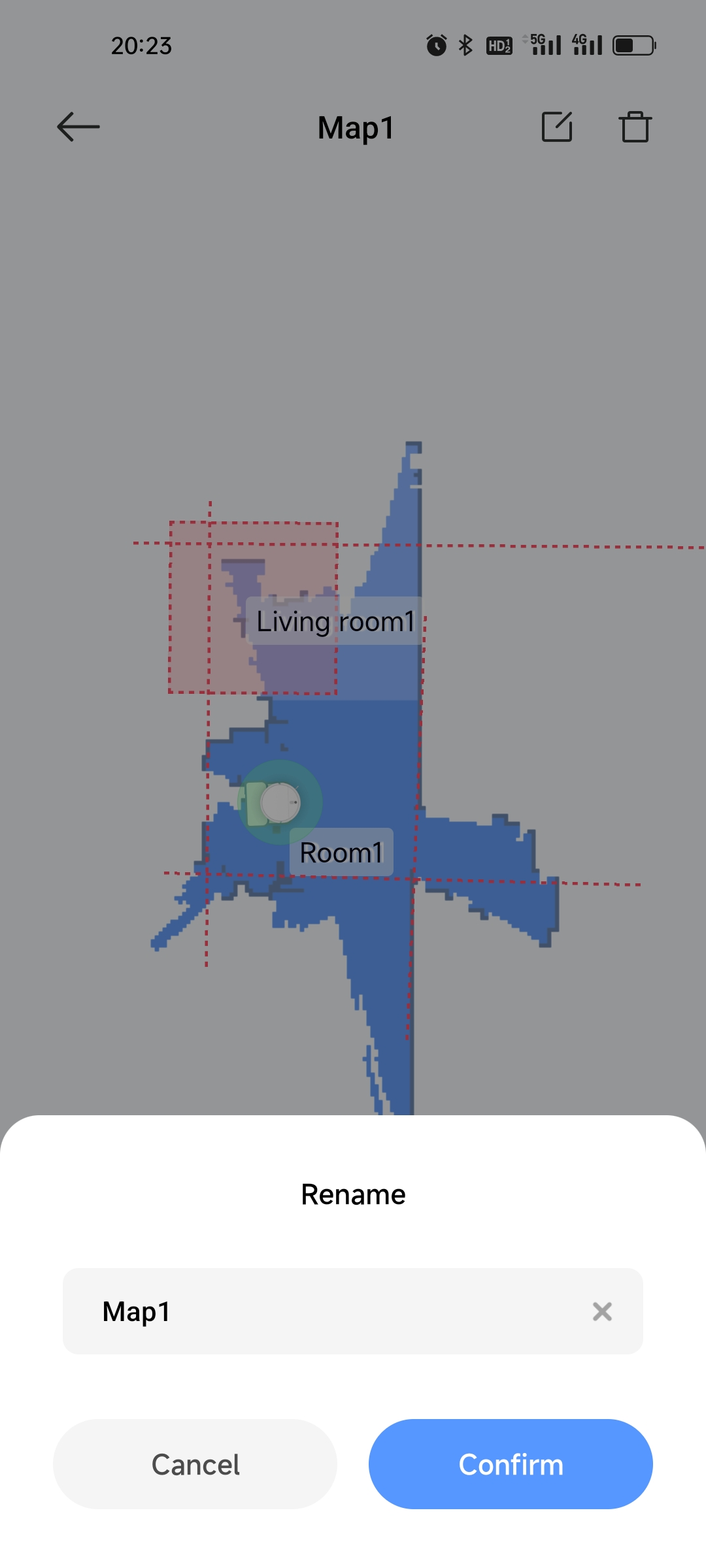
Open the Xiaomi Home App >> choose the [Xiaomi Robot Vacuum H50] card >> tap the three dots icon at the upper right corner >> select [Map list] >> tap the map you want to rename >> tap the edit icon in the upper right corner to enter a new name.
Q28: Why can't the shared family account view the map on the Xiaomi Robot Vacuum H50?
A: If the shared family account cannot view the map on the Xiaomi Robot Vacuum H50, the reasons are as follows:
1. This issue is caused by a software permission mismatch. When the primary account A shares the robot vacuum with account B, if B binds the device with administrator privileges, the map will be encrypted using B’s account information. However, when displaying the map, the system can attempt to decrypt it using A’s account, which results in the map failing to load properly.
2. Please log in to the Xiaomi Home App using your own Xiaomi account (instead of a shared account) and reconnect the robot vacuum. The map function should then work normally.
Q28: Why can't the Xiaomi Robot Vacuum H50 identify carpets automatically?
A: The Xiaomi Robot Vacuum H50 does not support automatic carpet detection. You need to manually add carpet areas on the map according to your actual home layout.
To set up the carpet area for the Xiaomi Robot Vacuum H50, please refer to the following methods:
1. Going to the Xiaomi Home App >> select the Xiaomi Robot Vacuum H50 card >> tap the [Edit] icon >> switch to [Edit] >> enter [Edit carpet]. Tap [Carpet areas] to add a carpet area, and in [Carpet preference], you can configure settings for carpeted areas.
2. Going to the Xiaomi Home App >> select the Xiaomi Robot Vacuum H50 card >> tap the three-dot icon in the upper-right corner >> enter [Map list] >> choose a map >> tap the [Carpet]. Tap [Carpet areas] to add a carpet area, and in [Carpet preference], you can configure settings for carpeted areas.
Q29: Why does the Xiaomi Robot Vacuum H50 still clean the carpet after adding a carpet area?
A: After adding a carpet area, you also need to configure the corresponding carpet cleaning preference according to your needs. Available options include: [Vacuums only on carpets], [Carpet avoidance], [Carpet crossing], and [Ignore carpets].
1. [Vacuums only on carpets] (with additional options):
[Carpet boost]: Suction auto-boosts to strong mode in silent or standard modes.
[Carpet deep cleaning]: The robot vacuum cleans the carpet in both horizontal and vertical directions.
[Clean carpet first]: Clean all carpets first without wetting the mop.
Note:
The [Clean carpet first] mode is based on normal vacuum-and-mop cleaning. If [Clean carpet first] is disabled, the robot vacuum will still clean carpet areas according to the selected vacuum or mopping mode.
2. [Carpet avoidance]: The robot vacuum avoids carpeted areas during vacuuming and mopping tasks.
3. [Carpet crossing]: The robot vacuum does not vacuum or mop while crossing carpeted areas. It will only pass through them to reach and clean other areas.
4. [Ignore carpets]: The robot vacuum treats carpeted areas as normal floor areas and performs regular vacuuming and mopping.
Friendly tips:
Map symbols explanation:
Red dashed line: Virtual wall.
Light blue area with white cross marks: Carpet area (must be manually added on the map).
Purple area: Mopping restricted area.
Red area: Vacuuming & mopping restricted area.
Q30: How to set the carpet area of the Xiaomi Robot Vacuum H50 to vacuum only without mopping?
A: You can use either of the following methods:
1. Add a mopping restricted area to the carpet area.
2. Go to [Carpet preference] and select [Vacuums only on carpets], then enable [Clean carpet first] if needed.
Troubleshooting
Q1: What to do if the Xiaomi Robot Vacuum H50 cannot connect to the network?
A: If the Xiaomi Robot Vacuum H50 cannot connect to the network, please refer to the following troubleshooting steps:
1. Check whether the Wi-Fi password entered is correct. The Wi-Fi name should not contain Chinese characters, and the password should avoid special characters such as @, ¥, and %. If necessary, reset the Wi-Fi name and password using letters and numbers, then try again.
2. Check whether the router’s internet connection is working properly. You can test this by opening webpages on a phone or computer connected to the same Wi-Fi network.
3. Check the distance between the router and the robot vacuum. If the distance is too far (beyond about 5 meters) or there are walls in between, move the robot vacuum within 1–2 meters of the router and try reconnecting.
4. Try connecting using a mobile hotspot from your phone.
5. If the router has many smart devices connected, the network can become slow or unresponsive. Restart the router and try again.
6. The device does not support enterprise networks using EAP 802.1x authentication, 5 GHz Wi-Fi networks, or public Wi-Fi requiring web authentication (e.g., CMCC, China Unicom). Please switch to a 2.4 GHz home network and try again.
7. If the network is turned off and the device remains offline for more than 1 hour, the Wi-Fi module can disable the network connection, and the Wi-Fi indicator will start blinking. Restart the device to restore the connection.
8. Check whether the Xiaomi Home App permissions are restricted on your phone, such as network access or location permissions. Allow the required permissions and try again.
9. Connection issues can also be related to the phone model. Try connecting using another phone if possible.
10. Press and hold the Recharging button twice for 10 seconds each time until you hear the prompt “System reset successful.” Then try reconnecting.
Q2: What to do if the Xiaomi Robot Vacuum H50 is experiencing abnormal charging?
A: If the Xiaomi Robot Vacuum H50 has charging issues, please refer to the following troubleshooting steps:
1. Check that the station is powered on and that the charging contacts on both the robot vacuum and station are clean. Dust on the contacts can cause charging issues, so wipe them before use.
2. Check that the power cord is properly plugged in and that the omni station indicator is on.
Q3: What to do if the Xiaomi Robot Vacuum H50 displays a high water level alert for the washboard?
A: If the Xiaomi Robot Vacuum H50 displays a high water level alert for the washboard, please refer to the following troubleshooting steps:
1. Ensure the dirty water tank is properly installed. It should be aligned with the omni station and the clean water tank, without tilting or being lifted. If it is not installed correctly, poor sealing can prevent dirty water from being pumped out.
2. Remove and clean the filter, pour out any remaining water in the washboard, and check whether the filter inlet is blocked.
3. Wipe the inside of the omni station washboard with a dry cloth, then reinstall the filter and press it firmly into place.
4. Check whether the dirty water suction pipe is loose or bent. If the suction port is blocked, remove the blockage and clean the debris.
5. Move the float ball inside the dirty water tank to ensure it is not stuck and can return to its normal position.
6. Check the sealing ring of the dirty water tank to ensure it fits properly without curling or shifting, and make sure the tank lid is tightly closed.
7. Inspect the dirty water tank and sealing ring for damage or deformation. If any damage is found, contact the after-sales service.
8. Do not add any cleaning agents to avoid damaging the device.
Q4: What to pay attention to before cleaning with the Xiaomi Robot Vacuum H50?
A: Before cleaning with the Xiaomi Robot Vacuum H50, please refer to the following information:
1. Fully charge the robot vacuum before starting cleaning from the station.
2. Tidy up the home environment in advance and remove fragile items or clutter from the floor.
Q5: Why does cleaning efficiency decrease in a complex environment with the Xiaomi Robot Vacuum H50?
A: To ensure full coverage, the Xiaomi Robot Vacuum H50 will clean all corners. In complex environments, extra turning and edge-following actions can reduce overall cleaning efficiency.
Q6: Why is the Xiaomi Robot Vacuum H50 noisy during cleaning?
A: If the Xiaomi Robot Vacuum H50 is noisy during cleaning, please refer to the following information:
1. Check if the main brush is tangled with foreign objects. Noise caused by tangling should be addressed promptly to avoid damage.
2. To ensure effective cleaning, the robot vacuum uses a high-suction fan, which produces stronger suction but slightly higher noise. You can use silent mode to reduce sound during cleaning.
Q7: Why does the Xiaomi Robot Vacuum H50 make unusual noises during cleaning?
A: If the Xiaomi Robot Vacuum H50 makes unusual noises during cleaning, please refer to the following information:
1. If you hear abnormal noises during vacuuming and mopping, press the On/Off button to pause, flip the robot vacuum, and open the main brush cover to check for trapped debris or foreign objects. This is usually caused by foreign objects entering the robot vacuum during use and requires regular cleaning and maintenance.
2. If the noise is not caused by stuck foreign objects in the brush, it can be due to the brush hitting the comb during high-speed rotation. This will not affect the product's basic cleaning function.
3. When the robot vacuum is working on smooth tile and wood floors, the friction between the bottom scraper and the floor can produce a slight sound. When the robot vacuum passes through the grout lines of tiles and floors, it will come into contact with and clean the grout, which can produce a slight "clicking" sound. These sounds do not affect the normal use of the device.
Q8: What to do if the Xiaomi Robot Vacuum H50 gets stuck while cleaning?
A: The Xiaomi Robot Vacuum H50 can get caught on slippers, plastic bags, or other obstacles. After resolving the blockage, place the robot vacuum near the area it was cleaning to continue. To prevent blockages, tidy up the floor before starting to clean.
Q9: What to do if the top of the Xiaomi Robot Vacuum H50 gets stuck while cleaning?
A: During cleaning, the robot vacuum can get stuck if it encounters furniture with a height similar to the robot vacuum’s body. Set virtual walls or restricted areas in the Xiaomi Home App to prevent the robot vacuum from entering these areas again.
Q10: What to do if the side brush or main brush of the Xiaomi Robot Vacuum H50 gets tangled during cleaning?
A: The side brush and main brush of the Xiaomi Robot Vacuum H50 can get tangled with power cords, charging cables, or other obstacles. After resolving the tangling issue, place the robot vacuum near the area it was cleaning to continue. To prevent tangling, tidy up clutter on the floor before cleaning.
Q11: Why does the Xiaomi Robot Vacuum H50 fail to relocate?
A: Do not manually move the Xiaomi Robot Vacuum H50 while it is running. Always start cleaning from the station. During relocation, avoid standing right next to the robot vacuum.
Q12: Why does the Xiaomi Robot Vacuum H50 collide with obstacles without slowing down?
A: The Xiaomi Robot Vacuum H50 is equipped with LDS laser and collision sensors to detect obstacles and reduce speed. Some small, dark-colored furniture legs or low obstacles can not be detected, triggering the mechanical collision sensor. This is normal.
Q13: Why does the Xiaomi Robot Vacuum H50 bump into walls during edge cleaning?
A: The Xiaomi Robot Vacuum H50 has an LDS laser sensor that can detect obstacles and slow down in advance. However, it can not detect collisions with some dark-colored, small table and chair legs or some low obstacles. In this case, the mechanical collision sensor will be triggered, which is normal.
Q14: What to do if the Xiaomi Robot Vacuum H50 can't turn on?
A: If the Xiaomi Robot Vacuum H50 can't turn on, please refer to the following troubleshooting steps:
1. Ensure the battery has sufficient charge by recharging the robot vacuum.
2. The device will fail to power on if the ambient temperature is too low (below -20 ℃) or too high (above 65 ℃). Please operate the robot vacuum in temperatures between 0 °C and 40 °C.
3. Make sure the station is powered, the charging contacts are clean, and the station is not deformed.
4. If the robot vacuum still can’t turn on after charging, contact after-sales service.
Q15: What to do if the Xiaomi Robot Vacuum H50 cannot charge?
A: If the Xiaomi Robot Vacuum H50 cannot charge, please refer to the following steps:
1. If the robot vacuum cannot charge, power off the station. Wait 1–2 minutes after the indicator goes off, then power on the station again. Turn off the robot vacuum and place it on the station to check if it can charge. If charging starts, wait 2–3 hours to confirm normal charging.
2. Check that the station is powered. Ensure all power connections are secure. Clean the station's contacts and the robot vacuum's charging contacts if necessary. Remove any obstacles in front of the station.
Q16: Why does the Xiaomi Robot Vacuum H50 consume battery quickly during cleaning?
A: After a long period of inactivity post-charging, the battery of the Xiaomi Robot Vacuum H50 can drop rapidly during the first few minutes of cleaning. This is normal, and consumption will stabilize after a few minutes. Using high-power modes increases battery consumption.
Q17: Why does the Xiaomi Robot Vacuum H50 fail to return to the station?
A: If the Xiaomi Robot Vacuum H50 fails to return to the station, please refer to the following troubleshooting steps:
1. There are too many obstacles near the station. Place the station in an open area, leaving at least 0.5 m on each side and 1.5 m in front free of obstacles.
2. The robot vacuum did not start cleaning from the station. Always start cleaning from the station so it can be located during the task.
3. The robot vacuum was moved during cleaning, causing relocation failure. Start a new task only after placing the robot vacuum back on the station.
Q18: Why does the Xiaomi Robot Vacuum H50 repeatedly recharge during charging?
A: Check the charging contacts on both the station and the Xiaomi Robot Vacuum H50 for dust. Dirty contacts can cause repeated recharging. Clean the contacts before use.
If the charging contacts are collapsed and charging still fails after cleaning, please contact the after-sales service for inspection.
Q19: What to do if the Xiaomi Robot Vacuum H50 cannot remove stubborn stains while mopping?
A: Some stubborn stains cannot be removed automatically by the Xiaomi Robot Vacuum H50. Pre-wet the floor and manually assist in cleaning if necessary.
Q20: What to do if the floor becomes dirtier after mopping with the Xiaomi Robot Vacuum H50?
A: If the floor becomes dirtier after mopping with the Xiaomi Robot Vacuum H50, please refer to the following troubleshooting steps:
1. If the floor is very dirty, make sure the robot vacuum returns to the omni station regularly to wash the mop. Replace the mop promptly if it is worn out.
2. During initial cleaning, the floor has a lot of dust. Vacuum first before mopping. After vacuuming, clean the side brush before starting mopping.
3. Regularly clean the side brush to prevent dirt from affecting mopping performance.
4. Using a dedicated cleaning product can enhance the cleaning effect.
Q21: How long does the Xiaomi Robot Vacuum H50 take to dry the mop?
A: From a clean, damp mop to a dry state, the drying time of the Xiaomi Robot Vacuum H50 is 2-12 hours; the default drying time is 4 hours.
After completing a cleaning task and washing the mop, the robot vacuum will perform the drying task. To turn off mop drying, open the Xiaomi Home App >> choose the [Xiaomi Robot Vacuum H50] card >> choose [Station] >> tap [Settings] >> tap [Air drying settings] >> turn off [Auto mop-pad air-drying].
Q22: Why does the Xiaomi Robot Vacuum H50 still show a bag error after replacing the disposable bag?
A: If the Xiaomi Robot Vacuum H50 still shows a bag error after replacing the disposable bag, please refer to the following aspects:
1. Ensure the disposable bag is installed correctly and seated properly.
2. If the Xiaomi Home App still prompts a disposable bag replacement after changing the disposable bag, tap the upper right corner of the fault notification after replacement to cancel the notification.
3. Consumable alerts are based on usage frequency and time, and the actual replacement depends on the condition of the consumable. Check the disposable bag’s status to determine if replacement is truly necessary.
Q23: What to do if the Xiaomi Robot Vacuum H50 map is skewed or overlapping?
A: If the Xiaomi Robot Vacuum H50 map is skewed or overlapping, please refer to the following aspects:
1. Ensure the map is saved successfully (room partitions appear and area functions work normally).
2. Power off and restart the robot vacuum, then place it on the station manually and try to restore the map. If restoration fails, change the station location and remap.
3. Place the station against a wall with 0.5 m clearance on each side and 1.5 m in front.
4. Do not move the robot vacuum manually during cleaning.
5. Strong direct sunlight or reflective surfaces can cause mapping errors.
Strong sunlight: close curtains or remap at another time.
Mirror reflection: cover the bottom of the mirror with a 15 cm.
6. Regularly check the navigation sensor sides for dirt, and wipe them with a clean cloth or tissue.
Q24: What to do if the Xiaomi Robot Vacuum H50 moves backward while cleaning?
A: If the Xiaomi Robot Vacuum H50 moves backward while cleaning, please refer to the following troubleshooting steps:
1. Check if the drive wheels are tangled with foreign objects.
2. Ensure the LDS sensor rotates normally, and gently press the sensor cover to check for rebound.
3. Check for hair or debris in the LDS rotation parts that can hinder rotation, and remove them if present.
4. Check for uneven surfaces, lifted stickers, or large objects on the robot vacuum's body.
5. Tap the bumper to ensure it can rebound properly.
6. Restart the robot vacuum and try again.
Q25: What to do if the Xiaomi Robot Vacuum H50 reports a bumper error?
A: If the Xiaomi Robot Vacuum H50 reports a bumper error, please refer to the following steps:
1. Tap the bumper to ensure it can rebound properly.
2. Check if the wheels are slipping or obstructed. Move the robot vacuum to a new area and try again.
Q26: What to do if the Xiaomi Robot Vacuum H50 reports a side brush error?
A: If the Xiaomi Robot Vacuum H50 reports a side brush error, please refer to the following steps:
1. Remove the side brush and check for tangled hair or debris inside the brush and its components.
2. Restart the robot vacuum and try again.
Q27: Does the Xiaomi Robot Vacuum H50 support multiple connections?
A: The robot vacuum does not support multiple connections, but it can be shared with others via the Xiaomi Home App. Go to Xiaomi Home App >> select the device card >> tap the three dots icon >> [Share device].
The person it's shared with can perform basic operations and settings, including start, pause, stop cleaning, adjust suction power, and mop cleaning preferences.
Q28: Why does the Xiaomi Robot Vacuum H50 go offline?
A: If the Xiaomi Robot Vacuum H50 goes offline, please refer to the following troubleshooting steps:
1. A weak Wi-Fi signal can cause the device to go offline. Ensure the robot vacuum is within a strong Wi-Fi coverage area.
2. Wi-Fi connection issues. Reset Wi-Fi, upgrade the App, or try connecting with another phone.
3. Ensure the robot vacuum is powered on, as a powered-off robot vacuum appears offline.
4. Press and hold the Recharging button twice for 10 seconds each time, wait for "System reset successful," then reconnect and upgrade firmware.
Note:
If your home map has more than 6 rooms after mapping with a Xiaomi hub, merge rooms to keep the total rooms ≤ 5.
Q29: Why does the Xiaomi Robot Vacuum H50 not pump water from the dirty water tank?
A: If the Xiaomi Robot Vacuum H50 does not pump water from the dirty water tank, please refer to the following troubleshooting steps:
1. Check the dirty water tank sealing ring to ensure it is properly installed, with no curling or displacement, and that the tank lid is securely closed.
2. Ensure the dirty water tank is correctly positioned, aligned with the omni station and clean water tank, without tilting or being lifted.
3. Check the drain pipe at the bottom of the washboard for blockages. Clear any obstruction to allow normal drainage.
4. Confirm the dirty water tank is sealed properly. Inspect the sealing ring for curling or detachment, and check if the tank body is deformed. If damaged, replace with a new dirty water tank.
Q30: Why does the Xiaomi Robot Vacuum H50 consume battery quickly during mopping?
A: If the Xiaomi Robot Vacuum H50 consumes battery quickly during mopping, please refer to the following aspects:
1. For first-time use, it is recommended to fully charge the 5200 mAh battery before initial use.
2. Check if the robot vacuum is using the precise mopping mode during cleaning. In this mode, the robot vacuum moves in a Y-shaped path for more thorough cleaning, which improves mopping performance but consumes battery faster. It is recommended to choose the mopping mode according to the floor’s dirt level to balance cleaning efficiency and battery consumption.
Q31: Why is the omni station indicator on the Xiaomi Robot Vacuum H50 in orange?
A: If the omni station indicator on the Xiaomi Robot Vacuum H50 is in orange, please refer to the following steps:
1. Check if the clean water tank has water.
2. Check if the dirty water tank is full, and empty it if necessary.
3. Check if the station washboard is full, clean, and retry.
4. Ensure the clean water tank is properly installed.
5. Ensure the dirty water tank is properly installed.
6. Check if the child lock is enabled.
Q32: Why is the Xiaomi Robot Vacuum H50 so noisy when lifting and lowering the mop pad?
A: The motor needs to run to lift the mop pad holder when raising and lowering the mop pad, which is normal.
Q33: What is the function of the silicone pad on the Xiaomi Robot Vacuum H50 omni station?
A: The functions of the silicone pad on the Xiaomi Robot Vacuum H50 omni station are as follows:
1. It seals the connection between the omni station and the water tank.
2. If the pad is missing, the omni station will fail to dispense water or draw water properly.
Q34: What to do if the Xiaomi Robot Vacuum H50 does not dispense water?
A: Power off the station of the Xiaomi Robot Vacuum H50 for 1–2 minutes, then power on again. Place the robot vacuum on the station after turning it off. Use the Xiaomi Home App to start mop cleaning multiple times to check if water dispenses normally.
Q35: Why does the Xiaomi Robot Vacuum H50 sometimes have hair tangled at both ends?
A: Hair tangling on both ends of the main brush is normal. Regular cleaning is recommended.
Note:
Hair on the ends of the brush does not affect cleaning performance. It is recommended to periodically remove the main brush and clean the end caps/brush bearings.
Q36: Why does the Xiaomi Robot Vacuum H50 drop debris while returning to the omni station?
A: Debris falling during return to the omni station is usually related to reduced suction, robot vacuum vibration, or excessive dust in the environment. Please follow these steps to check and resolve:
1. Clean and maintain the robot vacuum regularly, paying particular attention to whether the HEPA filter in the dust compartment is clogged or wet. A clogged or wet filter can weaken suction, causing debris not fully collected in the dust compartment to fall when the robot vacuum moves or vibrates. If the filter is wet, let it dry completely before use; if clogged, replace with a new filter.
2. Check if the extension plate at the front of the omni station is deformed. Deformation can cause abnormal vibration when the robot vacuum enters, causing debris to fall out. Also, ensure the omni station is placed on a flat surface. If the ground is uneven or the extension plate is deformed, try changing the omni station's location or contact the after-sales service to replace the extension plate.
3. If there is a lot of dust and lint in your home, the initial cleaning effect can be affected by the large amount of debris. Initially, use the vacuuming mode on strong suction and perform 2–3 full cleaning cycles for the whole house. In vacuuming & mopping mode, set the “Frequency of returning to clean the mop” to every 5 ㎡ to ensure timely debris collection. After 2–3 thorough cleanings, switch back to standard mode for daily use to maintain optimal performance.
Note:
Regular cleaning and maintenance improve the overall experience.
Q37: What to do if the Xiaomi Robot Vacuum H50 mop pad is jamming?
A: During mopping, the robot vacuum applies downward pressure, which creates varying friction depending on the floor. To protect the device, the robot vacuum will show a fault alert if the friction exceeds a certain threshold.
If the Xiaomi Robot Vacuum H50 displays a "mop is stuck" prompt, please refer to the following steps:
1. Swap the left and right mopping modules to check if the issue persists.
2. Ensure the mop is correctly installed.
3. If the mop is heavily soiled or worn, replace it with a new one.
4. Check the mopping module, such as the velcro on the mop plate; if faulty, replace the module.
Note:
Please use the official mop pad. Mops that are too thick or too thin can affect cleaning performance or the normal operation of the mop motor.
Q38: Why does hair still get tangled on the brush/side brush after the Xiaomi Robot Vacuum H50 runs?
A: The anti-tangle comb brush and anti-tangle side brushes help reduce hair entanglement during cleaning, providing better performance for dry hair. For long hair, wet hair, or fibrous hair, cleaning effectiveness will vary depending on actual conditions. To maintain optimal cleaning performance, it is recommended to regularly clean the brush and side brushes.
Q39: Why does the Xiaomi Robot Vacuum H50 roll up the carpet while vacuuming?
A: The carpet edges will get rolled up during vacuuming. This usually happens because the high-speed rotating brush, with its rubber strips, hooks onto loose fibers or edges of the carpet.
The following solutions are provided for your reference:
1. For small carpets, try to flatten or secure the edges.
2. If cleaning the carpet is not needed, set the [Carpet avoidance] or [Carpet crossing] mode in the Xiaomi Home App.
Q40: Why does the Xiaomi Robot Vacuum H50 shake while moving?
A: Shaking during operation usually occurs because the brush or side brushes are tangled with debris such as hair or cables, causing imbalance, or because the drive wheels are obstructed, affecting movement.
Please troubleshoot using the following steps:
1. Turn off the robot vacuum immediately and remove any debris tangled on the brush, side brushes, and drive wheels.
2. Ensure all brushes are properly installed and not deformed or damaged.
3. Clean the sensors on the bottom of the robot vacuum to remove any dirt.
Q41: Why does the Xiaomi Robot Vacuum H50 prompt “Laser sensor obstruction” during mapping and show “Laser sensor error” in the Xiaomi Home App?
A: This usually happens when the top LDS (laser) sensor is malfunctioning. Follow these steps to troubleshoot:
1. Restart or force restart the robot vacuum.
2. Check for updates and upgrade to the latest firmware.
3. Inspect the radar rotation. After powering on, observe whether the top laser radar spins properly. If it doesn’t, gently lift and release the radar cover to see if it can rebound freely and is not stuck.
4. Clear any debris. If the radar spins, check the gaps for hair or foreign objects and carefully remove them.
5. If the issue disappears but occurs occasionally, submit a fault report through the Xiaomi Home App’s Help & Feedback.
Q42: Why are watermarks or stains visible when the Xiaomi Robot Vacuum H50 mops?
A: The visibility of watermarks/stains is greatly affected by the floor material and lighting. If the floor is made of a material with poor water absorption, such as tile, it is recommended to adjust the water output to a lower setting.
In addition, it is recommended to set the robot vacuum to perform timed cleaning and to change the mop regularly. The cleaner the floor, the less noticeable the watermarks will be.
Q43: Can the Xiaomi Robot Vacuum H50 or omni station be directly rinsed with water?
A: It is strictly forbidden to rinse the robot vacuum or omni station directly with a shower, faucet, or any running water. Direct washing will cause permanent damage to the device and create serious safety risks, including electric shock and fire.
The comb, brush, dust compartment and dirty water filter, side brush, caster wheel, omni station washboard, and dirty water tank should be cleaned and maintained according to the instructions in the usage manual.
For dirt on the robot vacuum or omni station body, it is recommended to wipe with a dry cloth or a cloth wrung out until nearly dry. Before cleaning, always follow these safety precautions:
1. Power off before cleaning. Always unplug the omni station from the power outlet before cleaning it or touching the main unit.
2. No soaking or rinsing. Never immerse the robot vacuum or omni station in water, or use a shower, hose, or high-pressure water jet for any kind of washing.
3. Prevent liquid infiltration. Even when wiping, make sure the cloth is free of dripping water to prevent liquid from entering internal circuits.
4. After cleaning, ensure the device is completely dry before powering it on and resuming operation.
Does it help?
Yes
No