

Xiaomi Smart Band 10 Pro FAQ
Basic Information
Q1: What are the selling points of the Xiaomi Smart Band 10 Pro?
A: The selling points of the Xiaomi Smart Band 10 Pro are as follows:
1. The Xiaomi Smart Band 10 Pro features a 1.74-inch AMOLED display.
2. It adopts a lightweight and durable aluminum alloy middle frame design.
3. The body of the smart band is approximately 9.7 mm thick, offering a slim and comfortable wearing experience.
4. It also supports independent GNSS five-system positioning.
5. The band is rated 5ATM water resistance for more reliable daily use.
Q2: What is the product positioning of the Xiaomi Smart Band 10 Pro?
A: The Xiaomi Smart Band 10 Pro is positioned as a flagship Pro smart band.
Q3: What are the differences between Xiaomi Smart Band 10 Pro and the last generation?
A: The differences between Xiaomi Smart Band 10 Pro and the last generation are as follows:
1. The Xiaomi Smart Band 10 Pro features a thinner design, with a thickness reduced from 10.8 mm to 9.7 mm.
2. The middle frame material of the Xiaomi Smart Band 10 Pro has been updated from standard aluminum to high-strength aluminum.
3. The heart rate and blood oxygen monitoring accuracy of the Xiaomi Smart Band 10 Pro has been improved, updated from a dual-light dual-PD setup to a 4-light dual-PD system.
Appearance and Material
Q1: What are the appearances of the Xiaomi Smart Band 10 Pro?
A: The appearances of the Xiaomi Smart Band 10 Pro are as follows:
1. The Xiaomi Smart Band 10 Pro measures approximately 42.83 mm × 32.16 mm × 9.7 mm (excluding heart rate bump and strap).
2. The smart band body weighs approximately 21.6 g.
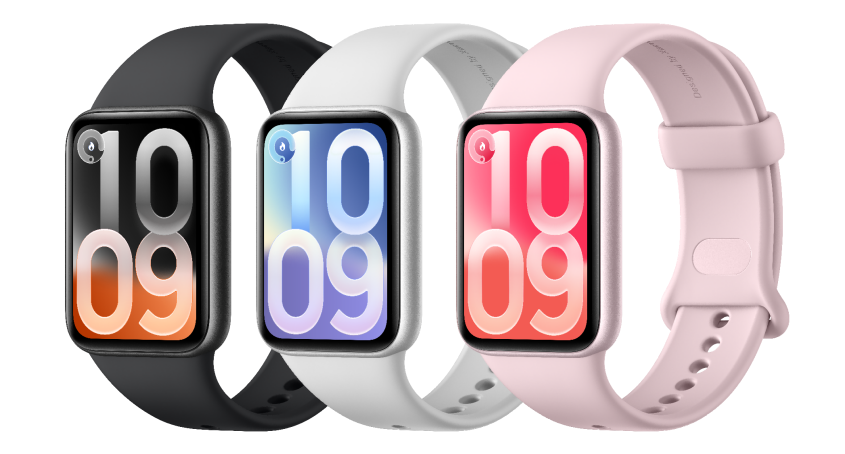
3. It is available in three stylish color options: Midnight black, Glacier silver, and Lavender pink.
Q2: Does the Xiaomi Smart Band 10 Pro have a button?
A: The Xiaomi Smart Band 10 Pro has no button.
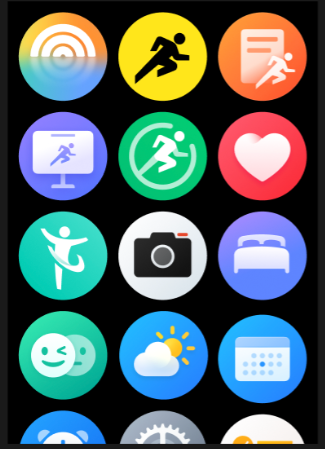
Q3: What Apps does the Xiaomi Smart Band 10 Pro support?
A: The Xiaomi Smart Band 10 Pro supports the following Apps: Stats, Workout, History, Running, Training state, Sleep, Heart rate, SpO₂, Stress, Breathing exercises, Vitality score, Cycles, Camera, Xiaomi Smart Hub, Weather, Music, Flashlight, Find phone, Alarm, Compass, Silence phone, Calendar, Events, Tasks, Stopwatch, World clock, Timer, Settings.
Q4: What are the materials of the Xiaomi Smart Band 10 Pro?
A: The materials of the Xiaomi Smart Band 10 Pro are as follows:
1. The middle frame and shell of the Xiaomi Smart Band 10 Pro are made of high-strength aluminum and PA + 55% GF materials, providing enhanced durability and a premium texture.
2. The backcover is made of PA + 55% GF material for improved strength and daily wear resistance.
3. The glass covering the smart band's screen is Panda MN228. With a surface hardness of ≥9H, it is capable of withstanding the vast majority of daily usage scenarios. However, please avoid contact with metal objects or grit to prevent surface scratches.
4. The material of the Xiaomi Smart Band 10 Pro strap is TPU/genuine leather.
Q5: Will wearing the Xiaomi Smart Band 10 Pro cause allergies?
A: The Xiaomi Smart Band 10 Pro strap is made of professional antibacterial material designed for health and comfort. Due to individual differences, allergy-like symptoms can occur when in contact with certain materials. In addition, wearing the band too tightly, causing poor ventilation, or repeated friction on pressure marks, can result in redness or itching. Wearing the band while bathing without cleaning it for a long time can also cause residue buildup, which can lead to allergy-like symptoms. If severe allergic reactions occur, it is recommended to stop wearing the band and seek medical attention promptly.
If only mild redness or itching occurs, please refer to the following wearing recommendations:
1. During exercise, avoid wearing the band too loosely or too tightly, and ensure it does not slide up and down on the wrist.
2. For daily use, slightly loosen the strap to maintain breathability and wearing comfort.
3. After wearing the band continuously for a long time, remove it and allow the wrist to rest for about 30 minutes.
4. After exercise, clean and wipe away sweat from both the wrist and the strap, then wear the band again after it has been cleaned and dried.
Q6: What is the motor type of the Xiaomi Smart Band 10 Pro?
A: The Xiaomi Smart Band 10 Pro uses a linear motor.
Q7: What sensors does the Xiaomi Smart Band 10 Pro support?
A: The Xiaomi Smart Band 10 Pro supports Accelerometer, Gyroscope, Optical heart rate & Blood oxygen sensor, Ambient light sensor, and Geomagnetic sensor.
Q8: Does the Xiaomi Smart Band 10 Pro support a barometer?
A: The Xiaomi Smart Band 10 Pro does not support a barometer.
Q9: Does the Xiaomi Smart Band 10 Pro have a bezel?
A: The Xiaomi Smart Band 10 Pro has no bezel.
Q10: Which models are compatible with the Xiaomi Smart Band 10 Pro strap?
A: The Xiaomi Smart Band 10 Pro strap is compatible with the REDMI Watch 4, Xiaomi Smart Band 9 Pro, and REDMI Watch 5.
Q11: How to install and detach the strap of the Xiaomi Smart Band 10 Pro?
A: The strap of the Xiaomi Smart Band 10 Pro can be installed by directly inserting the strap connector into the band body. To remove the strap, press and hold the button on the back until fully pressed down.
Q12: How to adjust the strap of the Xiaomi Smart Band 10 Pro?
A: You can adjust the strap of the Xiaomi Smart Band 10 Pro by selecting different strap holes based on the buckle pin.
Q13: Why can't the Xiaomi Smart Band 10 Pro strap be installed?
A: If there is no abnormal damage, the Xiaomi Smart Band 10 Pro strap can be normally attached and detached according to the instructions in the packaging.
Battery
Q1: What are the charging requirements of the Xiaomi Smart Band 10 Pro?
A: The charging requirements of the Xiaomi Smart Band 10 Pro are as follows:
1. When charging using a power bank, the built-in protection mechanism can prevent it from fully charging the device when the power bank battery is low. It is recommended to use a standard USB charger with an output of 5V and 500 mAh or higher, together with the original charging cable.
2. Please charge the device in an environment with a temperature above 10 °C.
3. When the battery level reaches 100%, do not disconnect the charging cable immediately. It is recommended to keep the band on the charging cable for about another 10 minutes.
Q2: Does the Xiaomi Smart Band 10 Pro support wireless charging?
A: The Xiaomi Smart Band 10 Pro does not support wireless charging.
Q3: Can a third-party charger be used to charge the Xiaomi Smart Band 10 Pro?
A: The Xiaomi Smart Band 10 Pro can be charged with a compliant charger with a safety mark.
Q4: What is the battery life of the Xiaomi Smart Band 10 Pro?
A: The Xiaomi Smart Band 10 Pro offers up to 21 days of battery life in long battery life mode. In typical usage, the battery life lasts up to 15 days, and in Always-on display (AOD) mode, the battery life lasts up to 8 days. In addition, the device takes approximately 1.5 hours to fully charge. Actual performance can vary based on official specifications and usage conditions.
Q5: Does the Xiaomi Smart Band 10 Pro support checking battery health status?
A: The Xiaomi Smart Band 10 Pro does not support checking battery health status.
Q6: How to enable Ultra battery saver on the Xiaomi Smart Band 10 Pro?
A: To enable Ultra battery saver on the Xiaomi Smart Band 10 Pro, please refer to the following methods:
Method 1:
1. Go to [Settings].
2. Select [Battery].
3. Turn on [Ultra battery saver].
Method 2:
1. Enter [Control center].
2. Tap the [Ultra battery saver] icon.
Method 3:
When the smart band displays a 5% low battery warning, a prompt will appear with an enable Ultra battery saver option. Tap the option to activate Ultra battery saver.
To disable the Ultra battery saver, please refer to the following methods:
Method 1:
Press and hold the screen for 2 seconds to disable the Ultra battery saver.
Method 2:
When the smart band is placed on the charging cable, it automatically exits Ultra battery saver.
Q7: What is the battery lifespan of the Xiaomi Smart Band 10 Pro?
A: Based on the shortest AOD mode and an estimated battery life of 8 days, and assuming a battery lifespan of 500 charge cycles, the Xiaomi Smart Band 10 Pro can be used for over 10 years. The battery in this device can not be replaced by yourself.
Basic Settings and Operations
Q1: How to power on, power off, and restart the Xiaomi Smart Band 10 Pro?
A: Please refer to the following information for how to power on, power off, and restart the Xiaomi Smart Band 10 Pro:
1. Power on:
Connect the Xiaomi Smart Band 10 Pro to the charger. Once the required startup voltage is reached, the band will automatically power on.
2. Power off:
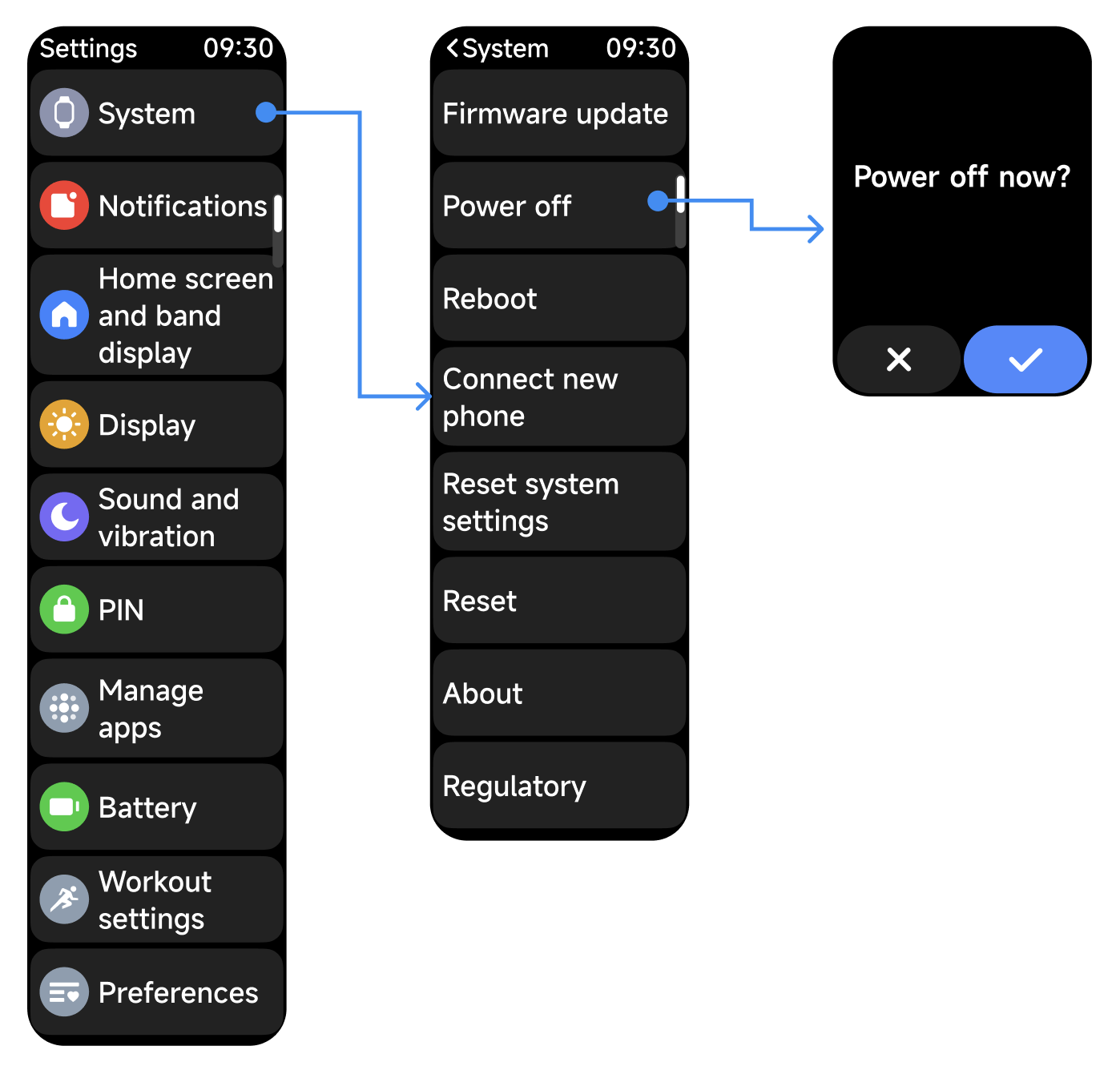
When the battery level drops below 1%, the Xiaomi Smart Band 10 Pro will automatically shut down due to low battery. Additionally, you can also manually power it off by going to: [Settings] >> [System] >> [Power off].
3. Restart:
You can go to [Settings] >> [System] >> [Reboot] to restart the band.
Q2: What are the touch gesture functions of the Xiaomi Smart Band 10 Pro?
A: The touch gesture functions of the Xiaomi Smart Band 10 Pro are as follows:
1. Swipe: Used to preview and switch the interface on the long interface, including swiping up/down or left/right.
2. Tap: Used to select and confirm actions. For example, tapping an App icon in the App list to enter the App.
3. Press and hold: Used to jump to editing or advanced settings. For example, pressing and holding Settings in the Control center to enter the settings list, or pressing and holding any icon in the App list to enter edit mode.
Q3: How to open the Control center on the Xiaomi Smart Band 10 Pro? What do the icons represent?
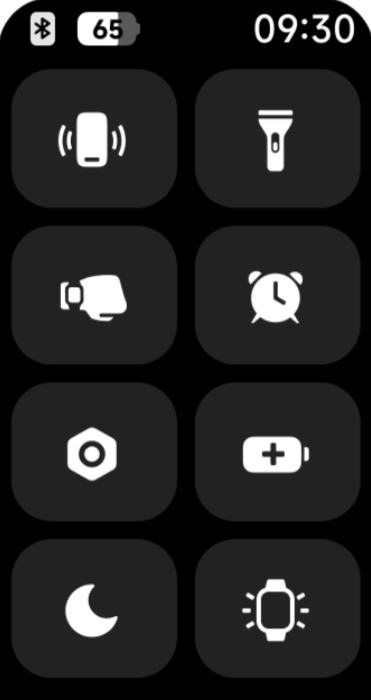
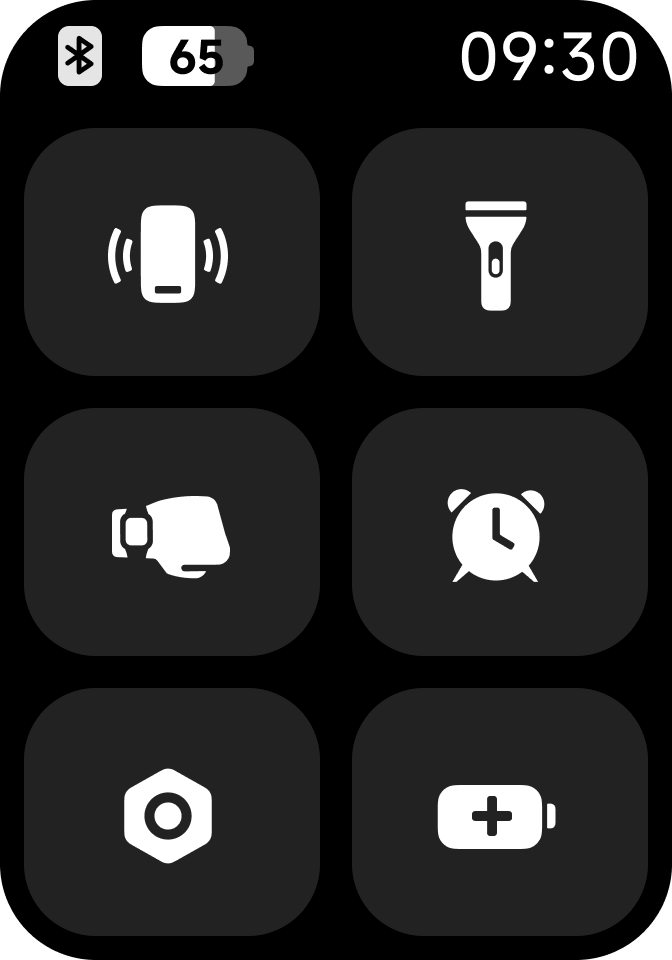
A: On the Xiaomi Smart Band 10 Pro, swipe right from the band display to enter the Control center.
At the top, from left to right, you can see: Bluetooth connection status (to check whether the band is disconnected from the phone), Battery level, and Time.
The function area icons from left to right are as follows:
1. Find phone: Tap to enter the Find phone App.
2. Flashlight: Quickly turn on the flashlight.
3. Raise to wake: Quickly enable the Raise to Wake feature.
4. Alarm: Quickly enter the Alarm App.
5. Settings: Tap to enter the Settings App.
6. Battery: Tap to enter the battery saver mode.
7. DND: Tap to enable Do Not Disturb mode.
8. Screen on for: Keep the screen on for 5 minutes after enabling.
Q4: What functions are available in the Xiaomi Smart Band 10 Pro settings menu?
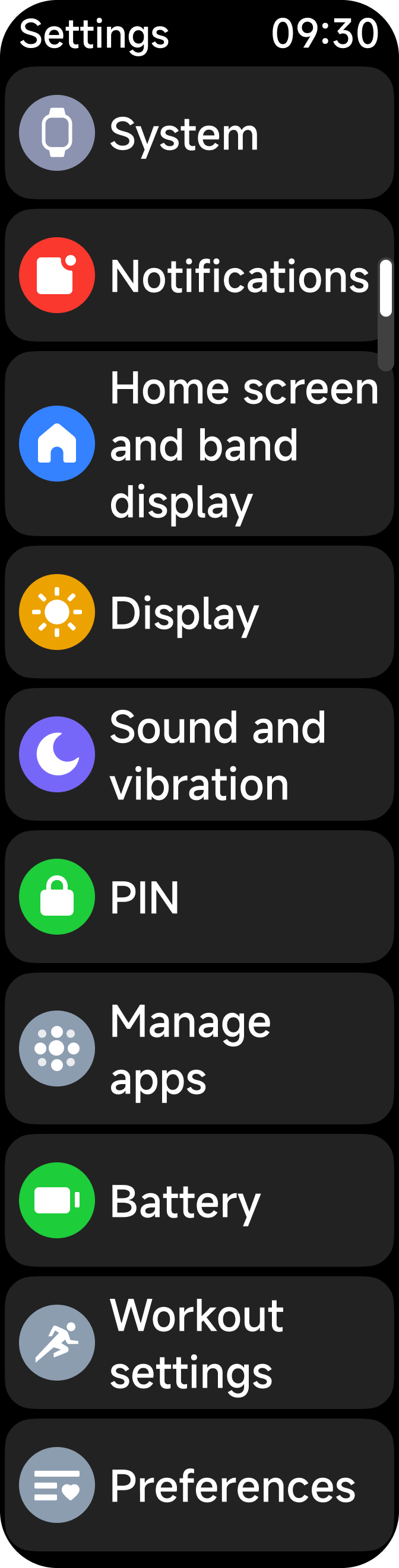
A: On the Xiaomi Smart Band 10 Pro, you can swipe right on the home screen to enter the Control center and tap the Settings icon. Additionally, you can also swipe up on the home screen to enter the App list and open Settings.
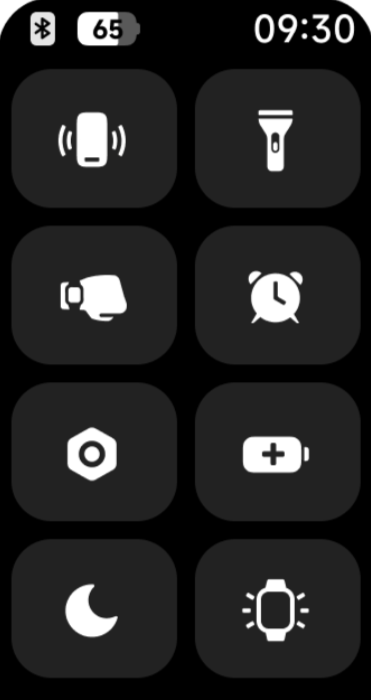
The settings menu of the Xiaomi Smart Band 10 Pro includes the following functions:
1. System.
2. Notifications.
3. Home screen and band display.
4. Display.
5. Sound and vibration.
6. PIN.
7. Manage apps.
8. Battery.
9. Workout settings.
10. Preferences.
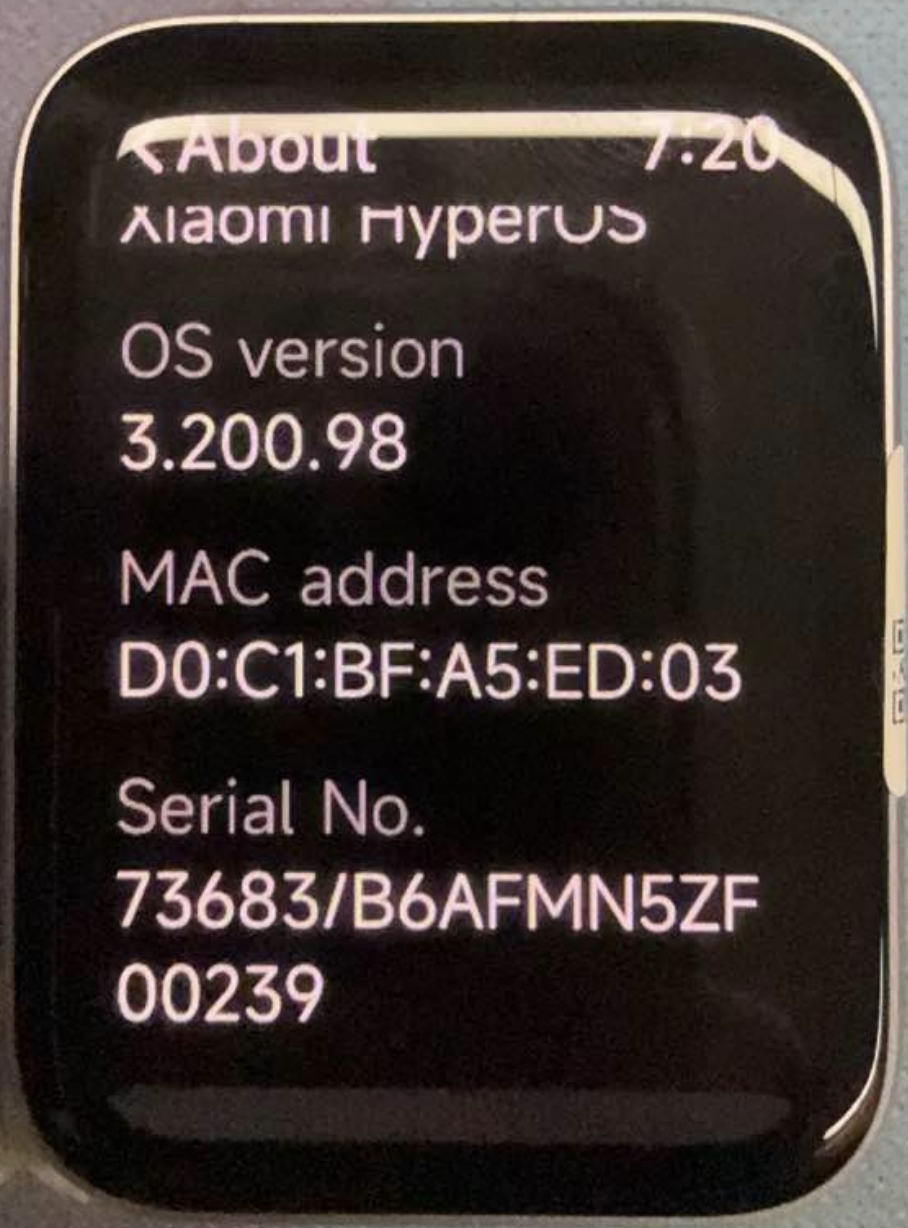
Q5: How to check device information on the Xiaomi Smart Band 10 Pro?
A: The Xiaomi Smart Band 10 Pro supports viewing device information such as the device model, system version, OS version, MAC address, and SN number. You can check this information by going to: [Settings] >> [System] >> [About].
Q6: How to pair the Xiaomi Smart Band 10 Pro with a phone?
A: Before using the Xiaomi Smart Band 10 Pro, you need to bind it through the Mi Fitness App. The App name is the same on both iOS and Android, and you can download it from the App Store or Google Play Store.
After binding, it is recommended to lock the Mi Fitness App in the background to avoid the system closing the App, which may cause disconnection and affect normal usage.
Please refer to the following steps to pair the Xiaomi Smart Band 10 Pro with your phone:
1. Use the charging cable to charge and power on the Xiaomi Smart Band 10 Pro. Scan the QR code displayed on the band screen using your phone, or search for “Mi Fitness” in the App Store to download and install the App.
2. Open the Mi Fitness App, log in to your account according to the prompts, and enable all required permissions.
3. The Xiaomi Smart Band 10 Pro supports three pairing methods:
(1). Tap [Scanner] and scan the QR code shown on the band screen.
(2). Tap [Add device]. The App will automatically search for nearby devices. Select the corresponding Bluetooth name of the Xiaomi Smart Band 10 Pro from the device list.
(3). Tap [Add device] >> [Add model] >> select [Xiaomi Smart Band 10 Pro]. The App will search for the device automatically.
4. Android phones: When the same security code appears on both the phone and the Xiaomi Smart Band 10 Pro, confirm the pairing request on both devices to complete pairing.
5. iPhones: First, go to the Bluetooth list in the phone system settings and select the Bluetooth name of the Xiaomi Smart Band 10 Pro. Confirm the pairing request on both the phone and the band. Then return to the Mi Fitness App, select the device again, and complete the pairing process.
Note:
1. During pairing, please ensure Bluetooth is enabled on the phone and verify that the connection between the band and the phone is stable.
2. If the Xiaomi Smart Band 10 Pro already shows the phone model but the phone does not display the pairing request popup, please check the phone notification.
3. If the band cannot be found during pairing or cannot reconnect during use, please recharge and restart the Xiaomi Smart Band 10 Pro, restore factory settings on the device, and try pairing again.
Q7: What permissions need to be enabled on the phone when connecting the Xiaomi Smart Band 10 Pro to the Mi Fitness App?
A: When connecting the Xiaomi Smart Band 10 Pro to the Mi Fitness App, the following permissions should be enabled: Phone, SMS, Nearby devices, Call logs, Contacts, Notifications, Location, and Camera.
If these permissions are not enabled, the following issues may occur:
1. Additional recommended permissions for Android:
Storage permission: Unable to sync band data to the phone or save workout and health records.
Auto-start permission: The App may be cleared from the background, causing frequent disconnections.
Background popup permission: Unable to receive pairing requests or connection notifications in time.
2. Additional recommended permissions for iOS:
Health data permission: Unable to sync heart rate, blood oxygen, sleep, and other health data to Apple Health.
Bluetooth permission: Required for pairing and connection.
Note:
When opening the Mi Fitness App for the first time, please allow all requested permissions. If any permissions were denied previously, you can manually enable them in the phone system settings.
Q8: How to connect the Xiaomi Smart Band 10 Pro to a new phone?
A: When switching the Xiaomi Smart Band 10 Pro to a new phone, please refer to the following information:
1. If using a different Xiaomi Account, tap [Reset] on the band, then bind it to the new phone.
2. If using the same Xiaomi Account, while the band is still connected to the original phone, go to the band settings and tap [Connect new phone] to rebind the device.
Q9: How to keep the Xiaomi Smart Band 10 Pro connected to the Mi Fitness App?
A: To keep the Xiaomi Smart Band 10 Pro connected to the Mi Fitness App, please refer to the following information:
1. Add the Mi Fitness App to the application whitelist.
2. Lock the App in the background.
3. Keep Bluetooth enabled on the phone.
4. Keep the phone within Bluetooth connection range of the Xiaomi Smart Band 10 Pro.
The settings methods vary depending on the phone model. Please go to: Mi Fitness App >> [Device] >> [System] >> [Band connection protection]. Then follow the on-screen instructions.
Q10: What to do if the phone cannot find the Xiaomi Smart Band 10 Pro during pairing?
A: If the phone cannot find the Xiaomi Smart Band 10 Pro during pairing, it is recommended to turn Bluetooth off and on again on the phone, or restart the band and try again.
If the issue persists, it is recommended to contact the local after-sales service center for further assistance.
Q11: What is the automatic Bluetooth disconnection logic of the Xiaomi Smart Band 10 Pro?
A: The Bluetooth connection status between the Xiaomi Smart Band 10 Pro and the phone is affected by the surrounding environment:
1. In environments with obstacles, the connection may disconnect automatically when the distance reaches around 20 meters.
2. In open areas or long corridors, the connection may disconnect automatically at around 150 meters.
3. If there is one person blocking the direct line between the band and the phone, the connection may disconnect at around 20 meters.
4. In environments with strong electromagnetic interference, such as near microwave ovens, routers, wireless base stations, high-power electrical appliances, elevators, shopping malls, or subway stations with dense signals, Bluetooth signals may become unstable even at short distances, resulting in lag, unstable connection, or automatic disconnection.
Q12: How to customize widgets on the Xiaomi Smart Band 10 Pro?
A: The Xiaomi Smart Band 10 Pro supports widget customization. However, widget editing is currently not supported in the Mi Fitness App.
Please refer to the following information to customize widgets on the Xiaomi Smart Band 10 Pro:
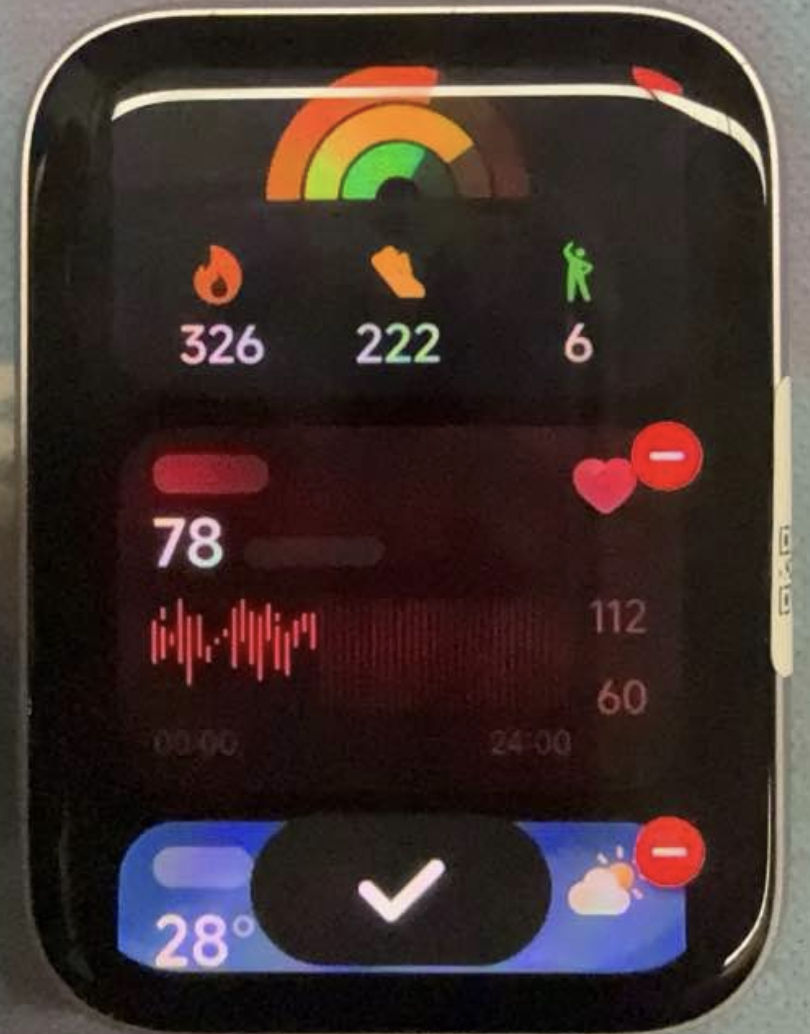
1. Swipe left from the home screen on the band, then swipe up or down to view different widgets. Swipe right to exit widgets. Press and hold any widget to enter edit mode, where you can rearrange or add widgets.
2. Go to [Settings] >> [Home screen and band display] >> [Widgets]. You can then rearrange or add widgets. Swipe right to exit widgets.
Q13: How to add, uninstall, or switch frequently used Apps on the Xiaomi Smart Band 10 Pro?
A: The Xiaomi Smart Band 10 Pro supports managing apps on both the band and the Mi Fitness App.
To add, delete, or switch frequently used Apps on the Xiaomi Smart Band 10 Pro, please refer to the following information:
1. Swipe up on the home screen on the band to enter the App list. Press and hold any App icon for 2 seconds to enter App edit mode. In edit mode, you can delete or sort Apps.
To uninstall an App, tap the “-” icon in the upper-right corner of the App icon, then confirm in the popup window. Some pre-installed system Apps cannot be uninstalled. After an App is uninstall, the remaining Apps will automatically rearrange.
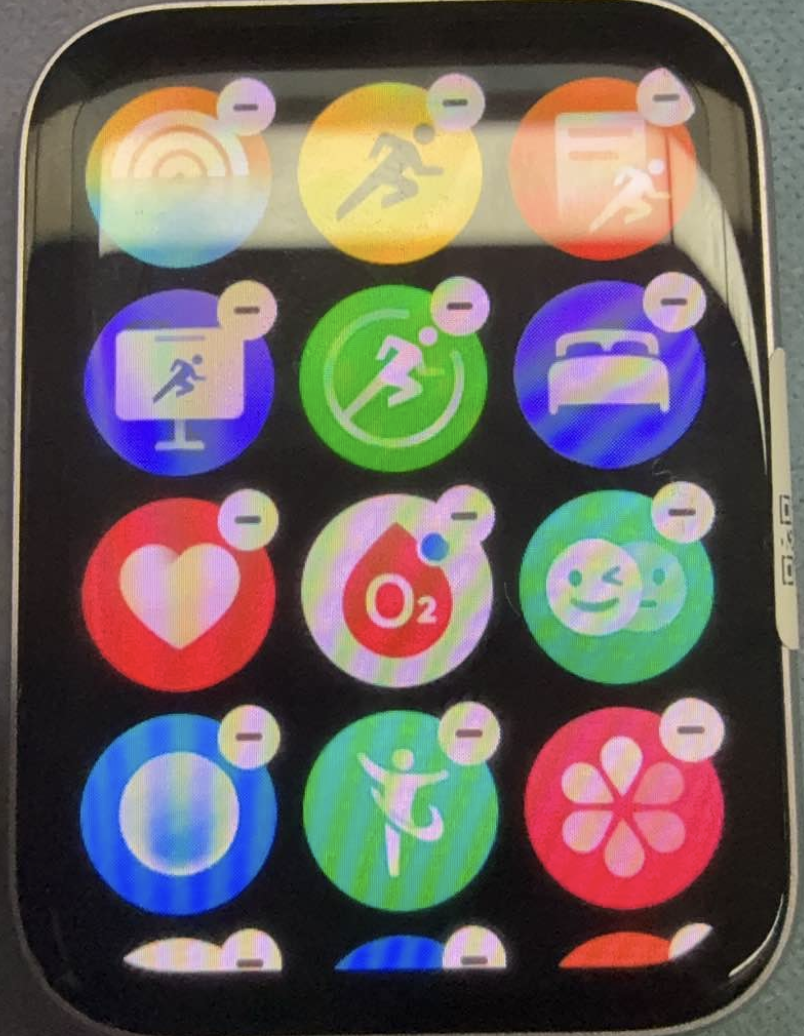
To sort Apps, press and hold the App icon you want to move, drag it to the target position, and release your finger to complete sorting. After sorting is completed, swipe right to exit edit mode.
2. If an App was previously uninstalled, you can re-add it on the band through [Settings] >> [Manage apps].
To add, hide, sort, or switch Apps on the Mi Fitness App, please refer to the following information:
After pairing and connecting the Xiaomi Smart Band 10 Pro, open the Mi Fitness App and enter the [Device] interface. Find the [System] option, where you can hide unnecessary Apps (some Apps do not support hiding), sort Apps by pressing and holding the drag button on the right side of the App icon and dragging it up or down. After adjustment, the App list on the Xiaomi Smart Band 10 Pro will automatically sync and update.
Q14: How to switch the App layout on the Xiaomi Smart Band 10 Pro?
A: The Xiaomi Smart Band 10 Pro supports switching App layout.
Band:[Settings] >> [Home screen and band display] >> [Layout] >> [Icons], [Icons and text], and [List].
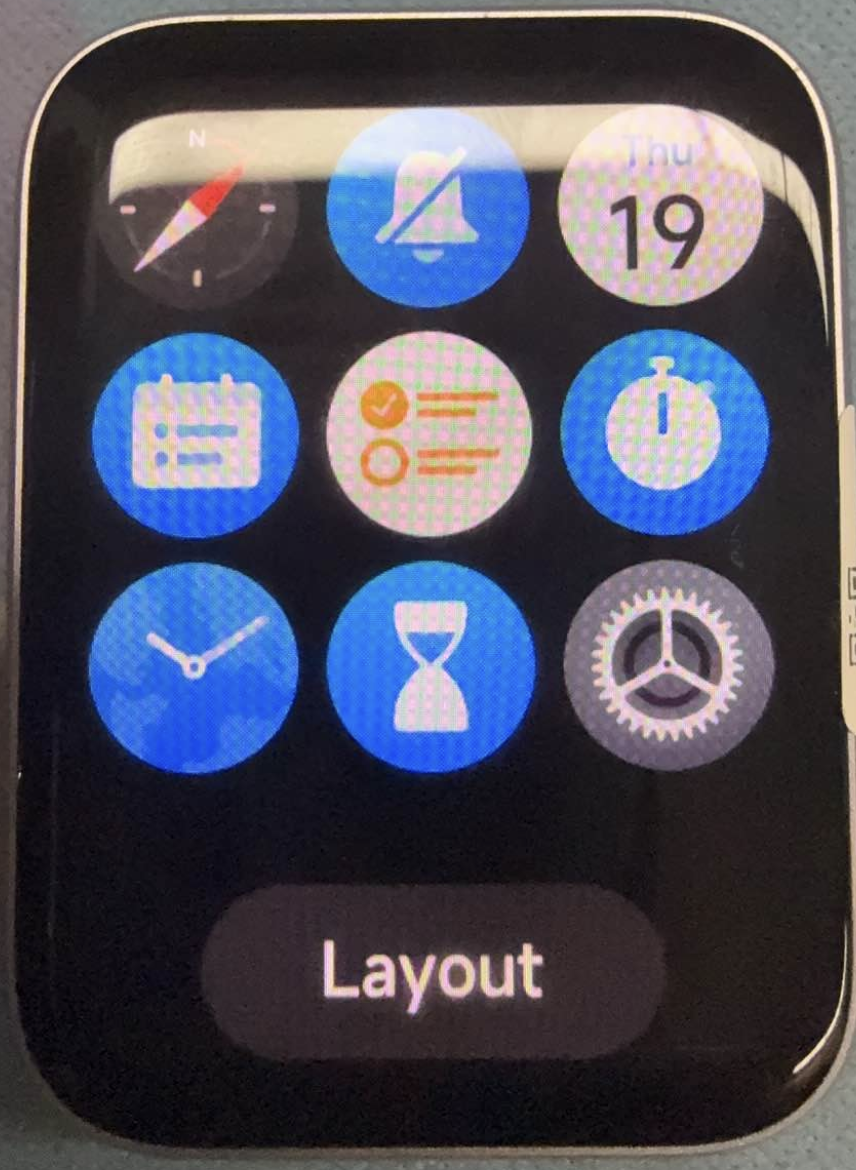
Mi Fitness App:[Device] >> [System] >> [App layout] >> [Icons], [Icons and text], and [List].
Q15: How to set Always-on display and what screen-off methods are supported on the Xiaomi Smart Band 10 Pro?
A: The Xiaomi Smart Band 10 Pro supports Always-on display. After enabling this feature, the band enters the Always-on display state after the screen turns off. In the Always-on display state, you can raise your wrist or tap the screen to wake the display and exit the Always-on display state.
To set Always-on display on the Xiaomi Smart Band 10 Pro, please go to [Settings] >> [Display] >> [Always-on display]. You can enable this feature manually or set a schedule. The default scheduled period is 08:00–22:00.
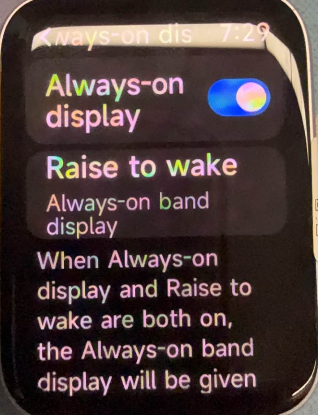
Note:
1. When Always-on display is enabled, the feature automatically turns off after the band is removed from the wrist.
2. When sleep is detected at night, Always-on display automatically turns off.
3. Enabling this feature will reduce the battery life of the band.
The screen-off methods of the Xiaomi Smart Band 10 Pro are as follows:
1. By default, if there is no operation within 5 seconds, the screen automatically turns off and the Always-on display appears. You can modify the screen timeout through [Settings] >> [Display] >> [Auto lock]. The adjustable range is 5–60 seconds.
2. The Xiaomi Smart Band 10 Pro supports covering the screen to turn it off. When your palm covers and touches more than half of the display area, the screen directly switches from screen-on to screen-off, and the Always-on display appears.
3. The Xiaomi Smart Band 10 Pro supports Raise to wake. After enabling this feature, rotating your wrist downward turns the screen off.
Q16: Why does the Xiaomi Smart Band 10 Pro briefly flash when switching from screen-off to Always-on display?
A: When the Xiaomi Smart Band 10 Pro screen restarts from a fully powered-off state, the system requires time to complete initialization. The CPU executes commands sequentially, and screen rendering and brightness adjustment occur in sequence.
If the software execution sequence turns on the screen before rendering the display content, a brief flash appears before the display returns to normal. This is a normal phenomenon. Please feel free to use the device.
Q17: How to enable double-tap to wake function on the Xiaomi Smart Band 10 Pro?
A: The Xiaomi Smart Band 10 Pro does not support double-tap to wake. The Xiaomi Smart Band 10 Pro only supports raise to wake, single tap to wake, swipe up to wake, wake by message notifications.
Q18: How to enable Raise to wake on the Xiaomi Smart Band 10 Pro?
A: The Xiaomi Smart Band 10 Pro supports Raise to wake: [Settings] >> [Display] >> [Raise to wake] >> you can choose [All day] or [Custom]. When Custom mode is selected, you can set the active time period according to your needs.
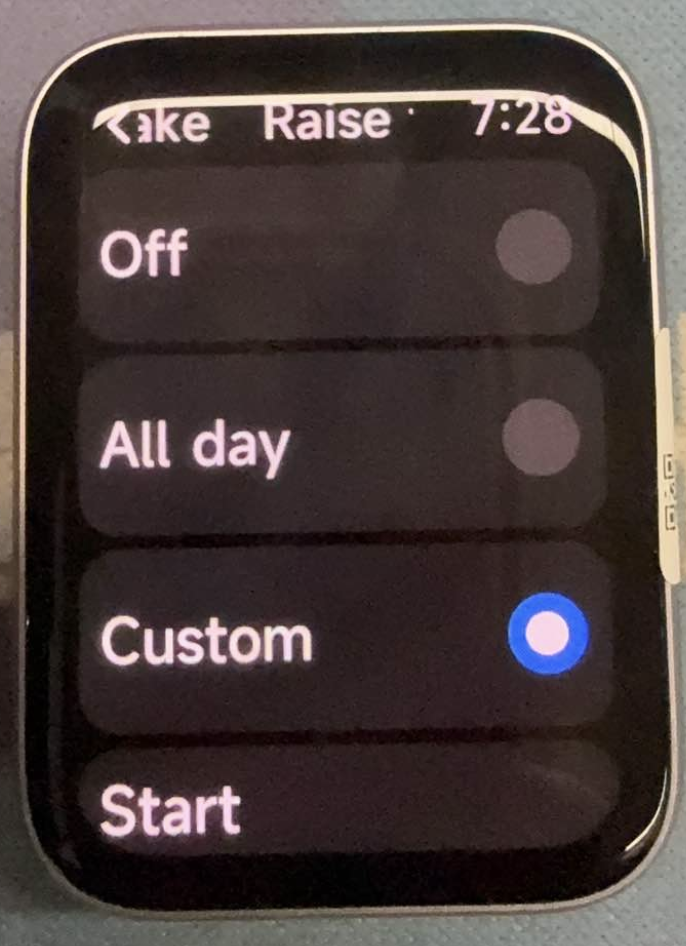
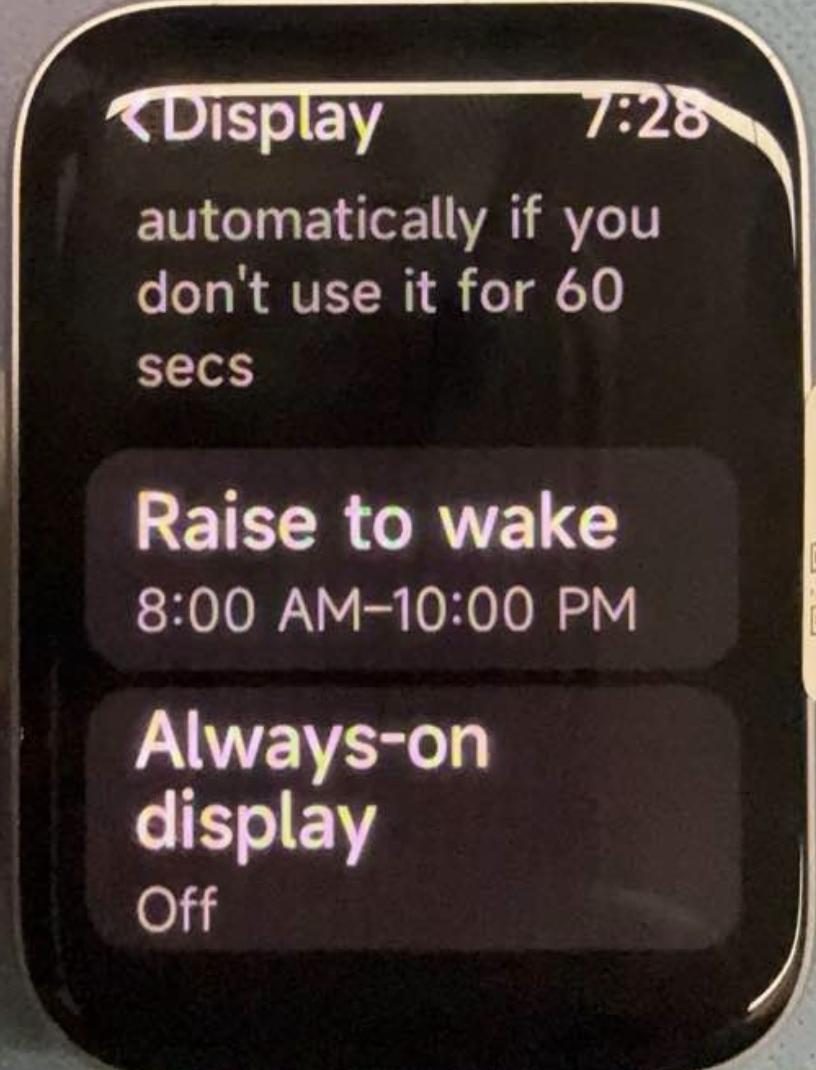
In addition, swipe right on the home screen of the band to open the Control center, then tap the Raise to wake icon to quickly enable or disable this feature.
Q19: How to adjust the screen brightness on the Xiaomi Smart Band 10 Pro?
A: The Xiaomi Smart Band 10 Pro supports automatic brightness adjustment and manual brightness adjustment.
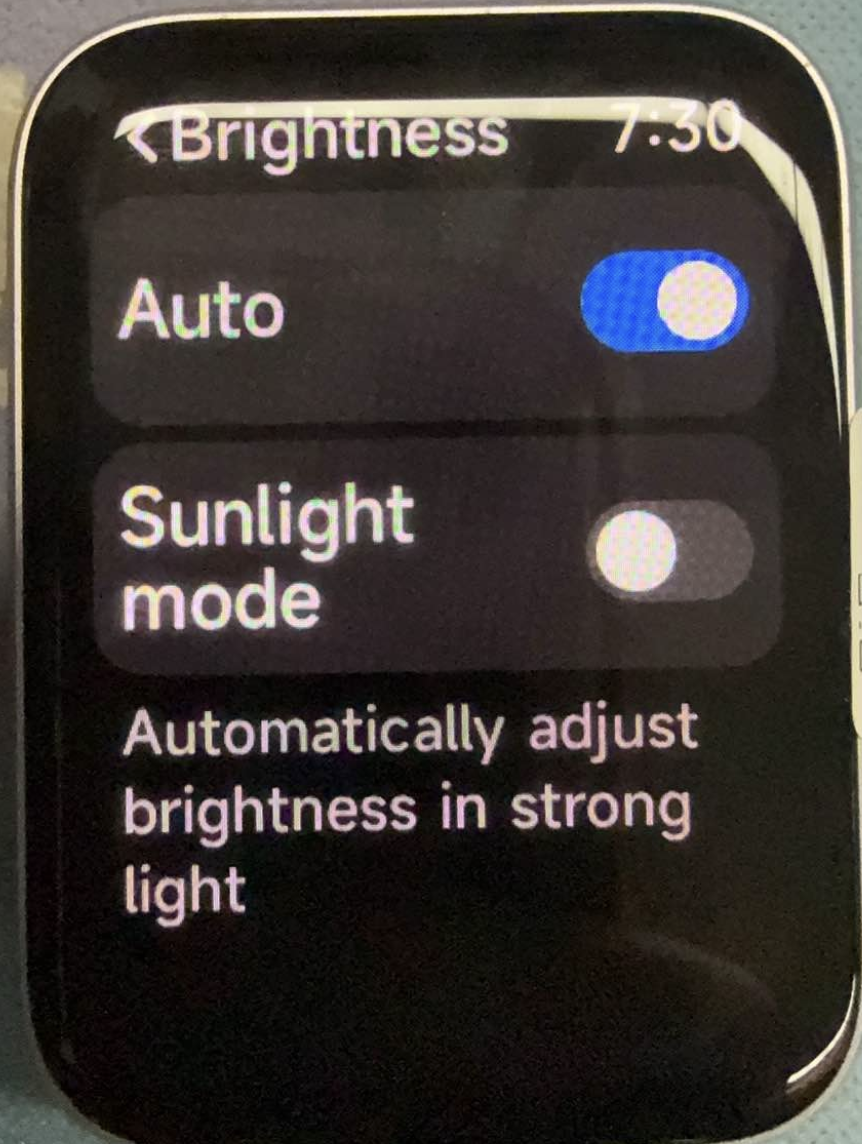
Automatic brightness: The Xiaomi Smart Band 10 Pro enables automatic brightness by default, and the screen brightness automatically adjusts according to the ambient light. You can go to [Settings] >> [Display] >> [Brightness] >> turn on [Auto].
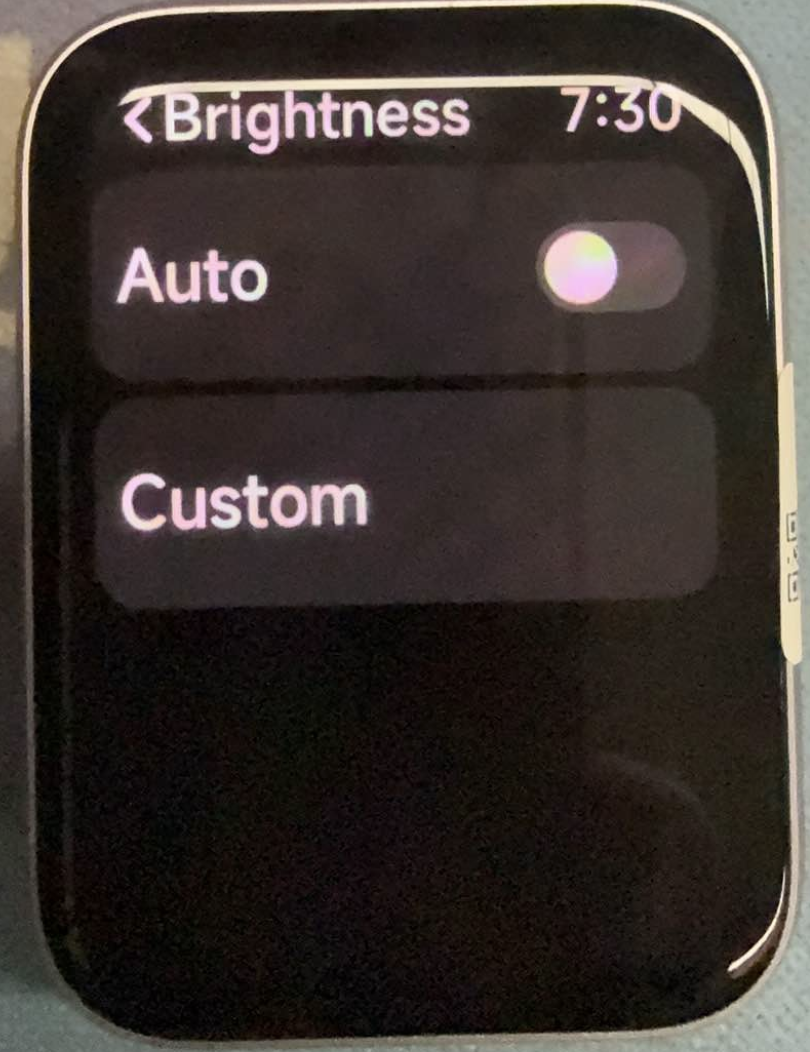
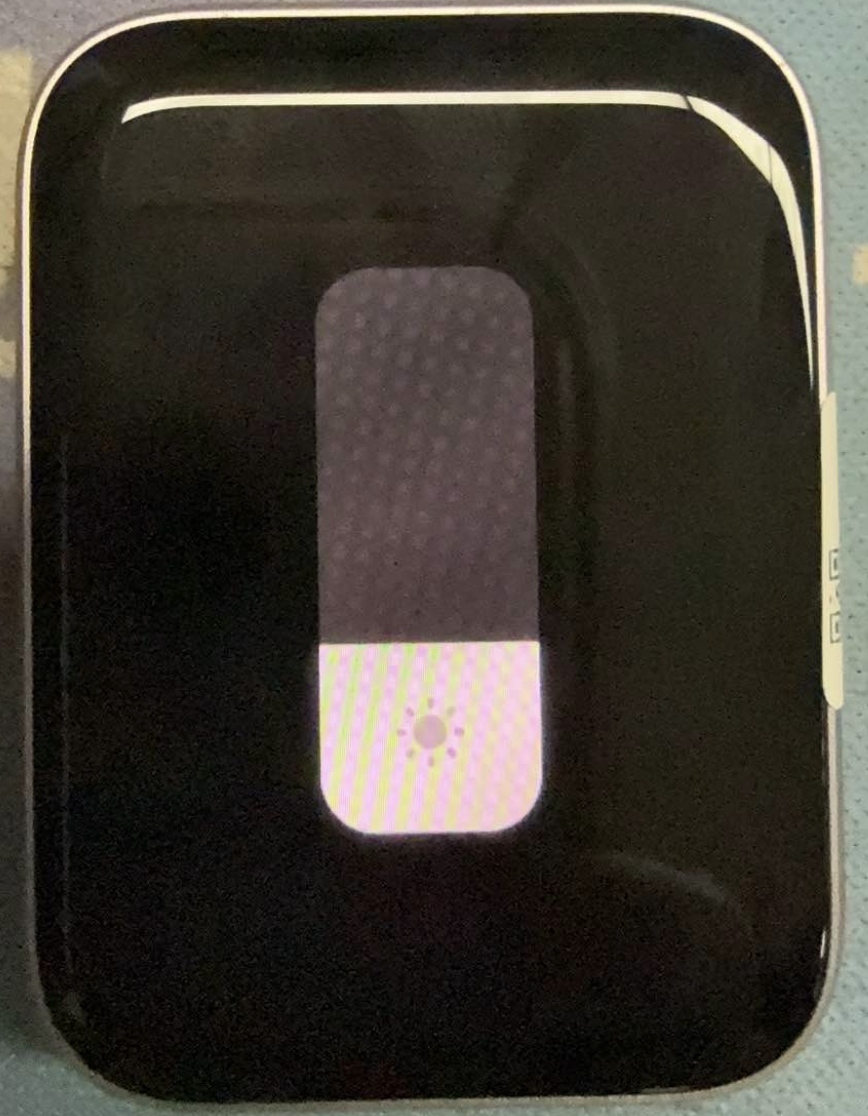
Custom brightness: The Xiaomi Smart Band 10 Pro supports adjusting brightness by dragging the brightness slider. You can go to [Settings] >> [Display] >> [Brightness] >> turn off [Auto] >> [Custom] >> select the preferred brightness level by dragging the brightness slider.
Sunlight mode: You can go to [Settings] >> [Display] >> [Brightness] >> turn on [Auto] >> [Sunlight mode]. This feature can automatically adjust brightness under strong light conditions.
Q20: How to adjust the volume on the Xiaomi Smart Band 10 Pro?
A: The Xiaomi Smart Band 10 Pro does not have a speaker and does not support sound reminders or related audio functions, so volume adjustment is not required.
Q21: How to enable silent mode on the Xiaomi Smart Band 10 Pro?
A: The Xiaomi Smart Band 10 Pro does not have a speaker and does not support sound reminders or related audio functions, so silent mode is not required.
Q22: How to enable Do Not Disturb mode on the Xiaomi Smart Band 10 Pro?
A: For non-Xiaomi phones or Xiaomi phones running versions earlier than Xiaomi HyperOS 3.1 connected to the Xiaomi Smart Band 10 Pro, please refer to the following methods to enable Do Not Disturb mode:
1. Enable DND mode: Go to [Settings] >> [Sound and vibration] >> [DND] >> turn on [DND]. After enabling, DND mode remains active all day until it is manually turned off.
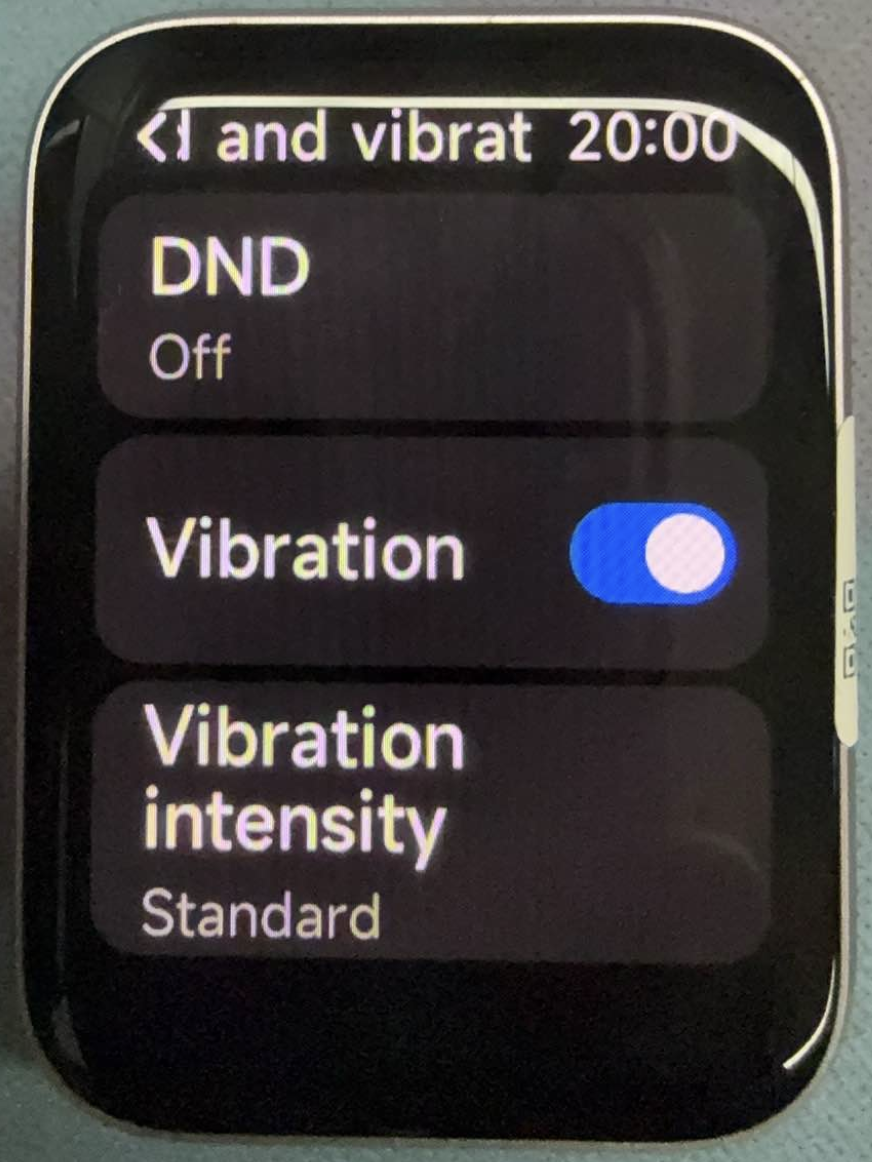
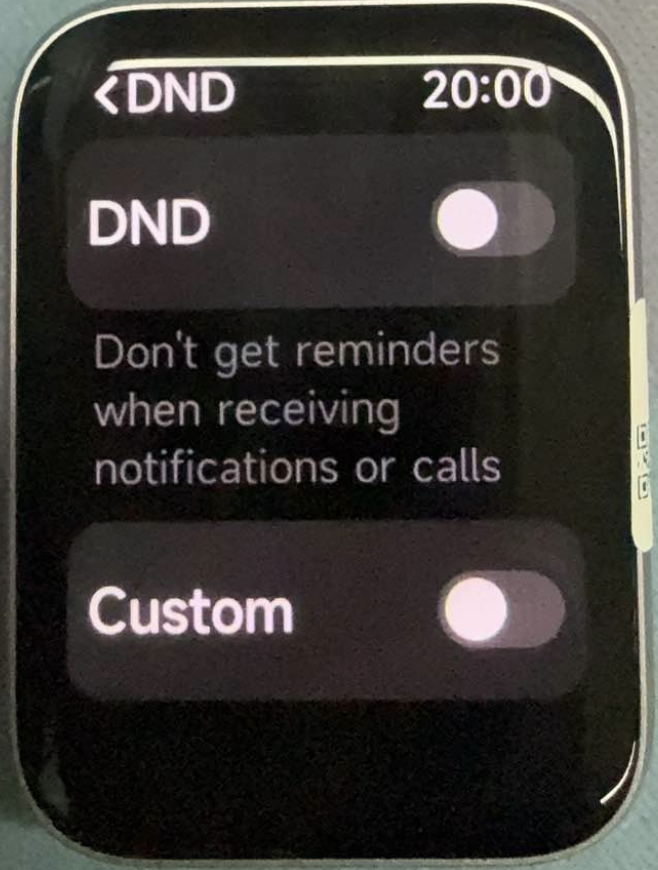
2. Scheduled DND mode: Go to [Settings] >> [Sound and vibration] >> [DND] >> turn on [Custom DND]. You can set the repeat cycle, start time, and end time.
For Xiaomi phones running Xiaomi HyperOS 3.1 connected to the Xiaomi Smart Band 10 Pro, please refer to the following method:
You can go to [Settings] >> [Sound and vibration] >> [DND] >> turn on [DND sync]. When turned on, the DND status of the Xiaomi Smart Band 10 Pro follows the DND status of the phone.
Q23: How to enable airplane mode on the Xiaomi Smart Band 10 Pro?
A: The Xiaomi Smart Band 10 Pro does not support airplane mode.
Q24: How to set a custom ringtone on the Xiaomi Smart Band 10 Pro?
A: The Xiaomi Smart Band 10 Pro does not have a speaker and does not support custom ringtones.
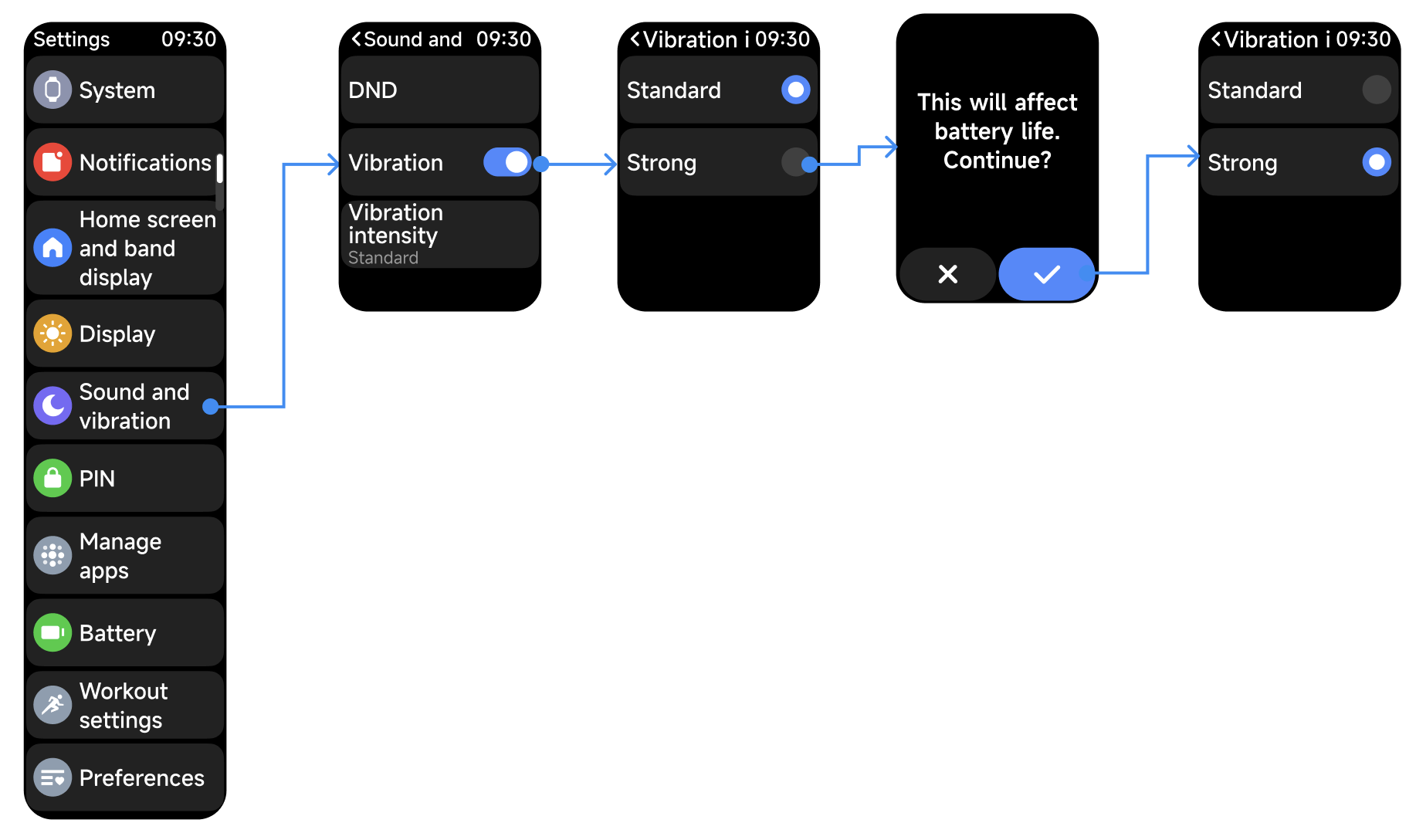
Q25: How to enable or disable vibration feedback and adjust vibration intensity on the Xiaomi Smart Band 10 Pro?
A: The Xiaomi Smart Band 10 Pro supports vibration feedback. You can go to [Settings] >> [Sound and vibration] >> turn on [Vibration] >> [Vibration intensity] >> choose [Standard] or [Strong] according to your preference.
Q26: What Bluetooth version and Bluetooth transmission distance does the Xiaomi Smart Band 10 Pro support?
A: The Xiaomi Smart Band 10 Pro supports dual-mode Bluetooth BLE 5.4 and is backward compatible.
Please refer to the following Bluetooth transmission distance information for the Xiaomi Smart Band 10 Pro:
1. In environments with obstacles, Bluetooth automatically disconnects when the distance between the band and the phone reaches around 20 meters.
2. In open areas or long corridors, Bluetooth automatically disconnects when the distance between the band and the phone reaches around 150 meters.
3. If one person blocks the direct line between the band and the phone, Bluetooth automatically disconnects when the distance reaches around 20 meters.
4. In environments with strong electromagnetic interference, such as near microwave ovens, routers, wireless base stations, high-power electrical appliances, elevators, shopping malls, or subway stations with dense wireless signals, Bluetooth signals can be affected even at short distances, resulting in unstable connections, lag, or automatic disconnection.
Q27: How to connect Bluetooth earphones and switch audio output on the Xiaomi Smart Band 10 Pro?
A: The Xiaomi Smart Band 10 Pro does not support connecting Bluetooth earphones or switching audio output.
Q28: How to use Bluetooth earphones for phone calls on the Xiaomi Smart Band 10 Pro?
A: The Xiaomi Smart Band 10 Pro does not support using Bluetooth earphones for phone calls.
Q29: How to connect to and switch Wi-Fi on the Xiaomi Smart Band 10 Pro?
A: The Xiaomi Smart Band 10 Pro does not support connecting to or switching Wi-Fi.
Q30: How to set Bluetooth disconnection reminders on the Xiaomi Smart Band 10 Pro?
A: The Xiaomi Smart Band 10 Pro does not support Bluetooth disconnection reminders. You can check the Bluetooth connection status in the status bar of the Control center on the Xiaomi Smart Band 10 Pro.
Q32: What smart devices does the Xiaomi Smart Band 10 Pro support connecting to?
A: The Xiaomi Smart Band 10 Pro supports Xiaomi smartphones, tablets, and earphones, but doesn't support Xiaomi IoT devices.
Q33: How to link the Xiaomi Smart Band 10 Pro with other smart devices?
A: Please first connect the Xiaomi Smart Band 10 Pro to the Mi Fitness App. As long as other smart devices are signed in to the same Xiaomi account in the Mi Fitness App, you can open the Xiaomi Smart Hub App on the smart band, and then you can see and control other smart devices.
Q34: How to use Xiaomi Smart Hub on the Xiaomi Smart Band 10 Pro?
A: The following system versions are required to use Xiaomi Smart Hub on the Xiaomi Smart Band 10 Pro:
Band: Xiaomi HyperOS 2.0 or above
Phone: Xiaomi/REDMI phones running Xiaomi HyperOS 2.0 or above
Open the Xiaomi Smart Hub App from the App list on the Xiaomi Smart Band 10 Pro.
Please first connect the Xiaomi Smart Band 10 Pro to the Mi Fitness App. As long as other smart devices are signed in to the same Xiaomi account in the Mi Fitness App, you can open the Xiaomi Smart Hub App on the smart band, and then you can see and control other smart devices.
Q35: How to use the water drainage function on the Xiaomi Smart Band 10 Pro?
A: The Xiaomi Smart Band 10 Pro does not support the water drainage function.
Q36: How to use the flashlight on the Xiaomi Smart Band 10 Pro?
A: Method 1: Quick access through the Control center (recommended) on the Xiaomi Smart Band 10 Pro.
Swipe right on the home screen of the band to enter the Control center. Find the flashlight icon in the shortcut icon list and tap the icon. The screen immediately changes to bright white light and the flashlight turns on.
Inside the flashlight interface, you can swipe up or down to switch between flashing mode and red light mode. Swipe right on the screen to turn off the flashlight.
Method 2: Open from the App list on the Xiaomi Smart Band 10 Pro.
Swipe up on the home screen of the band to enter the App list, then find and tap the [Flashlight] App. Inside the flashlight interface, you can swipe up or down to switch between flashing mode and red light mode. Swipe right on the screen to turn off the flashlight.
Q37: How to set shortcut gestures on the Xiaomi Smart Band 10 Pro?
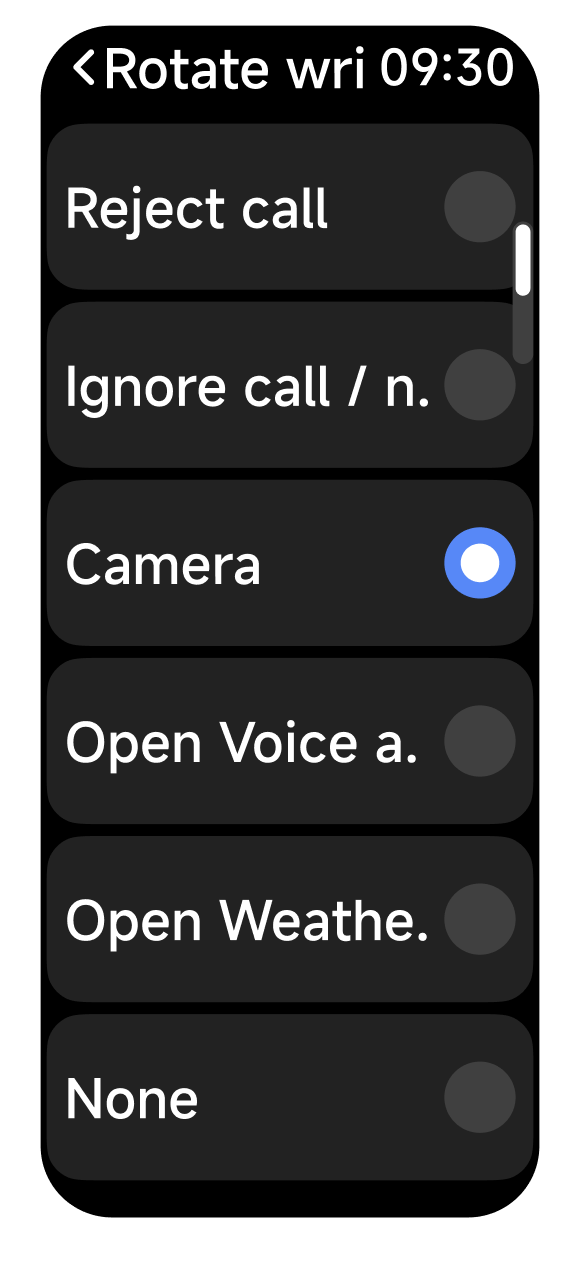
A: You can go to [Settings] >> [Preferences] >> [Quick gestures] >> turn on [Gestures] and you can set rotate wrist or shake wrist shortcut gestures on the Xiaomi Smart Band 10 Pro.
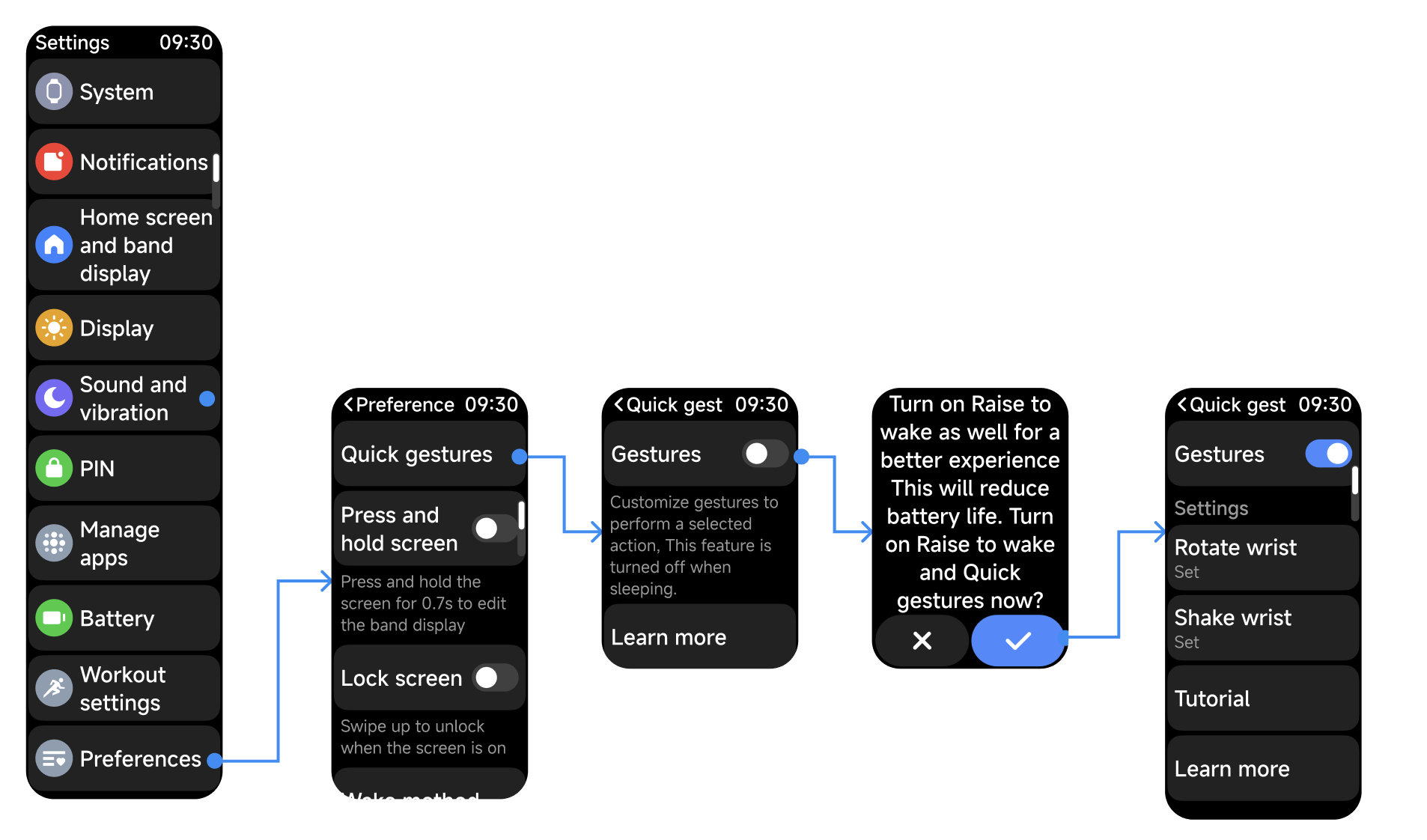
Q38: How to use gestures to control other devices on the Xiaomi Smart Band 10 Pro?
A: You can go to [Settings] >> [Preferences] >> [Quick gestures] >> turn on [Gestures] >> tap [Rotate wrist] or [Shake wrist] >> enable [Camera]. On the remote photography interface, after a gesture is recognized, the Xiaomi Smart Band 10 Pro can control the phone to take photos.
Q39: How to use the compass function on the Xiaomi Smart Band 10 Pro?
A: Compass function: Open the [Compass] App from the App list >> rotate the Xiaomi Smart Band 10 Pro to complete calibration >> the display shows N = North, S = South, E = East, and W = West.
Compass calibration: Calibration is not required every time you enter the Compass App. After opening the Compass App, the Xiaomi Smart Band 10 Pro automatically determines whether surrounding magnetic field changes affect accuracy. Calibration is only required when the impact on accuracy is significant.
Note:
Strong magnetic field environments can affect the normal use of the compass function on the Xiaomi Smart Band 10 Pro.
Q40: How to check altitude and air pressure on the Xiaomi Smart Band 10 Pro?
A: The Xiaomi Smart Band 10 Pro does not support viewing altitude or air pressure information.
Q41: How to check weather information on the Xiaomi Smart Band 10 Pro?
A: You can tap to view weather information from the App list, widgets, or band display components on the Xiaomi Smart Band 10 Pro.
Q42: How to use Bluetooth broadcasting on the Xiaomi Smart Band 10 Pro?
A: On the Xiaomi Smart Band 10 Pro, you can go to [Settings] >> [Workout settings] >> turn on [HR broadcast].
To enable HR broadcast on the third-party App, go to the App >> [Run] >> tap the Settings icon >> [Heart Rate] >> [Xiaomi Smart Band 10 Pro].
Q43: How to use the Focus App on the Xiaomi Smart Band 10 Pro?
A: The Xiaomi Smart Band 10 Pro does not support the Focus App.
Q44: How to use the Events App on the Xiaomi Smart Band 10 Pro?
A: After enabling [Sync events] in the Mi Fitness App through [Device] >> [Apps], the Xiaomi Smart Band 10 Pro synchronizes the phone system events from the most recent 7 days during each data synchronization.
Event synchronization is only supported on MIUI, HyperOS, and iOS systems. Other systems are currently not supported.
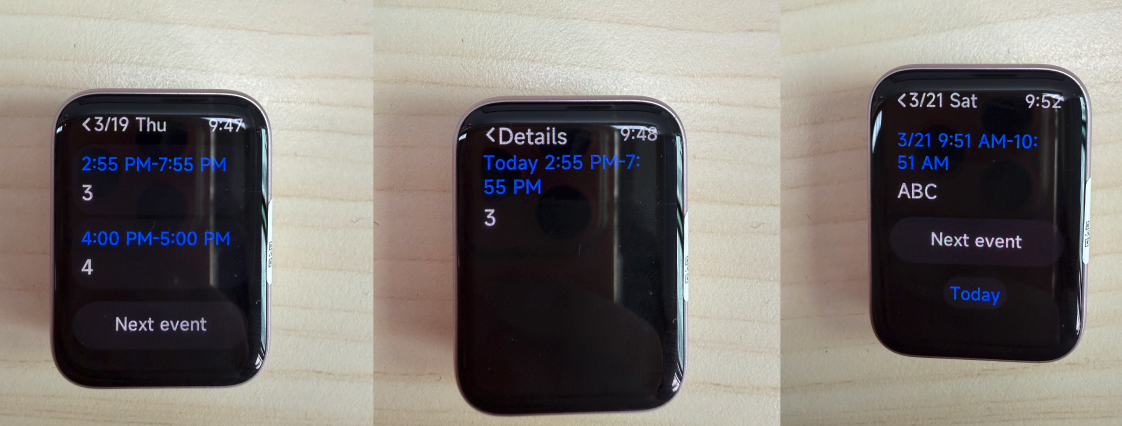
Tap the [Events] App from the App list on the Xiaomi Smart Band 10 Pro to enter the events list. For events outside today, a “Today” button is displayed below. Tapping the button jumps to today’s event interface.
You can swipe up or down, or tap [Next] to view other events. Tapping an event card enters the event details interface.
Quantity limits:
A maximum of 20 events can be displayed according to the event list order. Additional events beyond the limit are not displayed.
Character limits:
Each event supports up to 200 bytes. English letters and punctuation count as 1 byte. Chinese characters count as 3 bytes. Up to 61 Chinese characters can be displayed. Titles support up to 90 bytes. Notes support up to 45 bytes. Addresses support up to 60 characters.
Q45: How to use the Calendar feature on the Xiaomi Smart Band 10 Pro?
A: While the Xiaomi Smart Band 10 Pro is connected to the phone, please refer to the following usage methods:
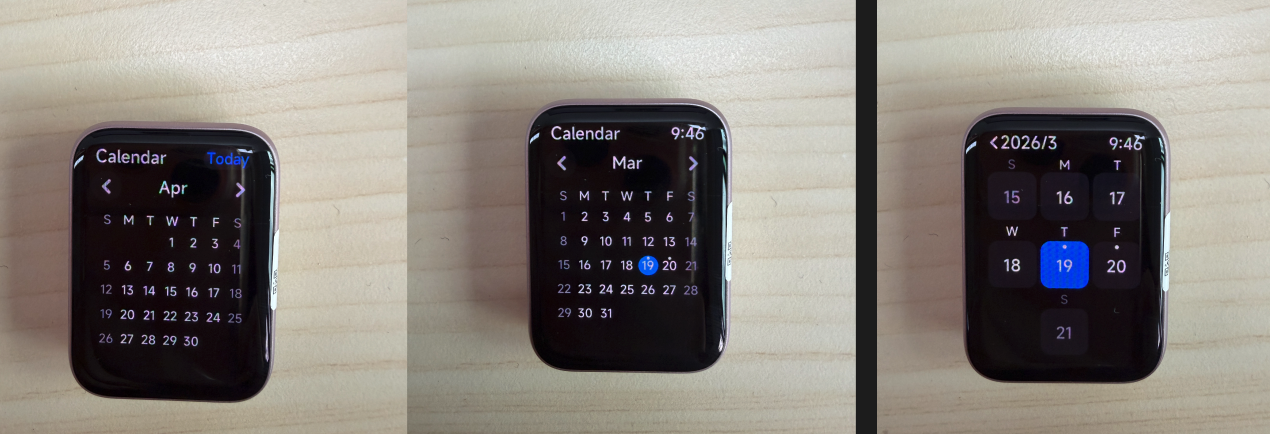
1. Open the [Calendar] App from the App list to view the calendar. The title displays the current time. You can tap the left or right buttons in the title area to switch months, and swiping left or right also supports switching months. The supported display years are 2000–2059.
2. If [Sync events] is enabled, dates with events within the next seven days display a dot indicator. Dates outside the current month display a “Today” indicator in the upper-right corner, and tapping it returns to the current month. Tapping a date in month view enters week view.
3. In week view, swipe left or right to switch weeks. The display shows the date and weekday. Dates with schedules within the next seven days display a dot indicator. Tapping a date enters the Event interface. Please refer to the Event feature instructions for detailed usage information.
4. Event interface: Please refer to the Events App for detailed usage information.
Q46: How to set the time on the Xiaomi Smart Band 10 Pro?
A: The Xiaomi Smart Band 10 Pro does not support manually setting the time on the band. When connected to the Mi Fitness App, the Xiaomi Smart Band 10 Pro automatically synchronizes the system time from the phone.
Q47: How to set dual time zones on the Xiaomi Smart Band 10 Pro?
A: The Xiaomi Smart Band 10 Pro does not support dual time zones.
Q48: How to use and set alarms on the Xiaomi Smart Band 10 Pro?
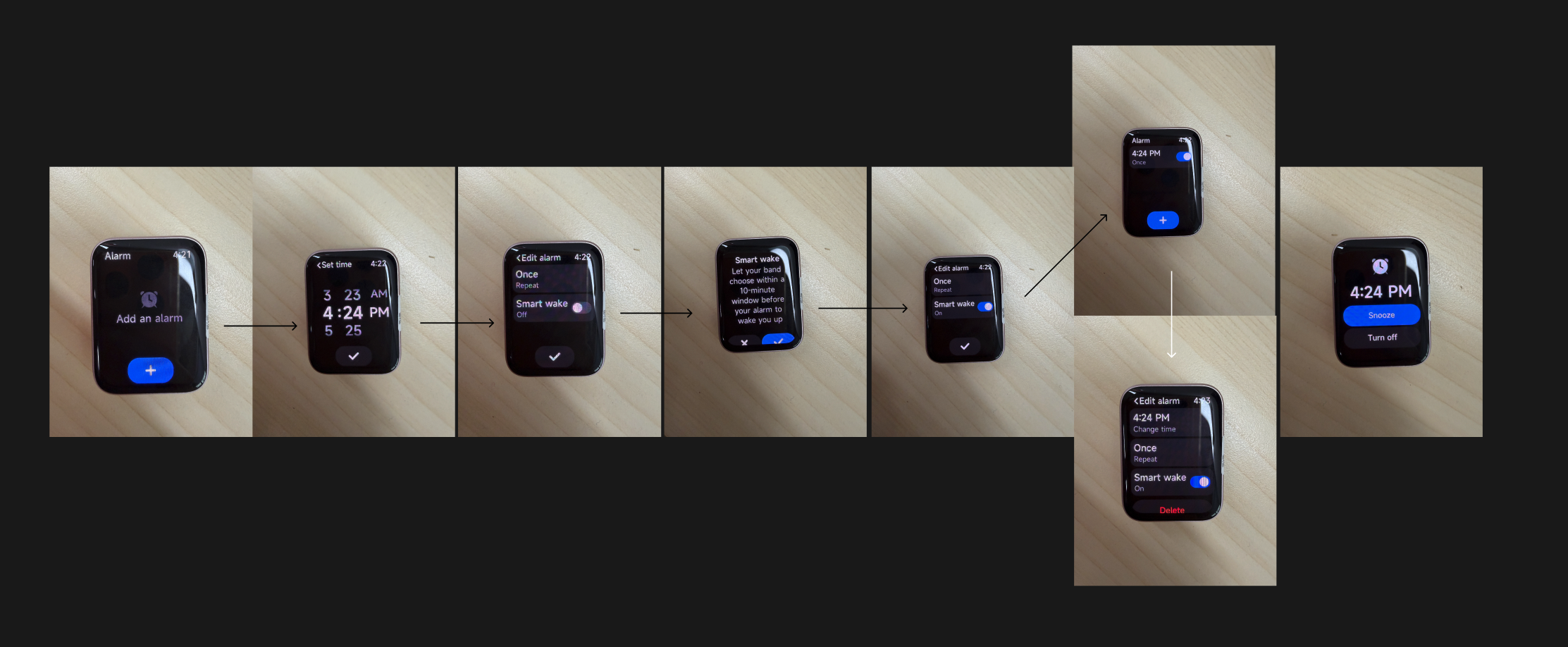
A: Alarm functions on the Xiaomi Smart Band 10 Pro can be configured in the Mi Fitness App, and alarms can also be added, edited, or deleted directly in the Alarm App on the band.
You can choose one-time alarms, daily alarms, or custom alarms for specific days from Monday to Sunday. The Xiaomi Smart Band 10 Pro supports up to 20 alarms.
The Xiaomi Smart Band 10 Pro can automatically synchronize alarms from Xiaomi phones. When the phone and band are connected, the band vibrates simultaneously when the phone alarm rings.
The Xiaomi Smart Band 10 Pro supports smart wake-up 10 minutes in advance. Within 10 minutes before the scheduled alarm time, the Xiaomi Smart Band 10 Pro automatically selects the optimal light sleep period to trigger the alarm. If no suitable light sleep period is detected, the alarm rings at the scheduled time.
When an alarm rings on the Xiaomi Smart Band 10 Pro, tap [Turn off] to stop the alarm, or tap [Snooze] to receive another reminder after 10 minutes.
Q49: How to set phone alarm synchronization on the Xiaomi Smart Band 10 Pro?
A: For Xiaomi phones, the Xiaomi Smart Band 10 Pro supports synchronizing phone alarms to the band for reminders. Non-Xiaomi phones are currently not supported.
Synchronized alarms ring on both the phone and the Xiaomi Smart Band 10 Pro at the same time. Operations performed on either device, such as dismissing or snoozing the alarm, take effect on both devices simultaneously.
To ensure alarm synchronization functions properly, please keep Bluetooth connected between the phone and the Xiaomi Smart Band 10 Pro and keep the Mi Fitness App running normally.
Note:
You can disable phone alarm reminders through Mi Fitness App >> [Device] >> [Apps] >> [Alarm] >> [Sync alarms from phone].
Q50: How to use and set the Timer on the Xiaomi Smart Band 10 Pro?
A: You can enter the Timer App from the App list, widgets, or band display components on the Xiaomi Smart Band 10 Pro. You can choose preset countdown durations or tap the bottom button to customize the countdown duration. Widgets also support quick countdowns and the previously used custom countdown.
The Xiaomi Smart Band 10 Pro supports countdown durations up to 23 hours, 59 minutes, and 59 seconds, and can save up to 4 recent custom countdown records.
Q51: How to use and set the Stopwatch on the Xiaomi Smart Band 10 Pro?
A: You can enter the Stopwatch App from the App list, widgets, or band display components on the Xiaomi Smart Band 10 Pro. Tap the button at the bottom of the homepage to start timing, or directly tap the start button in the widget.
The Xiaomi Smart Band 10 Pro supports timing up to 23:59:59.99 and supports up to 50 lap records.
Q52: How to use Sleep mode on the Xiaomi Smart Band 10 Pro?
A: The Xiaomi Smart Band 10 Pro does not support Sleep mode.
Q53: How to use remote photography on the Xiaomi Smart Band 10 Pro?
A: Tap the [Camera] App from the App list on the Xiaomi Smart Band 10 Pro.
Q54: How to wake and use the voice assistant on the Xiaomi Smart Band 10 Pro?
A: The Xiaomi Smart Band 10 Pro does not support a voice assistant.
Health Related
Q1: How to set and use the sleep monitoring on the Xiaomi Smart Band 10 Pro?
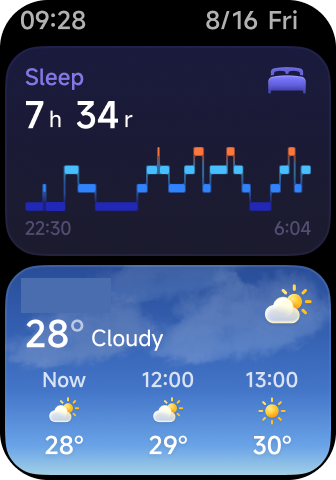
A: Wearing the Xiaomi Smart Band 10 Pro while sleeping will automatically record sleep information.
Method 1:
1. Swipe left on the band display to the widget page, where the Sleep widget displays last night’s sleep duration.
2. Tap the Sleep widget to enter the App for more details.
Method 2:
Method 3:
1. Open the Mi Fitness App and go to the [Health] section.
2. Enter [Sleep] to view historical sleep data, including daily, weekly, and monthly trends. It also shows sleep stages such as deep sleep, light sleep, REM sleep, and awake periods, along with detailed timelines.
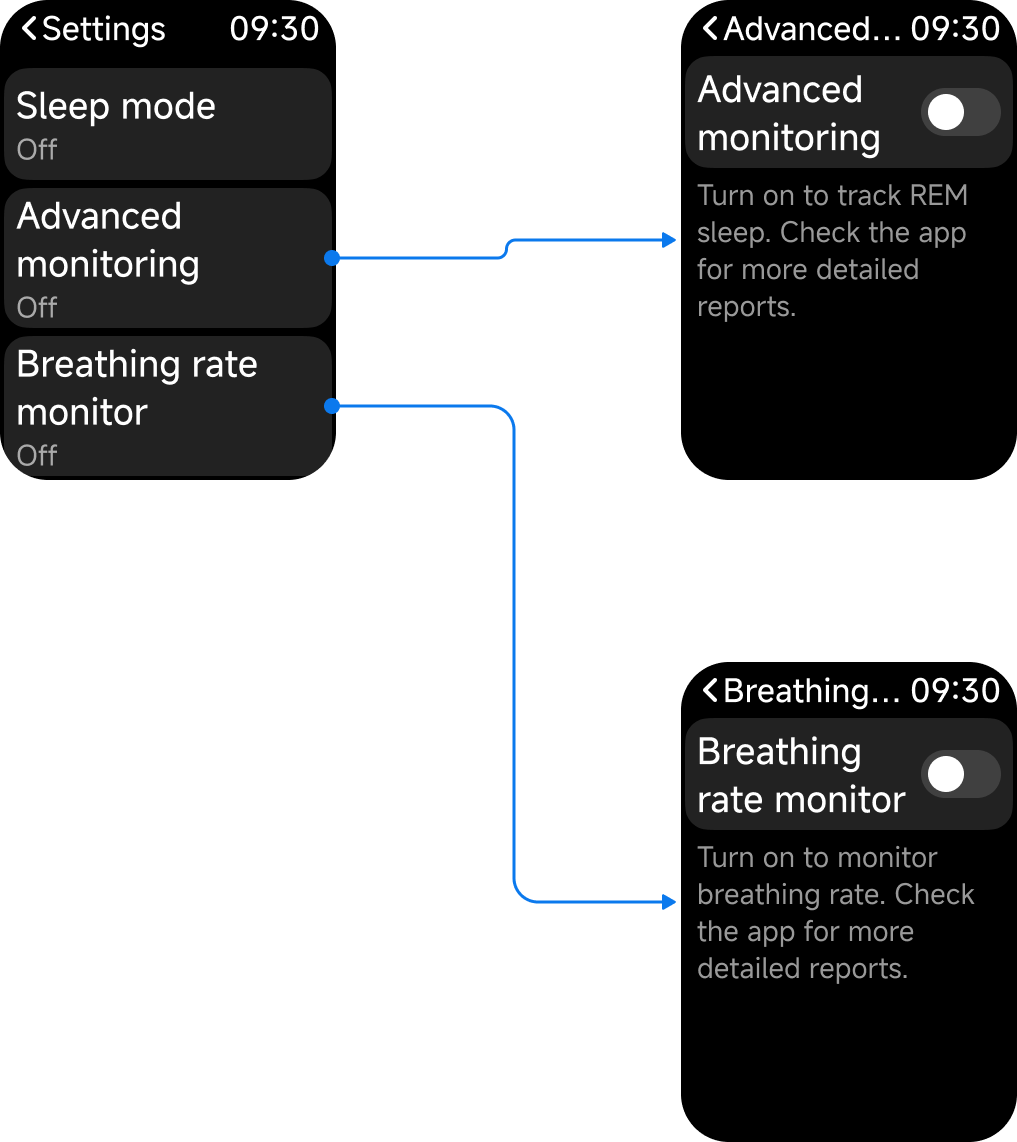
In the Sleep App, swipe up to access Settings. Enabling [Advanced monitoring] allows tracking of REM sleep distribution. Enabling [Breathing rate monitoring] will automatically track breathing rate during sleep at night.
Q2: Does the Xiaomi Smart Band 10 Pro support Sleep rhythm screening?
A: The Xiaomi Smart Band 10 Pro does not support Sleep rhythm screening.
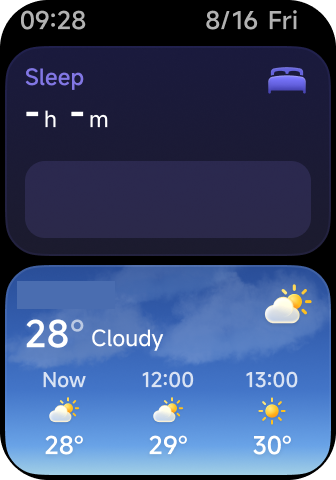
Q3: Why does the Sleep widget on the Xiaomi Smart Band 10 Pro not show sleep data?
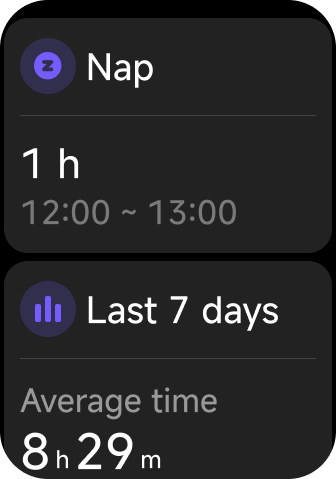
A: The long sleep widget only displays long sleep data. If the Sleep App only records Nap and no long sleep is generated, the long sleep widget will not display any sleep data.
Q4: Why does the Xiaomi Smart Band 10 Pro misidentify watching movies, watching TV, or using a phone as sleep?
A: The Xiaomi Smart Band 10 Pro infers sleep status based on activity levels monitored by the accelerometer. While watching movies, watching TV, or using a phone, the body remains still, which highly overlaps with the physiological characteristics of sleep, leading the algorithm to misjudge it as falling asleep.
Q5: How to use and set up the heart rate measurement function on the Xiaomi Smart Band 10 Pro?
A: When you enter the Heart rate App and stay on this interface, the heart rate will be measured continuously.
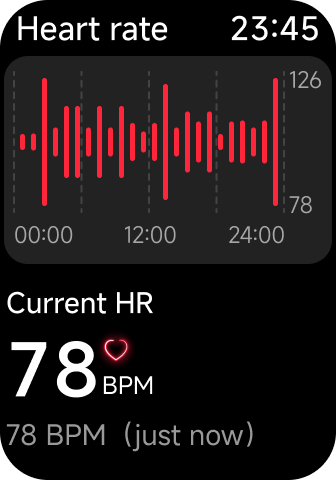
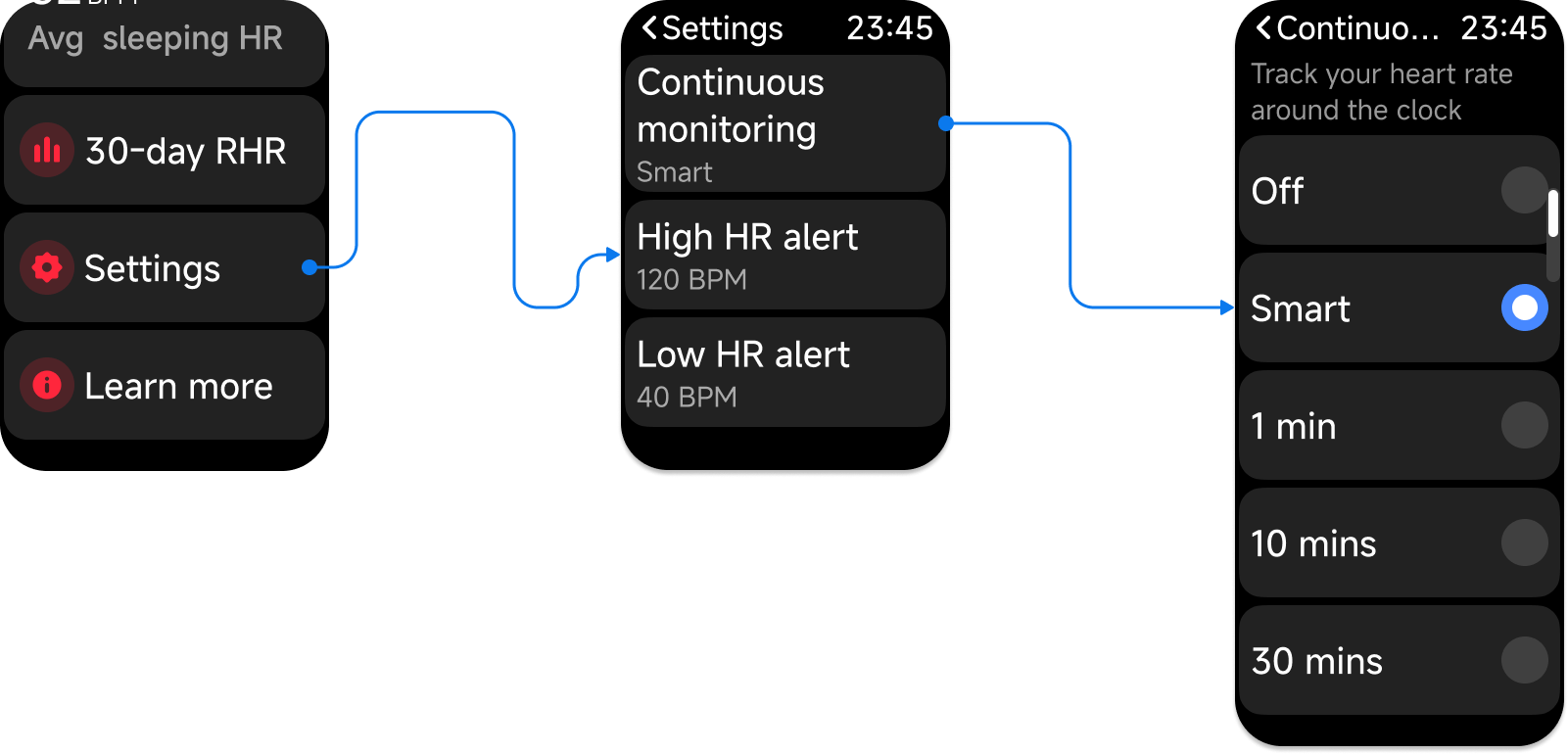
Enter the Heart rate App, swipe up to Settings, and tap [Continuous monitoring] to enter the measurement frequency settings page:
1. Smart monitoring (default): Measures every 10 minutes during rest and every 1 minute during high activity.
2. 1 minute: Fixed measurement every 1 minute.
3. 10 minutes: Fixed measurement every 10 minutes.
4. 30 minutes: Fixed measurement every 30 minutes.
Q6: How to set high or low heart rate alerts on the Xiaomi Smart Band 10 Pro?
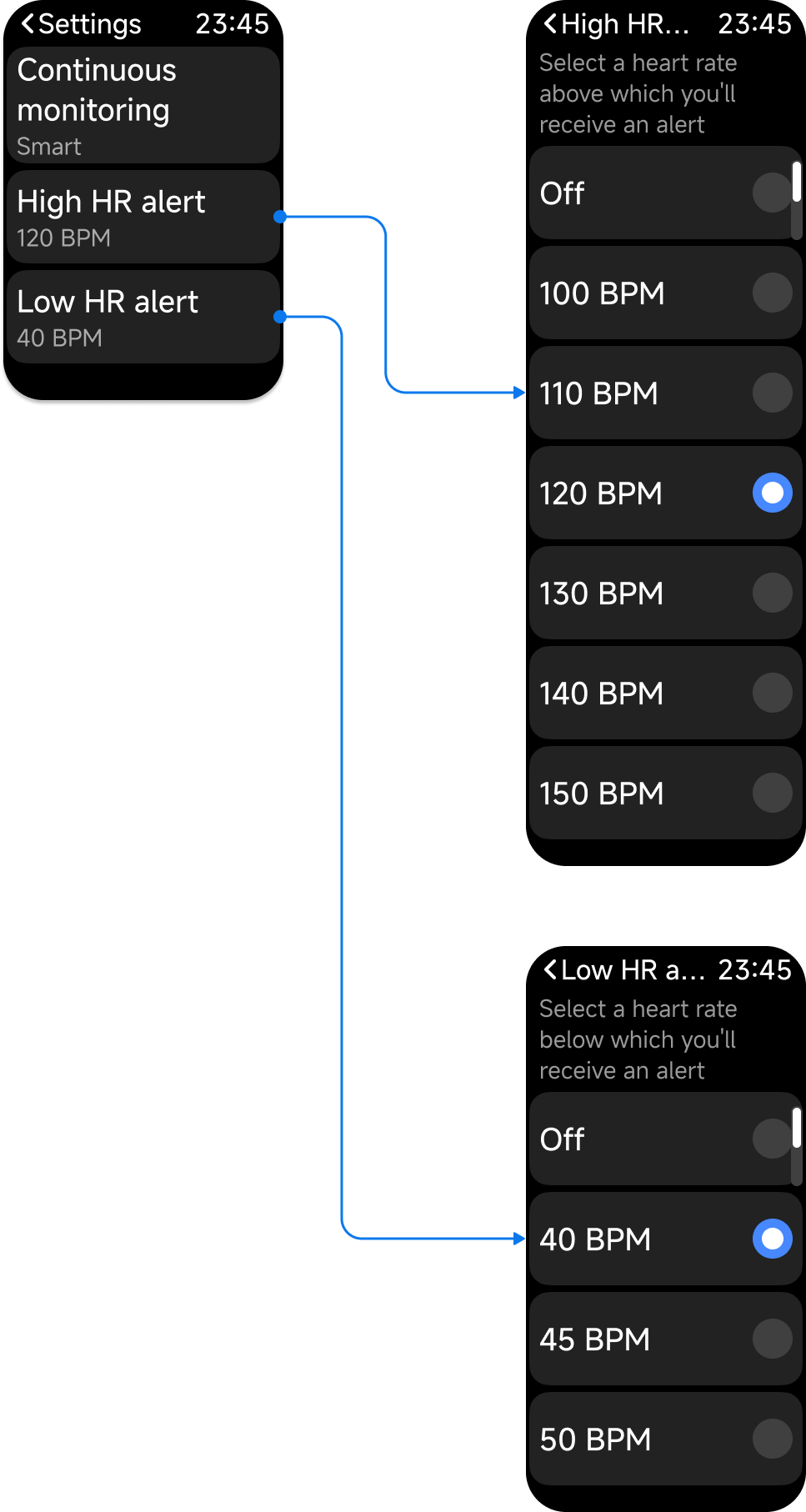
A: To set high or low heart rate alerts on the Xiaomi Smart Band 10 Pro, please refer to the following steps:
1. Enter [Heart rate].
2. Swipe up to enter [Settings].
3. Tap [High HR alert].
4. Enter the settings page for high heart rate alerts.
5. Tap [Low HR alert].
6. Enter the settings page for low heart rate alerts.
Q7: Does the Xiaomi Smart Band 10 Pro support Mobile ECG Atrial Fibrillation (AFib) notification?
A: The Xiaomi Smart Band 10 Pro does not support Mobile ECG Atrial Fibrillation (AFib) notification.
Q8: How to measure SpO₂ on the Xiaomi Smart Band 10 Pro?
A: To measure SpO₂ on the Xiaomi Smart Band 10 Pro, please refer to the following methods:
Method 1:
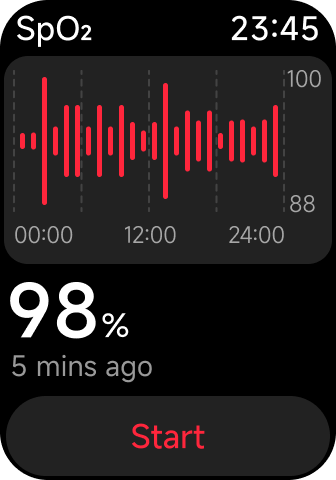
In the SpO₂ App, tap [Start] to begin the measurement process.
Method 2:
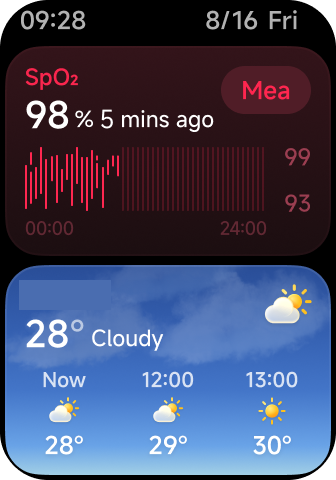
Swipe left from the band display to access widgets. Add the SpO₂ widget, then tap the [Measure] to start the process.
Method 3:
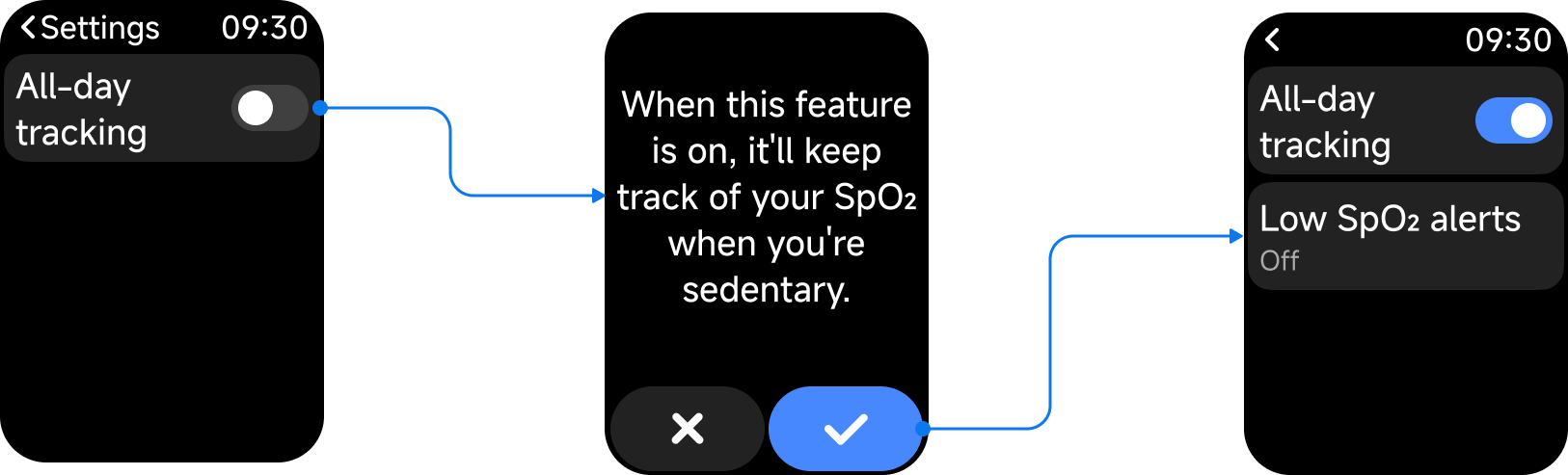
In the SpO₂ settings, enable All-day tracking. Once activated, the band will measure your blood oxygen every 10 minutes while you are wearing it and remain still.
Q9: Can SpO₂ be measured during exercise on the Xiaomi Smart Band 10 Pro?
A: SpO₂ can't be measured during exercise on the Xiaomi Smart Band 10 Pro. When All-day tracking is enabled, SpO₂ can be measured during daily rest periods. However, wrist movement will affect the success rate of the reading and can result in no data being generated. It is recommended to remain still while measuring to ensure both the success rate and the accuracy of the value.
Q10: How to set All-day tracking on the Xiaomi Smart Band 10 Pro?
A: To set All-day tracking on the Xiaomi Smart Band 10 Pro, please refer to the following steps:
1. Enter the SpO₂ App.
2. Swipe up to the [Settings].
3. Enable [All-day tracking] to configure this option.
Q11: How to set high or low blood oxygen alerts on the Xiaomi Smart Band 10 Pro?
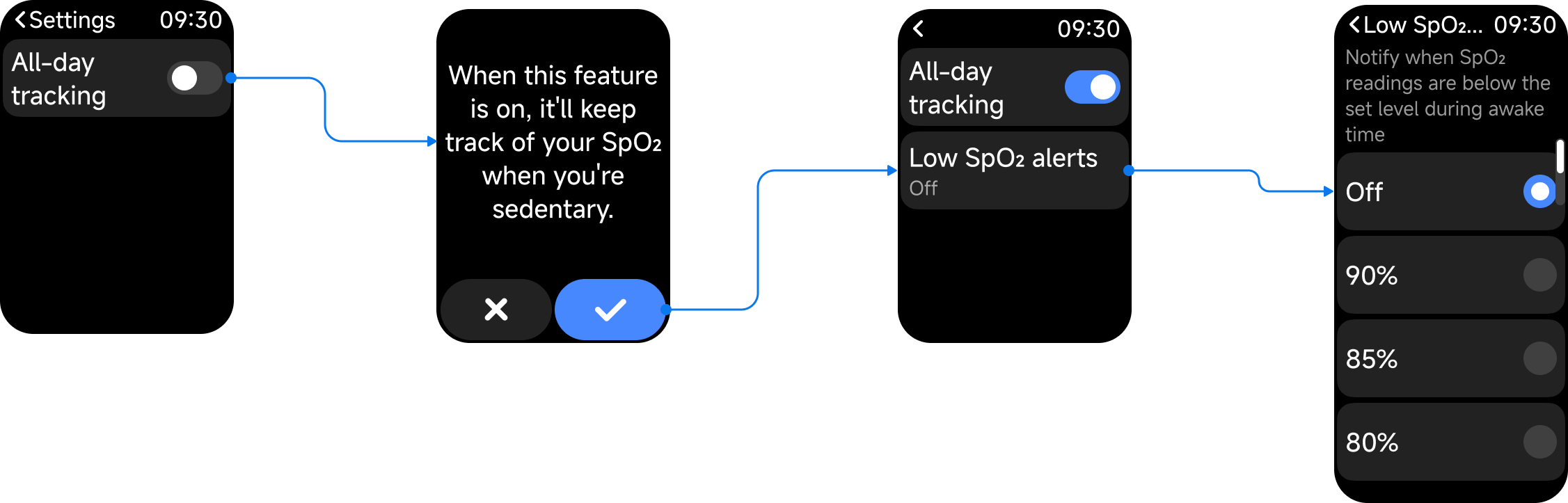
A: To set high or low blood oxygen alerts on the Xiaomi Smart Band 10 Pro, please refer to the following steps:
1. Enter the SpO₂ App.
2. Swipe up to the [Settings].
3. Tap [All-day tracking].
4. The [Low SpO₂ alerts] will then appear. Tap it to enter the detailed settings.
Q12: Does the Xiaomi Smart Band 10 Pro support measuring body temperature?
A: The Xiaomi Smart Band 10 Pro does not support measuring body temperature.
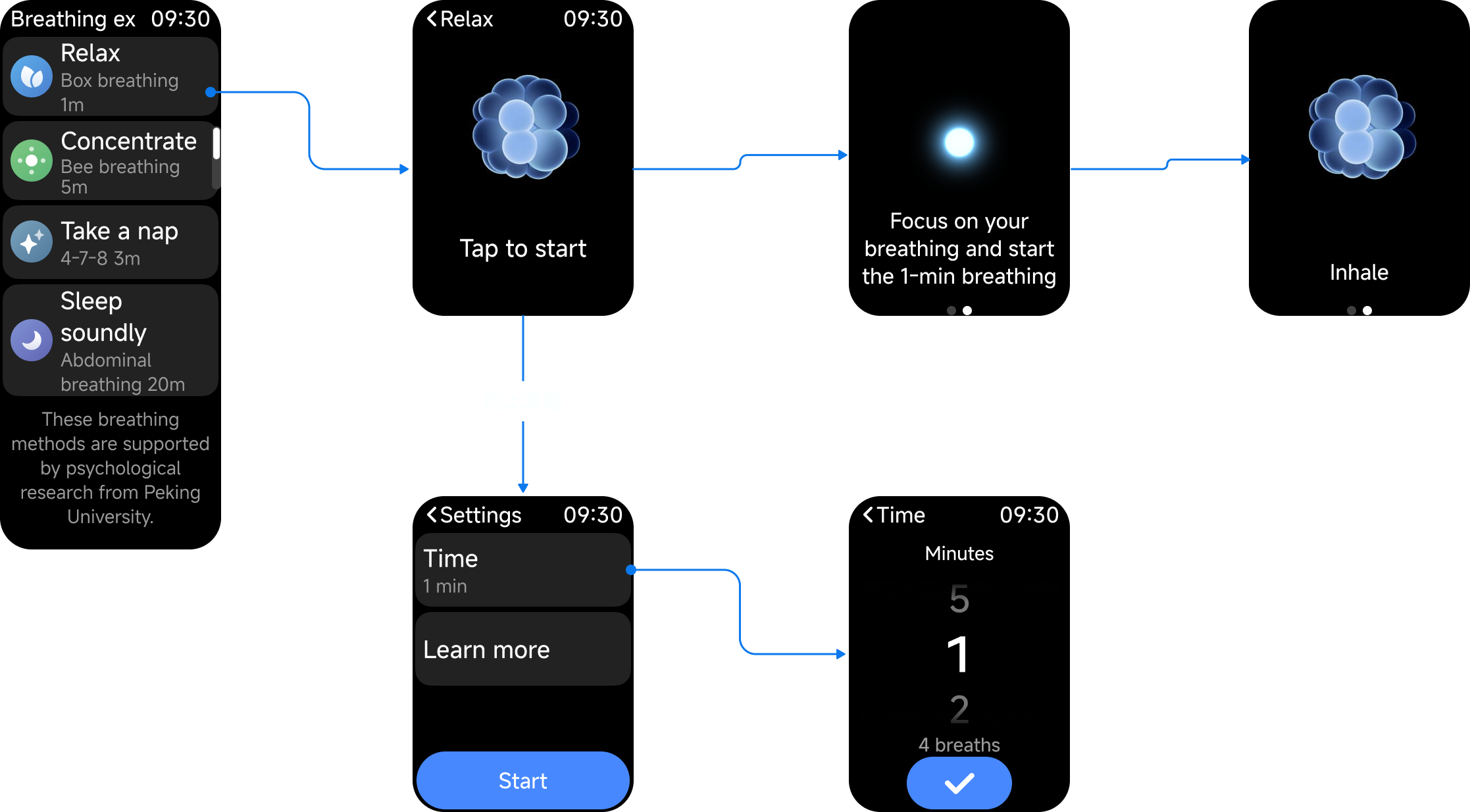
Q13: How to perform Breathing exercises on the Xiaomi Smart Band 10 Pro?
A: To perform Breathing exercises on the Xiaomi Smart Band 10 Pro, please refer to the following steps:
1. Open the Breathing exercises App.
2. Select the breathing pattern that suits you best.
3. Swipe up to access the settings interface and set your preferred breathing duration.
4. Tap [Start] and follow the on-screen prompts to perform the breathing exercises.
Q14: Does the Xiaomi Smart Band 10 Pro support recording emotions?
A: The Xiaomi Smart Band 10 Pro does not support recording emotions.
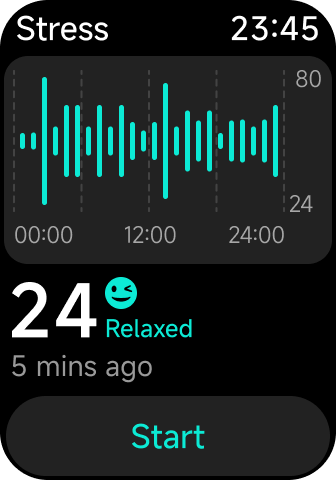
Q15: How to measure Stress on the Xiaomi Smart Band 10 Pro?
A: To measure Stress on the Xiaomi Smart Band 10 Pro, please refer to the following methods:
Method 1:
In the Stress App, tap the [Start] to begin the stress testing process.
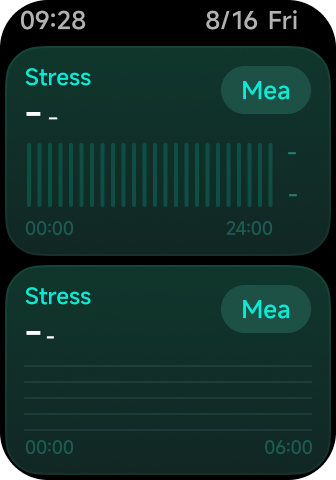
Method 2:
In the Stress widget, tap the [Measure] to begin the stress testing process.
Method 3:
In [Settings], after enabling [All-day monitoring], the band will automatically measure your stress level every 10 minutes when you are still and wearing the device.
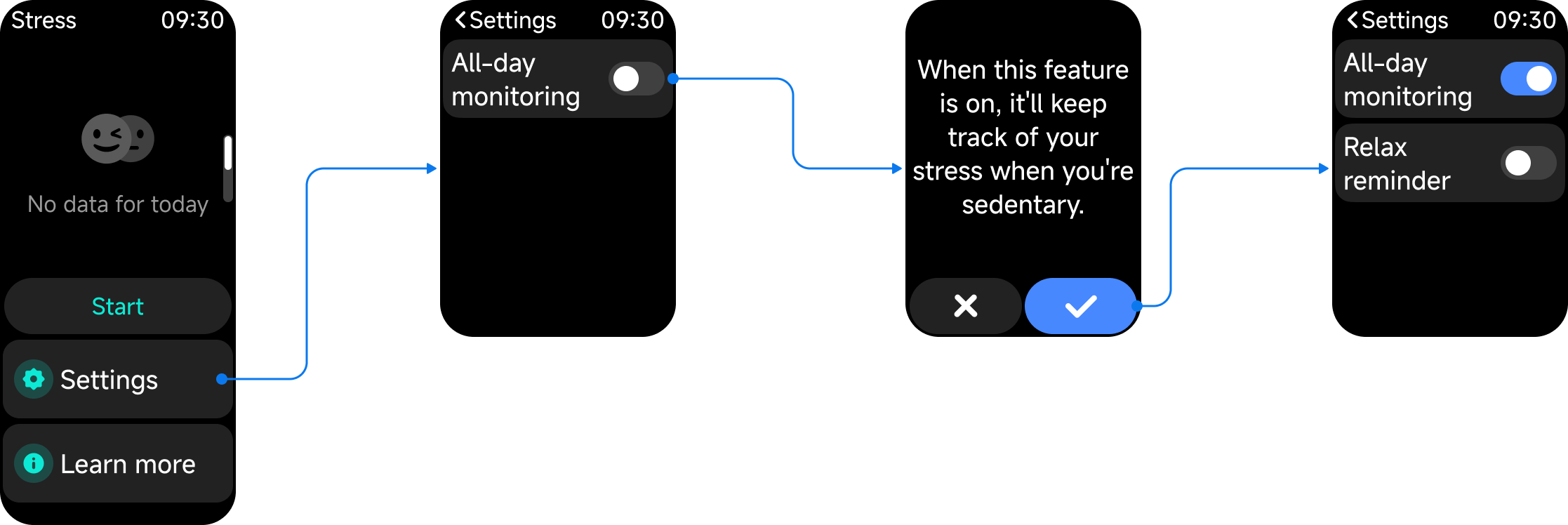
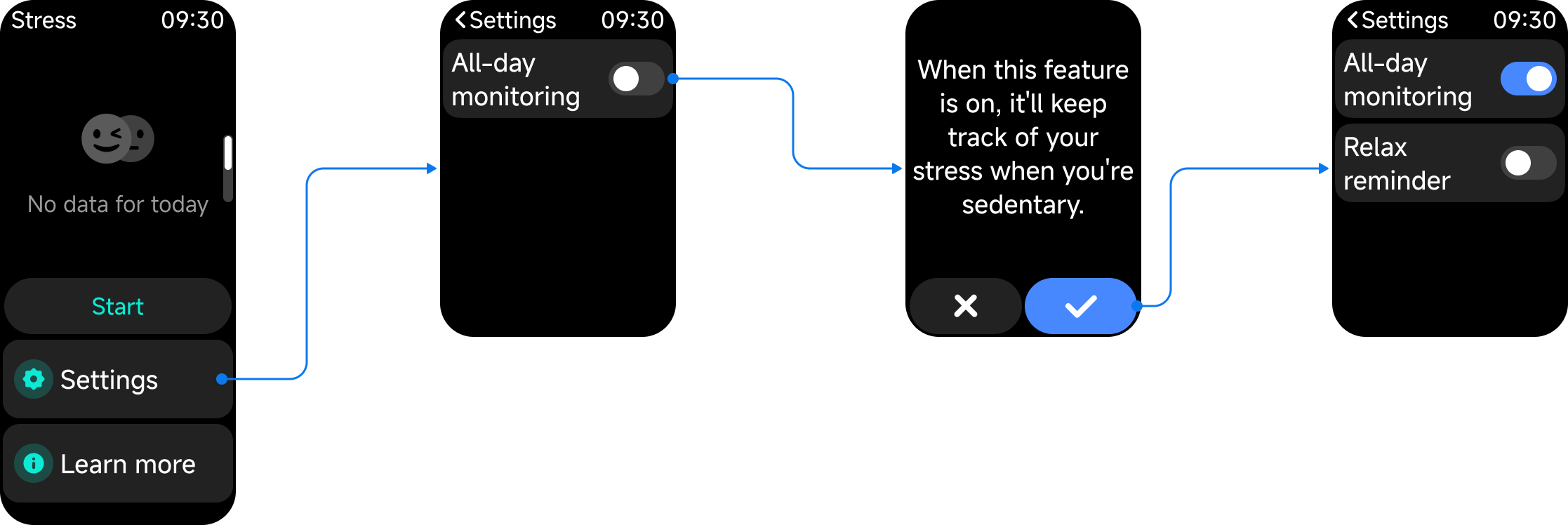
Q16: How to set up All-day monitoring on the Xiaomi Smart Band 10 Pro?
A: To set up All-day monitoring on the Xiaomi Smart Band 10 Pro, please refer to the following steps:
1. Enter the [Stress] App.
2. Swipe up to the [Settings].
3. Tap [All-day monitoring].
4. When the confirmation prompt appears, select [√] to enable the [All-day monitoring] switch.
Q17: How to set relaxation reminders on the Xiaomi Smart Band 10 Pro?
A: To set relaxation reminders on the Xiaomi Smart Band 10 Pro, please refer to the following steps:
1. Enter the [Stress] App.
2. Swipe up to the [Settings].
3. Enable [All-day monitoring].
4. When the confirmation prompt appears, select [√] to enable the [All-day monitoring] switch. Turn on [Relax reminder].
Q18: How to use and set female health features on the Xiaomi Smart Band 10 Pro?
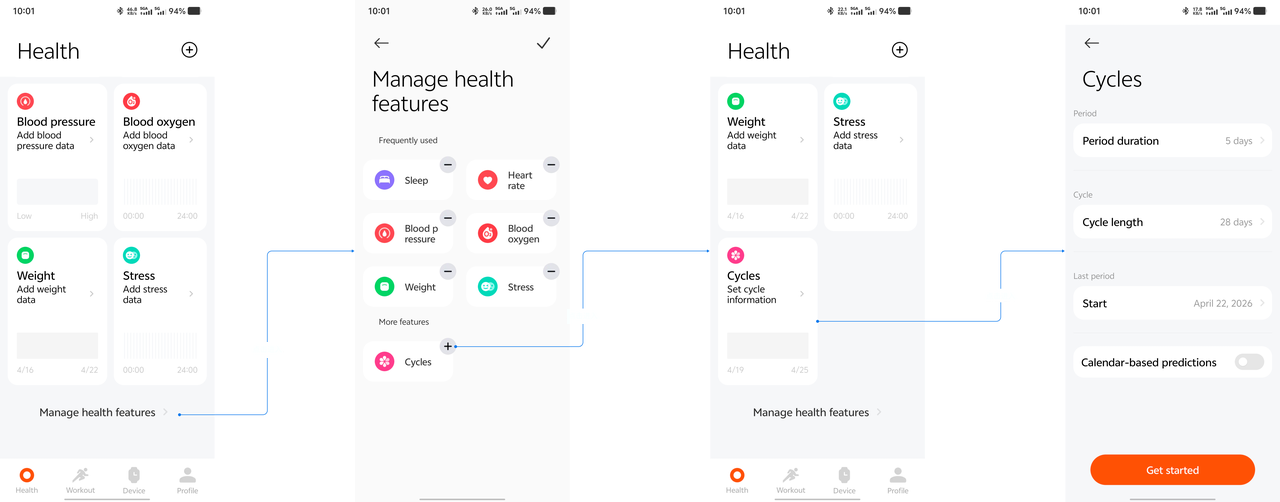
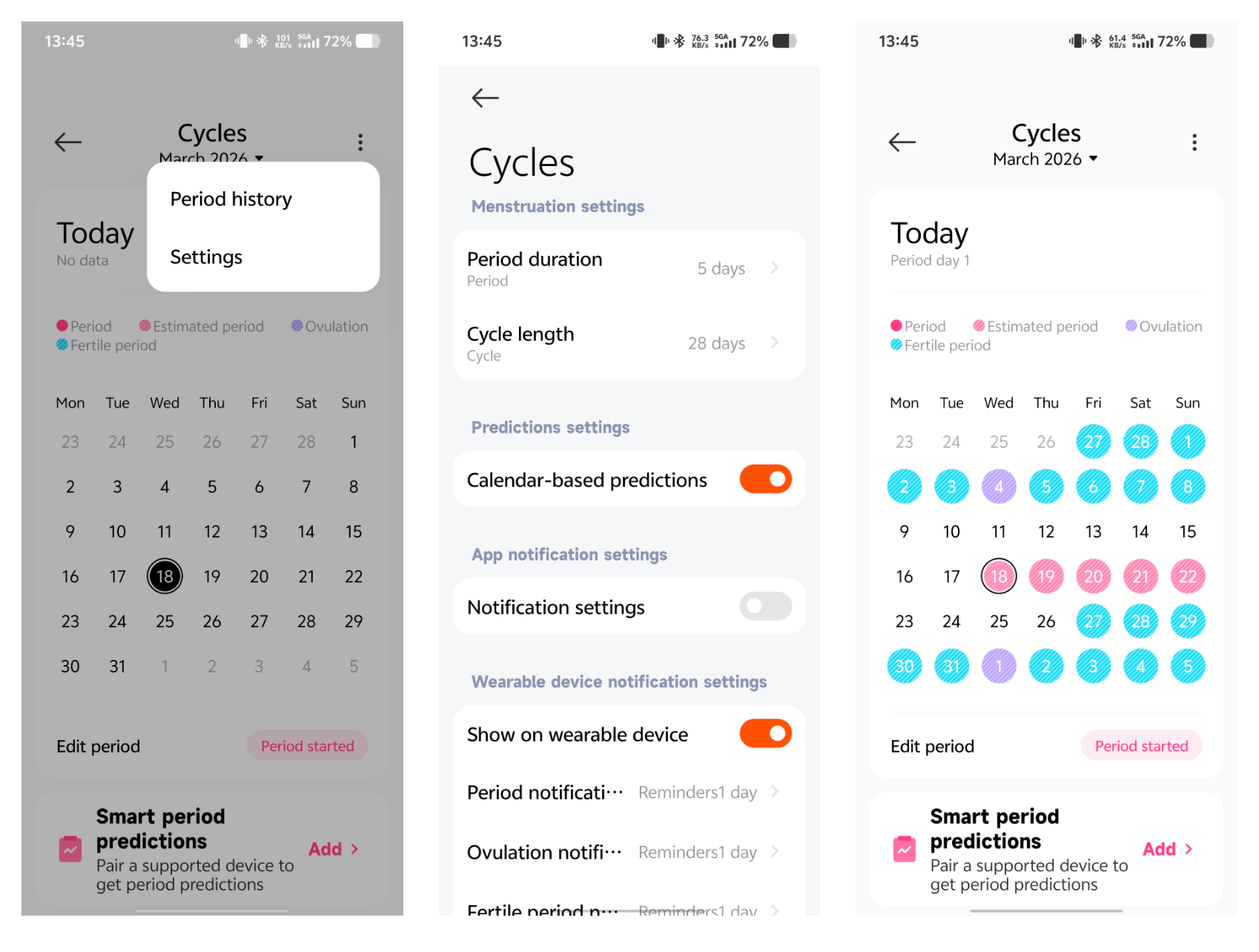
A: The female health features on the Xiaomi Smart Band 10 Pro need to be set up via the basic menstrual cycle information in the Mi Fitness App. Once the band is paired with the App, open the App and enter the Cycles module to perform the initial setup.
After the initial setup is complete, enter the Cycles >> select [Settings] to access the period configuration interface >> enable [Calendar-based predictions], as well as [Notification settings]. Then, return to the main cycle interface and log your period data. Then the App will intelligently predict your ovulation window and ovulation day. The data recorded in the App will sync to the band for viewing.
Q19: Why can't Smart period prediction be used on the Xiaomi Smart Band 10 Pro?
A: The Xiaomi Smart Band 10 Pro does not support Smart period prediction.
Q20: Does the Xiaomi Smart Band 10 Pro support Health Scan?
A: The Xiaomi Smart Band 10 Pro does not support Health Scan.
Q21: Does the Xiaomi Smart Band 10 Pro support Energy monitoring?
A: The Xiaomi Smart Band 10 Pro does not support Energy monitoring.
Q22: Does the Xiaomi Smart Band 10 Pro support connecting to an external heart rate strap?
A: The Xiaomi Smart Band 10 Pro does not support connecting to an external heart rate strap.
Q23: Does the Xiaomi Smart Band 10 Pro support measuring blood pressure?
A: The Xiaomi Smart Band 10 Pro does not support measuring blood pressure.
Q24: Does the Xiaomi Smart Band 10 Pro support measuring body composition?
A: The Xiaomi Smart Band 10 Pro does not support measuring body composition.
Q25: Why are all the health continuous measurement switches turned off on the Xiaomi Smart Band 10 Pro?
A: If all continuous health monitoring switches on the Xiaomi Smart Band 10 Pro are turned off, please check if the band is in a low battery state. In this case, continuous monitoring of SpO₂, Heart rate, and Stress will be deactivated to extend battery life. After the band has been shut down, charged, and powered back on, these monitoring functions need to be manually re-enabled.
Continuous SpO₂ monitoring: SpO₂ App >> [Settings] >> [All-day tracking].
Continuous heart rate monitoring: Heart rate App >> [Settings] >> [Continuous monitoring].
Continuous stress monitoring: Stress App >> [Settings] >> [All-day monitoring].
Workout Related
Q1: What workout modes does the Xiaomi Smart Band 10 Pro support?
A: For your reference, here are the workout modes supported by the Xiaomi Smart Band 10 Pro:
Categoty | Workout modes |
Outdoor activities (16)
| Outdoor running |
Walking | |
Hiking | |
Outdoor cycling | |
Trekking | |
Trail run | |
Triathlon | |
Rock climbing | |
Skateboarding | |
Roller skating | |
Parkour | |
ATV | |
Paragliding | |
BMX | |
Race walk | |
Track running | |
Water sports (18) | Pool swimming |
Open water | |
Sailing | |
Paddleboarding | |
Water polo | |
Other water sports | |
Water skiing | |
Kayaking | |
Rafting | |
Rowing | |
Powerboating | |
Finswimming | |
Diving | |
Artistic swimming | |
Snorkeling | |
Kitesurfing | |
Flowriding | |
Dragon boat | |
Training (43)
| Freestyle |
Treadmill | |
Jump rope | |
HIIT | |
Yoga | |
Indoor cycling | |
Elliptical | |
Rower | |
Stair climber | |
Stepper | |
Spinning | |
Core training | |
Flexibility | |
Pilates | |
Gymnastics | |
Stretching | |
Strength | |
Cross training | |
Stair climbing | |
Aerobics | |
Physical training | |
Wall ball | |
Dumbbell | |
Barbell | |
Weightlifting | |
Deadlift | |
Burpee | |
Sit-ups | |
Functional training | |
Upper body | |
Lower body | |
Abs | |
Back | |
Air walker | |
Horizontal bar | |
Parallel bars | |
Step aerobics | |
Mass gymnastics | |
Cardio combat | |
Battle rope | |
Aerobic combo | |
Indoor walking | |
Indoor fitness | |
Dance (14)
| Square dancing |
Belly dance | |
Ballet | |
Street dance | |
Zumba | |
Folk dance | |
Jazz dance | |
Latin dance | |
Hip hop | |
Pole dance | |
Breaking | |
Ballroom dance | |
Modern dance | |
Dance | |
Combat sports (12) | Boxing |
Wrestling | |
Martial arts | |
Tai chi | |
Muay Thai | |
Judo | |
Taekwondo | |
Karate | |
Kickboxing | |
Kendo | |
Fencing | |
Ball sports (26) | Tennis |
Basketball | |
Golf | |
Soccer | |
Volleyball | |
Baseball | |
Softball | |
American football | |
Hockey | |
Table tennis | |
Badminton | |
Cricket | |
Handball | |
Bowling | |
Squash | |
Billiards | |
Shuttlecock | |
Beach soccer | |
Beach volleyball | |
Sepak takraw | |
Futsal | |
Hacky sack | |
Bocce | |
Jai alai | |
Gateball | |
Dodgeball | |
Winter sports (11)
| Snowboarding |
Skiing | |
Cross-country skiing | |
Ice skating | |
Indoor ice skating | |
Curling | |
Other winter sports | |
Snowmobile | |
Ice hockey | |
Bobsleigh | |
Sledding | |
Recreational sports (14) | Archery |
Darts | |
Horse riding | |
Tug of war | |
Hula hoop | |
Kite flying | |
Fishing | |
Frisbee | |
Kicking shuttlecock | |
Swinging | |
Somatosensory game | |
Table football | |
Shuffleboard | |
Esports | |
Card and board games (5) | Chess |
Checkers | |
Weiqi | |
Bridge | |
Board game | |
Other (3) | Equestrian |
Athletics | |
Auto racing |
Q2: What data can be displayed during and after the workout initiated on the Xiaomi Smart Band 10 Pro?
A: For your reference, here are the data types displayed during and after the workout initiated on the Xiaomi Smart Band 10 Pro:
1. During workout:
(1) Outdoor running: GNSS, Time, Duration, Distance, Pace, Heart rate & Heart rate zone, Calorie, Cadence, Steps, Avg pace, Vertical ratio, Vertical amplitude, Ground contact time, AI pacer (which can be displayed after enabling [AI Pacer] in the Settings of Outdoor running).
(2). Walking: GNSS, Time, Duration, Distance, Pace, Heart rate & Heart rate zone, Calorie, Cadence, Steps, Avg pace.
(3). Trail run, Trekking, and Rock climbing: GNSS, Time, Duration, Distance, Speed, Heart rate & Heart rate zone, Calorie, Cadence, Steps, Avg speed.
(4). Outdoor cycling: GNSS, Time, Duration, Distance, Speed, Heart rate & Heart rate zone, Calorie, Steps, Avg speed.
(5). Treadmill: Time, Duration, Distance, Pace, Heart rate & Heart rate zone, Calorie, Cadence, Steps.
(6). Triathlon:
a. Open water: GNSS, Time, Duration, Distance, Pace, Calorie.
b. Outdoor cycling: GNSS, Time, Duration, Distance, Speed, Heart rate & Heart rate range, Calorie, Avg speed.
c. Outdoor running: GNSS, Time, Battery, Duration, Distance, Pace, Heart rate & Heart rate zone, Calorie, Cadence, Steps, Avg pace, Vertical ratio, Ground contact time, Vertical amplitude.
d. Switching interface: swimming duration, switched item 1 duration, cycling duration, switched item 2 duration.
(7). Pool swimming: Locking icon, Time, Duration, Distance, Pace, Heart rate & Heart rate zone, Lengths, Calories.
(8). Open water: GNSS, Locking icon, Time, Duration, Distance, Pace, Heart rate & Heart rate zone, Calories.
(9). Elliptical: Set, Time, Duration, This set, Calories, Heart rate & Heart rate zone, Total strokes, Total Calories Burned, Stroke rate.
(10). Rower: Set, Time, Duration, Calories, Heart rate & Heart rate range, Total duration, Total strokes, Total Calories Burned, Stroke rate.
(11). Jump rope: Set, Time, Duration, This set, Calories, Heart rate & Heart rate zone, Total duration, Total jumps, Total Calories Burned, Stroke rate (SPM).
(12). HIIT: Set, Time, Duration, Calories, Heart rate & Heart rate zone, Total duration, Total Calories Burned.
(13). Freestyle: Time, Battery, Duration, Calorie, Heart rate & Heart rate zone.
2. After workout:
(1). Outdoor running: Workout item and initiation time, Trajectory image, Duration, Distance, Goal (need to be enabled), Calories, Avg HR, Step, Avg pace, Avg cadence (SPM), Avg stride (m), Vertical ratio, Vertical amplitude, Ground contact time, Heart rate diagram, Heart rate zone, Pace diagram, Cadence diagram, VO2 max, Aerobic training effect, Anaerobic training effect, Training load, Recovery time, Vitality score, Stretching, View stages, Delete this record.
(2). Track running: Workout item and initiation time, Trajectory image, Duration, Distance, Goal (need to be enabled), Calories, Avg HR, Step, Avg pace, Avg cadence (SPM), Avg stride (m), Vertical ratio, Vertical amplitude, Ground contact time, Heart rate diagram, Heart rate zone, Pace diagram, Cadence diagram, VO2 max, Aerobic training effect, Anaerobic training effect, Training load, Recovery time, Vitality score, Stretching, View stages, Delete this record.
(3). Walking: Workout item and initiation time, Trajectory image, Duration, Distance, Goal (need to be enabled), Calories, Avg HR, Step, Avg pace, Avg cadence (SPM), Avg stride (m), Vertical ratio, Vertical amplitude, Ground contact time, Heart rate diagram, Heart rate zone, Pace diagram, Cadence diagram, Aerobic training effect, Anaerobic training effect, Training load, Recovery time, Vitality score, Stretching, View stages, Delete this record.
(4). Trail run, Trekking, and Rock climbing: Workout item and initiation time, Trajectory image, Duration, Distance, Goal (need to be enabled), Calories, Avg HR, Step, Avg pace, Heart rate diagram, Heart rate zone, Pace diagram, Aerobic training effect, Anaerobic training effect, Training load, Recovery time, Vitality score, Stretching, View stages, Delete this record.
(5). Outdoor cycling: Workout item and initiation time, Trajectory image, Duration, Distance, Goal (need to be enabled), Calories, Avg HR, Step, Avg speed, Heart rate diagram, Heart rate zone, Speed diagram, Aerobic training effect, Anaerobic training effect, Training load, Recovery time, Vitality score, Stretching, View stages, Delete this record.
(6). Treadmill: Workout item and initiation time, Duration, Distance, Goal (need to be enabled), Calories, Avg HR, Step, Avg pace, Avg cadence (SPM), Avg stride (m), Heart rate diagram, Heart rate zone, Pace diagram, Aerobic training effect, Anaerobic training effect, Training load, Recovery time, Vitality score, Stretching, View stages, Delete this record.
(7). Triathlon: Workout item and initiation time, Trajectory image, Duration, Total distance, Swimming duration, switched item 1 duration, Cycling duration, switched item 2 duration, Running duration, Heart rate diagram, Heart rate zone, Swimming data card, Cycling data card, Running data card, Aerobic training effect, Anaerobic training effect, Training load, Recovery time, Vitality score, Stretching, View stages, Delete this record.
(8). Pool swimming: Workout item and initiation time, Duration, Distance, Goal (need to be enabled), Calories, Times, Main swimming style (Breaststroke, Freestyle, Butterfly, Backstroke), Avg pace, Avg SWOLF, Total number of strokes, Avg frequency, Heart rate diagram, Heart rate zone, Pace diagram, Frequency diagram, SWOLF diagram, Training load, Recovery time, Vitality score, Delete this record.
(9). Open water: Workout item and initiation time, Trajectory image, Duration, Distance, Goal (need to be enabled), Calories, Times, Main swimming style (Breaststroke, Freestyle, Butterfly, Backstroke), Avg pace, Avg SWOLF, Total number of strokes, Avg frequency, Heart rate diagram, Heart rate zone, Pace diagram, Frequency diagram, SWOLF diagram, Training load, Recovery time, Vitality score, Delete this record.
(10). Elliptical: Workout item and initiation time, Duration, Calories, Duration (need to divide groups), Resting duration (need to divide groups), Set (need to divide groups), Avg HR, Max. HR, Heart rate diagram, Heart rate zone, Cadence diagram, Aerobic training effect, Anaerobic training effect, Training load, Recovery time, Vitality score, Delete this record.
(11). Rower: Workout item and initiation time, Duration, Calories, Goal (need to be enabled), Duration (need to divide groups), Resting duration (need to divide groups), Set (need to divide groups), Rowing times, Avg rowing frequency, Heart rate diagram, Heart rate zone, Frequency diagram, Aerobic training effect, Anaerobic training effect, Recovery time, Training load, Vitality score, View stages, Delete this record.
(12). Jump rope: Workout item and initiation time, Duration, Calories, Goal (need to be enabled), Duration (need to divide groups), Resting duration (need to divide groups), Set (need to divide groups), Total times, Avg frequency, Heart rate diagram, Heart rate zone, Frequency diagram, Aerobic training effect, Anaerobic training effect, Recovery time, Training load, Vitality score, View stages, Delete this record.
(13). HIIT: Workout item and initiation time, Duration, Calories, Goal (need to be enabled), Duration (need to divide groups), Resting duration (need to divide groups), Set (need to divide groups), Heart rate diagram, Heart rate zone, Aerobic training effect, Anaerobic training effect, Recovery time, Training load, Vitality score, View stages, Delete this record.
(14). Freestyle: Workout item and initiation time, Duration, Calories, Goal (need to be enabled), Heart rate diagram, Heart rate zone, Aerobic training effect, Anaerobic training effect, Recovery time, Training load, Vitality score, View stages, Delete this record.
Q3: What do maximum altitude, average altitude, total ascent, and total descent mean in the workout data of the Xiaomi Smart Band 10 Pro?
A: The Xiaomi Smart Band 10 Pro does not come with a barometer and does not support recording altitude-related workout data.
Q4: How to start, pause, and end a workout on the Xiaomi Smart Band 10 Pro, and how to enable Auto pause?
A: To start a workout on the Xiaomi Smart Band 10 Pro, tap the Workout App in the App list to enter the Workout list, select the desired workout item, and tap [GO] to start the workout.
During the workout, swipe left on the band to enter the control page and tap [Pause] to pause the workout, or press and hold [End] for 1.5 s to end the workout.
The Xiaomi Smart Band 10 Pro also supports Auto pause in the workout. Please swipe up on the home screen to go to the App list on the band >> [Workout] >> tap the selected workout item >> tap the Settings icon >> enable [Auto pause]. Auto pause is available by default for Outdoor Running, Treadmill, Walking, and Outdoor and Indoor Cycling.
Q5: What workout modes support map navigation on the Xiaomi Smart Band 10 Pro?
A: None of the workout modes support map navigation on the Xiaomi Smart Band 10 Pro.
Q6: Does the Xiaomi Smart Band 10 Pro support underwater heart rate measurement when enabling Pool swimming and Open water?
A: The Xiaomi Smart Band 10 Pro supports underwater heart rate measurement when enabling Pool swimming and Open water.
Q7: How to enable AI pacer on the Xiaomi Smart Band 10 Pro?
A: To enable AI pacer on the Xiaomi Smart Band 10 Pro, please swipe up on the home screen to go to the App list on the band >> [Workout] >> tap the selected workout item >> tap the Settings icon >> [AI pacer] >> adjust the relevant settings. Currently, only Outdoor running and Track running support AI pacer.
Q8: How to set a reminder per kilometer on the Xiaomi Smart Band 10 Pro?
A: To set Reminders on the Xiaomi Smart Band 10 Pro, please swipe up on the home screen to go to the App list on the band >> [Workout] >> tap the selected workout item >> tap the Settings icon >> [Reminders] >> [Reminder] >> select the distance value.
Q9: How to check Running power index on the Xiaomi Smart Band 10 Pro?
A: To enable AI pacer on the Xiaomi Smart Band 10 Pro, please swipe up on the home screen to go to the App list on the band >> [Training state] >> [Start] and run outside for 15 minutes, keeping your heart rate over 100 BPM, to get data.
Q10: How to set Metronome on the Xiaomi Smart Band 10 Pro?
A: To set Metronome on the Xiaomi Smart Band 10 Pro, please swipe up on the home screen to go to the App list on the band >> [Workout] >> tap the selected workout item >> tap the Settings icon >> [Metronome] >> adjust the relevant settings.
Q11: How to measure the lactate threshold on the Xiaomi Smart Band 10 Pro?
A: The Xiaomi Smart Band 10 Pro does not support measuring the lactate threshold.
Q12: How to enable Warm-up before the workout and Stretching after the workout on the Xiaomi Smart Band 10 Pro?
A: To enable Warm-up before the workout on the Xiaomi Smart Band 10 Pro, swipe up on the home screen to go to the App list on the band >> [Workout] >> [Light] >> adjust the relevant settings.
To enable [Stretching] after the workout initiated on the Xiaomi Smart Band 10 Pro, tap [Stretching] after the workout ends.
Q13: Why do the two workouts of workout linkage initiated in the Mi Fitness run simultaneously during Warm-up and Stretching on the Xiaomi Smart Band 10 Pro?
A: The issue has been solved. During the process of Warm-up or Stretching initiated on the Xiaomi Smart Band 10 Pro, the workout cannot be started on the Mi Fitness App.
Q14: Why does Warm-up and Stretching end on the Xiaomi Smart Band 10 Pro if being locked?
A: The issue has been solved. Warm-up and Stretching will not end if locking the Xiaomi Smart Band 10 Pro.
Q15: How to use the Running course on the Xiaomi Smart Band 10 Pro?
A: To use the Running course on the Xiaomi Smart Band 10 Pro, swipe up on the home screen to go to the App list on the band >> [Running] >> select the desired running course.
Q16: How to use Interactive sensory courses on the Xiaomi Smart Band 10 Pro?
A: The Xiaomi Smart Band 10 Pro does not support Interactive sensory courses.
Q17: How to enable the AI workout path on the Xiaomi Smart Band 10 Pro?
A: The Xiaomi Smart Band 10 Pro does not support the AI workout path.
Q18: How to enable the customized workout path on the Xiaomi Smart Band 10 Pro?
A: The Xiaomi Smart Band 10 Pro does not support the customized workout path.
Q19: How to set Training effect on the Xiaomi Smart Band 10 Pro?
A: Training effect does not need to be set on the Xiaomi Smart Band 10 Pro, which can be checked on the workout report interface.
Q20: How to enable Training experience on the Xiaomi Smart Band 10 Pro?
A: Training experience is enabled by default on the Xiaomi Smart Band 10 Pro, which cannot be set on the band currently, and can only be set on the Mi Fitness App.
Q21: How to initiate Competition on the Xiaomi Smart Band 10 Pro?
A: To initiate Competition on the Xiaomi Smart Band 10 Pro, please go to the Mi Fitness App >> [Profile] >> [Competition] >> [Invite] >> initiate the competition.
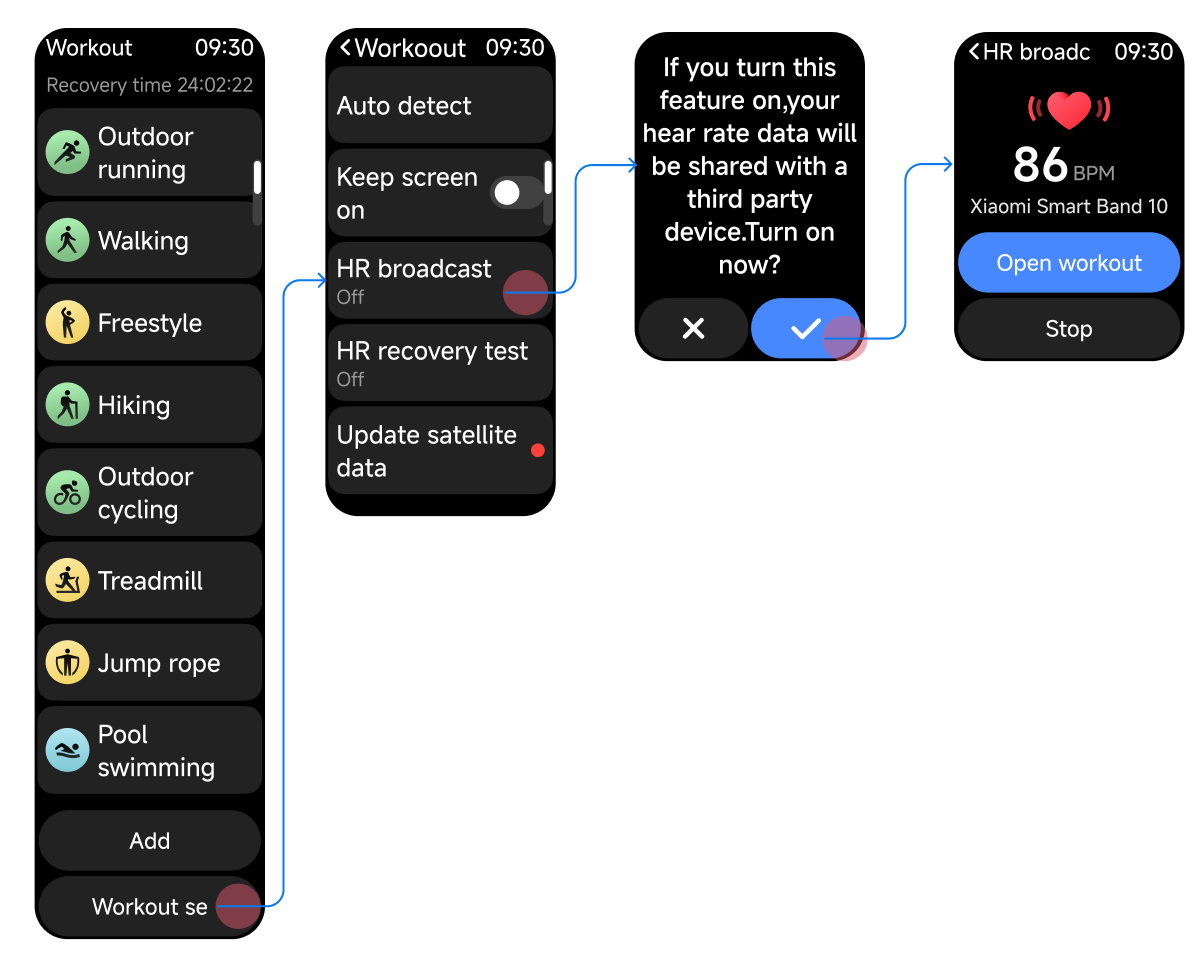
Q22: How to initiate HR broadcast on the Xiaomi Smart Band 10 Pro?
A: To initiate HR broadcast on the Xiaomi Smart Band 10 Pro, please swipe up on the home screen to go to the App list on the band >> [Workout] >> [Workout settings] >> [HR broadcast] >> [√] >> [Open workout]/[Stop].
Q23: Why is the heart rate recorded on the Xiaomi Smart Band 10 Pro different from the physical sensation when swimming?
A: For your reference, here are the reasons for the heart rate difference between the physical sensation and the recording on the Xiaomi Smart Band 10 Pro:
1. Hydrostatic pressure can lower the heart rate to some extent. Water exerts hydrostatic pressure on the chest and limbs, helping venous blood return to the heart more quickly. The heart does not have to work as hard to pump blood, so the heart rate is naturally 10–20 bpm lower than on land. For the same level of exertion, your swimming heart rate will simply be lower.
2. Horizontal posture reduces the burden on the heart. When running or jumping on land, the heart needs to work against gravity to pump blood upward. When swimming (prone/supine), the heart hardly has to fight gravity, making it more efficient and naturally lowering the heart rate.
3. Faster heat dissipation in the water can relieve the strong reaction of the body. Running generates intense heat, which pushes the heart rate up. Swimming constantly dissipates heat, so there is no high body temperature to drive the heart rate higher. Therefore, you feel exhausted, but your heart rate does not spike.
4. Swimming is a type of rhythmic workout, not an explosive one. Swimming relies on continuous, steady force with fewer instantaneous sprints. Unlike running, it is harder to enter the anaerobic zone where the heart rate spikes. Therefore, lactic acid builds up and you feel extremely exhausted, yet your heart rate remains in the aerobic zone.
Q24: How to set Reminders on the Xiaomi Smart Band 10 Pro?
A: To set Reminders on the Xiaomi Smart Band 10 Pro, please swipe up on the home screen to go to the App list on the band >> [Workout] >> tap the selected workout item >> [Reminders] >> set the reminder item from [Reminder], [Pace alert], [Target HR zone], [High HR alert], and [Hydration reminder]. The workout item determines the Reminder types.
Q25: How to set a workout goal on the Xiaomi Smart Band 10 Pro?
A: To set a workout goal on the Xiaomi Smart Band 10 Pro, please swipe up on the home screen to go to the App list on the band >> [Workout] >> tap the selected workout item >> [Goal] >> [Open goal] or set the value of [Distance], [Duration], or [Calories].
Q26: How to set Voice broadcast on the Xiaomi Smart Band 10 Pro?
A: The Xiaomi Smart Band 10 Pro does not support Voice broadcast.
Q27: How to trigger fall detection that can automatically call Emergency SOS on the Xiaomi Smart Band 10 Pro, such as skiing fall detection?
A: The Xiaomi Smart Band 10 Pro does not support skiing fall detection.
Q28: How to set Standing reminders on the Xiaomi Smart Band 10 Pro, and what is the standing reminder logic?
A: To set Standing reminders on the Xiaomi Smart Band 10 Pro, please go to the Mi Fitness App >> [Standing] >> three-dot icon >> [Standing reminders] >> enable [Standing reminders].
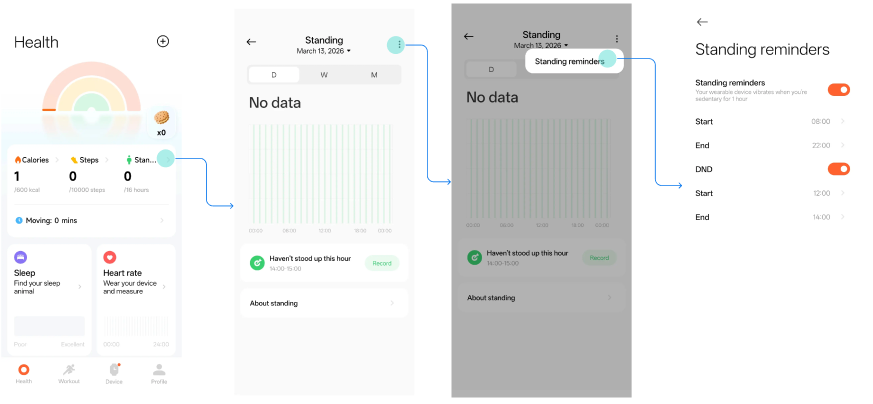
For your reference, here is the logic of Standing reminders on the Xiaomi Smart Band 10 Pro:
The system checks the following conditions at the 50th minute (49' 59") of every hour:
1. There is no standing in the current hour.
2. The device was worn from 49' 00" to 49' 59", and is still worn at the time of the reminder.
3. There is no active action in the current minute (step count < 3).
4. Within the first 50 minutes of the hour, the non-wearing duration was < 5 minutes, and the sleep duration was < 5 minutes.
5. The current time is within the configured reminder time.
Note:
DND of Standing reminders during noon nap should be enabled, the default time of which is 12:00-14:00.
6. Standing reminders will not be triggered in the workout process.
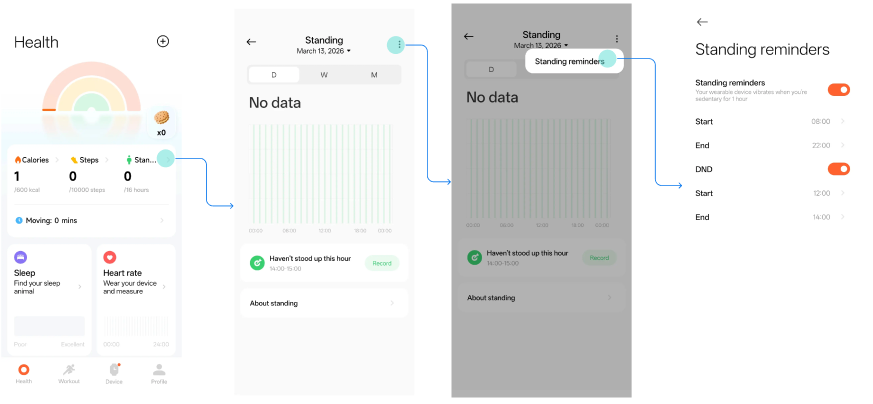
Q29: How to set DND of Standing reminders on the Xiaomi Smart Band 10 Pro?
A: To set DND of Standing reminders on the Xiaomi Smart Band 10 Pro, please go to the Mi Fitness App >> [Standing] >> three-dot icon >> [Standing reminders] >> enable [Standing reminders] >> enable [DND] and set the [Start] and [End] time.
Q30: How to check the Steps, Calories, and Standing/Moving on the Xiaomi Smart Band 10 Pro?
A: To check Steps, Calories, and Standing/Moving on the Xiaomi Smart Band 10 Pro, please go to the App list on the band >> [Stats] >> check [Steps], [Calories], and [Moving]/[Standing] (Only one of [Moving] and [Standing] can be displayed, and you can set it in the Mi Fitness App).
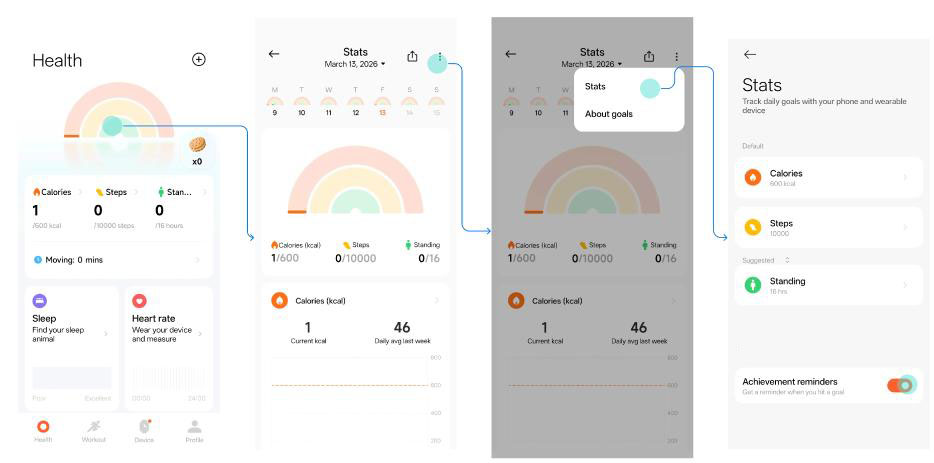
Q31: How to set Achievement reminders on the Xiaomi Smart Band 10 Pro?
A: To set Achievement reminders on the Xiaomi Smart Band 10 Pro, please go to the Mi Fitness App >> tap the rainbow icon >> tap the three-dot icon >> [Stats] >> enable [Achievement reminders].
Q32: Why does a double-layered arrow display on the Xiaomi Smart Band 10 Pro when all stats goals are reached?
A: This issue has been solved on the Xiaomi Smart Band 10 Pro.
Q33: How to add a workout item to the workout list on the Xiaomi Smart Band 10 Pro, and what is the maximum number of the workout items?
A: To add a workout item to the workout list on the Xiaomi Smart Band 10 Pro, please swipe up on the home screen to go to the App list on the band >> [Workout] >> [Add] >> select the targeted workout item. The workout list supports displaying up to 25 workout items.
Q34: How to hide a workout item from the workout list on the Xiaomi Smart Band 10 Pro?
A: To hide a workout item from the workout list on the Xiaomi Smart Band 10 Pro, please swipe up on the home screen to go to the App list on the band >> [Workout] >> press and hold any workout item to enter the editing interface >> tap the deleting icon >> tap [√].
Q35: How to adjust the order of the workout list on the Xiaomi Smart Band 10 Pro?
A: To adjust the order of the workout list on the Xiaomi Smart Band 10 Pro, please swipe up on the home screen to go to the App list on the band >> [Workout] >> press and hold any workout item to enter the editing interface >> tap the pin icon to pin the corresponding workout item to the top and tap the pin icon again to remove it from the top >> tap [√].
Q36: Why do all workout items of the corresponding workout category display in the workout list, but doesn't the workout category hide on the Xiaomi Smart Band 10 Pro?
A: The workout category will not hide if all the workout items in it are displayed on the workout list on the Xiaomi Smart Band 10 Pro, which is the device system design.
Q37: How to check the workout record on the Xiaomi Smart Band 10 Pro?
A: To check the workout record on the Xiaomi Smart Band 10 Pro, please swipe up on the home screen to go to the App list on the band >> [History] >> to check the workout record.
Q38: How to check the running style data on the Xiaomi Smart Band 10 Pro?
A: After finishing [Outdoor running] on the Xiaomi Smart Band 10 Pro, you can swipe the workout report to check the running style data, including [Vertical ratio], [Vertical amplitude], and [Ground contact time].
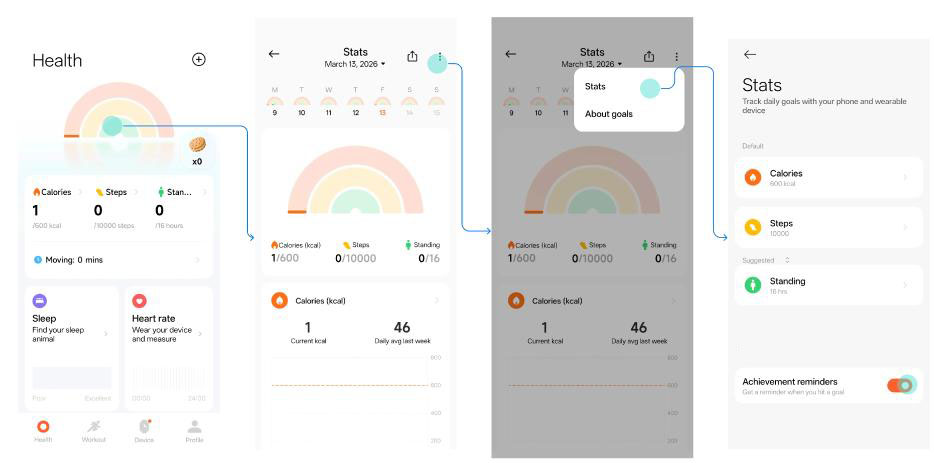
Q39: How to set and check Stats on the Xiaomi Smart Band 10 Pro?
A: To set and check Stats on the Xiaomi Smart Band 10 Pro, please go to the Mi Fitness App >> tap the rainbow icon to check Stats >> tap the three-dot icon >> [Stats] >> set the goal value of [Calories], [Steps], and [Standing]/[Moving] (tap [Suggested] to switch between [Standing] and [Moving]).
Q40: How to set the Vitality score notifications on the Xiaomi Smart Band 10 Pro?
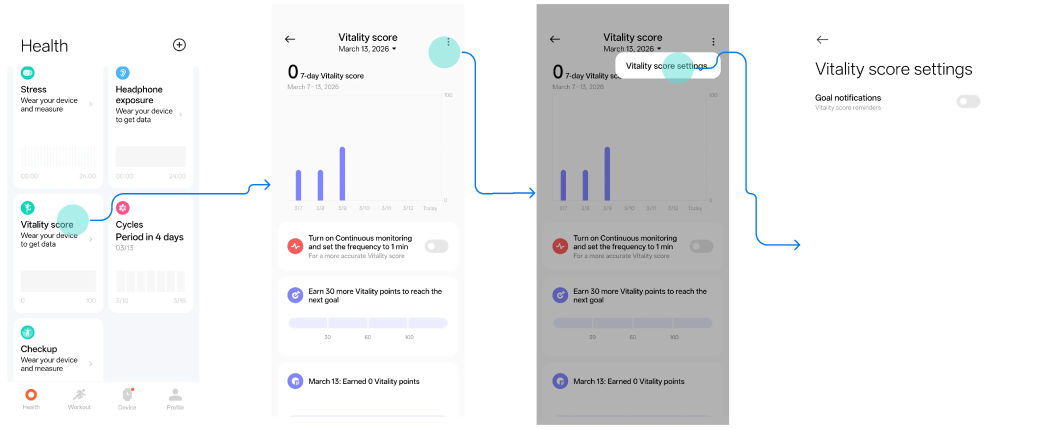
A: To set the Vitality score notifications on the Xiaomi Smart Band 10 Pro, please go to the Mi Fitness App >> [Vitality score] >> tap the three-dot icon >> [Vitality score settings] >> enable [Goal notifications].
Q41: Why does the Xiaomi Smart Band 10 Pro show that the storage space is insufficient and the band cannot sync data when enabling workout mode for a long time?
A: You can delete some of the band display stored on the Xiaomi Smart Band 10 Pro and sync workout data.
Q42: Does the Xiaomi Smart Band 10 Pro support recording workout data only when worn?
A: The Xiaomi Smart Band 10 Pro can only record basic data, such as steps, when no workout mode is enabled.
Q43: How to delete workout data on the Xiaomi Smart Band 10 Pro?
A: After finishing a workout on the Xiaomi Smart Band 10 Pro, you can tap [Delete record now] at the end of the workout report to delete the workout data.
Q44: Why cannot the workout record be checked on the Xiaomi Smart Band 10 Pro after ending the workout initiated on the Mi Fitness App?
A: The storage space of the Xiaomi Smart Band 10 Pro is not sufficient for synchronizing the workout initiated on the Mi Fitness App.
Q45: Why is the VO2 Max value on the Xiaomi Smart Band 10 Pro different from other products?
A: Discrepancies in VO2 Max between different devices occur because the algorithms, hardware, workout types, and personal data profiles are entirely different. It is an estimated value, not a measured value, so the value error is normal.
Q46: Why isn't Training load generated on the Xiaomi Smart Band 10 Pro after indoor workouts, such as Strength and Stair climber?
A: You can extend the workout duration. If the workout duration is too short, Training load will not be generated on the Xiaomi Smart Band 10 Pro.
Q47: Why is the workout trajectory sometimes missing after syncing the workout data of the Xiaomi Smart Band 10 Pro with an older version of the Mi Fitness App?
A: Data from older versions can not sync correctly. The Mi Fitness App must be updated to version 3.54.0 (Android) / 3.46.0 (iOS) or above before syncing can be performed. Please update to the required version or later before starting a workout.
Q48: How to enable Auto detect of workout on the Xiaomi Smart Band 10 Pro?
A: To enable Auto detect on the Xiaomi Smart Band 10 Pro, please swipe up on the home screen to go to the App list on the band >> [Workout] >> [Workout settings] >> enable [Auto detect].
Q49: How does the Xiaomi Smart Band 10 Pro trigger Auto detect after enabling it?
A: Currently, the workout items supporting Auto detect on the Xiaomi Smart Band 10 Pro include Running, Cycling, Rower, Elliptical, Jump rope, and Walking.
Among these, walking must be maintained for at least 7 minutes, while the others require approximately 3 minutes of continuous movement to trigger detection. Any mid-session pause will reset the accumulated time.
Q50: What to do if the Xiaomi Smart Band 10 Pro misdetects or fails to detect after enabling Auto detect?
A: If the Xiaomi Smart Band 10 Pro misdetects the workout, tap the ignore pop-up window. If detection fails, it is recommended that you increase the workout intensity, check whether the band is worn securely, or extend the workout duration.
Q51: Why does the Xiaomi Smart Band 10 Pro repeatedly prompt to "move to an open area" due to poor signal and slow positioning when starting a workout after enabling Auto detect (for workouts requiring GPS) outdoors?
A: When you start a workout and enable Auto detect on the Xiaomi Smart Band 10 Pro, please avoid obstructed areas, such as staying away from tall buildings, large trees, overpasses, tunnel entrances, and waterfronts. Please keep the Bluetooth connection between the Mi Fitness App and the band for 5 to 10 minutes to automatically update the ephemeris, or sync the band with the Mi Fitness App to manually update the ephemeris.
Notification Reminder Related
Q1: How to make the Xiaomi Smart Band 10 Pro receive notifications from the phone, and what are the notification settings?
A: The Xiaomi Smart Band 10 Pro supports receiving notifications from the phone. After enabling the App notifications in the Mi Fitness App, and with the band and phone connected, you can sync and view phone notifications on the band. You can only view the phone notifications, but cannot reply to them.
To enable this function, please go to [Mi Fitness] >> [Device] >> [Notifications and calls] >> tap [App notifications] >> enable [App notifications] (sync all App notifications from the phone to the band) or select from the Apps for notifications (such as phone and message).
Note:
For Apps enabled in the Mi Fitness App, ensure notification permissions are also enabled on the phone.
Q2: How to view and delete the notifications on the Xiaomi Smart Band 10 Pro?
A: To view the notifications on the Xiaomi Smart Band 10 Pro, please refer to the following steps:
1. When the band and Mi Fitness App are connected, notifications received on the phone’s notification bar will sync to the watch.
Note:
By default, the watch will only vibrate and not turn on the screen when a notification is received. You can use Raise to wake or manually turn on the screen to view the notification details. If you need to make the band screen on when receiving notifications, please go to [Mi Fitness] >> [Device] >> [Notifications and calls] >> tap [App notifications] >> [Wake screen].
2. On the home screen of the band, swipe down to open the notification shade and view the received notifications.
To delete notifications on the Xiaomi Smart Band 10 Pro, please refer to the following methods:
1. When the band and the Mi Fitness App are connected, notifications that have been read on the phone will automatically be deleted from the watch.
2. You can tap [Dismiss] to delete the notification on the notification detail interface on the band. If the band and the Mi Fitness App are connected, the notification will also be deleted from the phone.
3. In the notification shade on the band, swipe left on a notification in the list to delete it, or tap [Clear all] at the top of the list to delete all notifications.
Note:
1. Powering off or restarting the band will clear all notifications.
2. The band can store a maximum of 20 notifications. If the number exceeds 20, new notifications will cover the previous notifications.
Q3: What is the maximum number of characters and notifications on the Xiaomi Smart Band 10 Pro?
A: The number of characters of each notification is determined by the notification received on the phone. The Xiaomi Smart Band 10 Pro can store a maximum of 20 notifications. If the number exceeds 20, new notifications will cover the previous notifications.
Q4: How to reply to the notifications on the Xiaomi Smart Band 10 Pro?
A: The Xiaomi Smart Band 10 Pro only supports checking the notifications, but does not support replying.
Q5: How to customize the notifications of some Apps recieved on the Xiaomi Smart Band 10 Pro?
A: To customize the notifications of some Apps received on the Xiaomi Smart Band 10 Pro, please go to the Mi Fitness App >> [Device] >> >> [Notifications and calls] >> tap [App notifications] >> enable [App notifications] >> select from the Apps pushing notifications on the band.
Q6: How to trigger the harsh weather alert on the Xiaomi Smart Band 10 Pro?
A: The Xiaomi Smart Band 10 Pro does not support the harsh weather alert.
Q7: Why are the notifications automatically deleted on the Xiaomi Smart Band 10 Pro?
A: The notifications on the Xiaomi Smart Band 10 Pro stay synchronized with the phone. If a notification is deleted on the phone, the corresponding notification on the band will also be automatically deleted in sync.
Q8: Why are there no Dismiss options on some of the notifications on the Xiaomi Smart Band 10 Pro?
A: This is due to differences in message notification types. Not all notifications require the [Dismiss] option on the Xiaomi Smart Band 10 Pro. Each page layout is designed based on its content to provide the appropriate confirmation button, which is not a functional malfunction.
Q9: Why does the Xiaomi Smart Band 10 Pro not receive notifications when connected to an iPhone?
A: If the Xiaomi Smart Band 10 Pro does not receive notifications when connected to an iPhone, please refer to the following information:
1. Ensure that the Xiaomi Smart Band 10 Pro is connected to the iPhone normally, and [Connected] is displayed on the Mi Fitness App.
2. Disable DND in the Control panel or [Sound and vibration] on the band.
3. Disable Low Power Mode on iPhone by going to [Settings] >> [Battery] >> [Low Battery Mode] to avoid background sync restrictions.
4. Restart both the band and iPhone to fix temporary communication glitches.
iPhone System Permission Configuration:
1. Share System Notifications:
Go to [Settings] >> [Bluetooth] >> [Xiaomi Smart Band 10 Pro] >> tap the i icon >> enable [Share System Notifications].
2. The notification permission of the Mi Fitness App:
(1). Go to [Settings] >> [Apps] >> [Mi Fitness] >> enable [Allow Notifications] and set [Show Previews] as [Always].
(2). Go to [Settings] >> [Apps] >> [General] >> [Background App Refresh] >> enable [Mi Fitness].
(3). Go to [Settings] >> [Privacy & Security] >> ensure the Mi Fitness App has notification access.
3. The notification permission of the target App:
Go to [Settings] >> [Notifications] >> tap the selected App >> enable [Allow Notifications], [Lock Screen], and [Banners], and set [Show Previews] as [Always].
The Mi Fitness App Configuration:
1. Go to the Mi Fitness App >> [Device] >> [Notifications and calls] >> [App notifications] >> enable [App notifications].
2. If you enable [Custom notifications], select from the Apps that you want to receive notifications.
3. Enable [Receive only when phone is locked] or [Notify only when worn] according to your needs.
Other Related Configurations:
1. Update the firmware version of the Mi Fitness App, iPhone system, and the band to the latest version in time.
2. Remove the Mi Fitness App from the background restriction: Go to [Settings] >> [Battery] >> [Charging] >> disable [Optimized Battery Charging].
3. If [Notify only when worn] is enabled, ensure that the band is worn correctly.
Q10: Why cannot Receive only when phone is locked be enabled in the Mi Fitness App when the Xiaomi Smart Band 10 Pro is connected to an iPhone?
A: iPhone uses a unified management model for third-party App notification permissions, providing only three display preview options: Always / When Unlocked / Never. There is no option for [Receive only when phone is locked].
iPhone does not allow third-party Apps (such as the Mi Fitness) to obtain real-time permission to determine the locking status of the phone. Therefore, the logic of [Receive only when phone is locked] cannot be triggered.
Q11: Why doesn't the option of checking on the phone work on the Xiaomi Smart Band 10 Pro?
A: The Xiaomi Smart Band 10 Pro does not support the option of checking on the phone.
Q12: Why does the Xiaomi Smart Band 10 Pro still receive notifications after disabling App notifications in the Mi Fitness App?
A: After disabling App notifications in the Mi Fitness App, the Xiaomi Smart Band 10 Pro will not receive the notifications synced from the phone, but notifications of the App on the band will still be pushed normally.
Q13: Does the Xiaomi Smart Band 10 Pro support displaying notifications from third-party Apps?
A: The Xiaomi Smart Band 10 Pro supports displaying notifications from third-party Apps.
Q14: Does the Xiaomi Smart Band 10 Pro support replying to notifications from third-party Apps?
A: The Xiaomi Smart Band 10 Pro does not support replying to notifications from third-party Apps.
Q15: How to set the Incoming calls reminders on the Xiaomi Smart Band 10 Pro?
A: When the Xiaomi Smart Band 10 Pro and the phone are connected, when there is an incoming call on the phone, the band will vibrate as a reminder, and display the caller's number or name (requires phone contacts permission to be enabled in advance). You can tap the red phone icon on the band to reject the call, tap the speaker icon to ignore the call, or tap the message icon to reply to it with a message.
Q16: Why cannot the Xiaomi Smart Band 10 Pro receive incoming calls?
A: Ensure that the Xiaomi Smart Band 10 Pro is connected to the iPhone and Android phone normally, and [Connected] is displayed on the Mi Fitness App. Disable DND in the Control panel or [Sound and vibration] on the band and [Battery saver]. Restart the band and the phone to rebuild the Bluetooth connection and recover the temporary communication error.
Please go to the Mi Fitness App >> [Device] >> [Notifications and calls] >> [Incoming calls] >> [Vibration] to check whether the option is enabled.
Please refer to the following details to check the system permission settings of the phone:
1. iPhone:
(1). The permissions of share system notifications and audio via Bluetooth: Go to [Settings] >> [Bluetooth] >> [Xiaomi Smart Band 10 Pro] >> tap the i icon >> enable [Share System Notifications] and [Bluetooth Audio].
(2). The permissions of the Mi Fitness App: Go to [Settings] >> [Apps] >> [Mi Fitness] >> enable [Allow Notifications] and set [Show Previews] as [Always], and go to [Settings] >> [Apps] >> [General] >> [Background App Refresh] >> enable [Mi Fitness].
2. Android (take Xiaomi phone as an example):
(1). Go to [Settings] >> [Apps] >> [Mi Fitness] >> [App notifications] >> [Phone].
(2). Go to [Settings] >> [Apps] >> [Background autostart] >> [Mi Fitness] to avoid the background system limit.
Q17: How to initiate, answer, and reject the incoming call on the Xiaomi Smart Band 10 Pro?
A: The Xiaomi Smart Band 10 Pro does not support initiating and answering incoming calls. It only supports incoming call reminders and incoming call rejection. When the Xiaomi Smart Band 10 Pro and the phone are connected, when there is an incoming call on the phone, the band will vibrate as a reminder, and display the caller's number or name (requires phone contacts permission to be enabled in advance). You can tap the red phone icon on the band to reject the call, tap the speaker icon to ignore the call, or tap the message icon to reply to it with a message.
Q18: Why can't the incoming calls on the Xiaomi Smart Band 10 Pro be answered?
A: The Xiaomi Smart Band 10 Pro does not support answering incoming calls.
Q19: How to add Favorite contacts on the Xiaomi Smart Band 10 Pro?
A: The Xiaomi Smart Band 10 Pro does not support adding Favorite contacts.
Q20: How to check the calling history on the Xiaomi Smart Band 10 Pro?
A: The Xiaomi Smart Band 10 Pro does not support checking calling history.
Q21: How to customize the Quick responses to the incoming calls on the Xiaomi Smart Band 10 Pro?
A: To customize the Quick responses to the incoming calls on the Xiaomi Smart Band 10 Pro, please go to the Mi Fitness App >> [Device] >> [Notifications and calls] >> [Incoming calls] >> [Reply with message] >> [Quick responses] >> [Edit] or [Add].
Q22: How to set Delay alerts for incoming calls on the Xiaomi Smart Band 10 Pro?
A: To set Delay alerts for incoming calls on the Xiaomi Smart Band 10 Pro, please go to the Mi Fitness App >> [Device] >> [Notifications and calls] >> [Incoming calls] >> [Delay alerts].
Q23: Does the Xiaomi Smart Band 10 Pro support answering incoming calls from third-party Apps?
A: The Xiaomi Smart Band 10 Pro does not support answering incoming calls from third-party Apps.
Q24: Why doesn't the Xiaomi Smart Band 10 Pro display the contacts of the incoming calls from third-party Apps?
A: The Xiaomi Smart Band 10 Pro does not support displaying incoming calls from third-party Apps.
Data Sync
Q1: How long can data be stored independently on the Xiaomi Smart Band 10 Pro?
A: Exercise data on the Xiaomi Smart Band 10 Pro is stored indefinitely. Heart rate and Stress data are retained for 30 days. Sleep data retains only the current day's record. Please connect and sync to the Mi Fitness App in a timely manner. If the band is reset, previously stored exercise data on the band will be cleared. But data already synced to the Mi Fitness app will not be affected.
Q2: How to delete all personal data on the Xiaomi Smart Band 10 Pro?
A: To delete all personal data on the Xiaomi Smart Band 10 Pro, please refer to the following steps:
1. Go to [Settings].
2. Enter [System].
3. Select [Reset system settings].
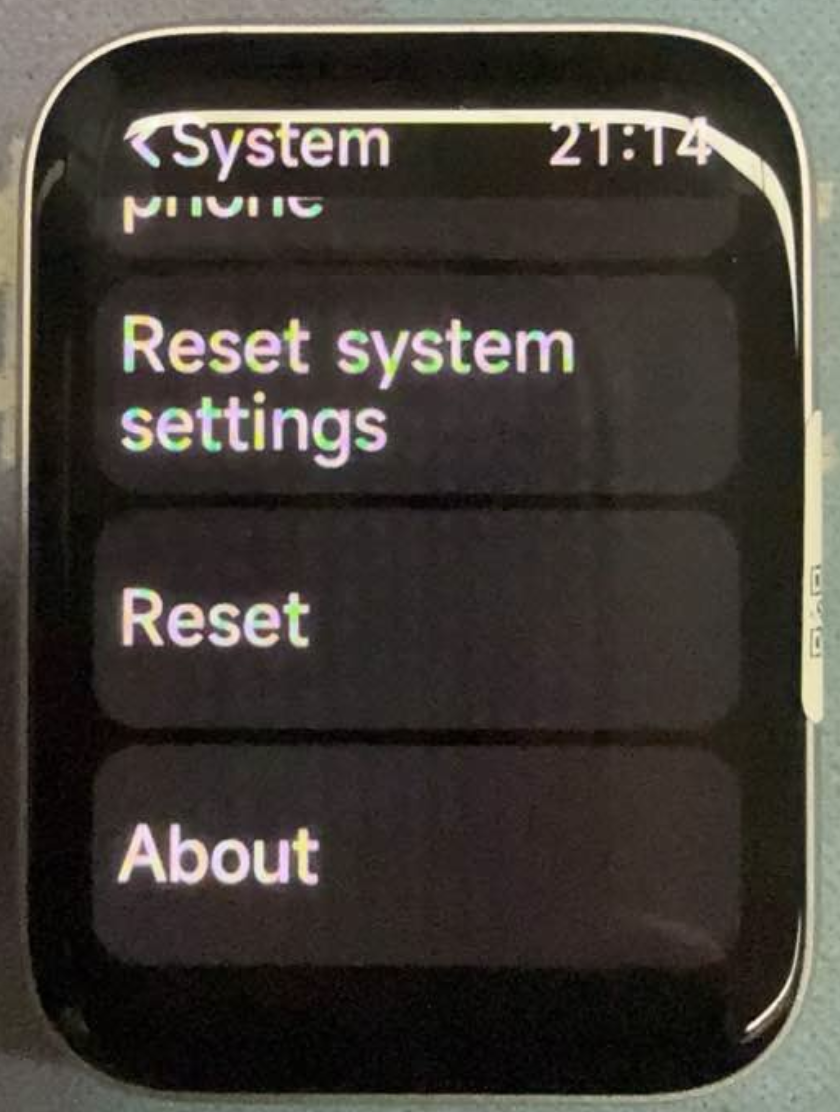
After tapping [Reset system settings], a device password check is performed. If a device password exists, the password needs to be entered first. Once verified, the Reset system settings dialog will appear. If no device password exists, the Reset system settings dialog appears directly.
The dialog includes the following system settings (selected by default): System, Notifications, Home screen and band display, Display, Sound and vibration, Battery, Workout settings, Preferences, Quick gestures, DND.
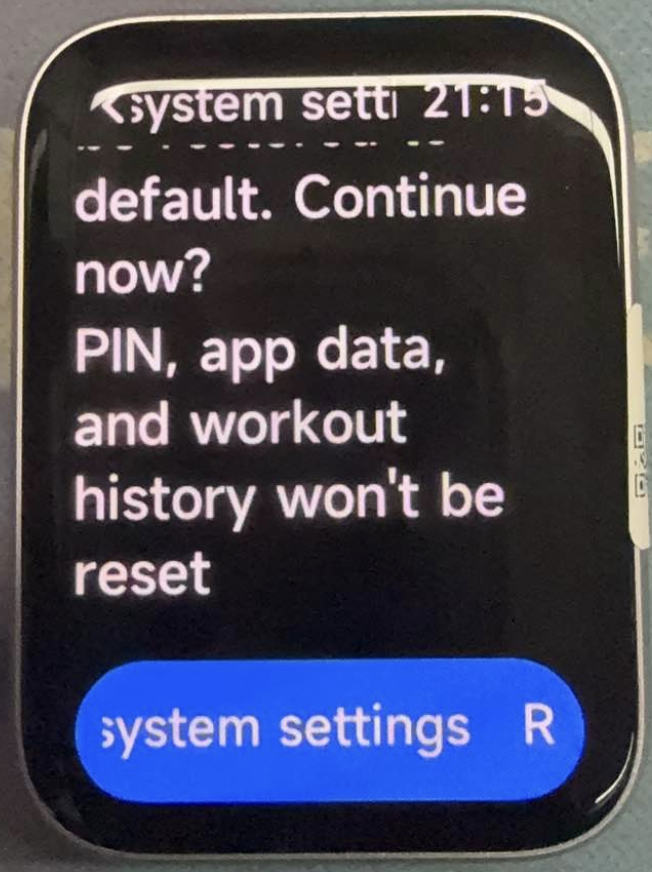
Q3: Why do the health data from the Xiaomi Smart Band 10 Pro differ from the measurements taken by other devices?
A: If the health data from the Xiaomi Smart Band 10 Pro differs from the measurements taken by other devices, please refer to the following details:
1. The Xiaomi Smart Band 10 Pro is a smart wearable device designed for daily health monitoring, not a professional medical diagnostic device. Discrepancies between its data and that of other wearable brands or medical devices are normal.
2. There are differences in measurement principles and device positioning. The Xiaomi Smart Band 10 Pro uses non-invasive, convenient daily monitoring methods such as optical sensing (PPG), primarily intended as a lifestyle health reference. Professional medical devices use medical-grade sensors and detection methods that comply with clinical-grade accuracy standards, designed for clinical diagnosis.
3. There are differences in sensors and algorithms. Different wearable brands use different sensor models, sampling frequencies, health algorithm models, and calibration parameters, which can cause deviations in monitoring data recorded during the same period under the same conditions.
4. The measurement environment and wearing conditions can affect the measurement results. Medical devices are typically used for single-point measurements in a static, standardized environment. The band is worn throughout daily activities and is susceptible to factors such as fit tightness, skin condition, sweat, body movement, body temperature, and ambient light.
5. The data acquisition methods are different. The band primarily performs continuous or periodic automatic monitoring. Physiological metrics such as heart rate, blood oxygen, and blood pressure naturally fluctuate in real time. Medical devices typically perform a single static measurement, and even minor differences in measurement timing can result in different readings.
Note:
Health data from the Xiaomi Smart Band 10 Pro is intended for daily health management reference only and cannot replace diagnostic results from professional medical devices. For any medical-related needs, please refer to data obtained from licensed medical institutions.
Q4: Can the Xiaomi Smart Band 10 Pro still function normally after uninstalling the App from the phone?
A: If you uninstall the Mi Fitness App from the phone, basic health monitoring (Steps, Heart rate, Sleep), Alarm, and Stopwatch can function normally.
But the following will be unavailable: phone notification sync, Bluetooth calls, message reply, etc, which requires reinstalling the app and reconnecting. And the band display changes, and firmware upgrades will be unavailable via phone, which need to be performed on the band directly or by reinstalling the App.
Q5: How to view and manage synced data of the Xiaomi Smart Band 10 Pro in the Mi Fitness App?
A: To view and manage synced data of the Xiaomi Smart Band 10 Pro in the Mi Fitness App, please refer to the following steps:
1. Open the Mi Fitness App.
2. Navigate to the [Health] page to view data such as Steps, Heart rate, and Sleep.
3. Tap the corresponding card to view daily, weekly, and monthly details.
4. Tap Manage health features at the bottom of the page to perform delete and add operations.
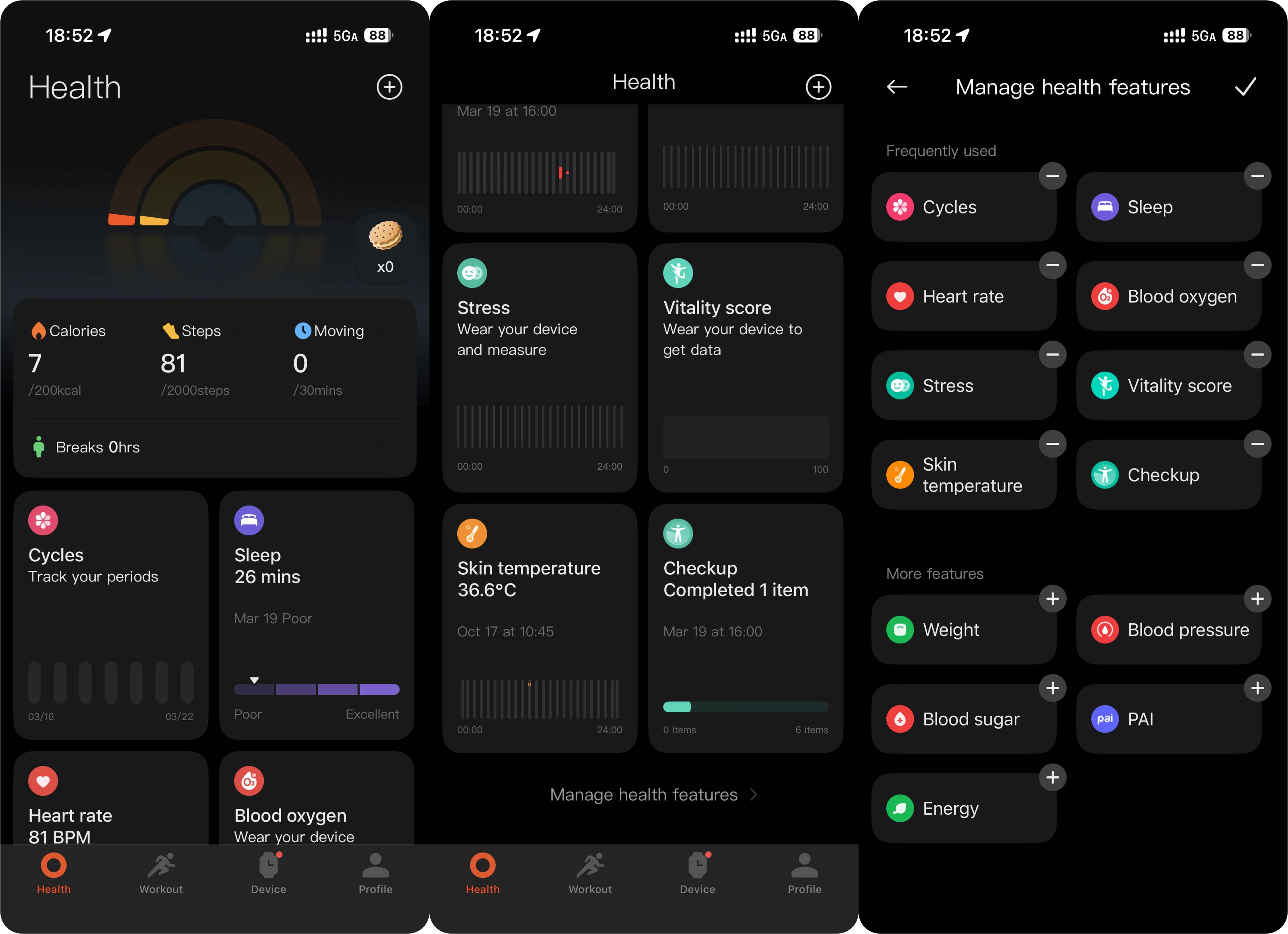
Q6: Can the specific category data of the Xiaomi Smart Band 10 Pro be disabled individually?
A: To disable the specific category data of the Xiaomi Smart Band 10 Pro individually, please refer to the following steps:
1. Open the Mi Fitness App.
2. Switch to [Device].
3. Enter [Fitness and health] and disable the corresponding item to stop monitoring and syncing.
Q7: Why does the Xiaomi Smart Band 10 Pro fail to sync data with Apple Health after being paired with the App on an iPhone?
A: You can open Settings on an iPhone [Settings] >> enter [Health] >> select [Data Access & Devices] >> locate Mi Fitness App, and enable the sync permission. Please ensure Bluetooth is connected properly, then re-sync.
Q8: What to do if the Xiaomi Smart Band 10 Pro frequently disconnects from the Mi Fitness App?
A: If the Xiaomi Smart Band 10 Pro frequently disconnects from the Mi Fitness App, please refer to the following troubleshooting steps:
1. Please keep the band close to your phone.
2. Try to restart Bluetooth, the band, and the phone.
3. Try to lock the App in the background to prevent it from being cleared by the system.
4. Please try to unpair and rebind the device.
5. Please update the App and band firmware version to the latest.
Q9: What to do if the data of the Xiaomi Smart Band 10 Pro synced to the Mi Fitness App is lost?
A: If the data of the Xiaomi Smart Band 10 Pro synced to the Mi Fitness App is lost, please refer to the following troubleshooting steps:
1. Pull down on the Health of the Mi Fitness App to re-sync.
2. Check that you are logged into the correct account and confirm that cloud sync is enabled.
3. Restart the connection and sync again.
4. If data is still missing, please contact the local official after-sales service center for assistance.
Q10: What to do if the data of the Xiaomi Smart Band 10 Pro is not syncing with the Mi Fitness App?
A: If the data of the Xiaomi Smart Band 10 Pro is not syncing with the Mi Fitness App, please refer to the following troubleshooting steps:
1. Ensure Bluetooth is properly connected, then pull down on the home page to manually sync.
2. Restart the band and the App, and update both to the latest version.
3. Try to rebind the device and sync again.
Q11: Where does the health data and exercise data of the Xiaomi Smart Band 10 Pro automatically back up?
A: The health data and exercise data of the Xiaomi Smart Band 10 Pro are automatically backed up to Xiaomi cloud servers, which requires logging in with the same Xiaomi Account and enabling cloud sync.
Q12: How to manually back up the data of the Xiaomi Smart Band 10 Pro?
A: To manually back up the data of the Xiaomi Smart Band 10 Pro, please refer to the following steps:
1. Open the Mi Fitness App.
2. Switch to [Workout].
3. Select your exercise record.
4. Tap the three dots icon and choose [Export] in the top right corner. Then you can export TCX to the phone.
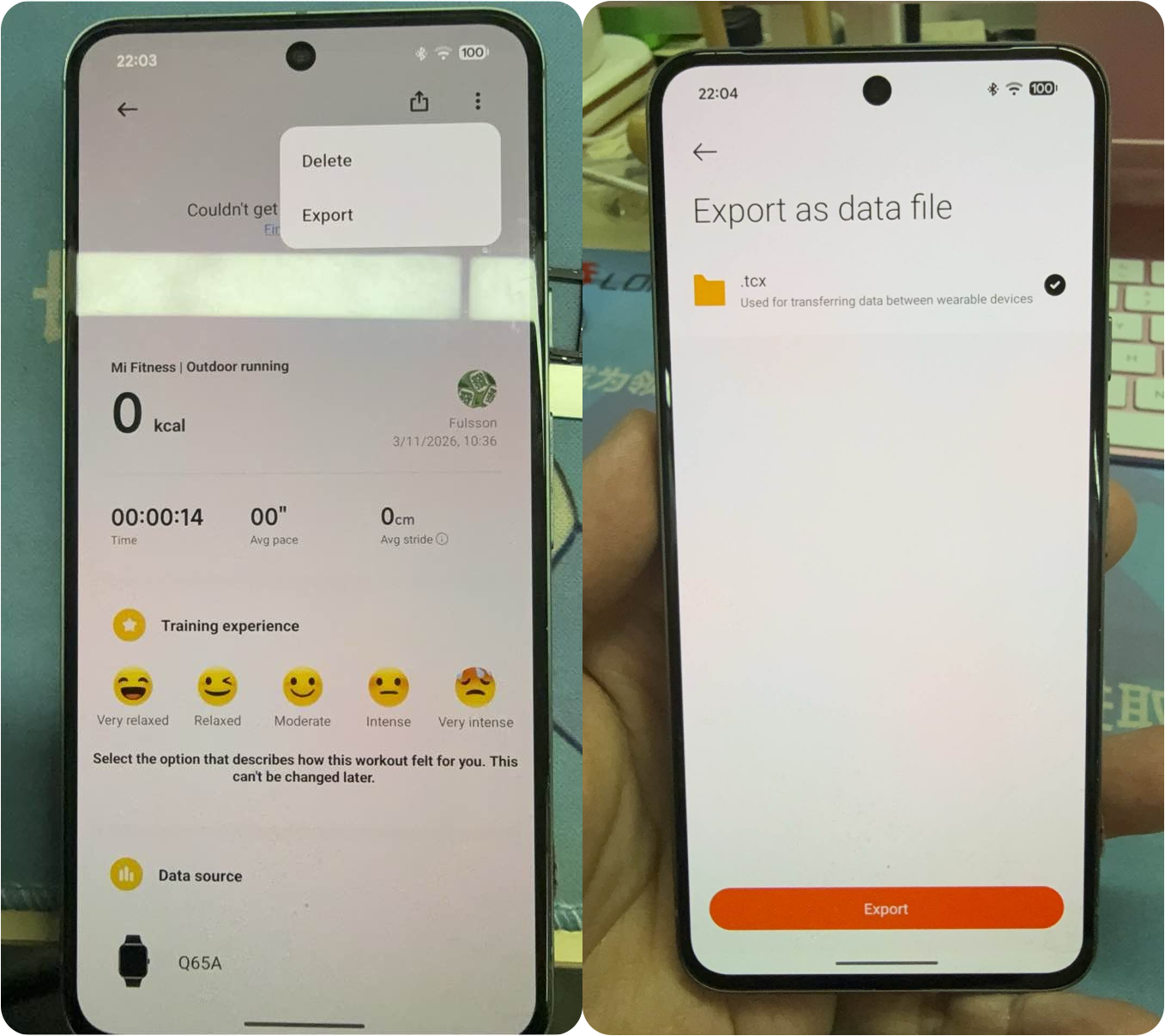
Q13: Will changing the paired phone affect the data on the Xiaomi Smart Band 10 Pro?
A: If you change the paired phone, there is no impact when under the same account. Logging into the original account on the new phone will sync historical data from the cloud. If switching to a different account, the band needs to be reset, and any unsynced data will be cleared.
Q14: How to migrate data from an old device to a new Xiaomi Smart Band 10 Pro?
A: To migrate data from an old device to a new Xiaomi Smart Band 10 Pro, please refer to the following steps:
1. Open the Mi Fitness App.
2. Switch to [Device].
3. Select [More].
4. Tap [Unpair], and back up data to the cloud.
5. Then add a new device, and health/exercise/settings data will sync automatically after pairing. Please log in with the same account in the Mi Fitness App.
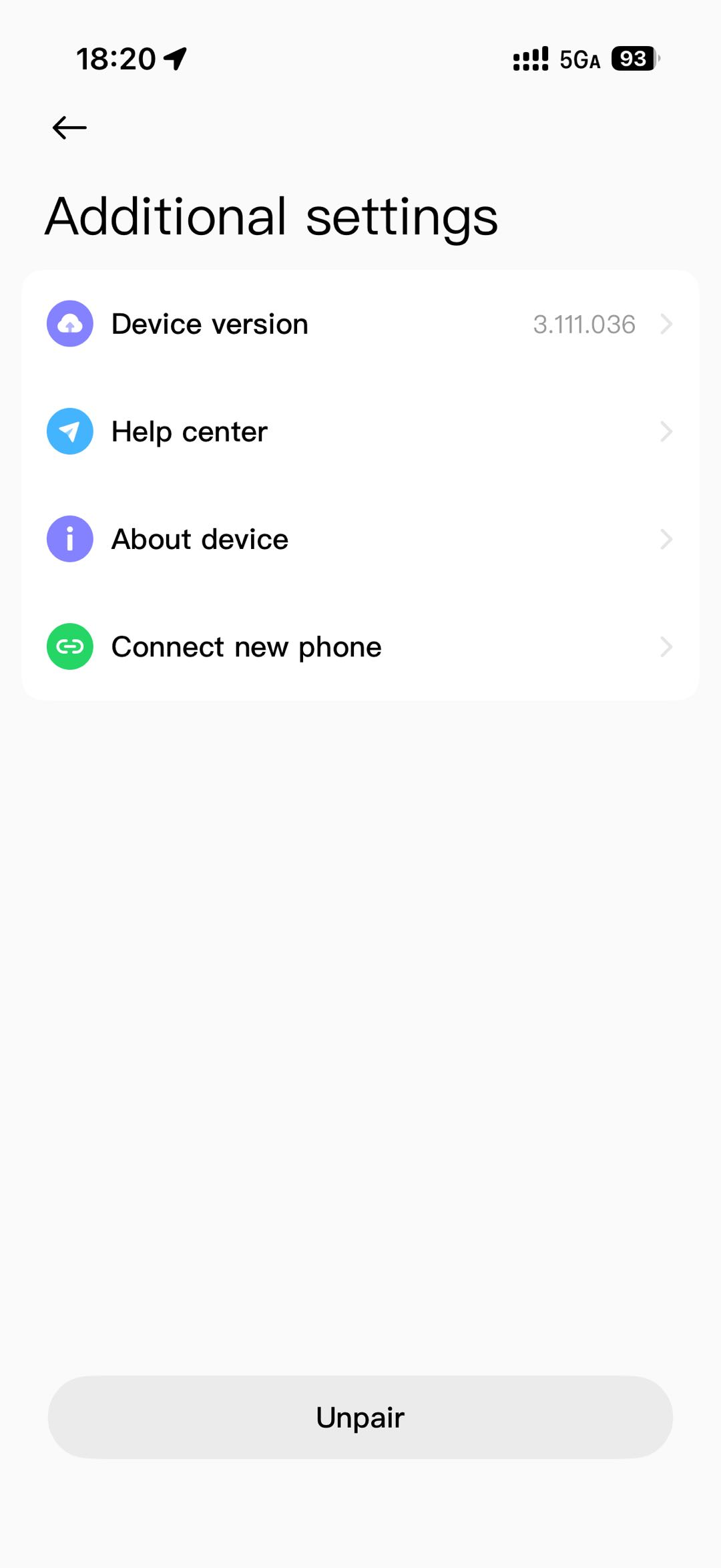
Q15: How to sync the exercise data of the Xiaomi Smart Band 10 Pro to third-party fitness Apps?
A: To sync exercise data of the Xiaomi Smart Band 10 Pro to third-party fitness Apps, please refer to the following steps:
1. Open the Mi Fitness App.
2. Switch to [Profile].
3. Select [Third-party data].
4. Select third-party fitness Apps, authorize account connection, and exercise records will sync automatically.
Q16: Does the Xiaomi Smart Band 10 Pro support syncing exercise and health data from other brand wearables?
A: The Xiaomi Smart Band 10 Pro does not support syncing exercise and health data from other brand wearables.
Q17: Does the Xiaomi Smart Band 10 Pro support syncing data from other health monitoring devices?
A: The Xiaomi Smart Band 10 Pro only supports Xiaomi ecosystem health devices, such as electronic blood pressure monitors and body fat scales. It is required to add the corresponding device within the Mi Fitness App to consolidate and display all data in one place.
Q18: Why is the number of to-do items displayed on the Xiaomi Smart Band 10 Pro not synchronized with that on the mobile phone?
A: If the number of to-do items displayed on the Xiaomi Smart Band 10 Pro is not synchronized with that on the mobile phone, please refer to the following troubleshooting steps:
1. Check for updates and update to the latest version in the Mi Fitness App >> [Device] >> [More] >>[Device version].
2. Confirm whether the [Sync tasks] is turned on in the Mi Fitness App.
3. After creating a pending task in the Notes App on Xiaomi/REDMI phones, tap the [Sync] in the Mi Fitness App.
4. The band can sync up to 20 to-do items in total, including both completed and incomplete tasks. On Xiaomi and REDMI phones, the count also includes subtasks.
Audio Related
Q1: Does the Xiaomi Smart Band 10 Pro support Recorder?
A: The Xiaomi Smart Band 10 Pro does not support Recorder.
Q2: Does the Xiaomi Smart Band 10 Pro support downloading and playing local music?
A: The Xiaomi Smart Band 10 Pro does not support downloading and playing local music.
Q3: How to control music playback on the phone using Xiaomi Smart Band 10 Pro?
A: When the Xiaomi Smart Band 10 Pro is connected to the phone, open the App list on the band AND tap the Music App to control music playback on the phone.
Q4: Does the Xiaomi Smart Band 10 Pro support importing music from a mobile phone?
A: The Xiaomi Smart Band 10 Pro does not support importing music from a mobile phone.
Band Display Related
Q1: How many band displays can the Xiaomi Smart Band 10 Pro and the Mi Fitness App store, respectively?
A: Regarding the number of saved band displays of the Xiaomi Smart Band 10 Pro, please refer to the following details:
1. The Xiaomi Smart Band 10 Pro comes with 10 built-in band display options.
2. The band can store up to 30 band displays in total. This includes 10 preloaded band displays and 20 downloadable band displays from the Manage band displays.
3. The Manage band displays offers over 200 band display options, supporting download and replacement.
Q2: How to change or delete band displays on the Xiaomi Smart Band 10 Pro?
A: To change or delete band displays on the Xiaomi Smart Band 10 Pro, please refer to the following methods:
Delete a band display:
1. On the Xiaomi Smart Band 10 Pro, press and hold the current band display for 1 second to enter the management interface, then tap the Delete icon to remove the band display.
1. On the Xiaomi Smart Band 10 Pro, press and hold the current band display for 1 second to enter the management interface, then tap the Delete icon to remove the band display.
2. You can also delete a band display through [Settings] >> [Home screen and band display] >> [Band display], then tap the Delete icon.
Change a band display:
1. On the Xiaomi Smart Band 10 Pro, press and hold the current band display for 1 second to enter the management interface, swipe left or right to switch between band displays, then tap the centered band display to apply it.
1. On the Xiaomi Smart Band 10 Pro, press and hold the current band display for 1 second to enter the management interface, swipe left or right to switch between band displays, then tap the centered band display to apply it.
Q3: How to check the power consumption level of a band display on the Xiaomi Smart Band 10 Pro?
A: The Xiaomi Smart Band 10 Pro does not support viewing the power consumption level of the band display.
Q4: How to customize band display colors and interface settings on the Xiaomi Smart Band 10 Pro?
A: Press and hold the band display for 1 second to enter the band display management mode, then tap the Settings icon to access customization options on the Xiaomi Smart Band 10 Pro. Swipe left or right to switch between editable modules. The available customization options depend on the specific band display design.
1. Switching style:
Swipe up or down to switch and preview different styles.
Swipe up or down to switch and preview different styles.
2. Switching data:
Tap the editable component area, select the highlighted section, enter the data list, choose the desired data item, and confirm to return.
Tap the editable component area, select the highlighted section, enter the data list, choose the desired data item, and confirm to return.
3. Switching color (supported on some band displays only):
Swipe up or down to switch and preview different color options.
Swipe up or down to switch and preview different color options.
Q5: How to set up a custom band display on the Xiaomi Smart Band 10 Pro?
A: To set up a custom band display on the Xiaomi Smart Band 10 Pro, please refer to the following steps:
1. In the Mi Fitness App, go to [Device] >> [Manage band displays] >> [All] >> [Custom], then download a custom band display on the Xiaomi Smart Band 10 Pro.
2. On the band display details interface, tap [Edit] to enter the editing interface.
3. Tap [Add photo] >> go to the photo selection page >> choose an image from the album >> confirm selection.
4. Enter the cropping interface, adjust the image as needed >> tap [Save] to confirm.
5. In the editing page, you can switch and adjust settings such as background, style, and color. Actual options may vary depending on the design.
2. On the band display details interface, tap [Edit] to enter the editing interface.
3. Tap [Add photo] >> go to the photo selection page >> choose an image from the album >> confirm selection.
4. Enter the cropping interface, adjust the image as needed >> tap [Save] to confirm.
5. In the editing page, you can switch and adjust settings such as background, style, and color. Actual options may vary depending on the design.
6. Tap [Apply] to start synchronization. Once synchronization is completed, the band display will take effect on the Xiaomi Smart Band 10 Pro.
Q6: Why does the Mi Fitness App show a failure when downloading or deleting a band display, even though the operation succeeds on the Xiaomi Smart Band 10 Pro?
A: This is a synchronization issue between the Mi Fitness App and the Xiaomi Smart Band 10 Pro. The operation on the band has been completed successfully, but the result has not been updated to the App in time, which can cause a false "failed" message. This does not affect actual usage.
Please refer to the following troubleshooting steps:
1. If the band display operation (download or deletion) has been successfully completed on the Xiaomi Smart Band 10 Pro, the action has already taken effect, and the Mi Fitness App message can be ignored.
2. Ensure the Xiaomi Smart Band 10 Pro remains stably connected to the phone, and avoid connection interruptions that may delay synchronization. Exit and re-enter the Mi Fitness App and wait for data synchronization, and the status will usually update correctly.
3. If the status remains unchanged for a long time, clear the App cache or restart the Mi Fitness App and check again.
Q7: How to set up the corresponding AOD (Always-On Display) for a band display on the Xiaomi Smart Band 10 Pro?
A: On the Xiaomi Smart Band 10 Pro, go to [Settings] >> [Display] >> [Always-on display] to enable AOD. AOD is disabled by default and can be turned on manually.
The AOD style varies depending on each band display, and the actual appearance is subject to the specific design of each band display.
Q8: How to automatically display the music playback indicator on the band display of the Xiaomi Smart Band 10 Pro?
A: When music is being played on the phone, the Xiaomi Smart Band 10 Pro will automatically display a music playback indicator on the band display. No manual setup is required.
Please ensure that the Xiaomi Smart Band 10 Pro is connected to the phone, the phone is actively playing music, and the music control function on the band is working properly.
Q9: Why does the music icon remain displayed on the band display of the Xiaomi Smart Band 10 Pro and cannot be dismissed?
A: When a music App is running on the phone, the Xiaomi Smart Band 10 Pro will continuously display the music icon on the band display.
Fully close the music App on the phone instead of only sending it to the background. If the icon still cannot be removed, try restarting the Xiaomi Smart Band 10 Pro.
Fully close the music App on the phone instead of only sending it to the background. If the icon still cannot be removed, try restarting the Xiaomi Smart Band 10 Pro.
Q10: Why are the widgets on the band display of the Xiaomi Smart Band 10 Pro not tappable?
A: If the widgets on the band display of the Xiaomi Smart Band 10 Pro are not tappable, please refer to the following steps:
1. Some band display widgets on the Xiaomi Smart Band 10 Pro are for information display only and do not support tap interaction. This is normal design behavior, such as charging status, flight mode, and unread message indicators.
2. If a widget is expected to be tappable but does not respond, please check whether the band display file on the Xiaomi Smart Band 10 Pro is up to date, and try restarting the device before operating again.
3. Ensure both the Mi Fitness App and the Xiaomi Smart Band 10 Pro firmware are updated to the latest version.
4. If the issue persists, try reinstalling the current band display through the Mi Fitness App.
Q11: Why does changing or downloading a band display fail on the Xiaomi Smart Band 10 Pro?
A: If changing or downloading a band display fails on the Xiaomi Smart Band 10 Pro, please refer to the following steps:
1. Ensure the phone has a stable network connection, and it is recommended to switch to Wi-Fi and try again on the Xiaomi Smart Band 10 Pro.
2. Ensure the Xiaomi Smart Band 10 Pro is stably connected to the phone via Bluetooth, and keep the band close to the phone during data transfer.
3. Check whether the Xiaomi Smart Band 10 Pro has sufficient storage space. If not, delete unused band displays or Apps.
4. Ensure both the Mi Fitness App and the Xiaomi Smart Band 10 Pro firmware are updated to the latest version.
5. Exit and re-enter the Manage band displays in the Mi Fitness App, clear the App cache, and try downloading again.
6. If all the above steps fail, restart both the Xiaomi Smart Band 10 Pro and the phone, then try again.
Q12: Why does the content displayed on the band display of the Xiaomi Smart Band 10 Pro differ from what is shown in the Mi Fitness App?
A: In the Mi Fitness App, the display is only a preview of the band display. Some data shown in the preview (such as steps, heart rate, and weather) are sample values. The actual band display on the Xiaomi Smart Band 10 Pro will show real-time data collected by the device, and the information shown on the band should be considered the accurate reference.
Q13: Why does the actual band display on the Xiaomi Smart Band 10 Pro differ from the preview image?
A: On the Xiaomi Smart Band 10 Pro, the thumbnail is only a preview of the band display. Some data shown in the preview (such as steps, heart rate, and weather) are sample values. The actual band display will show real-time data collected by the device, and the information shown on the Xiaomi Smart Band 10 Pro should be considered the accurate reference.
Q14: Why does the band display preview image appear blurry on the Xiaomi Smart Band 10 Pro?
A: On the Xiaomi Smart Band 10 Pro, the screen resolution differs from the rendering resolution of the Mi Fitness App preview image. The thumbnail displayed in the App is a low-resolution compressed preview. The actual display on the Xiaomi Smart Band 10 Pro is subject to the band’s screen rendering results.
Q15: Why does the actual AOD display on the Xiaomi Smart Band 10 Pro differ from the configured AOD band display setting?
A: The Xiaomi Smart Band 10 Pro prioritizes displaying the corresponding AOD (Always-On Display) for each band display. If a specific band display does not include a designed AOD, the system default AOD will be shown instead. AOD designs may vary depending on each band display, and the actual behavior is subject to the design specifications.
Q16: Why is the time format displayed on the band display of the Xiaomi Smart Band 10 Pro incorrect?
A: The band display time display format (12-hour / 24-hour) is linked to the system settings of the Xiaomi Smart Band 10 Pro.
Q17: Why is the band display data on the Xiaomi Smart Band 10 Pro not syncing correctly, such as steps, heart rate, or weather information?
A: If the band display data on the Xiaomi Smart Band 10 Pro is not syncing correctly, please refer to the following aspects:
1. Ensure the Xiaomi Smart Band 10 Pro is properly connected to the phone via Bluetooth.
2. Open the Mi Fitness App and confirm that the Xiaomi Smart Band 10 Pro is successfully paired. Please tap [Sync] in the App to refresh data.
3. If weather data is abnormal, make sure the Mi Fitness App has been granted location permission and that the phone has a stable network connection.
4. Restart the Xiaomi Smart Band 10 Pro and check whether the data returns to normal.
Q18: Why does setting a custom band display background fail on the Xiaomi Smart Band 10 Pro?
A: If setting a custom band display background fails on the Xiaomi Smart Band 10 Pro, please refer to the following aspects:
1. Verify whether the selected image format is supported on the Xiaomi Smart Band 10 Pro.
2. Ensure that the Mi Fitness App has been granted permission to access photos or storage on the phone.
3. Make sure the Xiaomi Smart Band 10 Pro maintains a stable Bluetooth connection with the phone, and do not disconnect during transfer.
4. If the issue persists, try restarting both the Mi Fitness App and the Xiaomi Smart Band 10 Pro, then retry the operation.
5. On some Android devices, custom band display background upload may fail on the Xiaomi Smart Band 10 Pro due to system-level App association issues. The system may default the “image selection” action to another app (such as File Manager), preventing proper access to the gallery. Please refer to the following steps:
(1). Go to [Settings] >> [Apps] on your phone.
(2). Find the previously selected image-handling app (e.g., File Manager).
(3). Tap [Clear defaults].
(4). Return to the Mi Fitness App and re-add the photo, then select the correct image source.
(5). Make sure to clear the default App settings. Otherwise, image selection can still fail. Menu names may vary slightly depending on the device model.
Q19: Why does the dynamic band display on the Xiaomi Smart Band 10 Pro lag or appear not smooth?
A: It may be caused by high background usage on the Xiaomi Smart Band 10 Pro. When background functions such as workouts, music playback, or frequent message notifications are active, they can consume system resources and affect performance.
Q20: Why is the brightness or color of the band display on the Xiaomi Smart Band 10 Pro unclear or hard to see?
A: If the brightness or color of the band display on the Xiaomi Smart Band 10 Pro is unclear or hard to see, please refer to the following aspects:
1. The Xiaomi Smart Band 10 Pro supports automatic brightness adjustment: in low-light environments, the display brightness will be reduced. In strong light conditions, if the ambient light sensor is blocked, brightness adjustment may be delayed, which can result in reduced visibility.
2. AOD (Always-On Display) mode limitation: to save power, the display brightness in AOD mode is lower than in the active state, and colors are simplified by design. This is normal behavior intended to balance battery life and daily notifications.
Q21: Why is the band display printed on the packaging not available on the Xiaomi Smart Band 10 Pro?
A: All band displays shown on the packaging box can be found in the Manage band displays. If a corresponding band display is not visible after powering on the device in the firmware, please check the Mi Fitness App >> [Device] > enter [Manage band displays] to download and obtain it.
Location System
Q1: What location methods are supported on the Xiaomi Smart Band 10 Pro?
A: The Xiaomi Smart Band 10 Pro supports single-frequency GPS with multiple global satellite systems, including BeiDou, GPS, GLONASS, Galileo, and QZSS.
Q2: How to enable or disable GPS on the Xiaomi Smart Band 10 Pro? Does using GPS drain the battery quickly?
A: On the Xiaomi Smart Band 10 Pro, GPS turns on automatically when starting outdoor activities such as running, cycling, or hiking, and turns off automatically after the activity ends.
In terms of battery consumption on the Xiaomi Smart Band 10 Pro:
1. In daily standby, the GPS is off and consumes almost no power.
2. During continuous outdoor workouts, the GPS is a high-power module and will significantly increase battery usage, which is normal behavior.
Q3: Does the Xiaomi Smart Band 10 Pro rely on the phone or its built-in GPS for location? How accurate is offline positioning?
A: The Xiaomi Smart Band 10 Pro is equipped with a built-in independent GPS chip and can provide positioning without connecting to a phone.
Whether connected or not, the Xiaomi Smart Band 10 Pro uses its own GPS for location tracking, which is suitable for outdoor activities such as running and cycling.
Third Party App
Q1: Does the Xiaomi Smart Band 10 Pro support installing third-party apps? How to download and uninstall them?
A: The Xiaomi Smart Band 10 Pro does not support installing third-party apps.
Safety Related
Q1: How to enable the SOS emergency assistance feature on the Xiaomi Smart Band 10 Pro?
A: The Xiaomi Smart Band 10 Pro does not support the SOS emergency assistance feature.
Q2: How to enable the fall detection feature on the Xiaomi Smart Band 10 Pro?
A: The Xiaomi Smart Band 10 Pro does not support the fall detection feature.
Q3: How to set up emergency contacts for the Xiaomi Smart Band 10 Pro?
A: The Xiaomi Smart Band 10 Pro does not support setting up emergency contacts.
Q4: How to set a device password (wrist-off password/PIN) for the Xiaomi Smart Band 10 Pro?
A: To set a device password for the Xiaomi Smart Band 10 Pro, please refer to the following methods:
1. On the band: Go to [Settings] >> PIN >> Set PIN >> enter a 6-digit number and confirm.
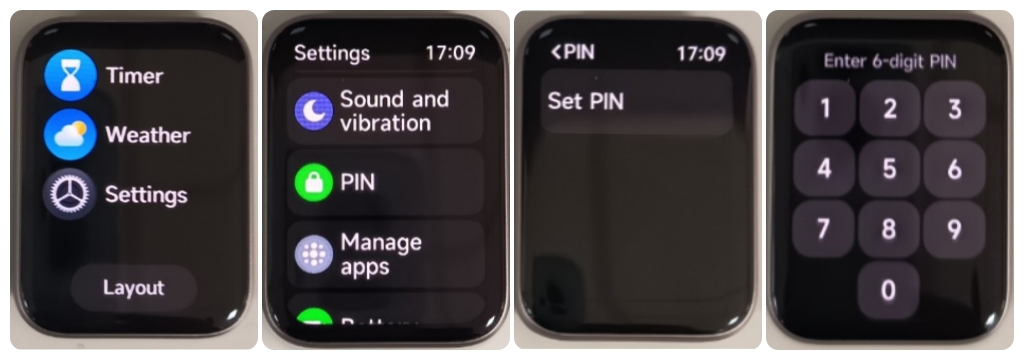
2. Go the Mi Fitness App >> [Device] >> [Security] >> [Set password] >> [PIN] >> enable and set the password. Once the band is removed from your wrist, the screen will automatically lock. A password is required to unlock it.
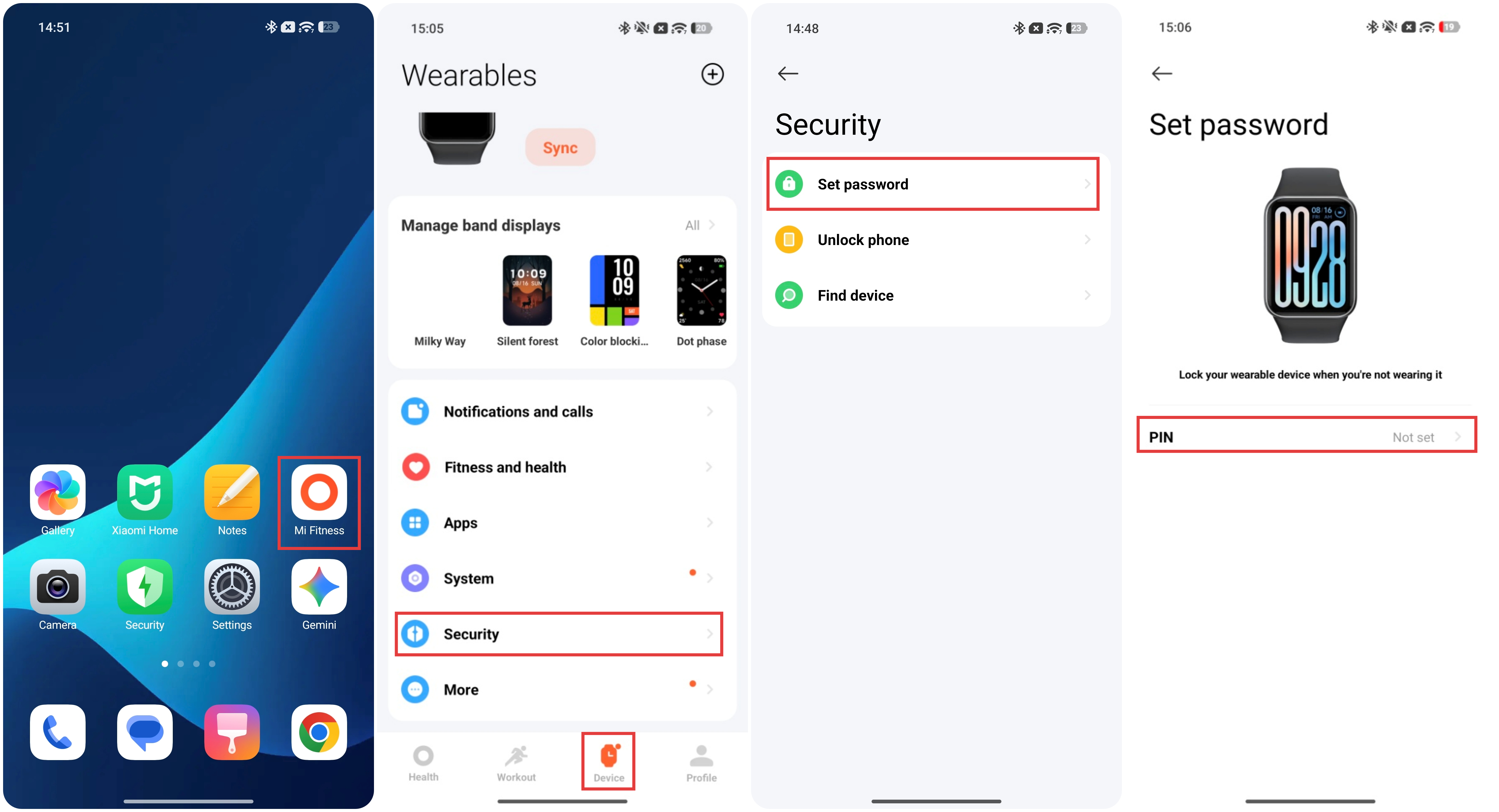
Q5: What to do if the password of the Xiaomi Smart Band 10 Pro is forgotten?
A: If the password of the Xiaomi Smart Band 10 Pro is forgotten, please refer to the following troubleshooting steps:
1. Connect to the originally paired phone, then go to the Mi Fitness App >> [Device] >> [Security] >> [Set password] >> [Turn off PIN] or [Change PIN].
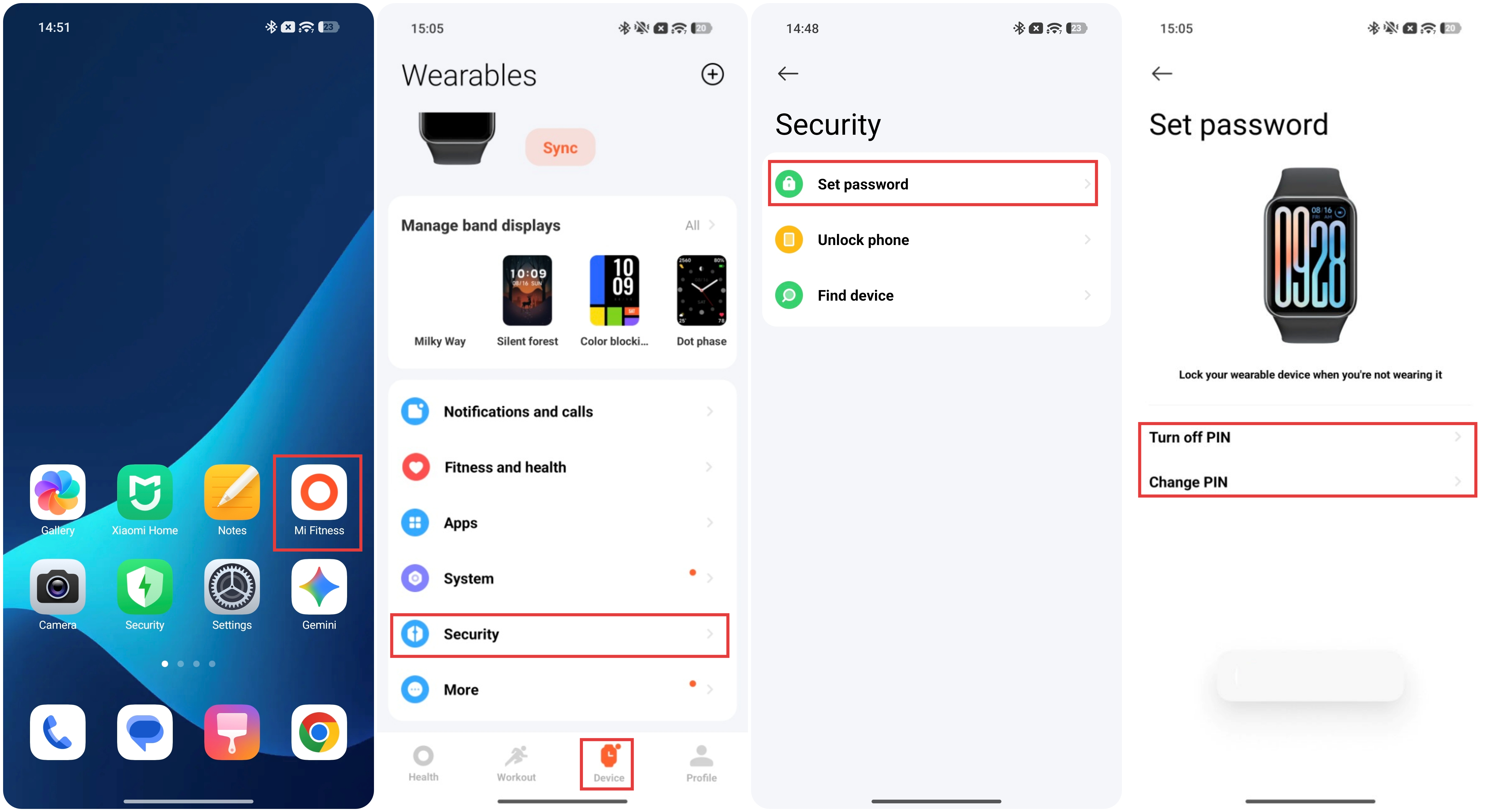
2. When connected to the Mi Fitness App: go to the Mi Fitness App >> [Device] >> [More] >> [Unpair].
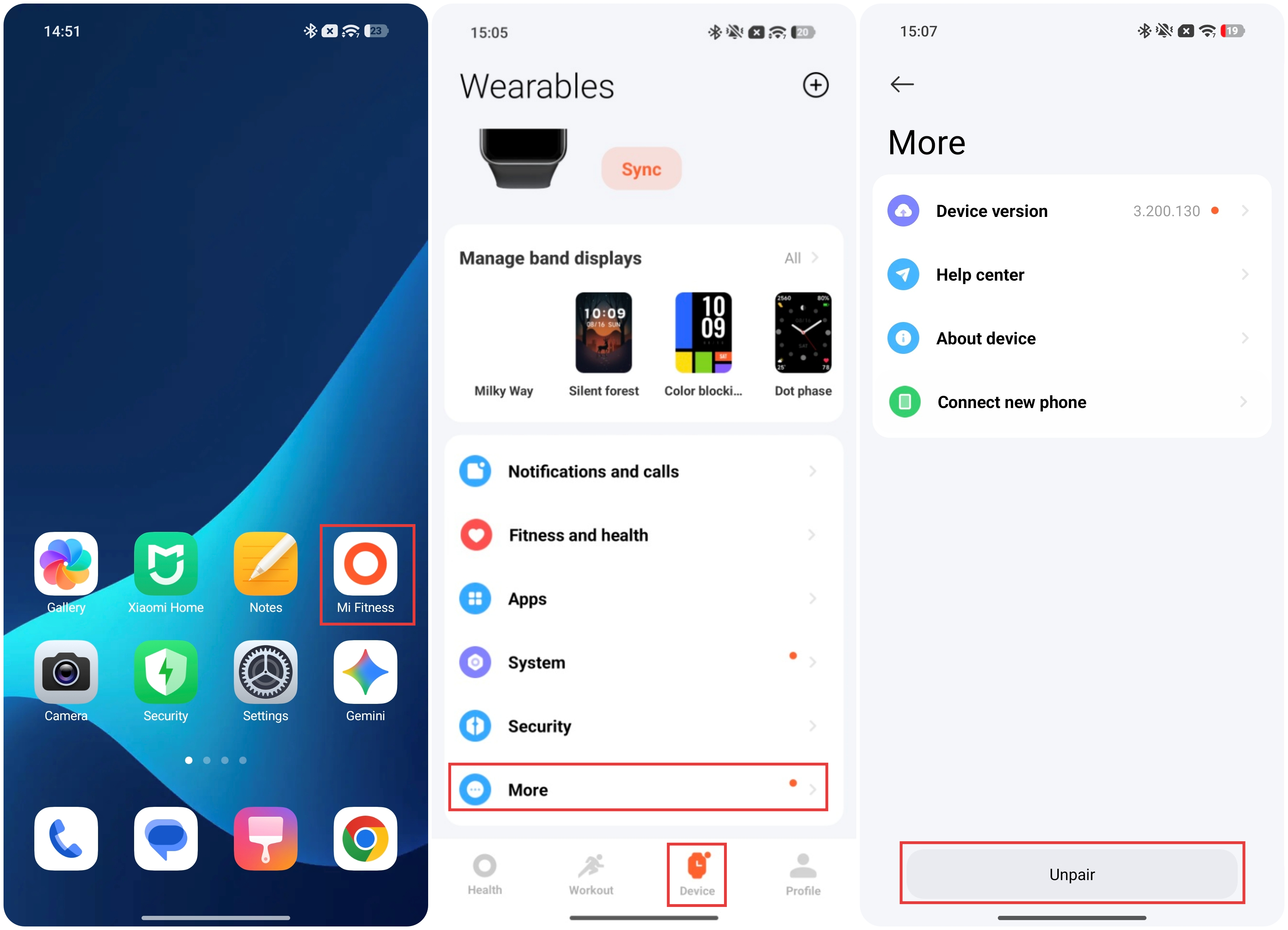
3. After resetting, rebind the phone and set a new password.
3. When not connected to the Mi Fitness App, please visit an authorized after-sales service center for assistance.
Q6: How to use the Xiaomi Smart Band 10 Pro to unlock the phone via Bluetooth?
A: To use the Xiaomi Smart Band 10 Pro to unlock the phone via Bluetooth, please refer to the following steps:
Go to the Mi Fitness App >> [Device] >> [Security] >> [Unlock phone]. Set the screen lock on the phone and confirm authorization on the band. Select the unlock distance (near/medium/far), and the phone unlocks automatically when brought close to the band while Bluetooth is connected.
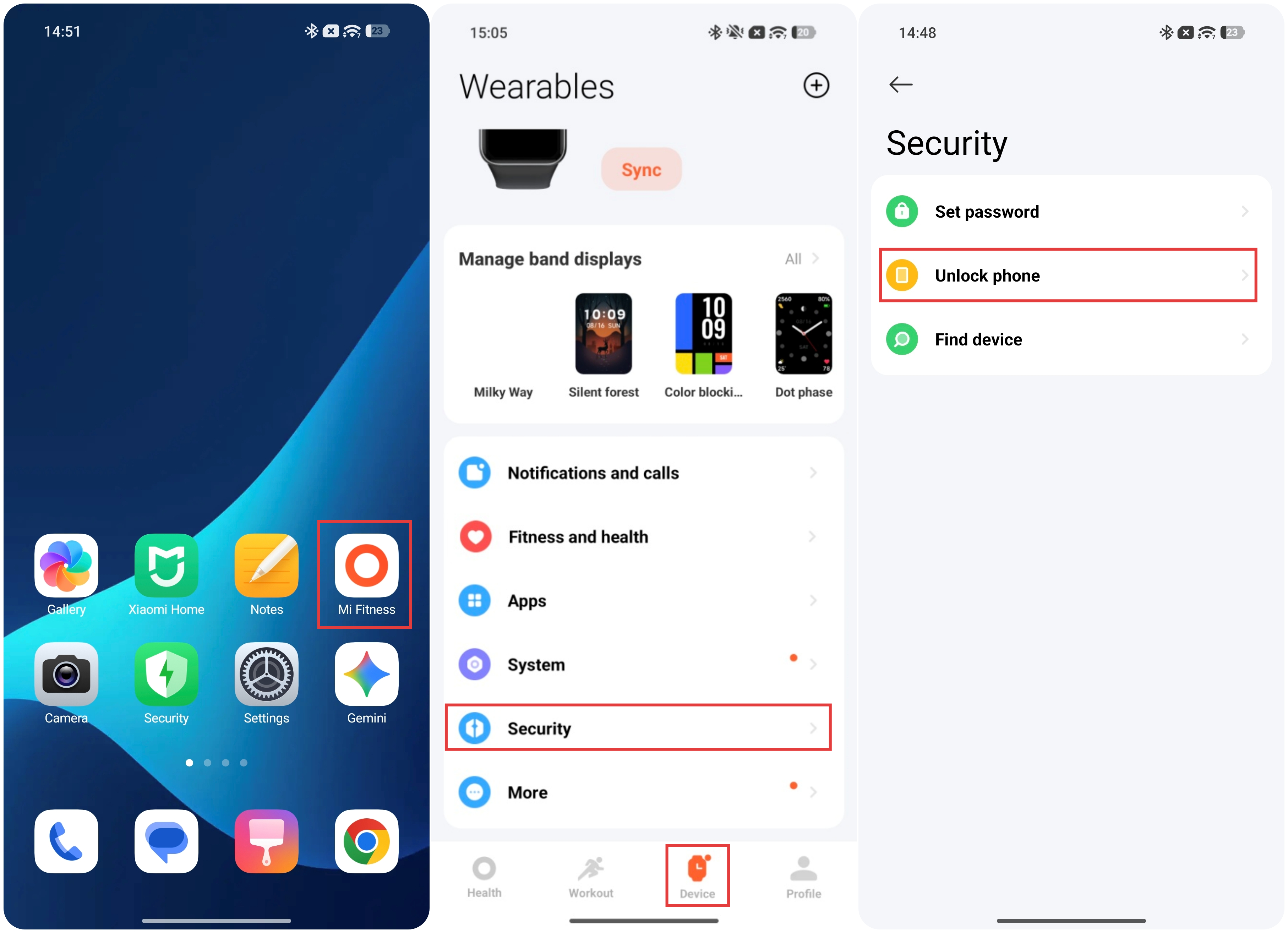
This feature is only supported on Xiaomi phones running MIUI 12+ or HyperOS.
Q7: How to use the Xiaomi Smart Band 10 Pro to unlock a laptop via Bluetooth?
A: The Xiaomi Smart Band 10 Pro does not support unlocking a laptop via Bluetooth.
Q8: How does the Xiaomi Smart Band 10 Pro ensure the secure protection of private data?
A: To ensure the secure protection of the private data of the Xiaomi Smart Band 10 Pro, please refer to the following steps:
Go to the Mi Fitness App >> [Profile] >> [About this app] >> disable [Enroll in User Experience Program].
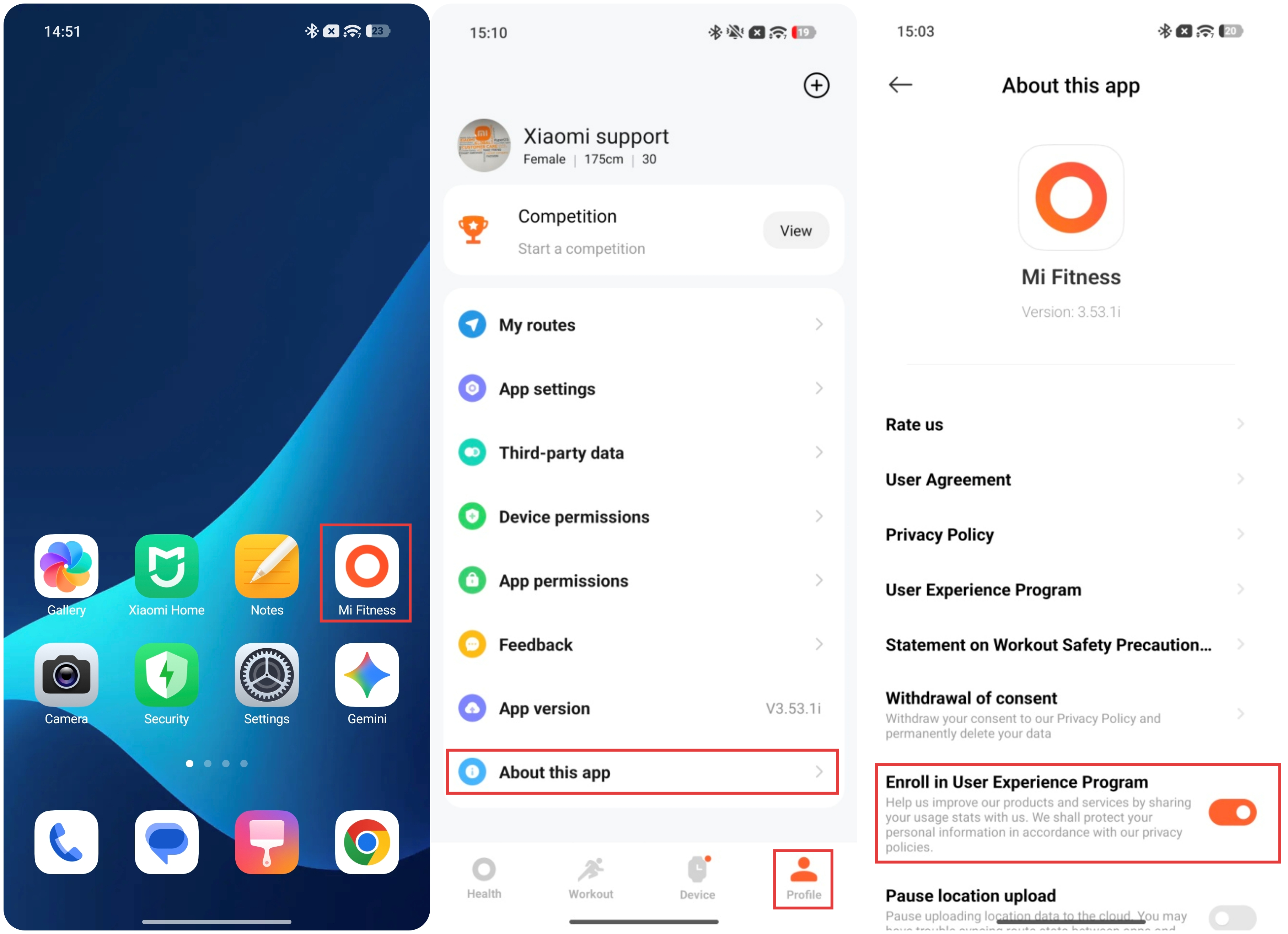
Q9: How to find the paired phone using the Xiaomi Smart Band 10 Pro?
A: To find the paired phone using the Xiaomi Smart Band 10 Pro, please refer to the following methods:
1. Swipe right on the band display to open the Control center, then tap the [Find phone] icon.
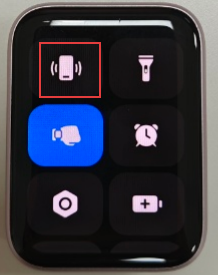
2. Enter the App list and open the [Find phone] App >> tap [Search], the paired phone will ring and vibrate. Tap [Stop] on the band to cancel.
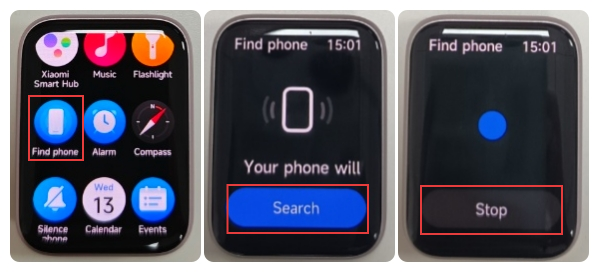
Note:
The Bluetooth connection between the band and the phone should be active.
Q10: How to find the Xiaomi Smart Band 10 Pro using the paired phone?
A: To find the Xiaomi Smart Band 10 Pro using the paired phone, please refer to the following steps:
Go to the Mi Fitness App >> [Device] >> [Security] >> [Find device] >> tap [Find device]. The band will ring continuously. Tap [Stop] to end.
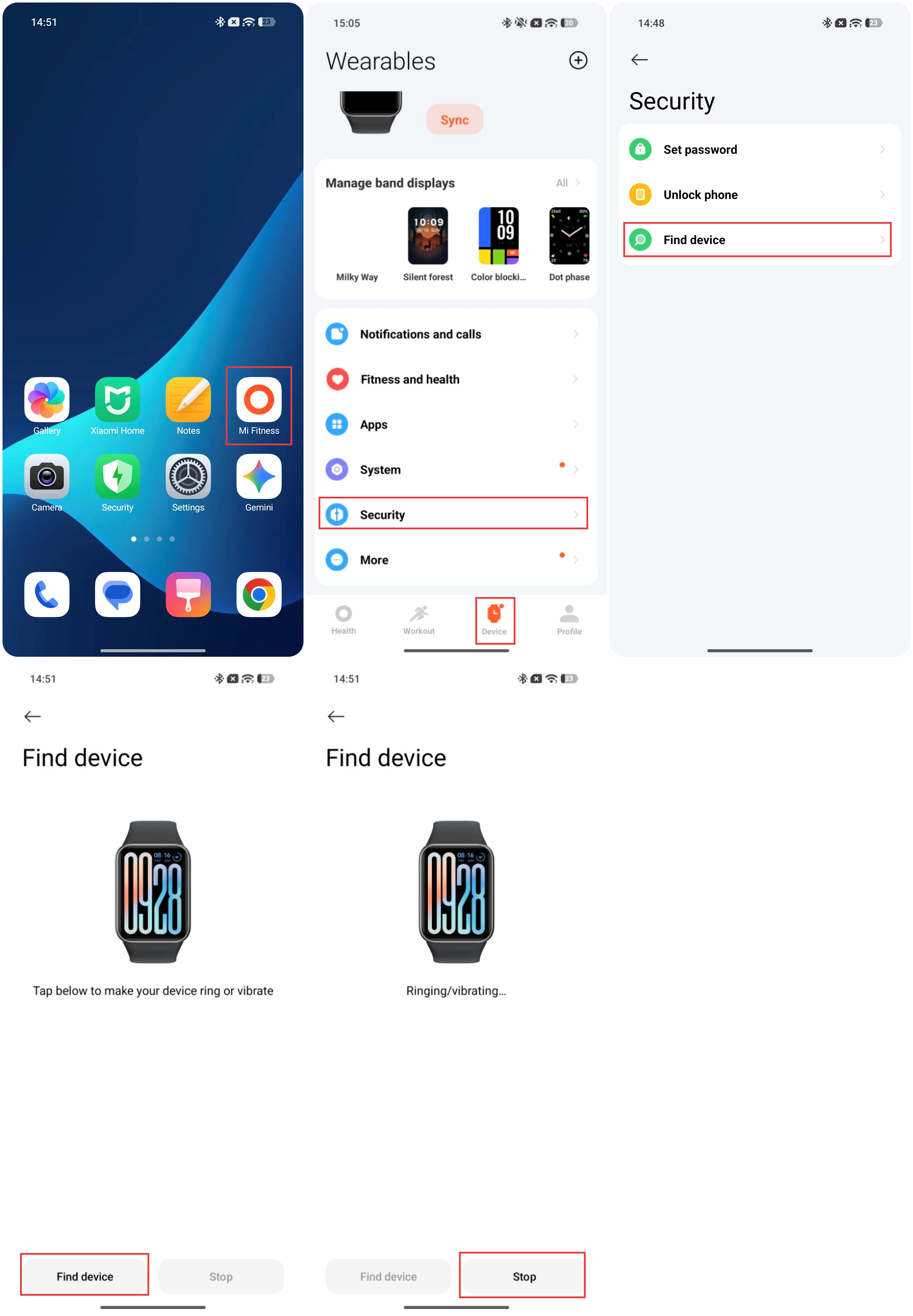
Software Updates & Compatibility
Q1: What are the processor, operating system, and factory system version of the Xiaomi Smart Band 10 Pro?
A: The processor, operating system, and factory system version of the Xiaomi Smart Band 10 Pro are below:
1. Processor: BES 2700IMP.
2. Operating system: HyperOS.
3. Factory system version: 2.200.130 and 2.200.132.
Q2: How to upgrade the system firmware of the Xiaomi Smart Band 10 Pro, and what precautions should be taken during the upgrade?
A: To upgrade the system firmware of the Xiaomi Smart Band 10 Pro, please refer to the following steps:
Go to the Mi Fitness App >> [Device] >> [More] >> [Device version] >> Check for updates. If a new version is available, tap [Update].
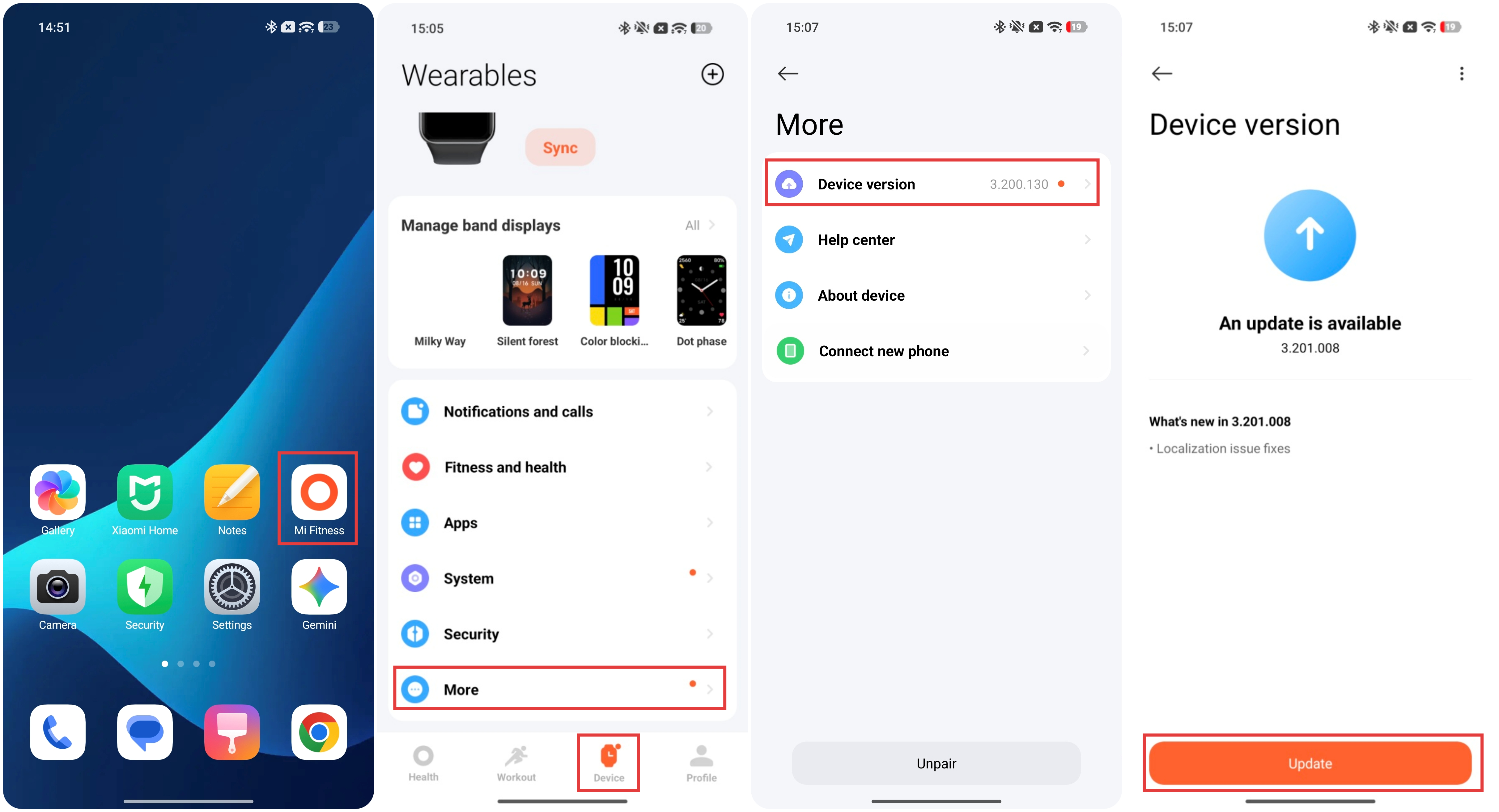
The upgrade precautions are as follows:
1. Ensure the band has at least 20% battery. It is recommended to charge it to over 50%.
2. Maintain a stable Bluetooth connection between the band and phone, and ensure the phone has a working network connection.
3. Do not disconnect or restart either device during the upgrade process.
4. The band will restart automatically once the upgrade is complete.
Q3: What to do if a feature disappears or is removed from the Xiaomi Smart Band 10 Pro after an update?
A: If a feature disappears or is removed from the Xiaomi Smart Band 10 Pro after an update, please refer to the following troubleshooting steps:
1. Check the update log: confirm whether the feature has been officially removed or adjusted.
2. Restart the band: Some functional issues can be resolved by restarting.
3. Check settings: Some features could have been moved to a different menu. Re-enable as needed.
4. Version rollback: If caused by a bug, wait for a subsequent update to fix it.
5. Report the issue: Submit a feedback report within the Mi Fitness App and await an official fix.
Q4: Can the Xiaomi Smart Band 10 Pro be downgraded? Will data be lost after downgrading?
A: The Xiaomi Smart Band 10 Pro does not support official downgrade, and there is no official downgrade channel available.
Q5: How to perform a factory reset for the Xiaomi Smart Band 10 Pro? What data will be deleted?
A: To perform a factory reset for the Xiaomi Smart Band 10 Pro, please refer to the following methods:
1. In the app: Open the Mi Fitness App >> [Device] >> [More] >> [Unpair].
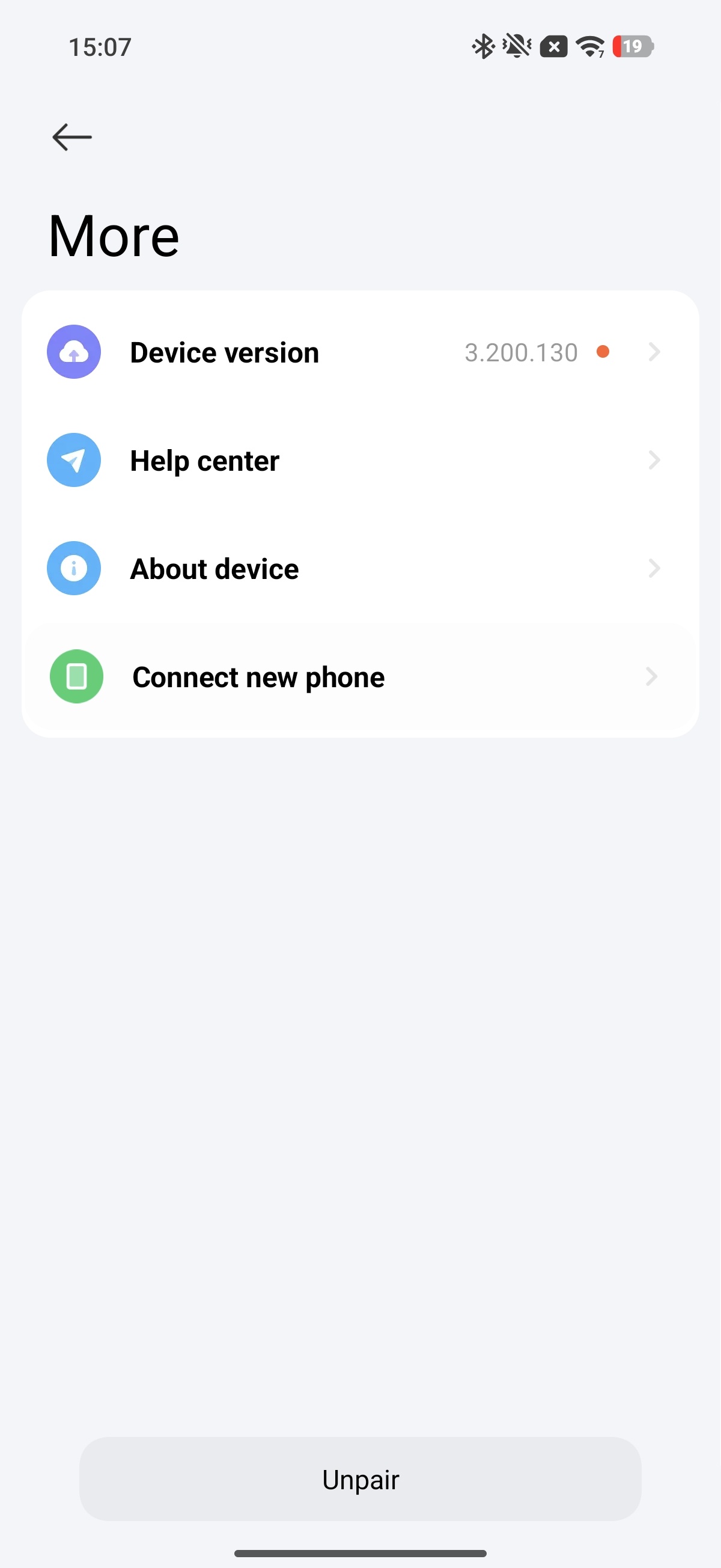
2. On the band: Go to [Settings] >> [System] >> [Reset].
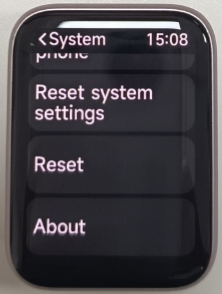
If you perform a factory reset, the data that will be deleted:
1. All personal data: health records, exercise data, band displays, apps, and settings.
2. All pairing information: the phone will need to be re-paired.
Q6: How to recover previous pairing information and health data after performing a factory reset on the Xiaomi Smart Band 10 Pro?
A: To recover previous pairing information and health data after performing a factory reset on the Xiaomi Smart Band 10 Pro, please refer to the following methods:
1. Re-pair: Open the Mi Fitness App >> [Device] >> [Add device] >> select the Xiaomi Smart Band 10 Pro >> follow the prompts to complete Bluetooth pairing.
2. Restore health data: In the Mi Fitness App >> [Profile] >>[App setting] >> [Sync with the cloud] >> enable [Sync with the cloud] and wait for automatic restoration. If cloud sync is not enabled: local health data cannot be recovered.
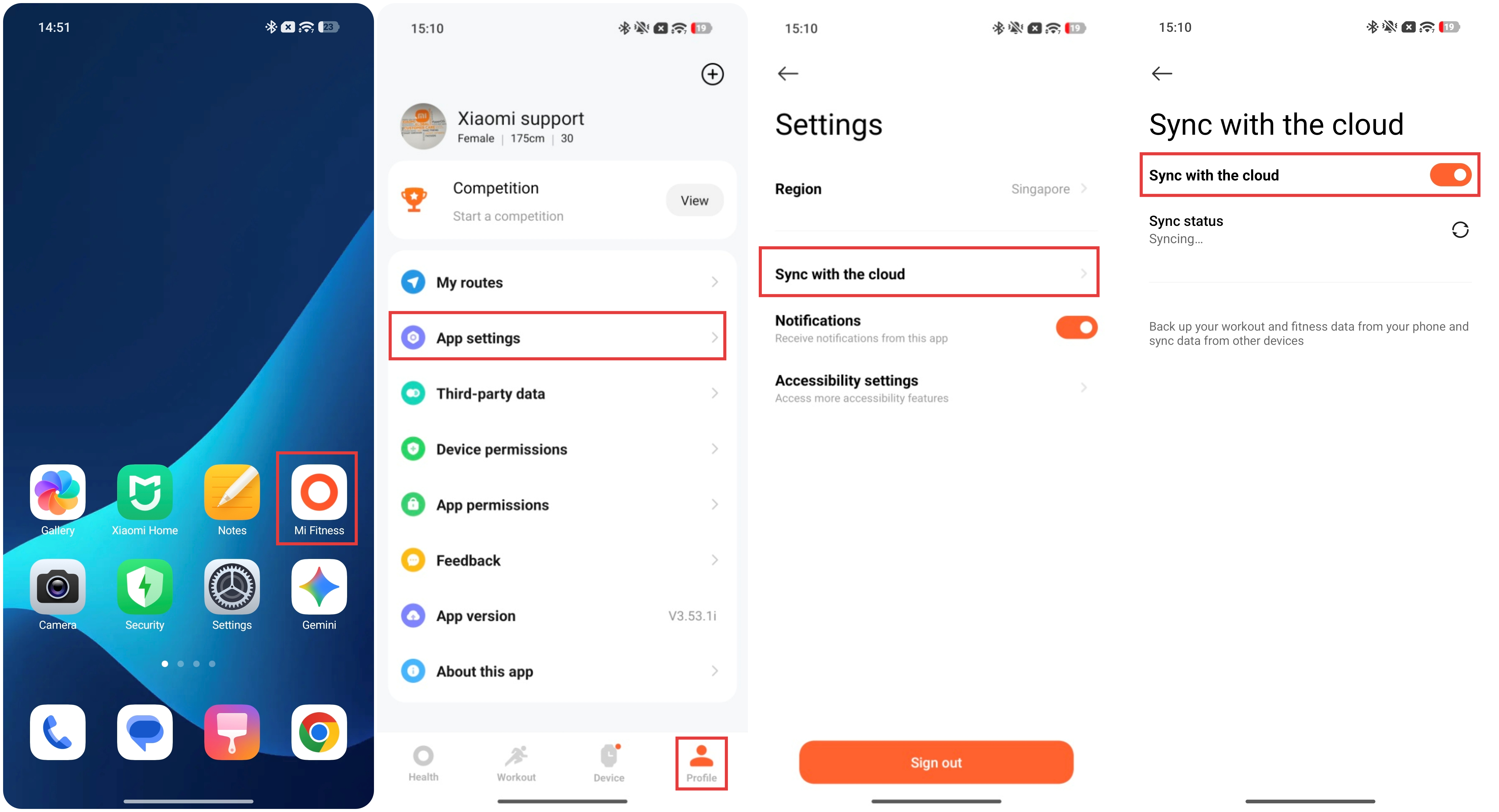
Q7: What are the RAM and ROM of the Xiaomi Smart Band 10 Pro? Does it support expandable storage?
A: The RAM of the Xiaomi Smart Band 10 Pro is 32 MB, and the ROM is 256 MB.
It does not support MicroSD card expansion.
Q8: How to clear the cached data of the Xiaomi Smart Band 10 Pro to free up storage space?
A: To clear the cached data of the Xiaomi Smart Band 10 Pro to free up storage space, please delete unused band displays: Press and hold the band display to enter edit mode, then tap the [Trash] icon.
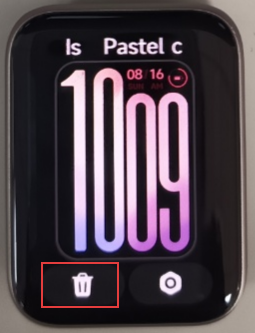
Q9: What system languages does the Xiaomi Smart Band 10 Pro support?
A: The system languages supported by the Xiaomi Smart Band 10 Pro are as follows:
English, German, Italian, French, Spanish, Japanese, Korean, Dutch, Portuguese, Turkish, Arabic, Polish, Ukrainian, Romanian, Czech, Greek, Hebrew, Russian, Thai, Vietnamese, Brazilian Portuguese, Indonesian, Traditional Chinese, Swedish, Finnish, Norwegian, Danish, Simplified Chinese, Hungarian, Serbian, Croatian, Slovak.
Q10: How to switch the system language of the Xiaomi Smart Band 10 Pro?
A: Change the system language on the phone, and the Xiaomi Smart Band 10 Pro will sync and switch to match the phone's language automatically.
Q11: How to sync the system language of the Xiaomi Smart Band 10 Pro to the phone?
A: To sync the system language of the Xiaomi Smart Band 10 Pro to the phone, please refer to the following methods:
1. Restart the band and the Mi Fitness App, then wait for the language settings to sync automatically.
2. Go to the Mi Fitness App >> [Device] >> tap the [Sync] icon.
Q12: Why did the system language of the Xiaomi Smart Band 10 Pro change to a different language on its own after a firmware update?
A: If the system language of the Xiaomi Smart Band 10 Pro changes to a different language on its own after a firmware update, please refer to the following information:
1. The phone's system language was changed to one not supported by the band. After the update, the language setting resets to the default (English).
2. After the update, cloud sync/Bluetooth sync experienced a temporary issue, causing the language to not sync correctly.
Q13: Why does the weather display on the Xiaomi Smart Band 10 Pro become abnormal after changing the phone language, even though it was normal when the phone language was set to English?
A: If the weather display on the Xiaomi Smart Band 10 Pro becomes abnormal after changing the phone language, please refer to the following information:
1. The Weather App has cached data from the previous language and has not refreshed yet.
2. There is a delay in language sync between the phone and the band. Exit the Weather App and reopen it.
3. Some weather data is retrieved directly from local meteorological server data and displayed on the band as received.
Care & Maintenance
Q1: How to properly clean the body and screen of the Xiaomi Smart Band 10 Pro? Can alcohol or soapy water be used?
A: When stains are present on the body or screen of the Xiaomi Smart Band 10 Pro, use an alcohol wipe or apply alcohol with a tissue to clean the surface.
The strap can be wiped with mild soapy water or other everyday cleaning agents to remove dirt.
Q2: How to clean and maintain the strap of the Xiaomi Smart Band 10 Pro?
A: The strap of the Xiaomi Smart Band 10 Pro can be wiped with mild soapy water or other everyday cleaning agents to remove dirt.
Q3: What is the water resistance rating of the Xiaomi Smart Band 10 Pro?
A: The water resistance rating of the Xiaomi Smart Band 10 Pro is 5ATM.
Q4: Can the Xiaomi Smart Band 10 Pro be worn while swimming or taking a hot shower?
A: The Xiaomi Smart Band 10 Pro supports 5ATM water resistance, so it can be worn while swimming in a pool without needing to be removed.
However, it is not suitable for use in hot showers, hot springs, saunas, or high-speed water activities.
Q5: What temperature range is suitable for using the Xiaomi Smart Band 10 Pro?
A: The temperature range suitable for the Xiaomi Smart Band 10 Pro is -10 °C-45 °C.
Additional Information
Q1: What are the battery and charging specifications of the Xiaomi Smart Band 10 Pro?
A: The Xiaomi Smart Band 10 Pro has a rated capacity of 350mAh and uses wired magnetic charging. It does not support wireless charging. It comes with a 0.5-meter charging cable.
Charging is recommended in environments with temperatures above 10 °C.
Q2: What to do if the Xiaomi Smart Band 10 Pro cannot be powered on?
A: If the Xiaomi Smart Band 10 Pro cannot be powered on, please refer to the following steps to troubleshoot:
1. The band requires a connection to the charging cable for activation upon first use.
2. The device may have run out of battery and powered off. Charge for approximately 10 minutes before attempting to power on.
3. It is recommended to use the included charging cable.
4. If charging via a power bank, switch to a standard USB adapter instead.
5. Check whether the metal contacts on the back of the device and the charging cradle/cable have any dirt or residue. Wipe clean with a tissue. If corrosion is present, use a cotton swab or a cloth dampened with alcohol. Ensure there is no poor contact between the device and the charging cable.
6. Confirm that the protective film on the charging cable and the back of the device has been removed.
7. Check whether the charging cable is inserted in the correct orientation. Try reinserting it several times (apply slight pressure or gently wiggle to ensure proper contact).
8. Check whether the charging adapter is functioning properly. Try a different adapter with the device's charging cable (ensure the USB port is supplying power properly).
9. If a spare charging cable (or a cable from the same model) is available, try replacing the cable.
10. Check whether the ambient charging temperature is too low. Charging in an environment above 10°C is recommended.
11. If the device shows no response after being connected to the charger for an extended period, please contact an authorized after-sales service center for inspection.
Q3: Why does the Xiaomi Smart Band 10 Pro's screen stay black and not respond when tapped?
A: When unpaired, the Xiaomi Smart Band 10 Pro will automatically power off after 15 minutes to preserve battery. Please recharge and power on again.
Q4: What to do if the Xiaomi Smart Band 10 Pro shows a large distance error during outdoor workouts, or no track is recorded after the workout ends?
A: If the Xiaomi Smart Band 10 Pro shows a large distance error during outdoor workouts, or no track is recorded after the workout ends, please refer to the following information:
1. Outdoor exercise requires an active Bluetooth connection to the phone.
2. For Android devices, before using the Xiaomi Smart Band 10 Pro for outdoor workouts, set the location permission of the Mi Fitness App to [Allowed all the time] or [Allow only while using the app], and ensure that the Mi Fitness App remains active in the background and is not terminated by the system. Otherwise, the workout route can not be recorded after the activity ends, and the distance data can be inaccurate.
If the location permission is set to [Allow only while using the app], or if the Mi Fitness App is running in the background, outdoor workout distance could have large errors, or the workout route can not be recorded after completion.
If the location permission is set to [Allow only while using the app], or if the Mi Fitness App is running in the background, outdoor workout distance could have large errors, or the workout route can not be recorded after completion.
2. For iPhones, before using the Xiaomi Smart Band 10 Pro for outdoor workouts, set the location permission of the Mi Fitness App to [Always]. Then go to: [Settings] >> [Apps] >> Mi Fitness App >> turn on [Background App Refresh]. Otherwise, the workout route can not be recorded after the workout ends, and the distance data could be inaccurate.
Q5: Why is there a discrepancy between the data on the Mi Fitness App and the Xiaomi Smart Band 10 Pro?
A: If there is a discrepancy between the data on the Mi Fitness App and the Xiaomi Smart Band 10 Pro, please refer to the following information:
1. If the difference is small, it is because data on the band syncs every minute, while automatic sync to the phone occurs every 30 minutes. Please manually trigger a sync and check again.
2. If the difference is large, it may be because the app data is sourced from other devices, whereas the band's data is recorded solely by the band itself.
Q6: What to do if the Xiaomi Smart Band 10 Pro's auto detect feature triggers false recognition or fails to detect an activity?
A: If the Xiaomi Smart Band 10 Pro's auto detect feature triggers false recognition or fails to detect an activity, please refer to the following information:
1. The Xiaomi Smart Band 10 Pro supports auto detect. Go to [Settings] on the band >> [Workout settings] >> enable the toggle of [Auto detect] to automatically detect running, walking, cycling, rower, elliptical, jump rope, and more.
2. In practice, the accuracy and sensitivity of activity detection vary by individual and are related to the posture and proficiency of the activity being performed. If the activity duration is very short or posture changes frequently, the auto detect feature can not be triggered. Some daily scenarios, such as driving a car, riding a bus, or other activities that closely resemble exercise movements, can trigger false detection.
3. If an activity is not successfully detected, it could be due to insufficient activity duration or non-standard posture.
Q7: Does the Xiaomi Smart Band 10 Pro support game band displays?
A: The Xiaomi Smart Band 10 Pro supports game band displays.
To download the game band displays, please refer to the following steps:
Open the Mi Fitness App >> go to [Device] >> [Manage band displays] >> [All] >> [Games] >> download the game band displays.
Q8: Can a power bank be used to charge the Xiaomi Smart Band 10 Pro?
A: When charging the Xiaomi Smart Band 10 Pro with a power bank, the band can fail to charge fully. Using a power bank to charge the band is therefore not recommended.
The reason is as follows:
Most power banks on the market have an automatic power-off function that stops charging when the connected device appears to be fully charged. Since the band draws very little current while charging, the power bank can mistakenly detect it as fully charged and automatically cut off the charging current. As a result, the band can not charge fully or could fail to charge at all.
Therefore, when using a power bank to charge the band, incomplete charging or charging failure can occur.
Q9: What to do if the Xiaomi Smart Band 10 Pro cannot charge or cannot be fully charged?
A: If the Xiaomi Smart Band 10 Pro cannot charge or cannot be fully charged, please refer to the following steps to troubleshoot:
1. If you are using a power bank for charging, note that power banks have protection mechanisms. When the power bank’s battery level is low, it can not fully charge the device properly. It is recommended to use a standard USB charger with 5 V output and at least 1 A current, together with the official charging cable provided with the device.
2. Check whether the metal contacts on the band and the charging cable are dirty. You can try cleaning them with an alcohol wipe or tissue to ensure there is no poor contact between the band and the charging cable.
3. Check whether the charging adapter is working properly. You can try using another standard adapter with the band’s charging cable.
4. Check whether the charging cable is functioning normally. If you have another compatible charging cable for the same band model, try replacing the cable.
5. Try charging the band in an environment with a temperature above 10 °C.
6. The Xiaomi Smart Band 10 Pro takes about 90 minutes to fully charge. If the battery cannot be fully charged, check whether the charging duration was too short.
7. When the charging indicator reaches 100%, do not unplug the charging cable immediately. It is recommended to leave the band on the charger for another 6–7 minutes.
8. If there is still no response after charging for a long time, you can contact the after-sales service for inspection.
Note:
Please make sure the ambient temperature during charging is not too low or too high. The band’s system will disable charging automatically if the temperature is outside the supported range. Charging functionality will resume automatically once the temperature returns to normal.
Please make sure the ambient temperature during charging is not too low or too high. The band’s system will disable charging automatically if the temperature is outside the supported range. Charging functionality will resume automatically once the temperature returns to normal.
Q10: What to do if the Xiaomi Smart Band 10 Pro cannot retrieve music?
A: If the Xiaomi Smart Band 10 Pro cannot retrieve music, please refer to the following steps to troubleshoot:
1. Check whether the Mi Fitness App has been granted notification access and whether the app’s notification permissions are enabled. Make sure the app’s notification reading permission is properly turned on.
If you are using the latest system version on a Xiaomi phone, please turn on the permission by referring to the following steps:
Go to [Settings] >> [Apps] >> search and select [Mi Fitness App] >> [App permissions] >> enable all permission toggles, try turning them off and then back on.
Go to [Settings] >> [Apps] >> search and select [Mi Fitness App] >> [App permissions] >> enable all permission toggles, try turning them off and then back on.
2. Confirm that the phone’s music player is open and that the Mi Fitness App is connected to the band.
3. If only one specific music player cannot be controlled while other players on the phone work properly, it is recommended to uninstall and reinstall that music player, then try again.
Q11: What to do if the phone cannot reconnect to the Xiaomi Smart Band 10 Pro?
A: If the phone cannot reconnect to the Xiaomi Smart Band 10 Pro, please refer to the following steps to troubleshoot:
1. Try clearing the Mi Fitness App from the background and reopening it to check whether reconnection is restored. If the issue persists, go to the phone's Bluetooth settings, unpair the currently connected band, then return to the Mi Fitness App and re-add the band.
2. Uninstall and reinstall the Mi Fitness App, then reopen it and wait approximately 1 minute to check whether the missing data appears.
Does it help?
Yes
No