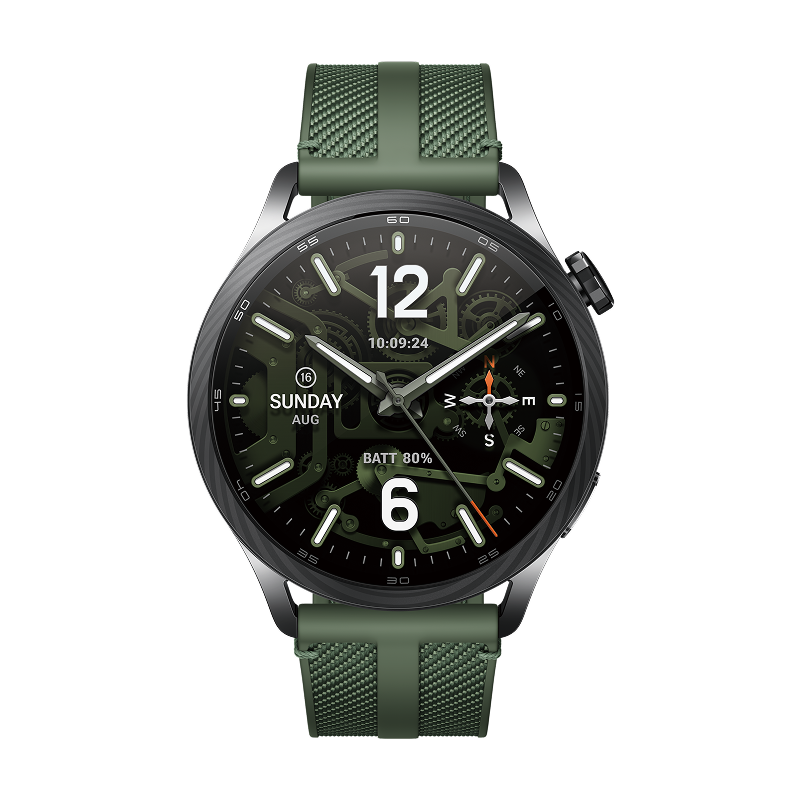
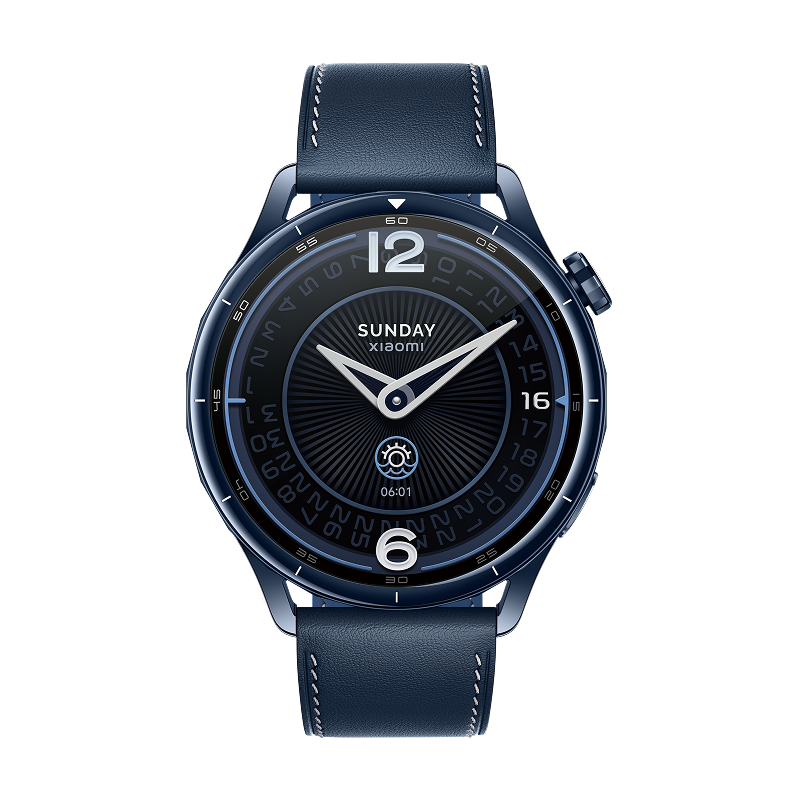
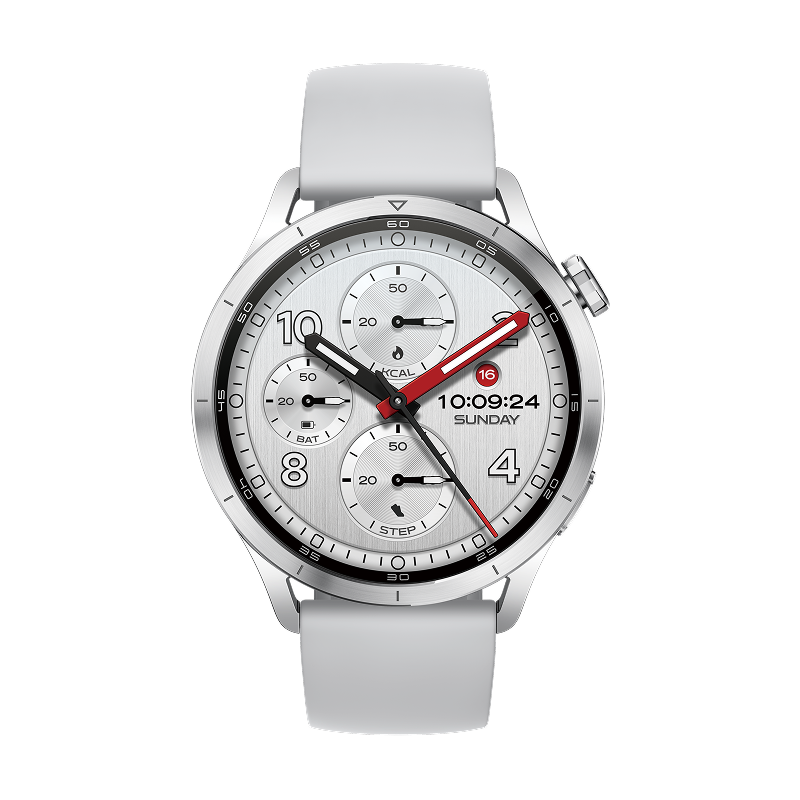
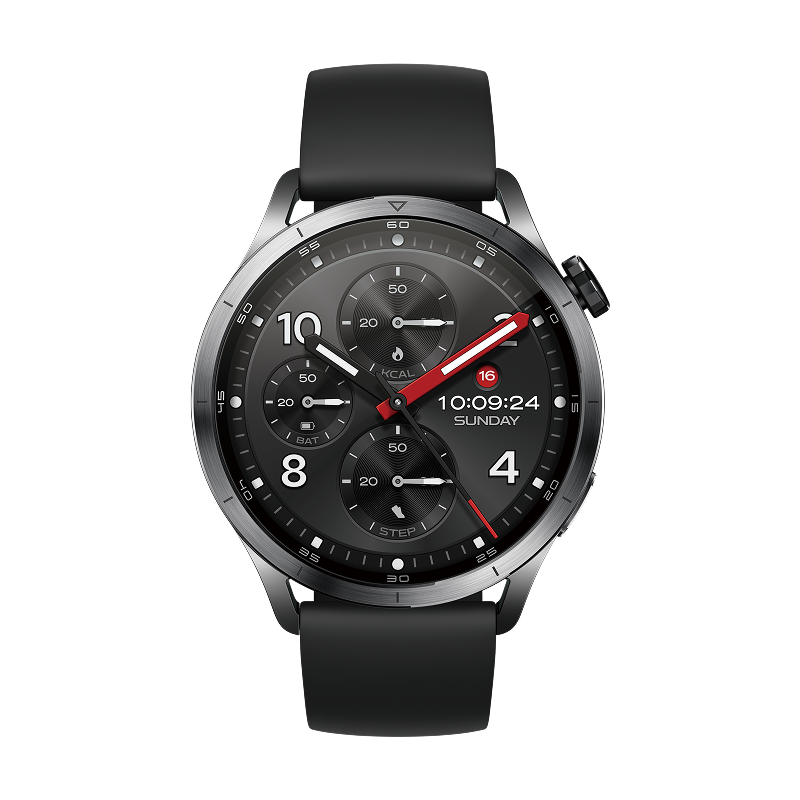
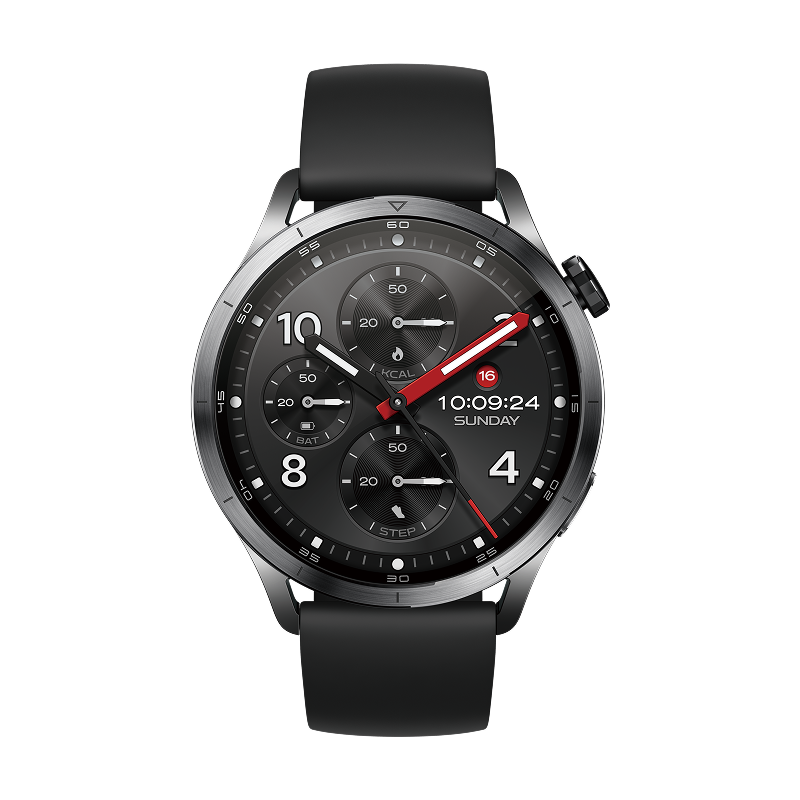
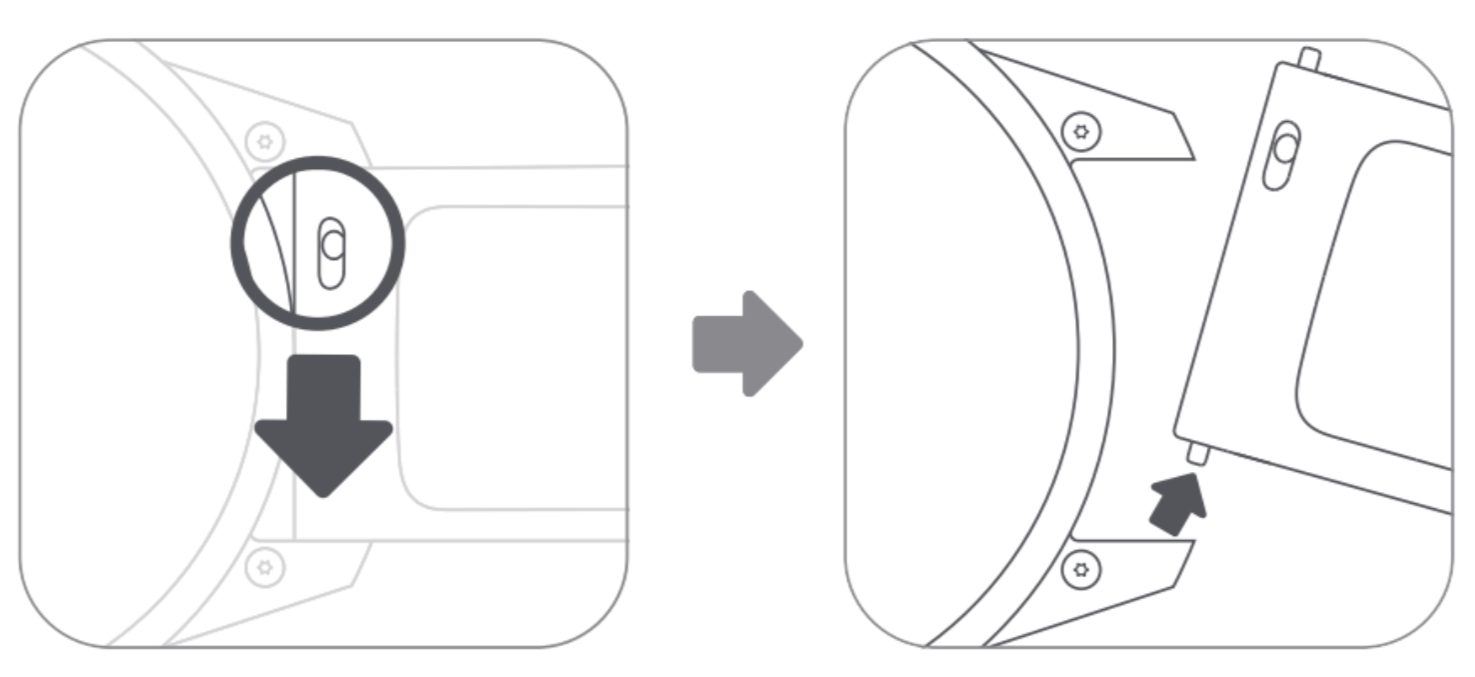
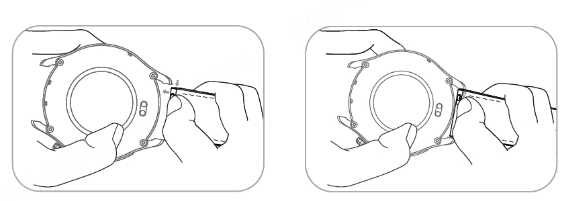
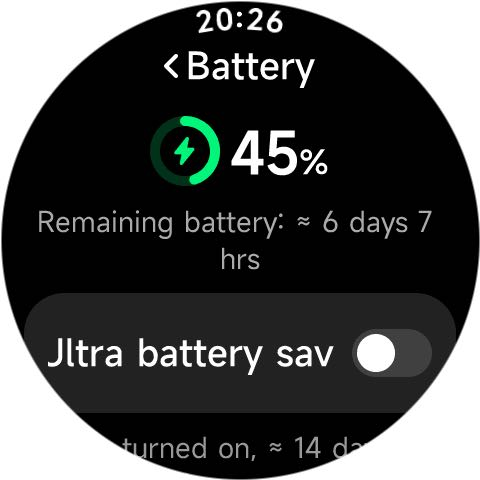
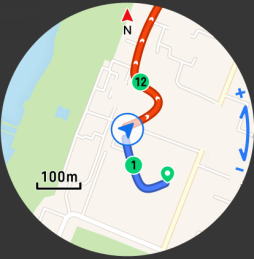
Q10: Why does the Xiaomi Watch S5 46mm show the "Enter battery protection" prompt?
A: To preserve battery lifespan, battery current is limited by restricting the usage of certain functions. When the battery temperature reaches a specific threshold, a battery current limiting strategy is activated.
The functions disabled include:
1. Disable peak brightness.
2. Limit volume level.
3. Vibration intensity is set to the standard level by default.
4. Reduce call volume.
5. Disable Wi-Fi.
6. Limit the drainage sound volume.
System Settings
Basic Operations
Q1: How to power on, power off, and reboot the Xiaomi Watch S5 46mm?
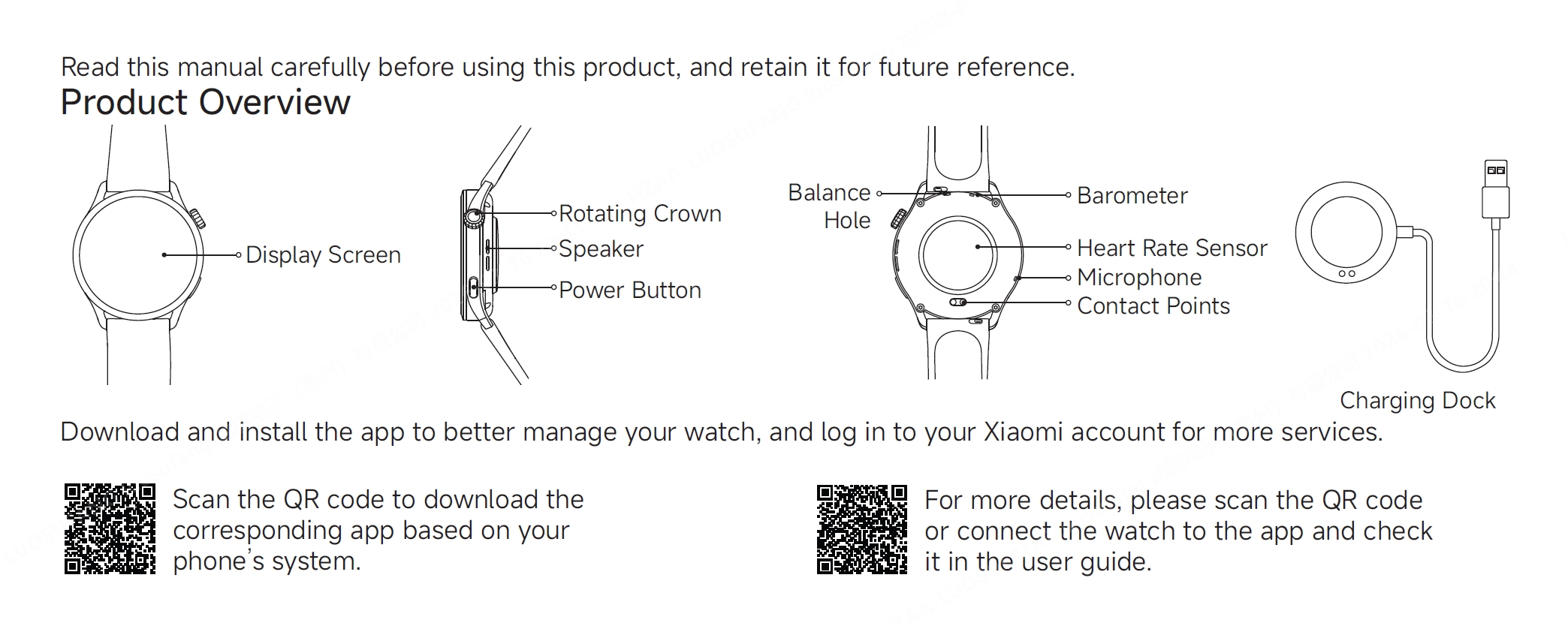
A: The Xiaomi Watch S5 46mm has two buttons on the right side. The upper button is the Home button (rotating crown), and the lower button is the Power button.
Power on:
When the watch is powered off, press and hold the Power button for about 3 seconds to turn it on and enter the watch face.
Power off:
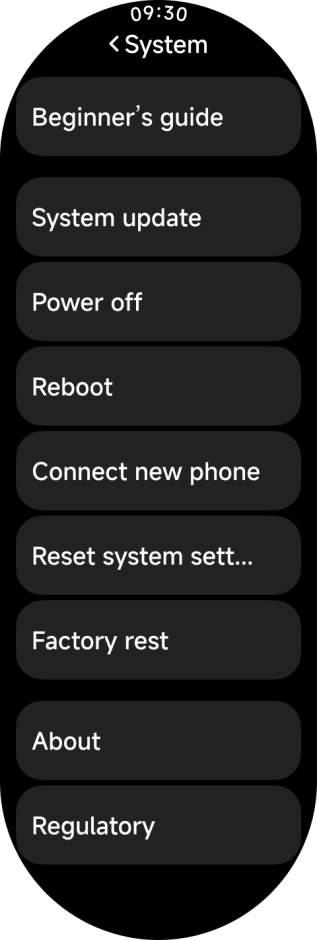
1. When the watch is powered on, press and hold the Power button for about 3 seconds. The device will enter a menu with options including [Reboot], [Power off], [Security], [Connect new phone], and [Factory reset]. Select [Power off].
2. When the watch is powered on, go to [Settings] >> [System] >> choose [Power off].
Reboot:
1. When the watch is powered on, press and hold the Power button for about 3 seconds. The device will enter a menu with options including [Reboot], [Power off], [Security], [Connect new phone], and [Factory reset]. Select [Reboot].
2. When the watch is powered on, press and hold the Power button for about 12 seconds to force restart the watch.
3. When the watch is powered on, go to [Settings] >> [System] >> choose [Reboot].
Q2: What are the functions of swipe, tap, and press-and-hold gestures on the Xiaomi Watch S5 46mm?
A: The touch control logic on the Xiaomi Watch S5 46mm is as follows:
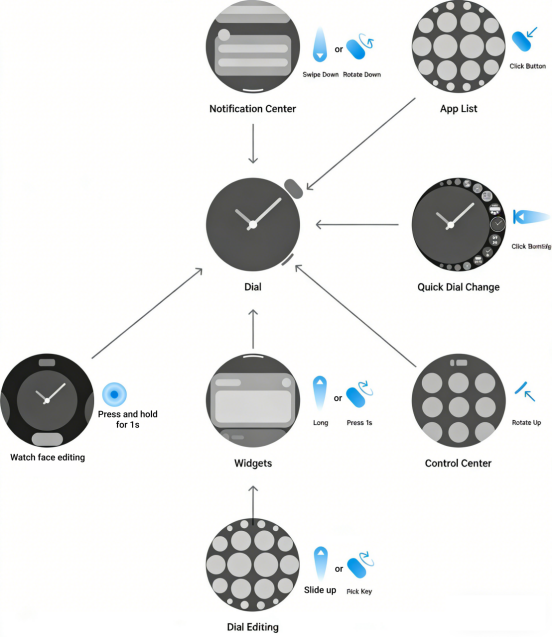
1. Swipe is used to scroll or preview content on long pages, such as swiping up/down or left/right to navigate between interfaces.
2. Tap is used for selection and confirmation, for example, tapping an App icon in the App list to open the App.
3. Press and hold is used for entering menus or editing modes. For example, pressing and holding settings in the Control center opens the settings list, and pressing and holding any App icon in the App list enters edit mode.
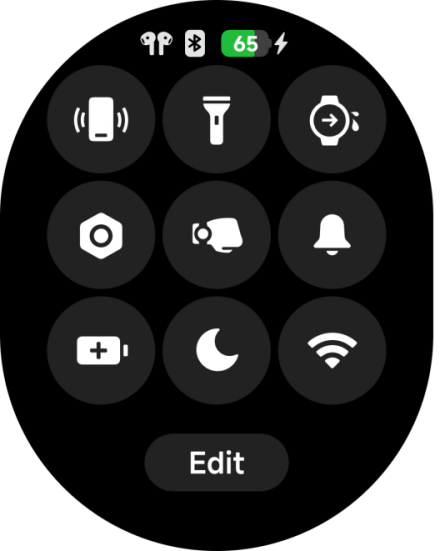
Q3: How to enter the Control center, and what are the icons in the Control center on the Xiaomi Watch S5 46mm?
A: Press the power button (lower button) on the Xiaomi Watch S5 46mm to enter the Control center.
The icons on the Xiaomi Watch S5 46mm are listed below:
1. The icon description on the top row of the status bar from left to right is listed below:
(1). Earphone connection status: This icon is displayed when the watch is connected to earphones, and there is no icon when the earphones are not connected.
(2). Bluetooth connection status: The icon will be gray if the watch is not connected to the phone. The icon will stay solid when the watch is connected.
(3). Current battery level of the watch: The charging icon is displayed when charging. When not charging, 0-10% is displayed in red, 11%-20% is displayed in orange, and 21%-100% is displayed in white.
2. Xiaomi Smart Hub:
You need to connect a Xiaomi smartphone or a pad that supports Xiaomi HyperOS 2 and update the Mi Fitness App to the latest version, and update the Xiaomi Home App to version 10.0 and above. The other device needs to support related functions.
3. The convenient controlling icons from top to bottom, from left to right, are listed below:
(1). Tap the icon to the Find phone App.
(2). Tap the icon to enable the flashlight.
(3). Tap the icon to use the drainage function.
(4). Tap the icon to enter the system settings interface.
(5). Tap the icon to enable or disable [Raise to wake].
(6). Tap the icon to enable or disable silent mode. Press and hold to enter [Sound and vibration].
(7). Tap the icon to enable battery saver mode. Press and hold the power button (lower button) or charge the watch to exit the battery saver mode.
(8). Tap the icon to enable or disable DND mode. Press and hold to enter [DND].
(9). Tap the icon to enable or disable WLAN. Press and hold to enter [WLAN].
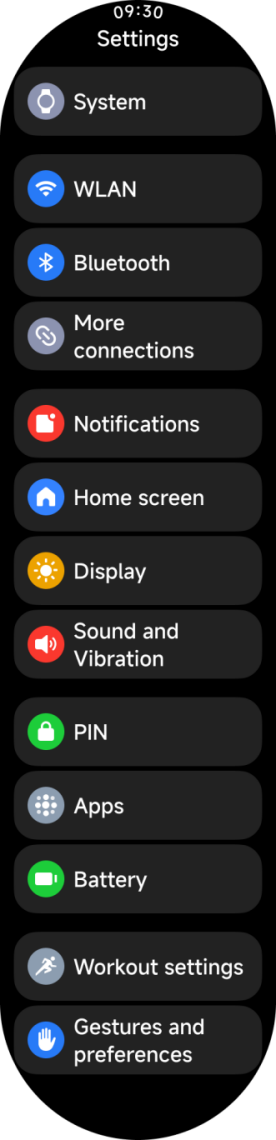
Q4: What are the system settings on the Xiaomi Watch S5 46mm?
A: You can tap the settings icon in the control center or the App list to open the system settings on the Xiaomi Watch S5 46mm.
The system settings are listed below:
Settings / WLAN / Bluetooth / More connections / Notifications / Home screen / Display / Sound and vibration / PIN / Apps / Battery / Workout settings / Gestures and preferences
Q5: How to check device information, such as WLAN address, MAC address, and SN on the Xiaomi Watch S5 46mm?
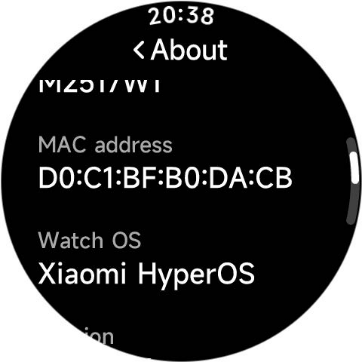
A: The WLAN address cannot be viewed on the Xiaomi Watch S5 46mm. To check the MAC address and SN, go to [Settings] >> [System] >> [About] on the watch.
Q6: Does the Xiaomi Watch S5 46mm support screenshots? How to use this feature?
A: Yes, the Xiaomi Watch S5 46mm supports screenshots, and the feature is enabled by default. Press the rotating crown and the lower button simultaneously to take a screenshot.
When the Xiaomi Watch S5 46mm is connected to a phone, the screenshot will automatically sync to the phone and be saved in the phone Gallery (the Mi Fitness App must be granted photo album access permission).
If a screenshot is taken while the Xiaomi Watch S5 46mm is disconnected from the phone, the image will be temporarily stored on the watch and cannot be viewed directly on the device. Once the watch reconnects to the phone, the screenshot will automatically sync to the phone and be saved in the phone's Gallery.
Connect and Pair
Q1: How to pair the Xiaomi Watch S5 46mm with a phone?
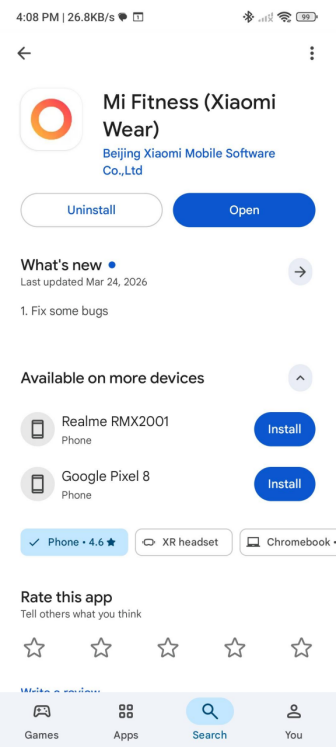
A: The Xiaomi Watch S5 46mm needs to be paired with the Mi Fitness App before use. The App is available for both iOS and Android under the same name and can be downloaded from the App Store or Google Play Store.
After pairing, ensure the App is locked in the background to prevent the system from closing it, which can cause disconnection from the phone and affect normal usage of the watch.
To pair the Xiaomi Watch S5 46mm with the phone, please refer to the following information:
1. Press and hold the power button for about 3 seconds to turn on the watch. Use your phone to scan the QR code displayed on the watch screen, or search for and download the Mi Fitness App from the App Store or Google Play Store.
2. Open the Mi Fitness App, log in to your Xiaomi Account according to the prompts, and enable the necessary permissions requested by the App.
3. The watch supports three methods to be added:
(1). Scan the QR code on the watch screen.
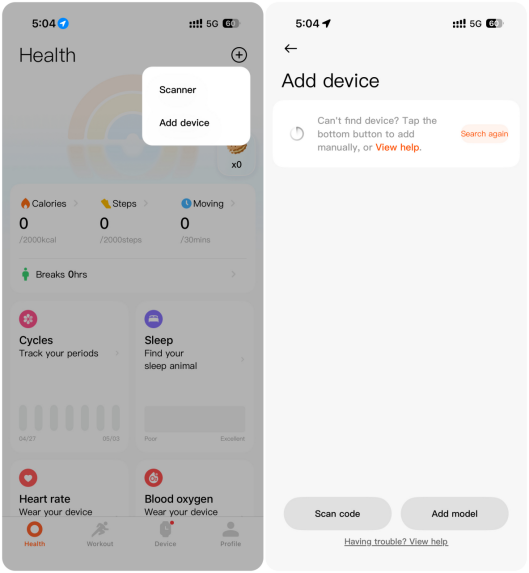
(2). Tap [Add device] and the Mi Fitness App will automatically search for available devices. Select your watch’s Bluetooth name (Xiaomi Watch S5 46mmXXXX) from the list of discovered devices. If your watch is not found, try searching again.
(3). Tap [Add device] and select [Add model] at the bottom of the interface. Choose [Xiaomi Watch S5 46mm], and the App will automatically search for compatible devices. Select your watch’s Bluetooth name (Xiaomi Watch S5 46mmXXXX) from the list. If your watch does not appear, try searching again.
4. Android phone: When the security code on your phone matches the one shown on the watch screen, agree to the pairing request on both the phone and the watch to complete the pairing.
5. iPhone: First, go to the Bluetooth settings on your phone and select the Bluetooth name of your watch. Agree to the pairing request on both the phone and watch screens. Then, return to the Mi Fitness App, select your watch's Bluetooth name, and perform the pairing operation again to complete the connection.
Mi Fitness App installation:
Note:
1. Ensure Bluetooth is enabled on your phone during the pairing process for proper connectivity.
2. If the security code appears on the watch but not on your phone, check the notification bar on your phone for the pairing request.
3. If you cannot find the watch during the device addition process or if the watch cannot connect during use, try pressing and holding the power button on the watch for 3 seconds, selecting [Factory reset] from the system menu, and then trying to pair again.
Q2: What permissions need to be enabled in phone settings when connecting the Xiaomi Watch S5 46mm to the Mi Fitness App (iOS/Android), and what issues can occur if they are not enabled?
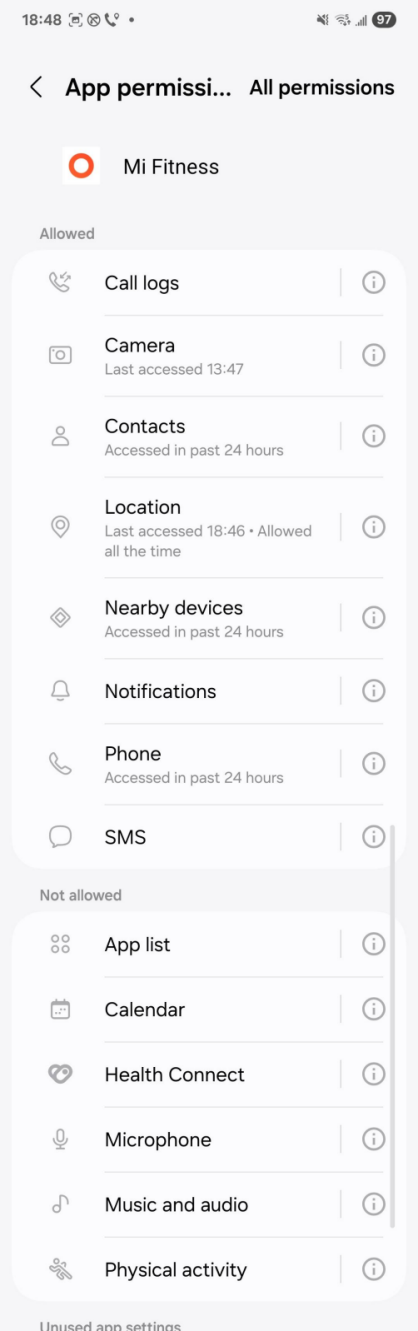
A: When connecting the Xiaomi Watch S5 46mm to the Mi Fitness App, the following permissions should be enabled: Phone, SMS, Nearby devices, Call logs, Contacts, Notifications, Location, and Camera. If these permissions are not enabled, the following issues may occur:
1. The Phone permission is required. Otherwise, incoming call alerts cannot be synced, and the watch will not be able to receive or reject calls.
2. The SMS permission is required so that SMS notifications can be synced to the watch; otherwise, message alerts will not be received.
3. The Nearby devices (Bluetooth) permission is required to pair the watch and establish a stable Bluetooth connection. Without it, pairing will fail.
4. The Call logs permission is required to sync call history to the watch.
5. The Contacts permission is required so that incoming calls can display contact names instead of only phone numbers.
6. The Notifications permission is required to receive App notifications.
7. The Location permission is required for GPS-related functions; without it, activity tracking may be inaccurate, and navigation features may not work properly.
8. The Camera permission is required to scan the QR code on the watch for quick pairing. Otherwise, manual pairing will be needed.
For Android devices:
1. Storage permission is required to sync and save watch data to the phone.
2. Auto-start permission is required to prevent the App from being terminated in the background.
3. Background pop-up permission is required to ensure pairing requests and connection prompts are displayed in time.
For iOS systems:
1. Health data permission is required to sync health metrics such as heart rate, SpO₂, and sleep to Apple Health.
2. Bluetooth permission should be enabled; otherwise, the watch cannot be paired or connected.
After installing the Mi Fitness App, you should allow all permission requests during the first launch. If any permissions are denied, they can be manually enabled later in system settings under the Mi Fitness App.
Q3: How to switch Xiaomi account or connect to a new phone for the Xiaomi Watch S5 46mm?
A: If you switch to a different Xiaomi account, you need to reset the Xiaomi Watch S5 46mm to factory settings first, then use the new phone to pair and bind the watch again.
If you use the same Xiaomi account on the new phone, keep the Xiaomi Watch S5 46mm connected to the original phone, then go to [Settings] >> [System] >> [Connect new phone] on the watch to complete the re-pairing process.
Q4: How to keep the Xiaomi Watch S5 46mm connected to the Mi Fitness App?
A: To keep the Xiaomi Watch S5 46mm connected to the Mi Fitness App, please add the Mi Fitness App to the phone’s App whitelist and lock it in the background to prevent it from being cleared. Make sure Bluetooth is always enabled, and keep the Xiaomi Watch S5 46mm within Bluetooth range of the phone.
Different phone models may have different settings. You can go to [Mi Fitness App] >> [Device] >> [System] >> [Watch connection protection], then follow the on-screen instructions to complete the setup.
Q5: What are the differences between factory reset and reset system settings on the Xiaomi Watch S5 46mm?
A: The differences between factory reset and reset system settings on the Xiaomi Watch S5 46mm are as follows:
1. Factory reset:
You can access it via [Settings] >> [System] >> [Factory reset], or by pressing and holding the lower button for 3 seconds to enter the system control panel.
A factory reset will restore the Xiaomi Watch S5 46mm to its initial state, and all data on the watch will be erased.
2. Reset system settings:
Network settings (default not selected): Includes Wi-Fi, Bluetooth (clears Bluetooth headset pairing data but does not clear phone connection data), mobile network, and other connections.
Using data (cannot be selected and will not be cleared): Includes passwords, downloaded watch faces, locally stored music, eSIM, and App installation/uninstallation data.
Q6: What to do if the phone cannot find the Xiaomi Watch S5 46mm during pairing?
A: It is recommended to turn Bluetooth off and on again on the phone, or restart the Xiaomi Watch S5 46mm and try again. If the watch still cannot be found via Bluetooth, please contact the after-sales service for further assistance.
Q7: What is the logic of Bluetooth automatic disconnection between Xiaomi Watch S5 46mm and the phone?
A: The Bluetooth connection between the Xiaomi Watch S5 46mm and the phone is affected by the surrounding environment:
1. In environments with obstacles, the Bluetooth connection will automatically disconnect when the distance between the Xiaomi Watch S5 46mm and the phone reaches 20 meters.
2. In open areas or long corridors, the Bluetooth connection will automatically disconnect when the distance reaches 150 meters.
3. If there is one human body between the Xiaomi Watch S5 46mm and the phone (with direct alignment), the Bluetooth connection will automatically disconnect at a distance of 20 meters.
4. Actual performance varies depending on real usage conditions.
Q8: What to do if the Xiaomi Watch S5 46mm fails to connect via Bluetooth or pairing fails?
A: If the Xiaomi Watch S5 46mm fails to connect via Bluetooth or pairing fails, please refer to the following aspects:
Connection failure:
1. Abnormal phone network connection, so please check the network status of the phone.
2. Abnormal Bluetooth connection between the Xiaomi Watch S5 46mm and phone, please try turning off Bluetooth on the phone system, then turn it back on and tap Retry to continue the pairing process.
Connection succeeds, but pairing fails:
The phone may not have confirmed the pairing request in time or may have tapped “Cancel” during the pairing prompt.
If the issue persists, please try the following steps:
1. Reset the Xiaomi Watch S5 46mm to factory settings.
2. Clear the device’s Bluetooth information in the phone’s system Bluetooth list.
3. Turn off Bluetooth on the phone, then turn it back on.
4. Open the Mi Fitness App and re-add the Xiaomi Watch S5 46mm.
Q9: What to do if the Xiaomi Watch S5 46mm has message notification sync issues when paired with Huawei HarmonyOS?
A: Currently, there are compatibility issues between the Mi Fitness App and HarmonyOS, which can cause message notification synchronization issues.
Display Settings
Q1: How to edit the widgets on the Xiaomi Watch S5 46mm?
A: The Xiaomi Watch S5 46mm supports editing the widgets. You can swipe up to check different widgets on the home interface of the watch, which cannot be edited on the App.
To configure the widgets on the watch, please refer to the following details:
1. Swipe up to check different widgets on the home interface of the watch. Press and hold the widget to enter the editing interface, and you can edit the widget order and add widgets.
2. You can go to [Settings] >> [Home screen] >> [Widgets] to edit the widget order and add widgets.
3. Press the rotating crown or the power button to exit the widget.
Q2: How to add, delete, or switch frequently used Apps on Xiaomi Watch S5 46mm?
A: The Xiaomi Watch S5 46mm supports managing frequently used Apps on both the watch and the Mi Fitness App. The detailed steps are as follows:
On-watch operations (add/delete/reorder/switch):
1. Enter the App list and edit mode:
Press the function button (upper button / rotating crown) on the Xiaomi Watch S5 46mm to enter the App list. Press and hold any App icon for 2 seconds to enter edit mode, where you can delete or reorder Apps.
2. Delete frequently used Apps:
Tap the delete button in the upper-right corner to uninstall the App. A confirmation dialog will appear; tap OK to confirm. (Some pre-installed system apps cannot be removed.) After deletion, the remaining apps will be automatically rearranged.
3. Add frequently used Apps:
If an App was previously deleted, it can be re-added on the Xiaomi Watch S5 46mm via [Settings] >> [Apps] >> [Manage apps].
4. Switch and reorder Apps:
In edit mode, press and hold an App icon and drag it to the desired position, then release to complete sorting. After finishing, press the rotating crown or swipe right to exit edit mode.
Mi Fitness App operations:
Reorder frequently used Apps:
Go to Mi Fitness App >> [Device] >> [System] >> [Sort apps]. Press and hold the drag handle next to an App and move it up or down to adjust the order. The updated order will automatically sync to the Xiaomi Watch S5 46mm.
Q3: How to switch the App layout of the Xiaomi Watch S5 46mm?
A: To switch the App layout of the Xiaomi Watch S5 46mm, please refer to the following methods:
1. On the watch: Press the rotating crown to access the App list >> swipe up or down the screen or rotate the crown to the bottom >> select [Layout] to switch. Alternatively, press the rotating crown >> enter [Settings] >> [Home screen] >> tap [Layout] to switch.
2. On the Mi Fitness App: After connecting the watch >> enter [Device] >> select [System] >> tap [App layout] to make the changes.
Q4: How to set Always-on display on the Xiaomi Watch S5 46mm?
A: The Xiaomi Watch S5 46mm supports Always-on display (AOD). When enabled, the watch will enter the Always-on display (ambient display) state after the screen turns off.
In Always-on display mode, the screen can be awakened by raising the wrist or pressing a button, which will exit the AOD state.
Go to [Settings] >> [Display] >> [Always-on display] >> enable [Always-on display], you can also schedule the time. The default scheduled period is 08:00–22:00.
Note:
1. When AOD is enabled, it will turn off automatically when the watch is removed from the wrist. AOD will also turn off when sleep is detected at night.
2. Enabling AOD will reduce battery life.
Screen-off methods:
1. By default, the screen turns off automatically if there is no operation within 5 seconds. You can adjust this in [Settings] >> [Display] >> [Auto lock], with a range from 5 seconds to 60 seconds.
2. Place your palm over the watch face until it covers more than half of the screen to turn it off.
3. When the Raise to wake function is enabled, rotating your wrist in the opposite direction will turn off the screen.
Q5: Why does the Xiaomi Watch S5 46mm screen briefly flash when entering Always-on display (AOD) from the screen-off state?
A: When the Xiaomi Watch S5 46mm transitions from the screen-off state to Always-on display (AOD), the system first loads the main watch face and then renders the AOD interface based on it. As a result, a brief flash may be visible during this transition. This is normal behavior, and you can continue using the device with confidence.
Q6: How to set Tap to wake on the Xiaomi Watch S5 46mm?
A: On the Xiaomi Watch S5 46mm, go to [Settings] >> [Display] >> enable [Tap to wake].
Q7: How to set Raise to wake on the Xiaomi Watch S5 46mm?
A: On the Xiaomi Watch S5 46mm, please go to [Settings] >> [Display] >> [Raise to wake] >> [Off]/[All day]/[Scheduled].
All day: When enabled, the Raise to wake function is active 24 hours a day.
Scheduled: You can set a specific active time period according to your needs.
On the watch face, swipe up to open the Control center, then tap the Raise to wake icon to quickly turn the function on or off.
Q8: How to adjust the brightness of the Xiaomi Watch S5 46mm?
A: The Xiaomi Watch S5 46mm supports automatically and manually adjusting the brightness.
1. Automatic brightness: The device has automatic brightness enabled by default. The screen brightness will automatically adjust based on ambient light. You can go to [Settings] >> [Display] >> [Brightness] >> [Auto].
2. Manual brightness: The device supports adjusting brightness using a slider. You can set it via [Settings] >> [Display] >> [Brightness] >> [Custom], then drag the brightness bar to select the desired level.
3. Sunlight mode: Go to [Settings] >> [Display] >> [Brightness] >> [Sunlight mode] on the watch.
Note:
You need to disable [Auto] before adjusting the brightness manually.
Sound and Vibration
Q1: How to adjust the sound volume on the Xiaomi Watch S5 46mm?
A: The Xiaomi Watch S5 46mm supports adjusting the alarm volume, ringtone volume, media volume, and call volume.
To adjust the sound volume on the Xiaomi Watch S5 46mm, please refer to the following details:
1. Alarm volume adjustment:
(1). Please go to [Settings] >> [Sound and vibration] >> adjust the alarm volume. You can tap the volume plus or minus icons or rotate the rotating crown to adjust the alarm volume.
(2). The alarm volume can be adjusted between 0-10. Both alarm reminders and countdown reminders belong to the alarm volume.
2. Ring volume adjustment:
(1). Please go to [Settings] >> [Sound and vibration] >> adjust the ring volume. You can tap the volume plus or minus icons or rotate the rotating crown to adjust the ringtone volume.
(2). The ring volume can be adjusted between 0-10. Incoming calls, notifications, system reminders and workout and health reminders belong to the ring volume.
(3). When the watch is in silent mode, the ring volume will be automatically adjusted to 0.
3. Media volume adjustment:
(1). Please go to [Settings] >> [Sound and vibration] >> adjust the media volume. You can tap the volume plus or minus icons or rotate the rotating crown to adjust the media volume.
(2). The media volume can be adjusted between 0-10. Music playing on the watch belongs to the media volume.
(3). Third-party music Apps support volume adjustment within the App. The volume control method depends on the App’s own design.
4. Call volume adjustment:
(1). The call volume can only be adjusted during a call. Tap the volume button on the in-call interface to enter the volume adjustment interface. You can drag the volume bar on the screen, tap the volume plus and minus icons on the screen, rotate the rotating crown, or press the upper and lower buttons on the phone to adjust the volume.
(2). The call volume can be adjusted between 0-15.
Q2: How to enable the silent mode on the Xiaomi Watch S5 46mm, and what sounds will be turned off after enabling?
A: To enable silent mode on the Xiaomi Watch S5 46mm, please refer to the following methods:
1. Go to [Settings] >> [Sound and vibration] >> turn on [Silent mode].
2. Press the power button to enter the Control center and tap the silent mode icon.
3. Go to [Settings] >> [Sound and vibration] >> adjust the ring volume to 0 manually.
Note:
When the silent mode is enabled, all of the notifications or reminders, like incoming calls, App notifications, system reminders, workout and health reminders, will only be pushed in vibration.
Q3: How to enable Do Not Disturb mode and set a custom schedule on the Xiaomi Watch S5 46mm?
A: For non-Xiaomi phones or versions earlier than 3.220.0xx, Do Not Disturb (DND) sync is not supported.
Enable Do Not Disturb mode: On the Xiaomi Watch S5 46mm, go to [Settings] >> [Sound and vibration] >> [DND] >> enable [DND]. Once enabled, it will remain active all day until it is manually turned off.
Xiaomi phones:
1. Do Not Disturb (DND) sync is supported.
2. Watch system version: should be upgraded to 3.220.0xx or above.
3. Phone system version: OS 3.1 or above.
4. Mi Fitness App: should be upgraded to version 3.51.0 or above.
After meeting the above requirements:
1. On the watch: go to [Settings] >> [Sound and vibration] >> [DND] >> enable [Sync with phone].
2. In the Mi Fitness App: go to [Device] >> [System] >> [DND sync] >> Enable [DND sync].
3. If you set the scheduled Do Not Disturb time period on the phone, the DND status will be automatically synced to the Xiaomi Watch S5 46mm.
Q4: How to turn on Airplane mode on the Xiaomi Watch S5 46mm?
A: The Xiaomi Watch S5 46mm does not support Airplane mode.
Q5: How to set a custom ringtone on the Xiaomi Watch S5 46mm?
A: The Xiaomi Watch S5 46mm does not support custom ringtones. All ringtones are system default.
Q6: How to enable or disable Vibrate when ringing and adjust vibration intensity on the Xiaomi Watch S5 46mm?
A: To enable or disable Vibrate when ringing and adjust vibration intensity on the Xiaomi Watch S5 46mm, please refer to the following information:
Enable or disable Vibrate when ringing:
Go to [Settings] >> [Sound and vibration] >> [Vibrate when ringing] on the Xiaomi Watch S5 46mm.
Adjust vibration intensity:
Go to [Settings] >> [Sound and vibration] >> [Vibration intensity] >> choose [Standard] or [Strong].
Note:
Enabling strong vibration on the watch will reduce battery life.
Wireless Connection
Q1: What Bluetooth version and Bluetooth transmission range does the Xiaomi Watch S5 46mm support?
A: The Xiaomi Watch S5 46mm uses dual-mode BLE/BT 5.4 and is backward compatible with Bluetooth versions below BLE/BT 5.4, allowing it to work with a wide range of devices that support different Bluetooth versions.
In an unobstructed environment, the Bluetooth transmission range of the Xiaomi Watch S5 46mm is approximately 20 meters. In open outdoor environments, the maximum transmission distance can reach up to 150 meters. However, the actual transmission range varies depending on environmental interference, obstacles, and surrounding electronic devices.
Q2: How to connect the Xiaomi Watch S5 46mm to Bluetooth earbuds and switch audio output?
A: Connect Bluetooth earbuds:
On the Xiaomi Watch S5 46mm, go to [Settings] >> [Bluetooth] >> turn on [Bluetooth]. The watch will automatically search for nearby Bluetooth earbuds. Please make sure the earbuds are in pairing/discoverable mode. Once the earbuds appear in the Bluetooth list, tap the device name to complete the connection.
Switch audio output:
On the Xiaomi Watch S5 46mm, go to [Settings] >> [Bluetooth], select the connected Bluetooth earbuds from the Bluetooth device list, then choose [Disconnect] or [Unpair]. The audio output will then switch back to the watch speaker.
Q3: Can the Xiaomi Watch S5 46mm be used with Bluetooth earbuds for phone calls?
A: The Xiaomi Watch S5 46mm does not support using Bluetooth earbuds for making or answering phone calls.
Q4: How to connect the Xiaomi Watch S5 46mm to Wi-Fi networks and switch between them?
A: Connect to Wi-Fi:
On the Xiaomi Watch S5 46mm, go to [Settings] >> [WLAN] >> turn on [WLAN], then select the Wi-Fi network you want to connect to. Wait until the connection is completed successfully.
Switch Wi-Fi networks:
On the Xiaomi Watch S5 46mm, go to [Settings] >> [WLAN], then select another Wi-Fi network you want to connect to and wait for the connection to complete successfully.
If the Wi-Fi network selected on the Xiaomi Watch S5 46mm has already been saved on your phone, the Wi-Fi password will automatically sync to the watch for quick connection.
If the selected Wi-Fi network has not been saved on the phone, you need to manually enter the Wi-Fi password in the Mi Fitness App to complete the connection.
Q5: Why is the Wi-Fi connection on Xiaomi Watch S5 46mm unstable or disconnected automatically?
A: The Xiaomi Watch S5 46mm automatically turns off Wi-Fi in the following situations:
1. Wi-Fi will automatically turn off after 30 seconds when the Bluetooth connection or Bluetooth network disconnects and reconnects. This includes the following scenarios:
(1). The Bluetooth connection between the phone and the Xiaomi Watch S5 46mm disconnects and reconnects.
(2). Bluetooth is turned off and then turned back on either on the phone or on the Xiaomi Watch S5 46mm.
(3). The phone network disconnects and reconnects.
2. If Wi-Fi on the Xiaomi Watch S5 46mm is not used for more than 10 minutes, Wi-Fi will automatically turn off.
3. If the Wi-Fi connection on the Xiaomi Watch S5 46mm is disconnected and no reconnection occurs within 5 minutes, Wi-Fi will automatically turn off.
Q6: Can the Xiaomi Watch S5 46mm use Wi-Fi independently without connecting to a phone, such as for internet access or downloading Apps?
A: The Xiaomi Watch S5 46mm can connect to Wi-Fi independently after you go to [Settings] >> [WLAN], turn on WLAN, and successfully connect to a Wi-Fi network.
However, the Xiaomi Watch S5 46mm does not support downloading applications.
Q7: How to enable Bluetooth disconnection reminders on the Xiaomi Watch S5 46mm?
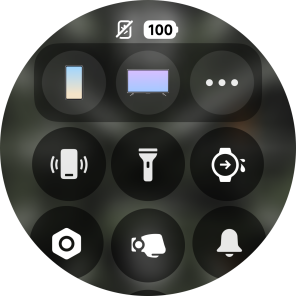
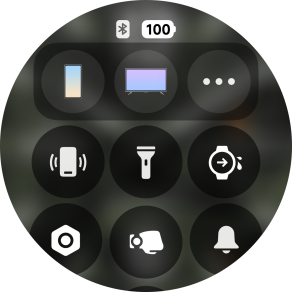
A: The Xiaomi Watch S5 46mm does not support Bluetooth disconnection reminders. You can press the power button on the watch to open the Control center and check the Bluetooth connection status from the status bar.
Disconnected status:
Connected status:
Interconnectivity
Q1: How to use the Xiaomi Smart Hub on the Xiaomi Watch S5 46mm?
A: The Xiaomi Smart Hub on the Xiaomi Watch S5 46mm is one of the core features based on Xiaomi HyperOS HyperConnect for seamless cross-device connectivity.
Please refer to the complete guide below:
1. Requirements before use
(1). System version requirements:
Watch: Xiaomi HyperOS 2.0 or later
Phone: Xiaomi/REDMI phones running Xiaomi HyperOS 2.0 or later
(2). Account synchronization:
The watch, phone, and Xiaomi Home App must be logged in with the same Xiaomi Account.
(3). Basic connection requirements:
Bluetooth and WLAN must be enabled for device interconnection. The Xiaomi Watch S5 46mm must be successfully paired with the phone through the Mi Fitness App.
(4). Permission settings:
The Mi Fitness App must be granted all necessary permissions, including Bluetooth, location, notifications, and related permissions.
(5). Device compatibility:
Smart home devices: Xiaomi Home ecosystem single devices are supported. Device groups are currently not supported.
Other supported devices: Xiaomi TVs, tablets, earbuds, and other Xiaomi HyperOS ecosystem devices.
2. Use the Xiaomi Smart Hub on the Xiaomi Watch S5 46mm
(1). Quickly access the Xiaomi Smart Hub:
Press the power button to open the Control center. In the Control center, locate the Xiaomi Smart Hub icon, which appears as an icon showing multiple connected devices. Tap the icon to enter the Xiaomi Smart Hub main interface.
(2). Device management and control:
After entering the Xiaomi Smart Hub, nearby discovered devices will automatically appear and be grouped by category, such as smart home devices, phones, and earbuds. Tap a device icon to perform quick actions, such as turning lights on or off, adjusting air conditioner temperature, or controlling music playback. Tap [...] to access the full control interface of the device.
(3). Gesture control features:
For example, after entering the tablet device card in the Xiaomi Smart Hub and enabling [Control via gesture] for the tablet on the watch, the Xiaomi Watch S5 46mm can use gestures to switch PPT slides to the previous or next interface.
3. Main feature scenarios for cross-device collaboration:
Phones/Tablets: control music playback, view notifications, and use remote photography features.
Earbuds: quickly connect earbuds, switch audio sources, and adjust volume.
Note:
Gesture control features of the watch are supported on version 3.220.xxx and later.
Q2: Why are devices not displayed in the Xiaomi Smart Hub on the Xiaomi Watch S5 46mm?
A: If devices are not displayed in the Xiaomi Smart Hub on the Xiaomi Watch S5 46mm, please refer to the following troubleshooting information:
1. Check whether all devices are logged in with the same Xiaomi Account.
2. Restart Bluetooth and WLAN on both the Xiaomi Watch S5 46mm and the phone.
3. On Xiaomi phones, go to [Settings] >> [Interconnectivity], then turn the feature off and on again.
4. Re-authorize the Mi Fitness App permissions in the Xiaomi Home App.
5. Make sure the connected smart home device is a single device rather than a device group.
Q3: Why do devices not respond when controlled through the Xiaomi Smart Hub on the Xiaomi Watch S5 46mm?
A: If devices do not respond when controlled through the Xiaomi Smart Hub on the Xiaomi Watch S5 46mm, please refer to the following troubleshooting information:
1. Check whether the device is online and connected to the network properly.
2. Check whether the connection between the Xiaomi Watch S5 46mm and the phone is stable.
3. Re-enter the Xiaomi Smart Hub or restart the watch.
4. Update the systems on both the watch and phone and related Apps on the phone to the latest version.
Q4: Why is gesture control not working on the Xiaomi Watch S5 46mm?
A: If gesture control is not working on the Xiaomi Watch S5 46mm, please refer to the following troubleshooting information:
1. Check whether shortcut gesture functions are enabled on the watch.
2. Confirm that the gestures are correctly assigned to the corresponding device operations.
3. Make sure the Xiaomi Watch S5 46mm is worn correctly and that the gesture movements are performed properly.
Convenient Tools
Q1: How to use the Water drainage feature on the Xiaomi Watch S5 46mm?
A: The Water drainage feature on the Xiaomi Watch S5 46mm can be used after swimming or when water enters the speaker during daily use. The Water drainage feature works by playing a specific frequency sound to make the speaker vibrate, allowing the vibration to expel water from inside the speaker and help protect the speaker from water damage.
To enable the Water drainage feature on the Xiaomi Watch S5 46mm, please refer to the following methods:
1. On the home screen of the watch, press the power button to open the Control center, then tap the Water drainage icon in the Control center.
2. After a swimming workout ends, the Xiaomi Watch S5 46mm will automatically enter the Water drainage process.
Q2: How to use the Flashlight on the Xiaomi Watch S5 46mm?
A: To use the Flashlight on the Xiaomi Watch S5 46mm, please refer to the following methods:
1. Control center: Press the power button to open the Control center. In the shortcut icon list, find the Flashlight icon (shown as a torch symbol). Tap the icon, and the screen will immediately turn into a high-brightness white light. Inside the flashlight interface, you can swipe up or down to switch between flashing mode and red light mode. You can close the flashlight by swiping right on the screen, tapping anywhere on the flashlight interface, pressing the power button, or pressing the rotating crown.
2. App list: Press the rotating crown on the home screen of the watch to enter the App list, then find and tap the [Flashlight] App. Inside the App, you can also swipe up or down to switch between flashing mode and red light mode. Swipe right on the screen to turn off the flashlight.
3. Custom gesture activation: On the Xiaomi Watch S5 46mm, go to [Settings] >> [Gestures and preferences] >> [Quick gestures] >> enable [Gestures], then select a gesture such as [Snap fingers], [Shake wrist], or [Rotate wrist]. After completing the desired gesture tutorial, tap [Open app] and select [Flashlight] as the assigned action.
Note:
1. Gesture control is available only when the watch screen is on, and Raise to wake must be enabled.
2. When using gestures, keep your forearm horizontal in front of your chest.
3. Quick gestures only work on the home screen of the watch.
4. Gestures do not respond during sleep detection or when the watch is on AOD status.
5. Avoid similar daily movements that may trigger accidental activation.
6. If gesture recognition fails during vibration, try performing the gesture more firmly.
Q3: How to set up Quick gestures on the Xiaomi Watch S5 46mm?
A: On the Xiaomi Watch S5 46mm, go to [Settings] >> [Gestures and preferences] >> [Quick gestures] >> enable [Gestures], then select a gesture such as [Snap fingers], [Shake wrist], or [Rotate wrist]. After completing the gesture tutorial, you can customize the gesture settings and assign features according to your preferences.
Q4: How to use gesture control on the Xiaomi Watch S5 46mm to control other devices?
A: Please make sure the Xiaomi Watch S5 46mm and the phone are logged in with the same Xiaomi Account and are properly paired.
On the Xiaomi Watch S5 46mm, go to [Settings] >> [Gestures and preferences] >> [Quick gestures], then enable [Gestures]. Select a gesture such as [Snap fingers], [Shake wrist], or [Rotate wrist]. After completing the gesture tutorial, configure the gesture actions according to your needs, such as taking photos on the phone or answering phone calls. On the home screen of the watch, perform the corresponding gesture as prompted to control the connected phone device.
Q5: How to use the Compass feature on the Xiaomi Watch S5 46mm? Why is calibration required?
A: To use the Compass feature on the Xiaomi Watch S5 46mm, open the Compass App from the App list, then tilt the watch to roll the ball on the screen. On the compass interface, “N” represents north, “S” represents south, “E” represents east, and “W” represents west.
The compass on the Xiaomi Watch S5 46mm does not require calibration every time you open the Compass App. The watch evaluates whether nearby magnetic interference affects accuracy. If interference is significant, calibration is prompted.
Note:
Strong magnetic fields in the environment can affect normal compass functionality.
Q6: How to check altitude and air pressure on the Xiaomi Watch S5 46mm?
A: On the Xiaomi Watch S5 46mm, tap the Barometer icon from the App list to view the current air pressure value, historical highest air pressure, and historical lowest air pressure. The pressure unit is hPa, and values below 100 hPa are rounded. Historical pressure data starts recording after the watch is paired with the phone.
Swipe left on the air pressure interface to view altitude information.
The supported altitude range is from -200 m to 9000 m, and the air pressure range is from 300 hPa to 1100 hPa.
Note:
1. Since altitude is affected by the surrounding environment, the altitude data is for reference only.
2. If there is a large deviation in the data, open the Mi Fitness App, scroll down on the device interface >> enter [More] >> select [Device version] >> tap [Update] and update the Xiaomi Watch S5 46mm to the latest firmware version, and try again.
3. If the watch has not been updated for a long time, inaccurate data may occur and synchronization from the App is required.
Q7: How to check weather information on the Xiaomi Watch S5 46mm?
A: When the Xiaomi Watch S5 46mm is connected to the phone, weather information can be viewed in the following ways:
1. On the home screen of the watch, press the rotating crown and select the Weather App from the App list. Swipe up or down to view local temperature, weather conditions, AQI (Air Quality Index), air quality forecast, wind level, UV intensity, relative humidity, sunrise and sunset times, as well as the weather forecast for the upcoming week.
2. Swipe up or down on the home screen of the watch to view the Weather widget. The widget displays temperature and weather conditions. Tap the widget to enter the Weather App and view more detailed weather information.
Note:
To view real-time weather information on the Xiaomi Watch S5 46mm, the watch must remain connected to the phone, and weather synchronization in the Mi Fitness App must be enabled.
3. The weather information displayed on the Xiaomi Watch S5 46mm is provided through the Mi Fitness App and synchronized from the weather service provider. If the weather provider used by the phone system is different, the displayed results may vary slightly.
Q8: How to use HR Broadcast on the Xiaomi Watch S5 46mm?
A: When using HR Broadcast on the Xiaomi Watch S5 46mm with cycling computers or third-party devices, please make sure the device supports the standard Bluetooth Low Energy (BLE) protocol and has heart rate receiving enabled.
Currently supported cycling computer brands include:
1. Bryton: such as R420, 750SE, and S800.
2. Magene: such as C506 and C606Pro.
3. Garmin: such as Edge 540 and Edge 840.
You can enable it by going to [Settings] >> [Workout settings] >> [HR broadcast].
After tapping the feature, a pop-up message will appear: “If you turn this feature on, your heart rate data will be shared with a third-party device. Turn on now?”
If you tap [√], Bluetooth on the Xiaomi Watch S5 46mm will be enabled for broadcasting, and the watch can be discovered by third-party devices. The device name is “Xiaomi Watch S5 46mm XXXX”. After the third-party device connects successfully, the watch will vibrate to indicate a successful connection, and heart rate data will start transmitting to the third-party device.
To stop HR Broadcast, tap [Stop] on the HR Broadcast interface of the Xiaomi Watch S5 46mm, then select [√] to exit the broadcast interface. The watch will stop sending heart rate data, and the heart rate display on the third-party device will stop accordingly.
In addition, you can also disconnect directly from the third-party device or App. After the connection is successfully disconnected, the Xiaomi Watch S5 46mm will vibrate to notify you. After restarting the watch, you can use other devices to scan for a broadcasting connection.
Note:
After HR Broadcast is enabled and connected successfully on the Xiaomi Watch S5 46mm, you can press the rotating crown to return to the background. The watch can continue synchronizing heart rate data to the third-party App regardless of whether a workout is in progress.
Q9: How to use the Focus App on the Xiaomi Watch S5 46mm?
A: The Xiaomi Watch S5 46mm does not support the Focus App.
Q10: How to use the Events feature on the Xiaomi Watch S5 46mm?
A: After enabling phone events synchronization in the Mi Fitness App through [Device] >> [Apps] >> [Sync events], the Xiaomi Watch S5 46mm will synchronize phone system events from the most recent 7 days during each data synchronization. Event synchronization is currently only supported on MIUI, Xiaomi HyperOS systems and iOS systems. Other systems are not supported at this time.
Tap the Event icon from the App list on the Xiaomi Watch S5 46mm to enter the events list. For events that are not for today, a “Today” icon will appear below the event. Tap it to jump to the current day’s event interface. Swipe up or down, or tap [Next event] to view other events. Tap an event card to enter the detailed event interface.
Events limitations:
The maximum number of displayed events is 20, sorted according to the event list order. Additional events beyond this limit will not be displayed.
Each event supports up to 200 bytes. English letters or punctuation count as 1 byte each, while Chinese characters count as 3 bytes each, allowing a maximum display of approximately 61 Chinese characters.
The title can display up to 90 bytes, including punctuation marks.
The notes section can display up to 45 bytes, including punctuation marks.
The address field can display up to 60 characters, including punctuation marks.
Q11: How to use the Calendar feature on the Xiaomi Watch S5 46mm?
A: While the Xiaomi Watch S5 46mm is connected to the phone, please refer to the following usage methods:
1. Open the [Calendar] App from the App list to view the calendar. The title displays the current time. You can tap the left or right icons in the title area to switch months, and swiping left or right also supports switching months. The supported display years are 2000–2060.
2. If [Sync events] is enabled, dates with events within the next seven days display a dot indicator. Dates outside the current month display a “Today” indicator at the bottom, and tapping it returns to the current month. Tapping a date in month view enters week view.
3. In week view, swipe left or right to switch weeks. The display shows the date and weekday. Dates with schedules within the next seven days display a dot indicator. Tapping a date enters the Event interface. Please refer to the Event feature instructions for detailed usage information.
4. Event interface: Please refer to the Events App for detailed usage information.
Q12: How to set the time on the Xiaomi Watch S5 46mm?
A: The Xiaomi Watch S5 46mm does not support manually setting the time on the watch. When connected to the Mi Fitness App, the Xiaomi Watch S5 46mm automatically synchronizes the system time from the phone.
Q13: How to set dual time zones on the Xiaomi Watch S5 46mm?
A: The Xiaomi Watch S5 46mm does not support dual time zones.
Q14: How to use and set alarms on the Xiaomi Watch S5 46mm?
A: The Xiaomi Watch S5 46mm supports alarm functions. Alarm reminders are provided through vibration and ringtone notifications, and the ringtone volume follows the alarm volume setting. The Xiaomi Watch S5 46mm supports multiple alarms and repeating alarms.
To set alarms on the Xiaomi Watch S5 46mm, on the home screen of the watch, press the rotating crown to enter the App list, then open the Alarm App. Select to create a new alarm and set the reminder time. If no repeat date is selected, the alarm will be a one-time alarm. If repeat dates are selected, the alarm will repeat according to the configured schedule. Tap [√] to complete the setup. The Xiaomi Watch S5 46mm supports up to 20 alarms.
When an alarm is triggered, the Xiaomi Watch S5 46mm will remind you through vibration and ringtone notifications. Press the rotating crown or tap [Snooze] on the screen to delay the alarm for 10 minutes. Tap [Off] on the screen to stop the alarm reminder.
To delete an alarm, on the home screen of the watch, press the rotating crown to enter the App list and open the Alarm App. Tap the alarm you want to delete, then tap [Delete] to remove it.
Q15: How to set phone alarm synchronization on the Xiaomi Watch S5 46mm?
A: For Xiaomi phones, the Xiaomi Watch S5 46mm supports synchronizing phone alarms to the watch for reminders. Non-MIUI or non-HyperOS systems are currently not supported.
Synchronized alarms ring on both the phone and the Xiaomi Watch S5 46mm at the same time. Operations performed on either device, such as dismissing or snoozing the alarm, take effect on both devices simultaneously.
To ensure alarm synchronization functions properly, please keep Bluetooth connected between the phone and the Xiaomi Watch S5 46mm and keep the Mi Fitness App running normally.
Note:
You can disable phone alarm reminders through Mi Fitness App >> [Device] >> [Apps] >> [Alarm] >> [Sync alarms from phone].
Q16: How to use and set the Timer on the Xiaomi Watch S5 46mm?
A: On the Xiaomi Watch S5 46mm, press the rotating crown to enter the App list, then select the Timer App.
Tap 1, 2, 3, 5, 10, or 30 to start a countdown directly. You can also tap the plus icon to customize the countdown duration. The supported timer range is from 00:00:01 to 23:59:59. Tap the start icon to begin the countdown.
During the countdown process, you can tap the pause icon to pause the timer, tap the resume icon to continue the countdown, or tap the stop icon to end the countdown.
The Xiaomi Watch S5 46mm supports displaying the 4 most recently customized countdown timers.
Q17: How to use and set the Stopwatch on the Xiaomi Watch S5 46mm?
A: On the Xiaomi Watch S5 46mm, press the rotating crown to enter the App list, then select the Stopwatch App.
Tap the start timing icon to begin timing. During the timing process, tap the lap icon or press the power button once to create lap records.
In the lap record display area, swipe up or down on the screen to view all lap records. The Xiaomi Watch S5 46mm can display up to 50 lap records.
After pausing the stopwatch, tap the stop icon to reset the stopwatch to its initial state.
Q18: How to use Sleep mode on the Xiaomi Watch S5 46mm?
A: The Xiaomi Watch S5 46mm does not support a standalone Sleep mode feature. However, there is a "Sleep mode" option available within the Sleep app (Sleep App > scroll down on the watch to access Settings), which is related to sleep Do Not Disturb settings.
Q19: How to use remote photography on the Xiaomi Watch S5 46mm?
A: The Xiaomi Watch S5 46mm supports two methods for remote photography: launching through the Camera App or triggering through quick gestures. Both methods require the Camera App interface to remain open on the watch during use.
Note:
1. Remote photography on the Xiaomi Watch S5 46mm does not support camera preview on the watch.
2. Quick gesture requires the watch to be updated to the latest software version.
On the Xiaomi Watch S5 46mm, go to [Settings] >> [Gestures and preferences] >> [Quick gestures] >> enable [Gestures], then select a gesture such as [Snap fingers], [Shake wrist], or [Rotate wrist].
After completing the selected gesture tutorial, you can configure one of the following actions:
1. Tap [Quick action] and select [Take photo] as the assigned action.
2. Tap [Open app] and select [Camera] as the assigned action.
3. Tap [Control other devices] and select [Remote camera shutter] as the assigned action.
Note:
1. Make sure the [Input device] switch is enabled for the connected Xiaomi Watch S5 46mm in the phone’s Bluetooth settings.
2. The Xiaomi Watch S5 46mm cannot remotely launch the phone camera. Please manually open the phone camera according to the on-screen prompts before taking photos.
3. During remote photography, the Xiaomi Watch S5 46mm must remain connected to the phone, and the Mi Fitness App must continue running in the background.
4. If remote photography does not work properly, please check whether the number of watches connected in the phone Bluetooth settings is fewer than 7 devices.
Voice Assistant
Q1: Does the Xiaomi Watch S5 46mm support a voice assistant?
A: The Xiaomi Watch S5 46mm does not support a voice assistant.
Health Related
Sleep
Q1: How to use and set sleep monitoring on the Xiaomi Watch S5 46mm?
A: The Xiaomi Watch S5 46mm automatically records your sleep data when worn during sleep.
You can view sleep data on the watch in the following ways:
1. Swipe to the widget interface from the main watch face and check the sleep widget for last night’s sleep duration. Tap to view more details.
2. In the App list, tap the Sleep icon to open the Sleep App and view your sleep data for the current day.
3. After the watch syncs data with your phone, go to the [Health] section in the Mi Fitness App and tap [Sleep] to view historical sleep data, including daily, weekly, and monthly views. You can also check your daily sleep periods, the proportions of deep sleep, light sleep, REM sleep, and awake time, as well as detailed sleep status for each period.
4. In the Sleep App on the watch, swipe up to [Settings] and enable [Advanced monitoring] to track the distribution of REM (Rapid Eye Movement) sleep stages. After enabling [Breathing rate monitoring], the watch will automatically monitor your breathing rate once it detects that you have fallen asleep at night.
Q2: How to enable sleep rhythm screening on the Xiaomi Watch S5 46mm?
A: The Xiaomi Watch S5 46mm does not support sleep rhythm screening.
Q3: Why does the Xiaomi Watch S5 46mm show sleep data in the Sleep App, but not in the sleep widget?
A: The Sleep widget and Sleep stages widget only display long sleep data. If the Sleep App records only sporadic naps and no long sleep session is detected, the Sleep widget and Sleep stages widget will not display any sleep data.
Q4: Why does the Xiaomi Watch S5 46mm sometimes mistakenly detect sleep while watching movies, watching TV, or using the phone?
A: The Xiaomi Watch S5 46mm determines sleep status based on activity data monitored by the ACC (accelerometer) sensor. When watching movies, watching TV, or using a phone, the body often remains still, which closely resembles the physiological characteristics of sleep. As a result, the algorithm can mistakenly identify the state as “asleep.” This is normal behavior.
Q5: Why does the Xiaomi Watch S5 46mm sometimes incorrectly identify as awake during sleep?
A: The Xiaomi Watch S5 46mm determines sleep status based on activity data monitored by the ACC (accelerometer) sensor. If significant movement occurs during sleep, such as frequent tossing and turning, the device could match these larger movement signals with characteristics associated with being awake, which can result in the watch identifying you as awake.
Sleep HRV
Q1: What is Sleep HRV on the Xiaomi Watch S5 46mm?
A: Sleep HRV (Heart Rate Variability) on the Xiaomi Watch S5 46mm refers to the subtle variations in the intervals between consecutive heartbeats during sleep. It is a key indicator used to evaluate the regulation of the autonomic nervous system and the body’s recovery efficiency during sleep. In general, higher values indicate better physical and mental recovery and regulatory capacity. This metric varies from person to person and is influenced by factors such as age, lifestyle habits, and health conditions. Long-term tracking is recommended to understand individual trends.
Note:
Please update both the watch and the Mi Fitness App to the latest version before use.
Q2: How to set and check the Sleep HRV on the Xiaomi Watch S5 46mm?
A: To set the Sleep HRV on the Xiaomi Watch S5 46mm, please refer to the following steps:
Enter the Sleep App on the watch >> swipe up to access [Settings] >> tap [Sleep HRV] to open the Sleep HRV settings interface. Tap the list and turn on the Sleep HRV toggle.
To view Sleep HRV:
Wear the watch while sleeping and record a long sleep session. Then enter the Sleep App and swipe up to the sleep details interface, where you can view the Sleep HRV details.
Q3: How is the sleep HRV personal baseline on the Xiaomi Watch S5 46mm established?
A: The baseline is automatically generated after wearing the Xiaomi Watch S5 46mm continuously for 7 nights, with at least 3 hours of valid sleep per day.
The baseline range reflects your recent HRV (Heart Rate Variability) level:
1. Average sleep HRV within normal baseline: Indicates that your recent physical and mental state and recovery ability are stable, staying within your normal balanced range.
2. Average sleep HRV above baseline: Indicates good current physical and mental condition, with improved recovery ability during sleep. This can be associated with a more routine, improved sleep quality, reduced stress, or overall health improvement.
3. Average sleep HRV below baseline: Suggests stress, fatigue, or overexertion. Your overnight recovery could be insufficient. This is often linked to poor sleep quality, irregular routines, high psychological stress, or physical discomfort.
Q4: How to improve when the Xiaomi Watch S5 46mm shows sleep average HRV above or below baseline?
A: To improve the sleep average HRV, please refer to the following methods:
1. Maintain a regular daily routine, eat a balanced diet, and exercise moderately.
2. Relax before bed by avoiding electronic devices, doing light stretching, or optimizing your sleep environment to improve sleep quality.
3. Manage stress and stabilize your mood through meditation, mindfulness, or similar techniques.
4. Avoid disrupting factors, such as reducing caffeine and alcohol intake.
Q5: What are the HRV measurement precautions on the Xiaomi Watch S5 46mm?
A: The HRV measurement precautions on the Xiaomi Watch S5 46mm are as follows:
1. HRV measurements should be taken during resting states, such as sleep. Wearing the device too loosely or excessive movement during the night can affect the completeness and accuracy of HRV data.
2. Sleep HRV data is for personal health management reference only and is not intended for medical diagnosis. If you feel unwell, please seek medical attention promptly.
Heart rate
Q1: How to use the heart rate measurement feature on the Xiaomi Watch S5 46mm?
A: Tap and enter the Heart rate App on the Xiaomi Watch S5 46mm. While staying on the first and second screens, your heart rate will be continuously measured and displayed.
Enter the Heart rate App, then swipe up to enter Heart rate settings, and tap [Continuous monitoring] to access the heart rate measurement frequency settings interface.
1. By default, [Smart] is enabled: heart rate is measured every 10 minutes during rest, and every 1 minute during periods of high activity.
2. If [1 min] is selected, heart rate will be measured every 1 minute at a fixed interval.
2. If [10 mins] is selected, heart rate will be measured every 10 minutes at a fixed interval.
4. If [30 mins] is selected, heart rate will be measured every 30 minutes at a fixed interval.
Q2: How to set high or low heart rate alerts on the Xiaomi Watch S5 46mm?
A: Enter the Heart rate App, then swipe up to enter Heart rate settings, and tap [Sustained high HR alert] to enter the continuous high heart rate alert settings interface. Tap [Sustained low HR alert] to enter the continuous low heart rate alert settings interface.
Q3: How to set up mobile ECG atrial fibrillation (AFib) alerts on the Xiaomi Watch S5 46mm?
A: The Xiaomi Watch S5 46mm does not support mobile ECG atrial fibrillation (AFib) alerts.
SpO₂
Q1: How to measure blood oxygen saturation on the Xiaomi Watch S5 46mm?
To measure blood oxygen saturation on the Xiaomi Watch S5 46mm, please refer to the following methods:
1. In the SpO₂ App, tap anywhere to enter the SpO₂ measurement process.
2. On the watch face, swipe up to enter widgets. Add the SpO₂ widget, then tap the [Measure] icon to start the SpO₂ measurement process.
3. In the SpO₂ settings interface, enable [All-day tracking]. When the watch is being worn, and you are at rest, it will measure blood oxygen every 10 minutes.
Q2: Can the Xiaomi Watch S5 46mm measure blood oxygen saturation during workouts?
A: No. When [All-day tracking] is enabled on the Xiaomi Watch S5 46mm, SpO₂ can be measured during periods of rest in daily use. However, wrist movement can reduce measurement success rate and cause failed readings. It is recommended to keep the wrist still during measurement to ensure a better success rate and accuracy.
Q3: How to enable all-day blood oxygen tracking on the Xiaomi Watch S5 46mm?
A: Enter the SpO₂ App on the Xiaomi Watch S5 46mm, swipe up to access the SpO₂ settings interface, and enable [All-day tracking].
Q4: How to set up Low SpO₂ alerts on the Xiaomi Watch S5 46mm?
A: Enter the SpO₂ App on the Xiaomi Watch S5 46mm, swipe up to access the SpO₂ settings interface, and enable [All-day tracking]. Then the [Low SpO₂ alerts] option will appear, tap [Low SpO₂ alerts] to enter its detailed settings interface.
Body temperature
Q1: Does the Xiaomi Watch S5 46mm support body temperature measurement?
A: The Xiaomi Watch S5 46mm does not support body temperature measurement.
Q2: How to set up sleep-time body temperature monitoring on the Xiaomi Watch S5 46mm?
A: The Xiaomi Watch S5 46mm does not support body temperature measurement. Therefore, sleep-time body temperature monitoring cannot be set.
Q3: How to set up high skin temperature alerts on the Xiaomi Watch S5 46mm?
A: The Xiaomi Watch S5 46mm does not support body temperature measurement. Therefore, high skin temperature alerts cannot be set.
Stress
Q1: How does the Xiaomi Watch S5 46mm record emotions?
A: The Xiaomi Watch S5 46mm does not support recording emotions.
Q2: How to measure stress on the Xiaomi Watch S5 46mm?
A: In the Stress App, tap the [Start] icon to enter the stress measurement process.
In the Stress widget interface, tap the [Measure] icon to enter the stress measurement process.
In the Stress settings interface of the watch, enable [All-day tracking]. When the watch is worn, and you are at rest, the device will measure stress levels every 10 minutes.
Q3: How to enable all-day stress monitoring on the Xiaomi Watch S5 46mm?
A: On the Xiaomi Watch S5 46mm, enter the Stress App and swipe to access the settings interface. Tap [All-day monitoring], and a confirmation pop-up will appear. After selecting [√], the [All-day monitoring] switch will be enabled.
Q4: How to set Relax reminder on the Xiaomi Watch S5 46mm?
A: On the Xiaomi Watch S5 46mm, open the Stress App and swipe to access the settings interface. After enabling [All-day monitoring], the [Relax reminder] option will appear. Tap [Relax reminder] to turn it on.
Cycles
Q1: How to use and set up Cycles on the Xiaomi Watch S5 46mm?
A: The Cycles feature on the Xiaomi Watch S5 46mm should first be set up in the Mi Fitness App by entering basic menstrual cycle information. After pairing the watch with the App, open the App. If the Cycles card is not shown on the home page, scroll to the bottom, tap [Manage health features] >> add Cycles card. Return to the home page and tap the Cycles card to enter the module and complete the initial setup.
After completing initialization, enter the Cycles interface and select [Settings] to access the menstrual cycle settings page. Enable [Calendar-based predictions] and [Show on wearable device]. Return to the main cycle page and record menstrual data. The App will then intelligently predict ovulation periods and ovulation days. Data recorded in the App will sync to the watch for viewing.
Q2: Why does the Mi Fitness App show “no data” when Smart period prediction is enabled on the Xiaomi Watch S5 46mm?
A: The Xiaomi Watch S5 46mm does not support Smart period prediction.
Check up
Q1: How to use the Check up features on the Xiaomi Watch S5 46mm?
A: On the Xiaomi Watch S5 46mm, enter the App list and tap [Check up] to enter the App.
The steps are as follows:
1. Grant authorization upon first access (authorization to enable [All-day SpO₂ monitoring] and [All-day stress monitoring] is pre-checked by default).
2. After granting authorization, you should select your wearing preference (Wear on left or right). Once confirmed, you will proceed to the main page.
3. The home page displays summary data (including heart rate, blood oxygen, stress, sleep duration, sleep heart rate, and sleep blood oxygen).
(1). Description text:
If all metrics are yet to be measured, the watch will display: "Screen the 6 item below".
If measurements are completed, results and measurement time will be shown below. Possible results:
a. If all measurements are completed and no abnormalities are found: [Normal].
b. If only partial measurements are completed and all completed indicators are normal: [No abnormal readings].
c. If X indicators are abnormal: [X abnormal readings].
(2). Status: gray represents “pending detection,” green represents “normal,” and red represents “abnormal” (for reference only).
(3). One-tap screening is to manually measure various data.
4. When scrolling down, abnormal items are displayed first, sorted in the following order: sleep duration > sleep heart rate > sleep blood oxygen > heart rate > blood oxygen > stress. Each item can be tapped to open a card for adjustment and detailed explanation (all items use a similar card layout). Each card includes: item name, item icon, measured value (if pending detection or if related permissions need to be enabled, corresponding prompts will be shown), current status, and measurement time.
5. Further scrolling displays all items, sorted in this order: heart rate > blood oxygen > stress > sleep duration > sleep heart rate > sleep blood oxygen.
6. At the bottom are Settings (mainly for feature permissions and wearing mode configuration) and a disclaimer.
Q2: Does the Xiaomi Watch S5 46mm support energy monitoring?
A: The Xiaomi Watch S5 46mm does not support energy monitoring.
Q3: Does the Xiaomi Watch S5 46mm support connection to a heart rate chest strap?
A: The Xiaomi Watch S5 46mm does not support connection to a heart rate chest strap.
Q4: Does the Xiaomi Watch S5 46mm support blood pressure measurement?
A: The Xiaomi Watch S5 46mm does not support blood pressure measurement.
Q5: Does the Xiaomi Watch S5 46mm support body composition measurement?
A: The Xiaomi Watch S5 46mm does not support body composition measurement.
Q6: Why are all continuous health monitoring toggles turned off on Xiaomi Watch S5 46mm?
A: If all continuous health monitoring toggles are turned off on the Xiaomi Watch S5 46mm, please check whether the watch is in a low battery state. In this case, continuous monitoring of blood oxygen, heart rate, and stress is disabled to extend battery endurance. After the watch powers off, is recharged, and turned on, these monitoring features should be manually re-enabled.
Continuous monitoring of blood oxygen: SpO2 App >> [Settings] >> [All-day tracking].
Continuous monitoring of heart rate: Heart rate App >> [Settings] >> [Continuous monitoring].
Continuous monitoring of stress: Stress App >> [Settings] >> [All-day monitoring].
Notifications
Q1: Does the Xiaomi Watch S5 46mm support receiving phone notifications? How to view and manage notifications?
A: The Xiaomi Watch S5 46mm supports receiving notifications from the phone. After enabling App notifications in the Mi Fitness App and connecting the watch and phone, you can sync and view phone notifications on the watch. The watch only supports viewing messages and does not support quick replies to text messages.
To enable this feature, please open the Mi Fitness App >> [Device] >> select [Notifications and calls] >> tap [App notifications] and enable it. You can either select [Mirror phone notifications] to sync notifications from all phone Apps to the watch or choose specific Apps for notifications (LINE, YouTube, Google, Gmail, etc.).
Note:
For Apps enabled in the Mi Fitness App, ensure notification permissions are also enabled on the phone.
Q2: How to view and delete the notifications of the Xiaomi Watch S5 46mm?
A: To view the notifications of the Xiaomi Watch S5 46mm, please refer to the following steps:
1. When the watch and the Mi Fitness App are connected, messages received on the phone’s notification shade will sync to the watch.
2. By default, the watch will only vibrate and not turn on the screen when a notification is received. You can use the Raise to wake feature or manually turn on the screen to view the notification details. If you want the watch to turn on the screen when receiving a notification, open the Mi Fitness App >> [Device] >> [Notifications and calls] >> tap [App notifications] and enable it >> enable [Wake screen].
3. On the main interface of the watch face, swipe down to open the notification shade and view the received notifications.
To delete notifications, please refer to the following methods:
1. When the watch and the Mi Fitness App are connected, notifications that have been read on the phone will automatically be deleted from the watch.
2. You can delete the notification on the notification detail interface on the watch. If the watch and the Mi Fitness App are connected, the notification will also be deleted from the phone.
3. Swipe down from the watch face home screen to open the notification panel. You can delete an individual message by swiping left on it within the list, or you can tap the [Clear all] icon at the top of the list to delete all messages.
Note:
1. Turning off or restarting the watch will clear all notifications.
2. The watch can store a maximum of 50 notifications. If the number exceeds 50, new notifications will overwrite the oldest ones.
Q3: How many characters and message notifications does the Xiaomi Watch S5 46mm support for message reminders?
A: The information is as follows:
1. The exact number of characters displayed depends on the amount sent by the phone.
2. The Xiaomi Watch S5 46mm can store up to 50 message notifications. If the number exceeds 50, newly received messages will overwrite the oldest messages first.
Q4: What reply methods does the Xiaomi Watch S5 46mm support, and how to reply to message notifications directly?
A: The Xiaomi Watch S5 46mm only supports viewing messages and does not support replying.
Q5: How to block notifications from certain Apps on the Xiaomi Watch S5 46mm?
A: You can go to the Mi Fitness App >> go to [Device] >> enter [Notifications and calls] >> enter [App notifications] >> enable [App notifications] >> select [Custom notifications]. Then you can select which Apps are allowed to send notifications. Apps that are not selected will not display notifications on the watch.
Q6: When will the severe weather alert reminder on the Xiaomi Watch S5 46mm be triggered?
A: The Xiaomi Watch S5 46mm does not support severe weather alert reminders.
Q7: Why does the Xiaomi Watch S5 46mm automatically delete notifications?
A: Message notifications on the Xiaomi Watch S5 46mm stay synchronized with the phone. If the corresponding message is deleted on the phone, the notification on the watch will also be automatically deleted.
Q8: Why do some notifications on the Xiaomi Watch S5 46mm have an ignore option while others do not?
A: This is due to differences in notification types of the Xiaomi Watch S5 46mm. Not all notifications require an [Ignore] option. The design of each notification interface provides corresponding confirmation icons based on the content displayed. This is not a malfunction.
Q9: Why doesn’t the Xiaomi Watch S5 46mm receive notification reminders when connected to an iPhone?
A: If the Xiaomi Watch S5 46mm does not receive notification reminders when connected to an iPhone, please refer to the following troubleshooting methods:
1. Basic connection & mode check (quick troubleshooting)
(1). Ensure the watch is properly connected to the iPhone via Bluetooth and shows [Connected] in the Mi Fitness App.
(2). Turn off Do Not Disturb mode on the watch ([Settings] on the watch >> [Sound and vibration] >> [DND])
(3). Turn off Low Power Mode of the iPhone ([Settings] >> [Battery] >> [Low Power Mode]) to avoid system background restrictions.
(4). Restart both the watch and iPhone, then reconnect via Bluetooth to fix temporary communication issues.
2. iPhone system permission settings (key steps)
(1). Enable Bluetooth system notification sharing (required):
Go to [Settings] >> [Bluetooth] >> find Xiaomi Watch S5 46mm >> tap the [i] icon on the right >> turn on [Share System Notifications].
(2). Mi Fitness App permissions:
Go to [Settings] >> [Notifications] >> Mi Fitness App >> turn on [Allow Notifications], and select [Always] in [Show Previews].
Go to [Settings] >> [General] >> [Background App Refresh] >> turn on the toggle of the Mi Fitness App.
Go to [Settings] >> [Privacy & Security] >> ensure the Mi Fitness App has notification access permissions.
(3). Target App notification permissions (For specific App like Messages):
Go to [Settings] >> [Notifications] >> select the App >> turn on [Allow Notifications], [Lock Screen], and [Banners], and set [Show Previews] as [Always] to avoid iOS restrictions on lock-screen content.
3. Mi Fitness App settings (key sync controls)
Open the Mi Fitness App >> [Device] >> [Notifications and calls] >> [App notifications] >> enable [App notifications].
In the interface, select Apps to receive notifications on the device, and manually enable Apps to sync (e.g., Gmail, Google Play Store, YouTube, etc.).
Enable [Wake screen] and [Notify only when worn](optional), to ensure normal alerts when the device is being worn.
Check for any settings related to notification filtering to prevent the system from automatically blocking non-important notifications.
4. Advanced optimization and version compatibility
(1). Update to the latest version:
Mi Fitness App (check for updates in the App Store)
The watch firmware (Mi Fitness App >> [Device] >> [Additional settings] >> [Device version].
iOS system ([Settings] >> [General] >> [Software Update])
(2). Disable background restrictions:
[Settings] >> [Battery] >> [Battery Health & Charging] >> turn off [Optimized Battery Charging].
(3). Special scenario adaptation:
If [Notify only when worn] is enabled, ensure the watch correctly detects that it is being worn.
Check the watch’s [Notifications] settings, and make sure vibration/ringtone alerts are enabled, and the volume is set to an appropriate level.
Q10: Why can’t "Receive only when phone is locked" be set in the Mi Fitness App when an iPhone is connected to the Xiaomi Watch S5 46mm?
A: If iPhone cannot set “Receive only when phone is locked” for the Mi Fitness App notifications, it is due to iOS system-level notification permission limitations.
iOS notification permission design: Apple uses a unified control model for third-party App notifications, offering only three options: [Always], [When using the App], and [Never]. There is no independent [Receive only when phone is locked] setting.
System-level restriction: iPhone does not allow third-party Apps (such as the Mi Fitness App) to access the real-time lock/unlock status of the device. Therefore, it is not possible to implement a condition-based logic such as “only push notifications to the watch when the phone is locked.”
Q11: What to do if tapping “Open on phone” in the Xiaomi Watch S5 46mm notification details doesn’t work?
A: The Xiaomi Watch S5 46mm does not support this feature, and it does not display "Open on phone".
Q12: Why can the Xiaomi Watch S5 46mm still receive notifications after turning off the Mi Fitness App notification switch?
A: If you turn off the message notification switch in the Mi Fitness App, the watch will no longer receive messages synced from the phone. However, notifications generated by Apps on the Xiaomi Watch S5 46mm itself will still work properly.
Q13: What to do if the Xiaomi Watch S5 46mm keeps sending Xiaomi HyperOS interconnectivity notifications? How can I turn them off?
A: The Xiaomi Smart Hub of the Xiaomi Watch S5 46mm will not send you the Xiaomi Interconnectivity notifications.
Q14: Does the Xiaomi Watch S5 46mm support displaying real-time notifications from third-party Apps such as WhatsApp and LINE?
A: The Xiaomi Watch S5 46mm supports displaying real-time notifications from third-party Apps such as WhatsApp and LINE.
Q15: Does the Xiaomi Watch S5 46mm support replying to notifications from third-party Apps, such as WhatsApp, LINE, etc.?
A: The Xiaomi Watch S5 46mm does not support replying to notifications from third-party Apps, such as WhatsApp, LINE, etc.
Workout Related
Workout mode
Q1: Does the Xiaomi Watch S5 46mm support viewing the current fitness level?
A: The Xiaomi Watch S5 46mm supports viewing the current fitness level by tapping Training state in the App list.
Q2: Does the Xiaomi Watch S5 46mm support customizing workout data?
A: The Xiaomi Watch S5 46mm supports customizing workout data during exercise and in Workout settings.
During a workout, you can press and hold a data field on the screen to edit it. Some interfaces can't be edited. In such cases, the watch will display a prompt.
In Workout settings, you can go to Workout App >> select a workout >> workout settings icon >> Workout interface.
Q3: Does the Xiaomi Watch S5 46mm support professional skiing mode?
A: The Xiaomi Watch S5 46mm supports professional skiing mode, including Snowboarding, Skiing and Cross-country skiing.
Q4: Does the Xiaomi Watch S5 46mm support wrist-based running form analysis?
A: The Xiaomi Watch S5 46mm only supports wrist-based running form analysis for Outdoor running and Track running. There are three data metrics available, including Vertical ratio, Vertical amplitude, and Ground contact time.
Q5: Does the Xiaomi Watch S5 46mm support cycling report interpretation?
A: The Xiaomi Watch S5 46mm supports cycling report interpretation. After completing Outdoor cycling, you can view it on the watch’s workout results page.
Q6: Does the Xiaomi Watch S5 46mm support connecting to a power meter?
A: The Xiaomi Watch S5 46mm only supports power meters that use standard Bluetooth protocols. Go to [Settings] >> [More connections] >> [Fitness and health devices] >> [Add manually] >> [Power meter].
Q7: How to record on the Xiaomi Watch S5 46mm during exercise?
A: The Xiaomi Watch S5 46mm only supports recording during exercise on Xiaomi and REDMI phones. You can record on the Xiaomi Watch S5 46mm during exercise by going to Workout App >> select a workout >> swipe right during exercise >> tap [Record].
Q8: How to use the cycling dashboard of the Xiaomi Watch S5 46mm?
A: The Xiaomi Watch S5 46mm only supports using the cycling dashboard on Xiaomi phones. After starting Outdoor cycling, go to the workout control page and tap [Syncing] to use it.
Note:
Please ensure both the watch and the Mi Fitness App are updated to the latest version.
Q9: Does the Xiaomi Watch S5 46mm support Track running?
A: The Xiaomi Watch S5 46mm supports Track running. Select Track running in the Workout to accurately record your running distance.
Note:
Please make sure the watch and the Mi Fitness App are updated to the latest version.
Q10: Does the Xiaomi Watch S5 46mm support Passion mode?
A: The Xiaomi Watch S5 46mm supports Passion mode. Select Passion mode in the Workout App to accurately record Cheer Count, Cheer order number, and Cheer Time.
Note:
Please ensure the watch and the Mi Fitness App are updated to the latest version.
Q11: What workout modes does the Xiaomi Watch S5 46mm support?
A: For your reference, here are the workout modes supported by the Xiaomi Watch S5 46mm:
Categoty | Workout modes |
Outdoor activities (16) | Outdoor running |
Walking |
Hiking |
Outdoor cycling |
Trekking |
Trail run |
Triathlon |
Rock climbing |
Skateboarding |
Roller skating |
Parkour |
ATV |
Paragliding |
BMX |
Race walk |
Track running |
Water sports (17) | Pool swimming |
Open water |
Sailing |
Paddleboarding |
Water polo |
Other water sports |
Water skiing |
Kayaking |
Rafting |
Rowing |
Powerboating |
Finswimming |
Diving |
Artistic swimming |
Kitesurfing |
Flowriding |
Dragon boat |
Trainings (43) | Freestyle |
Treadmill |
Jump rope |
HIIT |
Yoga |
Indoor cycling |
Elliptical |
Rower |
Stair climber |
Stepper |
Spinning |
Core training |
Flexibility |
Pilates |
Gymnastics |
Stretching |
Strength |
Cross training |
Stair climbing |
Aerobics |
Physical training |
Wall ball |
Dumbbell |
Barbell |
Weightlifting |
Deadlift |
Burpee |
Sit-ups |
Functional training |
Upper body |
Lower body |
Abs |
Back |
Air walker |
Horizontal bar |
Parallel bars |
Step aerobics |
Mass gymnastics |
Cardio combat |
Battle rope |
Aerobic combo |
Indoor walking |
Indoor fitness |
Dance (14) | Square dancing |
Belly dance |
Ballet |
Street dance |
Zumba |
Folk dance |
Jazz dance |
Latin dance |
Hip hop |
Pole dance |
Breaking |
Ballroom dance |
Modern dance |
Dance |
Combat sports (12) | Boxing |
Wrestling |
Martial arts |
Tai chi |
Muay Thai |
Judo |
Taekwondo |
Karate |
Kickboxing |
Kendo |
Fencing |
Jujitsu |
Ball sports (26) | Tennis |
Basketball |
Golf |
Soccer |
Volleyball |
Baseball |
Softball |
American football |
Hockey |
Table tennis |
Badminton |
Cricket |
Handball |
Bowling |
Squash |
Billiards |
Shuttlecock |
Beach soccer |
Beach volleyball |
Sepak takraw |
Futsal |
Hacky sack |
Bocce |
Jai alai |
Gateball |
Dodgeball |
Winter sports (11) | Snowboarding |
Skiing |
Cross-country skiing |
Ice skating |
Indoor ice skating |
Curling |
Other winter sports |
Snowmobile |
Ice hockey |
Bobsleigh |
Sledding |
Recreational sports (15) | Passion mode |
Archery |
Darts |
Horse riding |
Tug of war |
Hula hoop |
Kite flying |
Fishing |
Frisbee |
Kicking shuttlecock |
Swinging |
Somatosensory game |
Table football |
Shuffleboard |
Esports |
Card and board games (5) | Chess |
Checkers |
Weiqi |
Bridge |
Board game |
Other (3) | Equestrian |
Athletics |
Auto racing |
Q12: What data can be displayed on the Xiaomi Watch S5 46mm during and after a workout?
A: For your reference, here are the data types displayed on the Xiaomi Watch S5 46mm during and after a workout:
During workout:
1. Outdoor running:
(1). Data view (the start and the end point), Data view (waypoint), Elevation view, Navigation view, Time, Battery level, Workout time, Distance, Pace, Heart rate & Heart rate zone, Candence (SPM), Vertical ratio, Ground contact time, Vertical amplitude, Avg pace, Current elevation, Elev gain (m), Elev loss (m), Calorie, AI pacer, Workout time in this stage, Distance in this stage, Pace in this stage.
(2). If you set a goal in the Settings of Outdoor running, the goal completion process, the goal data, and the actual goal completion condition will be displayed.
(3). The Stage interface: Rounds, Time in this stage, Distance in this stage, and Pace in this stage.
(4). Only enabling the navigation settings can the three views related to navigation be displayed, and the displayed interface and position of other workout modes are the same as those of Outdoor running. The workout modes supporting navigation include: Outdoor running, Walking, Outdoor cycling, Trekking, Trail run, Hiking, Open water, Triathlon (Open water, Outdoor cycling, and Outdoor running).
(5) AI pacer can be displayed after enabling [AI Pacer] in the Settings of Outdoor running. Press the Rotating Crown to enter the App list on the watch >> [Workout] >> [Outdoor running] >> tap the Settings icon >> [AI pacer].
2. Track running:
(1). Time, Battery level, Workout time, Distance, Pace, Current track, Heart rate & Heart rate zone, Candence (SPM), Vertical ratio, Ground contact time, Vertical amplitude, Avg pace, Elevation, Elev gain (m), Elev loss (m), Calorie, Steps, AI pacer, Workout time in this stage, Distance in this stage, Pace in this stage.
(2). If you set a goal in the Settings of Track running, the goal completion process, the goal data, and the actual goal completion condition will be displayed.
(3). The Stage interface: Rounds, Time in this stage, Distance in this stage, and Pace in this stage.
3. Walking:
(1). Data view (the start and the end point), Data view (waypoint), Elevation view, Navigation view, Time, Battery level, Workout time, Distance, Pace, Heart rate & Heart rate zone, Vertical ratio, Candence, Steps, Avg pace, Elev gain (m), Elev loss (m), Elevation, Workout time in this stage, Distance in this stage, Pace in this stage.
(2). If you set a goal in the Settings of Walking, the goal completion process, the goal data, and the actual goal completion condition will be displayed.
(3). The Stage interface: Rounds, Time in this stage, Distance in this stage, and Pace in this stage
4. Trail run:
(1). Data view (the start and the end point), Data view (waypoint), Elevation view, Navigation view, Time, Battery level, Workout time, Distance, Pace, Heart rate & Heart rate zone, Calorie, Candence (SPM), Steps, Avg pace, Elev gain (m), Elev loss (m), Elevation, Workout time in this stage, Distance in this stage, Pace in this stage.
(2). If you set a goal in the Settings of Trail run, the goal completion process, the goal data, and the actual goal completion condition will be displayed.
(3). The Stage interface: Rounds, Time in this stage, Distance in this stage, and Pace in this stage.
5. Trekking and Hiking:
(1). Data view (the start and the end point), Data view (waypoint), Elevation view, Navigation view, Time, Battery level, Workout time, Distance, Speed, Heart rate & Heart rate zone, Calorie, Candence (SPM), Steps, Avg pace, Elev gain (m), Elev loss (m), Elevation, Workout time in this stage, Distance in this stage, Pace in this stage.
(2). If you set a goal in the Settings of Trekking and Hiking, the goal completion process, the goal data, and the actual goal completion condition will be displayed.
(3). The Stage interface: Rounds, Time in this stage, Distance in this stage, and Pace in this stage.
6. Outdoor cycling:
(1). Data view (the start and the end point), Data view (waypoint), Elevation view, Navigation view, Time, Battery level, Workout time, Distance, Speed, Heart rate & Heart rate zone, Calorie, Avg speed, Elev gain (m), Elev loss (m), Elevation.
(2). If you set a goal in the Settings of Outdoor cycling, the goal completion process, the goal data, and the actual goal completion condition will be displayed.
(3). The Stage interface: Rounds, Time in this stage, Distance in this stage, and Speed in this stage.
7. Treadmill:
(1). Time, Battery level, Workout time, Distance, Pace, Heart rate & Heart rate zone, Calorie, Candence, Steps, Workout time in this stage, Distance in this stage, Pace in this stage.
(2). If you set a goal in the Settings of Treadmill, the goal completion process, the goal data, and the actual goal completion condition will be displayed.
(3). The Stage interface: Rounds, Time in this stage, Distance in this stage, and Speed in this stage.
8. Passion mode:
(1). Time, Battery level, Workout time, Calorie, Cheer Count, Heart rate & Heart rate zone, Cheer order number, Max Heart Rate (bpm), Cheer Time.
(2). If you set a goal in the Settings of Passion mode, the goal completion process, the goal data, and the actual goal completion condition will be displayed.
9. Triathlon:
(1). Open water: Data view (the start and the end point), Data view (waypoint), Elevation view, Navigation view, Time, Battery level, Workout time, Pace, Distance, Calorie.
(2). Outdoor cycling: Data view (the start and the end point), Data view (waypoint), Elevation view, Navigation view, Time, Battery level, Workout time, Distance, Speed, Heart rate & Heart rate zone, Calorie, Avg speed, Elev gain (m), Elev loss (m), Elevation.
(3). Outdoor running: Data view (the start and the end point), Data view (waypoint), Elevation view, Navigation view, Time, Battery level, Workout time, Distance, Pace, Heart rate & Heart rate zone, Candence (SPM), Vertical ratio, Ground contact time, Vertical amplitude, Avg pace, Elevation, Elev gain (m), Elev loss (m), Calorie, Steps.
(4). Switching interface: Swimming duration, Switched item 1 duration, Cycling duration, Switched item 2 duration.
10. Pool swimming:
(1). Time, Battery level, Heart rate & Heart rate zone, Calorie, Lengths, Workout time, Distance, Avg pace, Avg SWOLF.
(2). If you set a goal in the Settings of Pool swimming, the goal completion process, the goal data, and the actual goal completion condition will be displayed.
11. Open water:
(1). Data view (the start and the end point), Data view (waypoint), Elevation view, Navigation view, Time, Battery level, Workout time, Distance, Pace, Heart rate & Heart rate zone, Calorie.
(2). If you set a goal in the Settings of Open water, the goal completion process, the goal data, and the actual goal completion condition will be displayed.
12. Elliptical:
(1). Time, Battery level, Workout time, Steps, Calorie, Heart rate & Heart rate zone.
(2). If you set a goal in the Settings of Elliptical, the goal completion process, the goal data, and the actual goal completion condition will be displayed.
13. Snowboarding/Skiing:
(1). Workout time, Calorie, Lengths, Heart rate & Heart rate zone, Max speed (km/h) this lap, Elev loss this lap (m), Distance this lap (m), Downhill time this lap, Max speed (km/h), Elev loss (m), Downhill distance, Time, Maximum slope, Elevation (m).
(2). If you set a goal in the Settings of Skiing, the goal completion process, the goal data, and the actual goal completion condition will be displayed.
14. Cross-country skiing:
(1). Workout time, Distance, Speed (km/h), Heart rate & Heart rate zone, Calorie, Avg speed (km/h), Elev gain (m), Elev loss (m), Elevation (m).
(2). If you set a goal in the Settings of Cross-country skiing, the goal completion process, the goal data, and the actual goal completion condition will be displayed.
15. Rower:
(1). Set, Duration of this set, Strokes of this set, Calorie, Heart rate & Heart rate zone, Workout time, Total strokes, Calorie of Total strokes, Stroke rate (SPM), Time, Battery level, Break duration of this set.
(2). If you set a goal in the Settings of Rower, the goal completion process, the goal data, and the actual goal completion condition will be displayed.
16. Jump rope:
(1). Set, Duration of this set, Jumps of this set, Calorie, Heart rate & Heart rate zone, Workout time, Total jumps, Calorie of Total jumps, Frequency (JPM), Time, Battery level, Break duration of this set.
(2). If you set a goal in the Settings of Jump rope, the goal completion process, the goal data, and the actual goal completion condition will be displayed.
17. HIIT:
Set, Duration of this set, Calorie of this set, Heart rate & Heart rate zone, Workout time, Calorie, Time, Battery level, Break duration of this set.
18. Freestyle: Time, Battery level, Workout time, Calorie, Heart rate & Heart rate zone.
After workout:
1. Outdoor running: Workout item and initiation time, Trajectory image, Duration, Distance, Goal (need to be enabled), Calories, Avg HR, Step, Avg pace, Avg cadence (SPM), Vertical ratio, Vertical amplitude, Ground contact time, Heart rate diagram, Heart rate zone, Pace diagram, Cadence diagram, Elevation diagram, VO2 max, Aerobic training effect, Anaerobic training effect, Training load, Recovery time, Vitality score, Stretching, View stages, Delete record.
2. Track running: Workout item and initiation time, Trajectory image, Duration, Distance, Avg pace, Goal (need to be enabled), Calories, Avg HR, Step, Avg cadence (SPM), Vertical ratio, Vertical amplitude, Ground contact time, Heart rate diagram, Heart rate zone, Pace diagram, Cadence diagram, Elevation diagram, VO2 max, Aerobic training effect, Anaerobic training effect, Training load, Recovery time, Vitality score, Stretching, View stages, Delete record.
3. Walking: Workout item and initiation time, Trajectory image, Duration, Distance, Avg pace, Goal (need to be enabled), Calories, Avg HR, Step, Avg cadence (SPM), Heart rate diagram, Heart rate zone, Pace diagram, Cadence diagram, Elevation diagram, Aerobic training effect, Anaerobic training effect, Training load, Recovery time, Vitality score, View stages, Delete record.
4. Trail run: Workout item and initiation time, Trajectory image, Duration, Distance, Avg pace, Goal (need to be enabled), Calories, Avg HR, Step, Heart rate diagram, Heart rate zone, Pace diagram, Cadence diagram, Elevation diagram, Aerobic training effect, Anaerobic training effect, Training load, Recovery time, Vitality score, View stages, Delete record.
5. Trekking and Hiking: Workout item and initiation time, Trajectory image, Duration, Distance, Avg pace, Goal (need to be enabled), Calories, Avg HR, Step, Heart rate diagram, Heart rate zone, Pace diagram, Cadence diagram, Elevation diagram, Aerobic training effect, Anaerobic training effect, Training load, Recovery time, Vitality score, View stages, Delete record.
6. Outdoor cycling: Workout item and initiation time, Trajectory image, Duration, Distance, Avg speed, Goal (need to be enabled), Calories, Avg HR, Heart rate diagram, Heart rate zone, Speed diagram, Elevation diagram, Aerobic training effect, Anaerobic training effect, Training load, Recovery time, Vitality score, Stretching, View stages, Delete record.
7. Treadmill: Workout item and initiation time, Duration, Distance, Avg pace, Goal (need to be enabled), Calories, Avg HR, Step, Avg candence (SPM), Heart rate diagram, Heart rate zone, Pace diagram, Cadence diagram, Elevation diagram, Aerobic training effect, Anaerobic training effect, Training load, Recovery time, Vitality score, Stretching, View stages, Delete record.
8. Passion mode: Workout item and initiation time, Cheer Count, Viewing Duration, Calorie, Cheer Time, Heart rate diagram, Heart rate zone, Delete record.
9. Triathlon: Workout item and initiation time, Trajectory image, Duration, Distance, Calorie, Swimming duration, Switched item 1 duration, Cycling duration, Switched item 2 duration, Running duration, Swimming/Running/Cycling distance, Avg Pace, Avg Speed, Heart rate diagram, Heart rate zone, Training load, Recovery time, Vitality score, Delete record.
10. Pool swimming: Workout item and initiation time, Duration, Distance, Avg pace, Goal (need to be enabled), Calories, Lengths, Main swimming style (Breaststroke, Freestyle, Butterfly, Backstroke), Avg SWOLF, Total strokes, Avg Stroke Rate, Heart rate diagram, Heart rate zone, Pace diagram, Stroke frequency diagram, SWOLF diagram, Aerobic training effect, Anaerobic training effect, Training load, Recovery time, Vitality score, Delete record.
11. Open water: Workout item and initiation time, Duration, Distance, Avg pace, Goal (need to be enabled), Calories, Main swimming style (Breaststroke, Freestyle, Butterfly, Backstroke), Avg SWOLF, Total strokes, Avg Stroke Rate, Heart rate diagram, Heart rate zone, Pace diagram, Stroke frequency diagram, SWOLF diagram, Aerobic training effect, Anaerobic training effect, Training load, Recovery time, Vitality score, Delete record.
12. Elliptical: Workout item and initiation time, Duration, Distance, Avg pace, Goal (need to be enabled), Max HR, Step, Avg cadence (SPM), Heart rate diagram, Heart rate zone, Cadence diagram, Aerobic training effect, Anaerobic training effect, Training load, Recovery time, Vitality score, Delete record.
13. Snowboarding/Skiing: Workout item and initiation time, Trajectory image, Duration, Distance, Calorie, Goal (need to be enabled), Max speed, Avg HR, Avg glide speed, Glide duration, Laps, Maximum slope, Elev loss (m), Heart rate diagram, Heart rate zone, Speed diagram, Elevation diagram, Aerobic training effect, Anaerobic training effect, Training load, Recovery time, Delete record.
14. Cross-country skiing: Workout item and initiation time, Trajectory image, Duration, Avg speed, Goal (need to be enabled), Calorie, Avg HR, Heart rate diagram, Heart rate zone, Speed diagram, Elevation diagram, Aerobic training effect, Anaerobic training effect, Training load, Recovery time, Delete record.
15. Rower: Workout item and initiation time, Duration, Calories, Goal (need to be enabled), Duration (need to divide stages), Resting duration (need to divide stages), Set (need to divide stages), Total strokes, Avg stroke, Heart rate diagram, Heart rate zone, Stroke rate diagram, Aerobic training effect, Anaerobic training effect, Training load, Recovery time, Vitality score, View stages, Delete record.
16. Jump rope: Workout item and initiation time, Duration, Calories, Goal (need to be enabled), Duration (need to divide stages), Resting duration (need to divide stages), Set (need to divide stages), Total jumps, Avg frequency, Heart rate diagram, Heart rate zone, Frequency diagram, Aerobic training effect, Anaerobic training effect, Training load, Recovery time, Vitality score, Stretching, View stages, Delete record.
17. HIIT: Workout item and initiation time, Duration, Calories, Goal (need to be enabled), Duration (need to divide stages), Resting duration (need to divide stages), Set (need to divide stages), Heart rate diagram, Heart rate zone, Aerobic training effect, Anaerobic training effect, Training load, Recovery time, Vitality score, Stretching, View stages, Delete record.
18. Freestyle: Workout item and initiation time, Duration, Calories, Goal (need to be enabled), Heart rate diagram, Heart rate zone, Aerobic training effect, Anaerobic training effect, Training load, Recovery time, Vitality score, Stretching (only Freestyle, Indoor cycling, and Spinning support), View stages, Delete record.
Q13: What are the metrics in the workout data on the Xiaomi Watch S5 46mm?
A: For your reference, here are the details of the metrics in the workout data on the Xiaomi Watch S5 46mm:
1. The maximum elevation is the highest value among all elevation measurements recorded at each time interval during the workout.
2. The average elevation is the average value calculated by summing all elevation readings taken at each time interval during the workout and dividing by the total number of readings.
3. Elev gain and Elev loss are the accumulated upward and downward elevation changes during the workout. For example, in cycling, if you climb five separate hills on flat terrain and each climb increases elevation by 8 meters, the elevation gain after completing all five hills will be 40 meters (5 m × 8 m). Elevation loss is calculated in the same way by summing all downhill elevation differences.
Q14: How to start/pause/end a workout on the Xiaomi Watch S5 46mm?
A: To start/pause/end a workout on the Xiaomi Watch S5 46mm, please refer to the following steps:
Start:
In the App list, tap the Workout App to enter the workout list, then select the workout you want to begin and tap [GO] to start.
Pause:
Press the rotating crown or swipe right during the workout to access the control interface, then tap [Pause] to pause the workout. Afterward, you can choose to either end or continue the workout.
End:
Press and hold the [End] icon or rotating crown for 1.5 seconds to end the workout.
Q15: Does the Xiaomi Watch S5 46mm support Auto pause?
A: Outdoor running, Treadmill, Walking, and Outdoor cycling on the Xiaomi Watch S5 46mm support Auto pause by default. You can turn it on or off by tapping the settings icon at the bottom of the workout preparation page.
Q16: Which sports on the Xiaomi Watch S5 46mm support map navigation?
A: Outdoor running, Walking, Outdoor cycling, Trekking, Trail run, Hiking, Open water, and Triathlon on the Xiaomi Watch S5 46mm support map navigation.
Q17: How to use offline maps during workouts on the Xiaomi Watch S5 46mm?
A: To use offline maps during workouts on the Xiaomi Watch S5 46mm, please refer to the following steps:
1. Open the Mi Fitness App.
2. Switch to [Device].
3. Enter [Fitness and health].
4. Navigate to [Manage offline maps].
5. Select [REGIONS] to download a map and use it.
Q18: How to use route navigation during workouts on the Xiaomi Watch S5 46mm?
A: To use route navigation during workouts on the Xiaomi Watch S5 46mm, please refer to the following steps:
1. Go to Workout App.
2. Select a workout type.
3. Tap the settings icon.
4. Choose [Route].
5. Tap a route.
6. Select a route and tap [Start navigation].
Q19: How to manage the routes in the Xiaomi Watch S5 46mm?
A: You can manage the routes in the Xiaomi Watch S5 46mm by going to the Mi Fitness App >> [Device] >> [Fitness and health] >> [Manage device routes].
Q20: How to save the workout route track on the Xiaomi Watch S5 46mm?
A: To save the workout route track on the Xiaomi Watch S5 46mm, please refer to the following steps:
1. Go to Mi Fitness App.
2. Switch to [Workout].
3. Enter your workout record.
4. Tap the three dots icon in the top right corner.
5. Choose [Export].
6. Select a file type and tap [Export].
7. Tap [More].
8. Select Mi Fitness App.
9. Tap [Save route].
Q21: How to transfer workout route tracks of the Xiaomi Watch S5 46mm from third-party Apps to the Mi Fitness App?
A: You can transfer workout route tracks of the Xiaomi Watch S5 46mm from third-party Apps to the Mi Fitness App by finding the workout route tracks of the third-party Apps >> exporting or sharing the tracks >> selecting the Mi Fitness App >> tapping [Save route].
Q22: How does the map display during a workout on the Xiaomi Watch S5 46mm?
A: For your reference, here are the display methods of the map during a workout on the Xiaomi Watch S5 46mm:
1. GPS acquiring status:
2. GPS fixed status:
3. Navigation in progress status:
Note:
Offline maps can be used without an internet connection, but they are subject to regional limitations:
Supported countries/regions:
Indonesia, Thailand, Philippines, Singapore, Brunei, Japan, Kazakhstan, Papua New Guinea, New Zealand, Australia, Spain, France, Germany, Italy, United Kingdom, Poland, Czech Republic, Ukraine, Sweden, Slovakia, Greece, Hungary, Lithuania, Austria, Belgium, Croatia, Switzerland, Ireland, Netherlands, Republic of Slovenia, Bulgaria, Moldova, Portugal, Luxembourg, Norway, Finland, Denmark, Estonia, Latvia, Cyprus, Malta, Albania, Egypt, South Africa, Morocco, Kenya, Nigeria, Tunisia, Ghana, United Arab Emirates, Qatar, Bahrain, Iraq, Kuwait, Colombia, Panama, Paraguay, Honduras, El Salvador, Brazil.
Temporarily unsupported countries/regions:
Myanmar, Cambodia, Bosnia and Herzegovina, Laos, Algeria, Malaysia, Uzbekistan, Saudi Arabia, Jordan, Türkiye, Israel, Pakistan, Mexico, Chile, Peru, Guatemala, Costa Rica, Ecuador, Uruguay, Argentina, Serbia, Romania, Oman.
Unsupported countries/regions:
Vietnam, South Korea, Belarus, Russian Federation, Hong Kong China, Macao China, Taiwan China.
Q23: Does the Xiaomi Watch S5 46mm support Heart rate measurement underwater when Pool swimming and Open water are enabled?
A: The Xiaomi Watch S5 46mm supports Heart rate measurement underwater when Pool swimming and Open water are enabled.
Q24: How to set AI pacer on the Xiaomi Watch S5 46mm?
A: You can set AI pacer on the Xiaomi Watch S5 46mm by going to Workout App >> selecting a workout >> tapping the settings icon >> navigating to [AI pacer] and using it.
Q25: How to set a distance reminder on the Xiaomi Watch S5 46mm?
A: You can set a distance reminder on the Xiaomi Watch S5 46mm by going to Workout App >> selecting a workout >> tapping the settings icon >> entering [Reminders] and turning on [Reminder] and tapping [Distance] to set.
Q26: How to view Running ability on the Xiaomi Watch S5 46mm?
A: You can view Running ability on the Xiaomi Watch S5 46mm by going to App list >> Training state >> swiping down to the fourth interface.
Q27: How to set Metronome on the Xiaomi Watch S5 46mm?
A: You can set Metronome on the Xiaomi Watch S5 46mm by going to Workout App >> selecting a workout >> tapping the settings icon >> navigating to [Metronome] and setting it.
Q28: Does the Xiaomi Watch S5 46mm support measuring the lactate threshold?
A: The Xiaomi Watch S5 46mm does not support measuring the lactate threshold.
Q29: How to warm up and stretch before and after exercise on the Xiaomi Watch S5 46mm?
A: In the waiting interface for workout types that support Warm-up, you can tap [Warm-up] on the Xiaomi Watch S5 46mm to start the warm-up.
After finishing the exercise, you can tap [Stretching] under the exercise report to do stretching.
Q30: Why do two workouts run simultaneously when starting a workout from the App during warm-up or stretching on the Xiaomi Watch S5 46mm?
A: Warm-up and stretching on the Xiaomi Watch S5 46mm are not considered formal workouts, so two workouts can run simultaneously.
Q31: Why does the Xiaomi Watch S5 46mm exit warm-up or stretching session when the watch screen is off?
A: This issue on the Xiaomi Watch S5 46mm has been resolved. Please use it with confidence.
Q32: How to use Running courses on the Xiaomi Watch S5 46mm?
A: You can use Running courses on the Xiaomi Watch S5 46mm by going to the App list >> Running courses >> select a course, which supports 10 professional running courses.
Q33: Does the Xiaomi Watch S5 46mm support interactive sensory courses?
A: The Xiaomi Watch S5 46mm does not support interactive sensory courses.
Q34: Does the Xiaomi Watch S5 46mm support AI workout route?
A: The Xiaomi Watch S5 46mm does not support AI workout route.
Q35: Does the Xiaomi Watch S5 46mm support customizing routes?
A: The Xiaomi Watch S5 46mm does not support customizing routes.
Q36: How to set workout performance on the Xiaomi Watch S5 46mm?
A: After the workout, you can view workout performance on the workout report page on the Xiaomi Watch S5 46mm.
Q37: How to enable workout experience on the Xiaomi Watch S5 46mm?
A: The workout experience on the Xiaomi Watch S5 46mm is enabled by default.
Q38: Does the Xiaomi Watch S5 46mm support starting a vitality competition?
A: The Xiaomi Watch S5 46mm does not support starting a vitality competition.
Q39: How to use HR broadcast on the Xiaomi Watch S5 46mm?
A: To enable HR broadcast on the Xiaomi Watch S5 46mm, please refer to the following steps:
1. Go to Workout App.
2. Swipe down to enter [Workout settings].
3. Select [HR broadcast] to enable it. When Bluetooth is enabled on the firmware side, the watch can be discovered by third-party devices under a name such as Xiaomi Watch S5 46mm XXXX. After tapping to connect, the watch will vibrate to indicate a successful connection, and heart rate data will begin transmitting to the third-party device.
Note:
After enabling HR broadcast on the watch and successfully connecting, press the rotating crown to send the feature to the background. Heart rate data can then be synced to third-party Apps regardless of whether a workout is in progress.
To disable HR broadcast on the Xiaomi Watch S5 46mm, please refer to the following steps:
1. Tap [Stop] on the HR broadcast interface.
2. Select [√] to disable this feature.
Q40: Why does the heart rate reading on the Xiaomi Watch S5 46mm not match how it feels while swimming?
A: If the heart rate reading on the Xiaomi Watch S5 46mm does not match how it feels while swimming, please refer to the following details:
1. Since heat is continuously dissipated during swimming, the heart rate does not rise very high.
2. Hydrostatic pressure in water increases baseline heart rate.
3. Swimming relies mainly on the upper limbs, shoulders, and core, with more distributed and endurance-based effort, which can result in a lower heart rate.
4. Heart rate measurement on the wrist can have deviations in water, which is normal.
Reminde
Q1: How to set the exercise reminder on the Xiaomi Watch S5 46mm?
A: You can set the exercise reminder on the Xiaomi Watch S5 46mm by going to Workout App >> selecting a workout >> tapping the settings icon >> entering [Reminders].
Q2: How to set exercise goal reminders on the Xiaomi Watch S5 46mm?
A: You can set the exercise goal reminders on the Xiaomi Watch S5 46mm by going to Workout App >> selecting a workout >> tapping the settings icon >> entering [Reminders] and setting the exercise goal. Once the set target is achieved, a corresponding notification will be displayed.
Q3: How to set an exercise goal on the Xiaomi Watch S5 46mm?
A: You can set an exercise goal on the Xiaomi Watch S5 46mm by going to the Workout App >> selecting a workout >> tapping the settings icon >> entering [Goal].
Q4: Does the Xiaomi Watch S5 46mm support voice broadcast during exercise?
A: The Xiaomi Watch S5 46mm does not support voice broadcast during exercise.
Q5: How to enable Skiing fall detection on the Xiaomi Watch S5 46mm?
A: To enable Skiing fall detection on the Xiaomi Watch S5 46mm, please refer to the following steps:
1. Select a skiing sport.
2. Tap the settings icon.
3. Enter [Security].
4. Enable [Skiing fall detection]. The device will send a reminder when it detects you've fallen. If there's no response within 60 seconds, it'll call for help.
Note:
Emergency contacts need to be set up in advance in the Mi Fitness App via the following path: Mi Fitness App >> [Device] >> [Security] >> [Emergency SOS] >> [Emergency contacts].
Standing reminders
Q1: How to set Breaks reminders on the Xiaomi Watch S5 46mm?
A: To set Breaks reminders on the Xiaomi Watch S5 46mm, please refer to the following steps:
1. Go to Mi Fitness App.
2. Switch to [Health].
3. Enter [Breaks].
4. Tap the three dots icon in the top right corner.
5. Tap [Breaks reminders].
6. Turn on [Breaks reminders].
Q2: What is the reminder logic of the Xiaomi Watch S5 46mm?
A: A standing reminder will be sent on the Xiaomi Watch S5 46mm when all the following conditions are met:
1. The 50th minute of each natural hour (49'59") determines the following conditions:
(1). You have not stood up this hour.
(2). From 49'00" to 49'59", the device is worn. It remains worn when the alert is triggered.
(3). This minute is in inactive states (number of active steps < 3).
(4). In the first 50 minutes of this hour, the not-wearing state is less than 5 minutes, and the sleeping state is less than 5 minutes.
(5). The current time is within the reminder time range set by you (Please note that the Do Not Disturb function during lunch break is enabled. The default is 12:00~14:00).
2. When you initiate exercise, the standing reminder will not be issued during exercise mode.
Q3: How to enable DND when Breaks reminders of the Xiaomi Watch S5 46mm are enabled?
A: To enable DND when Standing reminders of the Xiaomi Watch S5 46mm are enabled, please refer to the following steps:
1. Go to the Mi Fitness App.
2. Enter [Breaks].
3. Tap the three dots icon in the top right corner.
4. Tap [Breaks reminders].
5. Turn on [DND].
Q4: How to view current Steps, Calories, and Breaks on the Xiaomi Watch S5 46mm?
A: You can view current Steps, Calories, and Breaks on the Xiaomi Watch S5 46mm by going to App list >> Stats.
Q5: How to set up daily goal achievement reminders on the Xiaomi Watch S5 46mm?
A: To set up daily goal achievement reminders on the Xiaomi Watch S5 46mm, please refer to the following steps:
1. Go to the Mi Fitness App.
2. Switch to [Health].
3. Tap the [Stats] icon.
4. Tap the three dots icon in the top right corner.
5. Choose [Stats].
6. Enable [Achievement reminders].
Q6: Why does the Stats on the Xiaomi Watch S5 46mm display a double arrow?
A: The Stats on the Xiaomi Watch S5 46mm displays a double arrow when all fitness metrics exceed 100%.
Workout list
Q1: How to add a workout to the workout list on the Xiaomi Watch S5 46mm?
A: You can add a workout to the workout list on the Xiaomi Watch S5 46mm by going to App list >> Workout App >> tapping [Add] at the bottom of this interface. The workout list can contain a maximum of 25 workouts simultaneously.
Q2: How to hide a workout in the workout list on the Xiaomi Watch S5 46mm?
A: You can hide a workout in the workout list on the Xiaomi Watch S5 46mm by going to App list >> Workout App >> pressing and holding the workout you want to hide >> tapping the delete icon >> tapping [Done].
Q3: How to pin a workout in the workout list on the Xiaomi Watch S5 46mm?
A: You can pin a workout in the workout list on the Xiaomi Watch S5 46mm by going to App list >> Workout App >> pressing and holding the workout you want to pin >> tapping the pin icon >> tapping [Done].
Q4: Why don’t workout categories hide automatically on the Xiaomi Watch S5 46mm when all activities in that category are displayed in the main workout list?
A: This is normal behavior. Workout categories of the Xiaomi Watch S5 46mm do not disappear even if all workouts in that category have been added to the workout list.
Workout data
Q1: How to set and view the Stats of the Xiaomi Watch S5 46mm?
A: To the Stats of the Xiaomi Watch S5 46mm, please refer to the following steps:
1. Go to the Mi Fitness App.
2. Switch to [Health].
3. Tap the [Stats] icon.
4. Tap the three dots icon in the top right corner.
5. Choose [Stats].
6. Set according to your needs.
To view the Stats of the Xiaomi Watch S5 46mm, please refer to the following steps:
1. Go to the App list.
2. Enter [Stats].
Q2: How to set up Vitality score-related reminders of the Xiaomi Watch S5 46mm?
A: You can set up Vitality score-related reminders of the Xiaomi Watch S5 46mm by going to the Mi Fitness App >> [Health] >> [Vitality score] >> three dots icon in the top right corner >> [Vitality score settings] >> [Goal notifications].
Q3: What to do if the Xiaomi Watch S5 46mm shows a storage full warning and cannot sync data after workout mode has been enabled for a long time?
A: It is recommended to clear music and watch face files on the Xiaomi Watch S5 46mm before syncing.
Q4: Can the Xiaomi Watch S5 46mm record workout data only when it is being worn?
A: When a workout on the Xiaomi Watch S5 46mm is not active, simple data such as step count can still be recorded.
Q5: How to delete a workout record on the Xiaomi Watch S5 46mm?
A: To delete a workout record of the Xiaomi Watch S5 46mm, please refer to the following methods:
Method 1:
On the watch, swipe to the second-to-last interface of a workout record in the [History] App, as shown in the image below, and tap [Delete record] to delete it.
Method 2:
Open a single exercise record in the History of the [Workout] on the Mi Fitness App and tap [Delete] in the three-dot icon in the upper right corner to delete it manually.
Q6: Why can't the workout record be viewed on the Xiaomi Watch S5 46mm after starting a workout via the Mi Fitness App?
A: The Xiaomi Watch S5 46mm has limited storage space, so it does not sync workouts initiated via the Mi Fitness App.
Q7: Why is the maximum oxygen uptake displayed on the Xiaomi Watch S5 46mm inaccurate when compared to data from other products?
A: This is due to differences in algorithms, hardware, workout types, and individual data across different devices and brands. The values are estimates rather than direct measurements, so differences in comparison results are normal.
Q8: Why are there no training load records when wearing the Xiaomi Watch S5 46mm during Training workouts?
A: If there are no training load records when wearing the Xiaomi Watch S5 46mm during Training workouts, please try exercising for a longer duration. Exercising for too short a time will not generate a training load.
Q9: Why does the workout route on the Xiaomi Watch S5 46mm not appear after syncing data with an older version of the Mi Fitness App?
A: The Mi Fitness App needs to be updated to Android version 3.54.0, iOS version 3.46.0, or higher to enable data synchronization. Data can fail to sync if you are using an older version of the App.
Q10: Does the Xiaomi Watch S5 46mm support syncing the workout data to a third-party App?
A: The Xiaomi Watch S5 46mm supports syncing the workout data to a third-party App.
Auto detect
Q1: How to enable Auto detect on the Xiaomi Watch S5 46mm?
A: To enable Auto detect on the Xiaomi Watch S5 46mm, please refer to the following methods:
Method 1:
Go to the App list or Control center >> [Settings] >> [Workout settings] >> [Auto detect] >> enable [Auto detect].
Method 2:
Go to the App list >> Workout App >> [Workout settings] >> [Auto detect] >> enable [Auto detect].
Q2: How to trigger Auto detect after it is enabled on the Xiaomi Watch S5 46mm?
A: Running, Cycling, Rower, Elliptical, Jump rope, and Walking on the Xiaomi Watch S5 46mm support Auto detect. Walking triggers Auto detect every 7 minutes, while other sports trigger it every 3 minutes. Stopping midway will reset the accumulated time to zero.
Q3: What to do if the detection failure appears after Auto detect is enabled on the Xiaomi Watch S5 46mm?
A: If the detection failure appears after Auto detect is enabled on the Xiaomi Watch S5 46mm, please refer to the following details:
1. If an action bears a strong resemblance to certain exercises, it can result in a detection failure. In such cases, simply tap [Ignore] on the pop-up window. This is a normal phenomenon.
2. If the watch can't detect, it is recommended to increase the intensity of your activity, verify that the watch is worn securely, or extend the duration of your workout.
Q4: What to do if the signal is weak, and positioning is slow after the Xiaomi Watch S5 46mm automatically detects a workout?
A: If the signal is weak, and positioning is slow after the Xiaomi Watch S5 46mm automatically detects a workout, please refer to the following details:
1. Please avoid obstructed areas, such as tall buildings, large trees, elevated structures, tunnel entrances, or bodies of water.
2. Sync your watch with the App daily, maintaining a Bluetooth connection for 5–10 minutes, to automatically update the satellite data. Alternatively, you can update the satellite data manually.
Incoming Call Notifications
Q1: How to set up incoming call notifications on the Xiaomi Watch S5 46mm?
A: When the watch is connected to your phone, it will vibrate and ring to remind you whenever there is an incoming call on the phone. The watch screen will display the caller's number or name (you must first grant the necessary permissions to access your phone's contacts). You can tap the red phone icon on the watch screen to decline the call, or tap the green icon to answer it.
Note:
1. The caller ID displayed on the watch matches the information on your phone: unknown calls will display the incoming phone number, while calls from contacts saved in your phone's address book will display the saved name.
2. If the DND (Do not disturb) mode is enabled and the current time falls within the Do Not Disturb schedule, you will not get reminders when receiving incoming calls or notifications.
Q2: What to do if the Xiaomi Watch S5 46mm can not receive incoming call notifications?
A: If the Xiaomi Watch S5 46mm can not receive incoming call notifications, please refer to the following troubleshooting steps:
1. Check the basic connection and mode.
(1). Confirm that the Bluetooth connection between the watch and your phone is functioning correctly; the Mi Fitness App should display a "Connected" status.
(2). Disable the DND mode on the watch. The path is: Go to [Settings] >> [Sound and vibration] >> [DND]. Disable the Silent mode or the Battery saver mode on your phone.
(3). Restart both the watch and the phone, then re-establish the Bluetooth connection to resolve any temporary communication glitches.
2. Check the core Settings in the Mi Fitness App
(1). Open the Mi Fitness App >> [Devices] >> [Notifications and calls] >> [Incoming calls] >> Ensure [Optimize incoming call notifications] and [Show contact info] are enabled.
(2). Check the Notify only when worn setting to ensure it matches your usage preferences. If this feature is enabled, notifications will only be received when the watch is being worn; no notifications will be received when it is not being worn.
3. Check system permission configurations of the iPhone and Android phone
Check the iOS (iPhone) exclusive settings:
(1). Check if the [Share System Notifications] is enabled. Enter [Settings] >> [Bluetooth] >> Locate "Xiaomi Watch S5 46mm" >> Tap the i icon on the right >> Enable [Share System Notifications].
(2). Check the Mi Fitness App permissions. Enter [Settings] >> [Notifications] >> [Mi Fitness] App >> enable [Allow Notifications] and set [Show Previews] to [Always].
(3). Enter [Settings] >> [General] >> [Background App Refresh] >> enable background refresh permissions for Mi Fitness App.
Check the Android system-specific settings:
(1). Check if Notification Access Authorization is enabled. Enter [Settings] >> [Apps] >> [Mi Fitness] >> [App permissions] >> [Call log] >> select [Allow].
(2). Check background activity permissions. Enable [Background autostart], [Display pop-up windows], and [Open new windows while running in the background] to prevent the system from restricting the App's processes. Enter [Battery] >> locate [Mi Fitness] >> select [No restrictions] to ensure the App continues running in the background.
Q3: How to answer, end, and make calls directly on the Xiaomi Watch S5 46mm?
A: To make, answer, and end calls directly on the Xiaomi Watch S5 46mm, please refer to the following information:
1. Check the Bluetooth call settings to ensure the basic calling functions are properly configured.
The watch and phone must be paired via the Mi Fitness App, and the Bluetooth connection must be stable.
If your phone is an iOS system, enter [Settings] >> [Bluetooth] >> [Watch] >> enable [Share System Notifications]. If your phone is an Android system, go to [Settings] >> [Bluetooth] >> [Watch] >> enable [Phone calls].
2. The following is a watch operation guide (Detailed by scenario).
(1). To answer calls when receiving an incoming call:
In standard scenarios, you can answer via the touchscreen. When the incoming call interface appears, tap the green answer icon to accept the call directly.
(2). To end calls during a call or end an incoming call:
Method 1:
In standard scenarios, you can end calls via touch screens. Tap the red end call icon when a call comes in, or tap the "End Call" button at the bottom of the screen while a call is in progress.
Method 2:
In scenarios requiring a quick disconnect, you can end calls using quick gestures. Go to [Settings] on the watch >> [Gestures and preferences] >> [Quick gestures] >> enable [Gestures] >> [Snap fingers] >> [Quick action] >> select [Reject call]. Simply snap your fingers while a call is in progress to end it.
Method 3:
In urgent situations, you can end calls using the side buttons. Press the crown once to silence the ringtone and vibration. Double-press the watch crown to end an incoming call immediately, or tap the red end call icon to end a call currently in progress.
Method 4:
In scenarios where the call goes unanswered, an automatic disconnect will be triggered. If the call remains unanswered for an extended period, it will automatically time out and disconnect in accordance with your local carrier's regulations.
(3). To make a call:
Method 1:
The most common method is dialing from contacts on the watch.
Press the watch crown to enter the App list >> swipe up to open the [Phone] App >> tap [Contacts] >> select a Contact >> tap the dial icon.
During a call, you can adjust the volume and toggle the speakerphone directly via the screen.
Method 2:
You can dial manually via the keypad.
Open the Phone App >> tap [Keypad] >> enter the number using the On-screen Keyboard >> tap the green dial icon to initiate the call.
Method 3:
You can set your favorite contacts to make a call.
Open the Mi Fitness App on your phone >> [Device] >> [Apps] >> [Favorite contacts] >> add favorite contacts up to 100.
Open the Phone App on the watch >> [Contacts] >> select a Contact to One-Touch Dial.
Method 4:
You can also make an emergency call in special situations.
Go to the Mi Fitness App >> [Security] >> [Emergency SOS] >> set emergency contact >> enable [Emergency SOS].
In an emergency, press the power button on the watch 3 times consecutively to call your emergency contact.
Q4: What to do if you cannot answer incoming calls on the Xiaomi Watch S5 46mm?
A: If you cannot answer incoming calls on the Xiaomi Watch S5 46mm, please refer to the following troubleshooting steps:
1. Ensure that your phone has granted the necessary phone permissions to the Mi Fitness App; this is a prerequisite for Bluetooth calling.
2. Maintain a stable Bluetooth connection between your watch and phone, and disable Airplane mode and DND mode.
3. Restart both your watch and phone; then, update the firmware and the App before trying again.
4. If the issue persists, please contact after-sales service for further assistance.
Q5: How to add contacts or favorite contacts to the Xiaomi Watch S5 46mm?
A: To add contacts or favorite contacts to the Xiaomi Watch S5 46mm, go to the Mi Fitness App >> [Device] >> [Apps] >> [Favorite contacts] >> tap [Add] to add up to 100 favorite contacts.
Q6: How to view call history on the Xiaomi Watch S5 46mm?
A: Open the watch's App list >> the [Phone] App >> [Call history] to view the call records generated on the watch.
For your reference, here are some details on the Call history on the Xiaomi Watch S5 46mm:
1. The call logs recorded on the watch include the following four types: missed calls, incoming calls declined on the watch, incoming calls answered on the watch, and outgoing calls made from the watch.
2. Tap [Clear all] to delete all call history stored on the watch.
3. Tap a specific call history entry to initiate a phone call (this action is synchronized with your mobile phone).
Note:
The watch retains only the 100 most recent call logs; once this limit is reached, new entries will overwrite the oldest ones.
Q7: How to set up quick text message replies for incoming call notifications on the Xiaomi Watch S5 46mm?
A: Go to the Mi Fitness App >> [Device] >> [Notifications and calls] >> [Incoming calls] >> Enable [Reply with message] >> [Quick responses]. Then you can add, delete, or edit the content of your quick responses.
Q8: How to set up a delayed incoming call reminder on the Xiaomi Watch S5 46mm?
A: The Xiaomi Watch S5 46mm does not support the delayed incoming call alert.
Q9: Does the Xiaomi Watch S5 46mm support answering incoming calls from third-party Apps, such as WhatsApp, Line, etc.?
A: The Xiaomi Watch S5 46mm does not support answering incoming calls from third-party Apps.
Q10: Why does the Xiaomi Watch S5 46mm fail to display contact names for incoming calls from third-party Apps, such as WhatsApp, Line, etc.?
A: The Xiaomi Watch S5 46mm does not support displaying contact names for incoming calls from third-party Apps.
Data Synchronization
On-Device Data
Q1: How long can data be stored locally on the Xiaomi Watch S5 46mm? Will the data be automatically deleted if the watch is left unused for an extended period?
A: Workout data is stored indefinitely on the watch; heart rate and stress data are retained for 30 days; and sleep data is retained only for the current day. Please ensure you connect the watch to your mobile phone regularly to synchronize the data with the Mi Fitness App. If the watch undergoes a factory reset, all previous workout data stored locally on the watch will be cleared; however, any data that has already been synchronized to the Mi Fitness App will remain intact.
Q2: How to delete all personal data on the Xiaomi Watch S5 46mm without performing a factory reset?
A: To delete all personal data on the Xiaomi Watch S5 46mm without performing a factory reset, please refer to the following steps:
1. On the watch, navigate to [Settings] >> [System] >> [Reset system settings].
2. After tapping [Reset system settings], the device password is verified:
(1). If the device password is set, you must first enter the password; once the correct password is entered, the Reset system settings interface will appear.
(2). If no device password is set, the Reset system settings interface will appear directly.
3. You can select items to reset from [System settings] and [Network connection settings]. In the Reset system settings interface, [System settings] is selected by default, including brightness and vibration settings, and [Network connection settings] is not selected by default, including WLAN, Bluetooth (clears data for connected Bluetooth headphones/accessories, but does not clear the Bluetooth connection data linking the watch to your mobile phone), mobile networks, and more connections. PIN, App data, and workout history won't be reset.
4. Tap the blue [Reset system settings] icon.
5. Then, Sound & Vibration, Display, and Network connection will be restored to default.
Q3: Why do the health data measured by the Xiaomi Watch S5 46mm differ from those obtained by other brands' devices or medical equipment?
A: The Xiaomi Watch S5 46mm is a smart wearable device designed for general health monitoring; it is not a professional medical diagnostic device. Therefore, differences between its data and the results from other wearable brands or medical equipment are normal.
The primary reasons are as follows:
1. The measurement principles and device positioning are different. The watch employs non-invasive and convenient daily monitoring solutions, such as optical sensing (PPG), mainly intended for everyday health reference. Professional medical devices use medical-grade sensors and testing methods that follow clinical accuracy standards and are mainly used for medical diagnosis.
2. The sensors and algorithms are different. Different wearable brands utilize distinct sensor models, sampling rates, health algorithm models, and calibration parameters. As a result, monitoring data collected during the same period and under the same conditions may vary.
3. The measurement of the environment and wearing conditions may affect the results. Medical devices are usually used in stationary and standardized environments for fixed-point measurements. In contrast, the watch is designed for daily wear and can be affected by factors such as wearing tightness, skin condition, sweat, body movement, body temperature, and ambient light.
4. The data collection methods are different. The watch mainly performs continuous or periodic automatic monitoring, while physiological indicators such as heart rate, blood oxygen, and blood pressure naturally fluctuate in real time. Medical devices usually perform single static measurements, and even slight differences in measurement timing may lead to different results.
Friendly tips:
The health data provided by the Xiaomi Watch S5 46mm is intended solely as a reference for general health management and should not be used to replace diagnostic results obtained from professional medical equipment. If you have any medical-related concerns or needs, please rely on data obtained from official medical institutions.
App-related data
Q1: Can the Xiaomi Watch S5 46mm still function normally after the Mi Fitness App is uninstalled from the mobile phone?
A: Explanation regarding the usage experience and data retention status of the Xiaomi Watch S5 46mm following the uninstallation of the Mi Fitness App:
1. Here are the functional impacts after uninstalling the Mi Fitness App:
(1). Core standalone functions remain available, including step counting, heart rate tracking, sleep monitoring, offline payment, local music, alarm clock, and stopwatch.
(2). Mobile interconnection functions will be unavailable. You cannot sync phone notifications, make Bluetooth calls, or reply to messages. Reinstall and reconnect the App to restore these features.
(3). Settings management functions are restricted. Watch face replacement and firmware updates cannot be performed on the phone. Perform operations directly on the watch or reinstall the App.
Therefore, the watch can run basic functions independently after the app is uninstalled.
2. Here are the data retention statuses:
(1). Watch-side local data is retained.
Uninstalling the App does not affect health data (heart rate, sleep, workout records), settings, installed applications, or offline content stored locally on the watch.
(2). Cloud-synced data depends on sync status.
Historical data that was synced to Xiaomi Cloud prior to uninstallation will be retained; it can be restored by reinstalling the App and logging in with the same account.
New data that had not yet been synced prior to uninstallation will be temporarily cached on the watch; it can be uploaded retroactively once the watch is reconnected to the App.
(3). The local data on the phone will be lost.
Data stored locally on the phone-side App (such as unsynced temporary records) will be deleted upon uninstallation; cloud-based data remains unaffected.
3. Here are some recommendations for operation:
(1). Before uninstalling: Open the Mi Fitness App >> [Profile] >> [App settings] >> [Sync with the cloud] >> Enable [Sync with the cloud] to prevent data loss.
(2). Managing the watch after uninstalling: You can access basic functions directly via the Settings menu on the watch. For full management capabilities, simply reinstall the App and re-pair your device to restore all features.
Friendly tips:
Health data for the Xiaomi Watch S5 46mm is doubly stored locally on the watch and in Xiaomi Cloud. Therefore, uninstalling the Mi Fitness App will not result in the loss of core watch data; it will only affect your ability to manage and synchronize data via your mobile phone.
Q2: How to view and manage the data synced from the Xiaomi Watch S5 46mm within the Mi Fitness App?
A: To view and manage the data synced from the Xiaomi Watch S5 46mm within the Mi Fitness App, please refer to the following steps:
1. Open the Mi Fitness App >> Go to the [Health] page to view data, such as steps, heart rate, sleep, etc.
2. Tap on the corresponding card to view daily, weekly, or monthly details.
3. Tap [Manage health features] at the bottom of the page to delete or add data entries.
Q3: Is it possible to turn off data synchronization separately for certain categories, such as sleep data and heart rate information, on the Xiaomi Watch S5 46mm?
A: It is possible to turn off data synchronization separately for certain categories, such as sleep data and heart rate information, on the Xiaomi Watch S5 46mm. Go to the Mi Fitness App >> [Devices] >> [Fitness and health]. Simply toggle off the specific items (e.g., Heart rate, Sleep, Blood oxygen) to stop syncing data for those categories.
Q4: Why is the Xiaomi Watch S5 46mm unable to sync data with Apple Health after being paired with the Mi Fitness App on an iPhone?
A: If the Xiaomi Watch S5 46mm is unable to sync data with Apple Health after being paired with the Mi Fitness App on an iPhone, please refer to the following steps:
1. Open your iPhone's [Settings] >> [Apps] >> [Health] >> [Data Access & Devices].
2. Locate [Mi Fitness] in the list and enable the necessary permissions to allow data synchronization.
3. Ensure that your Bluetooth connection is stable, then attempt to sync again.
Q5: What to do if the Xiaomi Watch S5 46mm frequently disconnects from the Mi Fitness App, preventing data synchronization?
A: If the Xiaomi Watch S5 46mm frequently disconnects from the Mi Fitness App, please refer to the following troubleshooting steps:
1. Keep the watch and phone in proximity, then restart your Bluetooth, the watch, and the phone.
2. Lock the App in the background to prevent the system from automatically clearing it.
3. Unpair the device and then re-pair it. Ensure that both the App and the watch firmware are updated to the latest versions.
Q6: What to do if data synced from the Xiaomi Watch S5 46mm to the Mi Fitness App appears to be missing?
A: If data synced from the Xiaomi Watch S5 46mm to the Mi Fitness App appears to be missing, please refer to the following troubleshooting steps:
1. Pull down the [Health] page on the Mi Fitness App to manually refresh and resync the data.
2. Verify that you are logged into the correct account and confirm that cloud synchronization is enabled.
3. Restart the connection and attempt to sync again. If the data remains missing, please contact after-sales service for further assistance.
Q7: What to do if data is not syncing between the Xiaomi Watch S5 46mm and the Mi Fitness App?
A: If data is not syncing between the Xiaomi Watch S5 46mm and the Mi Fitness App, please refer to the following troubleshooting steps:
1. Ensure that your Bluetooth connection is stable, then pull it down on the App's homepage to manually initiate sync.
2. Restart both the watch and the App, and ensure that both are updated to their latest versions.
3. Unpair and then re-pair the device before attempting to sync again.
Data Migration
Q1: Will the health and workout data on the Xiaomi Watch S5 46mm be automatically backed up?
A: The health and workout data on the Xiaomi Watch S5 46mm will be automatically backed up to Xiaomi Cloud servers, provided you are logged in with the same Xiaomi Account and have enabled cloud synchronization.
Q2: How to manually back up data and files from the Xiaomi Watch S5 46mm and export them to a computer?
A: To manually back up data and files from the Xiaomi Watch S5 46mm and export them to a computer, go to the Mi Fitness App >> [Profile] >> [My route] >> Tap the [Export] icon in the top right corner to export the data as a .tcx file to your mobile phone. Then you can transfer the data from your phone to your computer.
Q3: Will switching the paired mobile phone for the Xiaomi Watch S5 46mm affect the data?
A: Switching to a different phone using the same account will have no impact. When you log in to the original account on the new phone, your historical data from the cloud will be automatically synchronized. However, if you switch to a different account, you will need to reset the watch; any data that has not yet been synchronized will be cleared.
Q4: How to migrate data from an old watch to a new watch on the Xiaomi Watch S5 46mm?
A: When your phone is connected to your old watch, open the Mi Fitness App >> [Device] >> [More] >> [Unpair] after backing up your data to the cloud.
To connect the new watch, log in with the same Xiaomi account, then go to the Mi Fitness App >> [Add device]. Once paired, your health data, workout records, and settings will be automatically synchronized.
Note:
NFC cards are stored directly on the watch's internal chip; therefore, they cannot be synchronized to a new watch when switching devices.
Q5: How to synchronize workout data from the Xiaomi Watch S5 46mm to other third-party fitness Apps, such as Strava?
A: To synchronize workout data from the Xiaomi Watch S5 46mm to other third-party fitness Apps, go to the Mi Fitness App >> [Profile] >> [Third-party data] >> Select [Strava] >> Authorize and connect your account. Your workout records will then be automatically synchronized.
Q6: Does the Xiaomi Watch S5 46mm support synchronizing workout or health data from watches of other brands?
A: The Xiaomi Watch S5 46mm does not support synchronizing workout or health data from watches of other brands.
Q7: Does the Xiaomi Watch S5 46mm support synchronizing data from other health monitoring devices, such as electronic blood pressure monitors?
A: The Xiaomi Watch S5 46mm supports only health devices within the Xiaomi ecosystem.
Audio-Related
Q1: How to use the Recorder App on the Xiaomi Watch S5 46mm?
A: To use the Recorder App on the Xiaomi Watch S5 46mm, please refer to the following steps:
1. Locate and open the Recorder App from the App list on your watch.
2. Tap the red circular recording button in the center of the interface to start recording.
3. While recording, you can tap the Pause button to pause, and tap it again to resume; tap the Checkmark button to save the recording and exit.
4. In the recording list, you can tap on a file to play or delete it.
For your reference, here is the introduction to the interface button functions:
1. The Record button features a red circle icon and is used to start recording.
2. The Pause button features a double vertical line icon and is used to pause the currently active recording.
3. The Save button features a checkmark icon and is used to save the current recording and return to the list of recorded files.
4. The Tag button features a flag icon and is used to add timestamp markers to the recording.
5. The List button is used to view all saved recording files.
The maximum limits for the number and duration of recordings are as follows:
1. The maximum duration for a single recording is 2 hours.
2. There is no fixed limit on the number of recordings. The quantity of recording files that can be saved is limited by the remaining storage space on the watch.
Q2: How to export recorded files from the Xiaomi Watch S5 46mm?
A: Non-Xiaomi phones (as well as Xiaomi phones running HyperOS below 2.0) do not support automatic sync of the Xiaomi Watch S5 46mm to the Recorder App on your phone. However, they support the export of audio recording files from the Xiaomi Watch S5 46mm. Please refer to the following steps:
1. Ensure that the watch is properly connected to your phone via the Mi Fitness App.
2. Open the Mi Fitness App on your phone >> [Device] >> [Apps] >> [Recorder].
3. Tap the [Export] icon located in the top-right corner, select the recordings you wish to export, and save them to your phone's local storage.
Xiaomi phones (running HyperOS 2.0 or higher) support directly syncing recordings from the Xiaomi Watch S5 46mm to the Recorder App on your phone. Please refer to the following steps:
1. Open the Recorder App from the App list on your watch.
2. Tap the sync icon on the right of the recordings to sync them to the Recorder App on your phone.
Q3: How to download and play local music on the Xiaomi Watch S5 46mm?
A: To download local music on the Xiaomi Watch S5 46mm, please refer to the following steps:
1. Open the Mi Fitness App on your phone >> [Device] >> [Apps] >> [Music] >> [Manage music].
2. Tap the [Import music] icon and select the MP3 audio files you wish to transfer from your phone.
3. Select the songs you want to transfer, tap the Checkmark button in the upper right corner to confirm, and wait for the transfer process to complete.
To play local music on the Xiaomi Watch S5 46mm, please refer to the following steps:
1. Open the Music App on the watch, tap the three-dot icon in the bottom-right corner, select [Music source], and select [Watch].
2. Tap a song to play it. The watch supports previous/next track, pause/play, and volume adjustment functions.
3. You can also connect Bluetooth earphones to enhance audio quality.
Q4: How to control music playback on the phone using the Xiaomi Watch S5 46mm?
A: To control music playback on the phone using the Xiaomi Watch S5 46mm, please refer to the following steps:
1. Ensure that the Bluetooth connection between the watch and your phone is functioning correctly.
2. Open the Music App on the watch, tap the three-dot icon in the bottom-right corner, select [Music source], and select [Phone].
3. You can perform actions such as play/pause, previous/next track, and volume adjustment.
Q5: What to do if insufficient music storage space is prompted when downloading or transferring music to the Xiaomi Watch S5 46mm?
A: If insufficient music storage space is prompted when downloading or transferring music to the Xiaomi Watch S5 46mm, please refer to the following steps:
1. Clear watch storage. Delete unnecessary voice recordings, old music tracks, infrequently used Apps, and watch faces from the watch.
2. Compress audio files. Convert music files on your phone to a lower bitrate MP3 format before importing them.
3. Check storage status. Go to the Mi Fitness App on your phone >> [Device] >> [Apps] >> [Music] >> [Manage music] to view the used storage space on the watch.
4. Factory reset. If storage space is severely limited, you can back up your data and then perform a factory reset (proceed with caution).
Q6: What to do if the network speed is slow while downloading music to the Xiaomi Watch S5 46mm?
A: If the network speed is slow while downloading music to the Xiaomi Watch S5 46mm, please refer to the following troubleshooting steps:
1. Switch networks. Connect to a Wi-Fi network, or use your phone's mobile hotspot for data transfer.
2. Optimize connection. Ensure the watch is within 1 meter of your phone and that there are no physical obstructions between them; turn off other Bluetooth devices to minimize interference.
3. Transfer in batches. Import no more than 10 songs at a time to avoid issues associated with transferring large batches of files.
4. Restart devices. Restart both your watch and your phone, then reconnect them via Bluetooth and try again.
5. Update firmware. Ensure that both your watch's firmware and the Mi Fitness App on your phone are updated to the latest versions.
Q7: What to do if there is a delay in button responsiveness while importing music from the phone to the Xiaomi Watch S5 46mm?
A: If there is a delay in button responsiveness while importing music from the phone to the Xiaomi Watch S5 46mm, please refer to the following troubleshooting steps:
1. Reconnect. Disconnect and then reconnect the Bluetooth connection between the watch and your phone.
2. Reduce system load. Pause any other active operations on the watch (such as workouts or phone calls) while importing music.
3. Update system. Upgrade both your watch's firmware and the Mi Fitness App on your phone to the latest versions.
4. Factory reset. If delays persist frequently, back up your data, perform a factory reset on the watch, and then re-pair it with your phone.
Watch Face Related
Q1: How many watch faces can be stored on the Xiaomi Watch S5 46mm and in the Mi Fitness App?
A: The Xiaomi Watch S5 46mm comes with 15 pre-installed watch faces, while the Mi Fitness App provides more than 200 downloadable watch faces in the watch face marketplace.
The watch can store up to 50 watch faces, including 15 pre-installed watch faces and up to 35 downloaded market watch faces.
Q2: How to change and delete the watch face of the Xiaomi Watch S5 46mm?
A: To change the watch face of the Xiaomi Watch S5 46mm, please refer to the following methods:
1. Swipe left on the watch face home screen to make a quick selection. Swipe up or down, rotate the crown, or tap the small sub-dial on the right to switch between watch faces.
2. Press and hold the watch face interface for 1 second to enter the watch face selection interface. Swipe left or right to switch between available watch faces, and tap the currently centered watch face to confirm the selection.
3. You can press the Rotating Crown to enter the App list >> [Settings] >> [Home screen] >> [Watch face], and change the watch face.
4. Alternatively, after connecting the watch to the Mi Fitness App, you can go to [Device] >> enter [Manage watch faces] >> select the watch face you want to set and tap [Apply].
To delete the watch face of the Xiaomi Watch S5 46mm, please refer to the following methods:
On the watch, you can press and hold the main interface of the watch for 1 second or go to the watch face selection in the settings. Swipe up on the watch face to display the [Delete] icon, and tap it to delete the watch face.
Q3: How to check the watch face power consumption level on the Xiaomi Watch S5 46mm?
A: The watch face of the Xiaomi Watch S5 46mm editing interface now includes a battery usage level. After entering the watch face editing interface by pressing and holding the watch face, the battery usage level is displayed below the watch face name.
The battery usage levels of watch faces are displayed using different colors:
1. Power level 1: Represented by a light green color.
2. Power level 2: Represented by a darker yellow color.
3. Power level 3: Represented by orange-red, indicating the highest battery consumption.
The introductions of different battery usage levels are as follows:
1. Low battery usage: Applying this watch face can help increase battery life.
2. Medium battery usage: Applying this watch face will reduce battery life by 10%.
3. High battery usage: Applying this watch face will reduce battery life by 20%.
Q4: How to customize watch face colors and interface settings (edit watch face) on the Xiaomi Watch S5 46mm?
A: Press and hold the watch face interface for 1 second and tap [Edit] to enter watch face editing mode, then swipe left or right to switch modules. Available customization options depend on the specific watch face design.
To set a customized watch face on the Xiaomi Watch S5 46mm, please refer to the following aspects:
1. Style switching (available on some watch faces): swipe up or down to switch and preview effects.
2. Color switching (available on some watch faces): swipe up or down to switch and preview effects.
3. Position adjustment (available on some watch faces): photo watch faces support changing the position of certain elements.
4. Complications customization (available on some watch faces): tap the editable component area, select the highlighted section to enter the data list, choose a data item, and return to confirm the selection.
Q5: How to set a photo watch face on the Xiaomi Watch S5 46mm?
A: The Xiaomi Watch S5 46mm supports custom watch face backgrounds, which can be set through the Mi Fitness App. You can go to [Device] >> enter [Manage watch faces] >> [All] >> [Custom] to download custom watch faces or portrait watch faces.
To set a photo watch face on the Xiaomi Watch S5 46mm, please refer to the following steps:
1. In the Mi Fitness App. Enter the watch face editing interface by tapping [Edit] on the watch face details interface.
2. Add photos by tapping [Add photo], selecting images from the Gallery, and confirming the selection.
3. Crop the selected photo in the editing interface and tap [Save] to confirm.
4. Adjust parameters such as [Background], [Style], and [Color] in the editing interface depending on the available design options.
5. Tap [Apply] to sync the watch face, and it will be applied to the watch after synchronization is completed.
Note:
Both photo watch faces and portrait watch faces support multiple background images, and each tap on the active watch face will cycle through the images when the screen is active.
Q6: Why does downloading or deleting the watch face show fail in the Mi Fitness App, but succeed on the Xiaomi Watch S5 46mm?
A: This is a status synchronization anomaly between the Mi Fitness App and the Xiaomi Watch S5 46mm. The watch has completed the operation, but the result was not transmitted back to the App promptly, causing the interface to erroneously display a "Failed" message. This does not affect actual usage.
Please proceed as follows:
1. The watch status should be considered as the correct result, and if the watch has successfully downloaded or deleted the watch face, the operation has already taken effect, and the App warning can be ignored.
2. Refresh the Mi Fitness App status. Ensure that the watch maintains a stable connection with your phone to prevent synchronization delays caused by connection anomalies. Exit and then re-enter the Mi Fitness App; once the App has finished synchronizing data with the watch, the interface status will return to normal.
3. Restart the Mi Fitness App. If the status remains unupdated for an extended period, try clearing the cache or restarting the App, and then checking again.
Q7: How to set the Always-on display (AOD) for the watch face on the Xiaomi Watch S5 46mm?
A: The watch face will prioritize its built-in AOD design, and if no dedicated AOD design is available, the system default AOD will be displayed instead. Each watch face features a unique design. Please refer to the specific design for details.
You can enable Always-on display by pressing the Rotating Crown to enter the App list >> [Settings] >> [Display] >> [Always-on display]. Always-on display is disabled by default; it can be manually enabled and customized.
Q8: How to automatically display the music icon on the watch face of the Xiaomi Watch S5 46mm?
A: When the Xiaomi Watch S5 46mm is connected to a phone and enters a music-related interface, the system will detect the music playback status on the phone. Watch faces that support this feature will automatically display a music playback icon without manual setup. Please ensure the watch is connected to the phone, and the phone is actively playing music.
Q9: What to do if the music icon on the Xiaomi Watch S5 46mm watch face cannot be turned off?
A: When a music App is running on either the phone or the watch, the music icon will continue to be displayed. It is recommended to fully close the music Apps on both the phone and the watch instead of just switching them to the background. If the issue persists, you can try restarting the watch.
Q10: Why are the widgets on the watch face of the Xiaomi Watch S5 46mm not tappable?
A: If the widgets on the watch face of the Xiaomi Watch S5 46mm are not tappable, please refer to the following aspects:
1. Some watch face widgets are designed for display only and do not support interactive tapping, which is normal behavior, such as charging status, airplane mode, or unread message indicators.
2. If a widget should be tappable but does not respond, check whether the watch face version is up to date and try restarting the watch before retrying.
3. Ensure that both the Mi Fitness App and the watch firmware are updated to the latest version.
4. If the issue persists, reinstall the current watch face through the Mi Fitness App.
Q11: Why does the watch face change, replacement, or download fail on the Xiaomi Watch S5 46mm?
A: If the watch face change, replacement, or download fails on the Xiaomi Watch S5 46mm, please refer to the following steps for troubleshooting:
1. Ensure the phone network connection is working properly and switch to a Wi-Fi network before trying again.
2. Make sure the watch and phone have a stable Bluetooth connection and keep the watch close to the phone during the transfer.
3. Check whether the watch has sufficient storage space; if not, delete unused watch faces or Apps.
4. Ensure that both the Mi Fitness App and the watch firmware are updated to the latest version.
5. Exit the Mi Fitness App, re-enter the watch face store, clear the Mi Fitness App cache, and try downloading again.
6. If the above steps do not work, restart both the watch and the phone and try again.
Q12: Why does the watch face content on the Xiaomi Watch S5 46mm differ from what is shown in the Mi Fitness App?
A: The Mi Fitness App displays a preview of the watch face, and some data, such as steps, heart rate, and weather, are shown as sample values. The actual watch face displays real-time data collected by the watch, so please refer to the data shown on the watch.
Q13: Why does the watch face content on the Xiaomi Watch S5 46mm differ from the thumbnail preview?
A: The thumbnail is a preview of the watch face, and some data, such as steps, heart rate, and weather, are shown as sample values. The actual watch face displays real-time data collected by the watch, so please refer to the data shown on the watch.
Q14: Why are the watch face thumbnails on the Xiaomi Watch S5 46mm so blurry?
A: The Xiaomi Watch S5 46mm screen resolution and the Mi Fitness App preview rendering resolution are different, and the thumbnail is a low-resolution compressed preview image. The actual display quality should be based on what appears on the watch screen.
Q15: Why does the Xiaomi Watch S5 46mm show a different display from the selected Always-On Screen watch face?
A: The watch face will prioritize its built-in AOD design. If the watch face does not include a dedicated AOD design, the system default AOD will be used instead. AOD display varies by watch face design, and the actual display depends on the specific design implementation.
Q16: Why is the time format on the watch face of the Xiaomi Watch S5 46mm incorrect?
A: The time display format on the watch face (12-hour or 24-hour format) is linked to the system settings of the Xiaomi Watch S5 46mm.
Q17: Why is the watch face data on the Xiaomi Watch S5 46mm not syncing?
A: If the watch face data on the Xiaomi Watch S5 46mm is not syncing, please refer to the following steps for troubleshooting:
1. Confirm that the Bluetooth connection between the watch and phone is working properly.
2. Open the Mi Fitness App to check whether the watch is successfully paired with the phone, and tap the Sync button in the App to refresh the data.
3. If weather data is incorrect, ensure that location permission is granted to the Mi Fitness App on the phone and that the network connection is stable.
4. Restart the watch and check whether the data returns to normal.
Q18: Why does the custom watch face background fail on the Xiaomi Watch S5 46mm?
A: If the custom watch face background fails on the Xiaomi Watch S5 46mm, please refer to the following steps for troubleshooting:
1. Confirm whether the selected image format is supported.
2. Ensure that the Mi Fitness App has been granted photo and storage access permissions on the phone.
3. Ensure a stable Bluetooth connection between the watch and phone, and do not disconnect during transfer.
4. If the issue persists, try restarting both the Mi Fitness App and the watch and attempting again.
5. On some Android devices, failure may occur because the system defaults the “select image” action to another App, such as the File Manager App, preventing proper access to the Gallery. You can go to the phone [Settings] >> [Apps] >> find the default App for the previously selected image >> [Clear defaults], then return to the Mi Fitness App, re-add the photo, and select the correct source App. Please be sure to clear the default opening settings; otherwise, images may still not be selected properly. The settings path may vary slightly depending on the phone model, and please refer to your actual device settings.
Q19: Why can’t the watch face printed on the packaging of the Xiaomi Watch S5 46mm be found?
A: All watch faces shown on the packaging can be found in the watch face marketplace. If the corresponding watch face is not found after powering on, it can be located and downloaded in the Mi Fitness App >> [Device] >> [Manage watch faces].
NFC and Card Functions
Q1: Does the Xiaomi Watch S5 46mm support NFC?
A: The Xiaomi Watch S5 46mm features full hardware support for NFC capabilities. However, as software integration and testing for various regions have not yet been fully completed, NFC functionality is currently limited to Visa and Mastercard bank cards in Europe (via Xiaomi Pay) and EasyCard transit cards in Taiwan, China.
We will gradually expand the scope of NFC support through future OTA updates; specific launch dates and supported regions will be announced via these OTA notifications.
Q2: Why can't I use NFC on my Xiaomi Watch S5 46mm, though its packaging indicates NFC support?
A: The Xiaomi Watch S5 46mm is equipped with full hardware-level support for NFC functionality. However, as software integration and testing for various regions have not yet been fully completed, NFC support is currently limited to Visa and Mastercard bank cards in Europe (via Xiaomi Pay) and EasyCards (transport cards) in Taiwan, China. We will gradually expand the scope of NFC support through future OTA updates; specific launch dates and supported regions will be announced via these OTA notifications.
Q3: How to enable NFC on the Xiaomi Watch S5 46mm?
A: The NFC hardware feature of the Xiaomi Watch S5 46mm is enabled by default and requires no manual configuration.
Friendly tips:
The NFC services supported vary by region. In Europe, you can make payments using compliant local bank cards, while in Taiwan China, the EasyCard is supported for public transportation payments. We plan to roll out various NFC services to additional regions in the future via firmware updates.
Q4: What types of NFC cards can be added to the Xiaomi Watch S5 46mm?
A: Currently, two types of cards are supported: first, Mastercard and Visa bank cards applicable to the European region (via Xiaomi Pay); and second, EasyCards (transit cards) available exclusively in Taiwan, China.
Q5: How to add an NFC bank card to the Xiaomi Watch S5 46mm?
A: The bank card service is available only within the European region.
Mobile App operation (Mi Fitness App)
Open the Mi Fitness App and navigate to the page for your connected band device. And then go to [Device] >> [Apps] >> [Xiaomi Pay] and add a card, and select "Bank card."
Select Xiaomi Pay, enter your bank card number following the on-screen prompts, and complete the SMS verification and card activation process.
Once the binding is successful, set a payment PIN; the system will automatically synchronize the card information to your band.
Usage of the band
Open the Cards App on your watch, navigate to the bank card page, where you can view your card and use it as normal.
Q6: How to add an NFC access card to the Xiaomi Watch S5 46mm?
A: At present, the Xiaomi Watch S5 46mm doesn't support the addition or emulation of NFC access cards. The NFC functionality on this device is currently limited to specific bank cards and public transport card services.
Future plans:
We are currently evaluating the feasibility of gradually enabling the NFC access card feature in select regions via OTA updates. The specific timeline and regional availability will be confirmed through future OTA notifications.
Currently available:
The Xiaomi Watch S5 46mm supports the binding of Mastercard and Visa bank cards (via Xiaomi Pay) in Europe, and supports the EasyCard public transport service in Taiwan, China.
Q7: How to add an NFC transit card to the Xiaomi Watch S5 46mm? Is the Octopus card supported in Hong Kong?
A: Currently, the Octopus card is not supported in Hong Kong; at present, only the EasyCard can be added in Taiwan, China.
Steps to Add an EasyCard:
1. Open the Mi Fitness App and ensure that your watch is connected.
2. Navigate to [Device] >> [Apps] >> [Cards].
3. Tap [Add card] and select EasyCard, then follow the on-screen prompts to complete the card activation and top-up process.
4. Once activated, the card will sync to the Cards App on your watch; you can manage it via both the App and the device itself.
Future Plans:
We are currently evaluating the feasibility of expanding transit card support to additional regions via OTA firmware updates. Specific details regarding availability will be announced through future OTA push notifications.
Q8: Which platform is used to add bank cards to the Xiaomi Watch S5 46mm?
A: The NFC bank card functionality on this device is currently supported exclusively through the Xiaomi Pay platform; Google Pay is not supported at this time. Currently, in Europe you can link Mastercard and Visa bank cards.
Instructions:
Open the Mi Fitness App >> [Devices] >> [Apps] >> [Xiaomi Pay], and follow the on-screen prompts to complete the process of adding and linking your bank card.
Future Plans:
We plan to gradually introduce support for additional bank card types via future OTA firmware updates. We also anticipate enabling Google Pay-related features in the future; please refer to official announcements for specific launch dates and supported regions.
Q9: Why is the NFC function on my Xiaomi Watch S5 46mm still unusable even after being enabled?
A: If the NFC function of your Xiaomi Watch S5 46mm can't be used after being enabled, please troubleshoot the issue step-by-step as follows:
1. Currently, the device supports Visa and Mastercard bank cards in Europe (via Xiaomi Pay), as well as EasyCards in Taiwan, China. It does not currently support access control cards, Hong Kong's Octopus cards, or other card types.
2. Ensure that the Bluetooth connection between the watch and the Mi Fitness App is functioning normally, and verify that both the watch's firmware and the App are updated to their latest versions. Also, confirm that your cards have been successfully synced to the cards page.
3. When making a payment, place the NFC sensing area of the watch firmly against the card terminal, ensuring it is not obstructed by phone cases or metal accessories. Note that some older card terminals may have compatibility issues; if this occurs, try using a different terminal.
4. If you have completed all the troubleshooting steps above and found no issues, the problem is most likely related to an abnormal card account status, transaction restrictions, or a risk control block. For issues regarding bank cards, please contact the respective issuing bank; for issues related to EasyCards, please consult the local public transport card operator.
We will continue to optimize NFC compatibility through future OTA updates and will gradually expand the range of supported card types and service regions.
Q10: How to add or emulate an access card on the Xiaomi Watch S5 46mm?
A: The Xiaomi Watch S5 46mm doesn't support the addition or emulation of access cards.
At this stage, the NFC functionality on the Xiaomi Watch S5 46mm is limited to supporting Visa and Mastercard bank cards in Europe (via Xiaomi Pay), as well as EasyCards in Taiwan, China. We plan to gradually roll out access card-related features in select regions via future OTA updates; please refer to the specific OTA notifications for details regarding launch timelines and supported regions.
Third-party App
Q1: Does the Xiaomi Watch S5 46mm support installing third-party Apps?
A: The Xiaomi Watch S5 46mm does not support installing third-party Apps
Security
Q1: How to enable the SOS emergency assistance function on the Xiaomi Watch S5 46mm?
A: To activate the SOS emergency assistance feature on the Xiaomi Watch S5 46mm, you can enable [Emergency SOS] in the Mi Fitness App on your phone, go to [Device] >> [Security] >> enter [Emergency SOS] >> add an emergency contact >> enable [Emergency SOS].
You can activate the Emergency SOS function directly by pressing the Power button on the watch three times consecutively to call the emergency contact and send your location.
Q2: How to enable Fall detection on the Xiaomi Watch S5 46mm?
A: You can turn on or off [Fall detection] in the Mi Fitness App >> [Device] >> [Security] >> [Emergency SOS].
After a fall, if [Emergency SOS] and [Fall detection] are enabled in the Mi Fitness App and an emergency contact number has been set, the Xiaomi Watch S5 46mm will automatically dial the emergency contact number and send a text message with your location if it detects a serious fall followed by 60 seconds of inactivity.
Q3: How to set emergency contacts on the Xiaomi Watch S5 46mm?
A: You can set emergency contacts in the Mi Fitness App >> [Device] >> [Security] >> enter [Emergency SOS] and enable it >> tap [Emergency contacts] to manually set the phone number and names, or add emergency contacts directly from your contacts list. You can add up to 3 emergency contacts. After saving, the information will automatically sync to the watch and will be called in order during SOS emergencies.
Q4: How to set a device password (wrist-off lock/PIN) on the Xiaomi Watch S5 46mm?
A: To set a device password (wrist-off lock/PIN) on the Xiaomi Watch S5 46mm, please refer to the following methods:
1. You can press the rotating crown on the watch to access the App list >> [Settings] >> [PIN] >> tap [Set PIN] to set a 6-digit password.
2. You can set a device password in the Mi Fitness App >> [Device] >> [Security] >> [Set password] >> tap [PIN] to set a 6-digit password and confirm.
When the watch is removed from your wrist, it automatically locks the screen. You need to enter the password to unlock it.
Q5: What to do if the password of the Xiaomi Watch S5 46mm is forgotten?
A: If the password of the Xiaomi Watch S5 46mm is forgotten, please refer to the following aspects:
1. When the watch is connected to the paired phone, you can go to the Mi Fitness App >> [Device] >> [Security] >> [Set password] >> select [Turn off PIN] or [Change PIN].
2. When the watch is connected to the paired phone, you can go to the Mi Fitness App >> [Device] >> [More] >> select [Unpair].
3. After resetting the watch, re-pair the watch with the phone and set a new password.
4. When the watch is not connected to the paired phone, please contact the after-sales service for further assistance.
Q6: How to use Bluetooth to unlock the paired phone with the Xiaomi Watch S5 46mm?
A: To unlock the phone with the Xiaomi Watch S5 46mm via Bluetooth, please refer to the following details:
1. Go to the Mi Fitness App >> [Device] >> [Security] >> [Unlock phone].
2. Set a screen lock password on the phone and confirm authorization on the watch.
3. Select an unlocked range (Very close/Close/Less close). When the watch is connected to the phone via Bluetooth, the phone will automatically unlock when it approaches the watch.
4. The Xiaomi Watch S5 46mm supports unlocking the phone with Bluetooth. This function is only supported on Xiaomi phones running MIUI 12 or above and HyperOS.
Q7: How to use Bluetooth to unlock a laptop with the Xiaomi Watch S5 46mm?
A: The Xiaomi Watch S5 46mm does not support unlocking laptops via Bluetooth.
Q8: How to protect privacy data on the Xiaomi Watch S5 46mm?
A: You can go to the Mi Fitness App >> enter [Profile] >> select [About this app] >> turn off the [Enroll in User Experience Program] function.
Q9: How to find the paired phone using the Xiaomi Watch S5 46mm?
A: To find the paired phone using the Xiaomi Watch S5 46mm, please refer to the following steps:
1. Press the Power button to open the Control center and tap the Find phone icon. Alternatively, press the rotating crown on the watch to access the App list >> enter the [Find phone] App.
2. Tap [Search], and the paired phone will ring and vibrate.
3. Tap [Stop] on the watch to end the search.
Note:
When using this function, the watch and phone need to be properly connected via Bluetooth.
Q10: How to find the Xiaomi Watch S5 46mm on the paired phone?
A: To find the Xiaomi Watch S5 46mm on the paired phone, please refer to the following steps:
1. Open the Mi Fitness App >> enter [Device] >> select [Security] >> [Find device] >> tap [Find device] to make the watch ring continuously.
2. Tap [Stop] to end the search.
Q11: How to use Google Find Hub to remotely lock the Xiaomi Watch S5 46mm?
A: The Xiaomi Watch S5 46mm does not support the remote locking function via Google Find Hub.
Software Update and Compatibility
Q1: What are the processor, operating system, and factory system version of the Xiaomi Watch S5 46mm?
A: The Xiaomi Watch S5 46mm adopts the processor of BES2800BP and supports the operating system of HyperOS and factory system version 3.220.063.
Q2: How to update the firmware version of the Xiaomi Watch S5 46mm, and what are the precautions for updating?
A: To update the firmware version of the Xiaomi Watch S5 46mm, please go to the Mi Fitness App >> [Device] >> [Additional settings] >> [Device version] >> [Update].
For your reference, here are the precautions for updating the firmware version of the Xiaomi Watch S5 46mm:
1. Ensure that the battery level of the watch is no less than 20%. Charging to at least 50% is recommended.
2. Maintain a stable Bluetooth connection between your watch and phone, and ensure your phone has a stable network connection.
3. Do not disconnect or restart the watch during the update process.
4. Your watch will automatically restart after the update is complete.
Q3: Why does one of the functions disappear after updating the Xiaomi Watch S5 46mm?
A: If one of the functions disappears after updating the Xiaomi Watch S5 46mm, please refer to the following steps for troubleshooting:
1. Check the update log. Confirm whether the function is planned for removal/adjustment by the official team.
2. Restart the watch. Some malfunctions can be resolved by restarting.
3. Check settings. Some features can be moved to other menus. You can find and re-enable them.
4. Roll back to the previous version. If the issue is caused by a bug, wait for a subsequent update to fix it.
5. Submit feedback. You can submit feedback about the issue in the Mi Fitness App and wait for an official fix.
Q4: Does the Xiaomi Watch S5 46mm support rolling back to the previous version, and will the data be lost?
A: The Xiaomi Watch S5 46mm does not support rolling back to the previous version, and there is no official path for rolling back.
Q5: How to reset the Xiaomi Watch S5 46mm to factory settings, and what data will be cleared?
A: To reset the Xiaomi Watch S5 46mm to factory settings, please refer to the following steps:
1. Go to the Mi Fitness App >> [Device] >> [Additional settings] >> [Unpair].
2. Press the Rotating Crown to enter the App list on the watch >> [Settings] >> [System] >> [Factory reset].
After a factory reset, the personal data, including health records, workout data, watch face, Apps, and settings, and all of the pairing information will be cleared. You need to reconnect to a phone to repair it. The NFC data, such as transportation cards and bank cards, will be saved.
Q6: How to find the previous pairing information and health data on the Xiaomi Watch S5 46mm after a factory reset?
A: To repair the Xiaomi Watch S5 46mm to a new phone, please go to the Mi Fitness App >> [Device] >> [Add device] >> select [Xiaomi Watch S5 46mm] >> finish the Bluetooth pair according to the prompts.
To recover the health data, please go to the Mi Fitness App >> [Profile] >> [App settings] >> [Sync with the cloud] >> enable [Sync with the cloud] and wait for automatic recovery. If [Sync with the cloud] is not enabled, the saved health data cannot be found.
To recover NFC cards, such as transportation cards and bank cards, you need to re-add them in the App.
Q7: What is the RAM and the ROM of the Xiaomi Watch S5 46mm?
A: The Xiaomi Watch S5 46mm comes with a RAM of 64 GB and a ROM of 4 GB. It does not support expanded storage of a Micro SD card.
Q8: How to clear cached data and free up storage space on the Xiaomi Watch S5 46mm?
A: To clear cached data and free up storage space on the Xiaomi Watch S5 46mm, please refer to the following steps:
1. To delete infrequently used watch faces, please press and hold the watch face interface to enter the editing interface >> swipe up on this interface >> [Delete].
2. If there are previous saved recordings on the watch, please press and hold the Rotating Crown on the watch to enter the App list >> [Recorder] >> select the targeted recording >> tap the deleting icon.
Q9: What languages does the Xiaomi Watch S5 46mm support?
A: The languages supported by the Xiaomi Watch S5 46mm include English, German, Italian, French, Spanish, Dutch, Portuguese, Polish, Ukrainian, Romanian, Czech, Slovak, Greek, Swedish, Finnish, Norwegian, Danish, Lithuanian, Bulgarian, Hungarian, Russian, Thai, Vietnamese, Brazilian Portuguese, Indonesian, Japanese, Korean, Traditional Chinese (Hong Kong), Traditional Chinese (Taiwan), Turkish, Arabic, and Hebrew.
Q10: How to switch language on the Xiaomi Watch S5 46mm?
A: When you switch the system language on the connected phone, the language on the Xiaomi Watch S5 46mm will be switched to that of the phone.
Q11: Why is the language on the Xiaomi Watch S5 46mm inconsistent with the phone?
A: If the language on the Xiaomi Watch S5 46mm is inconsistent with the phone, you can restart your watch and wait for the automatic sync of language, or you can go to the Mi Fitness App >> [Device] >> [Sync] to manually sync the language.
Q12: Why is the language on the Xiaomi Watch S5 46mm changed to another after a firmware update?
A: After a firmware update, the Xiaomi Watch S5 46mm will sync the language switched on the phone. Besides, there will be a temporary Bluetooth abnormality after a firmware update, which can lead to the language not being synchronized. Please ensure a stable connection between the watch and the Mi Fitness App.
Q13: Why is the language displayed abnormally in the Weather App on the Xiaomi Watch S5 46mm after switching the language on the phone?
A: If the language is displayed abnormally in the Weather App on the Xiaomi Watch S5 46mm after switching the language on the phone, please refer to the following reasons:
1. Cache issue: The Weather App caches previous language data and has not refreshed it in time.
2. Sync delay: There is a delay in language synchronization between the phone and watch. Exiting and reopening the Weather App can help.
3. Sync mechanism: Some weather data is obtained from the local meteorological bureau's server. The data is then transmitted and displayed on the watch.
Positioning System
Q1: What positioning methods does the Xiaomi Watch S5 46mm support?
A: The Xiaomi Watch S5 46mm supports GPS, BeiDou, GLONASS, Galileo, and QZSS.
Q2: How to enable/disable GPS positioning on the Xiaomi Watch S5 46mm, and will it consume power fast?
A: The GPS positioning is enabled by default when you initiate a workout on the Xiaomi Watch S5 46mm, and it will be disabled automatically after the workout ends. The workout modes supporting GPS positioning include Outdoor running, Walking, Hiking, and Outdoor cycling.
In the daily standby status, the GPS positioning is disabled, which consumes almost no power. In the outdoor workout mode, the GPS positioning is enabled all the time, and power is consumed fast when used continuously, which is normal.
Q3: Does the positioning function rely on the GPS on the Xiaomi Watch S5 46mm or the phone, and what about the offline positioning accuracy?
A: The Xiaomi Watch S5 46mm comes with an independent GPS chip, which can realize positioning when not connected to the phone. When the watch and the phone are connected or disconnected, the GPS positioning on the watch can meet the requirements of recording outdoor running or cycling data.
Maintenance
Q1: How to clean the screen and body of the Xiaomi Watch S5 46mm, and can alcohol or soapy water be used?
A: Clean water, neutral hand sanitizer, 75% medical alcohol wipes, and 75% alcohol can be used for cleaning the body of the Xiaomi Watch S5 46mm. Use a soft cloth to wipe the watch screen gently. Disinfectant, strong cleaner, acetone, thinner, hot water, high-pressure water gun, ultrasonic cleaner, and soap water cannot be used.
To clean the Xiaomi Watch S5 46mm, please refer to the following steps:
1. Remove the watch strap and clean it separately.
2. Wipe the watch body and screen with a slightly damp, soft cloth.
3. Gently wipe the crevices, buttons, and crown with a cotton swab.
4. For sweat/oil stains, gently wipe with a small amount of alcohol, then wipe clean with water and dry immediately.
Here are the precautions for cleaning the Xiaomi Watch S5 46mm:
1. Do not allow liquid to remain in the speaker and microphone holes for extended periods.
2. Do not pour large amounts of liquid into the crown/button gaps.
3. After cleaning, be sure to dry completely to avoid water residue.
4. Do not use it in hot water, saunas, or bathing environments (as this will damage waterproofing).
Q2: How to clean the watch straps of different materials (fluoropolymer, leather, and fluorine-coated braided watch strap) of the Xiaomi Watch S5 46mm?
A: For your reference, here are the details about cleaning the watch strap of different materials of the Xiaomi Watch S5 46mm:
Rubber watch strap (fluoropolymer/fluoroelastomer, the first choice for swimming)
1. Features: It is water-resistant, sweat-resistant, hydrophobic, corrosion-resistant, and has good elasticity, but long-term exposure to sweat and chemicals will cause it to yellow, become sticky, and harden.
2. Steps for daily cleaning (after sweating from a workout):
(1). Remove the watch strap from the watch.
(2). Rinse the surface, inside, and crevices directly with running warm water to remove sweat, salt, and dirt.
(3). Press dry with a microfiber cloth to absorb excess water, then allow it to air dry naturally.
3. Steps for deep cleaning (once a week, for stubborn sweat stains, stickiness, and yellowing):
(1). Dilute warm water with a small amount of neutral detergent/mild hand soap.
(2). Gently scrub the entire watch strap, crevices, and the inner side that touches the skin with a soft-bristle toothbrush.
(3). Rinse thoroughly with clean water to remove all foam residue.
(4). Pat dry with a dry cloth, then air dry in a cool, ventilated place. Do not expose it to direct sunlight or use a hairdryer on a hot setting.
4. Disinfection (daily antibacterial): You can use 75% alcohol wipes to gently wipe the watch for disinfection, then wipe it dry. This can be used frequently without damaging the material.
5. Precautions for maintenance:
(1). It is suitable for swimming, hand washing, and prolonged water contact, and is highly waterproof and sweat-resistant.
(2). No special ointment is required. Slight stiffening after prolonged wear can be restored with a thin layer of petroleum jelly.
(3). Prolonged soaking in high-concentration alcohol, bleach, strong alkaline laundry detergent, perfume, sunscreen, machine oil, and organic solvents is absolutely prohibited.
(4). Avoid high-temperature baking and direct sunlight (accelerates aging, yellowing, stickiness, and cracking).
(5). Do not leave the surface damp with sweat for extended periods without washing. Accumulated sweat and salt will make the surface sticky and lose its matte texture.
Genuine leather strap (top-grain cowhide/calfskin, for casual business scenarios)
1. Features: Breathable and warm to the touch, excellent texture. Extremely susceptible to water, sweat, and moisture. Sweat can easily cause mold, hardening, cracking, peeling, and odor.
2. Steps for daily cleaning (after daily wearing):
(1). Use a dry microfiber cloth to wipe only the inside and outside of the strap, removing sweat and skin oil.
(2). Never wash directly with water, soak in water, or expose it to large amounts of water.
3. Steps for cleaning the strap when it is slightly dirty and wet:
(1). Quickly and gently wipe with a slightly damp (almost wrung out) soft cloth, completing the process within 15 seconds.
(2). Immediately press with a dry cloth to absorb excess water, and allow to air dry naturally in a cool, ventilated place. Never expose it to direct sunlight or use hot air to dry.
4. Steps for deep cleaning (once a month, for stains and odors):
(1). Use only a leather-specific cleaner, applying a small amount to a soft cloth and gently wiping. Do not apply directly to the strap.
(2). Do not wash or soak with soapy water, dish soap, alcohol, or laundry detergent (this will cause the leather to dehydrate, crack, and fade).
(3). Allow it to air dry completely after cleaning before applying maintenance.
5. Odor removal: Prioritize air drying in a well-ventilated place. For mild odors, use a leather deodorizer. Never wash, soak, or vigorously wipe with alcohol.
6. Precautions for maintenance:
(1). Every 1-2 months, after cleaning and air-drying the strap, apply a thin layer of genuine leather conditioner/leather care lotion/mink oil. Apply in circular motions with a soft cloth, allow it to absorb, then polish to fix the oils, prevent cracking, and maintain softness and shine.
(2). Do not wear the watch in summer when sweating heavily or while swimming. If you sweat a lot, it is recommended that you switch to a fluoroelastomer strap and alternate between straps to extend its lifespan.
(3). When not wearing the watch, store it flat in its box in a cool, dry place, away from moisture and airtight containers.
(4). Do not wash or soak in water, wear while swimming, leave in the rain without drying, expose it to direct sunlight, use a hairdryer at high temperatures, or allow it to come into direct contact with alcohol/disinfectant or perfume.
(5). Do not scrub vigorously with a hard-bristled brush, as this will scratch the leather surface, cause pilling, and peeling.
Fluorine-coated braided watch strap
1. Features: Fabric base and fluorine surface coating combine the texture of braided fabric with the sweat-repellent and water-repellent properties of fluorine, falling between fabric and fluoropolymer. Avoid excessive water immersion, prolonged soaking, and vigorous rubbing, as this can easily cause pilling, delamination, coating wear, and deformation.
2. Steps for daily cleaning (after daily wearing):
(1). Remove the watch strap and wipe away surface dust and sweat with a dry and soft cloth.
(2). For minor sweat stains, gently wipe with a slightly damp, soft cloth, then immediately blot dry with a dry cloth and allow to air dry naturally.
3. Steps for deep cleaning (once every two weeks, for sweat stains and crevices)
(1). Dilute warm water with a very small amount of neutral and mild laundry detergent. Dampen a soft cloth with the detergent (wrung until semi-dry, not dripping).
(2). Gently wipe the surface of the watch strap and the weave. Do not soak the entire strap in water, do not rub vigorously, or scrub with a hard brush.
(3). Wipe away any remaining cleaning agent with a slightly damp cloth, then press dry with a dry cloth.
(4). Lay flat in a cool, well-ventilated place to air dry naturally. Avoid contact with direct sunlight, high temperatures, and tumble drying.
4. Disinfection: Do not use alcohol or disinfectant directly, as this will corrode the fluorine coating, cause the fabric to fade and turn white, and cause pilling.
5. Precautions for maintenance:
(1). It is resistant to minor splashes and sweating during daily use. Prolonged swimming or immersion in water is not recommended, as this can cause the braided fabric to absorb water, the inner layer to mold, and the fluorine coating to peel off.
(2). No oil-based care is needed (leather oil and petroleum jelly should not be applied, as they will seep into the braided fibers, making it greasy, attracting dust, and causing clumping). Simply keep it dry and clean it gently and regularly.
(3). Store it flat and avoid bending and squeezing to prevent permanent creases.
(4). Soaking the entire strap in water, machine washing, vigorous wringing, exposure to direct sunlight, hot air drying, alcohol/bleach/strong alkaline cleaners, perfumes, and sunscreen is prohibited.
(5). Do not wear it continuously for extended periods. Wear other watch straps alternatively to reduce fiber wear and pilling.
Q3: How to clean the spring bars of the Xiaomi Watch S5 46mm?
A: To clean the spring bars of the Xiaomi Watch S5 46mm, please refer to the following steps:
1. First, remove the watch strap to expose the lugs and spring bars.
2. Gently brush away dust, lint, and dirt with a soft brush or cotton swab.
3. For sweat and oil stains, wipe with a cotton swab dipped in a small amount of water or neutral soapy water, then dry with a clean cotton swab.
4. Allow it to air dry completely before reinstalling the watch strap.
Q4: What is the waterproof rating of the Xiaomi Watch S5 46mm?
A: The waterproof rating of the Xiaomi Watch S5 46mm is 5ATM.
Q5: Can the Xiaomi Watch S5 46mm be worn to swim or take a warm shower?
A: The Xiaomi Watch S5 46mm can be worn to swim, but taking a warm shower is not recommended, as it will damage the waterproof structure.
Q6: What is the temperature range requirement for using the Xiaomi Watch S5 46mm?
A: The Xiaomi Watch S5 46mm should be charged in the range from 1 ℃ to 45 ℃, used in the range from -10 ℃ to 45 ℃.
Common Issue
Appearance and Materials
Package
Q1: What to do if there are abnormal odors after opening the package of the Xiaomi Watch S5 46mm?
A: If there are abnormal odors after opening the package of the Xiaomi Watch S5 46mm, please refer to the following steps for troubleshooting:
1. Remove the watch from the package and place it in a cool and well-ventilated area for 1-3 days.
2. The rubber strap can be gently wiped with clean water and a soft cloth, then allowed to air dry naturally.
3. Do not expose it to direct sunlight, and do not use alcohol or disinfectant directly on the dial or strap.
4. The abnormal odors will disappear after ventilation.
Buttons
Q1: What to do if the button and rotating crown cannot be pressed, are stuck, or respond slowly on the Xiaomi Watch S5 46mm?
A: If the button and rotating crown cannot be pressed, are stuck, or respond slowly on the Xiaomi Watch S5 46mm, please refer to the following steps for troubleshooting:
1. Clean the buttons and crown gaps. Use a dry, soft-bristled brush/cotton swab to remove dust, fibers, and sweat stains. For stubborn stains, gently wipe the gaps with a small amount of 75% alcohol, being careful not to make large amounts of liquid seep in. Besides, check for any foreign objects pressing on the buttons, and remove them and try again.
2. Check the battery level and mode. When the battery level is less than 5%, the watch will enable the Ultra battery saver mode, and the power button and the rotating crown will not respond. Please charge the watch to make the battery level no less than 10% and ensure DND is not enabled and the screen is not locked. Try it again after unlocking the watch.
Q2: Why is the rotating crown on the Xiaomi Watch S5 46mm loose?
A: The rotating crown and the power button on the Xiaomi Watch S5 46mm require a gap for normal operation. Therefore, there will be slight left-right or back-and-forth movement and a slight feeling of a gap before pressing down, and the crown rotates smoothly without sticking or loosening, and rebounds normally, which are all normal feelings within the normal range and do not affect water resistance or durability. Please use it with confidence.
Screen
Q1: Why is there a gap between the screen and the body of the Xiaomi Watch S5 46mm?
A: For your reference, here are the reasons for a gap between the screen and the body of the Xiaomi Watch S5 46mm:
1. The glass screen and metal frame have different coefficients of thermal expansion due to temperature changes, necessitating the allowance of minute gaps. Otherwise, high/low temperatures could cause the screen to crack.
2. Minor gaps within a controllable range are normal in mass-produced watches and are a standard industry practice. Please use it with confidence.
Q2: Why cannot the screen of the Xiaomi Watch S5 46mm be turned on?
A: If the screen of the Xiaomi Watch S5 46mm cannot be turned on, please refer to the following steps for troubleshooting:
1. When the battery of the watch is depleted, the screen cannot be turned on. Please charge the watch for 10 minutes to check whether the screen can be turned on.
2. When the watch is in the software freeze status, the screen cannot be turned on. Please press and hold the power button for 20 seconds to check whether a force reboot can turn on the screen.
3. If the above steps cannot turn on the screen of the watch, please apply for a professional after-sales inspection.
Q3: What to do if the screen of the Xiaomi Watch S5 46mm does not respond?
A: If the screen of the Xiaomi Watch S5 46mm does not respond, please refer to the following steps for troubleshooting:
1. Press and hold the power button for 12 seconds to force restart the watch.
2. Check the screen for water, oil, or a protective film obstructing it.
3. Update the watch firmware to the latest version.
4. If the problem persists, please apply for a professional after-sales inspection.
Q4: What to do if the screen of the Xiaomi Watch S5 46mm responds slowly?
A: If the screen of the Xiaomi Watch S5 46mm responds slowly, please refer to the following steps for troubleshooting:
1. Clean the water and oil stains on the watch.
2. Restart the watch.
3. Update the watch firmware to the latest version.
4. Restore the watch to factory settings and try it again.
Q5: Why does Raise to wake not work on the Xiaomi Watch S5 46mm?
A: If the Raise to wake does not work on the Xiaomi Watch S5 46mm, please refer to the following steps for troubleshooting:
1. Please check whether [Raise to wake] is enabled on the watch. You can press the power button on the watch to enter the Control center to check whether the icon of Raise to wake is blue.
2. When flipping or raising your wrist, try to keep the watch screen facing your face.
3. Please check the efficiency mode of Raise to wake on the watch. You can press the Rotating Crown on the watch to enter the App list >> [Settings] >> [Display] >> [Raise to wake] to check whether [Off] or [All day] is enabled. If you select [Scheduled], Raise to wake can only work during the scheduled time.
Q6: Why does the scheduled time of Raise to wake not work on the Xiaomi Watch S5 46mm?
A: If the scheduled time of Raise to wake does not work on the Xiaomi Watch S5 46mm, please refer to the following steps for troubleshooting:
1. Ensure the scheduled time is configured correctly, and Raise to wake is enabled.
2. Re-enable the scheduled time in the settings of Raise to wake.
3. Synchronize the watch time to ensure it matches the phone time.
4. Restart the watch or update the firmware to the latest version.
5. If the scheduled time of Raise to wake still does not work, please apply for a professional after-sales inspection.
Q7: Why is Raise to wake not sensitive on the Xiaomi Watch S5 46mm?
A: If Raise to wake is not sensitive on the Xiaomi Watch S5 46mm, please refer to the following steps for troubleshooting:
1. Adjust your wrist posture to ensure it rises naturally.
2. Ensure the sensor on the back of the watch is unobstructed and clean.
3. Restart the watch to recalibrate.
Q8: Why is there a lag on the screen of the Xiaomi Watch S5 46mm when using it?
A: If there is a lag on the screen of the Xiaomi Watch S5 46mm, please refer to the following steps for troubleshooting:
1. Delete infrequently used watch faces. Please press and hold the watch face interface to enter the editing interface >> swipe up on this interface >> [Delete].
2. Restart your watch.
3. Update the watch firmware to the latest version.
Q9: Why does the screen of the Xiaomi Watch S5 46mm have a mosaic display?
A: If the screen of the Xiaomi Watch S5 46mm has a mosaic display, please refer to the following steps for troubleshooting:
1. Press and hold the power button for 12 seconds to force-reboot the watch.
2. Press and hold the watch face interface to change a watch face to check whether the issue persists.
3. Update the watch firmware to the latest version.
4. If the screen of the watch still has a mosaic display, please apply for a professional after-sales inspection.
Q10: Why is the brightness uneven on the screen of the Xiaomi Watch S5 46mm?
A: The Xiaomi Watch S5 46mm has an OLED screen. Uneven brightness is the inherent feature of the OLED material, which is normal. Please use it with confidence.
Q11: Why is there a light color deviation when the brightness of the screen is low on the Xiaomi Watch S5 46mm?
A: Due to the inherent characteristics of current OLED materials, the RGB three colors have different activation voltages. When the screen is displayed at low brightness, there will be a slight color shift. This phenomenon will disappear when the brightness is increased, which is normal. Please use it with confidence.
Q12: Why are there evenly spaced stripes at certain angles, and why is there screen graininess in low-brightness usage scenarios on the Xiaomi Watch S5 46mm?
A: The Xiaomi Watch S5 46mm uses an OLED screen. There's a very thin film layer in the polarizer stack. The thinner the film, the more it contracts in the direction perpendicular to the stretching direction when stretched, leaving rib-like marks after bonding with the substrate. This phenomenon is inevitable; please use it with confidence.
The different brightness levels of different pixels on the display cause macroscopic differences in brightness at different locations. These differences are more easily perceived by the human eye in low-brightness conditions. This phenomenon is also inevitable. Please use it with confidence.
Q13: Why are the fingerprints easily left on the screen of the Xiaomi Watch S5 46mm?
A: Fingerprint film (oleophobic layer) on the Xiaomi Watch S5 46mm is sensitive to alkaline environments. Avoid prolonged contact with soap, shower gel, etc., to prevent the oleophobic layer from becoming less effective.
Watch Strap
Q1: Why does the strap of the Xiaomi Watch S5 46mm tend to have creases?
A: The strap of the Xiaomi Watch S5 46mm is made of thermoplastic elastomer, which is soft, skin-friendly, and comfortable to wear.
The material is flexible, with prolonged bending, stress, sweating, and temperature changes, and physical creases can appear on the surface. This is normal material deformation and does not affect durability or lifespan.
Q2: Why does the genuine leather strap of the Xiaomi Watch S5 46mm have pores?
A: The genuine leather strap of the Xiaomi Watch S5 46mm is made of natural top-grain leather. The pores are a natural structure of animal skin, aiming for breathability and sweat-wicking.
Q3: Why is the edge of the genuine leather strap of the Xiaomi Watch S5 46mm white?
A: Genuine leather cut surfaces/edges that expose the leather fiber layer and are lighter in color than the surface are a normal characteristic. Genuine leather cannot achieve a perfectly uniform color at the edges, which is a common industry phenomenon.
Q4: Why do the charging dock and the black strap of the Xiaomi Watch S5 46mm easily attract dust?
A: For your reference, here are the reasons for the charging dock and the black strap of the Xiaomi Watch S5 46mm easily attracting dust:
1. Charging dock: The charging dock has been sitting still for a long time, and dust has accumulated without any external force to dislodge it. You can use a dry and soft-bristled toothbrush to brush away dust from the crevices, use cotton swabs to clean the contacts, and use a small amount of water and a little bit of neutral detergent to wipe away surface dirt. After wiping, wipe clean with water and let it air dry completely.
2. Black strap: Black is a high-contrast color, making dust, lint, and sweat stains more visually apparent and easier to see. You can remove the strap, thoroughly clean both the inside and outside with warm water and a small amount of hand soap, gently brush with a soft brush, rinse clean, and let air dry in the shade.
Charging and Battery Life
Charging
Q1: How to properly charge the Xiaomi Watch S5 46mm?
A: Please use the charging dock included with the Xiaomi Watch S5 46mm and a 5 V/2 A power adapter for charging.
Q2: What to do if the Xiaomi Watch S5 46mm does not respond while charging (no charging icon displayed or unable to charge)?
A: If the Xiaomi Watch S5 46mm does not respond while charging (no charging icon displayed or unable to charge), please refer to the following troubleshooting steps:
1. The watch battery may be completely drained. Please charge the watch for about 10 minutes and check whether it can power on and light up.
2. The watch may be frozen due to a software issue. Please press and hold the power button for more than 20 seconds, then try charging again.
3. Check whether the original charger is being used. Keep the charging contacts and charging dock clean and dry, free from sweat, dust, or water stains.
4. Try using another charger for testing. If the watch still does not respond while charging, please contact the local after-sales service for inspection.
Q3: What to do if the charging dock or magnetic charging cable of the Xiaomi Watch S5 46mm has poor contact?
A: If the charging dock or magnetic charging cable of the Xiaomi Watch S5 46mm has poor contact, please refer to the following troubleshooting steps:
1. Please check whether there are issues such as sweat salt oxidation on the charging pins, dust or lint blocking the contacts, collapsed spring pins, misalignment, or the strap lifting the watch away from the charging dock.
2. Wipe the circular metal charging contacts on the back of the watch to remove dark stains, sweat residue, and oil buildup until the original metallic shine is restored.
3. Clean lint, dust, and white sweat residue inside the charging dock grooves, especially around each raised charging pin. Dust easily accumulates in these areas and can prevent proper contact.
4. Check whether the original charger is being used, and try replacing the charger for testing.
Q4: What to do if the Xiaomi Watch S5 46mm shows a “Charging Fault” or “Battery Error” message?
A: If the Xiaomi Watch S5 46mm shows a “Charging Fault” or “Battery Error” message, please refer to the following troubleshooting steps:
1. Clean the charging contacts: Wipe the metal charging contacts on the back of the watch and the charging dock using a dry cloth, eraser, or cotton swab. Sweat, oxidation, or dust may trigger a “Charging Fault” warning.
2. Use the original charging dock or replace it with a new original charging dock. A charger with a specification of 5 V/2 A or above is recommended.
3. Check the ambient temperature. Charging should be performed within a temperature range of 1 °C to 45 °C, and the watch should be used within an environment of -10 °C to 45 °C.
4. If abnormal overheating, swelling, or unusual odors occur during charging, stop using the device immediately and contact the local after-sales service for inspection.
Q5: What to do if the Xiaomi Watch S5 46mm becomes hot? (During charging/ normal use/workouts)
A: If the Xiaomi Watch S5 46mm becomes hot, please refer to the following troubleshooting steps:
1. During charging, it is normal for the watch to become slightly warm because the charging current can exceed 1 A.
2. During normal use (non-charging): If abnormal overheating, swelling, or unusual odors occur, stop using the device immediately and contact the after-sales service for inspection.
3. During workouts, slight heating caused by continuous GPS signal searching is normal. During outdoor activities, avoid exposing the watch to direct sunlight for extended periods.
Battery Life
Q1: What to do if the Xiaomi Watch S5 46mm has short battery life, drains quickly, or has a short standby time?
A: If the Xiaomi Watch S5 46mm has short battery life, drains quickly, or has a short standby time, please refer to the following troubleshooting steps:
1. Update the watch firmware to the latest version to fix abnormal battery drain issues.
2. Turn off unnecessary features such as NFC, Always-on display, Raise to wake, continuous heart rate monitoring, continuous blood oxygen monitoring, and continuous stress monitoring.
3. Use a simple static watch face instead of dynamic watch faces to reduce power consumption.
4. Avoid using the watch for extended periods in areas with poor signal, as frequent Bluetooth reconnections may increase battery consumption.
5. Restart the watch. If the issue persists, back up your data and perform a factory reset.
Basic Settings and Operations
Basic Operations
Q1: What to do if the Xiaomi Watch S5 46mm cannot be turned on?
A: If the Xiaomi Watch S5 46mm cannot be turned on, please refer to the following troubleshooting steps:
1. Connect the device to the charging dock and charging cable, and charge it continuously for more than 10 minutes.
2. If the device still cannot be turned on after charging, try a forced restart by pressing and holding the power button for more than 12 seconds.
3. If the device still cannot be powered on, please contact the after-sales service for inspection.
Q2: What to do if the Xiaomi Watch S5 46mm keeps restarting automatically?
A: If the Xiaomi Watch S5 46mm keeps restarting automatically, please refer to the following troubleshooting steps:
1. Check whether the battery is low. Charge the watch for at least 10 minutes before turning it on.
2. Press and hold the power button for 12 seconds to force a restart and restore normal operation.
3. Uninstall recently installed watch faces to rule out potential software conflicts.
4. Update the watch firmware to the latest version.
5. If the issue persists, perform a factory reset. If the problem still occurs, contact the after-sales service for inspection.
Q3: Why does the Xiaomi Watch S5 46mm show slight lag after restarting or during synchronization?
A: The Xiaomi Watch S5 46mm shows slight lag after restarting or during synchronization. This is normal behavior.
After a restart or during synchronization, the watch needs to load system services, reconnect to the phone, and sync data such as health metrics, watch faces, and settings. This increases CPU and memory usage, which can cause a temporary, slight lag.
Please wait 1–2 minutes until synchronization is completed, and the performance will return to normal.
Connect and Pair
Q1: What to do if the Xiaomi Watch S5 46mm frequently disconnects (unstable Bluetooth connection)?
A: If the Xiaomi Watch S5 46mm frequently disconnects (unstable Bluetooth connection), please refer to the following troubleshooting steps:
1. Ensure the watch and phone are within 1 meter, with no obstacles or strong interference between them.
2. Turn Bluetooth off and on again on the phone, or restart both the phone and the watch.
3. Unpair the device in the phone’s system Bluetooth settings and then re-pair it.
4. Clear the Mi Fitness App running in the background and lock it to prevent the system from closing it.
5. Update both the watch firmware and the Mi Fitness App to the latest version.
Q2: What to do if the Xiaomi Watch S5 46mm shows "Offline" in the Mi Fitness App?
A: If the Xiaomi Watch S5 46mm shows "Offline" in the Mi Fitness App, please refer to the following troubleshooting steps:
1. Make sure the watch is powered on and has sufficient battery.
2. Ensure Bluetooth is enabled on the phone and keep the phone close to the watch.
3. Pull down to refresh the status on the Mi Fitness App home interface.
4. Restart Bluetooth on the phone and the watch, then reconnect.
5. Check whether the phone is in battery saver mode, which can restrict the Mi Fitness App from running in the background.
Q3: What to do if pairing the Xiaomi Watch S5 46mm with a phone fails?
A: If pairing the Xiaomi Watch S5 46mm with a phone fails, please refer to the following troubleshooting steps:
1. Reset the watch to factory settings: [Settings] >> [System] >> [Factory reset].
2. On the phone: Mi Fitness App >> [Device] >> [More] >> [Unpair].
3. Clear the Mi Fitness App cache and restart the App.
4. Enable Bluetooth, location services, and notification permissions on the phone.
5. During pairing, make sure the pairing codes match and tap [Pair] on both the phone and the watch.
6. Restart the phone’s Bluetooth.
7. Update the Mi Fitness App and the phone system to the latest version.
Q4: Why does the blue rotating animation lag slightly during pairing with the Xiaomi Watch S5 46mm?
A: This is normal behavior. During pairing, the Xiaomi Watch S5 46mm and phone are establishing a Bluetooth connection, verifying device information, and synchronizing basic data. This increases system load, which can cause temporary minor animation lag. It does not affect functionality or usage.
Q5: What to do if the Xiaomi Watch S5 46mm crashes or lags when connecting to the Mi Fitness App?
A: If the Xiaomi Watch S5 46mm crashes or lags when connecting to the Mi Fitness App, please refer to the following troubleshooting steps:
1. Fully close the Mi Fitness App and clear it from the background, then reopen it.
2. Update the Mi Fitness App to the latest version available in the Play Store.
3. Restart both the phone and the watch, then try reconnecting.
4. Clear phone storage to ensure sufficient available space.
5. Clear the App cache. If the issue persists, uninstall and reinstall the Mi Fitness App.
Display Settings
Q1: Why does the screen turn black when Always-on display is enabled on the Xiaomi Watch S5 46mm?
A: When the Xiaomi Watch S5 46mm detects it has been taken off (wrist-off detection) and enters sleep mode, the Always-on display will automatically turn off. This is normal behavior, so please use it with confidence.
Wireless Connectivity
Q1: What to do if a network or service error occurs, the network cannot be connected, or network registration fails on the Xiaomi Watch S5 46mm?
A: The Xiaomi Watch S5 46mm does not support eSIM.
Convenient Tools
Q1: What to do if the weather data is not updated on the Xiaomi Watch S5 46mm?
A: If the weather data is not updated on the Xiaomi Watch S5 46mm, please refer to the following troubleshooting steps:
1. Ensure the phone has a stable network connection and that the Mi Fitness App has location permission enabled.
2. Pull down to refresh the weather interface on the watch or refresh manually in the device interface of the Mi Fitness App.
3. Keep Bluetooth connected, then restart both the watch and the phone.
4. Update the watch firmware and the Mi Fitness App to the latest version.
Q2: What to do if the Xiaomi Watch S5 46mm shows an incorrect time or fails to auto-sync time?
A: If the Xiaomi Watch S5 46mm shows an incorrect time or fails to auto-sync time, please refer to the following troubleshooting steps:
1. Keep the watch connected to the phone via Bluetooth, and time will sync automatically.
2. Enable [Automatic date and time] on the phone, then resync.
3. Restart the watch and re-pair the device.
4. After updating the firmware, sync the time with the phone again.
Health Related
Sleep
Q1: What to do if no data is recorded after enabling sleep breathing quality monitoring in the Mi Fitness App on the Xiaomi Watch S5 46mm?
A: The Xiaomi Watch S5 46mm does not support sleep breathing quality monitoring.
Q2: What to do if no data is recorded after enabling Breathing rate in the Mi Fitness App on the Xiaomi Watch S5 46mm?
A: If no data is recorded after enabling Breathing rate in the Mi Fitness App on the Xiaomi Watch S5 46mm, please refer to the following troubleshooting steps:
1. Check whether the Mi Fitness App is connected to the watch. If the connection is lost, enabling the Breathing rate switch in the App may not sync to the watch, and the feature remains disabled on the watch.
2. If Breathing rate has already been enabled, data may not appear if synchronization with the Mi Fitness App has not been completed after waking up.
3. After waking up, open the Mi Fitness App and tap [Sync] or pull down to refresh to ensure data is updated.
Q3: What to do if heart rate data is available but no sleep data is recorded on the Xiaomi Watch S5 46mm?
A: If heart rate data is available, but no sleep data is recorded on the Xiaomi Watch S5 46mm, please refer to the following aspects:
1. Large body movement during sleep can prevent the wearable from detecting sleep accurately.
2. Sleep on moving transportation can interfere with sleep detection due to vibration.
3. Sleep duration shorter than 30 minutes may not be recorded.
Q4: Why is sleep data measured by the Xiaomi Watch S5 46mm inaccurate?
A: If sleep data measured by the Xiaomi Watch S5 46mm is inaccurate, please refer to the following aspects:
Sleep monitoring data from smart watches is obtained through sensors that collect indirect signals (such as wrist movement), and then uses algorithm models to estimate sleep stages (awake, light sleep, deep sleep, and REM sleep). This differs fundamentally from hospital polysomnography (PSG), which directly measures brain waves, eye movements, and muscle activity. Therefore, sleep data may not always match subjective perception.
Common reasons include:
1. Wearing habits: If the watch is worn too loosely, unstable skin contact can increase heart rate signal noise and affect sleep stage detection.
2. Resting but not sleeping: Quiet lying-down states may be mistakenly identified as sleep.
3. Individual physiological differences: Sleep patterns vary from person to person (sleep cycle length, deep/light sleep ratio, REM duration). Special conditions such as staying up late, menstruation, pregnancy, or extreme fatigue can also alter normal sleep patterns and cause deviations in recorded data.
4. Environmental interference: Night lighting changes (night lamps, window lights, screen lights) can interfere with optical sensors. Vibrations or continuous noise can cause micro-movements or frequent light awakenings, which may be detected as awake states. Sudden changes in ambient temperature and humidity may cause sweating and changes in skin surface conditions, affecting sensor contact and signal accuracy.
Q5: Why does sleep data measurement fail on the Xiaomi Watch S5 46mm?
A: Sleep heart rate, sleep blood oxygen, and sleep breathing rate measurements fail on the Xiaomi Watch S5 46mm during sleep due to the following reasons:
1. Ultra battery saver mode enabled: Continuous monitoring of blood oxygen, heart rate, and other metrics is disabled in this mode, so sleep-related health data cannot be recorded.
2. Poor signal quality caused by wearing issues: Optical sensor measurements rely on stable skin contact and light reflection. Improper wearing is one of the most common causes of data failure, including:
(1). Loose wearing or shifting: There is a visible gap between the watch and the wrist skin. During movement in sleep, the watch may shift position, causing the optical sensor’s green/red light to fail to penetrate the skin stably and be properly received, resulting in intermittent or completely lost signals.
(2). Over-tight wearing or vascular compression: Excessive tightness of the strap may compress capillaries under the wrist skin and alter local blood perfusion. This leads to abnormally reduced amplitude of photoplethysmography (PPG) signals, resulting in insufficient signal-to-noise ratio for heart rate and blood oxygen data, making it difficult for the algorithm to extract valid features.
(3). Incorrect wearing position: The watch is not worn on the flat area about one finger width above the wrist bone, but instead shifts toward the wrist joint or the base of the palm. This area has complex bone structures and frequent tendon movement, which introduces significant motion artifacts and severely affects raw signal quality.
(4). Dense arm hair obstruction: With thick wrist hair, if the hair on the sensor area at the back of the watch is not moved aside or trimmed, hair strands can block the optical path and create diffuse reflection noise. This reduces the received optical signal below the detection threshold, leading to abnormal wearing detection or no signal.
3. Device status and interference factors:
(1). Sensor obstruction: Dirt or sweat accumulated on the back sensors, or tight compression from sleepwear sleeves, can block the emission and reception of optical signals.
(2). Body movement during sleep: Frequent tossing and turning during the night can cause temporary signal loss or poor data quality, resulting in measurement failure.
Q6: Why is sleep recorded while the Xiaomi Watch S5 46mm is charging?
A: Under normal conditions, when the Xiaomi Watch S5 46mm is placed on the charging dock, it should not enter sleep tracking:
1. When the watch is actively charging, it is automatically recognized as being off-wrist, and sleep will not be recorded.
2. If the watch is placed on the charging dock but is not charging, the algorithm may occasionally recognize it as being worn. In this case, if the device remains still for a long period, it can be mistakenly recorded as sleep. This is normal behavior.
Note:
The wearing detection algorithm has been optimized for charging scenarios to reduce such false detections. However, because wear detection relies on infrared reflection, the charging dock may also cause partial infrared reflection interference. As a result, this behavior cannot be completely avoided at present, and continuous algorithm improvements are in progress to improve accuracy.
Heart Rate
Q1: Why is the heart rate data measured by the Xiaomi Watch S5 46mm inaccurate (sudden spikes or drops)?
A: If the heart rate data measured by the Xiaomi Watch S5 46mm is inaccurate (sudden spikes or drops), please refer to the following aspects:
1. Inaccurate heart rate measurements may be caused by factors such as wearing methods, skin tone, body hair, reduced blood perfusion, low temperature causing vasoconstriction, or dirt and water residue between the watch and the wrist.
2. To ensure measurement accuracy, please wear the watch slightly tight. Loose-fitting clothing can cause data deviation during movement. Ensure the watch does not slide down during arm motion, and wear it about one finger width above the wrist bone.
3. In cold weather conditions, low temperatures can cause peripheral capillary constriction, reducing blood flow to the extremities and increasing blood flow to the trunk and internal organs. This makes it more difficult for optical heart rate sensors to detect accurate signals and makes them more likely to lose true heart rate data during exercise. Therefore, it is recommended to warm up sufficiently before exercise to increase blood circulation and improve measurement accuracy.
4. Please ensure the back of the watch is clean and dry, the device is neither too hot nor too cold, and the wrist is free of sweat or foreign substances, while maintaining a comfortable and snug wearing condition.
5. At the same time, engineers are continuously working on optimization and improvements, so please wait for future updates.
Note:
Heart rate data is based on Xiaomi laboratory testing. Heart rate accuracy refers to the percentage of readings within AE < 10 bpm compared to a gold standard. In actual use, accuracy varies due to individual differences, usage habits, and environmental factors.
Q2: What to do if the measured heart rate is abnormally high on the Xiaomi Watch S5 46mm?
A: If the measured heart rate is abnormally high on the Xiaomi Watch S5 46mm, please refer to the following aspects:
1. When an abnormally high heart rate is detected, there is no need to panic. An elevated heart rate may be a normal physiological response to exercise, emotions, or stress. If any discomfort is present, medical attention should be sought promptly.
2. If there is no obvious discomfort and only an unusually high reading is shown, remain in a quiet place and rest for 5–10 minutes. In a resting state, heart rate will usually gradually return to normal. At the same time, check the wearing conditions and signal quality to rule out measurement errors:
(1). Adjust wearing: Slightly tighten the strap to ensure the watch fits snugly against the wrist, avoiding shaking, shifting, or loose wear.
(2). Keep clean: Wipe away sweat and oil on the wrist, and clean the sensor surface to prevent signal blockage.
(3). Improve environment: Avoid measuring during intense exercise or frequent arm movement to reduce external interference.
(4). Manual re-measurement: After stabilizing, open the Heart rate App and measure again.
3. Abnormally high readings are often caused by unstable wearing, skin obstruction, or excessive movement, which can degrade signal quality and lead to inaccurate data. After optimization, measurements can be retaken for confirmation.
Q3: Why is there missing data during continuous heart rate monitoring on the Xiaomi Watch S5 46mm?
A: When continuous monitoring (Smart) is enabled on the Xiaomi Watch S5 46mm, data gaps may occur because PPG optical monitoring is highly sensitive to wearing conditions, motion, environment, and device status. If the signal is interrupted or deemed invalid by the algorithm, recording may be skipped.
Common reasons include:
1. Not wearing / temporarily removed: Heart rate recording stops when the watch is off the wrist.
2. Loose wearing or shifting: Gaps between the sensor and skin cause light leakage, preventing stable blood flow signal detection.
3. Incorrect wearing position: Wearing on the wrist bone, joint, or too close to the palm can result in weaker signals due to thinner blood vessels.
4. Skin obstruction: Tattoos, darker skin tone, dense arm hair, sweat/water residue, oil, or protective film can reduce reflected optical signal strength.
5. Excessive motion: During activities such as running, cycling, or vigorous arm movement, sensor instability introduces interference, and invalid data can be discarded by the algorithm.
Q4: Why is heart rate data shown even when the Xiaomi Watch S5 46mm is not being worn?
A: When the Xiaomi Watch S5 46mm is not being worn, real-time heart rate will not be displayed in the Heart rate App. After enabling continuous monitoring (Smart), historical heart rate and resting heart rate data can still be viewed.
Note:
1. For watch faces that support heart rate display, the heart rate value will show “--” when the watch is not being worn.
2. In some cases, due to the heart rate detection mechanism, if the watch is placed on certain dark surfaces, heart rate values may still be displayed. This is normal behavior and does not affect usage.
Q5: Why does the Xiaomi Watch S5 46mm show a high heart rate alert when not moving?
A: Xiaomi Watch S5 46mm uses an optical heart rate sensor to measure heart rate. Even when you are still, high heart rate alerts occasionally appear due to the following reasons:
1. Loose or tight wearing: A loose strap may cause light leakage and unstable signals, while a too-tight strap may compress blood vessels and affect blood flow detection, both of which can lead to falsely high readings.
2. Incorrect wearing position: It is recommended to wear the watch about 2–3 cm above the wrist bone. Avoid bone areas, protrusions, tattoos, or scars, as these can interfere with optical signals.
3. Skin and environmental factors: Sweat, water, low temperature, skin folds, or dense arm hair may introduce signal noise and cause elevated readings.
4. Temporary physiological changes: Even in a resting state, factors such as stress, lack of sleep, fatigue, caffeine or strong tea intake, or having just eaten, may temporarily increase the actual heart rate.
Suggestions:
1. Check how you feel at the time of the alert: If symptoms such as chest tightness or dizziness occur, pay attention to your physical condition and seek medical attention if necessary.
2. If no discomfort is present, observe whether the alert occurs frequently. Occasional cases are usually caused by wearing conditions or temporary interference. Cleaning the sensor or slightly tightening the strap can help improve accuracy.
Q6: Why does heart rate measurement fail and show no data on the Xiaomi Watch S5 46mm?
A: First, check whether the protective film on the back of the Xiaomi Watch S5 46mm has been removed. If it is removed, turn off continuous monitoring (Smart), then open the Heart rate App on the watch and perform a single measurement. When the watch is measuring, check whether the heart rate sensor light on the back is turned on.
If the sensor light does not turn on, try unpairing and re-pairing the watch or restarting the watch. If the issue still persists, please contact the after-sales service for inspection.
Note:
The back of the watch is equipped with a protective film at the factory to prevent scratches during transportation. Blood oxygen and heart rate measurements rely on the rear optical sensor, and the protective film must be removed before use. If it is not removed, the sensor light cannot properly contact the skin, which can result in measurement failure or no data output.
Q7: Why does the Xiaomi Watch S5 46mm show "Tighten watch strap and try again"?
A: Please wear the Xiaomi Watch S5 46mm and try measuring the heart rate again. If the message still appears after the watch is properly worn, please contact the after-sales service to update the firmware to fix the issue.
SpO₂
Q1: What to do if the SpO₂ measurement fails on the Xiaomi Watch S5 46mm?
A: If the SpO₂ measurement fails on the Xiaomi Watch S5 46mm, please refer to the following steps to troubleshoot:
1. Check whether the protective film on the watch's back cover has been removed. After removing it, please follow the on-screen prompts regarding the failed measurement, readjust the watch's fit, and resume SpO₂ measurement.
2. Try disabling the All-day tracking. Open the SpO₂ App on the watch and initiate a single measurement. While the watch is actively measuring, check whether the SpO₂ sensor light on the underside of the watch illuminates. If it does not light up, try unpairing and then re-pairing the watch or restarting the device.
3. If the issue persists, please contact the local official after-sales service center for further assistance.
Note:
The back cover of the watch comes with a factory-applied protective film designed to prevent surface abrasion during shipping. Since SpO₂ and heart rate measurements rely on sensors located on the back cover, this protective film needs to be removed prior to use to ensure that these monitoring features operate correctly. Failure to remove the film will prevent the sensor's light from making proper contact with your wrist skin, resulting in failed measurements or a failure to generate any readings.
Q2: How long does it take to measure SpO₂ on the Xiaomi Watch S5 46mm?
A: A single SpO₂ measurement takes up to 20 seconds to yield a result on the Xiaomi Watch S5 46mm.
Q3: Why is the metric of the SpO₂ measurement low on the Xiaomi Watch S5 46mm?
A: If the metric of the SpO₂ measurement is low on the Xiaomi Watch S5 46mm, please refer to the following details:
1. If the watch is worn too close to the wrist bone, it can result in poor signal quality. Please ensure the watch fits snugly against your wrist while wearing it.
2. Phenomena such as snoring during sleep can result in SpO₂ readings below 90%.
Q4: Why is the metric of the SpO₂ measurement inaccurate on the Xiaomi Watch S5 46mm?
A: If the metric of the SpO₂ measurement is inaccurate on the Xiaomi Watch S5 46mm, please refer to the following details:
1. When taking a measurement, please position the device on your wrist at a distance of one finger-width from the wristbone. Wear the device snugly, and remain still throughout the measurement process.
2. Factors such as wearing style, skin tone, body hair, reduced blood perfusion, vasoconstriction due to low temperatures, or the presence of dirt or moisture between the watch and the wrist can affect measurement accuracy or even result in a failed measurement.
3. Additionally, the product is being optimized continuously. Please stay tuned for future software updates.
Note:
The Xiaomi Watch S5 46mm is not a medical device. The health data, results, and recommendations provided are for reference purposes only and should not be used as a basis for medical diagnosis or treatment.
Q5: Why does the sensor indicator on the Xiaomi Watch S5 46mm turn on when SpO₂ is not being measured?
A: When the Xiaomi Watch S5 46mm is performing background health monitoring, such as Heart rate, SpO₂, and Stress, the sensor indicator on the underside can also light up.
Q6: Why does the Xiaomi Watch S5 46mm crash or lock the screen when measuring SpO₂?
A: If the Xiaomi Watch S5 46mm crashes or locks the screen when measuring SpO₂, please refer to the following steps to troubleshoot:
1. If the watch is worn improperly, it can result in abnormal readings. Please ensure the watch sits snugly against the inner side of your wrist, avoiding bony protrusions, hair, or scars.
2. If the watch is worn too loosely, it can be misidentified as having been removed from the wrist, triggering the screen lock. Please tighten the watch strap accordingly.
3. Please check if the sensor is clean. Before taking a measurement, clean the sensor and wipe away any sweat or oil residue.
4. Keep your arm still and motionless during the measurement to ensure stable and accurate results.
5. Please try closing unnecessary background applications to prevent system lag, which can lead to crashing.
6. Ensure the watch has sufficient battery power before taking a measurement.
7. Try restarting the device, then attempting the measurement again.
8. Try updating the watch's system to the latest version.
9. If none of the above works, please contact the local official after-sales service center for further assistance.
Body temperature
Q1: Does the Xiaomi Watch S5 46mm support body temperature?
A: The Xiaomi Watch S5 46mm does not support body temperature.
Cycles
Q1: Why does the Cycles App not display in the App list on the Xiaomi Watch S5 46mm?
A: If the Cycles App does not display in the App list on the Xiaomi Watch S5 46mm, please refer to the following details:
1. If your gender has not been set to female in the Mi Fitness App, the Cycles App will not display in the App list on the Xiaomi Watch S5 46mm.
2. If there is no historical Cycles data after the female has been set, the feature is hidden by default and will not appear in the App list.
3. If there is historical Cycles data or if you subsequently specify your data within the App, the Cycles App will be displayed on your watch.
It is recommended to open the Mi Fitness App to check your account gender and settings related to the Cycles. After completing these settings, sync your watch, and then check the App list to see if the feature is now displayed.
Health monitoring
Q1: Is it necessary to remove the Xiaomi Watch S5 46mm during a health check?
A: Remove the Xiaomi Watch S5 46mm before undergoing a magnetic resonance imaging (MRI) scan. Please do not bring it into the examination room.
For other imaging examinations, such as X-rays or CT scans, removal is recommended in accordance with the regulations of the medical institution.
For clinical electrophysiological examinations, such as electrocardiograms (ECG), removal is also recommended. Please follow the guidance of the medical staff.
Q2: Is the monitoring performance of the Xiaomi Watch S5 46mm the same whether worn on the left or right wrist?
A: The monitoring performance of the Xiaomi Watch S5 46mm is the same whether worn on the left or right wrist.
Workout Related
Workout mode
Q1: Why does the Xiaomi Watch S5 46mm still display pace information after the workout mode has stopped?
A: During pause mode, the Xiaomi Watch S5 46mm will continue to display the pace information recorded before the pause.
Q2: Why does the Xiaomi Watch S5 46mm automatically end a workout during exercise?
A: If the workout memory becomes full, it can cause the watch to function abnormally. You can connect to the Mi Fitness App and sync your sports data to clear the memory.
Breaks reminders
Q1: Why does the Xiaomi Watch S5 46mm suddenly send a stand reminder after a workout starts?
A: The Breaks reminders on the Xiaomi Watch S5 46mm are timed by hourly intervals and only recognize valid activity. When movement has just started, the sedentary timer from the previous hour has already reached the trigger point.
Workout data
Q1: Why is there no workout data on the Xiaomi Watch S5 46mm after exercising?
A: If there is no workout data on the Xiaomi Watch S5 46mm after exercising, please refer to the following steps to troubleshoot:
1. If the watch is worn too loosely or positioned incorrectly, it can result in a lack of recorded workout data after your activity. Please adjust how you wear the watch.
2. Poor GPS signal reception in your surroundings can also lead to a lack of recorded workout data. Please move to an area with a strong GPS signal, such as an open outdoor space, to perform your workout.
3. Starting a workout before positioning is successful can result in no workout data being recorded after the exercise. Please wait until positioning is successful before starting the workout.
Q2: Why is there no workout route on the Xiaomi Watch S5 46mm after exercising?
A: If there is no workout route on the Xiaomi Watch S5 46mm after exercising, please refer to the following steps to troubleshoot:
1. Starting a workout before positioning is successful can result in no workout route being recorded after the exercise. Please wait until positioning is successful before starting the workout.
2. If you are located in an environment with poor signal conditions, such as near tall buildings, under tree cover, in tunnels, underground passages, or beneath overpasses, the GPS signal can disconnect, causing workout route data to be lost. It is recommended to exercise in areas with strong GPS signals, such as open outdoor spaces.
Q3: Why does the workout route displayed on the Xiaomi Watch S5 46mm differ from the Mi Fitness App?
A: This is because the Xiaomi Watch S5 46mm has a smaller screen and limited memory. To ensure smooth performance, the route points are simplified for display, so the route appears more concise than on the Mi Fitness App.
Q4: Why is there no workout record in the Mi Fitness App after exercising with the Xiaomi Watch S5 46mm?
A: You need to connect and pair the watch with the Mi Fitness App to synchronize data. Then the App will display your workout records.
Q5: Why is the step counting on the Xiaomi Watch S5 46mm inaccurate?
A: If the step counting on the Xiaomi Watch S5 46mm is inaccurate, please refer to the following steps to troubleshoot:
1. If the watch is worn too loosely, step counting can be inaccurate. Please tighten the watch strap appropriately to ensure accurate step tracking.
2. Please try updating the watch to the latest version.
Q6: What to do if the distance tracking on the Xiaomi Watch S5 46mm is inaccurate?
A: If the distance tracking on the Xiaomi Watch S5 46mm is inaccurate, please refer to the following steps to troubleshoot:
1. Starting a workout before positioning is successful can result in inaccurate distance tracking. Please wait until positioning is successful before starting the workout.
2. If the watch is worn too loosely, distance tracking can be inaccurate. Please tighten the watch strap appropriately to ensure accurate distance tracking.
3. Please update the satellite for the Xiaomi Watch S5 46mm promptly.
Q7: Why is the recorded swimming data on the Xiaomi Watch S5 46mm inaccurate?
A: If the recorded swimming data on the Xiaomi Watch S5 46mm is inaccurate, please refer to the following steps to troubleshoot:
1. If the pool length is set incorrectly, the recorded swimming data can be inaccurate. Please set the correct pool distance.
2. When turning, try pushing off the wall with a little extra force to provide the watch with a distinct change in direction.
3. If the watch is worn too loosely, recorded swimming data can be inaccurate. Please tighten the watch strap appropriately to ensure accurate recorded swimming data.
Q8: Why is the Treadmill data on the Xiaomi Watch S5 46mm significantly inaccurate?
A: If the Treadmill data on the Xiaomi Watch S5 46mm is significantly inaccurate, please refer to the following details:
1. During Treadmill workout, the belt is moving while your body remains relatively stationary, which can cause the watch to underestimate distance and display a slower pace.
2. Holding the handrails too tightly or barely swinging your arms can result in undercounted steps and significantly reduced distance.
3. Inconsistent stride length or mixed walking and running speeds can make it difficult for the algorithm to track changes accurately, leading to fluctuating distance readings.
4. Inaccurate personal profile data can cause incorrect stride estimation, resulting in underreported distance.
Q9: Why does the Mi Fitness App show data that is not generated by the Xiaomi Watch S5 46mm?
A: This is because the phone also records workout data. It is not generated exclusively by the Xiaomi Watch S5 46mm.
Q10: Why is the data on the Mi Fitness App different from the Xiaomi Watch S5 46mm after syncing data?
A: If the data on the Mi Fitness App is different from the Xiaomi Watch S5 46mm after syncing data, please refer to the following details:
1. Please avoid tracking steps simultaneously on multiple devices to prevent data inconsistencies caused by data superposition.
2. Please update the Mi Fitness App and your watch firmware to the latest versions.
Q11: Why is the calorie data on the Xiaomi Watch S5 46mm different from other products during exercise?
A: This is due to differences in calorie calculation algorithms. There is currently no unified industry standard value, and calorie data is all algorithm-based estimates. Therefore, such variations are normal.
Q12: Why does the Mi Fitness App on iPhone require continuous location permission when starting a workout?
A: This is because allowing the Mi Fitness App to always access location enables it to continue receiving GPS data in the background, on the lock screen, and when the screen is off, ensuring uninterrupted tracking throughout the workout.
If location access is only allowed while the Mi Fitness App is in use, switching to another App, locking the screen, or turning the screen off will cause the system to immediately stop location services, leading to GPS disconnection, loss of workout route tracking, and inaccurate distance data.
Message Sync
Notifications
Q1: Why does the Xiaomi Watch S5 46mm not display notifications?
A: If the Xiaomi Watch S5 46mm does not display notifications, please refer to the following steps to troubleshoot:
1. Check if the watch is properly connected to the phone via Bluetooth.
2. Check whether App notifications are enabled within the Mi Fitness App.
3. If the phone's system settings do not grant notification permissions to the App, notifications will not appear on the watch. Please enable notification permissions for the App in the phone's settings.
5. If DND mode is enabled on your watch, notifications will not be displayed. Please disable DND mode and try again.
6. The watch will only receive notifications properly if the App is locked in the background on your phone.
7. Try restarting Bluetooth and the Mi Fitness App, then resynchronize.
8. Try to disable Battery saver on the phone.
9. Try restarting the phone and watch to clear temporary system issues, and then re-pair the phone and watch.
Q2: Why can’t the Xiaomi Watch S5 46mm receive notifications from the phone?
A: If the Xiaomi Watch S5 46mm can’t receive notifications from the phone, please refer to the following steps to troubleshoot:
1. Make sure the watch is properly connected to your phone via Bluetooth.
2. Open the Mi Fitness App >> Device >> Notifications and calls >> App notifications, then enable notifications for the desired apps.
3. Make sure the Mi Fitness App is allowed to send notifications, run in the background, and auto-start in your phone's settings.
4. Disable Battery Saver and any deep-cleaning or background optimization features on your phone.
5. Restart both the phone and the watch, then pair them again.
Q3: Why is there no notification sound on the Xiaomi Watch S5 46mm after receiving notifications?
A: If there is no notification sound on the Xiaomi Watch S5 46mm after receiving notifications, please refer to the following steps to troubleshoot:
1. If the watch has Silent mode and DND mode, notification sounds will be suppressed. Please try disabling Silent mode and DND mode.
2. Check whether the watch's speaker is obstructed or malfunctioning.
3. Try restarting the watch to clear temporary system issues.
Q4: Why does the Xiaomi Watch S5 46mm not vibrate after receiving notifications?
A: If the Xiaomi Watch S5 46mm does not vibrate after receiving notifications, please refer to the following steps to troubleshoot:
1. If the watch is in Silent or DND mode, vibration notifications will be disabled.
2. Make sure vibration is enabled on the watch.
3. On the watch, go to Settings >> Sound & vibration and set the vibration intensity to [Strong].
4. Restart the watch, then enable vibration again and check if the issue is resolved.
Q5: Why does the Xiaomi Watch S5 46mm only vibrate without waking the screen when receiving a notification?
A: If the Xiaomi Watch S5 46mm only vibrates without waking the screen, please refer to the following steps to troubleshoot:
1. Make sure Wake screen for notifications is enabled: Mi Fitness App >> Device >> Notifications and calls >> App notifications >> Wake screen.
2. If Do Not Disturb mode is enabled, the screen will not wake for notifications.
3. Restart the watch and check again.
Incoming Call Notifications
Q1: What to do if the other party can't hear any sound during a call on the Xiaomi Watch S5 46mm?
A: If the other party can't hear any sound during a call on the Xiaomi Watch S5 46mm, please refer to the following steps to troubleshoot:
1. Check if the watch's microphone hole is obstructed, clogged, or contaminated by water or oil.
2. Try turning off other audio devices, such as Bluetooth earphones, to prevent them from taking priority over the microphone.
3. Try to restart the Bluetooth on both your watch and phone, then reconnect them.
4. Please update the watch firmware and the Mi Fitness App to the latest versions.
5. If the issue persists, please contact the local official after-sales service center for further assistance.
Q2: What to do if there is an echo during a call on the Xiaomi Watch S5 46mm?
A: If there is an echo during a call on the Xiaomi Watch S5 46mm, please refer to the following steps to troubleshoot:
1. Try lowering the watch call volume to an appropriate level to prevent the speaker’s echo from being picked up by the microphone.
2. Try moving away from reflective surfaces such as walls or desks.
3. Check whether the Bluetooth connection between the watch and the phone is stable.
4. Try restarting the watch to clear the temporary system issues.
Q3: What to do if there is lag during calls on the Xiaomi Watch S5 46mm?
A: If there is lag during calls on the Xiaomi Watch S5 46mm, please refer to the following steps to troubleshoot:
1. If the watch is too far from the phone, it may cause call lag. Bluetooth calling depends on proximity. The farther the distance, the weaker the signal. It is recommended to stay close to the phone during use.
2. Reduce interference from walls, obstacles, metal objects, and electronic devices.
3. Turn off other Bluetooth devices connected to the phone to avoid interference.
4. Try to restart Bluetooth and reconnect the phone and watch.
Audio Related
Speaker
Q1: Why is the speaker sound quality of the Xiaomi Watch S5 46mm poor?
A: If the speaker sound quality of the Xiaomi Watch S5 46mm is poor, please refer to the following steps to troubleshoot:
1. Check whether water has entered the watch speaker. Try draining the water from the watch. And the sound quality will return to normal after the speaker dries.
2. Check whether the dust mesh is blocked by dust, oil, or water stains. Try cleaning the speaker with water and removing moisture. And the sound quality will return to normal after the speaker dries.
Q2: Why is the volume of the speaker low on the Xiaomi Watch S5 46mm?
A: If the volume of the speaker is low on the Xiaomi Watch S5 46mm, please refer to the following steps to troubleshoot:
1. Check whether the volume is too low and try increasing the watch volume.
2. Check whether Silent mode or DND mode is enabled. Turn them off and check whether the volume increases.
3. Check whether the dust mesh is blocked by dust, oil, or water stains. Try cleaning the speaker with water and removing moisture.
4. Check whether there are any foreign objects or water in the speaker, and try cleaning them or draining the watch.
5. Try resetting the watch to factory settings and check whether the volume is restored.
Q3: What to do if the speaker sound on the Xiaomi Watch S5 46mm is intermittent?
A: If the speaker sound on the Xiaomi Watch S5 46mm is intermittent, please refer to the following steps to troubleshoot:
1. If the Bluetooth connection is unstable, it can cause intermittent speaker sound. Try disconnecting and reconnecting Bluetooth.
2. If the phone and watch are too far apart or there are obstacles between them, it can lead to unstable speaker sound. Try keeping the watch closer to the phone to maintain a stable connection.
3. Try turning off other Bluetooth devices to avoid interference.
4. Check whether the speaker is blocked by the wrist or other objects. Move your wrist or remove any obstruction.
Q4: What to do if there is noticeable lag when playing audio through the speaker on the Xiaomi Watch S5 46mm?
A: If there is noticeable lag when playing audio through the speaker on the Xiaomi Watch S5 46mm, please refer to the following steps to troubleshoot:
1. If the Bluetooth connection is unstable, it can cause intermittent speaker sound. Try disconnecting and reconnecting Bluetooth.
2. If the phone and watch are too far apart or there are obstacles between them, it can lead to unstable speaker sound. Try keeping the watch closer to the phone to maintain a stable connection.
3. Try turning off other Bluetooth devices to avoid interference.
4. Check whether the speaker is blocked by the wrist or other objects. Move your wrist or remove any obstruction.
5. Try restarting the watch to clear the temporary system issues.
6. Try resetting the watch to factory settings.
Q5: What to do if the speaker on the Xiaomi Watch S5 46mm has no sound in some features?
A: If the speaker on the Xiaomi Watch S5 46mm has no sound in some features, please refer to the following steps to troubleshoot:
1. Check whether the volume is too low and try increasing the watch volume.
2. Check whether Silent mode or DND mode is enabled. Turn them off and check whether the volume increases.
3. Try restarting the watch to clear the temporary system issues.
4. Try resetting the watch to factory settings.
Microphone
Q1: What to do if the Xiaomi Watch S5 46mm can't recognize sound during recording?
A: If the Xiaomi Watch S5 46mm can't recognize sound during recording, please refer to the following steps to troubleshoot:
1. Check if the microphone hole on the Xiaomi Watch S5 46mm is obstructed.
2. Check if the microphone hole is clogged with dust. Please clean the microphone and check if it returns to normal operation.
3. If you are too far away from the microphone while recording, it can prevent the microphone from picking up sound. Try moving closer to the microphone while recording.
4. Try restarting the watch to clear the temporary system issues.
5. Try resetting the watch to factory settings.
Q2: What to do if the sound recorded by the microphone on the Xiaomi Watch S5 46mm is very quiet or unclear?
A: If the sound recorded by the microphone on the Xiaomi Watch S5 46mm is very quiet or unclear, please refer to the following steps to troubleshoot:
1. Check if the microphone hole on the Xiaomi Watch S5 46mm is obstructed.
2. Check if the microphone hole is clogged with dust. Please clean the microphone and check if it returns to normal operation.
3. If you are too far away from the microphone while recording, it can prevent the microphone from picking up sound. Try moving closer to the microphone while recording.
4. Try restarting the watch to clear the temporary system issues.
5. Try resetting the watch to factory settings.
Q3: What to do if the background noise is excessive during recording or calling with the microphone on the Xiaomi Watch S5 46mm?
A: If the background noise is excessive during recording or calling with the microphone on the Xiaomi Watch S5 46mm, please refer to the following steps to troubleshoot:
1. The watch has a certain level of noise reduction capability, but the algorithm is limited. If the background noise is too strong and overwhelms the voice, it cannot be effectively processed.
2. Try recording or making calls in a relatively quiet environment.
3. Try holding the watch closer when recording, or speak louder and closer to the watch.
Q4: What to do if the microphone recording on the Xiaomi Watch S5 46mm is unstable?
A: If the microphone recording on the Xiaomi Watch S5 46mm is unstable, please refer to the following steps to troubleshoot:
1. If the Bluetooth connection is unstable, it can cause unstable microphone recording. Try disconnecting and reconnecting Bluetooth.
2. If the phone and watch are too far apart or there are obstacles between them, it can lead to unstable microphone recording. Try keeping the watch closer to the phone to maintain a stable connection.
3. Try turning off other Bluetooth devices to avoid interference.
Q5: What to do if the microphone of the Xiaomi Watch S5 46mm only picks up sound in some features?
A: If the microphone of the Xiaomi Watch S5 46mm only picks up sound in some features, please refer to the following steps to troubleshoot:
1. If you are too far away from the microphone, it can prevent the microphone from picking up sound. Try moving closer to the microphone.
2. Try restarting the watch to clear the temporary system issues.
3. Try resetting the watch to factory settings.
Watch Face Related
Q1: How to download the dynamic pet watch faces on the Xiaomi Watch S5 46mm?
A: The Xiaomi Watch S5 46mm features brand-new dynamic pet watch faces; simply tap them to interact.
The download path is: Go to the Mi Fitness App >> [Device] >> [Manage watch faces] >> [All] >> [Dynamic].
Q2: Why do the dynamic watch faces on the Xiaomi Watch S5 46mm appear laggy or not smooth?
A: If the dynamic watch faces on the Xiaomi Watch S5 46mm appear laggy or not smooth, please refer to the following troubleshooting steps:
1. Dynamic watch faces feature complex visual effects and place a higher demand on system performance; slight lag is considered normal.
2. Restart the watch.
3. Delete infrequently used watch faces to free up storage space.
4. Ensure you update the watch firmware to the latest version.
5. Switch to a simpler dynamic watch face or a static watch face.
Q3: Why do the brightness and colors of the watch face on the Xiaomi Watch S5 46mm appear unclear?
A: If the brightness and colors of the watch face on the Xiaomi Watch S5 46mm appear unclear, please refer to the following troubleshooting steps:
1. Check if brightness is too low. Go to [Settings] on the watch >> [Display] >> [Brightness], then increase the brightness level; alternatively, enable [Auto].
2. The screen may be obscured by smudges or a screen protector that affects visibility; please clean the screen.
3. The brightness is naturally lower when the Always-on display (AOD) is active; this is a normal design feature.
NFC
Q1: Why does the Xiaomi Watch S5 46mm show a failure prompt when activating, recharging, or checking NFC cards?
A: If the Xiaomi Watch S5 46mm shows a failure prompt when activating, recharging, or checking NFC cards, please refer to the following aspects:
1. The mobile network connection is unstable; switch to 4G/5G/Wi-Fi and try again.
2. The Bluetooth connection between the watch and the phone has been disconnected; please reconnect them.
3. The account balance is insufficient, the payment channel is experiencing an anomaly, or the bank is undergoing system maintenance.
4. Update the watch firmware and the Mi Fitness App to the latest versions.
Q2: What to do if the NFC function on the Xiaomi Watch S5 46mm is completely unresponsive?
A: If the NFC function on the Xiaomi Watch S5 46mm is completely unresponsive, please refer to the following steps for troubleshooting:
1. Verify NFC is enabled on your watch (Go to [Settings] on your watch>> [More connections] >> [NFC]) and that there is at least one valid card stored in the Wallet.
2. Adjust the scanning position; ensure the lower half of the watch (the NFC sensing area) is placed firmly against the reader.
3. Restart the watch, then toggle the NFC function off and on again.
4. Update the firmware. If the issue persists, perform a factory reset and try again.
5. If the NFC function remains unresponsive across all cards and in all scenarios, it may indicate a hardware failure; we recommend contacting after-sales service for a diagnostic check.
Q3: What to do if the NFC function on the Xiaomi Watch S5 46mm is intermittently malfunctioning?
A: If the NFC function on the Xiaomi Watch S5 46mm is intermittently malfunctioning, please refer to the following aspects:
1. Avoid using metal watch cases or magnetic accessories that may obstruct the NFC sensing area.
2. Keep the watch away from strong magnetic fields, access control systems, POS terminals, and other potential sources of interference.
3. Restart the watch, then delete and re-add your cards.
4. Ensure the battery level is sufficient, as low battery power can compromise NFC stability.
Q4: Does a low battery level on the Xiaomi Watch S5 46mm affect NFC usage?
A: Yes, a low battery level on the Xiaomi Watch S5 46mm does affect NFC usage.
When the battery level is critically low, the system limits NFC performance, which may result in reduced sensitivity, an inability to complete transactions, or card issuance failures.
It is recommended to maintain a battery level of 20% or higher when using NFC functions.
Q5: Can a metallic environment or strong magnetic fields interfere with the NFC function of the Xiaomi Watch S5 46mm?
A: Yes, a metallic environment or strong magnetic fields can interfere with the NFC function of the Xiaomi Watch S5 46mm.
Metal watch bands, metal protective cases, and magnetic accessories can block or shield the NFC signal.
Strong magnetic fields, high-power electrical appliances, or the proximity of multiple card-reading devices may cause interference and result in recognition failures. It is recommended to remove any metal accessories and move away from magnetic fields before use.
Q6: Can NFC malfunction on the Xiaomi Watch S5 46mm if the system firmware is not updated?
A: Outdated system firmware on the Xiaomi Watch S5 46mm will not cause NFC malfunctions.
To ensure the best possible NFC experience, it is recommended to update to the latest firmware version before use.
Q7: Does the NFC function on the Xiaomi Watch S5 46mm need to be set up again after restoring to factory settings?
A: Yes, the NFC function on the Xiaomi Watch S5 46mm needs to be set up again after restoring to factory settings.
A factory reset clears all device pairings and configurations; therefore, you will need to re-add, reactivate, and resynchronize your transit cards and bank cards to the watch.
Q8: How to determine if the NFC malfunction on the Xiaomi Watch S5 46mm is a software or hardware issue?
A: To determine if the NFC malfunction on the Xiaomi Watch S5 46mm is a software issue, please refer to the following information:
1. Check if only specific cards are non-functional.
2. Check if the issue occurs intermittently, and restarting the device or toggling the NFC feature resolves the problem.
3. Check if the issue is resolved or improved after a system update or factory reset.
To determine if the NFC malfunction on the Xiaomi Watch S5 46mm is a hardware issue, please refer to the following information:
1. The device is completely unresponsive to all NFC cards across all usage scenarios.
2. Restarting the device, performing a system update, or performing a factory reset does not resolve the issue.
3. The device is not recognized by any card-reading terminal.
4. If these conditions apply, the issue is likely a hardware failure. Please contact the after-sales service for further assistance.
Q9: How to protect the security of NFC-linked payment cards or access cards if the Xiaomi Watch S5 46mm is lost?
A: To protect the security of NFC-linked payment cards if the Xiaomi Watch S5 46mm is lost, please refer to the following steps:
1. Immediately open the [Mi Fitness] App, navigate to [Device] >> [Xiaomi Pay], and delete or report the loss of your payment cards and transit cards.
2. Contact your bank to freeze the bank cards linked to Xiaomi Pay.
3. The password protection on the watch itself prevents others from using the device directly; however, it is still strongly recommended that you remotely delete the linked cards as soon as possible.
4. Access cards are not supported on the watch.
System update
Q1: What to do if the battery drains faster on the Xiaomi Watch S5 46mm after a system update?
A: If the battery drains faster on the Xiaomi Watch S5 46mm after a system update, please refer to the following troubleshooting steps:
1. Disable power-intensive features such as Raise to wake, Always-on display, GPS, and NFC.
2. Switch to a low-power watch face.
3. Restart the watch.
4. If the issue persists, perform a factory reset.
Q2: What to do if an error occurs during the Xiaomi Watch S5 46mm system firmware update?
A: If an error occurs during the Xiaomi Watch S5 46mm system firmware update (e.g., freezing, getting stuck on the update screen, black screen, or unexpected restarts), please refer to the following troubleshooting steps:
1. Wait patiently for 5–10 minutes; the final stage of the OTA update can be slow, so do not attempt to force any actions.
2. Press and hold the power button for 12 seconds to force a restart, then attempt the upgrade again.
3. Ensure the watch battery level is ≥ 50%, and try again while the watch is charging.
4. Restart your phone and Bluetooth connection, then initiate the upgrade process again.
5. If it still fails, perform a factory reset on the watch, then attempt the upgrade again.
6. If the issue remains unresolved, please contact after-sales service for further assistance.
Q3: What to do if the Xiaomi Watch S5 46mm experiences anomalies after a system firmware update?
A: If the Xiaomi Watch S5 46mm experiences anomalies after a system firmware update, please refer to the following troubleshooting steps:
1. First, restart the watch to resolve most anomalies.
2. Update the Mi Fitness App on your phone to the latest version.
3. Change the watch face to rule out any compatibility issues with the current watch face.
4. If anomalies persist, perform a factory reset.
5. If the issue remains unresolved, please contact after-sales service for further assistance.
Q4: What to do if the Xiaomi Watch S5 46mm system upgrade fails?
A: If the Xiaomi Watch S5 46mm system upgrade fails, please refer to the following troubleshooting steps:
1. Check that the watch battery level is ≥ 50%; it is recommended to perform the upgrade while the watch is charging.
2. Ensure that your phone's network connection and Bluetooth connection are stable.
3. Restart the watch, your phone, and Bluetooth, then try again.
4. Clear storage space on the watch by deleting local music files and voice recordings.
5. Perform a factory reset on the watch, then attempt the upgrade again.
Q5: What to do if the Xiaomi Watch S5 46mm system OTA update gets stuck at 100%?
A: If the Xiaomi Watch S5 46mm system OTA update gets stuck at 100%, please refer to the following troubleshooting steps:
1. This is a normal occurrence; even after reaching 100%, the system is still performing verification, optimization, and data writing processes. Please wait and observe for another 5 minutes.
2. Do not manually restart the device or disconnect it.
3. Wait for the watch to restart automatically to complete the upgrade process.
4. If the device remains stuck for an extended period, press and hold the power button for 12 seconds to force a restart, then attempt the upgrade again.
Q6: Why does it take longer than usual to acquire a GPS signal for workout tracking on the Xiaomi Watch S5 46mm after a system upgrade?
A: If it takes longer than usual to acquire a GPS signal for workout tracking on the Xiaomi Watch S5 46mm after a system upgrade, please refer to the following troubleshooting steps:
1. Following a system update, the watch needs to re-scan for and calibrate satellite positioning data, as well as update its satellite files; consequently, the initial GPS lock may take longer than usual.
2. Place the watch in an open outdoor area and leave it stationary for 1–2 minutes; once it successfully acquires a GPS lock, the acquisition speed will return to normal.
3. This is a normal system optimization process and does not affect the watch's usability or positioning accuracy.
Sensor Hardware-Related
Vibration Motor
Q1: What to do if the vibration motor on the Xiaomi Watch S5 46mm is not working or the vibration is weak?
A: If the vibration motor on the Xiaomi Watch S5 46mm is not working or the vibration is weak, please refer to the following troubleshooting steps:
1. Please check if the DND (Do not disturb) mode is enabled. The watch disables vibration while in DND mode; please disable this mode first, then try again.
2. If you feel the vibration is too weak, set the vibration intensity to Strong mode. The path is: [Settings] >> [Sound and vibration] >> [Vibration intensity] >> [Strong].
Q2: Why is the vibration motor on the Xiaomi Watch S5 46mm vibrating too strongly?
A: If you feel the vibration is too strong, set the vibration intensity to Standard mode. The path is: [Settings] >> [Sound and vibration] >> [Vibration intensity] >> [Standard].
Q3: Why is the Xiaomi Watch S5 46mm not vibrating at all?
A: If the Xiaomi Watch S5 46mm is not vibrating at all, please refer to the following troubleshooting steps:
1. Check if DND (Do Not Disturb) mode is enabled; the watch disables vibration while in this mode, so please disable it first and try again.
2. Open Settings to verify that vibration alerts are enabled.
3. Try restarting the watch or performing a factory reset to see if the issue is resolved.
4. If the issue persists, please contact after-sales service for further assistance.
Q4: Why is there an abnormal noise when the Xiaomi Watch S5 46mm vibrates?
A: Ensure that the watch casing does not come into contact with other objects, as this can easily cause resonance. During daily use, try to avoid wearing the watch alongside bracelets or bangles.
Heart Rate Sensor
Q1: Under what circumstances does the heart rate sensor light turn on on the Xiaomi Watch S5 46mm?
A: The light turns on during health monitoring activities, such as heart rate measurement, blood oxygen measurement, and continuous wearing detection.
Q2: Is the light emitted by the heart rate sensor on the Xiaomi Watch S5 46mm harmful to the human body?
A: The LEDs used for health monitoring have passed photobiological safety testing and certification; under normal conditions, they pose no harm to the human body.
Q3: What to do if the green light on the Xiaomi Watch S5 46mm heart rate sensor keeps flashing or fails to light up?
A: If the green light on the Xiaomi Watch S5 46mm heart rate sensor keeps flashing or fails to light up, please refer to the following troubleshooting steps:
1. The green light turns on when the watch is performing body detection or health monitoring; it will not light up when these specific tests are disabled.
2. If the green light flashes continuously, remove the watch and place it face down; observe whether the green light turns off. If the light extinguishes after a short period, this is considered normal behavior.
3. If the green light fails to light up, tap to initiate a manual heart rate test to confirm whether the light turns on and if a heart rate reading is successfully displayed. If it functions correctly during the test, this is considered normal behavior.
Q4: Why does the area around the heart rate sensor on the Xiaomi Watch S5 46mm get hot?
A: If the area around the heart rate sensor on the Xiaomi Watch S5 46mm gets hot, please refer to the following troubleshooting steps:
1. Under normal circumstances, the device should not generate heat. Please check if the watch is being worn too tightly, which may cause excessive friction between the watch's back cover and your skin.
2. Remove the watch and check if the sensor light remains constantly lit without turning off.
Q5: Why is the heart rate sensor on the Xiaomi Watch S5 46mm not lighting up?
A: When the heart rate sensor on the Xiaomi Watch S5 46mm is not lighting up, please first determine whether this is normal behavior or indicative of a malfunction.
The green optical heart rate sensor light on the back of the watch is off by default and will only light up when all of the following conditions are met:
1. The watch is worn correctly on the wrist and fits closely against the skin.
2. Continuous heart rate monitoring is enabled, or a manual heart rate measurement is started.
3. The sensor successfully detects skin contact, blood oxygen, and blood flow signals.
4. The watch actively measures heart rate or blood oxygen and can output normal readings.
Therefore, when the watch is not measuring, is idle, has been removed from the wrist, or when background monitoring is disabled, the green light on the back will remain off. This is normal behavior.
If the watch is properly worn, heart rate monitoring is enabled, and a measurement is in progress. Still, the green light on the back does not light up or flash at all, while the heart rate data remains at 0 or continuously shows “measuring.” This may indicate an abnormal condition. Please refer to the troubleshooting steps below:
1. Check whether the watch is worn correctly. Please ensure that the strap is not too loose and that the sensor on the back of the watch is in close contact with the skin. The heart rate sensor works by emitting light against the skin to detect blood flow. If the strap is too loose, the wrist is too thin, there is a large gap between the watch and the skin, or only the edges of the watch touch the skin, the built-in wearing detection sensor may determine that the watch is not being worn. In this case, the system will directly disable the green LED and prevent the heart rate module from starting. As a result, the measurement may continue to spin without data, and the backlight will remain completely off.
2. Check whether the sensor area is blocked by dirt or residue. Please check whether there is sweat, oil, dust, or white residue on the back sensor area. If the light cannot pass through or the reflected signal cannot be received properly, the system may stop driving the LED in order to avoid unnecessary power consumption.
3. Check system permissions and related feature settings. Please make sure that health monitoring permissions and related settings have not been disabled by the system or software configuration.
4. Check whether health monitoring features are disabled. Please confirm that continuous heart rate monitoring, smart monitoring, and automatic blood oxygen detection are enabled.
5. Check whether power saving mode is enabled. When power saving mode is enabled, the system may automatically disable the heart rate green light and some sensor functions to reduce power consumption.
6. Check whether Sleep mode, DND mode, or Low battery usage is enabled. These modes may restrict background sensor operation and pause heart rate monitoring.
7. Check whether the system or sensor process is frozen. If the system or background sensor process becomes abnormal, the interface may still display normally while the hardware itself does not actually start working. It is recommended to restart the watch.
8. Check for skin or environmental factors affecting detection. If the wrist skin is very dark, has heavy body hair, thick cuticles, or if lotion or sunscreen has been applied, the watch may fail to detect blood flow signals and stop emitting light. In addition, in cold environments where the wrist temperature is low and blood vessels constrict, detection performance may also be affected.
9. Check the battery level and charging status. When the battery voltage is too low or the power supply is abnormal, the system may prioritize basic functions such as the display, timekeeping, and Bluetooth, while disabling high-power sensors such as heart rate and blood oxygen monitoring. In such cases, the green light may remain off.
10. If the issue persists after completing the above troubleshooting steps, the problem may be caused by a hardware failure, such as a damaged rear LED light, an abnormal sensor cable connection, a motherboard power supply issue, or corrosion of the rear circuit board caused by sweat or water ingress. It is recommended to contact the after-sales service for further inspection and assistance.
GPS
Q1: What to do if the GPS positioning on the Xiaomi Watch S5 46mm is inaccurate or suffers from drift?
A: If the GPS positioning on the Xiaomi Watch S5 46mm is inaccurate or suffers from drift, please refer to the following troubleshooting steps:
1. When using GPS positioning, please do so in an open area free of tall buildings, dense forests, or elevated structures. Avoid using it indoors, in garages, tunnels, under bridges, or in narrow spaces between tall buildings whenever possible.
2. When using the watch for GPS positioning, ensure the back of the watch is pressed firmly against your wrist, and the watch face is pointing upwards; do not let it be obstructed by clothing sleeves or sweat. Perform the positioning while remaining stationary.
3. Maintain a stable connection between the watch and the Mi Fitness App for 5–10 minutes; this can accelerate satellite acquisition and reduce signal drift.
4. We recommend using watch straps made of materials such as fluororubber, nylon, or leather, as metal straps or watch cases can shield or reflect GPS signals.
Q2: Why is GPS positioning so slow on the Xiaomi Watch S5 46mm?
A: If GPS positioning is so slow on the Xiaomi Watch S5 46mm, please refer to the following troubleshooting steps:
1. Check if you are indoors or in a sheltered area. GPS signals are easily blocked or reflected by buildings, trees, and other objects, resulting in weak or lost signals and slower positioning speeds.
2. Check if you are near water or by the sea. Water surfaces can create "multipath effects" that interfere with signals, and electromagnetic interference may also be present, affecting both positioning speed and accuracy.
3. Check if Bluetooth is enabled. If Bluetooth is off, the watch cannot utilize the phone's assistance for positioning—missing out on critical data such as A-GPS—which slows down the positioning process.
4. Check if your mobile network is functioning normally. If the mobile network signal is poor or disabled, the watch may struggle to acquire the latest satellite data, thereby extending the time required for positioning.
5. Check if your system software is up to date. Older system versions may suffer from performance or compatibility issues and may not feature optimized GPS positioning algorithms.
6. If this is your first time using GPS, or if you haven't used it for a long period, the device will need to re-acquire satellite information, which may result in slower positioning speeds initially.
7. If the issue persists, it may indicate a hardware problem. Aging or damaged GPS hardware can reduce signal reception capabilities, leading to slower positioning. Please contact customer support for further assistance.
Q3: Why are the recorded tracks inaccurate on the Xiaomi Watch S5 46mm?
A: If the recorded tracks are inaccurate on the Xiaomi Watch S5 46mm, please refer to the following troubleshooting steps:
1. Indoor environments, tall buildings, or dense foliage can obstruct GPS signals, resulting in signal instability and positioning inaccuracies.
2. Heavy rain or dust storms can interfere with signal propagation, compromising positioning accuracy.
3. During initial use—or after a prolonged period of inactivity—the device may take longer to acquire satellite signals; this can lead to inaccurate initial positioning and affect the recorded activity trajectory.
4. If satellite data is not updated on time, calculations regarding satellite positions may be inaccurate, leading to positioning drift. Please navigate to watch settings >> [Workout settings] >> [Update satellite data] to perform a manual update.
5. Verify that the Bluetooth connection is stable. An unstable Bluetooth connection between the watch and your mobile phone can disrupt the transmission of assisted positioning data.
6. Check if your system software is up to date. Outdated system or application versions may contain compatibility issues or algorithmic flaws.
7. Check for potential software conflicts. Other applications running on your device may conflict with the Mi Fitness App, thereby interfering with the positioning function.
8. Ensure that the watch has sufficient battery power. Low battery levels can degrade the performance of the GPS module, resulting in reduced positioning accuracy.
9. If the issue persists, a hardware malfunction may be the cause. A damaged or underperforming GPS module can compromise signal processing capabilities. Please contact after-sales service for further assistance.
Barometer
Q1: Why does the Xiaomi Watch S5 46mm display inaccurate barometric pressure readings?
A: If the Xiaomi Watch S5 46mm display shows inaccurate barometric pressure readings, please refer to the following troubleshooting steps:
1. Check the barometer port on the watch to ensure it is not obstructed by any foreign objects; if necessary, clear them immediately.
2. The barometer is extremely sensitive. Barometric pressure changes instantly when climbing stairs, opening windows, being exposed to airflow from air conditioners, or opening/closing car doors; therefore, measurements should be taken in a stable environment.
Q2: Why does the Xiaomi Watch S5 46mm display inaccurate altitude readings?
A: If the Xiaomi Watch S5 46mm displays inaccurate altitude readings, please refer to the following troubleshooting steps:
1. Changes in weather conditions lead to fluctuations in barometric pressure. Since the device calculates altitude based on these pressure changes, variations in altitude readings may occur even within the same physical environment due to shifting atmospheric pressure.
2. Barometric pressure can be irregular indoors or in enclosed spaces. The localized pressure detected by the watch indoors may not equal the actual atmospheric pressure outdoors, which can result in incorrect altitude calculations; please move outdoors to perform the measurement.
Q3: Is the inaccurate weather display on the Xiaomi Watch S5 46mm related to the barometric pressure sensor?
A: The inaccurate weather display on the Xiaomi Watch S5 46mm is related to the barometric pressure sensor. Different weather conditions are associated with varying barometric pressures; consequently, this can lead to discrepancies between the barometer's pressure and altitude readings.
Maintenance
Q1: How to store the Xiaomi Watch S5 46mm properly for extended periods to maximize battery life?
A: To store the Xiaomi Watch S5 46mm properly for extended periods to maximize battery life, please refer to the following information:
1. Maintain a charge level of approximately 50%.
2. Avoid exposure to extremely high or low temperatures.
3. Periodically recharge the device.
Q2: What to do if the Xiaomi Watch S5 46mm is exposed to water or internal condensation?
A: If the Xiaomi Watch S5 46mm is exposed to water or internal condensation, please refer to the following steps:
1. The Xiaomi Watch S5 46mm features 5ATM water resistance. If a significant temperature difference exists in the surrounding environment, the appearance of temporary internal condensation (fogging) is a normal physical phenomenon; it should dissipate after the device is placed in a well-ventilated, dry area.
2. Please do not use the watch in hot water, saunas, or under high-pressure water jets, as this may compromise its water-resistant structure.
3. If the condensation persists for an extended period, or if you observe visible water stains or functional abnormalities, please contact the after-sales service for further assistance.
Q3: How to handle the old Xiaomi Watch S5 46mm to ensure that the personal health data remains secure and is not leaked?
A: To handle the old Xiaomi Watch S5 46mm to ensure that the personal health data remains secure and is not leaked, please refer to the following steps:
1. Open the Mi Fitness App >> [Devices] >> [More] >> [Unpair].
2. Go to [Settings] on your watch >> [System] >> [Factory reset] to clear all local data.
3. Log out of the Mi Fitness App, and clear the Mi Fitness App's cache and account information.
4. Verify that any linked NFC bank cards or public transport cards have been deleted within the Mi Fitness App or reported as lost remotely.
5. Once the above steps are completed, all health data, workout records, personal information, passwords, and device pairings stored on the watch will be completely erased, making it safe to gift, sell, or recycle the device.
Q4: What are the potential effects of exposing the Xiaomi Watch S5 46mm to extremely high or low temperatures?
A: Extreme temperatures can directly impact the watch's display, battery life, performance, overall lifespan, and safety. It is recommended to use the device within a temperature range of 1 °C to 45 °C.