

Why does the REDMI Watch 6 disconnect from the phone?
To ensure a more stable connection and proper reception of notifications or calls on the REDMI Watch 6, it is recommended to enable background running permissions for the Mi Fitness App. Since settings and paths may vary across different phone models or brands, please refer to the instructions provided by your phone manufacturer. If needed, you can contact the phone manufacturer’s customer support for assistance.
If the REDMI Watch 6 disconnects from Android phones, please refer to the following solutions (using a Xiaomi phone as an example):
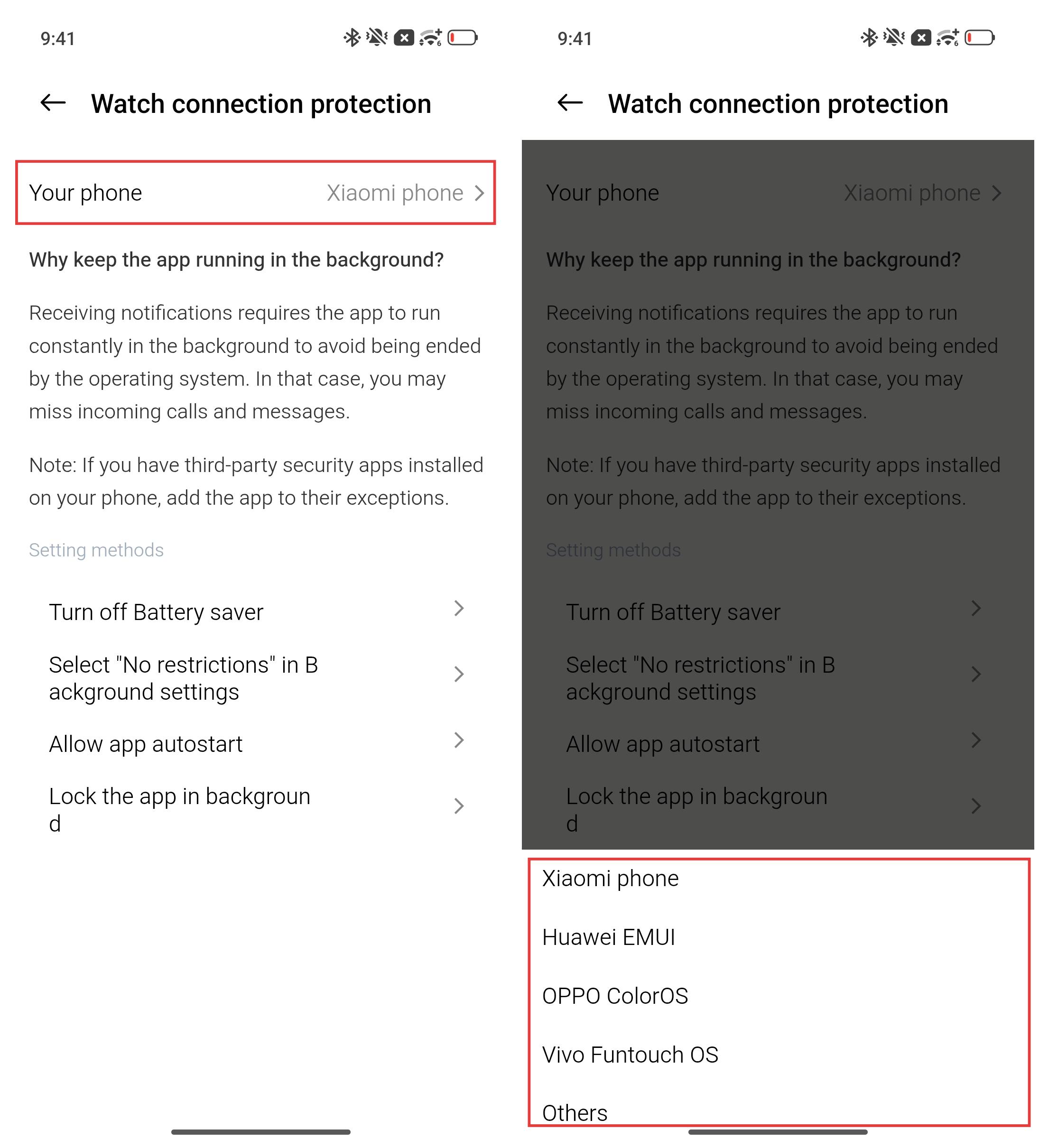
1. Turn off Battery saver: Open Settings App on your phone >> tap [Battery] >> tap [Current mode] >> turn off [Battery saver] or [Ultra battery saver].
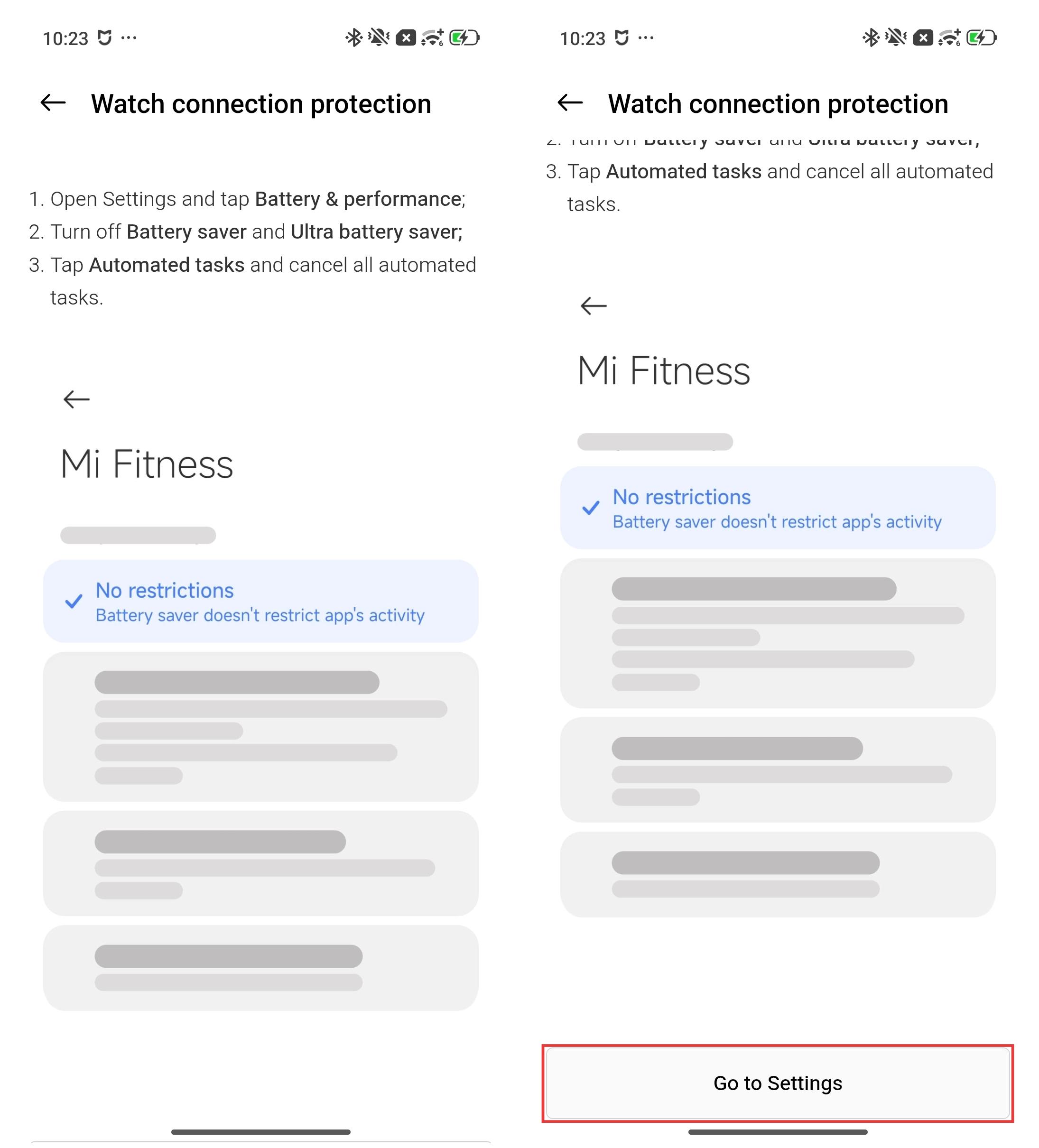
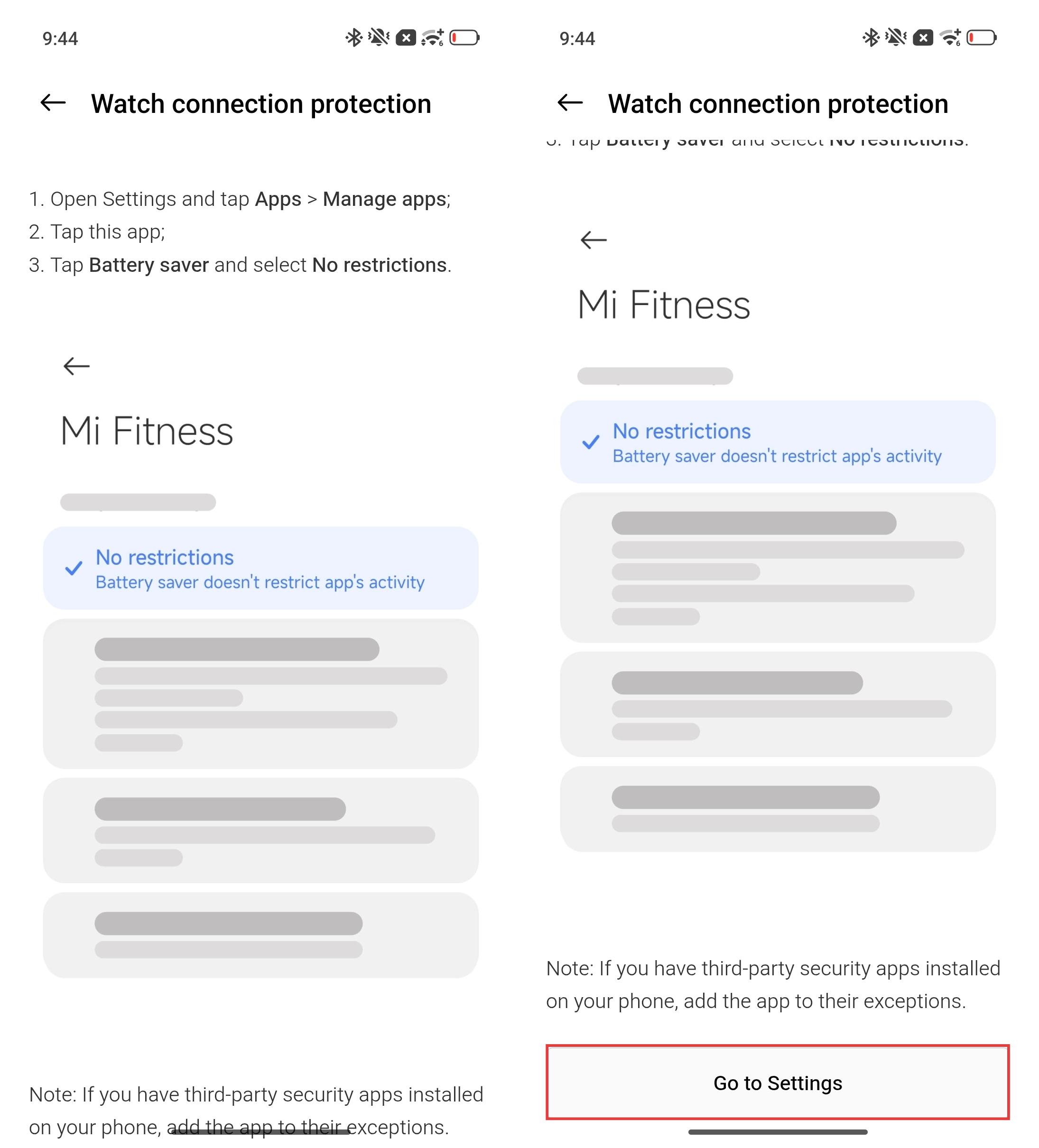
2. Select No restrictions in Background settings: Open Settings App on your phone >> tap [Apps] >> find and enter [Mi Fitness] >> [Power] >> select [No restrictions]. Additionally, you can also go to the Mi Fitness App >> [Device] >> [System] >> [Watch connection protection] >> [Select "No restrictions" in Background settings] >> scroll down and tap [Go to Settings] to enter the corresponding settings interface >> select [No restrictions].
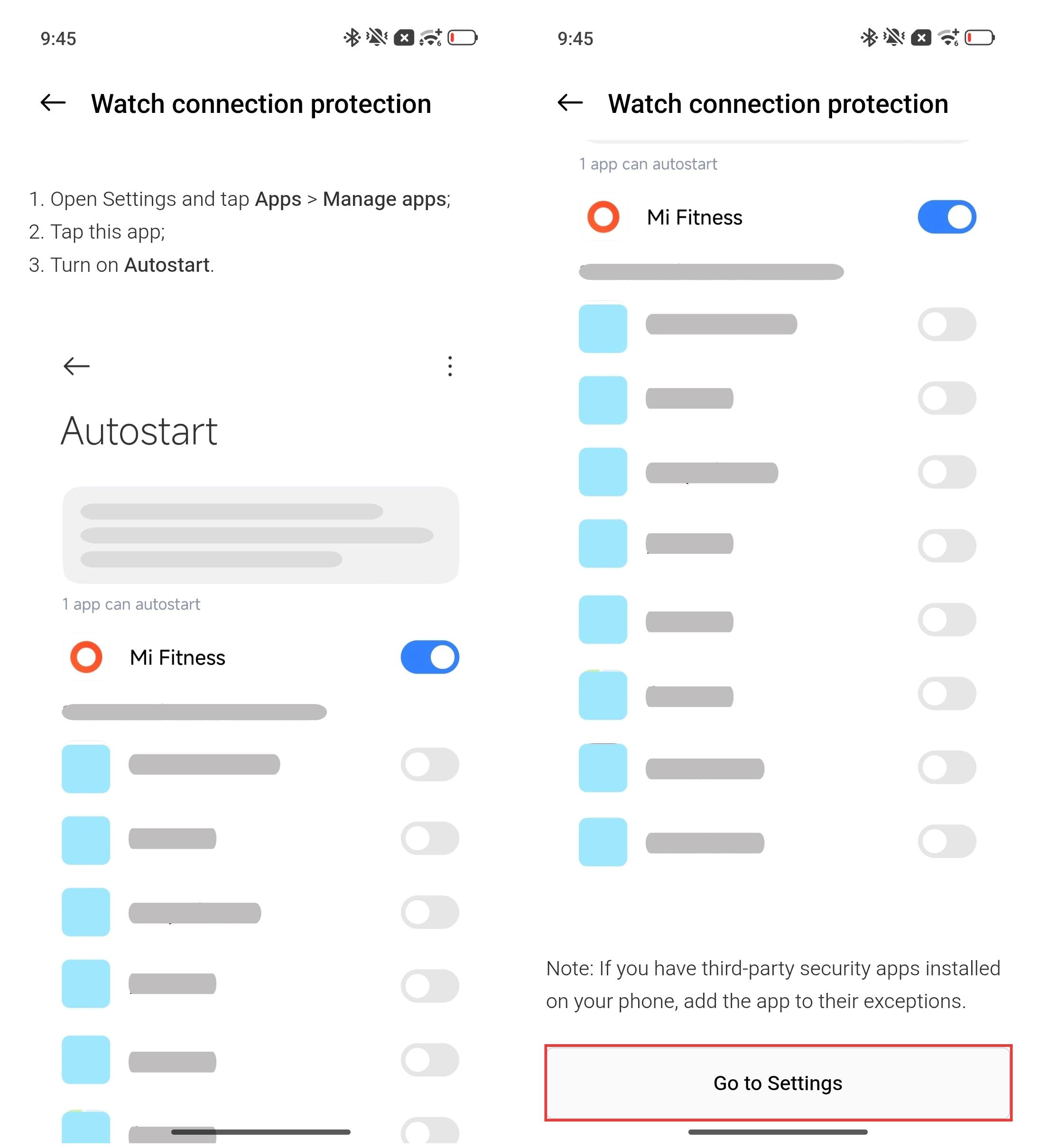
3. Allow App autostart: Open Settings App on your phone >> tap [Apps] >> [Background autostart] >> enable [Mi Fitness]. Additionally, you can also go to the Mi Fitness App >> [Device] >> [System] >> [Watch connection protection] >> [Allow app autostart] >> scroll down and tap [Go to Settings] to enter the corresponding settings interface >> enable [Mi Fitness].
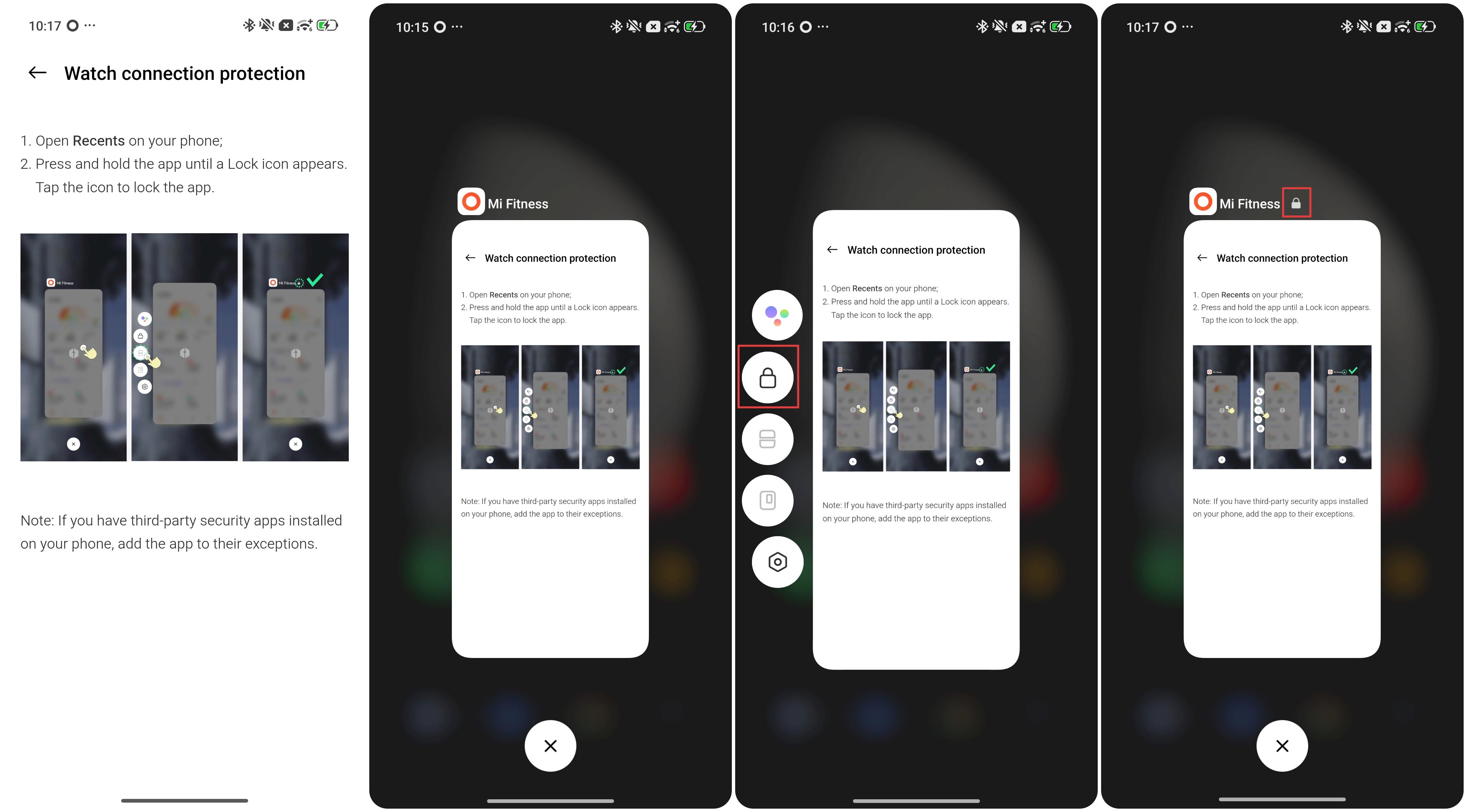
4. Lock the App in the background: Open Recents on your phone >> press and hold the Mi Fitness App until a lock icon appears >> tap the lock icon >> then the App is locked in the background.
If the REDMI Watch 6 disconnects from iPhones, please check the following settings on your phone:
1. Enable Background App Refresh: Open the Settings App on your phone >> go to [General] >> tap [Background App Refresh] >> find Mi Fitness in the App list and enable Background App Refresh.
2. Turn off Low Power Mode: Open the Settings App >> go to [Battery] >> turn off [Low Power Mode].
3. Check notification settings: Open the Settings App >> go to [Notifications] >> find Mi Fitness in the App list and enable [Allow Notifications].
4. Enable Location Services: Open the Settings App >> go to [Privacy & Security] >> tap [Location Services] >> find Mi Fitness in the App list >> set location access to [Always].
Does it help?
Yes
No