

REDMI Watch 6 FAQ
Product Overview
Q1: What are the key functions of the REDMI Watch 6?
A: The key functions of the REDMI Watch 6 are as follows:
1. The REDMI Watch 6 features a 2.07" AMOLED HD display with a resolution of 432 × 514 and a maximum refresh rate of 60 Hz.
2. It is equipped with a high-strength aluminum alloy middle frame, a stainless steel rotating crown, and stylish quick-release straps.
3. It offers up to 24 days of battery endurance in typical usage, 12 days in standard monitoring mode, and 7 days with AOD (always-on display) enabled.
4. It supports all-day automatic monitoring of blood oxygen saturation, heart rate, stress, and sleep for deeper health insights.
5. It supports single-band GNSS 5-system positioning, including Beidou, GPS, GLONASS, Galileo, and QZSS, providing fast and highly accurate location tracking.
6. It supports 161 sports modes.
7. It is equipped with a built-in speaker and microphone and supports Bluetooth calling via the watch when connected to a smartphone.
8. It supports 5ATM water resistance, allowing use during pool swimming without removal, but it is not suitable for hot showers, hot springs, saunas, or high-speed water activities.
9. It features a 5ATM-rated waterproof speaker, and if water enters the speaker during daily use, the water drainage function should be used. If sound is not restored, the watch should be shaken with the speaker facing downward to expel water, or left at room temperature for 24 hours to allow internal moisture to evaporate and restore normal sound.
Q2: What are the appearance, materials, and structure of the REDMI Watch 6?
A: The appearance, materials, and structure of the REDMI Watch 6 are as follows:
1. The watch features a rectangular display screen with rounded corners on the front.
2. On the back, it includes a quick-release button at the top for strap removal, a central heart rate sensor module, a built-in speaker area, and contact points for charging.
3. On the side, it has a rotating crown for navigation and a power button below it for control and operation.
4. Main body dimensions: 46.45 mm × 40.03 mm × 9.94 mm (excluding the heart rate sensor protrusion).
5. Weight: approximately 31 g for the watch body alone, and approximately 43.5 g for the full device, including the strap.
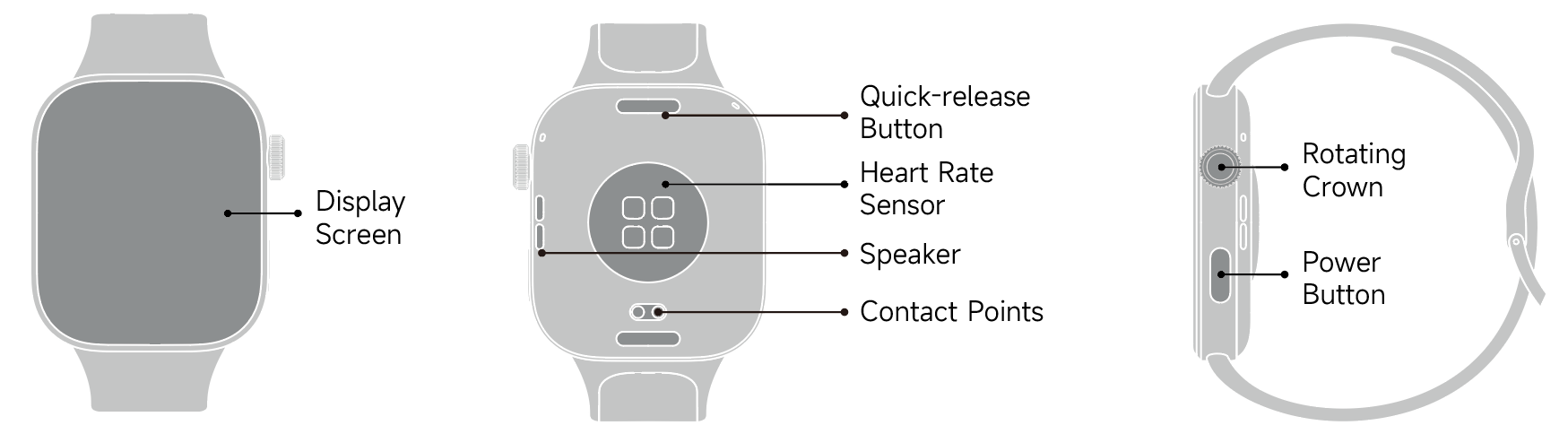
6. Display: The REDMI Watch 6 features a 2.07-inch AMOLED square display with a resolution of 432 × 514 and a pixel density of up to 324 PPI, delivering more detailed visuals and a smooth 60 Hz high refresh rate.
Middle frame: Made of aluminum alloy metal material.
7. Rear case port structure: The small circular hole is the microphone port, and the two elongated slots are the speaker openings.
Q3: What Apps does the REDMI Watch 6 support, and how to switch the App layout?
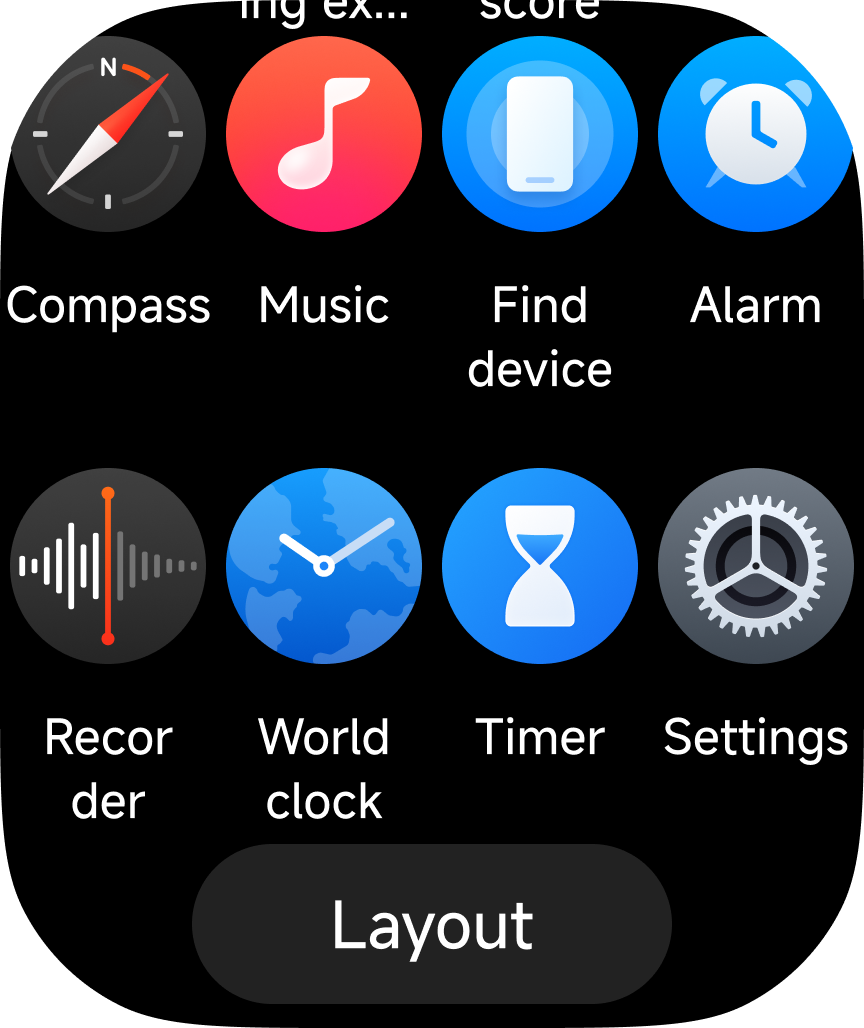
A: The REDMI Watch 6 supports the following Apps: Stats, Workout, History, Running course, Training state, Sleep, Heart rate, Blood oxygen, Stress, Breathing exercises, Vitality score, Cycles, Contacts, Phone, Camera, Inter-connectivity (only supported on HyperOS 2.0 or above phones), Weather, Music, Find device, Alarm, Compass, Calendar, Tasks, Stopwatch, Recorder, World clock, Timer, and Settings.
To switch the app's layout: Enter the App list, scroll down to the bottom, and tap the [Layout] icon.
Q4: What are the differences between REDMI Watch 4, REDMI Watch 5, and REDMI Watch 6?
A: The REDMI Watch 6 has significant improvements in sports and health monitoring compared with earlier models. It includes built-in running courses and training status tracking. It also offers more powerful, customizable watch faces and a richer set of app functions.
For a comparison of the main differences among the three watches, please refer to the following table:
| REDMI Watch 6 | REDMI Watch 5 | REDMI Watch 4 |
Training Status | Supported | Supported | Supported |
Battery Life | Up to 24 days of use | Up to 24 days of use | 20 days of use in typical scenarios |
Display | 2.07” AMOLED | 2.07” AMOLED | 1.97” AMOLED |
Storage | RAM: 32MB, ROM: 512MB | RAM: 32MB, ROM: 512MB | RAM: 32MB, ROM: 256MB |
Auto Brightness | Supported | Supported | Supported |
Vibration Motor | Linear Motor | Linear Motor | Rotary Motor |
MIC (Microphone) | 1 MIC | 2 MIC | 1 MIC |
Bluetooth | BT5.4/BLE5.4 | BT5.3/BLE5.3 | BT5.3/BLE5.3 |
| BT supports HFP Bluetooth calls, HID camera control, and SPP connection (for Android phone pairing). BLE supports iPhone pairing, ANCS notification push, and AMS music control. | BT supports HFP Bluetooth calls, HID camera control, and SPP connection (for Android phone pairing). BLE supports iPhone pairing, ANCS notification push, and AMS music control. | BT supports HFP Bluetooth calls, HID camera control, and SPP connection (for Android phone pairing). BLE supports iPhone pairing, ANCS notification push, and AMS music control. |
Case Material & Finished | Middle Frame: Aluminum Alloy Frame + Stainless Steel Rotating Crown + Aluminum Alloy Buttons | Middle Frame: Aluminum Alloy Frame + Stainless Steel Rotating Crown | Middle Frame: Aluminum Alloy Frame + Stainless Steel Rotating Crown |
| Back Cover: PA+GF Plastic | Back Cover: PA Plastic | Back Cover: PA Plastic |
| Strap: TPU | Strap: TPU/Leather | Strap: TPU |
Q5: What are the standard and retail strap options for the REDMI Watch 6?
A: The standard package includes the following TPU straps for the REDMI Watch 6: Obsidian black TPU strap, Silver gray TPU strap, and Glacier blue TPU strap. (Glacier blue is available only for the Bluetooth version, it is not available for the NFC version).
Q6: Will wearing the REDMI Watch 6 cause allergies?
A: The REDMI Watch 6 is made with professional, health-safe, and environmentally friendly materials and has passed allergen testing conducted by professional institutions. Parts that frequently contact the skin, such as the strap and the back case, have undergone biocompatibility testing for allergenicity and comply with the ISO 10993 biocompatibility standard.
However, due to individual differences, a small number of people can still experience discomfort or allergic reactions to certain materials. If skin irritation occurs while wearing it, stop using it and consult a doctor.
Wearing recommendations:
1. For daily use, slightly loosen the strap to allow better skin breathability and comfort.
2. After wearing the watch continuously for a long time, remove the watch and let your wrist rest for about 30 minutes.
3. After exercise, clean and wipe off sweat from both your wrist and the strap, and only wear it again after it has been cleaned and dried.
Q7: How to replace the strap of the REDMI Watch 6?
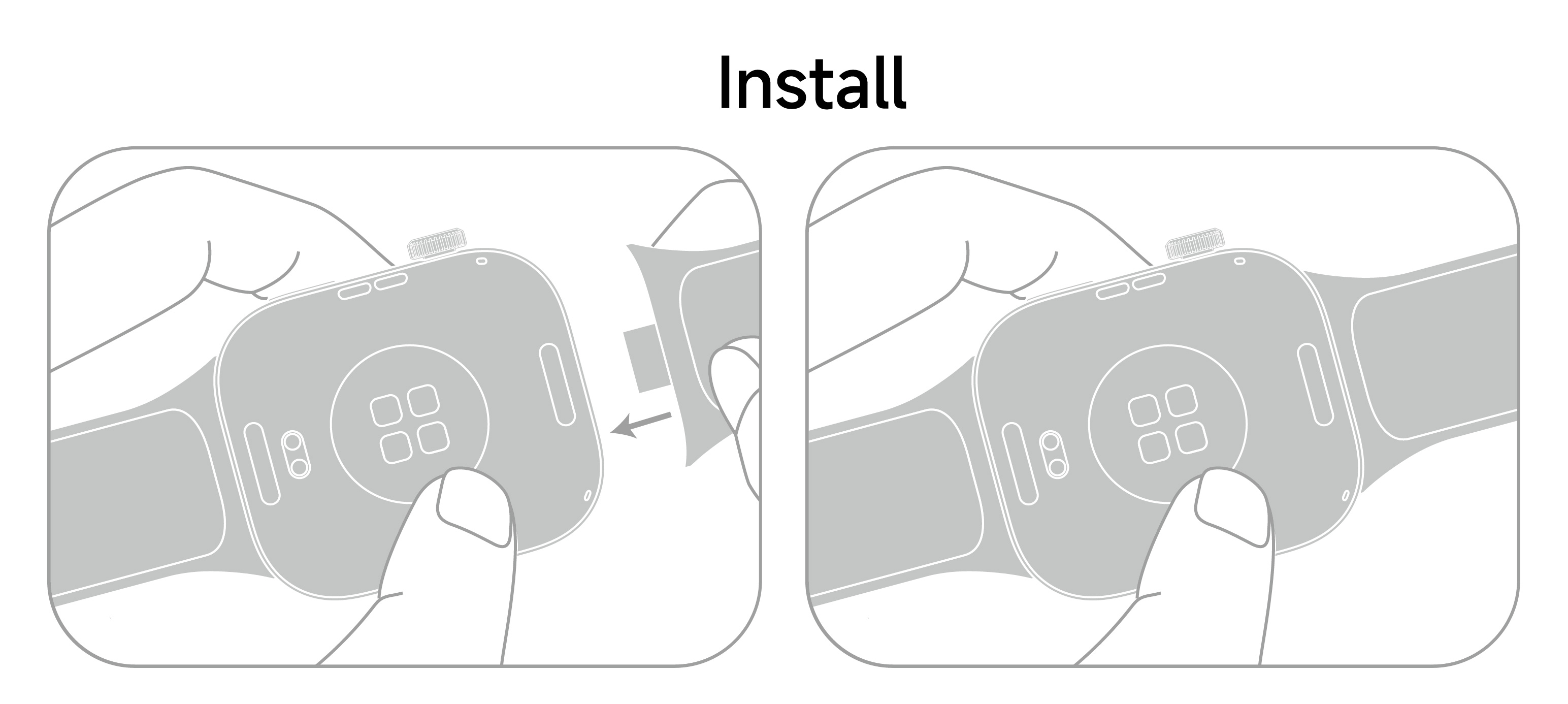
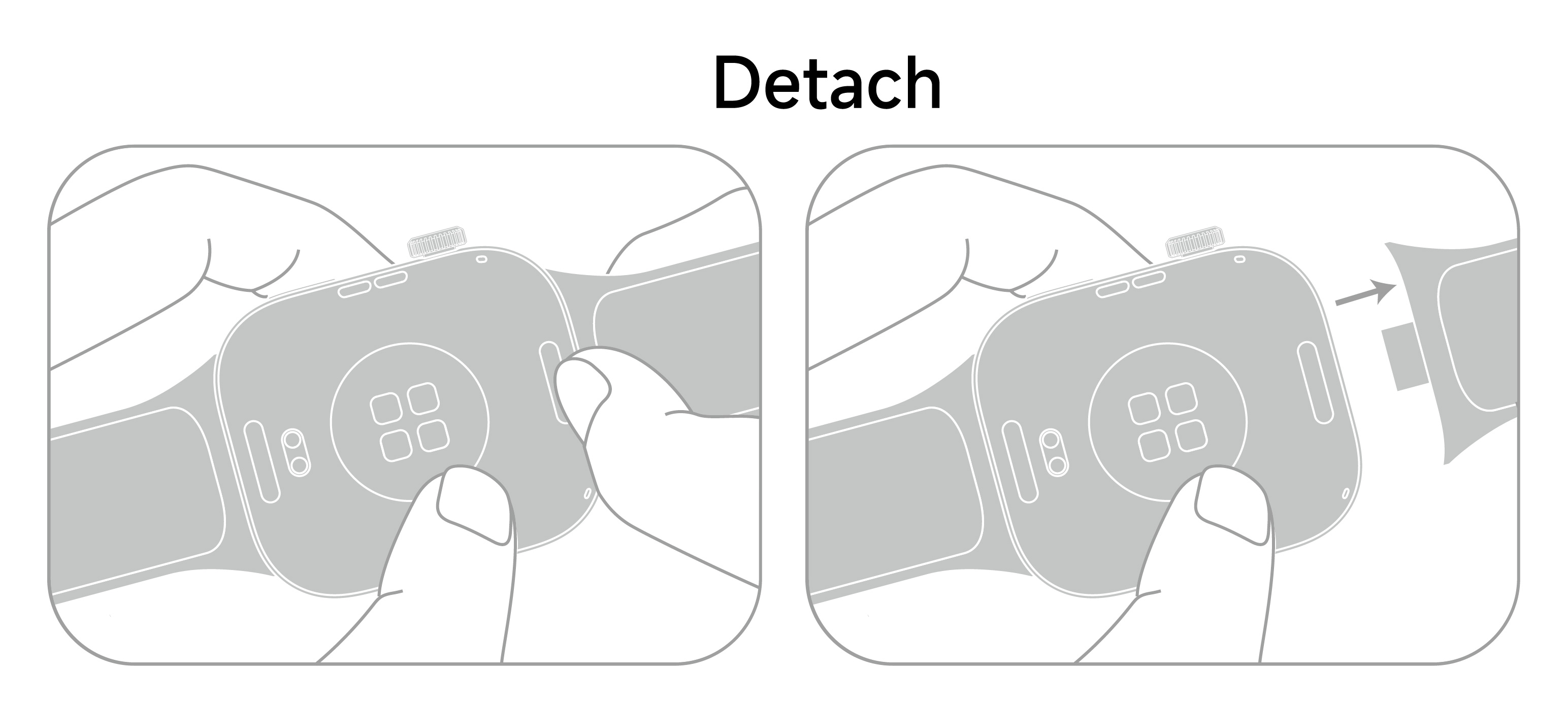
A: The REDMI Watch 6 supports quick-release straps. Follow these steps to replace the strap:
TPU strap installation/detach:
Installing the strap: Align the buckles at both ends of the strap with the grooves on the watch body, then press firmly to snap them into place. Make sure the strap is fully inserted so that the quick-release button resets properly.
Note:
Before wearing it, pull on the strap to ensure it is securely attached.
Detach the strap: Press the quick-release buttons on both sides of the watch, then pull the strap outward to detach it from the watch body.
Q8: Is the REDMI Watch 6 strap compatible with previously released products?
A: Yes. The strap of the REDMI Watch 6 is compatible with the straps of the Xiaomi Smart Band 9 Pro, Xiaomi Smart Band 8 Pro, REDMI Watch 4, and REDMI Watch 5, meaning they can be used interchangeably.
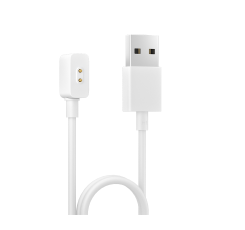
Q9: What is the compatibility of the REDMI Watch 6 charging cable?
A: The REDMI Watch 6 uses the Xiaomi Magnetic Charging Cable For Wearables 2 (white). It is compatible with other devices that use the same charging cable, allowing them to share the same charger.
Q10: What is the water resistance rating of the REDMI Watch 6?
A: The REDMI Watch 6 has a 5 ATM water resistance rating and is suitable for shallow-water activities such as swimming in pools or at the beach. It is not suitable for hot showers, saunas, hot springs, or high-temperature and high-humidity environments. It is also not suitable for diving, cliff jumping, surfing, or activities involving high-speed water flow or deep water.
Note:
The 50-meter water resistance rating refers to a watch’s water resistance rating under standardized testing conditions. These conditions mean the watch is in a static state and exposed to pressure rather than actually being submerged at depth. The “50 meters” value is not obtained by testing the watch at 50 meters underwater; instead, it is calculated based on equivalent pressure values.
In other words, “50 meters water resistance” means the watch can withstand pressure equivalent to that of 50 meters underwater when kept in a stationary condition.
Q11: Does the REDMI Watch 6 support standalone satellite positioning? What positioning system does it use?
A: The REDMI Watch 6 supports standalone satellite positioning.
It supports a 5-system GNSS positioning system, including China’s Beidou (BDS), the United States GPS, the EU Galileo system, Russia’s GLONASS, and Japan’s QZSS (Quasi-Zenith Satellite System).
System Settings
Q1: What operating systems does REDMI Watch 6 support for binding, and how to bind it?
A: Before using the REDMI Watch 6, you need to bind it through the Mi Fitness App, which has the same name on both iPhone and Android and can be downloaded by searching in the App Store or an app store.
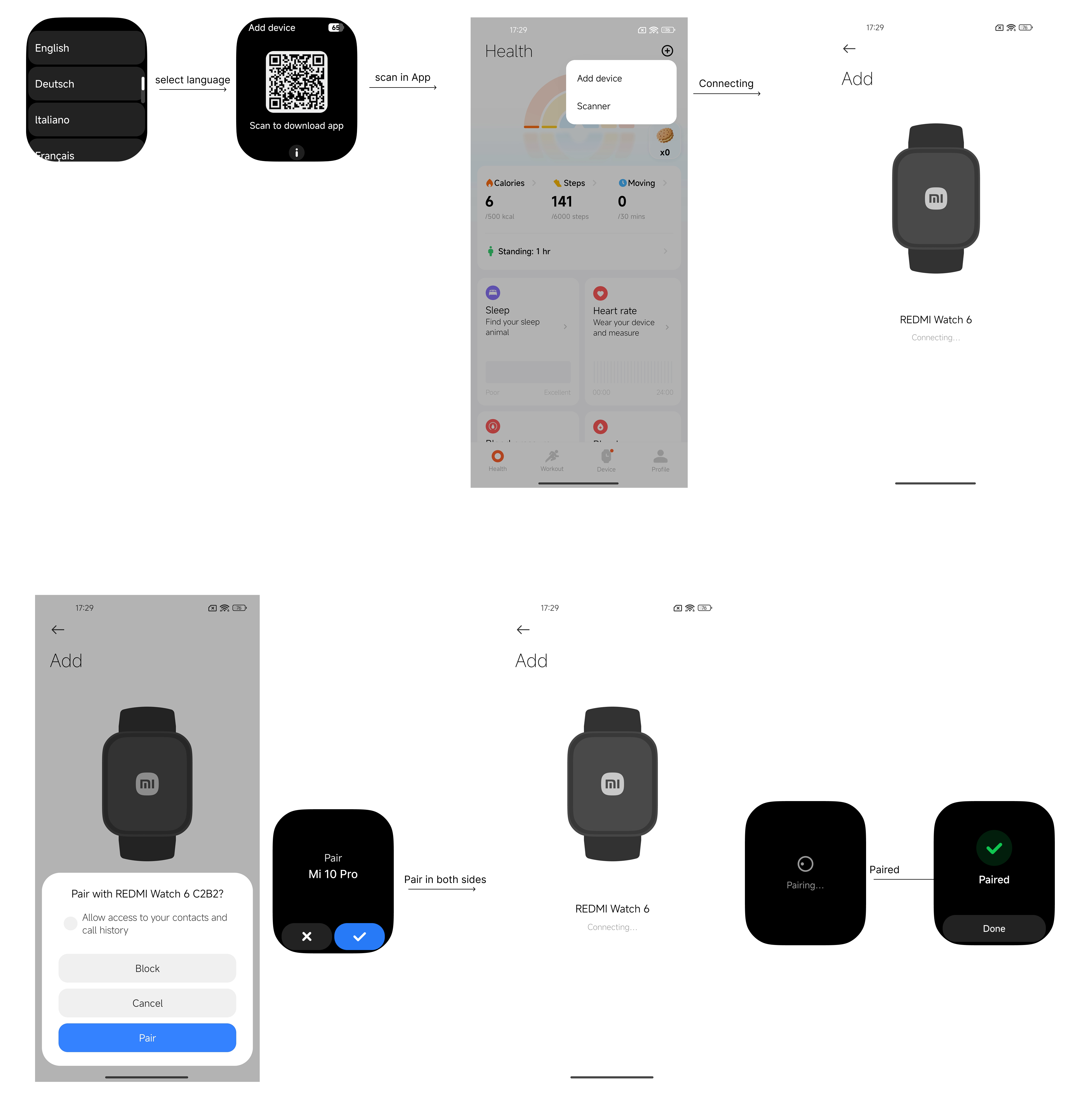
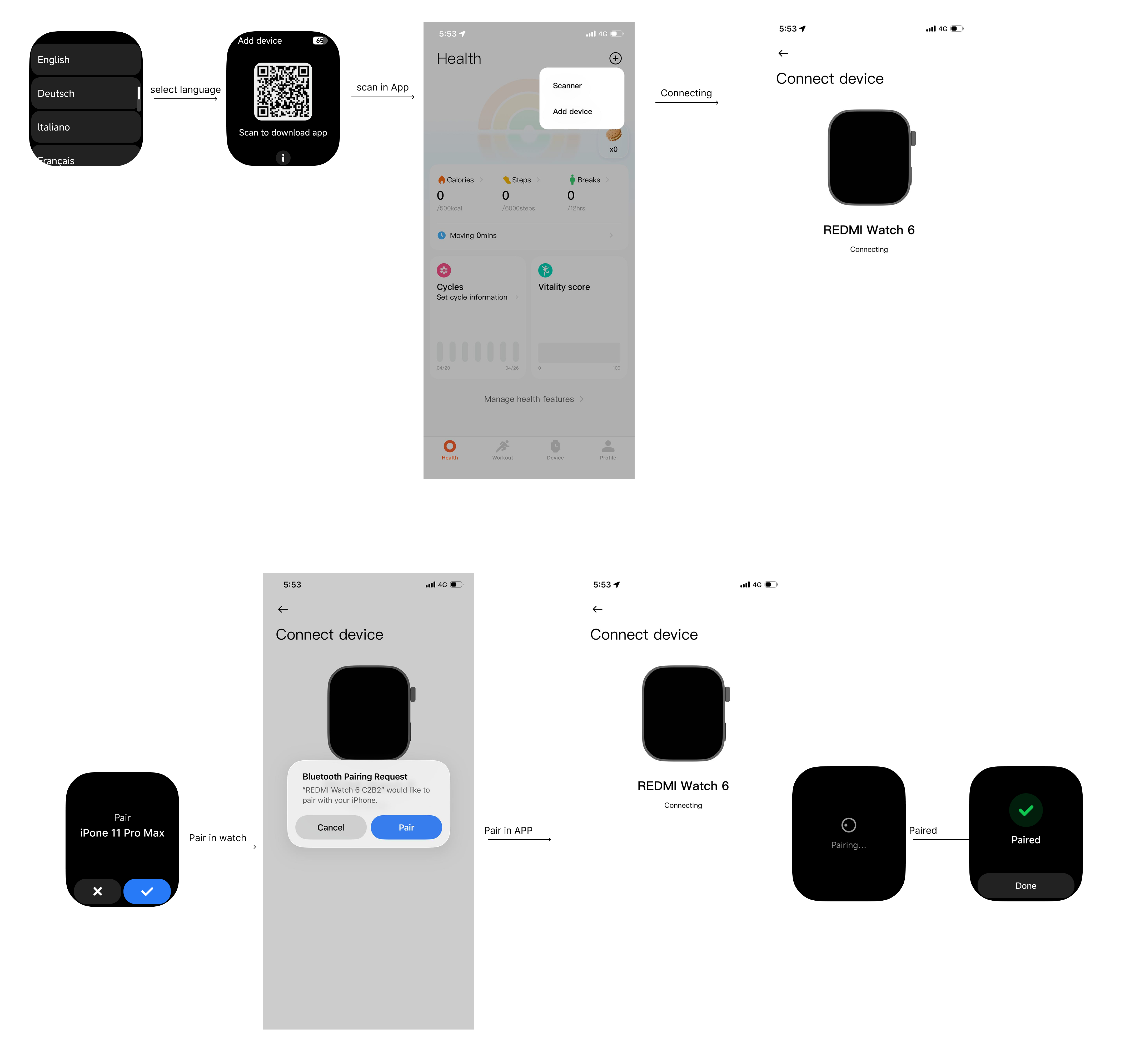
To bind the REDMI Watch 6, please refer to the following steps:
1. Press and hold the power button for about 2 seconds to power on the watch. Use your phone to scan the QR code displayed on the watch, or search for Mi Fitness in the App Store and install the App.
2. Open the Mi Fitness App, log in as prompted, and grant the required permissions.
3. The watch supports three pairing methods:
(1) Tap [Scanner] and scan the QR code on the watch screen.
(2) Tap [Add device], and the App will automatically search for nearby devices. From the list, select your watch’s Bluetooth name (REDMI Watch 6 XXXX). If it does not appear, try searching again.
(3) Tap [Add device], then tap [Add model] at the bottom of the interface, select REDMI Watch 6, and choose your watch’s Bluetooth name (REDMI Watch 6 XXXX) from the list. If the device is not found, try again. If an older App version shows the device as unsupported, update the App and retry.
4. On an Android phone, when the same security code appears on both the phone and the watch, confirm the pairing request on both devices to complete the connection.
Note:
1. During pairing, make sure the Bluetooth is enabled on your phone to ensure a stable connection.
2. If a security code appears on the watch but no confirmation pop-up appears on the phone, check the phone’s notification shade for the pairing request.
3. If the watch cannot be found during device addition or cannot connect during use, press and hold the power button for 3 seconds, select factory reset from the system menu, and then add the watch again.
The Android phone pairing process is shown below:
The iPhone pairing process is shown below:
Q2: How to rebind the REDMI Watch 6 after changing the phone?
A: To rebind the REDMI Watch 6 after changing the phone, please refer to the following information:
1. Binding with a different Xiaomi Account: restore the watch to factory settings, then bind it again using the new phone.
2. Binding with the same Xiaomi Account on a new phone: while the watch is still connected to the original phone, go to the Mi Fitness App >> [Device] >> [More] >> [Connect new phone].
Q3: Why does the REDMI Watch 6 fail to connect or pair during the binding process?
A: If binding fails, please check the following:
1. Make sure Bluetooth on the phone is turned on.
2. Check whether the watch is on the QR code pairing screen.
3. Do not turn off Bluetooth during the binding process.
4. Keep the phone and watch within pairing range during binding. Do not place them too far apart (recommended within 2 meters, depending on actual conditions).
1. Connection or binding failure can occur for the following reasons. Please follow the troubleshooting suggestions below:
(1). Open the Mi Fitness App to check whether it can reconnect properly.
(2). If it cannot reconnect, tap the connect icon to see whether reconnection works.
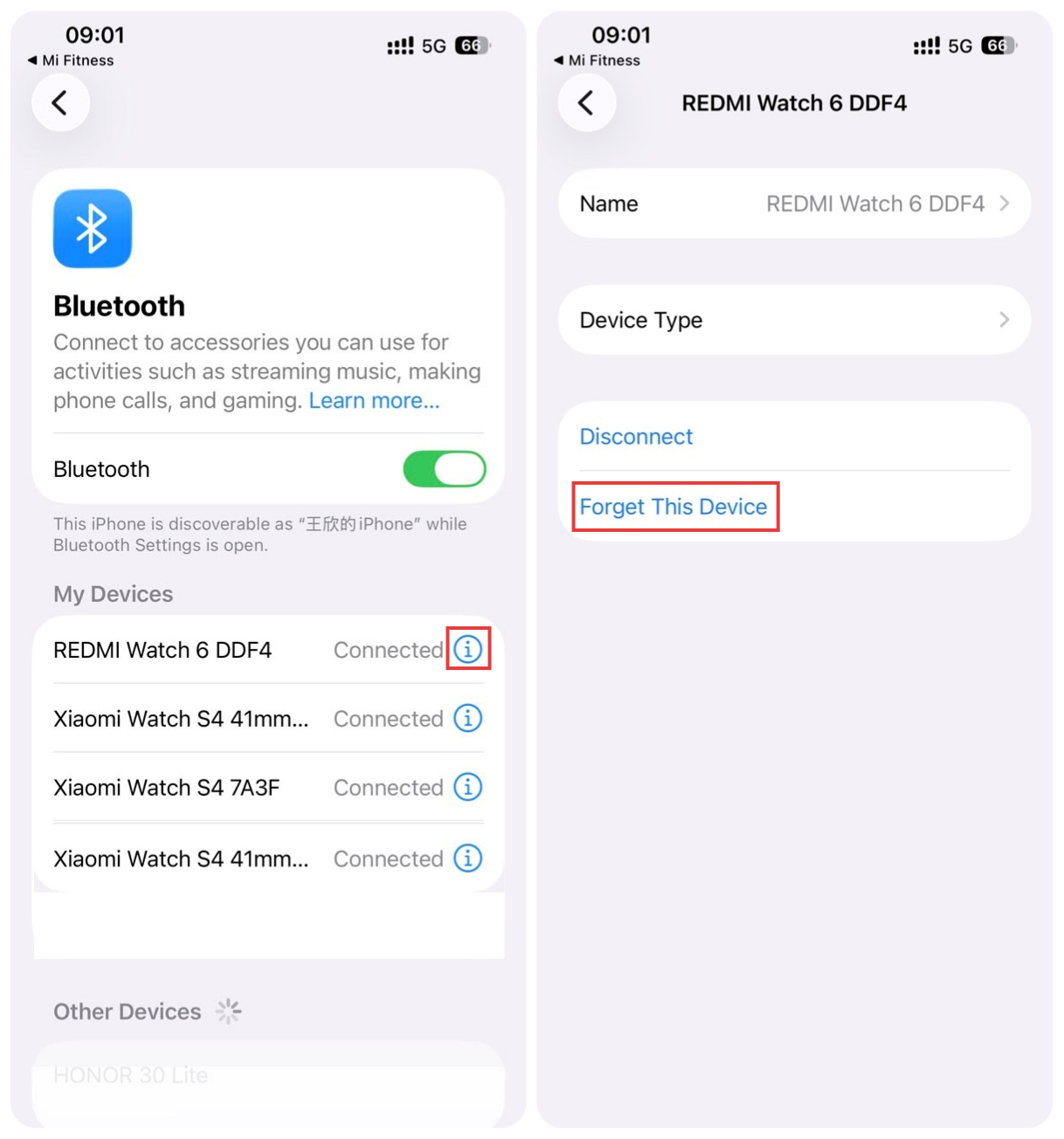
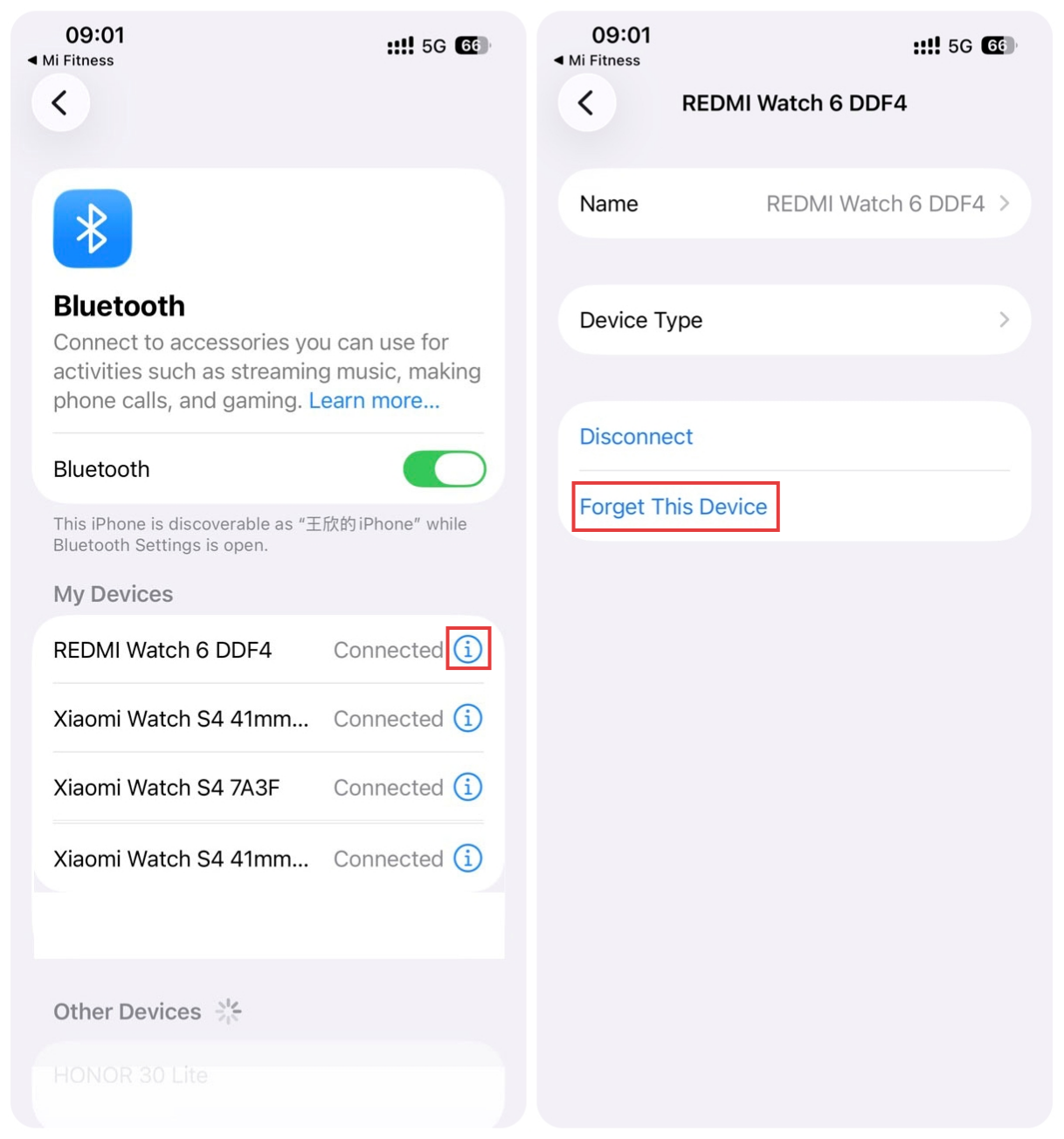
(3). If it still cannot reconnect, check whether the device is connected in the phone’s system Bluetooth settings. If it is connected, choose [Forget This Device] and then check again. If it is not connected, restart the watch and try again.
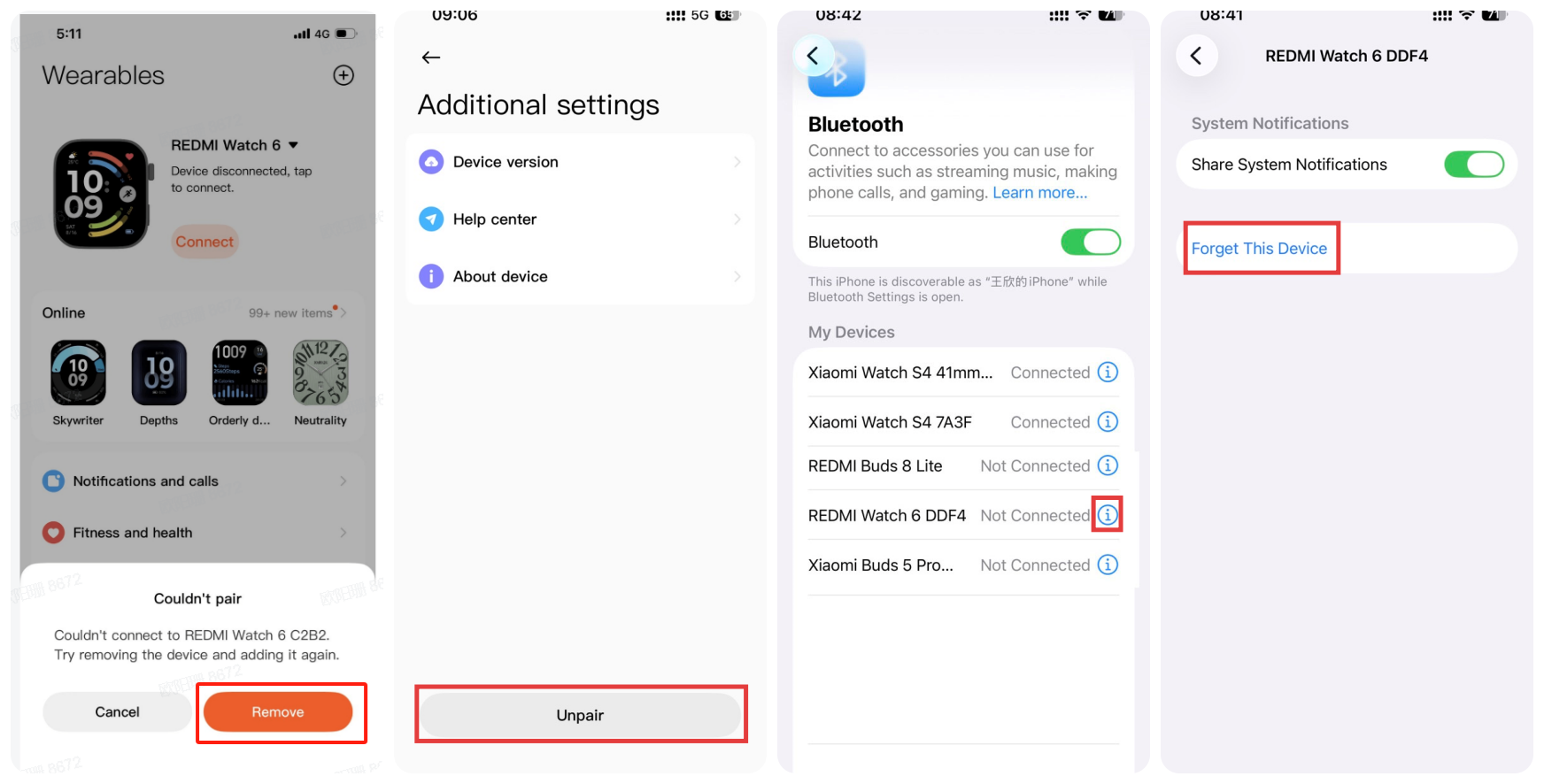
(4). If it still cannot reconnect, restore the watch to factory settings, then go to Bluetooth in the phone to forget the device and rescan and reconnect in the Mi Fitness App.
2. Connection failure after factory reset and re-search
(1). Check whether the device appears in the phone’s system Bluetooth list. If it does, ignore it, then return to the Mi Fitness App and follow the prompts to pair again.
(2). If three “×” signs appear during binding, check whether the device exists in system Bluetooth. If so, forget it first, then try connecting again.
3. iPhone: repeated failure when re-adding the watch after a factory reset
When the watch is paired with an iPhone, and the watch is factory reset on its own, repeated failure can occur when re-adding it in the app. In this case, the device needs to first be forgotten in the system Bluetooth settings, then pairing can be retried successfully.
4. Android phones do not have background running permission enabled, causing the Mi Fitness App to be killed in the background
To ensure better performance of the watch and prevent Android system memory cleaning or security/manager apps from killing or blocking the process, it is recommended to keep the Mi Fitness App running in the background.
The setup steps are as follows:
(1). After first pairing, go to the [Device] interface in the Mi Fitness App and tap the [Turn on] icon, normally located above the Manage watch faces section, then follow the instructions to enable background permissions.
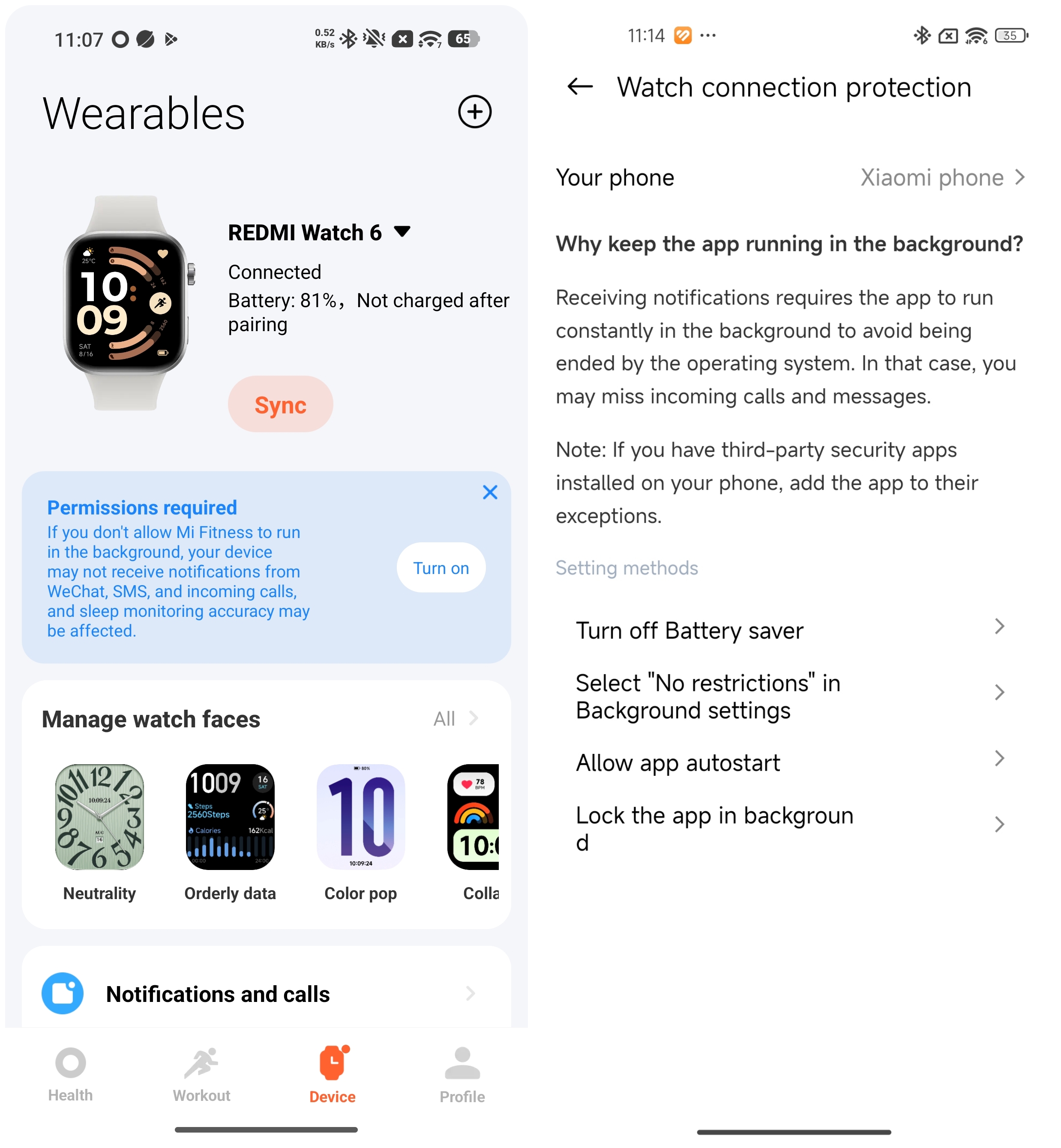
(2). After pairing, you can also go to Mi Fitness App >> [Profile] >> [App permissions], and ensure all required permissions are enabled to maintain a stable connection.
5. The device cannot be found after the watch factory reset
(1). If the device cannot be found after unbinding, try turning Bluetooth off and on again on the phone.
(2). Check whether there is a nearby phone pop-up requesting a connection. If so, select [Reject].
6. Ultra battery saver mode is enabled on the watch or phone
(1). When Ultra battery saver mode is enabled on the watch, Bluetooth on the watch will be turned off, disconnecting the currently paired phone, and it will not automatically reconnect.
(2). When Ultra battery saver mode is enabled on the phone, Bluetooth may be turned off, disconnecting the watch and preventing reconnection.
7. Handling connection issues when Bluetooth is turned off, or the phone is powered off during pairing
(1). If Bluetooth is turned off on an iPhone during pairing, the watch will display a “Couldn't pair” screen. The Mi Fitness App will prompt that Bluetooth is turned off and ask to enable Bluetooth and rescan. After turning Bluetooth back on, a failure screen will appear; tap “Try again” to pair again successfully.
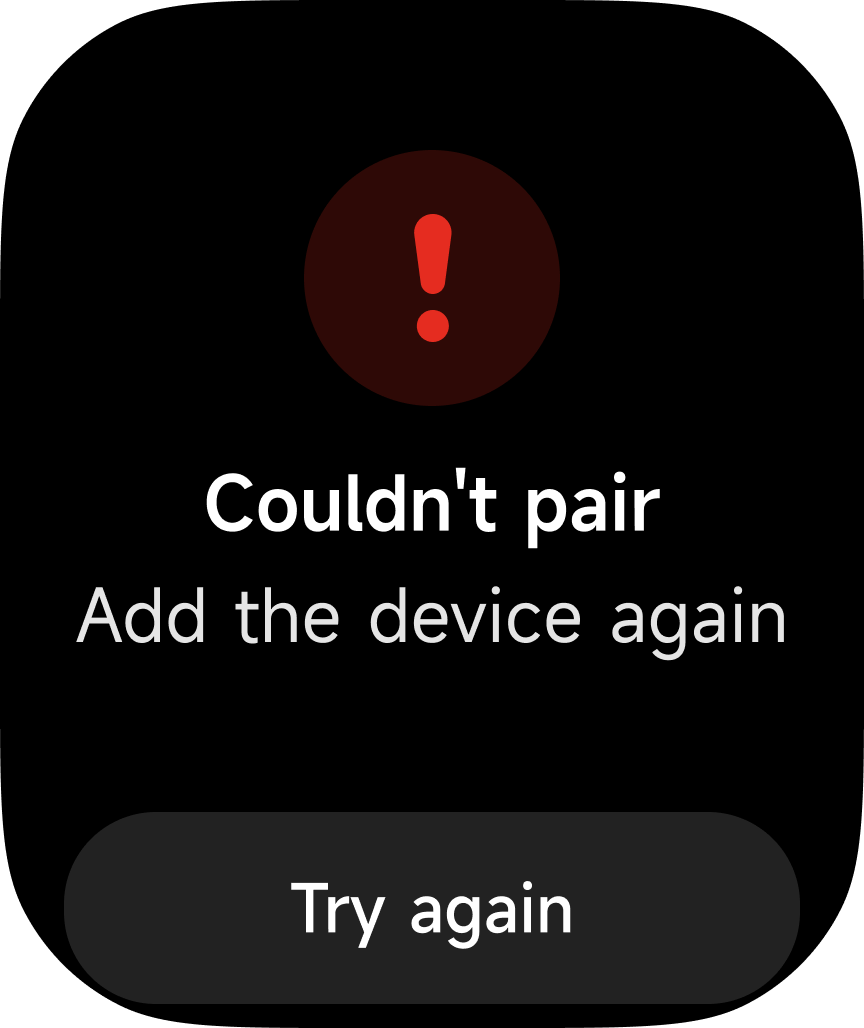
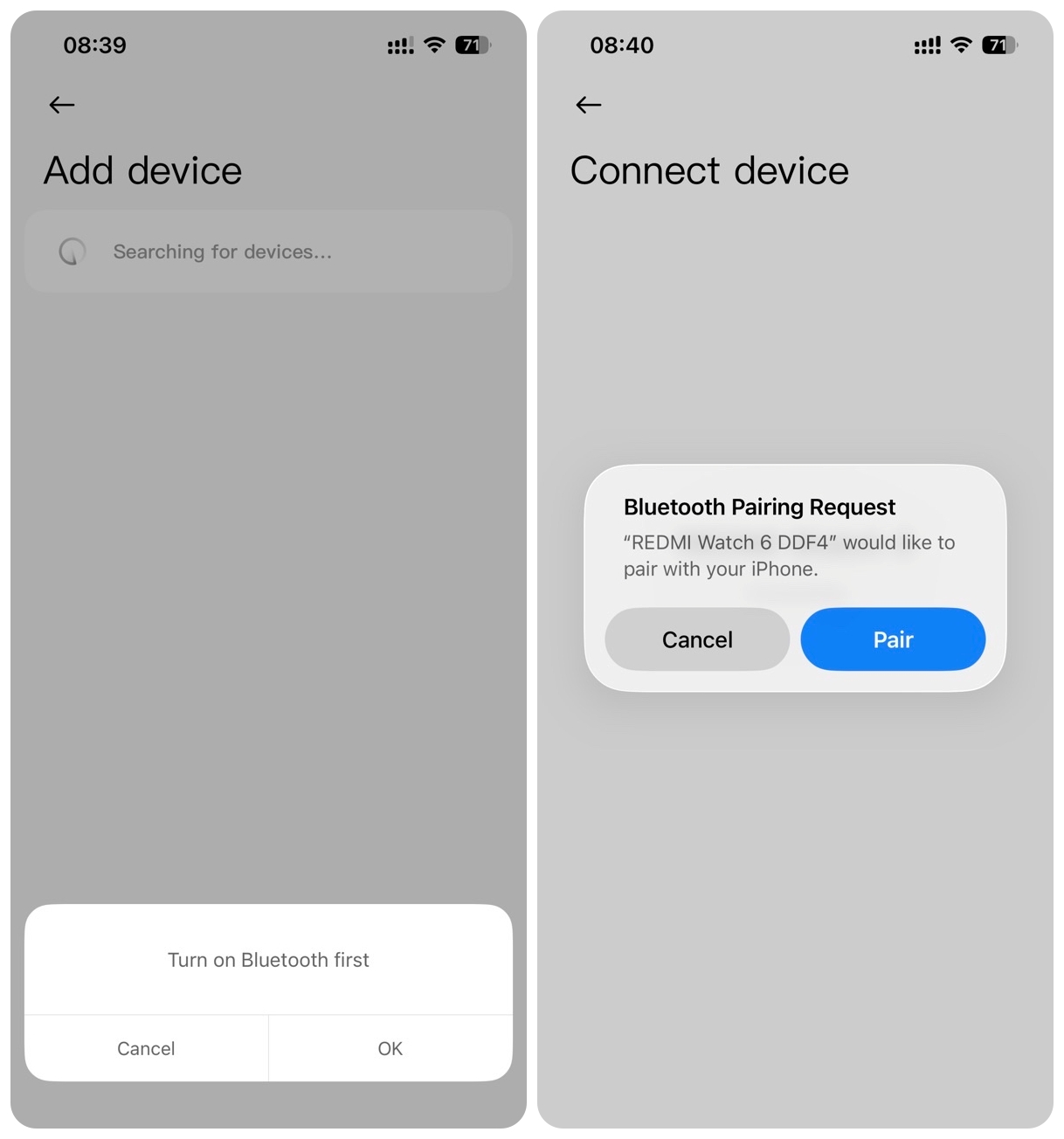
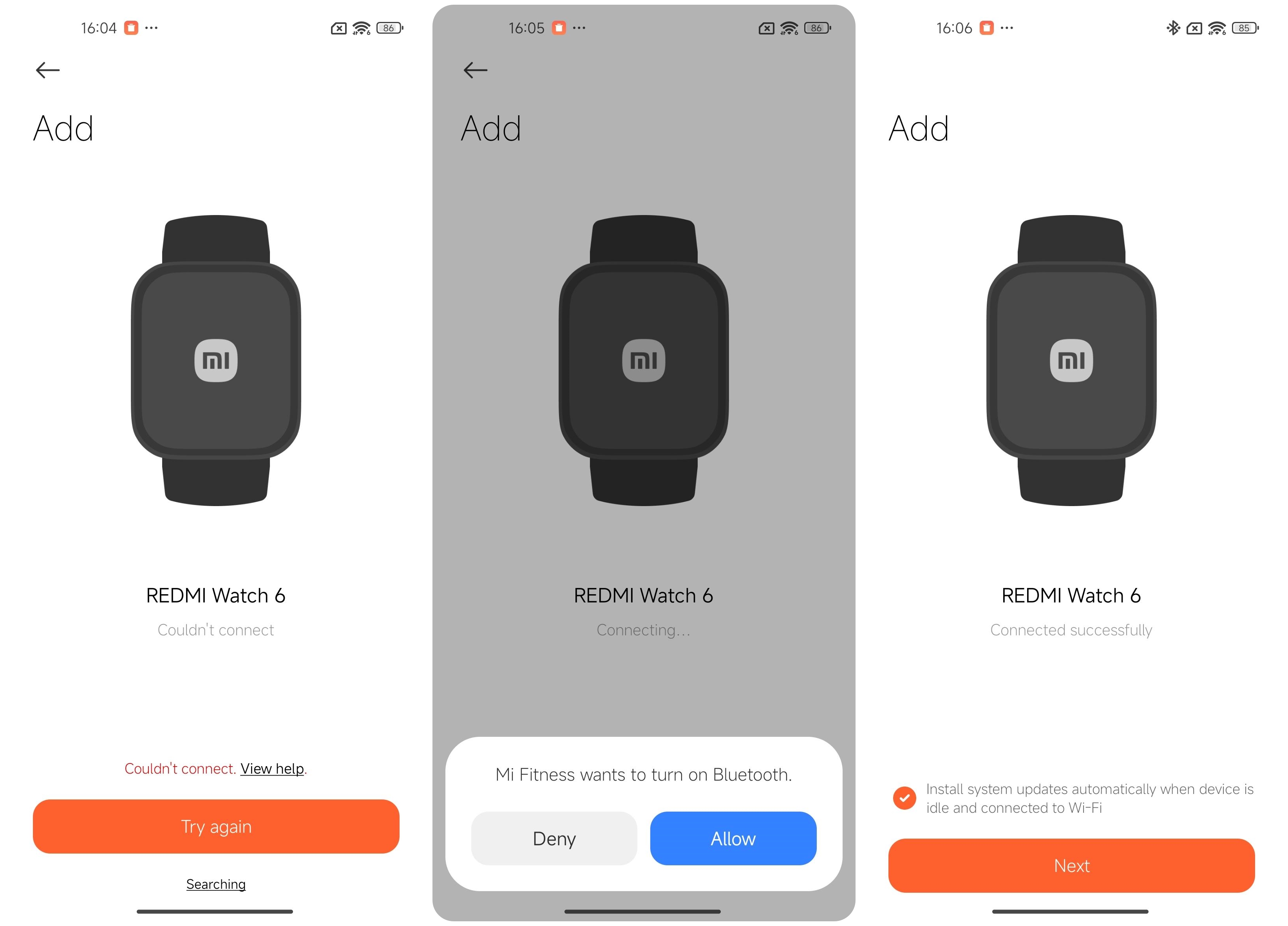
(2). If Bluetooth is turned off on an Android phone during pairing, the Mi Fitness App will show a connection failure. If “Try again” is tapped, the app will prompt to turn on Bluetooth. After Bluetooth is re-enabled, pairing can succeed.
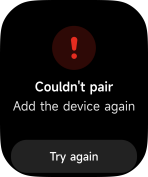
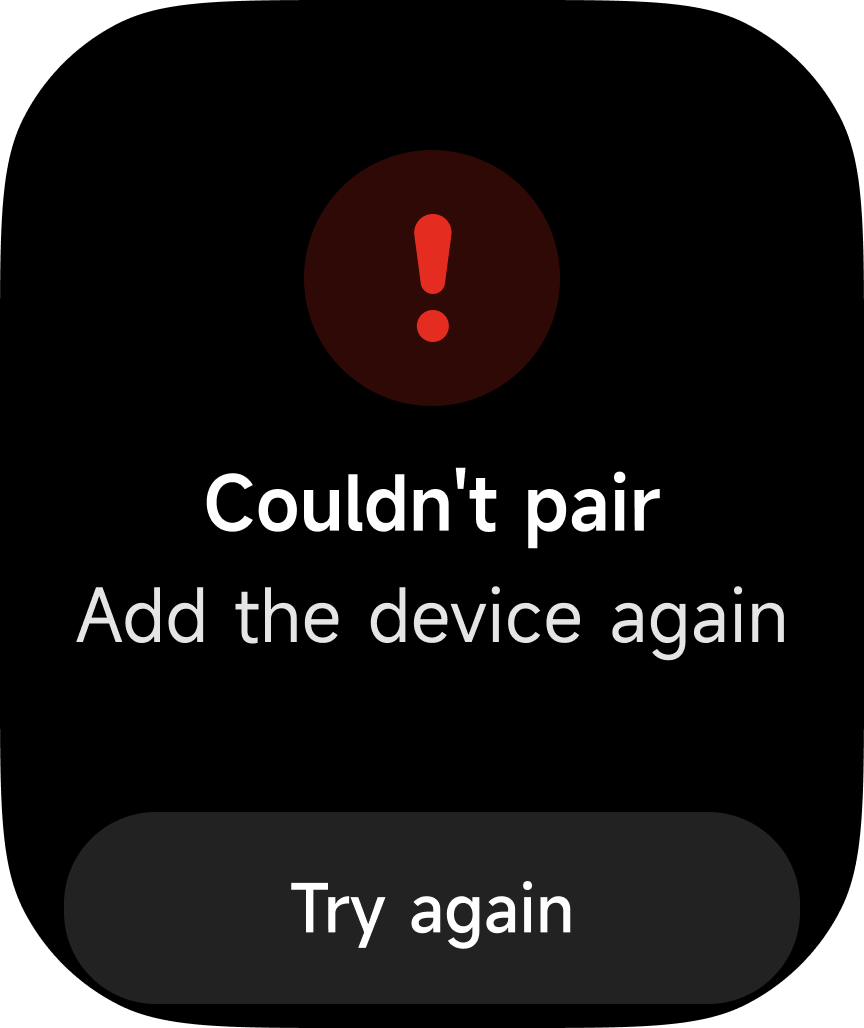
(3). If the phone is powered off or restarted during pairing, the watch will show a “Couldn't pair” screen. The phone must be turned back on and pairing must be restarted.
8. Other reasons why the watch cannot connect
(1). When the device is disconnected, if it is unpaired in the App but the watch is not restored to factory settings, it must be reset before the next pairing. Otherwise, it cannot be paired with a new phone.
(2). When the watch is connected to an iPhone and the watch is factory reset on its own, the iPhone's Bluetooth system can try to reconnect automatically. As a result, the new phone can not detect the device. (The iPhone and the watch can keep connecting and disconnecting; during connected periods, the new phone cannot find the device, but during disconnected intervals, it can be discoverable.) To resolve this, go to the old iPhone’s Bluetooth settings, find the connected device, and select [Forget This Device]. Then use the new phone to search and pair again.
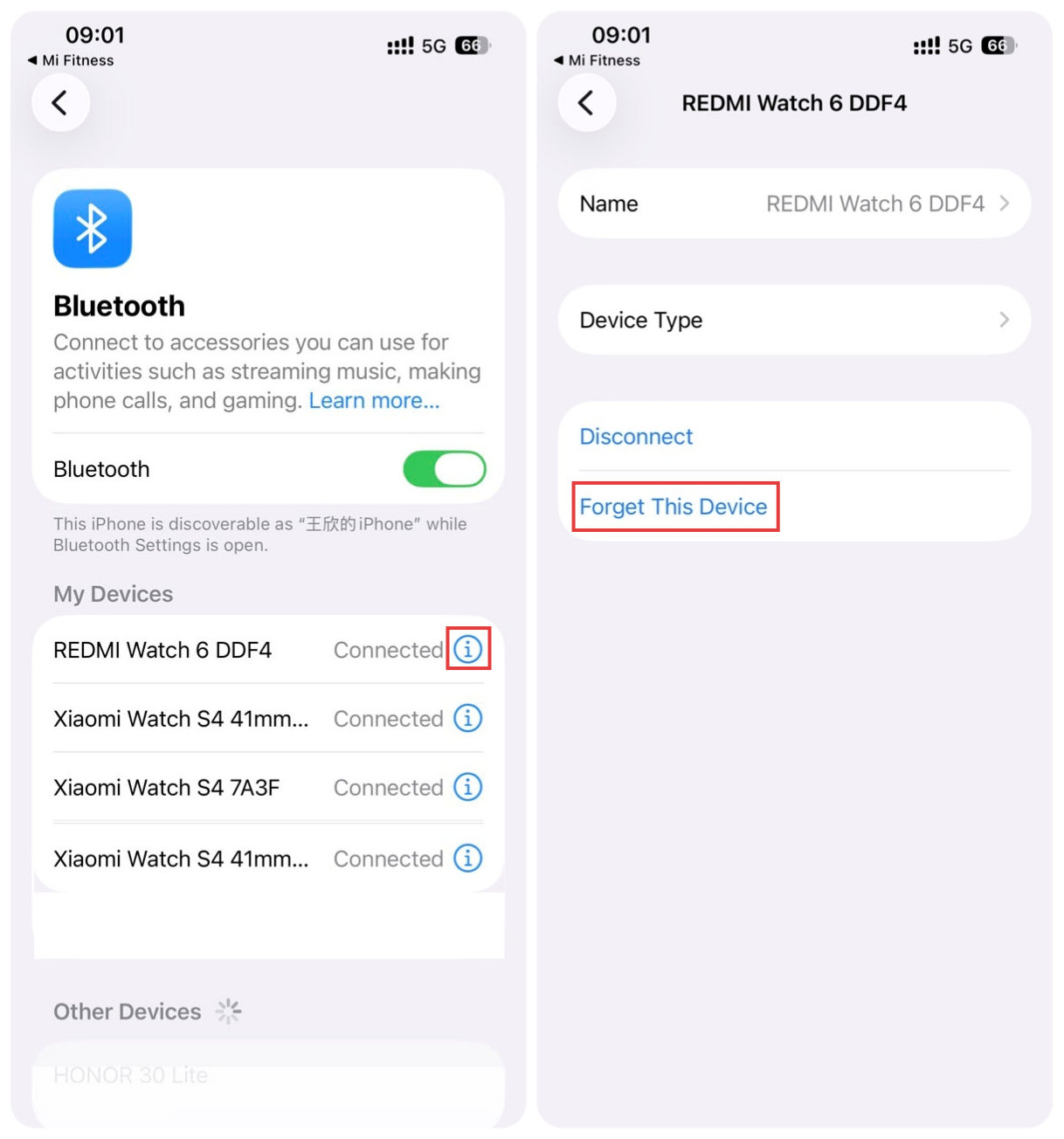
(3). When the watch is connected to an Android device and the watch is factory reset on its own, the Mi Fitness App can reconnect to the device and prompt whether to [Delete device] or [Add device]. During this time, the new phone cannot find the device. On the old phone, tap [Delete device], then use the new phone to search and connect again.
Q4: How to keep the REDMI Watch 6 connected to the Mi Fitness App?
A: Please add the Mi Fitness App to the app whitelist and lock it to run in the background. Keep the phone’s Bluetooth turned on, and the REDMI Watch 6 will remain connected as long as it is within Bluetooth range of the phone.
The setup steps can vary depending on the phone model. Please go to the Mi Fitness App >> [Profile] >> [App permissions], and ensure all required permissions are enabled to maintain a stable connection.
Q5: What is the maximum distance between the REDMI Watch 6 and your phone before Bluetooth automatically disconnects?
A: The Bluetooth connection between the REDMI Watch 6 and your phone is affected by the surrounding environment, and actual performance can vary.
Please refer to the following information:
1. In environments with obstacles, Bluetooth will automatically disconnect when the watch and phone are 5 m to 8 m apart.
2. In open areas or long corridors, Bluetooth will automatically disconnect when the watch and phone are about 50 m apart.
3. If separated by one person’s body (with the watch and phone facing each other), Bluetooth will automatically disconnect when the watch and phone are 3 m to 5 m apart.
Q6: What to do if the REDMI Watch 6 takes a long time to connect with the phone?
A: If the REDMI Watch 6 takes a long time to connect with the phone, please refer to the following steps to troubleshoot:
1. Turn Bluetooth off and on again, then try reconnecting.
2. Restart the watch and try connecting again.
Q7: How to power on, power off, and restart the REDMI Watch 6?
A: The REDMI Watch 6 has a power button.
Power on:
1. When the watch is off, press and hold the power button for about 2 seconds to turn it on.
2. When the watch is off, connecting it to the charger will also power it on.
Power off:
1. When the watch is on, press and hold the power button for 3 seconds to enter the menu for Reboot/Power off/Factory reset, then select Power off.
2. When the watch is on, go to [Settings] >> [My device] >> select [Power off].
Restart:
1. When the watch is on, press and hold the power button for 3 seconds to enter the menu for Reboot/Power off/Factory reset, then select Reboot.
2. When the watch is on, press and hold the power button for about 15 seconds until the brand logo appears, then release to force restart.
3. When the watch is on, go to [Settings] >> [My device] >> select [Reboot].
Q8: What functions are available in the Control center on the REDMI Watch 6?
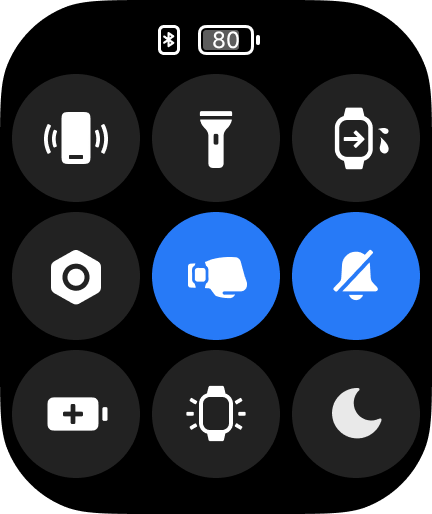
A: On the Home screen of the REDMI Watch 6, you can press the down button to enter the Control center:
1. Find phone: Quickly enter the Find Phone App.
2. Flashlight: Quickly turn on the flashlight.
3. Water drainage: Tap to enter water drainage mode.
4. Settings: Quickly open the Settings app.
5. Raise to wake: Quickly enable/disable Raise to wake.
6. Silent mode: Quickly turn the ringtone volume on/off.
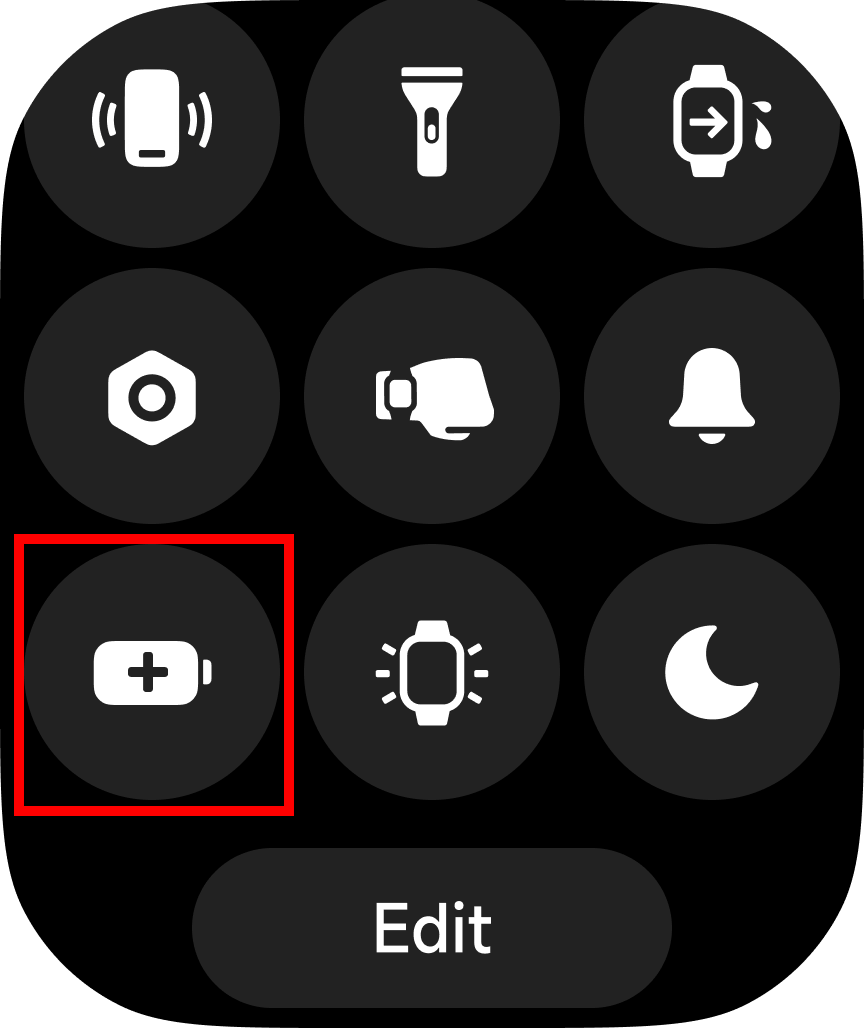
7. Ultra battery saver: Tap to enable Ultra battery saver mode.
8. Keep screen on for 5 minutes: When enabled, the screen stays on for 5 minutes.
9. Do Not Disturb mode: Quickly enable/disable Do Not Disturb, with options for all-day/scheduled DND.
Q9: What functions are included in the system settings of the REDMI Watch 6?
A: The functions included in the system settings of the REDMI Watch 6: My device, Bluetooth, Notifications, Home screen and watch face, Display, Sound and vibration, PIN, Apps, Battery, Workout settings, and Preferences.
Note:
The colors of the function icons can be updated in future firmware upgrades. Please refer to the actual display on the device.
Q10: How to customize widgets on the REDMI Watch 6?
A: The REDMI Watch 6 supports widget functionality. On the Home screen of the watch, swipe up to view different widget cards.
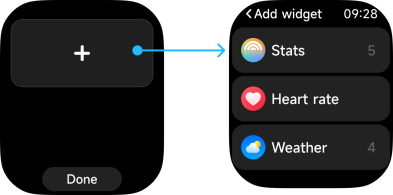
Add widgets:
In the widget screen, press and hold a widget to enter edit mode, scroll down to the bottom, tap the [+] icon, and select the widget you want to add.
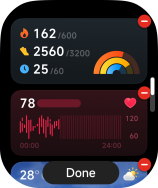
Remove widgets:
In the widget screen, long-press a widget to enter edit mode, then tap the delete icon in the top-right corner to remove it.
Q11: What screen-off methods are available on the REDMI Watch 6, and how to set them?
A: The screen-off methods on the REDMI Watch 6 are as follows:
1. If there is no operation within 5 seconds, the screen turns off automatically by default. You can modify the screen-off time in the [Settings] >> [Display] >> [Screen off] >> select screen-off time, with a range from 5 seconds to 60 seconds.
2. The watch supports Cover to sleep. When you cover and touch the watch face with your palm, covering more than half of the screen area, the display turns off directly.
3. Wrist-flip to turn off the screen: Rotate your wrist in the opposite direction to turn off the display.
4. Lower-arm screen off: The screen will turn off when your arm is lowered.
Q12: How to set Raise to wake on the REDMI Watch 6?
A: To set the Raise to wake on the REDMI Watch 6, please refer to the following methods:
1. Go to [Settings] on the watch >> [Display] >> [Raise to wake] >> [Scheduled], [All-day], [Off]. When [Scheduled] is selected, you can set a time period for it to be active based on your needs.
2. You can also press the down button (Power button) on the watch to open the control panel and tap the Raise to wake icon.
Q13: How to adjust the brightness on the REDMI Watch 6?
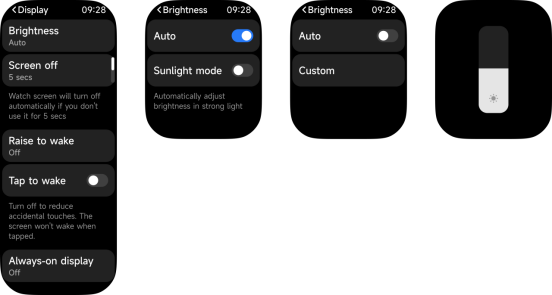
A: The REDMI Watch 6's brightness supports automatic adjustment and can also be set manually.
Auto brightness: Automatic brightness is enabled by default, the watch's brightness will adjust automatically based on the ambient light conditions. Setting Path: Go to [Settings] on the watch >> [Display] >> [Brightness] >> [Auto].
Custom brightness: Custom brightness adjustment offers 255 levels. You can adjust the brightness by pressing the buttons to increase or decrease it step-by-step, or by sliding the brightness bar. Setting Path: Go to [Settings] on the watch >> [Display] >> [Brightness] >> [Custom] >> select the desired brightness level.
Note:
Custom brightness settings can only be accessed when [Auto] is disabled.
Q14: Does the REDMI Watch 6 support device password when it is removed from the wrist?
A: The REDMI Watch 6 supports the device password when it is removed from the wrist.
After enabling this function, when the watch detects that it is not being worn, it will activate the password lock screen to ensure information security. You can set a 6-digit password using a combination of numbers from 0 to 9, or a pattern password.
To enable the device password, follow the steps below:
1. On the watch: Go to [Settings] >> [PIN] >> [Set PIN] >> Set and enter a password.
2. On the app: Go to Mi Fitness App >> [Device] >> [Security] >> [Set password] >> [Turn off PIN] or [Change PIN].
Q15: What to do if the password of the REDMI Watch 6 is forgotten?
A: If the password of the REDMI Watch 6 is forgotten, it cannot be removed directly on the watch. It needs to be handled through the App.
Please follow these steps:
1. Keep the watch connected to the Mi Fitness App.
2. Go to Mi Fitness App >> [Device] >> [Security] >> [Set password] >> [Turn off PIN] or [Change PIN].
Note:
If the watch and the App cannot connect properly, please contact the after-sales service center for assistance.
Q16: Does the REDMI Watch 6 support unlocking the phone with Bluetooth?
A: The REDMI Watch 6 supports unlocking the phone. This function currently supports Xiaomi/REDMI phones, and HyperOS phones with system versions of MIUI 12 and above.
When the phone and watch are connected via Bluetooth, the watch unlocking is a one-to-one binding between the watch and the phone. Within a safe distance, the watch can be used as an identity ID to replace the input of the unlock password or pattern, which greatly improves the convenience of operation while ensuring security.
To unlock the phone with the watch, please refer to the following details:
1. Go to the Mi Fitness App >> [Device] >> [Security] >> [Unlock phone] >> set the password and confirm on the watch.
2. After the lock screen password is set, confirm the unlock on the watch to bind successfully. You can choose the unlock distance (Close, Very close, Less close).
If you want to unbind the watch, you need to disable the Bluetooth device unlocking function in the phone. Take the Xiaomi phone as an example: [Settings] >> [Fingerprints, face data, and screen lock] >> [Unlock with Bluetooth device] >> turn off [Unlock device].
Note:
If the model and system do not match, the Mi Fitness App will not display the [Unlock phone].
Q17: Does the REDMI Watch 6 support connecting Bluetooth earphones?
A: The REDMI Watch 6 supports connecting Bluetooth earphones.
Please follow the steps below to ensure the watch can be properly paired with Bluetooth earphones:
1. Put the Bluetooth earphones into pairing mode. (The method varies depending on the brand and model. Please refer to the actual device instructions and make sure the earphones are in pairing mode.)
2. On the watch, go to [Settings] >> [Bluetooth], and turn on Bluetooth. The watch will automatically scan for nearby Bluetooth devices.
3. From the scan results, select the name of the Bluetooth earphones to complete pairing. (If the target earphones do not appear after scanning, you can tap to rescan.)
Q18: How to adjust the volume on the REDMI Watch 6?
A: The REDMI Watch 6 supports adjusting the alarm volume, ring volume, media volume, and call volume.
The specific adjustment methods are as follows:
Go to [Settings] on the watch >> [Sound and vibration].
Alarm volume adjustment
On the REDMI Watch 6, open [Settings] >> [Sound and vibration] >> [Alarm volume]. Tap the volume increase or decrease buttons on both sides of the volume bar to adjust the desired volume level. The alarm volume can be adjusted from 0 to 10. Alarm reminders and timer reminders are both categorized as alarm volume.
Ring volume adjustment
On the REDMI Watch 6, open [Settings] >> [Sound and vibration] >> [Ring volume]. Tap the volume increase or decrease buttons on both sides of the volume bar to adjust the desired volume level. The ring volume can be adjusted from 0 to 10. Incoming call alerts, message notifications, system prompts, and exercise and health reminders, etc are categorized as ring volume. After enabling mute mode on the watch, the ring volume will automatically be set to 0.
Media volume adjustment
On the REDMI Watch 6, open [Settings] >> [Sound and vibration] >> [Media volume]. Tap the volume increase or decrease buttons on both sides of the volume bar to adjust the desired volume level. The media volume supports adjustment from 0 to 10. Music playback on the watch is categorized as media volume.
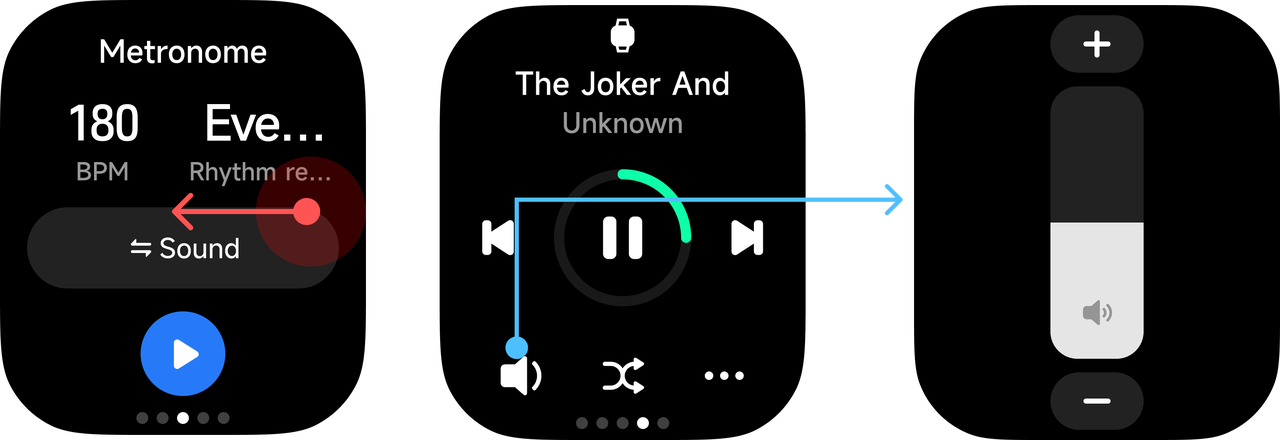
You can also adjust media volume while exercising.
During a workout, swipe left to access the secondary sports screen (the music playback page). Tap the volume icon, then adjust the volume to your desired level by dragging the on-screen volume slider or tapping the volume up/down icons. You can also rotate the rotating crown to adjust the volume level.
Call volume adjustment
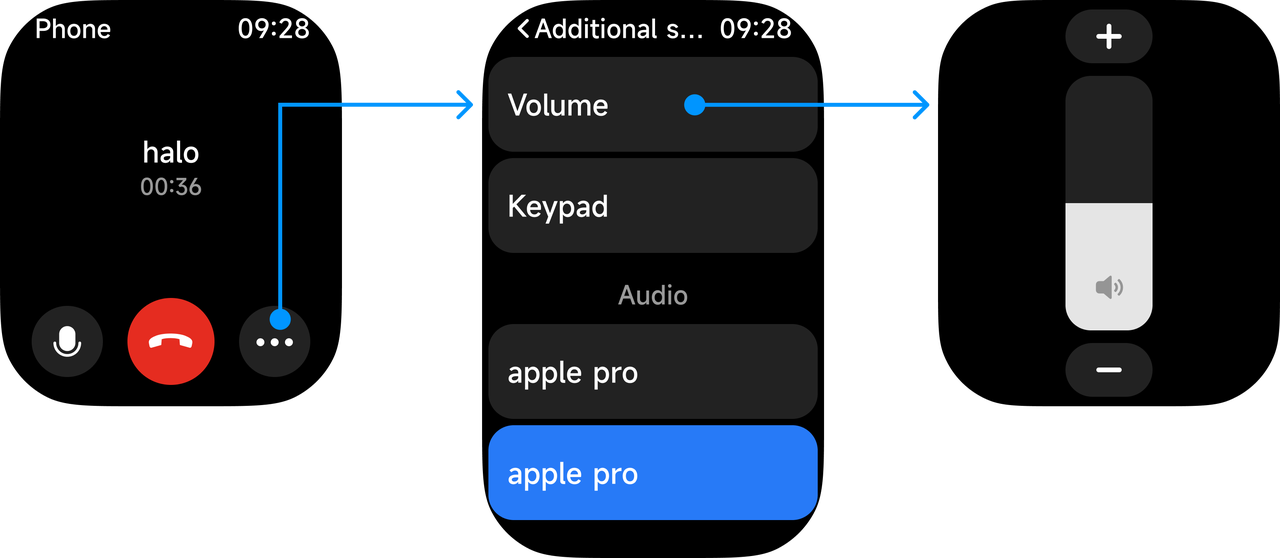
The REDMI Watch 6 supports adjusting the call volume during a call. During a call, tap the three-dot icon in the bottom-right corner of the call interface, then select [Volume]. You can adjust the volume by tapping the on-screen volume up/down icons, or rotate the rotating crown to adjust the volume level.
The call volume supports adjustment from 1 to 15.
The REDMI Watch 6 does not support custom ringtones, and all ringtones are system defaults.
Q19: How to turn on the Silent mode of the REDMI Watch 6? After turning on silent mode, which sounds are turned off?
A: The silent mode of the REDMI Watch 6 is supported in the following ways to turn on:
1. Open [settings] on the watch >> [Sound and vibration] >> turn on [Silent].
2. Slide up on the watch to open the control center and tap the silent mode icon
3. Open [Settings] on the watch >> [Sound and vibration] >> manually adjust the ringtone volume to 0.
After turning on the silent mode, incoming call reminders, message notifications, system prompts, and fitness/health reminders will no longer ring and will only vibrate.
Q20: What is the Water drainage function of the REDMI Watch 6?
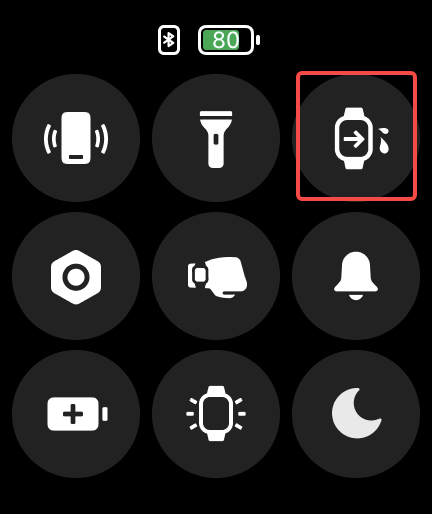
A: The Water drainage function is used after swimming or in daily situations where water can enter the speaker. It works by playing a specific frequency sound to make the speaker vibrate, using the vibration to expel water from inside the speaker and help protect it from water damage.
The methods are below:
Method 1:
On the watch, press the power button to open the control center, then tap the Water drainage icon.
Method 2:
After finishing a swimming workout, the watch will automatically enter the Water drainage process.
Q21: What screen wake-up methods are supported by the REDMI Watch 6?
A: The REDMI Watch 6 supports the following screen wake-up methods:
1. Press the power button when the screen is off.
2. If [Raise to wake] is enabled, lift your wrist to turn on the screen.
3. If [Tap to wake] is enabled, tap the screen once to wake it when it is off.
Q22: Does the REDMI Watch 6 support the Always-on display (AOD) function?
A: The REDMI Watch 6 supports Always-on display. After enabling it, the watch will enter an always-on display state when the screen turns off.
In Always-on display mode, you can raise your wrist or press a button to wake the screen and exit the always-on state.
To set the Always-on display mode, please refer to the following steps:
Go to [Settings] on the watch >> [Display] >> [Always-on display] > turn on [Always-on display]. You can customize the active time period. The default is 08:00–22:00. Enabling this function will reduce battery endurance.
Note:
When Always-on display is enabled, it will automatically turn off if the watch detects that you are asleep or if it is removed from your wrist.
Q23: Can the REDMI Watch 6 control music playback on the mobile phone?
A: The REDMI Watch 6 can control the mobile phone to play music. To use this function, the mobile phone and the watch need to be connected. Enable App notifications in the Mi Fitness App, and make sure notification access permission is turned on.
After the mobile phone turns on the music player and starts playing music, enter the watch’s application list and select the music icon to enter the music control interface, which can realize the functions of music start/pause, switching the previous song/next song and volume increase/decrease.
Note:
At present, most music players on the market are supported, however, due to the differences in the compatibility of music players and App versions, the experience of the watch music control function is affected to a certain extent. If you are unable to control it, it indicates that the current music App is incompatible with this watch.
Q24: How to set the time of the REDMI Watch 6?
A: After the REDMI Watch 6 is paired with the phone via Bluetooth and data is synced, it will automatically synchronize the phone’s system time, so no manual setting is required. If the time on the phone is changed, the watch will update accordingly once it reconnects and syncs.
Q25: How long can the REDMI Watch 6 store data independently?
A: The REDMI Watch 6 can store up to 20 workout records. Heart rate data is retained for 3 days, while blood oxygen, stress, and sleep data are stored for 7 days. Sleep data only keeps the current day’s record. Please connect the watch to the phone in time to sync data to the Mi Fitness App.
If the watch is reset, previously stored workout data on the watch will be cleared, but data that has already been synced to the Mi Fitness App will not be deleted.
Note:
All workouts should meet the minimum recording requirements to be saved (distance-based activities should be at least 100 meters, and other activities need to last at least 1 minute), they will not be recorded.
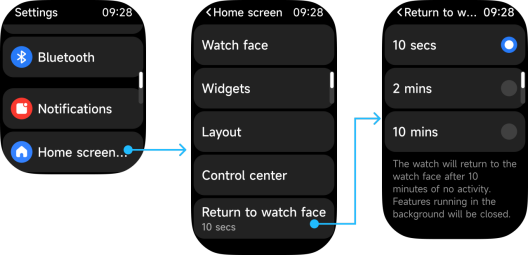
Q26: Does the REDMI Watch 6 support customizing the time to return to watch face?
A: Yes. You can set it on the REDMI Watch 6: Go to [Settings] >> [Home screen and watch face] >> [Return to watch face] and customize the time.
After setting, except for pages where apps are actively running, such as calls, health measurements, workouts, music playback, and timer, other pages will return to the watch face based on the set time once the screen turns off.
Battery Endurance
Q1: What is the battery endurance, and what are the respective scenarios of the REDMI Watch 6?
A: The REDMI Watch 6 can be used for 24 days in the longest battery duration scenario, 12 days in the regular usage scenario, and 7 days in shortest battery duration scenario.
For your reference, here are the respective scenarios of the battery endurance of the REDMI Watch 6:
1. Longest battery duration scenario (24 days):
(1). After the watch is fully charged, restore factory default settings and use the 4th dimension watch face.
(2). The enabled functions include Advanced monitoring in the Sleep settings, All-day monitoring in the Stress settings, and All-day tracking in the SpO2 settings.
(3). 30 minutes of local music playback per week with paired earphones (Android phones only).
(4). Raise the watch to wake it up to 360 times per day.
(5). Up to 180 minutes of workout records per week (GNSS enabled).
(6). 6 minutes of swipe-screen operation per day.
2. Regular usage scenario (12 days):
(1). After the watch is fully charged, restore factory default settings and use the 4th dimension watch face.
(2). The enabled functions include Advanced monitoring in the Sleep settings, All-day monitoring in the Stress settings, All-day tracking in the SpO2 settings, and Continuous monitoring in the Heart rate settings.
(3). 30 minutes of local music playback per week with paired earphones (Android phones only).
(4). Raise the watch to wake it up to 360 times per day.
(5). Up to 180 minutes of workout records per week (GNSS enabled).
(6). 6 minutes of swipe-screen operation per day.
3. Shortest battery duration scenario (7 days):
(1). After the watch is fully charged, restore factory default settings and use the 4th dimension watch face.
(2). The enabled functions include Advanced monitoring in the Sleep settings, All-day monitoring in the Stress settings, All-day tracking in the SpO2 settings, and Continuous monitoring in the Heart rate settings.
(3). 30 minutes of local music playback per week with paired earphones (Android phones only).
(4). Raise the watch to wake it up to 360 times per day.
(5). Up to 180 minutes of workout records per week (GNSS enabled).
(6). 6 minutes of swipe-screen operation per day.
(7). Always-on display is enabled.
Note:
Data sourced from a laboratory. Actual results can vary slightly due to the testing environment and software version.
Q2: What is the battery capacity, and how to charge the REDMI Watch 6?
A: The battery capacity of the REDMI Watch 6 is 550 mAh, the standard charging accessory of which is the Xiaomi Magnetic Charging Cable For Wearables 2, with a charging cable of 50 cm.
To charge the REDMI Watch 6, please refer to the following steps:
1. Place the watch on the charging cable, ensuring the charging contacts on the back of the watch are fully engaged with the metal contacts on the charging cable.
2. Connect the other end of the charging cable to a USB-A charger, with an output voltage of 5 V and an output current of no less than 1 A.
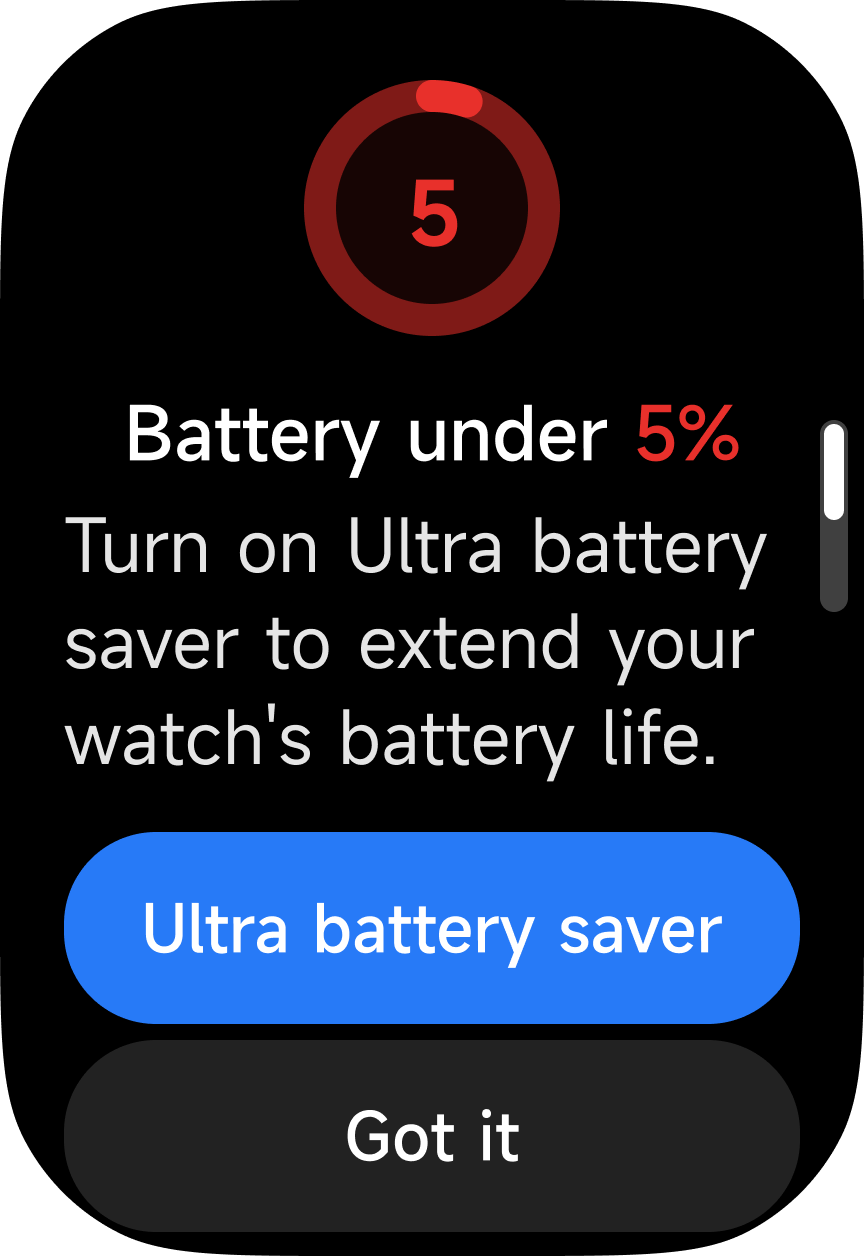
3. The watch will prompt you to connect to the charger when the battery level is below 20%, 10%, and 5%. Charging will be indicated during the charging process.
Note:
1. If the watch cannot be turned on after being stored for an extended period, it needs to be pre-charged for approximately 1 minute before the charging icon displays.
2. Please wipe the charging contacts clean before charging to remove any sweat or moisture residue.
Q3: Why does the REDMI Watch 6 have a fast battery drain, short standby time, and high power consumption?
A: The power consumption conditions of the REDMI Watch 6 are related to daily usage habits. Please go to [Settings] >> [Battery] to check the estimated remaining usage duration.
Certain scenarios that increase the frequency of Raide to wake, frequent App notifications, and the continuous use of features like heart rate monitoring, as well as prolonged use of functions such as calls and music, can all lead to increased power consumption. Additionally, the current required for heart rate monitoring varies depending on individual differences, resulting in variations in power consumption. Disabling some unnecessary functions can improve the battery duration of the watch.
Note:
The battery endurance data of the REDMI Watch 6 is tested in the laboratory. You can prolong battery endurance with some simple configurations. For instance, you can disable All-day tracking in the SpO2 settings, Continuous monitoring in the Heart rate settings, All-day monitoring in the Stress settings, and App notifications in the Mi Fitness App when unnecessary.
Q4: Does the REDMI Watch 6 support Ultra battery saver?
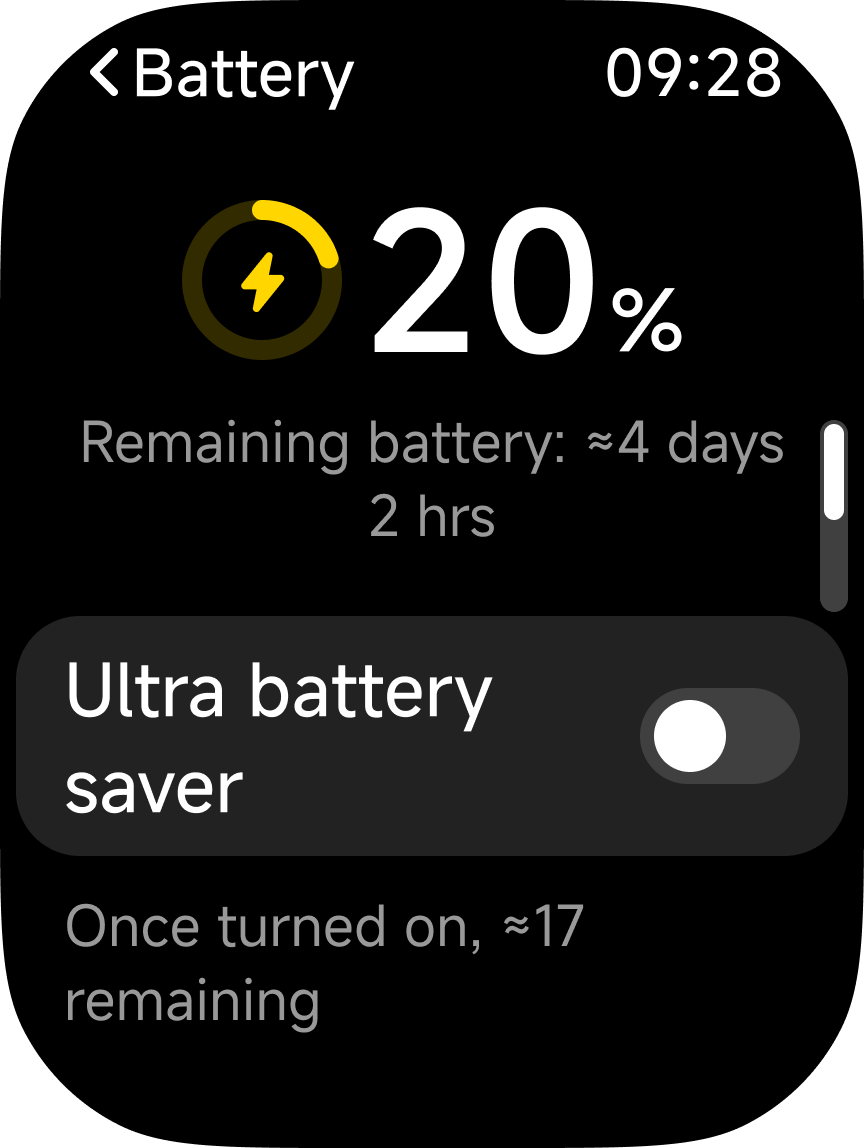
A: The REDMI Watch 6 supports Ultra battery saver, which refers to the battery saver mode of the watch.
To enable Ultra battery saver on the REDMI Watch 6, please refer to the following methods:
Method 1:
Go to [Settings] on the watch >> [Battery] >> enable [Ultra battery saver].
Method 2:
Press the Power Button on the watch to enter the Control center and tap the [Ultra battery saver] icon.
Method 3:
When the watch prompts [Battery under 5%], [Ultra battery saver] will be displayed. Tap it to enable Ultra battery saver.
To exit Ultra battery saver on the REDMI Watch 6, please refer to the following methods:
Method 1:
Press and hold the Power Button for 3 seconds to exit Ultra battery saver.
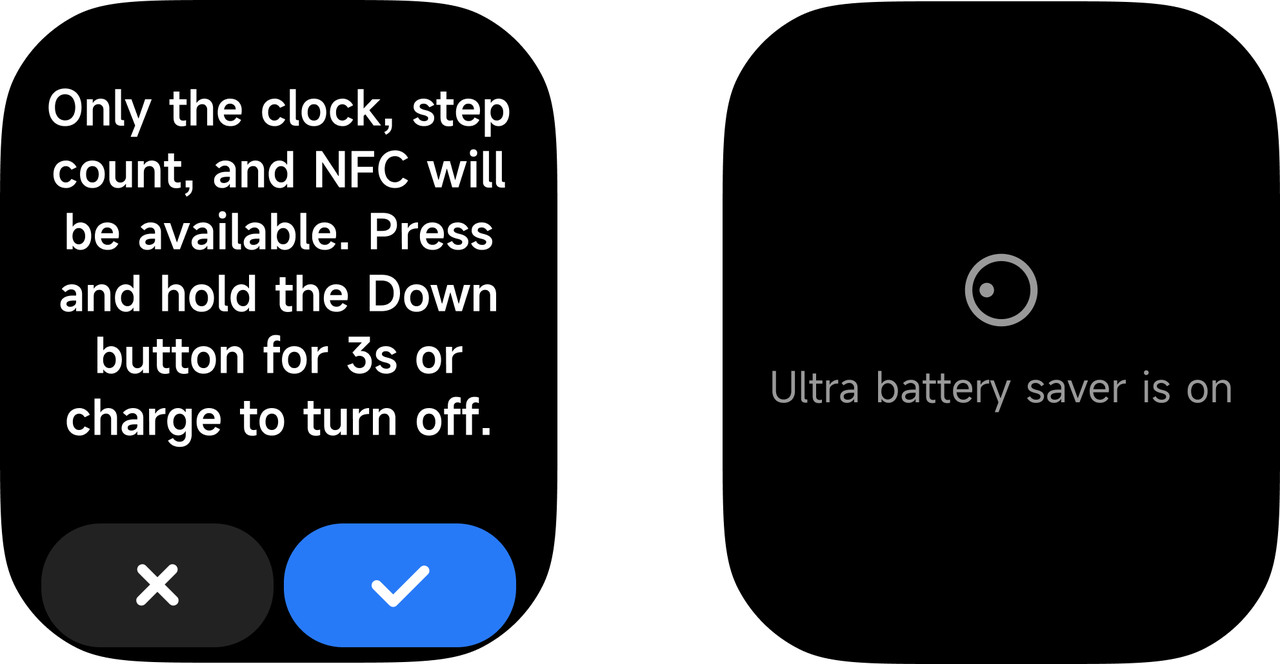
Method 2:
When the watch is connected to the charging cable to charge, it will automatically exit Ultra battery saver.
Note:
Ultra battery saver cannot be enabled on the watch during charging.
Q5: Why does the REDMI Watch 6 drain fast for the first use?
A: When you first activate and power on the REDMI Watch 6, if the charging time is short, the battery will have a slight initial charge. It will generally return to normal charge level after 20 minutes. It is recommended that you charge for 30 minutes before use.
Function and Usage
Health related
Q1: Does the REDMI Watch 6 support sleep monitoring?
A: The REDMI Watch 6 supports all-day sleep monitoring, that is, all-day long sleep and sporadic nap monitoring. After enabling [Advanced monitoring], the distribution of sleep quality can be presented. After wearing the watch normally at night and falling asleep, the watch can automatically recognize it through the built-in sensor.
To check the sleep data of the REDMI Watch 6, please refer to the following steps:
1. Swipe up on the watch face to the sleep widget, and you can check the sleep duration last night. Tap the widget to enter the App to check for more information.
2. Tap [Sleep] in the App list to check the sleep data of the day.
3. After the watch is connected to the phone to synchronize data, in the [Health] page of the Mi Fitness App, tap [Sleep] to view recorded sleep data, including daily, weekly, and monthly data. You can also view the daily sleep time period, the proportion of Deep, Light, REM (rapid eye movement), and Wake-ups, as well as detailed sleep status at each time point.
Note:
1. There is a delay in generating sleep reports. If you open the Sleep App immediately after waking up, there will be no sleep report.
2. The watch retains the detailed sleep data of the previous night and the sleep time period data of the past 7 days. Please synchronize the data to the Mi Fitness App in time to avoid data loss.
Q2: Why does the REDMI Watch 6 fail to measure heart rate?
A: Disable [Continuous monitoring] in the Heart rate settings, open the Heart rate App on the REDMI Watch 6, measure the heart rate once, and when the watch is measuring, check whether the heart rate sensor on the bottom of the watch is on. If it is not on, you can unbind and rebind or restart the watch and clean the back cover lens (dirt and oil will affect the test and accuracy). If it is still ineffective, you can apply for after-sales inspection.
Q3: Why is the detection of sleep and wake-ups not accurate in the sleep monitoring process of the REDMI Watch 6?
A: For your reference, here is the principle of detecting sleep and wake-ups on the REDMI Watch 6:
The sleep algorithm determines whether you sleep or wake up by detecting changes in the ACC. When the ACC data changes little for a period of time, it can be considered that the activity is small, and the algorithm will determine that you fall asleep. When the ACC data changes for a period of time, it can be considered that the activity consumes more power, and the algorithm will determine that you wake up. In scenes such as playing with your phone and watching movies, since the changes in ACC in this scene are relatively slight, sleeping will be detected incorrectly. If you enable [Advanced monitoring] and [Breathing rate], the data of the PPG sensor will be adopted, and the algorithm will analyze the sleep status through the ACC and PPG data to obtain the sleep stage results and sleep data.
For your reference, here are the reasons for the inaccurate detection of sleep and wake-ups on the REDMI Watch 6:
1. If the watch does not record sleep or the detection time is less than the actual sleep time, and your wrist movements are more during sleep, the sensor determines that you are not sleeping, resulting in no record or a shorter recorded sleep time.
2. If the watch records more sleep than the actual sleep time, your wrist movements are less during non-sleep time, and you are in a very quiet status, playing on your phone before going to bed or sitting and watching a movie, etc., will be judged as falling asleep, causing the sensor to detect it as a sleeping status.
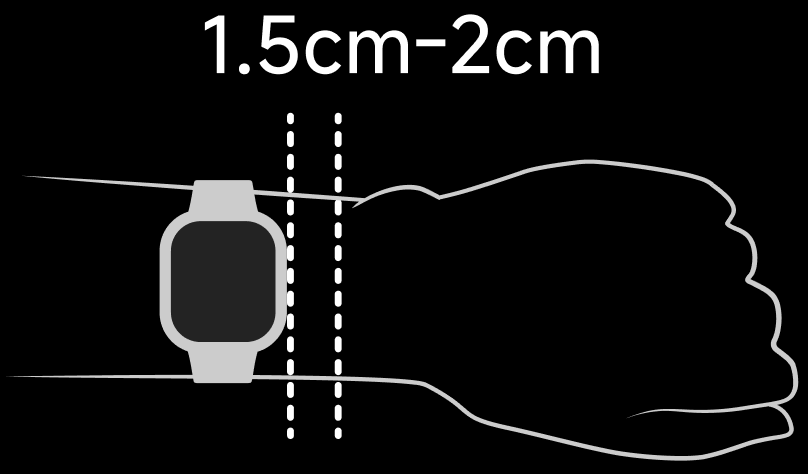
Q4: What to do if the sleep data is lost or abnormal when the crown is mistakenly touched to reboot the REDMI Watch 6 in the sleep process?
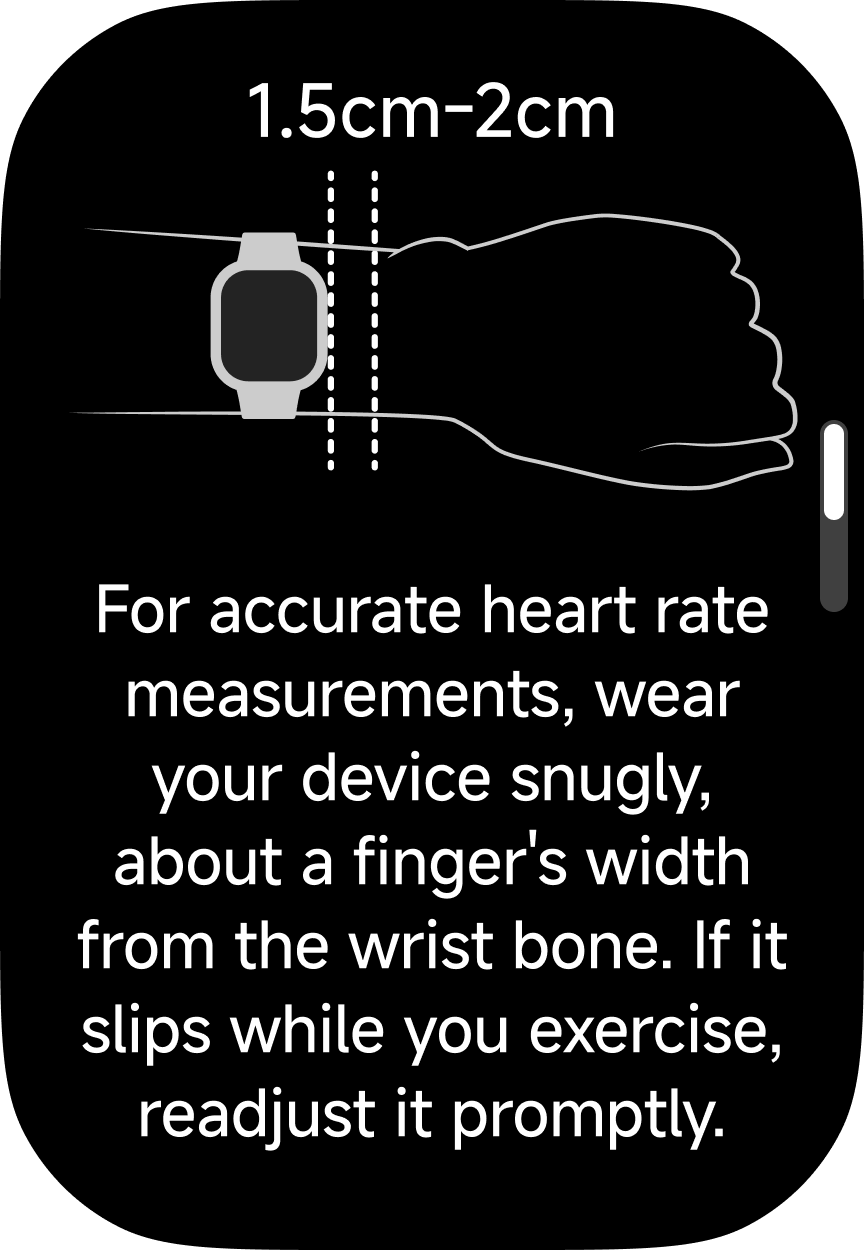
A: It is recommended that you wear the REDMI Watch 6 1.5 cm to 2 cm away from the wrist bone to avoid accidentally restarting the watch.
Q5: Why does the sleep data not update when checking the sleep data on the REDMI Watch 6 once waking up?
A: The sleep algorithm can accurately capture changes in your sleep state. When you wake up, the REDMI Watch 6 will immediately determine whether you end the sleep state (for example, if your hands shake significantly) and start the data generation process. However, since a lot of data analysis and verification is required in this process to ensure the data accuracy and reliability, there will be a certain delay.
Q6: What to do if the heart rate data is not accurate when wearing the REDMI Watch 6?
A: If the heart rate data is not accurate when wearing the REDMI Watch 6, please refer to the following troubleshooting steps:
1. Please wear the watch about one finger's width from your wrist bone. Wearing it too loosely can affect the accuracy of heart rate monitoring data.
2. Please ensure that the heart rate sensor on the bottom of the watch is in direct contact with your skin and is not obstructed by dirt or other contaminants.
Workout related
Q1: What workout modes does the REDMI Watch 6 support?
A: For your reference, here are the workout modes on the REDMI Watch 6:
Categoty | Workout modes |
Outdoor activities (15)
| Outdoor running |
Walking | |
Hiking | |
Outdoor cycling | |
Trekking | |
Trail run | |
Triathlon | |
Rock climbing | |
Skateboarding | |
Roller skating | |
Parkour | |
ATV | |
Paragliding | |
BMX | |
Race walk | |
Water sports (18) | Pool swimming |
Open water | |
Sailing | |
Paddleboarding | |
Water polo | |
Other water sports | |
Water skiing | |
Kayaking | |
Rafting | |
Rowing | |
Powerboating | |
Finswimming | |
Diving | |
Artistic swimming | |
Snorkeling | |
Kitesurfing | |
Flowriding | |
Dragon boat | |
Training (43)
| Freestyle |
Treadmill | |
Jump rope | |
HIIT | |
Yoga | |
Indoor cycling | |
Elliptical | |
Rower | |
Stair climber | |
Stepper | |
Spinning | |
Core training | |
Flexibility | |
Pilates | |
Gymnastics | |
Stretching | |
Strength | |
Cross training | |
Stair climbing | |
Aerobics | |
Physical training | |
Wall ball | |
Dumbbell | |
Barbell | |
Weightlifting | |
Deadlift | |
Burpee | |
Sit-ups | |
Functional training | |
Upper body | |
Lower body | |
Abs | |
Back | |
Air walker | |
Horizontal bar | |
Parallel bars | |
Step aerobics | |
Mass gymnastics | |
Cardio combat | |
Battle rope | |
Aerobic combo | |
Indoor walking | |
Indoor fitness | |
Dance (14)
| Square dancing |
Belly dance | |
Ballet | |
Street dance | |
Zumba | |
Folk dance | |
Jazz dance | |
Latin dance | |
Hip hop | |
Pole dance | |
Breaking | |
Ballroom dance | |
Modern dance | |
Dance | |
Combat sports (12) | Boxing |
Wrestling | |
Martial arts | |
Tai chi | |
Muay Thai | |
Judo | |
Taekwondo | |
Karate | |
Kickboxing | |
Kendo | |
Fencing | |
Jujitsu | |
Ball sports (26) | Tennis |
Basketball | |
Golf | |
Soccer | |
Volleyball | |
Baseball | |
Softball | |
American football | |
Hockey | |
Table tennis | |
Badminton | |
Cricket | |
Handball | |
Bowling | |
Squash | |
Billiards | |
Shuttlecock | |
Beach soccer | |
Beach volleyball | |
Sepak takraw | |
Futsal | |
Hacky sack | |
Bocce | |
Jai alai | |
Gateball | |
Dodgeball | |
Winter sports (11)
| Snowboarding |
Skiing | |
Cross-country skiing | |
Ice skating | |
Indoor ice skating | |
Curling | |
Other winter sports | |
Snowmobile | |
Ice hockey | |
Bobsleigh | |
Sledding | |
Recreational sports (14) | Archery |
Darts | |
Horse riding | |
Tug of war | |
Hula hoop | |
Kite flying | |
Fishing | |
Frisbee | |
Kicking shuttlecock | |
Swinging | |
Somatosensory game | |
Table football | |
Shuffleboard | |
Esports | |
Card and board games (5) | Chess |
Checkers | |
Weiqi | |
Bridge | |
Board game | |
Other (3) | Equestrian |
Athletics | |
Auto racing |
Q2: What professional workout modes does the REDMI Watch 6 support?
A: For your reference, here are the professional workout modes on the REDMI Watch 6:
Category | Workout modes |
Water sports (2) | Pool swimming |
Open water | |
Outdoor activities (7) | Outdoor running |
Walking | |
Hiking | |
Outdoor cycling | |
Trekking | |
Trail run | |
Triathlon | |
Training (4) | Treadmill |
Jump rope | |
Elliptical | |
Rower |
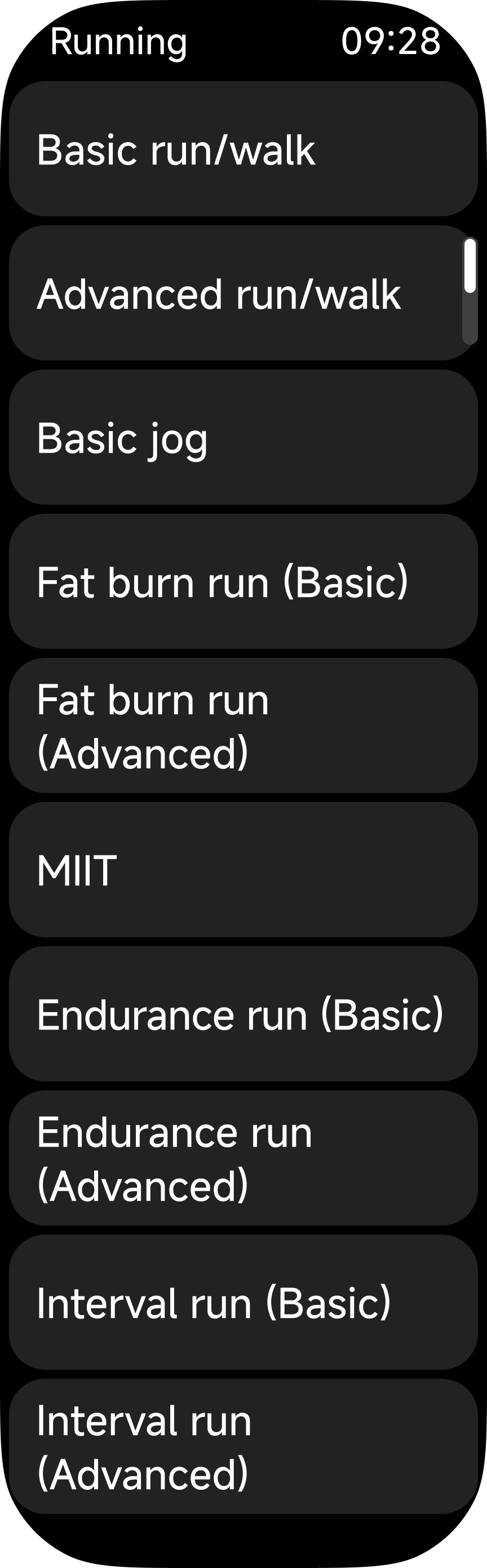
Q3: Does the REDMI Watch 6 support running courses?
A: The REDMI Watch 6 supports running courses, which can be enabled in the App list.
Q4: How to enable workout mode on the REDMI Watch 6?
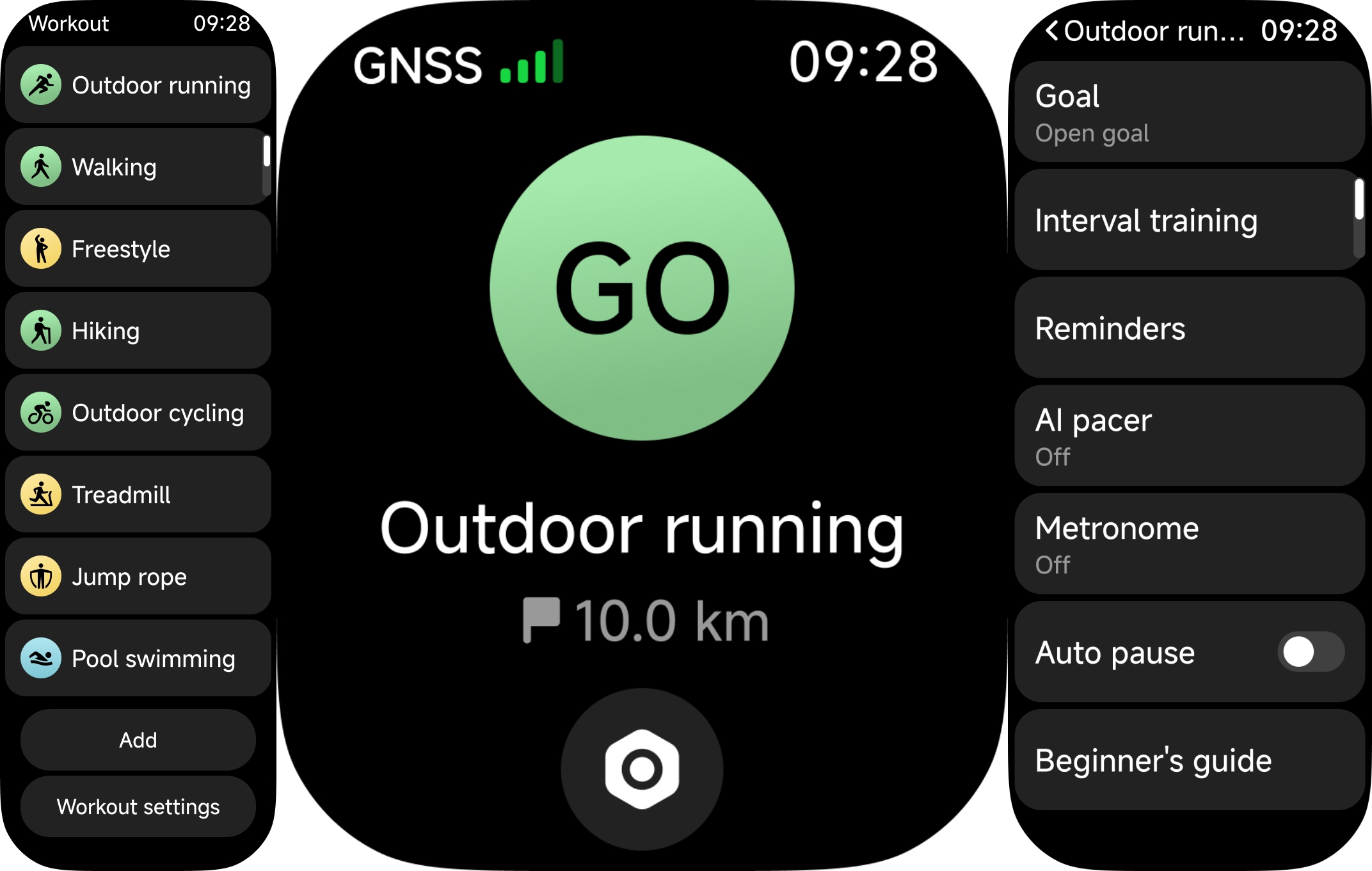
A: To enable workout mode on the REDMI Watch 6, please refer to the following steps:
1. Tap [Workout] on the watch, tap the selected workout in the workout list, and tap [GO] to start the workout.
2. When the workout starts, workout data will be displayed.
3. You can press the Rotating Crown in the workout process to end or continue the workout.
Note:
If there is insufficient workout amount (workout time is too short or workout distance is too short), the workout record cannot be saved.
Q5: How to set workout reminders on the REDMI Watch 6?
A: To set workout reminders on the REDMI Watch 6, please refer to the following details:
1. You can enter the workout list by tapping the workout App or pressing the Rotating Crown to enter the APP list and select the workout App. You can tap the setting icon on the workout item to set it.
2. Tap [Reminders], and you can select [Distance], [Pace], [Target HR zone], [High HR], or [Hydration] as the workout reminder item.
Take Outdoor running as an example:
1. Distance reminder: The default setting is 1 km. The adjustment unit is 1 km. You can configure it according to your needs.
2. Pace reminder: The default setting is 5 minutes and 30 seconds. The adjustment unit is 10 seconds. You can configure it according to your needs.
3. Target HR zone reminder: You can select from the corresponding heart rate range of the options of Light, Intensive, Aerobic, Anaerobic, and VO2 max.
4. High HR reminder: The default setting is the highest heart rate that is automatically measured. The adjustment unit is once a minute. You can configure it according to your needs.
5. Hydration reminder:
(1) Based on the distance: The default setting is 1 km. The adjustment unit is 1km. You can configure it according to your needs.
(2) Based on the time: The default setting is 30 mins. The adjustment unit is 5 mins. You can configure it according to your needs.
Q6: How to adjust the order of the workout list on the REDMI Watch 6?
A: To adjust the order of the workout list on the REDMI Watch 6, please press and hold any workout item on the workout list to enter the workout order editing interface. You can edit the workout item pinned to the top multiple times. Newly pinned items will be displayed at the top. Tap the cancel icon to remove the corresponding workout item from the top of the list, and the subsequent items will be sorted by usage frequency from highest to lowest.
Q7: Does the REDMI Watch 6 support hiding the workout items in the workout list?
A: The REDMI Watch 6 supports hiding the workout items in the workout list. You can press and hold any workout item on the workout list to enter the workout order editing interface, and tap the cancel icon to hide the selected workout item. To find the hidden workout item or add a new one, you can tap [Add] to select from all of the workout items.
Q8: Does the REDMI Watch 6 support voice broadcast in the workout process, and how can it be disabled?
A: The REDMI Watch 6 does not support voice broadcast in the workout process.
Q9: How to check the Steps, Calories, Standing and Moving of the day on the REDMI Watch 6?
A: To check the Stats data of the REDMI Watch 6, please refer to the following details:
1. Widget: Swipe up on the watch face, and check the current calories, steps, effective standing data, and moving in the corresponding widget.
2. App list: Press the Rotating Crown to enter the App list and select the Stats App to check the relevant data.
3. Mi Fitness App: When the watch is connected to the phone, tap the Stats icon on the Health interface in the Mi Fitness App.
Note:
In the Stats interface, only one of the two options, [Breaks] and [Moving], can be displayed. You can go to the Mi Fitness App >> tap the rainbow icon >> tap the three-dot icon >> [Stats] >> [Suggested] >> select from [Moving] and [Breaks].
Q10: Why does the step count increase on the REDMI Watch 6 during indoor workout even when there is no movement?
A: The distance calculation methods for indoor walking and outdoor walking on the REDMI Watch 6 are different. Outdoor walking is calculated based on GNSS positioning, while indoor walking relies on the device's sensor hardware. If the outdoor walking mode is activated in an indoor environment, the weak indoor GNSS signal, and the weak GNSS signal from the phone indoors can cause the GNSS location to fluctuate, leading to the issue of increased step count without actual movement. Please select the appropriate workout mode based on the correct environment. For outdoor activities, you can choose outdoor cycling, outdoor running, etc. For indoor activities, please select indoor running, indoor swimming, etc.
Q11: How to set Breaks reminders on the REDMI Watch 6?
A: To set Break reminders on the REDMI Watch 6, please go to [Mi Fitness] >> [Health] >> [Breaks] >> three-dot icon >>[Breaks reminders] >> enable [Breaks reminders] and adjust the relevant settings.
If there is no walking or strenuous hand activity within an hour, a standing reminder will be sent, and the following conditions need to be considered:
1. If there is any behavior of walking around or wearing the watch for a workout within one hour, the reminder will be extended for half an hour, and the delay time shall not exceed one hour.
2. If the strenuous hand activity reaches 10 seconds, the reminder will be delayed for half an hour. If it reaches 20 seconds, the reminder will be delayed for one hour.
3. The current time point is within the reminder time range set by you (note that the DND function during lunch break is enabled, the default is 12:00~14:00).
4. There is no standing reminder during the workout.
Q12: What is the logic of Breaks reminders on the REDMI Watch 6?
A: The Breaks reminders will be triggered on the REDMI Watch 6 every hour if the following conditions are met: the steps in that hour do not exceed 100 steps, or the duration of Moving is less than 2 minutes.
Q13: How to delete workout data from the REDMI Watch 6?
A: The REDMI Watch 6 does not support deleting workout data. It retains the last 20 entries of workout data, and once this limit is exceeded, new workout data will cover the previous data, updating in a rolling manner.
You can manually delete the workout data from the Mi Fitness App.
Q14: Does the REDMI Watch 6 support Auto pause in the workout process?
A: The REDMI Watch 6 supports Auto pause in the workout process, the supported workout items of which include Outdoor running, Indoor running, Race walk, Outdoor cycling, Cross-country, and Hiking. You can enable [Auto pause] in the Settings interface of the selected workout item.
Q15: How to enable Auto Stage recording in the workout on the REDMI Watch 6?
A: Apart from Triathlon, Snowboarding, Skiing, Cross-country skiing, HIIT, Pool swimming, Open water, Rower, Jump rope, Elliptical, all other workout items on the REDMI Watch 6 support Auto Stage recording. In the Settings interface of the selected workout item, tap [Auto] and enable [Auto]. During a workout, when the watch detects that specific conditions (by distance/time) have been met, it will automatically display the data for that segment. For example, in outdoor running, it can display the current segment number, duration, distance, and pace. After the workout, at the bottom of the workout report, you can tap the stage recording icon to check the stage record for this workout.
Q16: What to do if the daily calorie data is inaccurate on the REDMI Watch 6?
A: In non-workout states, your calorie calculations are primarily based on wrist movement. For daily calorie data, calories do not increase when not wearing the REDMI Watch 6 or while sleeping. In other normal states, calories are generated as long as there is movement. For example, during daily office work, although no steps are taken, calories are still generated due to the amount of movement. Calorie counts are related to the amount and duration of movement. To avoid inaccurate calorie data, please ensure that you enter correct personal information, such as height and weight. Besides, please wear the watch about one finger's width from your wrist bone, avoiding a fit that is too loose or too tight.
Q17: Does the REDMI Watch 6 support displaying heart rate data when swimming in the Pool swimming and Open water mode?
A: The REDMI Watch 6 supports displaying heart rate data when swimming in the Pool swimming and Open water mode. To accurately measure your heart rate, please wear it snugly, keeping it about one finger's width away from your wrist bone. If it slides down during the workout, please push it back up.
Handy tools
Q1: How to use Sync events on the REDMI Watch 6?
A: To use Sync events on the REDMI Watch 6, please go to [Mi Fitness] >> [Device] >> [Apps] >> [Sync events]. Every time data is synchronized, the device will synchronize the mobile phone system schedule for the last 7 days. Only the Xiaomi HyperOS system and iPhone support Sync events, and other systems are not supported yet.
For your reference, here are the details about the limit to the event synced to the REDMI Watch 6:
1. The upper limit of all schedules is 20 (sorted according to the schedule list), and the excess portions will not be displayed.
2. The title can display a maximum of 3 lines, including punctuation (there are 90 characters in the detailed interface of events).
3. The remarks can display a maximum of 3 lines, including punctuation (there are 45 characters in the detailed interface of events).
4. The address can display a maximum of 3 lines, including punctuation (there are 60 characters in the detailed interface of events).
Q2: How to check weather information on the REDMI Watch 6?
A: When the REDMI Watch 6 is connected to the phone, please refer to the following methods to check the weather information:
1. Press the Rotating Crown to enter the App list >> [Weather] to check the weather information. You can get the local temperature, weather conditions, AQI (air quality) pollution, air quality forecast, wind level, ultraviolet rays, intensity, relative humidity, sunrise and sunset times, and weather forecast for the next 4 days.
2. Swipe up on the homepage of the watch face to view the weather widget to get temperature and weather condition information. Tap the widget to enter the weather App to view more information.
Note:
1. To use the watch to check real-time weather, you need to keep your phone connected to the watch, and go to [Mi Fitness] >> [Device] >> [Apps] >> [Weather] >> enable [Weather updates].
2. If the watch is not connected to the phone, the weather displayed will be the information synced during the last connection with the phone.
3. The weather information displayed on the watch is obtained by the Mi Fitness App from the service provider and pushed. If it is different from the weather service provider used by the mobile phone system, the displayed results could be slightly different, which is normal. If it is the same as the weather service provider used by the mobile phone system, the displayed results could be slightly different, which is also normal.
Q3: Does the REDMI Watch 6 support Find device?
A: The REDMI Watch 6 supports finding the phone from the watch, and finding the watch from the phone. When the watch and the phone are connected, if you cannot find your phone, you can use Find device on the watch to search for the phone.
To find the phone with the REDMI Watch 6, please refer to the following steps:
1. Press the Rotating Crown to enter the App list.
2. Tap [Find device] and tap [Search].
3. During the search process, tap [Stop] to end the search state.
Note:
If Bluetooth is not connected, the Find device function prompt is unavailable.
Q4: Does the REDMI Watch 6 support the Compass function?
A: The REDMI Watch 6 supports the Compass function. Press the Rotating Crown to enter the App list and tap the Compass App, and follow the on-screen instructions to rotate the watch for calibration. Once calibration is complete, you can use the compass for navigation.
Q5: Why does the Compass function on the REDMI Watch 6 require calibration every time?
A: To improve the accuracy of the compass on the REDMI Watch 6, calibration is required every time the compass is used, ensuring more accurate direction readings.
Q6: Does the REDMI Watch 6 support checking the altitude and barometric pressure?
A: The REDMI Watch 6 does not support checking the altitude and barometric pressure.
Q7: How to set an alarm on the REDMI Watch 6?
A: The REDMI Watch 6 supports alarms with vibration and ringtones (alarm volume matches the set ringtone). You can set multiple and recurring alarms.
To set an alarm on the REDMI Watch 6, please refer to the following steps:
1. Press the Rotating Crown to enter the App list and select [Alarm]. Tap the adding icon and set the time. If you set [Repeat] as [Once], the alarm will work only once. If you set [Repeat] as [Daily], the alarm will work every day. If you set [Repeat] as [Custom], the alarm will work on the selected date. After the relevant configuration, tap [√] to save the alarm.
2. When the alarm triggers, it will vibrate and ring. Press any button or tap [Snooze] on the screen to delay the alarm by 10 minutes. Tap [Turn off] to stop the alarm completely.
3. To delete the alarm, press the Rotating Crown to enter the App list and select [Alarm]. Select the alarm that you want to delete and tap the delete icon.
Q8: How to disable the vibration and ringtone for alarms on the REDMI Watch 6?
A: To disable the vibration and ringtone for alarms on the REDMI Watch 6, please refer to the following steps:
1. To disable the ringtone, please press the Rotating Crown to enter the App list and select [Settings] >> tap [Sound and vibration] >> you can see the alarm volume on the watch and set the volume to 0.
2. To disable the ringtone, please press the Rotating Crown to enter the App list and select [Settings] >> tap [Sound and vibration] >> disable [Vibration reminders].
Q9: Does the REDMI Watch 6 support syncing alarms with phones?
A: For Xiaomi HyperOS phones, alarms set on the phone can be synchronized with the REDMI Watch 6 for reminders. This feature is not available for other phones.
This function does not need to be enabled. The phone's built-in clock App 12.8.01 and above can support it.
Alarms will be triggered on both the phone and watch simultaneously. Operations on either device (e.g., snoozing or stopping) will apply to both.
To sync the alarm reminders to the watch, the Bluetooth connection between the phone and the watch is stable, and the Mi Fitness APP is running properly.
Note:
You can go to [Mi Fitness] >> [Device] >> [Apps] >> [Alarm] >> disable [Sync alarms from phone] to disable the alarm reminders from the phone on the watch.
Q10: Does the REDMI Watch 6 support voice assistant?
A: The REDMI Watch 6 does not support voice assistant.
Watch face related
Q1: What to do if the REDMI Watch 6 displays a "watch face is full" message when downloading a new watch face?
A: If the REDMI Watch 6 indicates the watch face number reaches the limit, please press and hold the watch face interface >> swipe up the watch face >> [Delete], or you can manually delete some watch faces in [Mi Fitness] >> [Device] >> [Manage watch faces] >> [Local] >> select the watch face to delete. After deleting it, you can try downloading other watch faces.
Q2: How to change and delete the watch face of the REDMI Watch 6?
A: To change the watch face of the REDMI Watch 6, please refer to the following steps:
1. You can press the Rotating Crown to enter the App list >> [Settings] >> [Home screen and watch face] >> [Watch face]. Alternatively, press and hold the watch face interface for 1 second to enter the watch face selection interface. Swipe left or right to switch between available watch faces. Both the system pre-installed watch faces and any previously downloaded or changed watch faces will be displayed on the watch face selection interface.
2. To change the watch face through the Mi Fitness APP, please ensure the watch is connected to the phone. Go to [Mi Fitness] >> [Device] >> [Manage watch faces] >> tap the desired watch face >> [Apply].
Note:
Due to the large memory usage of watch faces, to ensure the smooth operation of the watch's system, if too many watch faces are added, you will not be able to add new ones. A memory shortage warning will appear during the download process.
To delete the watch face of the REDMI Watch 6, please refer to the following steps:
1. Go to [Mi Fitness] >> [Device] >> [Manage watch faces] >> [Local] >> tap the selected watch face >> three-dot icon >> [Delete].
2. You can press the Rotating Crown to enter the App list >> [Settings] >> [Home screen and watch face] >> [Watch face] >> swipe up on the selected watch face >> [Delete].
3. Press and hold the watch face interface for 1 second >> swipe left or right to select the watch face >> swipe up on the selected watch face >> [Delete].
Note:
To ensure the system functions properly, some watch faces cannot be deleted. Please refer to the actual situation.
Q3: Does the REDMI Watch 6 support a customized watch face?
A: The REDMI Watch 6 supports custom watch face backgrounds (requires updating to the latest system), which can be achieved through the album watch face.
To set a customized watch face on the REDMI Watch 6, please refer to the following steps:
1. Please open the Mi Fitness App and ensure the device is correctly connected and synced.
2. Go to [Device] and enter [Manage watch faces].
3. Tap [All] >> [Custom] >> select the custom watch face >> [Apply] >> [Edit] >> [Add photo] >> select the photo source >> select photo >> tap the selected photo >> edit the photo size >> [Save].
4. The album watch face allows multiple background images. When the screen is on, each tap will cycle through the background images.
Q4: Why does the REDMI Watch 6 not automatically turn on the Always-on display watch face?
A: After enabling Always-on display on the REDMI Watch 6, the screen will automatically turn off during sleep or when the watch is removed. Once you wake up, the Always-on display will function properly after the first screen activation (via raise to wake or button press) and the subsequent screen-off.
Q5: Does the REDMI Watch 6 support custom watch face content?
A: The REDMI Watch 6 supports customizable watch faces. When switching watch faces, a customizable watch face will display [Edit] below, allowing you to swipe up or down to switch background color.
Notification reminder related
Q1: Does the REDMI Watch 6 support receiving notifications from the phone, and how to view and manage notifications?
A: The REDMI Watch 6 supports receiving notifications from the phone. After enabling the App notifications in the Mi Fitness App, and with the watch and phone connected, you can sync and view phone notifications on the watch.
To enable this function, please go to [Mi Fitness] >> [Device] >> [Notifications and calls] >> tap [App notifications] >> enable [App notifications] (sync all App notifications from the phone to the watch) or select from the Apps for notifications. (such as phone and message).
Note:
For APPs enabled in the Mi Fitness APP, ensure notification permissions are also enabled on the phone.
To view the notifications on the REDMI Watch 6, please refer to the following steps:
1. When the watch and Mi Fitness APP are connected, notifications received on the phone’s notification bar will sync to the watch.
Note:
By default, the watch will only vibrate and not turn on the screen when a notification is received. You can use Raise to wake or manually turn on the screen to view the notification details. If you need to make the watch screen on when receiving notifications, please go to [Mi Fitness] >> [Device] >> [Notifications and calls] >> tap [App notifications] >> [Wake screen].
2. On the main interface of the watch face, swipe down to open the notification shade and view the received notifications.
To delete notifications on the REDMI Watch 6, please refer to the following methods:
1. When the watch and the Mi Fitness APP are connected, notifications that have been read on the phone will automatically be deleted from the watch.
2. You can tap [Dismiss] to delete the notification on the notification detail interface on the watch. If the watch and the Mi Fitness App are connected, the notification will also be deleted from the phone.
3. In the notification shade on the watch, swipe left on a notification in the list to delete it, or tap [Clear all] at the top of the list to delete all notifications.
Note:
1. Powering off or restarting the watch will clear all notifications.
2. The watch can store a maximum of 10 notifications. If the number exceeds 10, new notifications will cover the previous notifications.
Q2: Why doesn’t the REDMI Watch 6 receive notifications from the phone?
A: When the Mi Fitness App maintains a Bluetooth connection with your REDMI Watch 6, it pushes notifications from the phone’s notification bar to the watch, notifying you of new notifications on the phone. However, if there are no notifications displayed in the phone's notification bar, the watch will not receive any notifications, even if the phone's APPs have new notifications.
If the REDMI Watch 6 doesn't receive notifications from the phone, please follow these steps to troubleshoot:
1. Ensure that the phone has a stable network connection, Bluetooth is enabled, and the phone is properly connected to the watch.
2. Make sure that notifications are set to display in the phone's notification bar.
3. Check whether [App notifications] is enabled in the Mi Fitness App.
4. Verify whether the watch is in DND mode. During this mode, the watch will not vibrate to remind you of new notifications.
5. If your phone is running on the Android system, it is recommended that you enable background running permissions to ensure that the App operates properly in the background.
6. Check whether your phone is on an App interface. If the phone stays at the App interface, the phone's notification bar will not display the notifications of the corresponding App, and the phone will not push messages to your watch.
Note:
Because of the phone system issue of HarmonyOS NEXT (Harmony OS 5.0 and above), the watch will not receive part of the notifications.
Q3: What is the notification display limit (character count) for the REDMI Watch 6?
A: The REDMI Watch 6 can display a maximum of 200 Chinese characters (the excess portion will be displayed as dots) and 600 English characters.
Q4: Does the REDMI Watch 6 support incoming call notifications?
A: The REDMI Watch 6 supports incoming call notifications. When connected to the phone, the watch will vibrate and ring when there is an incoming call, displaying the caller's number or name (the contacts permission needs to be granted beforehand). You can reject the call by tapping the red phone icon or answer it by tapping the green phone icon on the watch.
Note:
1. The name displayed for incoming calls will match what is saved in the phone's contacts, while unknown numbers will display the phone number. If the incoming call is from a contact stored in the phone, the name will be the same as it is in the phone.
2. If DND mode is activated, incoming call notifications will be muted during the designated period.
Q5: What to do if the REDMI Watch 6 does not receive incoming call notifications?
A: The REDMI Watch 6 supports incoming call notifications and is enabled by default. Ensure the Mi Fitness App is running in the background (check permissions such as background process lock, background auto-start, and background high battery consumption).
Go to [Mi Fitness] >> [Device] >> [Notifications and calls] >> [Incoming calls] >> enable [Optimize incoming call notifications].
Q6: Does the REDMI Watch 6 support Bluetooth disconnection alerts?
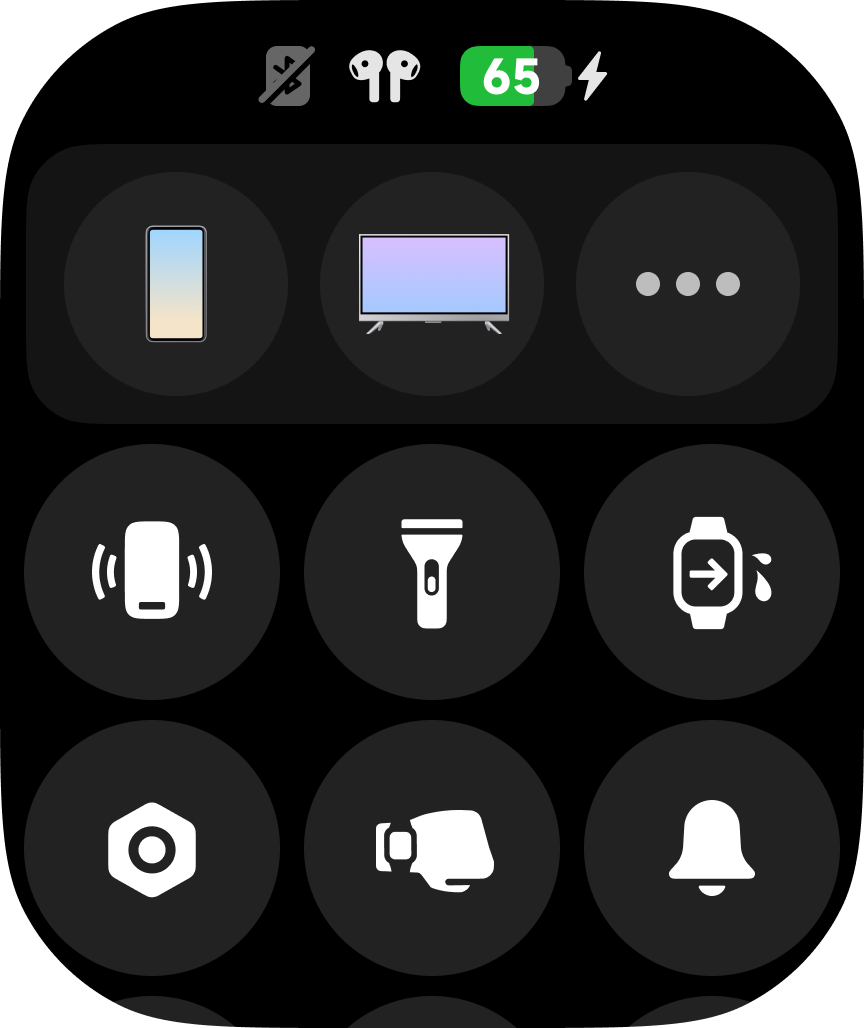
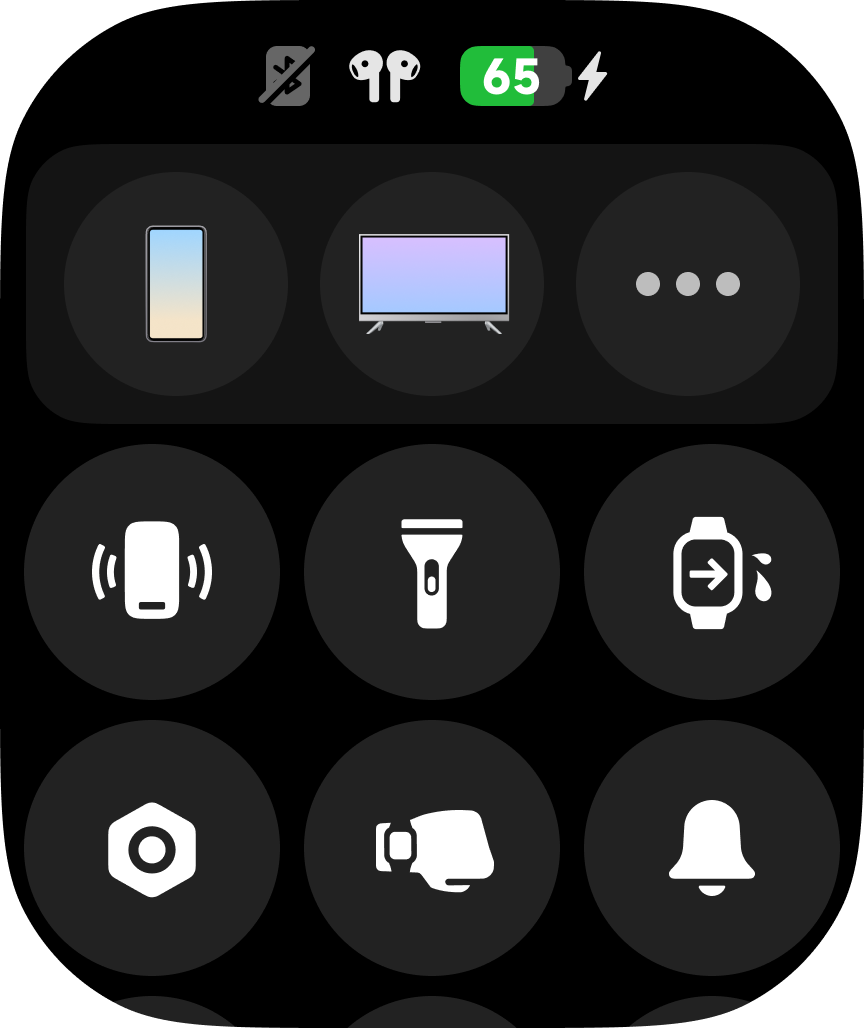
A: The REDMI Watch 6 does not support Bluetooth disconnection alerts. However, you can check the Bluetooth connection status in the status bar of the watch's control center.
When the Bluetooth icon is gray displayed on the status bar, the Bluetooth is disconnected.
When the Bluetooth icon is white displayed on the status bar, the Bluetooth is connected.
Q7: How to use Emergency SOS on the REDMI Watch 6?
A: To use Emergency SOS on the REDMI Watch 6, please refer to the following details:
1. To enable Emergency SOS, the watch should be connected to the Mi Fitness App.
Go to [Mi Fitness] >> [Device] >> [Security] >> enter [Emergency SOS] and enable it >> input Phone and Name. The settings will automatically sync to the watch.
2. To call an emergency contact, you can press the Power Button three times in quick succession to call your emergency contact (this syncs with the phone's dialing system). If you set it in the Mi Fitness App, you can directly call the emergency contact (the call is initiated simultaneously on your mobile phone).
Q8: How to use the Favorite contacts of the REDMI Watch 6?
A: To add favorite contacts, ensure the REDMI Watch 6 is connected to the Mi Fitness App. Go to [Mi Fitness] >> [Device] >> >> [Apps] >> [Favorite contacts] >> [Add]. This will open the phone's contact selection page (ensure that the APP has access to contacts). Select the contact you wish to add, and it will automatically sync to the watch.
To call a favorite contact, ensure the watch is connected to the phone. Open the Contacts App on the watch, select the contact you want to call (this will sync with the phone's dialer).
Q9: How to check the call history of the REDMI Watch 6?
A: You can go to the App list on the REDMI Watch 6 and enter the Phone App to check the call history.
1. The call history includes 4 types of records: missed calls, calls ended on the watch, calls answered on the watch, and calls dialed from the watch.
2. You can tap [Clear all] to delete all call history from the watch.
3. You can also tap a record to initiate a call (this is synced with the phone).
Note:
The watch only stores the most recent 30 call records. Once 30 records are reached, new calls will cover the previous one.
Q10: How does the call history generate on the REDMI Watch 6?
A: Here are the details of the call history generated on the REDMI Watch 6:
1. Missed calls: The call is not answered on either the phone or the watch until it ends. The call is then ended on the phone.
2. Calls ended on the watch: The call is ended on the watch.
3. Calls answered on the watch: After receiving a call, the call is answered on the watch.
4. Calls dialed from the watch: The call is dialed from the watch (successful and unsuccessful).
Q11: How to answer and make calls on the REDMI Watch 6?
A: To answer and make calls on the REDMI Watch 6, please refer to the following details:
1. Answering calls on the watch: When the phone and the REDMI Watch 6 are connected, incoming calls from the phone are synchronized to the watch. You can answer or reject the call by pressing the respective icons on the watch (this syncs with the phone's operations).
2. Making calls from the watch: When the phone and watch are connected, you can dial a number using favorite contacts, emergency contacts, call history, or missed calls (this initiates the call on the phone).
3. Switching phone calls to the watch: While the phone and watch are connected, you can switch an ongoing phone call to the watch by changing the call device to the watch and continuing the call on the watch.
Q12: Does the REDMI Watch 6 support Notification spotlight?
A: The REDMI Watch 6 supports Notification spotlight with the connection to the Xiaomi HyperOS phones. Currently, only the event reminder on the phone is supported.
To enable Notification spotlight on the phone, please first go to [Mi Fitness] >> [Device] >> [Notifications and calls] >> [App notifications] >> enable [App notifications] >> [Mirror phone notifications], and then go to [Settings] on your phone >> [Apps] >> find [Calendar] >> [Notifications] >> enable [Show notifications] >> enable [Notification spotlight].
For your reference, here are the forms of Notification spotlight on the REDMI Watch 6:
1. When the Notification spotlight just prompts, a full-screen notification appears to display the complete information.
2. When the Notification spotlight displays, a brief message is always displayed at the top of the watch face. Tapping it will reopen the full-screen notification.
3. When the Notification spotlight displays, the complete message is always displayed in the notification list. Tapping it will reopen the full-screen notification.
4. Swiping up to hide the Notification spotlight will prevent you from receiving that notification again, except for status changes.
5. When you delete the Notification spotlight on the phone, it will also be deleted on the watch.
Note:
If your watch does not support Notification spotlight, please update your phone to Xiaomi HyperOS 2.0 and above.
Interconnectivity
Q1: Why doesn’t the Xiaomi Smart Hub appear on the REDMI Watch 6?
A: Xiaomi Smart Hub will only be displayed in the Control center of the REDMI Watch 6 when both the watch and the connected device are running Xiaomi HyperOS 2.0 or above. Please ensure that both devices meet this system version requirement for the feature to appear.
Q2: What to do if the earphones connected to a phone or tablet do not appear in the Xiaomi Smart Hub on the REDMI Watch 6?
A: Please check whether the connected phone or tablet is running a system version below Xiaomi HyperOS 2. If it is on Xiaomi HyperOS 1, you need to upgrade the system to Xiaomi HyperOS 2. After upgrading, press the Power button on the REDMI Watch 6 to open the Control center. You will then be able to see the earphone device card in the Xiaomi Smart Hub within the Control Center.
Troubleshooting
Q1: Why is the positioning inaccurate when using the REDMI Watch 6 for open water swimming?
A: Due to interference from the water surface, the REDMI Watch 6 cannot achieve precise GNSS positioning during open water swimming, which may result in deviations in the recorded track.
Q2: Why does the REDMI Watch 6 frequently disconnect or fail to receive notifications when connected to Android phones from other brands using the Mi Fitness App?
A: To ensure a more stable connection and proper reception of notifications or calls on the REDMI Watch 6, it is recommended to enable background running permissions for the Mi Fitness App. Since settings and paths may vary across different phone models or brands, please refer to the instructions provided by your phone manufacturer. If needed, you can contact the phone manufacturer’s customer support for assistance.
To resolve the issue where the REDMI Watch 6 frequently disconnects from the Mi Fitness App or fails to receive notifications, please refer to the following steps (using a Xiaomi phone as an example):
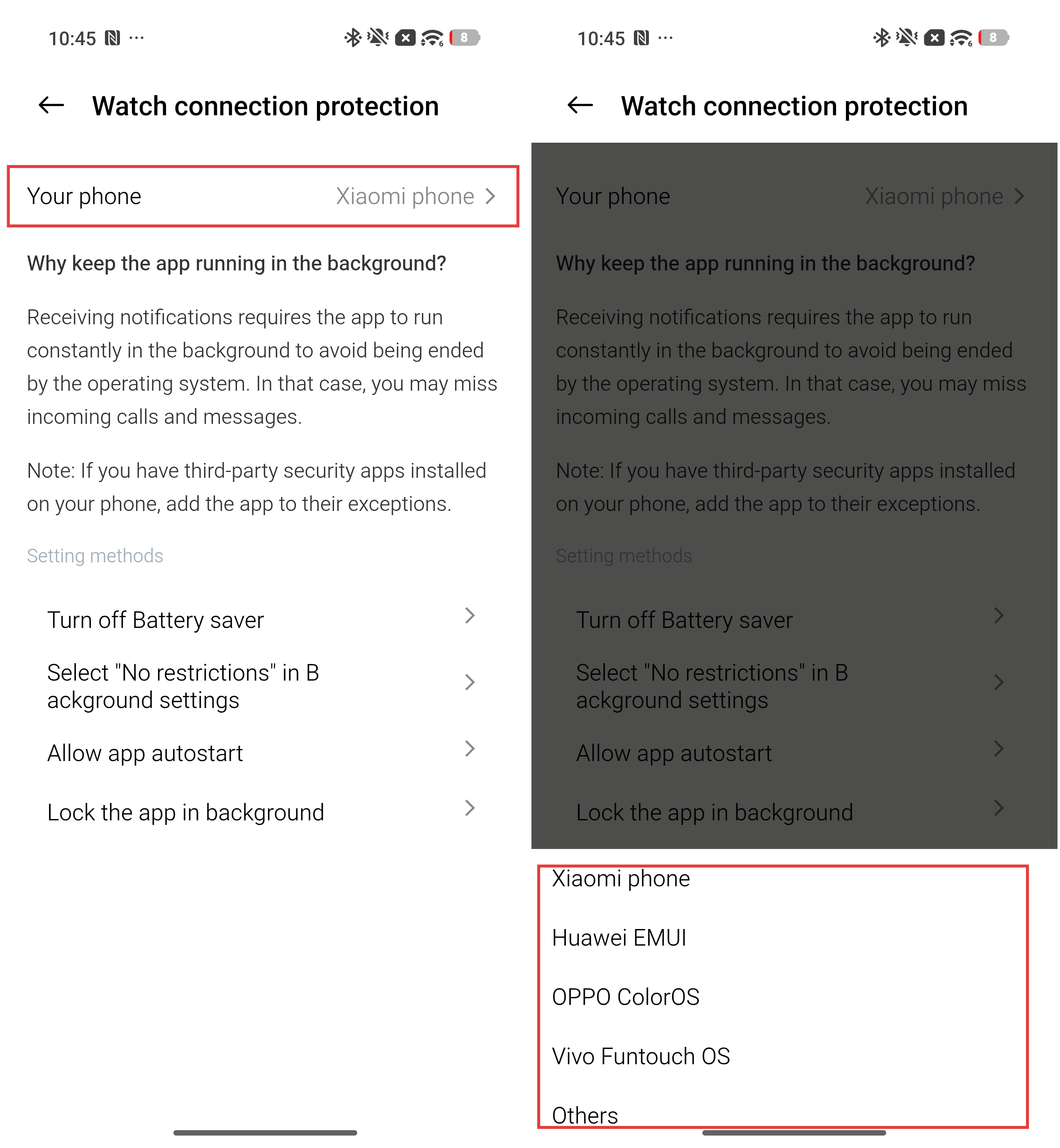
1. Turn off Battery saver: Open Settings App on your device >> tap [Battery] >> turn off [Battery saver] or [Ultra battery saver].
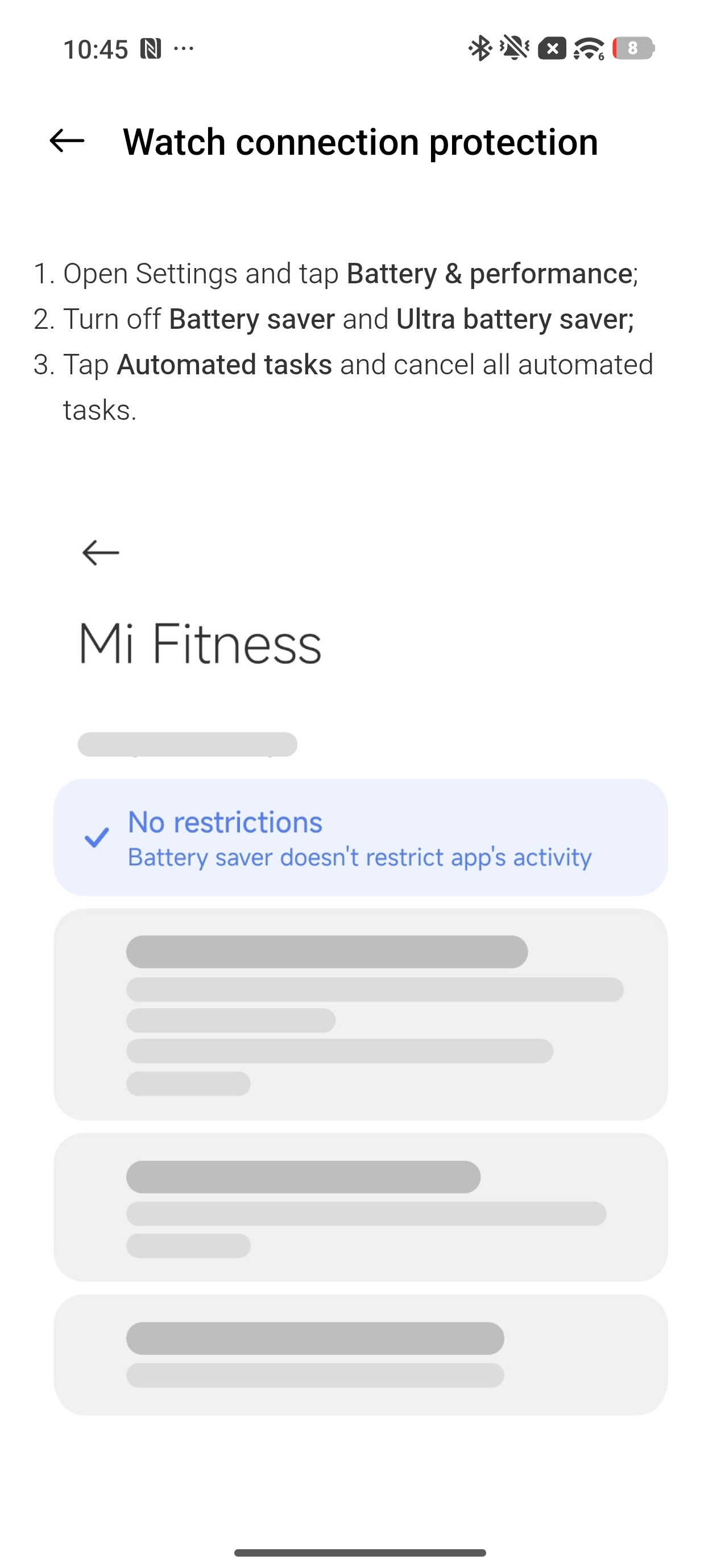
2. Select No restrictions: Open Settings App on your device >> tap [Apps] >> find and enter [Mi Fitness] >> [Power] >> select [No restrictions]. Additionally, you can also go to the Mi Fitness App >> [Device] >> [System] >> [Watch connection protection] >> [Select "No restrictions" in Background settings] >> scroll down and tap [Go to Settings] >> you will be redirected to the corresponding settings interface and then select [No restrictions].
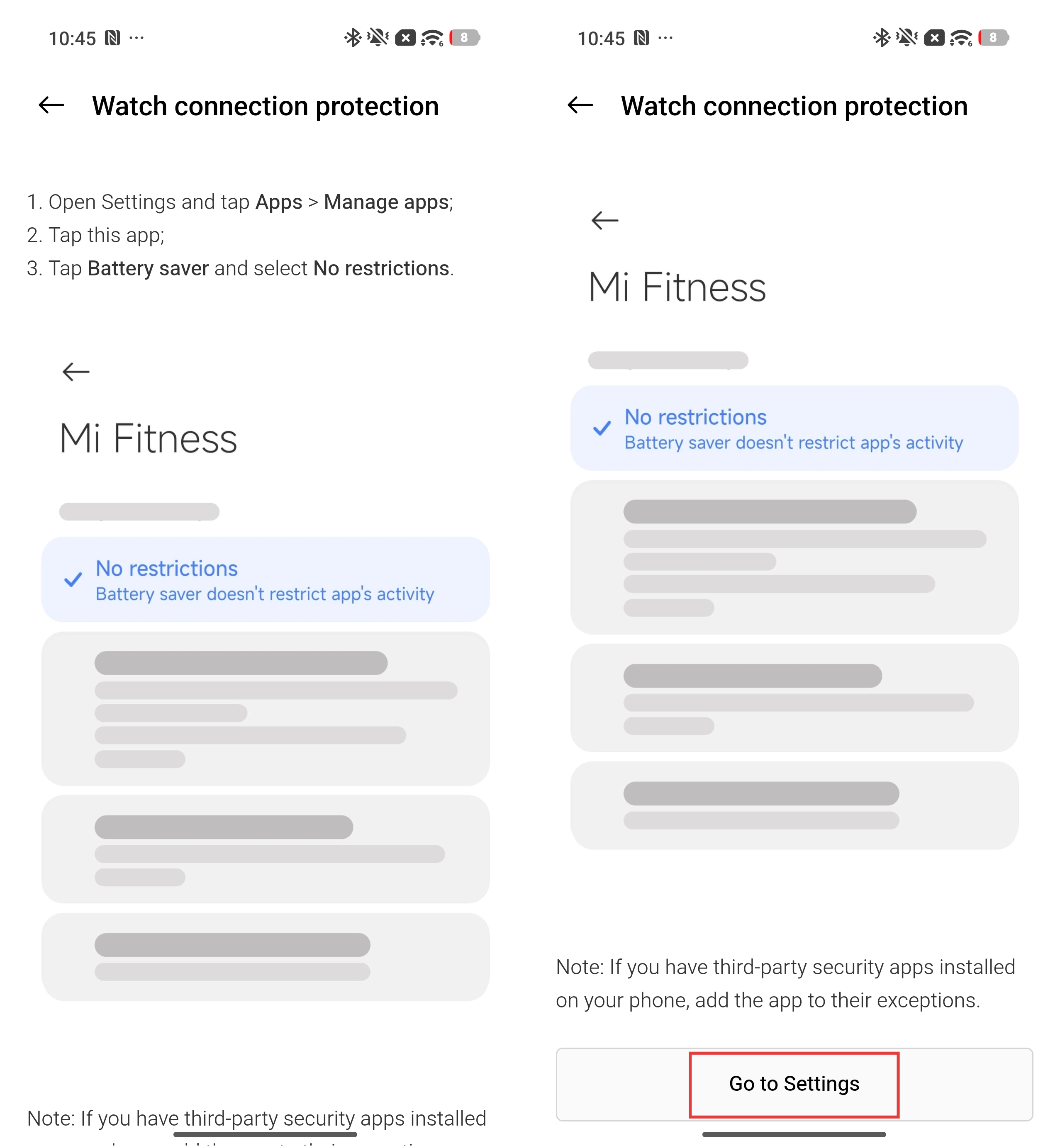
3. Allow App autostart: Open Settings App on your device >> tap [Apps] >> find and enter [Mi Fitness] >> [Background autostart] >> enable [Mi Fitness]. Additionally, you can also go to the Mi Fitness App >> [Device] >> [System] >> [Watch connection protection] >> [Allow app autostart] >> scroll down and tap [Go to Settings] >> you will be redirected to the corresponding settings interface and then allow [Mi Fitness] to autostart.
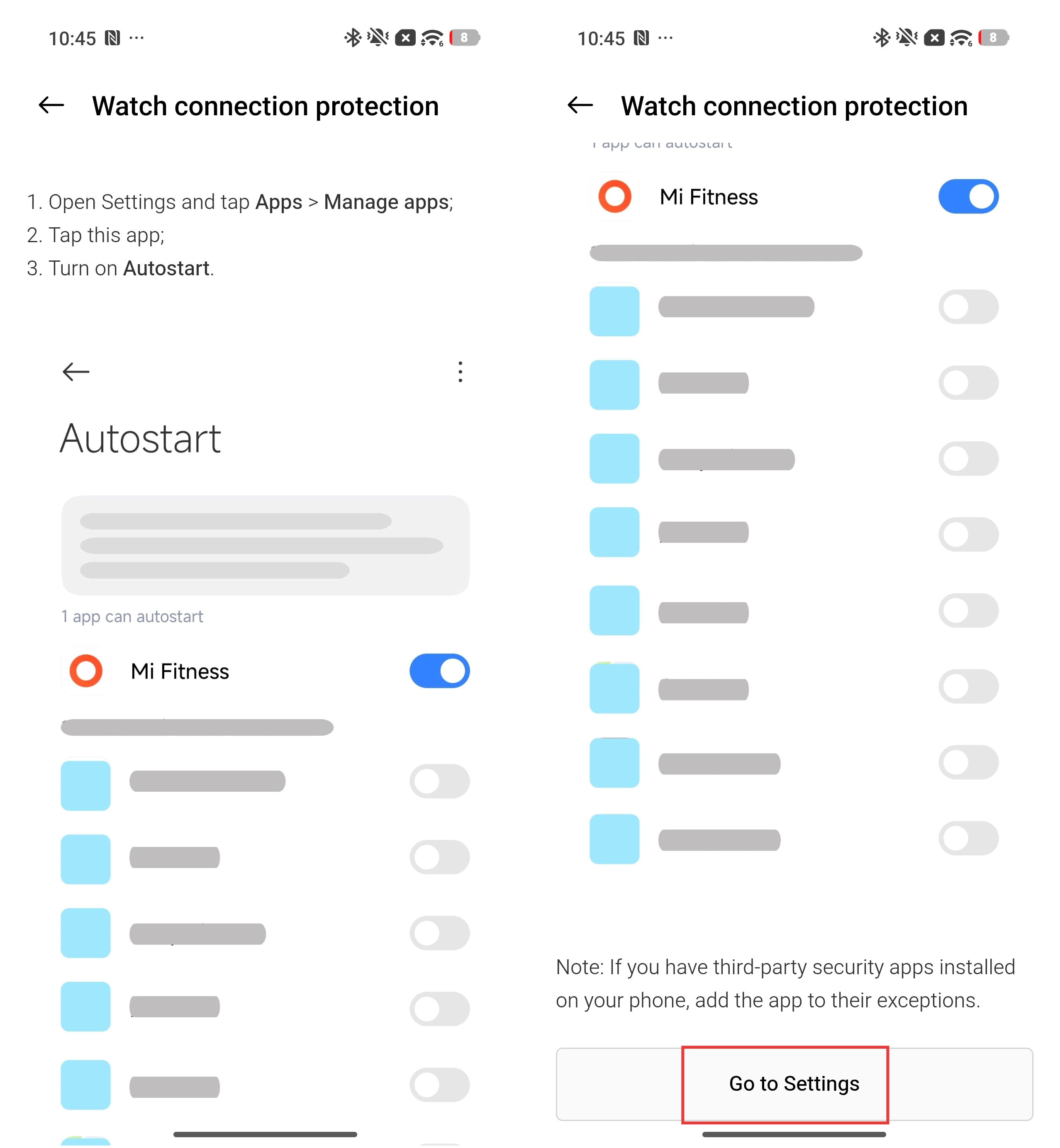
4. Lock the App in the background: Open Recents on your device >> press and hold the Mi Fitness App until a lock icon appears >> tap the icon to lock the App.
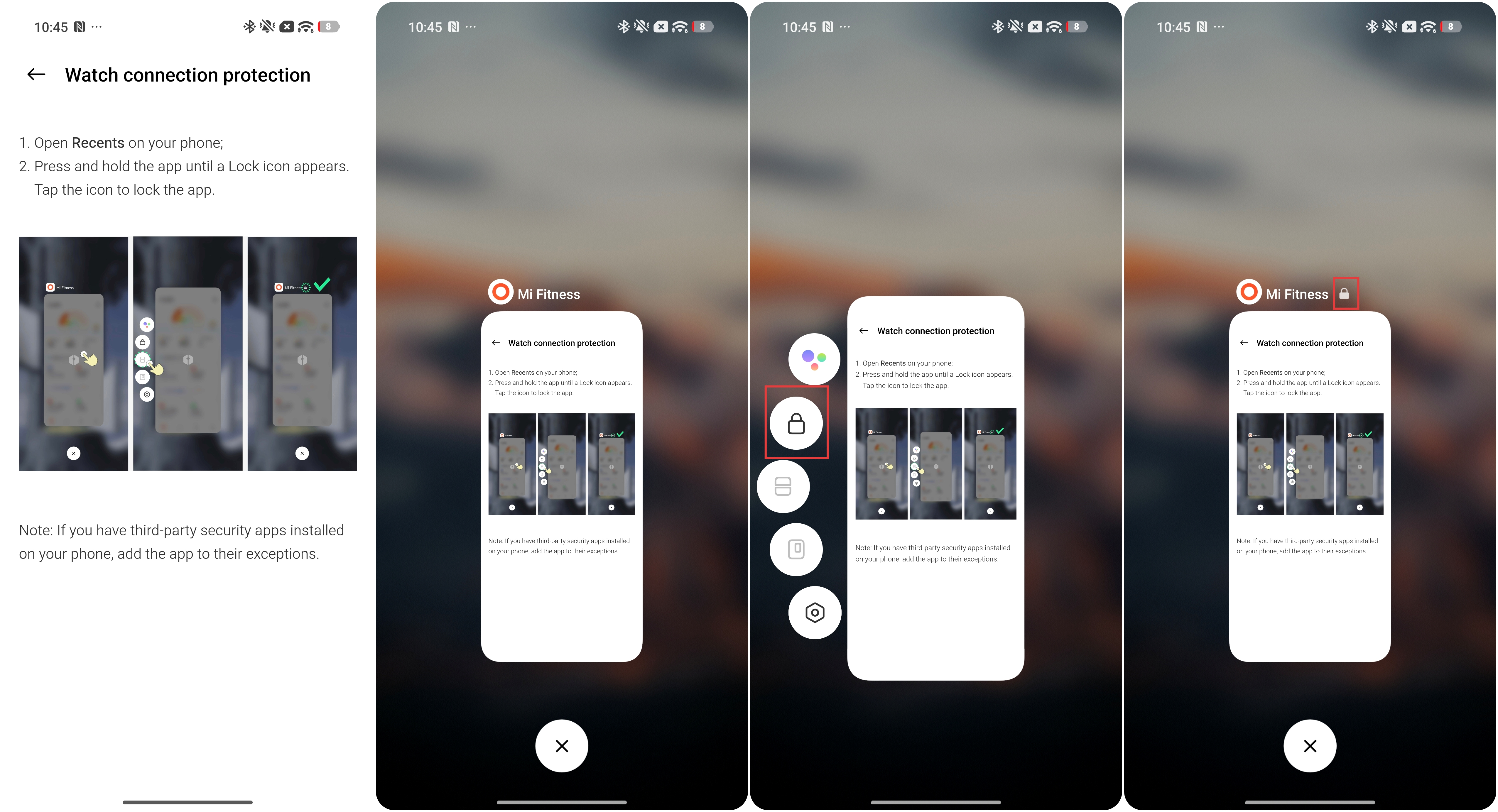
Q3: Why does the display of the REDMI Watch 6 appear slightly reddish in low-light environments or at the lowest brightness level?
A: The REDMI Watch 6 uses an OLED display. Due to the inherent characteristics and manufacturing process of OLED screens, slight color shifts may occur under low grayscale, low brightness, or wide viewing angles. This is a normal phenomenon under low brightness conditions and does not affect the functionality of the display.
Q4: Why is the data shown in the watch face editing preview on the REDMI Watch 6 different from the actual data?
A: When you first enter the watch face editing interface on the REDMI Watch 6, the preview uses a default design with fixed data, which may differ from actual data. This is a normal behavior.
Q5: Why does the REDMI Watch 6 require multiple attempts to reconnect to an iPhone after being connected to Android and then switching back?
A: Please close the Mi Fitness App in the background on the phone and reopen it. The REDMI Watch 6 should then reconnect normally.
Q6: Why does the REDMI Watch 6 frequently disconnect from an iPhone?
A: Please go to iPhone Settings, search for “Mi Fitness,” then go to Location settings and change it to “Always”.
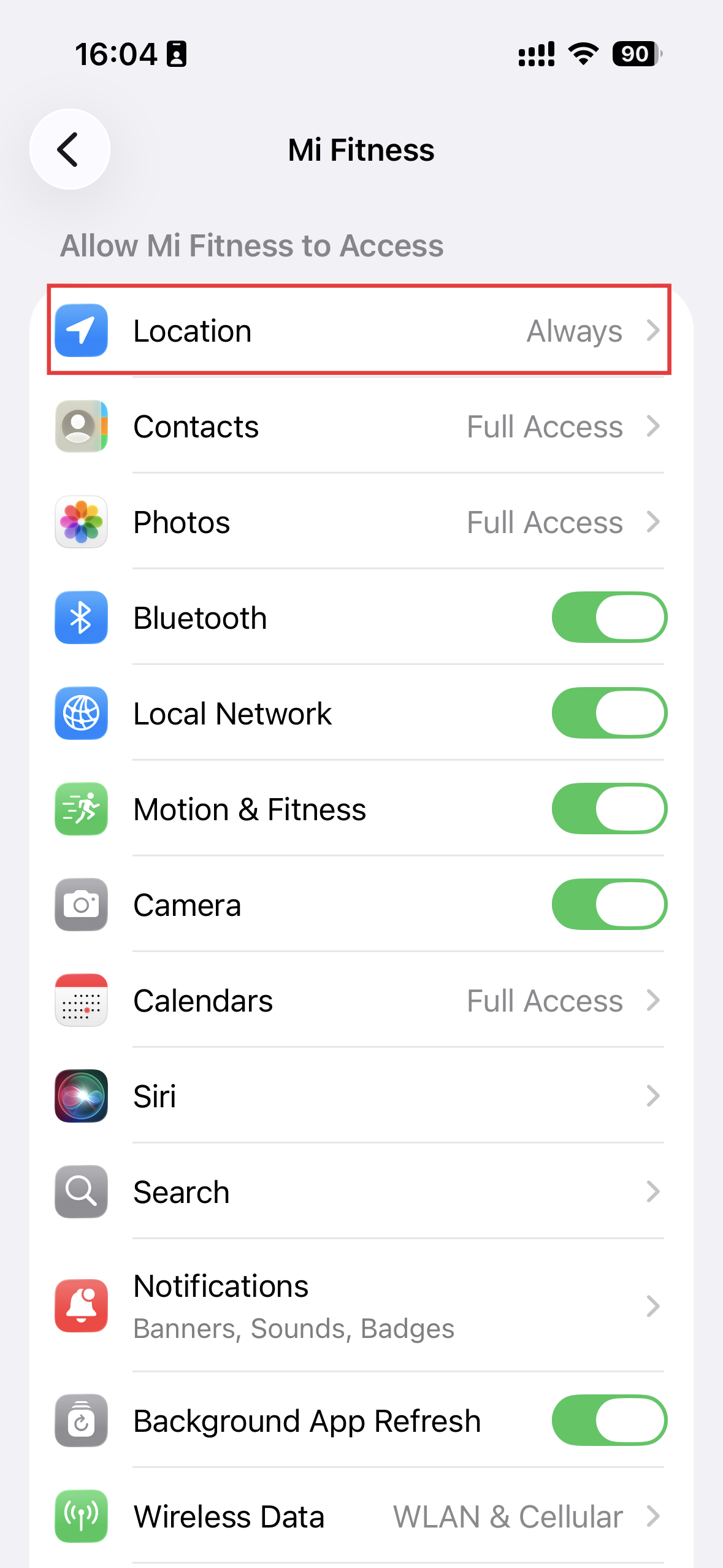
Q7: Why does the screen freeze during use on the REDMI Watch 6?
A: This issue can be resolved by restarting the device. It has also been fixed in a newer OTA version, so it is recommended to update to the latest version.
Q8: What to do if the screen does not respond to touch on the REDMI Watch 6?
A: Press and hold the Power button for about 15 seconds until the REDMI logo appears, then release it. The device should return to normal.
Q9: Why is the step counting inaccurate on the REDMI Watch 6?
A: The REDMI Watch 6 calculates steps using a built-in accelerometer. The data collected by the accelerometer is processed through algorithms and combined with personal information such as height, weight, and gender to generate step count, calorie consumption, and other data.
The following factors may affect the accuracy of step counting on the REDMI Watch 6:
1. The walking distance is estimated based on the step length, which is calculated using personal information such as height, weight, and gender. This results in an estimated value rather than an exact measurement.
2. Step length varies from person to person. Even individuals with the same height, weight, and gender may have different step lengths, which can lead to larger deviations in the calculated results.
3. Step counting accuracy is influenced by daily habits and movement patterns, such as arm swing and walking posture. In addition, various activity scenarios (such as walking, riding in a vehicle, driving, or showering) and complex arm movements (such as typing, using a mouse, or lifting objects) may also affect the results.
Due to these factors, the recorded distance is an estimated value and cannot be considered a professional measurement. Future software updates will continue to optimize the algorithm to improve accuracy.
Q10: Why is GNSS positioning slow on the REDMI Watch 6?
A: GNSS positioning on the REDMI Watch 6 includes cold start, warm start, and hot start.
A cold start occurs in the following situations:
1. When GNSS is used for the first time.
2. When the watch has powered off due to battery depletion, causing satellite data loss.
3. When the watch has moved more than 200 km while powered off.
During a cold start, the watch needs to download satellite ephemeris data, so the positioning time is longer than in warm or hot start conditions. It is recommended to stay in an open area and keep the watch facing the sky while wearing it normally. Under such conditions, the cold start positioning can be completed within 60 to 90 seconds, depending on weather and surroundings.
If there has been no significant movement since the last positioning and the interval is less than 2 hours, the watch can perform a hot start. In an open area, with the watch facing the sky, positioning can be completed in about 5 seconds.
If GNSS positioning is slow, reopening the Mi Fitness App and reconnecting the watch to synchronize data can significantly improve positioning speed.
Q11: Why does the REDMI Watch 6 still display pace after stopping during a workout?
A: The distance and pace on the REDMI Watch 6 are calculated based on time. After you stop moving completely, it may take a few seconds for the pace display to stop updating.
Q12: What to do if the REDMI Watch 6 does not vibrate?
A: If the REDMI Watch 6 does not vibrate, please check the following:
1. Check whether Do Not Disturb mode is enabled.
2. If it is not enabled, restart the watch. After restarting, set multiple alarms for testing. If the alarm appears on the screen at the scheduled time but there is no vibration, please contact the after-sales service center for further inspection.
Q13: What to do if the REDMI Watch 6 freezes, shows a black screen, or cannot be powered on?
A: If the REDMI Watch 6 freezes, shows a black screen, or cannot be powered on, please try the following:
1. Connect the device to the charger, and charge it for more than 10 minutes.
2. If the device still cannot be powered on, press and hold the Power button for more than 15 seconds to force restart.
3. If the issue persists, please contact the after-sales service center for further inspection.
Q14: What to do if the system update fails on the REDMI Watch 6?
A: The following situations may cause the system update to fail on the REDMI Watch 6:
1. Network interruption during the download of the update package in the Mi Fitness App.
2. The distance between the watch and the phone is too far during transmission, causing an interruption.
3. The battery level is too low, causing the device to power off during the update process.
After an update failure, the watch will automatically restart. After restarting, it will remain usable but will stay on the previous version. You can try updating again after ensuring sufficient battery level and a complete download.
If the system update fails on the REDMI Watch 6, please try the following:
1. Restart the device and try again.
2. Place the watch on the charger and ensure the battery level is above 20% before retrying.
3. Reset the watch and pair it again before retrying.
4. Try using another phone to bind the watch and update again.
5. If the device cannot be powered on after the update failure, please contact the after-sales service center for further inspection.
Note:
Bluetooth disconnection during the update process is normal.
Q15: What to do if the OTA update is stuck at 100% on the REDMI Watch 6?
A: If the OTA update progress reaches 100% and gets stuck on the REDMI Watch 6, press and hold the Power button for 15 seconds to force restart, and then try the update again.
Q16: Why is there an odor after opening the REDMI Watch 6 package?
A: Adhesives are used in the packaging materials of the REDMI Watch 6. Under high-temperature sealing during the manufacturing process or long-term storage, these adhesives may release odors more quickly.
In a sealed environment, the odor may accumulate inside the package. When the box is opened, the smell may be noticeable but will dissipate within a short period. The adhesives used are environmentally friendly and do not pose any harm to you.
The TPU strap may also have a slight odor due to long-term sealed storage at high temperatures. This is a normal phenomenon, and the odor will fade after a short period of ventilation.
Q17: What to do if the weather does not update on the REDMI Watch 6?
A: The weather on the REDMI Watch 6 is updated every 15 to 30 minutes.
If it does not update for an extended period, please check the following:
1. Open the Mi Fitness App and check whether the watch is disconnected from the phone via Bluetooth.
2. Go to Mi Fitness App >> [Device] >> [Apps] >> [Weather] >> check whether [Weather updates] is enabled.
3. Tap [Sync] on the Device interface in the Mi Fitness App to manually update.
Q18: What to do if the screen cannot be turned on for the REDMI Watch 6?
A: If the screen cannot be turned on by raising your wrist, pressing the Power button, or rotating the Rotating Crown, please try the following:
1. The battery may be low. Connect the device to the charger to check the battery level.
2. Press and hold the Power button for 15 seconds to force restart the watch.
3. After restarting, check the system version and update to the latest version.
Q20: What to do if the Raise to wake function is not sensitive on the REDMI Watch 6?
A: The Raise to wake function on the REDMI Watch 6 relies on the built-in accelerometer. The screen is activated by wrist movements such as raising or rotating the wrist. If the angle of the movement is too small or the motion is too slow, the screen may not turn on properly.
Q21: Why does the charging cable bottom and black strap of the REDMI Watch 6 easily attract dust?
A: The bottom of the charging cable of the REDMI Watch 6 has a specification label that helps reduce dust accumulation. It is recommended to clean it in time if dust is found during use.
The strap is made of TPU and silicone materials. Both have been treated to be skin-friendly and anti-allergic. However, dust may accumulate during daily wear. The black strap makes dust more visible. It is recommended to clean it regularly during use.
Q22: Why does the REDMI Watch 6 only vibrate without lighting up the screen when receiving new notifications?
A: By default, the REDMI Watch 6 only vibrates when receiving notifications and does not automatically turn on the screen. To view messages, you can raise your wrist or manually wake the screen. If you want the screen to light up when receiving notifications, you can enable this in Mi Fitness App >> [Device] >> [Notifications and calls] >> [App notifications] >> enable [Wake screen].
Q23: What to do if the REDMI Watch 6 is successfully paired but cannot connect?
A: If the REDMI Watch 6 is paired but cannot connect, please check the following:
1. Ensure the watch has sufficient battery power.
2. Check the connection status in the Mi Fitness App. If it shows disconnected, tap to reconnect.
3. Close the Mi Fitness App, restart Bluetooth on the phone, and restart the phone or the watch. Then refresh the connection status in the App.
4. Try resetting the watch to factory settings. Then go to the App homepage and tap connect. When the pairing prompt appears on both the watch and the App, confirm the pairing.
5. If the issue persists, remove the Bluetooth pairing record in the phone settings and reset the watch. Then complete the pairing process again.
Q24: What to do if the screen of the REDMI Watch 6 cannot be swiped?
A: If the screen of the REDMI Watch 6 cannot be swiped, please check the following:
1. Check whether the battery level is too low.
2. Press the Power button to return to the watch face. If the screen still cannot be swiped, press and hold the Power button for 15 seconds to force restart the watch.
3. Press and hold the Power button for 3 seconds. In the system menu, select factory reset and pair the watch again.
Q25: Why does the REDMI Watch 6 not count steps immediately after walking?
A: The REDMI Watch 6 updates step data multiple times per minute instead of updating in real time every second.
Q26: Why does the REDMI Watch 6 show a black screen after enabling the Always-on display feature?
A: When Always-on display is enabled on the REDMI Watch 6, the screen will automatically turn off when the watch detects that it is not being worn or when you are sleeping. This helps reduce power consumption. This is normal behavior.
Q27: What to do if the REDMI Watch 6 shows a black screen after restarting by holding and pressing the Power button?
A: Press and hold the Power button on the REDMI Watch 6 until the screen lights up, then release the button. If the screen remains black, press and hold the Power button for 3 seconds again, then release it.
Q28: Why does the light-colored strap of the REDMI Watch 6 get dirty easily?
A: Light-colored straps of the REDMI Watch 6 are more likely to show dirt.
With proper daily care, you can maintain cleanliness and extend its lifespan:
1. Clean the strap regularly using a soft damp cloth to remove dust and stains.
2. Avoid contact with dark or color-fading items. Light-colored straps can easily absorb other colors.
3. Avoid wearing the watch in humid or oily environments. Make sure your hands are clean when putting on or removing the watch.
If the strap of the REDMI Watch 6 is already stained, you can try the following:
1. Clean immediately using a cotton swab with a small amount of mild detergent. Do not scrub forcefully.
2. Perform deep cleaning once a month using an ultrasonic cleaner with warm water.
3. Store the strap in a sealed bag when not in use for a long time to prevent yellowing.
Q29: Why is the bottom case of the REDMI Watch 6 prone to scratches?
A: The bottom case of the REDMI Watch 6 is made of a composite material consisting of nylon and 55 percent glass fiber. It has strong rigidity. However, scratches may still occur during daily use.
It is recommended to avoid contact with hard or sharp objects while wearing the watch. When not in use, place the watch on a soft and clean surface or in a watch box. Regular cleaning of the bottom case can help reduce the appearance of scratches.
Q30: Why is the rotating crown of the REDMI Watch 6 prone to accidental touches?
A: When wearing the REDMI Watch 6, it is recommended to position it about one finger width away from the wrist bone. During exercise, ensure the watch is not too loose or too tight. This helps prevent the watch from moving up and down on your wrist and reduces accidental touches.
Q31: Why are there visible mold lines on the side of the strap of the REDMI Watch 6?
A: This is a normal manufacturing phenomenon of the strap of the REDMI Watch 6. During the plastic injection molding process, there is a small gap between the molds. Some material may be pressed into this gap. After the product is removed from the mold, a line remains at that position. This line is known as the mold line.
Q32: Why is the brightness transition not smooth when the REDMI Watch 6 restarts in a dark environment or moves from a very bright environment to a very dark environment?
A: The REDMI Watch 6 automatically adjusts brightness based on ambient light conditions. Visible changes during the adjustment process are normal.
Q33: Why does the REDMI Watch 6 not receive notifications when connected to an iPhone?
A: If notifications are not received on the REDMI Watch 6 when connected to an iPhone, please check the following:
1. Ensure the Mi Fitness App is running. Go to phone settings and toggle Bluetooth off and then on.
2. Check whether notifications are enabled in the App under [Notifications and calls] settings. Additionally, please confirm that notifications for specific Apps are enabled.
3. Check whether the [Notify only when worn] option is enabled. If enabled, notifications will not appear when the watch is not being worn.
4. Check whether Screen Time restrictions are applied to the App.
5. Check whether [Share System Notifications] is enabled in Bluetooth settings for the watch.
6. Go to phone Settings App >> [Notifications] >> [Show previews] >> [Always]. Select the corresponding App and enable [Allow Notifications]. Set [Show Previews] to [Always].
7. Check whether the watch is in Do Not Disturb mode. In this mode, notifications will not trigger vibration or screen lighting and will only appear in the notification shade.
8. Low Power Mode on iOS may affect Bluetooth connection stability and cause disconnection.
9. Restart the phone and check whether the issue is resolved.
10. If the issue persists, update the phone system to the latest version and try again.
Q34: Why is the blood oxygen measurement inaccurate on the REDMI Watch 6?
A: If the blood oxygen measurement on the REDMI Watch 6 is inaccurate, please check the following:
1. It is recommended to wear the watch 1.5 cm to 2 cm away from the wrist bone.
2. Ensure the sensor area on the back of the device is in full contact with the skin.
3. Dirt on the sensor or sweat between the skin and the device may affect measurement results.
4. In low-temperature environments, reduced skin temperature may lower blood flow and affect results.
5. Tattoos or pigmentation at the measurement area may interfere with sensor light penetration and affect accuracy.
Q35: Why does the REDMI Watch 6 measure blood oxygen slowly or fail to produce a result?
A: If the REDMI Watch 6 measures blood oxygen slowly or fails to produce a result, please check the following:
1. Factors such as body hair, tattoos, movement, low temperature, and improper wearing may affect measurement or cause failure. Wear the device slightly tighter at about one finger distance from the wrist bone and remain still during measurement to improve the success rate.
2. Ensure correct wearing. Keep your arm level with the screen facing upward and maintain proper contact between the watch and your skin. Do not wear it on the wrist joint. Remain still during the entire measurement.
3. Ensure the sensor on the back of the watch is clean and dry with no obstruction.
4. In low-temperature environments, remove the watch and warm up the wrist area before wearing it again for measurement.
5. For more accurate results, it is recommended to wear the watch for 3 to 5 minutes before measuring.
Q36: Does the REDMI Watch 6 support importing music when paired with an iPhone?
A: The REDMI Watch 6 does not support importing music when connected to an iPhone. Please connect to an Android phone and go to the Mi Fitness App >> [Device] >> [Apps] >> [Music] >> add songs and create playlists.
Q37: Why does the REDMI Watch 6 sometimes fail to reconnect after being paired with an iPhone?
A: If the REDMI Watch 6 sometimes fails to reconnect after being paired with an iPhone, please check the following:
1. Update the watch to the latest version through the Mi Fitness App ([Device] >> [More] >> [Device version]). The new version improves performance and compatibility.
2. Restart the Bluetooth in the phone system settings and try again.
Q38: Why does the REDMI Watch 6 not display contact names for missed calls?
A: Please check whether the option to display contact information is enabled in the Mi Fitness App: [Device] >> [Notifications and calls] >> [Incoming calls] >> [Show contact info].
Q39: Does the REDMI Watch 6 support Portrait watch faces?
A: Portrait watch faces are currently only supported on Xiaomi or REDMI phones running MIUI or Xiaomi HyperOS.
Q40: Why does the REDMI Watch 6 not generate sleep records even though sleep occurred?
A: If the REDMI Watch 6 does not generate sleep records, please check the following:
1. Large body movements during sleep may prevent the device from detecting sleep.
2. Sleeping in a moving vehicle may affect detection due to vibrations and movement.
3. Wearing the watch too loosely may result in poor skin contact and be detected as not being worn.
4. If the sleep duration is shorter than 30 minutes, it may not be recorded.
Q41: Can the REDMI Watch 6 upload voice recordings to a phone?
A: Whether the REDMI Watch 6 can upload voice recordings to a phone depends on the phone system, please refer to the following information:
1. For phones not running Xiaomi HyperOS, recordings can be uploaded to the Mi Fitness App.
2. For phones running Xiaomi HyperOS 2.0 or above, recordings can be synced directly from the watch by tapping the sync button in the recording list, and the files will be transferred to the system Recorder App on the phone.
Q42: What to do if the time is inaccurate on the REDMI Watch 6?
A: Pressing and holding the Power button on the REDMI Watch 6 will cut off power to the chip. If the real-time clock backup power is not functioning, the device cannot retain the correct time, and it will reset after restarting. In this case, reconnect the watch to the Mi Fitness App to synchronize and recalibrate the time.
Q43: Why does the remote camera function not work on the REDMI Watch 6?
A: Please check whether there are other paired devices in the phone Bluetooth settings. If multiple devices have the “Input device” function enabled, it may cause HID resource conflicts. This issue may occur when more than seven devices are paired.
You can try the following methods:
1. Disable the “Input device” function on other paired devices.
2. Turn Bluetooth off and then on again on the phone.
3. Reconnect the watch.
4. Remove other paired devices, then toggle Bluetooth and reconnect the watch.
5. If the issue persists, restart the watch and confirm the connection before testing the feature again.
Q44: Why does the REDMI Watch 6 frequently disconnect when paired with an iPhone?
A: If the REDMI Watch 6 frequently disconnects when paired with an iPhone, please check the following settings on your phone:
1. Enable Background App Refresh: Open the Settings App on your phone >> go to [General] >> tap [Background App Refresh] >> find Mi Fitness in the App list and enable Background App Refresh.
2. Turn off Low Power Mode: Open the Settings App >> go to [Battery] >> turn off [Low Power Mode].
3. Check notification settings: Open the Settings App >> go to [Notifications] >> find Mi Fitness in the App list and enable [Allow Notifications].
4. Enable Location Services: Open the Settings App >> go to [Privacy & Security] >> tap [Location Services] >> find Mi Fitness in the App list >> set location access to [Always].
Q45: Why is the maximum heart rate displayed incorrectly on the REDMI Watch 6?
A: The incorrect maximum heart rate display on the REDMI Watch 6 may be caused by the following reasons:
1. The age calculation logic may lead to abnormal values. The system automatically calculates the maximum heart rate using the formula “Maximum heart rate = 220 minus age.” If the date of birth is set to 1900, which corresponds to an age over 125 years, the calculated result will be around 95 to 96 beats per minute. This value is outside the normal exercise heart rate range.
2. The date of birth field does not have a valid range restriction. The current version does not verify the validity of the age when setting the date of birth, such as limiting it to a reasonable range. This may cause the algorithm to produce incorrect results when extreme values are entered.
To resolve the issue of incorrect maximum heart rate display on the REDMI Watch 6, please refer to the following:
1. Manually adjust the maximum heart rate value. Go to the Mi Fitness App >> [Profile] >> tap the profile picture >> [Max heart rate] >> turn off [Auto detect] and enter a reasonable value manually, such as 180 beats per minute. The recommended range is generally between 180 and 200 beats per minute. Professional athletes may consult a doctor for adjustment.
2. Check and correct the date of birth information. Go to the Mi Fitness App >> [Profile] >> tap the profile picture >> update the [Date of birth] to the correct year. It is recommended to set a year not earlier than 1920 to ensure the age is within a reasonable range.
Q46: Why does the REDMI Watch 6 not trigger high or low heart rate alerts even when the measured value exceeds the set threshold?
A: The REDMI Watch 6 will trigger a high or low heart rate alert only when the average heart rate per minute exceeds or falls below the preset threshold continuously for 10 minutes.
Q47: Why do some icons on the REDMI Watch 6 appear pixelated or have jagged edges?
A: Some icons on the REDMI Watch 6 use curved designs. During rendering, half-pixel alignment may occur, which cannot be perfectly matched, resulting in slight jagged edges. In addition, due to the current screen resolution, smooth rendering of curved edges may be limited.
Q48: Why does audio stutter when making calls on the REDMI Watch 6 after moving away from the phone?
A: This issue is caused by weak signal strength. It is related to the distance between the REDMI Watch 6 and the connected phone, the phone model, the orientation of the phone, and the surrounding environment. It is recommended to keep the watch close to the phone during calls.
Q49: Why does the screen of the REDMI Watch 6 appear grainy?
A: The REDMI Watch 6 uses an AMOLED display with a PPI of 324, which is within the normal display range. Slight graininess observed at certain angles or under low brightness conditions is a normal characteristic of OLED displays and does not affect normal use.
Q50: How does the REDMI Watch 6 synchronize data after pairing?
A: After pairing, the REDMI Watch 6 can synchronize data in the following ways:
1. Automatic synchronization occurs when Bluetooth is connected and the Mi Fitness App is brought from background to foreground.
2. Manual synchronization can be performed by pulling down to refresh on the Health homepage in the App or by tapping [Sync] on the Device interface.
Q51: What to do if the REDMI Watch 6 cannot connect to the phone?
A: To connect the REDMI Watch 6 in the Mi Fitness App, please make sure that the phone is connected to the internet and that Bluetooth is enabled in the phone’s system settings. If the phone settings are correct but the watch still cannot connect, please try the following steps:
1. Turn off Bluetooth in the phone’s system settings, then turn it back on.
2. On the QR code screen of the watch, tap the exclamation mark icon below the QR code, then select [System] >> [Reboot].
3. After the watch restarts, try connecting it again in the Mi Fitness App.
Q52: What to do if the REDMI Watch 6 does not reconnect after Bluetooth is disconnected?
A: If the REDMI Watch 6 does not reconnect after Bluetooth is disconnected, please try the following steps:
1. Make sure the phone’s network connection is working properly and that Bluetooth is enabled in the phone’s system settings.
2. Try turning Bluetooth off and back on again on the phone, or restart the watch and reconnect.
3. Make sure the distance between the phone and the watch is within 20 meters.
Q53: What to do if the workout records on the REDMI Watch 6 are missing?
A: The REDMI Watch 6 can store up to 20 workout records. Once the storage limit is exceeded, the oldest workout records will be automatically deleted.
You can view all workout records in the Mi Fitness App. Tap [Workout] >> [History] to view your records by week, month, year, or other time periods. Tap [All] to view all workout records.
Q54: What to do if scrolling is not smooth or the device lags while using the REDMI Watch 6?
A: If scrolling is not smooth or the device lags while using the REDMI Watch 6, please try the following steps:
1. If the watch is currently being configured during reconnection, please wait until the connection is completed or the device is fully disconnected, then try again.
2. If the watch is currently synchronizing data with the Mi Fitness App, please wait until the synchronization is complete before trying again.
3. Restart the watch and try again.
Q55: What to do if the REDMI Watch 6 cannot be paired after tapping “Connect new phone” and the device shuts down and restarts?
A: If the REDMI Watch 6 fails to pair after being bound and you tap “Connect new phone”, and the watch shuts down and restarts, resulting in pairing failure, you can resolve the issue by resetting the watch to factory settings and then pairing it again.
Q56: What to do if the REDMI Watch 6 turns off after successful pairing and cannot be turned on?
A: If the battery of the REDMI Watch 6 is not depleted, press and hold the power button for 15 seconds to power on the watch normally.
Q57: Why is the screen brightness of the REDMI Watch 6 too low?
A: You can adjust the brightness on the REDMI Watch 6 by going to [Settings] >> [Display] >> [Brightness] >> [Custom], and then set an appropriate brightness level according to your preference.
Note:
Custom brightness can only be adjusted after Auto Brightness is turned off.
Q58: Why doesn’t the REDMI Watch 6 screen turn on when you raise your wrist?
A: Please check whether the [Raise to wake] function is enabled. Go to [Settings] on the REDMI Watch 6 >> [Display] >> [Raise to wake] and make sure it is turned on.
If scheduled mode is selected and a time period is set, the [Raise to wake] function will only work during the active time period.
Q59: Why is the REDMI Watch 6 screen not responding to touch?
A: If the REDMI Watch 6 screen is not responding to touch, please try the following steps:
1. Please connect the charging cable to check whether the REDMI Watch 6 still has power.
2. If there are dirt or water stains on the watch screen, it can affect touch sensitivity. Please clean the screen and try again.
3. Power off and restart the watch to check whether the touch function returns to normal.
Q60: Why are unread notifications missing on the REDMI Watch 6?
A: This can be caused by too many unread messages. The REDMI Watch 6 can store up to 10 notification messages. Once this limit is exceeded, newly received messages will overwrite the earlier ones.
Please check notifications on the watch in time. If you find that unread messages are missing, please check them on your phone.
Note:
1. The watch only receives messages that appear in the phone’s system notification bar.
2. If a message has already been read on your phone, it will not be notified again on the watch.
Q61: Why does the REDMI Watch 6 keep showing “Getting song information…” when controlling music on an iPhone?
A: Please turn off and then turn on Bluetooth on your phone, then open the Mi Fitness App to ensure the watch is properly connected. After that, open the music Apps on your phone and the music on the watch, and check whether the function returns to normal.
Q62: Why does the REDMI Watch 6 display cover scratch easily?
A: The REDMI Watch 6 uses a 2.5D slightly curved glass cover design. For daily use, please refer to the following points:
1. Avoid contact with hard objects such as keys or sand.
2. Consider using an official protective film or protective case.
3. Clean the screen regularly with a soft cloth to keep it clean.
Q63: Why does the REDMI Watch 6 cover attract fingerprints?
A: The surface of the covered glass of the REDMI Watch 6 has an AF (anti-fingerprint) coating. Slight fingerprint smudging is normal and does not affect functionality.
The following aspects are suggested for reference:
1. Gently wipe the surface with a soft microfiber cloth after use.
2. Consider using an anti-fingerprint protective film (purchased separately).
3. Clean regularly to keep the surface clean.
Q64: Why does the screen brightness of the REDMI Watch 6 automatically dim when tapping or swiping the top area of the screen?
A: This is normal behavior. The REDMI Watch 6 has a light sensor chip located in the upper-right area of the screen. When Auto Brightness is enabled, and your finger covers this area, the sensor detects a change in light and automatically reduces the brightness. Once you move your finger away, the brightness will return to normal. This does not affect normal use.
Q65: Why can't the Mi Fitness App switch the Vitality Score data source after pairing the REDMI Watch 6?
A: When multiple devices are bound in the Mi Fitness App, the Vitality Score can be switched between different data sources. If you are unable to switch, it may be because the other device has not generated any Vitality Score data yet.
Q66: Why does the REDMI Watch 6 show sleep data on the watch but fail to sync to the phone?
A: This issue may occur because your Mi Fitness App version is outdated. Please update the Mi Fitness App to the latest version (Android 3.48.2 / iOS 3.40.0) and try again.
Q67: Why can’t audio be switched to Bluetooth earphones during calls on the REDMI Watch 6?
A: When using the REDMI Watch 6 for calls, it only supports switching the call to the phone first. After switching to the phone, you can then switch the audio output to Bluetooth earphones through the phone.
Q68: Why does the Mood watch face on the REDMI Watch 6 look different from the preview after downloading?
A: This issue may be caused by an outdated watch firmware version. Please update the REDMI Watch 6 to the latest firmware version by going to [Mi Fitness App] >> [Device] >> [More] >> [Device version] >> [Check for updates], and then try again.
Q69: Why are Xiaomi Home App devices connected to the phone not shown on the REDMI Watch 6?
A: Devices added in the Xiaomi Home App on the phone will be synchronized and displayed in the REDMI Watch 6’s Xiaomi Smart Hub. To view Xiaomi Home App devices on the watch, please go to the Xiaomi Smart Hub on the watch.
If the devices are still not shown, please go to the phone [Settings] >> [Interconnectivity] and ensure that the Interconnectivity switch is enabled. If the watch still shows no controllable devices, please upgrade the phone system to HyperOS 3.0 and try again.
Note:
The watch’s Xiaomi Smart Hub does not support all devices, and some devices are not yet included in the display range. Apologies for any inconvenience caused.
Q70: Why does the REDMI Watch 6 not respond when using the watch to change music tracks?
A: When controlling music with the REDMI Watch 6, ensure that the Mi Fitness App is running and that the watch remains connected to the phone.
Q71: Why does the REDMI Watch 6 automatically power off when it is not paired?
A: To prevent excessive battery drain or deep discharge when the REDMI Watch 6 is not used for a long time, the watch will automatically power off after 15 minutes of inactivity in an unpaired state.
When powered off, press and hold the Power button for approximately 2 seconds, or connect the charger to turn on the watch.
To avoid automatic shutdown, it is recommended to pair the watch with the Mi Fitness App as soon as possible.
Q72: How to submit feedback via the Mi Fitness App if there is an issue with the REDMI Watch 6?
A: When an issue occurs with the watch, you can go to [Mi Fitness App] >> [Profile] >> [Feedback] >> select REDMI Watch 6 to view related topics and solutions based on different usage scenarios.
If the issue is still not resolved, tap [Continue Feedback], describe the problem, select [Add logs], and then tap [Submit]. This helps to identify and improve the issue.
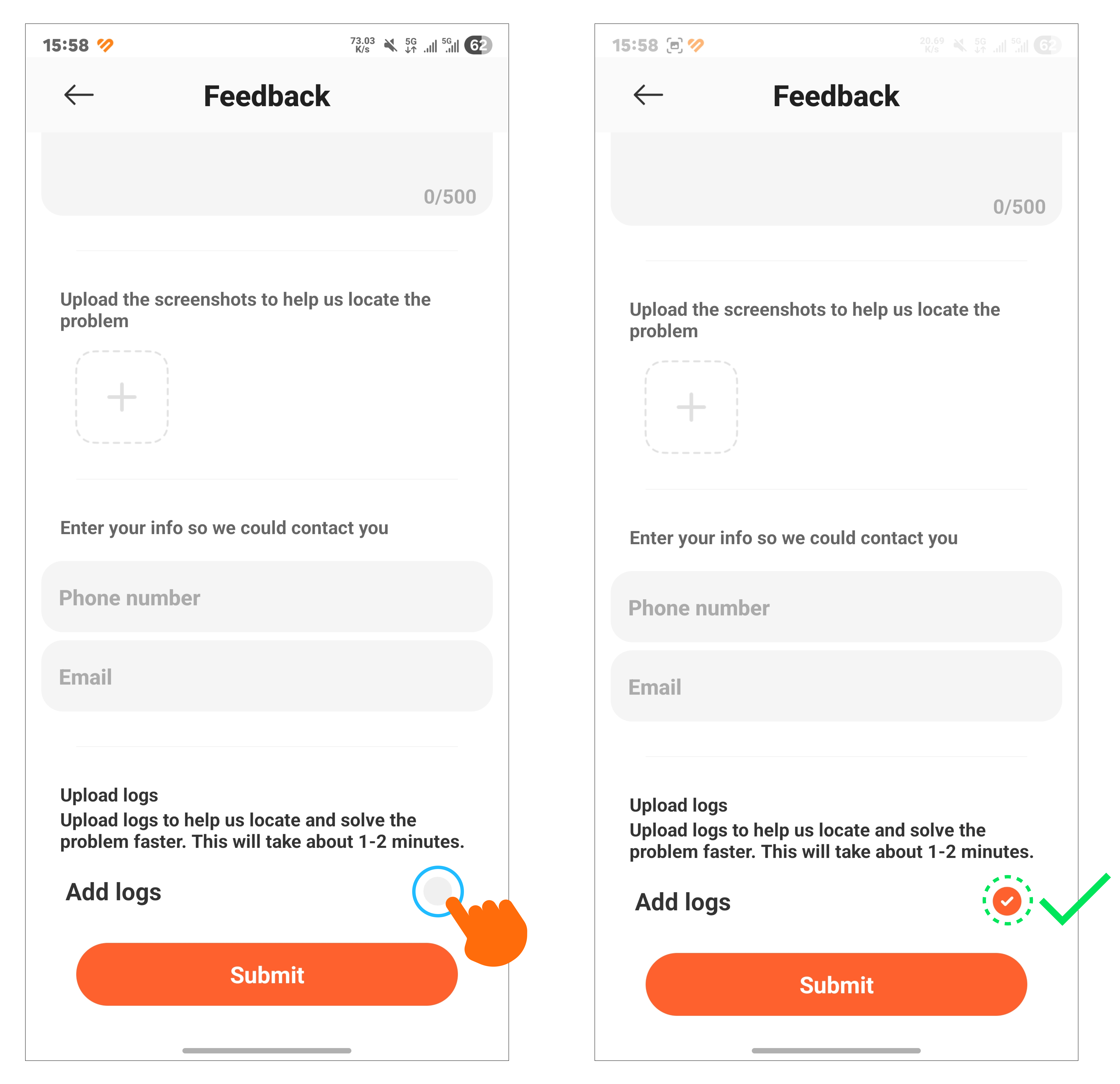
Note:
When submitting feedback, please ensure that your watch is paired and that your phone screen remains active until the feedback has been successfully submitted.
Q73: Why is the brightness change on the REDMI Watch 6 not obvious when raising the wrist?
A: Please make sure that the Auto Brightness function is enabled (path: [Settings] >> [Display] >> [Brightness] >> [Auto]).
If the brightness adjustment is not obvious, it may be because the current ambient light is similar to the light level when the screen was last turned off, so the watch does not trigger a noticeable brightness change.
It is recommended to test in an environment with a larger light difference (for example, moving from indoors to outdoors) to check whether the brightness adjustment responds normally.
Q74: Why can't the REDMI Watch 6 unlock the phone?
A: If the REDMI Watch 6 can't unlock the phone, it is recommended to troubleshoot by following the steps below before trying again:
1. Check whether the unlocking distance meets the requirements. The distance between your phone and the watch must fall within the specified unlock range; if the distance is outside this range, unlocking will fail. (Check the path: Mi Fitness App >> [Device] >> [Security] >> [Unlock phone] >> view unlock distance).
2. If you are using an Android device, please check whether background running permissions are enabled. For Android phones, you need to enable the corresponding permissions first to ensure the function works properly. (Path: Mi Fitness App >> [Device] >> [Notifications and calls] >> tap [App notifications] >> enable [App notifications] >> enable background running permission, then follow the on-screen instructions.).
Q75: Why does the phone’s system Bluetooth show “connected (no phone signal)” for the REDMI Watch 6?
A: This is normal behavior. To reduce power consumption, the REDMI Watch 6 does not connect via HFP by default, so the phone’s Bluetooth settings will display “connected (no phone signal)”. However, this does not affect incoming call notifications or alerts.
Q76: Why does the REDMI Watch 6 always detect e-bike riding as cycling?
A: Because both e-bike riding and cycling are classified as riding activities with similar motion patterns and intensity levels, they cannot be distinguished by the underlying detection algorithm.
Q77: Why is the REDMI Watch 6's swim stroke recognition inaccurate?
A: The REDMI Watch 6 uses built-in accelerometer and gyroscope sensors to capture stroke movements, body motion range, and exercise patterns, and then determines the swimming style through algorithms.
Inaccurate recognition is usually related to factors such as non-standard swimming movements, inconsistent wearing settings, or exercise details such as frequent pauses during swimming.
Q78: Why does the REDMI Watch 6 not show incoming call notifications when Do Not Disturb mode is enabled on HyperOS 2/HyperOS 3 phones?
A: On the phone, go to the Control Center, press and hold the DND (Do Not Disturb) icon to enter the corresponding settings interface, and set [Notify about calls] to [From anyone], [From contacts only], or [From starred contacts only].
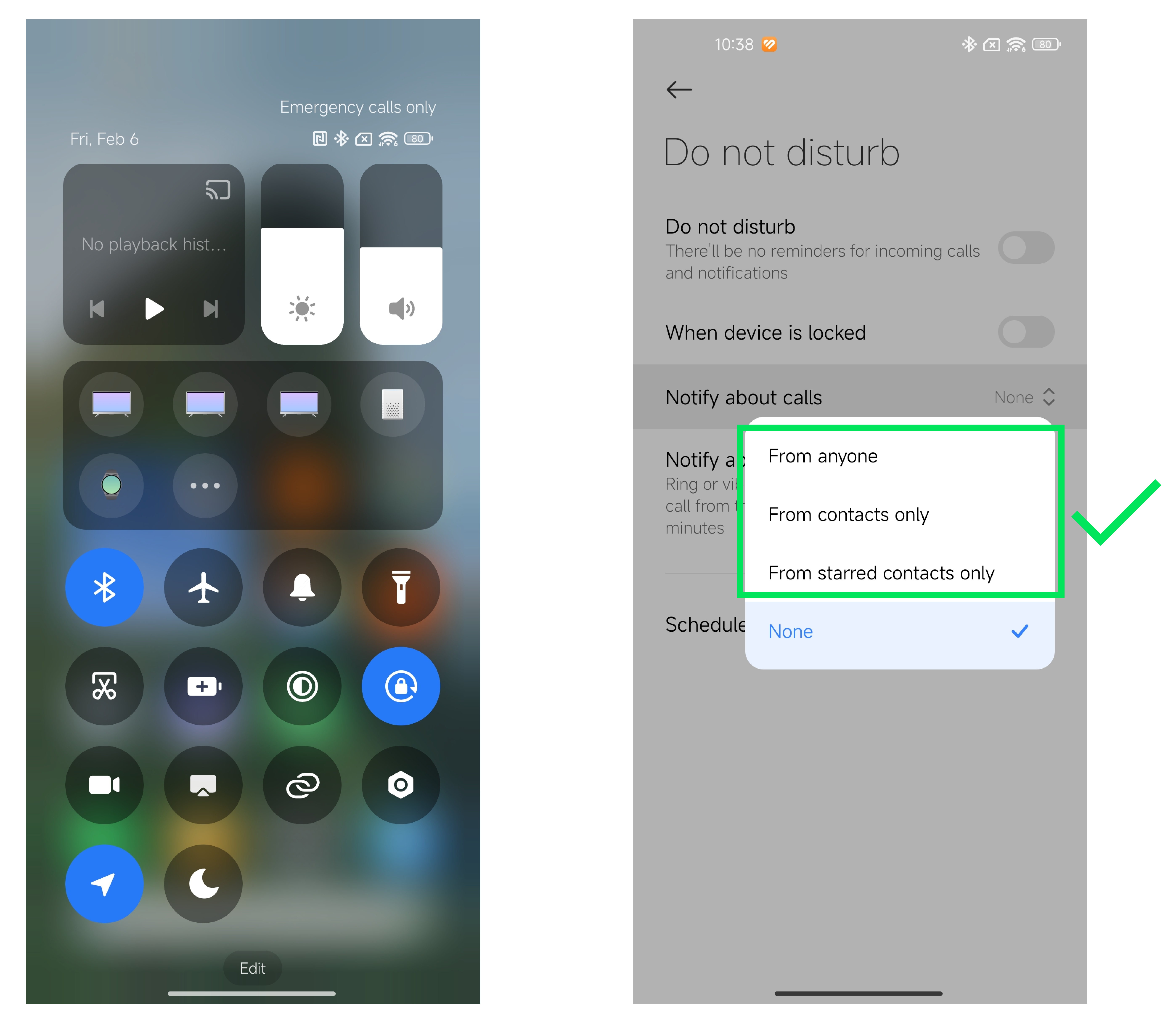
Q79: Why can’t music be uploaded to the REDMI Watch 6 via the Mi Fitness App?
A: If music can’t be uploaded to the REDMI Watch 6 via the Mi Fitness App, please check the following points:
1. The Mi Fitness App currently supports uploading audio formats, including WAV (16-bit, 24-bit, 32-bit) and MP3 (including MP2). Other formats are not supported, so please verify the file format before uploading.
2. Manually changing a file's extension does not change the actual format. Even if the upload succeeds, the file may not play. It is recommended to use a proper audio conversion tool to convert the file into a supported format.
3. If the file is corrupted or incomplete, it can not play even after a successful upload. It is recommended to re-download the song from a legitimate music platform, ensure a stable network during download, and avoid interruptions. After downloading, play it locally on the phone first to confirm it works properly before uploading it to the watch.
Q80: Why doesn’t the REDMI Watch 6 show the App icon when receiving messages?
A: When the REDMI Watch 6 receives a message from an App for the first time, the App icon is dynamically delivered via the App. During this process, a default icon will be displayed temporarily. Please wait briefly or manually refresh the interface. After the icon is successfully delivered for the first time, the correct App icon will be displayed normally for subsequent messages.
Q81: Why does music playback on the REDMI Watch 6 stutter?
A: Please check whether the music files are corrupted. If the files are not damaged, restart the REDMI Watch 6 and try again.
Q82: Why does the REDMI Watch 6 still stay on the incoming call screen after the call is answered on the phone?
A: We sincerely apologize for the inconvenience and fully understand the concern. This is a known technical issue that is currently being worked on and will be resolved in a future update.
If the REDMI Watch 6 is still vibrating, you can press the rotating crown on the watch to stop the vibration.
Q83: Why does the Mi Fitness App show “Device is busy, please try again later” when downloading/updating REDMI Watch 6 faces?
A: This issue may be caused by an outdated REDMI Watch 6 firmware version. Please update to the latest firmware by going to [Mi Fitness App] >> [Device] >> [More] >> [Device version] >> [Check for updates], and then try again.
Q84: Why does the REDMI Watch 6 sleep description say “sleep under 30 minutes will not be recorded,” but in short sleep under 30 minutes is recorded?
A: Whether sleep under 30 minutes (such as naps) is recorded depends on physiological conditions during sleep, including whether the body remains still, whether the heart rate is stable, and how well the watch fits.
If the sleep state is stable and the device can detect continuous sleep signals, it will be recorded. If there is frequent movement or unstable signals, it may not be recognized.
This is normal behavior of the watch’s dynamic and accurate detection algorithm and does not indicate any abnormality.
Q85: Why doesn’t the REDMI Watch 6 face show the music icon when music is playing (or why does the icon still appear when music is paused)?
A: If the phone is running HyperOS 2.0 or above, this is normal behavior. It occurs because the Xiaomi Smart Hub sleep mode has been triggered, which prevents the REDMI Watch 6 from synchronizing the phone’s music status.
To disable sleep mode, you can try the following:
1. Open the watch widgets and swipe to the Music card.
2. Open the Music app on the watch.
3. Use the Find Phone feature on the watch.
4. Open the Xiaomi Smart Hub on the watch.
Q86: Why does the REDMI Watch 6 only display the first message when multiple messages are received continuously?
A: This is normal behavior. When the REDMI Watch 6 is in the screen-on state and receives a new message, it will automatically enter the message details interface. During this period, incoming messages will only trigger notifications without pop-ups and will be grouped into a “temporary aggregation” message list. You can swipe right to view them or press the rotating crown to exit the “temporary aggregation” message list.
Q87: Why can’t the REDMI Watch 6 control music on a Xiaomi phone after connection?
A: If the REDMI Watch 6 cannot control music on a Xiaomi phone after connecting, please manually close the phone’s music App process, reopen the music App, and try again.
Q88: Why does the alarm widget on the REDMI Watch 6 still show the turned-off alarms after the top two enabled alarms are turned off?
A: This is normal behavior. The alarm widget on the REDMI Watch 6 displays alarms based on the order in the Alarm App list (from top to bottom), and the alarm status does not affect the display order.
Q89: Why are Bluetooth earphones not shown in the Xiaomi Smart Hub when using the REDMI Watch 6?
A: Please pair the Bluetooth earphones with a phone running HyperOS 2.0 or above, then check again whether the earphones are displayed correctly in the REDMI Watch 6’s Xiaomi Smart Hub.
Q90: Does the REDMI Watch 6 support syncing the phone’s Do Not Disturb mode?
A: The current system version of the REDMI Watch 6 does not support syncing the phone’s Do Not Disturb mode. This feature has been included in future update plans. Please stay tuned for upcoming system upgrades.
Does it help?