

Xiaomi Robot Vacuum H50 Pro FAQ
Overview
Q1: What is the Xiaomi Robot Vacuum H50 Pro?
A: The Xiaomi Robot Vacuum H50 Pro is a product designed specifically for home using to efficiently clean floors. Utilizing LDS navigation technology, it effectively plans the cleaning path to enhance efficiency. With a single-line laser combined with collision sensors, it offers strong obstacle avoidance capabilities. The side brush swing and mop swing design provides better edge-cleaning performance. It features dual rotating mop pads for powerful scrubbing, intelligent mop pad lifting to keep carpets dry, and smart water replenishment for long-lasting wet mopping-delivering whole-house cleanliness and truly freeing your hands.
Q2: What are the features of the Xiaomi Robot Vacuum H50 Pro?
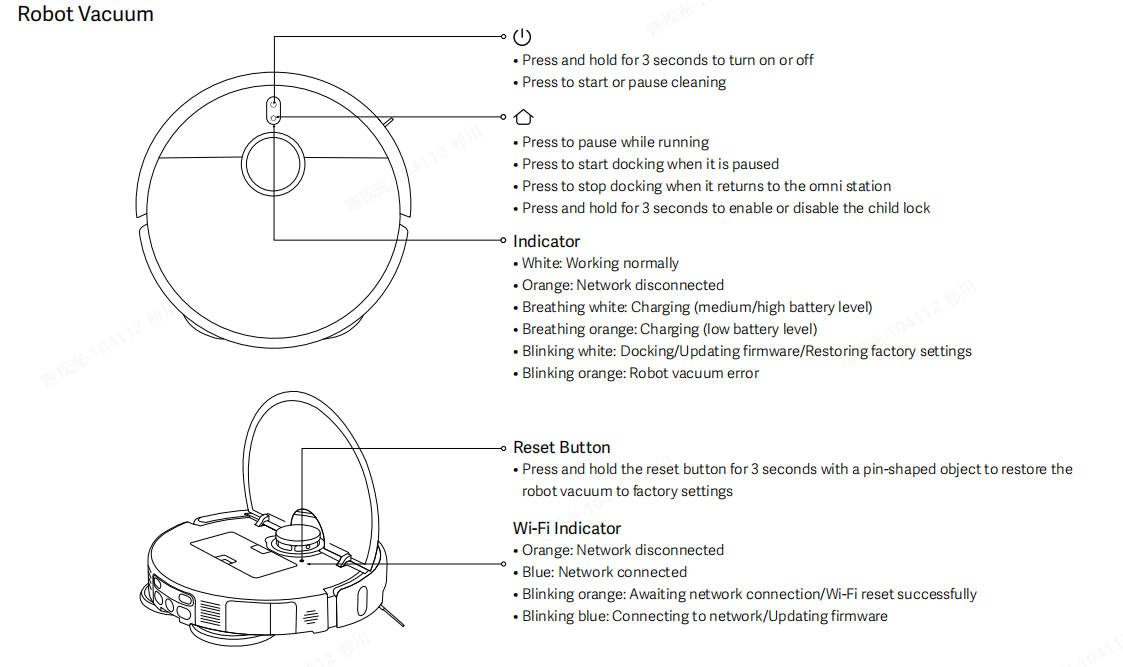
A: The features of the Xiaomi Robot Vacuum H50 Pro are as follows:
1. Dust compartment capacity is 280 ml.
2. Equipped with a 5200 mAh battery, it supports up to 120 minutes of operation in standard vacuuming and mopping mode, meeting daily cleaning needs.
3. It supports side brush swing and mop swing.
4. Features a powerful fan with up to 15 kPa suction and App control with selectable modes: Silent, Standard, Strong, and Turbo. The stronger suction ensures a more thorough clean.
5. It uses LDS laser navigation with single-line laser and collision sensors for intelligent obstacle avoidance. Enhanced edge detection improves corner and edge cleaning, while carpet recognition enables automatic adjustment of cleaning modes.
Q3: How to use the power button of the Xiaomi Robot Vacuum H50 Pro?
A: To use the Power button of the Xiaomi Robot Vacuum H50 Pro, please refer to the following information:
Power On/Off:
1. Press and hold the Power button for 3 seconds to turn it on, the indicator will turn on.
2. When the robot vacuum is not charging and is paused, press and hold the Power button for 3 seconds to turn it off.
Pause:
1. When the robot vacuum is cleaning, press the Power button to pause the cleaning.
2. Press the button again to resume cleaning.
Note:
1. The robot vacuum cannot be powered off while charging.
2. Press any button to pause the robot vacuum when cleaning, returning to the station, or spot cleaning.
Q4: How to use the Recharging button of the Xiaomi Robot Vacuum H50 Pro?
A: To use the Recharging button of the Xiaomi Robot Vacuum H50 Pro, please refer to the following information:
1. Press to pause while running.
2. Press to start docking when it is paused.
3. Press to stop docking when it returns to the station.
4. Press and hold for 3 seconds to enable or disable the child lock.
Note:
Press any button to pause the robot vacuum when cleaning, returning to the station, or spot cleaning.
Q5: What do the indicators on the Xiaomi Robot Vacuum H50 Pro mean?
A: The meanings of the indicators on the Xiaomi Robot Vacuum H50 Pro are as follows:
Indicator:
1. White: Working normally.
2. Orange: Network disconnected.
3. Breathing in white: Charging (medium/high battery level).
4. Breathing in orange: Charging (low battery level).
5. Blinking in white: Docking/Updating firmware/Restoring factory settings.
6. Blinking in orange: Robot vacuum error.
Wi-Fi indicator:
1. Orange: Network disconnected.
2. Blue: Network connected.
3. Blinking in orange: Awaiting network connection/Wi-Fi reset successfully.
4. Blinking in blue: Connecting to network/Updating firmware.
Station indicator:
1. White: Station works normally.
2. Blinking in orange: Station has an error.
Product introduction and use
Q1: What accessories come with the Xiaomi Robot Vacuum H50 Pro?
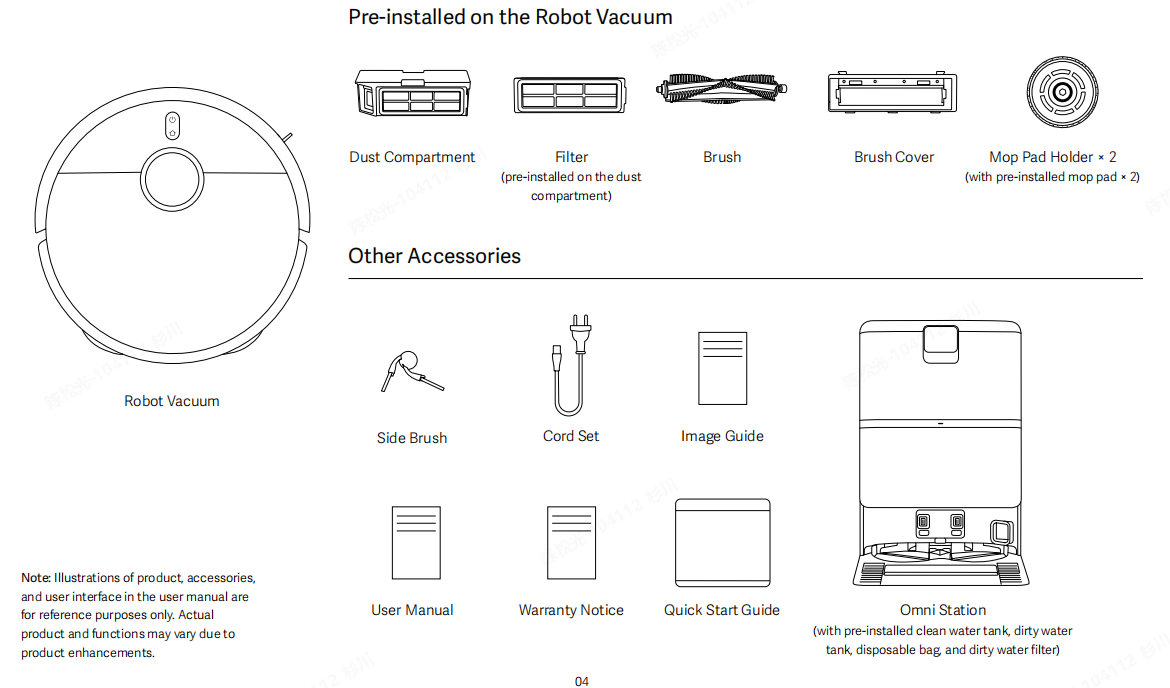
A: The accessories that come with the Xiaomi Robot Vacuum H50 Pro include: dust compartment, filter (pre-installed in the dust compartment), the brush, brush cover and mop pad holder × 2. Other accessories include side brush, cord set, image guide, warranty notice, user manual, quick start guide and omni station.
Q2: What are the main functional components of the Xiaomi Robot Vacuum H50 Pro?
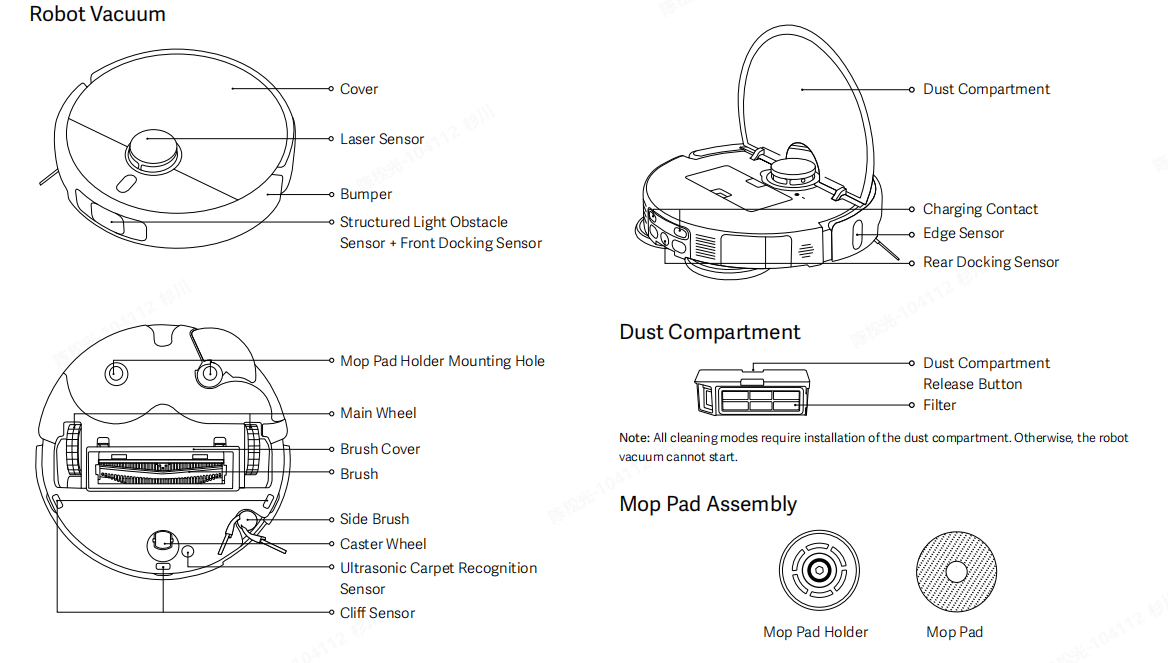
A: The main functional components of the Xiaomi Robot Vacuum H50 Pro include navigation, obstacle avoidance, mobility, and the cleaning & mopping module.
Appearance and Core Sensing Components:
The top features a Cover with a central Laser Sensor for mapping and navigation. The sides have a Bumper and a Structured Light Obstacle Sensor + Front Docking Sensor to avoid obstacles and assist docking.
The top features a Cover with a central Laser Sensor for mapping and navigation. The sides have a Bumper and a Structured Light Obstacle Sensor + Front Docking Sensor to avoid obstacles and assist docking.
Bottom Components:
Main Wheel and Caster Wheel provide mobility, while Brush, Side Brush, and Brush Cover handle dust and debris. The Ultrasonic Carpet Recognition Sensor detects carpets to adjust cleaning modes, and Cliff Sensors prevent falls. A Mop Pad Holder Mounting Hole allows installation of the mop pad assembly.
Main Wheel and Caster Wheel provide mobility, while Brush, Side Brush, and Brush Cover handle dust and debris. The Ultrasonic Carpet Recognition Sensor detects carpets to adjust cleaning modes, and Cliff Sensors prevent falls. A Mop Pad Holder Mounting Hole allows installation of the mop pad assembly.
Dust Compartment and Charging Components:
The robot vacuum contains a Charging Contact, an Edge Sensor, a Rear Docking Sensor. The dust compartment contains a Dust Compartment Release Button, and a Filter. It must be installed for all cleaning modes. Otherwise, the robot vacuum cannot start.
The robot vacuum contains a Charging Contact, an Edge Sensor, a Rear Docking Sensor. The dust compartment contains a Dust Compartment Release Button, and a Filter. It must be installed for all cleaning modes. Otherwise, the robot vacuum cannot start.
Mop Pad Assembly:
The robot vacuum includes Mop Pad Holder and Mop Pad for wet mopping.
The robot vacuum includes Mop Pad Holder and Mop Pad for wet mopping.
Q3: What is the station for the Xiaomi Robot Vacuum H50 Pro?
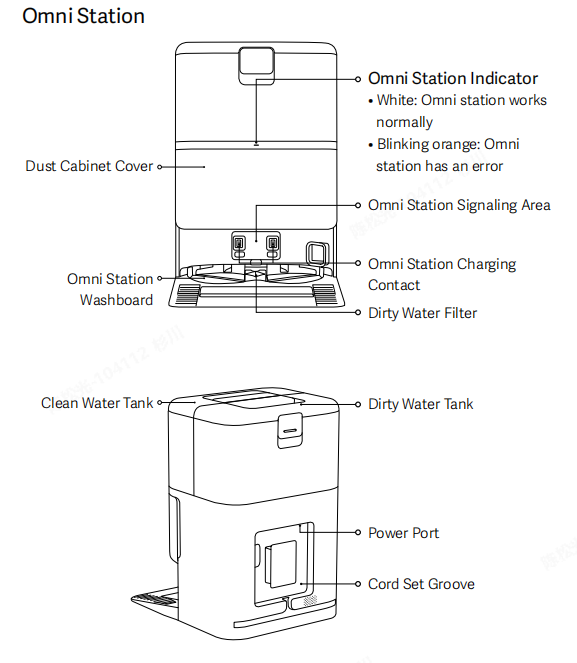
A: The station for the Xiaomi Robot Vacuum H50 Pro is an evolution of the traditional station. In addition to supporting charging, it integrates more advanced functions, such as mop washing, mop drying, dirty water tank collection, and trash collection, making the robot vacuum's cleaning capabilities even more powerful.
The omni station is a multifunctional device composed of several key components. It includes an omni station indicator. The station also features a dust cabinet cover and an omni station signaling area. Additional parts include the omni station washboard and the omni station charging contact, as well as a dirty water filter. For water management, it is equipped with a clean water tank and a dirty water tank. For power connection, the omni station has a power port and a cord set groove to ensure organized and efficient operation.
Q4: How to check the SN of the Xiaomi Robot Vacuum H50 Pro?
A: The device SN of the Xiaomi Robot Vacuum H50 Pro can be found after removing the dust compartment, on the label at the back of the station, or on the product's outer packaging.
Q5: Can the Xiaomi Robot Vacuum H50 Pro be used directly after unboxing?
A: The Xiaomi Robot Vacuum H50 Pro can be used immediately. It is recommended that after unboxing, you first check whether all standard accessories are included. Then power on the device and connect it to the network via the Xiaomi Home App to learn how to use it.
Note:
For first-time use, follow the instructions to properly place the station. Manually position the robot vacuum on the station so that the charging contacts align. Fully charge the robot vacuum before starting cleaning or mapping. After the initial full charge, perform cleaning mapping or quick mapping from the station. Charging from 0% to 100% typically takes about 3–6 hours.
Q6: Which mode is recommended for first-time use of the Xiaomi Robot Vacuum H50 Pro?
A: For first-time use of the Xiaomi Robot Vacuum H50 Pro, please refer to the following information:
It is recommended to prioritize the vacuuming mode. In areas with heavy dust or debris, temporarily increase the suction power to complete cleaning, then return to standard mode (prolonged use of high-power mode can affect battery life). After the vacuuming mode completes a full cleaning cycle, install the mop assembly and switch to the vacuum and mop mode for full-area cleaning.
Note:
For a new unit, remove the bumper foam and install the side brushes. During the first use, organize items in the area to prevent entanglement or blockage. It is recommended to perform mapping first, after the map is created, set up the map, add virtual walls, and other auxiliary settings before regular use.
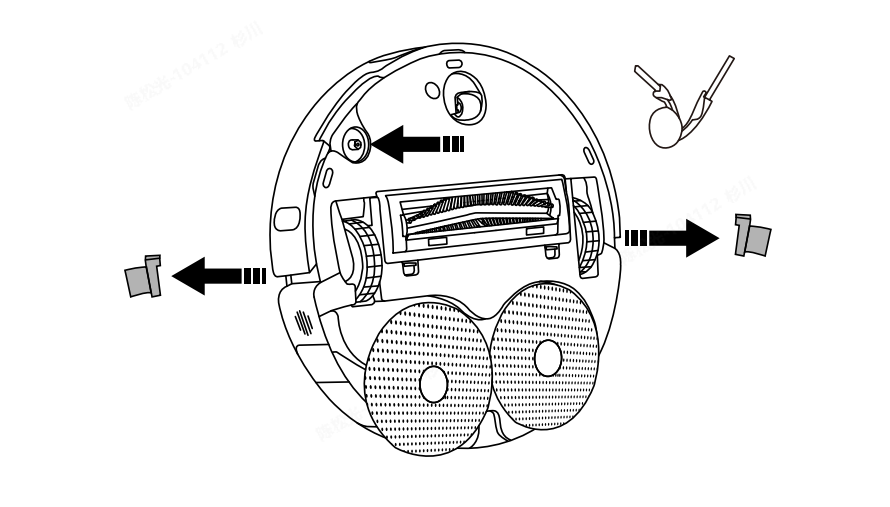
Q7: Why does the Xiaomi Robot Vacuum H50 Pro need to have its exterior wiped regularly?
A: The Xiaomi Robot Vacuum H50 Pro performs vacuuming, mopping, and debris collection tasks. Regularly emptying the dust compartment and cleaning the mop pad, the main and side brushes help maintain its cleaning performance.
The robot vacuum is equipped with various sensors around its body to explore the surrounding environment, build maps, and avoid obstacles. When the device becomes dirty, please clean the surrounding dust and remove any debris using a damp cloth (well wrung out) in a timely manner. This helps to restore the robot vacuum's obstacle avoidance and recognition capabilities.
Note:
Do not use detergents, sprays, or other chemical cleaners.
Q8: How does the Xiaomi Robot Vacuum H50 Pro enter standby mode after completing a task?
A: After completing a task, it is recommended to place the Xiaomi Robot Vacuum H50 Pro back on the station to charge and enter standby mode, ensuring the battery is sufficiently charged.
Q9: What to do if the side brush of the Xiaomi Robot Vacuum H50 Pro becomes entangled?
A: If the side brush of the Xiaomi Robot Vacuum H50 Pro becomes entangled, please promptly remove any debris and check whether the bristles are damaged or have fallen off. Before the next cleaning session, it's recommended to remove easily entangled items such as yarn or thin strings from the floor in advance.
Q10: Why can't the Xiaomi Robot Vacuum H50 Pro be powered off while on the station?
A: When the Xiaomi Robot Vacuum H50 Pro is on the station, it will remain in either a charging or a fully charged state. To power off the device, remove it from the station, then press and hold the power button for 3 seconds to shut it down.
Q11: What types of living scenarios can the Xiaomi Robot Vacuum H50 Pro be used in?
A: The Xiaomi Robot Vacuum H50 Pro is designed exclusively for residential indoor floor cleaning. It should not be used outdoor, non-residential, commercial, or industrial environments, as doing so can result in malfunctions or loss of the device.
Q12: How to use the Do Not Disturb mode of the Xiaomi Robot Vacuum H50 Pro?
A: The Do Not Disturb mode of the Xiaomi Robot Vacuum H50 Pro is enabled by default from 22:00 PM to 8:00 AM. You can disable the Do Not Disturb mode or adjust its duration through the Xiaomi Home App.
While in Do Not Disturb mode, the robot vacuum will not automatically resume cleaning, it will not broadcast voice prompts, and the indicator will remain off.
Q13: How to set the scheduled cleanup on the Xiaomi Robot Vacuum H50 Pro?
A: The scheduled cleanup of the Xiaomi Robot Vacuum H50 Pro can be set in the Xiaomi Home App. Once a scheduled time is set, the robot vacuum will automatically start cleaning at the specified time and return to the station once the task is complete.
Q14: How to save the complete map on the Xiaomi Robot Vacuum H50 Pro?
A: To save the complete map of the Xiaomi Robot Vacuum H50 Pro, press the Power button to start cleaning or select the Vacuuming mode in the Xiaomi Home App. The robot vacuum must begin cleaning from the station, and it will save a temporary map during the cleaning process. Once cleaning is finished, it will automatically return to the station and generate the complete map. (Ensure all doors in the cleaning area are open to allow for a complete mapping.)
Q15: How to use the whole-house cleanup mode of the Xiaomi Robot Vacuum H50 Pro?
A: During the first startup, the Xiaomi Robot Vacuum H50 Pro will perform edge cleaning first, followed by a zigzag cleaning pattern until all areas are covered. During full-area cleaning, the robot vacuum will clean room by room, starting with edge cleaning and then switching to a zigzag pattern to complete the cleaning in sequence. After cleaning is finished, the robot vacuum will automatically return to the station.
Q16: Can the Xiaomi Robot Vacuum H50 Pro stay connected to the charger continuously?
A: The Xiaomi Robot Vacuum H50 Pro supports overcharge protection. Once fully charged, it automatically switches to low-current charging.
Q17: Does the Xiaomi Robot Vacuum H50 Pro have motor overload protection?
A: All motors in the Xiaomi Robot Vacuum H50 Pro are equipped with overload protection, including the brush motor, side brush motor, left and right wheel motors, and the rotating mop motor. If foreign objects or severe blockage cause overload, the protection mechanism will automatically activate.
Q18: Does the Xiaomi Robot Vacuum H50 Pro require regular replacement of consumables?
A: The consumables of the Xiaomi Robot Vacuum H50 Pro include the main brush, side brush, brush cover, HEPA filter, mop pad, and mop pad holder. These components need to be replaced regularly to ensure the normal functioning of the robot vacuum and maintain cleaning performance.
Recommended maintenance guidelines are as follows:
1. The main brush should be cleaned weekly and replaced every 6–12 months to ensure cleaning efficiency.
2. The HEPA filter should be cleaned weekly and replaced every 3–6 months.
3. The side brush should be cleaned monthly and replaced every 3–6 months to maintain cleaning performance.
4. The mop pad should be washed and air-dried regularly, and replaced every 1–3 months to ensure cleaning efficiency.
Q19: How to use the station of the Xiaomi Robot Vacuum H50 Pro?
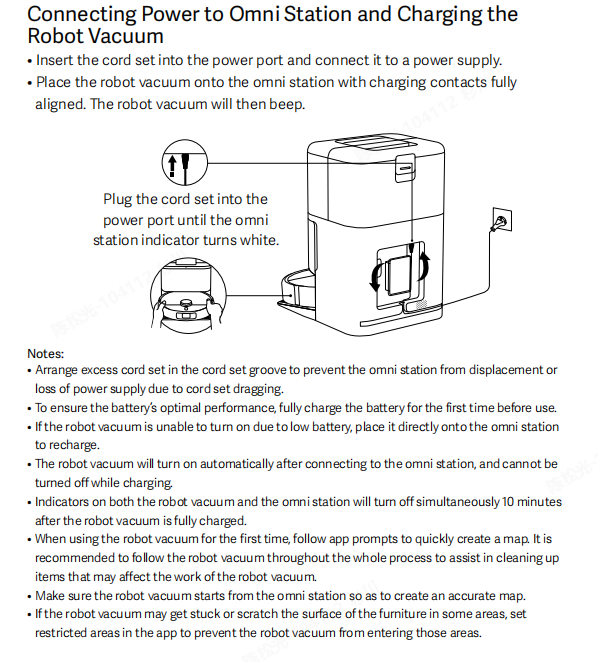
A: Place the station of the Xiaomi Robot Vacuum H50 Pro on a flat surface against a wall, ensuring adequate space on both sides. Connect the power adapter to the station and then plug it into a power outlet. For better performance, position the station within Wi-Fi coverage.
Please refer to the following information:
1. Install the station in an open area with a strong Wi-Fi signal whenever possible.
2. Insert the cord set into the power port and connect it to a power supply.
3. Place the robot vacuum onto the omni station with charging contacts fully aligned. The robot vacuum will then beep.
4. Plug the cord set into the power port until the omnistation indicator turns in white.
5. Before first use, place the robot vacuum on the station, it will automatically power on and start charging.
Note:
1. Arrange excess cord set in the cord set groove to prevent the omni station from displacement or loss of power supply due to cord set dragging.
2. To ensure the battery's optimal performance, fully charge the battery for the first time before use.
3. If the robot vacuum is unable to turn on due to low battery, place it directly onto the omni station to recharge.
4. The robot vacuum will turn on automatically after connecting to the omni station, and cannot be turned off while charging.
5. Indicators on both the robot vacuum and the omni station will turn off simultaneously 10 minutes after the robot vacuum is fully charged.
6. When using the robot vacuum for the first time, follow Xiaomi Home App prompts to quickly create a map. It is recommended to follow the robot vacuum throughout the whole process to assist in cleaning up items that can affect the work of the robot vacuum.
7. Make sure the robot vacuum starts from the omni station so as to create an accurate map.
8. If the robot vacuum gets stuck or scratches the surface of the furniture in some areas, set restricted areas in the Xiaomi Home App to prevent the robot vacuum from entering those areas.
Q20: How to charge the Xiaomi Robot Vacuum H50 Pro?
A: Press and hold the Power button of the Xiaomi Robot Vacuum H50 Pro until the indicator turns on, then place the robot vacuum on the station to begin charging. A voice prompt will indicate when charging has started.
Note:
If the battery is too low, the device can not power on. In this case, place the robot vacuum directly onto the station to charge.
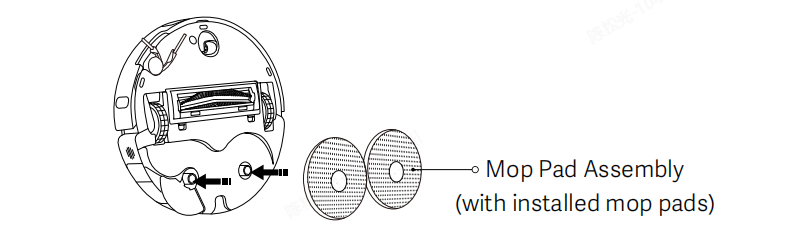
Q21: How to install the mop pad of the Xiaomi Robot Vacuum H50 Pro?
A: As shown in the diagram, attach the mop pad of the Xiaomi Robot Vacuum H50 Pro assembly to the designated latch position indicated in the illustration. They are properly installed when a "click" is heard.
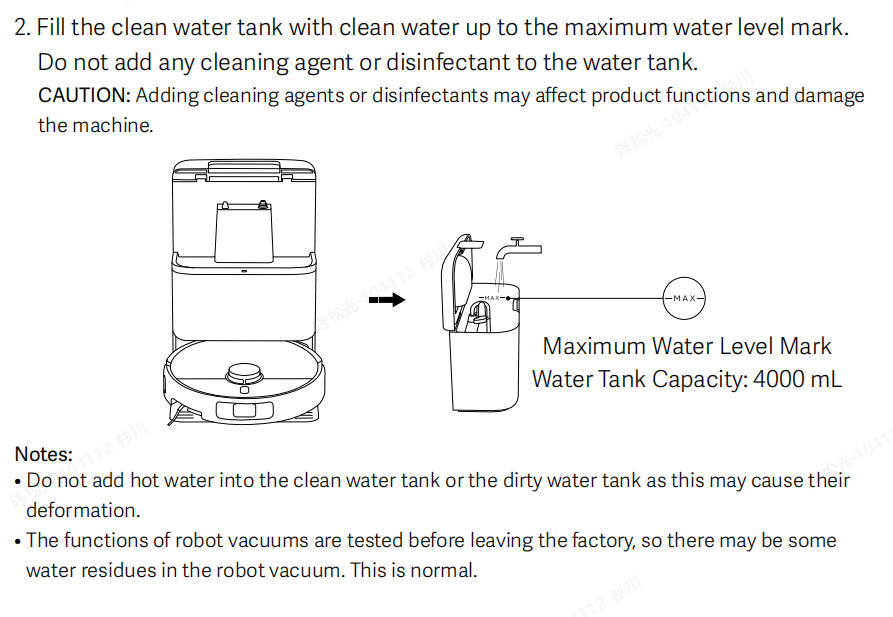
Q22: How to add water to the water tank of the Xiaomi Robot Vacuum H50 Pro?
A: Open the clean water tank lid of the Xiaomi Robot Vacuum H50 Pro and fill the tank with water up to just below the maximum water level. After filling, securely close the water tank lid.
Note:
1. Do not pour hot water into the clean water tank to prevent deformation.
2. Do not use cleaning agents, disinfectants, or solid cleaning liquids, as they can corrode or damage the robot vacuum.
Q23: How to start the vacuuming mode on the Xiaomi Robot Vacuum H50 Pro?
A: To start vacuuming, press the Power button on the Xiaomi Robot Vacuum H50 Pro. Press any button during cleaning to pause the operation. After connecting to the Internet, you can start cleaning through the Xiaomi Home App.
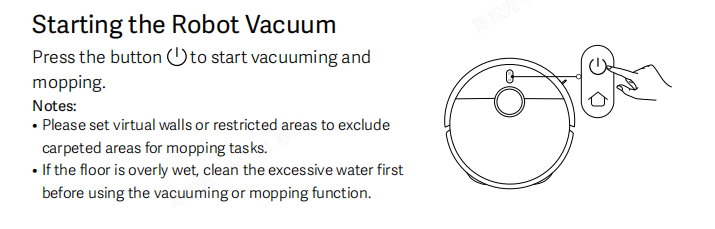
Note:
1. Before cleaning, make sure the robot vacuum is fully charged and starts from the station. Do not move the robot vacuum during operation, as this can cause mapping errors and prevent the robot vacuum from returning to the station.
2. If the battery is too low to start cleaning, charge the robot vacuum first before starting the task.
3. Please set virtual walls or restricted areas to exclude carpeted areas for mopping tasks.
4. If the floor is overly wet, clean the excessive water first before using the vacuuming or mopping function.
Q24: How to return the Xiaomi Robot Vacuum H50 Pro to the station for recharging?
A: When the battery is low during cleaning, the Xiaomi Robot Vacuum H50 Pro will automatically return to the station. Once sufficiently charged, it will resume the unfinished cleaning task from the breakpoint.
While in standby mode, press the Recharging button to start returning to the station. During cleaning, press the Recharging button to pause, then press again to initiate returning to the station.
Note:
If the robot vacuum cannot locate the station, please manually place it on the station. When doing so, make sure you hear the voice prompt "Start charging" before leaving.
Q25: Can the Xiaomi Robot Vacuum H50 Pro automatically collect dust?
A: After the Xiaomi Robot Vacuum H50 Pro completes the vacuuming and mopping task and returns to the station, the station will automatically start the dust collection function.
Note:
1. If the automatic dust collection function is disabled in the Xiaomi Home App, the station will not perform automatic dust collection.
2. The frequency of automatic dust collection can be set in the Xiaomi Home App.
Q26: How does the Xiaomi Robot Vacuum H50 Pro automatically clean the mop pad?
A: Here's how the Xiaomi Robot Vacuum H50 Pro automatically cleans its mop pad:
1. Mid-task mop cleaning: When the robot vacuum is in vacuuming and mopping mode or mopping mode, it will automatically return to the station for mop cleaning after the default cleaning area reaches 8㎡ (adjustable in the App to 5㎡/8㎡/10㎡) or after the default cleaning time reaches 8 minutes (adjustable in the App to 5/8/10 minutes). After cleaning, the robot vacuum returns to the previous position and continues the unfinished task.
2. Automatic cleaning after task completion: After completing vacuuming and mopping or mopping task and returning to the station, the station will start cleaning and drying the mop pad.
Q27: How to maintain the main brush of the Xiaomi Robot Vacuum H50 Pro?
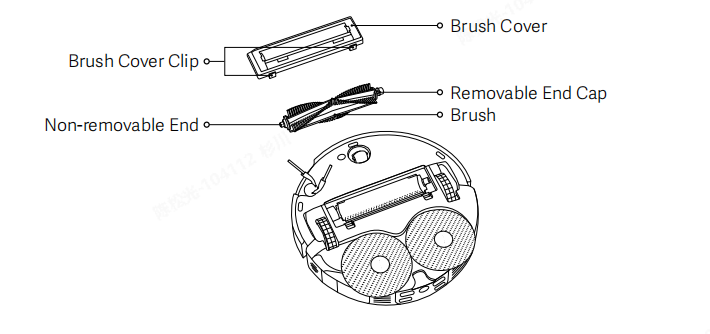
A: To maintain the brush of the Xiaomi Robot Vacuum H50 Pro, please refer to the following information:
1. Turn the robot vacuum over and press both brush cover clips to remove the main brush cover.
2. Remove the main brush upwards and clean it.
3. Reinstall the main brush and the cover, making sure the cover is pressed down firmly and secured in place.
Note:
It is recommended to replace the main brush every 6 to 12 months to maintain optimal cleaning performance.
Q28: How to empty and clean the dust compartment and filter of the Xiaomi Robot Vacuum H50 Pro?
A: To empty and clean the dust compartment of the Xiaomi Robot Vacuum H50 Pro, please refer to the following information:
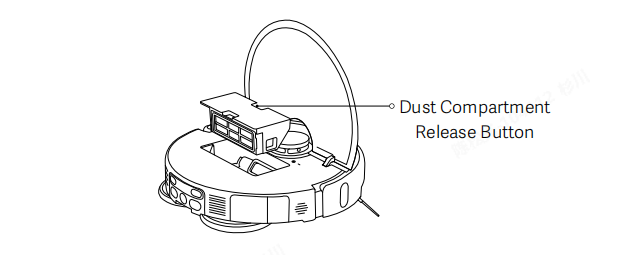
1. Open the cover of the robot vacuum, and press the dust compartment release button to remove the dust compartment upward from the robot vacuum.
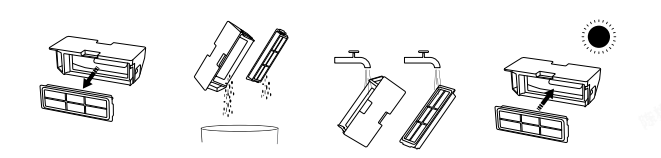
2. Open the dust compartment cover and empty the debris.
3. Rinse the dust compartment and filter with clean water if needed.
4. Fully dry the dust compartment and filter before reinstalling them.
Note:
1. Do not attempt to clean the filter with a brush or fingers.
2. Frequent rinse is not recommended, otherwise the filter can be damaged.
3. Only use clean water to clean the dust compartment and filter. Do not use detergent.
Q29: How to maintain the caster wheel and the side brush of the Xiaomi Robot Vacuum H50 Pro?
A: To maintain the caster wheel and the side brush of the Xiaomi Robot Vacuum H50 Pro, please refer to the following steps:
1. Turn the robot vacuum upside down and pull out the caster wheel and side brush upwards.
2. Clean any hair or debris that can have gotten stuck on the caster wheel and side brush.
3. Reinstall the caster wheel and side brush, pressing them firmly into place.
Note:
It is recommended to clean the side brush monthly and replace it every 3–6 months to ensure optimal cleaning performance. Replacement can be done as needed without affecting cleaning efficiency.
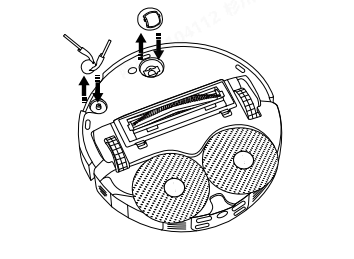
Q30: How to replace the mop pad on the Xiaomi Robot Vacuum H50 Pro?
A: To replace the mop pad on the Xiaomi Robot Vacuum H50 Pro, please refer to the following steps:
1. Remove the mop pad holder, then peel off the mop pad from the edges.
2. To attach a new mop pad, simply align it with the velcro and press it down.
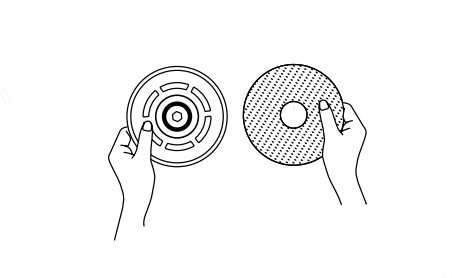
Q31: How to clean the dirty water tank of the Xiaomi Robot Vacuum H50 Pro?
A: Remove the dirty water tank from the station of the Xiaomi Robot Vacuum H50 Pro, open the tank lid, pour out the dirty water, and clean the tank to prevent odors and mold.
Note:
The float inside the dirty water tank can move freely. Avoid excessive force during cleaning to prevent damage.
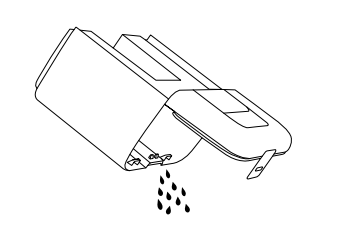
Q32: How to clean the dirty water filter of the Xiaomi Robot Vacuum H50 Pro?
A: Remove the dirty water filter from the station of the Xiaomi Robot Vacuum H50 Pro and clean any dirt, hair, or debris from its surface. After cleaning, reinstall the filter back into the station.
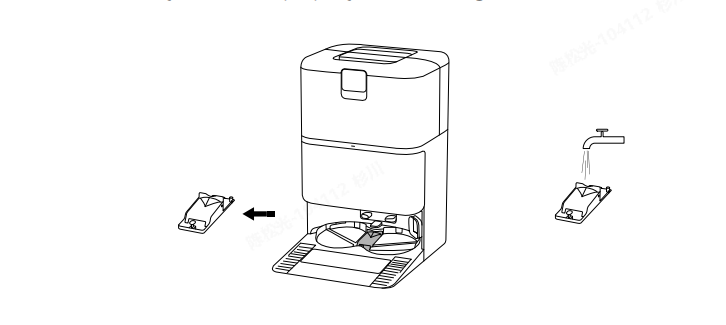
Q33: How to clean the washboard of the Xiaomi Robot Vacuum H50 Pro?
A: To clean the washboard of the Xiaomi Robot Vacuum H50 Pro, please refer to the following steps:
1. Open the Xiaomi Home App >> select [Xiaomi Robot Vacuum H50 Pro] >> go to [Settings] >> tap [Station's assisted washing].
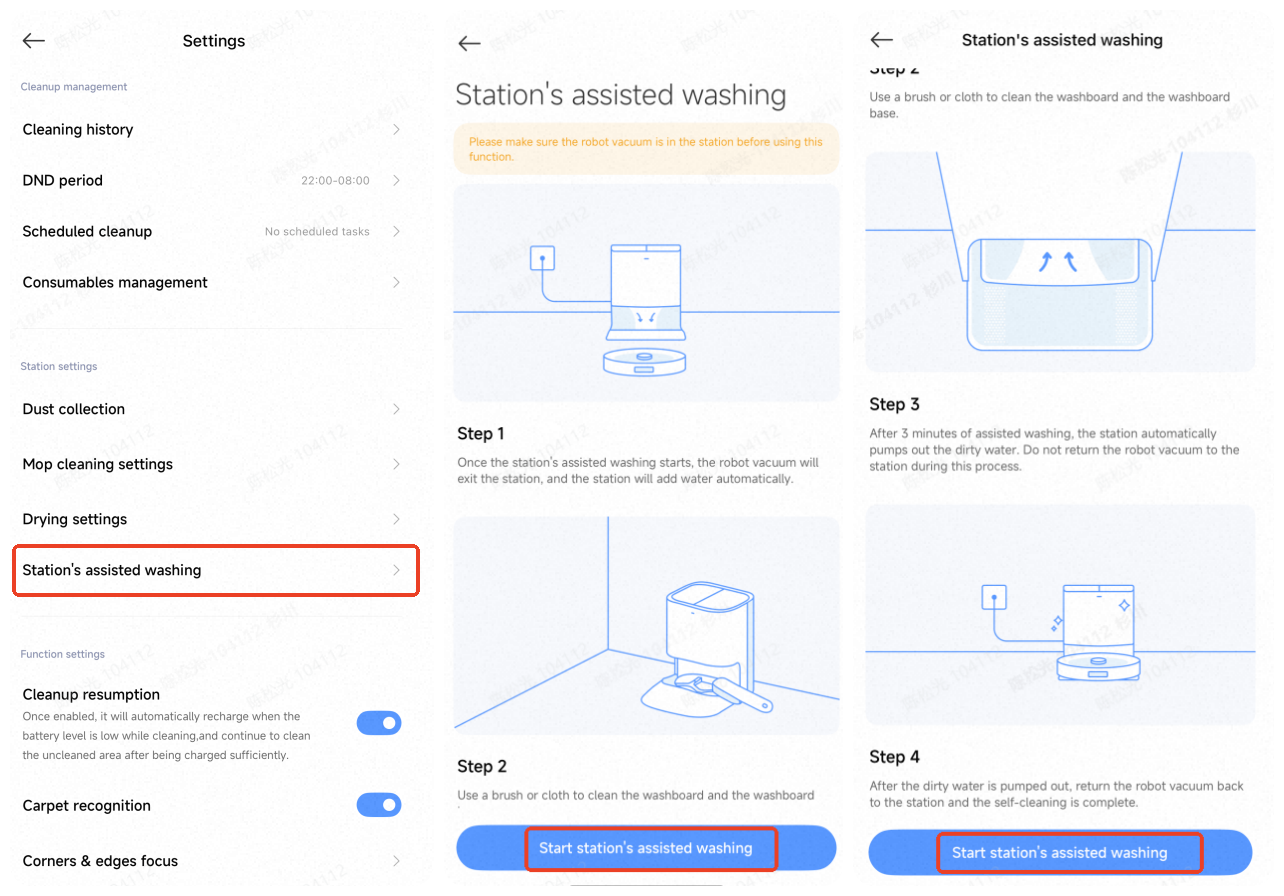
2. After enabling [Station's assisted washing], the robot vacuum will leave the station, and the station will start filling water. Use a brush or cloth to clean the washboard and washboard base. After 3 minutes, the station will automatically pump out the dirty water.
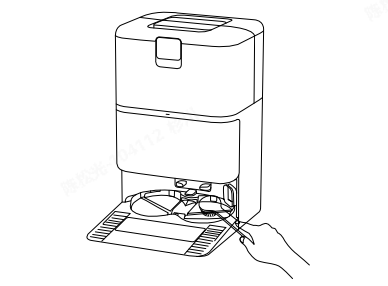
Note:
Do not move the robot vacuum while the station is pumping out dirty water. After pumping out, the robot vacuum will automatically return to the station.
Q34: How to replace the disposable bag of the Xiaomi Robot Vacuum H50 Pro?
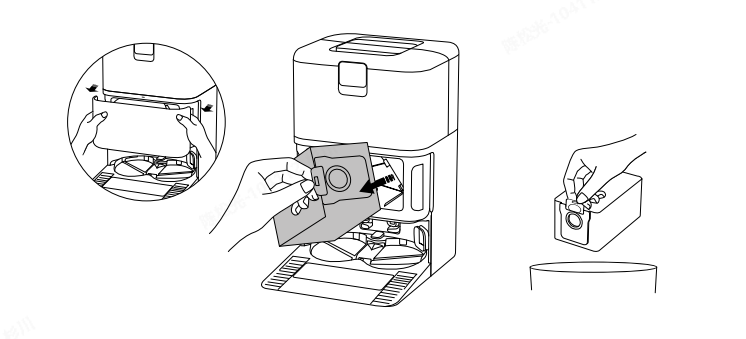
A: To replace the disposable bag of the Xiaomi Robot Vacuum H50 Pro, please refer to the following steps:
1. When a new disposable bag is needed, open the dust compartment lid of the robot vacuum, pull the disposable bag by its handle, and discard it.
2. Insert a new disposable bag according to the illustration and secure the handle into the slot.
3. Align the top latch of the dust compartment lid first, then press the bottom until a "click" is heard to ensure the dust compartment is fully sealed.
Q35: Will the yellowing of the charging contacts on the Xiaomi Robot Vacuum H50 Pro affect its performance?
A: The charging contacts of the Xiaomi Robot Vacuum H50 Pro are exposed to the environment and can become oxidized or yellow over time with use. This is a normal occurrence and does not affect the charging function. However, it is recommended to regularly wipe the charging contacts with a dry cloth.
Q36: How to maintain the battery of the Xiaomi Robot Vacuum H50 Pro?
A: The Xiaomi Robot Vacuum H50 Pro is equipped with a high-performance lithium-ion rechargeable battery. To maintain optimal battery performance, please set the robot vacuum to standard mode for daily use. After completing tasks, keep the robot on charge in standby mode.
Note:
If the device will not be used for an extended period, turn off the power. Charge the device at least once every three months to prevent damage from over-discharge.
Q37: How to set the Do Not Disturb (DND) mode on the Xiaomi Robot Vacuum H50 Pro?
A: When DND mode is enabled, the default time period is from 22:00 PM to 8:00 AM. You can configure DND settings via the Xiaomi Home App.
Do Not Disturb (DND) settings can be configured through the Xiaomi Home App. When DND mode is enabled, the current start and end times will be displayed and can be adjusted manually. When DND mode is disabled, the start and end times will not be shown.
Q38: Does the Xiaomi Robot Vacuum H50 Pro support UV light?
A: The Xiaomi Robot Vacuum H50 Pro does not support UV light.
Q39: Does the Xiaomi Robot Vacuum H50 Pro support electrolyzed water sterilization?
A: The Xiaomi Robot Vacuum H50 Pro does not support electrolyzed water sterilization.
Q40: Why does the Xiaomi Robot Vacuum H50 Pro frequently clean the mop pad?
A: Before each vacuum-and-mop or mop-only task, the Xiaomi Robot Vacuum H50 Pro cleans and wets the mop pad.
Mid-task mop cleaning: When the robot vacuum is in vacuuming and mopping mode or mopping mode, it will automatically return to the station for mop cleaning after the default cleaning area reaches 8㎡ (adjustable in the App to 5㎡/8㎡/10㎡) or after the default cleaning time reaches 8 minutes (adjustable in the App to 5/8/10 minutes). After cleaning, the robot vacuum returns to the previous position and continues the unfinished task.
Automatic cleaning after task completion: After completing a vacuuming and mopping or mopping task and returning to the station, the station will start cleaning and drying the mop pad.
Q41: What to do when abnormal conditions occur in the clean/dirty water tanks while the Xiaomi Robot Vacuum H50 Pro is cleaning the mop pad?
A: Cleaning will pause and an alert will be shown if the clean water tank of the Xiaomi Robot Vacuum H50 Pro is low, not installed, or if the dirty water tank is full or not installed. After refilling the clean water tank, emptying the dirty water tank, and properly placing both tanks, you can tap the [Start] in the Xiaomi Home App to resume cleaning and complete the current task.
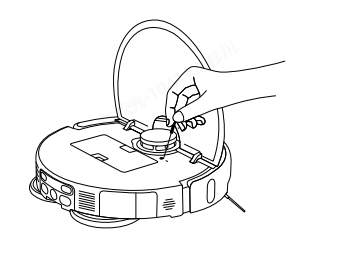
Q42: How to reset the Xiaomi Robot Vacuum H50 Pro?
A: While powered on, press and hold the reset button for 3 seconds to restore factory settings. When you hear "System restore successful," the Xiaomi Robot Vacuum H50 Pro will automatically restart, and all scheduled cleaning and Wi-Fi settings will be reset to factory defaults.
Q43: Does the Xiaomi Robot Vacuum H50 Pro provide alerts for a full dust compartment?
A: The Xiaomi Robot Vacuum H50 Pro does not support a full dust compartment notification, so regular cleaning and maintenance are required.
Q44: Can the stickers be attached to the Xiaomi Robot Vacuum H50 Pro?
A: It is not recommended to apply stickers to the Xiaomi Robot Vacuum H50 Pro. Stickers can obstruct the laser radar on top of the device, the obstacle avoidance sensor, or the infrared sensor on the front bumper, which can affect the robot vacuum's operation.
Q45: Why does the Xiaomi Robot Vacuum H50 Pro back up or turn when it bumps into the radar cover during operation?
A: There is a collision micro switch inside the radar cover of the Xiaomi Robot Vacuum H50 Pro for detection. When the robot encounters an obstacle, it will automatically avoid it.
Q46: How to achieve better mopping results with the Xiaomi Robot Vacuum H50 Pro?
A: It is recommended to create a complete map through the Xiaomi Home App and set up the Xiaomi Robot Vacuum H50 Pro's rotating mop pad. This allows for more even, thorough, and efficient mopping.
Q47: How to create a map for the Xiaomi Robot Vacuum H50 Pro?
A: To create a map for the Xiaomi Robot Vacuum H50 Pro, please refer to the following information:
1. For first-time use, follow the instructions in the app to select either Quick Mapping or Start cleanup. Once completed, the App will automatically save the map.
2. When using the robot vacuum in a new environment (e.g., a different floor), go to the Xiaomi Home App >> tap the three dots icon at the upper right corner >> [Map list] >> tap [Create a new map] to build a new one. You can differentiate maps by assigning unique names to each environment.
Please note the following during map creation:
1. Start the mapping process from the station, and do not move the station during mapping.
2. Once the robot vacuum returns to the station automatically, the new map will be saved. Do not interrupt or move the robot vacuum during this process.
3. The presence of highly reflective objects such as mirrors, windows, or shiny metal surfaces can affect mapping accuracy.
Q48: Does the Xiaomi Robot Vacuum H50 Pro support direct rinsing with water?
A: The Xiaomi Robot Vacuum H50 Pro does not support direct rinsing with water. Rinsing the robot vacuum directly can allow water to enter the internal components and cause damage. If the device becomes dirty, it is recommended to remove accessories such as the brush cover, brush, side brush, dust compartment, and mop pad for individual cleaning. Make sure all parts are completely dry before reinstalling and using them.
Q49: How many areas does the Xiaomi Robot Vacuum H50 Pro clean before automatic mop pad cleaning?
A: When the Xiaomi Robot Vacuum H50 Pro is in vacuuming and mopping mode or mopping mode, it will automatically return to the station for mop cleaning after the default cleaning area reaches 8㎡ (adjustable in the App to 5㎡/8㎡/10㎡). After cleaning, the robot vacuum returns to the previous position and continues the unfinished task.
Q50: Can the clean water tank of the Xiaomi Robot Vacuum H50 Pro be refilled during cleaning?
A: Yes. If the Xiaomi Robot Vacuum H50 Pro needs a refill during cleaning, press any button to pause, then remove the clean water tank to add water. After refilling, reinstall the tank, and press the Power button to resume cleaning. The mop pad does not require manual cleaning. After cleaning for a period of time, the robot vacuum will automatically return to the station to clean the mop pad.
Q51: How effective is the Xiaomi Robot Vacuum H50 Pro at cleaning stubborn stains?
A: The Xiaomi Robot Vacuum H50 Pro uses a dual-rotating mop system for powerful scrubbing, delivering professional mopping performance to effectively clean stubborn stains.
It is recommended to pre-soak stubborn stains with water before using the robot vacuum for cleaning.
Q52: Why is the mop cleaning sound of the Xiaomi Robot Vacuum H50 Pro relatively loud?
A: The Xiaomi Robot Vacuum H50 Pro uses a multi-point mechanical method to clean the mop pad. During cleaning, some noise is normal. When pumping out water, the vacuum can produce a brief high-pitched sound, which is also normal.
Q53: Does the Xiaomi Robot Vacuum H50 Pro support small object recognition?
A: The Xiaomi Robot Vacuum H50 Pro uses a single-line laser combined with a mechanical collision bumper for obstacle avoidance, allowing it to better detect and avoid obstacles.
Q54: What are the precautions when using the Xiaomi Robot Vacuum H50 Pro for the first time?
A: The precautions when using the Xiaomi Robot Vacuum H50 Pro for the first time are as follows:
1. The Xiaomi Robot Vacuum H50 Pro comes with a 5200 mAh battery and is pre-charged to approximately 30% at the factory. It is recommended to fully charge the robot vacuum before its first use.
2. Fill the clean water tank up to the Max water level line.
3. Connect the robot vacuum to the Xiaomi Home App and Wi-Fi network, then place the robot vacuum on the station to begin cleaning.
Q55: Will the Xiaomi Robot Vacuum H50 Pro avoid table and chair legs while cleaning?
A: The Xiaomi Robot Vacuum H50 Pro uses a single-line laser combined with a mechanical collision bumper, When encountering the table or chair legs, it will clean along the edges of the obstacles.
Q56: How long does the Xiaomi Robot Vacuum H50 Pro take to clean a single room?
A: To ensure thorough cleaning performance, the Xiaomi Robot Vacuum H50 Pro moves at a speed of 0.3 meters per second. The actual cleaning time can vary depending on the complexity of the home environment.
Q57: What is the height for the Xiaomi Robot Vacuum H50 Pro to climb over obstacles?
A: The robot vacuum can climb obstacles at a height of 20 mm. Any obstacle clearance exceeding this height can result in failure.
Q58: Is it normal for the water tank to have water in it when opening the Xiaomi Robot Vacuum H50 Pro for the first time?
A: It is normal for the water tank to have water in it when opening the Xiaomi Robot Vacuum H50 Pro for the first time. The robot vacuum is inspected before leaving the factory, including a water tank inspection using clean water. After the inspection, the water is drained, but some residual moisture can remain inside the tank.
Q59: Why does the Xiaomi Robot Vacuum H50 Pro return to charge midway, and will it continue cleaning afterward?
A: The Xiaomi Robot Vacuum H50 Pro is equipped with a 5200 mAh battery for long endurance. If the battery is low during mopping, the robot vacuum will return to the station to recharge. Once the battery reaches over 50%, it will resume the unfinished task from where it left off.
Note:
If you manually control the robot during charging or enable Do Not Disturb mode, the robot vacuum will not resume cleaning automatically afterward.
Q60: Can the Xiaomi Robot Vacuum H50 Pro lift the mop pad?
A: The Xiaomi Robot Vacuum H50 Pro supports mop lifting, with a lift height of 10 mm.
Q61: What is the capacity of the clean water and dirty water tanks of the Xiaomi Robot Vacuum H50 Pro?
A: The station of the Xiaomi Robot Vacuum H50 Pro has a 4 L clean water tank and a 4 L dirty water tank.
Q62: How many times can the Xiaomi Robot Vacuum H50 Pro mop pad be cleaned when the clean water tank is full?
A: The station of the Xiaomi Robot Vacuum H50 Pro can clean the mop pad up to 32 times. The docking logic is: first-time cleaning uses 180 ml of water, and mid-task mop cleaning uses 120 ml per cleaning.
Q63: What is the cleaning battery endurance of the Xiaomi Robot Vacuum H50 Pro?
A: The cleaning battery endurance of the Xiaomi Robot Vacuum H50 Pro: In silent vacuuming mode: up to 180 minutes. In standard vacuuming & mopping mode: around 150 minutes.
Q64: Why don't the mop pad and side brush of the Xiaomi Robot Vacuum H50 Pro extend outward?
A: The Xiaomi Robot Vacuum H50 Pro features extending side brush and mop pad. During edge cleaning, the mop pad and side brush extend outward to reach corners and edges.
Xiaomi Home App related
Q1: How to connect the Xiaomi Robot Vacuum H50 Pro to the Xiaomi Home App?
A: The Xiaomi Robot Vacuum H50 Pro works with the Xiaomi Home App and you can control your device with it.
To connect the Xiaomi Robot Vacuum H50 Pro, please refer to the following information:
1. Download and install the Xiaomi Home App. If you have already installed the App, it will take you directly to the device connection interface. Alternatively, you can search for "Xiaomi Home" in the App Store/Google Play Store to download and install it.
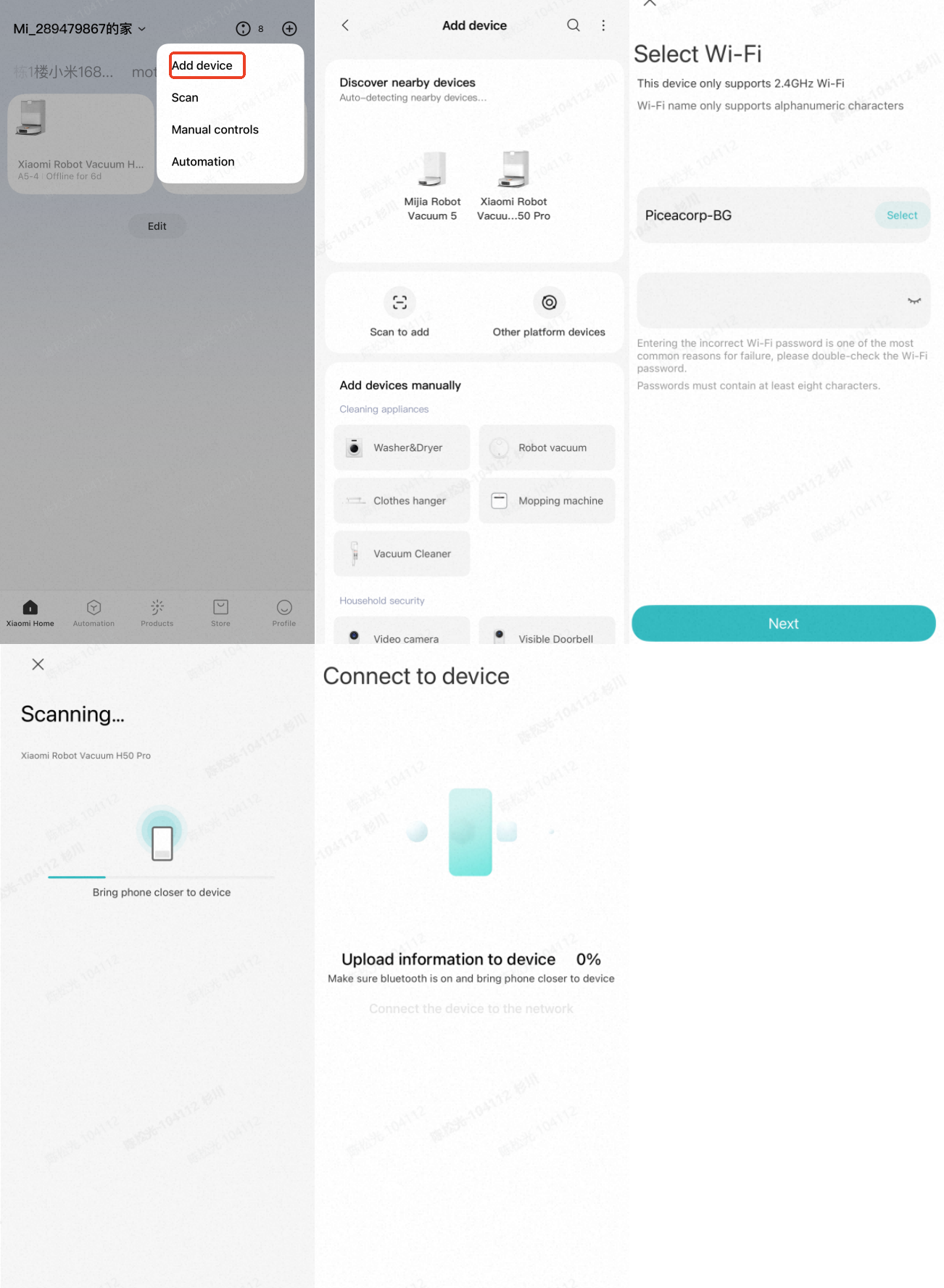
2. Open the home interface of the Xiaomi Home App, tap the [+] icon at the top right corner of the screen, and follow the on-screen instructions to add the Xiaomi Robot Vacuum H50 Pro.
Note:
1. Due to updates to the Xiaomi Home App, actual operations can differ slightly from the descriptions above. Please refer to the current instructions within the App for accurate guidance.
2. Only 2.4 GHz Wi-Fi networks are supported.
3. When the robot vacuum connects with the Xiaomi Home App successfully, it connects with the network successfully. You can reset Wi-Fi to disconnect it from the network.
Q2: How to reset the Wi-Fi on the Xiaomi Robot Vacuum H50 Pro?
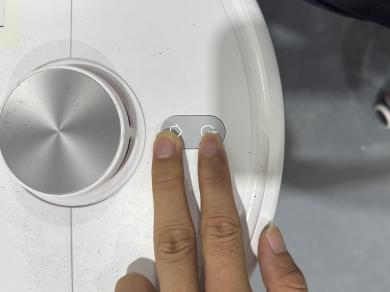
A: When the router configuration is changed, the password is forgotten, or for other reasons the phone cannot connect to the device, press and hold the Start button and the Recharging button on the Xiaomi Robot Vacuum H50 Pro for 7 seconds until you hear the voice prompt "Reset Wi-Fi, entering network configuration." The button indicator will flash in blue twice.
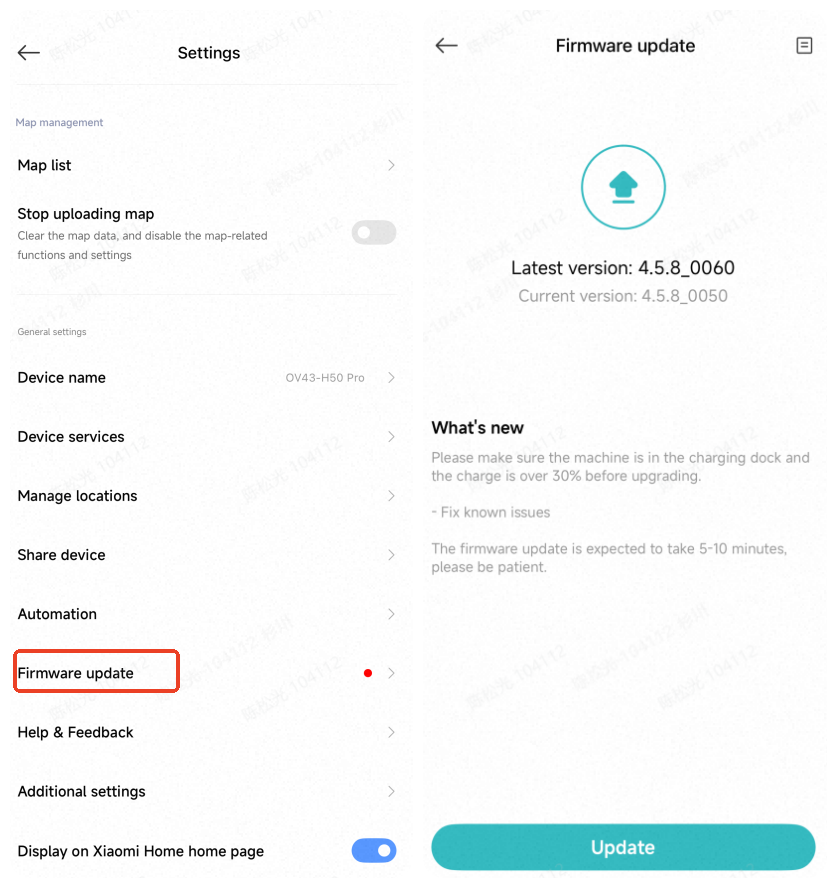
Q3: How to update the firmware of the Xiaomi Robot Vacuum H50 Pro?
A: You can update the firmware of the Xiaomi Robot Vacuum H50 Pro via the Xiaomi Home App. Before updating, make sure the robot vacuum is placed on the station and has at least 30% battery.
During the firmware upgrade, all buttons will be flashing.
To update the firmware of the robot vacuum, please refer to the steps:
To update the firmware of the robot vacuum, please refer to the steps:
Open the Xiaomi Home App >> select the device card >> tap the three dots icon >> [Firmware update].
Q4: What should pay attention to when connecting the Xiaomi Robot Vacuum H50 Pro to the Xiaomi Home App?
A: When connecting the Xiaomi Robot Vacuum H50 Pro to the Xiaomi Home App, please refer to the following:
1. Check whether the Wi-Fi password is correct.
2. The robot vacuum does not support the 5 GHz network frequency band, and please connect it to a 2.4 GHz network.
3. There is something wrong with the Wi-Fi connection. Reset the Wi-Fi and download the latest version of the Xiaomi Home App, then try reconnecting.
4. Ensure the robot vacuum is in an area with good Wi-Fi coverage, then reset its Wi-Fi and reconnect it to the network.
Q5: How to connect the Xiaomi Robot Vacuum H50 Pro to the Xiaomi Home App?
A: Open the Xiaomi Home App and follow the steps shown in the diagram. You can connect the Xiaomi Robot Vacuum H50 Pro via Bluetooth or Wi‑Fi.
For example:
Q6: How to quickly create a map with the Xiaomi Robot Vacuum H50 Pro?
A: During the first startup, if there is no map in the App, please place the Xiaomi Robot Vacuum H50 Pro on the station and select Quick Mapping in the App.
The robot vacuum will perform mapping only (no cleaning). Once mapping is complete, it will automatically return to the station and save the map automatically.
Note:
During the mapping process, do not move the robot vacuum or the station, and avoid people or pets following the robot vacuum to prevent interference.
During the mapping process, do not move the robot vacuum or the station, and avoid people or pets following the robot vacuum to prevent interference.
Q7: What to do if the Xiaomi Robot Vacuum H50 Pro fails to map completely due to obstacles during Quick Mapping?
A: Remove the obstacles and remap for the Xiaomi Robot Vacuum H50 Pro.
Q8: How many maps can the Xiaomi Robot Vacuum H50 Pro save?
A: The Xiaomi Robot Vacuum H50 Pro supports up to 4 maps plus 1 temporary map.
Q9: What is the Do Not Disturb (DND) mode of the Xiaomi Robot Vacuum H50 Pro?
A: During the DND period, the Xiaomi Robot Vacuum H50 Pro will not respond to resuming cleaning, scheduled cleaning, or proactive voice prompts. DND mode is enabled by default, with the preset time from 22:00 at night to 08:00 in the morning. You can disable DND mode in the Xiaomi Home App.
Note:
During the DND period, the indicator will turn off after the robot vacuum charges for 10 seconds.
Q10: What is the global cleaning function on the Xiaomi Robot Vacuum H50 Pro?
A: If no map has been saved, selecting global cleaning will make the Xiaomi Robot Vacuum H50 Pro clean area by area in 6 m × 6 m square zones. After a map is saved in the App, selecting Global Cleaning will allow the robot vacuum to automatically plan the path and clean room by room. Once cleaning is complete, it will return to the station.
Q11: What is the map memory function of the Xiaomi Robot Vacuum H50 Pro?
A: The Xiaomi Robot Vacuum H50 Pro should start cleaning from the station and complete a full cleaning cycle to save the map. Manual interruptions or moving the robot vacuum back to the station can prevent the map from being saved. Once saved, the map can be edited in the Xiaomi Home App (merge/split rooms or rename).
Q12: What is the sleep mode of the Xiaomi Robot Vacuum H50 Pro?
A: When not charging and idle for more than 10 minutes, the Xiaomi Robot Vacuum H50 Pro enters sleep mode. If there's no scheduled task, it will automatically power off after 6 hours of sleep. You can wake it up via the button or the App.
Note:
Note:
It will not sleep while on the station.
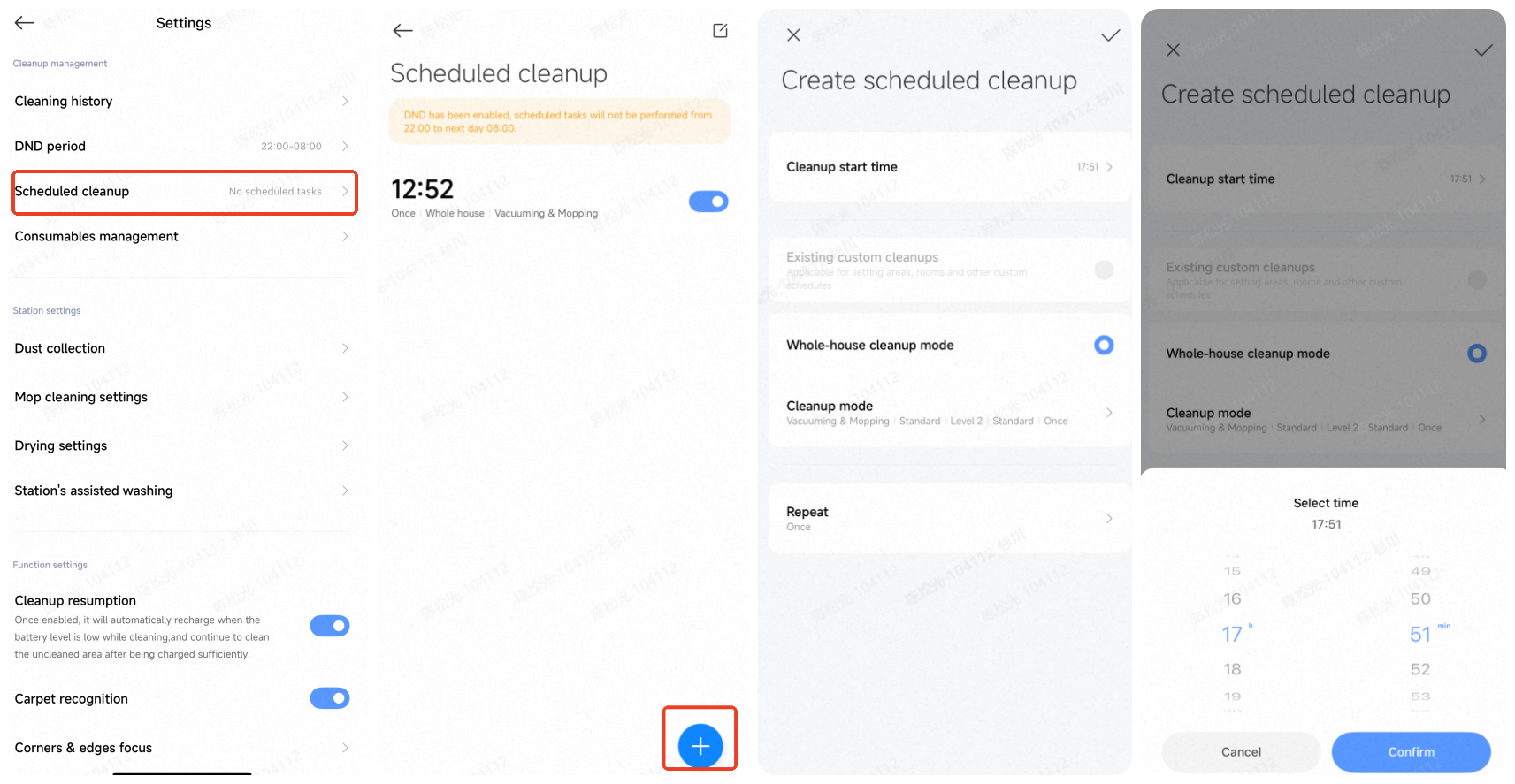
Q13: What is the scheduled cleanup feature on the Xiaomi Robot Vacuum H50 Pro?
A: You can set a scheduled cleanup time in the Xiaomi Home App. The Xiaomi Robot Vacuum H50 Pro will automatically begin cleaning at the specified time and return to the station when finished.
To set the scheduled cleanup, please refer to the steps:
Open the Xiaomi Home App >> select [Xiaomi Robot Vacuum H50 Pro] >> tap the three dots icon >> [Scheduled cleanup].
Note:
If DND is enabled, cleaning won't occur during the DND time period.
Q14: What is the virtual walls feature on the Xiaomi Robot Vacuum H50 Pro?
A: You can set up virtual walls in the Xiaomi Home App to prevent the Xiaomi Robot Vacuum H50 Pro from entering areas you don’t want it to clean.
Note:
1. A saved map is required before using this feature.
2. Moving the robot vacuum or significant changes in the home environment can invalidate the existing map and cause the loss of restricted areas and virtual walls.
Add a virtual wall to prevent the robot vacuum from passing through.
To set the virtual walls, please refer to the steps:
Open the Xiaomi Home App >> select [Xiaomi Robot Vacuum H50 Pro] >> select [Xiaomi Robot Vacuum H50 Pro] >> tap the three dots icon >> [Map] >> [Edit] >> [Restricted area & virtual walls].
To add the virtual walls, please refer to the steps:
Open the Xiaomi Home App >> select [Xiaomi Robot Vacuum H50 Pro] >> tap the three dots icon >> [Map] >> [Edit] >> [Restricted area & virtual walls] >> drag to the target area (you can stretch or shrink its length), and tap [√] to save.
Open the Xiaomi Home App >> select [Xiaomi Robot Vacuum H50 Pro] >> tap the three dots icon >> [Map] >> [Edit] >> [Restricted area & virtual walls] >> drag to the target area (you can stretch or shrink its length), and tap [√] to save.
To delete the virtual walls, please refer to the steps:
Tap [Restricted area & virtual walls] >> tap the restricted area & virtual walls you want to delete >> tap [X] >> tap [√] to save.
Example:
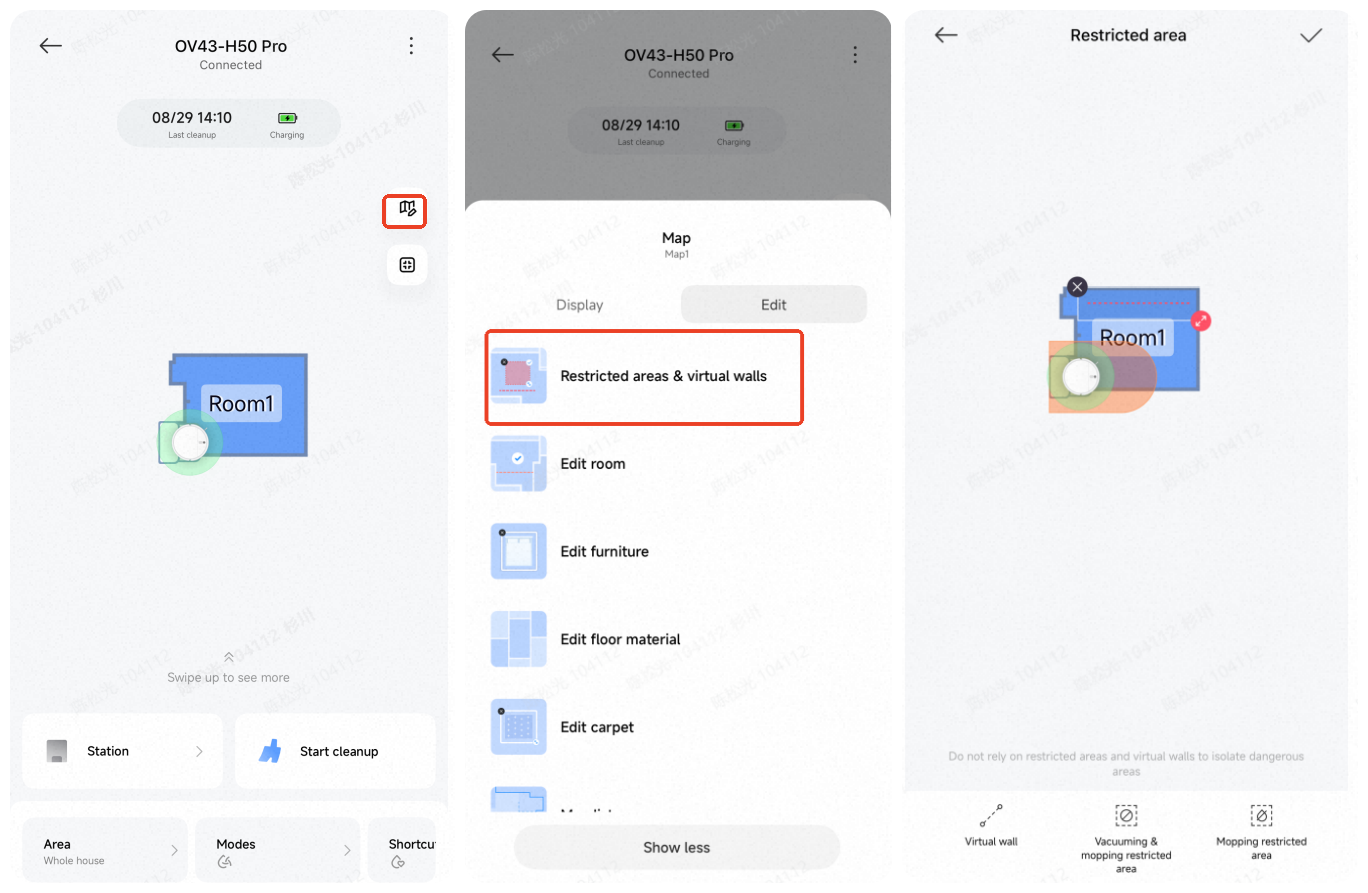
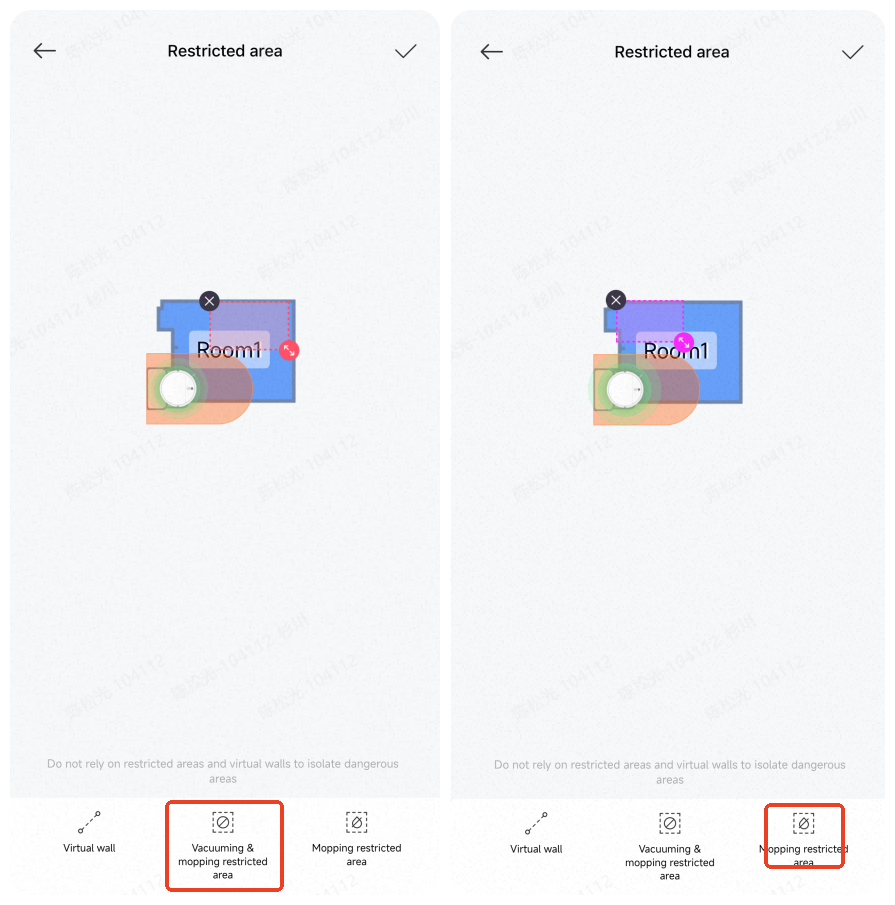
Vacuuming & mopping Restricted Area: Add a vacuuming & mopping restricted area so the robot vacuum will not enter that area when cleaning.
Mopping Restricted Area: Add a mopping restricted area so the robot vacuum will not enter that area when mopping.
Q15: How to enable carpet boost mode on the Xiaomi Robot Vacuum H50 Pro?
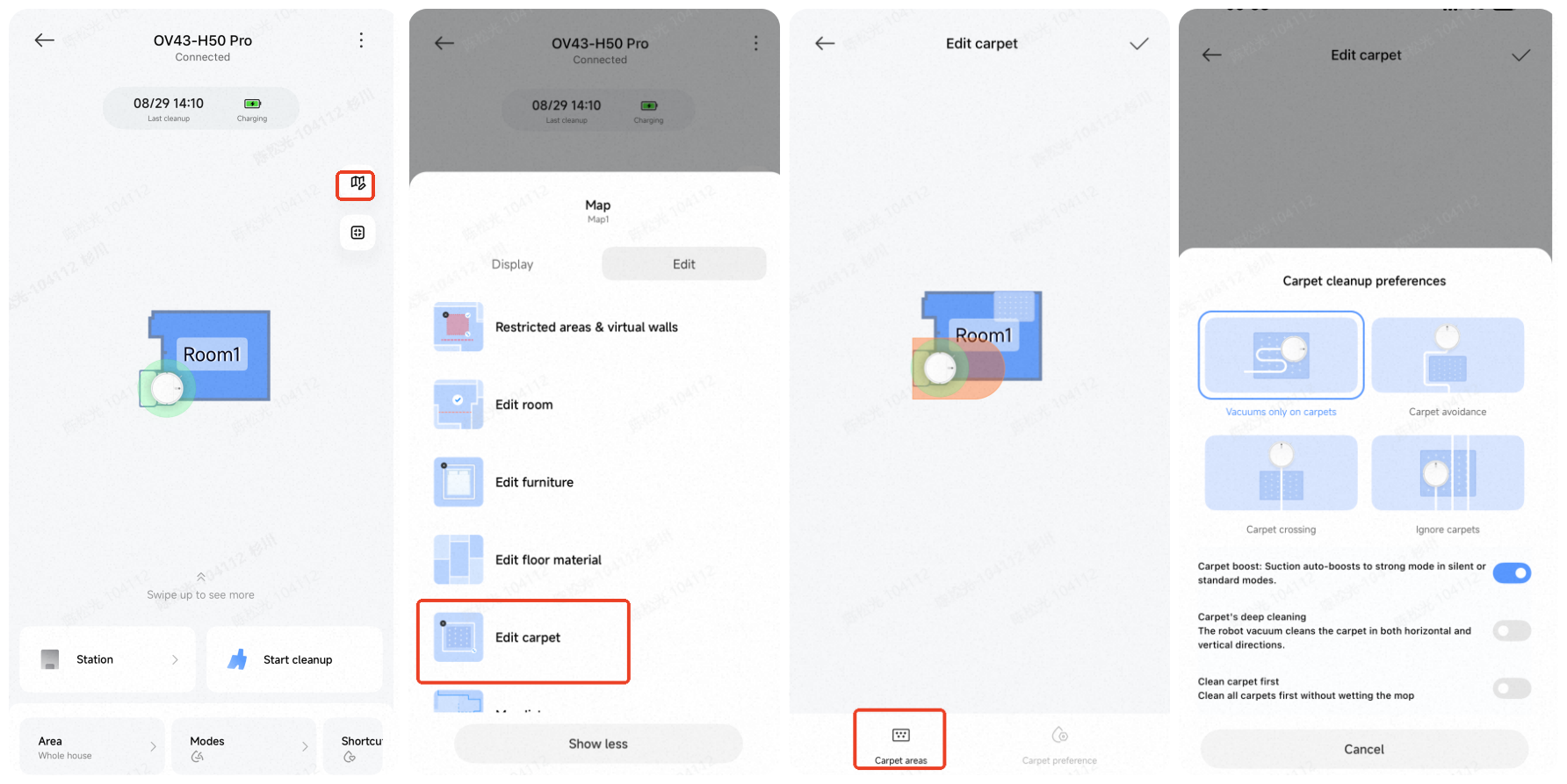
A: To enable carpet boost mode on the Xiaomi Robot Vacuum H50 Pro, please refer to the steps:
Open the Xiaomi Home App >> select [Xiaomi Robot Vacuum H50 Pro] >> tap the three dots icon >> [Map] >> [Edit] >> [Edit carpet] >> tap [Carpet area] >> set the carpet area according to the actual position (the edited area can be enlarged or reduced) >> select [Carpet preference] >> enable carpet boost mode or set carpet cleanup preferences.
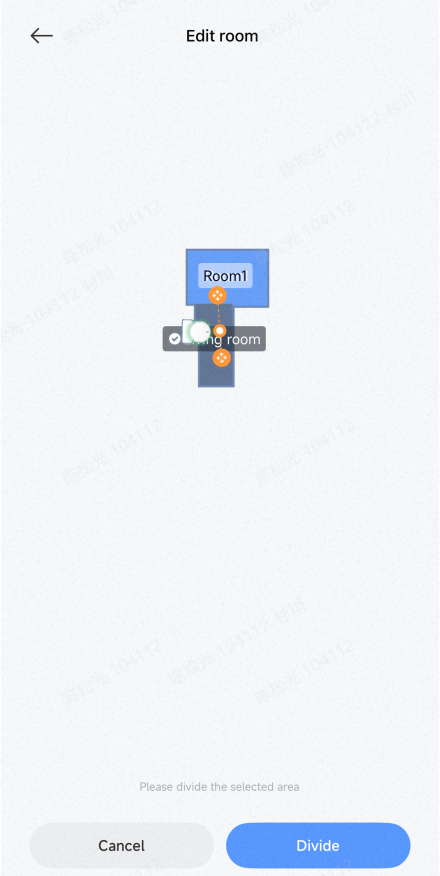
Q16: How to edit the cleaning zones of the Xiaomi Robot Vacuum H50 Pro?
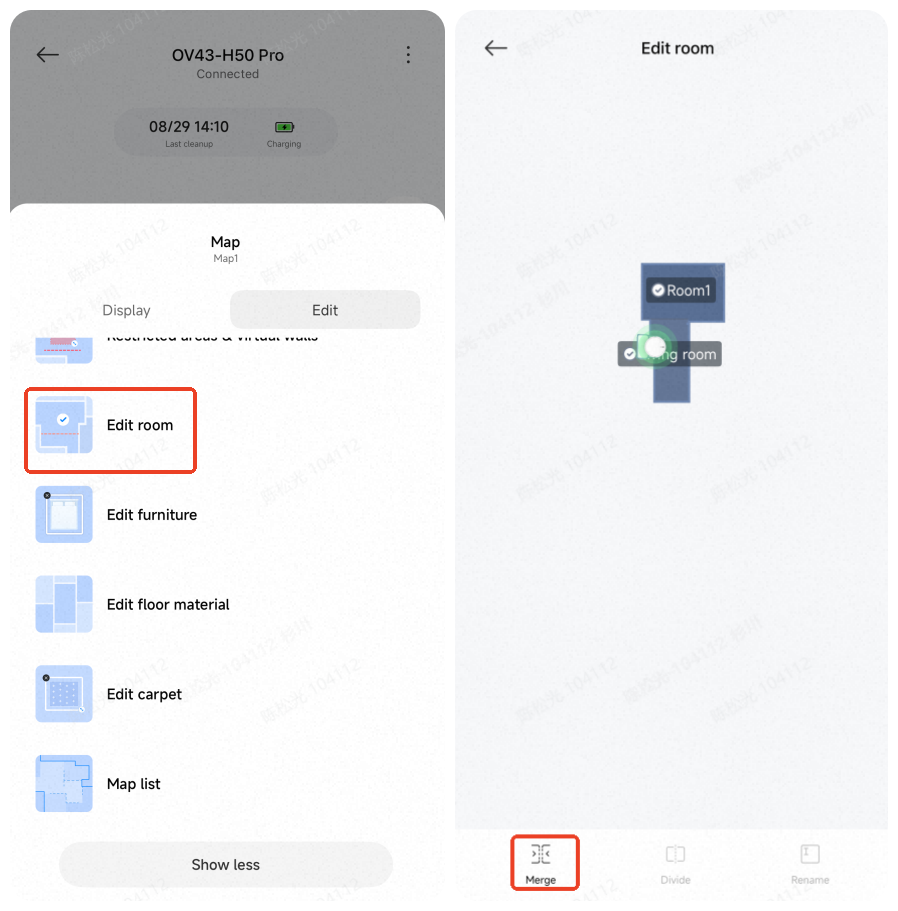
A: To merge the rooms, please refer to the following instructions:
Open the Xiaomi Home App and choose the [Xiaomi Robot Vacuum H50 Pro] card >> tap the three dots at the upper right corner >> choose [Map] >> tap [Edit] >> choose [Edit room] >> select two adjacent rooms >> tap [Merge].
To divide the rooms, please refer to the following instructions:
Open the Xiaomi Home App and choose the [Xiaomi Robot Vacuum H50 Pro] card >> tap the three dots at the upper right corner >> choose [Map] >> tap [Edit] >> choose [Edit room] >> set two split points along borders >> tap [√].
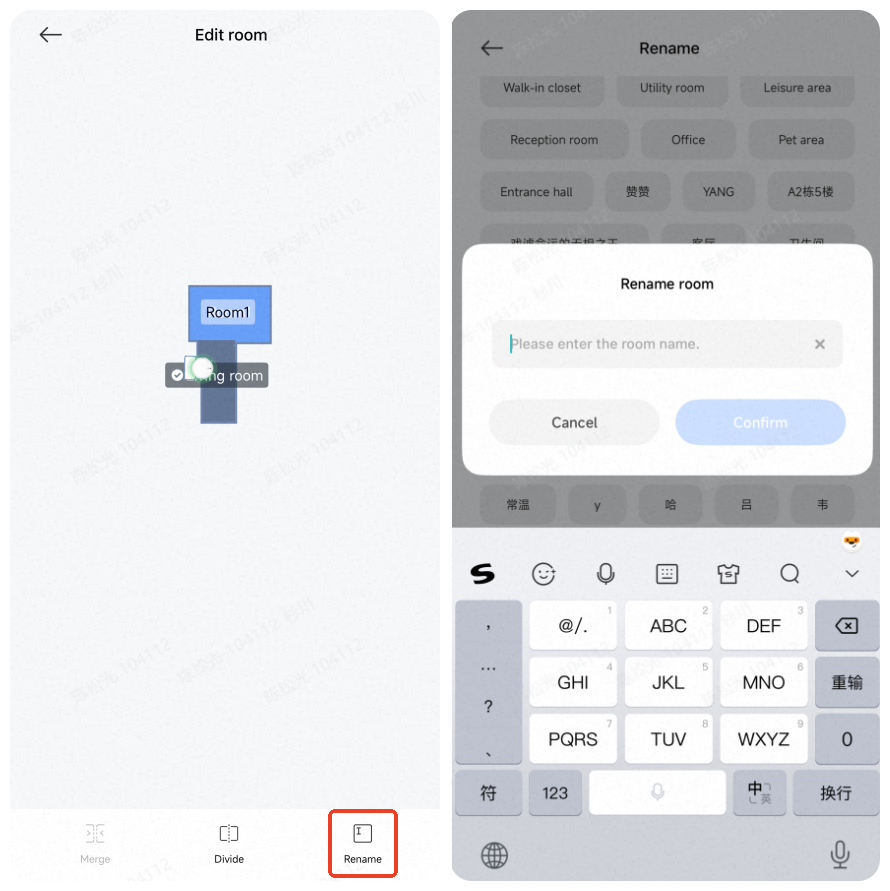
Rename rooms:
Select room >> Rename.
Select room >> Rename.
Q17: How to delete a map on the Xiaomi Robot Vacuum H50 Pro?
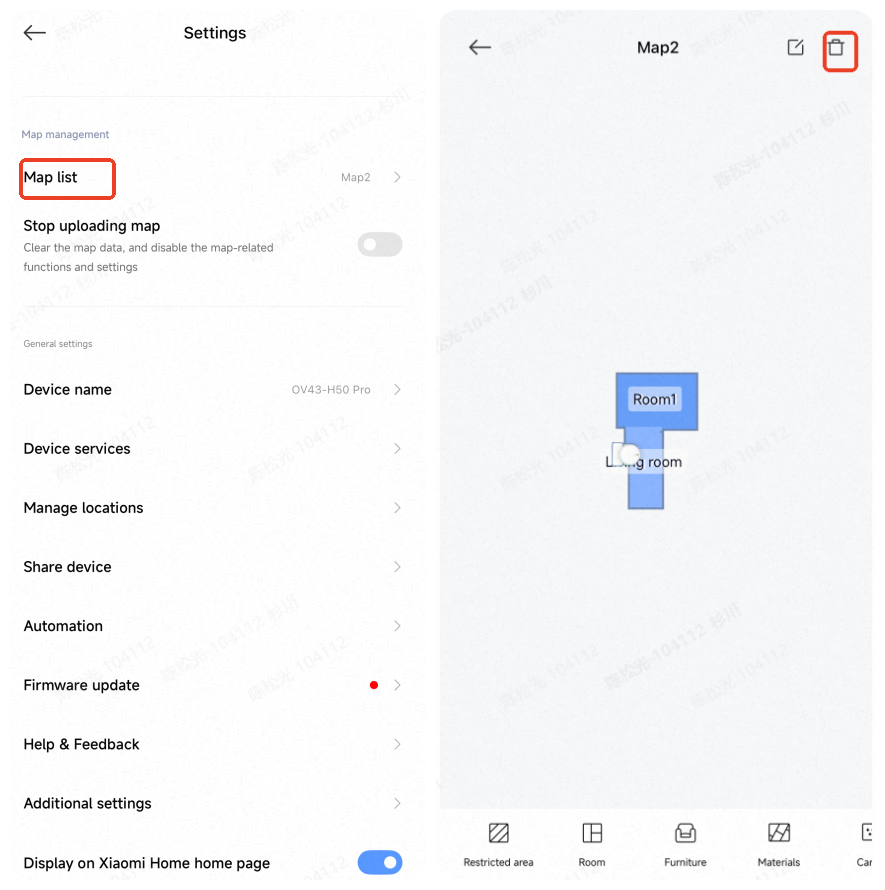
A: You can delete a map on the Xiaomi Robot Vacuum H50 Pro by performing a factory reset or manually deleting the current map via the Xiaomi Home App.
To delete a map on the App, please refer to the following steps:
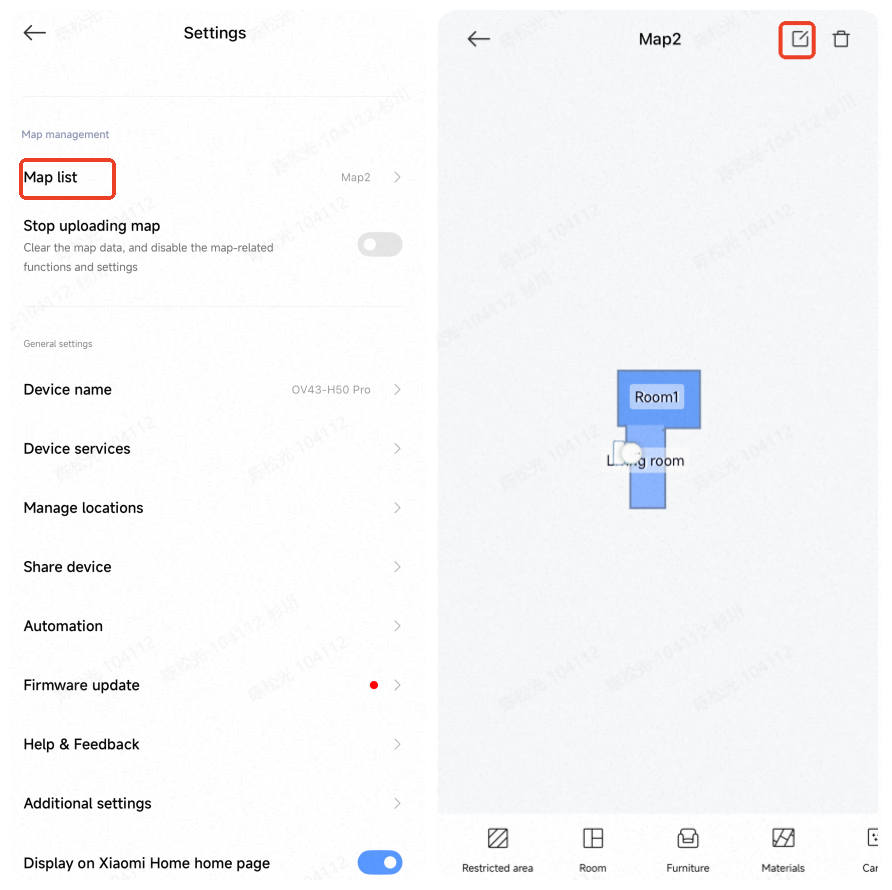
Open the Xiaomi Home App and choose the [Xiaomi Robot Vacuum H50 Pro] card >> tap the three dots at the upper right corner >> choose [Map list] >> select the created map >> tap the delete icon in the upper-right corner.
Q18: How to use custom cleanup on the Xiaomi Robot Vacuum H50 Pro?
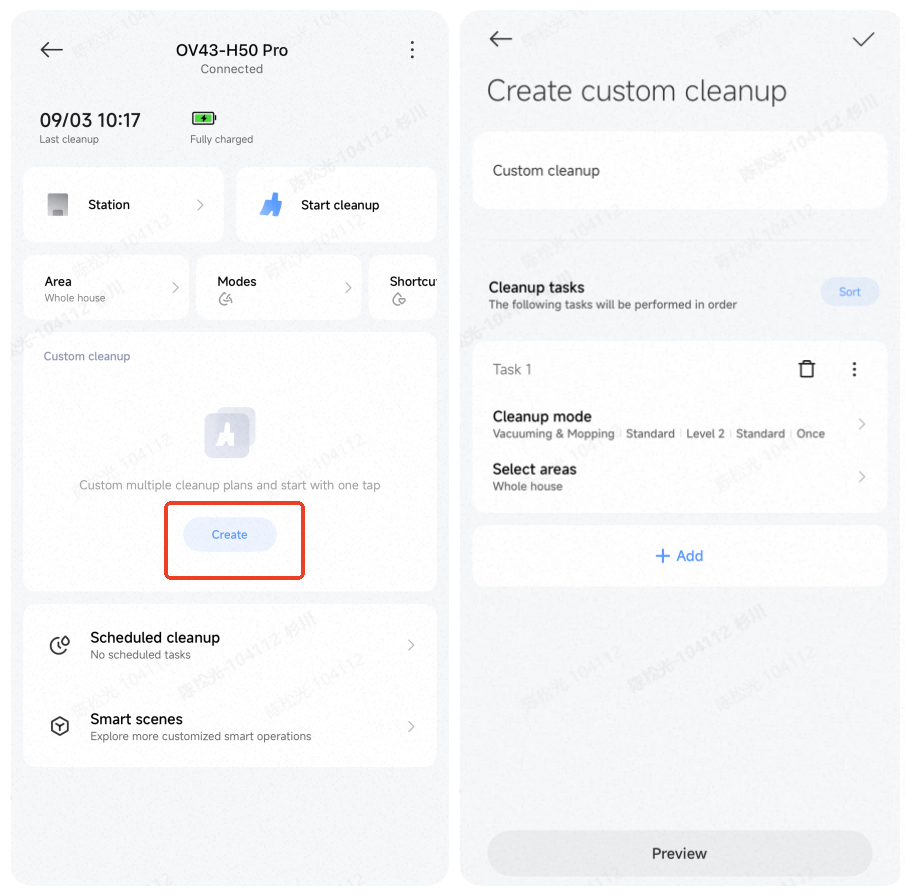
A: Before using the custom cleanup on the Xiaomi Robot Vacuum H50 Pro, you need to save the map. Once the map is saved, room partitions will be automatically created. After that, go to the main plugin page in the Xiaomi Home App and select Custom cleanup. In Custom cleanup, select a room to set cleaning frequency, mode, and number of passes for each room.
Q19: How many scheduled cleanup tasks are supported by the Xiaomi Robot Vacuum H50 Pro?
A: The scheduled cleanup of the Xiaomi Robot Vacuum H50 Pro supports up to 10 scheduled tasks.
It is recommended to leave at least 2 hours between tasks to ensure the previous task completes properly. Shorter intervals can cause task interruption.
Q20: How to rename the map on the Xiaomi Robot Vacuum H50 Pro?
A: To rename the map on the Xiaomi Robot Vacuum H50 Pro, please refer to the following information:
Open the Xiaomi Home App >> choose the [Xiaomi Robot Vacuum H50 Pro] card >> tap the three dots icon at the upper right corner >> select [Map list] >> tap the map you want to rename to enter a new name.
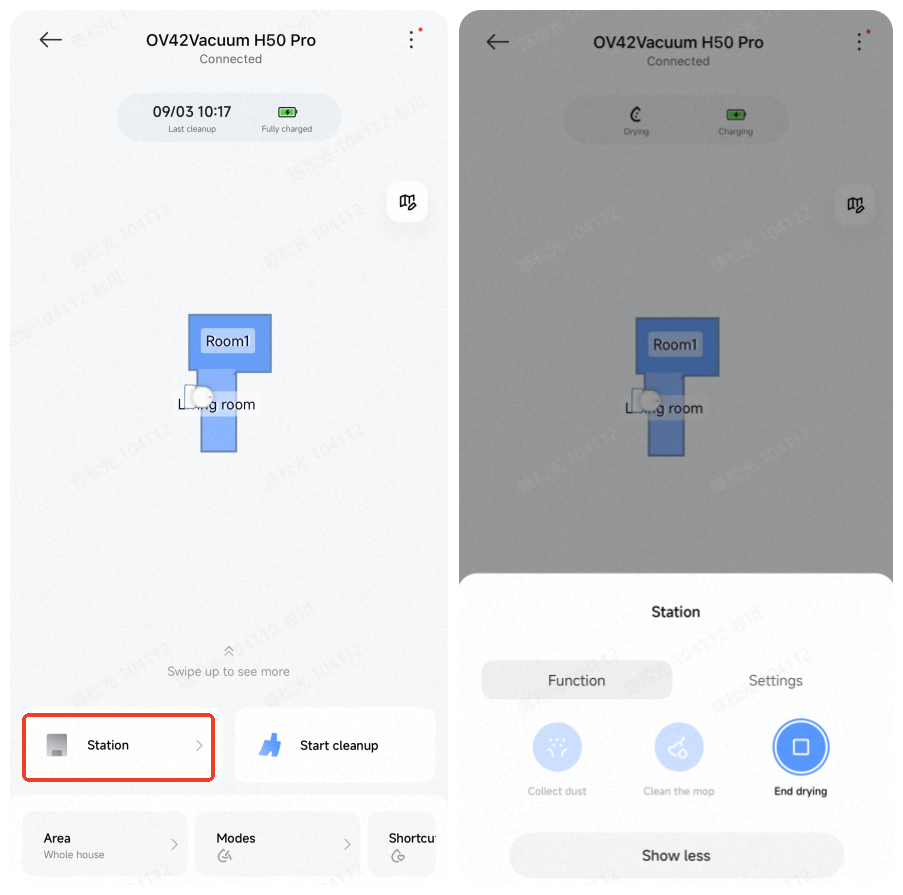
Q21: Can the Xiaomi Robot Vacuum H50 Pro stop the drying function?
A: The Xiaomi Robot Vacuum H50 Pro can stop the drying function.
To stop the drying function, please refer to the following steps:
Open the Xiaomi Home App >> choose the [Xiaomi Robot Vacuum H50 Pro] card >> choose [Station] >> tap [Function] >> tap [End drying].
Q22: Why can't the shared family account view the map on the Xiaomi Robot Vacuum H50 Pro?
A: If the shared family account cannot view the map on the Xiaomi Robot Vacuum H50 Pro, the reasons are as follows:
This is due to a software bug. Account A shares the home with Account B and gives B admin permissions. After accepting, Account B uses the shared home to add and bind the robot vacuum. However, map encryption is based on Account B, while decryption requires Account A, resulting in a failure to decrypt the map.
Solution: Use your own Xiaomi account (the original one) to connect to the robot vacuum in the Xiaomi Home App.
Troubleshooting
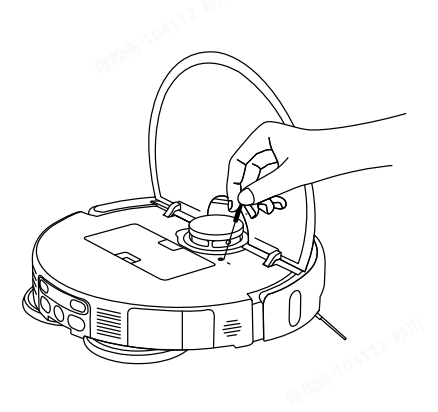
Q1: How to reset the Xiaomi Robot Vacuum H50 Pro to factory settings?
A: While the Xiaomi Robot Vacuum H50 Pro is powered on, use a tool to press the reset button and wait for the robot to restart.
Q2: What to do if the Xiaomi Robot Vacuum H50 Pro is experiencing abnormal charging?
A: If the Xiaomi Robot Vacuum H50 Pro has charging issues, please refer to the following steps:
1. Check that the station is powered on and that the charging contacts on both the robot and station are clean. Dust on the contacts can cause charging issues, so wipe them before use.
2. Ensure the power cord is properly connected.
Q3: What to do if the Xiaomi Robot Vacuum H50 Pro displays a high water level alert for the washboard?
A: If the Xiaomi Robot Vacuum H50 Pro displays a high water level alert for the washboard, please refer to the following steps:
1. Remove the washboard and empty any remaining water. Check if the tray filter is blocked.
2. Wipe the inside of the station with a dry cloth.
3. Place the washboard back into the station and press it into position.
4. Check if the dirty water tank or its sealing strip is damaged or deformed. If damaged, contact after-sales service.
Q4: What to pay attention to before cleaning with the Xiaomi Robot Vacuum H50 Pro?
A: Before cleaning with the Xiaomi Robot Vacuum H50 Pro, please refer to the following information:
1. Fully charge the robot vacuum before starting cleaning from the station.
2. Tidy up the home environment in advance and remove fragile items or clutter from the floor.
Q5: Why does cleaning efficiency decrease in a complex environment with the Xiaomi Robot Vacuum H50 Pro?
A: To ensure full coverage, the Xiaomi Robot Vacuum H50 Pro will clean all corners. In complex environments, extra turning and edge-following actions can reduce overall cleaning efficiency.
Q6: Why is the Xiaomi Robot Vacuum H50 Pro noisy during cleaning?
A: If the Xiaomi Robot Vacuum H50 Pro is noisy during cleaning, please refer to the following information:
1. Check if the main brush is tangled with foreign objects. Noise caused by tangling should be addressed promptly to avoid damage.
2. To ensure effective cleaning, the robot uses a high-suction fan, which produces stronger suction but slightly higher noise. You can use silent mode to reduce sound during cleaning.
Q7: Why does the Xiaomi Robot Vacuum H50 Pro make unusual noises during cleaning?
A: If the Xiaomi Robot Vacuum H50 Pro makes unusual noises during cleaning, please refer to the following information:
1. On smooth tile or wooden floors, slight noise can occur from friction between the bottom scraper and the floor.
2. When passing over tile or floor seams, the robot vacuum can contact and clean the gaps, causing slight “clicking” sounds.
3. These sounds do not affect normal operation of the robot vacuum.
Q8: What to do if the Xiaomi Robot Vacuum H50 Pro gets stuck while cleaning?
A: The Xiaomi Robot Vacuum H50 Pro can get caught on slippers, plastic bags, or other obstacles. After resolving the blockage, place the robot vacuum near the area it was cleaning to continue. To prevent blockages, tidy up the floor before starting cleaning.
Q9: What to do if the top of the Xiaomi Robot Vacuum H50 Pro gets stuck while cleaning?
A: During cleaning, the robot vacuum can get stuck if it encounters furniture with a height similar to the robot vacuum’s body. Set virtual walls or no-go zones in the Xiaomi Home App to prevent the robot vacuum from entering these areas again.
Q10: What to do if the side brush or main brush of the Xiaomi Robot Vacuum H50 Pro gets tangled during cleaning?
A: The side brush and main brush of the Xiaomi Robot Vacuum H50 Pro can get tangled with power cords, charging cables, or other obstacles. After resolving the tangling issue, place the robot vacuum near the area it was cleaning to continue. To prevent tangling, tidy up clutter on the floor before cleaning.
Q11: Why does the Xiaomi Robot Vacuum H50 Pro fail to relocate?
A: Do not manually move the Xiaomi Robot Vacuum H50 Pro while it is running. Always start cleaning from the station. During relocation, avoid standing right next to the robot vacuum.
Q12: Why does the Xiaomi Robot Vacuum H50 Pro collide with obstacles without slowing down?
A: The Xiaomi Robot Vacuum H50 Pro is equipped with LDS laser and collision sensors to detect obstacles and reduce speed. Some small, dark-colored furniture legs or low obstacles can not be detected, triggering the mechanical collision sensor. This is normal.
Q13: Why does the Xiaomi Robot Vacuum H50 Pro bump into walls during edge cleaning?
A: The Xiaomi Robot Vacuum H50 Pro has a mechanical bumper and wall-detection sensors. When cleaning along edges, it can make contact with skirting boards or dark-colored walls to maintain a proper distance. Minor collisions during navigation around obstacles are normal.
Q14: What to do if the Xiaomi Robot Vacuum H50 Pro can't turn on?
A: If the Xiaomi Robot Vacuum H50 Pro can't turn on, please refer to the following steps:
1. Ensure the battery has sufficient charge by docking the robot vacuum.
2. Operate the robot vacuum in temperatures between 0°C and 50°C.
3. Make sure the station is powered, the charging contacts are clean, and the station is not deformed.
4. If the robot vacuum still can’t turn on after charging, contact after-sales service.
Q15: What to do if the Xiaomi Robot Vacuum H50 Pro cannot charge?
A: If the Xiaomi Robot Vacuum H50 Pro cannot charge, please refer to the following steps:
1. If the robot vacuum cannot charge, power off the station. Wait 1–2 minutes after the indicator goes off, then power on the station again. Turn off the robot and place it on the station to check if it can charge. If charging starts, wait 2–3 hours to confirm normal charging.
2. Check that the station is powered. Ensure all power connections are secure. Clean the station's contacts and the robot vacuum's charging contacts if necessary. Remove any obstacles in front of the station.
Q16: Why does the Xiaomi Robot Vacuum H50 Pro consume battery quickly during cleaning?
A: After a long period of inactivity post-charging, the battery of the Xiaomi Robot Vacuum H50 Pro can drop rapidly during the first few minutes of cleaning. This is normal, and consumption will stabilize after a few minutes. Using high-power modes increases battery consumption.
Q17: Why does the Xiaomi Robot Vacuum H50 Pro fail to return to the station?
A: If the Xiaomi Robot Vacuum H50 Pro fails to return to the station, please refer to the following steps:
1. There are too many obstacles near the station. Place the station in an open area, leaving at least 0.5 m on each side and 1.5 m in front free of obstacles.
2. The robot vacuum did not start cleaning from the station. Always start cleaning from the station so it can be located during the task.
3. The robot vacuum was moved during cleaning, causing relocation failure. Start a new task only after placing the robot back on the station.
Q18: Why does the Xiaomi Robot Vacuum H50 Pro repeatedly dock during charging?
A: Check the charging contacts on both the station and the Xiaomi Robot Vacuum H50 Pro for dust. Dirty contacts can cause repeated docking. Clean the contacts before use.
Q19: What to do if the Xiaomi Robot Vacuum H50 Pro cannot remove stubborn stains while mopping?
A: Some stubborn stains cannot be removed automatically by the Xiaomi Robot Vacuum H50 Pro. Pre-wet the floor and manually assist in cleaning if necessary.
Q20: What to do if the floor becomes dirtier after mopping with the Xiaomi Robot Vacuum H50 Pro?
A: If the floor becomes dirtier after mopping with the Xiaomi Robot Vacuum H50 Pro, please refer to the following steps:
1. If the floor is very dirty, clean or replace the mop cloth in time.
2. During initial cleaning, the floor has a lot of dust. Vacuum first before mopping. After vacuuming, clean the side brush before starting mopping.
3. Regularly clean the side brush to prevent dirt from affecting mopping performance.
Q21: How long does the Xiaomi Robot Vacuum H50 Pro take to dry the mop?
A: From a clean, damp mop to a dry state, the default drying time of the Xiaomi Robot Vacuum H50 Pro is 2 hours. Drying time can be set to 2, 3, or 4 hours.
After completing a cleaning task and washing the mop, the robot vacuum will perform the drying task. To turn off mop drying, open the Xiaomi Home App >> choose the [Xiaomi Robot Vacuum H50 Pro] card >> choose [Station] >> tap [Function] >> tap [End drying].
Q22: Why is the mop cleaning sound of the Xiaomi Robot Vacuum H50 Pro relatively loud?
A: If the mop cleaning sound of the Xiaomi Robot Vacuum H50 Pro is relatively loud, please refer to the following information:
1. The robot vacuum uses a multi-nodule mechanical mop cleaning method to enhance cleaning efficiency.
2. The cleaning brush plate scrapes the mop during cleaning, producing sound.
3. When the mop absorbs water, the vacuum suction can produce a brief distortion noise. This is normal.
Q23: What to do if the Xiaomi Robot Vacuum H50 Pro map is skewed or overlapping?
A: If the Xiaomi Robot Vacuum H50 Pro map is skewed or overlapping, please refer to the following information:
1. Ensure the map is saved successfully (room partitions appear and area functions work normally).
2. Power off and restart the robot vacuum, then place it on the station manually and try to restore the map. If restoration fails, change the station location and remap.
3. Place the station against a wall with 0.5 m clearance on each side and 1.5 m in front.
4. Do not move the robot vacuum manually during cleaning.
5. Strong direct sunlight or reflective surfaces can cause mapping errors.
Strong sunlight: close curtains or remap at another time.
Mirror reflection: cover the bottom 15 cm.
6. Regularly check the navigation sensor sides for dirt, and wipe them with a clean cloth or tissue.
Q24: What to do if the Xiaomi Robot Vacuum H50 Pro moves backward while cleaning?
A: If the Xiaomi Robot Vacuum H50 Pro moves backward while cleaning, please refer to the following information:
1. Check if the drive wheels are tangled with foreign objects.
2. Ensure the LDS sensor rotates normally, and gently press the sensor cover to check for rebound.
3. Check for hair or debris in the LDS rotation parts that can hinder rotation, and remove them if present.
4. Check for uneven surfaces, lifted stickers, or large objects on the robot vacuum's body.
5. Tap the bumper to ensure it can rebound properly.
6. Restart the robot vacuum and try again.
Q25: What to do if the Xiaomi Robot Vacuum H50 Pro reports a bumper error?
A: If the Xiaomi Robot Vacuum H50 Pro reports a bumper error, please refer to the following steps:
1. Tap the bumper to ensure it can rebound properly.
2. Check if the wheels are slipping or obstructed. Move the robot vacuum to a new area and try again.
Q26: What to do if the Xiaomi Robot Vacuum H50 Pro reports a side brush error?
A: If the Xiaomi Robot Vacuum H50 Pro reports a side brush error, please refer to the following steps:
1. Remove the side brush and check for tangled hair or debris inside the brush and its components.
2. Restart the robot vacuum and try again.
Q27: Does the Xiaomi Robot Vacuum H50 Pro support multiple connections?
A: The robot vacuum does not support multiple connections, but it can be shared with others via the Xiaomi Home App. Go to Xiaomi Home App >> select the device card >> tap the three dots icon >> [Share device].
The person it's shared with can perform basic operations and settings, including start, pause, stop cleaning, adjust suction power, and mop cleaning preferences.
Q29: Why does the Xiaomi Robot Vacuum H50 Pro go offline?
A: If the Xiaomi Robot Vacuum H50 Pro goes offline, please refer to the following steps:
1. Weak Wi-Fi signal. Ensure the robot is within a strong Wi-Fi coverage area.
2. Wi-Fi connection issues. Reset Wi-Fi, upgrade the App, or try connecting with another phone.
3. Ensure the robot vacuum is powered on, as a powered-off robot vacuum appears offline.
4. Press and hold the reset button for 3 seconds with a pin, wait for "System reset successful," then reconnect and upgrade firmware.
Note:
If your home map has more than 6 rooms after mapping with a Xiaomi hub, merge rooms to keep the total rooms ≤ 5.
Q30: What to do if the Xiaomi Robot Vacuum H50 Pro does not recognize carpets?
A: If the Xiaomi Robot Vacuum H50 Pro does not recognize carpets, please refer to the following steps:
1. Check if the carpet ultrasonic sensor is blocked by debris and clean it.
2. Restart the robot vacuum and try again.
Q31: Why does the Xiaomi Robot Vacuum H50 Pro not pump water from the dirty water tank?
A: If the Xiaomi Robot Vacuum H50 Pro does not pump water from the dirty water tank, please refer to the following steps:
1. Check if the dirty water tank is properly installed.
2. Ensure the tank is seated correctly on the station.
3. Check if the pump pipe at the bottom of the cleaning tray is blocked, and clear any blockage to restore normal water flow.
Q32: Why does the Xiaomi Robot Vacuum H50 Pro consume battery quickly during mopping?
A: If the Xiaomi Robot Vacuum H50 Pro consumes battery quickly during mopping, please refer to the following steps:
1. For first-time use, fully charge the robot vacuum (5200 mAh battery) before use.
2. Check if precise mopping mode is enabled, as this improves cleaning but consumes more power. Choose the mode according to floor cleaning needs.
Q33: Why is the station indicator on the Xiaomi Robot Vacuum H50 Pro orange?
A: If the station indicator on the Xiaomi Robot Vacuum H50 Pro is orange, please refer to the following steps:
1. Check if the clean water tank has water.
2. Check if the dirty water tank is full, and empty it if necessary.
3. Check if the station cleaning tray is full, clean and retry.
4. Ensure the clean water tank is properly installed.
5. Ensure the dirty water tank is properly installed.
6. Check if the child lock is enabled.
Q34: What to do if the Xiaomi Robot Vacuum H50 Pro does not dispense water?
A: Power off the station of the Xiaomi Robot Vacuum H50 Pro for 1–2 minutes, then power on again. Place the robot vacuum on the station after turning it off. Use the Xiaomi Home App to start mop cleaning multiple times to check if water dispenses normally.
Q35: Why does the Xiaomi Robot Vacuum H50 Pro indicate a full dirty water tank?
A: If the Xiaomi Robot Vacuum H50 Pro indicates a full dirty water tank, please refer to the following steps:
1. When the station cleaning tray reaches the water level detection sensor, the robot vacuum cannot recover the dirty water tank and triggers the "Cleaning tray full, please clean" alert. Remove the robot vacuum, take out the tray, and clean any dirty water tank or debris. Wipe the robot's dirty water tank sensor and place it back.
2. Check if the robot vacuum’s dirty water tank is full, empty if necessary.
3. Check the sealing silicone pad connecting the tank to the station.
4. Check that the tank’s sealing ring is properly installed.
5. If the robot vacuum has not completed the previous cleaning, clean the tank and retry.
Q36: Why does the Xiaomi Robot Vacuum H50 Pro sometimes have hair tangled at both ends?
A: During cleaning, it is normal for the main brush of the Xiaomi Robot Vacuum H50 Pro to occasionally get tangled with hair or threads on both sides. It is recommended to clean the main brush ends regularly (e.g., 1–2 times per week) to maintain cleaning efficiency and reduce noise or jamming.
Q37: What to do if the Xiaomi Robot Vacuum H50 Pro cannot clean next to the station?
A: If the Xiaomi Robot Vacuum H50 Pro cannot clean next to the station, please refer to the following steps:
1. The software sets a virtual wall near the station to prevent the robot vacuum from pushing it out of place.
2. Place the station against a wall, leaving 0.5 m of space on each side and 1.5 m in front.
3. Avoid placing obstacles near the station to prevent recharging or positioning failures.
Q38: What to do if the Xiaomi Robot Vacuum H50 Pro does not clean the floor next to the station?
A: If the Xiaomi Robot Vacuum H50 Pro does not clean the floor next to the station, please refer to the following steps:
1. To avoid pushing the station, the robot vacuum automatically avoids a 10 cm area around it.
2. This area cannot be cleaned automatically, so it is recommended to clean it manually on a regular basis.
Q39: What to do if the Xiaomi Robot Vacuum H50 Pro gets tangled in wires and cannot move?
A: If the Xiaomi Robot Vacuum H50 Pro gets tangled in wires and cannot move, please refer to the following information:
1. The robot vacuum uses a single-line laser module and collision sensors to avoid obstacles. However, wires and obstacles lower than 3 cm can fall into blind spots, causing the main brush to get tangled.
2. For a better cleaning experience, tidy up the floor and remove wires before using the robot.
Q40: How to troubleshoot a main brush error on the Xiaomi Robot Vacuum H50 Pro?
A: To troubleshoot a main brush error on the Xiaomi Robot Vacuum H50 Pro, please refer to the following information:
1. When the main brush rotation is blocked, the robot vacuum will detect the error and send an alert via the Xiaomi Home App.
2. If this happens, open the main brush cover, clean the brush, and try using the robot vacuum again.
Q41: How to troubleshoot abnormal noises during cleaning with the Xiaomi Robot Vacuum H50 Pro?
A: To troubleshoot abnormal noises during cleaning with the Xiaomi Robot Vacuum H50 Pro, please refer to the following information:
1. If you suddenly hear unusual sounds, pause the robot, flip it over, open the main brush cover, and check for foreign objects or tangled debris. Clean and restart.
2. Items such as toothpicks, pins, candy wrappers, or other debris can cause abnormal sounds if stuck near the suction port or brush. Remove them manually before resuming cleaning.
Q42: What to do if the Xiaomi Robot Vacuum H50 Pro cannot enter narrow passages?
A: If the Xiaomi Robot Vacuum H50 Pro cannot enter narrow passages, please refer to the following information:
1. The robot vacuum uses wall detection sensors. If the passage is narrower than its detection range, it can not enter.
2. Manually clean these narrow areas for the best results.
Q43: What to do if the area around the Xiaomi Robot Vacuum H50 Pro station is always dirty?
A: If the area around the Xiaomi Robot Vacuum H50 Pro station is always dirty, please refer to the following information:
1. The robot vacuum keeps a reserved space around the station to prevent pushing it.
2. Regularly clean the area around the station manually.
Q44: Can the Xiaomi Robot Vacuum H50 Pro clean more than two times in one session?
A: In the Xiaomi Home App, you can use the custom cleaning function to add multiple sub-tasks for the Xiaomi Robot Vacuum H50 Pro. Each task can be set with different cleaning areas, modes, and water levels.
Q45: How to clean the mop pad of the Xiaomi Robot Vacuum H50 Pro?
A: The mop pad of the Xiaomi Robot Vacuum H50 Pro features a detachable design. Remove them, rinse with clean water, and air-dry before reuse. Avoid using bleach or hot water to prevent damage to the material.
Q46: What to do if the cleaning performance is unsatisfactory on the Xiaomi Robot Vacuum H50 Pro?
A: If cleaning performance is unsatisfactory on the Xiaomi Robot Vacuum H50 Pro, please refer to the following steps:
1. Perform regular maintenance and check whether the dust compartment is full.
2. Refill the clean water tank promptly to avoid dry mopping.
3. In dusty environments, increase suction power, as low power can leave dirt behind or cause debris to drop when climbing obstacles.
4. Use the vacuum and mop mode and regularly clean the dust compartment and filter.
Q47: What to do if the main brush of the Xiaomi Robot Vacuum H50 Pro gets tangled?
A: If the main brush of the Xiaomi Robot Vacuum H50 Pro gets tangled, please refer to the following steps:
1. Clean hair from the main brush 1–2 times per week to avoid getting tangled.
2. For pet hair, cut it with scissors before removing. If hair is stuck deep inside, rotate the main brush counterclockwise to take it out.
3. If hair causes deformation, replace the main brush.
Q48: How to remove unpleasant odors from the mop pad of the Xiaomi Robot Vacuum H50 Pro?
A: To remove unpleasant odors from the mop pad of the Xiaomi Robot Vacuum H50 Pro, please refer to the following steps:
1. After use, remove the mop pad, wash it, and air-dry it in a ventilated place to prevent bacterial growth.
2. You can add a small amount of cleaning agent when washing to better remove residues.
3. As mop pads are consumables, it is recommended to prepare at least 2 sets for alternating use. Replace it every 3–6 months.
Q49: What to do if the Xiaomi Robot Vacuum H50 Pro fails to cross a threshold?
A: If the Xiaomi Robot Vacuum H50 Pro fails to cross a threshold, please refer to the following information:
1. The robot vacuum can cross thresholds up to 20 mm in height. Higher thresholds can cause failure.
2. For thresholds above 20 mm, use a small ramp to assist the robot.
Q50: Why doesn't the side brush of the Xiaomi Robot Vacuum H50 Pro extend outward during edge cleaning even though it is enabled in the Xiaomi Home App?
A: When enabled in the Xiaomi Home App, the side brush of the Xiaomi Robot Vacuum H50 Pro extends outward only at inner right-angle corners. At outer right-angle corners, it will not extend outward. This is normal behavior.
Does it help?
Yes
No