

Xiaomi Router BE19000 Pro FAQ
Product Introduction
Q1: What is the overview of the Xiaomi Router BE19000 Pro?
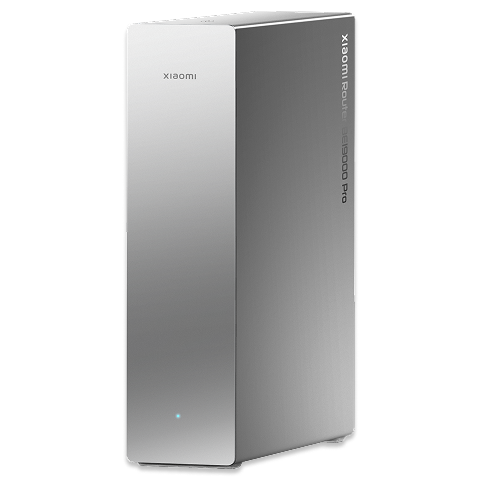
A: This product is part of Xiaomi's high-end Wi-Fi 7 series. As Xiaomi’s first flagship AI router, it delivers a Pro-level networking experience with both 10 Gigabit wired and 10 Gigabit wireless connectivity.
The Xiaomi Router BE19000 Pro is the first to feature the Qualcomm Immersive Home NPro A7 platform and adopts a tri-band, 12 spatial stream architecture. It supports up to 30 Gbps total wired transmission bandwidth. It also comes with a built-in Bluetooth Mesh 2.0 gateway, an active cooling system, an M.2 SSD port, and a range of high-spec features rarely found in products of the same class.
At the same time, the Xiaomi Router BE19000 Pro is Xiaomi’s first 10 Gigabit router with built-in antennas. Its overall design is more compact, elegant, and refined, offering a premium texture and aesthetic appeal that blends effortlessly into modern home environments.
Note:
This router only supports binding with the Xiaomi Home App and does not support the Mi Wi-Fi App.
Q2: What are the advantages of the Xiaomi Router BE19000 Pro?
A: The advantages of the Xiaomi Router BE19000 Pro are as follows:
1. It delivers 10 Gigabit Wi-Fi 7 and up to 30 Gbps total transmission bandwidth, ensuring smooth multi-device connectivity and significantly faster large file loading. With two 10 GE ports and four 2.5 GE ports, the router maximizes port configuration, offering a total transmission bandwidth of up to 30 Gbps. It is fully prepared for 10 Gbps house networks and enables ultra-fast 10 Gbps LAN deployment. The tri-band 12 spatial stream architecture provides a total wireless transmission rate of 18,565 Mbps, including a dedicated 6 GHz band that effectively reduces gaming latency.
2. As Xiaomi’s first flagship AI router, the device is powered by Qualcomm’s latest flagship router chipset and introduces Xiaomi’s first AI network engine. It enables AI interference mitigation and AI Mesh roaming, optimizing power efficiency, reducing latency and congestion, minimizing neighbor signal interference, and simplifying network management.
3. The built-in Xiaomi self-developed Bluetooth Mesh gateway supports connection of up to 300 Bluetooth devices for whole-home smart integration.
4. For advanced storage, it includes a USB-A port and a built-in M.2 port for personal hard drive access and Samba sharing, offering a cleaner and more elegant experience without external drives.
5. Unlike most 10 Gbps routers with aggressive external antennas, the device leads a new design aesthetic with built-in antennas and a futuristic upright form factor. It features a matte-textured finish for a refined and versatile appearance. Inside, it integrates 12 omnidirectional high-gain antennas, each equipped with a high-power signal amplifier. The cooling system offers a total heat dissipation area of 86,258 mm² and includes a built-in 75 mm centrifugal fan with adjustable fan modes for optimal thermal performance.
Q3: What is the speed calculation for the Xiaomi Router BE19000 Pro?
A: Xiaomi Router BE19000 Pro supports the Wi-Fi 7 standard and features a tri-band design including 2.4 GHz, 5 GHz, and 6 GHz bands. All three bands adopt a 4 × 4 MIMO configuration with 4 spatial streams. The 2.4 GHz band supports 40 MHz bandwidth with a theoretical speed of 1376 Mbps, the 5 GHz band supports 160 MHz bandwidth with a theoretical speed of 5760 Mbps, and the 6 GHz band supports 320 MHz bandwidth with a theoretical speed of 11,520 Mbps, delivering a combined total theoretical bandwidth of approximately 18,656 Mbps.
The Xiaomi Router BE19000 Pro is equipped with two 10 GE and four 2.5 GE adaptive Ethernet ports. All ports support WAN/LAN auto-sensing plug-and-play, and each port provides dedicated bandwidth. With a total transmission capacity of up to 30 Gbps, it is fully prepared for building a 10 Gigabit home network at any time. This means that whether you are using today’s mainstream Gigabit broadband or upgrading to emerging 10 Gigabit broadband in the future, the device is already ready, eliminating the need to replace your device when upgrading your ISP plan.
Q4: Does the Xiaomi Router BE19000 Pro support Wi-Fi 7 (6 GHz Wi-Fi)?
A: Yes, the Xiaomi Router BE19000 Pro supports Wi-Fi 7 (6 GHz Wi-Fi). It is a high-end Wi-Fi 7 router and fully supports the 6 GHz Wi-Fi band.
Q5: How many antennas does the Xiaomi Router BE19000 Pro have? Does it use an independent FEM?
A: The Xiaomi Router BE19000 Pro is equipped with 12 Wi-Fi antennas in total, including 4 for 2.4 GHz, 4 for 5 GHz, and 4 for 6 GHz. It also features 1 NFC antenna and 1 Bluetooth antenna.
In addition, it comes with 12 independent FEMs (also known as independent signal amplifiers).
Q6: What ports/buttons does the Xiaomi Router BE19000 Pro have?
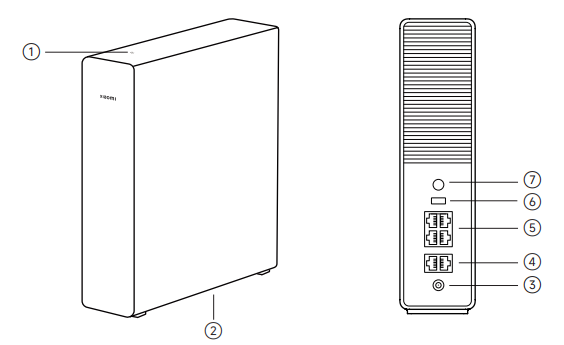
A: The Xiaomi Router BE19000 Pro has the following ports and buttons:
1. It has an NFC area on the top for quick Wi-Fi connection using an NFC-enabled Android phone. To use the NFC function, your phone needs to have NFC enabled and be in a screen-on, unlocked state.
2. It includes an M.2 port for installing an M.2 solid-state drive.
3. It has a power port for connecting the power adapter.
4. It provides two 10 Gbps Ethernet ports with speeds up to 10 Gbps and supports WAN/LAN auto-sensing.
5. It also features four 2.5 Gbps Ethernet ports with speeds up to 2.5 Gbps, supporting auto-sensing for WAN/LAN.
6. It is equipped with a USB 3.0 port for connecting external USB devices.
7. It has a Mesh/reset button. Press the button to have Mesh networking with routers that support the Xiaomi Mesh function. Press and hold the button for 5 seconds to restore the router to its factory settings.
8. The area above the Mesh/reset button is the cooling fan area.
Q7: What do the indicators of the Xiaomi Router BE19000 Pro represent?
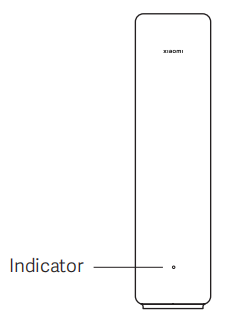
A: The Xiaomi Router BE19000 Pro has one indicator, and its statuses are as follows:
1. When the indicator is off, the router is powered off or unplugged.
2. When the indicator is solid orange, the system is starting up, or a network connection error has occurred.
3. When the indicator is blinking orange, a newly added satellite router is connecting to the Mesh network or the system is updating.
4. When the indicator is breathing orange, the router has started and the system is ready for configuration.
5. When the indicator is solid blue, the router works properly.
6. When the indicator is breathing blue, a new satellite router has been discovered, and the indicator will automatically turn solid blue if there is no Mesh operation within two minutes.
7. When the indicator is blinking blue, the satellite router is connecting to the main router.
Note:
For those with color weakness or color blindness, please check the product's working status through the Xiaomi Home App.
Q8: With the Xiaomi Router BE19000 Pro having IPTV functionality, can the live broadcasts be watched directly by connecting the TV to the router?
A: No, you cannot watch live broadcasts directly. The IPTV function must be activated on the broadband service at your home. After the IPTV function is enabled on your home broadband, the optical modem connects to the router, and you need to configure the IPTV function on the router. Once configured, set one of the router's ports as the IPTV port, and connect the TV set-top box to the IPTV port on the router to enjoy watching TV programs.
Function Related
Q1: How to install and configure the Xiaomi Router BE19000 Pro for the first time?
A: The Xiaomi Router BE19000 Pro can be bound using the Xiaomi Home App or configured via the web backend management. It does not support binding through the Mi Wi-Fi App.
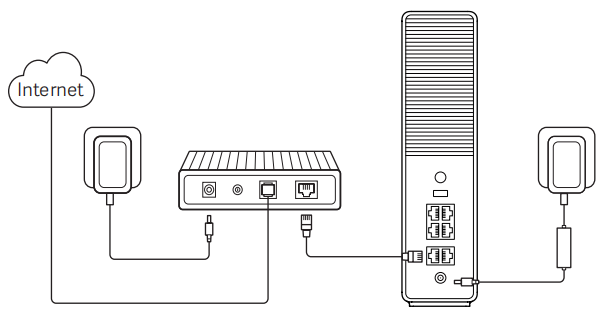
Preparation before the Configuration:
1. Connect the router to power, and then the router will automatically turn on.
2. Restart your modem.
Note:
The modem is provided by your Internet service provider.
3. Plug one end of the network cable into either of the router's port, and the other end into the LAN port of the modem.
Note:
If you use the Ethernet wall socket instead of the modem, plug the network cable directly into it.
Method 1:
Network configuration via the Xiaomi Home App:
1. Scan the QR code to download the Xiaomi Home App. Or search for "Xiaomi Home" in the App Store to download and install it.

2. Turn on your phone's Wi-Fi function.
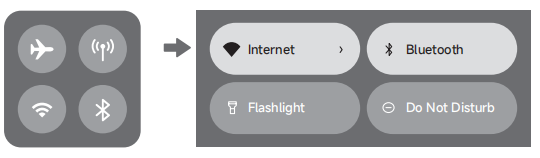
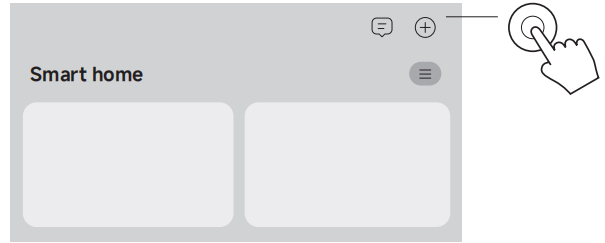
3. Open the Xiaomi Home App, tap [+] on the upper right, choose the right product model, and then follow the instructions to complete the network configuration.
Note:
Please follow the instructions based on the current App version.
Method 2:
Network configuration via the web browser:
1. Check the Wi-Fi name on the label at the bottom of the router and then connect your phone or computer to the Wi-Fi.
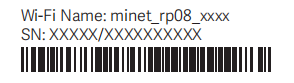
2. Then an automatic redirection will take you to the network setup interface. If not, open the web browser and enter miwifi.com or 192.168.31.1.
3. Follow the instructions on the setup interface to complete the network configuration.
Note:
Contact your Internet service provider to get the details if you are not familiar with the Internet connection type.
4. After the configuration of the router is completed, the Wi-Fi module will restart. Try to search for Wi-Fi again later.
Note:
1. After completing the network configuration, you can also add the router via the Xiaomi Home App. Refer to the QR code in method 1 to download and install the Xiaomi Home App. Make sure that the settings of the country or region in the Xiaomi Home App are correct; otherwise, adding the router will fail.
2. DNS service is enabled by default.
Q2: Does the Xiaomi Router BE19000 Pro support game acceleration?
A: The Xiaomi Router BE19000 Pro does not support game acceleration.
Q3: How many external hard drives or USB drives can the Xiaomi Router BE19000 Pro support?
A: The Xiaomi Router BE19000 Pro can connect up to two external storage devices. It features one USB port and one M.2 port, both of which support connecting a hard drive or USB storage device. The recommended maximum expansion capacity is up to 8 TB for each port.
Q4: Does the Xiaomi Router BE19000 Pro support the home security protection function?
A: The Xiaomi Router BE19000 Pro does not support the home security protection function.
Q5: How to use the dual WAN and dual LAN functions of the Xiaomi Router BE19000 Pro?
A: The Xiaomi Router BE19000 Pro only supports dual LAN functionality and does not support dual WAN functionality.
To use the dual LAN function, please refer to the following information:
Dual LAN aggregation allows two LAN ports to be connected simultaneously to terminal devices such as NAS with multiple network ports, effectively combining their speeds. For example, if both LAN ports are gigabit, aggregating LAN port 1 and LAN port 2 theoretically increases the connection speed to 2000 Mbps.
There are two ways to enable LAN port aggregation:
1. Navigate to web backend >> Advanced >> Custom port >> enable LAN port aggregation >> select any two LAN ports to aggregate.
2. Go to web backend >> Settings >> enable the LAN port aggregation option in the LAN settings port.
Note:
If the negotiated speeds of the ports are different, aggregation will fail. The opposing network card must have the LACP protocol enabled. The LAN aggregation feature on Xiaomi routers is dynamic aggregation, which requires the opposing end to support the 802.3ad (LACP) protocol.
The steps of using it are as follows:
1. Ensure that the computer currently logged into the web management backend is not using the aggregated LAN ports, then enable the option.
2. Make sure the terminal device also supports dual LAN link aggregation and that this feature is enabled.
3. Use two Ethernet cables to connect the router’s two LAN ports to the terminal device.
Note:
Enabling or disabling the guest Wi-Fi will cause the link aggregation feature to become ineffective.
Q6: Does the Xiaomi Router BE19000 Pro support enabling SSH?
A: No, the Xiaomi Router BE19000 Pro does not support enabling SSH. SSH can pose security risks and is rarely needed for typical home use. Xiaomi routers do not support this feature.
Q7: How to restore the Xiaomi Router BE19000 Pro to factory settings?
A: Press and hold the Mesh/Reset button on the back for 5 seconds. The indicator will turn orange. Wait for the router to complete its startup, and when the indicator lights up in blue, it indicates a successful reset.
Q8: Does the Xiaomi Router BE19000 Pro support Docker?
A: No, the Xiaomi Router BE19000 Pro does not support Docker.
Q9: How many network devices can the Xiaomi Router BE19000 Pro connect to at most?
A: The Xiaomi Router BE19000 Pro can support up to 1,000 connected devices in total under laboratory test conditions. This total includes connections via 2.4 GHz Wi-Fi, 5 GHz Wi-Fi, 6 GHz Wi-Fi, and wired networks.
Wi-Fi connections support up to 512 devices in total, including up to 256 devices on the 2.4 GHz band, up to 128 devices on the 5 GHz band, and up to 128 devices on the 6 GHz band.
Wired connections support up to 512 devices.
The built-in Bluetooth gateway supports up to 300 Bluetooth devices.
Q10: Does the Xiaomi Router BE19000 Pro support a developer version or flashing open-source firmware?
A: No, the Xiaomi Router BE19000 Pro does not support a developer version or open-source firmware.
Q11: What is the difference in hard drive usage between the Xiaomi Router BE19000 Pro and standard 10 Gigabit routers?
A: In terms of hardware ports, compared with typical 10 Gigabit routers, the Xiaomi Router BE19000 Pro adds an M.2 SSD port, allowing the hard drive to be installed internally in the router for a cleaner and more elegant setup.
Harddisk
Q1: Does the Xiaomi Router BE19000 Pro support external hard drives or USB drives?
A: Yes, the Xiaomi Router BE19000 Pro supports external hard drives or USB drives.
Q2: How many external hard drives or USB drives can the Xiaomi Router BE19000 Pro support, and are there any capacity limitations?
A: The Xiaomi Router BE19000 Pro supports one external storage device via the USB port and one via the M.2 port.
The USB port can connect one USB hard drive or USB flash drive and supports mainstream file systems such as FAT32, NTFS, EXT4/EXT3, and ExFAT.
The M.2 port supports connecting to one M.2 SSD (only supports NVMe format, protocol is PCIe 3.0). It is recommended to use a hard drive with a capacity of 8 TB or less.
Q3: Which M.2 SSD models are supported by the Xiaomi Router BE19000 Pro for storage expansion?
A: The M.2 port supports connecting to one M.2 SSD (only supports NVMe format, protocol is PCIe 3.0). It is recommended to use a hard drive with a capacity of 8 TB or less.
Note:
1. The M.2 slot in the Xiaomi Router BE19000 Pro is custom-designed according to the router’s hardware. To ensure stable operation when using the storage expansion feature, the read/write speed is limited. Measured read speed can reach up to 580 MB/s, which is 4.6 times faster than a standard Gigabit NAS and 1.8 times faster than a NAS with a 2.5 GE port. This means that when accessing the SSD via a wired or wireless network, the performance bottleneck is more likely to be network bandwidth rather than storage speed, which is sufficient for most home scenarios.
2. Different SSD brands have varying operating and thermal protection logic, so the read and write performance of different brands and models of SSDs will vary and is not controlled by the router. Xiaomi does not guarantee stable operation for all SSD models. Laboratory-tested Stable Models: WD_BLACK SN7100 NVMe SSD 2 TB, Kingston NV3 PCIe 4.0 NVMe SSD 1 TB, Zhitai TiPlus 7100 1 TB.
Q4: Can the Xiaomi Router BE19000 Pro perform a hard drive backup when two drives are connected simultaneously?
A: The Xiaomi Router BE19000 Pro does not support hard drive backup.
Q5: Does the Xiaomi Router BE19000 Pro support SATA hard drives?
A: No, the Xiaomi Router BE19000 Pro does not support SATA hard drives
Note:
The SATA port is not supported, and the M.2 SATA bus is also not supported.
Q6: How to install an M.2 SSD on the Xiaomi Router BE19000 Pro?
A: To install an M.2 SSD on the Xiaomi Router BE19000 Pro, please refer to the following steps:
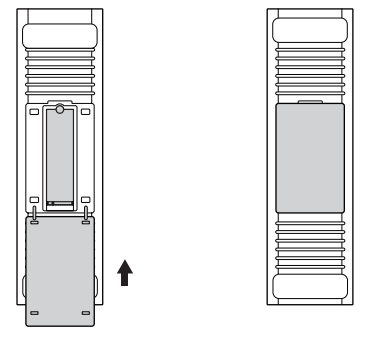
1. Pry open the cover, and remove the corresponding fixing plug based on the length of the M.2 SSD.
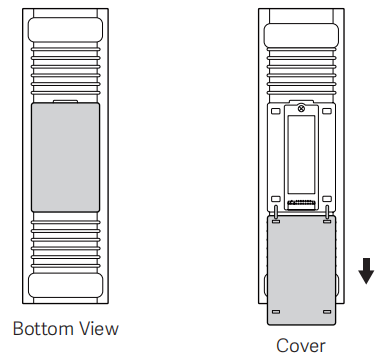
2. Install the fixing plug into the notch of the M.2 SSD.
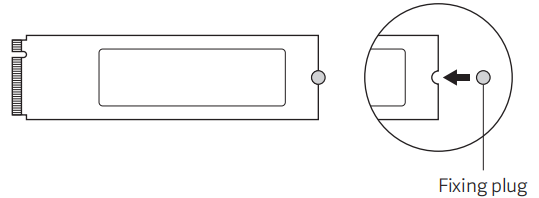
3. Insert the M.2 SSD into the slot at a 30-degree angle, then gently press it down until it clicks into place. Attach the fixing plug to the corresponding hole on the backplate.
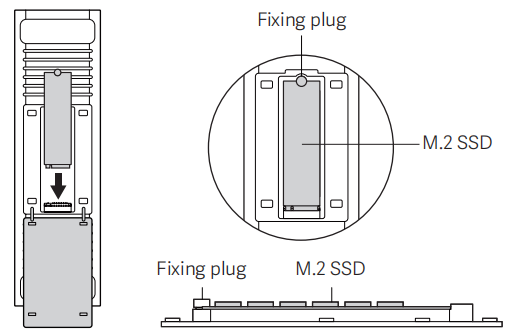
4. Close the cover, and the installation is complete.
Note:
1. The M.2 SSD needs to be purchased separately. Make sure to install while the router is powered off to avoid damaging the SSD.
2. This router supports storage expansion with M.2 solid-state drives (NVMe protocol only).
Q7: Where is the M.2 hard drive formatting option on the Xiaomi Router BE19000 Pro?
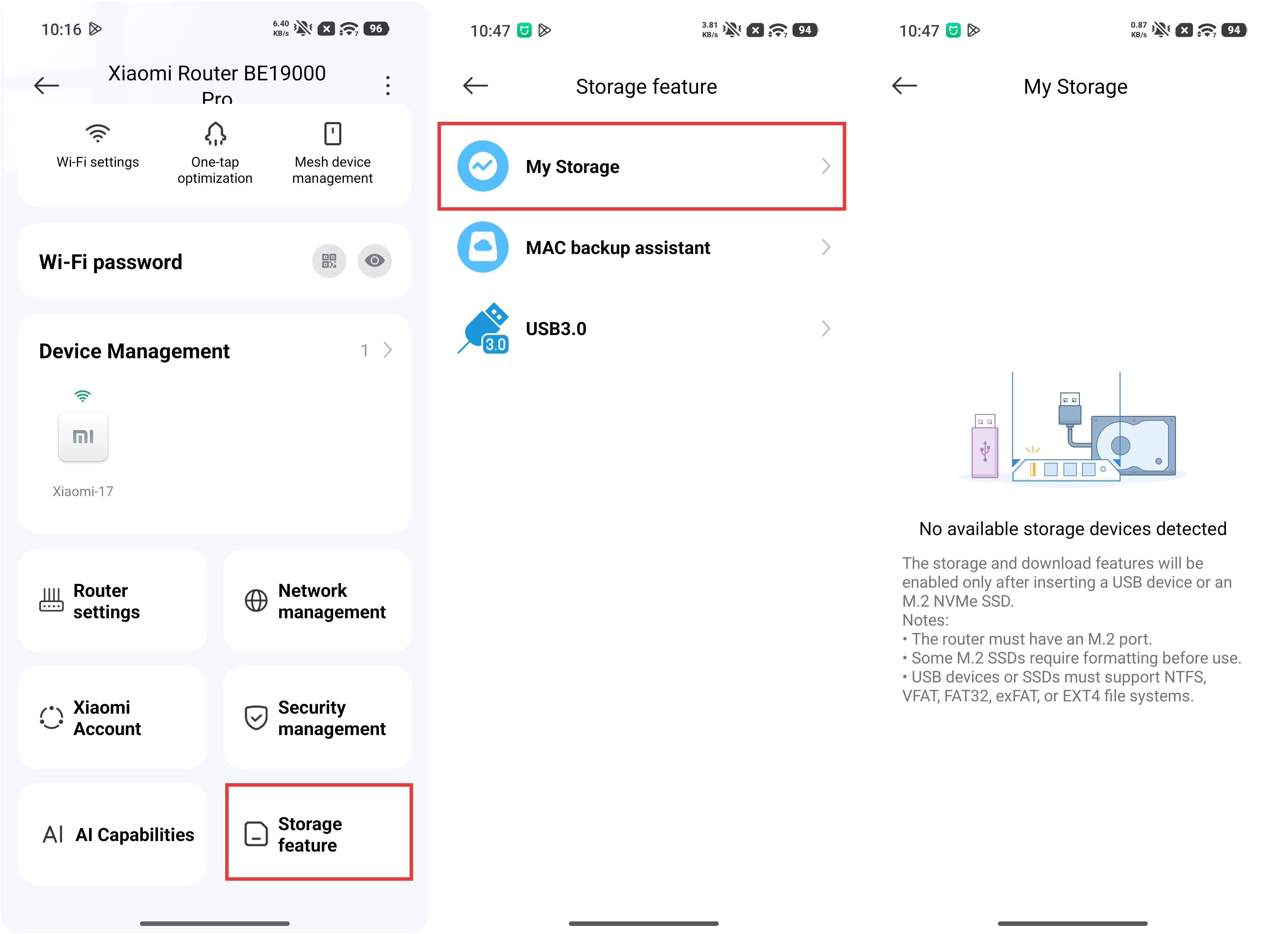
A: You cannot format the SSD via the web port. You need to go to the Xiaomi Home App to format the SSD.
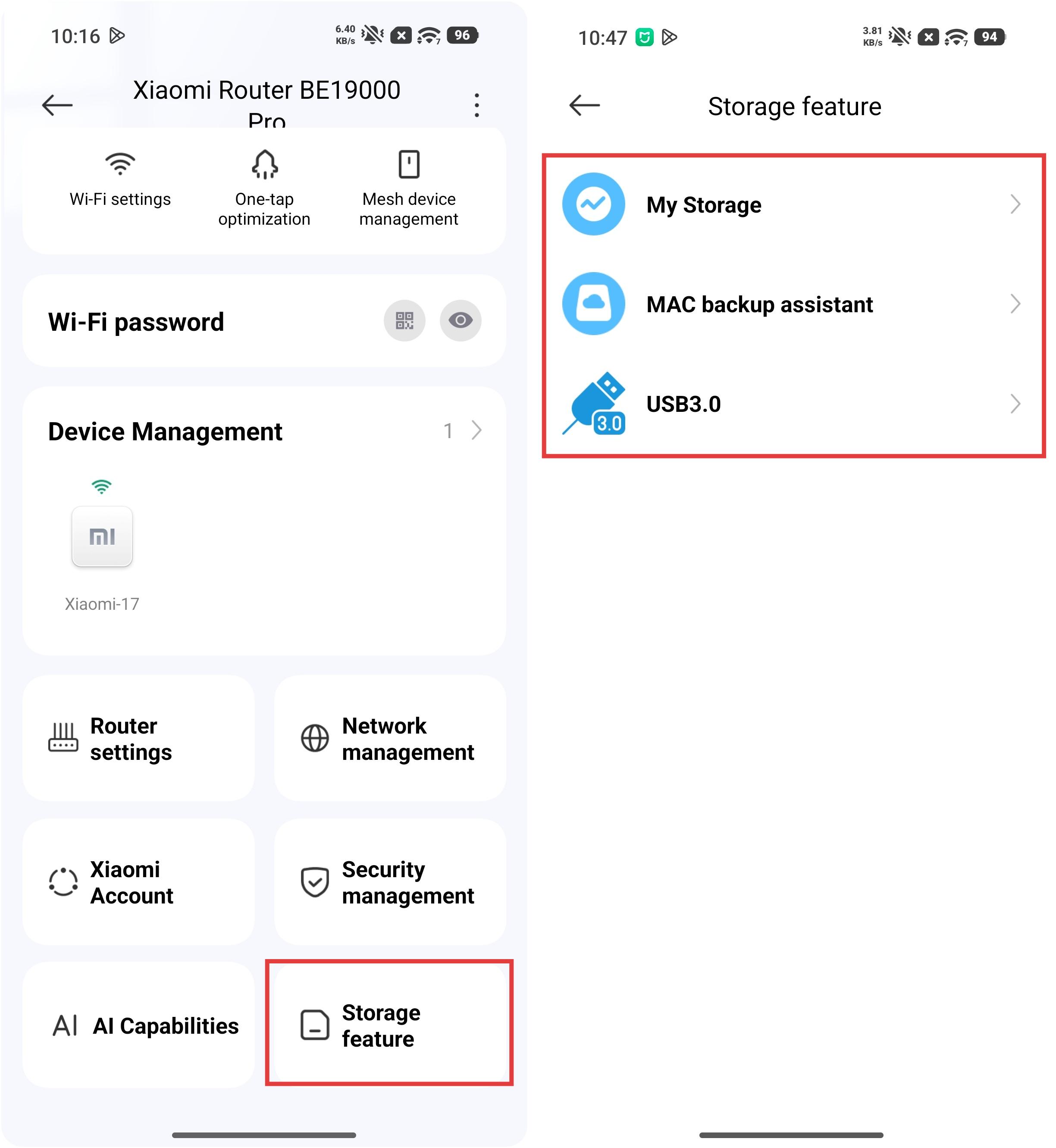
When you go to the Xiaomi Home App >> select the Xiaomi Router BE19000 Pro card >> enter [Storage feature] >> select [My Storage], upon entering this interface, you will be automatically prompted to format.
Note:
If the main router is not the Xiaomi Router BE19000 Pro and the device is used as a secondary router, the formatting option will not appear in the Xiaomi Home App. In this case, it is recommended to either format the SSD on a computer first or temporarily set the Xiaomi Router BE19000 Pro as the main router, format the SSD via the Xiaomi Home App, and then reset it to factory settings before joining another router network.
If the main router is the Xiaomi Router BE19000 Pro, the M.2 SSD can be formatted directly in the Xiaomi Home App using the same method described above.
Q8: Which storage formats does the M.2 SSD of the Xiaomi Router BE19000 Pro support?
A: The M.2 SSD of the Xiaomi Router BE19000 Pro supports NTFS and EXT4 formats.
FAQs
Q1: What is the IPv6 function on the Xiaomi Router BE19000 Pro?
A: The Xiaomi Router BE19000 Pro supports IPv6, but IPv6 is disabled by default.
To set the IPv6 function on the Xiaomi Router BE19000 Pro, please refer to the following method:
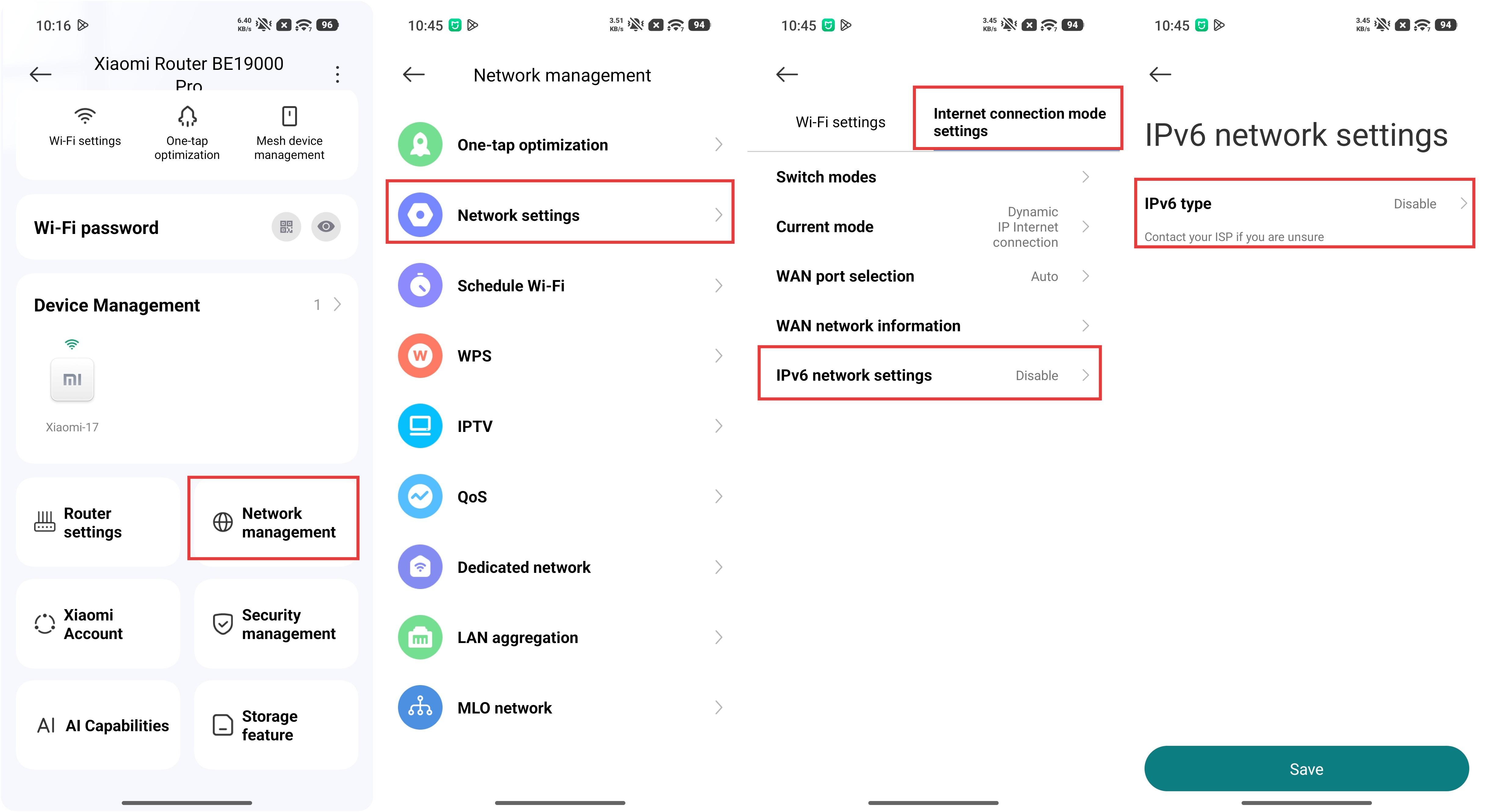
1. In the Xiaomi Home App: You can go to the router’s interface in the Xiaomi Home App >> select the Xiaomi Router BE19000 Pro card >> [Network management] >> [Network settings] >> [Internet connection mode settings] >> enter [IPv6 network settings] to set the function.
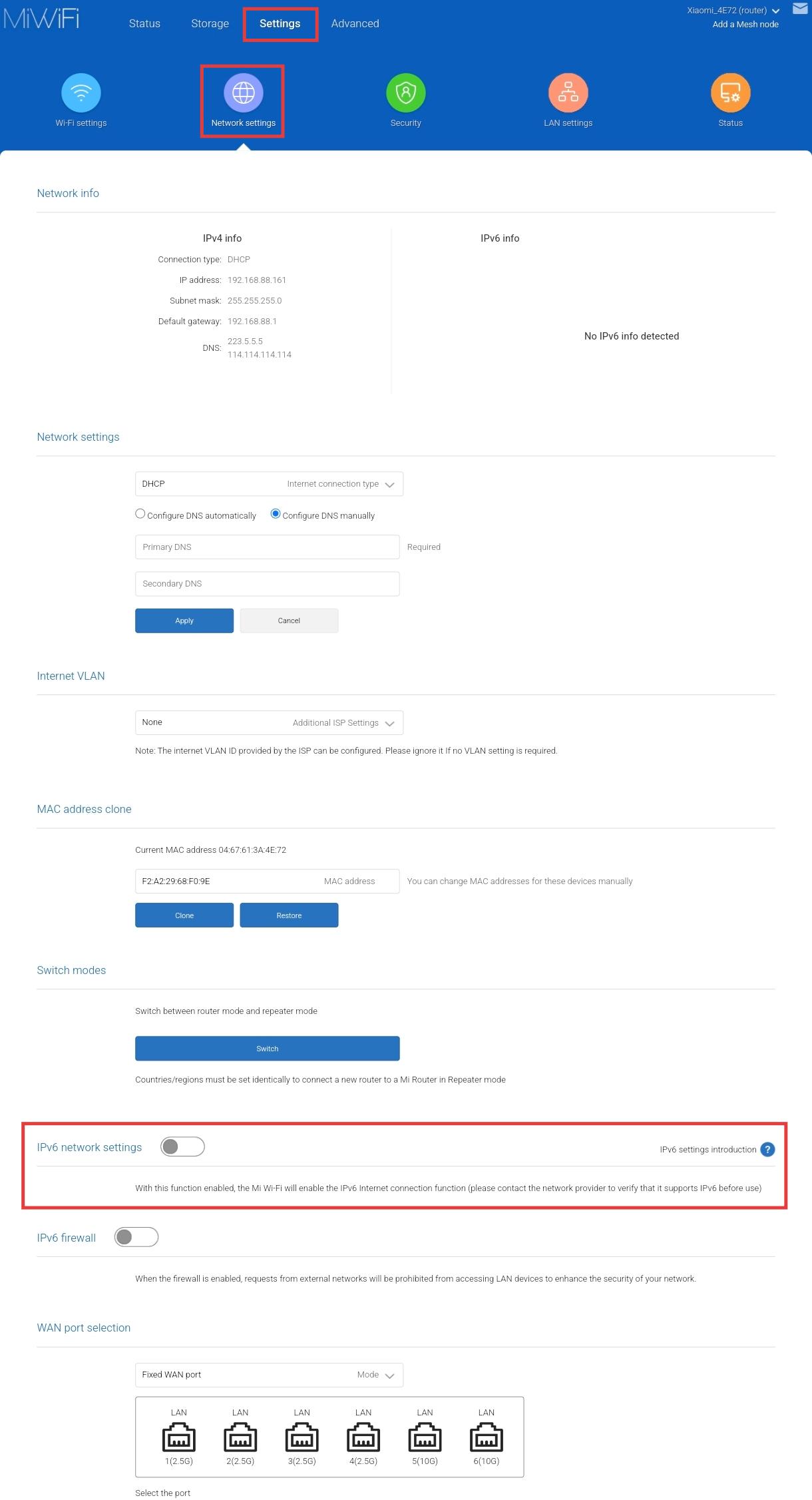
2. On the Web interface: On a mobile device or PC, open a browser and enter 192.168.31.1. Enter the management password >> tap [Settings] >> [Network settings] >> scroll down to find [IPv6 network settings] to set the function.
Note:
For any technical issues related to the Xiaomi Router BE19000 Pro, please disable the IPv6 option before conducting any further troubleshooting.
Q2: What to do if the network lags, App delays, or web interfaces fail to load while using the Xiaomi Router BE19000 Pro?
A: First, please disable the IPv6 option and then perform standard troubleshooting.
To disable the IPv6 function on the Xiaomi Router BE19000 Pro, please refer to the following method:
1. In the Xiaomi Home App: You can go to the router’s interface in the Xiaomi Home App >> select the Xiaomi Router BE19000 Pro card >> [Network management] >> [Network settings] >> [Internet connection mode settings] >> enter [IPv6 network settings] and disable it.
2. On the Web interface: On a mobile device or PC, open a browser and enter 192.168.31.1. Enter the management password >> tap [Settings] >> [Network settings] >> scroll down to find [IPv6 network settings] and disable it.
After disabling IPv6, please try the following troubleshooting steps:
1. Adjust the router’s placement and avoid placing it near high-power electrical appliances to reduce signal interference.
2. You can try connecting to 2.4 GHz or 5 GHz networks separately to test stability. If Multi-band steering is enabled, you can temporarily disable it for comparative testing.
3. Check the router load and the number of currently connected devices to see if any devices are consuming excessive bandwidth.
4. Ensure that the Xiaomi Home App and router firmware are updated to the latest version for performance optimization and stability improvement.
5. Back up your data, restore the router to factory settings, and then reconnect and test.
Q3: What to do if there are abnormal functionalities on the Xiaomi Router BE19000 Pro?
A: First, please disable the IPv6 option and then perform standard troubleshooting.
To disable the IPv6 function on the Xiaomi Router BE19000 Pro, please refer to the following method:
1. In the Xiaomi Home App: You can go to the router’s interface in the Xiaomi Home App >> select the Xiaomi Router BE19000 Pro card >> [Network management] >> [Network settings] >> [Internet connection mode settings] >> enter [IPv6 network settings] and disable it.
2. On the Web interface: On a mobile device or PC, open a browser and enter 192.168.31.1. Enter the management password >> tap [Settings] >> [Network settings] >> scroll down to find [IPv6 network settings] and disable it.
Q4: Why should the IPv6 option be disabled? Is support for IPv6 on the Xiaomi Router BE19000 Pro inadequate?
A: IPv6 is still in the early stages of large-scale deployment, and support among upstream network devices and service providers is not yet fully consistent. This may result in a less stable usage experience in some scenarios. The issue is not caused by the router itself. The Xiaomi Router BE19000 Pro actually provides stronger IPv6 support compared to many other brands on the market.
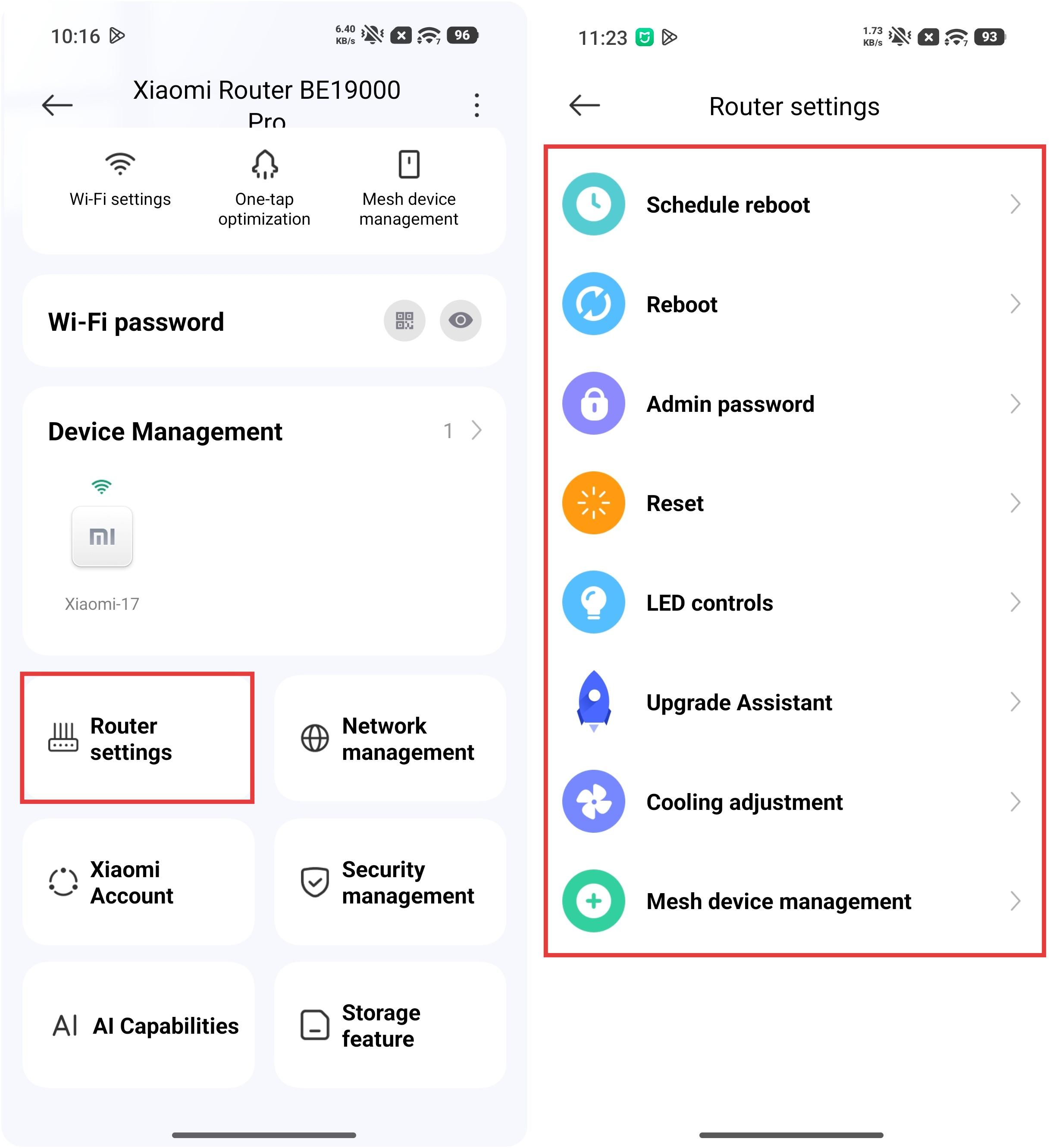
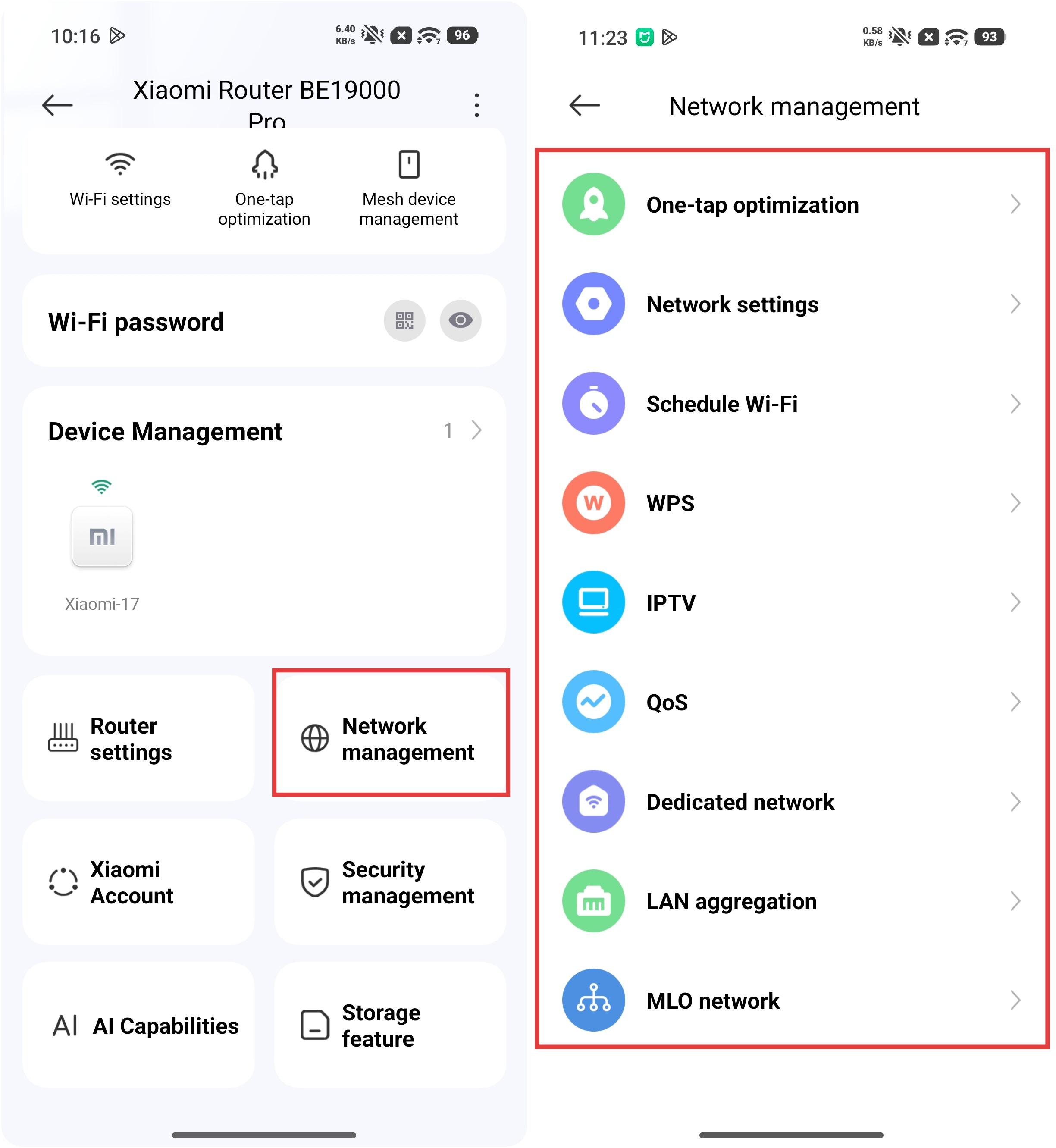
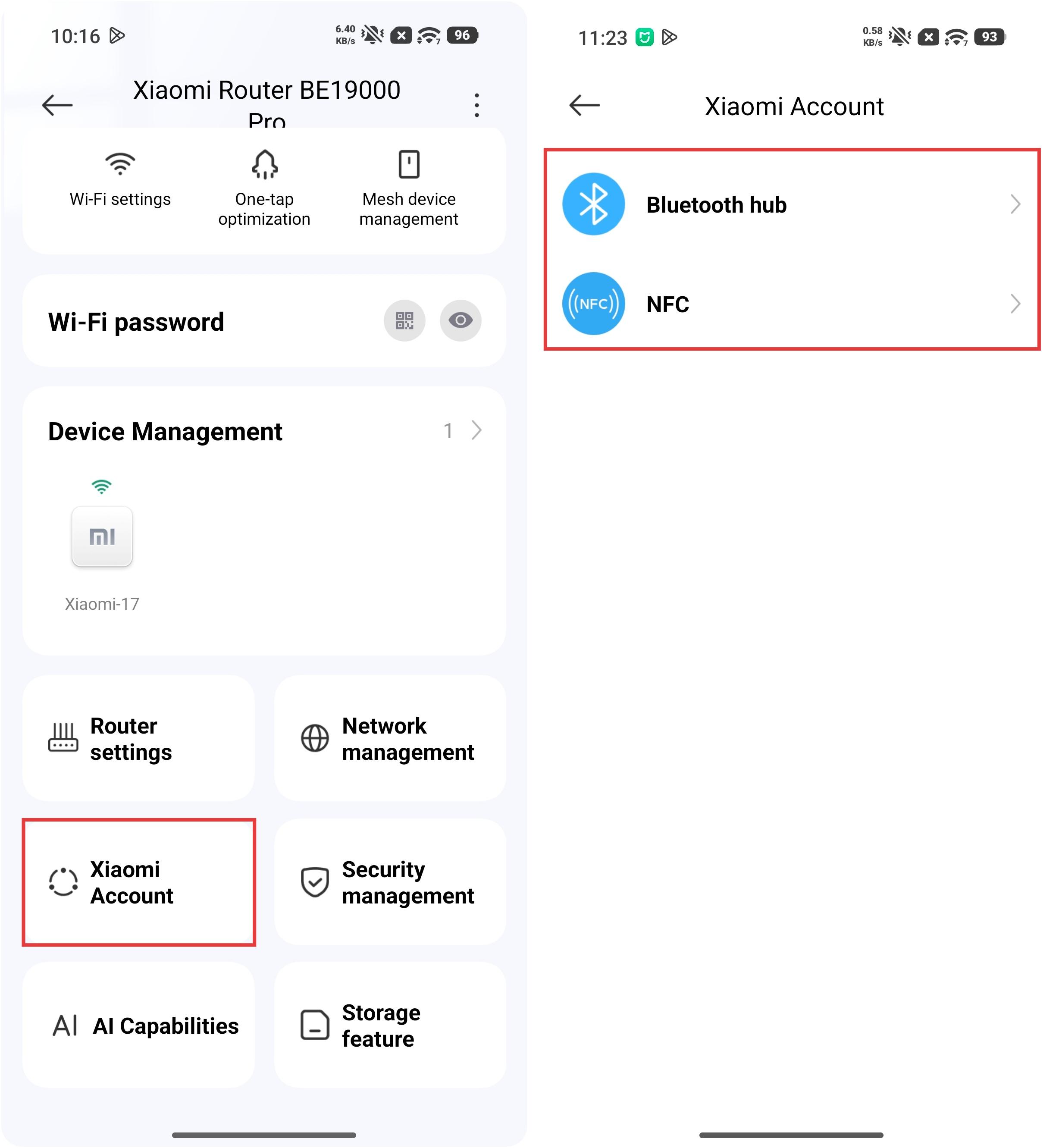
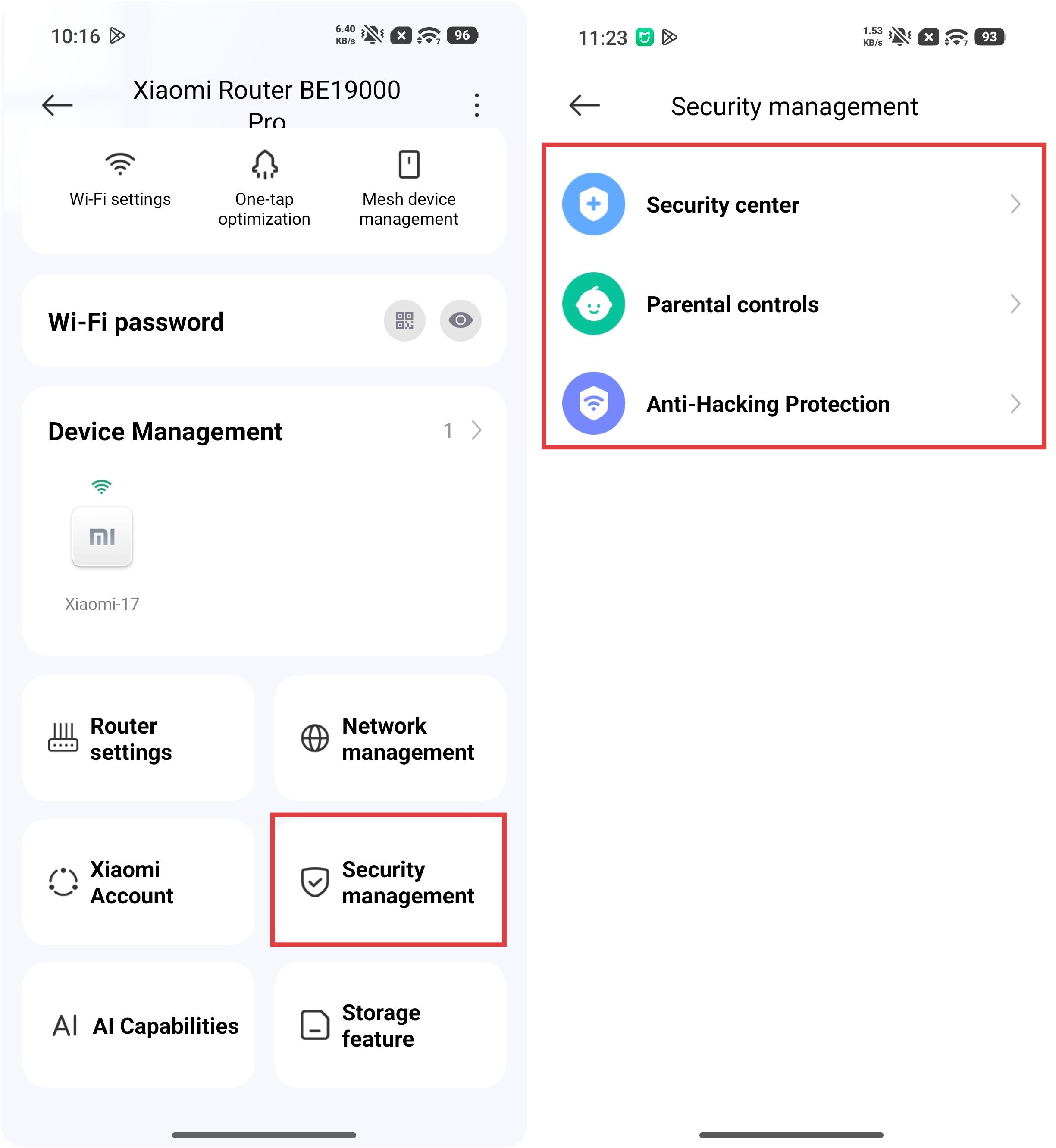
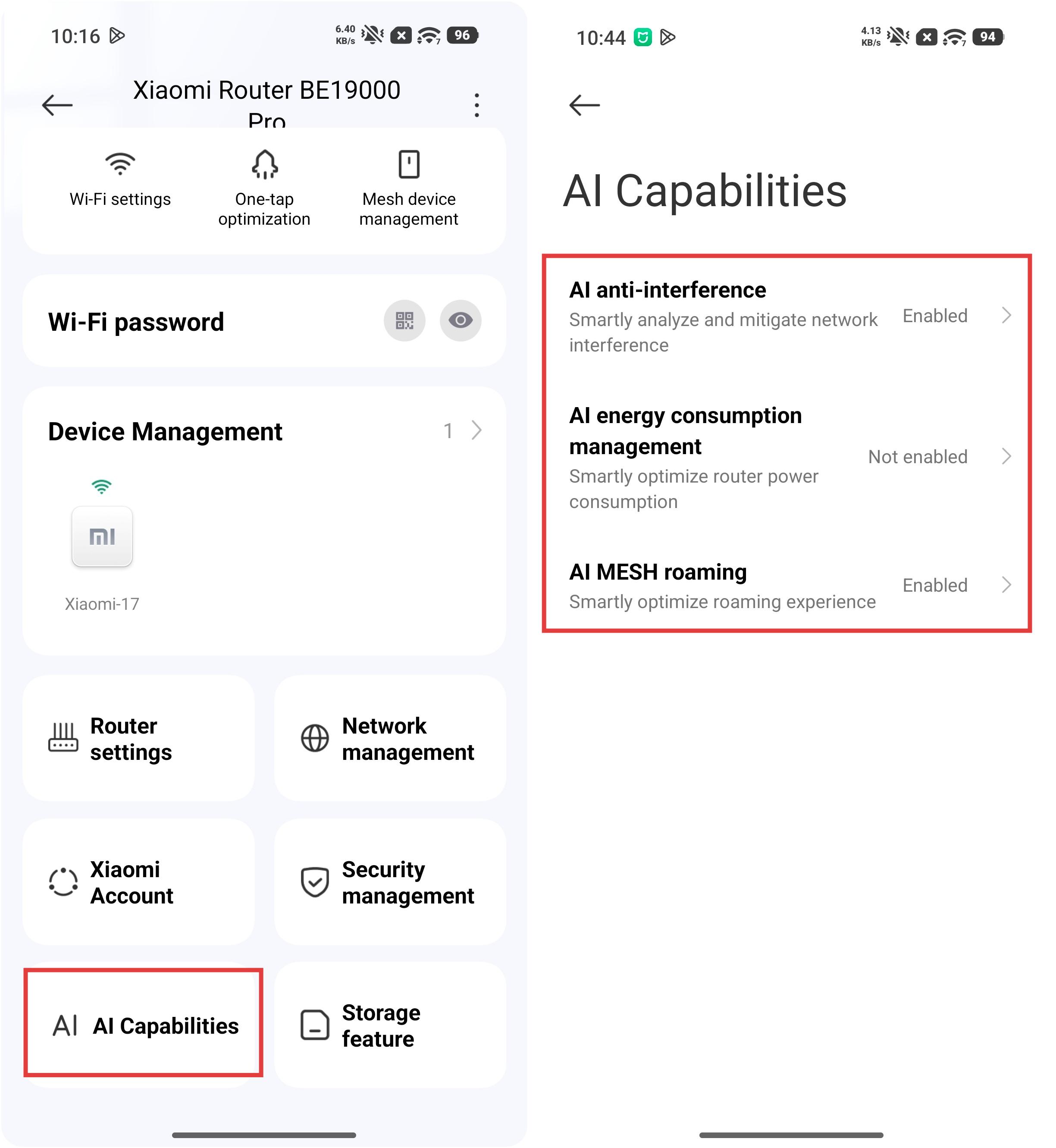
Q5: What are the changes to the UI of the Xiaomi Home App plugin on the Xiaomi Router BE19000 Pro?
A: The following functions have been added:
Router settings
Network management
Xiaomi Account
Security management
AI Capabilities
Storage feature
Q6: What new software features have been added to the Xiaomi Home App plug-in of the Xiaomi Router BE19000 Pro?
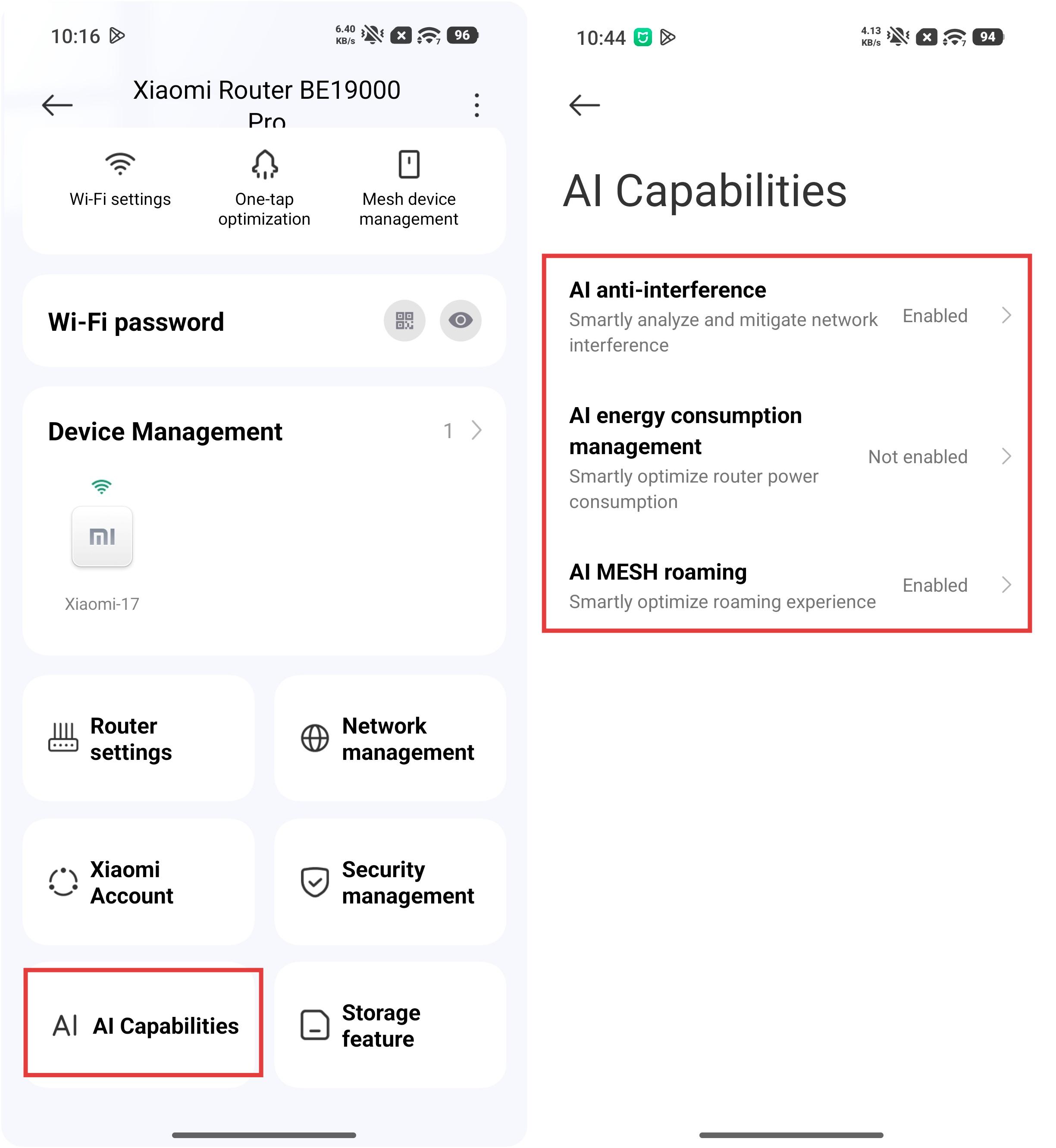
A: The Xiaomi Router BE19000 Pro introduces new [AI Capabilities] functions through its Xiaomi Home App plug-in.
The new [AI Capabilities] functions are as follows:
1. AI Network Engine: Powered by the AI capabilities of the Qualcomm Immersive Home NPro A7 platform, it is the first Xiaomi router to feature an AI Network Engine. This engine uses intelligent algorithms to simplify complex network management tasks and enhance overall stability, especially in Mesh roaming, gaming, and video conferencing scenarios.
2. AI MESH roaming: Multiple Xiaomi Router BE19000 Pro can be deployed to form an AI Mesh whole-home network. The upgraded AI Mesh algorithm automatically balances node loads and optimizes device roaming timing, enabling seamless “connect wherever you go” switching and significantly reducing lag.
3. AI anti-interference: The router intelligently analyzes and identifies sources of wireless interference within the home, precisely allocates wireless channel resources, strengthens signal stability, and delivers a faster and more reliable network experience.
4. AI energy consumption management: The system intelligently detects the router’s operating status and automatically adjusts performance under low-load conditions to reduce power consumption, lower internal heat, and extend product lifespan. Under high-load conditions, it dynamically coordinates system resources to release performance and ensure a fully stable usage experience.
You can go to the Xiaomi Home App >> select the Xiaomi Router BE19000 Pro card >> enter [AI Capabilities] to enable the above AI function options.
Q7: What temperature will the Xiaomi Router BE19000 Pro's fan start cooling?
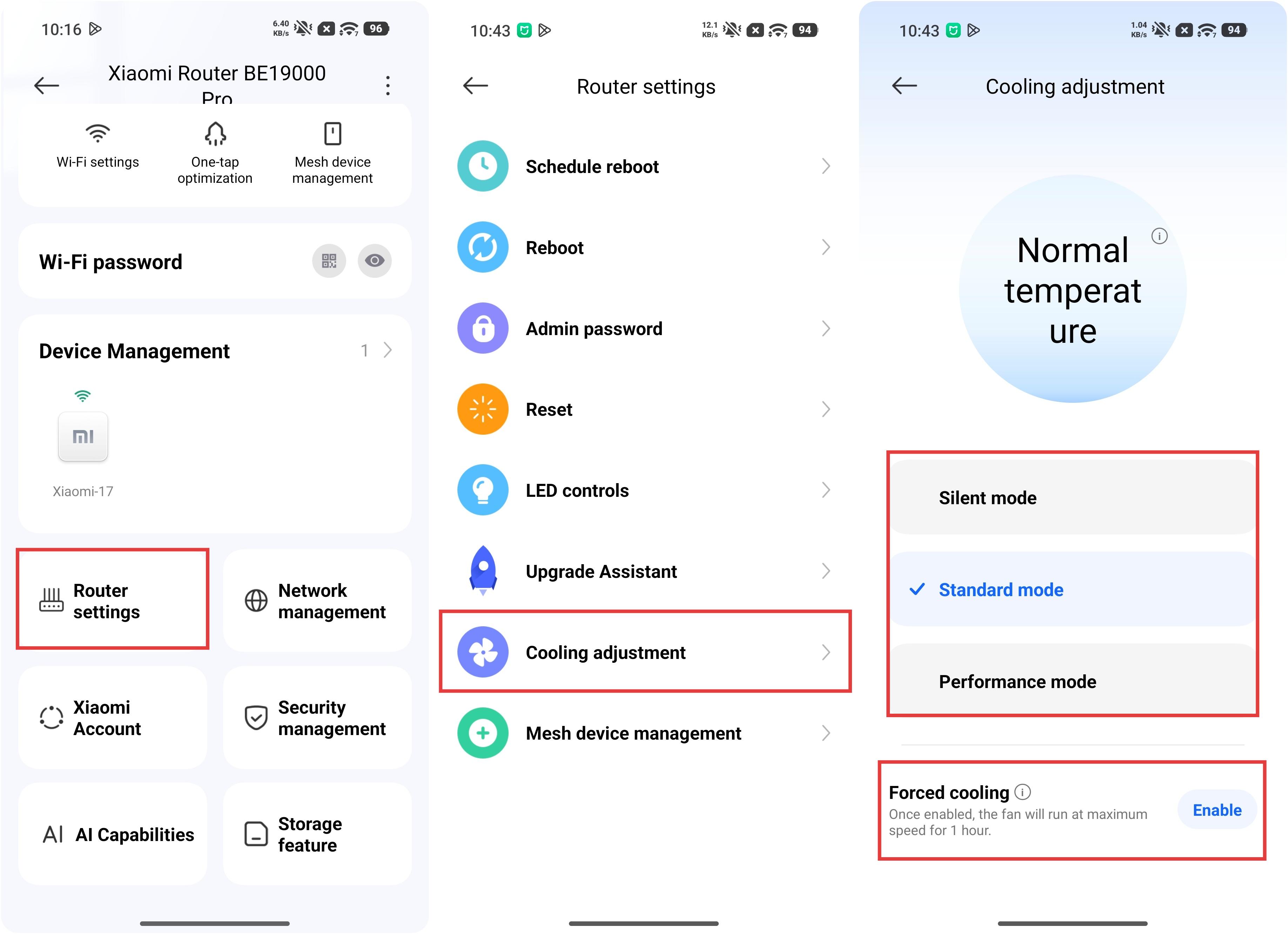
A: The Xiaomi Router BE19000 Pro has relatively high overall power consumption and strong chipset performance, which can generate more heat. It is equipped with an internal cooling fan featuring temperature detection and automatic speed adjustment. When the CPU temperature reaches 93 °C in Performance mode, 99 °C in Standard mode, or 105 °C in Silent mode, the fan will automatically adjust its speed for cooling. Below these temperatures, the chip operates normally without being affected.
Under normal working conditions, the fan may not spin. Due to chipset heat, the outer casing may feel warm, which is normal. The enclosure surface temperature remains below 60 °C, and the rear surface temperature remains below 65 °C, both within normal operating ranges.
Recommended usage scenarios for each mode are as follows:
1. Silent mode is recommended for noise-sensitive environments or nighttime use.
2. Standard mode is recommended for daily use.
3. Performance mode is recommended for large online games, small studios with concentrated network usage, or environments with higher ambient temperatures.
You can go to the Xiaomi Home App >> select the Xiaomi Router BE19000 Pro card >> [Router settings] >> [Cooling adjustment] to select the mode. You can enable [Forced cooling] for high-speed fan cooling. Once enabled, the fan will run at maximum speed for 1 hour.
Q8: Why doesn’t AI Mesh roaming take effect when the Xiaomi Router BE19000 Pro forms a Mesh network with other Xiaomi routers?
A: The prerequisite for AI Mesh roaming to function is that both the main router and all satellite routers in the Mesh network must support AI Mesh roaming.
If the Xiaomi Router BE19000 Pro is paired with routers that do not support AI Mesh roaming, this feature will not take effect.
However, the Xiaomi Router BE19000 Pro can still form a standard Mesh network normally with other routers that support Wi-Fi 6 or above.
Q9: What is recommended for network speed testing with the Xiaomi Router BE19000 Pro?
A: It is recommended to use Speedtest to test the network speed of the Xiaomi Router BE19000 Pro.
Q10: Why doesn't the Xiaomi Router BE19000 Pro display the gateway of the sub-router when used as a sub-router?
A: When the Xiaomi Router BE19000 Pro is used as a sub-router, the gateway may not be displayed in version 10.9 of the Xiaomi Home App on iOS devices. This is a known software issue.
The issue is expected to be optimized in version 11.0 of the Xiaomi Home App on iOS devices. In the meantime, please use an Android phone to log in to the Xiaomi Home App to check the gateway device status.
Q11: Why can’t the Xiaomi Router BE19000 Pro form a wireless Mesh network with some Xiaomi routers when used as a sub-router?
A: Due to compatibility limitations with certain older models, the Xiaomi Router BE19000 Pro can’t form a wireless Mesh network with some Xiaomi routers when used as a sub-router.
It is recommended to use the Xiaomi Router BE19000 Pro as the main router to build the Mesh network. Please note that when the Xiaomi Router BE19000 Pro is used as the sub-router, many features of the device are limited and unavailable.
Q12: How to place the Xiaomi Router BE19000 Pro?
A: Recommended placement locations are as follows:
1. Place it in an open, unobstructed area, such as on a TV cabinet or coffee table.
2. It is best positioned near the center of the house to ensure balanced signal coverage.
3. The recommended height is about 1 meter above the ground, and it should not be placed directly on the floor.
4. To ensure optimal router performance, the router should be used in an upright position.
Not recommended placement locations are as follows:
1. The router should not be placed inside metal enclosures such as weak-current boxes or enclosed metal cabinets.
2. It should also be avoided in heavily obstructed areas, including wall-embedded storage spaces, corners blocked by furniture like sofas, or inside shoe cabinets and TV cabinets.
3. Keep it away from appliances that may cause interference, such as microwave ovens, induction cookers, desktop power supplies, household generators, or optical modems.
4. Avoid placing it at the edges of the home, such as balconies, bathrooms, or laundry rooms.
Q13: What to do if the port of the Xiaomi Router BE19000 Pro is not secure?
A: For the Ethernet ports, it is recommended to use the included accessories or a Cat 6 or above cable from a reputable brand. When inserting the cable, make sure you hear a “click,” which indicates that it is securely connected. You can also check the port indicator to confirm whether the connection is active and data is being transmitted.
For the USB port, it supports USB-A devices. You can log in to the web management interface to check whether the connected storage device has been correctly recognized.
For the M.2 port, please refer to the instruction manual for installation steps, and be sure to use the fixing plug for secure installation; after installation, you can also check whether the hard drive is correctly recognized in the web management interface.
Q14: What to do if the Xiaomi Router BE19000 Pro cannot access the internet after initialization?
A: If the Xiaomi Router BE19000 Pro cannot access the internet after initialization, please refer to the following steps:
1. Make sure the router’s Ethernet port is properly connected to the upstream optical modem.
2. Power off the optical modem, wait for 5 minutes, then power it back on and try again.
3. Connect a phone, tablet, or computer directly to the optical modem to check whether the internet works properly. If it does not, please contact your ISP.
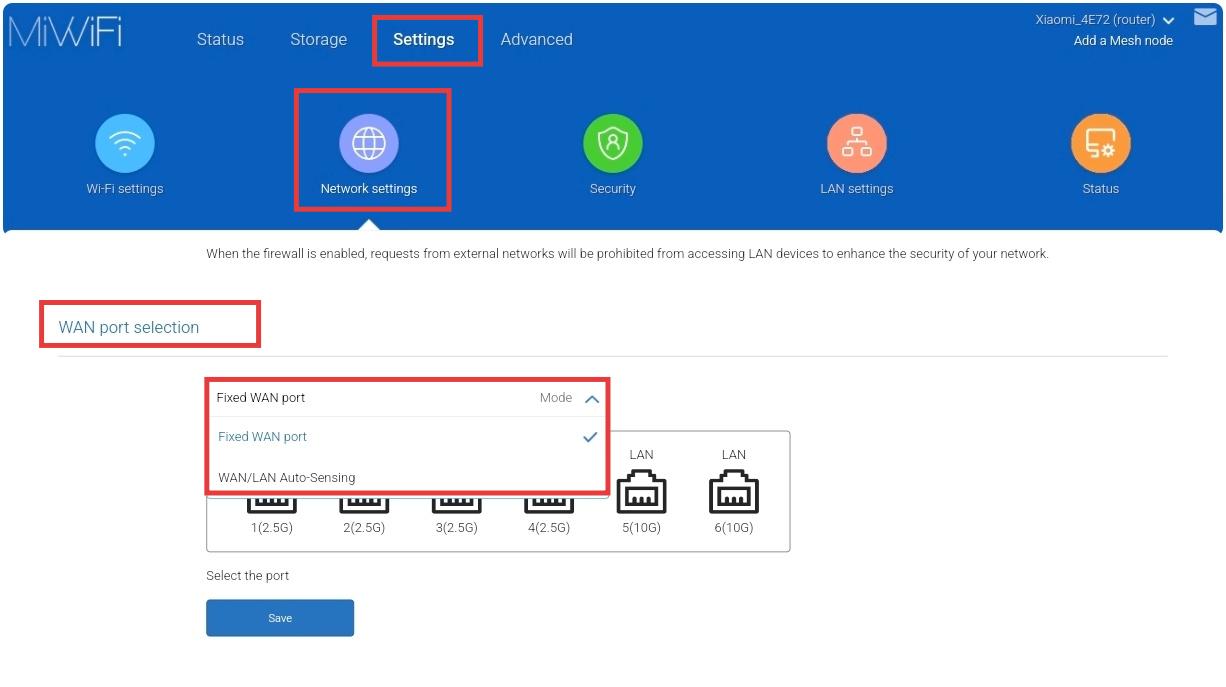
4. Try changing the WAN/LAN auto-sensing setting to a fixed WAN port. Ensure the Ethernet cable is connected to that designated WAN port, then restart the optical modem first, followed by the router.
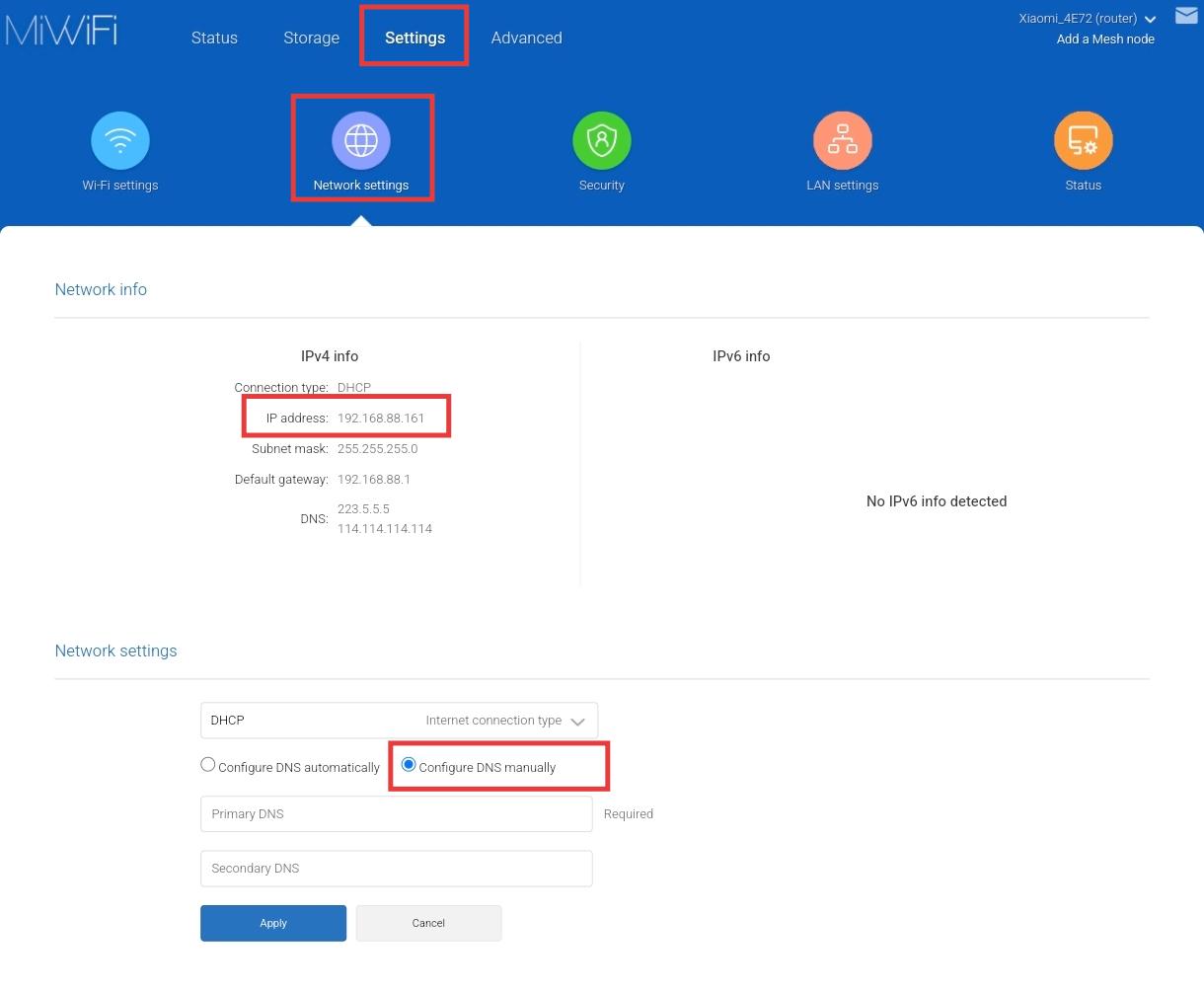
5. Log in to the router’s web management interface to check whether it has obtained a valid IP address. If a valid IP is assigned, try setting the DNS to 8.8.8.8 and the secondary DNS to 8.8.4.4.
6. If the problem persists, please contact the router product support team for further assistance.
Q15: How to check the default username and password of the Xiaomi Router BE19000 Pro?
A: The Xiaomi Router BE19000 Pro does not have a default login username or password. The login credentials are created by you during the initial setup process. The default Wi-Fi name (SSID) can be found on the laser-engraved label at the bottom of the router. The default management interface address is miwifi.com.
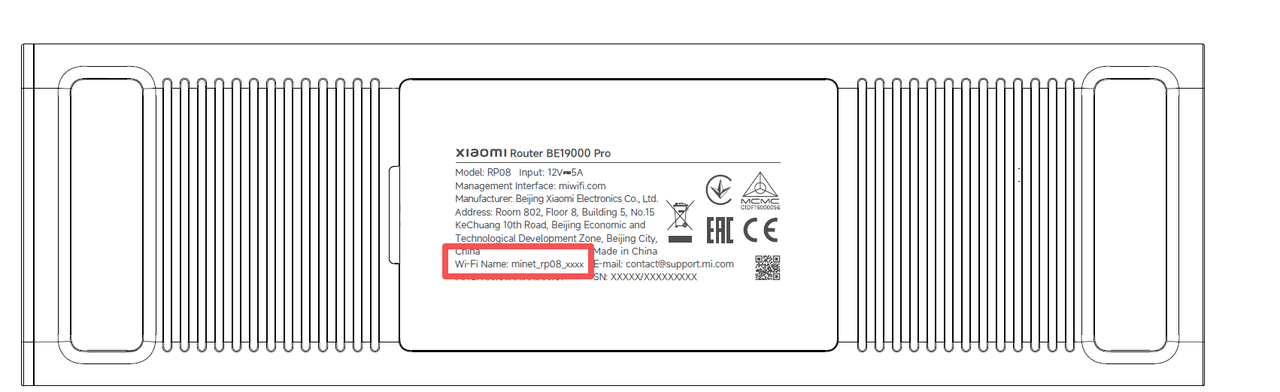
Q16: Why is the actual transmission speed of the Xiaomi Router BE19000 Pro slower than the advertised speed?
A: The Xiaomi Router BE19000 Pro advertises theoretical maximum speeds based on technical specifications. In real-world usage, actual speeds can vary due to environmental interference, network conditions, and differences in connected device performance.
Q17: How to change the wireless channel on the Xiaomi Router BE19000 Pro?
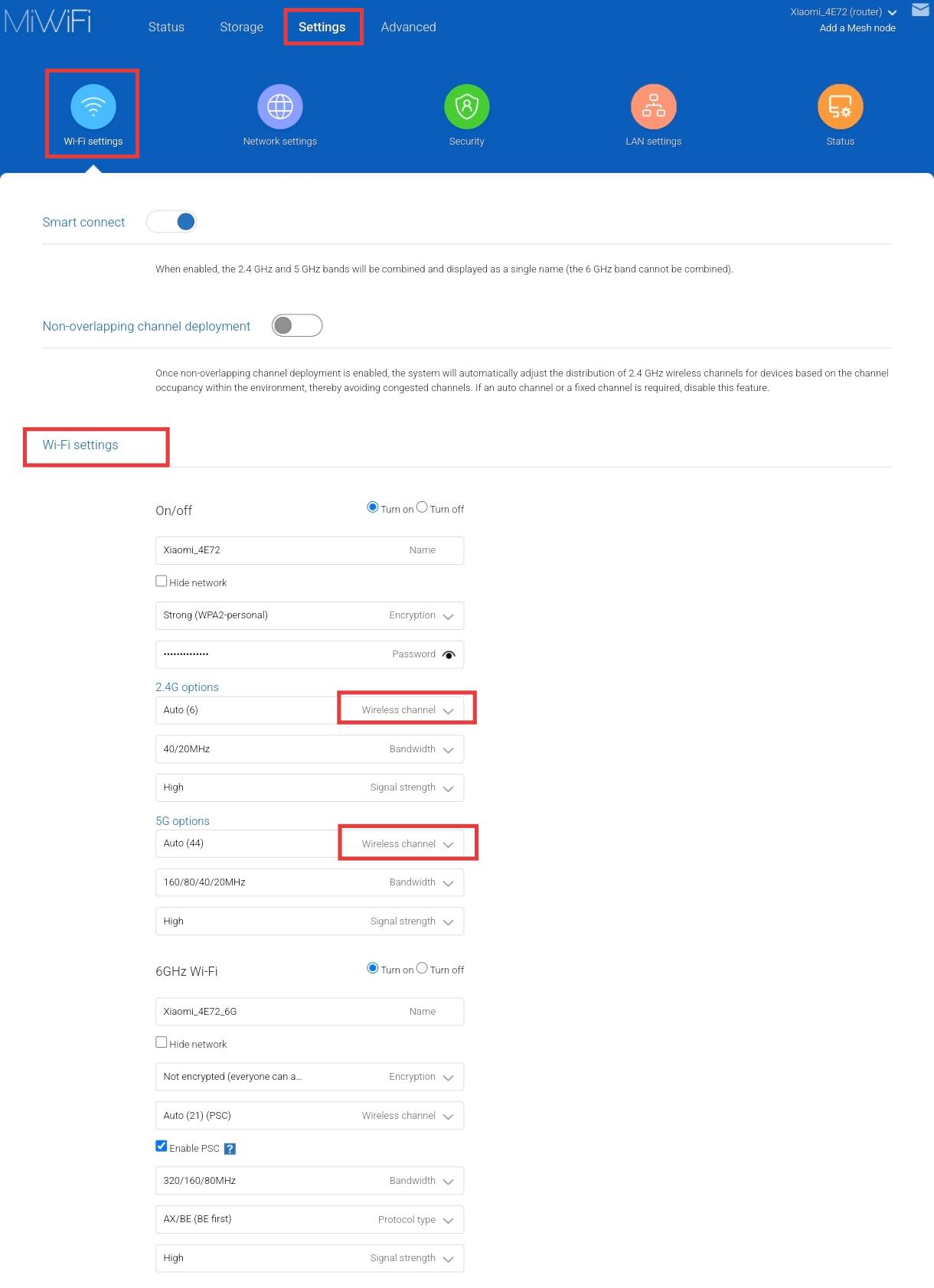
A: You can open the web browser and enter miwifi.com or 192.168.31.1 and log in to the router’s management interface, then go to [Settings] >> [Wi-Fi settings] >> [Wi-Fi settings] to change the [Wireless channel].
After making changes, be sure to tap [Save] for the settings to take effect. The Wi-Fi module will restart, and the network may be temporarily unavailable during this process.
However, it is generally not recommended to manually change the channel. It is advised to keep the default channel settings for optimal performance.
Q18: How to view or change the encryption method on the Xiaomi Router BE19000 Pro?
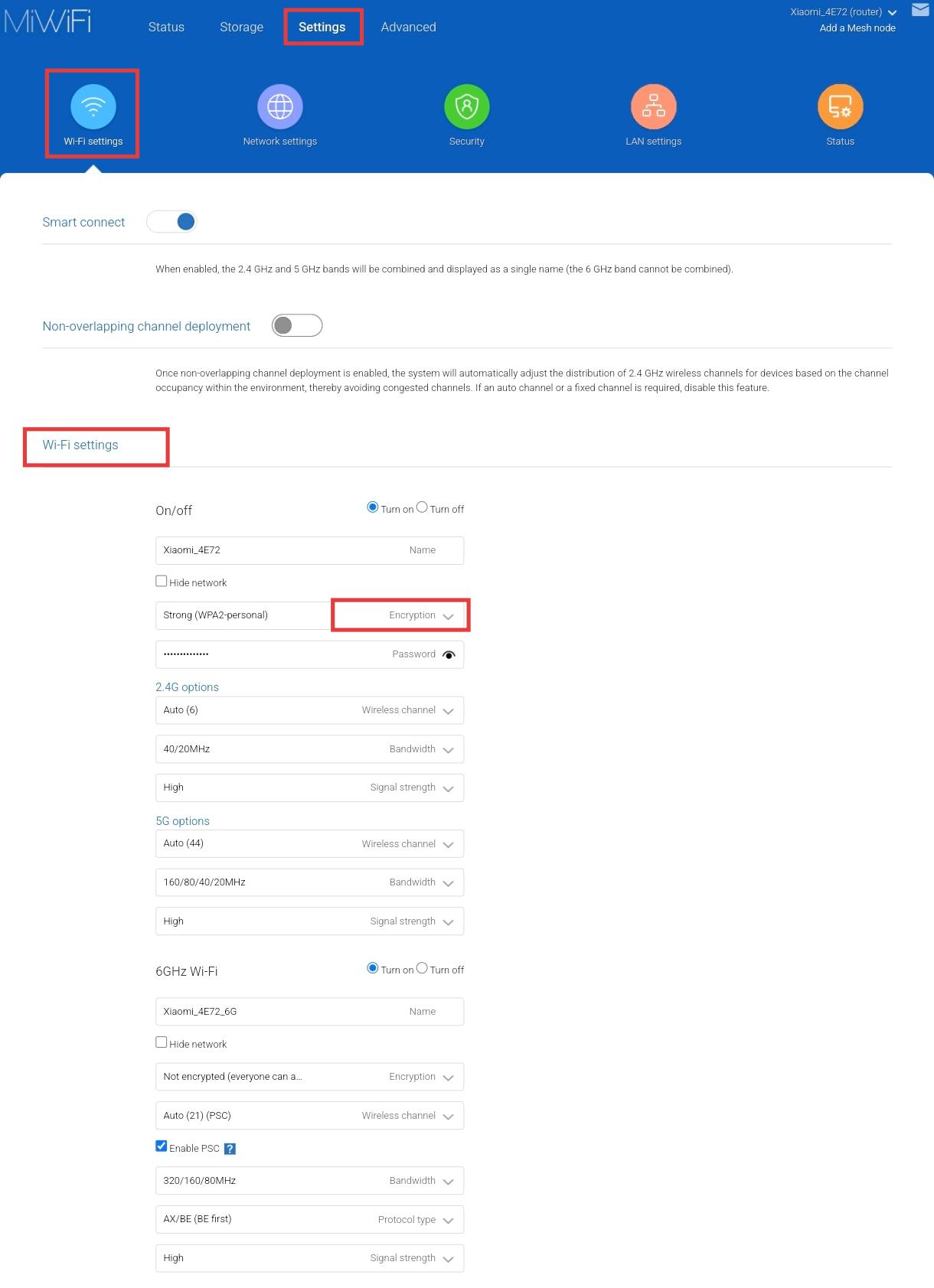
A: You can open the web browser and enter miwifi.com or 192.168.31.1 and log in to the router’s management interface, then go to [Settings] >> [Wi-Fi settings] >> [Wi-Fi settings] to view or change the encryption method.
After making changes, be sure to tap [Save] for the settings to take effect. The Wi-Fi module will restart, and the network may be temporarily unavailable for a short period during this process.
Q19: Why does the Wi-Fi signal of the same Xiaomi Router BE19000 Pro vary between different devices?
A: The signal strength can be affected by multiple factors, including environmental interference, the distance and positioning between the device and the router, physical obstacles, and differences in device transmission and reception performance.
Xiaomi routers are optimized for Xiaomi devices and have undergone compatibility testing, so it is recommended to prioritize using Xiaomi devices for the best experience.
Q20: How to optimize the Wi-Fi signal of the Xiaomi Router BE19000 Pro?
A: It is recommended to place the router in a suggested location, as close as possible to frequently used devices and with minimal obstacles in between.
Recommended placement locations are as follows:
1. Place it in an open, unobstructed area, such as on a TV cabinet or coffee table.
2. It is best positioned near the center of the house to ensure balanced signal coverage.
3. The recommended height is about 1 meter above the ground, and it should not be placed directly on the floor.
4. To ensure optimal router performance, the router should be used in an upright position.
Not recommended placement locations are as follows:
1. The router should not be placed inside metal enclosures such as weak-current boxes or enclosed metal cabinets.
2. It should also be avoided in heavily obstructed areas, including wall-embedded storage spaces, corners blocked by furniture like sofas, or inside shoe cabinets and TV cabinets.
3. Keep it away from appliances that may cause interference, such as microwave ovens, induction cookers, desktop power supplies, household generators, or optical modems.
4. Avoid placing it at the edges of the home, such as balconies, bathrooms, or laundry rooms.
Q21: How to set up the QoS function on the Xiaomi Router BE19000 Pro?
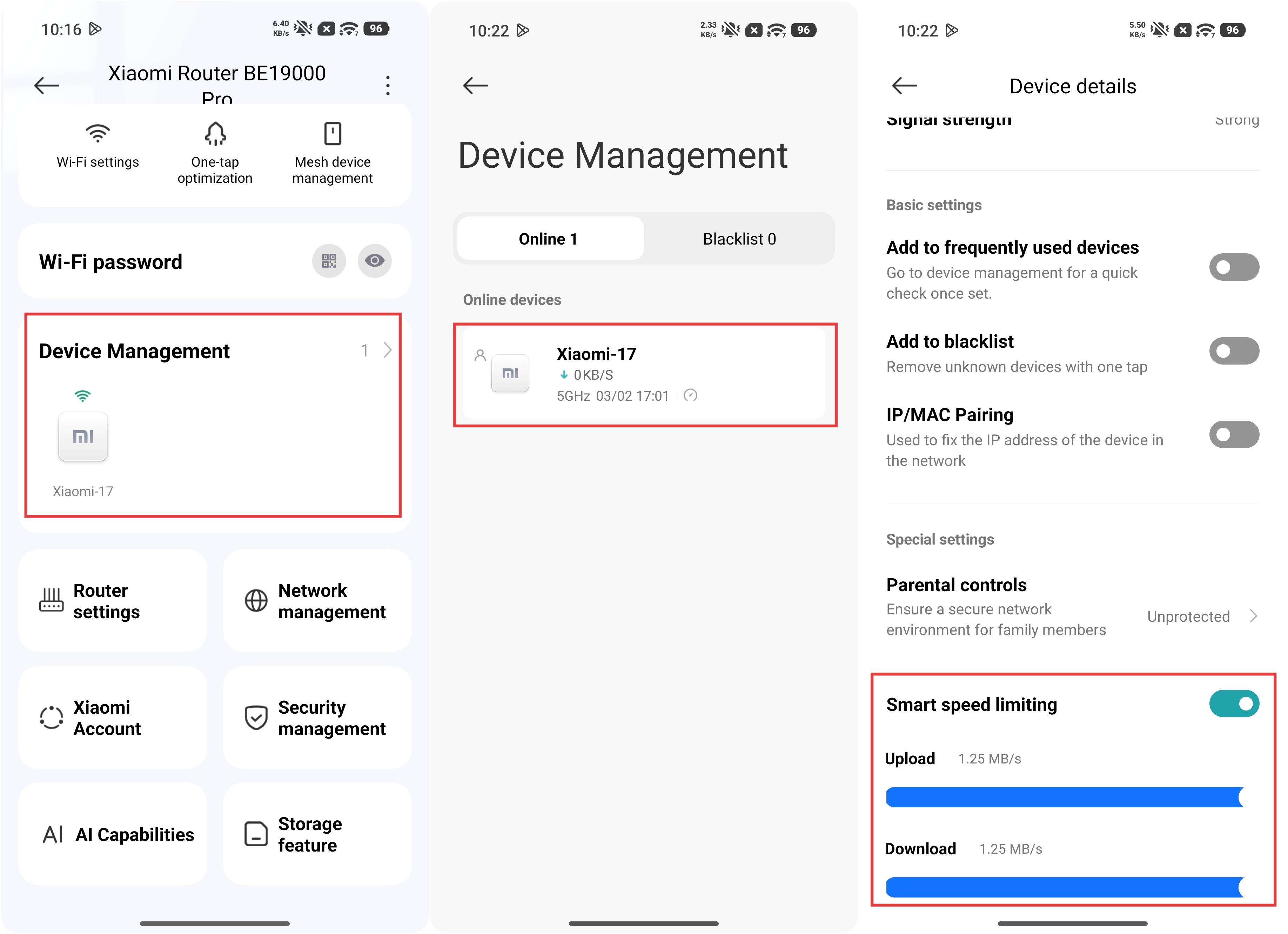
A: To set up the QoS function on the Xiaomi Router BE19000 Pro, you can go to the Xiaomi Home App >> select the Xiaomi Router BE19000 Pro card >> [Network management] >> [Qos] >> enable [Qos] and set relevant parameters.
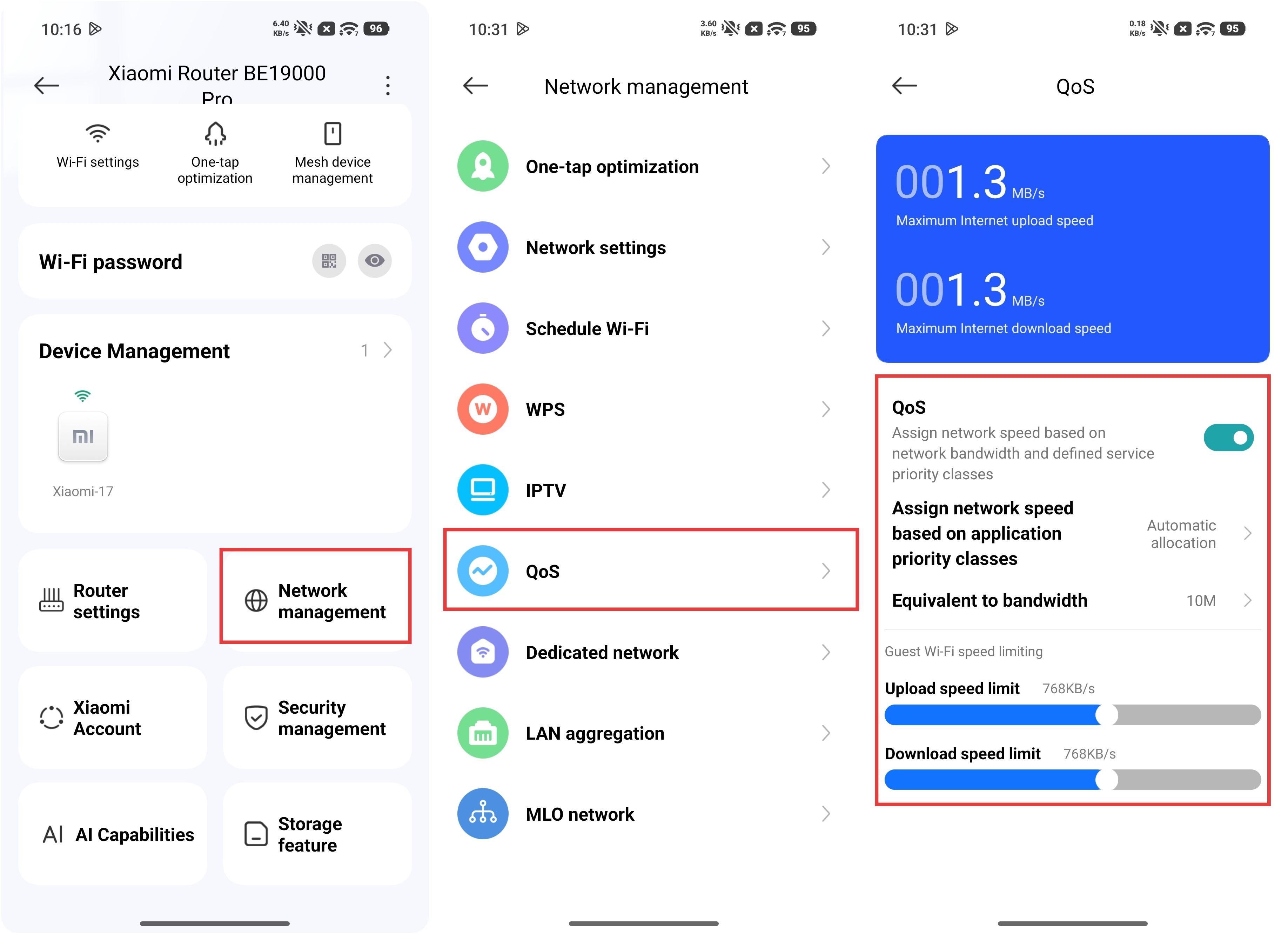
Then you can manage speed limits for each connected device in the [Device Management] interface. The [Smart speed limiting] function in the [Device details] needs to be enabled.
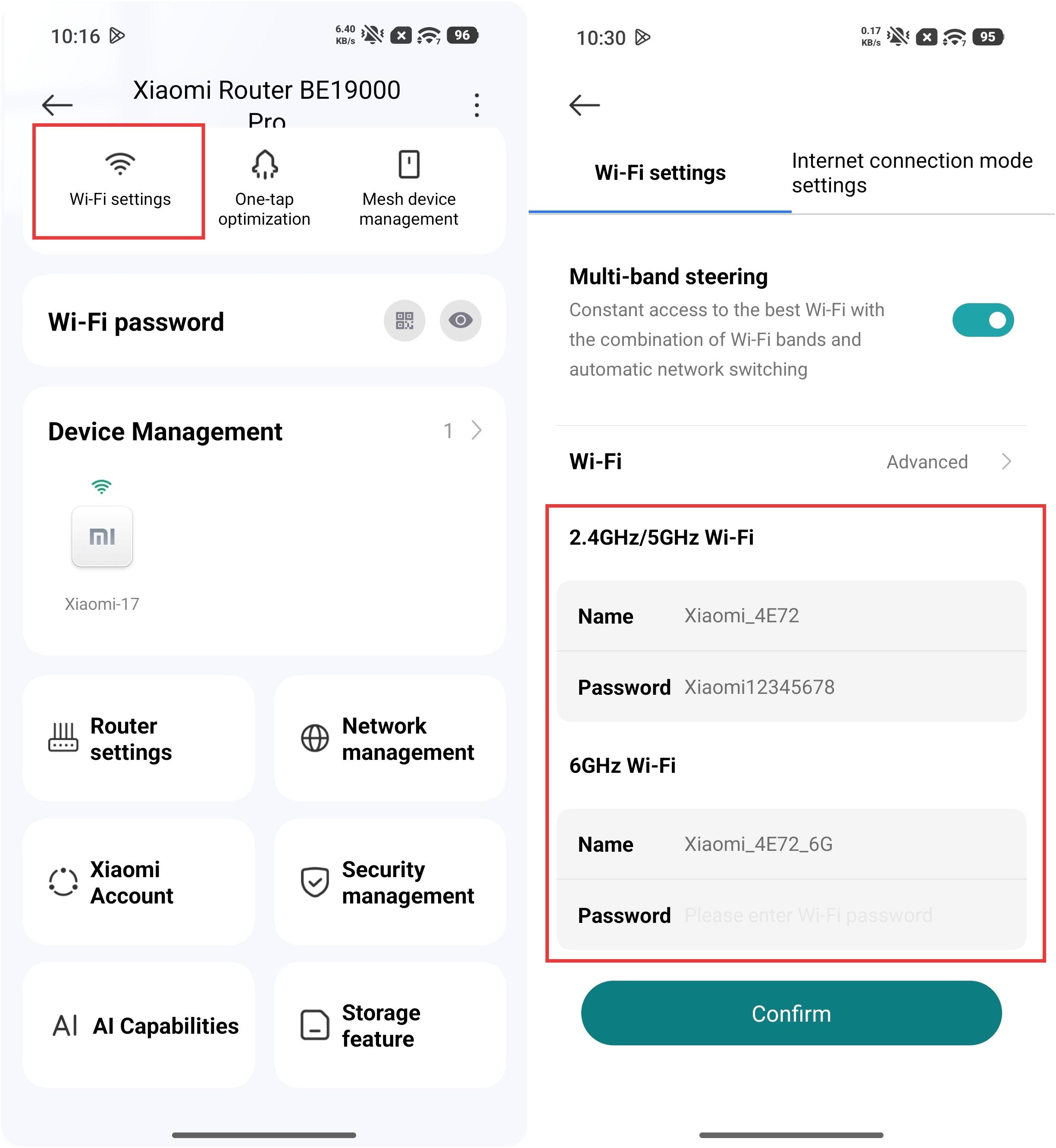
Q22: How to change the Wi-Fi name and password of the Xiaomi Router BE19000 Pro?
A: To change the Wi-Fi name and password of the Xiaomi Router BE19000 Pro, you can go to the Xiaomi Home App >> select the Xiaomi Router BE19000 Pro card >> [Wi-Fi settings] to change the Wi-Fi name and password of the router.
Q23: What factors affect the signal range and strength of the Xiaomi Router BE19000 Pro?
A: The factors that affect the signal range and strength of the Xiaomi Router BE19000 Pro are as follows:
1. Obstacles and barriers in the house, such as walls, sofas, and wardrobes.
2. High-power electrical appliances, such as microwaves, induction cookers, computer power supplies, home generators, and wireless optical modems.
3. Signal strength can be affected by high humidity levels, such as in a bathroom.
Q24: How to limit the number of devices accessing Wi-Fi on the Xiaomi Router BE19000 Pro?
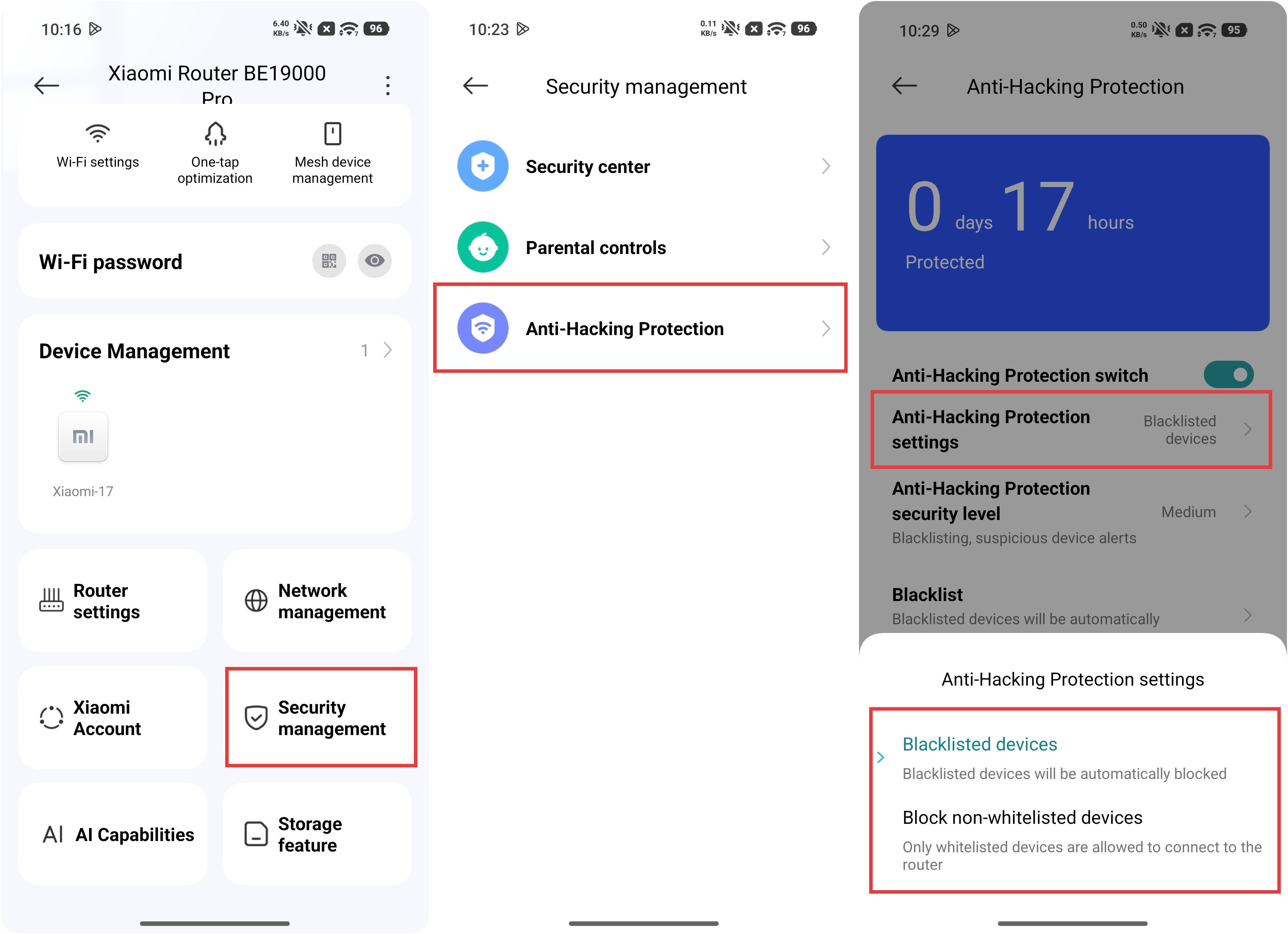
A: To limit the number of devices accessing Wi-Fi on the Xiaomi Router BE19000 Pro, you can go to the Xiaomi Home App >> select the Xiaomi Router BE19000 Pro card >> [Security management] >> [Anti-Hacking Protection] to set the blacklist or whitelist to limit the devices accessing Wi-Fi.
Note:
If you only want certain devices to access, you can use the whitelist.
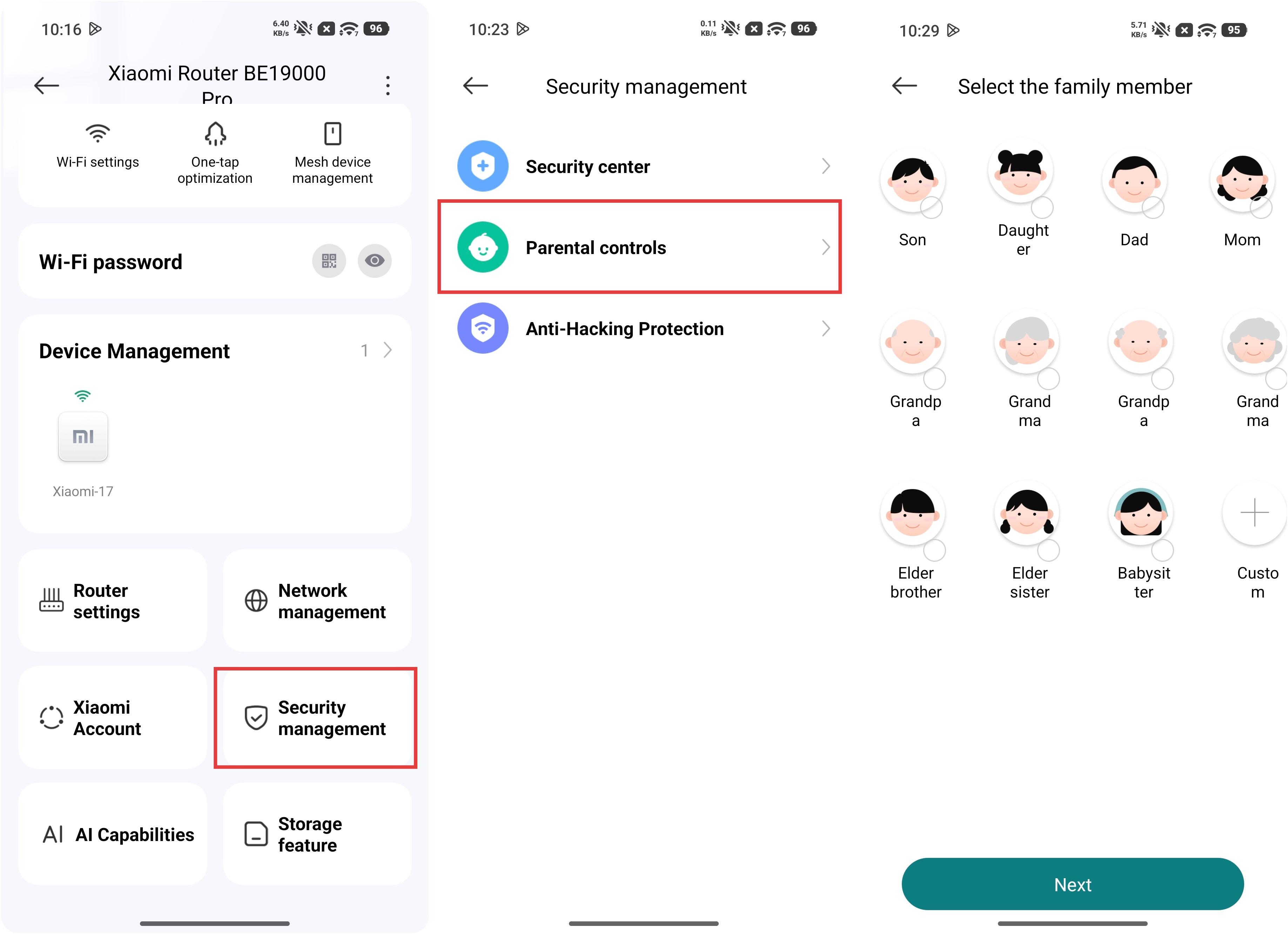
Q25: How to set up the Parental controls function on the Xiaomi Router BE19000 Pro?
A: To set up the Parental controls function on the Xiaomi Router BE19000 Pro, you can go to the Xiaomi Home App >> select the Xiaomi Router BE19000 Pro card >> [Security management] >> [Parental controls] to select the family member.
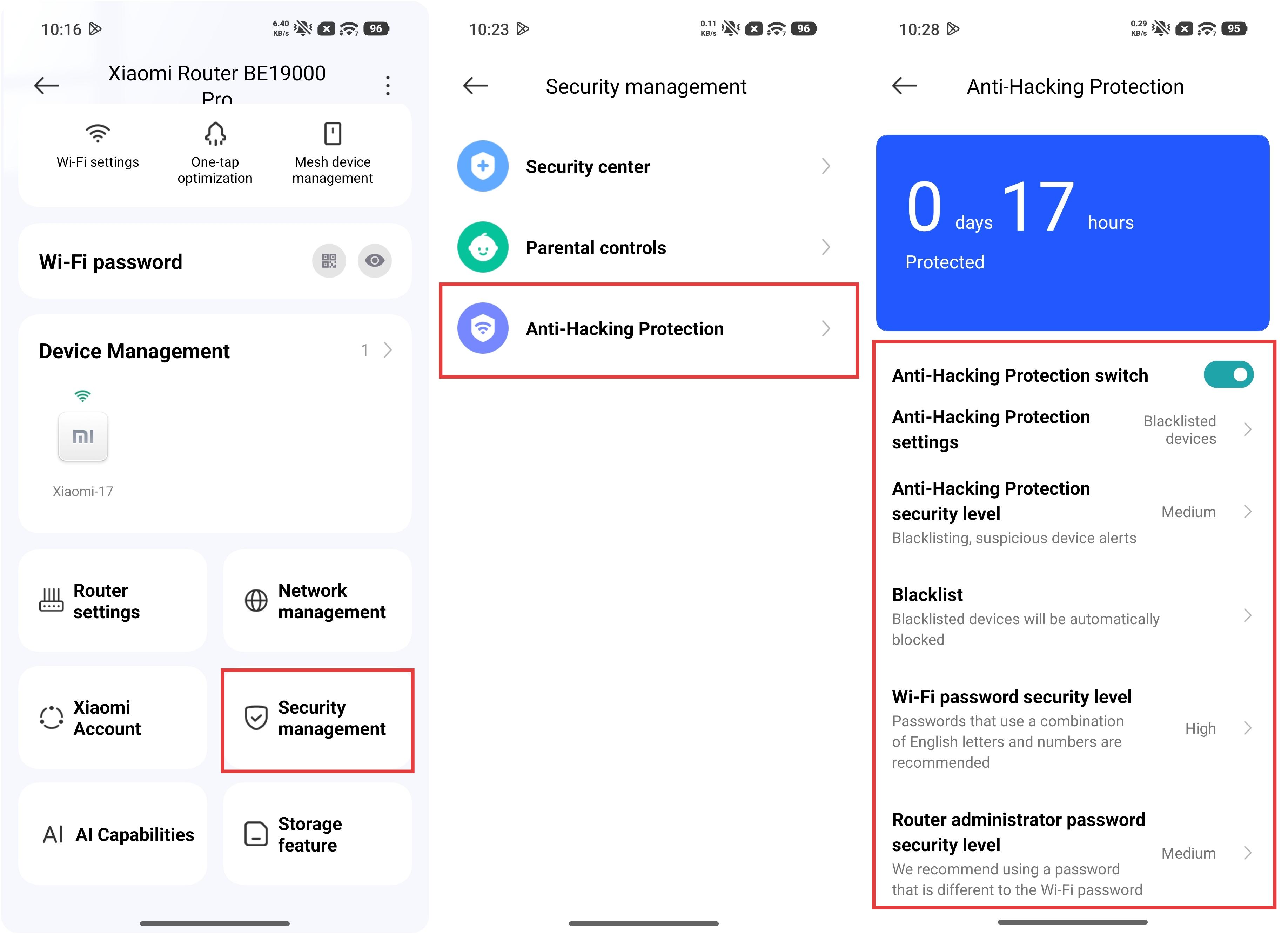
Q26: How to set up the Anti-Hacking Protection function on the Xiaomi Router BE19000 Pro?
A: To set up the Anti-Hacking Protection function on the Xiaomi Router BE19000 Pro, you can go to the Xiaomi Home App >> select the Xiaomi Router BE19000 Pro card >> [Security management] >> [Anti-Hacking Protection] to make the relevant settings.
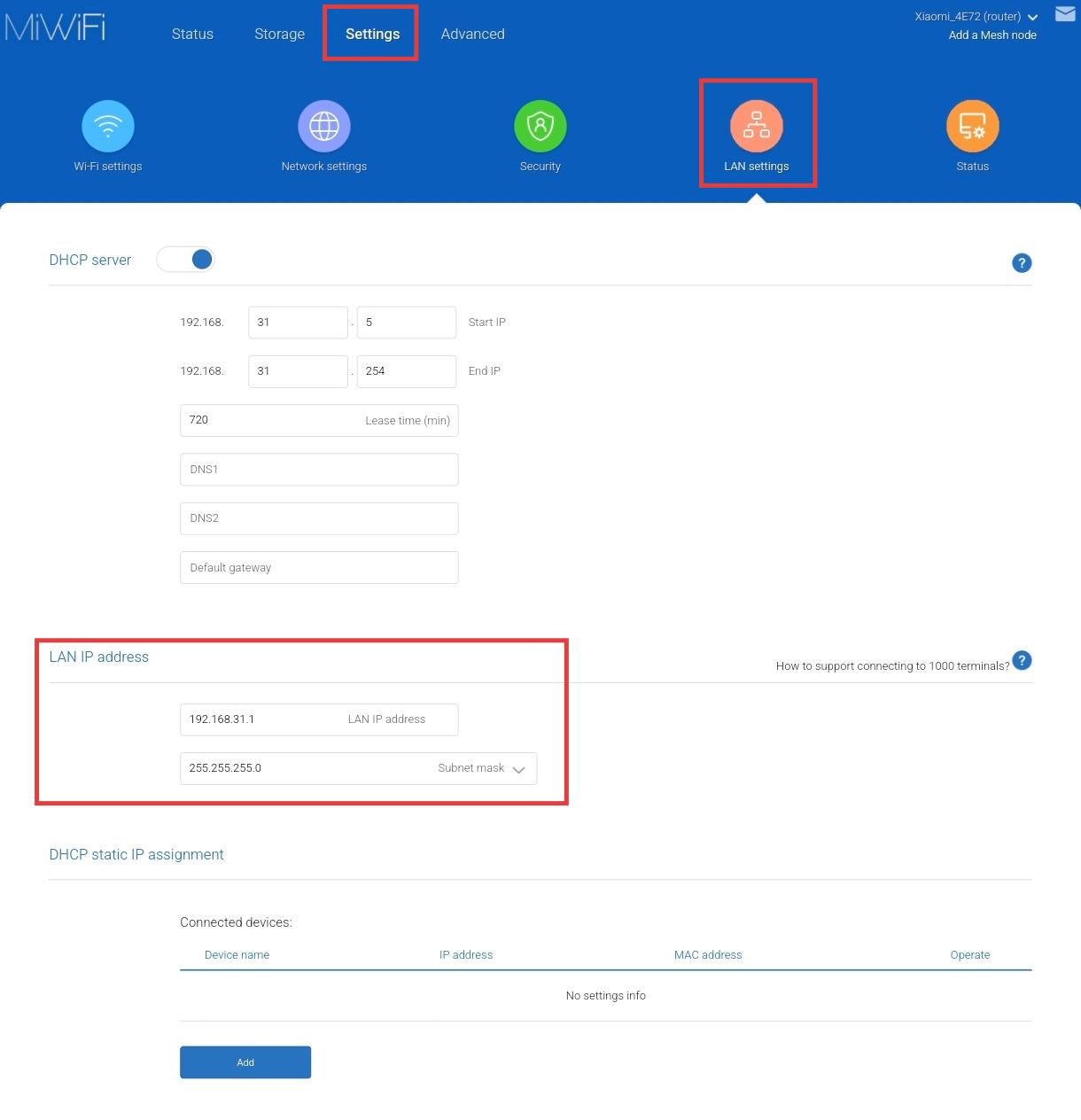
Q27: How to change the default IP address on the Xiaomi Router BE19000 Pro?
A: To change the default IP address on the Xiaomi Router BE19000 Pro, you can open the web browser and enter miwifi.com or 192.168.31.1 and log in to the router’s management interface, then go to [Settings] >> [LAN settings] >> [LAN IP address] to make the relevant settings.
Note:
After modification, the login interface IP address will change to the newly set IP address.
Q28: What to do if the firmware upgrade of the Xiaomi Router BE19000 Pro fails?
A: The Xiaomi Router BE19000 Pro uses a dual-system design, so it can still function normally even if the firmware upgrade fails. In this case, check whether the firmware version and upgrade file are corrupted, and request a new firmware package from the router development team.
Q29: Why is the signal of the Xiaomi Router BE19000 Pro sometimes strong and sometimes weak?
A: The signal can be affected by various factors, such as complex environmental interference, the distance and position between the device and the router, obstacles in between, and differences in device transmission and reception performance.
To obtain a better signal, please refer to the following aspects:
1. Xiaomi routers are optimized for Xiaomi devices and have undergone compatibility testing. It is recommended to prioritize using Xiaomi devices.
2. Adjust the router’s placement. Avoid placing it near high-power electrical appliances to reduce signal interference.
Recommended placement:
1. Place it in an open, unobstructed area, such as on a TV cabinet or coffee table.
2. It is best positioned near the center of the house to ensure balanced signal coverage.
3. The recommended height is about 1 meter above the ground, and it should not be placed directly on the floor.
4. To ensure optimal router performance, the router should be used in an upright position.
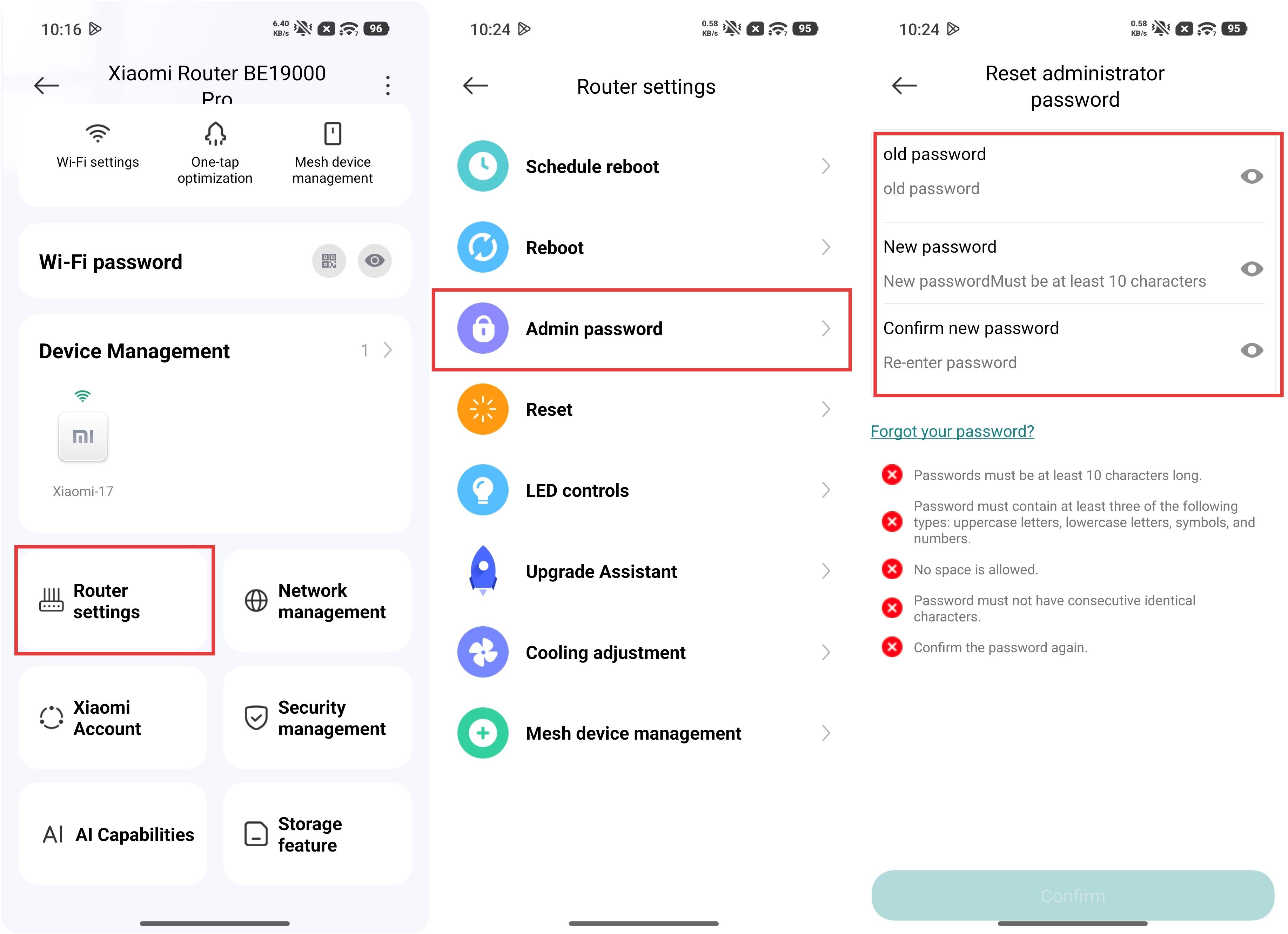
Q30: How to change the Admin password on the Xiaomi Router BE19000 Pro?
A: To change the Admin password on the Xiaomi Router BE19000 Pro, you can go to the Xiaomi Home App >> select the Xiaomi Router BE19000 Pro card >> [Router settings] >> [Admin password] to make the relevant settings.
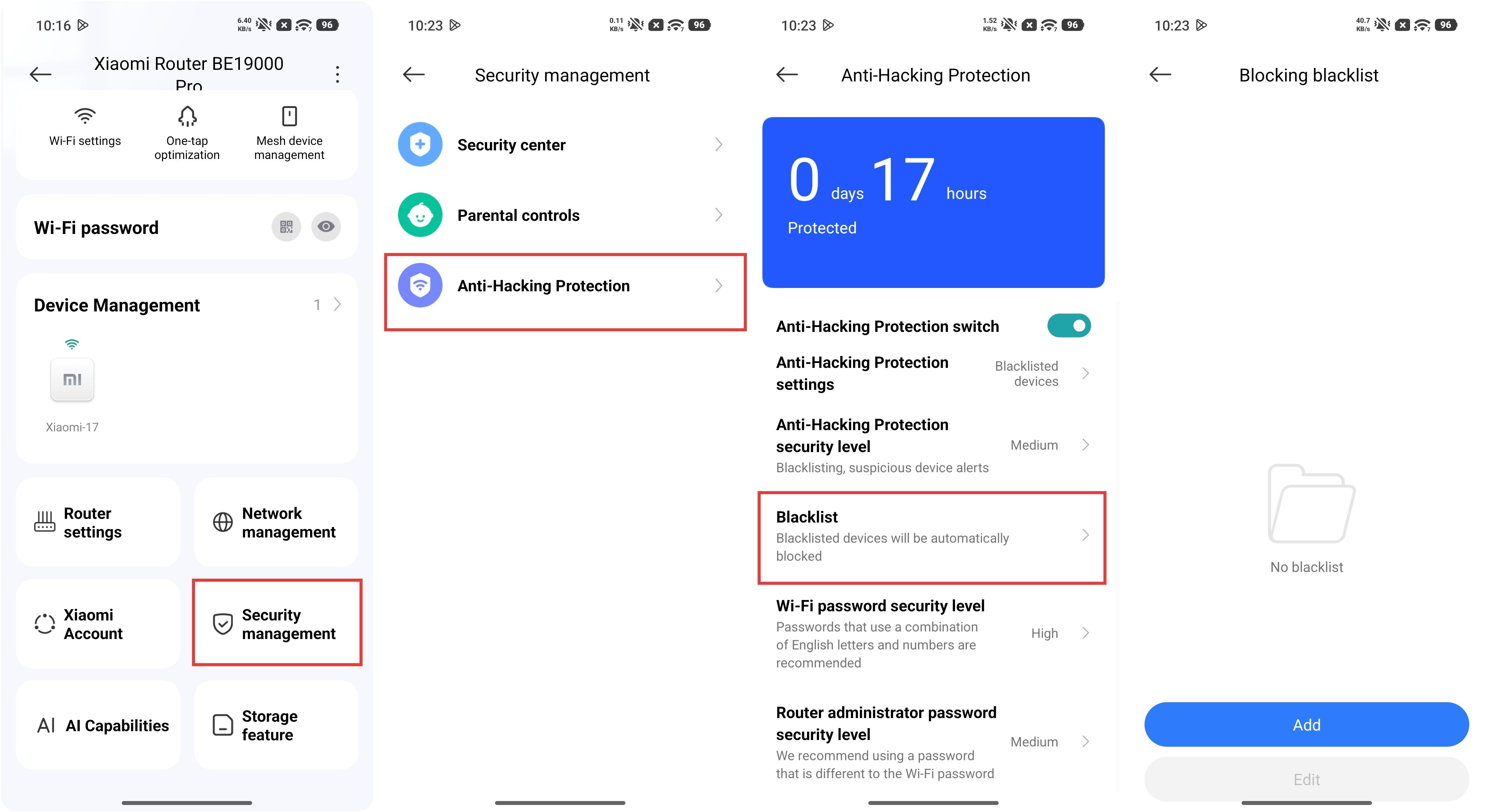
Q31: How to add other devices to the blacklist on the Xiaomi Router BE19000 Pro?
A: To add other devices to the blacklist on the Xiaomi Router BE19000 Pro, you can go to the Xiaomi Home App >> select the Xiaomi Router BE19000 Pro card >> [Security management] >> [Anti-Hacking Protection] >> enter [Blacklist] to make the relevant settings.
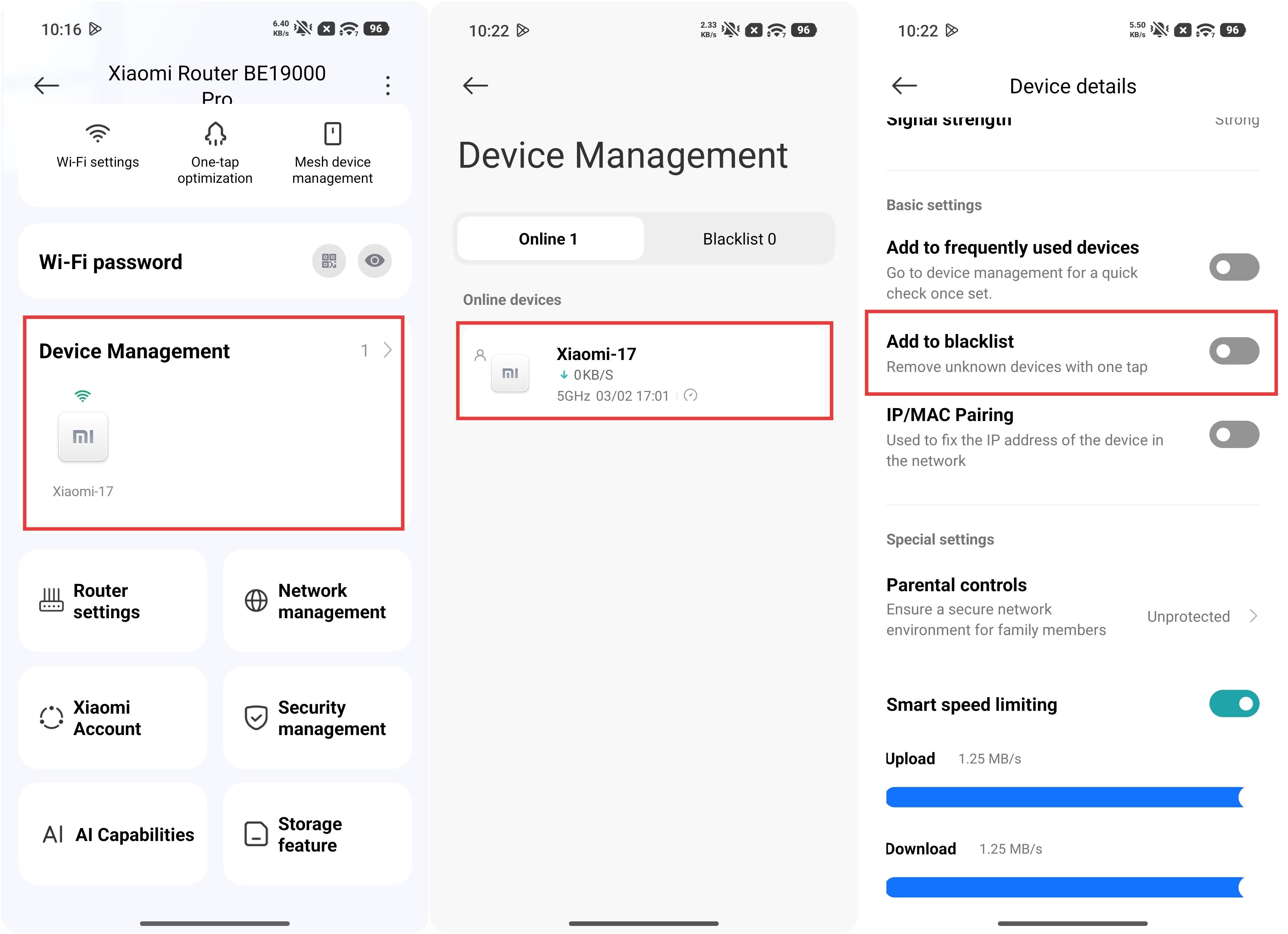
You can also go to the Xiaomi Home App >> select the Xiaomi Router BE19000 Pro card >> enter the [Device Management] interface >> select the device you want to add to the blacklist >> enable [Add to blacklist].
Q32: What to do if the Xiaomi Router BE19000 Pro cannot be bound to the Xiaomi Home App?
A: If the Xiaomi Router BE19000 Pro cannot be bound to the Xiaomi Home App, please refer to the following troubleshooting steps:
1. Check that your phone is connected to the router's Wi-Fi.
2. Check if the device model is correct in the Xiaomi Home App.
3. Ensure that the country or region is set correctly in the Xiaomi Home App.
4. Please ensure that Xiaomi Home App is updated to the latest version.
Q33: How to set up Dynamic DNS (DDNS) on the Xiaomi Router BE19000 Pro?
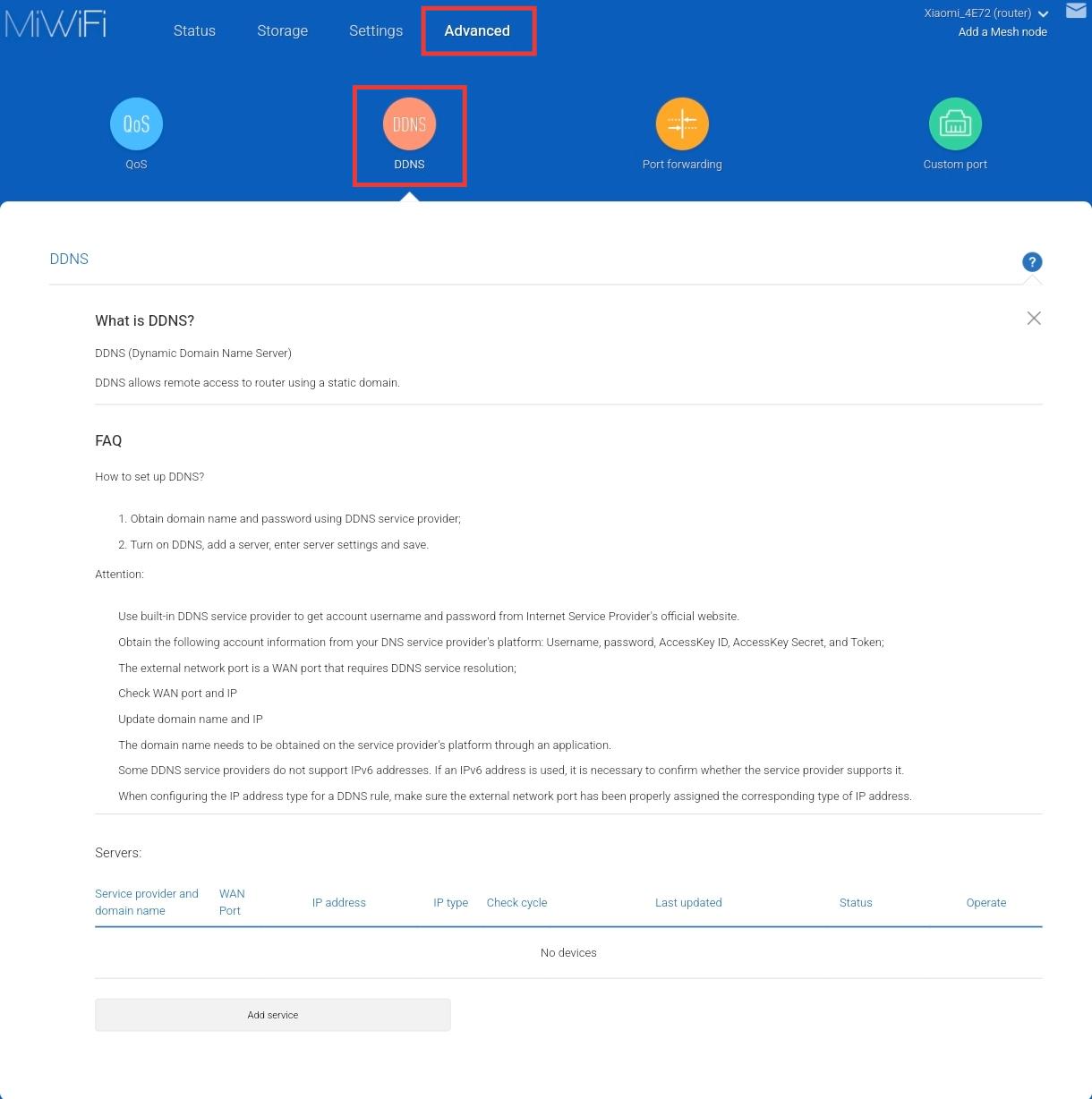
A: To set up Dynamic DNS (DDNS) on the Xiaomi Router BE19000 Pro, you can open the web browser and enter miwifi.com or 192.168.31.1 and log in to the router’s management interface, then go to [Advanced] >> [DDNS] to make the relevant settings.
Q34: Why does the Wi-Fi signal of the Xiaomi Router BE19000 Pro frequently disconnect?
A: If the Wi-Fi signal of the Xiaomi Router BE19000 Pro frequently disconnects, please refer to the following aspects:
1. Make sure the device is not too far from the router and that there are minimal obstacles in between.
2. Adjust the router’s placement and avoid placing it near high-power electrical appliances to reduce signal interference.
Recommended placement:
(1). Place it in an open, unobstructed area, such as on a TV cabinet or coffee table.
(2). It is best positioned near the center of the house to ensure balanced signal coverage.
(3). The recommended height is about 1 meter above the ground, and it should not be placed directly on the floor.
(4). To ensure optimal router performance, the router should be used in an upright position.
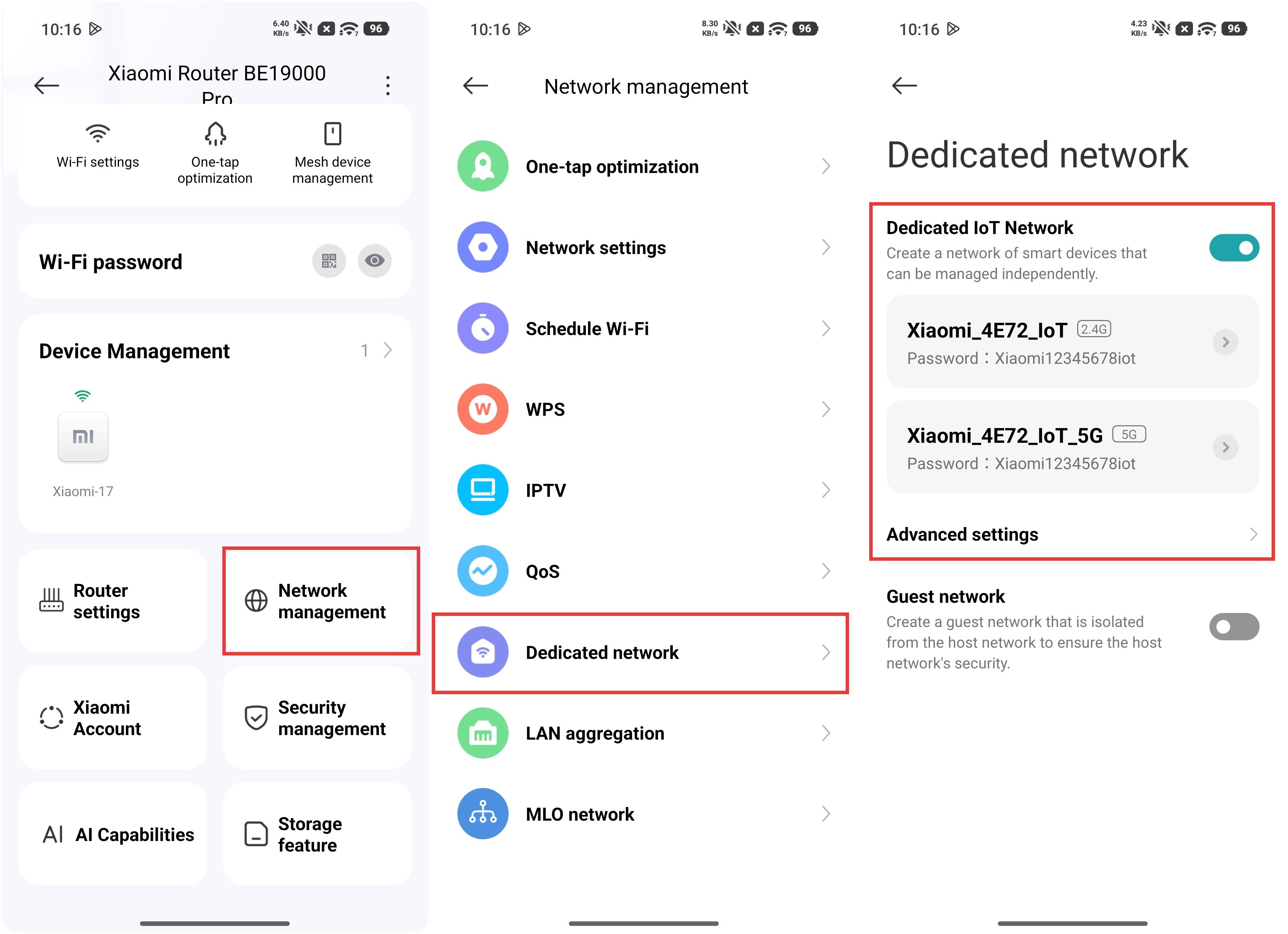
3. If the device supports an older Wi-Fi protocol, consider enabling the Dedicated IoT Network and connecting the device to it. You can configure it by going to the Xiaomi Home App >> select the Xiaomi Router BE19000 Pro card >> [Network management] >> [Dedicated network] >> enable [Dedicated IoT Network].
Does it help?
Yes
No