

Xiaomi 17 Ultra Photography Kit Pro FAQ
Q1: How to install and remove the shutter button of the Xiaomi 17 Ultra Photography Kit Pro?
A: The installation and removal steps for the shutter button of the Xiaomi 17 Ultra Photography Kit Pro are as follows:
1. Align the detachable shutter button with the reserved screw hole on the grip.
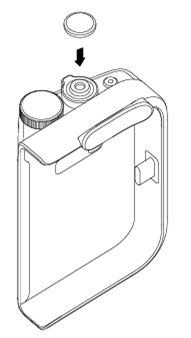
2. Rotate the shutter button clockwise until it is firmly tightened to complete installation.
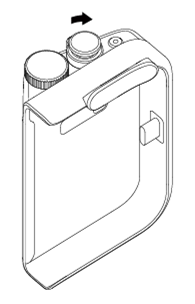
3. To remove the shutter button, follow the above steps in reverse order.
Q2: How to install and remove the Xiaomi 17 Ultra Photography Kit Pro?
A: To install the Xiaomi 17 Ultra Photography Kit Pro, please follow the steps below:
1. Install the magnetic protective case included in the package onto the phone.
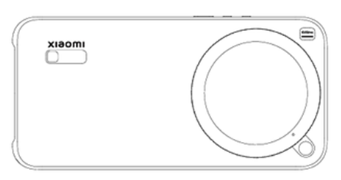
2. Ensure the toggle switch on the grip is in the release position. The lever should face the phone screen, and no red lock indicator should be visible.
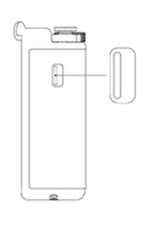
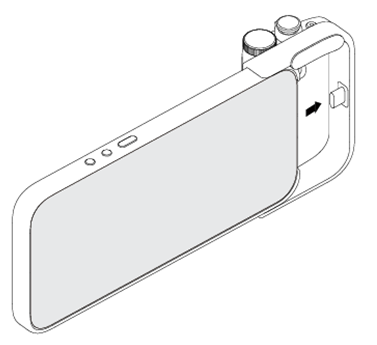
3. Slide the camera grip into the bottom of the protective case, aligning the Type-C port of the grip with the Type-C port of the phone.
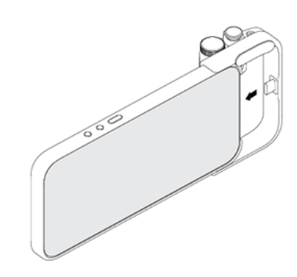
4. When the grip fully fits the protective case, toggle the switch toward the back of the phone to the locked position. The red indicator should be fully visible.
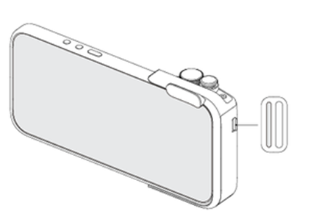
5. After successful installation, the phone displays a connection confirmation. (If no prompt appears, the grip battery can be depleted. Please charge the grip and try again.)
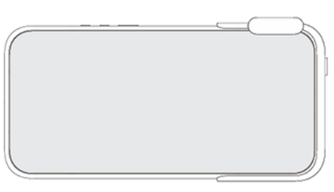
To remove the Xiaomi 17 Ultra Photography Kit Pro, please follow the steps below:
1. Toggle the switch back to the release position. The lever must fully return toward the phone screen direction, and no red lock indicator should be visible.
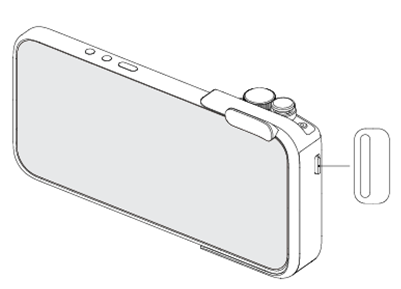
2. Slowly slide the camera grip out from the bottom of the protective case.
Q3: How to use the buttons on the Xiaomi 17 Ultra Photography Kit Pro after connecting to the phone?
A: After the Xiaomi 17 Ultra Photography Kit Pro is connected to the phone, the button functions are as follows:
1. Shutter button
(1) When not in the Camera App, press and hold the shutter button to launch the camera or launch and take a photo. You can configure this in [Settings] >> [Camera grip] >> [Quick launch].
Note:
After pairing and connecting, go to [Settings] >> [Camera grip] to set the hold and press of the shutter button as [Open camera], [Take photo], or [Off]. You can also select a specific startup mode in [Camera mode], such as [Photo], [Video], [Portrait], [Pro], [Fastshot], or [Document].
(2) When taking photos or recording videos in the Camera App: Half-press the shutter button to lock the current focus area. Press the shutter button to take a photo or start/stop recording. Press and hold the shutter button for burst shooting (disabled by default).
You can enable burst shooting through either of the following paths: [Settings] >> [Camera grip] >> [Set up grip button] >> [Shutter button] >> [Burst] or open the Camera App >> tap the arrow icon at the top of the screen >> [Settings] >> switch to [Grip] >> [Shutter button] >> [Burst].
Note:
Burst shots work in Photo and Fastshot modes.
(3) In the Gallery, half-press the shutter button to return to the shooting interface.
2. Video button
In the Camera App, press the Video button to start or stop recording. You can configure it through: [Settings] >> [Camera grip] >> [Set up grip button] >> [Video button] >> [Record video] or open the Camera App >> tap the arrow icon at the top of the screen >> [Settings] >> switch to [Grip] >> [Video button] >> [Record video].
Note:
By default, it quickly switches to Video mode and starts recording. It can also be set to [Switch focal length], [Aspect ratio], and other functions.
3. Zoom lever
When taking photos or recording videos in the Camera App: Toggle left or right once for [Switch focal length]. Hold the lever for [Continuous zoom]. You can configure it via [Settings] >> [Camera grip] >> [Set up grip button] >> [Zoom lever] or open the Camera App >> tap the arrow icon at the top of the screen >> [Settings] >> switch to [Grip] >> [Zoom lever].
Note:
By default, a single toggle switches focal length quickly, and holding enables continuous zoom.
4. Customize dial
When taking photos or recording videos in the Camera App: rotate left or right to adjust the currently assigned camera parameter. You can configure it via [Settings] >> [Camera grip] >> [Set up grip button] >> [Customize dial] or open the Camera App >> tap the arrow icon at the top of the screen >> [Settings] >> switch to [Grip] >> [Customize dial].
In the Gallery, rotate left or right to switch to the previous or next photo.
Q4: How to charge the Xiaomi 17 Ultra Photography Kit Pro?
A: Use a certified adapter and charging cable that meet safety standards to charge the Xiaomi 17 Ultra Photography Kit Pro. For optimal performance, use an official 90 W or higher power adapter. If using an official adapter below 90 W or a third-party adapter, charging power can be limited (including slow charging, intermittent charging, or inability to charge).
When the Xiaomi 17 Ultra Photography Kit Pro is connected to the phone, please refer to the following information:
1. Emergency charging: By default, when the phone battery is ≤20%, the grip automatically charges the phone. Adjust the threshold in [Settings] >> [Camera grip] >> [Emergency charging level].
2. Always charge: Set [Settings] >> [Camera grip] >> [Charge from camera grips] to [Always] to charge immediately after installation.
3. Quick toggle: Add the [Charge via grip] shortcut in the Control center. Even if the phone battery is above the emergency threshold, turning on the switch starts charging and turning it off stops charging.
When the Xiaomi 17 Ultra Photography Kit Pro is not connected to the phone, using a Xiaomi power adapter (15 W or above) charges the grip (15 W Max). The indicator shows red while charging and green when fully charged.
When the Xiaomi 17 Ultra Photography Kit Pro is connected to the phone and plugged in, using a Xiaomi power adapter (90 W or above), charging prioritizes the phone (90 W Max). After the phone is fully charged, charging automatically switches to the grip (12.5 W Max). The indicator shows red while charging and green when fully charged.
Q5: How to install and remove the 67mm filter adapter ring of the Xiaomi 17 Ultra Photography Kit Pro?
A: The filter must be purchased separately and should support a 67mm threaded interface. It is recommended to assemble the filter and adapter ring first, then install the adapter ring onto the magnetic protective case. For removal, follow the steps in reverse order. It is recommended to remove the adapter ring and filter together from the case before separating them.
Steps for installing the filter of the Xiaomi 17 Ultra Photography Kit Pro:
1. Align the filter thread with the adapter ring thread.
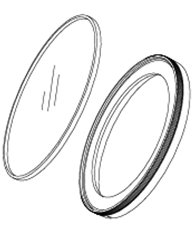
2. Hold the upper layer of the adapter ring steady and rotate the filter clockwise to tighten.
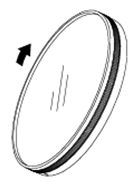
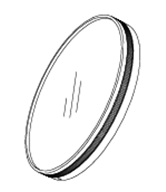
3. Ensure it is securely installed.
Q6: What does the indicator on the Xiaomi 17 Ultra Photography Kit Pro mean?
A: The indicator meanings for the Xiaomi 17 Ultra Photography Kit Pro are as follows:
1. Charging: Solid red. Fully charged: Solid green.
2. Not charging and not connected to the phone (hold and press the shutter button):
Battery >20%: Solid green for 5 seconds, then turns off.
Battery ≤20%: Solid red for 5 seconds, then turns off.
3. Not charging but connected to the phone:
Battery >20%: Solid green for 5 seconds, then turns off.
Battery ≤20%: Solid red for 5 seconds, then turns off.
Q7: How to install and remove the decorative ring of the Xiaomi 17 Ultra Photography Kit Pro?
A: The decorative ring must be used together with the official Xiaomi 17 Ultra retail protective case.
Installation steps for the decorative ring of the Xiaomi 17 Ultra Photography Kit Pro:
1. Align the positioning mark on the decorative ring with the positioning mark on the protective case.
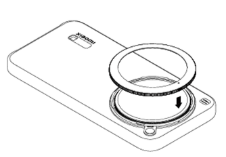
2. After aligning the positioning marks, gently press down and rotate clockwise to tighten.
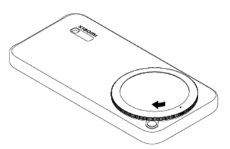
3. When the positioning mark on the decorative ring rotates to the release button position, installation is complete. You will feel a “click” when it is properly secured. After installation, rotate counterclockwise slightly to confirm it is firmly installed.
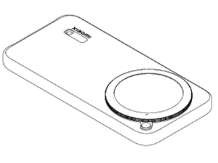
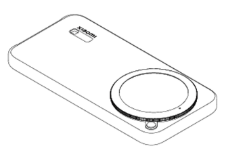
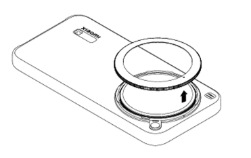
Removal steps for the decorative ring of the Xiaomi 17 Ultra Photography Kit Pro:
1. Press and hold the release button, then rotate the decorative ring counterclockwise to loosen it.
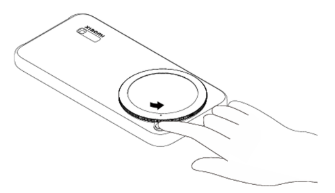
2. When the positioning mark rotates to the position shown in the image, the ring can be removed.
3. Remove the decorative ring.
Q8: How to power on the Xiaomi 17 Ultra Photography Kit Pro?
A: After connecting to the phone, the Xiaomi 17 Ultra Photography Kit Pro powers on automatically. When disconnected from the phone, it automatically enters sleep mode.
Q9: Does the Xiaomi 17 Ultra Photography Kit Pro support third-party camera Apps?
A: To ensure stability, the Xiaomi 17 Ultra Photography Kit Pro is deeply optimized for the built-in Camera App only. Third-party camera Apps are not supported.
Q10: Where can I configure the button functions of the Xiaomi 17 Ultra Photography Kit Pro?
A: All related functions of the Xiaomi 17 Ultra Photography Kit Pro can be configured in [Settings] >> [Camera grip]. Alternatively, open the Camera App >> tap the arrow icon at the top of the screen >> [Settings] >> switch to [Grip] to configure the grip button functions.
Q11: Why does the Xiaomi 17 Ultra Photography Kit Pro firmware upgrade fail?
A: During the upgrade process, the Xiaomi 17 Ultra Photography Kit Pro must remain connected to the phone and stay online. Network fluctuations can cause failure. Ensure both the phone and the grip have sufficient battery. Then tap upgrade again.
If the issue persists, try the following:
1. Disconnect the Xiaomi 17 Ultra Photography Kit Pro for 3 minutes, then reconnect.
2. If no connection pop-up appears within 30 seconds, disconnect, wait 10 seconds, and reconnect. Repeat until the pop-up appears.
3. If there is still no response, charge the Xiaomi 17 Ultra Photography Kit Pro and try again.
Q12: How to enter Fastshot quickly when using the Xiaomi 17 Ultra Photography Kit Pro?
A: Go to [Settings] >> [Camera grip] >> [Quick launch] and select [Open camera] or [Take photo]. Then in [Camera mode], select [Fastshot]. Press and hold the shutter button to quickly enter Fastshot mode.
Q13: Why does the phone speaker volume become lower after using the Xiaomi 17 Ultra Photography Kit Pro?
A: The Xiaomi 17 Ultra Photography Kit Pro is primarily designed for photography and video recording scenarios. After installing the grip, the bottom microphone hole and speaker of the phone can be partially covered, which can affect calls, audio recording, music playback, audio zoom, and other related functions.
For scenarios other than photography or video recording (such as gaming or phone calls), it is recommended to remove the Xiaomi 17 Ultra Photography Kit Pro before use. Thank you for your understanding.
Q14: Why can’t the phone use wireless charging after installing the Xiaomi 17 Ultra Photography Kit Pro?
A: After installing the Xiaomi 17 Ultra Photography Kit Pro, wireless charging is unavailable. This is normal. Please remove the Xiaomi 17 Ultra Photography Kit Pro when wireless charging is required. Thank you for your understanding.
Q15: How to check the real-time battery level of the Xiaomi 17 Ultra Photography Kit Pro?
A: To check the real-time battery level of the Xiaomi 17 Ultra Photography Kit Pro, go to [Settings] >> [Camera grip] to view the current battery level directly.
Alternatively, go to Home screen >> [Widgets] >> [Security] >> add the [Battery] widget. After adding it, you can check the battery level on the home screen.
Q16: Why is there no pop-up notification after installing the Xiaomi 17 Ultra Photography Kit Pro?
A: If no pop-up appears after installing the Xiaomi 17 Ultra Photography Kit Pro, please check whether the grip battery level is too low. To protect the battery, some functions can not display properly when the battery is low. Please charge the Xiaomi 17 Ultra Photography Kit Pro and try again. Thank you for your understanding.
Q17: Why is the charging speed slow for both the phone and the Xiaomi 17 Ultra Photography Kit Pro when charging through the Type-C port on the side of the grip?
A: If charging is slow for both the phone and the Xiaomi 17 Ultra Photography Kit Pro when using the Type-C port on the side of the grip, please use the original charger of the phone. Third-party chargers can not trigger fast charging. Thank you for your understanding.
Q18: Why does the Xiaomi 17 Ultra Photography Kit Pro grip charge fully but the phone charges slowly when using the side Type-C port of the grip?
A: If the Xiaomi 17 Ultra Photography Kit Pro becomes fully charged while the phone charges slowly when using the side Type-C port of the grip, please upgrade the grip firmware to the latest version and use the original charger for charging. Thank you for your understanding.
Q19: Why can’t the phone return to the camera by half-pressing the shutter button after entering the Gallery when using the Xiaomi 17 Ultra Photography Kit Pro?
A: To prevent accidental button touches, a 200 ms interval is designed into the Xiaomi 17 Ultra Photography Kit Pro. After taking a photo and entering the Gallery, please wait briefly before half-pressing the shutter button to return to the camera. Thank you for your understanding.
Q20: Why does pressing phone buttons during a firmware upgrade cause the Xiaomi 17 Ultra Photography Kit Pro upgrade to fail?
A: During the firmware upgrade process of the Xiaomi 17 Ultra Photography Kit Pro, a large amount of data is transmitted. Please remain on the upgrade screen and avoid pressing phone buttons during the process. Wait patiently until the upgrade is completed.
If the upgrade fails, it can be due to environmental signal interference. Please tap upgrade again and try once more. Thank you for your understanding.
Q21: Why can’t the “Camera grip” option be found in Settings when using the Xiaomi 17 Ultra Photography Kit Pro?
A: If the “Camera grip” option cannot be found in Settings while using the Xiaomi 17 Ultra Photography Kit Pro, please unplug and reconnect the grip. Thank you for your understanding.
Q22: Why is the phone battery draining quickly when the Xiaomi 17 Ultra Photography Kit Pro is in sleep mode?
A: Please first check the battery level of the Xiaomi 17 Ultra Photography Kit Pro. If the battery level is low, charge the grip in time. At the same time, ensure that the grip firmware is updated to the latest version. Thank you for your understanding.
Q23: What is the charging logic when the Xiaomi 17 Ultra Photography Kit Pro is connected to the phone?
A: When the phone is connected to the Xiaomi 17 Ultra Photography Kit Pro and a Xiaomi 90 W or higher charger is used, charging prioritizes the phone (90 W Max). After the phone is fully charged, charging automatically switches to the grip (12.5 W Max).
When the grip supplies reverse charging to the phone, the maximum output power is 5 W.
During charging, the indicator is solid red. When both the phone and the Xiaomi 17 Ultra Photography Kit Pro are fully charged, the indicator turns green.
Q24: Why can’t the release button be pressed when the Xiaomi 17 Ultra Photography Kit Pro is connected to the phone?
A: When inserting the Xiaomi 17 Ultra Photography Kit Pro into the phone, ensure it is fully inserted into place with firm pressure before pressing the release button. Thank you for your understanding.
Q25: Why is the rotatable filter adapter ring unstable or slightly loose when the Xiaomi 17 Ultra Photography Kit Pro is connected to the phone?
A: The rotatable filter adapter ring of the Xiaomi 17 Ultra Photography Kit Pro is deeply customized for the Xiaomi 17 Ultra Leica Version (with mechanical zoom).
If you are using a non-Leica Version of the Xiaomi 17 Ultra, it is recommended to install the decorative ring on the protective case to ensure proper installation and lens protection.
When the rotatable filter adapter ring is installed on the Xiaomi 17 Ultra Leica Version, slight movement can occur due to differences in the rotating structure and lens size. This is normal and does not affect imaging quality. Thank you for your understanding.
Q26: Why is there a slight movement after installing the non-rotatable decorative ring on the Xiaomi 17 Ultra Photography Kit Pro?
A: When the decorative ring of the Xiaomi 17 Ultra Photography Kit Pro is used together with the multifunctional expansion interface, both parts adopt a mechanical buckle structure. To ensure convenient installation and removal, a small clearance is reserved in the slot, which can result in slight movement. This is normal and does not affect imaging quality. Thank you for your understanding.
Does it help?
Yes
No