

Xiaomi Tag FAQ
Overview
Q1: What is the Xiaomi Tag?
A: The Xiaomi Tag is a wireless item tracker designed to help locate misplaced belongings through Bluetooth-based positioning. The Xiaomi Tag offers broad compatibility across different platforms. It supports Android phones and tablets running Android 9 or later through the Bluetooth connection, as well as iPhone and iPad devices running iOS 14.5 or iPad OS 14.5 or later through the built-in Find My App.
Q2: What functions does the Xiaomi Tag support?
A: The Xiaomi Tag provides essential device features, including pairing and unpairing, tag customization, battery status notifications, and OTA firmware updates (supported only through Find My App).
The Xiaomi Tag also supports multiple finding methods, such as offline finding, sound-based finding, and route navigation. In loss-related scenarios, the Xiaomi Tag supports lost mode, NFC, and anti-tracking protection (available only when using the Find My App).
Q3: How does the location tracking function of the Xiaomi Tag work, and can it be used to locate elderly people, children, or pets?
A: The Xiaomi Tag itself does not support GPS positioning. Instead, the Xiaomi Tag obtains location updates by securely reporting its presence through nearby mobile devices to the cloud, which then provides the latest location information to you.
When the Xiaomi Tag is connected to your phone through Google’s Find Hub App or the Find My App, location information is updated in real time. When the Xiaomi Tag is offline and disconnected from your phone, nearby eligible assisting phones can help upload its location. If a compatible assisting phone remains within the effective BLE range of the tag, Google’s Find Hub App or the Find My App will detect the tag and upload the assisting phone’s current location to the cloud, which is then delivered to your device. Based on this mechanism, the Xiaomi Tag can be used for offline location tracking of elderly people, children, or pets. However, due to the nature of offline finding, real-time and continuously accurate location reporting is not supported.
Note:
1. Assisting phones must use the same protocol as your phone. If the Xiaomi Tag is bound through Google’s Find Hub App on Android, the assisting phone must also be an Android device with Google’s Find Hub App installed.
2. The assisting phone must grant the necessary permissions to Google’s Find Hub App or the Find My App, including location access and location sharing. These permissions are requested when the App is first opened.
3. If no eligible assisting phones are nearby, the Xiaomi Tag cannot update its location while offline.
Q4: How does the NFC function of the Xiaomi Tag work?
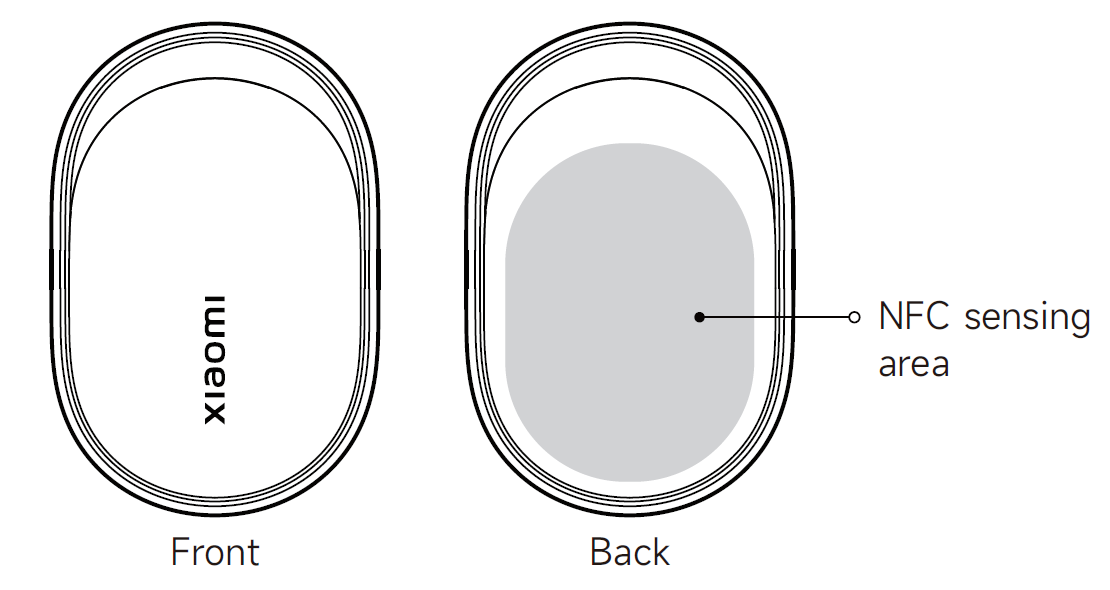
A: The Xiaomi Tag supports NFC scanning at a recognition distance of approximately 0 to 2 centimeters. When the NFC recognition area of the Xiaomi Tag is placed close to the NFC area of a smartphone, the phone automatically detects the tag and displays a notification that opens a designated URL page.
In loss scenarios, the Xiaomi Tag allows the person who finds the item to view the owner’s contact information through NFC scanning, helping facilitate the return of the lost item.
Note:
The NFC sensing area of the Xiaomi Tag is located on the back of the device.
Q5: How can the Xiaomi Tag be updated through OTA?
A: 1. The Xiaomi Tag supports OTA firmware updates when connected through the Find My App. When the Xiaomi Tag is connected and a firmware update is available, the update option appears on the device details page, and the update can be completed by following the on-screen instructions.
2. The Xiaomi Tag does not support OTA updates through Google’s Find Hub App. To update the firmware in this case, the Xiaomi Tag must first be unbound from the Google account, then paired with an Apple device and updated through the Find My App. After the update is completed, the Xiaomi Tag needs to be unbound from the Apple device and re-paired with an Android device.
Q6: How does battery consumption vary for the Xiaomi Tag in different environments?
A: The Xiaomi Tag updates its battery voltage information once every two days while bound, and also refreshes the voltage reading each time the tag is restarted.
The Xiaomi Tag supports an operating temperature range of -20 °C to 60 °C. Actual battery endurance is affected by temperature conditions, and long-term use in low-temperature environments below 0 °C should be avoided.
The battery display logic of the Xiaomi Tag is as follows:
1. For the Find My App:
When the voltage is equal to or above 2800 mV, the battery is shown as 100%.
If the voltage is equal to or above 2700 mV and below 2800 mV, the battery level is displayed as approximately 85%.
If the voltage is equal to or above 2600 mV and below 2700 mV, the battery level is displayed as 50%.
If the voltage is below 2600 mV, the battery level is displayed as 5%.
2. For Google’s Find Hub App, which supports three battery levels only:
When the voltage is equal to or above 2700 mV, the battery status is shown as good.
When the voltage is equal to or above 2600 mV and below 2700 mV, the battery status is shown as low.
When the voltage is below 2600 mV, the battery status is shown as very low.
Note:
1. The Xiaomi Tag uses a CR2032 button battery rated at 3 V with lithium manganese chemistry. The battery is not rechargeable and should only be replaced with the same model and specification, following the positive polarity marking inside the battery compartment. Using an incorrect battery type or inserting the battery incorrectly can result in overheating, leakage, fire, or electric shock.
2. Please do not swallow button batteries, as they can cause chemical burns. If a button battery is swallowed, it can lead to serious internal injuries within two hours and can be life-threatening.
Q7: What are the differences between the features of the Xiaomi Tag on Android and iOS devices?
A: For your reference, the similarities and differences in how iPhone and Android phones connect to the Xiaomi Tag are as follows:
Same functions: Pairing/Unpairing, Customize tag name, Battery status alerts, Offline finding, Play sound, Route navigation, Lost mode, NFC, Anti-tracking.
Different functions:
OTA updates: Not supported on Google; Supported on Apple.
Pairing method: Pop-up window pairing (Google); Search and add via the Apple Find My App.
Disabling the Lost mode: Automatically disables Lost mode once the Tag reconnects to the phone (Google).
Maximum number of connected tags: Limited to 32 devices (Apple); Unlimited (Google).
Lost item: Not supported on Google; Supported on Apple.
A: For your reference, the similarities and differences in how iPhone and Android phones connect to the Xiaomi Tag are as follows:
Same functions: Pairing/Unpairing, Customize tag name, Battery status alerts, Offline finding, Play sound, Route navigation, Lost mode, NFC, Anti-tracking.
Different functions:
OTA updates: Not supported on Google; Supported on Apple.
Pairing method: Pop-up window pairing (Google); Search and add via the Apple Find My App.
Disabling the Lost mode: Automatically disables Lost mode once the Tag reconnects to the phone (Google).
Maximum number of connected tags: Limited to 32 devices (Apple); Unlimited (Google).
Lost item: Not supported on Google; Supported on Apple.
Functions
Q1: How to power on the Xiaomi Tag?
A: The Xiaomi Tag can be powered on in two ways:
1. For first-time use, remove the outer protective film and pull out the battery insulation tab. After you hear a prompt sound, the Xiaomi Tag powers on and automatically enters pairing mode. If pairing is not completed within 10 minutes, the Xiaomi Tag will automatically enter sleep mode. In this case, press and hold the button for 3 seconds until you hear a prompt sound to wake the device and re-enter pairing mode.
2. The Xiaomi Tag can also be powered on by directly inserting the battery. After the battery is inserted, the device will power on, emit a prompt sound, and enter pairing mode.
Q2: How to power off the Xiaomi Tag?
A: The Xiaomi Tag does not support manual power-off through a button. When the Xiaomi Tag enters pairing mode and pairing is not completed within 10 minutes, it will automatically enter sleep mode.
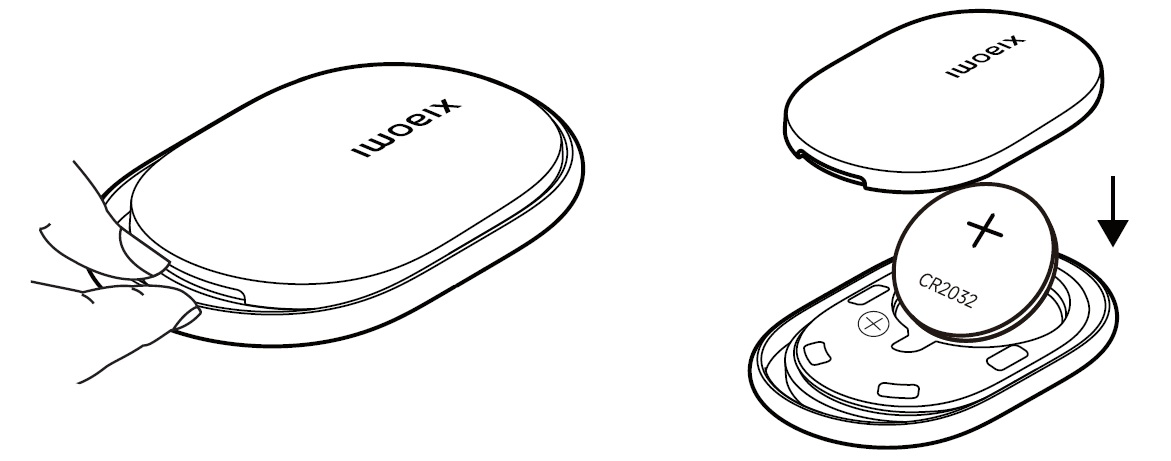
If you need to fully power off the Xiaomi Tag, open the battery compartment by gently prying along the battery cover notch using a coin, plastic card, or fingernail, and then remove the battery.
Q3: How to reset the Xiaomi Tag to factory settings?
A: The Xiaomi Tag can be reset through the App or directly on the device, please refer to the following information:
1. When the Xiaomi Tag is connected to Google’s Find Hub App or the Find My App, you can remove and unbind the device online through the App. Please note that unbinding the device while it is offline only removes the cloud association and does not reset the device itself.
2. The Xiaomi Tag can also be reset directly on the device. Open the battery compartment and remove the battery, then wait for 15 seconds. Reinsert the battery and make sure it has sufficient power and good contact. Press and hold the button for approximately 15 seconds until you hear a prompt sound, which indicates that the reset is complete. During this process, two prompt sounds will be heard. The first sound indicates the reset, and after about three seconds, a second sound confirms that the device has restarted and re-entered pairing mode.
Different Apps use different methods to reset the Xiaomi Tag to factory settings. Please refer to the information below:
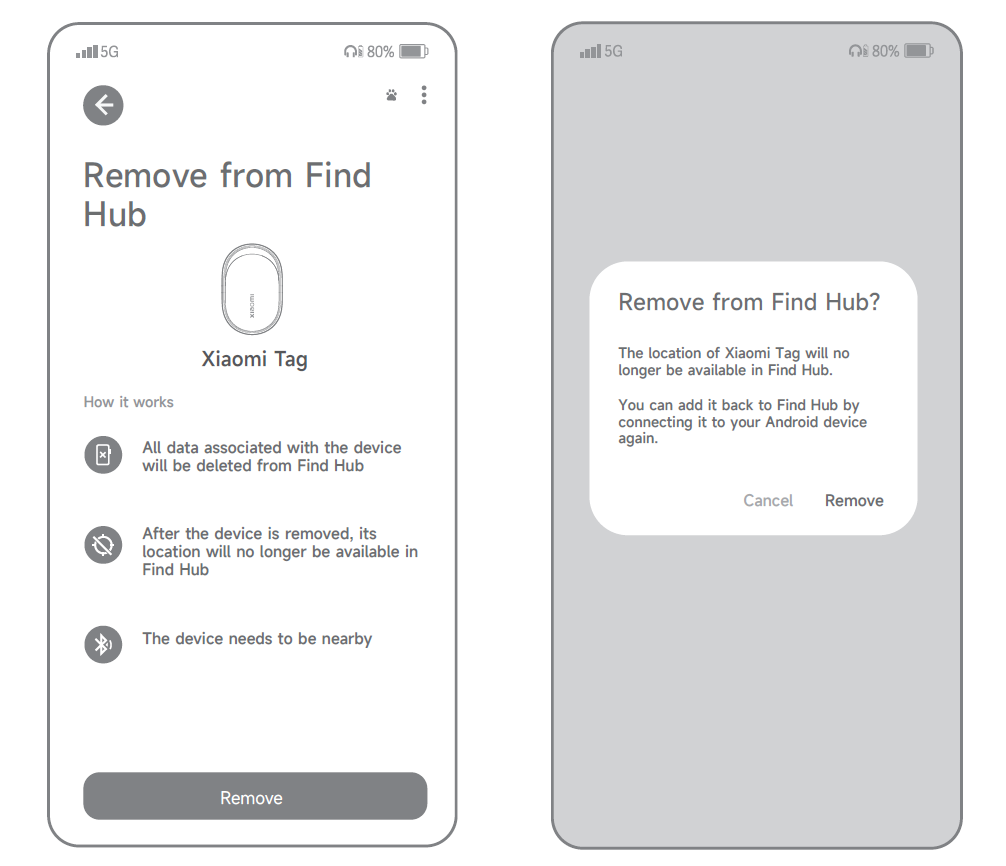
1. When using Google’s Find Hub App, keep the Xiaomi Tag connected and open the device details page. Tap the three-dot icon in the top-right corner, select [Remove from Find Hub], follow the on-screen instructions, check any required confirmation boxes, and then tap [Remove] to complete unbinding. A prompt sound confirms successful removal.
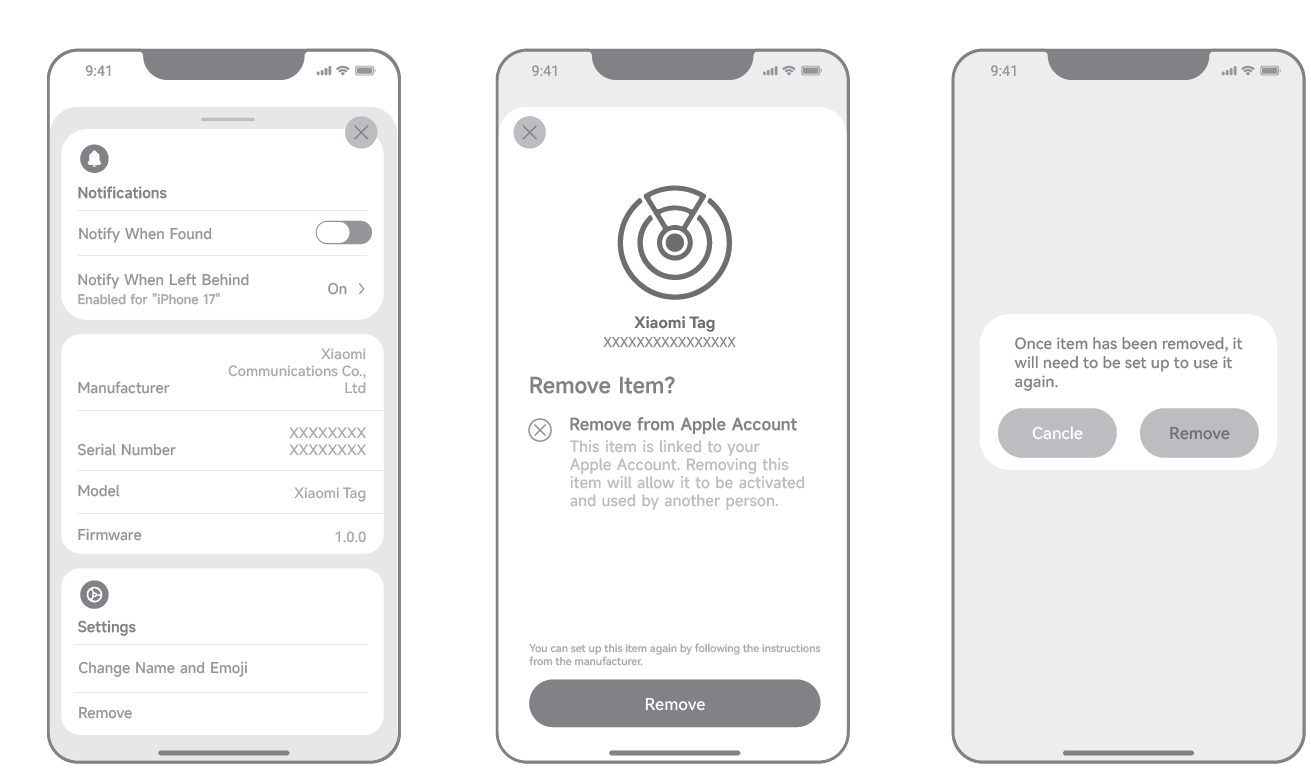
2. When using the Find My App, keep the Xiaomi Tag connected and open the device details page. Scroll to the bottom, tap [Remove] and then tap [Remove] again to confirm. Follow the on-screen instructions, and a prompt sound confirms successful unbinding.
Q4: How to connect the Xiaomi Tag?
A: The Xiaomi Tag can be connected using either an Android device or an Apple device.
To connect the Xiaomi Tag to Google’s Find Hub App or the Find My App, please refer to the following information:
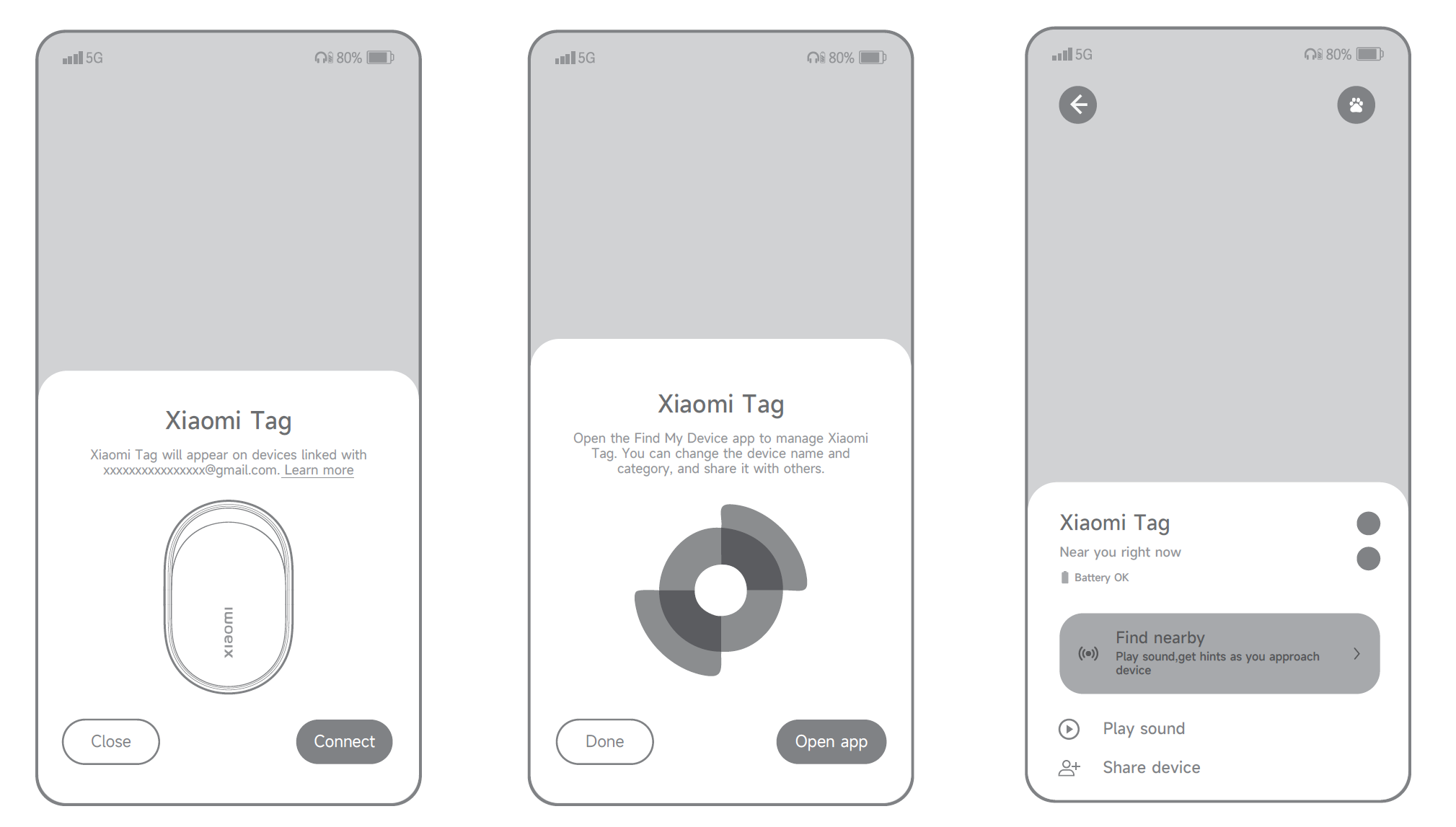
1. When using Google’s Find Hub App, place the Xiaomi Tag into pairing mode and bring it close to an Android phone or tablet. When the Fast Pair pop-up card for “Xiaomi Tag” appears, tap [Connect] and follow the on-screen instructions. A prompt sound indicates that the connection is successful.
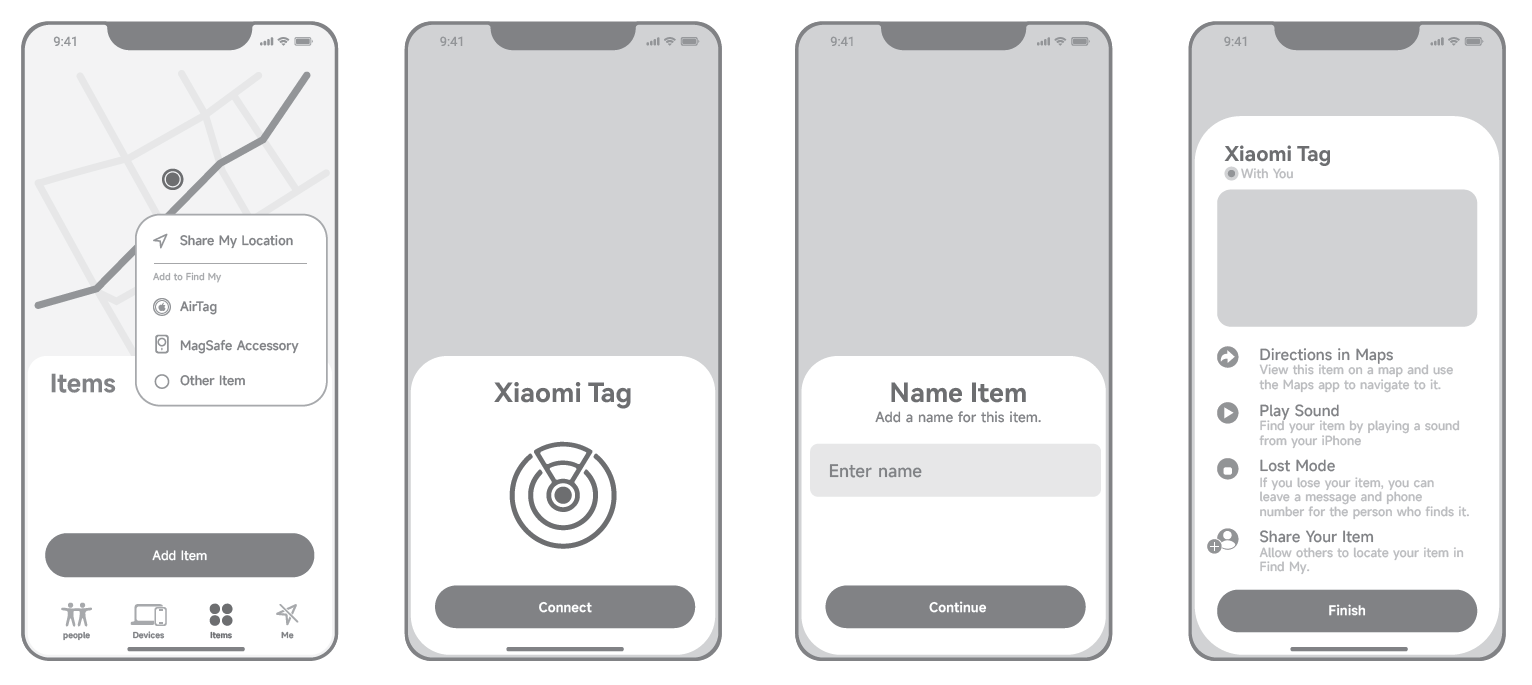
2. When using the Find My App, place the Xiaomi Tag into pairing mode and bring it close to an iPhone or iPad. Open the Find My App, tap [Items], select [Add Item], and then choose [Other Item]. Follow the on-screen instructions to set the name and emoji. The Xiaomi Tag will be linked to your Apple ID and will confirm successful pairing with a prompt sound.
Q5: Can the Xiaomi Tag be connected to multiple phones?
A: The Xiaomi Tag can only be bound to one account at a time. If the same account is signed in on multiple phones, the Xiaomi Tag can only remain connected to one phone and cannot maintain simultaneous connections with multiple devices.
Q6: How does the Xiaomi Tag play a sound during the finding process?
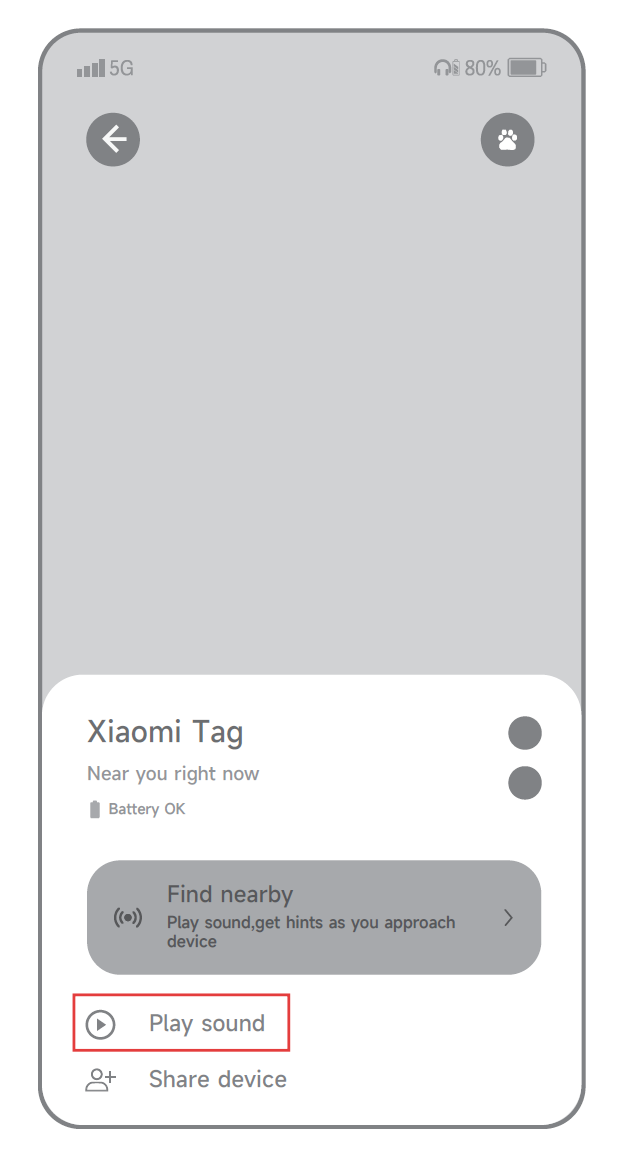
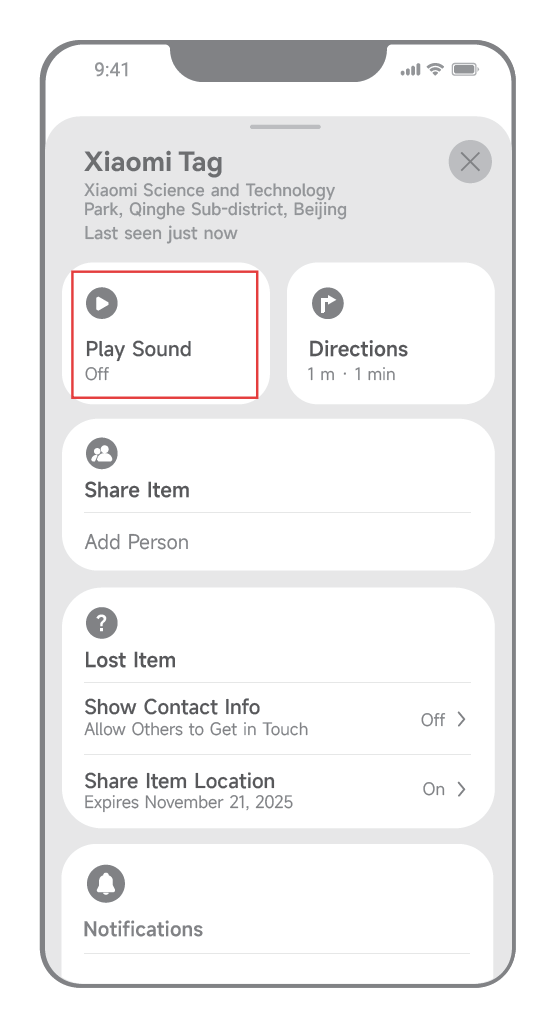
A: The Xiaomi Tag can play a sound when a sound command is sent from Google’s Find Hub App or the Find My App. You can open the device details page or the finding page and tap the play sound button to trigger sound playback.
Sound playback is available only when the phone is within the effective BLE signal range of the Xiaomi Tag and has successfully established a BLE connection. The sound is triggered by tapping the play sound option on the tag details page. Playback will stop automatically when the sound duration ends without further interaction, or it can be manually stopped by tapping the stop button in the App.
Q7: How can the Xiaomi Tag location be determined?
A: The Xiaomi Tag itself does not support GPS positioning. Instead, the Xiaomi Tag obtains location updates by securely reporting its presence through nearby mobile devices to the cloud, which then provides the latest location information to you.
When the Xiaomi Tag is connected to your phone through Google’s Find Hub App or the Find My App, location information is updated in real time. When the Xiaomi Tag is offline and disconnected from your phone, nearby eligible assisting phones can help upload its location. If a compatible assisting phone remains within the effective BLE range of the tag, Google’s Find Hub App or the Find My App will detect the tag and upload the assisting phone’s current location to the cloud, which is then delivered to your device.
Note:
1. Assisting phones must use the same network protocol as your phone. If the Xiaomi Tag is bound through the Google’s Find Hub App on Android, the assisting phone must also be an Android device with tGoogle’s Find Hub App installed.
2. The assisting phone must grant the necessary permissions to the Google’s Find Hub App or the Find My App, including location access and location sharing. These permissions are requested when the App is first opened.
3. If no eligible assisting phones are nearby, the Xiaomi Tag cannot update its location while offline.
Q8: How to use the NFC function of the Xiaomi Tag?
A: The Xiaomi Tag NFC function is associated with Lost mode and displays different information depending on the binding and Lost mode status.
When using the Xiaomi Tag with the Find My App, different NFC results are shown based on the device status:
1. If the Xiaomi Tag is not bound to the Find My App, enabling NFC on the phone and placing the NFC area of the tag close to the phone’s NFC area triggers a pop-up notification indicating that an NFC tag has been detected. Tapping the notification opens a web page, which displays the product name, serial number, related instructions, and deactivation information. The default web page in this case is hosted by Apple.
2. If the Xiaomi Tag is bound to the Find My App but Lost mode is not enabled, enabling NFC and scanning the tag opens a web page showing the product name, serial number, related instructions, deactivation information, and the bound account information.
3. If the Xiaomi Tag is bound to the Find My App and Lost mode has been enabled with owner information filled in, enabling NFC and scanning the tag opens a web page displaying the product name, serial number, related instructions, deactivation information, bound account information, as well as the owner’s phone number and message that were provided.
When using the Xiaomi Tag with the Google’s Find Hub App, the NFC results are as follows:
1. If the Xiaomi Tag is bound to the Google’s Find Hub App and Lost mode is not enabled, enabling NFC and scanning the tag automatically opens a web page showing the product name, serial number, related instructions, deactivation information, and bound account information.
2. If the Xiaomi Tag is bound to the Google’s Find Hub App and Lost mode has been enabled with owner information filled in, when another Android device comes close to the Xiaomi Tag, a pop-up notification appears. The page displays the product name, serial number, related instructions, deactivation information, bound account information, as well as the owner’s phone number and message. Enabling or disabling Lost mode in the Google’s Find Hub App does not change the NFC content displayed.
Note:
When the Xiaomi Tag is not paired or bound, the NFC web page displayed by default is the Apple-hosted page. After the Xiaomi Tag is bound, the NFC web page corresponds to the platform used for binding, either Apple or Google.
Q9: How to use the anti-loss function of the Xiaomi Tag?
A: The Xiaomi Tag anti-loss function can be managed through both the Google’s Find Hub App and the Find My App.
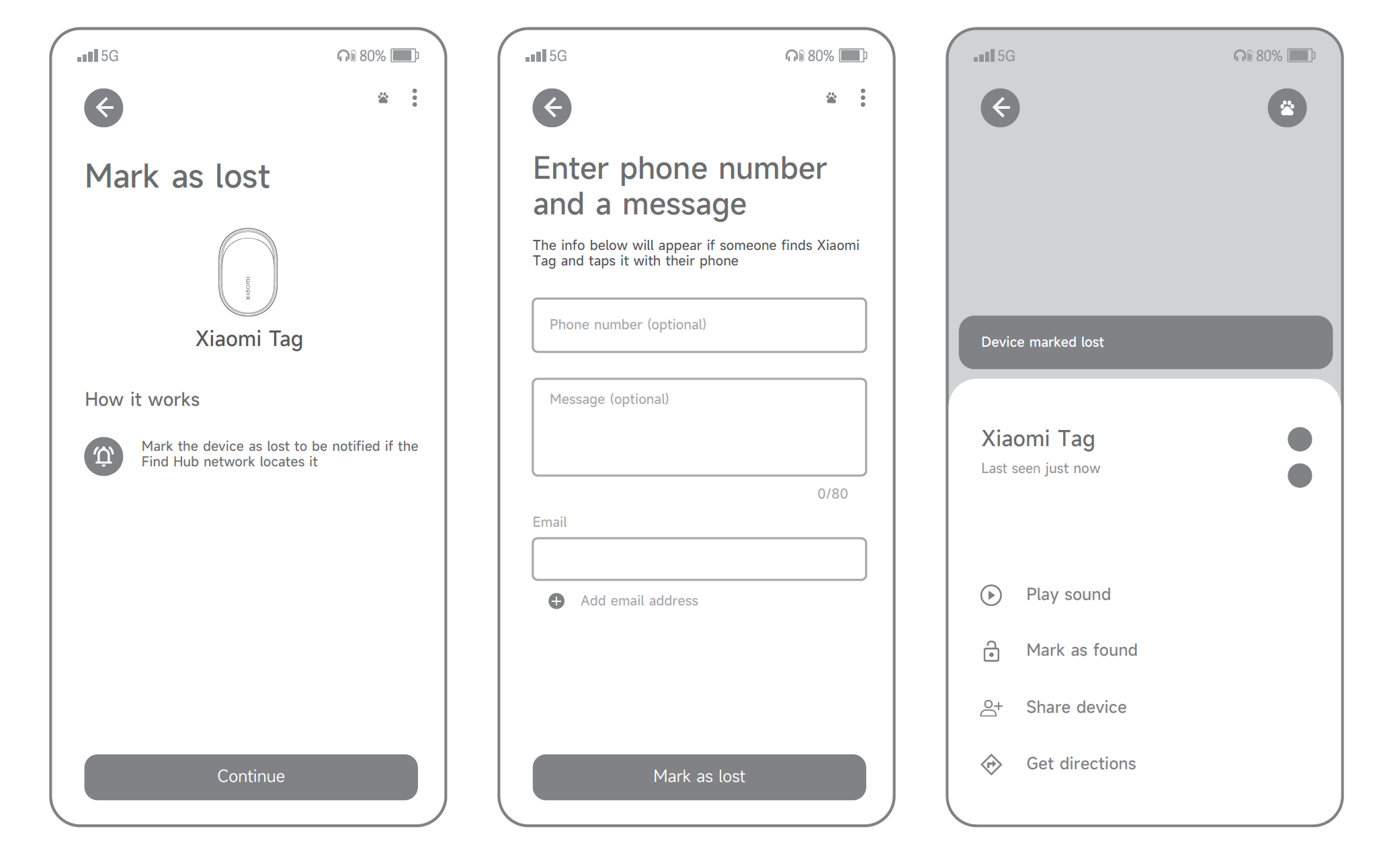
The usage method of the anti-loss function of the Xiaomi Tag on the Google Find Hub App is as follows:
1. When using the Xiaomi Tag with the Google’s Find Hub App, Lost mode can be enabled while the device is offline. On the device details page, select [Mark as lost], tap [Resume], enter a phone number or email address along with a message, and then tap [Mark as lost]. The page will automatically redirect once the process is completed.
2. Lost mode can be disabled in the Google’s Find Hub App by selecting [Mark as found] on the device details page and waiting for the page to redirect. Lost mode can also be automatically turned off when the Xiaomi Tag reconnects to the phone.
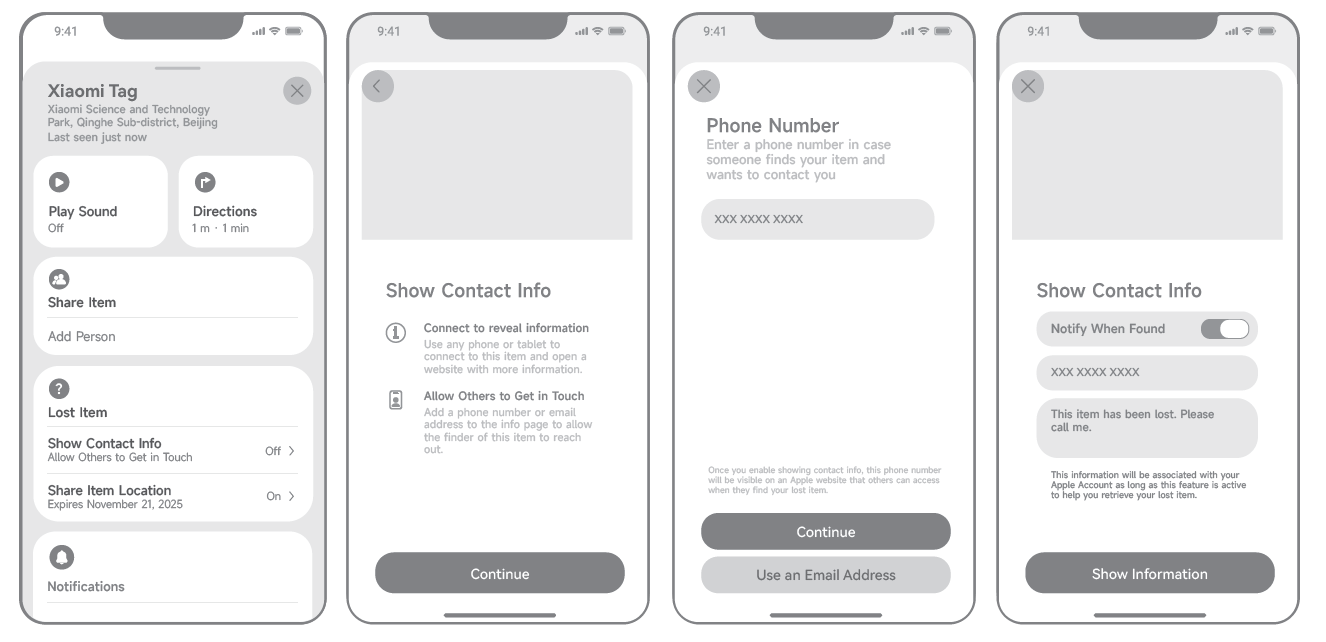
The usage method of the anti-loss function of the Xiaomi Tag on the Find My App is as follows:
1. When using the Xiaomi Tag with the Find My App, Lost mode can be enabled while the device is offline by opening the device details page and tapping [Show Contact Info] under the Lost Item section. After tapping [Continue], enter a phone number or email address along with a message, then tap [Show Information] and wait for the page to redirect.
2. Lost mode can be disabled in the Find My App by opening the device details page, tapping [Show Contact Info] under the Lost Item section, selecting [Remove Contact Info], and confirming by tapping [Remove]. The page will redirect automatically once the process is completed.
Q10: How does the anti-tracking function of the Xiaomi Tag work?
A: The Xiaomi Tag supports an anti-tracking alert mechanism that uses sound alerts and system notifications under specific conditions:
1. If a Xiaomi Tag that is bound to another person’s Find My App is placed in your backpack, pocket, or another item, the tag can emit a sound alert after being disconnected for three days and detecting movement. A detection check is performed once the initial 72-hour period is reached, followed by additional checks every six hours.
2. The notification-based anti-tracking alerts in the Find My App are triggered only when specific conditions are met. The Xiaomi Tag must be bound to another person’s Find My App and remain in a disconnected state while being carried in your personal belongings. Your own iPhone must have previously opened the Find My App and granted the required permissions, such as notification and location access. If you carry both the Xiaomi Tag and your iPhone together outdoors for an extended period, and your iPhone detects that an unfamiliar tag is following you, a notification for an unknown tag will appear. You can then open the unknown device details page in the Find My App and trigger a sound to locate the tag.
Note:
1. To trigger an anti-tracking alert, the Xiaomi Tag must be paired with an Apple device; furthermore, your mobile phone must also be an Apple device in order to detect the tag.
2. Google’s Find Hub App doesn’t support anti-tracking alerts mechanism.
2. Google’s Find Hub App doesn’t support anti-tracking alerts mechanism.
Q11: What devices are compatible with the Xiaomi Tag?
A: The Xiaomi Tag supports Android phones and tablets running Android 9.0 or later through the Google’s Find Hub App, as well as iPhone and iPad devices running iOS 14.5 or iPad OS 14.5 or later through the built-in Find My App.
FAQs
Q1: What to do if the Xiaomi Tag fails to connect during binding?
A: If the Xiaomi Tag fails to connect during the binding process, please refer to the following information for troubleshooting:
1. First, check whether Bluetooth is enabled on your phone. You can verify this in the phone’s system settings.
2. Check whether the Xiaomi Tag is close to your phone. If the distance is too far, move the tag closer to the phone and try again.
3. Uninstall the Google’s Find Hub App or the Find My App, then download and install the latest version of the App before retrying.
4. Close the Google’s Find Hub App or the Find My App in the background and try again. You can also turn Bluetooth off and on again, or restart your phone before retrying.
5. Check whether the Xiaomi Tag battery has sufficient power. If the battery level is low, replace it with a new battery that has adequate power.
6. Check whether the battery is installed correctly in the Xiaomi Tag. Remove the battery and reinstall it, then try to connect again. You can confirm correct installation by ensuring the positive side of the battery is facing outward.
7. Check whether the Xiaomi Tag has previously been bound to another account. If so, locate the phone that was previously bound, remove the device from that account, and reset the Tag.
8. You can also reset the Xiaomi Tag directly. Open the battery compartment, remove the battery, and wait for 15 seconds. Reinsert the battery, making sure it has sufficient power and good contact. Then press and hold the button for about 15 seconds. When you hear a prompt sound, the reset is complete and the device enters pairing mode.
Q2: What to do if the Xiaomi Tag fails to complete a firmware update?
A: If the Xiaomi Tag fails during a firmware update, please follow the steps below:
1. Check whether Bluetooth is enabled on your phone and confirm this in the system settings.
2. Make sure the Xiaomi Tag is close to your phone. If the distance is too far, move the tag closer and reconnect before trying again.
3. Close the Google’s Find Hub App or the Find My App in the background, then try again. You can also toggle Bluetooth off and on, or restart your phone.
4. Check whether the Xiaomi Tag battery level is sufficient. If the battery is low, replace it with a fully powered battery.
5. If the update still fails, remove and unbind the Xiaomi Tag from the App, then bind it again and retry the OTA update.
Q3: What to do if the Xiaomi Tag does not ring during the finding process?
A: If the Xiaomi Tag does not ring when you try to locate it, please refer to the following suggestions:
1. First, check whether Bluetooth is enabled on your phone. You can verify this in the phone’s system settings.
2. Check whether the Xiaomi Tag is close to your phone. If the distance is too far, move the tag closer to the phone and try again.
3. Uninstall the Google’s Find Hub App or the Find My App, then download and install the latest version of the App before retrying.
4. Close the Google’s Find Hub App or the Find My App in the background and try again. You can also turn Bluetooth off and on again, or restart your phone before retrying.
5. Check whether the Xiaomi Tag battery has sufficient power. If the battery level is low, replace it with a new battery that has adequate power.
6. Check whether the battery is installed correctly in the Xiaomi Tag. Remove the battery and reinstall it, then try to connect again. You can confirm correct installation by ensuring the positive side of the battery is facing outward.
7. You can also reset the Xiaomi Tag directly. Open the battery compartment, remove the battery, and wait for 15 seconds. Reinsert the battery, making sure it has sufficient power and good contact. Then press and hold the button for about 15 seconds. When you hear a prompt sound, the reset is complete and the device enters pairing mode.
Q4: How to confirm that the Xiaomi Tag is successfully connected to your device?
A: To confirm that the Xiaomi Tag is successfully connected, open the Google’s Find Hub App or the Find My App and enter the device details page. Tap the option to play a sound. If the Xiaomi Tag rings normally, this indicates that it is successfully connected to your phone.
Q5: How to unbind the Xiaomi Tag from the current device?
A: Different Apps use different methods to unbind the Xiaomi Tag. Please refer to the information below:
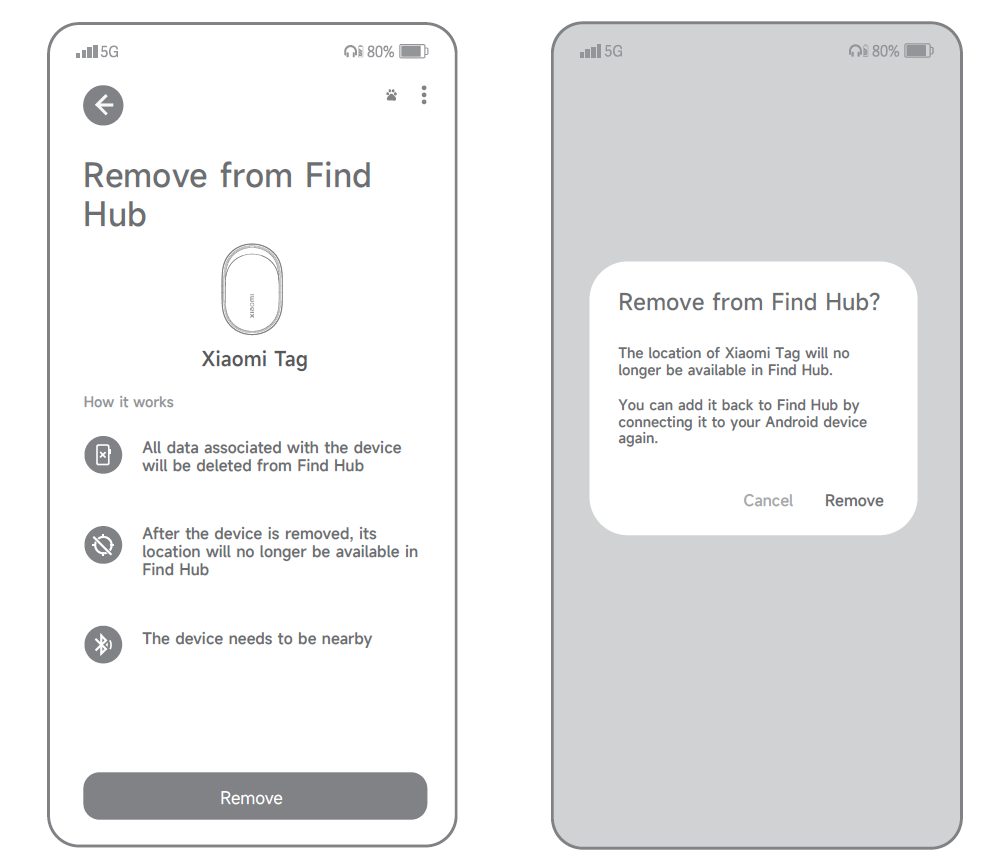
1. When using the Google’s Find Hub App, please make sure you are signed in with your Google account, keep the Xiaomi Tag connected, and open the device details page. Tap the three-dot icon in the top-right corner, select [Remove from Find Hub], follow the on-screen instructions, check any required confirmation boxes, and then tap [Remove] to complete unbinding. A prompt sound confirms successful removal.
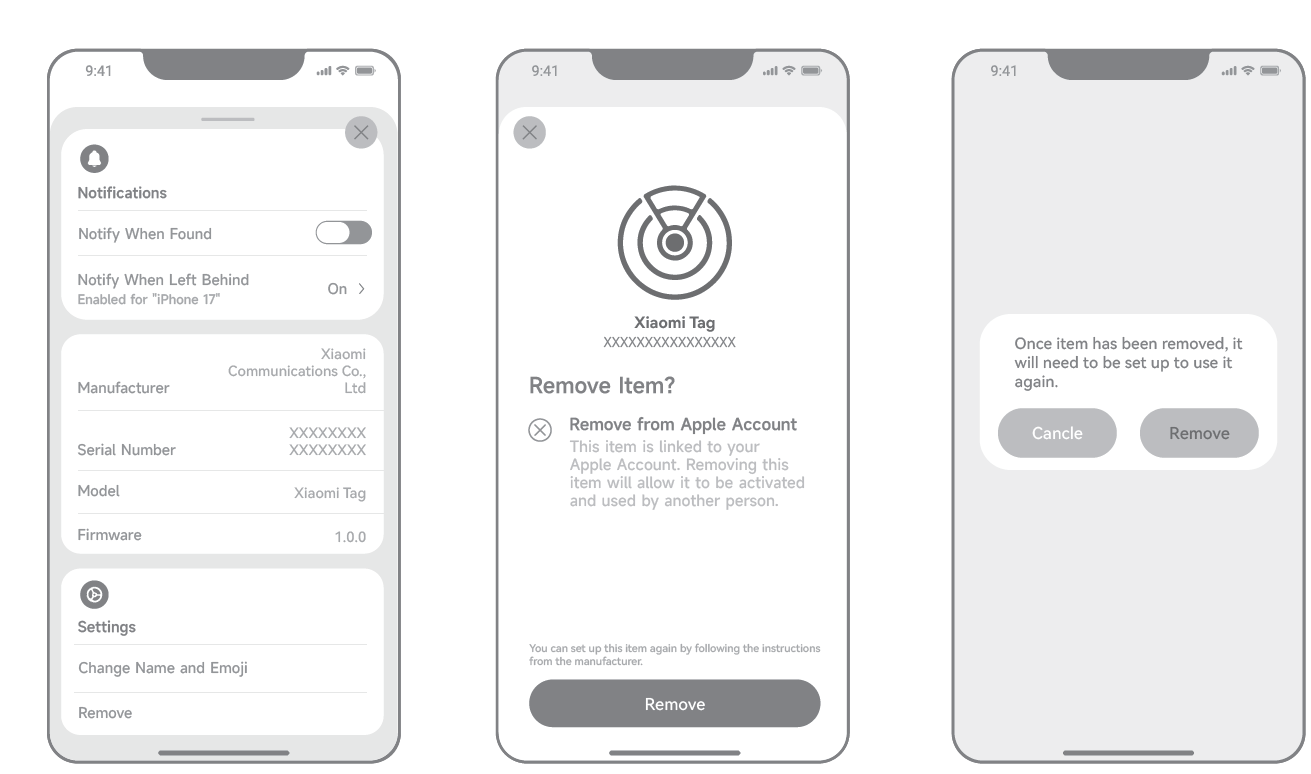
2. When using the Find My App, keep the Xiaomi Tag connected and open the device details page. Scroll to the bottom, tap [Remove] and then tap [Remove] again to confirm. Follow the on-screen instructions, and a prompt sound confirms successful unbinding.
3. If you forget your account or password and fail to log into the Apple Find My or Google Find Hub App, simply press and hold the Xiaomi Tag button for 15 seconds to perform a factory reset. Then the Xiaomi Tag will be unpaired with the previous account.
Q6: What to do if the Xiaomi Tag cannot be discovered for connection?
A: If the Xiaomi Tag cannot be discovered during the connection process, please refer to the following steps:
1. First, check whether Bluetooth is enabled on your phone. You can verify this in the phone’s system settings.
2. Check whether the Xiaomi Tag is close to your phone. If the distance is too far, move the tag closer to the phone and try again.
3. Uninstall the Google’s Find Hub App or the Find My App, then download and install the latest version of the App before retrying.
4. Close the Google’s Find Hub App or the Find My App in the background and try again. You can also turn Bluetooth off and on again, or restart your phone before retrying.
5. Check whether the Xiaomi Tag battery has sufficient power. If the battery level is low, replace it with a new battery that has adequate power.
6. Check whether the battery is installed correctly in the Xiaomi Tag. Remove the battery and reinstall it, then try to connect again. You can confirm correct installation by ensuring the positive side of the battery is facing outward.
7. Check whether the Xiaomi Tag has previously been bound to another account. If so, locate the phone that was previously bound, remove the device from that account, and reset the Tag.
8. You can also reset the Xiaomi Tag directly. Open the battery compartment, remove the battery, and wait for 15 seconds. Reinsert the battery, making sure it has sufficient power and good contact. Then press and hold the button for about 15 seconds. When you hear a prompt sound, the reset is complete and the device enters pairing mode.
Q7: Why does the Xiaomi Tag show a very low battery level after replacing the battery?
A: If the Xiaomi Tag shows a very low battery level after a new battery is installed, please refer to the following information:
1. Remove the battery again, wait for 15 seconds, reinsert it, and reconnect the Xiaomi Tag to the Google’s Find Hub App or the Find My App to see whether the battery level updates.
2. Confirm that the battery is new. If the battery has been stored for a long time, replace it with another new battery.
Q8: How to confirm that the Xiaomi Tag has entered sleep mode?
A: If you want to confirm whether the Xiaomi Tag has entered sleep mode, please refer to the following information:
1. After the Xiaomi Tag enters pairing mode, it will automatically enter sleep mode if pairing is not completed within 10 minutes. Press and hold the button for 3 seconds until you hear a prompt tone to wake it up and re-enter pairing mode.
2. When the Xiaomi Tag is in sleep mode, it will stop broadcasting. If you use the Google’s Find Hub App or the Find My App to search and the device cannot be found, this indicates that the Xiaomi Tag has entered sleep mode.
Q9: What to do if no pop-up appears when connecting the Xiaomi Tag using the Google’s Find Hub App?
A: If no pop-up appears when connecting the Xiaomi Tag with the Google’s Find Hub App, please follow these information:
1. First, check whether Bluetooth is enabled on your phone. You can verify this in the phone’s system settings.
2. Check whether the Xiaomi Tag is close to your phone. If the distance is too far, move the tag closer to the phone and try again.
3. Uninstall the Google’s Find Hub App, then download and install the latest version of the App before retrying.
4. Close the Google’s Find Hub App in the background and try again. You can also turn Bluetooth off and on again, or restart your phone before retrying.
5. Check whether the Xiaomi Tag battery has sufficient power. If the battery level is low, replace it with a new battery that has adequate power.
6. Check whether the battery is installed correctly in the Xiaomi Tag. Remove the battery and reinstall it, then try to connect again. You can confirm correct installation by ensuring the positive side of the battery is facing outward.
7. Check whether the Xiaomi Tag has previously been bound to another account. If so, locate the phone that was previously bound, remove the device from that account, and reset the Tag.
8. You can also reset the Xiaomi Tag directly. Open the battery compartment, remove the battery, and wait for 15 seconds. Reinsert the battery, making sure it has sufficient power and good contact. Then press and hold the button for about 15 seconds. When you hear a prompt sound, the reset is complete and the device enters pairing mode.
9. If too many phones are logged in with the same Google account, the pop-up can not appear. It is recommended to use one phone per Google account.
10. Open the Google Play Store and update the Google’s Find Hub App to the latest version before retrying.
11. Make sure that “Scan for nearby devices” in Google services is enabled. Bring the Xiaomi Tag close to the phone again and check whether the pop-up appears.
Q10: What to do if there is no prompt tone when pressing the Xiaomi Tag button?
A: If there is no prompt tone when pressing the button on the Xiaomi Tag, please try the following information:
1. Remove the front cover of the Xiaomi Tag, which is the side with the Xiaomi logo, and confirm that a battery is installed.
2. Check whether the battery has sufficient power and replace it with a new battery if necessary.
3. Check whether the battery is installed correctly. Remove the battery and reinstall it, then try connecting again. The positive side of the battery should face outward (+).
4. Remove the battery, wait for 15 seconds, reinsert it, and make sure it has sufficient power and good contact. Press and hold the button for about 15 seconds until you hear a prompt tone. After the reset is complete, try again.
Q11: How to confirm that the Xiaomi Tag is in broadcasting mode?
A: You can confirm whether the Xiaomi Tag is in broadcasting mode using the following methods:
1. After the Xiaomi Tag enters pairing mode, it will automatically enter sleep mode if pairing is not completed within 10 minutes. Once in sleep mode, it will stop broadcasting and cannot be found using the Google’s Find Hub App or the Find My App. Press and hold the button for 3 seconds until you hear a prompt tone to wake it up and re-enter pairing mode. At this time, the Xiaomi Tag will be in broadcasting mode.
2. If the Xiaomi Tag has already been bound, it will remain in broadcasting mode. When connected, it enters fast broadcasting mode, and when disconnected, it enters slow broadcasting mode. You can check the connection status in the Google’s Find Hub App or the Find My App to confirm whether the Xiaomi Tag is currently broadcasting.
Q12: How to reconnect the Xiaomi Tag after unbinding?
A: To reconnect the Xiaomi Tag to the Google’s Find Hub App or the Find My App after unbinding, please refer to the following information:
1. When using the Google’s Find Hub App, place the Xiaomi Tag into pairing mode and bring it close to an Android phone or tablet. When the Fast Pair pop-up card for “Xiaomi Tag” appears, tap [Connect] and follow the on-screen instructions. A prompt sound indicates that the connection is successful.
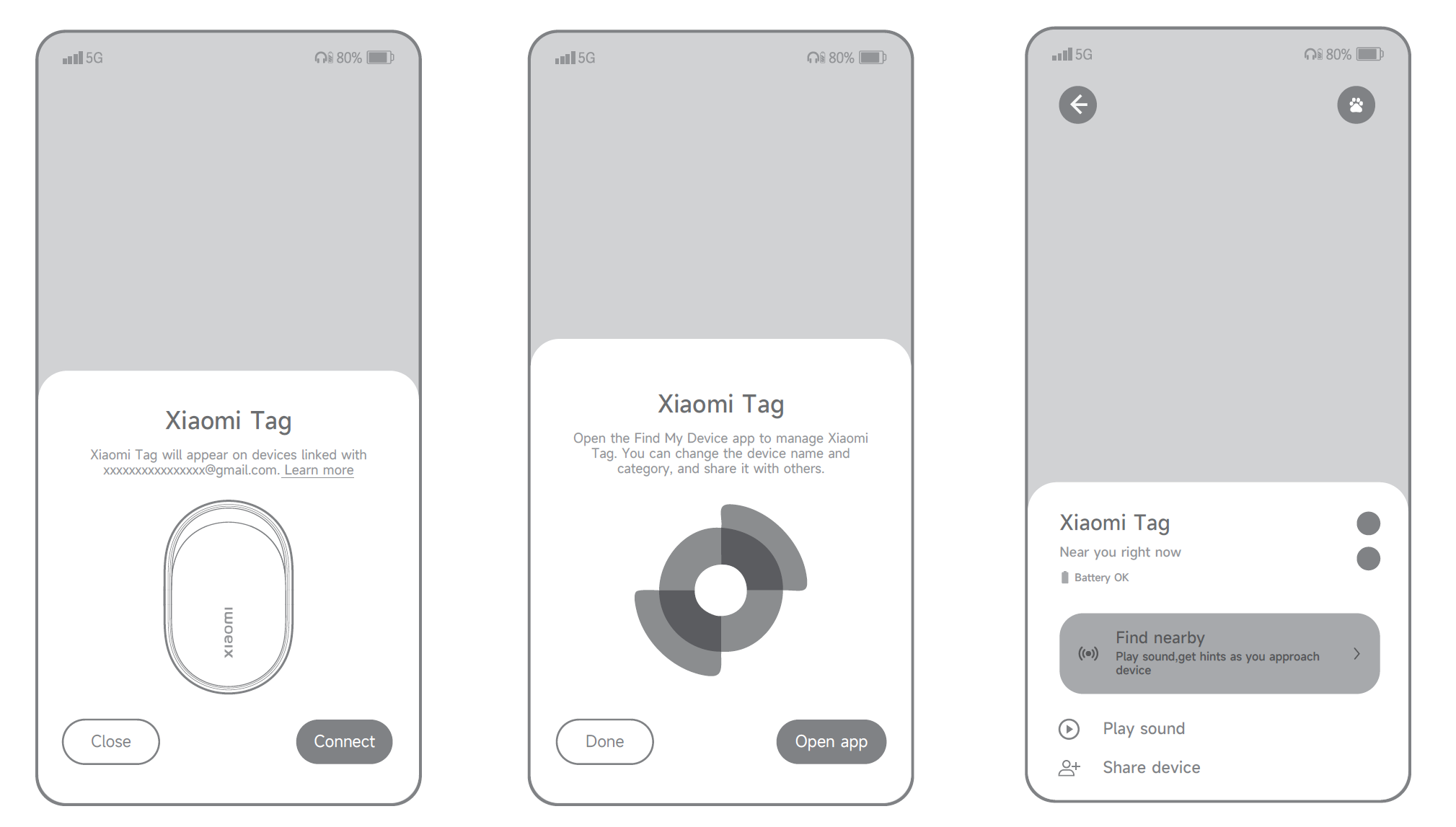
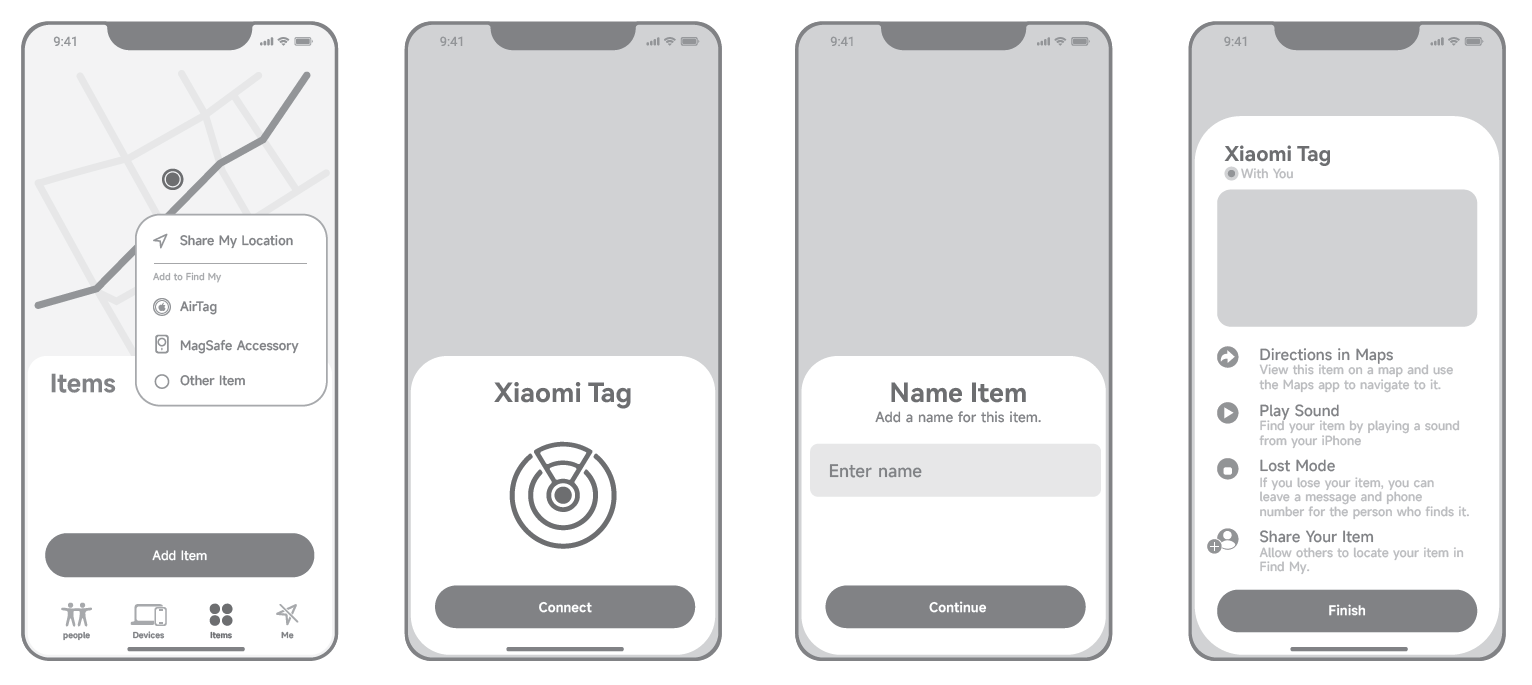
2. When using the Find My App, place the Xiaomi Tag into pairing mode and bring it close to an iPhone or iPad. Open the Find My App, tap [Items], select [Add Item], and then choose [Other Item]. Follow the on-screen instructions to set the name and emoji. The Xiaomi Tag will be linked to your Apple ID and will confirm successful pairing with a prompt sound.
Note:
If the Xiaomi Tag was unbound while it was not connected to the App, the unbinding is only executed from the App side. The Xiaomi Tag itself still needs to be reset. To reset the Xiaomi Tag, please open the battery compartment and remove the battery. Wait for 15 seconds. Reinsert the battery, ensuring it has sufficient power and good contact. Press and hold the button for about 15 seconds until you hear a prompt tone. The reset is complete and the device will enter pairing mode.
Q13: How to replace the battery of the Xiaomi Tag?
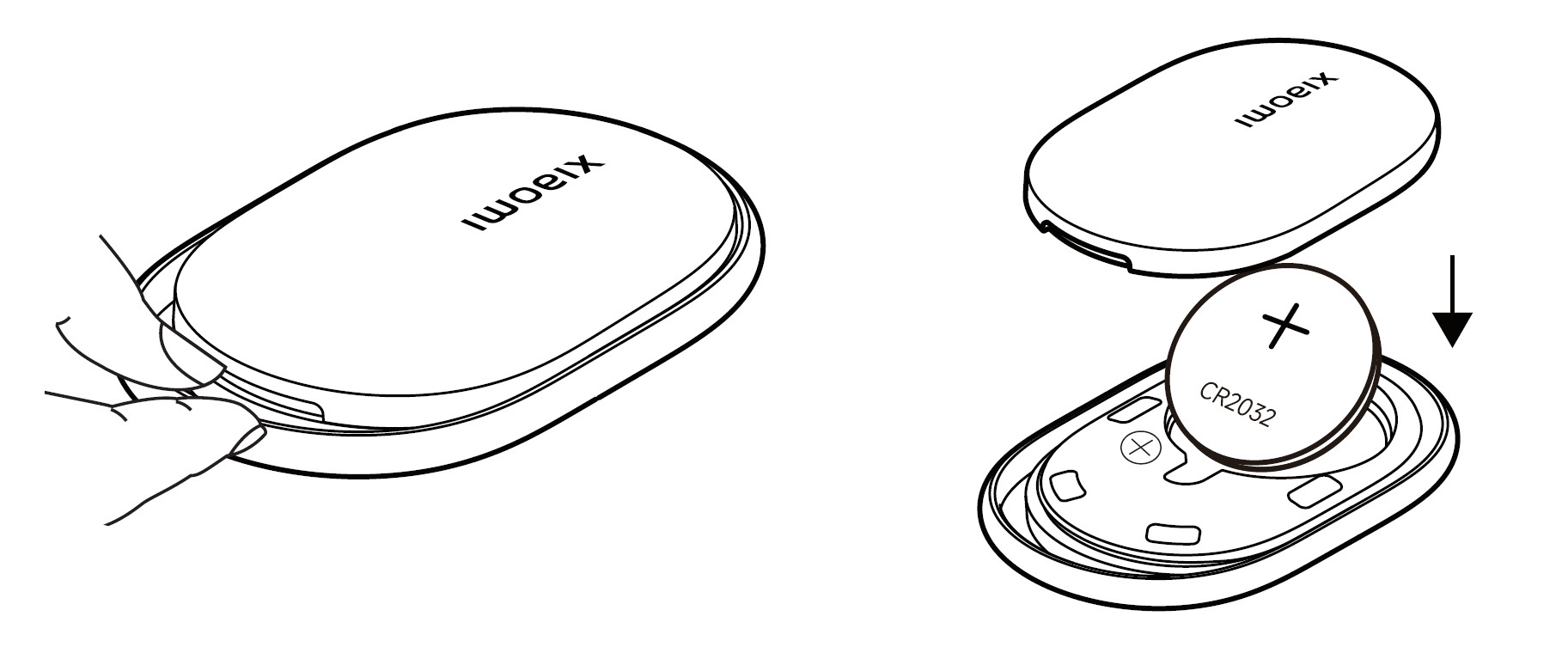
A: To replace the battery of the Xiaomi Tag, please refer to the following steps:
1. Open the battery compartment using the slot, gently prying with a coin, plastic card, or fingernail.
2. Remove the old battery and insert the new battery with the positive side (+) facing up.
3. Snap the battery cover back in place and press along the edges until fully closed. The Xiaomi Tag will automatically power on and play a prompt sound.
Note:
1. The Xiaomi Tag uses a CR2032 button battery rated at 3 V with lithium manganese chemistry. The battery is not rechargeable and should only be replaced with the same model and specification, following the positive polarity marking inside the battery compartment. Using an incorrect battery type or inserting the battery incorrectly can result in overheating, leakage, fire, or electric shock.
2. Please do not swallow button batteries, as they can cause chemical burns. If a button battery is swallowed, it can lead to serious internal injuries within two hours and can be life-threatening.
Q14: What to do if removing the Xiaomi Tag in the Google’s Find Hub App does not trigger the pop-up pairing again?
A: If removing the Xiaomi Tag in the Google’s Find Hub App does not trigger the pop-up for pairing, please try the following information:
1. First, check whether Bluetooth is enabled on your phone. You can verify this in the phone’s system settings.
2. Check whether the Xiaomi Tag is close to your phone. If the distance is too far, move the tag closer to the phone and try again.
3. Wait for 5 minutes and then bring the Xiaomi Tag close to your phone again to trigger the pop-up.
4. Uninstall the Google’s Find Hub App, then download and install the latest version of the App before retrying.
5. Close the Google’s Find Hub App in the background and try again. You can also turn Bluetooth off and on again, or restart your phone before retrying.
6. Check whether the Xiaomi Tag battery has sufficient power. If the battery level is low, replace it with a new battery that has adequate power.
7. Check whether the Xiaomi Tag has previously been bound to another account. If so, locate the phone that was previously bound, remove the device from that account, and reset the Tag.
8. You can also reset the Xiaomi Tag directly. Open the battery compartment, remove the battery, and wait for 15 seconds. Reinsert the battery, making sure it has sufficient power and good contact. Then press and hold the button for about 15 seconds. When you hear a prompt sound, the reset is complete and the device enters pairing mode.
9. If too many phones are logged in with the same Google account, the pop-up can not appear. It is recommended to use one phone per Google account.
10. Make sure that “Scan for nearby devices” in Google services is enabled. Bring the Xiaomi Tag close to the phone again and check whether the pop-up appears.
Q15: How many Xiaomi Tags can be connected to the Find My App or the Google's Find Hub App?
A: The Find My App can bind up to 32 Xiaomi Tags. If there are more than 32 devices, some must be removed before adding new ones. The Google’s Find Hub App does not limit the number of Xiaomi Tag devices that can be bound.
Q16: Why does the Xiaomi Tag not ring when the phone has been in standby for a while and then restarts?
A: If the Xiaomi Tag does not ring after the phone has been in standby and then restarts, please follow this information:
1. Check whether the Xiaomi Tag is close to your phone. If the distance is too far, move the tag closer to the phone and try again.
2. Check whether Bluetooth is enabled on your phone. You can verify this in the phone’s system settings.
3. Make sure the latest version of the Google’s Find Hub App or the Find My App is installed. If not, update to the latest version.
4. Close the Google’s Find Hub App or the Find My App in the background or toggle Bluetooth off and on again, then retry.
6. Check whether the Xiaomi Tag has been manually reset. If it has, unbind it from the App and rebind it.
Q17: Why does the Xiaomi Tag drain battery quickly or fail to last a year?
A: The actual battery life of the Xiaomi Tag can be affected by temperature. In low-temperature conditions, the battery life will depend on the actual low-temperature environment.
Q18: Why does the Xiaomi Tag keep ringing when taken out after long-term storage?
A: First, check whether the ringing is caused manually by using the sound function in the Google’s Find Hub App or the Find My App. If not caused manually, the Xiaomi Tag can have triggered the anti-tracking alert.
If a Xiaomi Tag that is bound to another person’s Find My App is placed in your backpack, pocket, or another personal item, the tag can emit a sound alert after being disconnected for three days and detecting movement. A detection check is performed once the initial 72-hour period is reached, followed by additional checks every six hours.
To stop the ring, please reconnect the Xiaomi Tag to the Find My App. Once connected, the anti-tracking ringing will stop. You can go to the device list in the App, open the device details, wait for connection, and tap the sound button to confirm ringing. If many devices are bound, the connection can take longer, so wait about 20 seconds for the device to reconnect.
Q19: How to check the SN number of the Xiaomi Tag?
A: The SN number, also known as the serial number, is the ID of the Xiaomi Tag.
You can check the SN number of the Xiaomi Tag in the following ways:
1. Check the packaging box: If you still have the original packaging, the SN number can be found next to the barcode.
2. Check on the device: Open the top cover of the Xiaomi Tag and remove the battery. The SN number is printed at the bottom of the battery compartment.
3. Check via NFC: Turn on the NFC function on your phone and place the Xiaomi Tag near the phone’s NFC area. Your phone will automatically open a webpage showing the product name, SN number, instructions, deactivation instructions, and bound account information.
4. Check via the Find My App: If the Xiaomi Tag is bound to the Find My App, open the device details page to view the SN number.
Q20: Why does the Xiaomi Tag not update its location or update slowly when it is not nearby?
A: The Xiaomi Tag itself does not support GPS positioning. Instead, the Xiaomi Tag obtains location updates by securely reporting its presence through nearby mobile devices to the cloud, which then provides the latest location information to you.
When the Xiaomi Tag is connected to your phone through the Google’s Find Hub App or the Find My App, location information is updated in real time. When the Xiaomi Tag is offline and disconnected from your phone, nearby eligible assisting phones can help upload its location. If a compatible assisting phone remains within the effective BLE range of the tag, the Google’s Find Hub App or the Find My App will detect the tag and upload the assisting phone’s current location to the cloud, which is then delivered to your device.
The Xiaomi Tag can not update its location or update slowly due to the following reasons:
1. The Xiaomi Tag is moving quickly, such as in a car or high-speed train, and nearby assisting devices do not have enough time to connect.
2. The Xiaomi Tag is in an area with few assisting devices, such as remote locations, outdoors, or underground parking, so location cannot be uploaded promptly.
3. The Xiaomi Tag is in an area with poor signal, such as inside an elevator or other locations with weak reception, preventing nearby devices from uploading its location in time.
Q21: Why does the battery icon show about 20% when the Xiaomi Tag is first bound in the Find My App, then quickly jump to another level?
A: This is normal behavior in the Find My App. When first bound, the App initially displays 20% battery. After binding, the Xiaomi Tag reports its voltage, and the App updates to show the actual battery level.
The Xiaomi Tag updates its battery voltage information once every two days while bound, and also refreshes the voltage reading each time the tag is restarted.
Q22: Why does the Xiaomi Tag fail to be found after long-term storage and quickly reinserting the battery?
A: When the Xiaomi Tag enters pairing mode, if pairing is not completed within 10 minutes, it will automatically enter sleep mode. Removing the battery briefly can not immediately reset the sleep status because residual charge in the capacitors keeps the tag powered for a short period. To reactivate, press and hold the button for 3 seconds to enter broadcast mode, or remove the battery, wait for 15 seconds, reinsert the battery, and the Xiaomi Tag will automatically enter broadcast mode. Then try searching again with your phone.
Q23: Why is it difficult to remove the battery cover during Xiaomi Tag usage?
A: You can use everyday items such as a key, coin, or plastic card to gently pry the latch on the Xiaomi Tag battery cover to remove it.
Q24: Why does the battery cover slightly warp when the Xiaomi Tag is placed on a hot surface for a long time?
A: If the Xiaomi Tag is exposed to temperatures above 70 °C for more than 20 hours, the battery cover can slightly warp due to thermal expansion. The internal POGO pins can cause a minor lift on the cover. Once the temperature returns to normal, pressing the battery cover back into place will restore its shape. This does not affect the functionality of the Xiaomi Tag.
Q25: Why does the metal ring of the Xiaomi Tag slightly deform if it falls to the ground?
A: Part of the metal ring on the Xiaomi Tag is suspended without full support. If the Xiaomi Tag falls from a height greater than 1.5 meters, the metal ring can slightly deform. This minor deformation does not affect the overall function of the Xiaomi Tag, and it can continue to be used normally.
Does it help?
Yes
No