

Xiaomi Desktop Speaker Pro Set FAQ
Overview
Q1: What are the key features of the Xiaomi Desktop Speaker Pro Set?
A: The Xiaomi Desktop Speaker Pro Set is a desktop computer soundbar speaker system. It supports three audio input channels: USB, Bluetooth, and AUX IN. The system consists of two 10 W speakers and two passive bass radiators, forming a total four-driver left and right stereo configuration. Combined with a 53° upward speaker tilt, it creates a classic overhead soundstage effect.
The speaker is equipped with a high-performance DSP digital processing chip, paired with a digital power amplifier and an independent power supply to deliver enhanced audio quality. In addition, a built-in light strip composed of 24 RGB LEDs provides refined and vivid ambient lighting effects.
Q2: What buttons are available on the Xiaomi Desktop Speaker Pro Set, and what are the indicator statuses?
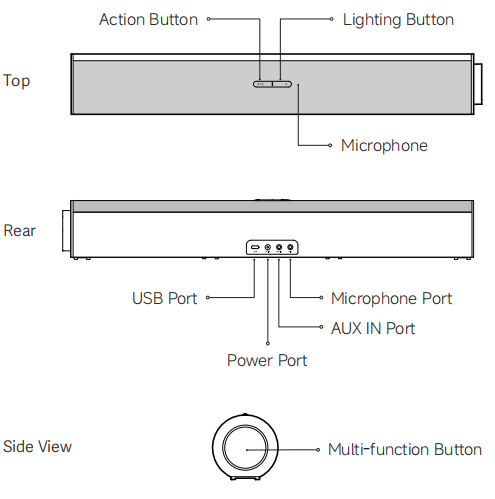
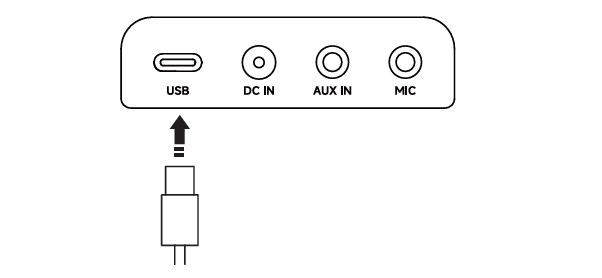
A: On the Xiaomi Desktop Speaker Pro Set, the top of the main speaker is equipped with an Action button, a Lighting button, and a microphone. The rear panel includes a USB port, power port, AUX IN port, and microphone port. A Multi-function button is located on the side of the main speaker.
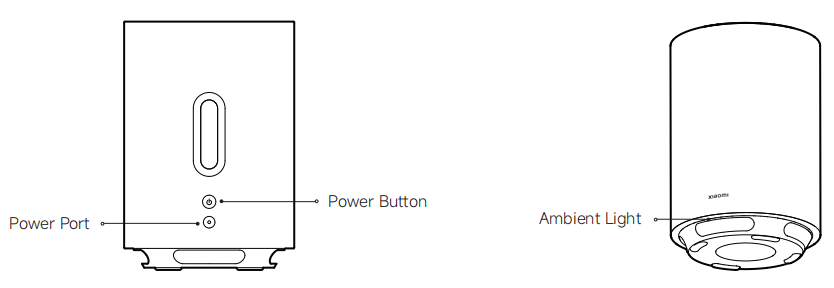
The wireless subwoofer features a power port and power button, with ambient light located at the bottom.
Note:
Illustrations of the product and accessories above are for reference purposes only. Actual product and functions can vary due to product enhancements.
To use the button on the main speaker of the Xiaomi Desktop Speaker Pro Set, please refer to the following information:
1. Multi-function button:
(1). Press the Multi-function button to power on the speaker, play or pause music, or answer and end calls.
(2). Press twice quickly to play the next track.
(3). Press three times quickly to play the previous track.
(4). Press and hold for 2 seconds to power off the speaker or reject an incoming call.
(5). Press and hold for 7 seconds to restore factory settings.
(6). Rotate clockwise to increase the volume.
(7). Rotate counterclockwise to decrease the volume.
2. Action button:
(1). Press the Action button to switch sound modes.
(2). Press twice quickly to switch audio input channels.
(3). Press and hold for 2 seconds to enter Bluetooth pairing mode.
3. Lighting button:
(1). Press the Lighting button to switch ambient lighting effects.
(2). Press and hold for 2 seconds to enable or disable the ambient lighting.
To use the button on the wireless subwoofer of the Xiaomi Desktop Speaker Pro Set, please refer to the following information:
Press the Power button to turn on the wireless subwoofer. Press and hold the button for 2 seconds to turn it off. Press and hold for 7 seconds to restore factory settings and initiate pairing with the main speaker.
The meanings of the LED indicator and ambient light on the main speaker of the Xiaomi Desktop Speaker Pro Set are as follows:
1. When the LED indicator is blinking in blue, it means that the Bluetooth is not connected or is connecting. When the LED indicator stays solid blue, it means that the Bluetooth is connected.
2. When the ambient light blinks in white, it means that there is an incoming Bluetooth call. When the ambient light breathes white, it means that a Bluetooth call is in progress. When the ambient light breathes orange, the speaker is in sleep mode.
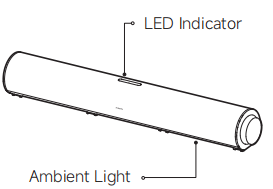
The meanings of the ambient light on the wireless subwoofer of the Xiaomi Desktop Speaker Pro Set are as follows:
When the ambient light blinks in white, it means that the subwoofer is waiting for pairing or pairing is in progress. When the ambient light breathes orange, it means that the subwoofer is in sleep mode.
Q3: How to use the Xiaomi Desktop Speaker Pro Set, and what connection methods are supported?
A: Power on or off the main speaker
Power on: Connect the power supply and the speaker will turn on automatically. When the speaker is connected to power but turned off, press the Multi-function button to power it on.
Power off: Press and hold the Multi-function button for 2 seconds.

Note:
1. Unplugging the power adapter directly will cause a forced shutdown and is not recommended for frequent use.
2. When powered on, press and hold the Multi-function button for 7 seconds to restore factory settings.
Audio channels and switching for the main speaker
The Xiaomi Desktop Speaker Pro Set supports three audio input channels: USB, Bluetooth, and AUX IN.
When powered on for the first time, the default channel is USB. Press the Action button twice quickly to cycle through the audio channels. A voice prompt confirms successful switching.

USB channel for the main speaker
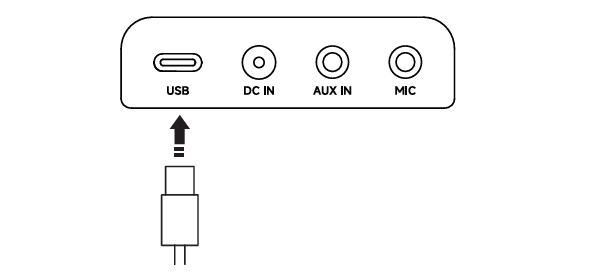
After switching to the USB channel, connect the speaker to a computer using a USB cable. The speaker functions as a computer audio output device, suitable for media playback, online meetings, and other scenarios.
Note:
1. It is recommended to use the included USB cable and connect the speaker directly to the computer’s USB port. Using a USB hub or docking station can cause playback issues due to compatibility differences.
2. Audio performance can vary depending on device compatibility, software version, and audio source quality.
3. Connecting a USB cable or a 3.5 mm audio cable does not automatically switch the audio channel. Manual switching is required.
Bluetooth channel for the main speaker
On any channel, press and hold the Action button for 2 seconds to switch to Bluetooth channel and enter pairing mode. Complete the Bluetooth connection on your phone or computer.

AUX IN channel for the main speaker
After switching to AUX IN channel, use a 3.5 mm audio cable (sold separately) to connect the audio source device to the speaker.
Q4: How do the two speakers in the Xiaomi Desktop Speaker Pro Set connect to each other?
A: The wireless subwoofer and main speaker of the Xiaomi Desktop Speaker Pro Set are pre-paired at the factory. After powering on both units, they can be used directly. Once paired, the audio output and ambient lighting effects remain synchronized between the main speaker and the wireless subwoofer.
Note:
The main speaker sold separately does not support pairing with the wireless subwoofer included in the set.
Q5: How to pair the wireless subwoofer of the Xiaomi Desktop Speaker Pro Set?
A: When powered on, press and hold the power button on the wireless subwoofer for 7 seconds to restore factory settings. The pairing information will be cleared, and the subwoofer will enter pairing mode. Power on the main speaker and place it within 0.5 meters of the subwoofer. The two devices will automatically complete pairing.
Note:
1. A main speaker sold separately does not support pairing with the wireless subwoofer included in the set.
2. It is recommended to keep the area between the two devices clear of obstructions. If signal-emitting devices such as routers are nearby, maintain a distance of more than 50 cm to reduce interference.
Q6: How to adjust the volume of the main speaker in the Xiaomi Desktop Speaker Pro Set?
A: Rotate the Multi-function button on the main speaker clockwise to increase the volume and counterclockwise to decrease it. During volume adjustment, the RGB ambient lighting displays a bar-style effect that changes dynamically to indicate the current volume level.
1. Bluetooth channel: Volume adjustments on the speaker and the connected device are synchronized. (For example: When you adjust the system volume on your computer, the speaker's ambient light will change in real-time to reflect the current volume level.)
2. USB channel: Volume adjustments on the speaker and the connected device are not synchronized. (For example: Adjusting the system volume on your computer will not trigger a change in the RGB ambient light. Conversely, rotating the Multi-function button will change the speaker's volume and the RGB light display, but the computer's system volume slider will remain unchanged.)
3. AUX IN channel: Volume adjustments on the speaker and the connected device are not synchronized. (For example: Adjusting the system volume on your computer will not trigger a change in the RGB ambient light. Conversely, rotating the Multi-function button will change the speaker's volume and the RGB light display, but the computer's system volume slider will remain unchanged.)
Note:
When playing audio through a USB or AUX IN connection, if the speaker volume is set to maximum but the sound level is still low, adjust the system output volume on the computer.
Q7: How to play or pause the audio of the main speaker in the Xiaomi Desktop Speaker Pro Set?
A: On the main speaker of the Xiaomi Desktop Speaker Pro Set, in USB channel and Bluetooth channel, you can play or pause audio in most playback applications by pressing the Multi-function button. This function is not available in the AUX IN channel.
Q8: How to switch to the previous or next track of the main speaker in the Xiaomi Desktop Speaker Pro Set?
A: On the main speaker of the Xiaomi Desktop Speaker Pro Set, in USB channel and Bluetooth channel, press the Multi-function button twice to skip to the next track, or press it three times to return to the previous track. This function is not supported in the AUX IN channel.
Q9: How to answer, end, or reject calls of the main speaker in the Xiaomi Desktop Speaker Pro Set?
A: 1. Bluetooth channel:
When connected to a phone, incoming calls can be answered, ended, or rejected using the Multi-function button. Press the button to answer a call, press and hold for 2 seconds to reject a call, and press briefly during a call to hang up.
When connected to a computer, call control via the Multi-function button is not supported. To make calls through the speaker, set both the input and output audio devices in the computer system to the speaker.
2. AUX IN channel:
When connected to a phone or computer, call answering, ending, and rejection cannot be performed using the Multi-function button. These actions must be handled on the connected device.
Q10: How to connect an external microphone to the main speaker in the Xiaomi Desktop Speaker Pro Set?
A: Connect an independent microphone with a 3.5 mm plug (sold separately) to the Microphone port on the rear of the main speaker of the Xiaomi Desktop Speaker Pro Set to enable voice communication.
Note:
Call quality can vary depending on the characteristics, compatibility, and software version of the external microphone. Actual performance is subject to real-world use. This port does not support headphone connections.
Q11: How to switch sound effects on the main speaker of the Xiaomi Desktop Speaker Pro Set?
A: Press the Action button on the main speaker of the Xiaomi Desktop Speaker Pro Set to cycle through the preset sound effects. The available sound modes include Music, Bass, Vocals, Game, and Movie. The sound effect of the wireless subwoofer automatically follows the sound mode selected on the main speaker.
Q12: Does the main speaker of the Xiaomi Desktop Speaker Pro Set enter sleep mode?
A: When the main speaker of the Xiaomi Desktop Speaker Pro Set is not used for approximately 15 minutes, it automatically enters sleep mode, during which the ambient light breathes orange. If there is no operation and no audio input for about 4 minutes while in sleep mode, the ambient light will turn off. When you operate the speaker or an audio signal is detected, the speaker resumes normal operation.
Note:
1. Sleep and standby durations can vary slightly depending on device compatibility and software versions. Actual performance is subject to actual use.
2. When using the AUX IN channel connected to a computer, it is recommended to set the computer volume to above 50% to ensure the sleep function operates correctly.
3. The wireless subwoofer automatically follows the sleep and wake status of the main speaker.
Q13: How to restore factory settings on the Xiaomi Desktop Speaker Pro Set?
A: With the main speaker of the Xiaomi Desktop Speaker Pro Set powered on, press and hold the Multi-function button for 7 seconds to restore factory settings. A voice prompt will confirm that the factory reset is successful.
With the wireless subwoofer of the Xiaomi Desktop Speaker Pro Set powered on, press and hold the Power button for 7 seconds to restore factory settings on the wireless subwoofer.
Q14: How to connect the main speaker of the Xiaomi Desktop Speaker Pro Set to a computer via USB?
A: Using a computer as an example, power on the main speaker of the Xiaomi Desktop Speaker Pro Set by connecting the power adapter. Use a USB cable to connect the speaker to the computer. In the computer’s system audio settings, select “Xiaomi Desktop Speaker Pro Set” as the playback device. It is recommended to use a USB port that supports USB 2.0 or above.
Q15: How to connect the main speaker of the Xiaomi Desktop Speaker Pro Set to a phone via Bluetooth?
A: Power on the main speaker of the Xiaomi Desktop Speaker Pro Set using the power adapter, then connect it to a phone or other device via Bluetooth.
1. Initial pairing:
With the speaker powered on, press and hold the Action button for 2 seconds until you hear the voice prompt “Bluetooth channel” and the Bluetooth LED indicator starts blinking, indicating that the speaker has entered pairing mode. On the device, search for “Xiaomi Desktop Speaker Pro Set” in the Bluetooth settings and complete the connection. After successful pairing, the LED indicator remains solid blue.
2. Automatic reconnection:
When the speaker is powered on and switched to the Bluetooth channel, it automatically reconnects to the last paired device. After a successful reconnection, a prompt sound is played. If reconnection fails, the speaker automatically enters Bluetooth pairing mode.
Q16: How to connect the main speaker of the Xiaomi Desktop Speaker Pro Set via AUX IN?
A: With the main speaker of the Xiaomi Desktop Speaker Pro Set powered on, connect one end of a 3.5 mm AUX audio cable (sold separately) to the speaker’s AUX IN port. The speaker automatically switches to the AUX IN channel. Connect the other end to the headphone jack of the audio source device, such as a desktop PC, laptop, or tablet.
Note:
1. If the 3.5 mm AUX cable is connected before the speaker is powered on, the speaker defaults to the channel used before the last shutdown.
2. When the speaker is powered on, double-pressing the Action button allows you to switch channels manually.
Q17: How to re-pair Bluetooth on the main speaker in the Xiaomi Desktop Speaker Pro Set?
A: With the main speaker of the Xiaomi Desktop Speaker Pro Set powered on, press and hold the Action button for 2 seconds to disconnect the current Bluetooth connection and enter Bluetooth pairing mode. A prompt sound will be played and the LED indicator will start blinking.
Q18: Why is there a popping or current noise when plugging or unplugging the AUX IN on the main speaker in the Xiaomi Desktop Speaker Pro Set?
A: When inserting or removing a 3.5 mm audio plug from the main speaker of the Xiaomi Desktop Speaker Pro Set, a small potential difference can occur. After being amplified by the high-power speaker, this can result in a brief current noise. This is a normal phenomenon for speakers that support a 3.5 mm audio interface and does not affect normal use.
Q19: What to do if there is audio latency when using Bluetooth or AUX IN on the main speaker in the Xiaomi Desktop Speaker Pro Set?
A: If audio latency occurs when using the Bluetooth or AUX IN channel on the main speaker of the Xiaomi Desktop Speaker Pro Set, please refer to the following suggestions:
1. Other Bluetooth devices, Wi-Fi signals, and physical obstacles can cause signal interference. Avoid these interference sources and place the speaker and connected device in an open environment whenever possible.
2. Some applications and devices introduce additional audio processing latency. Choose applications that transmit audio directly and check device settings to disable unnecessary audio processing.
For video playback or real-time audio applications, latency should be kept below 100 ms to maintain audio-video synchronization. In most cases, Bluetooth latency is higher than AUX IN or USB connections. For a better experience, using the AUX IN channel or a USB connection is recommended.
Q20: Can the Xiaomi Desktop Speaker Pro Set be connected to a TV or game console?
A: The Xiaomi Desktop Speaker Pro Set is primarily designed for desktop use with a PC or laptop and can be directly connected via a USB cable in this scenario.
When connecting to a TV, you can try using the TV’s USB-A, Type-C port, or 3.5 mm headphone jack (an AUX audio cable is required and sold separately). Bluetooth connection is not recommended, as device or system compatibility differences can result in varying degrees of audio and video synchronization issues.
Q21: How to turn on/off, and switch lighting effects on the main speaker of the Xiaomi Desktop Speaker Pro Set?
A: Press and hold the Light button on the main speaker of the Xiaomi Desktop Speaker Pro Set for 2 seconds to turn the lighting effects on or off. Press the Light button to cycle through the lighting effects. A voice prompt announces the current lighting effect. The lighting effect of the wireless subwoofer automatically follows that of the main speaker.
The five RGB lighting styles (six preset lighting effects) on the main speaker of the Xiaomi Desktop Speaker Pro Set include:
1. Party 2.0
2. Rainbow 2.0
3. Starlight Twinkle
4. Aurora 2.0
5. Fireplace 2.0
6. Color Breath 2.0 (Five single-color breathing effects: White, Red, Blue, Purple, and Green)
Note:
"2.0" indicates that the lighting effect algorithms have been newly optimized for the 24 LED beads in this product. Starlight twinkle is a newly introduced lighting effect.
Q22: Is the lighting brightness of the main speaker on the Xiaomi Desktop Speaker Pro Set adjustable?
A: The firmware of the main speaker on the Xiaomi Desktop Speaker Pro Set currently does not support manual adjustment of lighting brightness. At present, the lighting effect that displays volume level changes dynamically with volume adjustment. In the future, after upgrading the firmware via the Xiaomi C-HUB software on a computer, lighting brightness adjustment will be supported through Xiaomi C-HUB.
Q23: Does the main speaker of the Xiaomi Desktop Speaker Pro Set have a built-in battery?
A: The main speaker of the Xiaomi Desktop Speaker Pro Set does not include a built-in battery. It is recommended to use the standard power adapter for power supply to avoid potential damage to the device.
Q24: Does the main speaker of the Xiaomi Desktop Speaker Pro Set remember the audio channel used before powering off?
A: The main speaker of the Xiaomi Desktop Speaker Pro Set supports the memory function and automatically enters the same audio channel that was used before the last power-off.
Q25: Does the main speaker of the Xiaomi Desktop Speaker Pro Set support App connection or network access?
A: The main speaker of the Xiaomi Desktop Speaker Pro Set does not support App connection or network access.
Q26: Does the main speaker of the Xiaomi Desktop Speaker Pro Set support simultaneous connection to multiple devices?
A: The main speaker of the Xiaomi Desktop Speaker Pro Set does not support simultaneous audio output from multiple devices.
There are two scenarios to note:
1. The factory firmware does not support multi-device simultaneous playback. However, by using the Xiaomi C-HUB driver software, the Mixed channel feature can be enabled, allowing simultaneous playback from the USB and AUX IN channels.
2. When multiple devices are connected via Bluetooth, only the most recently streamed audio content is played.
Q27: What is the power cable length included in the Xiaomi Desktop Speaker Pro Set?
A: The power cable length included in the Xiaomi Desktop Speaker Pro Set is approximately 1.2 meters.
Q28: What is the recommended standard for the AUX port on the main speaker of the Xiaomi Desktop Speaker Pro Set?
A: The AUX port on the main speaker of the Xiaomi Desktop Speaker Pro Set is recommended for use with a 3.5 mm TRS (three-pole) plug.
Q29: How to check the current volume level on the main speaker of the Xiaomi Desktop Speaker Pro Set?
A: 1. Bluetooth channel: Volume adjustment is synchronized between the speaker and the connected source device. You can check the volume level by observing the length of the light bar or the volume on the source device.
2. USB channel: When adjusting volume using the Multi-function button, refer to the speaker’s light bar. When adjusting volume on the source device, refer to the source device’s volume.
3. AUX IN channel: When adjusting volume using the Multi-function button, refer to the speaker’s light bar. When adjusting volume on the source device, refer to the source device’s volume.
Q30: Can the main speaker of the Xiaomi Desktop Speaker Pro Set be connected directly to a phone or tablet via USB?
A: Due to protocol limitations, the main speaker of the Xiaomi Desktop Speaker Pro Set cannot guarantee compatibility with all phones and tablets when connected directly via the USB port.
Q31: How to download the Xiaomi C-HUB for the Xiaomi Desktop Speaker Pro Set?
A: The Xiaomi C-HUB is a PC application used to manage the software features of the Xiaomi Desktop Speaker Pro Set, similar in functionality to the Xiaomi Home App but designed for computers.
Both Windows and macOS systems can be searched for “Xiaomi C-HUB” in the official App Store on your computer to download and install it.

Q32: What functions are available in Xiaomi C-HUB for managing the Xiaomi Desktop Speaker Pro Set?
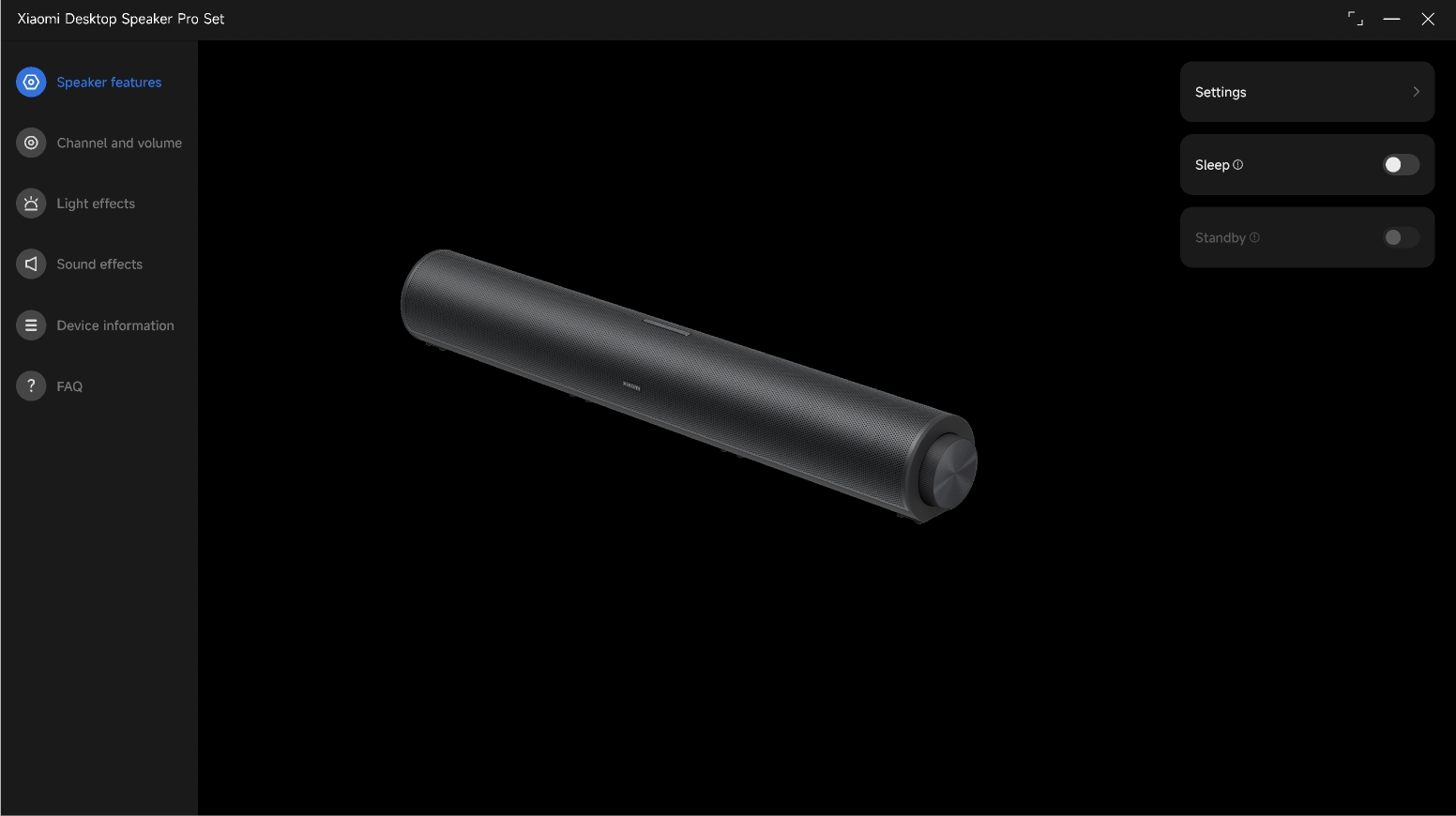
A: Xiaomi C-HUB provides comprehensive software management features for the Xiaomi Desktop Speaker Pro Set, including speaker control, channel and volume settings, lighting effects, sound effects, and firmware upgrades.
1. Speaker functions: Restart, factory reset, interface language selection, sleep mode on/off and duration, standby on/off and duration.
2. Channel and volume: Channel selection (USB channel, Bluetooth channel, AUX IN channel), activation of the Mixed channel (supports simultaneous playback of USB channel and AUX IN channel audio sources), channel prompt sound on/off and volume level, and volume adjustment.
3. Lighting effects: RGB lighting on/off, RGB lighting effect selection, RGB brightness adjustment, and lighting prompt sound on/off.
4. Sound effects: Switching between five sound modes, EQ adjustment for each sound mode, sound effect reset, and sound effect prompt sounds.
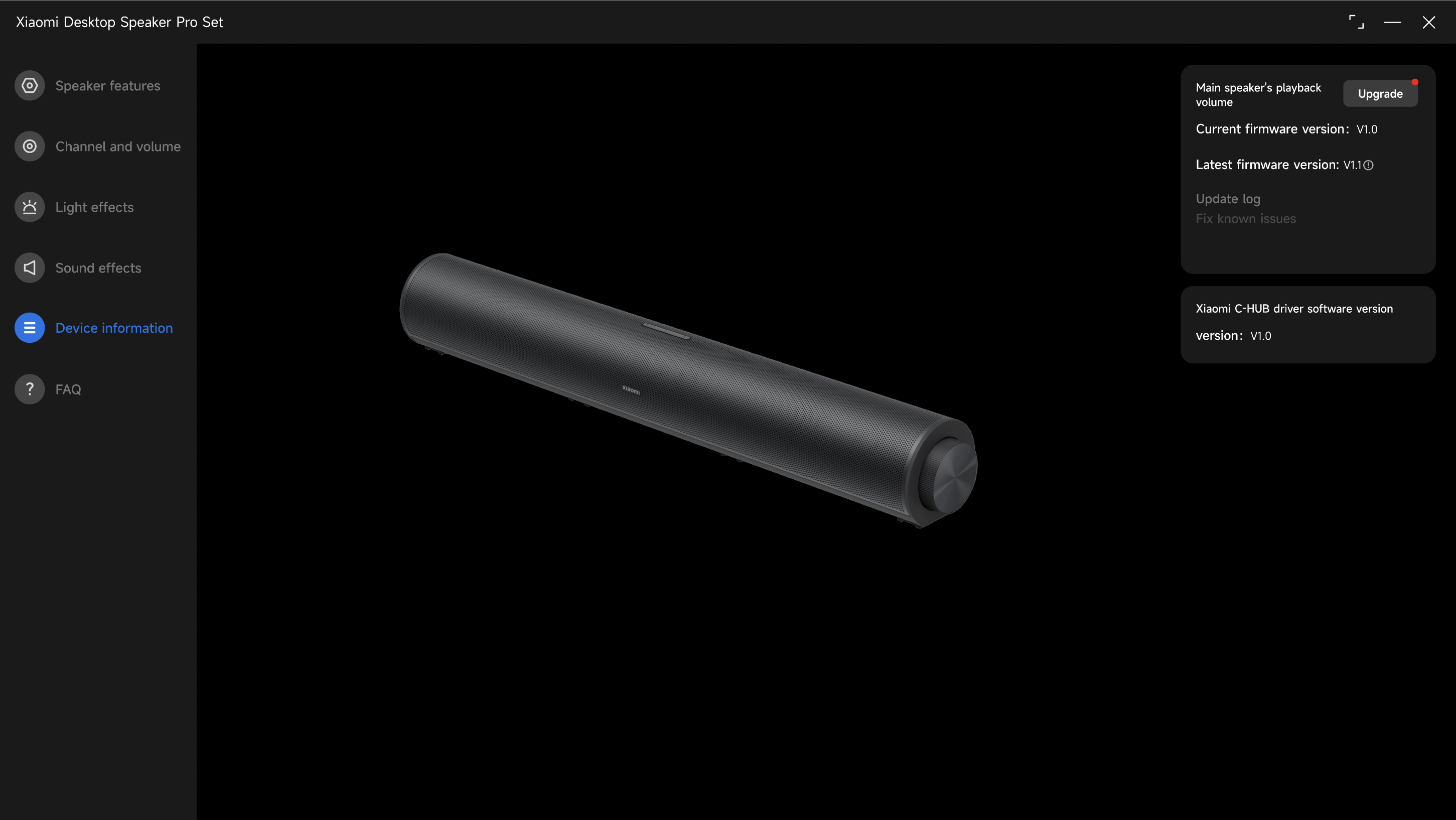
5. Device information: Displays current device firmware and software versions, upgrade notifications, and online firmware upgrade support.
Note:
Before using the Xiaomi C-HUB, make sure the Xiaomi Desktop Speaker Pro Set is powered on with the power adapter and connected to the computer via a data cable. The Xiaomi C-HUB will automatically detect the device information.
Q33: How to upgrade the firmware of the Xiaomi Desktop Speaker Pro Set?
A: To upgrade the firmware of the Xiaomi Desktop Speaker Pro Set, please follow the steps below:
1. Upgrade preparation:
There are two scenarios: Xiaomi C-HUB already installed and not installed. If the Xiaomi C-HUB is already installed and a new firmware is available, update the Xiaomi C-HUB from the App Store to obtain the latest firmware package. If the Xiaomi C-HUB is not installed, download and install it from the official App Store first. Connect the Xiaomi Desktop Speaker Pro Set to the power adapter and turn it on, then connect it to the computer using the supplied data cable.
2. Upgrade steps:
Launch the Xiaomi C-HUB on your computer. After startup, the application automatically checks the current firmware version of the Xiaomi Desktop Speaker Pro Set. If a new firmware version is available, an upgrade prompt window will appear automatically. Click “Update now” to start the upgrade process.
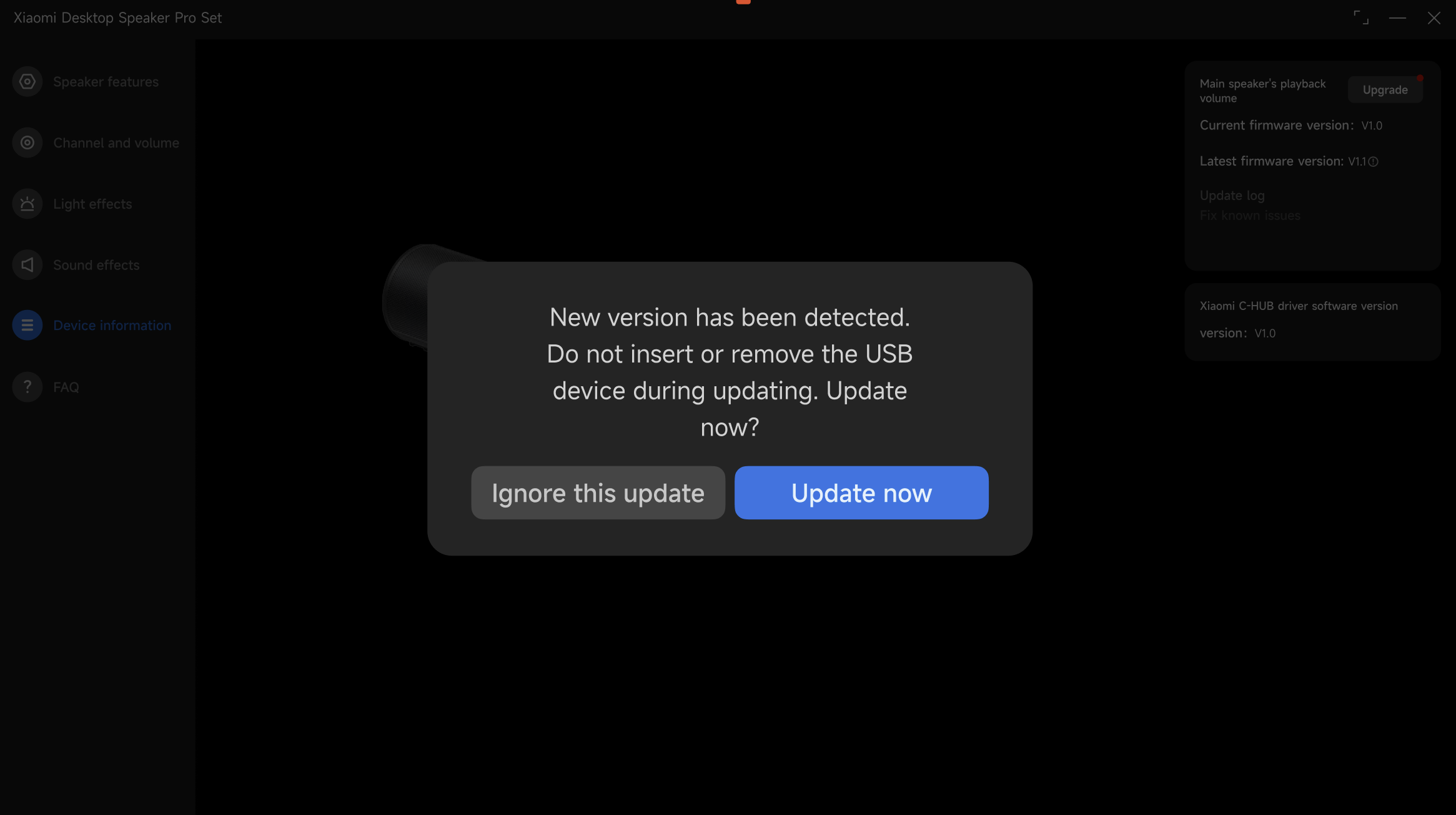
If “Ignore this update” was selected previously, a persistent red dot indicator will appear in the “Device information” section of the left navigation bar in the Xiaomi C-HUB, indicating that an update is available and cannot be manually dismissed. Enter the “Device information” page and click “Upgrade”, then follow the on-screen instructions to decide whether to proceed with the firmware upgrade.
Note:
1. During the upgrade, keep the data cable connection between the speaker and the computer stable and ensure a continuous power supply.
2. Do not disconnect the cable or power off the device during the upgrade, as this can cause upgrade failure or device malfunction.
3. It is recommended to back up important settings (such as custom configurations) before upgrading, although speaker devices mainly store system files.
4. If your computer uses an AMD processor, be aware that there is a potential risk of system freeze during the upgrade. Extra caution is advised, and using an Intel-based computer for the upgrade is recommended.
5. If issues occur that cannot be resolved independently, or if abnormalities appear after the upgrade, contact the official after-sales service center for further assistance.
Q34: How to place the wireless subwoofer in the Xiaomi Desktop Speaker Pro Set?
A: The placement of the wireless subwoofer in the Xiaomi Desktop Speaker Pro Set gives you flexible options for personalized sound tuning.
You can adjust the low-frequency performance by changing its position based on your listening preferences:
1. For optimal overall sound quality, place the wireless subwoofer and the main speaker in the same room and keep them relatively close (within 1.5 meters). This helps avoid low-frequency cancellation caused by phase differences, which can result in weak bass. If the bass feels insufficient, gradually adjust the distance between the wireless subwoofer and the main speaker until the low frequencies sound full and balanced.
2. For a stronger bass impact, place the wireless subwoofer directly on a solid floor. Positioning it near a wall corner can significantly enhance bass output. If you prefer tighter and more controlled bass, place the wireless subwoofer on a desk or raise it slightly off the ground. This can make the bass clearer and more focused while reducing excessive rumble.
Note:
When placing the wireless subwoofer of the Xiaomi Desktop Speaker Pro Set directly on the floor, especially on wooden flooring, vibrations can easily transmit to rooms below. While enjoying powerful sound effects, please be mindful of volume levels and playback duration to avoid disturbing others.
Q35: Why does the wireless subwoofer in the Xiaomi Desktop Speaker Pro Set produce no sound or sound different from the main speaker?
A: If the wireless subwoofer in the Xiaomi Desktop Speaker Pro Set produces no sound or sounds different from the main speaker, please check the following:
1. Confirm the wireless subwoofer is powered on. The wireless subwoofer automatically synchronizes with the main speaker in terms of power on/off (except forced power-off by unplugging), sleep, standby, volume, sound effects, and lighting effects. Under normal power-connected conditions, press the power button to turn it on.
2. In the Xiaomi Desktop Speaker Pro Set, the main speaker and the wireless subwoofer handle different frequency ranges. The main speaker is responsible for mid and high frequencies, delivering clear vocals and instrument details, while the wireless subwoofer focuses on low frequencies to produce deep and powerful bass for movie effects and music beats. Not all audio tracks contain strong low-frequency content, so try playing music with more pronounced bass to evaluate performance.
3. Human hearing is less sensitive to low frequencies at low volume levels. Increasing the volume appropriately can help you better perceive the bass performance of the wireless subwoofer.
FAQs
Q1: Does the Xiaomi Desktop Speaker Pro Set support binding with the Xiaomi Home App?
A: The Xiaomi Desktop Speaker Pro Set does not support binding with the Xiaomi Home App.
Q2: Why is the sound still quiet when the volume of the main speaker in the Xiaomi Desktop Speaker Pro Set is set to maximum?
A: The computer volume and the volume of the main speaker in the Xiaomi Desktop Speaker Pro Set are not synchronized. Please check the volume settings on your computer and adjust both the computer and speaker volumes accordingly until you achieve a satisfactory level.
If the Xiaomi Desktop Speaker Pro Set is used as a long-term audio output device for a computer, it is recommended to set the computer volume to maximum and adjust the volume only by rotating the Multi-function button on the speaker.
Q3: Why is there no sound even though the main speaker in the Xiaomi Desktop Speaker Pro Set is connected to a computer or phone via Bluetooth?
A: If the main speaker in the Xiaomi Desktop Speaker Pro Set is connected via Bluetooth but no sound is heard, please check the following:
1. Press the Action button twice to switch channels and return to the Bluetooth channel. After switching back, the speaker will automatically reconnect to previously paired devices within Bluetooth range that have not been unpaired. Reconnection usually takes up to 5 seconds. Try playback again after reconnection.
2. Check whether the speaker is connected to another device. If the LED on the top of the speaker stays on but it is not connected to the desired playback device, press and hold the Action button for 2 seconds to reset Bluetooth, then re-pair with the intended device.
3. The Bluetooth connection of the Xiaomi Desktop Speaker Pro Set has a performance limit of up to 10 meters. Exceeding this distance can cause audio stuttering or disconnection.
4. If there is still no sound after steps 1–3, please check the computer or phone and set the audio output to “Xiaomi Desktop Speaker Pro Set.”
Q4: Why is there no sound when the main speaker in the Xiaomi Desktop Speaker Pro Set is connected to a computer or phone via USB?
A: If the main speaker in the Xiaomi Desktop Speaker Pro Set is connected via a USB cable but no sound is heard, please check the following:
1. Make sure the speaker has been switched to the USB channel. Press the Action button twice until you hear the voice prompt “USB channel.”
2. If there is still no sound, please check the computer or phone and set the audio output to “Xiaomi Desktop Speaker Pro Set.”
Note:
Some phones and tablets can not support wired audio connections due to protocol limitations.
Q5: Why is there no sound when the main speaker in the Xiaomi Desktop Speaker Pro Set is connected via an AUX cable?
A: If the main speaker in the Xiaomi Desktop Speaker Pro Set is connected via an AUX audio cable but no sound is heard, please check the following:
1. Confirm that the speaker has been switched to the AUX IN channel by pressing the Action button twice until you hear the voice prompt “AUX IN channel.”
2. If there is still no sound, check the audio output settings on your device. On Windows, set the output to “Headphones (Realtek(R) Audio)” (the name can vary depending on the device). On macOS, select External Headphones.
3. If there is still no sound, check whether the AUX cable and the audio source port are compatible. The AUX interface of the Xiaomi Desktop Speaker Pro Set follows the 3.5 mm TRS (three-pole) standard.
Q6: Two Bluetooth device names, Stereo and Hands-Free, appear when connecting the main speaker of the Xiaomi Desktop Speaker Pro Set to a computer. Which one should be used?
A: Hands-Free refers to a Bluetooth communication mode optimized for voice calls in Windows systems and is not suitable for high-quality audio playback. When the speaker microphone is active, Windows automatically switches to Hands-Free mode and switches back to Stereo mode after the microphone is disabled.
When two Bluetooth devices appear in the computer’s Bluetooth list, please select “Xiaomi Desktop Speaker Pro Set-XXXX Stereo” for playback, as it provides better sound quality and clearer music performance.
Q7: Why does the main speaker in the Xiaomi Desktop Speaker Pro Set fail to power on?
A: The main speaker in the Xiaomi Desktop Speaker Pro Set automatically powers on once it is connected to power.
If the main speaker in the Xiaomi Desktop Speaker Pro Set fails to power on, please check the following:
1. The speaker requires external power. Ensure the power adapter is properly connected and check the condition of both the device and the adapter.
2. If the speaker was manually powered off and the adapter was disconnected, reconnecting power within 7 seconds can prevent automatic startup due to circuit protection. In this case, press the multi-function button to power it on. The wireless subwoofer must also be powered on manually if it is in a standby state.
Unplugging the power adapter directly causes a forced shutdown and is not recommended for frequent use.
Q8: What to do if the main speaker in the Xiaomi Desktop Speaker Pro Set freezes, becomes unresponsive, has no sound, or the lighting effect is stuck?
A: If the main speaker in the Xiaomi Desktop Speaker Pro Set freezes, becomes unresponsive, has no sound, or the lighting effect is stuck, please try the following:
1. Check if the speaker itself is experiencing any lag or stuttering. Unplug the power cable and then reconnect it to try pairing the device again.
2. If the issue persists after powering the speaker back on, press and hold the Multi-function button for 7 seconds to restore factory settings.
3. If the problem continues, please contact the after-sales service center for further assistance.
Q9: What precautions should be taken when using the Xiaomi Desktop Speaker Pro Set?
A: The precautions that should be taken when using the Xiaomi Desktop Speaker Pro Set are as follows:
1. Use the Xiaomi Desktop Speaker Pro Set indoors in a dry and well-ventilated environment. Avoid high temperatures, high humidity, or dusty conditions.
2. The power adapter plug serves as the disconnect device. Ensure the power socket is nearby and easily accessible. Only use the original power adapter, as non-original accessories can cause damage or safety hazards.
3. Do not place open flames or flammable items near the Xiaomi Desktop Speaker Pro Set. Avoid contact with water or liquids, and do not place containers filled with liquid on or near the product.
4. The Xiaomi Desktop Speaker Pro Set is not a toy. Keep it out of reach of children. Do not modify, disassemble, or repair the product without authorization, as this can cause short circuits, damage, or fire hazards. Unauthorized modifications void the warranty.
Q10: Why is there noise when an external microphone is connected to the main speaker in the Xiaomi Desktop Speaker Pro Set?
A: The Xiaomi Desktop Speaker Pro Set features built-in microphone noise reduction, delivering good call quality without an external microphone. When an external microphone is connected, noise reduction depends on third-party software algorithms.
Q11: Why is there noise when making calls on an iOS phone via Bluetooth with the main speaker in the Xiaomi Desktop Speaker Pro Set?
A: Different brands and systems handle speakerphone noise reduction differently. Android devices apply system-level noise reduction, while iOS does not apply noise reduction in speakerphone mode.
When making Bluetooth calls with the Xiaomi Desktop Speaker Pro Set and the other party uses iOS speakerphone mode, background white noise can be heard. Using the iOS handset or Bluetooth earphones avoids this issue. This is a normal phenomenon.
Q12: What to do if the Xiaomi Desktop Speaker Pro Set upgrade fails and the speaker won't turn on due to a power outage or USB disconnection during the upgrade process?
A: Download and install the latest version of Xiaomi C-HUB from the Microsoft Store or Apple App Store. Connect the main speaker in the Xiaomi Desktop Speaker Pro Set to power and link it to the computer via a USB cable. Close and reopen the software, then remain on the page for 3-5 minutes. The software will automatically repair the speaker in the background and power it on.
Q13: How can the main speaker in the Xiaomi Desktop Speaker Pro Set be connected to a projector?
A: The main speaker in the Xiaomi Desktop Speaker Pro Set can be connected to a projector via USB, AUX IN channel, or Bluetooth, depending on the projector’s supported connection methods.
For wired connections, press the Action button twice to switch to the corresponding USB or AUX IN channel.
For Bluetooth pairing (using a Xiaomi projector as an example), press and hold the Action button for 2 seconds in any channel to enter Bluetooth pairing mode, then select Xiaomi Desktop Speaker Pro Set under [Settings] >> [External devices & Bluetooth] on the projector.
Q14: How to place and use the wireless subwoofer in the Xiaomi Desktop Speaker Pro Set?
A: The wireless subwoofer and main speaker of the Xiaomi Desktop Speaker Pro Set are factory-paired and ready to use after powering on. For optimal sound performance, keep the distance between the main speaker and the wireless subwoofer within 1.5 meters.
The wireless subwoofer automatically synchronizes power, sleep, standby, volume, sound effects, and lighting effects with the main speaker (except in forced power-off situations).
To re-pair the wireless subwoofer to the main speaker, please refer to the following steps:
1. While powered on, press and hold the main speaker’s power button for 7 seconds to reset the wireless subwoofer.
2. Place the wireless subwoofer within 0.5 meters of the powered-on main speaker and the pairing will complete automatically.
3. Powering the wireless subwoofer on or off does not affect the main speaker.
Note:
Resetting the main speaker does not affect the wireless subwoofer’s connection status.
Q15: Why does audio stutter when using the main speaker in the Xiaomi Desktop Speaker Pro Set?
A: If the audio stutters when using the main speaker in the Xiaomi Desktop Speaker Pro Set, please refer to the following information:
1. Bluetooth connections are limited to 10 meters. Exceeding this distance or nearby signal sources such as routers can cause interference. Keep a distance of at least 50 cm from such devices.
2. If stuttering occurs when using the AUX IN channel, try replacing the cable. Non-certified or low-quality cables can cause noise or instability.
Q16: Can the wireless subwoofer of the Xiaomi Desktop Speaker Pro Set be used independently?
A: The wireless subwoofer in the Xiaomi Desktop Speaker Pro Set cannot be used independently and is not compatible with other speaker models. It is professionally tuned to work with the main speaker for optimal sound performance.
Q17: Why is the music rhythm effect less noticeable when using a wired connection with the Xiaomi Desktop Speaker Pro Set?
A: In wireless mode, the Xiaomi Desktop Speaker Pro Set synchronizes volume with the computer system. In wired mode, volume can be adjusted separately on the computer and the speaker. If the system volume is low, the rhythm lighting effect becomes less noticeable. It is recommended to keep the computer volume at 50% or higher during wired use.
Q18: Why is there no sound when connecting the Xiaomi Desktop Speaker Pro Set to a computer via USB only?
A: If the Xiaomi Desktop Speaker Pro Set produces no sound when connected via USB while other channels work normally, please check and update the USB driver of the computer’s motherboard.
Q19: Why can faint noise be heard when placing your ear close to the wireless subwoofer in the Xiaomi Desktop Speaker Pro Set during voice prompts?
A: During operation, both the main speaker and the wireless subwoofer of the Xiaomi Desktop Speaker Pro Set play voice prompts simultaneously. Firmware optimization is available via Xiaomi C-HUB through the Microsoft Store or Apple App Store to further improve this behavior.
Does it help?