

POCO Smart Pen FAQ
Product Information
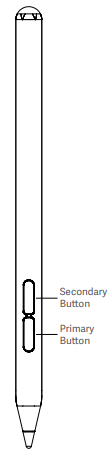
Q1: What are the buttons of the POCO Smart Pen?
A: The POCO Smart Pen has two buttons: the Secondary button and the Primary button.
Q2: How to use the buttons of the POCO Smart Pen?
A: To use the buttons of the POCO Smart Pen, please refer to the following information:
Primary button:
Press and hold the primary button and touch the display to open the Mi Canvas App. Tap the button on the Mi Canvas App to switch brushes.
Secondary button:
Press and hold the secondary button and touch the display to quickly take a screenshot. Tap the button in the Mi Canvas App to switch colors.
Q3: How to replace the tip of the POCO Smart Pen?
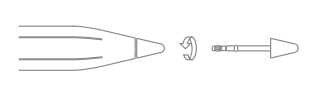
A: The package includes a spare pen tip. Gently pull out the old tip to replace.
Q4: How to charge the POCO Smart Pen?
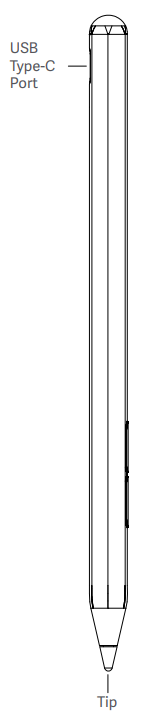
A: The POCO Smart Pen has a Type-C port. Please charge the POCO Smart Pen with a USB Type-C charger.
Q5: How to pair the POCO Smart Pen with the tablet?
A: This POCO Smart Pen is paired with the tablet via Bluetooth. Please press and hold the Primary or Secondary button for 3 seconds, tap to connect upon receiving the Bluetooth pop-up window on the tablet.
Q6: How to reset the POCO Smart Pen?
A: Press and hold the Secondary button for 15 seconds to reset the POCO Smart Pen.
Q7: What are the statuses of the battery indicator on the POCO Smart Pen?
A: The POCO Smart Pen has a battery level indicator. The indicator is yellow when the stylus starts charging, green when fully charged, and flashes red when the stylus is low on battery.
FAQs
Q1: Why does the POCO Smart Pen's battery drain so quickly when it's not in use?
A: To provide a more convenient writing experience and superior drawing results, we've improved the sensitivity of the stylus's motion recognition, preventing it from entering sleep mode during gentle writing activities and thus impacting the usage experience. We also aim to ensure you can quickly resume writing during breaks, providing a better creative experience. The stylus is frequently woken up when not in use, resulting in battery consumption even when not in use. We will continue to optimize the stylus's sleep logic. Please wait patiently for future system updates.
Q2: Why does the tablet fail to recognize the font when writing with the POCO Smart Pen?
A: Please be careful not to write characters in inconsistent sizes, at an angle, or in reverse order. This can effectively reduce the occurrence of errors in character recognition.
Q3: Why does the POCO Smart Pen's battery drain so quickly when it's low?
A: A flashing red indicator is designed to indicate when the POCO Smart Pen is low on battery. The alternating bright and dim light indicates that the stylus needs to be charged. The indicator consumes power when it is in use, so the stylus battery will drop relatively quickly when it is low on battery. This is normal, so please use it with confidence.
Does it help?