

Why does the Xiaomi Smart Band 10 Ceramic Edition fail to receive the messages of third-party APPs on the phone?
If the Xiaomi Smart Band 10 Ceramic Edition fails to receive the messages of third-party APPs on the phone, please refer to the following methods for troubleshooting:
1. Please check whether the notification permission of the third-party APPs is enabled;
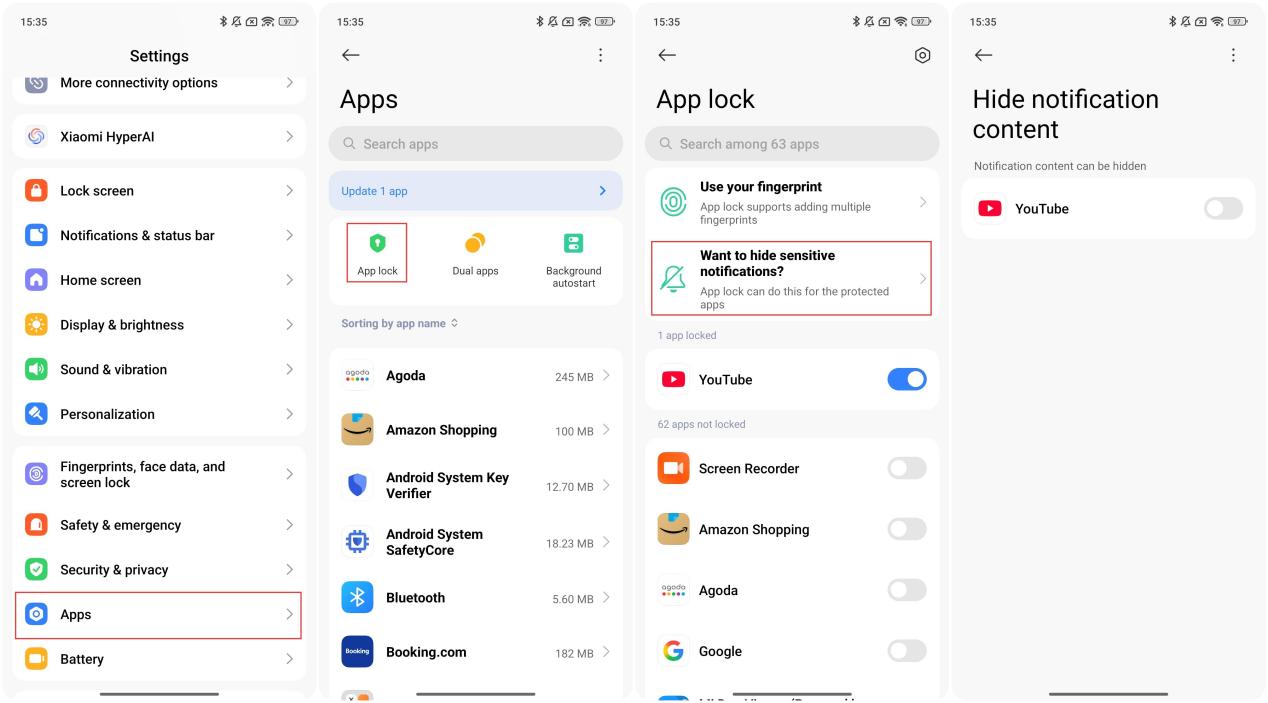
2. Please check whether [App lock] is enabled on your phone. You need to disable the feature of hiding notification content by going to [Settings] >> [Apps] >> [App lock] >> [Want to hide sensitive notifications?] >> select from the APPs;
3. Please check whether background lock or auto start-up of the Mi Fitness APP is enabled. If the APP disconnects with the band, the notifications will not be synchronized to the band.
If the Xiaomi Smart Band 10 Ceramic Edition fails to receive the notifications from the iPhone, Please refer to the following methods for troubleshooting:
1. Please ensure the Mi Fitness APP is running in the background and keep the connection status between the APP and the band;
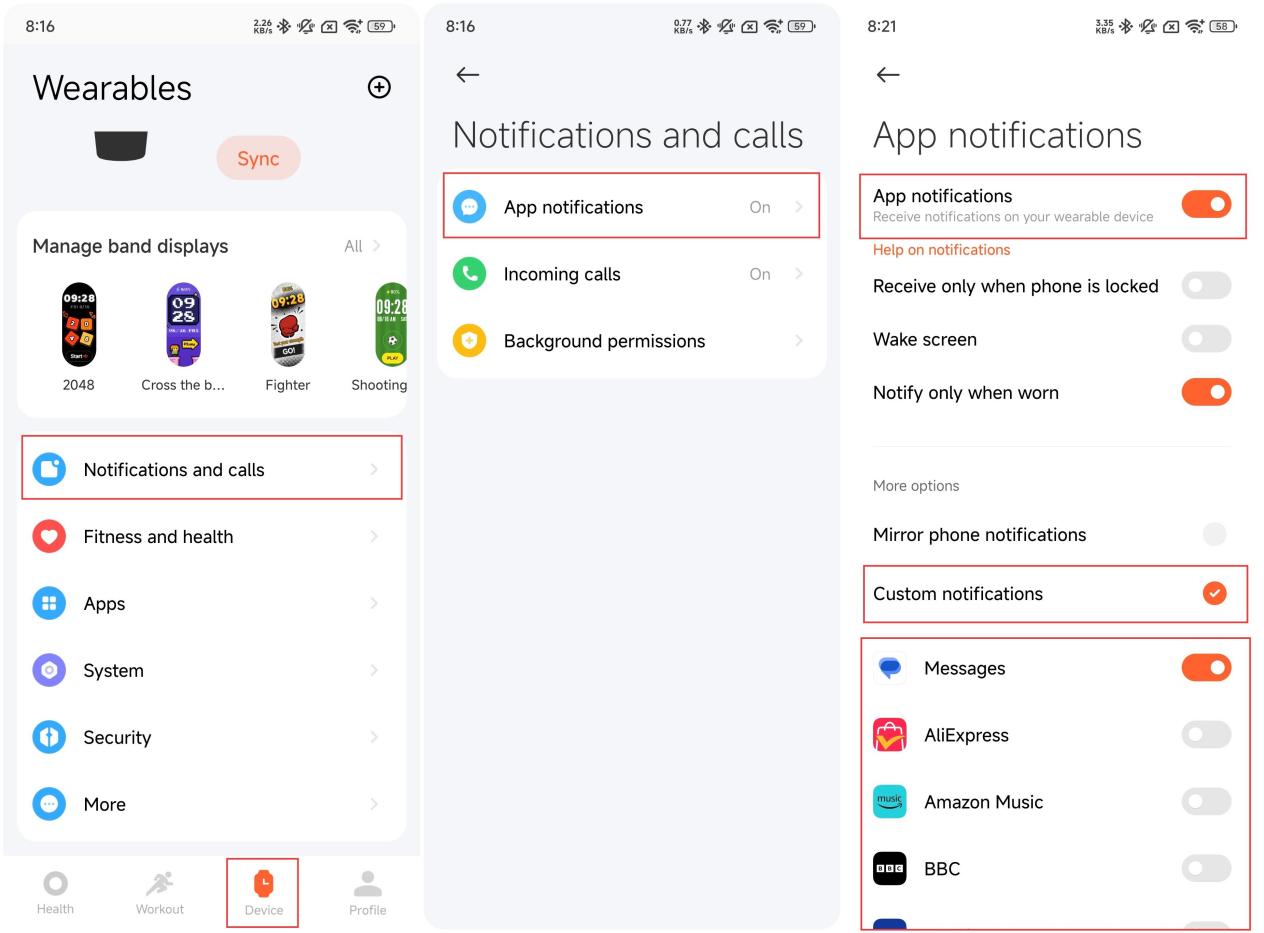
2. Please check whether the APP notification is enabled in the Mi Fitness APP. You can go to the Mi Fitness APP >> [Device] >> [Notifications and calls] >> [App notifications] >> enable [App notifications] >> [Custom notifications] >> select corresponding third-party APP;
3. Please check whether [Notify only when worn] is enabled in the Mi Fitness APP. If this option is enabled, when you don’t wear the band, the notification will not be pushed in full screen, but it will be kept at the notification center. When you wear the band, the notifications will be pushed in full screen;
4. Please check whether the APP is beyond the screen usage time limit. If so, please disable the limit;
5. Please check whether the Bluetooth settings on your phone can share system notifications;
6. Please go to the settings APP on your phone, enable the notification permission of corresponding third-party APP and select the option of notification center;
7. Please configure the display preview of corresponding APP as Always in the settings APP on your phone;
8. Please search corresponding third-party APP in the settings APP on your phone and select the option of notification center in the notification settings interface.
1. Please check whether the notification permission of the third-party APPs is enabled;
2. Please check whether [App lock] is enabled on your phone. You need to disable the feature of hiding notification content by going to [Settings] >> [Apps] >> [App lock] >> [Want to hide sensitive notifications?] >> select from the APPs;
3. Please check whether background lock or auto start-up of the Mi Fitness APP is enabled. If the APP disconnects with the band, the notifications will not be synchronized to the band.
If the Xiaomi Smart Band 10 Ceramic Edition fails to receive the notifications from the iPhone, Please refer to the following methods for troubleshooting:
1. Please ensure the Mi Fitness APP is running in the background and keep the connection status between the APP and the band;
2. Please check whether the APP notification is enabled in the Mi Fitness APP. You can go to the Mi Fitness APP >> [Device] >> [Notifications and calls] >> [App notifications] >> enable [App notifications] >> [Custom notifications] >> select corresponding third-party APP;
3. Please check whether [Notify only when worn] is enabled in the Mi Fitness APP. If this option is enabled, when you don’t wear the band, the notification will not be pushed in full screen, but it will be kept at the notification center. When you wear the band, the notifications will be pushed in full screen;
4. Please check whether the APP is beyond the screen usage time limit. If so, please disable the limit;
5. Please check whether the Bluetooth settings on your phone can share system notifications;
6. Please go to the settings APP on your phone, enable the notification permission of corresponding third-party APP and select the option of notification center;
7. Please configure the display preview of corresponding APP as Always in the settings APP on your phone;
8. Please search corresponding third-party APP in the settings APP on your phone and select the option of notification center in the notification settings interface.
Does it help?
Yes
No