

Xiaomi Smart Camera C100 FAQ
Function Introduction
1. Q: What are the features of the Xiaomi Smart Camera C100?
A: The Xiaomi Smart Camera C100 has many features, here are some main features:
1. The Xiaomi Smart Camera C100 has a resolution of 3 million pixels, presenting a 2K ultra-clear image quality. The picture is detailed and bright, revealing more details of the home environment, it can display full-color night vision in extremely dim light conditions, extending the duration of color imaging. It enhances infrared night vision, making the night view also clear;
2. The intelligent night light automatically turns on when it detects the presence of someone at night, illuminating the indoor environment with soft light;
3. The physical lens covers ensure privacy by blocking the camera when not in use, you can activate the Physical Lens Blocking Toggle to cover the lens, ensuring privacy, it is convenient, fast and allows for a free stay at home;
4. It has a human detection function, with a built-in Al human shape detection module, which can detect human shapes more quickly and identify suspicious movements. Based on the alarm time interval for home surveillance, it sends real-time image alert messages;
5. It has a built-in loud noise detection function. When a loud noise is detected in the home, based on the alarm time interval, it sends real-time image alert messages;
6. It has a built-in baby crying detection function. When family members are not with the baby and the baby starts crying, based on the alarm time interval for home security, it promptly sends a notification to the family;
7. The device’s pickup distance of sounds is 5 meters and microphone has intelligent noise reduction, making the call clearer.
1. The Xiaomi Smart Camera C100 has a resolution of 3 million pixels, presenting a 2K ultra-clear image quality. The picture is detailed and bright, revealing more details of the home environment, it can display full-color night vision in extremely dim light conditions, extending the duration of color imaging. It enhances infrared night vision, making the night view also clear;
2. The intelligent night light automatically turns on when it detects the presence of someone at night, illuminating the indoor environment with soft light;
3. The physical lens covers ensure privacy by blocking the camera when not in use, you can activate the Physical Lens Blocking Toggle to cover the lens, ensuring privacy, it is convenient, fast and allows for a free stay at home;
4. It has a human detection function, with a built-in Al human shape detection module, which can detect human shapes more quickly and identify suspicious movements. Based on the alarm time interval for home surveillance, it sends real-time image alert messages;
5. It has a built-in loud noise detection function. When a loud noise is detected in the home, based on the alarm time interval, it sends real-time image alert messages;
6. It has a built-in baby crying detection function. When family members are not with the baby and the baby starts crying, based on the alarm time interval for home security, it promptly sends a notification to the family;
7. The device’s pickup distance of sounds is 5 meters and microphone has intelligent noise reduction, making the call clearer.
2. Q: How are the security and privacy of the Xiaomi Smart Camera C100 ensured?
A: The Xiaomi Smart Camera C100 ensures safety and privacy through the following advantages:
1. The Xiaomi Smart Camera C100 is equipped with Xiaomi home security chip, effectively ensuring communication and storage security. Data transmission is fully encrypted, and cloud data is encrypted using AES 128-bit. This ensures that privacy is not leaked;
2. The Xiaomi Smart Camera C100 supports physical lens shielding. When the camera is not in use, it can be concealed by activating the Physical Lens Blocking Toggle to protect privacy;
3. The local AI algorithm of the Xiaomi Smart Camera C100 ensures more secure local data processing.
1. The Xiaomi Smart Camera C100 is equipped with Xiaomi home security chip, effectively ensuring communication and storage security. Data transmission is fully encrypted, and cloud data is encrypted using AES 128-bit. This ensures that privacy is not leaked;
2. The Xiaomi Smart Camera C100 supports physical lens shielding. When the camera is not in use, it can be concealed by activating the Physical Lens Blocking Toggle to protect privacy;
3. The local AI algorithm of the Xiaomi Smart Camera C100 ensures more secure local data processing.
3. Q: What are the package contents of the Xiaomi Smart Camera C100?
A: Xiaomi Smart Camera C100 × 1, Charging cable × 1, Wall mounting kit × 1, User manual × 1, Mounting sticker × 1.
4. Q: What is Xiaomi Smart Camera C100 appearance?
A: The appearance of Xiaomi Smart Camera C100 is as follows:
Front view: Fill Light, Lens, Indicator, Microphone;
Rear view: Loudspeaker, Type-C Power Port;
Left view: MicroSD Card Slot, Reset Button;
Right View: Physical Lens Blocking Toggle.
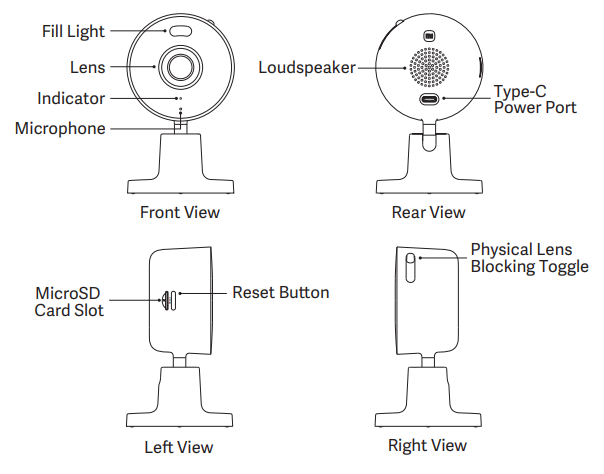
Front view: Fill Light, Lens, Indicator, Microphone;
Rear view: Loudspeaker, Type-C Power Port;
Left view: MicroSD Card Slot, Reset Button;
Right View: Physical Lens Blocking Toggle.
5. Q: What is the power supply of the Xiaomi Smart Camera C100?
A: The Xiaomi Smart Camera C100 is powered by a 5V 1A adapter. To ensure normal operation, please use the original adapter. This camera does not have a built-in power source and requires a long-term power supply for use.
Note:
The Xiaomi Smart Camera C100 has a Type-C power supply interface. When using the device, please use the official charging cable.
Note:
The Xiaomi Smart Camera C100 has a Type-C power supply interface. When using the device, please use the official charging cable.
6. Q: What is the specification of the charging cable for the Xiaomi Smart Camera C100?
A: The charging cable of the Xiaomi Smart Camera C100 is 2 meters long. It is not recommended to use an extension cable as it will cause abnormal operation of the device.
7. Q: What installation methods does the Xiaomi Smart Camera C100 have?
A: The Xiaomi Smart Camera C100 has multiple installation methods. It can be placed on flat objects such as desks, dining tables, and coffee tables, or it can be fixedly installed on the wall.
8. Q: How to install the Xiaomi Smart Camera C100 on the wall?
A: To install the Xiaomi Smart Camera C100 on the wall, please refer to the following steps:
1. According to the spacing of the base holes, use a drilling tool to make two holes on the wall surface. It is recommended to mark the wall with a pencil before drilling, and then make the holes. The diameter of the holes is approximately 6mm, and the depth is about 30 mm;
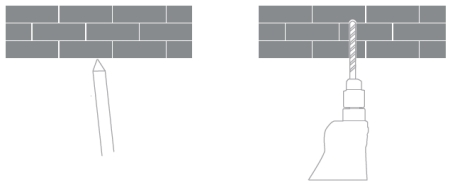
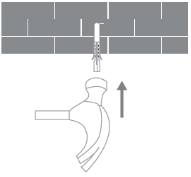
2. Drive two plastic expansion bolts into the wall;
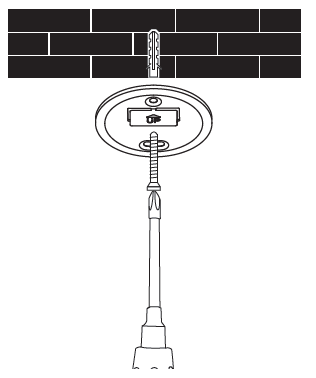
3. Place the base with the arrow facing upwards. Align the holes of the base with the holes on the wall surface. Insert the screws through the holes in the base and screw them into the expansion nuts on the wall with a cross-head screwdriver;
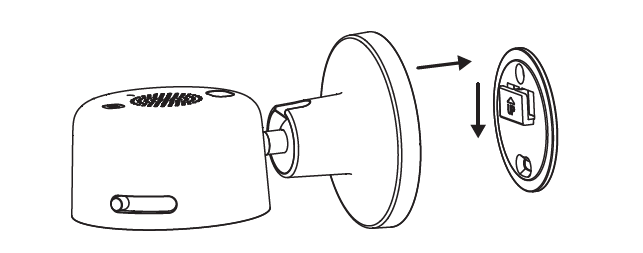
4. Align the groove at the bottom of the camera with the raised part on the bracket, then slide it down to install the snap fastener in place.
Note:
1. The wall where the installation is carried out must be able to bear at least three times the total weight of the camera;
2. To avoid any damage, the device must be firmly fixed to the floor/wall according to the installation instructions;
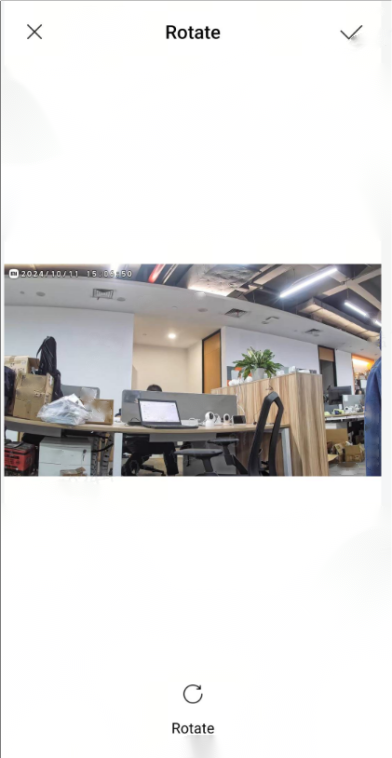
3. After choosing the inverted installation, the image settings in the Mi Home/Xiaomi Home APP need to be rotated 180 degrees;
4. The Wall mounting kit is compatible with other pan-tilt cameras. The distance between the two holes on the base in the Wall mounting kit is 36mm.
1. According to the spacing of the base holes, use a drilling tool to make two holes on the wall surface. It is recommended to mark the wall with a pencil before drilling, and then make the holes. The diameter of the holes is approximately 6mm, and the depth is about 30 mm;
2. Drive two plastic expansion bolts into the wall;
3. Place the base with the arrow facing upwards. Align the holes of the base with the holes on the wall surface. Insert the screws through the holes in the base and screw them into the expansion nuts on the wall with a cross-head screwdriver;
4. Align the groove at the bottom of the camera with the raised part on the bracket, then slide it down to install the snap fastener in place.
Note:
1. The wall where the installation is carried out must be able to bear at least three times the total weight of the camera;
2. To avoid any damage, the device must be firmly fixed to the floor/wall according to the installation instructions;
3. After choosing the inverted installation, the image settings in the Mi Home/Xiaomi Home APP need to be rotated 180 degrees;
4. The Wall mounting kit is compatible with other pan-tilt cameras. The distance between the two holes on the base in the Wall mounting kit is 36mm.
9. Q: How to turn on the Xiaomi Smart Camera C100?
A: Plug the power cable of the camera into the Type-C power socket at the rear of the camera. Insert the power cable into the adapter and turn on the power. The camera will automatically start. To turn off the camera, you need to cut off the power supply.
If the indicator flashes in orange, it indicates that the camera has started successfully. If the indicator does not flash in orange, press and hold the reset button for 7 seconds to restart.
If the indicator flashes in orange, it indicates that the camera has started successfully. If the indicator does not flash in orange, press and hold the reset button for 7 seconds to restart.
10. Q: What are the indicator statuses of the Xiaomi Smart Camera C100?
A: The indicator on the Xiaomi Smart Camera C100 lights up for the following statuses:
Keeping in blue: Connected successfully/Working properly;
Blinking in blue: Network error;
Blinking in orange quickly: Waiting for connection;
Blinking in orange slowly: Updating.
Keeping in blue: Connected successfully/Working properly;
Blinking in blue: Network error;
Blinking in orange quickly: Waiting for connection;
Blinking in orange slowly: Updating.
11. Q: How to install a microSD card in the Xiaomi Smart Camera C100?
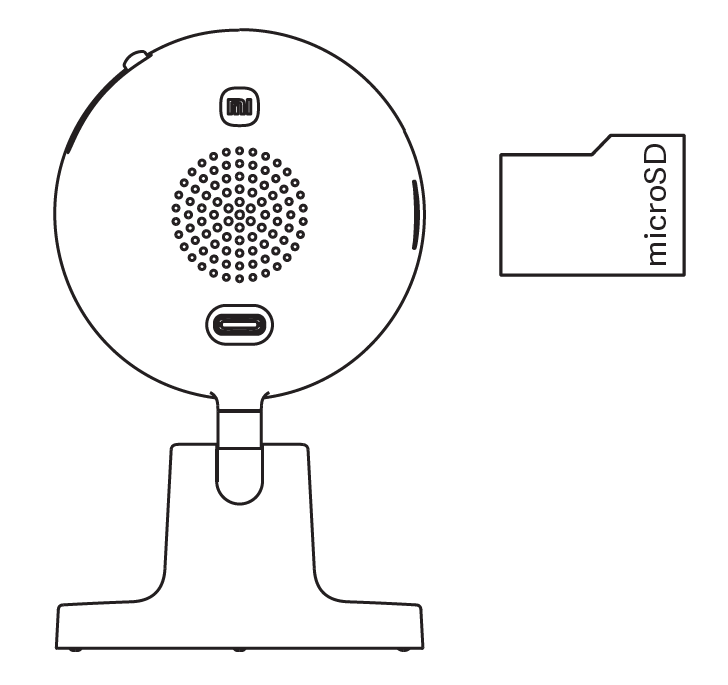
A: The microSD card slot of the Xiaomi Smart Camera C100 is on the side of the camera. First, make sure the camera is powered off. Insert the microSD card with the contact surface facing the lens towards the card slot.
Note:
When installing or removing the microSD memory card, you must first turn off the camera's power before proceeding with the operation.
Note:
When installing or removing the microSD memory card, you must first turn off the camera's power before proceeding with the operation.
12. Q: What type of microSD card should be used for the Xiaomi Smart Camera C100?
A: The Xiaomi Smart Camera C100 should use microSD cards produced by reputable manufacturers. It is preferable to use cards specifically designed for security monitoring. MicroSD cards support a maximum capacity of 256GB (256GB microSD cards in EXFAT format need to be entered into the camera plugin page in the Mi Home/Xiaomi Home APP, and formatted into FAT32 format in the [Settings] >> [Storage settings] before they can be used). It is recommended that the read and write speed of the storage card be no less than U1/Class10 level.
13. Q: How long can a memory card store video on the Xiaomi Smart Camera C100?
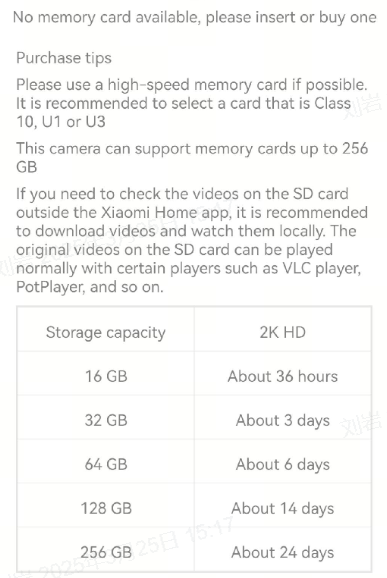
A: The 256GB memory card is expected to be able to store video content for approximately 24 days.
The 128GB memory card is expected to be able to store video content for about 14 days.
The 64GB memory card is expected to be able to store video content for around 6 days.
The 32GB memory card is expected to be able to store video content for approximately 3 days.
The 16GB memory card is expected to be able to store video content for about 36 hours.
The 8GB memory card is expected to be able to store video content for around 18 hours.
The video recorded in the memory card has a resolution of 2304×1296.
The 128GB memory card is expected to be able to store video content for about 14 days.
The 64GB memory card is expected to be able to store video content for around 6 days.
The 32GB memory card is expected to be able to store video content for approximately 3 days.
The 16GB memory card is expected to be able to store video content for about 36 hours.
The 8GB memory card is expected to be able to store video content for around 18 hours.
The video recorded in the memory card has a resolution of 2304×1296.
14. Q: How to reset the factory settings of the Xiaomi Smart Camera C100?
A: If you need to change the network connected to the camera or bind the Mi Home/Xiaomi Home APP account, you need to press the reset button on the side of the camera for about 7 seconds while the camera is powered on to reset the factory settings of the camera, and then reconnect to the APP.
Simply restoring factory settings will not delete the contents of the microSD memory card.
Simply restoring factory settings will not delete the contents of the microSD memory card.
15. Q: Does the Xiaomi Smart Camera C100 support infrared night vision function?
A: Support. The Xiaomi Smart Camera C100 can automatically switch to night vision at night according to the ambient light. The camera has an infrared night vision light with a night vision distance of up to 5 meters.
16. Q: What is the rotation angle of the Xiaomi Smart Camera C100?
A: The Xiaomi Smart Camera C100 adopts a ball axis design, with a ball head that supports horizontal 360° rotation, a tilt angle of up to 35°, and a notch angle of up to 70°.
17. Q: Does the Xiaomi Smart Camera C100 support the NAS function?
A: Support. The NAS function needs to be used with a MicroSD card, which can transfer the recorded historical videos from the card.
18. Q: Where is the SN of the Xiaomi Smart Camera C100?
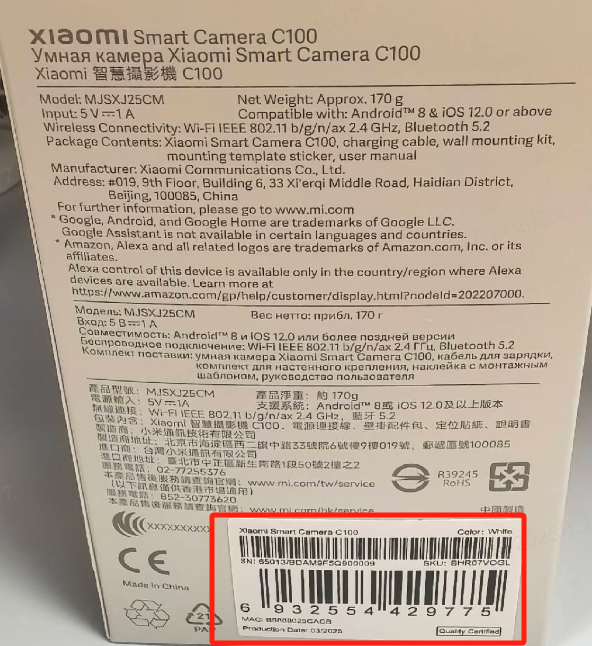
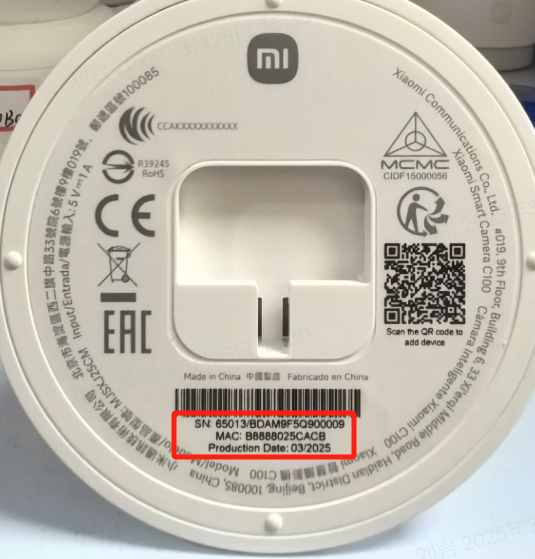
A: The SN can be viewed on the product packaging and the bottom of the camera.
1. The back of the product package will have an SN barcode, which can be viewed as the SN;
2. The bottom label of the camera has an SN barcode, which can be viewed for the SN.
1. The back of the product package will have an SN barcode, which can be viewed as the SN;
2. The bottom label of the camera has an SN barcode, which can be viewed for the SN.
19. Q: What is the lens of the Xiaomi Smart Camera C100?
A: For your reference, here are more details about the lens of the Xiaomi Smart Camera C100:
1. The Xiaomi Smart Camera C100 adopts a 3MP high-definition lens with a resolution of up to 2304×1296, ensuring a true and clear picture;
2. The F1.6 large aperture, a high-transmittance lens, effectively reduces light loss, resulting in clearer, more transparent, and more delicate imaging.
1. The Xiaomi Smart Camera C100 adopts a 3MP high-definition lens with a resolution of up to 2304×1296, ensuring a true and clear picture;
2. The F1.6 large aperture, a high-transmittance lens, effectively reduces light loss, resulting in clearer, more transparent, and more delicate imaging.
20. Q: Can the Xiaomi Smart Camera C100 be installed for outdoor use?
A: It is not recommended to install it outdoors. The Xiaomi Smart Camera C100 is an indoor camera and does not have waterproof and dustproof functions. If used outside, please make sure it will not be exposed to rain. If water enters during rainy days, it can damage the camera.
21. Q: Does the Xiaomi Smart Camera C100 need to be plugged in, or can it run on batteries?
A: The Xiaomi Smart Camera does not have a built-in battery and needs to be connected to a power source. Please make sure to use the official 5V 1A adapter that comes with the package contents.
22. Q: Does the Xiaomi Smart Camera C100 support two-way voice calls?
A: Support. The Xiaomi Smart Camera C100 adopts active noise reduction technology to eliminate speaker echoes and effectively enhance the call experience.
23. Q: Can the Xiaomi Smart Camera C100 record continuously to a memory card without internet or after powering on?
A: The Xiaomi Smart Camera C100 supports continuous recording of videos to a memory card without power outage. The prerequisite is that the device has successfully connected to the internet once. In addition, if the device is powered off again but not connected to the internet, it cannot record videos to the memory card and needs to be powered on and connected to the internet again.
When the device is powered off or disconnected from the internet, the memory card video playback only supports being removed the memory card from the device and being viewed on the computer and can’t be viewed on the Mi Home/Xiaomi Home App.
When the device is powered off or disconnected from the internet, the memory card video playback only supports being removed the memory card from the device and being viewed on the computer and can’t be viewed on the Mi Home/Xiaomi Home App.
24. Q: Is there sound in the videos recorded in the Xiaomi Smart Camera C100's Home surveillance, Xiaomi Home Secure, and microSD card?
A: These types of recorded videos all have sound. But if double-speed playback is enabled, it will default to silent playback, which is a normal phenomenon.
In addition, every time you enter the camera monitoring screen or enter the cloud storage or memory card video playback interface, the default mute playback is set. To play the sound normally, please tap the mute icon to restore the sound.
In addition, every time you enter the camera monitoring screen or enter the cloud storage or memory card video playback interface, the default mute playback is set. To play the sound normally, please tap the mute icon to restore the sound.
25. Q: What are the precautions when using the Xiaomi Smart Camera C100?
A: For your reference, here are more details about the precautions:
1. The Xiaomi Smart Camera C100 is suitable for working temperatures ranging from -10°C to 40°C. Please do not use the Xiaomi Smart Camera C100 in environments with excessively high or low temperatures;
2. The Xiaomi Smart Camera C100 is a precision electronic product. Please do not use it in environments that are excessively humid or will cause water to enter the Xiaomi Smart Camera C100 in order to avoid affecting normal use;
3. In order for you to use the Xiaomi Smart Camera C100 better, avoid the front and side of the lens being close to reflective objects such as glass and white walls so as not to cause the image to be bright in the near, dark in the far, or white;
4. Please ensure that this product is installed within the range of Wi-Fi signal coverage and placed as close to the Wi-Fi signal as possible. Install as far away as possible from metal and microwave ovens that will affect the signal;
5. This device only supports a 2.4GHz Wi-Fi connection, and you can choose to connect according to the home situation. Please make sure the router is closer to the device, and do not use Chinese or special characters for the Wi-Fi name and password at home. Otherwise, there will be situations where the connection cannot be made or is disconnected.
1. The Xiaomi Smart Camera C100 is suitable for working temperatures ranging from -10°C to 40°C. Please do not use the Xiaomi Smart Camera C100 in environments with excessively high or low temperatures;
2. The Xiaomi Smart Camera C100 is a precision electronic product. Please do not use it in environments that are excessively humid or will cause water to enter the Xiaomi Smart Camera C100 in order to avoid affecting normal use;
3. In order for you to use the Xiaomi Smart Camera C100 better, avoid the front and side of the lens being close to reflective objects such as glass and white walls so as not to cause the image to be bright in the near, dark in the far, or white;
4. Please ensure that this product is installed within the range of Wi-Fi signal coverage and placed as close to the Wi-Fi signal as possible. Install as far away as possible from metal and microwave ovens that will affect the signal;
5. This device only supports a 2.4GHz Wi-Fi connection, and you can choose to connect according to the home situation. Please make sure the router is closer to the device, and do not use Chinese or special characters for the Wi-Fi name and password at home. Otherwise, there will be situations where the connection cannot be made or is disconnected.
26. Q: What are the working modes of the lights in the Xiaomi Smart Camera C100?
A: The Xiaomi Smart Camera C100 has three modes of lighting, including night light, sound and light alert, and fill light mode (illumination):
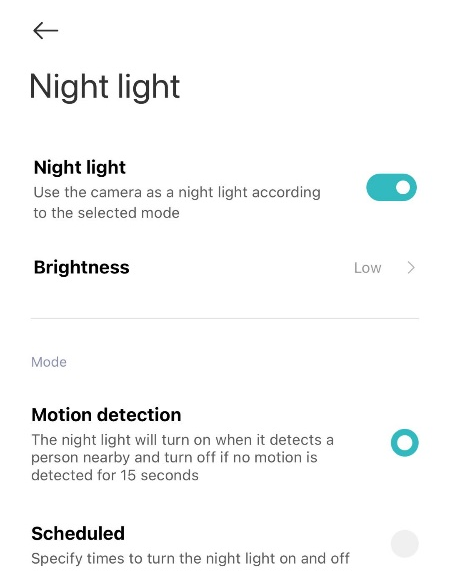
Night light can be turned on under [Settings] >> [Camera settings] >> [Night light]. Three levels of brightness can be adjusted, and the mode can be selected from the Motion detection or Scheduled.
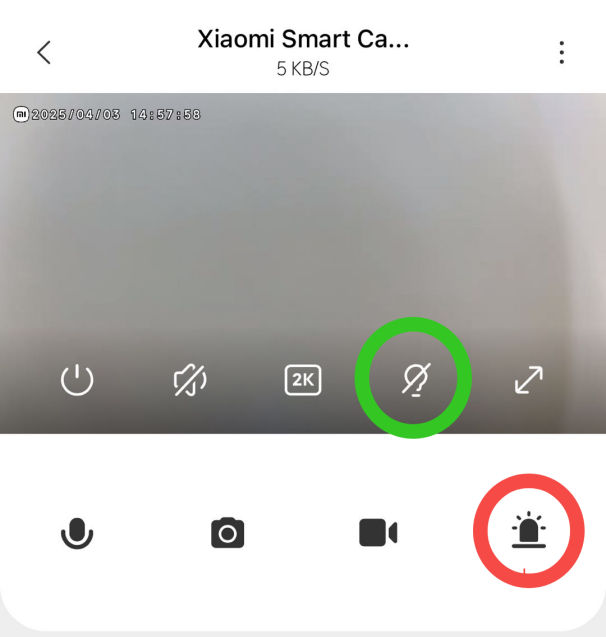
Sound and light alert: can be activated by tapping on the rightmost icon in the toolbar below the real-time stream on the main interface. (Red circle)
Fill light: It can be automatically turned on by tapping the second icon on the right side of the toolbar in the real-time stream on the main interface. (Green circle)
Night light can be turned on under [Settings] >> [Camera settings] >> [Night light]. Three levels of brightness can be adjusted, and the mode can be selected from the Motion detection or Scheduled.
Sound and light alert: can be activated by tapping on the rightmost icon in the toolbar below the real-time stream on the main interface. (Red circle)
Fill light: It can be automatically turned on by tapping the second icon on the right side of the toolbar in the real-time stream on the main interface. (Green circle)
27. Q: What is the Bluetooth of the Xiaomi Smart Camera C100?
A: The Xiaomi Smart Camera C100 supports Bluetooth BLE 5.2. However, the Xiaomi Smart Camera C100 doesn’t support a Bluetooth mesh gateway, as it is another separate function.
A: The Xiaomi Smart Camera C100 supports Bluetooth BLE 5.2. However, the Xiaomi Smart Camera C100 doesn’t support a Bluetooth mesh gateway, as it is another separate function.
About APP
1. Q: How to connect the Xiaomi Smart Camera C100 to the Mi Home/Xiaomi Home APP?
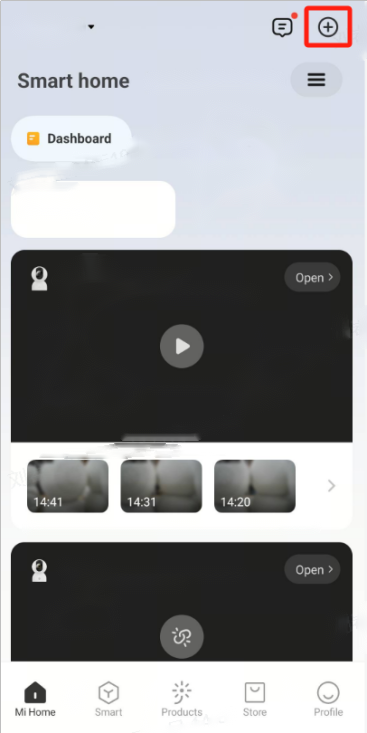
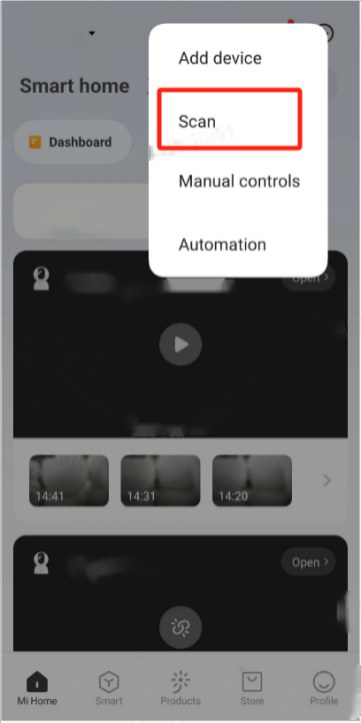
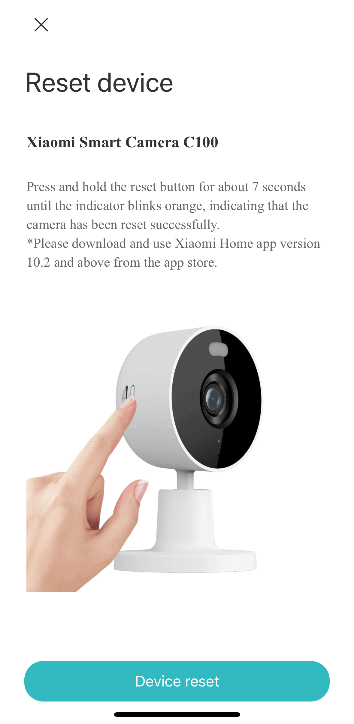
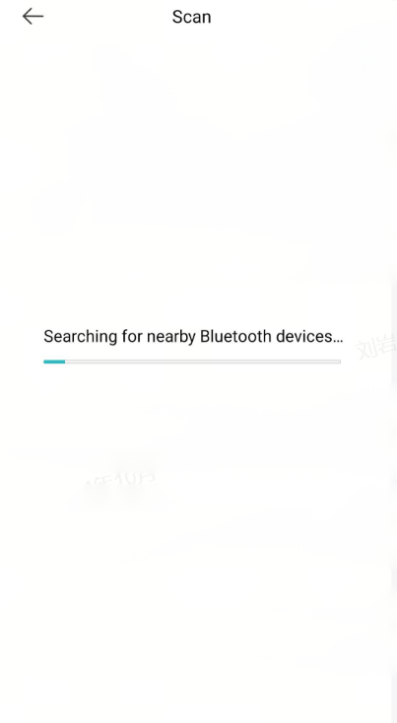
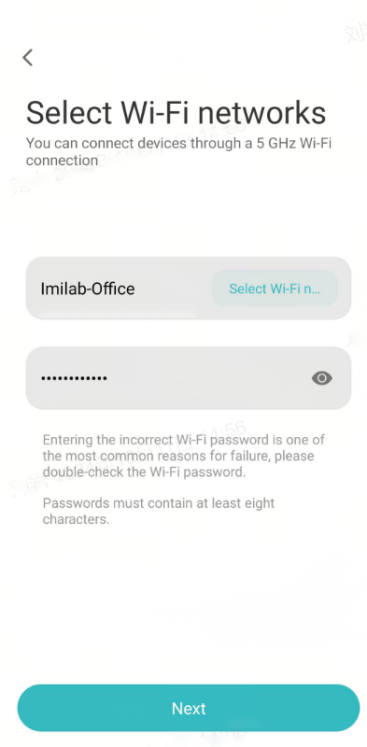
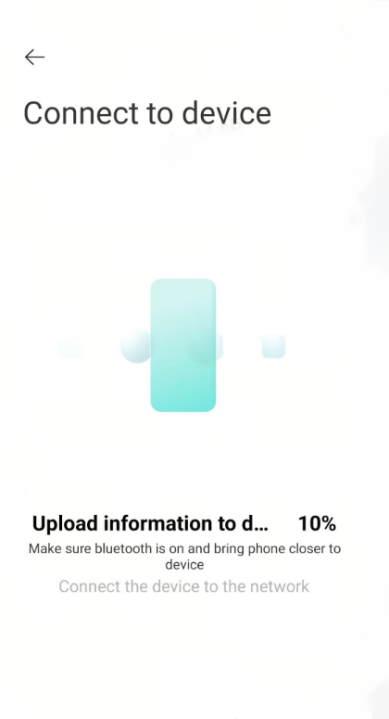
A: Go to the [Mi Home/Xiaomi Home] APP >> tap [+] at the right top of the screen >> tap [Scan] >> follow the instructions on the interface. (Press and hold the reset button for about 7 seconds until the indicator blinks in orange, indicating that the camera has been reset successfully) >> just wait for a successful connection.
2. Q: Does the Xiaomi Smart Camera C100 support zooming in the monitoring image and what is the maximum supported zoom?
A: The surveillance of the Xiaomi Smart Camera C100 supports zooming in, with a maximum zoom of 6 times.
On the camera monitoring interface, pinch with two fingers to zoom in and out. The symbol below indicates the magnification of the image.
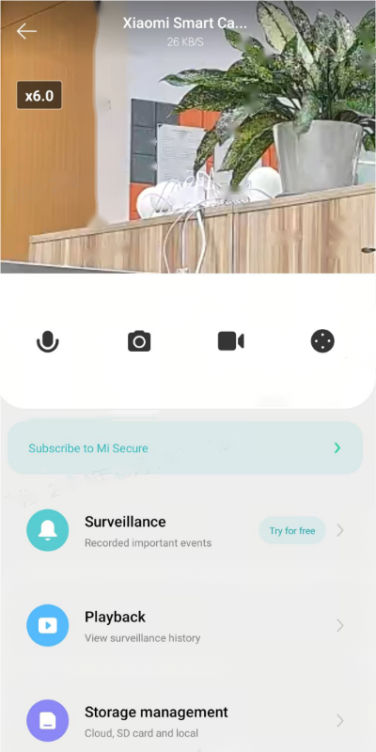
On the camera monitoring interface, pinch with two fingers to zoom in and out. The symbol below indicates the magnification of the image.
3. Q: How does the Xiaomi Smart Camera C100 enter Physical Lens Blocking?
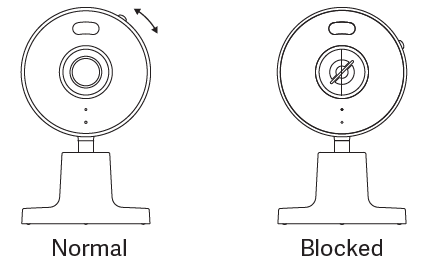
A: You can slide the physical lens blocking on the right side of the camera downwards, and when you hear a prompt sound, the device will immediately enter the Physical Lens Blocking.
4. Q: How to set the Sleep mode of the Xiaomi Smart Camera C100?
A: To set the Sleep mode of the Xiaomi Smart Camera C100, please refer to the following methods:
Method 1:
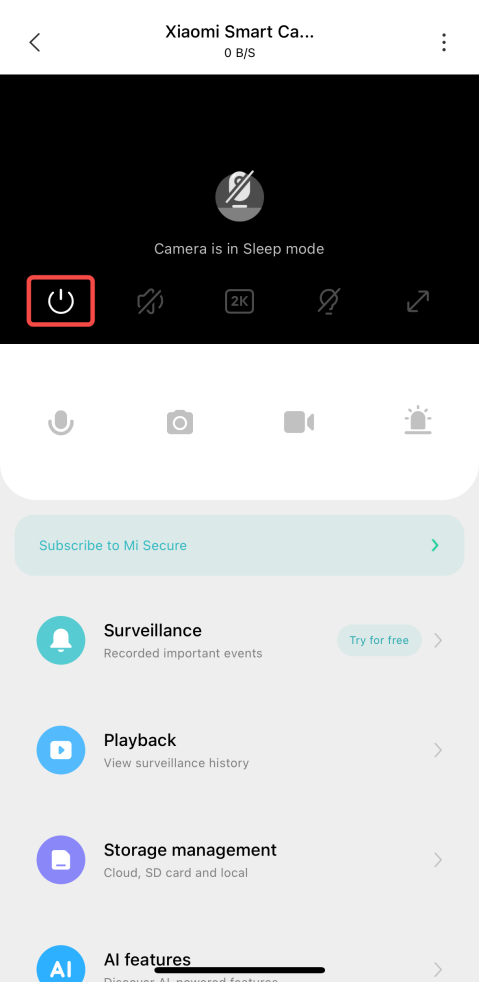
Enter the camera monitoring screen, tap the sleep button, and the device will immediately enter sleep mode.
Method 2:
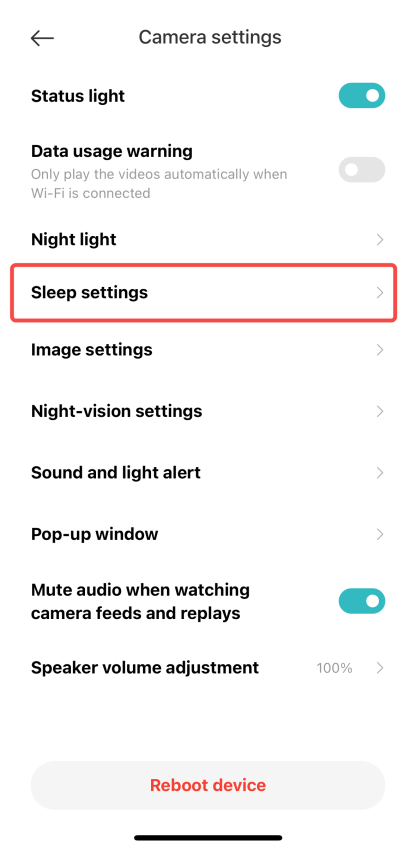
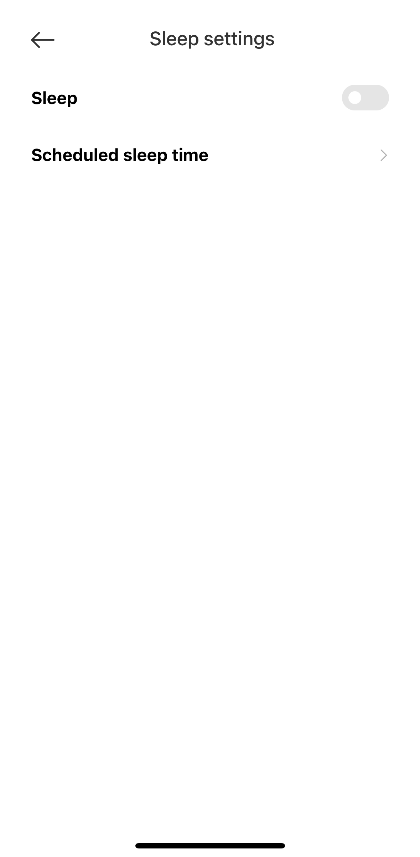
Go to the [Mi Home/Xiaomi Home] APP >> choose [Xiaomi Smart Camera C100] >> tap the three-dot icon at the right top of the screen >> enter the [Camera settings] >> tap [Sleep settings] >> you can select [Sleep] or [Scheduled sleep time].
Directly tap the [Sleep] icon will immediately put the device into sleep mode. If you want to set [Scheduled sleep time], you do not need to tap the [Sleep] icon on the monitoring screen.
Method 1:
Enter the camera monitoring screen, tap the sleep button, and the device will immediately enter sleep mode.
Method 2:
Go to the [Mi Home/Xiaomi Home] APP >> choose [Xiaomi Smart Camera C100] >> tap the three-dot icon at the right top of the screen >> enter the [Camera settings] >> tap [Sleep settings] >> you can select [Sleep] or [Scheduled sleep time].
Directly tap the [Sleep] icon will immediately put the device into sleep mode. If you want to set [Scheduled sleep time], you do not need to tap the [Sleep] icon on the monitoring screen.
5. Q: How to configure the image settings of the Xiaomi Smart Camera C100?
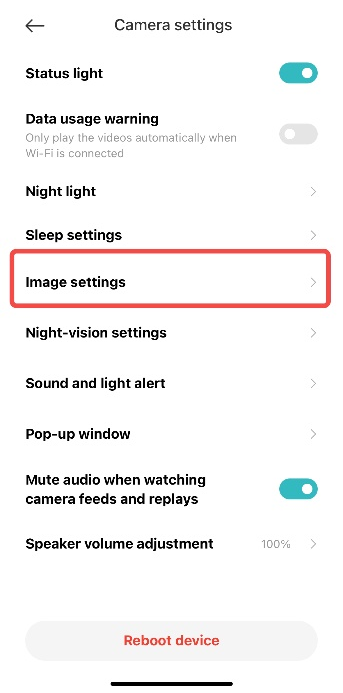
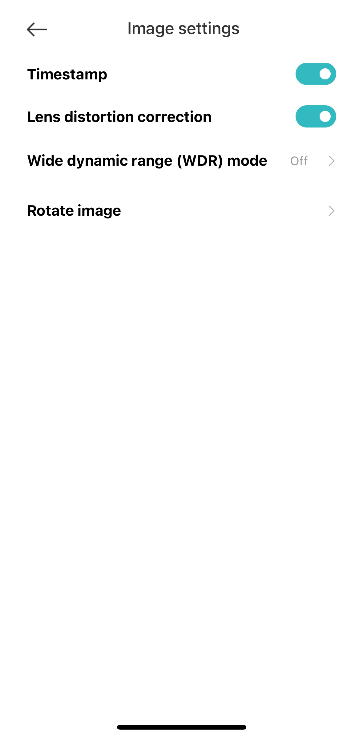
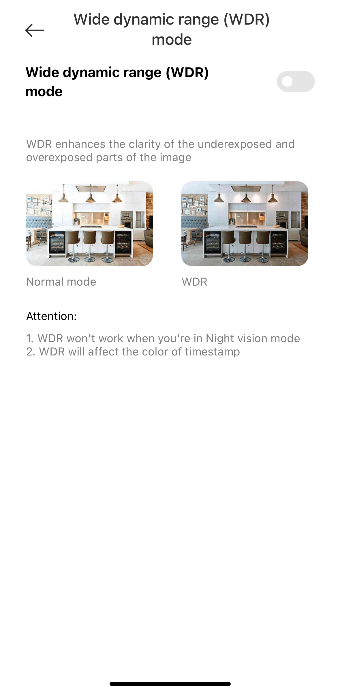
A: Go to the [Mi Home/Xiaomi Home] APP >> choose [Xiaomi Smart Camera C100] >> tap the three-dot icon at the right top of the screen >> enter the [Camera settings] >> [Image settings] >> choose to turn on/off [Timestamp], [Lens distortion correction], [Wide dynamic range (WDR) mode] and [Rotate the image] to 180° (which needs to be configured when the camera is installed inversely).
6. Q: How to reboot the Xiaomi Smart Camera C100?
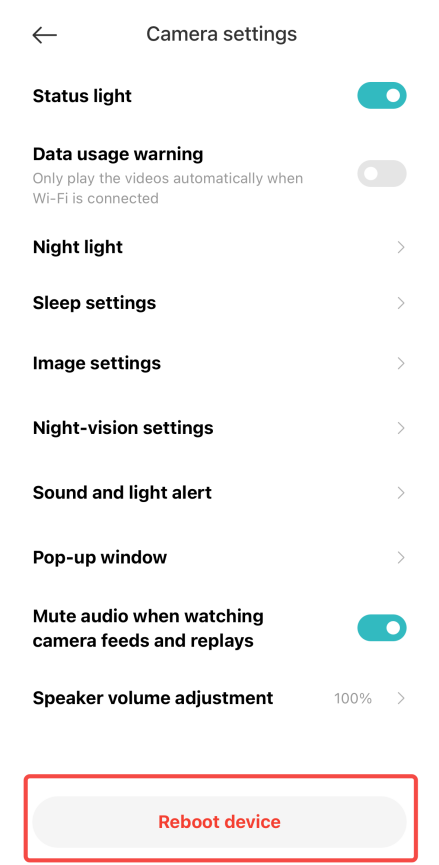
A: Go to the [Mi Home/Xiaomi Home] APP >> choose [Xiaomi Smart Camera C100] >> tap the three-dot icon at the right top of the screen >> enter the [Camera settings] >> [Reboot device].
When the camera cannot record videos and upload videos to the Xiaomi Home Secure or has the abnormalities of Home Surveillance or other functions, you can reboot the device.
When the camera cannot record videos and upload videos to the Xiaomi Home Secure or has the abnormalities of Home Surveillance or other functions, you can reboot the device.
7. Q: How to configure the Night vision settings of the Xiaomi Smart Camera C100?
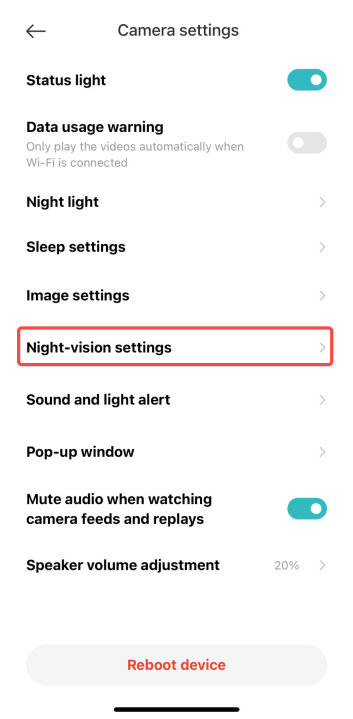
A: Go to the [Mi Home/Xiaomi Home] APP >> choose [Xiaomi Smart Camera C100] >> tap the three-dot icon at the right top of the screen >> enter the [Camera settings] >> [Night-vision settings] >> choose [Swich automatically], [On], [Off].
If you select [On] in [Night-vision settings], the Low light full-color function does not work and the image will be kept in black and white or black. It is recommended that you select [Switch automatically].
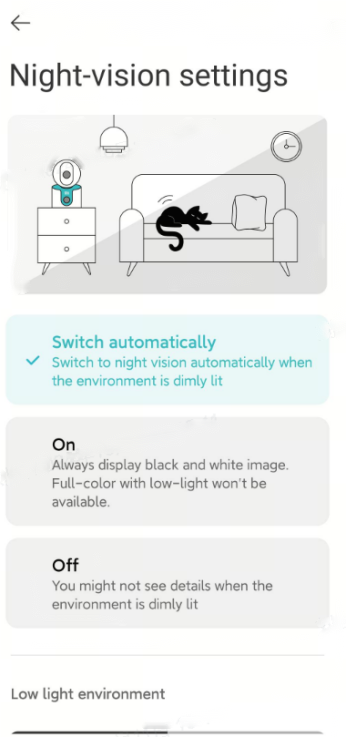
If you select [On] in [Night-vision settings], the Low light full-color function does not work and the image will be kept in black and white or black. It is recommended that you select [Switch automatically].
8. Q: How to enable the function of data usage warning of the Xiaomi Smart Camera C100?
A: Go to the [Mi Home/Xiaomi Home] APP >> choose [Xiaomi Smart Camera C100] >> tap the three-dot icon at the right top of the screen >> enter the [Camera settings] >> enable or disable [Data usage warning].
When [Data usage warning] is enabled, the surveillance image will not be played when using the mobile network.
Note:
The videos stored in the Xiaomi Home Secure and MicroSD card will be played automatically, without the limitation of data usage protection.
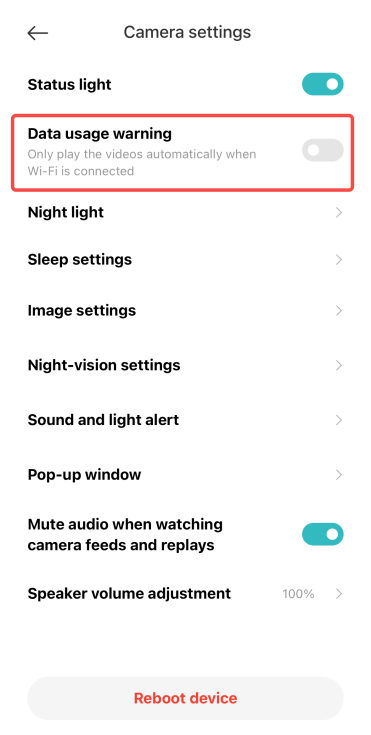
When [Data usage warning] is enabled, the surveillance image will not be played when using the mobile network.
Note:
The videos stored in the Xiaomi Home Secure and MicroSD card will be played automatically, without the limitation of data usage protection.
9. Q: What are the icon functions on the real-time surveillance interface of the Xiaomi Smart Camera C100?
A: The icon introduction of the real-time surveillance interface of the Xiaomi Smart Camera C100 is listed below:
Among them, the sleep, silent, video clarity selection and full screen icon need to tap the real-time surveillance interface to appear.
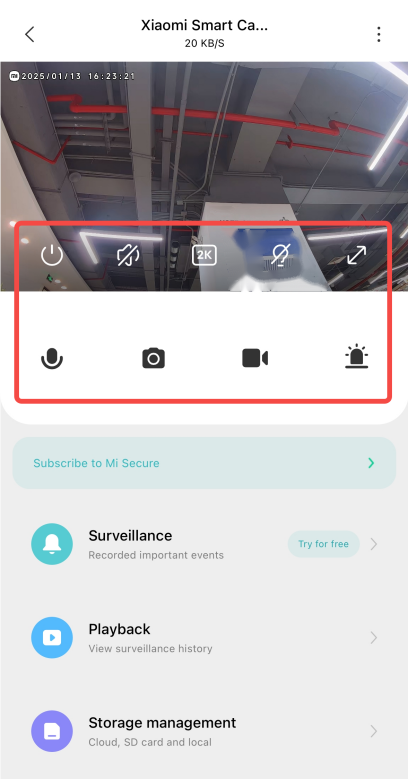
1. Sleep: The camera will directly enter the sleep mode when you tap this icon. After the camera enters sleep mode, you can no longer perform any monitoring or recording operations;
When not in use for recording, you can tap the power icon in the Xiaomi Smart Camera C100 control interface of the Mi Home/Xiaomi Home APP to enter sleep mode;
2. Silent: When entering the camera, the default surveillance interface is silent. To have sound when viewing the surveillance interface, tap the mute icon to enable sound;
3. Clarity: The clarity of the surveillance image can be adjusted here. You can tap the icon to adjust the clarity to Auto, 480 smooth and 1080P HD, 2.5K HD (Auto means the camera will automatically adjust the clarity according to the network environment);
4. Fill light: Tap this icon to turn on the camera fill light at its maximum brightness;
5. Full screen: Tap the icon and the surveillance image will become horizontal;
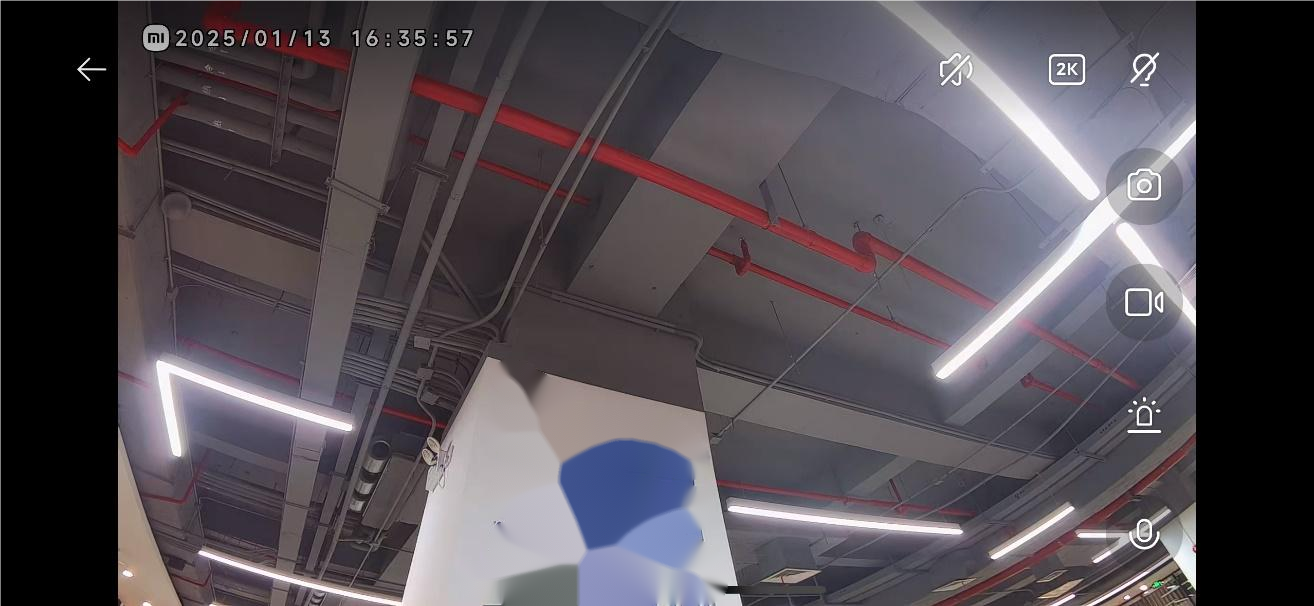
6. Voice call: Tap the icon and you can have two-way real time calls through the Mi Home/Xiaomi Home APP;
7. Screenshot: You can capture the current surveillance image, and the image will be saved to your device’s Gallery APP and the Mi Home/Xiaomi Home APP;
8. Record: Tap the record icon to record the current live view. The video will be saved to your device’s Gallery and the Mi Home/Xiaomi Home APP;
9. Sound and light alert: Tap the sound and light alert icon, and a confirmation dialog will pop up. Tap [OK] to trigger the alarm for 30 seconds, or [Cancel] to exit.
Among them, the sleep, silent, video clarity selection and full screen icon need to tap the real-time surveillance interface to appear.
1. Sleep: The camera will directly enter the sleep mode when you tap this icon. After the camera enters sleep mode, you can no longer perform any monitoring or recording operations;
When not in use for recording, you can tap the power icon in the Xiaomi Smart Camera C100 control interface of the Mi Home/Xiaomi Home APP to enter sleep mode;
2. Silent: When entering the camera, the default surveillance interface is silent. To have sound when viewing the surveillance interface, tap the mute icon to enable sound;
3. Clarity: The clarity of the surveillance image can be adjusted here. You can tap the icon to adjust the clarity to Auto, 480 smooth and 1080P HD, 2.5K HD (Auto means the camera will automatically adjust the clarity according to the network environment);
4. Fill light: Tap this icon to turn on the camera fill light at its maximum brightness;
5. Full screen: Tap the icon and the surveillance image will become horizontal;
6. Voice call: Tap the icon and you can have two-way real time calls through the Mi Home/Xiaomi Home APP;
7. Screenshot: You can capture the current surveillance image, and the image will be saved to your device’s Gallery APP and the Mi Home/Xiaomi Home APP;
8. Record: Tap the record icon to record the current live view. The video will be saved to your device’s Gallery and the Mi Home/Xiaomi Home APP;
9. Sound and light alert: Tap the sound and light alert icon, and a confirmation dialog will pop up. Tap [OK] to trigger the alarm for 30 seconds, or [Cancel] to exit.
10. Q: How to set up the Home surveillance settings on the Xiaomi Smart Camera C100?
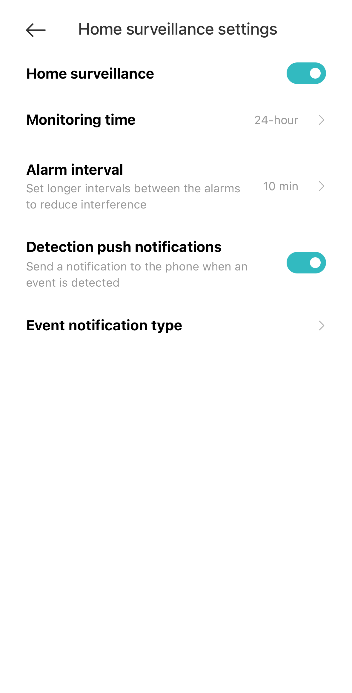
A: Go to the [Mi Home/Xiaomi Home] APP >> choose [Xiaomi Smart Camera C100] >> tap the three-dot icon at the right top of the screen >> enter the [Home surveillance settings] >> Enable or disable [Home surveillance] >> [Monitoring time], [Alarm interval], [Detection push notifications], [Event notification type].
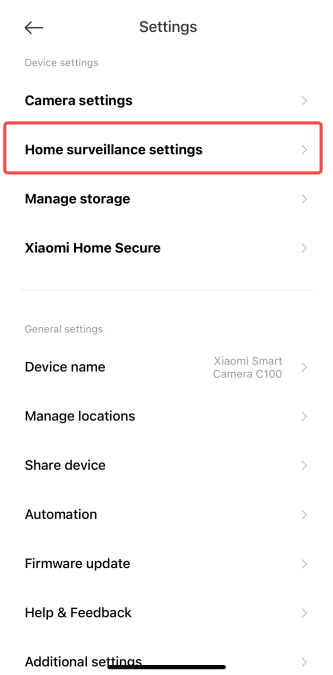
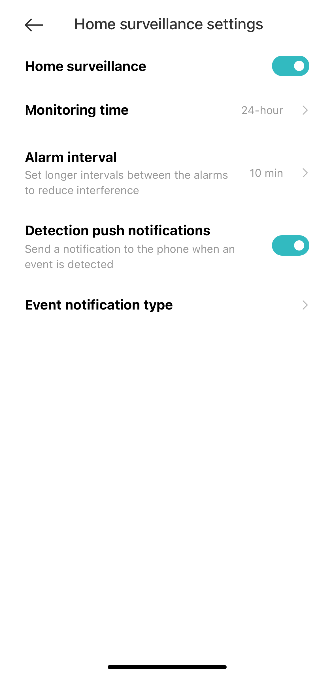
1. Monitoring time: You can set the whole day care or set the time period care;
2. Alarm interval: You can choose a preset alarm interval of 3, 5, 10, or 30 minutes. (Custom intervals are not supported);
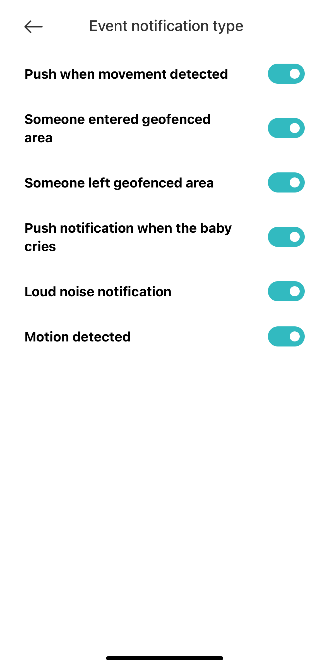
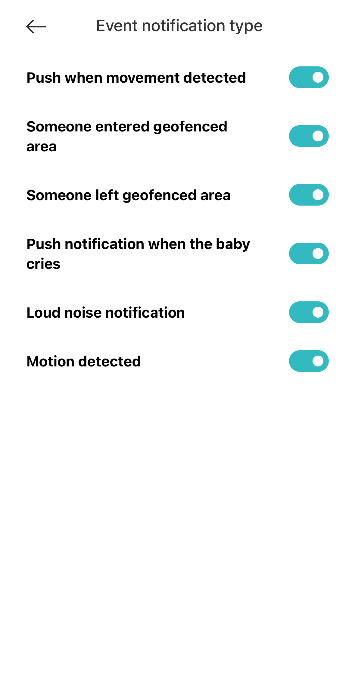
3. Event notification type: There are six types of push notifications available: [Push when movement detected], [Someone entered geofenced area], [Someone left geofenced area], [Push notification when the baby cries], [Loud noise notification], and [Motion detected]. If you disable any of these notifications, you will no longer receive alerts related to that event.
When Home surveillance is enabled, each motion-triggered video will be recorded for approximately 3, 6, or 9 seconds and stored in the cloud. These videos will be automatically deleted after 7 days.
Note:
1. Home surveillance videos cannot be deleted in bulk;
2. You can still use Home surveillance without inserting a MicroSD card or enabling cloud storage.
1. Monitoring time: You can set the whole day care or set the time period care;
2. Alarm interval: You can choose a preset alarm interval of 3, 5, 10, or 30 minutes. (Custom intervals are not supported);
3. Event notification type: There are six types of push notifications available: [Push when movement detected], [Someone entered geofenced area], [Someone left geofenced area], [Push notification when the baby cries], [Loud noise notification], and [Motion detected]. If you disable any of these notifications, you will no longer receive alerts related to that event.
When Home surveillance is enabled, each motion-triggered video will be recorded for approximately 3, 6, or 9 seconds and stored in the cloud. These videos will be automatically deleted after 7 days.
Note:
1. Home surveillance videos cannot be deleted in bulk;
2. You can still use Home surveillance without inserting a MicroSD card or enabling cloud storage.
11. Q: How to view videos stored on the memory card of the Xiaomi Smart Camera C100?
A: Go to the [Mi Home/Xiaomi Home] APP >> choose [Xiaomi Smart Camera C100] >> tap [Playback] >> choose [SD card] >> watch the video as you need.
When the camera loses internet connection or power, video playback from the SD card is unavailable in the Mi Home/Xiaomi Home APP. To access the footage, remove the SD card and view the videos on a computer using a card reader.
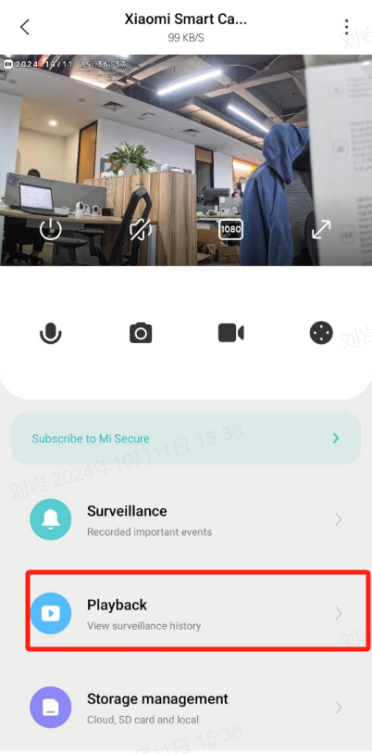
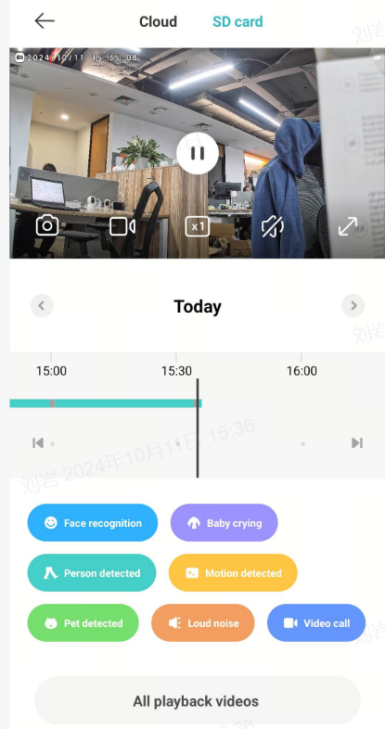
The different colors below represent different types of recorded events. You can drag the timeline to any colored section to view the corresponding recording. Gray areas indicate no recorded events during that time.
Each video clip stored on the memory card is 1 minute long and supports batch deletion.
Here are the corresponding icon functions in the figure:
1. Play/pause: You can pause and continue playing the MicroSD card playback image. You need to tap the playback screen for the play/pause icon to appear;
2. Screenshot: You can capture the current surveillance interface, and the image will be saved to your device’s Gallery APP and the Mi Home/Xiaomi Home APP;
3. Record: Tap the record icon to record the current surveillance interface. The video will be saved to your device’s Gallery and the Mi Home/Xiaomi Home APP;
4. Speed playback: The video on the MicroSD card supports 1×, 4×, and 16× speed playback in the camera. When you select speed playback, the video will play in silence by default;
5. Silent: Every time you enter the camera playback, the video stored in the MicroSD card will be played in silence by default. If you want to have sound when viewing the surveillance screen, tap the mute icon to turn on the sound;
6. Full screen: The camera surveillance screen will become horizontal if you tap the icon.
When the camera loses internet connection or power, video playback from the SD card is unavailable in the Mi Home/Xiaomi Home APP. To access the footage, remove the SD card and view the videos on a computer using a card reader.
The different colors below represent different types of recorded events. You can drag the timeline to any colored section to view the corresponding recording. Gray areas indicate no recorded events during that time.
Each video clip stored on the memory card is 1 minute long and supports batch deletion.
Here are the corresponding icon functions in the figure:
1. Play/pause: You can pause and continue playing the MicroSD card playback image. You need to tap the playback screen for the play/pause icon to appear;
2. Screenshot: You can capture the current surveillance interface, and the image will be saved to your device’s Gallery APP and the Mi Home/Xiaomi Home APP;
3. Record: Tap the record icon to record the current surveillance interface. The video will be saved to your device’s Gallery and the Mi Home/Xiaomi Home APP;
4. Speed playback: The video on the MicroSD card supports 1×, 4×, and 16× speed playback in the camera. When you select speed playback, the video will play in silence by default;
5. Silent: Every time you enter the camera playback, the video stored in the MicroSD card will be played in silence by default. If you want to have sound when viewing the surveillance screen, tap the mute icon to turn on the sound;
6. Full screen: The camera surveillance screen will become horizontal if you tap the icon.
12. Q: How to format the SD card of the Xiaomi Smart Camera C100?
A: Go to the [Mi Home/Xiaomi Home] APP >> choose [Xiaomi Smart Camera C100] >> tap the three-dot icon at the right top of the screen >> enter the [Manage storage] >> tap [SD card status] >> choose [Format SD card].
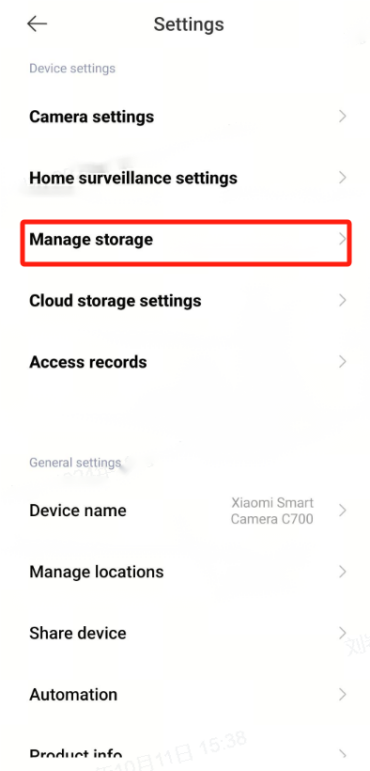
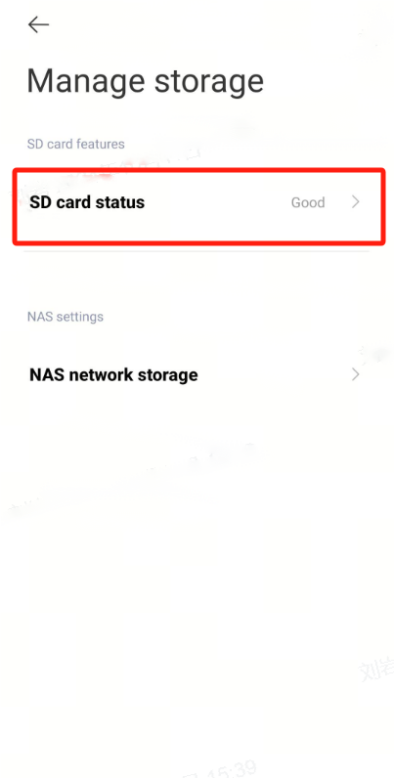
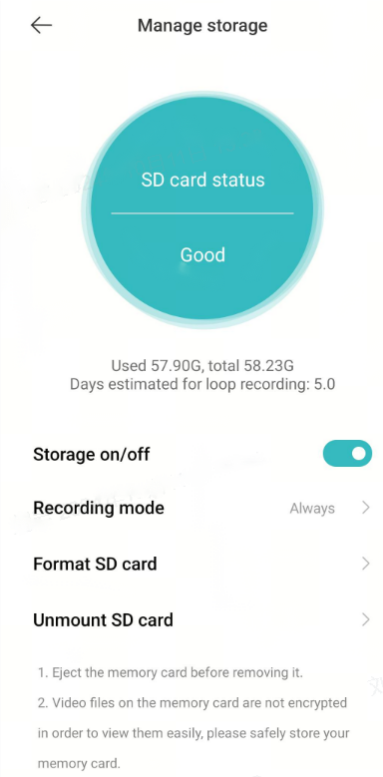
Note:
Formatting an SD card will delete all the videos stored in the SD card. Please back up these videos in advance.
Note:
Formatting an SD card will delete all the videos stored in the SD card. Please back up these videos in advance.
13. Q: What are the video download methods, storage paths, and file formats after downloading from the MicroSD card and Xiaomi Home Secure on the Xiaomi Smart Camera C100?
A: Android: Videos downloaded from the MicroSD card or Xiaomi Home Secure are saved as MP4 files in the "Android/DCIM/device ID folder".
iOS: Videos are also in MP4 format, but there is no specific file path.
iOS: Videos are also in MP4 format, but there is no specific file path.
14. Q: How to update the firmware of the Xiaomi Smart Camera C100?
A: Go to the [Mi Home/Xiaomi Home] APP >> choose [Xiaomi Smart Camera C100] >> tap the three-dot icon at the right top of the screen >> Tap [Firmware update] and check whether there is an available firmware update, so you can update it as soon as possible.
15. Q: What are the execution and trigger conditions for creating Automation with the Xiaomi Smart Camera C100?
A: The triggering conditions are as follows:
Motion detected
Person detected
Baby crying
Turn off night vision mode
Turn on night vision mode
Loud noise
Someone enters the fence area
Someone leaves the fence area
No movement for a long time
The execution conditions are as follows:
Wake
Sleep mode
Home surveillance assistant enabled
Home surveillance assistant disabled
The camera is in night vision mode
The camera is in daytime mode
Night vision switch automatically
Execute sound & light alarm
Broadcast Voice alarm
Turn off Voice alarm
Enable Voice alarm
Turn off light alert
Enable light alert
Motion detected
Person detected
Baby crying
Turn off night vision mode
Turn on night vision mode
Loud noise
Someone enters the fence area
Someone leaves the fence area
No movement for a long time
The execution conditions are as follows:
Wake
Sleep mode
Home surveillance assistant enabled
Home surveillance assistant disabled
The camera is in night vision mode
The camera is in daytime mode
Night vision switch automatically
Execute sound & light alarm
Broadcast Voice alarm
Turn off Voice alarm
Enable Voice alarm
Turn off light alert
Enable light alert
16. Q: Does the Xiaomi Smart Camera C100 support HomeKit?
A: Not support.
17. Q: How to purchase Xiaomi Home Secure for the Xiaomi Smart Camera C100?
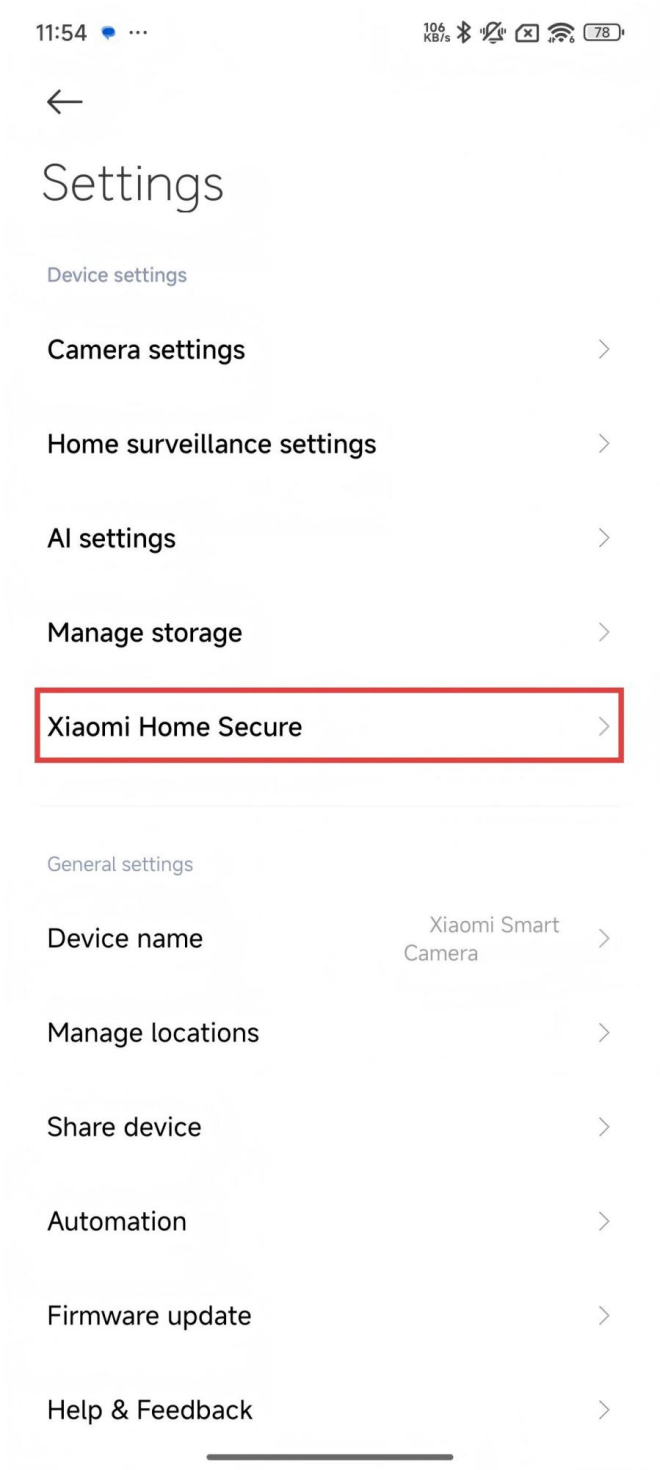
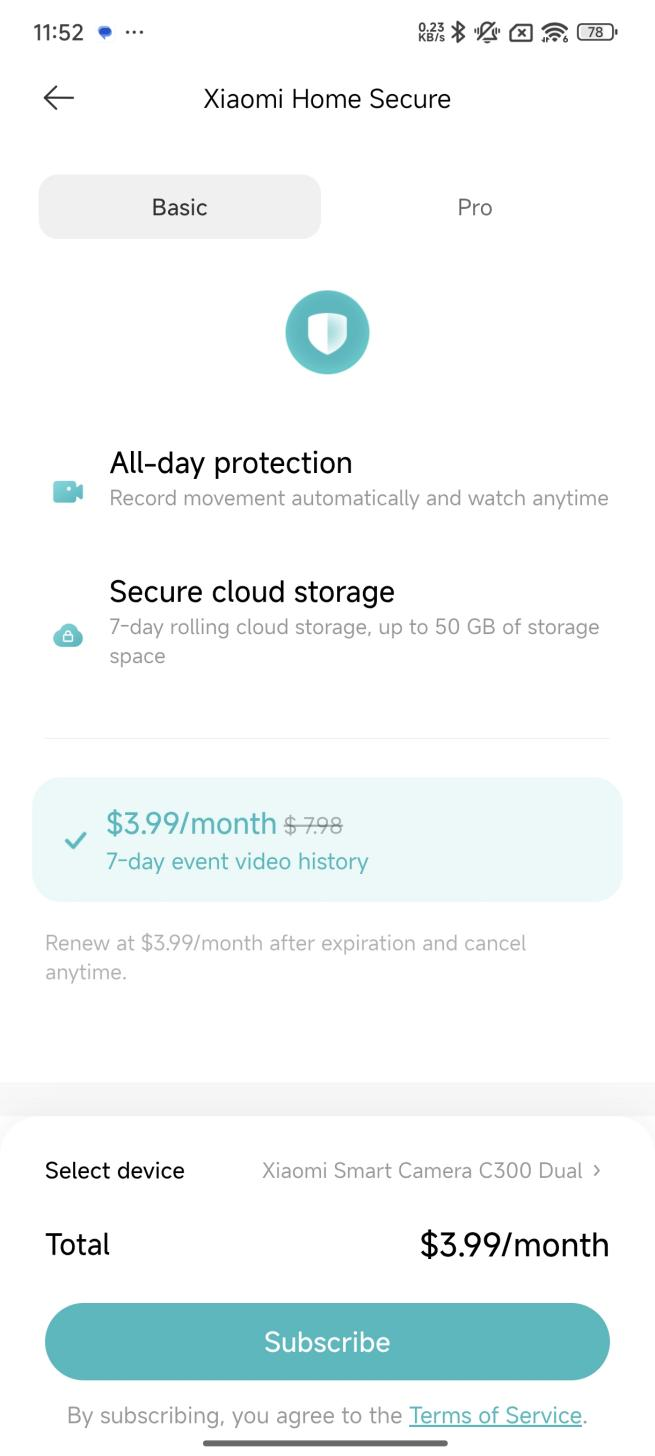
A: Open the [Xiaomi Home/Mi Home] APP >> select [Xiaomi Smart Camera C100] >> tap [...] on the upper right corner >> [Xiaomi Home Secure] >> choose the service according to the need and make the payment.
18. Q: How to view the cloud-stored and surveillance videos of the Xiaomi Smart Camera C100?
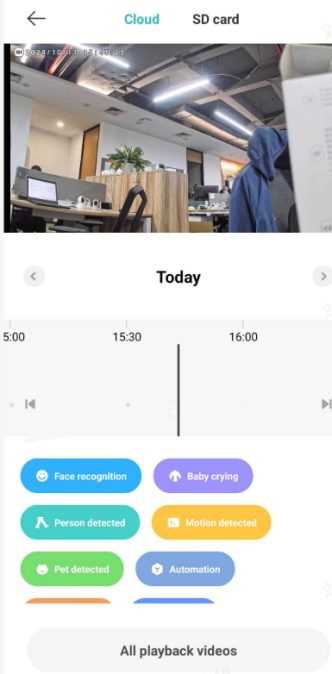
A: Go to [Xiaomi Home/Mi Home] App >> select [Xiaomi Smart Camera C100] >> tap [Playback] >> choose [Cloud] >> view the videos according to the needs.
Note:
The different colors below represent different recorded events. You can directly drag the timeline to the position of that color to view the recorded events as per your needs.
Note:
The different colors below represent different recorded events. You can directly drag the timeline to the position of that color to view the recorded events as per your needs.
19. Q: Is the volume of the Xiaomi Smart Camera C100 adjustable when making voice calls?
A: Yes, it is adjustable. It supports adjusting the sound by adjusting the volume of the phone, and it also supports adjusting the sound of the camera during the voice call.
Go to the [Xiaomi Home/Mi Home] APP >> select [Xiaomi Smart Camera C100] >> tap [...] icon at the upper right corner >> choose [Camera settings] >> adjust [Speaker volume adjustment].
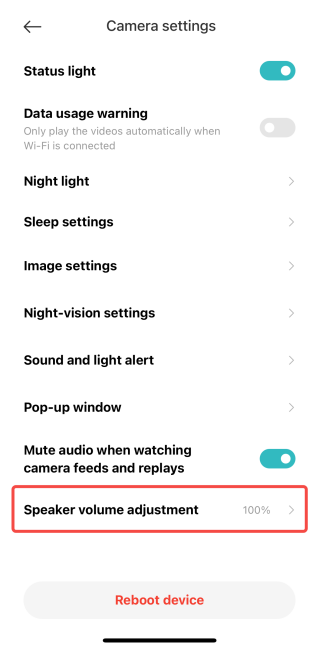
Go to the [Xiaomi Home/Mi Home] APP >> select [Xiaomi Smart Camera C100] >> tap [...] icon at the upper right corner >> choose [Camera settings] >> adjust [Speaker volume adjustment].
20. Q: What to do if the phone cannot receive alarm notifications or other messages from the Home Surveillance on the Xiaomi Smart Camera C100?
A: To solve this issue on the Xiaomi Smart Camera C100, please refer to the following methods:
Method 1:
In the phone settings, enable the notification permission of the Xiaomi Home/Mi Home APP.
Method 2:
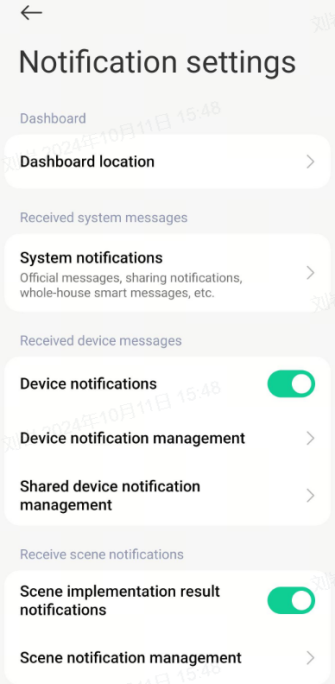
Keep the switch in the Xiaomi Home/Mi Home APP [Notification settings] turned on:
Go to the [Xiaomi Home/Mi Home] APP >> tap [Profile] >> choose [More settings] >> select [Notification settings].
Method 1:
In the phone settings, enable the notification permission of the Xiaomi Home/Mi Home APP.
Method 2:
Keep the switch in the Xiaomi Home/Mi Home APP [Notification settings] turned on:
Go to the [Xiaomi Home/Mi Home] APP >> tap [Profile] >> choose [More settings] >> select [Notification settings].
21. Q: What to do if there is an alarm video in the home surveillance of the Xiaomi Smart Camera C100 but no notifications?
A: Check whether the Home surveillance switch in the settings is turned on and ensure that the Detection push notifications switch is also enabled.
22. Q: How to share the Xiaomi Smart Camera C100 with others?
A: To share the Xiaomi Smart Camera C100 with others, please refer to the following methods:
Method 1:
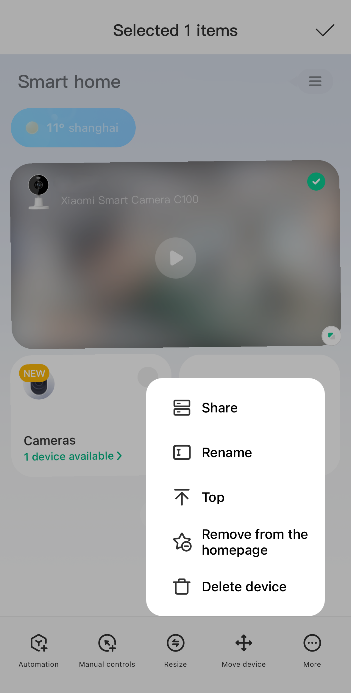
In the main interface of the Xiaomi Home/Mi Home APP, press and hold the Xiaomi Smart Camera C100 icon until the shortcut function pops up at the bottom of the interface, select [Share], and follow the prompts to share with others.
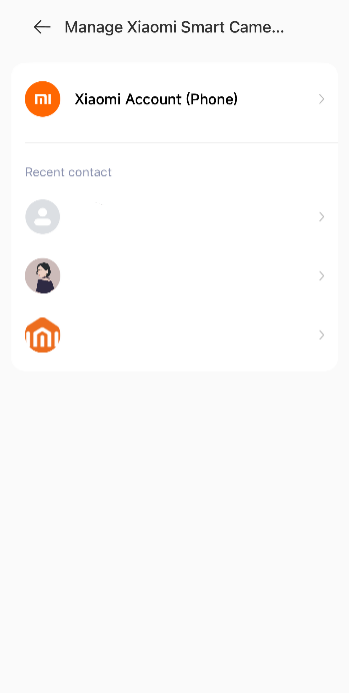
Method 2:
In the camera plug-in settings, select [Share device] and follow the prompts to share with others.
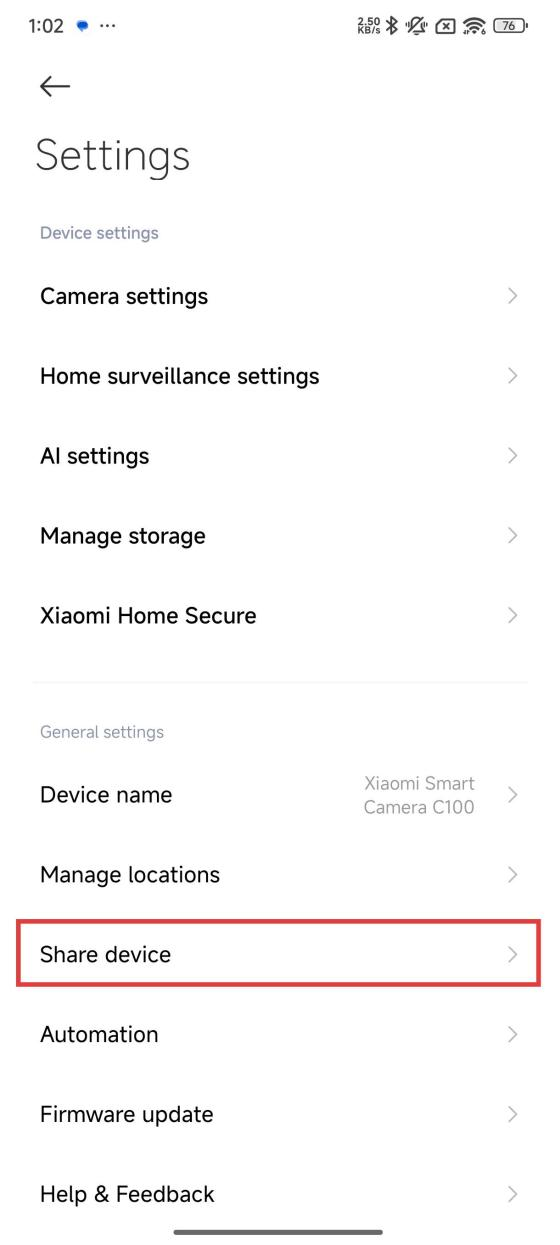
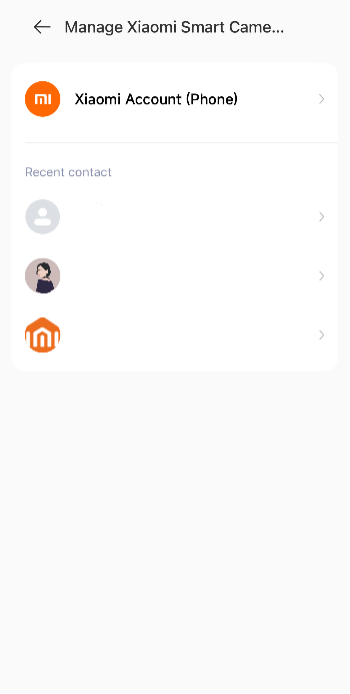
Method 1:
In the main interface of the Xiaomi Home/Mi Home APP, press and hold the Xiaomi Smart Camera C100 icon until the shortcut function pops up at the bottom of the interface, select [Share], and follow the prompts to share with others.
Method 2:
In the camera plug-in settings, select [Share device] and follow the prompts to share with others.
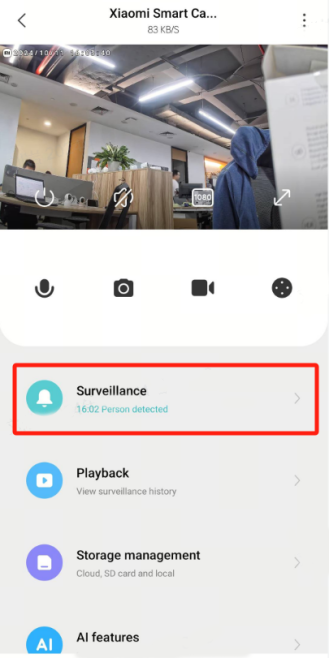
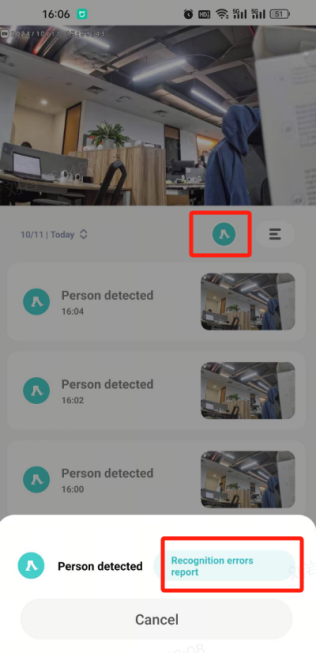
23. Q: What to do if the human detection feature of the Xiaomi Smart Camera C100 is inaccurate?
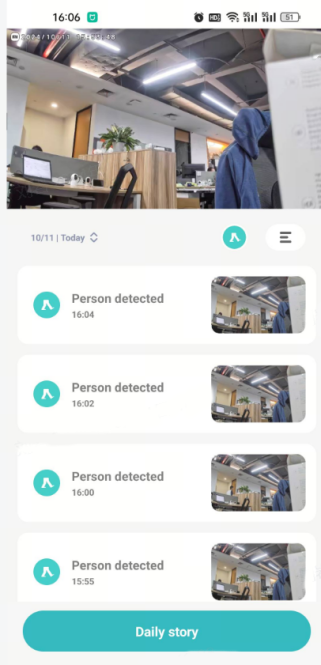
A: Tap [Surveillance] >> Choose the alert video >> Select [Recognition errors report] >> tap [OK] to feedback. This issue will be improved continually.
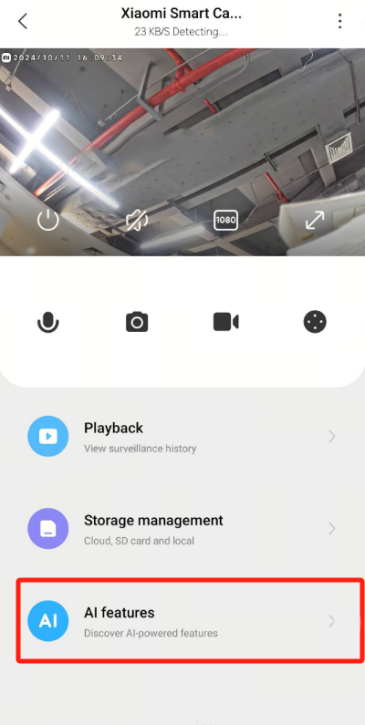
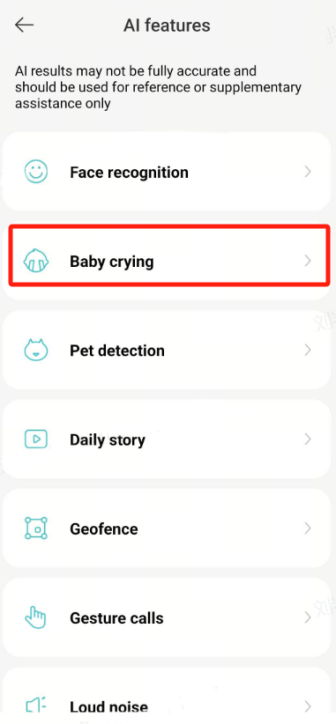
24. Q: How to use the Baby crying feature of the Xiaomi Smart Camera C100?
A: Go to the [Xiaomi Home/Mi Home] APP >> select the [Xiaomi Smart Camera C100] >> tap [AI features] >> select [Baby crying] >> enable [Baby crying].
After turning on the Baby crying feature, the camera will push a message to your phone when it detects your baby crying.

After turning on the Baby crying feature, the camera will push a message to your phone when it detects your baby crying.
25. Q: How to use the Loud noise feature of the Xiaomi Smart Camera C100?
A: Go to the [Xiaomi Home/Mi Home] APP >> select the [Xiaomi Smart Camera C100] >> tap [AI features] >> choose [Loud noise] >> enable [Loud noise].
When the Loud noise feature is enabled, the camera will start recording and immediately push a notification to the phone when a loud noise is detected.
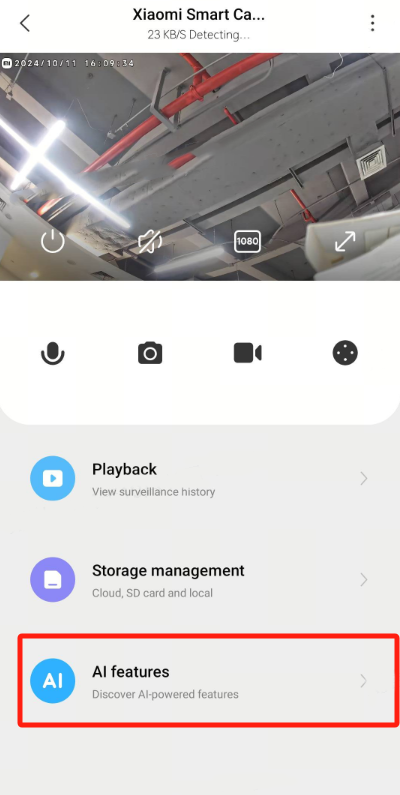
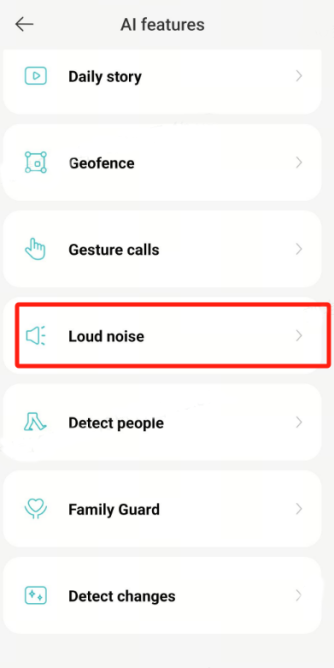
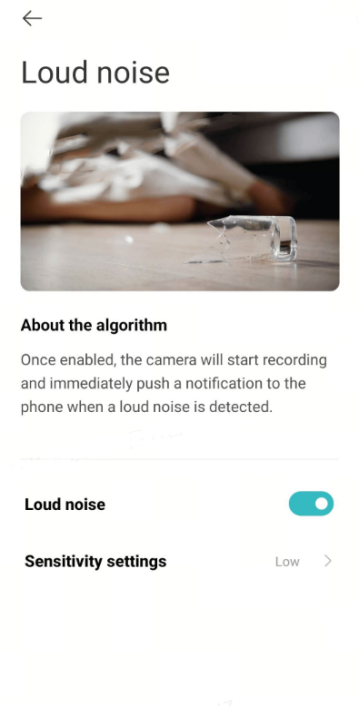
When the Loud noise feature is enabled, the camera will start recording and immediately push a notification to the phone when a loud noise is detected.
26. Q: How to use the Pet detection feature of the Xiaomi Smart Camera C100?
A: The Xiaomi Smart Camera C100 does not have the Pet detection feature.
27. Q: How to use the gesture calls feature of the Xiaomi Smart Camera C100?
A: The Xiaomi Smart Camera C100 does not have the gesture calls feature.
28. Q: What is the lowest supported version of the Mi Home/Xiaomi Home APP for connecting to the Xiaomi Smart Camera C100?
A: Go to the [Xiaomi Home/Mi Home] APP >> tap [Profile] >> enter [Settings] >> choose [About Mi Home/Xiaomi Home] to check the current version.
The lowest supported version for Android is 8.7.707. The lowest supported version for iOS is 8.7.201. If your version is lower than this, please update the Mi Home/Xiaomi Home APP or download it again.
The lowest supported version for Android is 8.7.707. The lowest supported version for iOS is 8.7.201. If your version is lower than this, please update the Mi Home/Xiaomi Home APP or download it again.
29. Q: How to use the Family Guard feature of the Xiaomi Smart Camera C100?
A: Go to the [Xiaomi Home/Mi Home] APP >> select the [Xiaomi Smart Camera C100] >> tap the [AI features] >> choose [Family Guard] >> enable [Family Guard], and it is also supported to add custom periods for adding the Family Guard tasks.
When this feature is turned on, a notification will be sent if no motion is detected during the selected period.
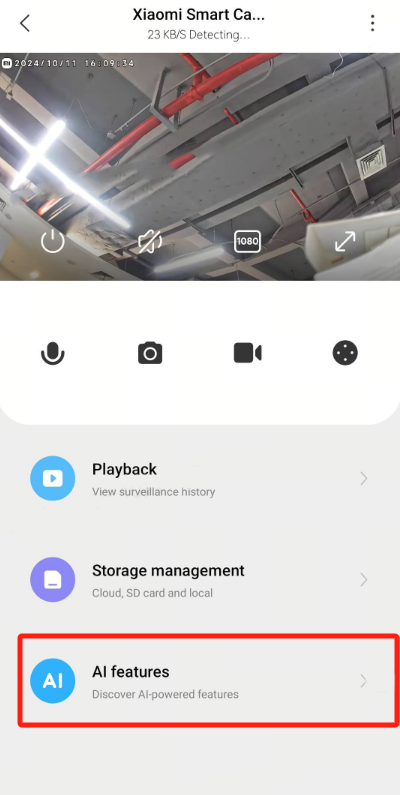
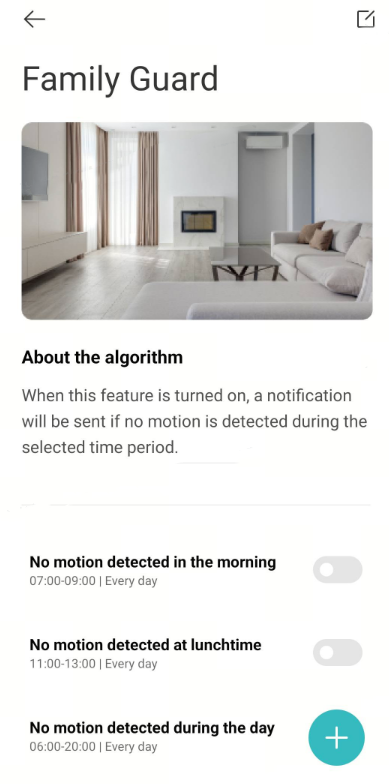
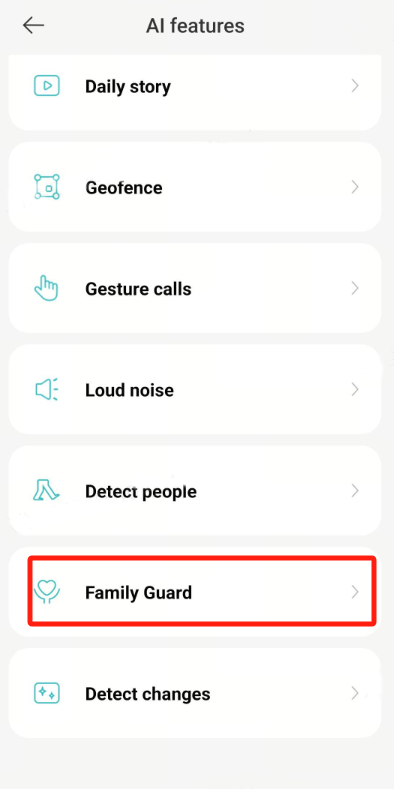
When this feature is turned on, a notification will be sent if no motion is detected during the selected period.
30. Q: How to use the Geofence feature of the Xiaomi Smart Camera C100?
A: Open the [Mi Home/Xiaomi Home] APP >> select the [Xiaomi Smart Camera C700] >> tap [AI features] >> select [Geofence] >> enable [Geofence].
You can manually select a geofenced area. When the camera detects that someone has entered or left this area, the camera will record video, and you will receive a notification.
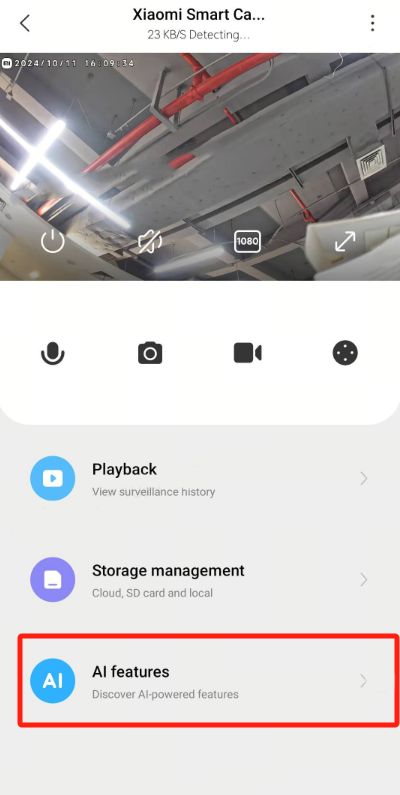
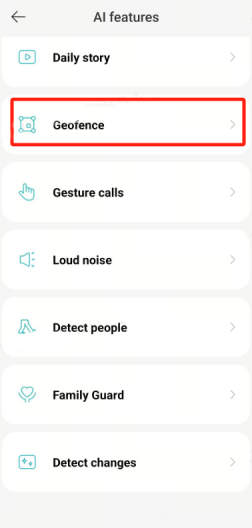
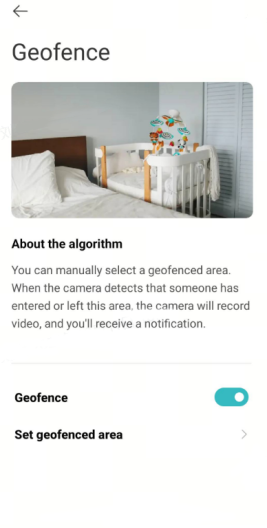
You can manually select a geofenced area. When the camera detects that someone has entered or left this area, the camera will record video, and you will receive a notification.
31. Q: How to use the NAS network storage feature of the Xiaomi Smart Camera C100?
A: Go to the [Xiaomi Home/Mi Home] APP >> select the [Xiaomi Smart Camera C100] >> tap the [Settings] >> choose [Manage storage] >> tap the [NAS network storage] follow the prompts to connect NAS device.
Once enabled, recorded footage can be saved to NAS devices connected to the same local area network with the need for a microSD card.
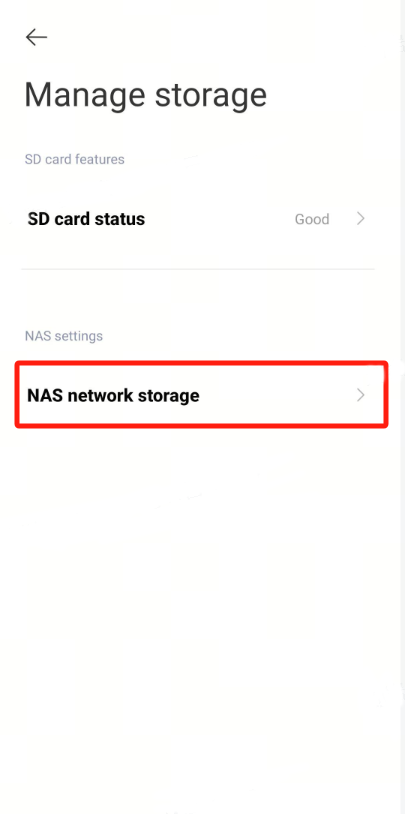
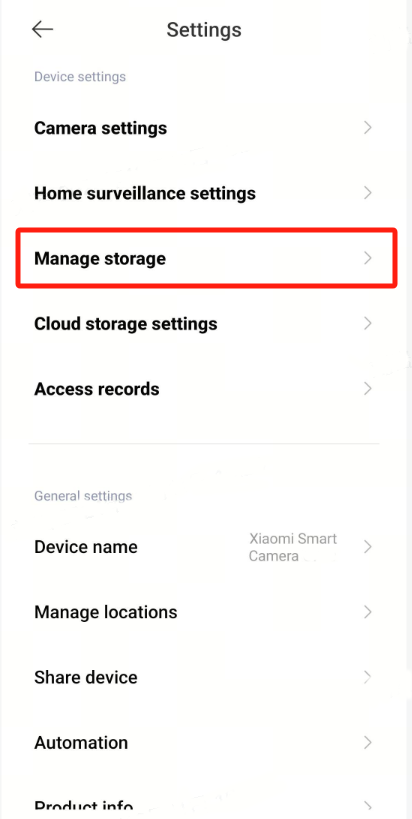
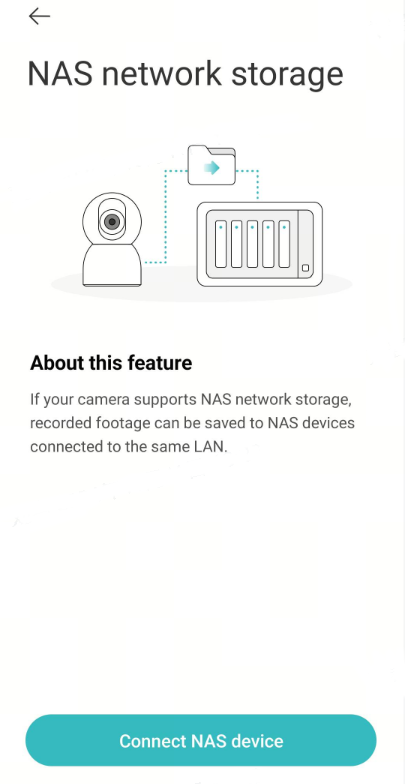
Once enabled, recorded footage can be saved to NAS devices connected to the same local area network with the need for a microSD card.
32. Q: How to use the WDR feature of the Xiaomi Smart Camera C100?
A: Go to the [Xiaomi Home/Mi Home] APP >> select the [Xiaomi Smart Camera C100] >> tap [Settings] >> choose [Camera settings] >> tap [Image settings] >> select [Wide dynamic range (WDR) mode] >> enable [Wide dynamic range (WDR) mode].
After enabling the Wide Dynamic Range (WDR) mode, both the bright and dark areas are excellent. The Wide Dynamic Range mode (WDR) can ensure clarity for both the dim parts of the picture and the overexposed areas while retaining more details.
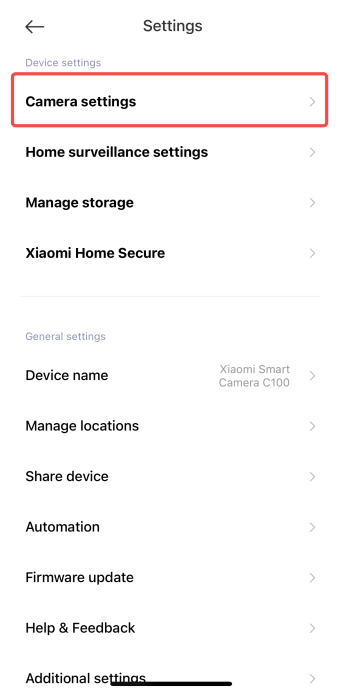
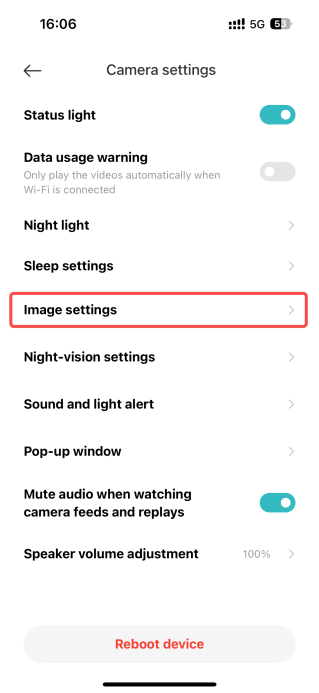
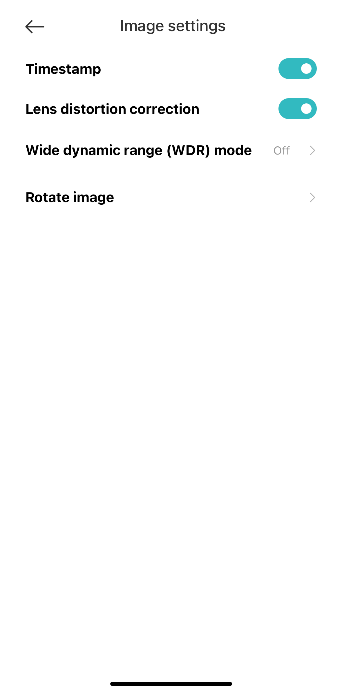
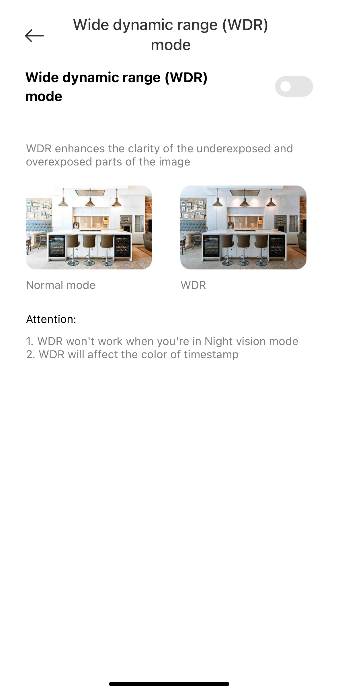
After enabling the Wide Dynamic Range (WDR) mode, both the bright and dark areas are excellent. The Wide Dynamic Range mode (WDR) can ensure clarity for both the dim parts of the picture and the overexposed areas while retaining more details.
Troubleshooting
1. Q: What to do if there is no sound or there is noise when viewing the real-time surveillance footage of the Xiaomi Smart Camera C100?
A: If the Xiaomi Smart Camera C100 has an issue that there is noise when viewing the real-time surveillance footage, please refer to the following suggestions:
1. The Mi Home/Xiaomi Home APP has the real-time video volume turned off by default. You can enable the volume by tapping the mute icon in the video interface of the APP. If the volume is too low, try increasing your phone's volume;
2. If there is noise in the real-time video, move your phone away from the camera and avoid placing the camera near electronic devices like refrigerators or microwaves;
3. If the device is placed at a height or the lens is facing downward, the mic will be blocked inside the casing, causing it to pick up the speaker's sound and create an echo. In this case, reposition the mic outside the casing.
1. The Mi Home/Xiaomi Home APP has the real-time video volume turned off by default. You can enable the volume by tapping the mute icon in the video interface of the APP. If the volume is too low, try increasing your phone's volume;
2. If there is noise in the real-time video, move your phone away from the camera and avoid placing the camera near electronic devices like refrigerators or microwaves;
3. If the device is placed at a height or the lens is facing downward, the mic will be blocked inside the casing, causing it to pick up the speaker's sound and create an echo. In this case, reposition the mic outside the casing.
2. Q: What to do if the video lags or the audio and video are out of sync while viewing the Xiaomi Smart Camera C100's surveillance footage?
A: If the Xiaomi Smart Camera C100 has an issue that the video lags or the audio and video are out of sync while viewing surveillance footage, please refer to the following suggestions:
1. If the video lags or frequently displays a loading screen, switch the video quality to automatic or smooth mode;
2. If the video and sound are out of sync, check if the camera's network connection is stable. If the delay is significant, try exiting and re-entering the surveillance footage.
1. If the video lags or frequently displays a loading screen, switch the video quality to automatic or smooth mode;
2. If the video and sound are out of sync, check if the camera's network connection is stable. If the delay is significant, try exiting and re-entering the surveillance footage.
3. Q: What to do if there is no sound on the phone terminal during a call with the Xiaomi Smart Camera C100?
A: If the Xiaomi Smart Camera C100 has an issue that there is no sound on the phone terminal during a call, please refer to the following suggestions:
1. Check if the phone's volume is set too low, which can cause the sound to be inaudible;
2. Ensure that the Mi Home/Xiaomi Home APP has permission to access the phone’s microphone. If not, enable the necessary permissions in the phone's settings.
1. Check if the phone's volume is set too low, which can cause the sound to be inaudible;
2. Ensure that the Mi Home/Xiaomi Home APP has permission to access the phone’s microphone. If not, enable the necessary permissions in the phone's settings.
4. Q: What to do if the historical videos watched on the Xiaomi Smart Camera C100 are not continuous or smooth?
A: If the Xiaomi Smart Camera C100 has an issue that the historical videos watched are not continuous or smooth, please refer to the following suggestions:
1. If the video stored on the microSD card is not continuous, it is due to the Only record when motion detected feature being enabled, which limits recording to when motion is detected. For cloud storage, it is normal for videos to be non-continuous, as they only record when motion is detected and cannot record continuously for 24 hours;
2. If the video is lagging, it can be a network issue. Check if too many devices are connected to the same network as the camera, or if other devices are streaming video at the same time.
1. If the video stored on the microSD card is not continuous, it is due to the Only record when motion detected feature being enabled, which limits recording to when motion is detected. For cloud storage, it is normal for videos to be non-continuous, as they only record when motion is detected and cannot record continuously for 24 hours;
2. If the video is lagging, it can be a network issue. Check if too many devices are connected to the same network as the camera, or if other devices are streaming video at the same time.
5. Q: What to do if there is an anomaly with the microSD card used in the Xiaomi Smart Camera C100?
A: If the Xiaomi Smart Camera C100 has an issue that there is an anomaly with the microSD card, please refer to the following suggestions:
1. Use a high-speed FAT32-format microSD card designed specifically for dash cams or cameras, and ensure it’s from a reputable manufacturer;
2. Confirm that a compatible microSD card is properly installed in the camera, as the device cannot store recordings or play back historical videos without one;
3. If the microSD card is not recording or cannot automatically overwrite old files, try formatting it through the storage settings in the Mi Home/Xiaomi Home APP;
4. If formatting via the APP is unsuccessful, you can use a card reader to format the microSD card on a computer. After formatting, power off the camera, reinsert the microSD card, and restart the camera.
Note:
Formatting will delete all files on the microSD card.
1. Use a high-speed FAT32-format microSD card designed specifically for dash cams or cameras, and ensure it’s from a reputable manufacturer;
2. Confirm that a compatible microSD card is properly installed in the camera, as the device cannot store recordings or play back historical videos without one;
3. If the microSD card is not recording or cannot automatically overwrite old files, try formatting it through the storage settings in the Mi Home/Xiaomi Home APP;
4. If formatting via the APP is unsuccessful, you can use a card reader to format the microSD card on a computer. After formatting, power off the camera, reinsert the microSD card, and restart the camera.
Note:
Formatting will delete all files on the microSD card.
6. Q: What to do if the Mi Home/Xiaomi Home APP displays the device offline or frequently offline when using the Xiaomi Smart Camera C100?
A: If the Xiaomi Smart Camera C100 has an issue that the Mi Home/Xiaomi Home APP displays the device offline or frequently offline, please refer to the following suggestions:
1. Please check if the Xiaomi Smart Camera C700 is powered off, and ensure that the original adapter is being used;
2. Try restarting the router;
3. If the camera has power and the network is normal, check the device's indicator:
If the indicator is blinking in blue, it means the camera is currently connected to the network. If you have changed the Wi-Fi name or password, please reset the camera and reconnect.
If the indicator is quickly blinking in orange, it means the camera has been reset, please reconnect.
If the indicator remains in orange, it means the camera is requiring a firmware update;
4. Ensure that the microSD card is inserted. Try removing the microSD card to see if the camera remains offline, as lower-quality microSD cards can cause connectivity issues.
1. Please check if the Xiaomi Smart Camera C700 is powered off, and ensure that the original adapter is being used;
2. Try restarting the router;
3. If the camera has power and the network is normal, check the device's indicator:
If the indicator is blinking in blue, it means the camera is currently connected to the network. If you have changed the Wi-Fi name or password, please reset the camera and reconnect.
If the indicator is quickly blinking in orange, it means the camera has been reset, please reconnect.
If the indicator remains in orange, it means the camera is requiring a firmware update;
4. Ensure that the microSD card is inserted. Try removing the microSD card to see if the camera remains offline, as lower-quality microSD cards can cause connectivity issues.
7. Q: What to do if the indicator on the Xiaomi Smart Camera C100 is blinking in blue and the device cannot be used normally?
A: If the Xiaomi Smart Camera C100 has an issue that the indicator on the device is blinking in blue and the device cannot be used normally, please refer to the following suggestions:
1. If the indicator is blinking in blue while connecting to the Mi Home/Xiaomi Home APP, it means the camera cannot connect to the network or bind to the account. Please check if the account password is correct and whether the network meets the camera’s requirements;
2. If the camera was successfully connected to the APP, but the indicator suddenly starts blinking in blue and is not functioning, please verify if the network is working properly.
1. If the indicator is blinking in blue while connecting to the Mi Home/Xiaomi Home APP, it means the camera cannot connect to the network or bind to the account. Please check if the account password is correct and whether the network meets the camera’s requirements;
2. If the camera was successfully connected to the APP, but the indicator suddenly starts blinking in blue and is not functioning, please verify if the network is working properly.
8. Q: Why does the Xiaomi Smart Camera C100 make noise during voice calls?
A: If the Xiaomi Smart Camera C100 has an issue that the device makes noise during voice calls, please refer to the following suggestions:
1. During a call, keep the phone and the device in separate spaces and maintain a distance of at least 10 meters. Echo and howling caused by close-range communication are normal occurrences;
2. If there are many electronic devices nearby, they can cause electromagnetic interference, potentially leading to howling or noise during voice calls.
1. During a call, keep the phone and the device in separate spaces and maintain a distance of at least 10 meters. Echo and howling caused by close-range communication are normal occurrences;
2. If there are many electronic devices nearby, they can cause electromagnetic interference, potentially leading to howling or noise during voice calls.
9. Q: What to do if the images captured during night vision with the Xiaomi Smart Camera C100 are blurry or not visible?
A: If the Xiaomi Smart Camera C100 has an issue that the images captured during night vision are blurry or not visible, please refer to the following suggestions:
1. Ensure that the lens of the Xiaomi Smart Camera C100 is clean and free of dust;
2. Check if the lens is obstructed by any objects, such as reflections from nearby surfaces or wall coverings, or if point light sources are affecting the infrared night vision. If so, adjust the camera's position or tilt the gimbal within the Mi Home/Xiaomi Home APP to move the lens out of the obstructed area.
1. Ensure that the lens of the Xiaomi Smart Camera C100 is clean and free of dust;
2. Check if the lens is obstructed by any objects, such as reflections from nearby surfaces or wall coverings, or if point light sources are affecting the infrared night vision. If so, adjust the camera's position or tilt the gimbal within the Mi Home/Xiaomi Home APP to move the lens out of the obstructed area.
10. Q: What to do if the indicator on the Xiaomi Smart Camera C100 is not on?
A: Open the Mi Home/Xiaomi Home APP and go to the real-time surveillance interface. Tap the three-dot icon at the right top of the screen, select Camera settings, then tap the status option to turn it on.
11. Q: Why does the video of the Xiaomi Smart Camera C100 have no sound when viewed on a computer but have sound when viewed on a phone from the memory card?
A: This issue can be caused by incompatibility between the video file and the media player on your computer. Try using a different media player, such as VLC Media Player.
11. Q: Why does the video of the Xiaomi Smart Camera C100 have no sound when viewed on a computer but have sound when viewed on a phone from the memory card?
A: This issue can be caused by incompatibility between the video file and the media player on your computer. Try using a different media player, such as VLC Media Player.
12. Q: How to resolve issues of the Xiaomi Smart Camera C100 with choppy video or out-of-sync audio and video in memory card recordings?
A: To resolve these issues, please refer to the following steps:
1. Reboot the device to see if it will return to normal;
2. Frequently inserting and removing the memory card while the camera is powered on degrade the performance of the card and cause abnormal video recording issues. It is recommended to insert or remove the memory card only when the camera is powered off;
3. A low read speed of the memory card causes video recording issues;
4. Replace the memory card. Please make sure you use a high-quality, branded memory card that meets the required specifications. Using an unqualified or low-quality card can cause various issues during use, such as incomplete video recordings or frequent memory error messages.
1. Reboot the device to see if it will return to normal;
2. Frequently inserting and removing the memory card while the camera is powered on degrade the performance of the card and cause abnormal video recording issues. It is recommended to insert or remove the memory card only when the camera is powered off;
3. A low read speed of the memory card causes video recording issues;
4. Replace the memory card. Please make sure you use a high-quality, branded memory card that meets the required specifications. Using an unqualified or low-quality card can cause various issues during use, such as incomplete video recordings or frequent memory error messages.
13. Q: How to resolve the issue of the Xiaomi Smart Camera C100 not recognizing the memory card?
A: If the camera fails to recognize the memory card, please follow these steps to troubleshoot the issue:
1. Reboot the device to see if it will return to normal;
2. Check if the camera firmware version and the Mi Home/Xiaomi Home APP version need to be updated;
3. Clear the Mi Home/Xiaomi Home APP data;
Note:
Clearing the data will erase any cloud storage videos you have downloaded.
4. Replace the memory card.
Note:
Memory cards have a limited lifespan. Prolonged use of the same card can lead to wear from repeated read/write cycles, eventually making the card unusable. Please make sure to replace it with a branded memory card that meets the required specifications.
1. Reboot the device to see if it will return to normal;
2. Check if the camera firmware version and the Mi Home/Xiaomi Home APP version need to be updated;
3. Clear the Mi Home/Xiaomi Home APP data;
Note:
Clearing the data will erase any cloud storage videos you have downloaded.
4. Replace the memory card.
Note:
Memory cards have a limited lifespan. Prolonged use of the same card can lead to wear from repeated read/write cycles, eventually making the card unusable. Please make sure to replace it with a branded memory card that meets the required specifications.
14. Q: How to troubleshoot firmware update failure on the Xiaomi Smart Camera C100?
A: Firmware update failures are caused by unstable network conditions or temporary server issues. Please try again in a different network environment.
If your network is stable, simply try again at a later time.
If your network is stable, simply try again at a later time.
15. Q: How to resolve issues where the memory card fails to record videos or cannot automatically delete old recordings in a loop?
A: To resolve these issues, please refer to the following steps:
1. Check if the camera firmware version and Mi Home/Xiaomi Home APP version need to be updated;
2. Go to the [Mi Home/Xiaomi Home] APP >> Tap [Xiaomi Smart Camera C100] >> Tap the three-dot icon on the right top of the screen >> choose [Manage storage] >> Please check if the storage function is disabled or if the recording mode is set to record when motion is detected;
3. Format the memory card in the Mi Home/Xiaomi Home APP;
Note:
Formatting the card will erase all videos. Be sure to back up important videos in advance.
4. If the memory card cannot be formatted in the Mi Home/Xiaomi Home APP, you can use a card reader to format it on a computer. After formatting, power off the camera and reinsert the memory card;
5. If the memory card cannot record videos, the issue is related to the card itself. Try replacing it with another memory card to see if the problem persists.
1. Check if the camera firmware version and Mi Home/Xiaomi Home APP version need to be updated;
2. Go to the [Mi Home/Xiaomi Home] APP >> Tap [Xiaomi Smart Camera C100] >> Tap the three-dot icon on the right top of the screen >> choose [Manage storage] >> Please check if the storage function is disabled or if the recording mode is set to record when motion is detected;
3. Format the memory card in the Mi Home/Xiaomi Home APP;
Note:
Formatting the card will erase all videos. Be sure to back up important videos in advance.
4. If the memory card cannot be formatted in the Mi Home/Xiaomi Home APP, you can use a card reader to format it on a computer. After formatting, power off the camera and reinsert the memory card;
5. If the memory card cannot record videos, the issue is related to the card itself. Try replacing it with another memory card to see if the problem persists.
16. Q: How to resolve video playback lag when viewing high-definition footage from the Xiaomi Smart Camera C100 on an older smartphone?
A: This camera records in 3MP ultra-clear resolution, which has high decoding requirements. Older phone models with limited CPU processing power will experience lag when playing HD videos. It is recommended to switch to standard definition mode for smoother viewing.
17. Q: Why can’t the Xiaomi Smart Camera C100 be connected to the Mi Home/Xiaomi Home APP?
A: To resolve the Xiaomi Smart Camera C100 not being able to connect to the Mi Home/Xiaomi Home APP, please refer to the following steps:
1. Please exit the APP connection interface, reset the camera and reconnect;
2. Please restart the router and keep the camera close to the router;
3. Please check whether the Wi-Fi network is normal. You can use the phone hotspot to check it. If the camera can connect to the hotspot, there are Wi-Fi abnormalities. Please contact the Wi-Fi carrier to solve the issue.
1. Please exit the APP connection interface, reset the camera and reconnect;
2. Please restart the router and keep the camera close to the router;
3. Please check whether the Wi-Fi network is normal. You can use the phone hotspot to check it. If the camera can connect to the hotspot, there are Wi-Fi abnormalities. Please contact the Wi-Fi carrier to solve the issue.
Does it help?
Yes
No