

Xiaomi Portable Photo Printer 1S FAQ
Overview
1. Q: What is ZINK?
A: ZINK is Zero Ink, which means printing without ink. The core part of the technology is not the printer but the paper. Zero-ink printing paper is a composite structure. The overcoat is a high-gloss coating. The middle three layers are crystal image layers composed of yellow, cyan, and magenta (the three primary colors for printing). 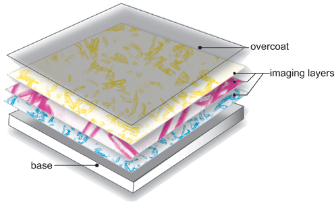
Color generation is achieved through pulse patterns that control temperature and time from the device's print head. And the crystals become stable structures when subjected to high-temperature baking, displaying specific colors, and turning into vibrant photographs and images. Zero-ink paper looks like ordinary white photo paper until the heat activates the imaging layers to produce color.
2. Q: What’s DPI?
A: DPI is Dots Per Inch, a unit of measurement used in dot matrix digital images. It refers to the number of dots, per inch, that can be sampled, displayed, or output. DPI is a unit of measurement for the resolution of printers, mice and other devices. It is one of the main parameters to measure the printing accuracy of printers. The higher the value of DPI, the higher the printing accuracy of the printers. The Xiaomi Portable Photo Printer 1S's printing resolution is 313×512dpi.
Product Introduction and Usage
1. Q: What are the features of the Xiaomi Portable Photo Printer 1S?
A: The Xiaomi Portable Photo Printer 1S has a compact body that can be easily put into a pocket. It uses ZINK printing technology and 3-inch sticker-backed paper, which is convenient to use. The outer shell is made of ABS+PC flame-retardant material, which is not easy to deform or discolor. The overall appearance of the device is simple, delicate, and beautiful. Paired with the Xiaomi Home/Mi Home APP, the printer can print photos.
2. Q: What are the package contents of the Xiaomi Portable Photo Printer 1S?
A: The package contents of the Xiaomi Portable Photo Printer 1S are as follows:
1. Xiaomi Portable Photo Printer 1S×1;
2. USB Type-C Charging Cable×1;
3. User Manual×1;
4. Photo Paper Pack (5 sheets).
3. Q: What is the appearance of the Xiaomi Portable Photo Printer 1S?
A: The Xiaomi Portable Photo Printer 1S has a status indicator, an output tray, one power button, a USB Type-C charging port and one charging indicator. Illustrations of product, accessories, and user interface are for reference purposes only. Actual product and functions can vary due to product enhancements.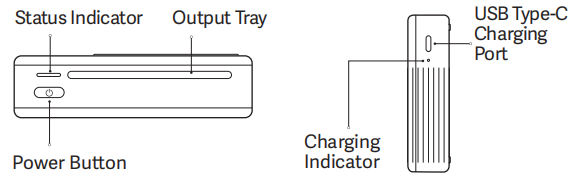
Illustrations of product, accessories, and user interface are for reference purposes only. Actual product and functions can vary due to product enhancements.
Besides, there is a reset button, product label and paper slot in the printer. When the printer is unresponsive, you can press the reset button with a pin to force it to turn off.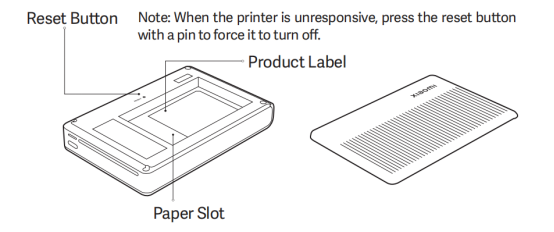
4. Q: How to turn on/off the Xiaomi Portable Photo Printer 1S?
A: To turn on the printer, press and hold the power button for 3 seconds until the status indicator turns white. Then the printer will wait for a pairing with a Bluetooth device, and the status indicator blinks blue. After turning on the printer, press and hold the power button for 3 seconds to turn it off. The printer automatically turns off if it does not perform operations for 10 minutes. Turn it on again for use.
Note:
Updating firmware will not be interrupted by pressing or pressing and holding the power button.
5. Q: How to restore the factory settings of the Xiaomi Portable Photo Printer 1S?
A: Press and hold the power button for 7 seconds to restore factory settings.
6. Q: How to put photo paper into the Xiaomi Portable Photo Printer 1S?
A: 1. Open the printer paper tray cover. Push the paper tray cover with proper force until it clicks into place. Then, remove the cover;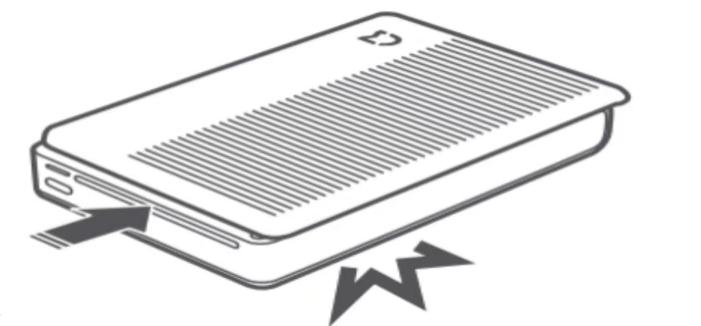
2. Load photo paper. Remove the photo paper from its packaging and load the entire pack of paper into the printer with the glossy side up. Make sure the orange Smart Sheet is placed at the very bottom with its barcode facing down;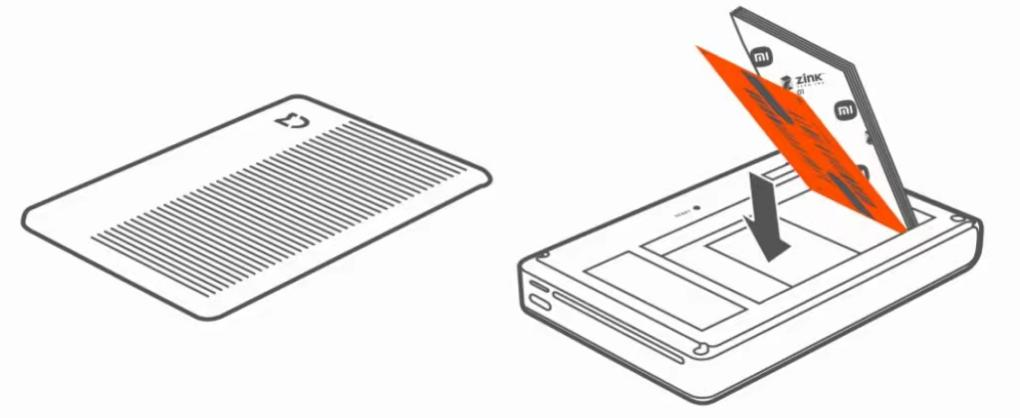
3. Place the paper tray cover back onto the printer at the position shown in the lower-left figure and push it left to close the cover.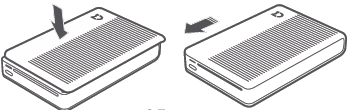
Note:
1. The orange Smart Sheet can optimize printing quality and clean the print head;
2. Place the Smart Sheet at the very bottom during photo paper loading. It is recommended to retain the Smart Sheet for backup;
3. Use the photo paper as soon as possible after unpacking to prevent moisture from degrading printing quality;
4. The paper tray can load 10 pieces of photo paper and 1 orange Smart Sheet;
5. Do not touch the glossy side of photo papers, so as not to affect the printing quality.
7. Q: What is the indicator status of the Xiaomi Portable Photo Printer 1S?
A: The Xiaomi Portable Photo Printer 1S has two indicators, namely the charging indicator and the status indicator.
1. Charging indicator:
Keeping white: Charging;
Off: Fully charged.
2. Status indicator:
Off: Turned off;
Keeping white: Standby;
Blinking blue: Waiting for Bluetooth pairing;
Breathing orange: The battery level is low;
Blinking white: Printing/Updating firmware;
Keeping orange: Printer error.
8. Q: Will the Xiaomi Portable Photo Printer 1S shut down automatically?
A: To save power, the printer automatically turns off if it does not perform operations for 10 minutes.
9. Q: Will the Xiaomi Portable Photo Printer 1S get hot when it is working?
A: Yes. The Xiaomi Portable Photo Printer 1S needs to heat the print head during operation. Photo imaging is performed through the heated print head. The heat will be conducted through the device casing. The heating of the printer casing is a normal working phenomenon.
10. Q: Will the printing quality of the Xiaomi Portable Photo Printer 1S be affected by the environment?
A: Yes. The use environment can affect the printer, such as the printing speed will slow down, or it will not print at all, and the device will automatically shut down. The output image is light or dark.
If you encounter similar situations, please change the use environment. It is recommended to use it indoors at 20°C-25°C. The relative humidity of the environment should be 40%-55%. Too high humidity can cause the printed photos to be blurred. Please store the printer and photo paper in a cool and dry place when not in use.
A dusty printing environment will affect the quality of photo output, which will manifest as abnormal color dots, lines or uneven colors in the photos. And in serious cases, it will affect the life of the printer.
11. Q: Can the Xiaomi Portable Photo Printer 1S use unofficial photo paper and Smart Sheet?
A: Do not use unofficial photo paper with the printer, as it can damage the device and can’t ensure printing quality.
12. Q: What is the Smart Sheet for the Xiaomi Portable Photo Printer 1S?
A: The orange Smart Sheet of the Xiaomi Portable Photo Printer 1S is used to calibrate the printer’s color. Each pack of photo paper includes one orange Smart Sheet. When replacing photo paper, insert the Smart Sheet first (text side facing down), then insert the photo paper into the paper slot (text side facing down).
After each paper replacement, insert the Smart Sheet and photo paper. When printing the first photo, the printer will first recognize the Smart Sheet for calibration. Once calibration is complete, the card will automatically come out of the printer, and the device will then print the photo automatically.
The orange Smart Sheet is used for calibration when a new pack of photo paper is used for the first time. After that, it can be inserted every two to three prints for cleaning and maintenance. When not in use, the orange Smart Sheet can be placed on top of the photo paper in the paper slot.
13. Q: How to maintain the Xiaomi Portable Photo Printer 1S?
A: The printer has a built-in lithium battery and should not be stored in a high-temperature environment. The printer should be recharged at least once every 3 months. Do not use the printer if it is exposed to water.
14. Q: What are the requirements for sticking the Xiaomi Portable Photo Printer 1S’s photos?
A: When sticking a photo, choose a smooth, flat, and clean surface. Do not expose the paper to high humidity or moisture to prevent it from curling up or losing its adhesive properties.
15. Q: How to store the photo paper of the Xiaomi Portable Photo Printer 1S?
A: Do not store photo paper at high temperatures or in direct sunlight, as this can cause the paper to become discolored. Do not expose photo paper to humid environments, water, and other liquids, as this can cause the paper to become discolored and wrinkled. Avoid any dust as it can cause scratches on the paper and damage the printer.
Note:
Unopened photo paper can be stored for 1-2 years. It is afraid of high temperature and humidity, so hoarding is not recommended.
16. Q: Will the quality of the original image affect the printing quality of the Xiaomi Portable Photo Printer 1S?
A: The quality of the original image directly affects the final photo. To print a satisfactory photo, you can edit and adjust the image before printing, such as brightness, contrast, and sharpness. Make sure the photo resolution is above 960×640. If the image is too large, the Xiaomi Home/Mi Home APP will automatically compress it to ensure normal transmission and printing.
Xiaomi Home/Mi Home APP
1. Q: How to connect the Xiaomi Portable Photo Printer 1S with the Xiaomi Home/Mi Home APP?
A: Press and hold the power button of the printer to turn it on. The printer status indicator lights up and automatically enters a waiting state for Bluetooth pairing. Open the Xiaomi Home/Mi Home APP and tap the “+” icon on the upper right, wait for the device to be scanned (or added manually). Tap the Xiaomi Portable Photo Printer 1S device card and press the power button to complete the printer network configuration. After that, follow the APP prompts to enter the printer interface to connect, and then the printer will be connected successfully.
2. Q: How to check the status of the Xiaomi Portable Photo Printer 1S in the Xiaomi Home/Mi Home APP?
A: Open the Xiaomi Home/Mi Home APP, and enter the Xiaomi Portable Photo Printer 1S device card. Tap [View details] to view the current status of the printer.
3. Q: How to print photos using the Xiaomi Portable Photo Printer 1S?
A: 1. Open the Xiaomi Home/Mi Home APP, and enter the Xiaomi Portable Photo Printer 1S device card. Tap [Print photos], and select the photos you want to print;
2. Tap [Edit] at the bottom of the APP to allow you to edit the selected photos;
(1). Tap [Adjust] at the bottom to select the border, such as no border, with border, polaroid and no crop;
(2). Tap [Filters] at the bottom and choose from 8 filters;
(3). Tap [Enhance] at the bottom to adjust brightness, sharpen, contrast, saturation, and vignette;
(4). Tap [Watermark] at the bottom to add watermark information such as profile photo, device, exposure parameters, and text color;
3. You can also modify the number of copies to be printed, and up to 9 copies can be selected;
4. After adjusting the photo, tap the print icon in the upper right corner and wait for the phone to transfer the picture to the printer (you can cancel printing, check the print queue, and return to the device card at this time). The printer picks up paper and starts printing.
4. Q: How to print photo collages with the Xiaomi Portable Photo Printer 1S?
A: The Xiaomi Portable Photo Printer 1S has a photo puzzle printing function, combining multiple photos into one photo for printing. Open the Xiaomi Home/Mi Home APP, and enter the Xiaomi Portable Photo Printer 1S device card. Tap [Photo collage] and the picture to select and mark the order. You can select up to 4 photos at a time.
After selecting the photo, tap the upper right corner to enter the layout interface. You can choose vertical (8 types) and horizontal (8 types) layout schemes.
Tap the desired layout to enter the [Print preview] interface. You can replace, rotate, symmetrize, etc., for each picture. After adjusting the photo, you can select the number of copies to print (up to 9 copies), and tap the print button in the upper right corner to print the puzzle photo.
5. Q: How to split photo printing with the Xiaomi Portable Photo Printer 1S?
A: The Xiaomi Portable Photo Printer 1S has the function of splitting photos for printing, which can split a photo into two, three or four parts for printing. Open the Xiaomi Home/Mi Home APP, and enter the Xiaomi Portable Photo Printer 1S device card. Tap [Grid split] and enter the photo selection interface. There are 8 split templates to choose from.
After selecting the split image template, you can edit the image and select the number of copies to print. The editable contents include [Adjust] (image angle), [Filters], [Enhance] (brightness, sharpen, contrast, saturation and vignette). The maximum number of copies can be 9. After the adjustment, tap the print button in the upper right corner to complete the split image printing.
6. Q: How to print headshot photos with the Xiaomi Portable Photo Printer 1S?
A: The Xiaomi Portable Photo Printer 1S has the function of headshot printing. Open the Xiaomi Home/Mi Home APP, and enter the Xiaomi Portable Photo Printer 1S device card. Tap [Headshot photo] and enter the photo selection interface. There are 6 headshot templates to choose from.
You can choose the same photo or different photos to fill in the template. To choose different photos to fill in, you need to select according to the number of photos in the selected template.
After selecting the photos, you can directly tap the print button in the upper right corner to print.
If you need to crop the printed photo, you can tap [Crop assistance] at the bottom before printing. It can create a crop assistant positioning point for each small picture. If you need to replace a picture, you can select the picture and tap the copy icon to replace it. If you need to edit a picture, tap the edit icon to edit it.
After editing the picture, tap the print button in the upper right corner to print it. You can print up to 9 copies.
7. Q: How to upgrade the firmware of the Xiaomi Portable Photo Printer 1S?
A: Open the Xiaomi Home/Mi Home APP, and enter the printer device card, tap [...] in the upper right corner >> [General settings] >> [Firmware update] (a red dot will appear when there is a new firmware). If an update is detected, tap [Update now] at the bottom and wait for the update.
FAQ and Troubleshooting
1. Q: Why can’t the Xiaomi Portable Photo Printer 1S be turned on and the status indicator is off?
A: 1. Press and hold the power button for 3 seconds to turn on the device;
2. Check whether the printer power button has normal feedback and whether there is any foreign object;
3. The battery level is too low. Try charging the printer promptly;
4. Apply for after-sales service to check whether the printer is faulty.
2. Q: Why can’t the Xiaomi Portable Photo Printer 1S be searched in the Xiaomi Home/Mi Home APP?
A: 1. Make sure the phone's Bluetooth is enabled and try restarting Bluetooth;
2. Check whether the positioning service of the phone is turned on;
3. Check whether the printer is turned on. The device will automatically shut down after being in standby for 10 minutes.
3. Q: Why can't the Xiaomi Portable Photo Printer 1S receive printing instructions?
A: 1. Check whether the printer is turned off and try again after restarting it;
2. Check whether the phone and printer are connected normally. You can try restarting Bluetooth;
3. Check if the Xiaomi Home/Mi Home APP version is too low and try again after updating.
4. Q: Why can't the Xiaomi Portable Photo Printer 1S load photo paper?
A: 1. Check if there is too much photo paper. The normal capacity of the printer is one orange Smart Sheet and 10 photo paper;
2. Check if there are foreign objects in the paper slot that cause difficulty in inserting the paper. Check whether the paper slot is deformed, the photo paper is deformed, or the compatible consumables cause difficulty in inserting paper. Please use official consumables.
5. Q: What to do when the Xiaomi Portable Photo Printer 1S cannot pick up photo paper during printing?
A: 1. Check whether the photo paper is installed correctly, whether it is installed in the wrong direction, or not properly inserted;
2. Check whether there are more than 10 photo paper;
3. Check whether the photo paper is deformed;
4. Contact after-sales service to check whether there is a printer malfunction.
6. Q: What to do if the Xiaomi Portable Photo Printer 1S makes unusual noises during operation?
A: 1. Check whether the printer has been accidentally dropped, causing the components to shift;
2. Check whether there is any foreign object entering the printer;
3. Contact after-sales service to check whether there is a printer malfunction.
7. Q: What to do if the Xiaomi Portable Photo Printer 1S shuts down abnormally during operation?
A: If the printer shuts down abnormally during printing, you can try to charge it and then restart it. The printer will automatically resume its normal working state. Do not force paper removal, as it can cause damage to the device.
8. Q: What to do if the Xiaomi Portable Photo Printer 1S shuts down abnormally during firmware upgrade?
A: If the printer shuts down abnormally during the firmware update, it will resume normal operation after restarting. You can just update the firmware version again.
9. Q: What to do if the Xiaomi Portable Photo Printer 1S has a photo paper jam?
A: When a photo paper jam occurs, turning the Xiaomi Portable Photo Printer 1S on and off will automatically clear the jammed photo paper inside the device. If it fails the first time, you can try several times. Do not forcibly pull the photo paper, as this will cause irreparable damage to the printer. If the problem persists after multiple power cycles, gently pull out the photo paper from the side where more of the paper is exposed.
Frequent paper jams can be caused by high temperature and humidity in the operating environment or improper storage of the photo paper, which can lead to paper deformation or foreign objects inside the printer mechanism.
It is recommended to print in a proper working environment or replace with new, undamaged photo paper. If there are foreign objects inside the printer mechanism, further inspection will be required.
10. Q: Why is there a color difference between the photos printed by the Xiaomi Portable Photo Printer 1S and those displayed on the screen?
A: This is normal. Since active light sources and passive light sources have different performance principles, there are certain color differences in the image output of electronic display devices and the printer. When the screen backlight is adjusted to the lowest, the degree of restoration will be relatively close. The higher the screen backlight brightness, the greater the difference in the degree of restoration.
11. Q: Why is there a color difference when the Xiaomi Portable Photo Printer 1S prints the same picture on iOS and other systems?
A: This is normal. When printing the same photo, the iOS system has a more obvious color cast than other systems. This is due to the transcoding algorithm of the image format in different systems. This problem cannot be improved through the APP or hardware. You can change the photo or the system to solve the reddish problem.
12. Q: Why do photos printed by the Xiaomi Portable Photo Printer 1S have white horizontal stripes?
A: Check whether the photo paper is damp and whether the storage environment meets the requirements.
13. Q: Why are some colors of the photos printed by the Xiaomi Portable Photo Printer 1S tinted with red?
A: For some specific colors, a magenta tint will occur, which is a normal phenomenon. Please select appropriate photos for printing.
14. Q: Why does the printing effect of the Xiaomi Portable Photo Printer 1S become worse with the orange Smart Sheet?
A: Do not use unofficial photo paper and orange Smart Sheet. You must use the original orange Smart Sheet for calibration to ensure print quality. Please use the orange Smart Sheet with the corresponding photo paper together. If the photo paper storage does not meet the conditions, it will affect the print quality, cause paper jams, paper removal errors, incomplete prints, etc.
15. Q: Why do photos printed by the Xiaomi Portable Photo Printer 1S have scratches and uneven colors?
A: Please check if there is dust on the surface of the photo paper. If this happens, you can put the orange Smart Sheet at the bottom of the photo paper slot and print 2-3 times.
16. Q: Why is the print quality of photos printed twice by the Xiaomi Portable Photo Printer 1S inconsistent?
A: The storage environment of photo paper is 20℃~25℃ and the relative humidity is 40%-60%. The best printing temperature of the printer is 20℃~25℃ and the relative humidity is 40%-60%. If the storage or usage does not meet the conditions, it will affect the printing quality, cause paper jams, paper removal errors, incomplete printing of photos, etc.
17. Q: Why does the printing effect of the Xiaomi Portable Photo Printer 1S photo paper become worse after being stored for some time?
A: The storage environment of photo paper is 20℃~25℃ and the relative humidity is 40%-60%. If the storage does not meet the conditions, it will affect the printing quality, cause paper jams, paper removal errors, incomplete printing of photos, etc.
18. Q: Should I charge the Xiaomi Portable Photo Printer 1S immediately when it prompts that the battery is too low?
A: When the Xiaomi Home/Mi Home APP shows that the printer battery is too low, it will not be able to print. It is recommended to charge the printer in time.
19. Q: What to do if the Xiaomi Portable Photo Printer 1S picks up paper incorrectly?
A: Check whether the photo paper is correctly installed in the paper slot. If the photo paper is deformed, it can not enter the paper feed slot properly or cause multiple sheets to feed at once. In this case, remove the photo paper (be careful not to touch the glossy side) and flatten it before using it again. However, if the photo paper has been affected by moisture, it will result in poor print quality, paper jams, or incomplete printing.
20. Q: What to do if the Xiaomi Portable Photo Printer 1S prompts to use original photo paper?
A: Put the correct orange Smart Sheet into the paper slot and try again.
21. Q: What to do if the Xiaomi Portable Photo Printer 1S is out of paper?
A: Open the paper tray cover and check whether photo paper and the orange Smart Sheet are properly loaded.
22. Q: Can the Xiaomi Portable Photo Printer 1S keep using when it prompts that the print head temperature is too high?
A: To protect the device, please wait for the printer to cool down before trying to print.
23. Q: What to do if the Xiaomi Portable Photo Printer 1S prompts that the image parsing error occurs?
A: You can try printing again. The printer supports printing images in JPG (JPEG), PNG, and HEIF formats. If the image parsing error is still prompted, it means that the format type of the image is not supported.
24. Q: What to do if the Xiaomi Portable Photo Printer 1S indicates that the printer hardware is faulty?
A: Please try restarting the printer. If the printer cannot be restored after restarting, you need to ask the after-sales service to check whether the printer is faulty.
25. Q: What to do if there is a color difference when printing with the Xiaomi Portable Photo Printer 1S?
A: The printer uses ZINK printing technology, and the printing effect can be slightly different compared to other printing technologies, such as inkjet or thermal sublimation. If you find that there is a significant color difference between the printed photo and the original image, you can try the following methods to help minimize the issue.
1. Make sure that the Xiaomi Home/Mi Home APP has been upgraded to the latest version;
2. Update the firmware of the Xiaomi Portable Photo Printer 1S to the latest version;
3. When changing the photo paper, make sure to put in the matching calibration card correctly. Improper placement or no calibration card will affect the print quality;
4. Confirm whether the resolution of the original image reaches 960x640 or higher, because the image resolution will directly affect the printing effect;
5. The photo paper should be used as soon as possible after opening, and avoid direct contact with the surface with your fingers to avoid affecting the print quality;
6. When the photo paper is not in use, please store it in a cool and dry environment to avoid the impact of high temperature and humidity.
This can help you reduce the color difference problem and ensure the print quality.
26. Q: What to do if the Xiaomi Portable Photo Printer 1S can’t connect to the Xiaomi Home/Mi Home APP?
A: First, press and hold the printer power button for 7 seconds to restore the printer to factory settings. And then turn off the printer and restart it. Delete the device in the Xiaomi Home/Mi Home APP. And ignore the printer in the Bluetooth option in the phone, and try adding it again.
27. Q: Why can’t the iOS device be connected again after being bound to the Xiaomi Portable Photo Printer 1S?
A: Turn off the printer first and then restart it. Delete the device in the Xiaomi Home/Mi Home APP, ignore the printer in the Bluetooth option on the phone, and add it again. For subsequent use, please disconnect the printer from the phone's Bluetooth first and shut down the printer manually.
28. Q: What to do if there are dashed lines after printing with the Xiaomi Portable Photo Printer 1S?
A: If there are dotted lines/blue dotted lines/black lines/gray lines after printing with the Xiaomi Portable Photo Printer 1S, it can be due to dust entering the printer. You can use the [Cleaning the print head] function to remove dust from the print head. Place the orange Smart Sheet at the bottom of the photo paper, and the cleaning function will use the orange Smart Sheet to perform cleaning three times.
It is recommended to put the orange Smart Sheet for cleaning after printing every two to three photos. For severe stripes, you can apply alcohol to the orange Smart Sheet for calibration and cleaning.
29. Q: What to do if the Xiaomi Portable Photo Printer 1S cannot obtain the printer status?
A: Please check whether the Xiaomi Home/Mi Home APP and firmware versions are the latest versions. Exit the APP plug-in and close the background operation first, turn off the printer and then restart it. After connecting, please upgrade the firmware to the latest version. If the Android phone fails to connect and cannot be upgraded, you can first use an iOS phone to upgrade, and then reconnect the device after the upgrade is successful.
30. Q: Why do the photos printed by the Xiaomi Portable Photo Printer 1S have vertical stripes?
A: When the photo paper is damp, it will absorb dirt and bring it into the device, thus affecting the photo’s quality. Use the [Cleaning the print head] to print out an orange Smart Sheet for cleaning. Repeat 4-5 times to solve the problem. If it is still not solved, try applying alcohol to the orange Smart Sheet and tap cleaning mode again to clean it.
After the photo paper is opened, it will be affected by temperature and humidity. It needs to be used as soon as possible to avoid affecting the printing quality due to moisture. It is recommended to use a sealed bag to seal the photos.
31. Q: Why is the Xiaomi Portable Photo Printer 1S’s indicator blue, but the printer cannot be found?
A: If the location of the Xiaomi Home/Mi Home APP is not in your country/region, the printer will not be found. Please make sure that the region and language in the APP settings match your actual location and preferred language.
32. Q: Why do the photos printed by the Xiaomi Portable Photo Printer 1S have horizontal stripes?
A: 1. When the photo paper is damp, the cleaning is ineffective at this time. You need to replace it with a pack of newly opened photo paper;
2. When picking up new photo paper, do not touch the short edge with your hands. Touching the short edge with your hands will also produce stripes when printing. It is recommended to hold the long sides of the photo paper when picking it up to avoid excessive contact with the surface of the photo paper with your fingers.
33. Q: Why do photos printed by the Xiaomi Portable Photo Printer 1S have blue/black lines on the edges?
A: The color development principle of ZINK photo paper is based on a pulse mode of temperature and time controlled by the print head. The crystals in the paper form a stable structure and display specific colors when exposed to high heat, resulting in vibrant photos and images.
During the production process, the photo paper is cut into fixed 3-inch sizes, which can damage the chemical coating at the edges. As a result, when the print head applies heat, the damaged coating can be activated and cause the edges to appear black or blue. However, these edge lines are located on the sides and are extremely fine, so they do not affect the imaging quality.
Does it help?