

Xiaomi 15 Ultra Photography Kit FAQ
1. Q: Why can the logo on the Silver Chrome version of the Xiaomi 15 Ultra not be seen after using the protective case of the Xiaomi 15 Ultra Photography Kit?
A: To ensure the appearance excellence of the Xiaomi 15 Ultra, the position of the Xiaomi logo on the Silver Chrome version is slightly different from the white and black versions. After using the protective case of the Xiaomi 15 Ultra Photography Kit, you will not see the Xiaomi logo on the Silver Chrome version of the Xiaomi 15 Ultra, which is normal. Thank you for your understanding.
2. Q: Why can the Xiaomi 15 Ultra Photography Kit not wake the camera of the Xiaomi 15 Ultra?
A: When the Xiaomi 15 Ultra Photography Kit is not used for a long time, it will enter the low power-consumption mode to save the battery. It is recommended that you re-plug in the photography kit to restore the normal connection. Thank you for your understanding.
3. Q: How to charge the Xiaomi 15 Ultra Photography Kit?
A: Please use the standard adapter and charging cable to charge the device. To achieve optimal charging performance, it is recommended that you use the Xiaomi official power adapter with the power no less than 90W. If you use the unofficial adapter or the adapter with the power lower than 90W, the charging performance will be affected.
When the photography kit is connected to the phone, please refer to the following details:
1. In the defaulted conditions, when the power level of the phone is less than 20%, the photography kit will charge the phone automatically. If you need to adjust the power level triggering the automatic charging or charge the phone once the photography kit is installed, you can configure it in [Emergency charging level]. If you want to immediately charge the phone after installing the grip, you can adjust the charging with the grip from [Emergency] to [Always] in [Charge from camera grips];
2. You can customize the shortcut switch for charging the photography kit after pulling down the status bar. When turned on, the photography kit starts charging the phone, and when turned off, the photography kit stops charging the phone.
When the photography kit is not connected to the phone, but to the charging cable, please refer to the following details:
Please use a Xiaomi power adapter (15W and above) to charge the photography kit at a maximum power of 15W. During charging, the indicator is red and turns green when fully charged.
When the photography kit is connected to the phone and the charging cable, please refer to the following details:
When using a Xiaomi power adapter (90W and above), the phone will be charged first at a maximum power of 90W. When the phone is fully charged, it will automatically switch to charging the photography kit (12.5W Max.). During the charging process, the indicator is red and turns green when fully charged.
4. Q: How to turn on/off the Xiaomi 15 Ultra Photography Kit?
A: After the connection between the photography kit and the phone, the photography kit will automatically turn on. After the disconnection between the the photography kit and the phone, the photography kit will automatically turn off.
5. Q: Can the Xiaomi 15 Ultra Photography Kit be used to connect to the phone when the power is depleted?
A: When the photography kit is out of power and you connect it to a phone, the phone will power the photography kit to ensure that the shooting-related functions of the photography kit are available.
6. Q: How to pair the Xiaomi 15 Ultra Photography Kit with the phone?
A: After the photography kit and the phone are installed in place, they will automatically connect and pair. After the connection is successful, the phone will display a successful connection prompt.
7. Q: What is the function of charging suspension protection on the Xiaomi 15 Ultra Photography Kit?
A: The function of charging suspension protection means when the battery level of the phone is higher than 80%, and the battery level will not increase (displaying the charging icon), the phone will consume the power of the photography kit as the priority, keep the phone power not changing, and extend the battery life.
8. Q: How to check the power level bar the Xiaomi 15 Ultra Photography Kit?
A: You can add the battery widget on the home screen and check it on the battery widget.
9. Q: How to configure the button functions of the Xiaomi 15 Ultra Photography Kit?
A: You can configure the button functions in [More connectivity options] or go to the Professional camera grip settings >> [Set up grip button] >> configure the button functions according to your needs.
10. Q: How to quickly switch the focal length of the Xiaomi 15 Ultra Photography Kit?
A: Please go to the Professional camera grip settings >> [Set up grip button] >> [Zoom lever] >> [Switch focal length]. If you select [Continuous zoom], pressing the shooting interface means 0.1x zoom, and pressing and holding the shooting interface means continuous zoom.
11. Q: What are the precautions for using the Xiaomi 15 Ultra Photography Kit?
A: The precautions for using the Xiaomi 15 Ultra Photography Kit are listed below:
1. The locking force of the camera grip latch is mainly to secure the phone case and grip. Do not pull the camera grip forcefully in the locked state to prevent damage to the device;
2. After the installation of the camera grip on your phone, the microphone jack and speaker at the bottom will be covered, which will affect the functions of call, recording, music playback, audio zoom, etc. It is recommended that you remove the camera grip when using the functions of the above-mentioned scenarios;
3. The camera grip is mainly designed for photo shooting/video recording scenarios, in scenarios other than photo/video recording (e.g. game, call, etc.). It is recommended to detach the camera grip;
4. The wireless charging function is not available for your phone after the installation of the camera grip. Please remove the grip when you need to charge your phone wirelessly;
5. The device can only be used with the Xiaomi 15 Ultra official protective case. Please refer to the official product site for subsequent compatible models;
6. All functions of the Xiaomi 15 Ultra Photography Kit are only effective within Xiaomi Camera APP, and cannot be used with a third-party camera APP;
7. The Xiaomi 15 Ultra Photography Kit has OTA upgrade function. No notice will be given for the new or changed functions added or changed by OTA, but the changes will be updated to the latest version;
8. After installing the grip, you will not be able to transfer files between the computer and phone via the grip's Type-C connector, use OTG (including but not limited to a thumb drive, game controller, OTG network card, etc.), or connect a wired headset (including digital/analog headset). Remove the grip to use the above functions;
9. When the grip is at low battery or high temperature, the charging power to the mobile phone will drop. When the phone is used under heavy load, charging it using a grip that is at low battery or high
temperature will result in a lower battery level of the phone.
12. Q: What does the indicator on the Xiaomi 15 Ultra Photography Kit represent?
A: 1. In the charging scenario, when the indicator keeps in red, the grip is charging, and when the indicator keeps in green, the grip is fully charged;
2. In the non-charging scenario, when the grip is not connected to the phone and quickly pressing the shutter button, the indicator is kept in green and goes out after 5 seconds, which means the grip power is more than 20%. The indicator is kept in red and goes out after 5 seconds, which means the grip power is no more than 20%. When the grip is connected to the phone, the indicator is kept in green and goes out after 5 seconds, which means the grip power is more than 20%. The indicator is kept in red and goes out after 5 seconds, which means the grip power is no more than 20%.
13. Q: How to install and disassemble the decorative ring of the Xiaomi 15 Ultra Photography Kit?
A: To install the decorative ring, please refer to the following steps:
1. Align the ring alignment point with the case alignment point;
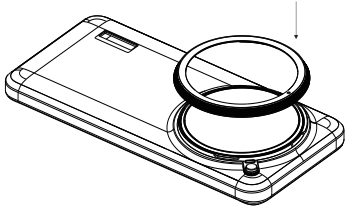
2. Align the positioning points, press down gently and turn clockwise to secure tightly;
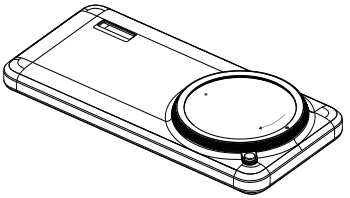
3. Installation is successful when the alignment point is rotated to the release button. There will be a "clicking" sensation when it is installed in place. After installation, you can check if it is in place by
rotating it counter-clockwise.
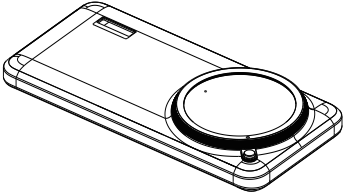
To disassemble the decorative ring, please refer to the following steps:
1. Press and hold the release button and twist the decorative ring counter-clockwise;
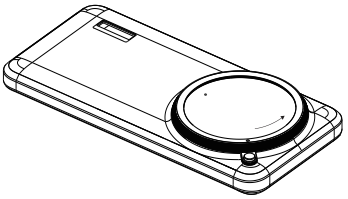
2. Rotate the decorative ring alignment point to the position shown in the illustration to remove it;
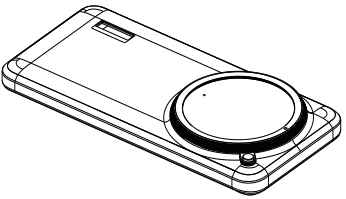
3. Remove the decorative ring.
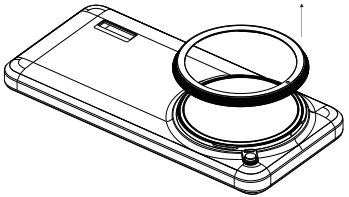
Note:
The decorative ring needs to be used with the official Xiaomi 15 Ultra protective case.
14. Q: How to install and disassemble the adapter ring of the Xiaomi 15 Ultra Photography Kit?
A: To install the adapter ring, please refer to the following steps:
1. Align the 67mm filter adapter ring alignment point with the protective case alignment point;
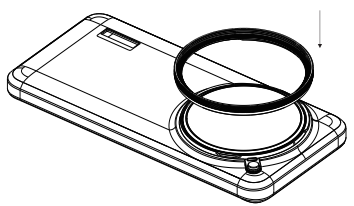
2. Once the alignment points are aligned, rotate in a clockwise direction to tighten;
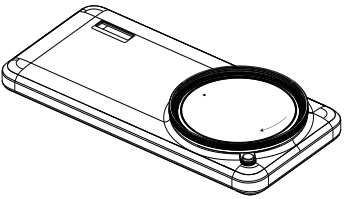
3. Installation is successful when the alignment point is rotated to the release button. There will be a "clicking" sensation when it is installed in place. After installation, you may check if it is in place by
rotating it counter-clockwise;
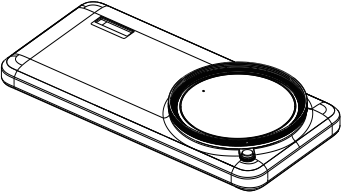
4. Once the installation is confirmed in place, the generic (threaded port) 67mm camera filters can be adapted (filters need to be purchased separately).
Note:
The 67mm filter adapter ring is required to be used with the Xiaomi 15 Ultra official protective case (filters need to be purchased separately. It can be used with camera filters with a 67mm thread).
To disassemble the adapter ring, please refer to the following steps:
1. Press and hold the release button and twist the 67mm filter adapter ring counter-clockwise;
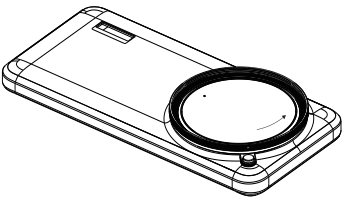
2. Rotate the decorative ring alignment point to the position shown in the illustration to remove it;
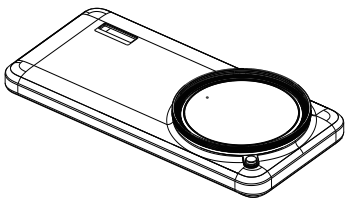
3. Remove the 67mm filter adapter ring.
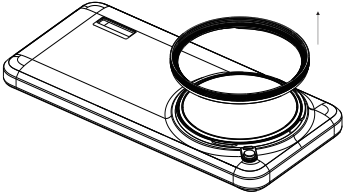
Note:
If the filter and the adapter ring are installed too tightly, the filter and the adapter will be removed together. In this case, the filter and the adapter ring can be separated by placing the filter and the adapter ring on the protective case (the position of step 2 in the installation) and turning it counterclockwise.
15. Q: How to use the button functions of the Xiaomi 15 Ultra Photography Kit after connecting to the phone?
A: For your reference, the button functions of the Xiaomi 15 Ultra Photography Kit are listed below:
1. Shutter button: When you are not in the Camera APP, press and hold the shutter button to enter the default camera or Fastshot mode. You can configure it in [More connectivity options] in [Settings]. When you configure it as camera launching, you can press and hold it to enter the default camera mode. When you configure it as [Open camera] and [Take photo], you can press and hold to enter the Fastshot mode. When you are in the Camera APP and shoot/video, press to display the zoom area, singly press to shoot (start or end videoing in videoing mode), and press and hold to continuously take photos (which is effective when you select [Burst] in [Shutter button]). When you are in the Gallery APP, press to return to shooting or videoing interface;
2. Zoom lever: When you shoot or video in the Camera APP, you can toggle to switch focal lengths, and press and hold for continuous zoom. You can also select from [Continuous zoom] or [Switch focal length] in [Zoom lever];
3. Video button: When you are shooting or videoing in the Camera APP, singly press to quickly start video recording. The default function is to quickly switch to video mode and start video recording. You can also customize different features like adjusting the aspect ratio, auto exposure, and more;
4. Customize dial; When you are shooting or videoing in the Camera APP, you can toggle to adjust the current camera specifications. The defaulted setting is EV, and you can select from [Shutter], [ISO], [White balance], [Focus], and [Bokeh] in [Customized dial]. You can also switch to the last or next photo by toggling the Customize dial.
A: To ensure the appearance excellence of the Xiaomi 15 Ultra, the position of the Xiaomi logo on the Silver Chrome version is slightly different from the white and black versions. After using the protective case of the Xiaomi 15 Ultra Photography Kit, you will not see the Xiaomi logo on the Silver Chrome version of the Xiaomi 15 Ultra, which is normal. Thank you for your understanding.
2. Q: Why can the Xiaomi 15 Ultra Photography Kit not wake the camera of the Xiaomi 15 Ultra?
A: When the Xiaomi 15 Ultra Photography Kit is not used for a long time, it will enter the low power-consumption mode to save the battery. It is recommended that you re-plug in the photography kit to restore the normal connection. Thank you for your understanding.
3. Q: How to charge the Xiaomi 15 Ultra Photography Kit?
A: Please use the standard adapter and charging cable to charge the device. To achieve optimal charging performance, it is recommended that you use the Xiaomi official power adapter with the power no less than 90W. If you use the unofficial adapter or the adapter with the power lower than 90W, the charging performance will be affected.
When the photography kit is connected to the phone, please refer to the following details:
1. In the defaulted conditions, when the power level of the phone is less than 20%, the photography kit will charge the phone automatically. If you need to adjust the power level triggering the automatic charging or charge the phone once the photography kit is installed, you can configure it in [Emergency charging level]. If you want to immediately charge the phone after installing the grip, you can adjust the charging with the grip from [Emergency] to [Always] in [Charge from camera grips];
2. You can customize the shortcut switch for charging the photography kit after pulling down the status bar. When turned on, the photography kit starts charging the phone, and when turned off, the photography kit stops charging the phone.
When the photography kit is not connected to the phone, but to the charging cable, please refer to the following details:
Please use a Xiaomi power adapter (15W and above) to charge the photography kit at a maximum power of 15W. During charging, the indicator is red and turns green when fully charged.
When the photography kit is connected to the phone and the charging cable, please refer to the following details:
When using a Xiaomi power adapter (90W and above), the phone will be charged first at a maximum power of 90W. When the phone is fully charged, it will automatically switch to charging the photography kit (12.5W Max.). During the charging process, the indicator is red and turns green when fully charged.
4. Q: How to turn on/off the Xiaomi 15 Ultra Photography Kit?
A: After the connection between the photography kit and the phone, the photography kit will automatically turn on. After the disconnection between the the photography kit and the phone, the photography kit will automatically turn off.
5. Q: Can the Xiaomi 15 Ultra Photography Kit be used to connect to the phone when the power is depleted?
A: When the photography kit is out of power and you connect it to a phone, the phone will power the photography kit to ensure that the shooting-related functions of the photography kit are available.
6. Q: How to pair the Xiaomi 15 Ultra Photography Kit with the phone?
A: After the photography kit and the phone are installed in place, they will automatically connect and pair. After the connection is successful, the phone will display a successful connection prompt.
7. Q: What is the function of charging suspension protection on the Xiaomi 15 Ultra Photography Kit?
A: The function of charging suspension protection means when the battery level of the phone is higher than 80%, and the battery level will not increase (displaying the charging icon), the phone will consume the power of the photography kit as the priority, keep the phone power not changing, and extend the battery life.
8. Q: How to check the power level bar the Xiaomi 15 Ultra Photography Kit?
A: You can add the battery widget on the home screen and check it on the battery widget.
9. Q: How to configure the button functions of the Xiaomi 15 Ultra Photography Kit?
A: You can configure the button functions in [More connectivity options] or go to the Professional camera grip settings >> [Set up grip button] >> configure the button functions according to your needs.
10. Q: How to quickly switch the focal length of the Xiaomi 15 Ultra Photography Kit?
A: Please go to the Professional camera grip settings >> [Set up grip button] >> [Zoom lever] >> [Switch focal length]. If you select [Continuous zoom], pressing the shooting interface means 0.1x zoom, and pressing and holding the shooting interface means continuous zoom.
11. Q: What are the precautions for using the Xiaomi 15 Ultra Photography Kit?
A: The precautions for using the Xiaomi 15 Ultra Photography Kit are listed below:
1. The locking force of the camera grip latch is mainly to secure the phone case and grip. Do not pull the camera grip forcefully in the locked state to prevent damage to the device;
2. After the installation of the camera grip on your phone, the microphone jack and speaker at the bottom will be covered, which will affect the functions of call, recording, music playback, audio zoom, etc. It is recommended that you remove the camera grip when using the functions of the above-mentioned scenarios;
3. The camera grip is mainly designed for photo shooting/video recording scenarios, in scenarios other than photo/video recording (e.g. game, call, etc.). It is recommended to detach the camera grip;
4. The wireless charging function is not available for your phone after the installation of the camera grip. Please remove the grip when you need to charge your phone wirelessly;
5. The device can only be used with the Xiaomi 15 Ultra official protective case. Please refer to the official product site for subsequent compatible models;
6. All functions of the Xiaomi 15 Ultra Photography Kit are only effective within Xiaomi Camera APP, and cannot be used with a third-party camera APP;
7. The Xiaomi 15 Ultra Photography Kit has OTA upgrade function. No notice will be given for the new or changed functions added or changed by OTA, but the changes will be updated to the latest version;
8. After installing the grip, you will not be able to transfer files between the computer and phone via the grip's Type-C connector, use OTG (including but not limited to a thumb drive, game controller, OTG network card, etc.), or connect a wired headset (including digital/analog headset). Remove the grip to use the above functions;
9. When the grip is at low battery or high temperature, the charging power to the mobile phone will drop. When the phone is used under heavy load, charging it using a grip that is at low battery or high
temperature will result in a lower battery level of the phone.
12. Q: What does the indicator on the Xiaomi 15 Ultra Photography Kit represent?
A: 1. In the charging scenario, when the indicator keeps in red, the grip is charging, and when the indicator keeps in green, the grip is fully charged;
2. In the non-charging scenario, when the grip is not connected to the phone and quickly pressing the shutter button, the indicator is kept in green and goes out after 5 seconds, which means the grip power is more than 20%. The indicator is kept in red and goes out after 5 seconds, which means the grip power is no more than 20%. When the grip is connected to the phone, the indicator is kept in green and goes out after 5 seconds, which means the grip power is more than 20%. The indicator is kept in red and goes out after 5 seconds, which means the grip power is no more than 20%.
13. Q: How to install and disassemble the decorative ring of the Xiaomi 15 Ultra Photography Kit?
A: To install the decorative ring, please refer to the following steps:
1. Align the ring alignment point with the case alignment point;
2. Align the positioning points, press down gently and turn clockwise to secure tightly;
3. Installation is successful when the alignment point is rotated to the release button. There will be a "clicking" sensation when it is installed in place. After installation, you can check if it is in place by
rotating it counter-clockwise.
To disassemble the decorative ring, please refer to the following steps:
1. Press and hold the release button and twist the decorative ring counter-clockwise;
2. Rotate the decorative ring alignment point to the position shown in the illustration to remove it;
3. Remove the decorative ring.
Note:
The decorative ring needs to be used with the official Xiaomi 15 Ultra protective case.
14. Q: How to install and disassemble the adapter ring of the Xiaomi 15 Ultra Photography Kit?
A: To install the adapter ring, please refer to the following steps:
1. Align the 67mm filter adapter ring alignment point with the protective case alignment point;
2. Once the alignment points are aligned, rotate in a clockwise direction to tighten;
3. Installation is successful when the alignment point is rotated to the release button. There will be a "clicking" sensation when it is installed in place. After installation, you may check if it is in place by
rotating it counter-clockwise;
4. Once the installation is confirmed in place, the generic (threaded port) 67mm camera filters can be adapted (filters need to be purchased separately).
Note:
The 67mm filter adapter ring is required to be used with the Xiaomi 15 Ultra official protective case (filters need to be purchased separately. It can be used with camera filters with a 67mm thread).
To disassemble the adapter ring, please refer to the following steps:
1. Press and hold the release button and twist the 67mm filter adapter ring counter-clockwise;
2. Rotate the decorative ring alignment point to the position shown in the illustration to remove it;
3. Remove the 67mm filter adapter ring.
Note:
If the filter and the adapter ring are installed too tightly, the filter and the adapter will be removed together. In this case, the filter and the adapter ring can be separated by placing the filter and the adapter ring on the protective case (the position of step 2 in the installation) and turning it counterclockwise.
15. Q: How to use the button functions of the Xiaomi 15 Ultra Photography Kit after connecting to the phone?
A: For your reference, the button functions of the Xiaomi 15 Ultra Photography Kit are listed below:
1. Shutter button: When you are not in the Camera APP, press and hold the shutter button to enter the default camera or Fastshot mode. You can configure it in [More connectivity options] in [Settings]. When you configure it as camera launching, you can press and hold it to enter the default camera mode. When you configure it as [Open camera] and [Take photo], you can press and hold to enter the Fastshot mode. When you are in the Camera APP and shoot/video, press to display the zoom area, singly press to shoot (start or end videoing in videoing mode), and press and hold to continuously take photos (which is effective when you select [Burst] in [Shutter button]). When you are in the Gallery APP, press to return to shooting or videoing interface;
2. Zoom lever: When you shoot or video in the Camera APP, you can toggle to switch focal lengths, and press and hold for continuous zoom. You can also select from [Continuous zoom] or [Switch focal length] in [Zoom lever];
3. Video button: When you are shooting or videoing in the Camera APP, singly press to quickly start video recording. The default function is to quickly switch to video mode and start video recording. You can also customize different features like adjusting the aspect ratio, auto exposure, and more;
4. Customize dial; When you are shooting or videoing in the Camera APP, you can toggle to adjust the current camera specifications. The defaulted setting is EV, and you can select from [Shutter], [ISO], [White balance], [Focus], and [Bokeh] in [Customized dial]. You can also switch to the last or next photo by toggling the Customize dial.
Does it help?
Yes
No