

Xiaomi Mesh System BE3600 Pro FAQ
Product Information
1. Q: What are the selling points of the Xiaomi Mesh System BE3600 Pro?
A: The selling points of the Xiaomi Mesh System BE3600 Pro are as follows:
1. Wi-Fi 7 technology delivers ultra-fast speeds of up to 3600Mbps, ideal for 8K streaming and smooth gaming;
2. Whole-home coverage supports up to 10 routers, ensuring stable signal distribution across large spaces;
3. Mesh networking enables seamless streaming with automatic error correction and smooth transitions between nodes;
4. The 2.5Gbps port provides ultra-fast internet speeds that exceed gigabit capabilities;
5. MLO technology boosts data rates with advanced dual-band connectivity for improved performance;
6. Smart connectivity supports NFC touch pairing and Bluetooth device integration for effortless connections;
7. Xiaomi Family NetShield enhances safety with family protection and parental control features.
2. Q: What is the positioning of the Xiaomi Mesh System BE3600 Pro?
A: The Xiaomi Mesh System BE3600 Pro is a high-end, next-generation Wi-Fi solution designed to deliver exceptional performance and advanced security features.
3. Q: What are the dimensions of the Xiaomi Mesh System BE3600 Pro?
A: The dimensions of the Xiaomi Mesh System BE3600 Pro are 178mm×70mm×217.2mm.
4. Q: What colors does the Xiaomi Mesh System BE3600 Pro have?
A: The color of the Xiaomi Mesh System BE3600 Pro is dark grey.
5. Q: What are the package contents of the Xiaomi Mesh System BE3600 Pro?
A: 1. Xiaomi Mesh System BE3600 Pro (1-pack): Router×1, Power adaptor×1, Network cable×1, User manual×1, Warranty notice×1;
2. Xiaomi Mesh System BE3600 Pro (2-pack): Router×2, Power adaptor×2, Network cable×1, User manual×1, Warranty notice×1;
3. Xiaomi Mesh System BE3600 Pro (3-pack): Router×3, Power adaptor×3, Network cable×1, User manual×1, Warranty notice×1.
Note:
SKU combinations vary across regions and are subject to availability, with the following specifications: EU version: 1-pack, 3-pack; US version: 1-pack, 3-pack; UK version: 1-pack, 2-pack; JP version: 1-pack, 2-pack; KR version: 1-pack.
6. Q: What is the appearance of the Xiaomi Mesh System BE3600 Pro?
A: The appearance and accessories of the Xiaomi Mesh System BE3600 Pro are as follows:
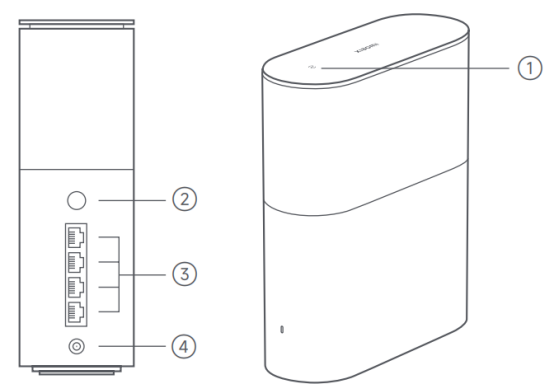
1. NFC area: Simply touch the NFC area of your phone to the top of the router to quickly connect to Wi-Fi. To use this feature, enable the NFC function on your Android phone, and keep your phone unlocked;
2. Mesh/Reset button: Press the button to have Mesh networking with routers that support the Xiaomi Mesh function. Press and hold the button for 5 seconds to restore the router to its factory settings;
3. Network port: 4 WAN/LAN auto-sensing ports (1×2.5Gbps+3×1Gbps);
4. Power port: Connect the power adapter to the router.
Note:
Illustrations of the product and accessories are for reference purposes only. Actual product and functions can vary due to product enhancements.
Hardware Configuration
1. Q: What processor does the Xiaomi Mesh System BE3600 Pro use?
A: The Xiaomi Mesh System BE3600 Pro is powered by the IPQ5312 SoC, featuring a quad-core processor with a frequency of 1.1 GHz.
2. Q: What is the RAM specification of the Xiaomi Mesh System BE3600 Pro?
A: The Xiaomi Mesh System BE3600 Pro comes with a 512MB RAM, which is responsible for temporarily storing data and ensuring smooth operation of the system by handling tasks and processes efficiently.
3. Q: What is the ROM specification of the Xiaomi Mesh System BE3600 Pro?
A: The Xiaomi Mesh System BE3600 Pro comes with a 128MB ROM.
4. Q: What is the 5GHz FEM specification of the Xiaomi Mesh System BE3600 Pro?
A: The Xiaomi Mesh System BE3600 Pro comes with ePA (Medium Power) 5GHz FEM (Front-end Modules).
5. Q: What is the 2.4GHz FEM specification of the Xiaomi Mesh System BE3600 Pro?
A: The Xiaomi Mesh System BE3600 Pro comes with ePA (Medium Power) 2.4GHz FEM (Front-end Modules).
6. Q: How many Ethernet ports does the Xiaomi Mesh System BE3600 Pro have?
A: The Xiaomi Mesh System BE3600 Pro is equipped with 1×2.5Gbps+3×1Gbps WAN/LAN auto-sensing port.
7. Q: How many antennas does the Xiaomi Mesh System BE3600 Pro have?
A: The Xiaomi Mesh System BE3600 Pro is equipped with 4 high-performance internal antennas.
8. Q: Does the Xiaomi Mesh System BE3600 Pro support NFC?
A: The Xiaomi Mesh System BE3600 Pro supports NFC.
9. Q: How many indicators does the Xiaomi Mesh System BE3600 Pro have?
A: The Xiaomi Mesh System BE3600 Pro comes with 1 indicator, used for instructing system and internet status at the same time.
10. Q: What are the buttons on the Xiaomi Mesh System BE3600 Pro?
A: The Xiaomi Mesh System BE3600 Pro comes with a reset/mesh 2-in-1 button.
11. Q: How many power ports does the Xiaomi Mesh System BE3600 Pro have?
A: The Xiaomi Mesh System BE3600 Pro comes with 1 power port.
12. Q: What are the protocol standards of the Xiaomi Mesh System BE3600 Pro?
A: The protocol standards of the Xiaomi Mesh System BE3600 Pro are IEEE 802.11a/b/g/n/ac/ax/be, IEEE 802.3/3u/3ab.
13. Q: What is the input specification of the Xiaomi Mesh System BE3600 Pro?
A: The Xiaomi Mesh System BE3600 Pro requires a power input of 12V DC at 1.5A.
14. Q: What is the broadband speed of the Xiaomi Mesh System BE3600 Pro?
A: The broadband speed of the Xiaomi Mesh System BE3600 Pro is 2500M.
Wireless Specifications
1. Q: What are the Wi-Fi bands of the Xiaomi Mesh System BE3600 Pro?
A: The Xiaomi Mesh System BE3600 Pro comes with a dual-band of 2.4GHz Wi-Fi (688Mbps) and 5GHz Wi-Fi (2882Mbps).
2. Q: What are the Wi-Fi standards of the Xiaomi Mesh System BE3600 Pro?
A: The Xiaomi Mesh System BE3600 Pro supports 2×2 MIMO technology with Wi-Fi standards of 688Mbps (802.11be) and 2882Mbps (802.11be), which are based on the latest Wi-Fi 7 technology.
3. Q: What are the 5GHz and 2.4GHz Wi-Fi chipsets of the Xiaomi Mesh System BE3600 Pro?
A: The 5GHz Wi-Fi chipset is QCN6412, while the 2.4GHz Wi-Fi chipset is integrated into the SoC.
Software Specifications
1. Q: What is the Bluetooth version of the Xiaomi Mesh System BE3600 Pro?
A: The Xiaomi Mesh System BE3600 Pro features Bluetooth LE 5.0 for efficient and low-energy connectivity.
2. Q: What dial modes does the Xiaomi Mesh System BE3600 Pro support?
A: The Xiaomi Mesh System BE3600 Pro supports dynamic IP, static IP, and PPPoE.
3. Q: Does the Xiaomi Mesh System BE3600 Pro support IPv6?
A: The Xiaomi Mesh System BE3600 Pro supports IPv6.
4. Q: Does the Xiaomi Mesh System BE3600 Pro support AP mode?
A: The Xiaomi Mesh System BE3600 Pro supports AP mode.
5. Q: Does the Xiaomi Mesh System BE3600 Pro support Wi-Fi dual-band integration?
A: The Xiaomi Mesh System BE3600 Pro supports dual-band Wi-Fi, providing both 2.4GHz and 5GHz bands for optimal performance and coverage.
6. Q: What encryption methods does the Xiaomi Mesh System BE3600 Pro support?
A: The Xiaomi Mesh System BE3600 Pro supports WPA-PSK/WPA2-PSK/WPA3-SAE encryption.
7. Q: What is the maximum bandwidth supported by the Xiaomi Mesh System BE3600 Pro?
A: The Xiaomi Mesh System BE3600 Pro supports a maximum bandwidth of 160MHz for faster and more efficient data transfer.
8. Q: Does the Xiaomi Mesh System BE3600 Pro support access networks?
A: The Xiaomi Mesh System BE3600 Pro supports access networks, enabling seamless connectivity across different network types and providing reliable internet access throughout your home.
9. Q: Does the Xiaomi Mesh System BE3600 Pro support OFDMA/BSS Colouring/Beamforming?
A: The Xiaomi Mesh System BE3600 Pro supports OFDMA/BSS Colouring/Beamforming.
10. Q: Does the Xiaomi Mesh System BE3600 Pro support Bluetooth Hub?
A: The Xiaomi Mesh System BE3600 Pro supports Bluetooth Hub.
11. Q: Does the Xiaomi Mesh System BE3600 Pro support Xiaomi Easy Connect?
A: The Xiaomi Mesh System BE3600 Pro supports Xiaomi Easy Connect.
12. Q: Does the Xiaomi Mesh System BE3600 Pro support LAN aggregation?
A: The Xiaomi Mesh System BE3600 Pro supports LAN aggregation.
13. Q: Does the Xiaomi Mesh System BE3600 Pro support software upgrade?
A: The Xiaomi Mesh System BE3600 Pro supports software upgrade.
14. Q: Does the Xiaomi Mesh System BE3600 Pro support Mesh pre-pair?
A: The Xiaomi Mesh System BE3600 Pro supports Mesh pre-pair.
15. Q: Does the Xiaomi Mesh System BE3600 Pro support WAN/LAN auto-sensing?
A: Yes, the Xiaomi Mesh System BE3600 Pro supports WAN/LAN auto-sensing, allowing the device to automatically detect and configure the WAN or LAN connection based on the network environment.
16. Q: What is the operating system of the Xiaomi Mesh System BE3600 Pro?
A: The operating system of the Xiaomi Mesh System BE3600 Pro is MiWiFi ROM.
17. Q: Does the Xiaomi Mesh System BE3600 Pro support IPTV?
A: The Xiaomi Mesh System BE3600 Pro supports IPTV.
18. Q: Does the Xiaomi Mesh System BE3600 Pro support DDNS?
A: The Xiaomi Mesh System BE3600 Pro supports DDNS (Dynamic Domain Name System).
19. Q: Does the Xiaomi Mesh System BE3600 Pro support VPN?
A: The Xiaomi Mesh System BE3600 Pro does not support VPN client and server.
20. Q: Does the Xiaomi Mesh System BE3600 Pro support DHCP server?
A: The Xiaomi Mesh System BE3600 Pro supports DHCP server.
21. Q: Does the Xiaomi Mesh System BE3600 Pro support voice assistant?
A: The Xiaomi Mesh System BE3600 Pro does not support voice assistant.
22. Q: Does the Xiaomi Mesh System BE3600 Pro support parental control?
A: The Xiaomi Mesh System BE3600 Pro supports parental control. This can manage your child’s devices through the Mi Home/Xiaomi Home APP: limit time online, filter unsafe websites and help to develop healthy internet usage habits.
23. Q: Does the Xiaomi Mesh System BE3600 Pro support game acceleration?
A: The Xiaomi Mesh System BE3600 Pro supports game acceleration.
24. Q: Does the Xiaomi Mesh System BE3600 Pro support Bluetooth Mesh gateway?
A: The Xiaomi Mesh System BE3600 Pro supports Bluetooth Mesh gateway.
25. Q: Does the Xiaomi Mesh System BE3600 Pro support Xiaomi Mesh?
A: The Xiaomi Mesh System BE3600 Pro supports Xiaomi Mesh.
26. Q: Does the Xiaomi Mesh System BE3600 Pro support the guest network?
A: The Xiaomi Mesh System BE3600 Pro supports the guest network.
27. Q: Does the Xiaomi Mesh System BE3600 Pro support network diagnosis?
A: The Xiaomi Mesh System BE3600 Pro supports network diagnosis.
28. Q: Does the Xiaomi Mesh System BE3600 Pro support gateway firewall?
A: The Xiaomi Mesh System BE3600 Pro supports gateway firewall.
29. Q: Does the Xiaomi Mesh System BE3600 Pro support USB 3.0?
A: The Xiaomi Mesh System BE3600 Pro doesn’t support USB 3.0.
30. Q: What management applications does the Xiaomi Mesh System BE3600 Pro support?
A: The Xiaomi Mesh System BE3600 Pro supports both the web interface and the Mi Home/Xiaomi Home APP (available for Android and iOS).
Working Environment
1. Q: What is the operating temperature of the Xiaomi Mesh System BE3600 Pro?
A: The operating temperature of the Xiaomi Mesh System BE3600 Pro is 0~40℃.
2. Q: What is the storage temperature of the Xiaomi Mesh System BE3600 Pro?
A: The storage temperature of the Xiaomi Mesh System BE3600 Pro is -40~70℃.
3. Q: What is the operating humidity of the Xiaomi Mesh System BE3600 Pro?
A: The operating humidity of the Xiaomi Mesh System BE3600 Pro is 10%~90% RH (non-condensing).
4. Q: What is the storage humidity of the Xiaomi Mesh System BE3600 Pro?
A: The storage humidity of the Xiaomi Mesh System BE3600 Pro is 5%~90% RH (non-condensing).
FAQs
1. Q: What are the indicator statuses of the Xiaomi Mesh System BE3600 Pro?
A: The indicator statuses of the product are as follows:
1. Off: The router is off or unplugged;
2. Orange: The system is starting up or a network connection error occurred;
3. Blinking in orange: The new added satellite router is connecting to the Mesh networking or the system is updating;
4. Breathing orange: The router is started and the system is ready for configuration;
5. Blue: The router is working properly;
6. Breathing blue: A new satellite router is discovered. The indicator will automatically turn blue if there is no operation for Mesh networking within 2 minutes;
7. Blinking in blue: The satellite router is connecting to the main router.
2. Q: What are the preparations needed before configuring the network on the Xiaomi Mesh System BE3600 Pro?
A: The following are the preparations that need to be made:
1. Connect the router to power, then the router will automatically turn on;
Note:
For the product of 2-pack or 3-pack version, connect any of the routers as the main router to power. Then the router will automatically turn on.
2. Restart your modem;
Note:
The modem is provided by your Internet service provider.
3. Plug one end of the network cable into either of the router's port, and the other end into the LAN port of the modem.
Note:
If you use the Ethernet wall socket instead of the modem, directly plug the network cable into it.
3. Q: How can the network be configured on the Xiaomi Mesh System BE3600 Pro?
A: To configure the network, please refer to the following methods:
Method 1:
1. Scan the QR code to download the Mi Home/Xiaomi Home APP. Or search for the Mi Home/Xiaomi Home in the APP store to download and install it;
2. Turn on Wi-Fi;
3. Open the Mi Home/Xiaomi Home APP >> tap [+] at the upper right corner >> choose the right product model >> follow the instructions to complete the network configuration.
Note:
For the product of 2-pack or 3-pack versions, the routers in the box have been pre-paired when leaving the factory. When the network configuration of one router is completed, just power on the rest of routers and they will Mesh networking automatically.
Method 2:
1. Check the Wi-Fi name on the label at the bottom of the router and then connect your phone or computer to the Wi-Fi;
2. Then an automatic redirection will take you to the network setup page. If not, open the web browser and enter miwifi.com or 192.168.31.1;
3. Follow the instructions on the setup page to complete the network configuration;
Note:
Contact your Internet service provider to get the details if you are not familiar with the Internet connection type.
4. After the configuration of the router is completed, the Wi-Fi module will restart. Try to search the Wi-Fi again later.
Note:
For the product of 2-pack or 3-pack versions, the routers in the box have been pre-paired when leaving the factory. When the network configuration of one router is completed, just power on the rest of routers and they will Mesh networking automatically.
4. Q: How to configure the Mesh networking on the Xiaomi Mesh System BE3600 Pro?
A: Xiaomi Mesh networking technology supports Mesh networking of up to 10 routers to achieve broader network coverage.
Follow the steps below to configure the Mesh networking:
1. Make sure the main router is connected to the network. Connect the satellite router to power and place it near but at least one meter away from the main router. Otherwise, they will interfere with each other and affect the networking;
2. After the satellite router powers on, the main router will automatically discover it, and the indicator of the main router will start breathing blue;
Note:
If the satellite router is already configured, press its reset button to restore it to the factory settings first.
3. Press the mesh button on the main router, and the indicators of the main router and satellite router will start blinking. It will take about 2 minutes to complete the Mesh networking;
4. When the Mesh networking is completed, the indicator of the satellite router turns into blue.
5. Q: What is the recommended coverage area of the Xiaomi Mesh System BE3600 Pro?
A: The recommended coverage area is suitable for 2-3 rooms with 1-pack and 7-9 rooms with 3-pack.
6. Q: How many devices can be connected to the Xiaomi Mesh System BE3600 Pro?
A: It supports up to 128 devices with 1-pack and 256 devices with 2-pack and 3-pack.
Troubleshooting
1. Q: What to do if the Xiaomi Mesh System BE3600 Pro cannot access the network?
A: If you can not access the internet, please refer to the following solutions:
1. Make sure the network cable is plugged into the Ethernet port of the modem. If your modem has multiple Ethernet ports, leave the others unplugged;
2. Turn off your modem and wait for 5 minutes, then turn it on and have a reset;
3. Directly connect a computer to the modem via a network cable to check if the internet is working. If not, contact your Internet service provider;
4. Log in to the router's web management page, and go to the Network Settings to verify the internet IP address. If valid, set your primary DNS to 8.8.8.8, and secondary to 8.8.4.4. If invalid, make sure the hardware connections are connected properly or contact your Internet service provider.
2. Q: Why can't wireless devices connect to the Wi-Fi on the Xiaomi Mesh System BE3600 Pro?
A: If your wireless devices can not connect to the Wi-Fi, please refer to the following solutions:
1. Ensure the Wi-Fi name and password do not contain special characters during configuration;
2. Make sure the Wi-Fi you selected and the password you entered are correct;
3. Verify if your device is blacklisted. If yes, remove it from the blacklist to allow connection;
4. Choose WPA2 encryption for your router to enhance compatibility;
5. Restart both your router and device then try again.
3. Q: What to do if the management password or Wi-Fi password of the Xiaomi Mesh System BE3600 Pro is forgotten?
A: You can restore the router to factory settings, and set up a new management password or Wi-Fi password.
4. Q: Why can't the Xiaomi Mesh System BE3600 Pro be added to the Mi Home/Xiaomi Home APP?
A: To resolve this issue, please refer to the following solutions:
1. Check if your phone has connected to the Wi-Fi of the router;
2. Check if the selected product model is correct in the Mi Home/Xiaomi Home APP;
3. Make sure that the settings of country or region in the Mi Home/Xiaomi Home APP is not Chinese mainland.
5. Q: Why is there still a pop-up for adding the Xiaomi Mesh System BE3600 Pro after the router has already been added?
A: The server is changed after you alter the settings of country or region.
To resolve this issue, please refer to the following solutions:
1. Ignore the request of adding the router. The router will not appear in the list of the Mi Home/Xiaomi Home APP, and the related functions within the APP will not be available under the current settings unless you change back to the original settings of country or region;
2. Add the router. You can use the functions of the router within the APP in the current settings. However, the information on the original server will be cleared, and you need to add the router again if changing back to the original settings of country or region.
Does it help?