

Xiaomi Wireless Mouse Comfort Edition FAQ
Overview
1. Q: What’s the Xiaomi Wireless Mouse Comfort Edition?A: The Xiaomi Wireless Mouse Comfort Edition is a wireless mouse that only supports 2.4GHz wireless transmission mode.
2. Q: What are the selling points of the Xiaomi Wireless Mouse Comfort Edition?
A: 1. Comfortable design crafted ergonomic:
The asymmetric crafted ergonomic curves of the mouse surface are carefully designed more than ten to provide the most comfortable support for the palms and wrists. And relieves fatigue from long-term grip;
2. 10m wireless transmission:
The Xiaomi Wireless Mouse Comfort Edition adopts 2.4GHz wireless transmission technology, ensuring stable signal transmission. It has low power consumption, free from desk and cable constraints;
3. Work in comfort with silent clicking:
TTC silent keys with crisp and quiet clicking to spark your creativity. Suitable for use in public areas and won’t disturb others.
4. Two colors, two choices:
The white and black choose from the beautiful scenery of the natural world after snow and the night sky.
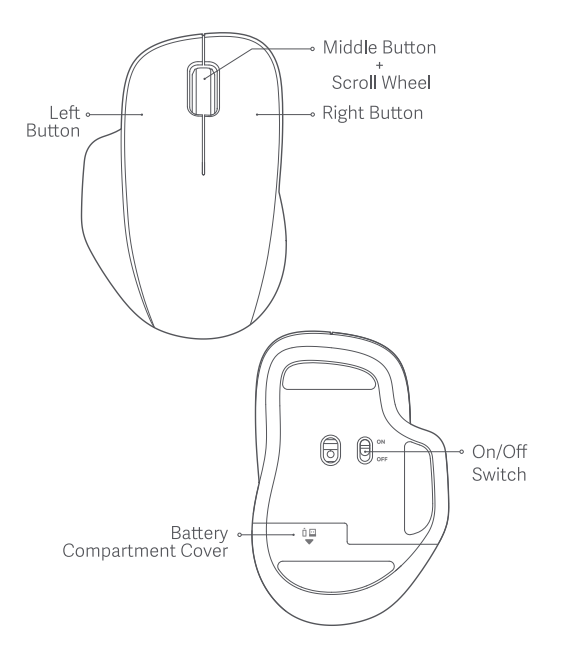
3. Q: What is the function introduction of the Xiaomi Wireless Mouse Comfort Edition?
A: The Xiaomi Wireless Mouse Comfort Edition includes:
Left button; Middle button+scroll wheel; Right button; On/Off switch
FAQs
1. Q: What is the rated input of the Xiaomi Wireless Mouse Comfort Edition?
A: The rated input of the Xiaomi Wireless Mouse Comfort Edition is 1.5V⎓50mA.
2. Q: What is the resolution of the Xiaomi Wireless Mouse Comfort Edition?
A: The resolution of the Xiaomi Wireless Mouse Comfort Edition is 1200 DPI.
3. Q: Can the Xiaomi Wireless Mouse Comfort Edition connect to Bluetooth?
A: The Xiaomi Wireless Mouse Comfort Edition adopts 2.4GHz wireless transmission technology, only supporting 2.4GHz wireless connection (By plugging the dongle into the USB port of the computer to connect and use). It doesn’t support connecting to a computer through Bluetooth to use.
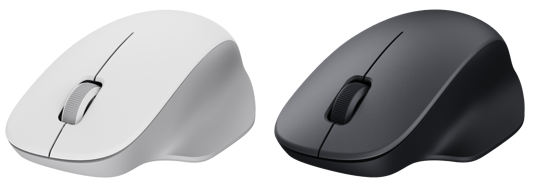
4. Q: How many colors does the Xiaomi Wireless Mouse Comfort Edition have?
A: The Xiaomi Wireless Mouse Comfort Edition has two colors, and it’s white and black.
Product image:
5. Q: How to connect the Xiaomi Wireless Mouse Comfort Edition?
A: The Xiaomi Wireless Mouse Comfort Edition only supports 2.4GHz wireless transmission mode, which is connected and used by plugging the dongle into the USB port of the computer.
6. Q: How to connect and use the Xiaomi Wireless Mouse Comfort Edition?
A: 1. Slip down the battery compartment cover to remove it and then take out the dongle and plug it into the USB port on the computer;
2. Install an AA battery into the battery compartment, and turn on the mouse;
3. When your computer system notifies that the installation is successful, you can close the battery compartment cover and start using the mouse. (The mouse that is paired with the dongle has been completed and can be directly used)
7. Q: What is the specification of the interface for the Xiaomi Wireless Mouse Comfort Edition?
A: The Xiaomi Wireless Mouse Comfort Edition has a USB Type-A port and USB 2.0 standard protocol.
8. Q: What battery type is used for the Xiaomi Wireless Mouse Comfort Edition?
A: The Xiaomi Wireless Mouse Comfort Edition uses one AA Battery.
9. Q: What are the dimensions of the Xiaomi Wireless Mouse Comfort Edition?
A: The dimensions of the Xiaomi Wireless Mouse Comfort Edition approximately is 111.2mmx74.5mmx40.6mm.
10. Q: What’s the weight of the Xiaomi Wireless Mouse Comfort Edition?
A: The net weight of the Xiaomi Wireless Mouse Comfort Edition approximately is 62g (Excluding the battery).
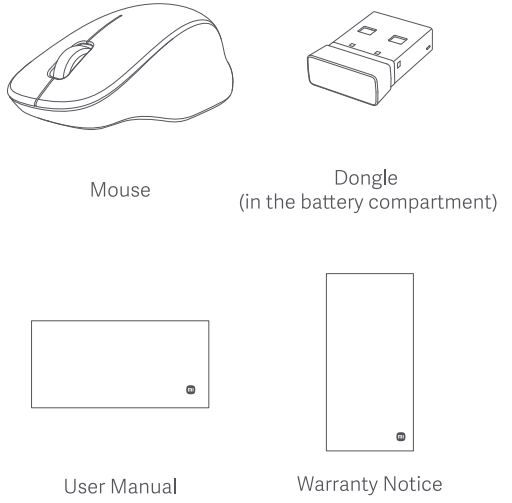
11. Q: What are the package contents of the Xiaomi Wireless Mouse Comfort Edition?
A: Package contents:
1. Xiaomi Wireless Mouse Comfort Edition×1
2. Dongle×1 (In the battery compartment)
3. User Manual×1
4. Warranty Notice×1
12. Q: Is the Xiaomi Wireless Mouse Comfort Edition waterproof?
A: The Xiaomi Wireless Mouse Comfort Edition is not waterproof, please do not splash or soak with water to avoid damage.
13. Q: What is the surface material of the Xiaomi Wireless Mouse Comfort Edition?
A: The surface material of the Xiaomi Wireless Mouse Comfort Edition is plastic. And the surface is evenly covered with a frosted texture. The smooth outer surface facilitates a comfortable grip.
14. Q: What is the Xiaomi Wireless Mouse Comfort Edition compatible with?
A: The Xiaomi Wireless Mouse Comfort Edition is compatible with Windows 10 or above and macOS 10.13 or above.
15. Q: Does the Xiaomi Wireless Mouse Comfort Edition support silent keys?
A: The left/right/middle buttons on the Xiaomi Wireless Mouse Comfort Edition support silent keys which offer a quiet click and won’t disturb others.
16. Q: What microswitch is used for the main buttons of the Xiaomi Wireless Mouse Comfort Edition?
A: The Xiaomi Wireless Mouse Comfort Edition uses TTC silent microswitch for the left, middle, and right buttons, which are durable and reliable in quality.
17. Q: What’s the USB data reporting rate of the Xiaomi Wireless Mouse Comfort Edition?
A: The USB data reporting rate of the Xiaomi Wireless Mouse Comfort Edition is 125Hz.
18. Q: What is the foot pad material of the Xiaomi Wireless Mouse Comfort Edition?
A: Teflon foot pads on the Xiaomi Wireless Mouse Comfort Edition provide excellent wear resistance and self-lubrication, ensuring smooth and effortless mouse movement.
19. Q: What should be noted when using the Xiaomi Wireless Mouse Comfort Edition?
A: 1. It is recommended that the table surface be kept flat and clean during mouse use and use it with a mouse mat, preferably made of cloth;
2. Avoid using the mouse on clear glass and high-gloss surfaces, as this will affect the positioning of the mouse;
3. Regularly clean the mouse, and if the dust accumulation is in the bottom lens hole, please clean it on time;
4. During use, be careful to prevent water, drinks, and other liquids from entering the mouse, which will cause problems with hand feeling and electrical malfunction;
5. In 2.4GHz mode, it is recommended to directly plug the dongle into the USB port of the computer to connect and use. There will be stuttering issues when using USB HUB or other adapters;
6. If using the Xiaomi Wireless Mouse Comfort Edition on a desktop computer, it is recommended to plug the dongle into the front USB port of the computer case for a better experience.
20. Q: What are the specifications of the Xiaomi Wireless Mouse Comfort Edition?
A: Model: XMWXSB04YM
Wireless Connectivity: 2.4GHz
Compatible with: Windows 10 or above, macOS 10.13 or above
Rated Input: 1.5V⎓50mA
Item Dimensions: 111.2×74.5×40.6mm
Product net weight: Approx. 62g (Excluding batteries)
Product Material: Plastics, metals, and others
Operating temperature: 0°C to 40°C
21. Q: Why can’t the computer recognize the Xiaomi Wireless Mouse Comfort Edition when the mouse is turned on?
A: 1. Please ensure that the dongle is correctly plugged into the USB port, or try plugging it into another USB port to see if it can be used normally;
2. Confirm whether the current device is compatible with Windows 10 or above, macOS 10.13 or above;
3. In the [Device Manager] of the system, click on the [Scan for Hardware Changes] icon to rescan the hardware and automatically install the USB driver. After installation, the mouse can be used normally;
4. If the above does not solve the problem, please unplug the dongle, restart the computer, enter the system, and try inserting the dongle again;
5. If the above still does not solve the problem, check if the mouse and dongle have been unbound due to misoperation, and try to rebind them again.
If the above operations are correct and the problem still has not been solved, please contact the after-sales service for handling.
22. Q: What to do if the movement, buttons and scroll wheel get stuck when using the Xiaomi Wireless Mouse Comfort Edition?
A: 1. Try inserting the dongle into the left USB port on the laptop to avoid touching the dongle when the mouse moves to affect stability;
2. If using a desktop computer, it is recommended to plug the dongle into the front USB port of the computer case which has no obstructions and can improve reception performance;
3. If the dongle is plugged into the USB HUB port of USB 3.0, it can be subject to high-frequency interference. You can try directly plugging it into the computer USB port for use;
4. Routers, chargers, fans and other motor devices should be kept away from the dongle to provide a clean and unobstructed environment for wireless transmission;
5. Keep the table surface and the mouse mat clean and make sure there are no dust accumulations in the bottom lens hole. So that the mouse’s movement and positioning can be more smooth.
If the above operations are correct and the problem still has not been solved, please contact the after-sales service for handling.
23. Q: Why is the Xiaomi Wireless Mouse Comfort Edition’s scroll wheel function abnormal and the cursor cannot move?
A: 1. Confirm if the computer is properly connected to the mouse;
2. Confirm if the keyboard keys are pressed down, causing the key function of the mouse to not be triggered properly;
3. Confirm if there are any foreign objects blocking or dust obstructing the lens hole at the bottom of the mouse, which affects the movement of the cursor;
4. The dirt on the surface of the mouse mat can easily affect the smoothness of cursor movement, so pay attention to keeping it clean.
If the above operations are correct and the problem still has not been solved, please contact the after-sales service for handling.
24. Q: Why doesn’t the lens hole light up after the battery is installed in the Xiaomi Wireless Mouse Comfort Edition and turned on?
A: The Xiaomi Wireless Mouse Comfort Edition adopts an infrared tracking engine, which improves positioning accuracy and adapts to more table surfaces. At the same time, the infrared light is just barely visible, and only weak red light can be seen through the bottom lens hole.
25. Q: The original dongle of the Xiaomi Wireless Mouse Comfort Edition is lost. How to pair it after changing a new receiver?
A: 1. Please turn on the Xiaomi Wireless Mouse Comfort Edition first;
2. Simultaneously press and hold the left button, middle button, and right button for 3 seconds to enter the pairing mode;
3. Insert the new receiver into the USB port of the computer. The computer system checks and installs the driver, and the device is ready for use;
4. Move the mouse within 30cm of the receiver to complete the pairing automatically, and the mouse can be used normally.
Does it help?
Yes
No