

How to manage notifications on the lock screen on the Redmi Pad Pro?
Manage notifications on the lock screen on the Redmi Pad Pro, which displays notifications from various apps even when the tablet is locked, allowing you to quickly glance at important information without unlocking your tablet. This feature also helps you protect privacy by controlling what information is displayed and reduces distractions by filtering unnecessary notifications.
To manage notifications on the lock screen of your tablet, please refer to the following methods:
Method 1:
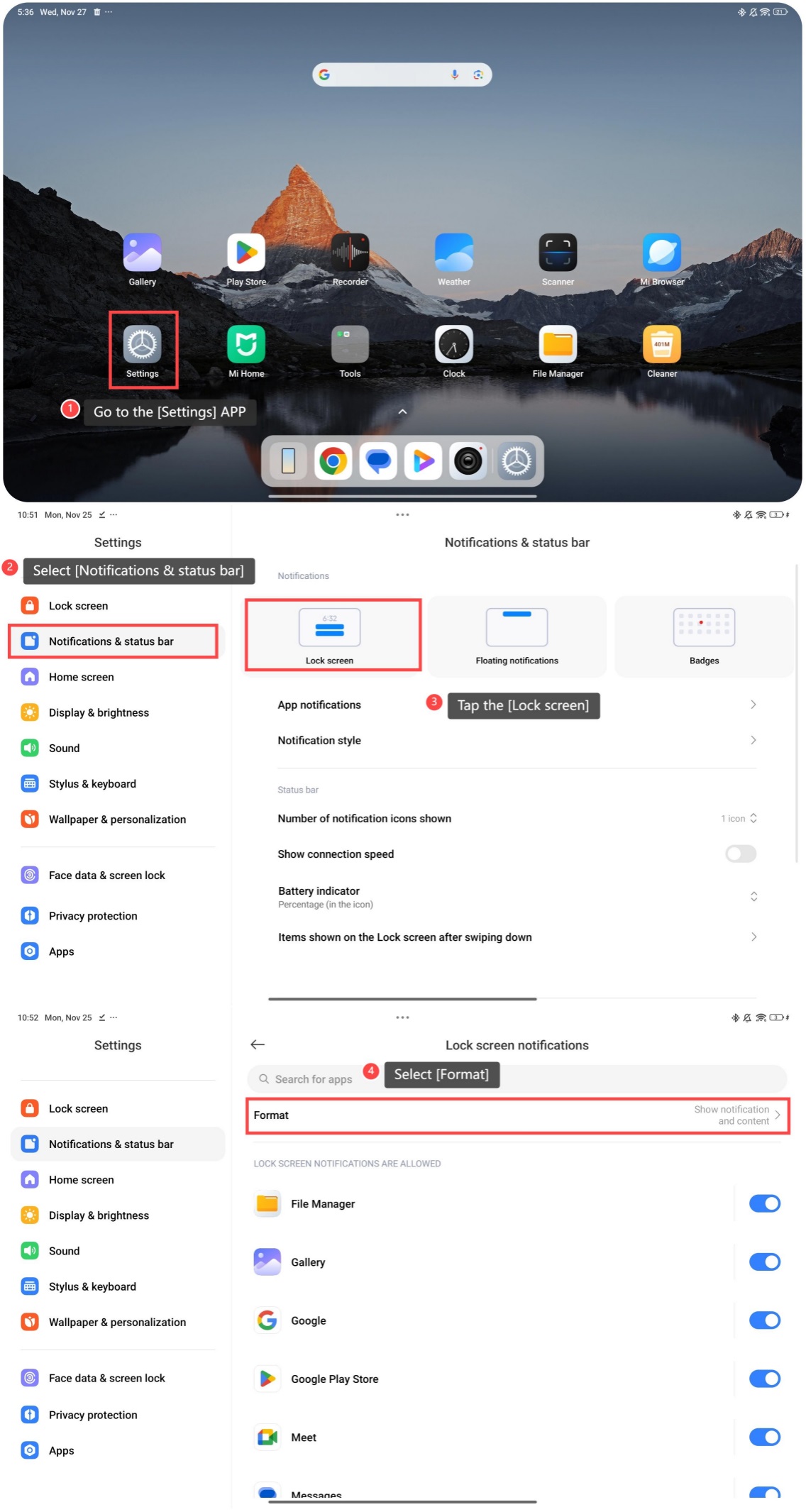
1. Go to the [Settings] APP;
2. Select [Notifications & status bar];
3. Tap the [Lock screen];
4. Select [Format];
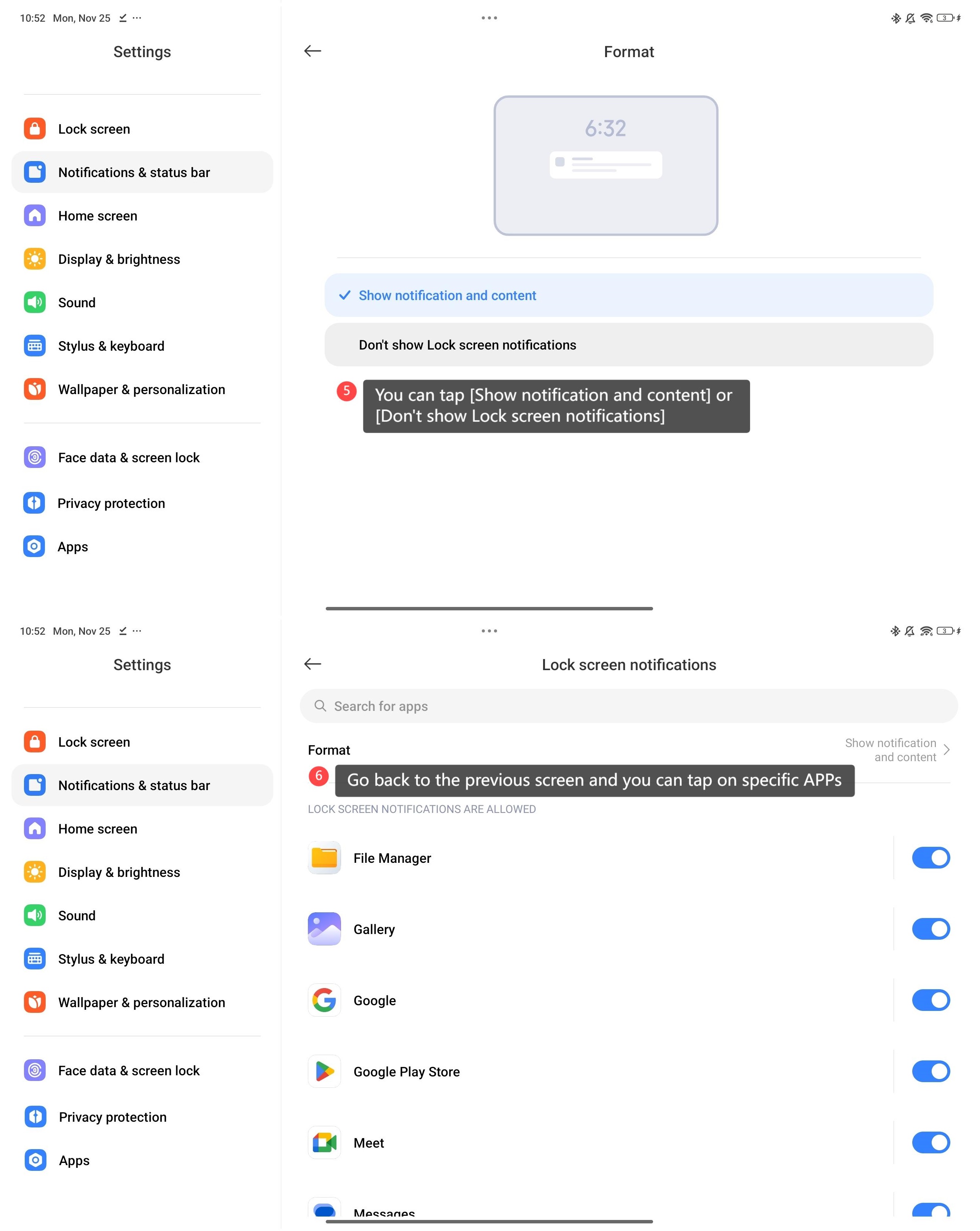
5. You can tap [Show notification and content] or [Don’t show Lock screen notifications];
6. Go back to the previous screen and you can tap on specific APPs.
Method 2:
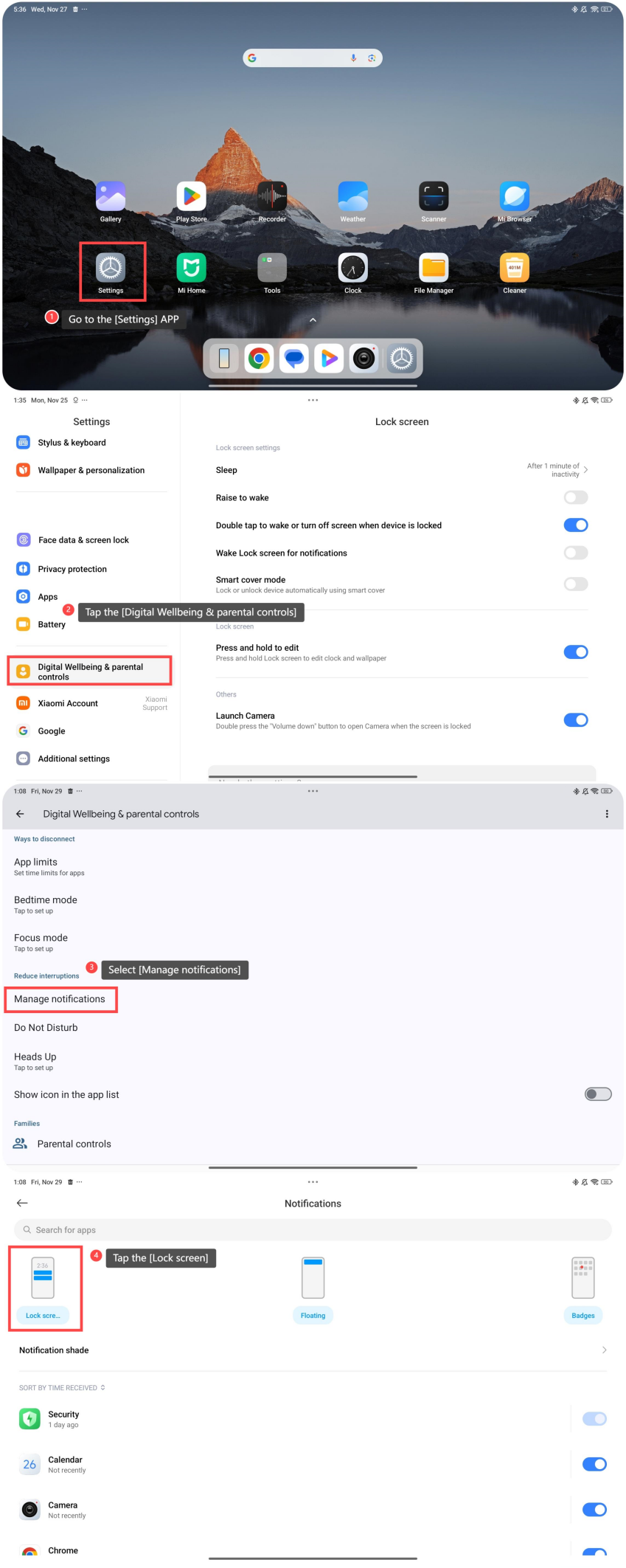
1. Go to the [Settings] APP;
2. Tap the [Digital Wellbeing & parental controls];
3. Scroll down and select [Manage notifications];
4. Tap the [Lock screen];
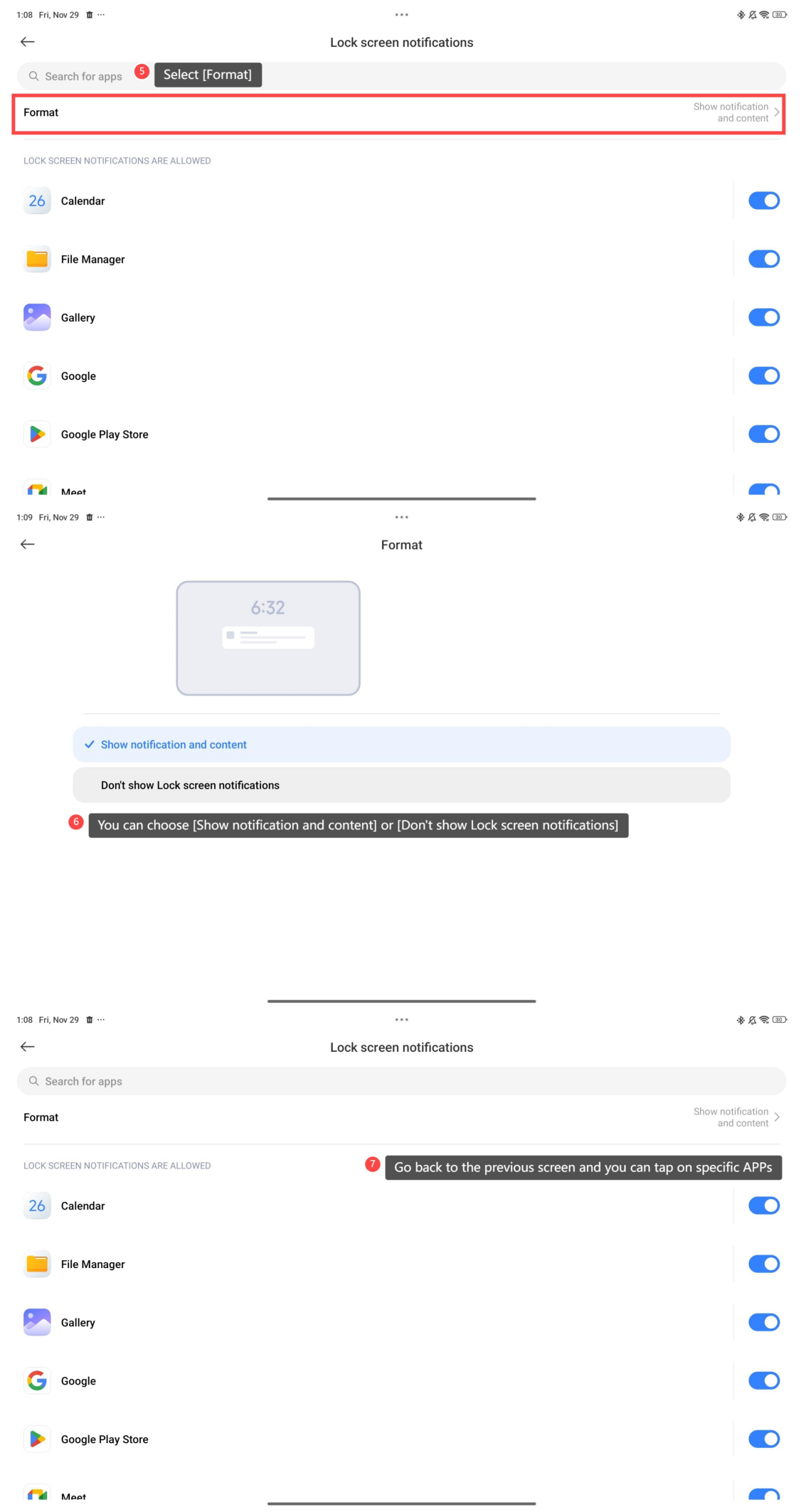
5. Select [Format];
6. You can choose [Show notification and content] or [Don’t show Lock screen notifications];
7. Go back to the previous screen and you can tap on specific APPs.
To manage notifications on the lock screen of your tablet, please refer to the following methods:
Method 1:
1. Go to the [Settings] APP;
2. Select [Notifications & status bar];
3. Tap the [Lock screen];
4. Select [Format];
5. You can tap [Show notification and content] or [Don’t show Lock screen notifications];
6. Go back to the previous screen and you can tap on specific APPs.
Method 2:
1. Go to the [Settings] APP;
2. Tap the [Digital Wellbeing & parental controls];
3. Scroll down and select [Manage notifications];
4. Tap the [Lock screen];
5. Select [Format];
6. You can choose [Show notification and content] or [Don’t show Lock screen notifications];
7. Go back to the previous screen and you can tap on specific APPs.
Does it help?
Yes
No