

How to bind the Xiaomi Smart Band 9 Active to an iPhone?
Download and open the Mi Fitness APP, log in to your Xiaomi Account, and enable APP-related permissions according to the pop-up prompts.
Method 1:
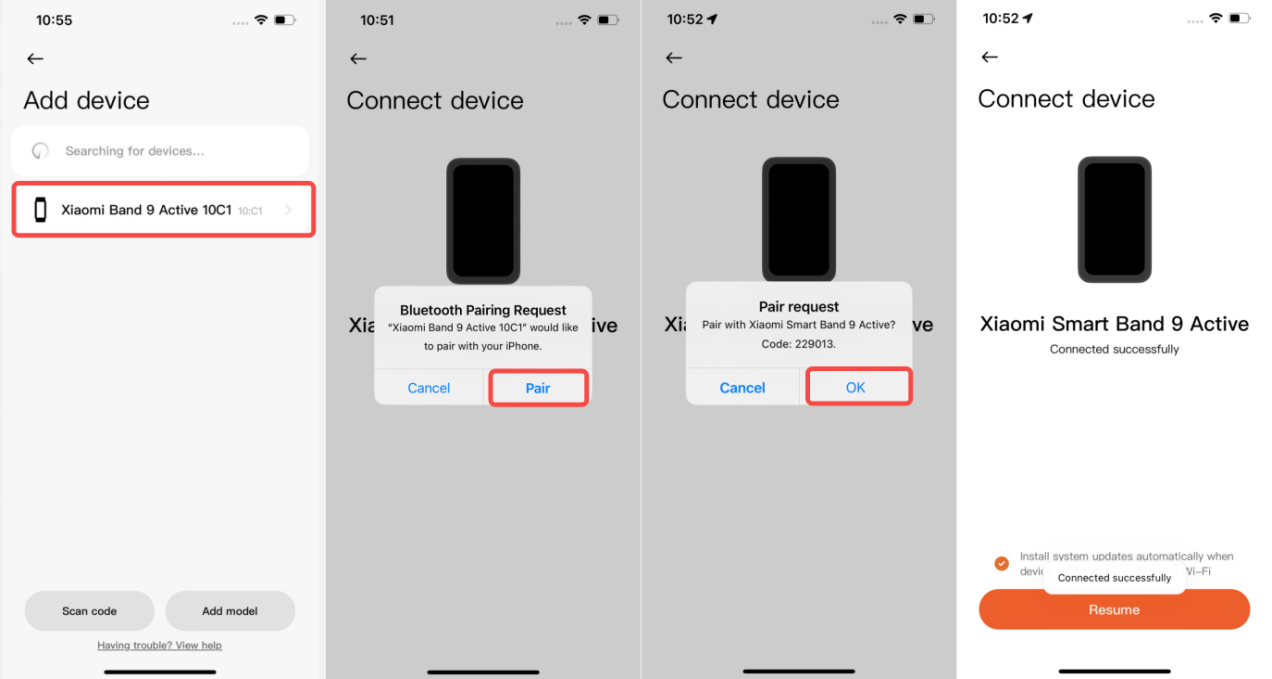
1. Go to the Mi Fitness APP interface;
2. Tap the [+] icon in the upper right corner;
3. Select [Add device];
4. Place the phone and band next to each other to search and bind;
5. Select the device on the phone that matches the last four digits of the Bluetooth address of the band;
6. After connecting to the band, a check mark icon will be displayed on the band. Tap the check mark icon;
7. Tap [Pair] on the phone to confirm the binding, and tap [Cancel] to cancel the pairing.
Method 2:
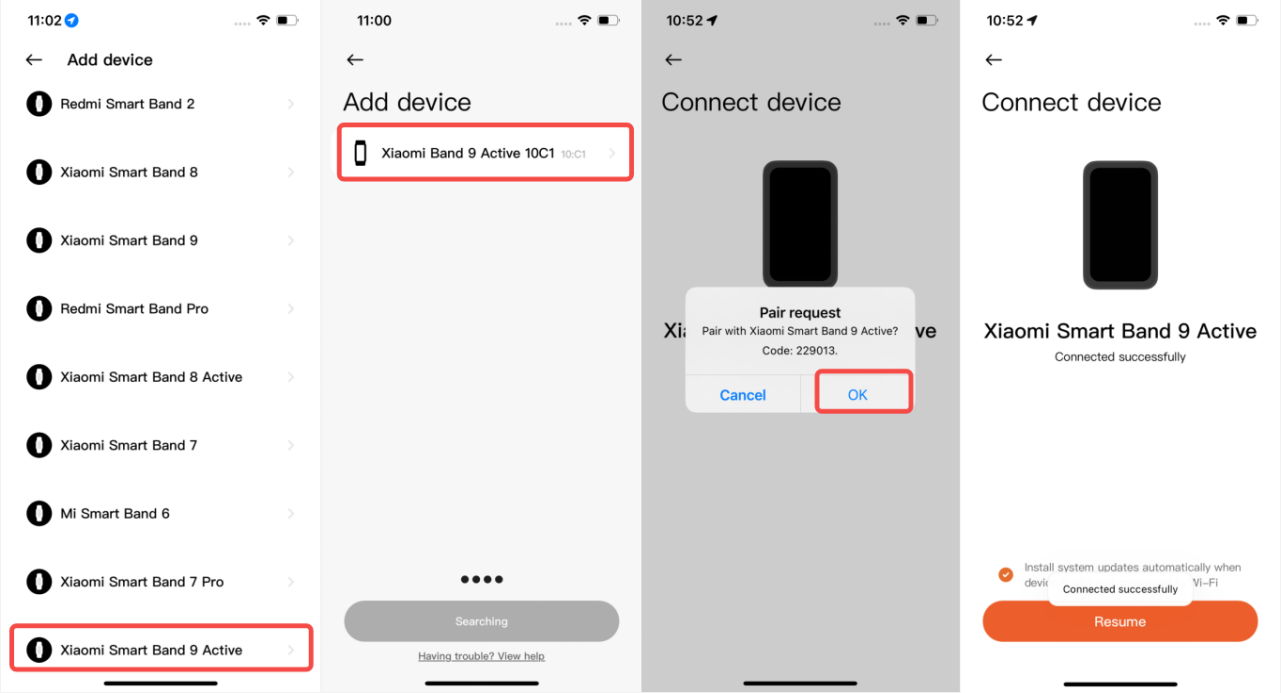
1. Go to the Mi Fitness APP interface;
2. Tap the [+] icon in the upper right corner;
3. Select [Add device];
4. Tap [Add model];
5. Select the Xiaomi Smart Band 9 Active. It will automatically search for the nearest device and request to connect to the band;
6. After connecting to the band, a check mark icon will be displayed on the band. Tap the check mark icon;
7. Tap [Pair] on the phone to confirm the binding, and tap [Cancel] to cancel the pairing.
Method 3:
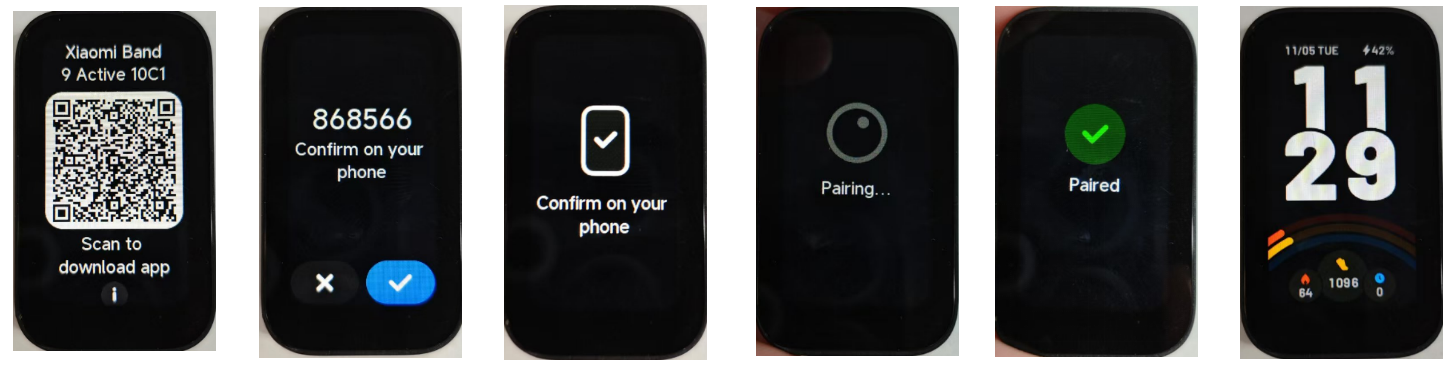
1. Go to the Mi Fitness APP interface;
2. Tap the [+] icon in the upper right corner;
3. Select [Scanner];
4. You can directly scan the QR code on the band to connect and bind;
5. After connecting to the band, a check mark icon will be displayed on the band. Tap the check mark icon;
6. Tap [Pair] on the phone to confirm the binding, and tap [Cancel] to cancel the pairing.
Method 1:
1. Go to the Mi Fitness APP interface;
2. Tap the [+] icon in the upper right corner;
3. Select [Add device];
4. Place the phone and band next to each other to search and bind;
5. Select the device on the phone that matches the last four digits of the Bluetooth address of the band;
6. After connecting to the band, a check mark icon will be displayed on the band. Tap the check mark icon;
7. Tap [Pair] on the phone to confirm the binding, and tap [Cancel] to cancel the pairing.
Method 2:
1. Go to the Mi Fitness APP interface;
2. Tap the [+] icon in the upper right corner;
3. Select [Add device];
4. Tap [Add model];
5. Select the Xiaomi Smart Band 9 Active. It will automatically search for the nearest device and request to connect to the band;
6. After connecting to the band, a check mark icon will be displayed on the band. Tap the check mark icon;
7. Tap [Pair] on the phone to confirm the binding, and tap [Cancel] to cancel the pairing.
Method 3:
1. Go to the Mi Fitness APP interface;
2. Tap the [+] icon in the upper right corner;
3. Select [Scanner];
4. You can directly scan the QR code on the band to connect and bind;
5. After connecting to the band, a check mark icon will be displayed on the band. Tap the check mark icon;
6. Tap [Pair] on the phone to confirm the binding, and tap [Cancel] to cancel the pairing.
Does it help?
Yes
No