

Xiaomi Smart Projector L1 FAQ
Product introduction
1. Q: What is the product overview of the Xiaomi Smart Projector L1?
A: The product overview of the Xiaomi Smart Projector L1 is listed below:
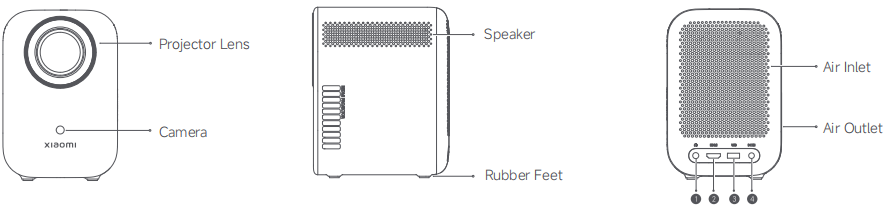
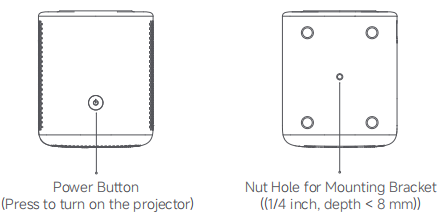
There is a Projector Lens, a Camera, a Speaker, a Rubber Feet, an Air Inlet, an Air Outlet, a Power Button, and a Nut Hole For Mounting Bracket.
Note:
Do not place any objects within a range of 20cm around the air inlet and outlet to avoid affecting the heat dissipation and causing damage or posing hazards.
The description of the peripheral ports is listed below:
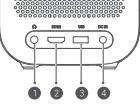

1. The port 1 is headphone port;
2. The port 2 is HDMI signal input port;
3. The port 3 is USB 2.0 protocol port;
4. The port 4 is DC port.
2. Q: What are the features of the Xiaomi Smart Projector L1?
A: The features of the Xiaomi Smart Projector L1 are listed below:
1. Price: The price of the Xiaomi Smart Projector L1 has a great advantage, which makes the projector a cost-effective product;
2. Intelligence: The Xiaomi Smart Projector L1 supports autofocus, automatic keystone correction, intelligent obstacle avoidance and automatic screen entry. Your overall intelligent experience will be better;
3. Memory: Equipped with 2+16GB, it can make the system run more smoothly and reduce the problem of jamming;
4. System: Equipped with GTV+Netflix, it provides you with a better experience and a wider selection range;
5. Appearance: The overall ID design continues the Xiaomi style, and the dark color style is stable and beautiful.
3. Q: What is the Xiaomi Smart Projector L1 system?
A: The operating system of the Xiaomi Smart Projector L1 is Android TV™ OS (Android 11), and the desktop system is launcher Google TV.
4. Q: What is the throw ratio of the Xiaomi Smart Projector L1?
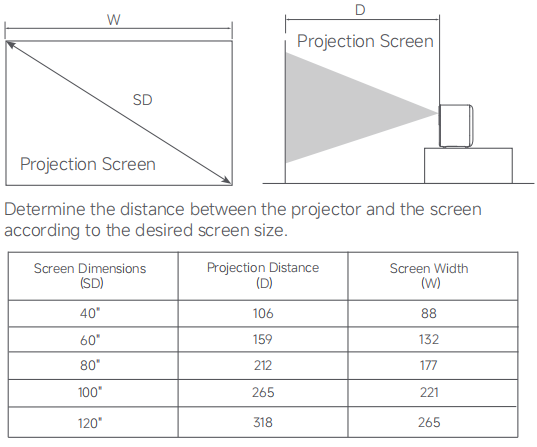
A: The throw ratio of the Xiaomi Smart Projector L1 is 1.2:1, and the projection screen dimension range is 40 to 120’’. The recommended projection screen dimension range is 60 to 100’’.
The project distance and screen dimensions of the Xiaomi Smart Projector L1 are listed below:
Note:
1. Screen Dimensions (SD): The diagonal size of the projection screen (in inches);
2. Projection Distance (D): The distance between the front end of the projector and the screen (in centimeters);
3. Screen Width (W): The width of the image projected on the wall (in centimeters);
4. The values in the table above are for reference only. They will slightly differ from the actual values. Please refer to the actual values.
5. Q: Does the Xiaomi Smart Projector L1 support the function of temperature control?
A: Support. When the warning temperature is reached, the over-temperature warning window will pop up automatically, indicating that the projector will shut down automatically.
When the temperature of the projector is too high, a warning window will pop up automatically. If the projector shuts down automatically due to high temperature, check whether there are any obstacles blocking the air inlet and outlet. After removing the obstacles, ensure smooth airflow. After the projector cools down, restart it and use it normally.
6. Q: Does the package contents of the Xiaomi Smart Projector L1 include a curtain?
A: There is no curtain in the package contents of the Xiaomi Smart Projector L1. You can purchase it according to your needs. The projector can present images on any carrier. If projecting on a wall, a pure white wall is the most suitable, and a light-colored wall will basically not affect the viewing effect. It is not recommended to use it on a wall with patterned wallpaper. To improve the viewing effect, you can choose a curtain, which can significantly improve the viewing effect.
7. Q: How to check the SN of the Xiaomi Smart Projector L1?
A: To check the SN of the Xiaomi Smart Projector L1, please refer to the following steps:
1. You can check the SN at the back of the package;
2. You can check the SN on the nameplate at the bottom of the projector;
3. You can also check the SN in the settings page of the projector. Please go to [Settings] >> [System] >> [About] >> [Status] >> [Serial number].
8. Q: Can the Xiaomi Smart Projector L1 be used outdoors?
A: The Xiaomi Smart Projector L1 can be used outdoors, but it must be used in accordance with the product usage conditions. Do not use it in conditions of high humidity or low temperature to prevent water from entering the product and affecting the use of the projector.
9. Q: What are the built-in video APPs of the Xiaomi Smart Projector L1?
A: Such preinstalled APPs as Netflix, YouTube and Prime Video are supported. You can also search and download other APPs on the APP page. Each APP has different download permissions in different countries or regions.
10. Q: Does the Xiaomi Smart Projector L1 support adjusting the size of the image?
A: This projector does not currently support zooming, so the image cannot be resized.
Usage related
1. Q: How to restart the Xiaomi Smart Projector L1?
A: You can go to [Settings] >> [System] >> [Restart] to restart the projector.
2. Q: How to focus the image on the Xiaomi Smart Projector L1?
A: The Xiaomi Smart Projector L1 supports auto focus and manual focus.
Auto focus: You can go to [Settings] >> [Projector] >> [Focus] >> [Auto focus]. The function of auto focus will be triggered when the projector moves. Besides, you need to disable [Auto keystone correction] to trigger auto focus.
Manual focus: You can go to [Settings] >> [Projector] >> [Focus] >> [Manual focus].
3. Q: Does the Xiaomi Smart Projector L1 support mounting?
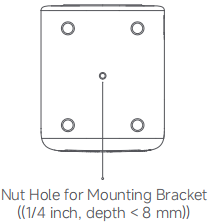
A: Support. There is a nut hole for mounting bracket. If mounting is required, please purchase a compatible mounting bracket with screws meeting the following specifications: a diameter of 1/4 inch and a length of less than 8mm. Please go to [Settings] >> [Projector] >> [Projector types] >> [Front projection - Celling mount]/[Rear projection - Celling mount].
The overview of the hole distance for mounting is listed below:
4. Q: Does the Xiaomi Smart Projector L1 support automatically avoiding obstacles?
A: Support. Through advanced intelligent algorithms, the screen automatically avoids foreign objects such as paintings, hangers, cables, etc. on the wall to ensure the integrity of the image and make viewing more comfortable. You can go to [Settings] >> [Projector] >> [Keystone correction] >> [EasyView].
Note:
1. Due to the complexity of the environment, intelligent obstacle avoidance cannot guarantee that all obstacles can be avoided;
2. If automatic obstacle avoidance fails once, please trigger this function again to rule out manual operation errors or the obstacle is out of the image range and the device fails to recognize it.
5. Q: Does the Xiaomi Smart Projector L1 support automatically fitting the screen?
A: Support. When this function is enabled, the projector can accurately identify the screen range through software algorithms. (The function of automatically fitting the screen is recommended to be used with a dark curtain with a border and under normal lighting conditions. The automatic alignment effect will be affected by different screens, walls, and background environments, and will show different effects. If the image projection exceeds the screen range too much, this function will fail. You can manually adjust the image or place the projector and screen in a suitable position). You can go to [Settings] >> [Projector] >> [Keystone correction] >> [EasyFit].
6. Q: How to reset the Xiaomi Smart Projector L1?
A: You can go to [Settings] >> [System] >> [About] >> [Reset] >> [Factory reset].
7. Q: How to configure the keystone correction on the Xiaomi Smart Projector L1?
A: The Xiaomi Smart Projector L1 supports configuring auto keystone correction. You can go to [Settings] >> [Projector] >> [Keystone correction] >> [Execute auto keystone correction]. Besides, you can also trigger the [Auto keystone correction] function by shaking the projector left, right, up, or down.
8. Q: How to pair the Xiaomi Smart Projector L1 with the remote control?
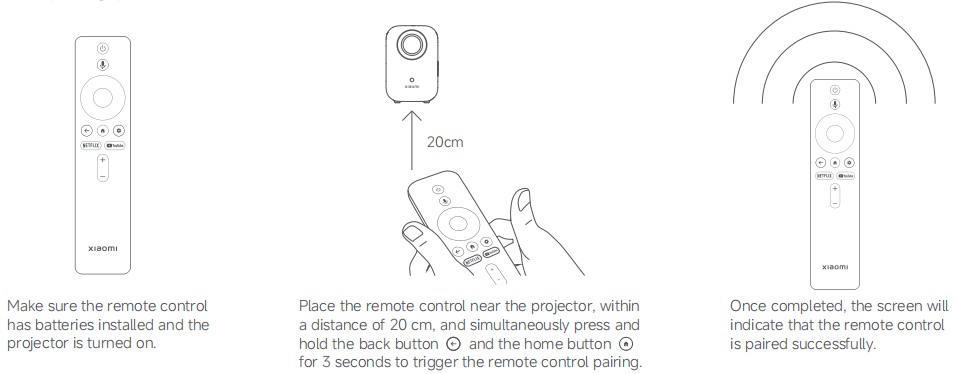
A: To pair the projector with the remote control, please refer to the following details:
1. Make sure the remote control has batteries installed and the projector is turned on;
2. Place the remote control near the projector, within a distance of 20cm, and simultaneously press and hold the back button and the home button for 3 seconds to trigger the remote control pairing;
3. Once completed, the screen will indicate that the remote control
is paired successfully.
Note:
If you use more than one projector, the remote control is paired with the original projector and more than one remote control is used, you need to delete the Bluetooth pairing information of the projector with an external keyword to re-pair the remote control. Please go to [Settings] >> [Remotes & Accessories] >> select the paired device >> [Forget].
9. Q: How to turn on, turn off and lock the Xiaomi Smart Projector L1?
A: 1. Turn on: When the projector is not connected to the power, the projector will turn on automatically after connecting to the power. Except for the first time you turn on the projector, you need to press the power button to turn it on. Press the power button on the remote control or the projector to turn it on (the remote control needs to be paired);
2. Turn off: Press and hold the power button on the remote control or the projector to turn it on (the remote control needs to be paired) and the screen will display [Do you want to shut down] and select [OK];
3. Lock the screen and standby: Press the power button on the remote control or the projector to turn the screen off. After over 30 minutes of screen off, the screen will be in the sleep mode. Press the power button on the remote control or the projector to wake the screen.
10. Q: How to disable the system sounds on the Xiaomi Smart Projector L1?
A: Please go to [Settings] >> [System sounds].
11. Q: How to use wireless casting on the Xiaomi Smart Projector L1?
A: For the Android system, you can use Google Cast. For iOS, you can download Air Screen in the Apple store to use wireless casting.
12. Q: How to play the videos in USB drive on the Xiaomi Smart Projector L1?
A: You can download and install VLC or IMPlayer from Google Play Store. After the installation, you can select the USB video source to play in the players mentioned above.
13. Q: How to configure the picture mode on the Xiaomi Smart Projector L1 and what personalization configuration does it support?
A: Please select the settings icon >> [Picture] >> [Picture mode] >> select from [User]/[Standard]/[Vivid]/[Sport]/[Movie]/[Game].
You can also adjust the brightness, contrast, saturation, HUE and sharpness on the picture page.
14. Q: How to configure sound on the Xiaomi Smart Projector L1?
A: Please select the settings icon >> [Sound] >> [Speakers], [Speaker Delay], [Dolby audio processing], [Dialogue enhancer] and [Restore to default].
15. Q: How to configure automatically turning off TV when inactive on the Xiaomi Smart Projector L1?
A: Please go to [Settings] >> [System] >> [Power and energy] >> [Power and energy] >> [Automatically turn off TV when inactive] >> select from the options according to your needs.
16. Q: How to use the last used input when turning on the TV on the Xiaomi Smart Projector L1?
A: Please go to [Settings] >> [System] >> [Power and energy] >> [Power-on behaviour] >> select [Last used input].
Troubleshooting
1. Q: What to do if the Xiaomi Smart Projector L1 cannot be turned on?
A: If the Xiaomi Smart Projector L1 cannot be turned on, please refer to the following details:
1. Press the power button on the projector and observe whether the button indicator is on. If not, replace another socket to check whether it is a socket problem;
2. Try unplugging the power cord and plugging it back in after 2 minutes. Press the power button on the projector or the remote control (the remote control needs to be paired). If the indicator still does not light up, please contact the local after-sales service center.
2. Q: Why is playing videos when using the Xiaomi Smart Projector L1 not smooth?
A: If playing videos when using the Xiaomi Smart Projector L1 is not smooth, please refer to the following details:
1. Please determine whether you are playing online videos or local offline videos (stored in the USB drive);
2. If you are playing online videos, it will be caused by low bandwidth at home. It is recommended that you switch the video definition, for example, switch the video resolution to 720 or standard definition to see if playing videos is smooth. If playing videos is smooth after switching to low bitrate definition, it means that there will be a problem with the network. It is recommended that you increase the network speed or restart the router to try. If the problem persists after switching, try playing other videos. If other videos are normal, it means that the resolution of the video source is not suitable for viewing on this device;
3. If playing videos is not smooth when playing local offline videos (stored in the USB drive), you can try replacing the external USB drive, hard disk, or video source. If only one video is not smooth and the others are normal, the video has a high bit rate, causing the playback to be not smooth. Please replace other video sources. If the problems persist, it will be the external device problem.
3. Q: What to do if the Xiaomi Smart Projector L1 fails to connect to the Wi-Fi network?
A: If the Xiaomi Smart Projector L1 cannot connect to the Wi-Fi network, please refer to the following details:
1. Check if there are any special characters in the Wi-Fi name, change the router Wi-Fi name and password to English/numeric type, and then try to connect;
2. Please check if the Wi-Fi password is correct. Select the Wi-Fi name, press the right navigation button on the remote control, select [Forget work], and then re-enter the password;
3. Check if the router’s DHCP function is turned on. If DHCP is turned off, the projector cannot automatically obtain an IP address;
4. Check if the router restricts more terminal access. If the router only allows whitelisted devices to access Wi-Fi, please add the projector's MAC address to the whitelist and try to connect again;
5. Check if the projector can connect to other Wi-Fi (such as mobile phone hotspots). If it can connect, restart or reset the router.
4. Q: Why is the lens of the Xiaomi Smart Projector L1 dirty?
A: If the lens of the Xiaomi Smart Projector L1 is dirty, please refer to the following details:
1. Please determine whether the dirt is inside or outside the lens. If the dirt is outside the lens, please wipe the lens with a cloth gently to make sure the outside of the lens is clean (Do not touch the lens with your fingers. Fingerprints will be left on the lens, but it will not affect normal use.);
2. After wiping the lens clean, if the dirtiness still exists after turning off the projector, please take the relevant pictures and submit the feedback;
3. The dirt you see is caused by the reflection of fine particles in the air after being illuminated by strong light. This is a normal phenomenon and will not affect the viewing of the screen. You can use it normally. In addition, please do not look directly at the light source for a long time, as it will damage your eyes.
5. Q: What to do if the images of the Xiaomi Smart Projector L1 are blurry?
A: If the images of the Xiaomi Smart Projector L1 are blurry, please refer to the following details:
1. If all interfaces (including fonts, images and software interfaces) are blurred, please use the focus wheel to adjust the clarity of the picture;
2. If some of the pages are blurred, it will be a UI problem. It is recommended that you check other pages;
3. If the video is blurred, you can try to switch the video resolution, or the video itself has poor picture quality;
4. If the interface is blurred after the projection is switched to a set-top box or an external HDMI device, please check the relevant settings of the set-top box or external HDMI device (such as output resolution).
6. Q: Why does the Xiaomi Smart Projector L1 have poor effects at the daytime?
A: This phenomenon is caused by too bright ambient light. Because the projector shines light onto the wall or screen, and then reflects the image to the human eye, if the ambient light is too bright, the display effect will be poor. It is recommended that you watch the videos in a dark environment, such as drawing the curtains or watching at night.
7. Q: Why does the Xiaomi Smart Projector L1 lag in terms of system operation?
A: If the Xiaomi Smart Projector L1 lags in terms of system operation, please refer to the following details:
1. Please determine whether you have installed too many third-party APPs. If so, please uninstall them and try again;
2. Please check whether the system version is the latest. You can update the system to the latest and try again;
3. Please confirm whether the heat dissipation is normal. If the heat dissipation is not smooth, it will cause the internal temperature of the projector to rise, resulting in system lag. Please move away items that affect heat dissipation;
4. Please reset the projector, which will erase all of the data, accounts, documents and installed APPs;
5. If the methods above are useless, please contact the local after-sales service center.
8. Q: What to do if there are dark spots on the image of the Xiaomi Smart Projector L1?
A: If there are dark spots on the image of the Xiaomi Smart Projector L1, please refer to the following details:
1. Please determine whether there are dark spots on all of the pages. If it only occurs on some of the pages, it will be the page problems;
2. If there are dark spots on all of the pages, confirm the position and size, and please change the projection environment, such as moving the projection position, checking whether the dark spots move with the projector to ensure it is not caused by environmental problems;
3. If the above methods are useless, please contact the local-after sales service center.
9. Q: What to do if there are abnormalities in terms of wireless casting on the Xiaomi Smart Projector L1?
A: Wireless casting for Google TV devices only supports Google Cast, and does not support other casting methods. The prerequisite for casting is to ensure that the device and mobile phone are connected to the same network.
10. Q: What to do if there is a color deviation when using the Xiaomi Smart Projector L1?
A: If there is color deviation when using the Xiaomi Smart Projector L1, please refer to the following details:
1. Please switch to movie viewing mode and restore the picture specification to the defaulted values;
2. Please update the system to the latest version;
3. If the projector has a color deviation after switching to the set-top box interface or connecting to an external HDMI device, please check whether the projector and the set-top box are in good contact, or check whether the set-top box screen has a color deviation;
4. If the above methods are useless, please contact the local after-sales service center.
11. Q: Why is the image edge not complete when using the Xiaomi Smart Projector L1?
A: The projection image is curved, uneven, and has wavy lines, mainly because the wall is uneven. It is recommended to replace the wall with a flat one or purchase a curtain to use with it. You can move the projector to a flat wall and observe whether the wavy line in the picture is still in its original position.
12. Q: Why does the adapter heat up when using the Xiaomi Smart Projector L1?
A: During the use of the power adapter, the power adapter will heat up, which is normal. The main reason is that the power adapter needs to convert the power into the current and voltage required by the projector. During the conversion process, a lot of heat will be emitted, so the adapter will be hotter during operation. You can rest assured that the adapter material is made of fire-proof and high-temperature-resistant plastic, so there is no need to worry about safety issues. However, during use, please do not place objects around the heat dissipation part of the adapter to avoid poor heat dissipation.
13. Q: Why is there a circle of dim white light on the image of the Xiaomi Smart Projector L1?
A: This phenomenon is normal. It can be seen in a darker environment. The brightness of our daily viewing environment is higher than this white light brightness, and normal use is not affected. If you use the function of keystone correction, a weak white light will also appear in the keystone-corrected image. If you want to improve this phenomenon, try to project the projector in the front direction and reduce the use of keystone correction.
14. Q: Why is there condensation on the lens of the Xiaomi Smart Projector L1?
A: The reason for the condensation phenomenon is that the temperature difference between the optical lens and the ambient temperature is too large, causing condensation after the lens in the cavity comes into contact with the air, thus blurring the image. This problem is normal.
To avoid the condensation on the lens of the Xiaomi Smart Projector L1, please refer to the following details:
1. Avoid large temperature differences. When the projector is moved from a low-temperature or high-temperature environment to a high-temperature or low-temperature environment, the temperature difference between the two environments should not exceed 10°C. You can leave the projector for 1 to 2 hours to allow it to return to the ambient temperature, and then use it again. This problem will not occur;
2. If the projector has been used and there is water mist (condensation) inside and outside the lens, the image will appear blurry and shiny. After the projector is turned on for 20 to 30 minutes, the image will return to normal and the projector can be used normally.
1. Q: What is the product overview of the Xiaomi Smart Projector L1?
A: The product overview of the Xiaomi Smart Projector L1 is listed below:
There is a Projector Lens, a Camera, a Speaker, a Rubber Feet, an Air Inlet, an Air Outlet, a Power Button, and a Nut Hole For Mounting Bracket.
Note:
Do not place any objects within a range of 20cm around the air inlet and outlet to avoid affecting the heat dissipation and causing damage or posing hazards.
The description of the peripheral ports is listed below:
1. The port 1 is headphone port;
2. The port 2 is HDMI signal input port;
3. The port 3 is USB 2.0 protocol port;
4. The port 4 is DC port.
2. Q: What are the features of the Xiaomi Smart Projector L1?
A: The features of the Xiaomi Smart Projector L1 are listed below:
1. Price: The price of the Xiaomi Smart Projector L1 has a great advantage, which makes the projector a cost-effective product;
2. Intelligence: The Xiaomi Smart Projector L1 supports autofocus, automatic keystone correction, intelligent obstacle avoidance and automatic screen entry. Your overall intelligent experience will be better;
3. Memory: Equipped with 2+16GB, it can make the system run more smoothly and reduce the problem of jamming;
4. System: Equipped with GTV+Netflix, it provides you with a better experience and a wider selection range;
5. Appearance: The overall ID design continues the Xiaomi style, and the dark color style is stable and beautiful.
3. Q: What is the Xiaomi Smart Projector L1 system?
A: The operating system of the Xiaomi Smart Projector L1 is Android TV™ OS (Android 11), and the desktop system is launcher Google TV.
4. Q: What is the throw ratio of the Xiaomi Smart Projector L1?
A: The throw ratio of the Xiaomi Smart Projector L1 is 1.2:1, and the projection screen dimension range is 40 to 120’’. The recommended projection screen dimension range is 60 to 100’’.
The project distance and screen dimensions of the Xiaomi Smart Projector L1 are listed below:
Note:
1. Screen Dimensions (SD): The diagonal size of the projection screen (in inches);
2. Projection Distance (D): The distance between the front end of the projector and the screen (in centimeters);
3. Screen Width (W): The width of the image projected on the wall (in centimeters);
4. The values in the table above are for reference only. They will slightly differ from the actual values. Please refer to the actual values.
5. Q: Does the Xiaomi Smart Projector L1 support the function of temperature control?
A: Support. When the warning temperature is reached, the over-temperature warning window will pop up automatically, indicating that the projector will shut down automatically.
When the temperature of the projector is too high, a warning window will pop up automatically. If the projector shuts down automatically due to high temperature, check whether there are any obstacles blocking the air inlet and outlet. After removing the obstacles, ensure smooth airflow. After the projector cools down, restart it and use it normally.
6. Q: Does the package contents of the Xiaomi Smart Projector L1 include a curtain?
A: There is no curtain in the package contents of the Xiaomi Smart Projector L1. You can purchase it according to your needs. The projector can present images on any carrier. If projecting on a wall, a pure white wall is the most suitable, and a light-colored wall will basically not affect the viewing effect. It is not recommended to use it on a wall with patterned wallpaper. To improve the viewing effect, you can choose a curtain, which can significantly improve the viewing effect.
7. Q: How to check the SN of the Xiaomi Smart Projector L1?
A: To check the SN of the Xiaomi Smart Projector L1, please refer to the following steps:
1. You can check the SN at the back of the package;
2. You can check the SN on the nameplate at the bottom of the projector;
3. You can also check the SN in the settings page of the projector. Please go to [Settings] >> [System] >> [About] >> [Status] >> [Serial number].
8. Q: Can the Xiaomi Smart Projector L1 be used outdoors?
A: The Xiaomi Smart Projector L1 can be used outdoors, but it must be used in accordance with the product usage conditions. Do not use it in conditions of high humidity or low temperature to prevent water from entering the product and affecting the use of the projector.
9. Q: What are the built-in video APPs of the Xiaomi Smart Projector L1?
A: Such preinstalled APPs as Netflix, YouTube and Prime Video are supported. You can also search and download other APPs on the APP page. Each APP has different download permissions in different countries or regions.
10. Q: Does the Xiaomi Smart Projector L1 support adjusting the size of the image?
A: This projector does not currently support zooming, so the image cannot be resized.
Usage related
1. Q: How to restart the Xiaomi Smart Projector L1?
A: You can go to [Settings] >> [System] >> [Restart] to restart the projector.
2. Q: How to focus the image on the Xiaomi Smart Projector L1?
A: The Xiaomi Smart Projector L1 supports auto focus and manual focus.
Auto focus: You can go to [Settings] >> [Projector] >> [Focus] >> [Auto focus]. The function of auto focus will be triggered when the projector moves. Besides, you need to disable [Auto keystone correction] to trigger auto focus.
Manual focus: You can go to [Settings] >> [Projector] >> [Focus] >> [Manual focus].
3. Q: Does the Xiaomi Smart Projector L1 support mounting?
A: Support. There is a nut hole for mounting bracket. If mounting is required, please purchase a compatible mounting bracket with screws meeting the following specifications: a diameter of 1/4 inch and a length of less than 8mm. Please go to [Settings] >> [Projector] >> [Projector types] >> [Front projection - Celling mount]/[Rear projection - Celling mount].
The overview of the hole distance for mounting is listed below:
4. Q: Does the Xiaomi Smart Projector L1 support automatically avoiding obstacles?
A: Support. Through advanced intelligent algorithms, the screen automatically avoids foreign objects such as paintings, hangers, cables, etc. on the wall to ensure the integrity of the image and make viewing more comfortable. You can go to [Settings] >> [Projector] >> [Keystone correction] >> [EasyView].
Note:
1. Due to the complexity of the environment, intelligent obstacle avoidance cannot guarantee that all obstacles can be avoided;
2. If automatic obstacle avoidance fails once, please trigger this function again to rule out manual operation errors or the obstacle is out of the image range and the device fails to recognize it.
5. Q: Does the Xiaomi Smart Projector L1 support automatically fitting the screen?
A: Support. When this function is enabled, the projector can accurately identify the screen range through software algorithms. (The function of automatically fitting the screen is recommended to be used with a dark curtain with a border and under normal lighting conditions. The automatic alignment effect will be affected by different screens, walls, and background environments, and will show different effects. If the image projection exceeds the screen range too much, this function will fail. You can manually adjust the image or place the projector and screen in a suitable position). You can go to [Settings] >> [Projector] >> [Keystone correction] >> [EasyFit].
6. Q: How to reset the Xiaomi Smart Projector L1?
A: You can go to [Settings] >> [System] >> [About] >> [Reset] >> [Factory reset].
7. Q: How to configure the keystone correction on the Xiaomi Smart Projector L1?
A: The Xiaomi Smart Projector L1 supports configuring auto keystone correction. You can go to [Settings] >> [Projector] >> [Keystone correction] >> [Execute auto keystone correction]. Besides, you can also trigger the [Auto keystone correction] function by shaking the projector left, right, up, or down.
8. Q: How to pair the Xiaomi Smart Projector L1 with the remote control?
A: To pair the projector with the remote control, please refer to the following details:
1. Make sure the remote control has batteries installed and the projector is turned on;
2. Place the remote control near the projector, within a distance of 20cm, and simultaneously press and hold the back button and the home button for 3 seconds to trigger the remote control pairing;
3. Once completed, the screen will indicate that the remote control
is paired successfully.
Note:
If you use more than one projector, the remote control is paired with the original projector and more than one remote control is used, you need to delete the Bluetooth pairing information of the projector with an external keyword to re-pair the remote control. Please go to [Settings] >> [Remotes & Accessories] >> select the paired device >> [Forget].
9. Q: How to turn on, turn off and lock the Xiaomi Smart Projector L1?
A: 1. Turn on: When the projector is not connected to the power, the projector will turn on automatically after connecting to the power. Except for the first time you turn on the projector, you need to press the power button to turn it on. Press the power button on the remote control or the projector to turn it on (the remote control needs to be paired);
2. Turn off: Press and hold the power button on the remote control or the projector to turn it on (the remote control needs to be paired) and the screen will display [Do you want to shut down] and select [OK];
3. Lock the screen and standby: Press the power button on the remote control or the projector to turn the screen off. After over 30 minutes of screen off, the screen will be in the sleep mode. Press the power button on the remote control or the projector to wake the screen.
10. Q: How to disable the system sounds on the Xiaomi Smart Projector L1?
A: Please go to [Settings] >> [System sounds].
11. Q: How to use wireless casting on the Xiaomi Smart Projector L1?
A: For the Android system, you can use Google Cast. For iOS, you can download Air Screen in the Apple store to use wireless casting.
12. Q: How to play the videos in USB drive on the Xiaomi Smart Projector L1?
A: You can download and install VLC or IMPlayer from Google Play Store. After the installation, you can select the USB video source to play in the players mentioned above.
13. Q: How to configure the picture mode on the Xiaomi Smart Projector L1 and what personalization configuration does it support?
A: Please select the settings icon >> [Picture] >> [Picture mode] >> select from [User]/[Standard]/[Vivid]/[Sport]/[Movie]/[Game].
You can also adjust the brightness, contrast, saturation, HUE and sharpness on the picture page.
14. Q: How to configure sound on the Xiaomi Smart Projector L1?
A: Please select the settings icon >> [Sound] >> [Speakers], [Speaker Delay], [Dolby audio processing], [Dialogue enhancer] and [Restore to default].
15. Q: How to configure automatically turning off TV when inactive on the Xiaomi Smart Projector L1?
A: Please go to [Settings] >> [System] >> [Power and energy] >> [Power and energy] >> [Automatically turn off TV when inactive] >> select from the options according to your needs.
16. Q: How to use the last used input when turning on the TV on the Xiaomi Smart Projector L1?
A: Please go to [Settings] >> [System] >> [Power and energy] >> [Power-on behaviour] >> select [Last used input].
Troubleshooting
1. Q: What to do if the Xiaomi Smart Projector L1 cannot be turned on?
A: If the Xiaomi Smart Projector L1 cannot be turned on, please refer to the following details:
1. Press the power button on the projector and observe whether the button indicator is on. If not, replace another socket to check whether it is a socket problem;
2. Try unplugging the power cord and plugging it back in after 2 minutes. Press the power button on the projector or the remote control (the remote control needs to be paired). If the indicator still does not light up, please contact the local after-sales service center.
2. Q: Why is playing videos when using the Xiaomi Smart Projector L1 not smooth?
A: If playing videos when using the Xiaomi Smart Projector L1 is not smooth, please refer to the following details:
1. Please determine whether you are playing online videos or local offline videos (stored in the USB drive);
2. If you are playing online videos, it will be caused by low bandwidth at home. It is recommended that you switch the video definition, for example, switch the video resolution to 720 or standard definition to see if playing videos is smooth. If playing videos is smooth after switching to low bitrate definition, it means that there will be a problem with the network. It is recommended that you increase the network speed or restart the router to try. If the problem persists after switching, try playing other videos. If other videos are normal, it means that the resolution of the video source is not suitable for viewing on this device;
3. If playing videos is not smooth when playing local offline videos (stored in the USB drive), you can try replacing the external USB drive, hard disk, or video source. If only one video is not smooth and the others are normal, the video has a high bit rate, causing the playback to be not smooth. Please replace other video sources. If the problems persist, it will be the external device problem.
3. Q: What to do if the Xiaomi Smart Projector L1 fails to connect to the Wi-Fi network?
A: If the Xiaomi Smart Projector L1 cannot connect to the Wi-Fi network, please refer to the following details:
1. Check if there are any special characters in the Wi-Fi name, change the router Wi-Fi name and password to English/numeric type, and then try to connect;
2. Please check if the Wi-Fi password is correct. Select the Wi-Fi name, press the right navigation button on the remote control, select [Forget work], and then re-enter the password;
3. Check if the router’s DHCP function is turned on. If DHCP is turned off, the projector cannot automatically obtain an IP address;
4. Check if the router restricts more terminal access. If the router only allows whitelisted devices to access Wi-Fi, please add the projector's MAC address to the whitelist and try to connect again;
5. Check if the projector can connect to other Wi-Fi (such as mobile phone hotspots). If it can connect, restart or reset the router.
4. Q: Why is the lens of the Xiaomi Smart Projector L1 dirty?
A: If the lens of the Xiaomi Smart Projector L1 is dirty, please refer to the following details:
1. Please determine whether the dirt is inside or outside the lens. If the dirt is outside the lens, please wipe the lens with a cloth gently to make sure the outside of the lens is clean (Do not touch the lens with your fingers. Fingerprints will be left on the lens, but it will not affect normal use.);
2. After wiping the lens clean, if the dirtiness still exists after turning off the projector, please take the relevant pictures and submit the feedback;
3. The dirt you see is caused by the reflection of fine particles in the air after being illuminated by strong light. This is a normal phenomenon and will not affect the viewing of the screen. You can use it normally. In addition, please do not look directly at the light source for a long time, as it will damage your eyes.
5. Q: What to do if the images of the Xiaomi Smart Projector L1 are blurry?
A: If the images of the Xiaomi Smart Projector L1 are blurry, please refer to the following details:
1. If all interfaces (including fonts, images and software interfaces) are blurred, please use the focus wheel to adjust the clarity of the picture;
2. If some of the pages are blurred, it will be a UI problem. It is recommended that you check other pages;
3. If the video is blurred, you can try to switch the video resolution, or the video itself has poor picture quality;
4. If the interface is blurred after the projection is switched to a set-top box or an external HDMI device, please check the relevant settings of the set-top box or external HDMI device (such as output resolution).
6. Q: Why does the Xiaomi Smart Projector L1 have poor effects at the daytime?
A: This phenomenon is caused by too bright ambient light. Because the projector shines light onto the wall or screen, and then reflects the image to the human eye, if the ambient light is too bright, the display effect will be poor. It is recommended that you watch the videos in a dark environment, such as drawing the curtains or watching at night.
7. Q: Why does the Xiaomi Smart Projector L1 lag in terms of system operation?
A: If the Xiaomi Smart Projector L1 lags in terms of system operation, please refer to the following details:
1. Please determine whether you have installed too many third-party APPs. If so, please uninstall them and try again;
2. Please check whether the system version is the latest. You can update the system to the latest and try again;
3. Please confirm whether the heat dissipation is normal. If the heat dissipation is not smooth, it will cause the internal temperature of the projector to rise, resulting in system lag. Please move away items that affect heat dissipation;
4. Please reset the projector, which will erase all of the data, accounts, documents and installed APPs;
5. If the methods above are useless, please contact the local after-sales service center.
8. Q: What to do if there are dark spots on the image of the Xiaomi Smart Projector L1?
A: If there are dark spots on the image of the Xiaomi Smart Projector L1, please refer to the following details:
1. Please determine whether there are dark spots on all of the pages. If it only occurs on some of the pages, it will be the page problems;
2. If there are dark spots on all of the pages, confirm the position and size, and please change the projection environment, such as moving the projection position, checking whether the dark spots move with the projector to ensure it is not caused by environmental problems;
3. If the above methods are useless, please contact the local-after sales service center.
9. Q: What to do if there are abnormalities in terms of wireless casting on the Xiaomi Smart Projector L1?
A: Wireless casting for Google TV devices only supports Google Cast, and does not support other casting methods. The prerequisite for casting is to ensure that the device and mobile phone are connected to the same network.
10. Q: What to do if there is a color deviation when using the Xiaomi Smart Projector L1?
A: If there is color deviation when using the Xiaomi Smart Projector L1, please refer to the following details:
1. Please switch to movie viewing mode and restore the picture specification to the defaulted values;
2. Please update the system to the latest version;
3. If the projector has a color deviation after switching to the set-top box interface or connecting to an external HDMI device, please check whether the projector and the set-top box are in good contact, or check whether the set-top box screen has a color deviation;
4. If the above methods are useless, please contact the local after-sales service center.
11. Q: Why is the image edge not complete when using the Xiaomi Smart Projector L1?
A: The projection image is curved, uneven, and has wavy lines, mainly because the wall is uneven. It is recommended to replace the wall with a flat one or purchase a curtain to use with it. You can move the projector to a flat wall and observe whether the wavy line in the picture is still in its original position.
12. Q: Why does the adapter heat up when using the Xiaomi Smart Projector L1?
A: During the use of the power adapter, the power adapter will heat up, which is normal. The main reason is that the power adapter needs to convert the power into the current and voltage required by the projector. During the conversion process, a lot of heat will be emitted, so the adapter will be hotter during operation. You can rest assured that the adapter material is made of fire-proof and high-temperature-resistant plastic, so there is no need to worry about safety issues. However, during use, please do not place objects around the heat dissipation part of the adapter to avoid poor heat dissipation.
13. Q: Why is there a circle of dim white light on the image of the Xiaomi Smart Projector L1?
A: This phenomenon is normal. It can be seen in a darker environment. The brightness of our daily viewing environment is higher than this white light brightness, and normal use is not affected. If you use the function of keystone correction, a weak white light will also appear in the keystone-corrected image. If you want to improve this phenomenon, try to project the projector in the front direction and reduce the use of keystone correction.
14. Q: Why is there condensation on the lens of the Xiaomi Smart Projector L1?
A: The reason for the condensation phenomenon is that the temperature difference between the optical lens and the ambient temperature is too large, causing condensation after the lens in the cavity comes into contact with the air, thus blurring the image. This problem is normal.
To avoid the condensation on the lens of the Xiaomi Smart Projector L1, please refer to the following details:
1. Avoid large temperature differences. When the projector is moved from a low-temperature or high-temperature environment to a high-temperature or low-temperature environment, the temperature difference between the two environments should not exceed 10°C. You can leave the projector for 1 to 2 hours to allow it to return to the ambient temperature, and then use it again. This problem will not occur;
2. If the projector has been used and there is water mist (condensation) inside and outside the lens, the image will appear blurry and shiny. After the projector is turned on for 20 to 30 minutes, the image will return to normal and the projector can be used normally.
Does it help?
Yes
No