

Xiaomi Router BE3600 FAQ
Product Introduction
1. Q: What is the overview of the Xiaomi Router BE3600?
A: This product is part of Xiaomi's entry-level Wi-Fi 7 series.
1. Hardware features: The all-new Qualcomm Wi-Fi 7 quad-core 1.1GHz processor with A53 architecture delivers computing power up to 10120DMIPS. It has 256MB large memory and 4 Gigabit Ethernet ports;
2. Rich software functions: It supports Wi-Fi 7 technology, Mesh networking, fast connection, ecosystem integration experience, dual LAN aggregation, IPTV, etc.
Note:
This router only supports being bound to the Xiaomi Home/Mi Home APP and doesn’t support being bound to the Mi Wi-Fi APP.
2. Q: What are the advantages of the Xiaomi Router BE3600?
A: 3600Mbps wireless speed: 2.4GHz (2 × 2, 688Mbps 40MHz) and 5GHz (2 × 2, 2882Mbps 160MHz), totaling approximately 3570Mbps, close to 3600Mbps.
4 high-power signal amplifiers: Providing stronger wall-penetrating effects and broader coverage, easily covering a three-bedroom apartment.
Hybrid Mesh networking: It can create Mesh networks with other Xiaomi routers that support Mesh or the same model. Besides, it supports up to 10 routers in a Mesh network (wired or wireless).
Game acceleration for Xiaomi phones: The Xiaomi Router BE3600 can intelligently recognize your Xiaomi/Redmi phone and provide a dedicated acceleration channel during gaming, reducing game latency and lag.
Fast connection: The Mi Home/Xiaomi Home APP automatically detects nearby Xiaomi smart devices that are not yet connected to the network. There is no need to enter a password and no complicated settings. It allows an easy one-touch network even used by elders or kids (smart devices must support fast connection).
IPTV support: You can set the router port as an IPTV port to solve wiring issues between the modem and set-top box.
Adaptive Ethernet ports: The ports can automatically function as either WAN or LAN based on their actual use. With the adaptive intelligent Ethernet ports, there's no need to worry about plugging the network cable into the wrong port, making network configuration much easier and worry-free.
Family internet protection: It supports APP and website filtering and internet time management to prevent children from excessive internet use. It also provides detailed reports to assist parents in monitoring their child's online habits.
Xiaomi ecosystem experience: Mi Home/Xiaomi Home APP can set network actions such as device connected, device left the network, or no activity for a specified time as triggers for automating tasks like turning lights on/off, controlling the air conditioner, or locking the door. Easily set up smart scenes.
3. Q: What is the speed calculation for the Xiaomi Router BE3600?
A: The Xiaomi Router BE3600 supports the Wi-Fi 7 protocol: 2.4GHz (2 × 2, 688Mbps 40MHz) and 5GHz (2 × 2, 2882Mbps 160MHz), totaling approximately 3570Mbps, close to 3600Mbps.
4. Q: Does the Xiaomi Router BE3600 support Wi-Fi 7?
A: Yes, it is an entry-level Wi-Fi 7 product.
5. Q: What Wi-Fi 7 features does the Xiaomi Router BE3600 support?
A: It supports MLO (Multi-Link Operation): This allows devices to connect to two Wi-Fi hotspots simultaneously, such as 2.4GHz + 5GHz.
The key benefits of MLO are as follows:
1. Faster throughput: Aggregates the speeds of both links (Link1 and Link2) for higher data rates. A single device can connect to two bands for data aggregation, increasing transfer speeds (MLO requires the support on the phone);
2. Lower latency: Wi-Fi links can switch dynamically. When one link encounters interference, it can dynamically switch to another, reducing latency;
3. Higher reliability: With two Wi-Fi connections, data transmission is more reliable, and it's less likely to disconnect in noisy environments. If one band disconnects, the other can continue to provide network access, improving stability.
The Xiaomi Router BE3600 supports 2.4GHz + 5GHz: Aggregated speeds up to 3.6Gbps (3570Mbps = 2882Mbps + 688Mbps).
It also supports Multi-RU (Multiple Resource Unit): OFDMA allows Resource Unit (RU) to be transmitted to multiple devices simultaneously. However, a single device can only be allocated one Resource Unit (RU). Based on this, the Multi-Resource Unit (MRU) allows multiple Resource Units (RUs) to be combined and allocated to a single device, improving spectrum efficiency and enhancing the multi-device network experience.
6. Q: What ports/buttons does the Xiaomi Router BE3600 have?
A: The Xiaomi Router BE3600 has the following ports and buttons:
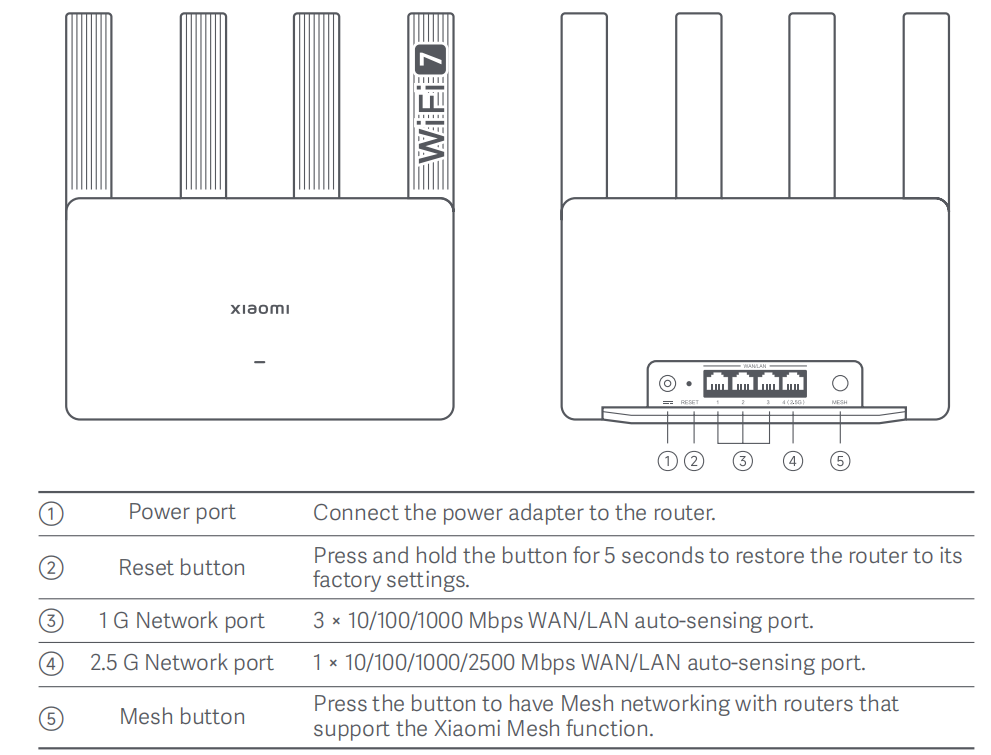
Note:
Illustrations are for reference purposes only. Actual product and functions can vary due to product enhancements.
7. Q: What do the indicators of the Xiaomi Router BE3600 represent?
A: The Xiaomi Router BE3600 has one indicator, and its statuses are as follows:
8. Q: What is the IPTV function?
A: IPTV, or Interactive Internet Protocol Television, is a new technology that uses broadband networks to provide a variety of interactive services to the home, including digital television, integrating the Internet, multimedia, and communication technologies.
IPTV can utilize a computer or set-top box + TV to receive video-on-demand programs, video broadcasts, and online surfing.
9. Q: With the Xiaomi Router BE3600 having IPTV functionality, can the live broadcasts be watched directly by connecting the TV to the router?
A: No, you cannot watch live broadcasts directly. The IPTV function must be activated on the broadband service at your home. After the IPTV function is enabled on your home broadband, the optical modem connects to the router, and you need to configure the IPTV function on the router. Once configured, set one of the router's ports as the IPTV port, and connect the TV set-top box to the IPTV port on the router to enjoy watching TV programs.
10. Q: Does the IPTV function of the Xiaomi Router BE3600 have any requirements for network service providers?
A: There are no specific requirements for service providers, as long as the service provider can enable the IPTV function. The actual support depends on the service provider. (Some service providers’ IPTV set-top boxes can be connected directly to the LAN port. Please consult the service provider’s customer service for confirmation before use.)
11. Q: How to configure and use the IPTV function on the Xiaomi Router BE3600?
A: IPTV supports two modes: Custom Mode and Bridge Mode. In Custom Mode, the terminal device connected to the IPTV port does not require configuration. You need to configure the VLAN ID and VLAN priority provided by the service provider on the router's page. In Bridge Mode, there is no need to configure the VLAN ID and VLAN priority on the router's page, but the terminal device connected to the IPTV port requires the VLAN ID and VLAN priority provided by the service provider. To use this function, please confirm the IPTV service configuration with the service provider.
First, confirm whether the service provider's broadband supports the IPTV function and whether the IPTV function should be configured in Custom Mode or Bridge Mode. It is recommended to use the Custom Mode.
Configuration method for Custom Mode (Router Mode):
1. After completing the initial router configuration for internet access, enter 192.168.31.1 in the web browser to access the router's backend. Go to advanced settings >> IPTV >> enable the IPTV function;
2. After enabling the IPTV function, select the custom option for the connection type;
3. Enter the IPTV VLAN ID and IPTV VLAN priority (also known as 802.1p). (These two parameters need to be obtained by contacting the service provider);
4. Select any remaining port as the IPTV port, and connect the Ethernet cable to the TV set-top box to enjoy IPTV programs. (Since IPTV data is multicast, using wireless will incur too much performance overhead. The set-top box cannot connect to the router via Wi-Fi to stream IPTV programs).
Configuration method for Bridge Mode:
This mode requires the set-top box to be configured with VLAN ID and VLAN priority, so it is advised to confirm with the service provider. Bridge Mode is also known as Transparent Mode.
1. After completing the initial router configuration for internet access, enter 192.168.31.1 in the web browser to access the router's backend. Go to advanced settings >> IPTV >> enable IPTV function;
2. After enabling the IPTV function, select the Bridge Mode option for the connection type;
3. Select any remaining port as the IPTV port, and connect the Ethernet cable to the TV set-top box to enjoy IPTV programs.
Function Related
1. Q: How to install and configure the Xiaomi Router BE3600 for the first time?
A: The Xiaomi Router BE3600 can be bound using the Mi Home/Xiaomi Home APP or configured via the web backend management. It does not support binding through the Mi Wi-Fi APP.
Preparation before the configuration:
1. Connect the router to power, then the router will automatically turn on;
2. Restart your modem;
Note:
The modem is provided by your Internet service provider.
3. Plug one end of the network cable into either of the router's port, and the other end into the LAN port of the modem.
Note:
If you use the Ethernet wall socket instead of the modem, directly plug the network cable into it.
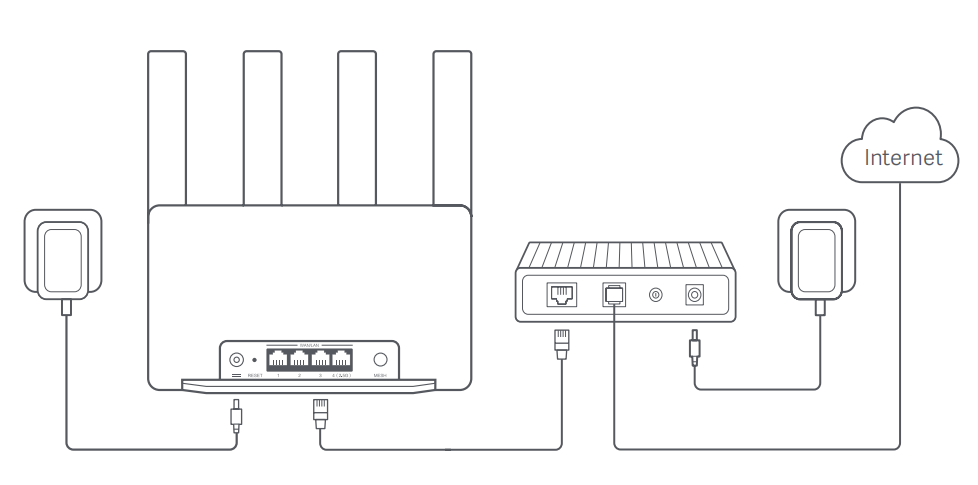
Method 1:
Network configuration via the Xiaomi Home/Mi Home APP:
1. Scan the QR code below to download the Xiaomi Home/Mi Home APP. Or search for Xiaomi Home/Mi Home in the Google Play Store to download and install it;

2. Open the Xiaomi Home/Mi Home APP, tap [+] on the upper right, choose the right product model, and then follow the instructions to complete the network configuration.
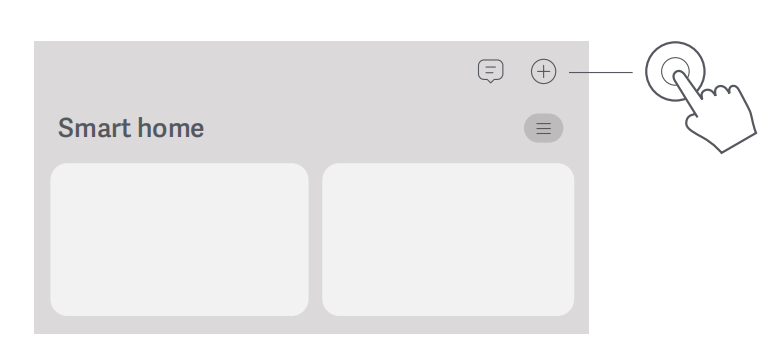
Note:
Please follow the instructions based on the current APP version.
Method 2:
Network configuration via the web browser:
1. Check the Wi-Fi name on the label at the bottom of the router and then connect your phone or computer to the Wi-Fi;
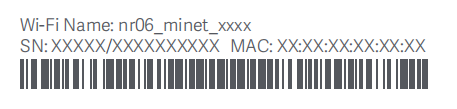
2. Then an automatic redirection will take you to the network setup page. If not, open the web browser and enter miwifi.com or 192.168.31.1;
3. Follow the instructions on the setup page to complete the network configuration;
Note:
Contact your Internet service provider to get the details if you are not familiar with the Internet connection type.
4. After the configuration of the router is completed, the Wi-Fi module will restart. Try to search the Wi-Fi again later.
Note:
1. After completing the network configuration, you can also add the router via the Xiaomi Home/Mi Home APP. Refer to the QR code in method 1 to download and install the Xiaomi Home/Mi Home APP;
2. Make sure that the settings of the country or region in the Xiaomi Home/Mi Home APP are correct, otherwise, adding the router will be failed.
2. Q: What functions does the Xiaomi Router BE3600 have after binding with the Mi Home/Xiaomi Home APP?
A: After binding with the Mi Home/Xiaomi Home APP, the Xiaomi Router BE3600 can use features such as network settings, scheduled reboot, password management, guest Wi-Fi, custom Hosts, anti-theft measures, link aggregation, and more.
3. Q: How to use the home security protection function of the Xiaomi Router BE3600?
A: The network security protection feature in the Mi Home/Xiaomi Home APP includes two functions: gateway firewall and log management.
The Mi Home/Xiaomi Home APP analyzes the network risk level: it assesses the current security level based on the protection feature's status and provides diagnostic reminders. (When you enable the gateway firewall and log management in the APP, it will indicate a high level of network security protection.)
Gateway firewall provides three types of danger defense functions:
1. Protection against gateway spoofing attacks: It can intercept ARP and DHCP spoofing gateway attacks, reducing the risk of privacy leaks in the local area network;
2. Protection against Network Denial of Service (DoS) Attacks: It can intercept DDoS attacks and various flooding attack behaviors, lowering the risk of abnormal network access;
3. External listening risk detection: It can intercept port or IP scanning attacks, reducing the risk of external brute-force attacks and eavesdropping.
Log management provides records of security events, device changes, and terminal connection events.
4. Q: How to use the dual LAN functions of the Xiaomi Router BE3600?
A: To use the dual LAN function, please refer to the following information:
Dual LAN aggregation allows two LAN ports to be connected simultaneously to terminal devices such as NAS with multiple network interfaces, effectively combining their speeds. For example, if both LAN ports are gigabit, aggregating LAN port 1 and LAN port 2 theoretically increases the connection speed to 2000M.
There are two ways to enable LAN port aggregation:
1. Navigate to web backend >> advanced settings >> port customization >> enable LAN port aggregation >> select any two LAN ports to aggregate;
2. Go to web backend >> common settings >> enable the LAN port aggregation option in the LAN settings interface.
Note:
If the negotiated speeds of the ports are different, aggregation will fail. The opposing network card must have the LACP protocol enabled. The LAN aggregation feature on Xiaomi routers is dynamic aggregation, which requires the opposing end to support the 802.3ad (LACP) protocol.
The using method is as follows:
1. Ensure that the computer currently logged into the web management backend is not using the aggregated LAN ports, then enable the option;
2. Make sure the terminal device also supports dual LAN link aggregation and that this feature is enabled;
3. Use two Ethernet cables to connect the router’s two LAN ports to the terminal device.
Note:
Enabling or disabling the guest Wi-Fi will cause the link aggregation feature to become ineffective.
5. Q: Does the Xiaomi Router BE3600 support enabling SSH?
A: No, the Xiaomi router is designed for home use, and the SSH function is too complex for typical home use.
6. Q: How to restore the Xiaomi Router BE3600 to factory settings?
A: Press and hold the Reset button on the back for 5 seconds. The indicator will turn orange. Wait for the router to complete its startup, and when the indicator lights up in blue, it indicates a successful reset.
7. Q: Does the Xiaomi Router BE3600 support Docker?
A: No, this router does not have a USB port.
8. Q: Does the backend of the Xiaomi Router BE3600 support external access?
A: The router’s backend does not support external access. Even if you set up DDNS to access it via a domain name, it is still not supported.
9. Q: How many network devices can the Xiaomi Router BE3600 connect to at most?
A: The Xiaomi Router BE3600 can connect to a maximum of 128 terminal devices, including 2.4GHz Wi-Fi, 5GHz Wi-Fi, and wired connections, based on laboratory conditions.
10. Q: Does the Xiaomi Router BE3600 support external mobile hard drives/USB drives?
A: No, it does not support external mobile hard drives or USB drives.
FAQs
1. Q: What is the IPv6 function on the Xiaomi Router BE3600?
A: The Xiaomi Router BE3600 has IPv6 enabled by default. When the IPv6 option is turned on, you will not notice any significant changes. It is checked by default during the router’s initial configuration. For any technical issues related to the Xiaomi Router BE3600, please disable the IPv6 option before conducting any further troubleshooting.
Method 1:
Using the Mi Home/Xiaomi Home APP: Go to the router’s page in the APP >> tap [Network settings] >> [IPv6 network settings] >> disable it.
Method 2:
Using the web interface: On a mobile device or PC, open a browser and enter 192.168.31.1. Enter the management password >> click [Common settings] >> [Network settings] >> scroll down to find [IPv6 network settings] and disable it.
2. Q: What to do if the network lags, APP delays, or web pages fail to load while using the Xiaomi Router BE3600?
A: First, please disable the IPv6 option and then perform standard troubleshooting.
Method 1:
Using the Mi Home/Xiaomi Home APP: Go to the router’s page in the APP >> tap [Network settings] >> [IPv6 network settings] >> disable it.
Method 2:
Using the web interface: On a mobile device or PC, open a browser and enter 192.168.31.1. Enter the management password >> click [Common settings] >> [Network settings] >> scroll down to find [IPv6 network settings] and disable it.
3. Q: What to do if the internet can't be accessed after initializing the Xiaomi Router BE3600?
A: First, please disable the IPv6 option and then proceed with standard troubleshooting. Since there is no external network at this point, you cannot manage the router using the Mi Home/Xiaomi Home APP. Please disable the IPv6 option in the web backend.
Method: On a mobile device or PC, open a browser and enter 192.168.31.1. Enter the management password >> click [Common settings] >> [Network settings] >> scroll down to find [IPv6 network settings] and disable it.
4. Q: What to do if the Xiaomi Router BE3600 cannot be bound to the Mi Home/Xiaomi Home APP?
A: First, please disable the IPv6 option, then update the Mi Home/Xiaomi Home APP to version 9.1.705 or later to bind the router. Since there is no external network at this point, you cannot manage the router using the Mi Home/Xiaomi Home APP. Please disable the IPv6 option in the web backend, then update the APP to the latest version to bind the router.
Method: On a mobile device or PC, open a browser and enter 192.168.31.1. Enter the management password >> click [Common settings] >> [Network settings] >> scroll down to find [IPv6 network settings] and disable it.
5. Q: What to do if there are abnormal functionalities on the Xiaomi Router BE3600?
A: First, please disable the IPv6 option and then perform standard troubleshooting.
Method 1:
Using the Mi Home/Xiaomi Home APP: Go to the router’s page in the APP >> tap [Network settings] >> [IPv6 network settings] >> disable it.
Method 2:
Using the web interface: On a mobile device or PC, open a browser and enter 192.168.31.1. Enter the management password >> click [Common settings] >> [Network settings] >> scroll down to find [IPv6 network settings] and disable it.
6. Q: Why should the IPv6 option be disabled? Is the support for IPv6 on Xiaomi routers inadequate?
A: This is not an issue caused by the router. In terms of actual usage experience, you will not notice any difference between IPv6 and IPv4 networks, so you can simply disable the IPv6 option (Xiaomi routers before 2024 did not have IPv6 enabled by default, hence you will not be aware of its presence if using older models).
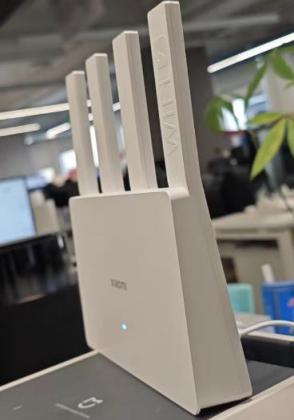
7. Q: Should the Xiaomi Router BE3600 be placed vertically?
A: Since the power interface and network ports are on the back, it is recommended to place the router vertically.
8. Q: What to do if the power port of the Xiaomi Router BE3600 is not secure?
A: The power port of the Xiaomi Router BE3600 is on the back. You should insert the adapter fully. If there is a slight gap, it falls within normal tolerances, so please use it with confidence.
9. Q: Are there compatibility issues with the Xiaomi Router BE3600 when the MLO feature is enabled on the Xiaomi 14 series phones?
A: If there are compatibility issues between the Xiaomi Router BE3600 and Xiaomi 14 series phones when the MLO feature is enabled, such as the phone being unable to access the internet or experiencing network lag, please disable the IPv6 option on the router and please wait for a firmware upgrade on the phone that will optimize this issue.
1. Q: What is the overview of the Xiaomi Router BE3600?
A: This product is part of Xiaomi's entry-level Wi-Fi 7 series.
1. Hardware features: The all-new Qualcomm Wi-Fi 7 quad-core 1.1GHz processor with A53 architecture delivers computing power up to 10120DMIPS. It has 256MB large memory and 4 Gigabit Ethernet ports;
2. Rich software functions: It supports Wi-Fi 7 technology, Mesh networking, fast connection, ecosystem integration experience, dual LAN aggregation, IPTV, etc.
Note:
This router only supports being bound to the Xiaomi Home/Mi Home APP and doesn’t support being bound to the Mi Wi-Fi APP.
2. Q: What are the advantages of the Xiaomi Router BE3600?
A: 3600Mbps wireless speed: 2.4GHz (2 × 2, 688Mbps 40MHz) and 5GHz (2 × 2, 2882Mbps 160MHz), totaling approximately 3570Mbps, close to 3600Mbps.
4 high-power signal amplifiers: Providing stronger wall-penetrating effects and broader coverage, easily covering a three-bedroom apartment.
Hybrid Mesh networking: It can create Mesh networks with other Xiaomi routers that support Mesh or the same model. Besides, it supports up to 10 routers in a Mesh network (wired or wireless).
Game acceleration for Xiaomi phones: The Xiaomi Router BE3600 can intelligently recognize your Xiaomi/Redmi phone and provide a dedicated acceleration channel during gaming, reducing game latency and lag.
Fast connection: The Mi Home/Xiaomi Home APP automatically detects nearby Xiaomi smart devices that are not yet connected to the network. There is no need to enter a password and no complicated settings. It allows an easy one-touch network even used by elders or kids (smart devices must support fast connection).
IPTV support: You can set the router port as an IPTV port to solve wiring issues between the modem and set-top box.
Adaptive Ethernet ports: The ports can automatically function as either WAN or LAN based on their actual use. With the adaptive intelligent Ethernet ports, there's no need to worry about plugging the network cable into the wrong port, making network configuration much easier and worry-free.
Family internet protection: It supports APP and website filtering and internet time management to prevent children from excessive internet use. It also provides detailed reports to assist parents in monitoring their child's online habits.
Xiaomi ecosystem experience: Mi Home/Xiaomi Home APP can set network actions such as device connected, device left the network, or no activity for a specified time as triggers for automating tasks like turning lights on/off, controlling the air conditioner, or locking the door. Easily set up smart scenes.
3. Q: What is the speed calculation for the Xiaomi Router BE3600?
A: The Xiaomi Router BE3600 supports the Wi-Fi 7 protocol: 2.4GHz (2 × 2, 688Mbps 40MHz) and 5GHz (2 × 2, 2882Mbps 160MHz), totaling approximately 3570Mbps, close to 3600Mbps.
4. Q: Does the Xiaomi Router BE3600 support Wi-Fi 7?
A: Yes, it is an entry-level Wi-Fi 7 product.
5. Q: What Wi-Fi 7 features does the Xiaomi Router BE3600 support?
A: It supports MLO (Multi-Link Operation): This allows devices to connect to two Wi-Fi hotspots simultaneously, such as 2.4GHz + 5GHz.
The key benefits of MLO are as follows:
1. Faster throughput: Aggregates the speeds of both links (Link1 and Link2) for higher data rates. A single device can connect to two bands for data aggregation, increasing transfer speeds (MLO requires the support on the phone);
2. Lower latency: Wi-Fi links can switch dynamically. When one link encounters interference, it can dynamically switch to another, reducing latency;
3. Higher reliability: With two Wi-Fi connections, data transmission is more reliable, and it's less likely to disconnect in noisy environments. If one band disconnects, the other can continue to provide network access, improving stability.
The Xiaomi Router BE3600 supports 2.4GHz + 5GHz: Aggregated speeds up to 3.6Gbps (3570Mbps = 2882Mbps + 688Mbps).
It also supports Multi-RU (Multiple Resource Unit): OFDMA allows Resource Unit (RU) to be transmitted to multiple devices simultaneously. However, a single device can only be allocated one Resource Unit (RU). Based on this, the Multi-Resource Unit (MRU) allows multiple Resource Units (RUs) to be combined and allocated to a single device, improving spectrum efficiency and enhancing the multi-device network experience.
6. Q: What ports/buttons does the Xiaomi Router BE3600 have?
A: The Xiaomi Router BE3600 has the following ports and buttons:
| ① | Power port | Connect the power adapter to the router. |
| ② | Reset button | Press and hold the button for 5 seconds to restore the router to its factory settings. |
| ③ | 1G Network port | 3 × 10/100/1000Mbps WAN/LAN auto-sensing port. |
| ④ | 2.5G Network port | 1 × 10/100/1000/2500Mbps WAN/LAN auto-sensing port. |
| ⑤ | Mesh button | Press the button to have Mesh networking with routers that support the Xiaomi Mesh function. |
Note:
Illustrations are for reference purposes only. Actual product and functions can vary due to product enhancements.
7. Q: What do the indicators of the Xiaomi Router BE3600 represent?
A: The Xiaomi Router BE3600 has one indicator, and its statuses are as follows:
| Indicator Status | Description |
| Off | The router is off or unplugged. |
| Orange | The system is starting up or a network connection error occurred. |
| Blinking in orange | The new added satellite router is connecting to the Mesh networking or the system is updating. |
| Breathing in orange | The router is started and the system is ready for configuration. |
| Blue | The router is working properly. |
| Breathing in blue | A new satellite router is discovered. The indicator will automatically turn blue if there is no operation for Mesh networking within 2 minutes. |
| Blinking in blue | The satellite router is connecting to the main router. |
8. Q: What is the IPTV function?
A: IPTV, or Interactive Internet Protocol Television, is a new technology that uses broadband networks to provide a variety of interactive services to the home, including digital television, integrating the Internet, multimedia, and communication technologies.
IPTV can utilize a computer or set-top box + TV to receive video-on-demand programs, video broadcasts, and online surfing.
9. Q: With the Xiaomi Router BE3600 having IPTV functionality, can the live broadcasts be watched directly by connecting the TV to the router?
A: No, you cannot watch live broadcasts directly. The IPTV function must be activated on the broadband service at your home. After the IPTV function is enabled on your home broadband, the optical modem connects to the router, and you need to configure the IPTV function on the router. Once configured, set one of the router's ports as the IPTV port, and connect the TV set-top box to the IPTV port on the router to enjoy watching TV programs.
10. Q: Does the IPTV function of the Xiaomi Router BE3600 have any requirements for network service providers?
A: There are no specific requirements for service providers, as long as the service provider can enable the IPTV function. The actual support depends on the service provider. (Some service providers’ IPTV set-top boxes can be connected directly to the LAN port. Please consult the service provider’s customer service for confirmation before use.)
11. Q: How to configure and use the IPTV function on the Xiaomi Router BE3600?
A: IPTV supports two modes: Custom Mode and Bridge Mode. In Custom Mode, the terminal device connected to the IPTV port does not require configuration. You need to configure the VLAN ID and VLAN priority provided by the service provider on the router's page. In Bridge Mode, there is no need to configure the VLAN ID and VLAN priority on the router's page, but the terminal device connected to the IPTV port requires the VLAN ID and VLAN priority provided by the service provider. To use this function, please confirm the IPTV service configuration with the service provider.
First, confirm whether the service provider's broadband supports the IPTV function and whether the IPTV function should be configured in Custom Mode or Bridge Mode. It is recommended to use the Custom Mode.
Configuration method for Custom Mode (Router Mode):
1. After completing the initial router configuration for internet access, enter 192.168.31.1 in the web browser to access the router's backend. Go to advanced settings >> IPTV >> enable the IPTV function;
2. After enabling the IPTV function, select the custom option for the connection type;
3. Enter the IPTV VLAN ID and IPTV VLAN priority (also known as 802.1p). (These two parameters need to be obtained by contacting the service provider);
4. Select any remaining port as the IPTV port, and connect the Ethernet cable to the TV set-top box to enjoy IPTV programs. (Since IPTV data is multicast, using wireless will incur too much performance overhead. The set-top box cannot connect to the router via Wi-Fi to stream IPTV programs).
Configuration method for Bridge Mode:
This mode requires the set-top box to be configured with VLAN ID and VLAN priority, so it is advised to confirm with the service provider. Bridge Mode is also known as Transparent Mode.
1. After completing the initial router configuration for internet access, enter 192.168.31.1 in the web browser to access the router's backend. Go to advanced settings >> IPTV >> enable IPTV function;
2. After enabling the IPTV function, select the Bridge Mode option for the connection type;
3. Select any remaining port as the IPTV port, and connect the Ethernet cable to the TV set-top box to enjoy IPTV programs.
Function Related
1. Q: How to install and configure the Xiaomi Router BE3600 for the first time?
A: The Xiaomi Router BE3600 can be bound using the Mi Home/Xiaomi Home APP or configured via the web backend management. It does not support binding through the Mi Wi-Fi APP.
Preparation before the configuration:
1. Connect the router to power, then the router will automatically turn on;
2. Restart your modem;
Note:
The modem is provided by your Internet service provider.
3. Plug one end of the network cable into either of the router's port, and the other end into the LAN port of the modem.
Note:
If you use the Ethernet wall socket instead of the modem, directly plug the network cable into it.
Method 1:
Network configuration via the Xiaomi Home/Mi Home APP:
1. Scan the QR code below to download the Xiaomi Home/Mi Home APP. Or search for Xiaomi Home/Mi Home in the Google Play Store to download and install it;
2. Open the Xiaomi Home/Mi Home APP, tap [+] on the upper right, choose the right product model, and then follow the instructions to complete the network configuration.
Note:
Please follow the instructions based on the current APP version.
Method 2:
Network configuration via the web browser:
1. Check the Wi-Fi name on the label at the bottom of the router and then connect your phone or computer to the Wi-Fi;
2. Then an automatic redirection will take you to the network setup page. If not, open the web browser and enter miwifi.com or 192.168.31.1;
3. Follow the instructions on the setup page to complete the network configuration;
Note:
Contact your Internet service provider to get the details if you are not familiar with the Internet connection type.
4. After the configuration of the router is completed, the Wi-Fi module will restart. Try to search the Wi-Fi again later.
Note:
1. After completing the network configuration, you can also add the router via the Xiaomi Home/Mi Home APP. Refer to the QR code in method 1 to download and install the Xiaomi Home/Mi Home APP;
2. Make sure that the settings of the country or region in the Xiaomi Home/Mi Home APP are correct, otherwise, adding the router will be failed.
2. Q: What functions does the Xiaomi Router BE3600 have after binding with the Mi Home/Xiaomi Home APP?
A: After binding with the Mi Home/Xiaomi Home APP, the Xiaomi Router BE3600 can use features such as network settings, scheduled reboot, password management, guest Wi-Fi, custom Hosts, anti-theft measures, link aggregation, and more.
3. Q: How to use the home security protection function of the Xiaomi Router BE3600?
A: The network security protection feature in the Mi Home/Xiaomi Home APP includes two functions: gateway firewall and log management.
The Mi Home/Xiaomi Home APP analyzes the network risk level: it assesses the current security level based on the protection feature's status and provides diagnostic reminders. (When you enable the gateway firewall and log management in the APP, it will indicate a high level of network security protection.)
Gateway firewall provides three types of danger defense functions:
1. Protection against gateway spoofing attacks: It can intercept ARP and DHCP spoofing gateway attacks, reducing the risk of privacy leaks in the local area network;
2. Protection against Network Denial of Service (DoS) Attacks: It can intercept DDoS attacks and various flooding attack behaviors, lowering the risk of abnormal network access;
3. External listening risk detection: It can intercept port or IP scanning attacks, reducing the risk of external brute-force attacks and eavesdropping.
Log management provides records of security events, device changes, and terminal connection events.
4. Q: How to use the dual LAN functions of the Xiaomi Router BE3600?
A: To use the dual LAN function, please refer to the following information:
Dual LAN aggregation allows two LAN ports to be connected simultaneously to terminal devices such as NAS with multiple network interfaces, effectively combining their speeds. For example, if both LAN ports are gigabit, aggregating LAN port 1 and LAN port 2 theoretically increases the connection speed to 2000M.
There are two ways to enable LAN port aggregation:
1. Navigate to web backend >> advanced settings >> port customization >> enable LAN port aggregation >> select any two LAN ports to aggregate;
2. Go to web backend >> common settings >> enable the LAN port aggregation option in the LAN settings interface.
Note:
If the negotiated speeds of the ports are different, aggregation will fail. The opposing network card must have the LACP protocol enabled. The LAN aggregation feature on Xiaomi routers is dynamic aggregation, which requires the opposing end to support the 802.3ad (LACP) protocol.
The using method is as follows:
1. Ensure that the computer currently logged into the web management backend is not using the aggregated LAN ports, then enable the option;
2. Make sure the terminal device also supports dual LAN link aggregation and that this feature is enabled;
3. Use two Ethernet cables to connect the router’s two LAN ports to the terminal device.
Note:
Enabling or disabling the guest Wi-Fi will cause the link aggregation feature to become ineffective.
5. Q: Does the Xiaomi Router BE3600 support enabling SSH?
A: No, the Xiaomi router is designed for home use, and the SSH function is too complex for typical home use.
6. Q: How to restore the Xiaomi Router BE3600 to factory settings?
A: Press and hold the Reset button on the back for 5 seconds. The indicator will turn orange. Wait for the router to complete its startup, and when the indicator lights up in blue, it indicates a successful reset.
7. Q: Does the Xiaomi Router BE3600 support Docker?
A: No, this router does not have a USB port.
8. Q: Does the backend of the Xiaomi Router BE3600 support external access?
A: The router’s backend does not support external access. Even if you set up DDNS to access it via a domain name, it is still not supported.
9. Q: How many network devices can the Xiaomi Router BE3600 connect to at most?
A: The Xiaomi Router BE3600 can connect to a maximum of 128 terminal devices, including 2.4GHz Wi-Fi, 5GHz Wi-Fi, and wired connections, based on laboratory conditions.
10. Q: Does the Xiaomi Router BE3600 support external mobile hard drives/USB drives?
A: No, it does not support external mobile hard drives or USB drives.
FAQs
1. Q: What is the IPv6 function on the Xiaomi Router BE3600?
A: The Xiaomi Router BE3600 has IPv6 enabled by default. When the IPv6 option is turned on, you will not notice any significant changes. It is checked by default during the router’s initial configuration. For any technical issues related to the Xiaomi Router BE3600, please disable the IPv6 option before conducting any further troubleshooting.
Method 1:
Using the Mi Home/Xiaomi Home APP: Go to the router’s page in the APP >> tap [Network settings] >> [IPv6 network settings] >> disable it.
Method 2:
Using the web interface: On a mobile device or PC, open a browser and enter 192.168.31.1. Enter the management password >> click [Common settings] >> [Network settings] >> scroll down to find [IPv6 network settings] and disable it.
2. Q: What to do if the network lags, APP delays, or web pages fail to load while using the Xiaomi Router BE3600?
A: First, please disable the IPv6 option and then perform standard troubleshooting.
Method 1:
Using the Mi Home/Xiaomi Home APP: Go to the router’s page in the APP >> tap [Network settings] >> [IPv6 network settings] >> disable it.
Method 2:
Using the web interface: On a mobile device or PC, open a browser and enter 192.168.31.1. Enter the management password >> click [Common settings] >> [Network settings] >> scroll down to find [IPv6 network settings] and disable it.
3. Q: What to do if the internet can't be accessed after initializing the Xiaomi Router BE3600?
A: First, please disable the IPv6 option and then proceed with standard troubleshooting. Since there is no external network at this point, you cannot manage the router using the Mi Home/Xiaomi Home APP. Please disable the IPv6 option in the web backend.
Method: On a mobile device or PC, open a browser and enter 192.168.31.1. Enter the management password >> click [Common settings] >> [Network settings] >> scroll down to find [IPv6 network settings] and disable it.
4. Q: What to do if the Xiaomi Router BE3600 cannot be bound to the Mi Home/Xiaomi Home APP?
A: First, please disable the IPv6 option, then update the Mi Home/Xiaomi Home APP to version 9.1.705 or later to bind the router. Since there is no external network at this point, you cannot manage the router using the Mi Home/Xiaomi Home APP. Please disable the IPv6 option in the web backend, then update the APP to the latest version to bind the router.
Method: On a mobile device or PC, open a browser and enter 192.168.31.1. Enter the management password >> click [Common settings] >> [Network settings] >> scroll down to find [IPv6 network settings] and disable it.
5. Q: What to do if there are abnormal functionalities on the Xiaomi Router BE3600?
A: First, please disable the IPv6 option and then perform standard troubleshooting.
Method 1:
Using the Mi Home/Xiaomi Home APP: Go to the router’s page in the APP >> tap [Network settings] >> [IPv6 network settings] >> disable it.
Method 2:
Using the web interface: On a mobile device or PC, open a browser and enter 192.168.31.1. Enter the management password >> click [Common settings] >> [Network settings] >> scroll down to find [IPv6 network settings] and disable it.
6. Q: Why should the IPv6 option be disabled? Is the support for IPv6 on Xiaomi routers inadequate?
A: This is not an issue caused by the router. In terms of actual usage experience, you will not notice any difference between IPv6 and IPv4 networks, so you can simply disable the IPv6 option (Xiaomi routers before 2024 did not have IPv6 enabled by default, hence you will not be aware of its presence if using older models).
7. Q: Should the Xiaomi Router BE3600 be placed vertically?
A: Since the power interface and network ports are on the back, it is recommended to place the router vertically.
8. Q: What to do if the power port of the Xiaomi Router BE3600 is not secure?
A: The power port of the Xiaomi Router BE3600 is on the back. You should insert the adapter fully. If there is a slight gap, it falls within normal tolerances, so please use it with confidence.
9. Q: Are there compatibility issues with the Xiaomi Router BE3600 when the MLO feature is enabled on the Xiaomi 14 series phones?
A: If there are compatibility issues between the Xiaomi Router BE3600 and Xiaomi 14 series phones when the MLO feature is enabled, such as the phone being unable to access the internet or experiencing network lag, please disable the IPv6 option on the router and please wait for a firmware upgrade on the phone that will optimize this issue.
Does it help?
Yes
No