

Xiaomi Dual-mode Wireless Mouse 2 FAQ
Overview
1. Q: What type is the Xiaomi Dual-mode Wireless Mouse 2?
A: The Xiaomi Dual-mode Wireless Mouse 2 is a wireless mouse that supports both 2.4G and Bluetooth wireless transmission modes.
2. Q: What are the selling points of the Xiaomi Dual-mode Wireless Mouse 2?
A: The selling points of the Xiaomi Dual-mode Wireless Mouse 2 are as follows:
1. Ergonomic Design:
The lines are simple and soft, the curves are elegant, and the symmetrical ergonomic design makes it less prone to fatigue when used for a long time;
2. 2.4GHz/Bluetooth dual-mode connectivity:
The mouse is equipped with one 2.4GHz connection channel and one Bluetooth connection channel. Switching between them is easy with a toggle switch;
3. Silent Keys:
The TTC silent main buttons allow you to take control noiselessly while maintaining crisp tactile feedback, inspiring creative inspiration. It can also be used in public areas without disturbing others;
4. Available in two colors:
There are two styles of design white and black, inspired by retro sneakers and quiet nights. There are two grids and two choices.
3. Q: What are the differences between Bluetooth and 2.4GHz connection of the Xiaomi Dual-mode Wireless Mouse 2?
A: The differences are as follows:
1. A 2.4G connection requires the insertion of a matching receiver, and the computer needs to have a USB-A port available for use. The connection process is relatively stable and has strong anti-interference ability;
2. Bluetooth connection does not require a dedicated port, and computers with Bluetooth functions can be paired and connected for convenient use. Due to the different Bluetooth modules of each device, the compatibility and anti-interference performance during use are not as stable as 2.4GHz. When the surrounding 2.4GHz Wi-Fi signal is heavily disturbed or the Bluetooth bandwidth of the computer host is full, Bluetooth will be affected to some extent. At this time, switching between using the 2.4GHz channel and receiver can solve most of the problems.
4. Q: What is the introduction about the Xiaomi Dual-mode Wireless Mouse 2?
A: 1. The Xiaomi Dual-mode Wireless Mouse 2 has the following buttons: Left Button, Middle Button + Scroll Wheel, Right Button, Forward Button, Backward Button, On/Off Switch and Battery Compartment.
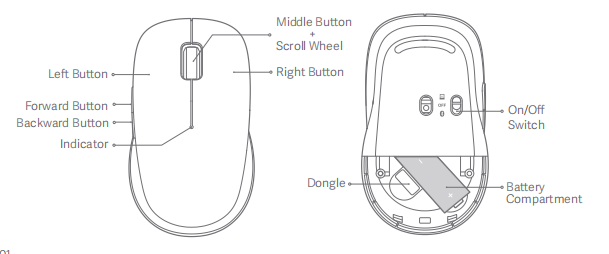
2. Connection mode:
(1). Toggle the on/off switch to "USB receiver icon" and set it to 2.4GHz mode;
(2). Toggle the on/off switch to “Bluetooth logo” for Bluetooth mode.
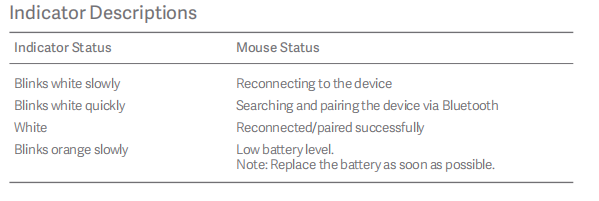
3. There is one indicator on the mouse.
The indicator statuses are as follows:
When the indicator blinks white slowly, it means that the mouse is reconnecting to the device;
When the indicator blinks white quickly, it means that the mouse is searching and pairing the device via Bluetooth;
When the indicator is white, it means that the mouse is reconnected/paired successfully;
When the indicator blinks orange slowly, it means that the battery level is low.
Note:
Replace the battery as soon as possible.
5. Q: What are the functions of the side buttons in the Xiaomi Dual-mode Wireless Mouse 2?
A: The side buttons are Forward Button and Backward Button.
1. Windows system:
Browser: Pressing the backward button will return to the previous page, while pressing the forward button will move forward to the next page.
File explorer: When browsing a folder, Pressing the backward button will return to the previously opened folder, while pressing the forward button will advance to the next folder;
2. macOS system:
The macOS system does not support the side buttons function.
FAQ
1. Q: What is the rated power of the Xiaomi Dual-mode Wireless Mouse 2?
A: The rated power of the Xiaomi Dual-mode Wireless Mouse 2 is 1.5V⎓50mA.
2. Q: What is the resolution of the Xiaomi Dual-mode Wireless Mouse 2?
A: The resolution of the Xiaomi Dual-mode Wireless Mouse 2 is 1200DPI.
3. Q: How many channels does the Xiaomi Dual-mode Wireless Mouse 2 have? How many devices does the mouse can connect to?
A: 1. The Xiaomi Dual-mode Wireless Mouse 2 has two channels, 2.4G can connect to one device (with USB-A port), and Bluetooth can connect to one device (with Bluetooth function);
2. The mouse can only be connected and used with one device at a time. By turning the on/off switch, the channel can be switched to use with other connected devices.
4. Q: How many colors does the Xiaomi Dual-mode Wireless Mouse 2 have?
A: The Xiaomi Dual-mode Wireless Mouse 2 has two colors: black and white.
5. Q: What types of connection does the Xiaomi Dual-mode Wireless Mouse 2 support?
A: There are two types of connection for the Xiaomi Dual-mode Wireless Mouse 2:
1. 2.4G connection through USB-A receiver;
2. The Bluetooth wireless connection to the Bluetooth device through Bluetooth.
6. Q: How to connect the Xiaomi Dual-mode Wireless Mouse 2 to other devices?
A: Connecting to computer via 2.4GHz mode:
1. Open the battery compartment cover. Take out the dongle and plug it into a USB port on the computer;
2. Pull out the battery isolation device from the battery compartment and install the AA battery properly. Toggle the on/off switch to the 2.4 GHz mode to turn on the mouse;
3. The mouse had already paired with the receiver and can be used directly. The indicator will keep on for 3 seconds and then go out, indicating that the mouse is connected to the computer successfully.
Connecting to computer via Bluetooth mode:
1. If this mouse has never undergone a Bluetooth code matching action, please remove the battery isolation device and turn the power switch to Bluetooth mode. The mouse will default to Bluetooth code matching mode. At this time, the LED at the end of the left and right button gaps on the front of the mouse will start flashing, and it will enter a waiting state for Bluetooth connection (waiting for connection for 3 minutes). Next, please proceed to step "3";
2. If you have already connected other devices and need to connect a new device:
(1). The operation method for SN code/the 6th letter after SN code is G: Please first turn the on/off switch at the bottom of the mouse to the Bluetooth channel, and then press and hold the forward and backward buttons for more than 5 seconds at the same time. The mouse will enter the Bluetooth pairing mode. At this point, the indicator starts flashing rapidly, indicating the state of waiting for the Bluetooth to connect (the waiting time for connection is 3 minutes). Next, please proceed to step "3". Example SN:12345/ABCDE G 0W800001;
(2). The operation method for SN code/the 6th letter after SN code is F: In the shutdown state, simultaneously press and hold the left, middle, and right buttons on the mouse, and turn the on/off switch at the bottom of the mouse to Bluetooth mode. At this time, the LED at the end of the gap between the left and right buttons on the mouse will start flashing and lifting, and it will enter the state of waiting for Bluetooth connection (waiting for connection for 3 minutes). Next, please proceed to step "3". Example SN: 12345/ABCDE F 0W800001;
3. In the Windows operating system, right-click the Bluetooth icon in the toolbar and click [Add a Bluetooth device] to open the [Bluetooth and other devices] panel, or select [ ] >> [Settings] >> [Devices]. Then click [Add Bluetooth or other device] >> [Bluetooth] >> [Mi DMMS2] to complete the connection;
4. When there is a pop-up on your computer to notify you that the mouse is ready for use, you can start using the mouse;
5. When you use the mouse again via Bluetooth mode, it will automatically connect to the last paired device.
Note:
Make sure the computer to be connected supports Bluetooth and its Bluetooth function is enabled.
Wireless signals between your computer and the mouse can be susceptible to interference. It is recommended to change to the 2.4GHz mode when the Bluetooth connection is unstable.
7. Q: What type of port does the Xiaomi Dual-mode Wireless Mouse 2 use?
A: The Xiaomi Dual-mode Wireless Mouse 2 uses a USB Type-A port, and USB 2.0 standard protocol.
8. Q: What type of battery does the Xiaomi Dual-mode Wireless Mouse 2 use?
A: The Xiaomi Dual-mode Wireless Mouse 2 uses an AA alkaline battery.
9. Q: What are the dimensions of the Xiaomi Dual-mode Wireless Mouse 2?
A: The dimensions of the Xiaomi Dual-mode Wireless Mouse 2 are 111 × 64 × 40mm, and its package dimensions are 112.5 × 64.5 × 41mm.
10. Q: What is the weight of the Xiaomi Dual-mode Wireless Mouse 2?
A: The net weight of the Xiaomi Dual-mode Wireless Mouse 2 is about 62g (without battery), and the gross weight is about 106g (with packaging).
11. Q: What are the package contents of the Xiaomi Dual-mode Wireless Mouse 2?
A: The standard configuration of the Xiaomi Dual-mode Wireless Mouse 2 includes: Xiaomi Dual-mode Wireless Mouse 2 x 1, User manual x 1, 2.4GHz receiver x 1 (stored in receiver compartment) and Warranty card x 1.
12. Q: Is the Xiaomi Dual-mode Wireless Mouse 2 waterproof?
A: The Xiaomi Dual-mode Wireless Mouse 2 is not waterproof. Please do not splash or soak it in water to avoid damage to the mouse.
13. Q: What is the material of the surface of the Xiaomi Dual-mode Wireless Mouse 2?
A: The Xiaomi Dual-mode Wireless Mouse 2 is made of plastic material and is covered with a frosted texture, with a delicate and warm touch, providing a comfortable hand feel.
14. Q: What is the Xiaomi Dual-mode Wireless Mouse 2 compatible with?
A: The Xiaomi Dual-mode Wireless Mouse 2 is compatible with Windows 7, macOS 10.13 and newer versions.
15. Q: Is the Xiaomi Dual-mode Wireless Mouse 2 equipped with silent buttons?
A: The left, middle, and right buttons of the mouse are designed with light sound, allowing for quiet clicking without disturbing others.
16. Q: What microswitch does the Xiaomi Dual-mode Wireless Mouse 2 use?
A: The Xiaomi Dual-mode Wireless Mouse 2 uses TTC muted microswitch at the left, middle and right buttons, which is reliable and endurable.
17. Q: What is the report rate of the Xiaomi Dual-mode Wireless Mouse 2?
A: The Xiaomi Wireless Mouse 3 has a report rate of 133Hz at Bluetooth mode and 125Hz at 2.4G mode.
18. Q: What material is used for the foot pads of the Xiaomi Dual-mode Wireless Mouse 2?
A: The Xiaomi Dual-mode Wireless Mouse 2 features Teflon feet pads, which offer smooth movement with good self-lubrication and a low friction coefficient for long-lasting durability.
19. Q: What are the precautions for using the Xiaomi Dual-mode Wireless Mouse 2?
A: 1. Keep the desktop flat during normal use. It is recommended to use it with a mouse pad, and a cloth mouse pad is the best;
2. Avoid using it on transparent glass and high-gloss mirror surfaces, which will have a certain impact on the movement and positioning of the mouse;
3. Keep the mouse clean, and promptly remove any dust or debris from the lens area on the bottom;
4. Avoid exposing the mouse to liquids, as spills can cause issues with feel and electrical performance;
5. In 2.4G mode, it is recommended that the receiver be directly plugged into the USB port of the computer for connection. There will be a problem of jamming through adapters such as USB HUB;
6. Before using Bluetooth mode, please make sure that the connected computer supports Bluetooth and has turned on the Bluetooth function;
7. Bluetooth connection is easily affected by the using environment. It is recommended that the mouse be switched to 2.4GHz connection mode when the Bluetooth connection is not smooth;
8. If you use this mouse on a desktop computer, it is recommended that the receiver be plugged into the front USB port of the chassis for a better experience.
20. Q: Why cannot the Xiaomi Dual-mode Wireless Mouse 2 be identified when the computer is turned on?
A: To check the problem of 2.4GHz mode, please refer to the following information:
1. Please make sure that the USB port is correctly inserted, or try to insert it into another USB port to see if it works normally;
2. Please check whether the current system version meets the requirements: Windows 7, macOS 10.13 and newer versions;
3. Tap the icon of Scan for hardware changes in Device manager. The hardware will be scanned and the USB driver will be installed automatically. After the installation, the mouse can be used;
4. If the steps above are useless, please plug out the receiver, restart the computer and try plugging in the receiver.
To check the problem of Bluetooth mode, please refer to the following information:
1. Please make sure that the computer has the Bluetooth function, and that the function has been enabled;
2. Check whether the mouse and the computer are paired;
If the steps above cannot resolve the issue, please contact the local after-sales service center.
21. Q: What to do if the Xiaomi Dual-mode Wireless Mouse 2 experiences lag?
A: To solve the problem, please refer to the following steps:
1. For laptops, try to plug the receiver into the left USB port to avoid the mouse touching the receiver when moving and affecting stability;
2. For desktops, try to plug the receiver into the USB port on the front of the host. Reception performance will be improved without obstructions;
3. The receiver is plugged into the USB HUB port of USB 3.0. There is a certain probability of high-frequency interference. You can try to plug it directly into the USB port of the computer for use;
4. Keep routers, chargers, fans, motors and other devices away from the receiver to provide a clean and unobstructed environment for wireless transmission;
5. Keep the desktop or mouse pad clean, and keep the bottom cover lens hole free of dust to make the mouse movement and positioning smoother.
If the above operation is correct, please contact the after-sales service center for handling.
22. Q: Why are the Xiaomi Dual-mode Wireless Mouse 2 button and scroll wheel functions abnormal, causing the cursor not to move?
A: 1. Ensure the mouse is properly connected to the computer;
2. Verify that no keyboard keys are stuck, as this can interfere with mouse function;
3. Inspect the bottom lens of the mouse for any obstructions or dust that could affect cursor movement;
4. Make sure the mouse pad is clean and free of dirt, which can impact cursor movement.
If these steps do not resolve the issue, please contact the local after-sales service center for further assistance.
23. Q: Why does not the lens pole of the Xiaomi Dual-mode Wireless Mouse 2 light up when turned on after being installed the battery?
A: The Xiaomi Dual-mode Wireless Mouse 2 uses an infrared light tracking engine to improve positioning accuracy and adapt to more desktops. At the same time, infrared light is almost invisible to the naked eye, and only a faint red light can be seen through the lens hole at the bottom.
24. Q: How to pair the Xiaomi Dual-mode Wireless Mouse 2 after replacing a new receiver when the original 2.4GHz receiver is lost?
A: 1. Please turn off the Xiaomi Dual-mode Wireless Mouse 2 first;
2. Simultaneously press and hold the left button, right button and backward button, and turn the on/off switch on the opposite side to switch to 2.4GHz mode;
3. Insert the receiver into the computer and make the mouse close to the receiver;
4. The white indicator on the front side lights up for 3 seconds, indicating successful matching and normal use of the mouse.
25. Q: What is the Bluetooth name of the Xiaomi Dual-mode Wireless Mouse 2?
A: The Bluetooth name is Mi DMMS2.
26. Q: Why cannot the Xiaomi Dual-mode Wireless Mouse 2 be connected to a new device after it is connected to other devices?
A: It requires resetting the Bluetooth.
The methods are as follows:
1. The operation method for SN code/the 6th letter after SN code is G: Please first turn the on/off switch at the bottom of the mouse to the Bluetooth channel, and then press and hold the forward and backward buttons for more than 5 seconds at the same time. The mouse will enter the Bluetooth pairing mode. At this point, the indicator starts flashing rapidly, indicating the state of waiting for the Bluetooth to connect (the waiting time for connection is 3 minutes).
In the Windows operating system, right-click the Bluetooth icon in the toolbar and click [Add a Bluetooth device] to open the [Bluetooth and other devices] panel, or select [ ] >> [Settings] >> [Devices]. Then click [Add Bluetooth or other device] >> [Bluetooth] >> [Mi DMMS2] to complete the connection. (You can refer to FAQ: How to connect the Xiaomi Dual-mode Wireless Mouse 2 to other devices?) Example SN:12345/ABCDE G 0W800001;
2. The operation method for SN code/the 6th letter after SN code is F: In the shutdown state, simultaneously press and hold the left, middle, and right buttons on the mouse, and turn the on/off switch at the bottom of the mouse to Bluetooth mode. At this time, the LED at the end of the gap between the left and right buttons on the mouse will start flashing and lifting, and it will enter the state of waiting for Bluetooth connection (waiting for connection for 3 minutes). In the Windows operating system, right-click the Bluetooth icon in the toolbar and click [Add a Bluetooth device] to open the [Bluetooth and other devices] panel, or select [ ] >> [Settings] >> [Devices]. Then click [Add Bluetooth or other device] >> [Bluetooth] >> [Mi DMMS2] to complete the connection. (You can refer to FAQ: How to connect the Xiaomi Dual-mode Wireless Mouse 2 to other devices?) Example SN: 12345/ABCDE F 0W800001.
1. Q: What type is the Xiaomi Dual-mode Wireless Mouse 2?
A: The Xiaomi Dual-mode Wireless Mouse 2 is a wireless mouse that supports both 2.4G and Bluetooth wireless transmission modes.
2. Q: What are the selling points of the Xiaomi Dual-mode Wireless Mouse 2?
A: The selling points of the Xiaomi Dual-mode Wireless Mouse 2 are as follows:
1. Ergonomic Design:
The lines are simple and soft, the curves are elegant, and the symmetrical ergonomic design makes it less prone to fatigue when used for a long time;
2. 2.4GHz/Bluetooth dual-mode connectivity:
The mouse is equipped with one 2.4GHz connection channel and one Bluetooth connection channel. Switching between them is easy with a toggle switch;
3. Silent Keys:
The TTC silent main buttons allow you to take control noiselessly while maintaining crisp tactile feedback, inspiring creative inspiration. It can also be used in public areas without disturbing others;
4. Available in two colors:
There are two styles of design white and black, inspired by retro sneakers and quiet nights. There are two grids and two choices.
3. Q: What are the differences between Bluetooth and 2.4GHz connection of the Xiaomi Dual-mode Wireless Mouse 2?
A: The differences are as follows:
1. A 2.4G connection requires the insertion of a matching receiver, and the computer needs to have a USB-A port available for use. The connection process is relatively stable and has strong anti-interference ability;
2. Bluetooth connection does not require a dedicated port, and computers with Bluetooth functions can be paired and connected for convenient use. Due to the different Bluetooth modules of each device, the compatibility and anti-interference performance during use are not as stable as 2.4GHz. When the surrounding 2.4GHz Wi-Fi signal is heavily disturbed or the Bluetooth bandwidth of the computer host is full, Bluetooth will be affected to some extent. At this time, switching between using the 2.4GHz channel and receiver can solve most of the problems.
4. Q: What is the introduction about the Xiaomi Dual-mode Wireless Mouse 2?
A: 1. The Xiaomi Dual-mode Wireless Mouse 2 has the following buttons: Left Button, Middle Button + Scroll Wheel, Right Button, Forward Button, Backward Button, On/Off Switch and Battery Compartment.
2. Connection mode:
(1). Toggle the on/off switch to "USB receiver icon" and set it to 2.4GHz mode;
(2). Toggle the on/off switch to “Bluetooth logo” for Bluetooth mode.
3. There is one indicator on the mouse.
The indicator statuses are as follows:
When the indicator blinks white slowly, it means that the mouse is reconnecting to the device;
When the indicator blinks white quickly, it means that the mouse is searching and pairing the device via Bluetooth;
When the indicator is white, it means that the mouse is reconnected/paired successfully;
When the indicator blinks orange slowly, it means that the battery level is low.
Note:
Replace the battery as soon as possible.
5. Q: What are the functions of the side buttons in the Xiaomi Dual-mode Wireless Mouse 2?
A: The side buttons are Forward Button and Backward Button.
1. Windows system:
Browser: Pressing the backward button will return to the previous page, while pressing the forward button will move forward to the next page.
File explorer: When browsing a folder, Pressing the backward button will return to the previously opened folder, while pressing the forward button will advance to the next folder;
2. macOS system:
The macOS system does not support the side buttons function.
FAQ
1. Q: What is the rated power of the Xiaomi Dual-mode Wireless Mouse 2?
A: The rated power of the Xiaomi Dual-mode Wireless Mouse 2 is 1.5V⎓50mA.
2. Q: What is the resolution of the Xiaomi Dual-mode Wireless Mouse 2?
A: The resolution of the Xiaomi Dual-mode Wireless Mouse 2 is 1200DPI.
3. Q: How many channels does the Xiaomi Dual-mode Wireless Mouse 2 have? How many devices does the mouse can connect to?
A: 1. The Xiaomi Dual-mode Wireless Mouse 2 has two channels, 2.4G can connect to one device (with USB-A port), and Bluetooth can connect to one device (with Bluetooth function);
2. The mouse can only be connected and used with one device at a time. By turning the on/off switch, the channel can be switched to use with other connected devices.
4. Q: How many colors does the Xiaomi Dual-mode Wireless Mouse 2 have?
A: The Xiaomi Dual-mode Wireless Mouse 2 has two colors: black and white.
5. Q: What types of connection does the Xiaomi Dual-mode Wireless Mouse 2 support?
A: There are two types of connection for the Xiaomi Dual-mode Wireless Mouse 2:
1. 2.4G connection through USB-A receiver;
2. The Bluetooth wireless connection to the Bluetooth device through Bluetooth.
6. Q: How to connect the Xiaomi Dual-mode Wireless Mouse 2 to other devices?
A: Connecting to computer via 2.4GHz mode:
1. Open the battery compartment cover. Take out the dongle and plug it into a USB port on the computer;
2. Pull out the battery isolation device from the battery compartment and install the AA battery properly. Toggle the on/off switch to the 2.4 GHz mode to turn on the mouse;
3. The mouse had already paired with the receiver and can be used directly. The indicator will keep on for 3 seconds and then go out, indicating that the mouse is connected to the computer successfully.
Connecting to computer via Bluetooth mode:
1. If this mouse has never undergone a Bluetooth code matching action, please remove the battery isolation device and turn the power switch to Bluetooth mode. The mouse will default to Bluetooth code matching mode. At this time, the LED at the end of the left and right button gaps on the front of the mouse will start flashing, and it will enter a waiting state for Bluetooth connection (waiting for connection for 3 minutes). Next, please proceed to step "3";
2. If you have already connected other devices and need to connect a new device:
(1). The operation method for SN code/the 6th letter after SN code is G: Please first turn the on/off switch at the bottom of the mouse to the Bluetooth channel, and then press and hold the forward and backward buttons for more than 5 seconds at the same time. The mouse will enter the Bluetooth pairing mode. At this point, the indicator starts flashing rapidly, indicating the state of waiting for the Bluetooth to connect (the waiting time for connection is 3 minutes). Next, please proceed to step "3". Example SN:12345/ABCDE G 0W800001;
(2). The operation method for SN code/the 6th letter after SN code is F: In the shutdown state, simultaneously press and hold the left, middle, and right buttons on the mouse, and turn the on/off switch at the bottom of the mouse to Bluetooth mode. At this time, the LED at the end of the gap between the left and right buttons on the mouse will start flashing and lifting, and it will enter the state of waiting for Bluetooth connection (waiting for connection for 3 minutes). Next, please proceed to step "3". Example SN: 12345/ABCDE F 0W800001;
3. In the Windows operating system, right-click the Bluetooth icon in the toolbar and click [Add a Bluetooth device] to open the [Bluetooth and other devices] panel, or select [
] >> [Settings] >> [Devices]. Then click [Add Bluetooth or other device] >> [Bluetooth] >> [Mi DMMS2] to complete the connection;4. When there is a pop-up on your computer to notify you that the mouse is ready for use, you can start using the mouse;
5. When you use the mouse again via Bluetooth mode, it will automatically connect to the last paired device.
Note:
Make sure the computer to be connected supports Bluetooth and its Bluetooth function is enabled.
Wireless signals between your computer and the mouse can be susceptible to interference. It is recommended to change to the 2.4GHz mode when the Bluetooth connection is unstable.
7. Q: What type of port does the Xiaomi Dual-mode Wireless Mouse 2 use?
A: The Xiaomi Dual-mode Wireless Mouse 2 uses a USB Type-A port, and USB 2.0 standard protocol.
8. Q: What type of battery does the Xiaomi Dual-mode Wireless Mouse 2 use?
A: The Xiaomi Dual-mode Wireless Mouse 2 uses an AA alkaline battery.
9. Q: What are the dimensions of the Xiaomi Dual-mode Wireless Mouse 2?
A: The dimensions of the Xiaomi Dual-mode Wireless Mouse 2 are 111 × 64 × 40mm, and its package dimensions are 112.5 × 64.5 × 41mm.
10. Q: What is the weight of the Xiaomi Dual-mode Wireless Mouse 2?
A: The net weight of the Xiaomi Dual-mode Wireless Mouse 2 is about 62g (without battery), and the gross weight is about 106g (with packaging).
11. Q: What are the package contents of the Xiaomi Dual-mode Wireless Mouse 2?
A: The standard configuration of the Xiaomi Dual-mode Wireless Mouse 2 includes: Xiaomi Dual-mode Wireless Mouse 2 x 1, User manual x 1, 2.4GHz receiver x 1 (stored in receiver compartment) and Warranty card x 1.
12. Q: Is the Xiaomi Dual-mode Wireless Mouse 2 waterproof?
A: The Xiaomi Dual-mode Wireless Mouse 2 is not waterproof. Please do not splash or soak it in water to avoid damage to the mouse.
13. Q: What is the material of the surface of the Xiaomi Dual-mode Wireless Mouse 2?
A: The Xiaomi Dual-mode Wireless Mouse 2 is made of plastic material and is covered with a frosted texture, with a delicate and warm touch, providing a comfortable hand feel.
14. Q: What is the Xiaomi Dual-mode Wireless Mouse 2 compatible with?
A: The Xiaomi Dual-mode Wireless Mouse 2 is compatible with Windows 7, macOS 10.13 and newer versions.
15. Q: Is the Xiaomi Dual-mode Wireless Mouse 2 equipped with silent buttons?
A: The left, middle, and right buttons of the mouse are designed with light sound, allowing for quiet clicking without disturbing others.
16. Q: What microswitch does the Xiaomi Dual-mode Wireless Mouse 2 use?
A: The Xiaomi Dual-mode Wireless Mouse 2 uses TTC muted microswitch at the left, middle and right buttons, which is reliable and endurable.
17. Q: What is the report rate of the Xiaomi Dual-mode Wireless Mouse 2?
A: The Xiaomi Wireless Mouse 3 has a report rate of 133Hz at Bluetooth mode and 125Hz at 2.4G mode.
18. Q: What material is used for the foot pads of the Xiaomi Dual-mode Wireless Mouse 2?
A: The Xiaomi Dual-mode Wireless Mouse 2 features Teflon feet pads, which offer smooth movement with good self-lubrication and a low friction coefficient for long-lasting durability.
19. Q: What are the precautions for using the Xiaomi Dual-mode Wireless Mouse 2?
A: 1. Keep the desktop flat during normal use. It is recommended to use it with a mouse pad, and a cloth mouse pad is the best;
2. Avoid using it on transparent glass and high-gloss mirror surfaces, which will have a certain impact on the movement and positioning of the mouse;
3. Keep the mouse clean, and promptly remove any dust or debris from the lens area on the bottom;
4. Avoid exposing the mouse to liquids, as spills can cause issues with feel and electrical performance;
5. In 2.4G mode, it is recommended that the receiver be directly plugged into the USB port of the computer for connection. There will be a problem of jamming through adapters such as USB HUB;
6. Before using Bluetooth mode, please make sure that the connected computer supports Bluetooth and has turned on the Bluetooth function;
7. Bluetooth connection is easily affected by the using environment. It is recommended that the mouse be switched to 2.4GHz connection mode when the Bluetooth connection is not smooth;
8. If you use this mouse on a desktop computer, it is recommended that the receiver be plugged into the front USB port of the chassis for a better experience.
20. Q: Why cannot the Xiaomi Dual-mode Wireless Mouse 2 be identified when the computer is turned on?
A: To check the problem of 2.4GHz mode, please refer to the following information:
1. Please make sure that the USB port is correctly inserted, or try to insert it into another USB port to see if it works normally;
2. Please check whether the current system version meets the requirements: Windows 7, macOS 10.13 and newer versions;
3. Tap the icon of Scan for hardware changes in Device manager. The hardware will be scanned and the USB driver will be installed automatically. After the installation, the mouse can be used;
4. If the steps above are useless, please plug out the receiver, restart the computer and try plugging in the receiver.
To check the problem of Bluetooth mode, please refer to the following information:
1. Please make sure that the computer has the Bluetooth function, and that the function has been enabled;
2. Check whether the mouse and the computer are paired;
If the steps above cannot resolve the issue, please contact the local after-sales service center.
21. Q: What to do if the Xiaomi Dual-mode Wireless Mouse 2 experiences lag?
A: To solve the problem, please refer to the following steps:
1. For laptops, try to plug the receiver into the left USB port to avoid the mouse touching the receiver when moving and affecting stability;
2. For desktops, try to plug the receiver into the USB port on the front of the host. Reception performance will be improved without obstructions;
3. The receiver is plugged into the USB HUB port of USB 3.0. There is a certain probability of high-frequency interference. You can try to plug it directly into the USB port of the computer for use;
4. Keep routers, chargers, fans, motors and other devices away from the receiver to provide a clean and unobstructed environment for wireless transmission;
5. Keep the desktop or mouse pad clean, and keep the bottom cover lens hole free of dust to make the mouse movement and positioning smoother.
If the above operation is correct, please contact the after-sales service center for handling.
22. Q: Why are the Xiaomi Dual-mode Wireless Mouse 2 button and scroll wheel functions abnormal, causing the cursor not to move?
A: 1. Ensure the mouse is properly connected to the computer;
2. Verify that no keyboard keys are stuck, as this can interfere with mouse function;
3. Inspect the bottom lens of the mouse for any obstructions or dust that could affect cursor movement;
4. Make sure the mouse pad is clean and free of dirt, which can impact cursor movement.
If these steps do not resolve the issue, please contact the local after-sales service center for further assistance.
23. Q: Why does not the lens pole of the Xiaomi Dual-mode Wireless Mouse 2 light up when turned on after being installed the battery?
A: The Xiaomi Dual-mode Wireless Mouse 2 uses an infrared light tracking engine to improve positioning accuracy and adapt to more desktops. At the same time, infrared light is almost invisible to the naked eye, and only a faint red light can be seen through the lens hole at the bottom.
24. Q: How to pair the Xiaomi Dual-mode Wireless Mouse 2 after replacing a new receiver when the original 2.4GHz receiver is lost?
A: 1. Please turn off the Xiaomi Dual-mode Wireless Mouse 2 first;
2. Simultaneously press and hold the left button, right button and backward button, and turn the on/off switch on the opposite side to switch to 2.4GHz mode;
3. Insert the receiver into the computer and make the mouse close to the receiver;
4. The white indicator on the front side lights up for 3 seconds, indicating successful matching and normal use of the mouse.
25. Q: What is the Bluetooth name of the Xiaomi Dual-mode Wireless Mouse 2?
A: The Bluetooth name is Mi DMMS2.
26. Q: Why cannot the Xiaomi Dual-mode Wireless Mouse 2 be connected to a new device after it is connected to other devices?
A: It requires resetting the Bluetooth.
The methods are as follows:
1. The operation method for SN code/the 6th letter after SN code is G: Please first turn the on/off switch at the bottom of the mouse to the Bluetooth channel, and then press and hold the forward and backward buttons for more than 5 seconds at the same time. The mouse will enter the Bluetooth pairing mode. At this point, the indicator starts flashing rapidly, indicating the state of waiting for the Bluetooth to connect (the waiting time for connection is 3 minutes).
In the Windows operating system, right-click the Bluetooth icon in the toolbar and click [Add a Bluetooth device] to open the [Bluetooth and other devices] panel, or select [
] >> [Settings] >> [Devices]. Then click [Add Bluetooth or other device] >> [Bluetooth] >> [Mi DMMS2] to complete the connection. (You can refer to FAQ: How to connect the Xiaomi Dual-mode Wireless Mouse 2 to other devices?) Example SN:12345/ABCDE G 0W800001;2. The operation method for SN code/the 6th letter after SN code is F: In the shutdown state, simultaneously press and hold the left, middle, and right buttons on the mouse, and turn the on/off switch at the bottom of the mouse to Bluetooth mode. At this time, the LED at the end of the gap between the left and right buttons on the mouse will start flashing and lifting, and it will enter the state of waiting for Bluetooth connection (waiting for connection for 3 minutes). In the Windows operating system, right-click the Bluetooth icon in the toolbar and click [Add a Bluetooth device] to open the [Bluetooth and other devices] panel, or select [
] >> [Settings] >> [Devices]. Then click [Add Bluetooth or other device] >> [Bluetooth] >> [Mi DMMS2] to complete the connection. (You can refer to FAQ: How to connect the Xiaomi Dual-mode Wireless Mouse 2 to other devices?) Example SN: 12345/ABCDE F 0W800001.Does it help?
Yes
No