

How to turn on automatic orientation to take pictures with the phone’s camera?
Turning on automatic orientation to take pictures with the camera on the phone can embed geographic location information into the metadata of photos so that you can know the specific location where the photo was taken.
To turn this function, here are the methods for your reference:
Method 1:
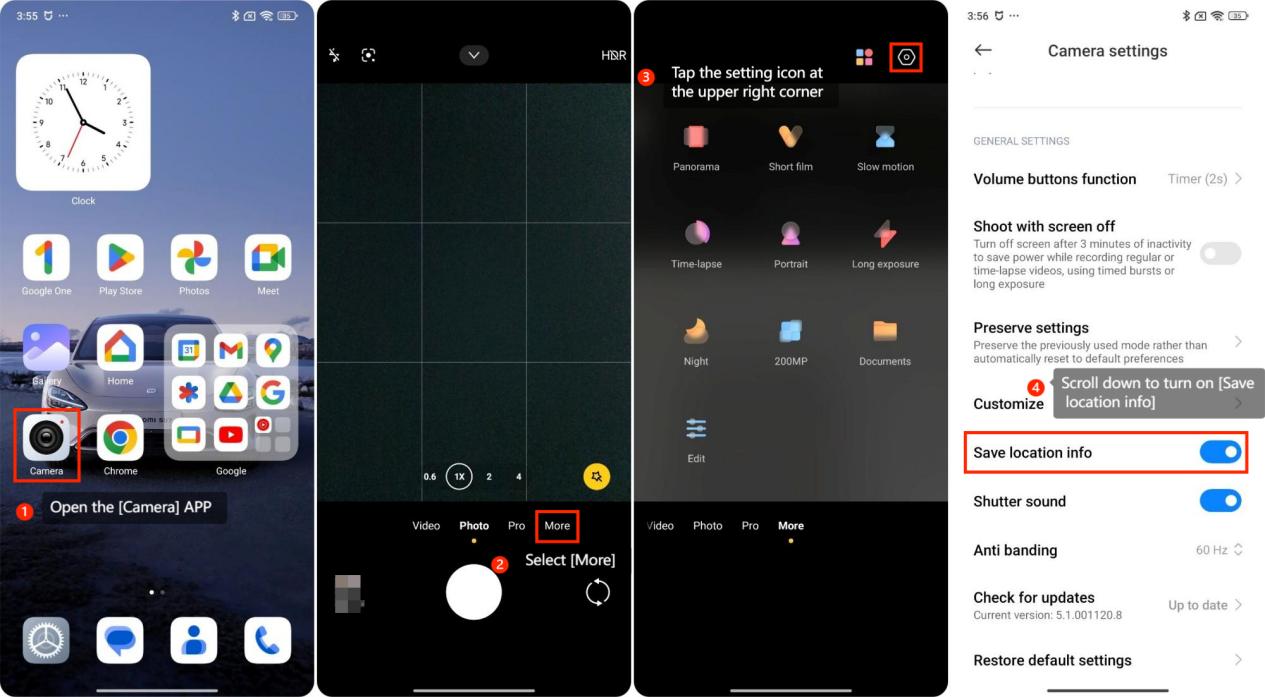
1. Open the [Camera] APP;
2. Select [More];
3. Tap the setting icon at the upper right corner;
4. Scroll down to turn on [Save location info].
Method 2:
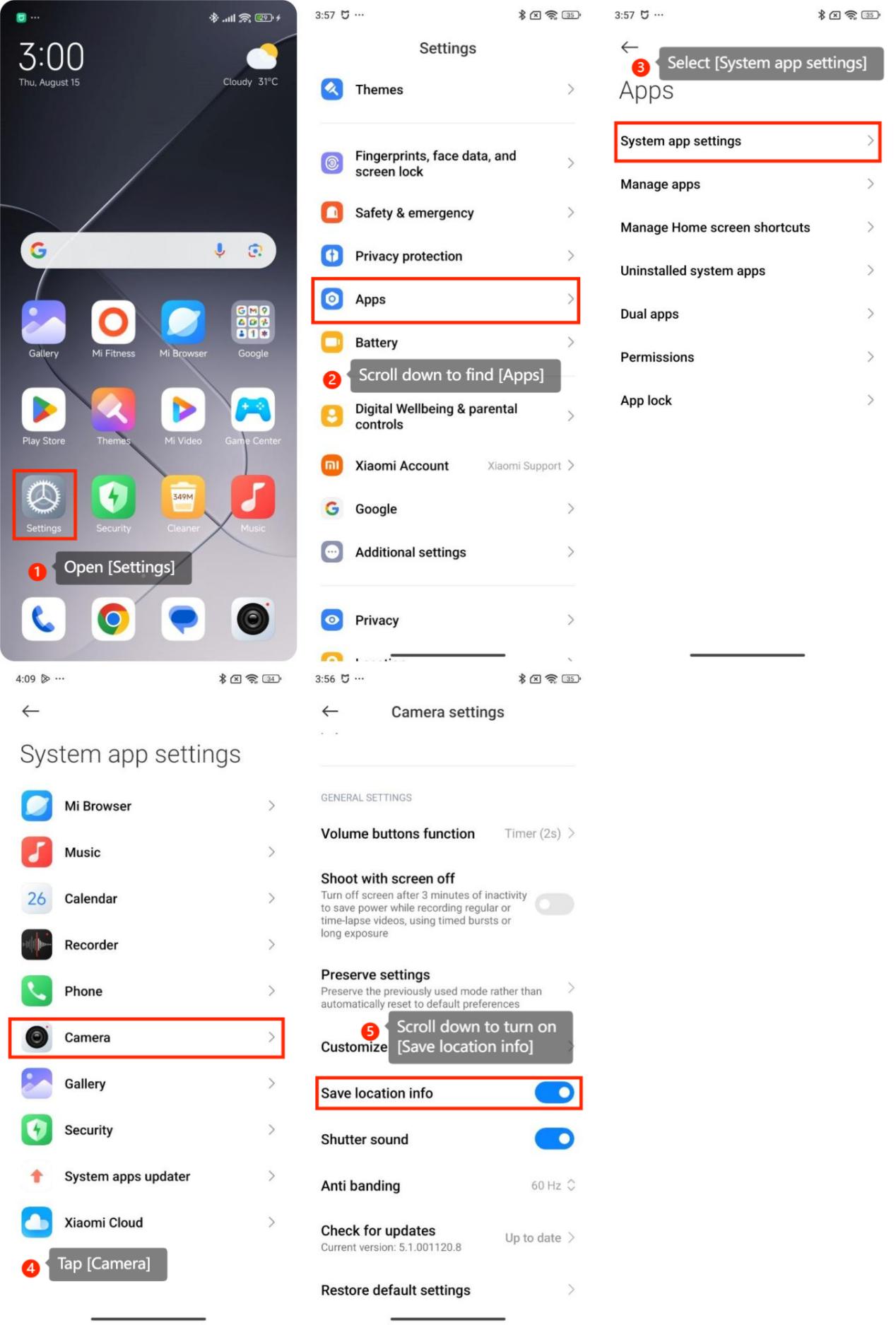
1. Open [Settings];
2. Scroll down to find [Apps];
3. Select [System app settings];
4. Tap [Camera];
5. Scroll down to turn on [Save location info].
Note:
1. To get an accurate location, make sure the location service on your phone is enabled and has a good signal when you take the photo;
2. If it is the first time you're enabling the function, you'll be prompted to grant the Camera APP location permissions.
To turn this function, here are the methods for your reference:
Method 1:
1. Open the [Camera] APP;
2. Select [More];
3. Tap the setting icon at the upper right corner;
4. Scroll down to turn on [Save location info].
Method 2:
1. Open [Settings];
2. Scroll down to find [Apps];
3. Select [System app settings];
4. Tap [Camera];
5. Scroll down to turn on [Save location info].
Note:
1. To get an accurate location, make sure the location service on your phone is enabled and has a good signal when you take the photo;
2. If it is the first time you're enabling the function, you'll be prompted to grant the Camera APP location permissions.
Does it help?
Yes
No