

Xiaomi Outdoor Camera CW700S FAQ
Function Introduction
1. Q: What are the features of the Xiaomi Outdoor Camera CW700S?
A: Here are the features below:
1. It is equipped with long and short focal length dual lenses, and it can achieve a maximum of 9 times hybrid zoom and can clearly see faces and license plates at 30 meters;
2. It is upgraded to 4 million ultra-clear pixels, with a resolution of up to 2560*1440, every frame is clear;
3. It has 4 million pixels + F1.6 aperture + 2 telephoto fill lights + 2 short-focus fill lights, better night vision effect, clearer and more transparent;
4. It comes with IP66 dustproof and waterproofing no fear of stormy weather;
5. It has an external dual antenna design, longer transmission distance, stronger penetration, and more stable transmission;
6. It supports wired network interface and more diverse networking methods;
7. It has a true two-way voice call, a 2W high-power speaker, an internal high-sensitivity microphone, a high-quality high-power speaker, long sound pickup distance, and louder sound;
8. It has time-lapse photography, which can condense and present the beautiful moments in life (must be used with a memory card);
9. It comes with a sound and light alarm, the camera detects someone breaking into the monitoring area, and will actively send out an alarm and high-frequency flashing lights, double deterrence;
10. It has AI human detection and intelligent tracking, using a new generation of AI human recognition algorithms. When a human figure appears on the screen, it automatically records an alarm video and sends a reminder on the mobile phone;
11. It comes with local + cloud + NAS three storage methods, supports local MicroSD card storage, and automatic loop recording, and also supports NAS storage. After you purchase the Xiaomi Home Secure Service, the device will push video upload to the cloud.
2. Q: What does the Xiaomi Outdoor Camera CW700S include?
A: The Xiaomi Outdoor Camera CW700S includes host* 1, power adapter* 1, power cord waterproof tape* 2, wall/ceiling positioning sticker* 1, screw accessory package (expansion tube specification: φ6mm*30mm×4pcs, screw specification: φ4mm*30mm×4pcs), network port waterproof four-piece set* 1, manual* 1.
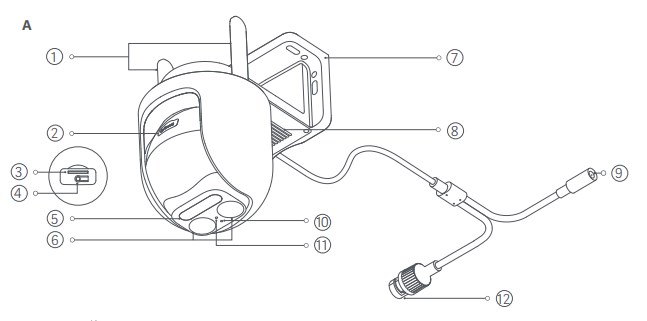
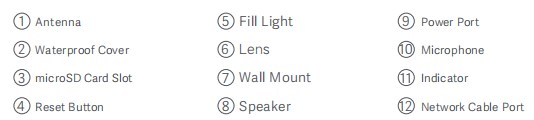
3. Q: What is the appearance of the Xiaomi Outdoor Camera CW700S?
A: The appearance introduction of the Xiaomi Outdoor Camera CW700S is as follows:
4. Q: What is the power supply method of the Xiaomi Outdoor Camera CW700S?
A: It is powered by a 12V 1A adapter. To ensure normal function, please be sure to use the original adapter.
5. Q: What are the installation methods of the Xiaomi Outdoor Camera CW700S?
A: The Xiaomi Outdoor Camera CW700S can be side-mounted, suspended, and pole-mounted.
6. Q: What are the steps for wall mounting of the Xiaomi Outdoor Camera CW700S?
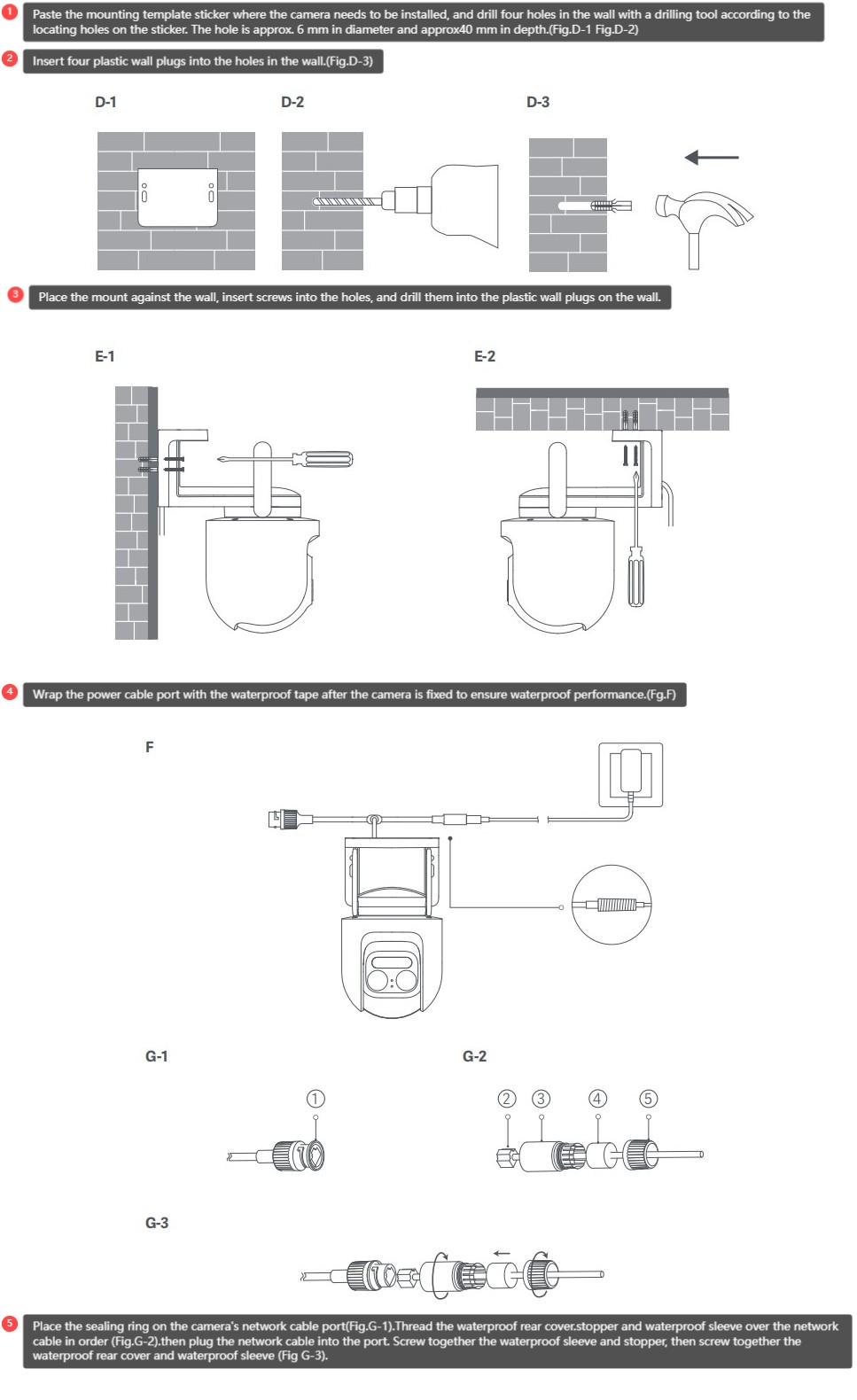
A: Here are details for the installation steps diagram:
1. Paste the mounting template sticker where the camera needs to be installed, and drill four holes in the wall with a drilling tool according to the locating holes on the sticker. The hole is approx. 6 mm in diameter and approx40 mm in depth;(Fig.D-1 Fig.D-2)
2. Insert four plastic wall plugs into the holes in the wall;(Fig.D-3)
3. Place the mount against the wall, insert screws into the holes, and drill them into the plastic wall plugs on the wall;
4. Wrap the power cable port with the waterproof tape after the camera is fixed to ensure waterproof performance. (Fig.F);
5. Thread the waterproof rear cover, stopper and waterproof sleeve over the network cable in order (Fig.G-2). Then plug the network cable into the port. Screw together the waterproof sleeve and stopper, then screw together the waterproof rear cover and waterproof sleeve (Fig G-3).
Note:
The wall must be able to support at least three times the total weight of the camera.
The camera must be firmly fixed to the wall according to the installation instructions in the user manual to prevent accidental injury.
Do not install near an air conditioner outdoor unit, range hood outlet, gas water heater outlet, or other heat sources.
7. Q: How to turn on the Xiaomi Outdoor Camera CW700S?
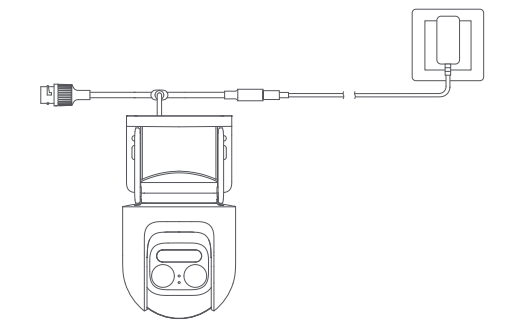
A: Plug the power adapter cable into the camera power interface and the camera will automatically turn on.
Note:
1. The indicator is always yellow and you hear a voice prompt, indicating that the power-on is successful;
2. Please be sure to use the original adapter power cord to connect the camera to avoid abnormal operation of the camera. After turning on the camera, do not twist the camera lens to force it to rotate. If the lens positioning is not accurate, you can calibrate it through the Mi Home/Xiaomi Home APP.
8. Q: How to install a MicroSD card on the Xiaomi Outdoor Camera CW700S?
A: Make sure the camera is powered off, open the waterproof cover above the card slot to expose the MicroSD card slot, and insert the MicroSD card with the contact side facing down into the card slot.
Note:
When installing or removing the MicroSD card, you need to cut off the power of the camera before operating. Please use a MicroSD card produced by a regular manufacturer.
9. Q: How to restore the factory settings of the Xiaomi Outdoor Camera CW700S?
A: If you change the network or Mi Home APP account connected to the camera, you should press the reset button. The reset is successful when you hear the voice prompt.
Note:
Resetting the camera will not delete the contents of the MicroSD card.
10. Q: Does the Xiaomi Outdoor Camera CW700S support infrared night vision?
A: Yes.
11. Q: Can the Xiaomi Outdoor Camera CW700S rotate 360°?
A: The horizontal viewing angle of the gimbal is 360° and the vertical viewing angle of the gimbal is 147°.
12. Q: Does the Xiaomi Outdoor Camera CW700S support the NAS transfer function?
A: Yes. On the real-time video page of the camera in the Mi Home/Xiaomi Home APP, open [Xiaomi Outdoor Camera CW700S] >> tap [...] upper right corner >> select [Manage storage] >> select [NAS network storage], and add storage according to the prompts.
Note:
The router or network disk connected to the camera must support transfer, and the camera must have a memory card installed and record normally.
13. Q: Where to view the SN number of the Xiaomi Outdoor Camera CW700S?
A: Here are the methods for you:
1. The SN number can be viewed from the product body;
2: There will be an SN barcode on the back of the product packaging, and you can check the SN number here.
14. Q: How to check the Xiaomi Outdoor Camera CW700S certificate?
A: The certificate of this device can be found on the sticker in the lower right corner of the back of the device packaging.
15. Q: Does the Xiaomi Outdoor Camera CW700S need to be plugged in to use? Or is it powered by a battery?
A: It needs to be connected to a power supply. The camera does not contain a battery and must be plugged in to use.
Note:
Please use the original 12V 1A adapter.
16. Q: Does the Xiaomi Outdoor Camera CW700S support two-way voice calls?
A: The Xiaomi Outdoor Camera CW700S has a built-in microphone and speaker, which supports you to use the Mi Home APP on the mobile phone to conduct two-way voice intercoms with the camera.
Please refer to the following steps to use it:
Go to [Mi Home/Xiaomi Home] APP >> open [Xiaomi Outdoor Camera CW700S] >> turn on the microphone to make a voice call. Press the microphone button again when you hang up.
17. Q: Does the Xiaomi Outdoor Camera CW700S support the Bluetooth gateway function?
A: No.
18. Q: What should pay attention to when using Xiaomi Outdoor Camera CW700S?
A: Here is what you should pay attention to:
1. The applicable working temperature of this product is -30~60℃. Do not use this product in an environment with too high or too low temperature;
2. This product is a precision electronic product and only supports IP66 waterproofing. Do not use this product in an environment with excessive humidity or where water enters this product, so as not to affect normal use;
3. To better use this product, avoid placing the front and side of the lens close to reflective objects such as glass and white walls to avoid the phenomenon that the picture is bright near and dark or white in the distance;
4. Please ensure that this product is installed within the coverage of the Wi-Fi signal and placed in a location with a better Wi-Fi signal as much as possible;
5. If the power cord is damaged, it must be replaced by professionals from the manufacturer, its maintenance department, or similar departments to avoid danger.
19. Q: What are the functions of the two lenses of the Xiaomi Outdoor Camera CW700S? What is the difference?
A: The two lenses have different focal lengths, the short-focus lens is 4mm and the long-focus lens is 12mm. The image can be magnified by switching between the short-focus and long-focus images.
20. Q: What do the two indicators of the Xiaomi Outdoor Camera CW700S mean?
A: One indicator is yellow and the other is blue. The yellow indicator is always on when the device is started; the blue indicator flashes when the device is connected to the network, and the blue indicator becomes always on after the network connection is successful. In addition, the yellow and blue indicators are both on when the device is flashed.
21. Q: What are the two antennas of the Xiaomi Outdoor Camera CW700S? What are their functions?
A: The Xiaomi Outdoor Camera CW700S is designed with dual antennas, and both antennas are used to connect to the 2.4 GHz Wi-Fi network.
22. Q: What is the IP rating of the Xiaomi Outdoor Camera CW700S?
A: The Xiaomi Outdoor Camera CW700S meets IP66 waterproof and can meet outdoor use.
23. Q: What does the English printed on the body of the Xiaomi Outdoor Camera CW700S mean?
A: DUAI-CAMERA means Dual camera;
4 MEGAPIXELS: 4 million pixels;
9*ZOOM: 9 times zoom.
24. Q: What is the zoom mode of the Xiaomi Outdoor Camera CW700S? What are the advantages?
A: The zoom mode is to achieve digital zoom with short-focus and long-focus lenses, which is low-cost and can also ensure less image quality loss during image magnification.
25. Q: Where is the infrared night vision light of the Xiaomi Outdoor Camera CW700S?
A: The infrared light and night vision light are above the two lenses (the device is inverted), and a total of 4.
26. Q: What is the power of the fill light of the Xiaomi Outdoor Camera CW700S? Which one is long-focus and which one is short-focus?
A: The power of a single infrared light is about 0.4W, and the power of a single white light is about 0.6W. When the equipment is hoisted (facing the equipment), the two fill lights on the left are short-focus fill lights, and the two fill lights on the right are long-focus fill lights.
27. Q: What type of network cable is suitable for the Xiaomi Outdoor Camera CW700S?
A: The Xiaomi Outdoor Camera CW700S is equipped with a network cable interface, suitable for Category 5 and above network cables
28. Q: What is the difference between the two-finger pinch zoom function and the zoom axis zoom function of the Xiaomi Outdoor Camera CW700S monitoring screen?
A: The difference between them is as follows:
Two-finger pinch zoom function refers to zooming in on the original image. After zooming in or out, you can also drag the screen to view the original image that is not fully displayed on the mobile phone screen.
Zoom axis zoom means that 1x~2.7x is a short-focus lens image, and 2.8x~9x is a telephoto lens image. After zooming in or out, the image will be cropped and only the cropped area can be seen.
29. Q: Does the Xiaomi Outdoor Camera CW700S support recording videos in the memory card without connecting to the network?
A: Yes. Connect to the Internet and install a memory card for the first binding.
30. Q: Can the bracket of the Xiaomi Outdoor Camera CW700S be disassembled?
A: The bracket does not support disassembly.
31. Q: What are the dimensions of the Xiaomi Outdoor Camera CW700S pole?
A: It supports universal clamps with widths of 8mm and 12mm.
32. Q: How many times does the Xiaomi Outdoor Camera CW700S support zoom, and what is the zoom mode? Optical zoom, digital zoom, or other forms?
A: It supports 9x hybrid zoom, 1x~2.7x is the short-focus lens picture, 2.8x~9x is the telephoto lens picture, of which 1x and 2.8x are the original pictures, and other multiples correspond to digital magnified images.
33. Q: Does the Xiaomi Outdoor Camera CW700S screen need to be kept on the monitoring interface all the time, and is there any limit on the recording time?
A: The screen needs to be kept on the monitoring interface all the time, and the recording time is determined by the capacity of the memory card.
34. Q: How to check the videos recorded by time-lapse on the Xiaomi Outdoor Camera CW700S?
A: The time-lapse video is stored on the SD card and can be viewed in the Mi Home APP.
Here is the viewing path:
Go to [Mi Home/Xiaomi Home] APP >> open [Xiaomi Outdoor Camera CW700S] >> tap [...] upper right corner >> select [Manage storage] >> tap [SD card status], and you can find there is no capacity requirement for using time-lapse function.
APP Related
1. Q: How to connect the Xiaomi Outdoor Camera CW700S to the Mi Home/Xiaomi Home APP?
A: 1. Take the camera out of the packaging and place it on a table;
2. Power on the camera by connecting the power adapter cable to the camera's power port;
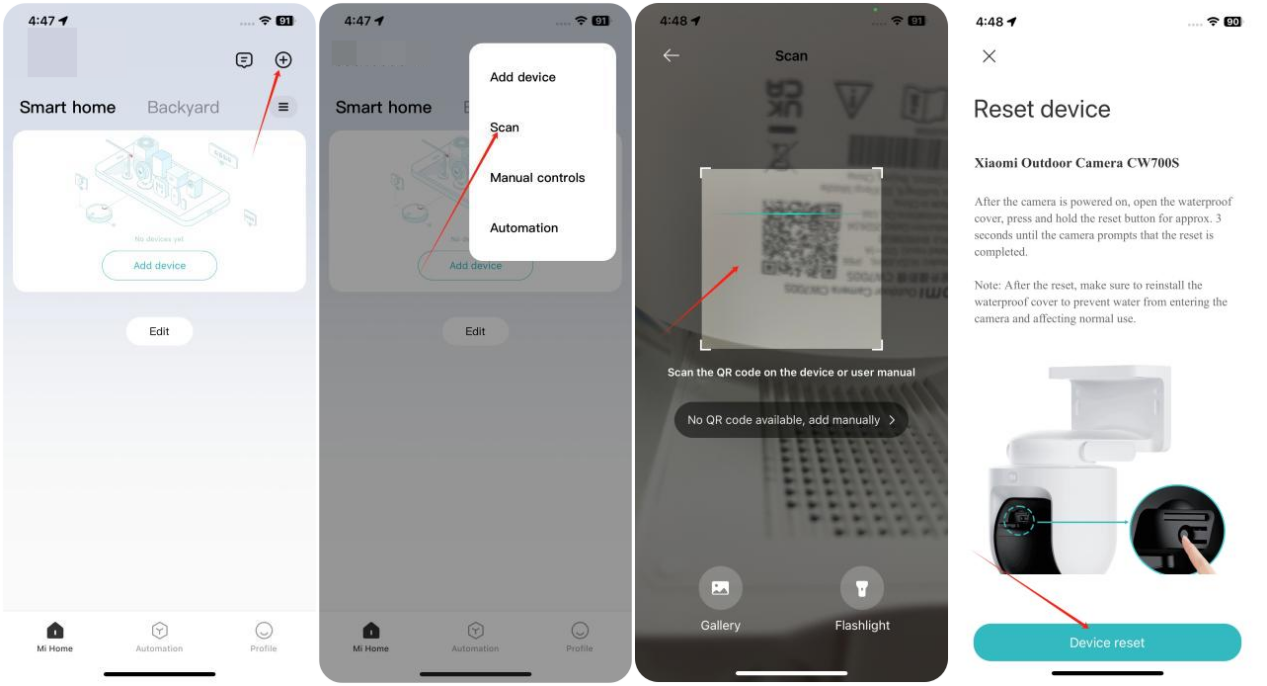
3. The camera will start up and the indicator will remain in yellow. After about 20 seconds, you will hear a voice prompt from the camera. Open the Mi Home/Xiaomi Home APP, tap the [+] icon in the top right corner, and tap [Scan]. Scan the QR code on the bottom of the camera;
4. The Mi Home/Xiaomi Home APP will display the connection interface;
Note:
For the first binding, you don’t need to press any button and your phone can connect to the device directly.
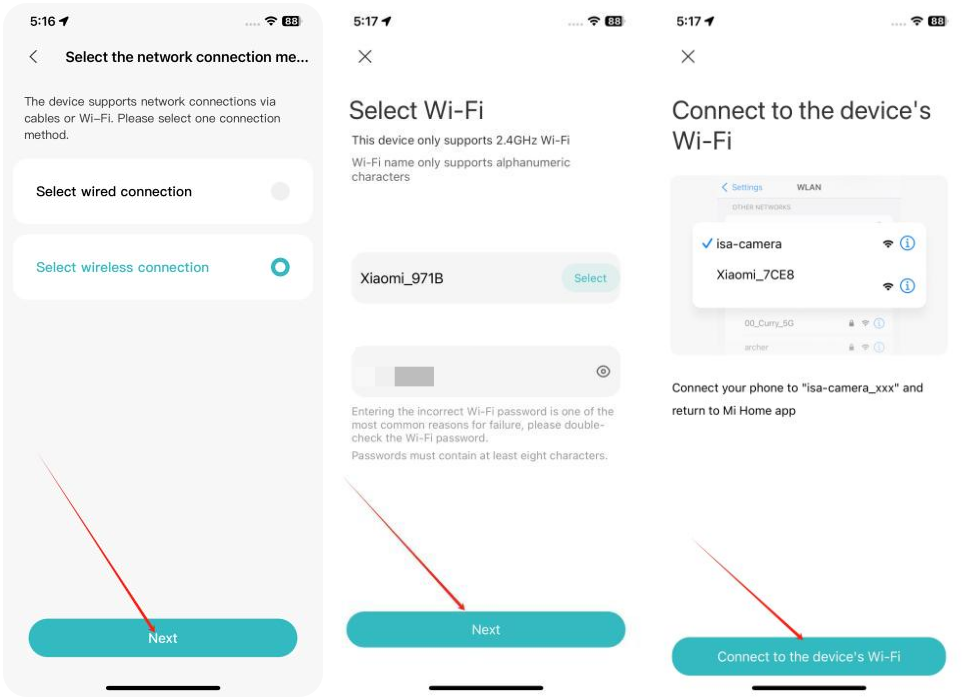
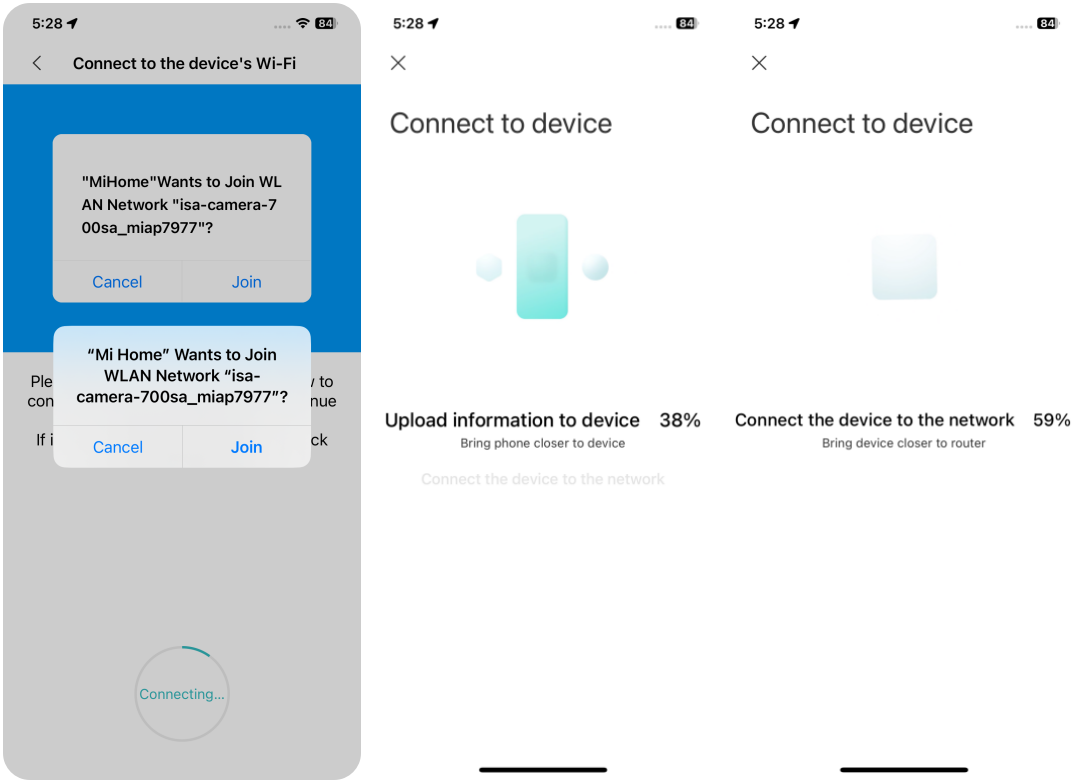
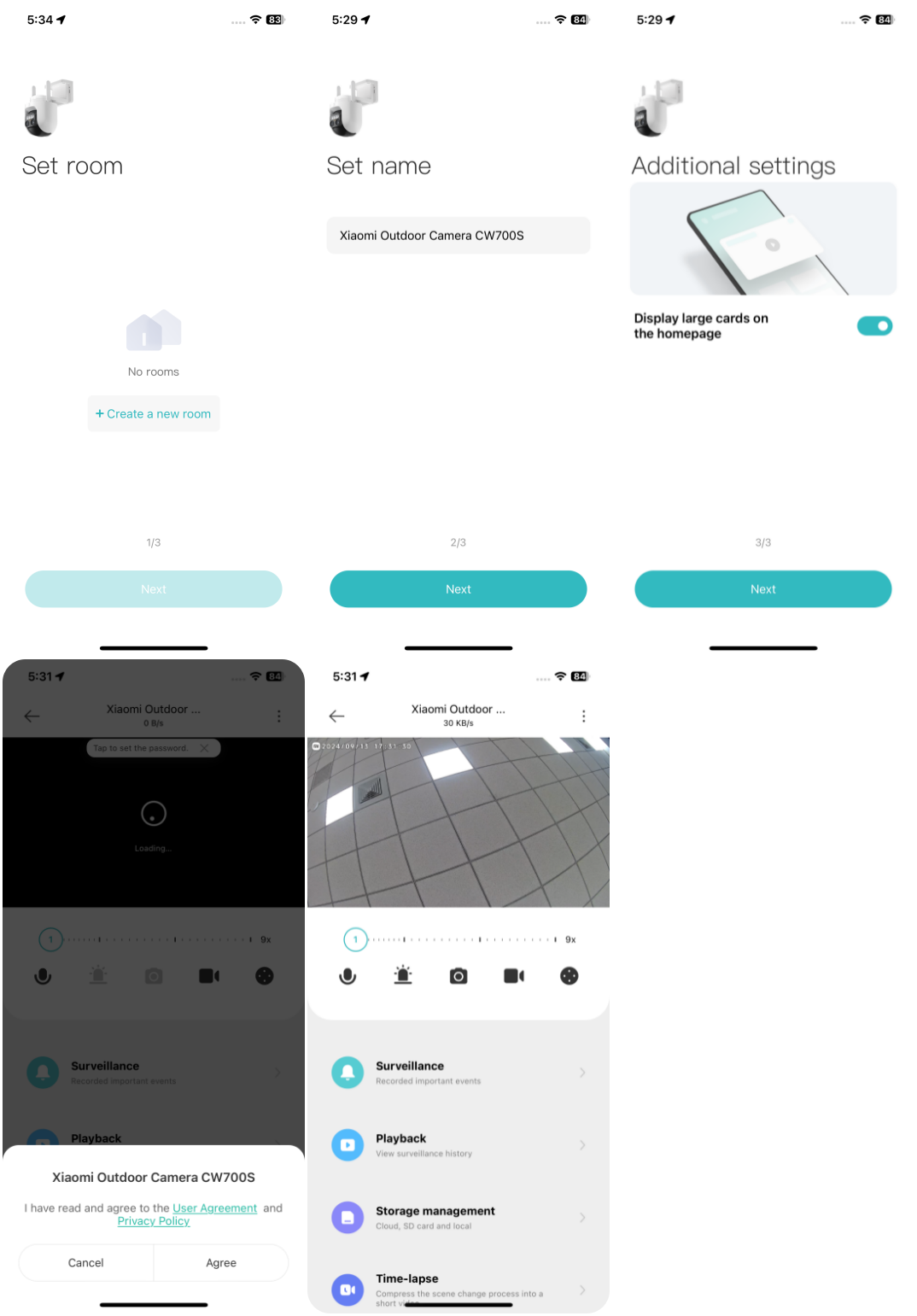
5. Tap [Device reset] >> your phone starts scanning the camera >> select a 2.4GHz router and enter the Wi-Fi password >> tap [Next] >> add device (keep the phone as close to the device as possible during the process). After a few seconds, the camera will prompt you by voice that the Wi-Fi is successfully connected;
6. The APP will display that the device has been added successfully. Set room and tap [Next]. Set name of the device and tap [Next]. You can hear a voice prompt of the device that the account is bound successfully, and you can start using it now.
Note:
This device only supports 2.4GHz Wi-Fi and cannot connect to 5GHz Wi-Fi. If you have dual-band Wi-Fi, it is recommended to disable the dual-band feature and reconnect the device.
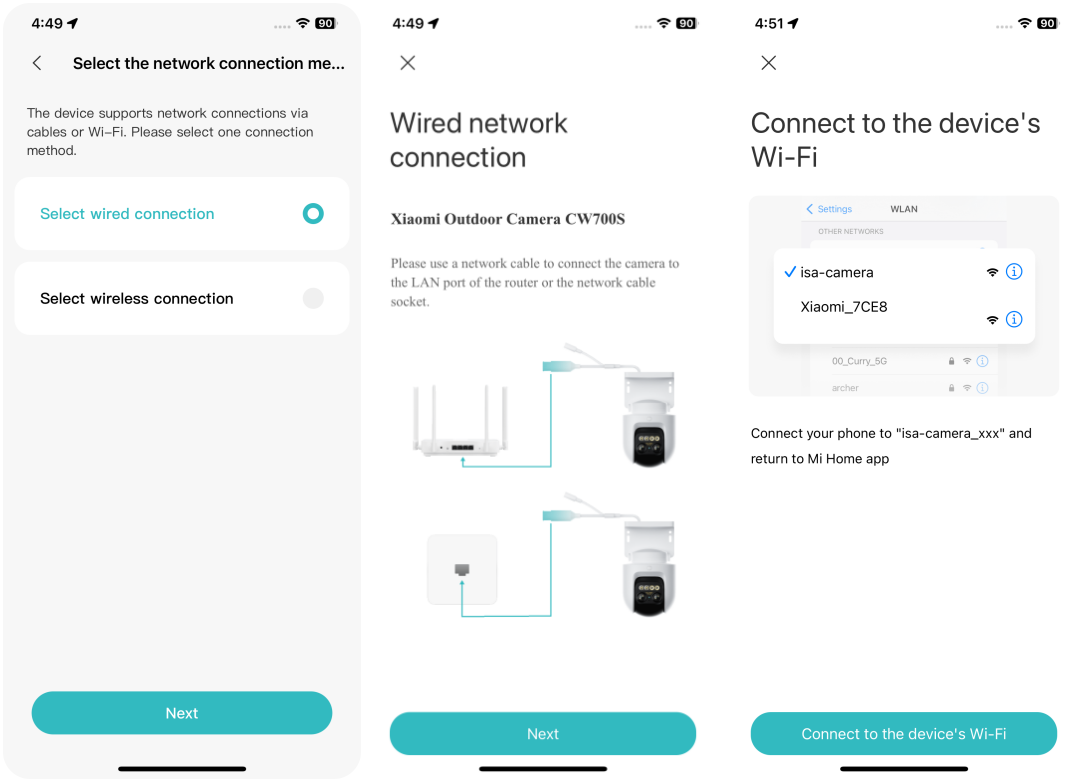
Select the network connection method: select wired connection.
1. Q: What are the features of the Xiaomi Outdoor Camera CW700S?
A: Here are the features below:
1. It is equipped with long and short focal length dual lenses, and it can achieve a maximum of 9 times hybrid zoom and can clearly see faces and license plates at 30 meters;
2. It is upgraded to 4 million ultra-clear pixels, with a resolution of up to 2560*1440, every frame is clear;
3. It has 4 million pixels + F1.6 aperture + 2 telephoto fill lights + 2 short-focus fill lights, better night vision effect, clearer and more transparent;
4. It comes with IP66 dustproof and waterproofing no fear of stormy weather;
5. It has an external dual antenna design, longer transmission distance, stronger penetration, and more stable transmission;
6. It supports wired network interface and more diverse networking methods;
7. It has a true two-way voice call, a 2W high-power speaker, an internal high-sensitivity microphone, a high-quality high-power speaker, long sound pickup distance, and louder sound;
8. It has time-lapse photography, which can condense and present the beautiful moments in life (must be used with a memory card);
9. It comes with a sound and light alarm, the camera detects someone breaking into the monitoring area, and will actively send out an alarm and high-frequency flashing lights, double deterrence;
10. It has AI human detection and intelligent tracking, using a new generation of AI human recognition algorithms. When a human figure appears on the screen, it automatically records an alarm video and sends a reminder on the mobile phone;
11. It comes with local + cloud + NAS three storage methods, supports local MicroSD card storage, and automatic loop recording, and also supports NAS storage. After you purchase the Xiaomi Home Secure Service, the device will push video upload to the cloud.
2. Q: What does the Xiaomi Outdoor Camera CW700S include?
A: The Xiaomi Outdoor Camera CW700S includes host* 1, power adapter* 1, power cord waterproof tape* 2, wall/ceiling positioning sticker* 1, screw accessory package (expansion tube specification: φ6mm*30mm×4pcs, screw specification: φ4mm*30mm×4pcs), network port waterproof four-piece set* 1, manual* 1.
3. Q: What is the appearance of the Xiaomi Outdoor Camera CW700S?
A: The appearance introduction of the Xiaomi Outdoor Camera CW700S is as follows:
4. Q: What is the power supply method of the Xiaomi Outdoor Camera CW700S?
A: It is powered by a 12V 1A adapter. To ensure normal function, please be sure to use the original adapter.
5. Q: What are the installation methods of the Xiaomi Outdoor Camera CW700S?
A: The Xiaomi Outdoor Camera CW700S can be side-mounted, suspended, and pole-mounted.
6. Q: What are the steps for wall mounting of the Xiaomi Outdoor Camera CW700S?
A: Here are details for the installation steps diagram:
1. Paste the mounting template sticker where the camera needs to be installed, and drill four holes in the wall with a drilling tool according to the locating holes on the sticker. The hole is approx. 6 mm in diameter and approx40 mm in depth;(Fig.D-1 Fig.D-2)
2. Insert four plastic wall plugs into the holes in the wall;(Fig.D-3)
3. Place the mount against the wall, insert screws into the holes, and drill them into the plastic wall plugs on the wall;
4. Wrap the power cable port with the waterproof tape after the camera is fixed to ensure waterproof performance. (Fig.F);
5. Thread the waterproof rear cover, stopper and waterproof sleeve over the network cable in order (Fig.G-2). Then plug the network cable into the port. Screw together the waterproof sleeve and stopper, then screw together the waterproof rear cover and waterproof sleeve (Fig G-3).
Note:
The wall must be able to support at least three times the total weight of the camera.
The camera must be firmly fixed to the wall according to the installation instructions in the user manual to prevent accidental injury.
Do not install near an air conditioner outdoor unit, range hood outlet, gas water heater outlet, or other heat sources.
7. Q: How to turn on the Xiaomi Outdoor Camera CW700S?
A: Plug the power adapter cable into the camera power interface and the camera will automatically turn on.
Note:
1. The indicator is always yellow and you hear a voice prompt, indicating that the power-on is successful;
2. Please be sure to use the original adapter power cord to connect the camera to avoid abnormal operation of the camera. After turning on the camera, do not twist the camera lens to force it to rotate. If the lens positioning is not accurate, you can calibrate it through the Mi Home/Xiaomi Home APP.
8. Q: How to install a MicroSD card on the Xiaomi Outdoor Camera CW700S?
A: Make sure the camera is powered off, open the waterproof cover above the card slot to expose the MicroSD card slot, and insert the MicroSD card with the contact side facing down into the card slot.
Note:
When installing or removing the MicroSD card, you need to cut off the power of the camera before operating. Please use a MicroSD card produced by a regular manufacturer.
9. Q: How to restore the factory settings of the Xiaomi Outdoor Camera CW700S?
A: If you change the network or Mi Home APP account connected to the camera, you should press the reset button. The reset is successful when you hear the voice prompt.
Note:
Resetting the camera will not delete the contents of the MicroSD card.
10. Q: Does the Xiaomi Outdoor Camera CW700S support infrared night vision?
A: Yes.
11. Q: Can the Xiaomi Outdoor Camera CW700S rotate 360°?
A: The horizontal viewing angle of the gimbal is 360° and the vertical viewing angle of the gimbal is 147°.
12. Q: Does the Xiaomi Outdoor Camera CW700S support the NAS transfer function?
A: Yes. On the real-time video page of the camera in the Mi Home/Xiaomi Home APP, open [Xiaomi Outdoor Camera CW700S] >> tap [...] upper right corner >> select [Manage storage] >> select [NAS network storage], and add storage according to the prompts.
Note:
The router or network disk connected to the camera must support transfer, and the camera must have a memory card installed and record normally.
13. Q: Where to view the SN number of the Xiaomi Outdoor Camera CW700S?
A: Here are the methods for you:
1. The SN number can be viewed from the product body;
2: There will be an SN barcode on the back of the product packaging, and you can check the SN number here.
14. Q: How to check the Xiaomi Outdoor Camera CW700S certificate?
A: The certificate of this device can be found on the sticker in the lower right corner of the back of the device packaging.
15. Q: Does the Xiaomi Outdoor Camera CW700S need to be plugged in to use? Or is it powered by a battery?
A: It needs to be connected to a power supply. The camera does not contain a battery and must be plugged in to use.
Note:
Please use the original 12V 1A adapter.
16. Q: Does the Xiaomi Outdoor Camera CW700S support two-way voice calls?
A: The Xiaomi Outdoor Camera CW700S has a built-in microphone and speaker, which supports you to use the Mi Home APP on the mobile phone to conduct two-way voice intercoms with the camera.
Please refer to the following steps to use it:
Go to [Mi Home/Xiaomi Home] APP >> open [Xiaomi Outdoor Camera CW700S] >> turn on the microphone to make a voice call. Press the microphone button again when you hang up.
17. Q: Does the Xiaomi Outdoor Camera CW700S support the Bluetooth gateway function?
A: No.
18. Q: What should pay attention to when using Xiaomi Outdoor Camera CW700S?
A: Here is what you should pay attention to:
1. The applicable working temperature of this product is -30~60℃. Do not use this product in an environment with too high or too low temperature;
2. This product is a precision electronic product and only supports IP66 waterproofing. Do not use this product in an environment with excessive humidity or where water enters this product, so as not to affect normal use;
3. To better use this product, avoid placing the front and side of the lens close to reflective objects such as glass and white walls to avoid the phenomenon that the picture is bright near and dark or white in the distance;
4. Please ensure that this product is installed within the coverage of the Wi-Fi signal and placed in a location with a better Wi-Fi signal as much as possible;
5. If the power cord is damaged, it must be replaced by professionals from the manufacturer, its maintenance department, or similar departments to avoid danger.
19. Q: What are the functions of the two lenses of the Xiaomi Outdoor Camera CW700S? What is the difference?
A: The two lenses have different focal lengths, the short-focus lens is 4mm and the long-focus lens is 12mm. The image can be magnified by switching between the short-focus and long-focus images.
20. Q: What do the two indicators of the Xiaomi Outdoor Camera CW700S mean?
A: One indicator is yellow and the other is blue. The yellow indicator is always on when the device is started; the blue indicator flashes when the device is connected to the network, and the blue indicator becomes always on after the network connection is successful. In addition, the yellow and blue indicators are both on when the device is flashed.
21. Q: What are the two antennas of the Xiaomi Outdoor Camera CW700S? What are their functions?
A: The Xiaomi Outdoor Camera CW700S is designed with dual antennas, and both antennas are used to connect to the 2.4 GHz Wi-Fi network.
22. Q: What is the IP rating of the Xiaomi Outdoor Camera CW700S?
A: The Xiaomi Outdoor Camera CW700S meets IP66 waterproof and can meet outdoor use.
23. Q: What does the English printed on the body of the Xiaomi Outdoor Camera CW700S mean?
A: DUAI-CAMERA means Dual camera;
4 MEGAPIXELS: 4 million pixels;
9*ZOOM: 9 times zoom.
24. Q: What is the zoom mode of the Xiaomi Outdoor Camera CW700S? What are the advantages?
A: The zoom mode is to achieve digital zoom with short-focus and long-focus lenses, which is low-cost and can also ensure less image quality loss during image magnification.
25. Q: Where is the infrared night vision light of the Xiaomi Outdoor Camera CW700S?
A: The infrared light and night vision light are above the two lenses (the device is inverted), and a total of 4.
26. Q: What is the power of the fill light of the Xiaomi Outdoor Camera CW700S? Which one is long-focus and which one is short-focus?
A: The power of a single infrared light is about 0.4W, and the power of a single white light is about 0.6W. When the equipment is hoisted (facing the equipment), the two fill lights on the left are short-focus fill lights, and the two fill lights on the right are long-focus fill lights.
27. Q: What type of network cable is suitable for the Xiaomi Outdoor Camera CW700S?
A: The Xiaomi Outdoor Camera CW700S is equipped with a network cable interface, suitable for Category 5 and above network cables
28. Q: What is the difference between the two-finger pinch zoom function and the zoom axis zoom function of the Xiaomi Outdoor Camera CW700S monitoring screen?
A: The difference between them is as follows:
Two-finger pinch zoom function refers to zooming in on the original image. After zooming in or out, you can also drag the screen to view the original image that is not fully displayed on the mobile phone screen.
Zoom axis zoom means that 1x~2.7x is a short-focus lens image, and 2.8x~9x is a telephoto lens image. After zooming in or out, the image will be cropped and only the cropped area can be seen.
29. Q: Does the Xiaomi Outdoor Camera CW700S support recording videos in the memory card without connecting to the network?
A: Yes. Connect to the Internet and install a memory card for the first binding.
30. Q: Can the bracket of the Xiaomi Outdoor Camera CW700S be disassembled?
A: The bracket does not support disassembly.
31. Q: What are the dimensions of the Xiaomi Outdoor Camera CW700S pole?
A: It supports universal clamps with widths of 8mm and 12mm.
32. Q: How many times does the Xiaomi Outdoor Camera CW700S support zoom, and what is the zoom mode? Optical zoom, digital zoom, or other forms?
A: It supports 9x hybrid zoom, 1x~2.7x is the short-focus lens picture, 2.8x~9x is the telephoto lens picture, of which 1x and 2.8x are the original pictures, and other multiples correspond to digital magnified images.
33. Q: Does the Xiaomi Outdoor Camera CW700S screen need to be kept on the monitoring interface all the time, and is there any limit on the recording time?
A: The screen needs to be kept on the monitoring interface all the time, and the recording time is determined by the capacity of the memory card.
34. Q: How to check the videos recorded by time-lapse on the Xiaomi Outdoor Camera CW700S?
A: The time-lapse video is stored on the SD card and can be viewed in the Mi Home APP.
Here is the viewing path:
Go to [Mi Home/Xiaomi Home] APP >> open [Xiaomi Outdoor Camera CW700S] >> tap [...] upper right corner >> select [Manage storage] >> tap [SD card status], and you can find there is no capacity requirement for using time-lapse function.
APP Related
1. Q: How to connect the Xiaomi Outdoor Camera CW700S to the Mi Home/Xiaomi Home APP?
A: 1. Take the camera out of the packaging and place it on a table;
2. Power on the camera by connecting the power adapter cable to the camera's power port;
3. The camera will start up and the indicator will remain in yellow. After about 20 seconds, you will hear a voice prompt from the camera. Open the Mi Home/Xiaomi Home APP, tap the [+] icon in the top right corner, and tap [Scan]. Scan the QR code on the bottom of the camera;
4. The Mi Home/Xiaomi Home APP will display the connection interface;
Note:
For the first binding, you don’t need to press any button and your phone can connect to the device directly.
5. Tap [Device reset] >> your phone starts scanning the camera >> select a 2.4GHz router and enter the Wi-Fi password >> tap [Next] >> add device (keep the phone as close to the device as possible during the process). After a few seconds, the camera will prompt you by voice that the Wi-Fi is successfully connected;
6. The APP will display that the device has been added successfully. Set room and tap [Next]. Set name of the device and tap [Next]. You can hear a voice prompt of the device that the account is bound successfully, and you can start using it now.
Note:
This device only supports 2.4GHz Wi-Fi and cannot connect to 5GHz Wi-Fi. If you have dual-band Wi-Fi, it is recommended to disable the dual-band feature and reconnect the device.
Select the network connection method: select wired connection.
Select the network connection method: select wireless connection.
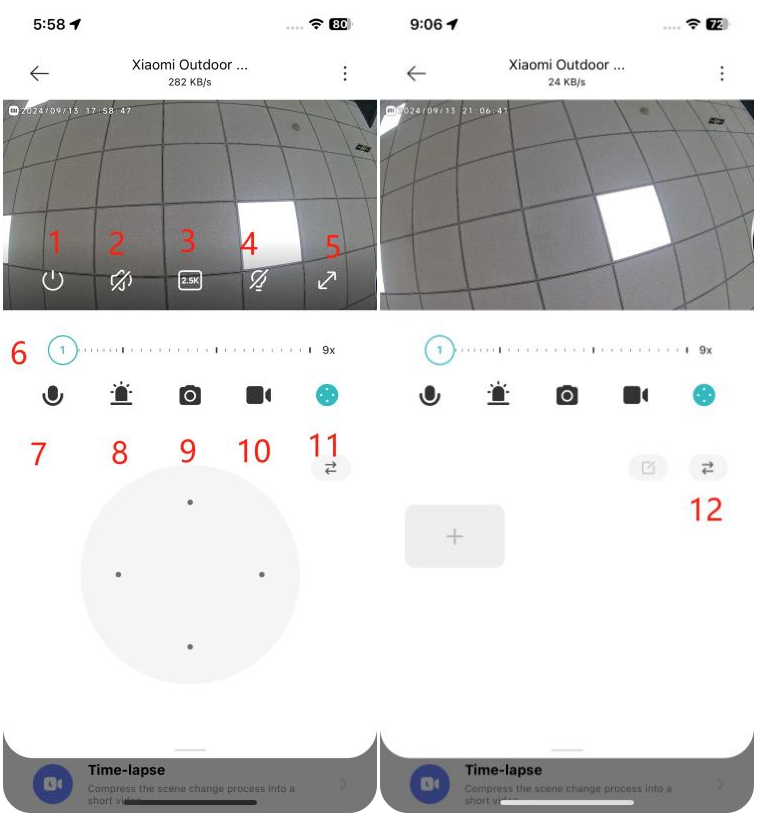
2. Q: What are the functions of the icons on the real-time monitoring interface of the Xiaomi Outdoor Camera CW700S?
A: 1. Sleep: Tap this icon to turn on the sleep mode of the camera. When enabled, the camera will not perform live streaming or video recording. Tap again to turn the camera back on;
2. Mute: By default, the monitoring interface is in mute mode. Tap the mute icon to enable sound when viewing the monitoring interface;
3. Resolution: Adjust the monitoring resolution among options: 2.5K HD, 720P Smooth, or Auto (the camera adjusts the resolution based on network conditions);
4. Spotlight: The spotlight is off by default. Tap to turn it on, and it will stay on for 1 minute. You can tap again to turn it off during this period;
5. Full Screen: Tap this icon to switch the monitoring interface to landscape mode;
6. Zoom Axis: Slide the zoom axis to zoom in or out on the picture, focusing on specific details;
7. Voice Call: Tap the microphone icon to make a remote call with the camera via the Mi Home/Xiaomi Home APP;
8. Sound and Light Alert: Tap the alert icon to activate the sound and light alert, which lasts for 30 seconds. Tap again to cancel it;
9. Screenshot: Capture a screenshot of the current monitoring interface, which will be saved to the Album and the Mi Home/Xiaomi Home APP;
10. Screen Recording: Tap the screen recording icon to record the current monitoring interface, which will be saved to the Album and the Mi Home/Xiaomi Home APP;
11. PTZ Control: Tap to display the directional control (up, down, left, right) for PTZ control;
12. Add to favorites: After setting [Add to favorites] as a frequently viewed position, you can quickly check specific areas of interest.
Using method: Access the frequently viewed position through the PTZ control icon.
3. Q: How to use the human tracking feature of the Xiaomi Outdoor Camera CW700S?
A: Open the Mi Home/Xiaomi Home APP >> select the camera >> tap the three-dot icon at the top right corner >> [Camera settings] >> enable [Human tracking] and the camera will track the detected people.
4. Q: How to set up home surveillance settings on the Xiaomi Outdoor Camera CW700S?
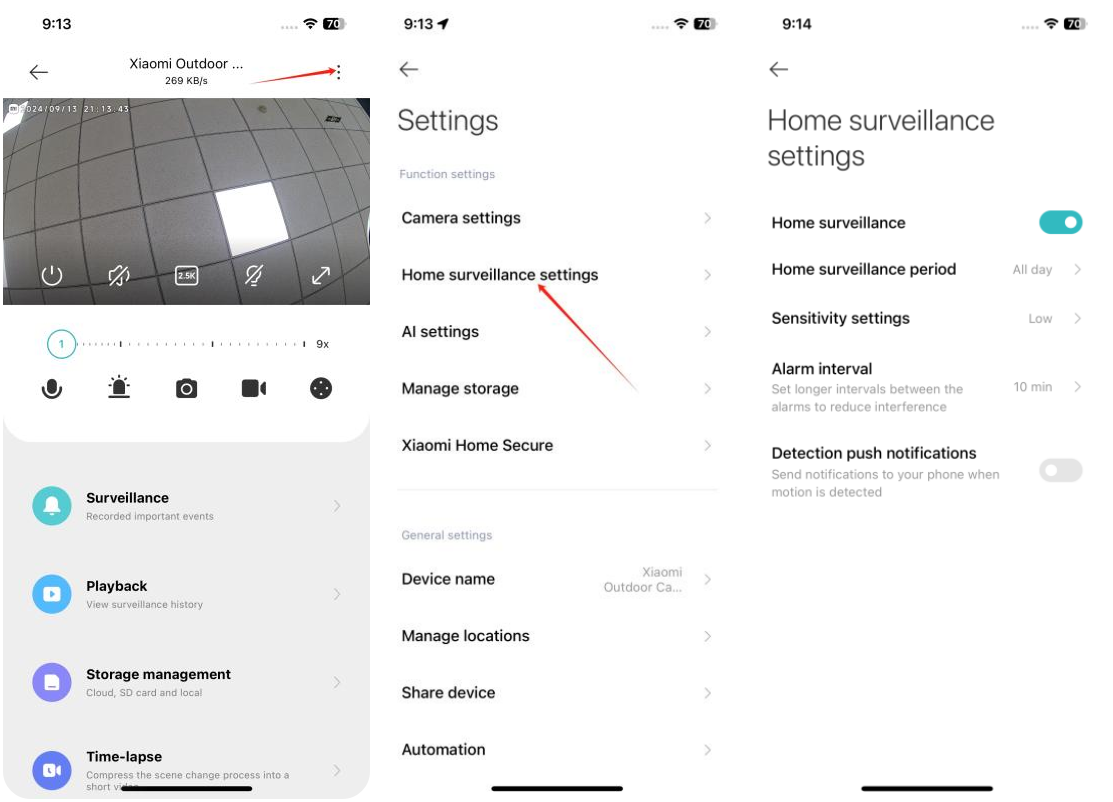
A: Open the Mi Home/Xiaomi Home APP >> select the camera >> tap the three-dot icon at the top right corner >> [Home surveillance settings]. Set home surveillance period, sensitivity settings, alarm interval, and detection push notifications.
2. Q: What are the functions of the icons on the real-time monitoring interface of the Xiaomi Outdoor Camera CW700S?
A: 1. Sleep: Tap this icon to turn on the sleep mode of the camera. When enabled, the camera will not perform live streaming or video recording. Tap again to turn the camera back on;
2. Mute: By default, the monitoring interface is in mute mode. Tap the mute icon to enable sound when viewing the monitoring interface;
3. Resolution: Adjust the monitoring resolution among options: 2.5K HD, 720P Smooth, or Auto (the camera adjusts the resolution based on network conditions);
4. Spotlight: The spotlight is off by default. Tap to turn it on, and it will stay on for 1 minute. You can tap again to turn it off during this period;
5. Full Screen: Tap this icon to switch the monitoring interface to landscape mode;
6. Zoom Axis: Slide the zoom axis to zoom in or out on the picture, focusing on specific details;
7. Voice Call: Tap the microphone icon to make a remote call with the camera via the Mi Home/Xiaomi Home APP;
8. Sound and Light Alert: Tap the alert icon to activate the sound and light alert, which lasts for 30 seconds. Tap again to cancel it;
9. Screenshot: Capture a screenshot of the current monitoring interface, which will be saved to the Album and the Mi Home/Xiaomi Home APP;
10. Screen Recording: Tap the screen recording icon to record the current monitoring interface, which will be saved to the Album and the Mi Home/Xiaomi Home APP;
11. PTZ Control: Tap to display the directional control (up, down, left, right) for PTZ control;
12. Add to favorites: After setting [Add to favorites] as a frequently viewed position, you can quickly check specific areas of interest.
Using method: Access the frequently viewed position through the PTZ control icon.
3. Q: How to use the human tracking feature of the Xiaomi Outdoor Camera CW700S?
A: Open the Mi Home/Xiaomi Home APP >> select the camera >> tap the three-dot icon at the top right corner >> [Camera settings] >> enable [Human tracking] and the camera will track the detected people.
4. Q: How to set up home surveillance settings on the Xiaomi Outdoor Camera CW700S?
A: Open the Mi Home/Xiaomi Home APP >> select the camera >> tap the three-dot icon at the top right corner >> [Home surveillance settings]. Set home surveillance period, sensitivity settings, alarm interval, and detection push notifications.
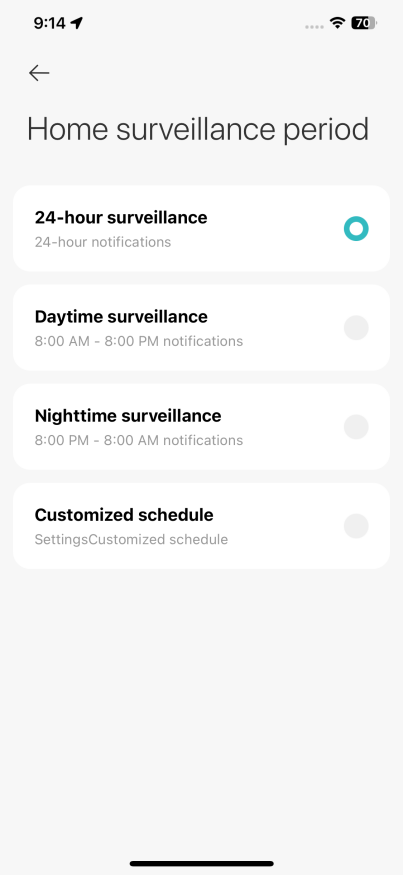
Home surveillance period: You can set for 24-hour surveillance or specific time segments.
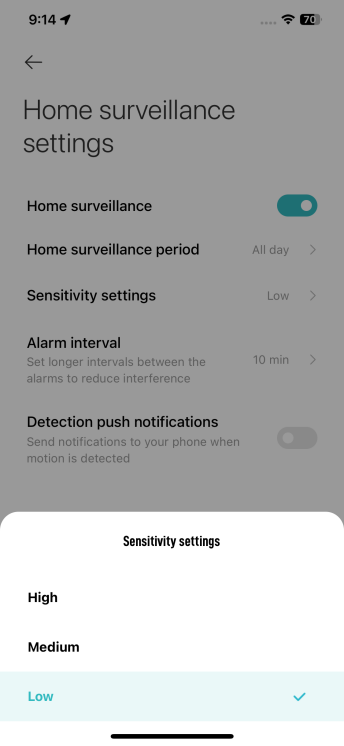
Sensitivity settings: Choose from High, Medium, or Low sensitivity.
Low sensitivity: approximately 1~2.5 meters.
Medium sensitivity: approximately 2.5~5 meters.
High sensitivity: approximately 5~7.5 meters.
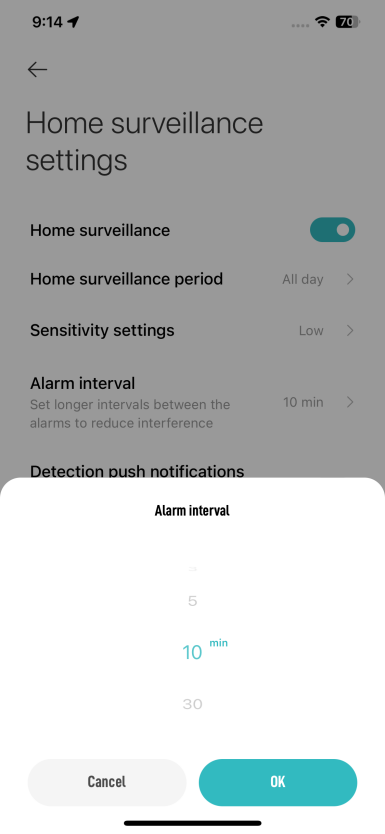
Alarm interval: Choose from 3 to 30 minutes (you can only choose the preset intervals and can’t customize intervals).
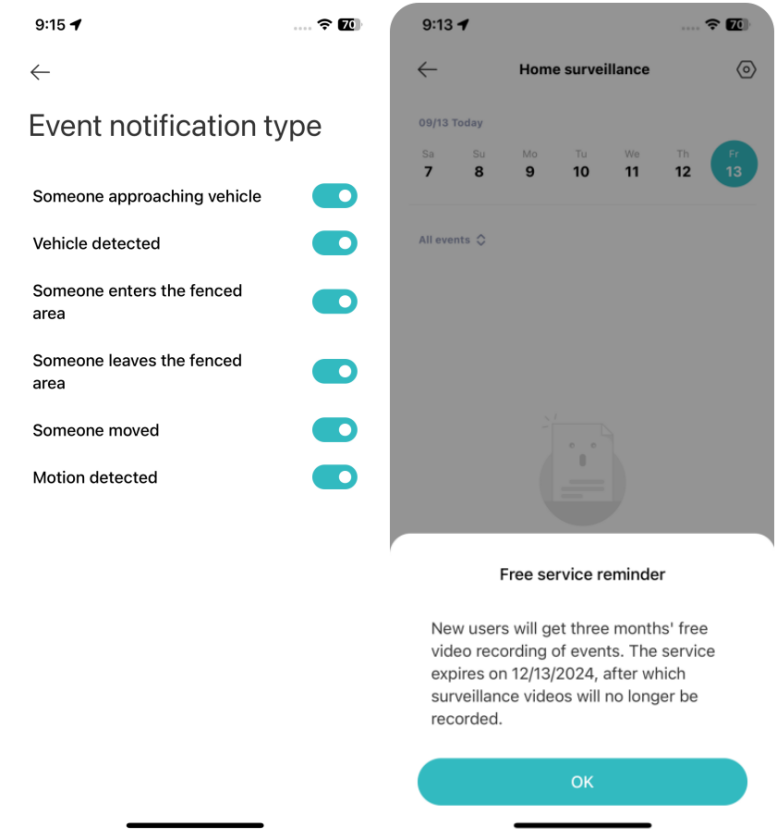
Event notification type: The types include Someone approaching vehicle, Vehicle detected, Someone enters the fenced area, Someone leaves the fenced area, Someone moved, and Motion detected.
Note:
1. The recorded videos cannot be deleted in batches;
2. You can use the home surveillance for free in three months.
5. Q: How to remove the smart frame displayed on the real-time monitoring interface of the Xiaomi Outdoor Camera CW700S?
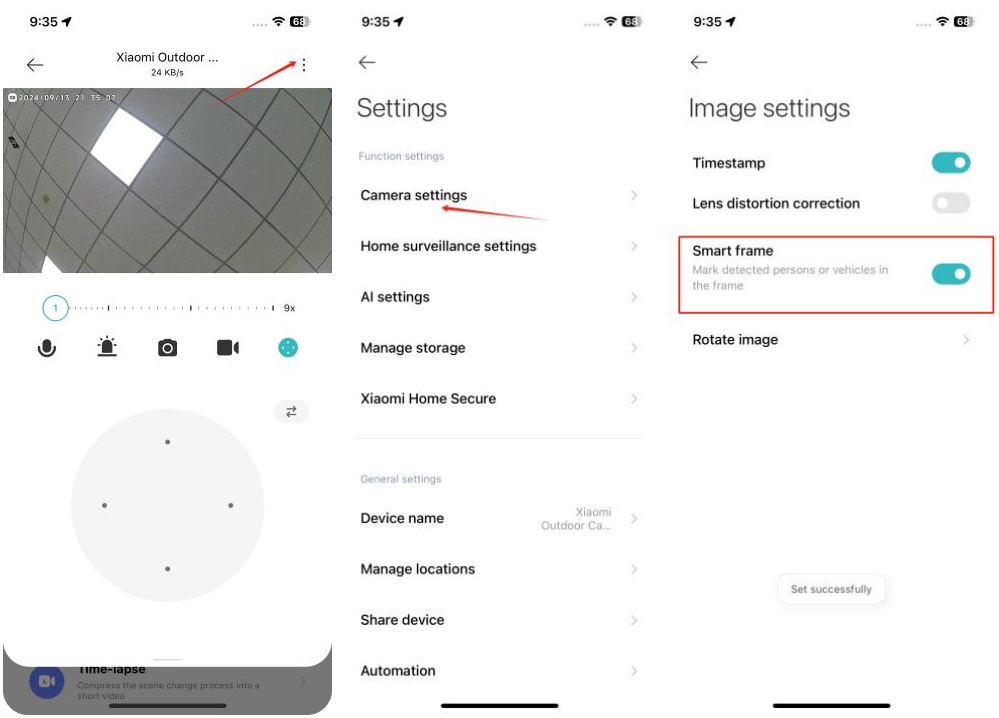
A: Open the Mi Home/Xiaomi Home APP >> select the camera >> tap the three-dot icon at the top right corner >> [Camera settings] >> [Image settings] >> turn off the [Smart frame] switch.
Enabling the smart frame feature will mark detected objects such as people or vehicles like the picture shown below.
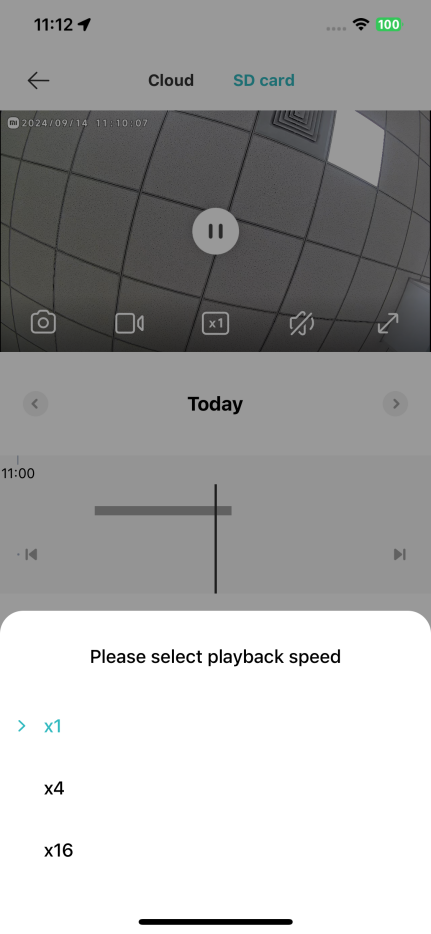
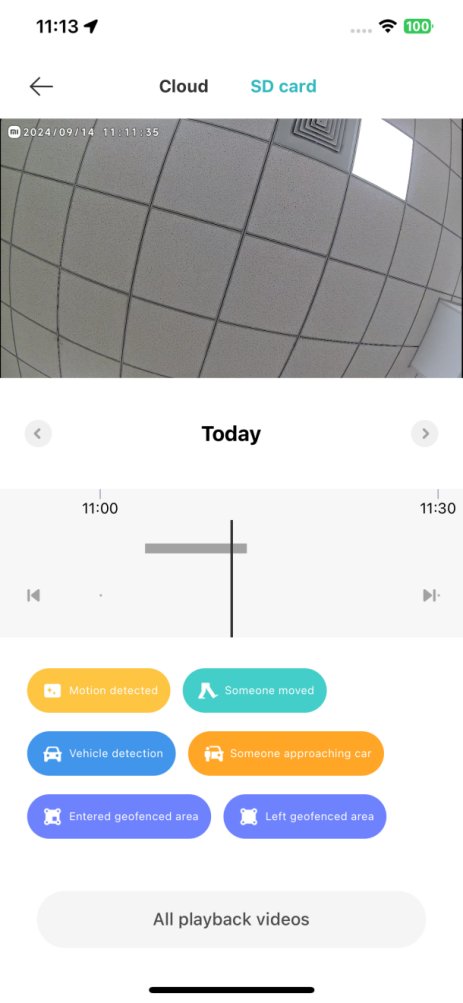
6. Q: How to review videos from the SD card on the Xiaomi Outdoor Camera CW700S?
A: Open the Mi Home/Xiaomi Home APP >> select the camera >> tap [Playback] >> view videos on the SD card.
The playback on the SD card supports 1x, 4x, and 16x speed.
Different colors represent different events, and the specific meanings are shown in the picture below:
7. Q: How to format the SD card on the Xiaomi Outdoor Camera CW700S?
A: Open the Mi Home/Xiaomi Home APP >> select the camera >> tap the three-dot icon at the top right corner >> [Manage storage] >> [SD card status] >> [Format SD card].
Formatting will erase all videos on the SD card. Ensure you save any important videos first.
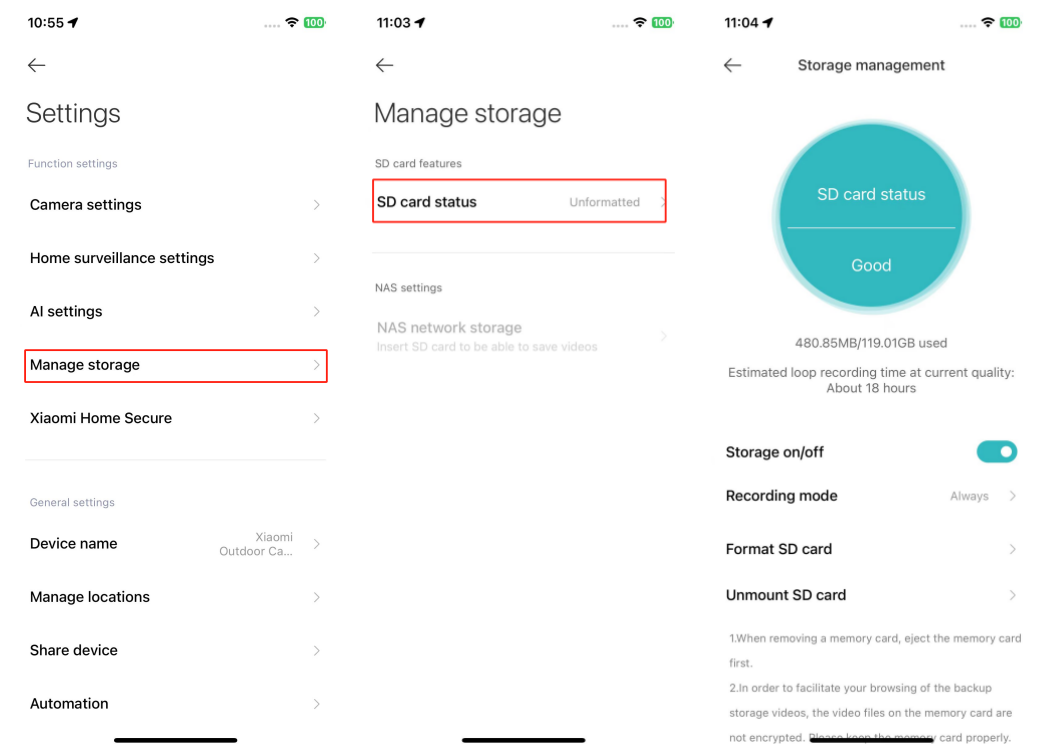
You can select the recording mode as always or record moving scenes. In the mode of recording moving scenes, the camera records only when motion is detected. Intermittent recording is normal when turning on this mode.
8. Q: How to update the firmware of the Xiaomi Outdoor Camera CW700S?
A: Open the Mi Home/Xiaomi Home APP >> select the camera >> tap the three-dot icon at the top right corner >> [Firmware update] >> please update the firmware in time if it is available.
9. Q: Does the Xiaomi Outdoor Camera CW700S support HomeKit?
A: No, it does not support HomeKit.
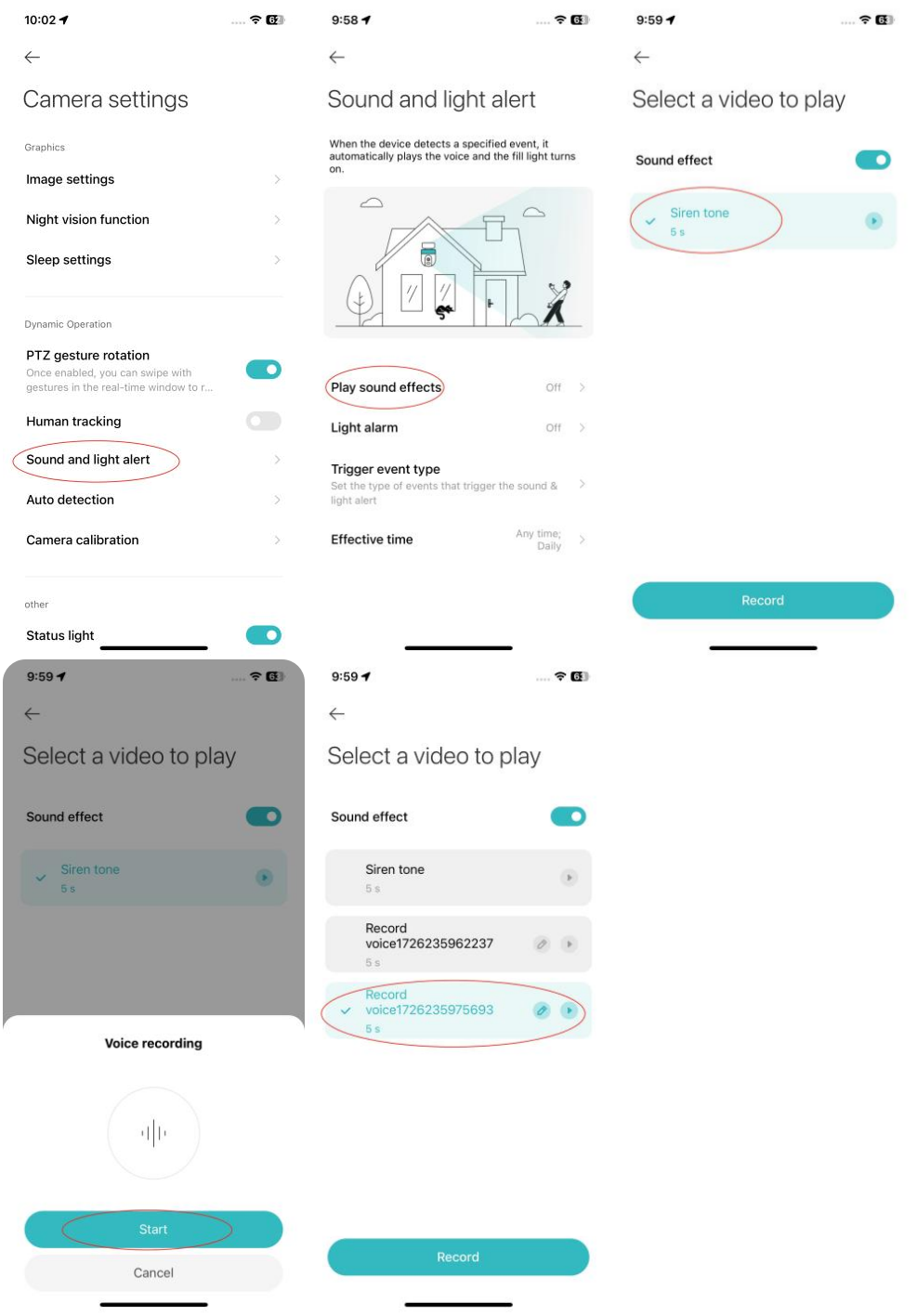
10. Q: How to use the sound and light alert feature on the Xiaomi Outdoor Camera CW700S?
A: Sound alert:
1. Open the Mi Home/Xiaomi Home APP >> select the camera >> tap the three-dot icon at the top right corner >> [Camera settings] >> [Sound and light alert] >> [Play sound effect] >> enable [Sound effect];
2. Once enabled, the camera will play recorded audio when motion is detected;
3. You can choose from the preset tone or custom recorded sounds.
Sensitivity settings: Choose from High, Medium, or Low sensitivity.
Low sensitivity: approximately 1~2.5 meters.
Medium sensitivity: approximately 2.5~5 meters.
High sensitivity: approximately 5~7.5 meters.
Alarm interval: Choose from 3 to 30 minutes (you can only choose the preset intervals and can’t customize intervals).
Event notification type: The types include Someone approaching vehicle, Vehicle detected, Someone enters the fenced area, Someone leaves the fenced area, Someone moved, and Motion detected.
Note:
1. The recorded videos cannot be deleted in batches;
2. You can use the home surveillance for free in three months.
5. Q: How to remove the smart frame displayed on the real-time monitoring interface of the Xiaomi Outdoor Camera CW700S?
A: Open the Mi Home/Xiaomi Home APP >> select the camera >> tap the three-dot icon at the top right corner >> [Camera settings] >> [Image settings] >> turn off the [Smart frame] switch.
Enabling the smart frame feature will mark detected objects such as people or vehicles like the picture shown below.
6. Q: How to review videos from the SD card on the Xiaomi Outdoor Camera CW700S?
A: Open the Mi Home/Xiaomi Home APP >> select the camera >> tap [Playback] >> view videos on the SD card.
The playback on the SD card supports 1x, 4x, and 16x speed.
Different colors represent different events, and the specific meanings are shown in the picture below:
7. Q: How to format the SD card on the Xiaomi Outdoor Camera CW700S?
A: Open the Mi Home/Xiaomi Home APP >> select the camera >> tap the three-dot icon at the top right corner >> [Manage storage] >> [SD card status] >> [Format SD card].
Formatting will erase all videos on the SD card. Ensure you save any important videos first.
You can select the recording mode as always or record moving scenes. In the mode of recording moving scenes, the camera records only when motion is detected. Intermittent recording is normal when turning on this mode.
8. Q: How to update the firmware of the Xiaomi Outdoor Camera CW700S?
A: Open the Mi Home/Xiaomi Home APP >> select the camera >> tap the three-dot icon at the top right corner >> [Firmware update] >> please update the firmware in time if it is available.
9. Q: Does the Xiaomi Outdoor Camera CW700S support HomeKit?
A: No, it does not support HomeKit.
10. Q: How to use the sound and light alert feature on the Xiaomi Outdoor Camera CW700S?
A: Sound alert:
1. Open the Mi Home/Xiaomi Home APP >> select the camera >> tap the three-dot icon at the top right corner >> [Camera settings] >> [Sound and light alert] >> [Play sound effect] >> enable [Sound effect];
2. Once enabled, the camera will play recorded audio when motion is detected;
3. You can choose from the preset tone or custom recorded sounds.
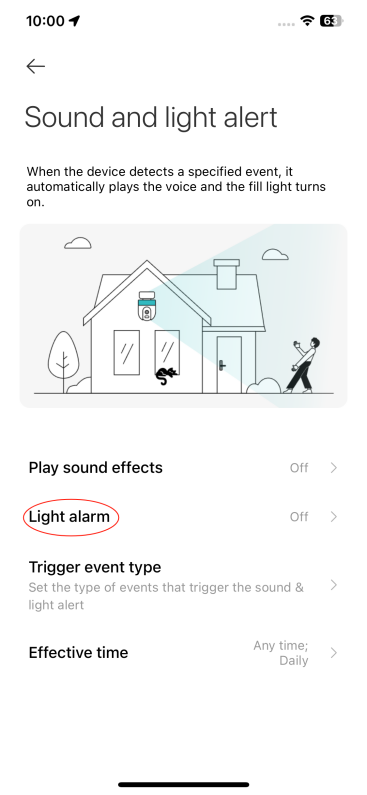
Light alarm:
Enable the light alarm to activate the supplementary light when motion is detected.
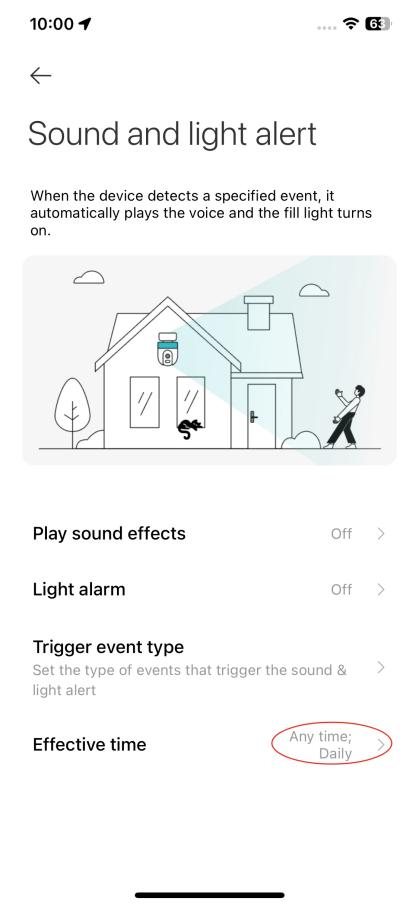
Effective time:
You can set specific times for alarm activation, including any time, custom, or repeated intervals.
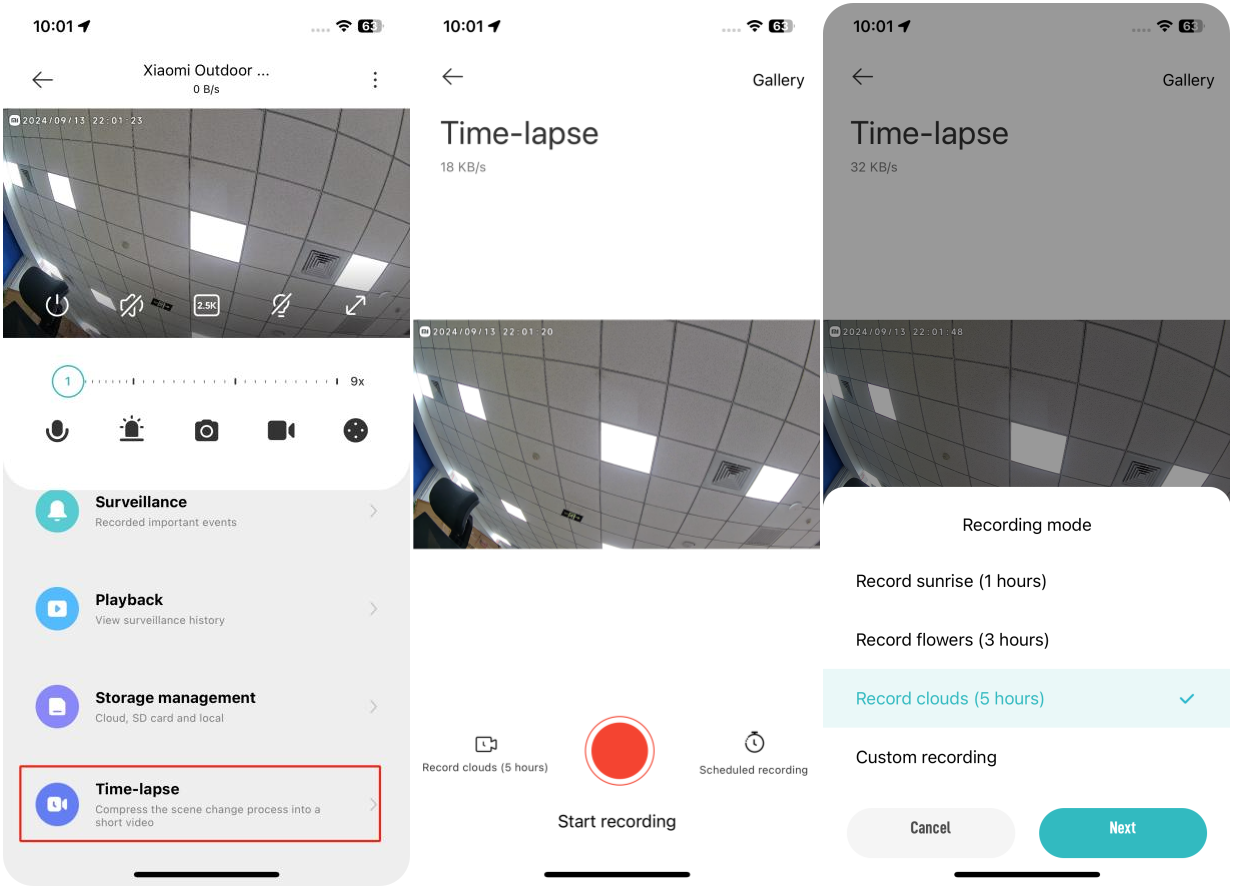
11. Q: How to use the time-lapse feature on the Xiaomi Outdoor Camera CW700S?
A: 1. Open the Mi Home/Xiaomi Home APP >> select the camera >> [Time-lapse];
2. Tap [Start recording] at the bottom of the recording interface to begin, and tap again to end;
3. Tap [Recording mode] to choose different modes and tap [Scheduled recording] to set scheduled start times.
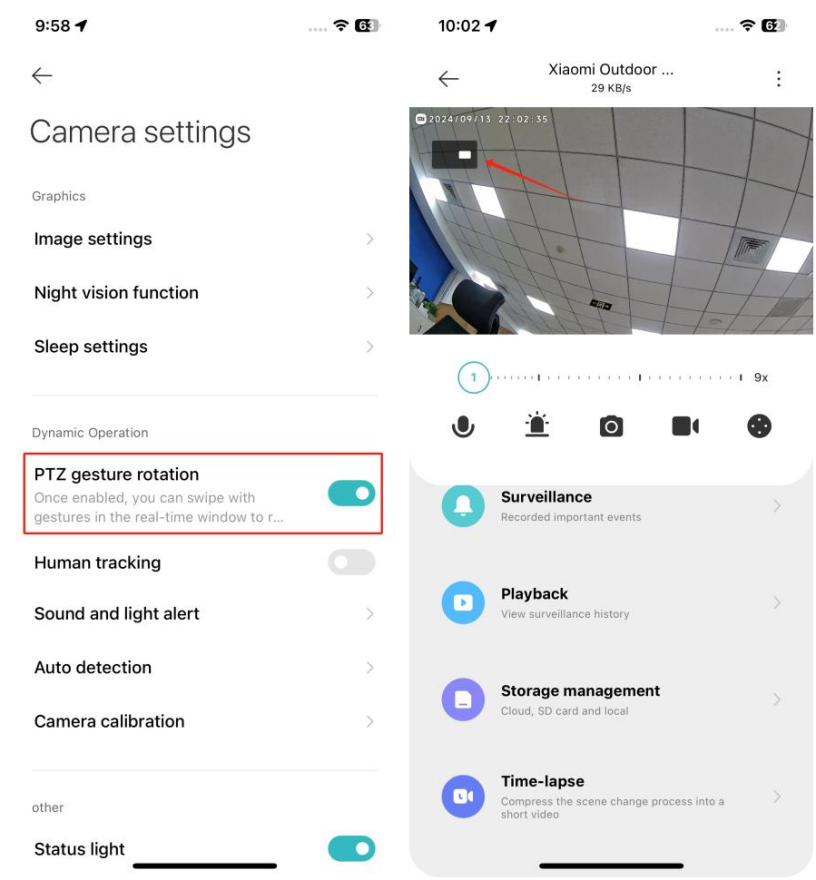
12. Q: How to use gesture control for PTZ on the Xiaomi Outdoor Camera CW700S?
A: Open the Mi Home/Xiaomi Home APP >> select the camera >> [Camera settings] >> [PTZ gesture rotation].
Enable the feature, and you can swipe on the live monitoring interface to control the PTZ direction.
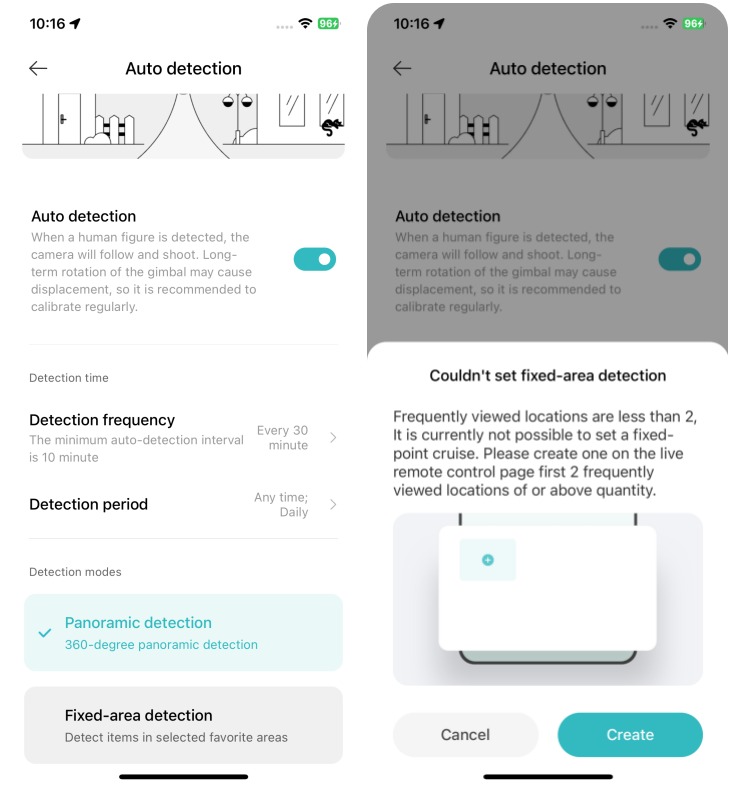
13. Q: How to use the auto detection feature on the Xiaomi Outdoor Camera CW700S?
A: 1. Open the Mi Home/Xiaomi Home APP >> select the camera >> [Camera settings] >> [Auto detection];
2. Enable the Auto detection switch, and the camera will automatically detect according to the set trajectory;
3. You can select the preset detection frequency or customize it.
Panoramic detection:
The panoramic detection requires at least two frequently viewed locations to function properly.
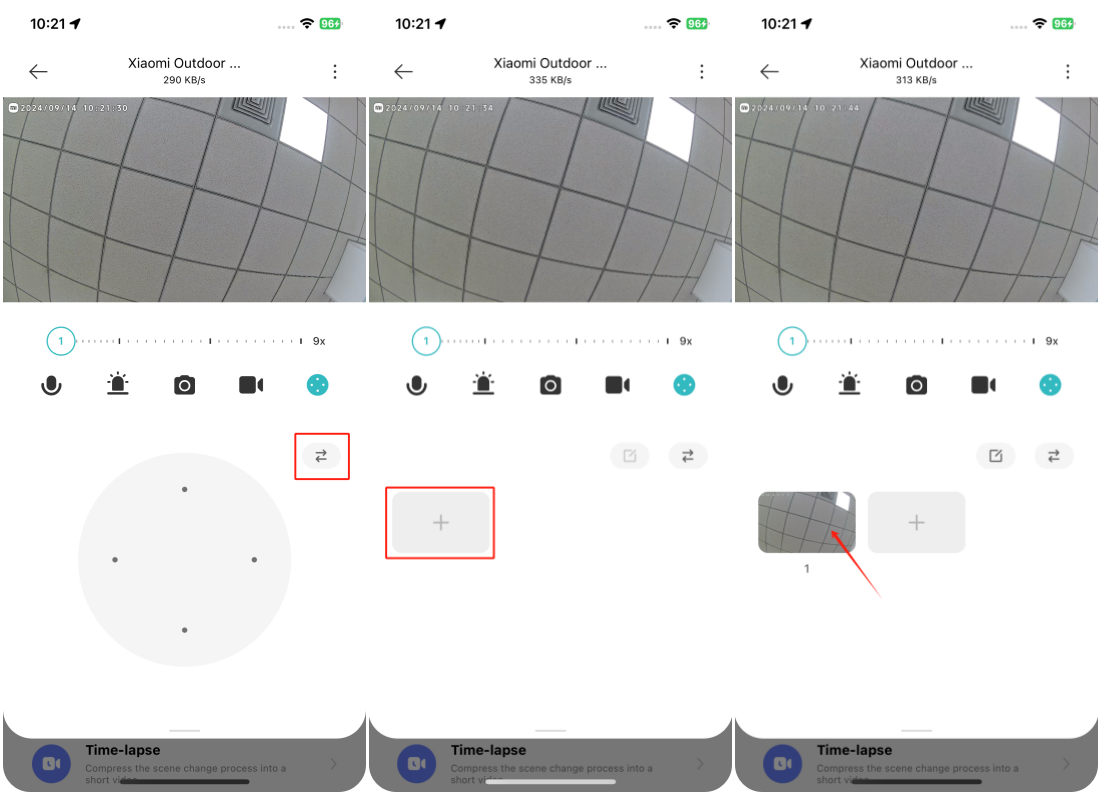
Add to favorites:
Open the Mi Home/Xiaomi Home APP >> select the camera >> tap the PTZ control icon >> tap the [Add to favorites] icon at the upper right corner of the PTZ control >> tap [+].
14. Q: Which devices support viewing the monitoring interface of the Xiaomi Outdoor Camera CW700S?
A: The camera can be viewed on compatible devices, which include smartphones and pads with Android 8.0 & iOS 12.0 or above.
15. Q: How to set up NAS network storage for the Xiaomi Outdoor Camera CW700S?
A: In the real-time monitoring interface, tap the three-dot icon at the top right >> [Manage storage] >> [NAS network storage]. Follow the prompts to add the storage device.
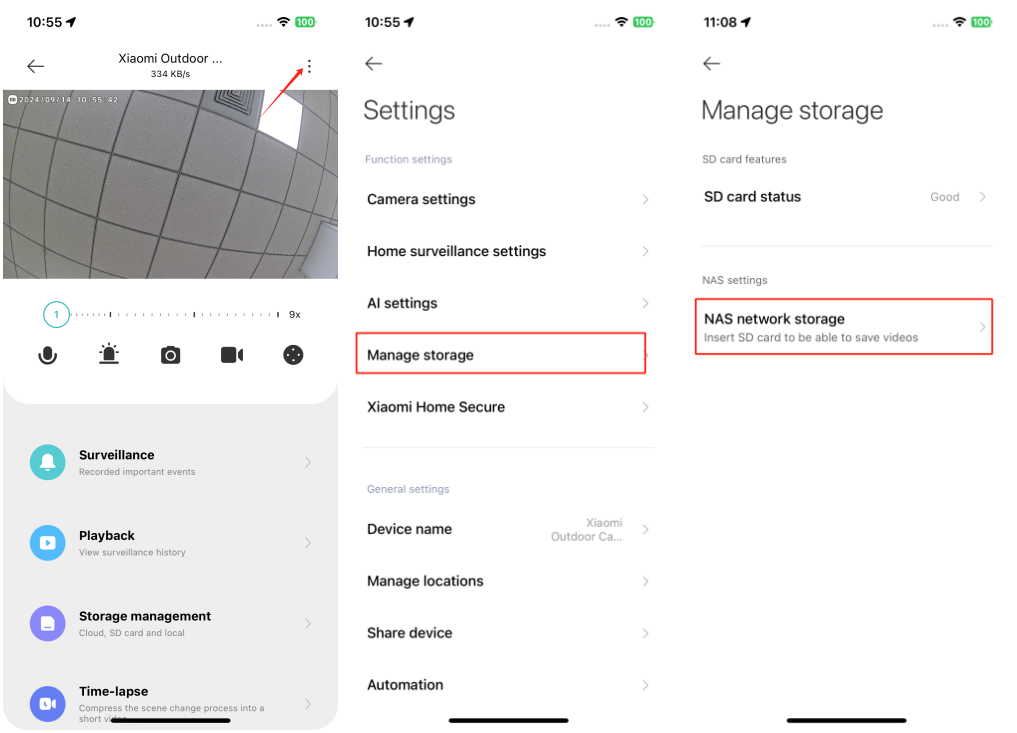
Note:
The router or network disk connected to the camera must support storage forwarding, and the camera must have a functional SD card and recording enabled.
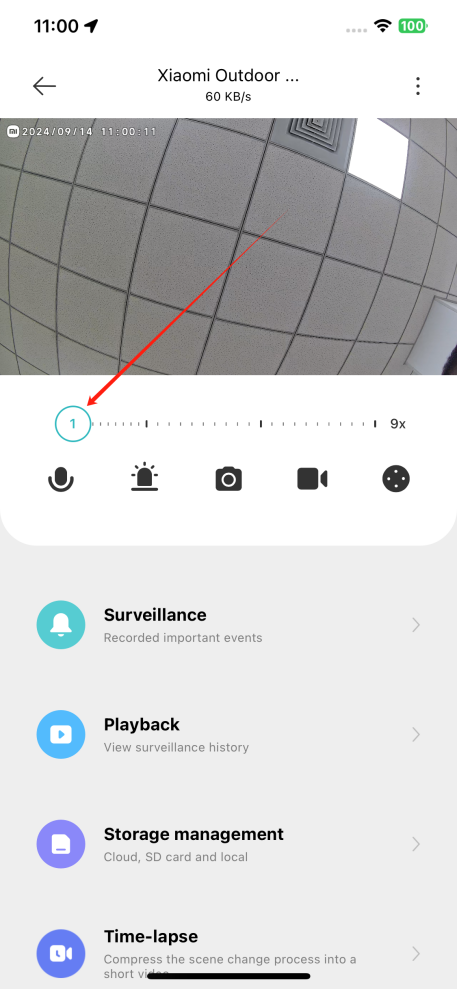
16. Q: How to use the zoom function on the Xiaomi Outdoor Camera CW700S?
A: 1. The camera is equipped with two lenses: a short-focus lens (wide-angle) and a long-focus lens (for distant viewing). By switching lenses of the video stream, slide the zoom axis to focus on details of the focusing area;
2. Slide the zoom axis on the live monitoring interface to zoom in or out.
17. Q: How to check the plugin version of the Xiaomi Outdoor Camera CW700S?
A: Go to the Mi Home/Xiaomi Home APP >> select the camera >> tap the three-dot icon at the upper right corner >> [Additional settings] >> view plugin version.
18. Q: How to use the virtual fence feature of the Xiaomi Outdoor Camera CW700S?
A: 1. In the device interface, tap the three-dot icon on the upper right corner to go to settings >> [AI settings] >> enable the virtual fence feature;
2. Once enabled, the camera will push notifications to your phone if someone crosses the fence. You can also enable [Someone enters the fenced area] and [Someone leaves the fenced area] in [Settings] >> [Home surveillance settings] >> turn on [Home surveillance] >> enable [Detection push notifications] >> [Event notification type], so that you can receive push notifications about the virtual fence while recording videos;
3. Additionally, you can enable [Someone enters the fenced area] and [Someone leaves the fenced area] in [Settings] >> [Camera settings] >> [Sound and light alert] >> [Trigger event type]. The device will play a voice prompt and turn on the supplementary light when detecting these events.
19. Q: How to use the vehicle detection feature of the Xiaomi Outdoor Camera CW700S?
A: 1. In the device interface, tap the three-dot icon on the upper right corner to go to settings >> [AI settings] >> enable the vehicle detection feature. The camera will push notifications to your phone when it detects changes in vehicles in the scene;
2. You can also enable [Vehicle detected] and [Someone approaching vehicle] in [Settings] >> [Home surveillance settings] >> turn on [Home surveillance] >> enable [Detection push notifications] >> [Event notification type] to receive notifications about vehicle detection while recording videos;
3. Additionally, enable [Vehicle detected] and [Someone approaching vehicle] in [Settings] >> [Camera settings] >> [Sound and light alert] >> [Trigger event type]. The device will play a voice prompt and turn on the supplementary light when detecting these events.
Troubleshooting
1. Q: What to do if there's noise or no sound when viewing the real-time monitoring interface of the Xiaomi Outdoor Camera CW700S?
A: 1. The volume for real-time monitoring video is muted by default in the Mi Home/Xiaomi Home APP. You can turn it on in the real-time monitoring interface. If the volume is low, please try to increase your phone's volume;
2. Check if the camera's microphone is blocked by the outer shell;
3. If there is noise in the real-time monitoring video, move your phone away from the camera and avoid placing the camera near electronic devices like refrigerators or microwaves.
2. Q: What to do if the monitoring video of the Xiaomi Outdoor Camera CW700S is choppy or the audio is out of sync?
A: 1. If the video is choppy or frequently shows loading, switch the video quality to automatic or smooth mode;
2. If the audio and video are out of sync, check if the network connection for the camera is stable. If there's too much delay, try exiting and re-entering the real-time monitoring interface.
3. Q: What to do if can't hear the sound of the Xiaomi Outdoor Camera CW700S during a voice call?
A: 1. Check if the phone's sound is too low;
2. Ensure the Mi Home/Xiaomi Home APP has the permission to use the phone's microphone. If not, enable it in your phone settings.
4. Q: What to do if the historical playbacks on the Xiaomi Outdoor Camera CW700S are not continuous or smooth?
A: 1. If the playbacks are not continuous, it is because the option to only record when motion is detected is enabled. This means the camera records only when there is movement;
2. If the playback is choppy, it is due to network issues. Check if too many devices are connected to the camera's network or if other devices are playing videos simultaneously.
5. Q: What to do if the SD card in the Xiaomi Outdoor Camera CW700S is abnormal?
A: 1. Please use a dedicated storage card produced by reputable manufacturers;
2. Ensure the camera has an appropriate storage card installed. Cameras without a storage card cannot record videos or historical playbacks;
3. If the storage card isn't recording or can’t delete files automatically in cycles, you can format the card in the Mi Home/Xiaomi Home APP >> [Settings] >> [Manage storage];
4. If you can't format the card in the APP, use a card reader to format it on a computer. After formatting, power off the camera and reinsert the card.
Note:
Formatting will delete all files on the storage card.
6. Q: What to do if the Mi Home/Xiaomi Home APP indicates that the Xiaomi Outdoor Camera CW700S is offline?
A: 1. Check if the camera is powered off and ensure you're using the original adapter;
2. Try restarting the router;
3. If the device is powered on and the network is fine, check the device's indicator:
(1). Blinking in yellow: The camera is connecting to the network. If you have changed the Wi-Fi name or password, reset the camera and reconnect;
(2). Remaining in yellow: The camera has been reset. Please reconnect;
(3). Blinking in yellow slowly: The camera is upgrading. Please wait for the upgrade to complete.
7. Q: What to do if the indicator on the Xiaomi Outdoor Camera CW700S is blinking in yellow and is not functioning properly?
A: 1. If the indicator is blinking in yellow when connecting to the Mi Home/Xiaomi Home APP, it indicates that the camera cannot connect to the network. Check if the Wi-Fi password is correct and if the network meets the camera's requirements;
2. If the APP was previously connected and suddenly the camera has a yellow blinking indicator, check if the network is stable. If the indicator is blinking in yellow slowly, the device is upgrading. Please wait until the upgrade is complete.
8. Q: What to do if forget the password for the security settings of the Xiaomi Outdoor Camera CW700S?
A: Delete the device in the Mi Home/Xiaomi Home APP, then press and hold the reset button on the camera for about 3 seconds to re-add the camera to the APP.
9. Q: Why does the Xiaomi Outdoor Camera CW700S produce a whistling sound during voice calls?
A: During calls, try to keep the phone and the device at least 10 meters apart to avoid echoing and whistling, which is a normal phenomenon when in close distance.
10. Q: What to do if the Xiaomi Outdoor Camera CW700S has a blurry image or no image during night vision?
A: 1. Ensure the camera lens is clean and free of dust;
2. Make sure the protective film on the camera lens has been removed;
3. Avoid placing reflective objects like glass or white walls close to the lens, as this can cause image issues like the image is brighter nearby and dimmer far away, or the image becomes whiter.
11. Q: What to do if the indicator on the Xiaomi Outdoor Camera CW700S is not lit?
A: Access the camera's real-time monitoring interface in the Mi Home/Xiaomi Home APP, tap the three-dot icon in the upper right corner, go to [Camera settings], and turn on the [Status light].
12. Q: Why is there sound when videos of the Xiaomi Outdoor Camera CW700S are viewed on the phone, but no sound when viewed on the computer?
A: This issue is due to incompatibility with the video playback software on your computer. Try using a different video player, such as VLC.
13. Q: What to do if the videos recorded on the SD card in the Xiaomi Outdoor Camera CW700S are not continuous or the audio is out of sync?
A: 1. Restart the device to see if it resolves the issue;
2. Avoid frequently hot-swapping the SD card. It should be inserted or removed only when the camera is powered off. Frequent hot-swapping can degrade card performance, causing recording issues;
3. Check if the SD card's read speed is too low;
4. Replace the SD card.
14. Q: What to do if the Xiaomi Outdoor Camera CW700S cannot recognize the SD card?
A: 1. Restart the device;
2. Check if the camera's firmware and the Mi Home/Xiaomi Home APP need updates;
3. Clear the data of the Mi Home/Xiaomi Home APP;
4. Replace the SD card.
Note:
Memory cards have a lifespan. If a card has been used for an extended period, it will become unresponsive due to repeated writing and erasing, so it's recommended to replace it with a different brand.
15. Q: What to do if the SD card in the Xiaomi Outdoor Camera CW700S isn't recording video or cannot delete videos automatically?
A: 1. Check if the camera's firmware and the Mi Home/Xiaomi Home APP need updates.
Access the Mi Home/Xiaomi Home APP >> select the camera >> tap the three-dot icon in the upper right >> [Manage storage] >> check if the storage switch is turned off or if it is set to record only when motion is detected;
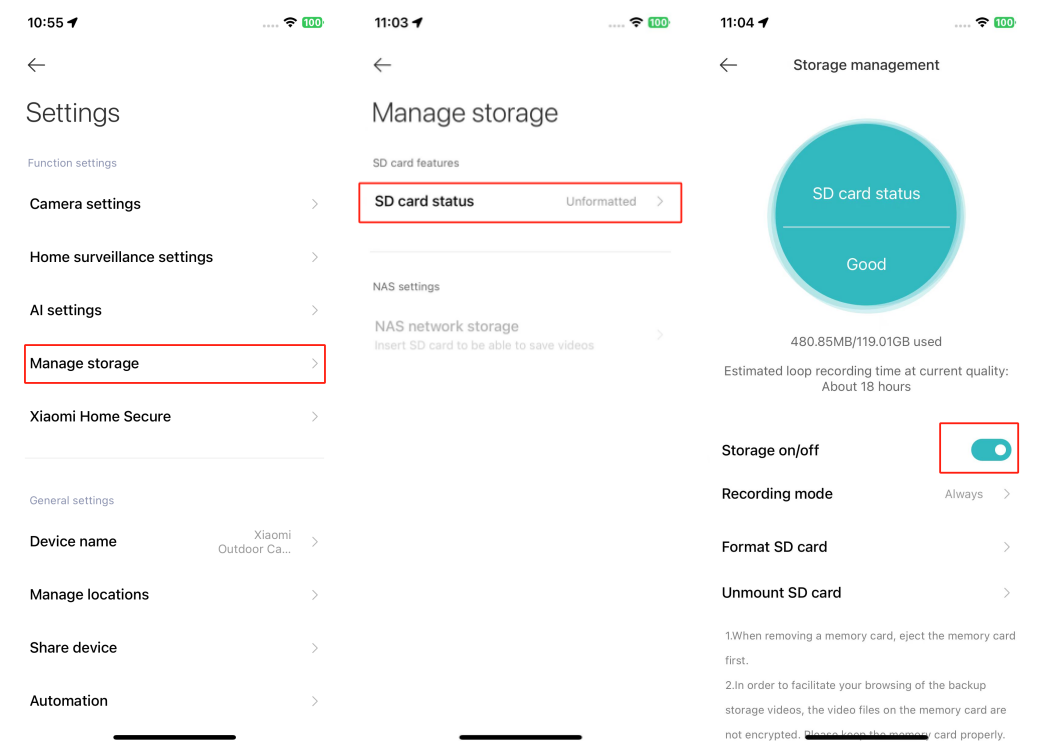
2. Format the SD card in the APP (note that formatting will erase all videos, so back them up first);
3. If you cannot format the card in the APP, use a card reader to format it on a computer. After formatting, power off the camera and reinsert the card;
4. If the SD card cannot record video, it is due to the hardware issue of the card. Consider replacing it to see if the issue persists.
Enable the light alarm to activate the supplementary light when motion is detected.
Effective time:
You can set specific times for alarm activation, including any time, custom, or repeated intervals.
11. Q: How to use the time-lapse feature on the Xiaomi Outdoor Camera CW700S?
A: 1. Open the Mi Home/Xiaomi Home APP >> select the camera >> [Time-lapse];
2. Tap [Start recording] at the bottom of the recording interface to begin, and tap again to end;
3. Tap [Recording mode] to choose different modes and tap [Scheduled recording] to set scheduled start times.
12. Q: How to use gesture control for PTZ on the Xiaomi Outdoor Camera CW700S?
A: Open the Mi Home/Xiaomi Home APP >> select the camera >> [Camera settings] >> [PTZ gesture rotation].
Enable the feature, and you can swipe on the live monitoring interface to control the PTZ direction.
13. Q: How to use the auto detection feature on the Xiaomi Outdoor Camera CW700S?
A: 1. Open the Mi Home/Xiaomi Home APP >> select the camera >> [Camera settings] >> [Auto detection];
2. Enable the Auto detection switch, and the camera will automatically detect according to the set trajectory;
3. You can select the preset detection frequency or customize it.
Panoramic detection:
The panoramic detection requires at least two frequently viewed locations to function properly.
Add to favorites:
Open the Mi Home/Xiaomi Home APP >> select the camera >> tap the PTZ control icon >> tap the [Add to favorites] icon at the upper right corner of the PTZ control >> tap [+].
14. Q: Which devices support viewing the monitoring interface of the Xiaomi Outdoor Camera CW700S?
A: The camera can be viewed on compatible devices, which include smartphones and pads with Android 8.0 & iOS 12.0 or above.
15. Q: How to set up NAS network storage for the Xiaomi Outdoor Camera CW700S?
A: In the real-time monitoring interface, tap the three-dot icon at the top right >> [Manage storage] >> [NAS network storage]. Follow the prompts to add the storage device.
Note:
The router or network disk connected to the camera must support storage forwarding, and the camera must have a functional SD card and recording enabled.
16. Q: How to use the zoom function on the Xiaomi Outdoor Camera CW700S?
A: 1. The camera is equipped with two lenses: a short-focus lens (wide-angle) and a long-focus lens (for distant viewing). By switching lenses of the video stream, slide the zoom axis to focus on details of the focusing area;
2. Slide the zoom axis on the live monitoring interface to zoom in or out.
17. Q: How to check the plugin version of the Xiaomi Outdoor Camera CW700S?
A: Go to the Mi Home/Xiaomi Home APP >> select the camera >> tap the three-dot icon at the upper right corner >> [Additional settings] >> view plugin version.
18. Q: How to use the virtual fence feature of the Xiaomi Outdoor Camera CW700S?
A: 1. In the device interface, tap the three-dot icon on the upper right corner to go to settings >> [AI settings] >> enable the virtual fence feature;
2. Once enabled, the camera will push notifications to your phone if someone crosses the fence. You can also enable [Someone enters the fenced area] and [Someone leaves the fenced area] in [Settings] >> [Home surveillance settings] >> turn on [Home surveillance] >> enable [Detection push notifications] >> [Event notification type], so that you can receive push notifications about the virtual fence while recording videos;
3. Additionally, you can enable [Someone enters the fenced area] and [Someone leaves the fenced area] in [Settings] >> [Camera settings] >> [Sound and light alert] >> [Trigger event type]. The device will play a voice prompt and turn on the supplementary light when detecting these events.
19. Q: How to use the vehicle detection feature of the Xiaomi Outdoor Camera CW700S?
A: 1. In the device interface, tap the three-dot icon on the upper right corner to go to settings >> [AI settings] >> enable the vehicle detection feature. The camera will push notifications to your phone when it detects changes in vehicles in the scene;
2. You can also enable [Vehicle detected] and [Someone approaching vehicle] in [Settings] >> [Home surveillance settings] >> turn on [Home surveillance] >> enable [Detection push notifications] >> [Event notification type] to receive notifications about vehicle detection while recording videos;
3. Additionally, enable [Vehicle detected] and [Someone approaching vehicle] in [Settings] >> [Camera settings] >> [Sound and light alert] >> [Trigger event type]. The device will play a voice prompt and turn on the supplementary light when detecting these events.
Troubleshooting
1. Q: What to do if there's noise or no sound when viewing the real-time monitoring interface of the Xiaomi Outdoor Camera CW700S?
A: 1. The volume for real-time monitoring video is muted by default in the Mi Home/Xiaomi Home APP. You can turn it on in the real-time monitoring interface. If the volume is low, please try to increase your phone's volume;
2. Check if the camera's microphone is blocked by the outer shell;
3. If there is noise in the real-time monitoring video, move your phone away from the camera and avoid placing the camera near electronic devices like refrigerators or microwaves.
2. Q: What to do if the monitoring video of the Xiaomi Outdoor Camera CW700S is choppy or the audio is out of sync?
A: 1. If the video is choppy or frequently shows loading, switch the video quality to automatic or smooth mode;
2. If the audio and video are out of sync, check if the network connection for the camera is stable. If there's too much delay, try exiting and re-entering the real-time monitoring interface.
3. Q: What to do if can't hear the sound of the Xiaomi Outdoor Camera CW700S during a voice call?
A: 1. Check if the phone's sound is too low;
2. Ensure the Mi Home/Xiaomi Home APP has the permission to use the phone's microphone. If not, enable it in your phone settings.
4. Q: What to do if the historical playbacks on the Xiaomi Outdoor Camera CW700S are not continuous or smooth?
A: 1. If the playbacks are not continuous, it is because the option to only record when motion is detected is enabled. This means the camera records only when there is movement;
2. If the playback is choppy, it is due to network issues. Check if too many devices are connected to the camera's network or if other devices are playing videos simultaneously.
5. Q: What to do if the SD card in the Xiaomi Outdoor Camera CW700S is abnormal?
A: 1. Please use a dedicated storage card produced by reputable manufacturers;
2. Ensure the camera has an appropriate storage card installed. Cameras without a storage card cannot record videos or historical playbacks;
3. If the storage card isn't recording or can’t delete files automatically in cycles, you can format the card in the Mi Home/Xiaomi Home APP >> [Settings] >> [Manage storage];
4. If you can't format the card in the APP, use a card reader to format it on a computer. After formatting, power off the camera and reinsert the card.
Note:
Formatting will delete all files on the storage card.
6. Q: What to do if the Mi Home/Xiaomi Home APP indicates that the Xiaomi Outdoor Camera CW700S is offline?
A: 1. Check if the camera is powered off and ensure you're using the original adapter;
2. Try restarting the router;
3. If the device is powered on and the network is fine, check the device's indicator:
(1). Blinking in yellow: The camera is connecting to the network. If you have changed the Wi-Fi name or password, reset the camera and reconnect;
(2). Remaining in yellow: The camera has been reset. Please reconnect;
(3). Blinking in yellow slowly: The camera is upgrading. Please wait for the upgrade to complete.
7. Q: What to do if the indicator on the Xiaomi Outdoor Camera CW700S is blinking in yellow and is not functioning properly?
A: 1. If the indicator is blinking in yellow when connecting to the Mi Home/Xiaomi Home APP, it indicates that the camera cannot connect to the network. Check if the Wi-Fi password is correct and if the network meets the camera's requirements;
2. If the APP was previously connected and suddenly the camera has a yellow blinking indicator, check if the network is stable. If the indicator is blinking in yellow slowly, the device is upgrading. Please wait until the upgrade is complete.
8. Q: What to do if forget the password for the security settings of the Xiaomi Outdoor Camera CW700S?
A: Delete the device in the Mi Home/Xiaomi Home APP, then press and hold the reset button on the camera for about 3 seconds to re-add the camera to the APP.
9. Q: Why does the Xiaomi Outdoor Camera CW700S produce a whistling sound during voice calls?
A: During calls, try to keep the phone and the device at least 10 meters apart to avoid echoing and whistling, which is a normal phenomenon when in close distance.
10. Q: What to do if the Xiaomi Outdoor Camera CW700S has a blurry image or no image during night vision?
A: 1. Ensure the camera lens is clean and free of dust;
2. Make sure the protective film on the camera lens has been removed;
3. Avoid placing reflective objects like glass or white walls close to the lens, as this can cause image issues like the image is brighter nearby and dimmer far away, or the image becomes whiter.
11. Q: What to do if the indicator on the Xiaomi Outdoor Camera CW700S is not lit?
A: Access the camera's real-time monitoring interface in the Mi Home/Xiaomi Home APP, tap the three-dot icon in the upper right corner, go to [Camera settings], and turn on the [Status light].
12. Q: Why is there sound when videos of the Xiaomi Outdoor Camera CW700S are viewed on the phone, but no sound when viewed on the computer?
A: This issue is due to incompatibility with the video playback software on your computer. Try using a different video player, such as VLC.
13. Q: What to do if the videos recorded on the SD card in the Xiaomi Outdoor Camera CW700S are not continuous or the audio is out of sync?
A: 1. Restart the device to see if it resolves the issue;
2. Avoid frequently hot-swapping the SD card. It should be inserted or removed only when the camera is powered off. Frequent hot-swapping can degrade card performance, causing recording issues;
3. Check if the SD card's read speed is too low;
4. Replace the SD card.
14. Q: What to do if the Xiaomi Outdoor Camera CW700S cannot recognize the SD card?
A: 1. Restart the device;
2. Check if the camera's firmware and the Mi Home/Xiaomi Home APP need updates;
3. Clear the data of the Mi Home/Xiaomi Home APP;
4. Replace the SD card.
Note:
Memory cards have a lifespan. If a card has been used for an extended period, it will become unresponsive due to repeated writing and erasing, so it's recommended to replace it with a different brand.
15. Q: What to do if the SD card in the Xiaomi Outdoor Camera CW700S isn't recording video or cannot delete videos automatically?
A: 1. Check if the camera's firmware and the Mi Home/Xiaomi Home APP need updates.
Access the Mi Home/Xiaomi Home APP >> select the camera >> tap the three-dot icon in the upper right >> [Manage storage] >> check if the storage switch is turned off or if it is set to record only when motion is detected;
2. Format the SD card in the APP (note that formatting will erase all videos, so back them up first);
3. If you cannot format the card in the APP, use a card reader to format it on a computer. After formatting, power off the camera and reinsert the card;
4. If the SD card cannot record video, it is due to the hardware issue of the card. Consider replacing it to see if the issue persists.
Does it help?
Yes
No