

How to use the Xiaomi TV A 43 2025 as a gaming screen or projector?
You can use the feature of connecting an external monitor or Miracast to make the Xiaomi TV A 43 2025 a gaming screen or projector. When used for gaming, it offers a large high-resolution display, reduces input lag, and enhances the overall experience with premium sound effects. As a projector, the TV supports wireless projection, enabling easy content sharing without physical connections.
For your reference, here are the two methods to do so:
Method 1:
1. Connect the video output port of your computer or game console with the cable such as HDMI, to the TV's video input port. Make sure that you are using a high-quality cable and that they are properly connected to both of your devices. Navigate to [Settings];
2. Select the [Input source] icon and switch the signal source to the HDMI channel;
3. Choose the available input resources.

Note:
In some cases, you need to adjust the display settings on your game console to match your TV's resolution. This can be found in the console's settings menu.
Method 2:
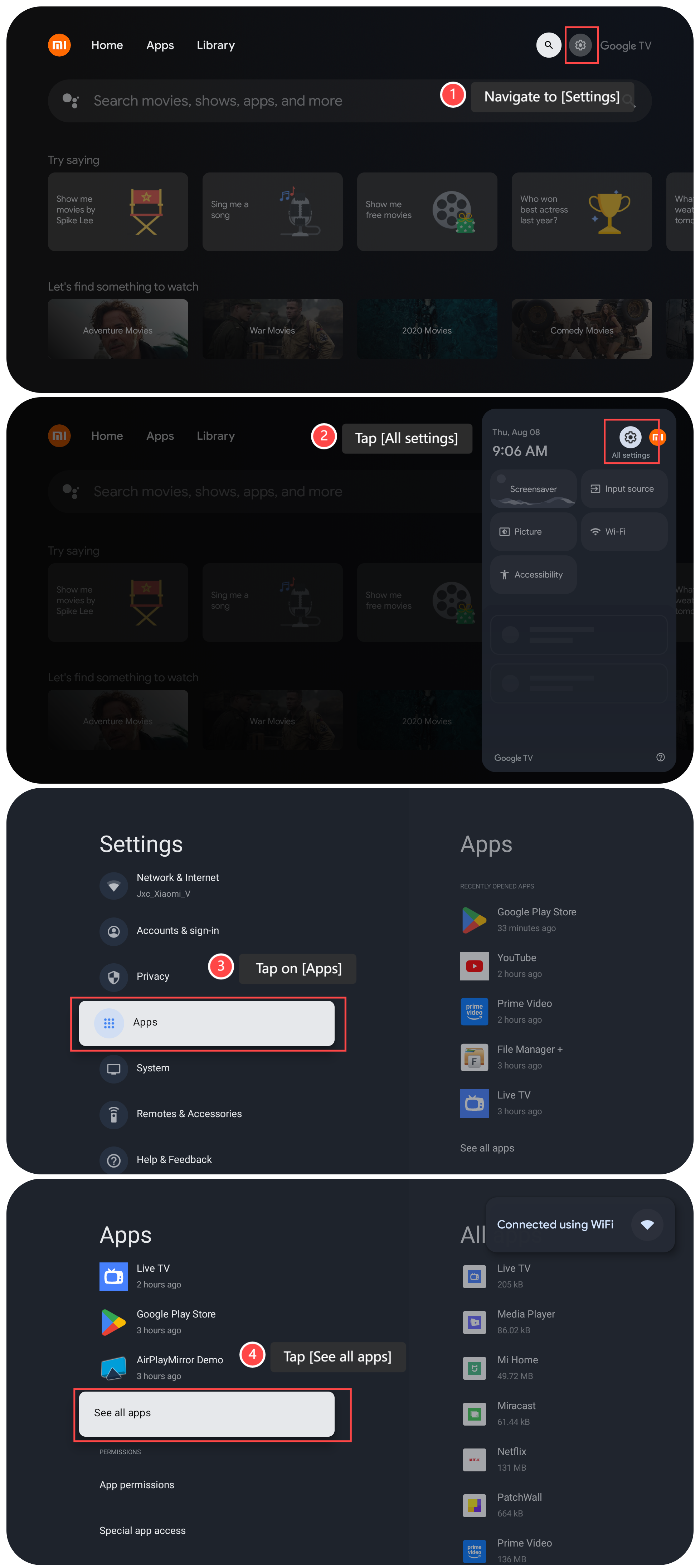
1. Navigate to [Settings];
2. Tap [All settings];
3. Tap on [Apps];
4. Then tap [See all apps];
5. Select [Miracast];
6. Tap [Open];
7. Turn on [Definition] or [Fluency];
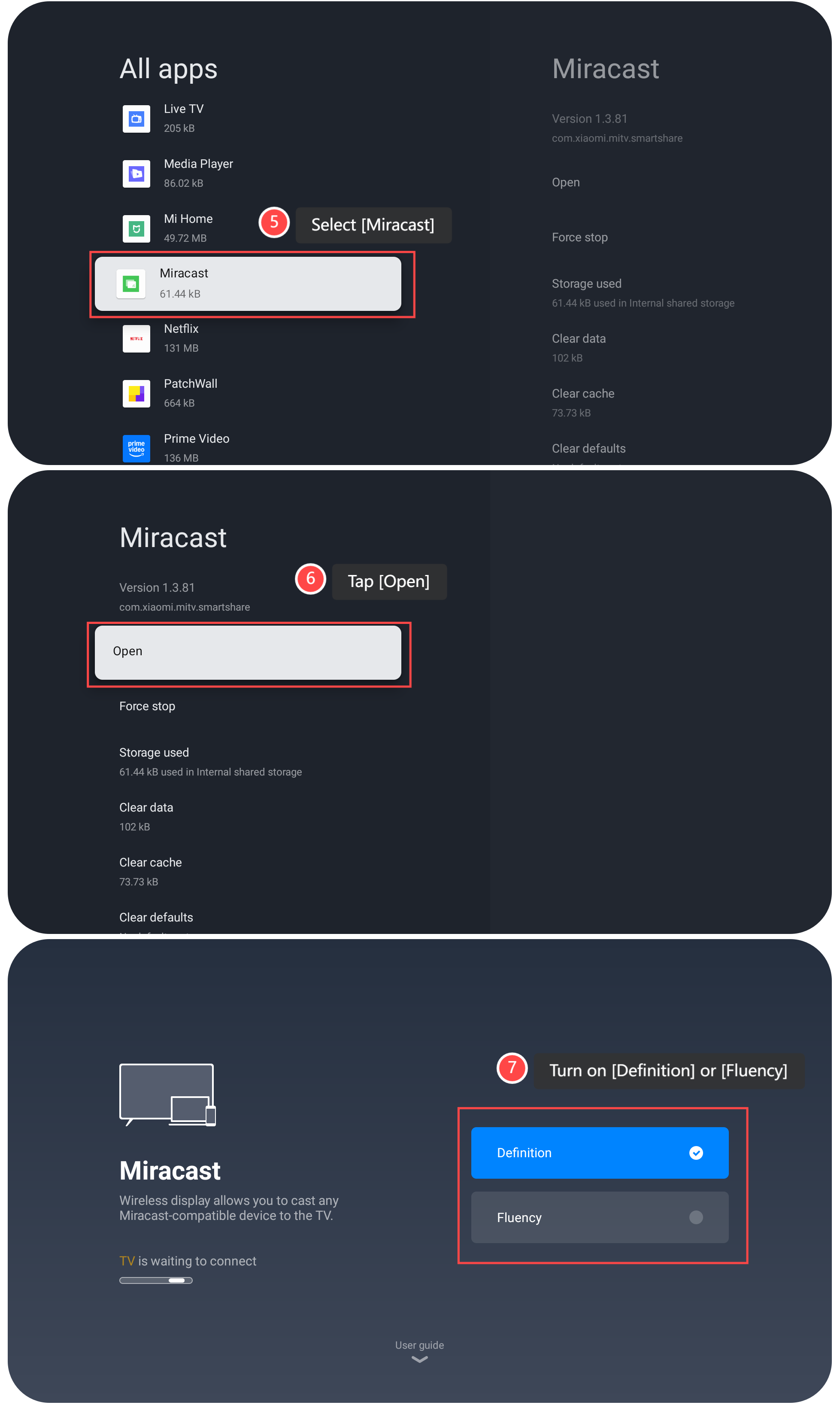
8. Use the device with the built-in feature of Miracast such as your smartphone or tablet to cast the screen.
For your reference, here are the two methods to do so:
Method 1:
1. Connect the video output port of your computer or game console with the cable such as HDMI, to the TV's video input port. Make sure that you are using a high-quality cable and that they are properly connected to both of your devices. Navigate to [Settings];
2. Select the [Input source] icon and switch the signal source to the HDMI channel;
3. Choose the available input resources.
Note:
In some cases, you need to adjust the display settings on your game console to match your TV's resolution. This can be found in the console's settings menu.
Method 2:
1. Navigate to [Settings];
2. Tap [All settings];
3. Tap on [Apps];
4. Then tap [See all apps];
5. Select [Miracast];
6. Tap [Open];
7. Turn on [Definition] or [Fluency];
8. Use the device with the built-in feature of Miracast such as your smartphone or tablet to cast the screen.
Does it help?
Yes
No