

Xiaomi Outdoor Camera CW400 FAQ
Features
1.Q: What are the features of Xiaomi Outdoor Camera CW400?
A:1.4MP with large aperture,Ultra-clear 2.5K picture quality;
2.4MP ultra-clear imaging+ f/1.6 large aperture lens +2 White lights+2Infrared lights. Truly clear images, even in the dark nights;
3.Dual gimbal design with a 360° horizontal view and 160° vertical view to provide a complete security solution.
4.Professional design with IP66 water resistance. Ready for tough-weather conditions
5.The built-in high-gain dual-antenna design ensures long-distance stability of the camera network, increasing the transmission distance.
6.Featuring a built-in high-sensitivity microphone and a high-quality, high-power speaker.
Easily pick up sound from long distances(15 meters)so that your dialogues are as clear as if you were communicating face-to-face.
7.Time-lapse photography, let the camera condense and present the details. Create something great from outdoor splendor.
8.When the camera detects someone in the monitoring area,
it will automatically trigger an audible alarm with flashing lights, driving away potential intruders.
9.When a human is detected in the field of view, the new generation AI human detection algorithm automatically starts recording video alarms and sends a reminder to your smartphone.
*2.5K: horizontal resolution more than 2500 pixels; resolution: 2560 x 1440
2.Q: What is included as standard with the Xiaomi Outdoor Camera CW400?
A:Camera x1,Power adapter x1, Wall mounting bracket x1, Waterproof rubber strip for power cable x1,Wall-mounting/ceiling-mounting template sticker x1, Screw accessories package x1 (Bolt specification: φ6mm*30mm×4, Screw specification: φ4mm*40mm×4, Screw specification: φ1/4"*9.5mm×1), User manual x1
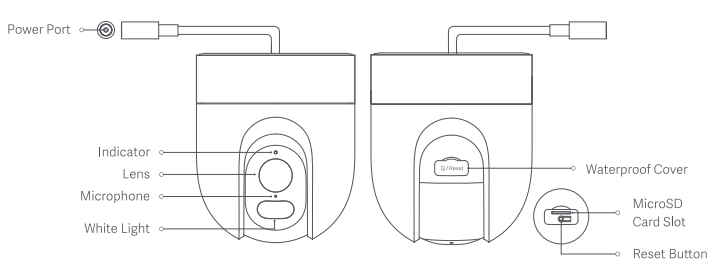
3.Q: Xiaomi Outdoor Camera CW400 appearance introduction.
A:
4.Q: What is the Rated Input of Xiaomi Outdoor Camera CW400?
A:12V1A. For the normal use, be sure to use the original adapter.
5.Q: What are the installation options for the Xiaomi Outdoor Camera CW400?
A:Three installation methods are available: ceiling, side or pole mounting. Users can
choose the installation method they require.
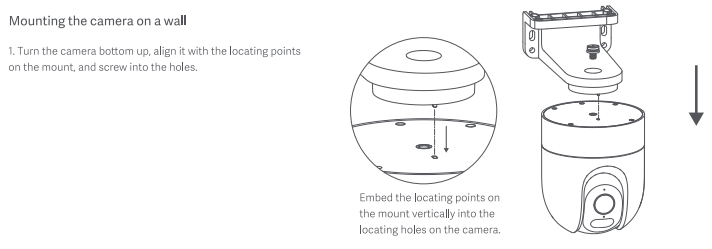
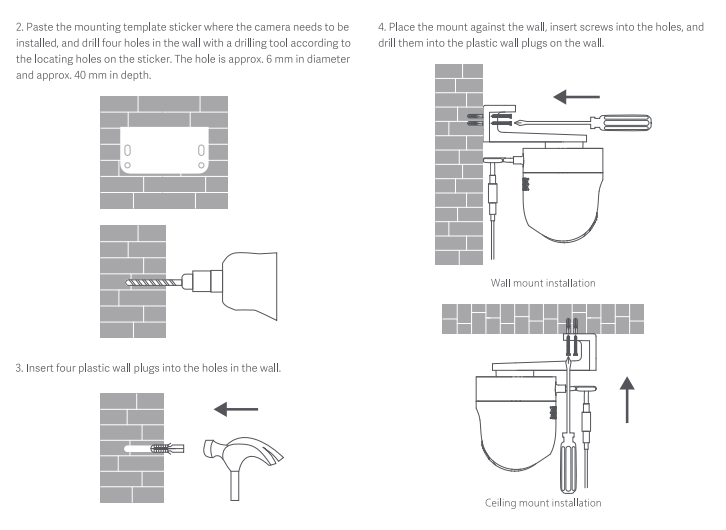
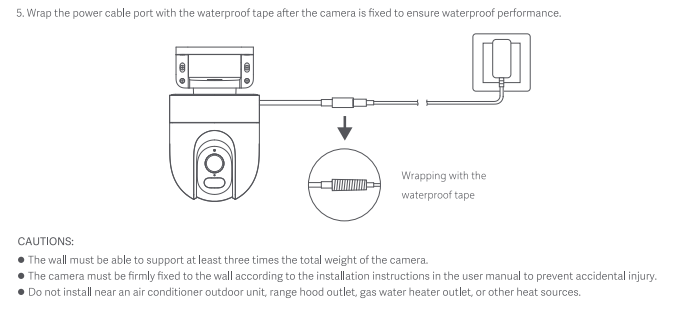
6.Q: What are the steps for wall mounting the Xiaomi Outdoor Camera CW400?
A:See the installation steps diagram
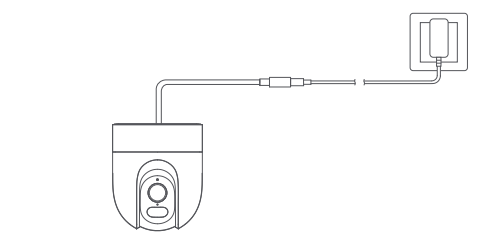
7.Q: How to turn on the Xiaomi Outdoor Camera CW400?
A:Insert the power adapter cable into the power port automatically turn on the camera.
8.Q: What are the status indicators of Xiaomi Outdoor Camera CW400? What do they mean?
A: There is one indicator that will show blue or yellow.
Yellow: Awaiting connection
Blinking blue: Connecting to the server
Blinking yellow:Connecting to a network
Keeping blue: Connected successfully
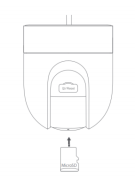
9.Q: How to install MicroSD card on Xiaomi Outdoor Camera CW400?
A:Make sure that the camera is unplugged. Open the waterproof cover above the microSD card slot and insert a microSD card with its contact points facing down.
Note: After installing or removing the microSD card, make sure to place the waterproof cover back on the card slot properly to prevent water from entering the camera and affecting normal use.
10.Q: What type of MicroSD card should I use for the Xiaomi Outdoor Camera CW400?
A:
Please use a microSD card from a qualified brand (the camera supports a microSD card with a maximum capacity of 256 GB and the FAT32 format only, and a microSD card with a capacity of 64 GB or above may need to be formatted to the FAT32 format before use by going to Settings >Storage settings on the camera's plug-in page in the Mi Home/Xiaomi Home app). It is recommended that the microSD card has a read/write speed of no less than U1/Class 10.
Note: After installing or removing the microSD card, make sure to place the waterproof cover back on the card slot properly to prevent water from entering the camera and affecting normal.
11.Q: How long can the 32GB memory card store videos?
A: The 32GB memory card is expected to store around 3 days of video duration.
64GB memory card is expected to store about 6 days of video.
A 128GB memory card is expected to store around 12 days of video.
A 256GB memory card is expected to store about 24 days of video.
The quality of the video recorded onto the memory card is 2.5K (1440P) quality.
12.Q: How should I restore the factory settings of Xiaomi Outdoor Camera CW400?
A:Press the reset button if changing the network or the Xiaomi Account connected to the camera. A voice prompt will be heard once the reset is completed.
Note: Resetting the camera will not delete any data on the microSD card.
13.Q: Does Xiaomi Outdoor Camera CW400 support Infrared night vision?
A: Yes, the Xiaomi Outdoor Camera CW400 can automatically switch to night vision mode or smart full-colour night vision at night according to the level of light around you. the camera has Infrared light and White light, the distance of the night vision is up to 9 metres, and you can shoot clearly in the dark.
14.Q: Can Xiaomi Outdoor Camera CW400 rotate 360°?
A: Yes. Dual gimbal design with a 360°horizontal view and 160°vertical view to provide a
complete security solution.
15.Q: Does Xiaomi Outdoor Camera CW400 support NAS dump function?
A: No.
16.Q: Where can I check the SN number of Xiaomi Outdoor Camera CW400?
A: 1.The SN number can be viewed from the bottom of the product.
2.There will be SN barcode on the back of the product package, you can check the SN number here;
17.Q: What kind of lens does the Xiaomi Outdoor Camera CW400 have?
A: Xiaomi Outdoor Camera CW400 adopts F1.6 aperture lens for clearer picture quality.
18.Q: Can Xiaomi Outdoor Camera CW400 be installed for outdoor use?
A: Yes. The professional outdoor IP66 water resistant design ensures reliable outdoor use and easily handles complex outdoor environments.
19.Q:How to view the certificate of conformity of Xiaomi Outdoor Camera CW400?
A: The certificate of conformity of this equipment can be viewed in the lower right corner of the sticker position on the back of the equipment package.
20.Q: Does the Xiaomi Outdoor Camera CW400 need to be plugged in? Or is it powered by batteries?
A: It needs to be connected to a power supply. The camera does not contain batteries, it must be plugged in to use, please note that be sure to use the original 121A adapter.
21.Q: Does the Xiaomi Outdoor Camera CW400 have 3C certification?
A: This device itself does not require 3C certification.
22.Q: Does Xiaomi Outdoor Camera CW400 support Two-way voice calling?
A: Featuring a built-in highsensitivity microphone and a high-quality, high-power speaker. It supports two-way voice calling between users and the camera using the Mi Home App of the mobile phone.
How to use: Mi Home->Camera->Turn on the microphone function, you can make a voice call. When hang up, press the microphone button again. (Requires the camera firmware version to be upgraded to 5.1.5_0228 and above to work properly)
If the user's camera firmware version is 5.1.5_0228 or below, and there is a need for voice call, please use this method:
Enter the camera -> turn on the microphone function and speaker function -> the mobile phone side can hold down the microphone to speak to the camera side, and release the button when finished -> you can hear the voice of the camera side through the speaker. Conduct a voice dialogue.
23.Q: Does Xiaomi Outdoor Camera CW400 support Bluetooth gateway function?
A: No.
24.Q: What are the things I need to pay attention to when using the Xiaomi Outdoor Camera CW400?
A:1.The operating temperature for the camera ranges from-30℃~60℃. Do not use the camera in environments with temperatures above or below the specified range.
2.The camera is a precision electronic product that has an IP66 dust-tight and water-resistant rating, To ensure normal use, do not use the camera in extremely humid environments or locations that may cause water ingress.
3.To improve the camera's performance, do not place it where its lens faces or is next to a reflective surface, such as glass and white walls, as this will cause the image to appear overly bright in areas close to the camera and darker in areas further away, or may cause the camera to produce white images.
4.When using Wi-Fi,please make sure that the camera is installed in an area with a strong Wi-Fi signal. Do not install the camera near microwave ovens or other objects or places that may affect its Wi-Fi signal.
5.If the power cable is damaged or broken,it must be replaced by professionals from the manufacturer, after-sales service department,or departments of similar functions to avoid safety hazards.
APP Related
1.Q: How to access Mi Home App for Xiaomi Outdoor Camera CW400?
A:This product works with the Mi Home/Xiaomi Home app*. Use the Mi Home/Xiaomi Home app to control your device and to interact with other smart home devices. Scan the QR code to download and install the app. You will be directed to the connection setup page if the app is installed already. Or search for "Mi Home/Xiaomi Home" in the app store to download and install it. Open the Mi Home/Xiaomi Home app, tap "+" on the upper right and then follow the instructions to add your device.
* The app is referred to as Xiaomi Home app in Europe (except for Russia), The name of the app displayed on your device should be taken as the default
Note:The version of the app might have been updated, please follow the instructions based on the current app version.Make sure that the camera turns on and the network connection is stable during connecting, The indicator keeps yellow when the camera is turned on, and then changes to blue after the successful connection between the camera and the app.
2.Q: What are the functions of the buttons on Xiaomi Outdoor Camera CW400 live monitoring interface?
1.Sleep: Click the Sleep button to turn off the camera. After closing, the camera will not be able to live broadcast and video recording. Click it again to turn on the camera.
2.Mute button: Every time you enter the camera, the default monitoring interface is the mute interface. If you want to have sound when viewing the monitoring screen, Click the mute button to turn on the sound.
3.You can adjust the sharpness of the monitoring picture here, optional: 360P, 2.5K, automatic (auto means that the camera will Automatically adjust the picture definition in the network environment).
4. Lights: the default light off state, click OK to open the light, the light will last 1 minute, open the process can be clicked off again.
5.Full screen: Click this button, the camera monitoring screen will enter the horizontal screen interface.
6.Voice call: Click the microphone button to make a remote call with the camera through the Mi Home App on the mobile phone.
7. Audible and visual warning: Click the alarm button, Audible and visual warning lasts for 30s, you can click again to cancel the playback.
8.Screenshot: You can take a screenshot of the current monitoring screen, and a picture will be generated and saved to the local album and Mi Home App .
9.Screen recording: Click the screen recording button to record the current monitoring interface and save the video to the local photo album and Mi Home App middle.
10.PTZ control; click this button, the PTZ control interface will pop up, which can control the camera to turn up, down, left, and right.
11. Always watch position: After setting "Always watch position", you can locate the position you care about at anytime and anywhere, and quickly check the changes in your home.
How to use: Check the frequently watched position on the live PTZ control item.
3.Q: How to use the Humanoid Tracking of Xiaomi Outdoor Camera CW400?
A: 1.Mi Home App -> select the device -> click "..." in the upper right corner -> camera settings->Humanoid Tracking ON/OFF.
When it is turned on, it will detect the movement and follow the shooting.
4.Q: How to manage faces on Xiaomi Outdoor Camera CW400?
A:Mi Home App -> select the device -> click "..." in the upper right corner -> camera settings->->AI->Face Recognition->Make a note of the faces that have been recognised but not noted.
You can note the faces that have been recognised but not noted.
You need to buy cloud storage to realise the face recognition function.
Unannotated faces cannot be deleted, and annotated faces will be released and saved in the unannotated faces after deletion.
5.Q:How to set Home Surveillance for Xiaomi Outdoor Camera CW400 ?
A:Mi Home -> Camera -> Home Surveillance -> Settings in the upper right corner -> You can set Home Surveillance on/off -> Home Surveillance time period, sensitivity setting, alarm time interval, alarm message push on/off, push event.
1. Time period for housekeeping: You can set up all-day care or time-divided care;
2. Partition sensitivity setting: divided into high sensitivity, middle and low sensitivity selection;
3. Alarm time interval: The alarm time interval can be divided into 3/5/10/30 minutes for selection; (you can choose the system preset time period interval by yourself, and you cannot customize the interval time)
Low sensitivity range: about 1~2.5 metres
Medium sensitivity range: about 2.5~5 metres
High sensitivity range: about 5~7.5 metres
Alarm time interval: The alarm time interval can be divided into 3-30 minutes for selection; (you can choose the system preset time period interval by yourself, and you cannot customize the interval time)
Push event: push event is divided into three types for selection, screen change push/care area someone moves push/smart scene trigger push.
Home Surveillance is turned on , each mobile video can be recorded for about 9 seconds and stored in the cloud. The videos in Home Surveillance will be rolled over every 7 days.
Note: Videos in Home Surveillance cannot be deleted in batches;
You can also use Home Surveillance without purchasing a memory card/cloud storage .
6.Q: How to deal with inaccurate face recognition of Xiaomi Outdoor Camera CW400?
A: 1. The best recognition distance for face recognition is within 3.5 metres from the camera, too far will affect the accuracy, such as poor light in cloudy days or night vision at night, the accuracy of face recognition will be reduced;
Mi Home App->Watchdog Assistant->Click on Alarm Video->Click on "Recognition Error Reporting" button, click on Feedback to give feedback. We will continue to optimise this feature.
7.Q: What should I do if I don't like the smart box shown in the live broadcast interface of Xiaomi Outdoor Camera CW400?
A: Mi Home App->Camera->Click the upper right corner "..." -> Camera Settings -> Turn off the Smart Frame switch.
After turning on the Smart Frame, the device will mark the green frame position according to the recognised frame.
8.Q: How to watch back the videos in the memory card of Xiaomi Outdoor Camera CW400?
A:Mi Home App->Playback to view the video can be.
9.Q: How to format the memory card of Xiaomi Outdoor Camera CW400 ?
A:Mi Home App -> Camera -> "..." in the upper right corner -> Storage Settings -> Memory Card Status -> Format Memory Card.
Formatting the memory card will clear all the videos in the memory card, please save the video first.
10.Q:How to update the firmware of Xiaomi Outdoor Camera CW400?
A:Mi Home App -> Camera -> "..." in the upper right corner -> Firmware Upgrade -> If there is an update, please update the firmware in time.
11.Q:DoesXiaomi Outdoor Camera CW400 support access to HomeKit ?
A: Not supported.
12.Q:How to use Audible and visual warning on Xiaomi Outdoor Camera CW400?
A:Audible alarm:
1.Mi Home App -> select the device -> click "..." in the upper right corner -> camera settings->Audible and visual warning->Audible and visual warning. in the upper right corner -> camera settings->Audible and visual warning->audible alarm->Enable sound effect
2. When you turn on the audible alarm, the camera will automatically announce the recorded voice when it detects a screen change.
3. You can choose the preset voice as the announcement voice, or you can record it by yourself.
B: visual warning:
1. Click Mi Home App -> select the device -> click "..." in the upper right corner -> camera settings->Audible and visual warning->Enable light.
2.After turning on visual warning, the fill light will be turned on automatically when the camera detects a change in the screen.
C: Effective time:
You can set the time for alarm, set any time, custom time and repeat time for voice alarm
13.Q: How to use Time-lapse photography on Xiaomi Outdoor Camera CW400?
A: 1. Mi Home App->Camera->Time-lapse photography.
2.Tap the "Start Shooting" button at the bottom of the shooting screen to start shooting; tap it again to end the shooting.
3.Tap the shooting mode button to select different modes for shooting; tap the booking shooting button to set the start time for shooting.
14.Q: How to use the gimbal gesture rotation function on Xiaomi Outdoor Camera CW400?
A:Mi Home App -> select the device -> click "..." in the upper right corner -> camera settings -> calibration, in the live monitoring window interface you can gesture swipe to turn the camera. in the upper right corner -> camera settings -> calibration, you can swipe to rotate the gimbal direction in the live monitoring window interface.
15.Q: How to use the auto cruise function of Xiaomi Outdoor Camera CW400?
A: 1.Mi Home App -> select the device -> click "..." in the upper right corner -> camera settings->auto cruise.
2.Turn on the cruise settings switch button, the camera will follow the pre-set trajectory, automatically cruise around, after turning on, the device cruises
3. You can set the built-in cruise frequency time (custom) to cruise, click the cruise frequency to select the interval (custom) frequency for time control
Fixed-point cruise:
Fixed-point cruise needs to set at least 2 points to open normally.
Troubleshooting
1.Q:What should I do if the Xiaomi Outdoor Camera CW400 cannot hear the sound or there is noise when viewing the real-time video?
A:1.Mi Home App turns off the volume of real-time video by default, you can turn on the volume button in the video window of Mi Home App ; if the volume is low, you can increase the volume of the phone;
2. Check that the camera mike holes are not obscured by the housing;
3.If there is noise in the real-time video, please keep the mobile phone away from the camera, and avoid placing the camera in electronic devices such as refrigerators and microwave ovens next to equipment;
2.Q:What should I do if the video freezes or the picture and sound are out of sync when viewing the camera screen on Xiaomi Outdoor Camera CW400 ?
A:1. When the video freezes or displays loading frequently, please switch the video definition to automatic or smooth mode;
2. When the picture and sound are not synchronized, please check whether the network connected to the camera is normal. If the delay is too large, try to exit the video
re-enter frequently.
3.Q:What should I do if the Xiaomi Outdoor Camera CW400 cannot hear the sound on the camera side during a call?
A:1. Check whether the sound on the mobile phone is too small to cause no sound;
2. Check whether the Mi Home App has obtained the permission to use the microphone (recording) of the mobile phone. If not, please open the relevant permission in the phone settings.
4.Q:What should I do if the history video of Xiaomi Outdoor Camera CW400 is not continuous or smooth?
A: 1. If the video in the memory card is not continuous, it may be that only recording moving pictures is enabled. After this function is turned on, the camera will only record when the picture changes; (if the cloud storage video is not continuous, it is normal, and the cloud storage video Only recording moving pictures, not 24 hours recording)
2. If the video freezes, it may be caused by the network. Check whether there are too many devices connected to the network connected to the camera, or whether there are other devices playing video at the same time.
5.Q:What should I do if the memory card of Xiaomi Outdoor Camera CW400 is abnormal?
A: 1. Please use a special high-speed memory card produced by a regular manufacturer for driving recorders or cameras.
2. Please confirm that a memory card that meets the requirements has been installed in the camera. A camera without a memory card cannot store video and review historical video.
3. If the memory card does not record, or the memory card cannot automatically delete files, you can format the memory card in the storage settings of the camera APP plug-in.
4. If the memory card cannot be formatted in the APP, you can format the memory card on the computer through a card reader. After formatting, power off the camera and reinsert the memory card.
Note: After formatting, the files in the memory card will be deleted.
6.Q:What should I do if the message "device is offline / frequently offline" is displayed on Mi Home App ?
A: 1. Please check whether the camera is powered off, and make sure you are using the original adapter;
2. Please try to restart the router;
3. If the power supply of the device is normal and the network is normal, please check the indicator light of the device:
Blinking yellow: Connecting to a network, if you have changed the WiFi name or password, please reset the camera and reconnect;
Yellow: The camera has been reset, please reconnect;
Slowly blinking yellow: the camera is being upgraded, please wait for the upgrade to be successful and then use it.
4. Confirm whether the camera is inserted into the memory card, pull out the memory card to see if it is still offline, because some memory cards with poor quality will
Causing the camera to go offline.
7.Q:What should I do if the blue light of Xiaomi Outdoor Camera CW400 flashes and cannot be used normally?
A: 1. If the yellow light flashes when connecting to the APP, it means that the camera cannot connect to the network. Please check whether the account password is correct and whether the network meets the requirements of the camera;
2. If you have successfully connected to the APP, but suddenly the yellow light flashes and cannot be used, please check whether the network is normal.
3. If the camera is a yellow light flashing slowly, it means that the device is being upgraded, please wait for the upgrade to be successful and then use it.
8.Q: What should I do if I forget the password in the security settings of the camera?
A: Delete the device in Mi Home App, then use press and hold the reset button of the camera, hold it for about 3 seconds, and re-add the camera to Mi Home App.
9.Q: Why does the Xiaomi Outdoor Camera CW400 whistles during voice calls?
A: Please try your best not to place the mobile phone and the device in the same space and stay away from the device for more than 10 metres during the call, the echoing and whistling generated by the close call is a normal phenomenon;
10.Q: Xiaomi Outdoor Camera CW400 How to deal with the blurred shooting picture and no shooting picture during night vision?
A: 1. Please make sure the lens of the camera is clean and dust-free;
2. Make sure you have removed the lens protection film of the camera.
3. Avoid the front and side of the lens close to glass, white walls and other reflective objects, so as not to cause the picture to be bright in the near distance, dark in the far distance or white phenomenon;
11.Q: How to deal with Xiaomi Outdoor Camera CW400 when the indicator light is not on?
A:Enter the main interface of camera live video from Mi Home App, click "..." in the upper right corner to enter the camera settings, click the status light. to enter the camera settings, click the status light button and turn on the status light.
12.Q: The video in the memory card has sound in the mobile phone, but no sound in the computer?
A: This problem is due to the incompatibility of the video player software on the computer, you can replace the computer player to try. Such as: VCL player.
13.Q: How to deal with the incoherent video recorded in the memory card and the picture and sound are not synchronised?
A: 1. Reboot the device to see if it will return to normal;
2. Whether the memory card is often hot plugging and unplugging, plugging and unplugging the memory card needs to be operated in the case of camera power failure, often hot plugging and unplugging will cause the performance of the memory card to degrade, resulting in abnormal problems in the recorded video;
3. Whether the memory card reading rate is too low;
4. Replace the memory card.
14.Q: What should I do if the camera cannot recognise the memory card?
A: 1. Reboot the device;
2. Check if the camera firmware version and Mi Home App version need to be updated;
3. Clear Mi Home App data;
4. Replace the memory card.
Note: Memory cards have a service life, if you use a card for a long time, it may cause the memory card to be erased many times and can not be used again, be sure to ask the user to replace the brand memory card to use.
15.Q: What should I do if the memory card doesn't record video or I can't cycle through the videos on the card?
A: 1. Check whether the camera firmware and Mi Home App version need to be updated;
2.Enter Mi Home App->Camera->Upper right corner "..." ->Storage Management->Check if the storage switch is turned off or turned on to record only when motion is detected;
3. Format the memory card in Mi Home App (formatting the memory card will empty the video, you can backup the video before formatting);
4. If the memory card cannot be formatted in Mi Home App, you can format the memory card on your computer through a card reader. After completing the formatting, power off the camcorder and reload the memory card;
5. The inability of the memory card to record video is mostly related to the memory card itself, so you can replace the memory card to see if the problem recurs.
16.Q: What is the situation that the face recognition of Xiaomi Outdoor Camera CW400 is reported repeatedly at the same time?
A:In the case of unstable network environment where the device is located, repeated reporting will occur due to the influence of the network. After the network is restored, the device will work normally.
1.Q: What are the features of Xiaomi Outdoor Camera CW400?
A:1.4MP with large aperture,Ultra-clear 2.5K picture quality;
2.4MP ultra-clear imaging+ f/1.6 large aperture lens +2 White lights+2Infrared lights. Truly clear images, even in the dark nights;
3.Dual gimbal design with a 360° horizontal view and 160° vertical view to provide a complete security solution.
4.Professional design with IP66 water resistance. Ready for tough-weather conditions
5.The built-in high-gain dual-antenna design ensures long-distance stability of the camera network, increasing the transmission distance.
6.Featuring a built-in high-sensitivity microphone and a high-quality, high-power speaker.
Easily pick up sound from long distances(15 meters)so that your dialogues are as clear as if you were communicating face-to-face.
7.Time-lapse photography, let the camera condense and present the details. Create something great from outdoor splendor.
8.When the camera detects someone in the monitoring area,
it will automatically trigger an audible alarm with flashing lights, driving away potential intruders.
9.When a human is detected in the field of view, the new generation AI human detection algorithm automatically starts recording video alarms and sends a reminder to your smartphone.
*2.5K: horizontal resolution more than 2500 pixels; resolution: 2560 x 1440
2.Q: What is included as standard with the Xiaomi Outdoor Camera CW400?
A:Camera x1,Power adapter x1, Wall mounting bracket x1, Waterproof rubber strip for power cable x1,Wall-mounting/ceiling-mounting template sticker x1, Screw accessories package x1 (Bolt specification: φ6mm*30mm×4, Screw specification: φ4mm*40mm×4, Screw specification: φ1/4"*9.5mm×1), User manual x1
3.Q: Xiaomi Outdoor Camera CW400 appearance introduction.
A:
4.Q: What is the Rated Input of Xiaomi Outdoor Camera CW400?
A:12V1A. For the normal use, be sure to use the original adapter.
5.Q: What are the installation options for the Xiaomi Outdoor Camera CW400?
A:Three installation methods are available: ceiling, side or pole mounting. Users can
choose the installation method they require.
6.Q: What are the steps for wall mounting the Xiaomi Outdoor Camera CW400?
A:See the installation steps diagram
7.Q: How to turn on the Xiaomi Outdoor Camera CW400?
A:Insert the power adapter cable into the power port automatically turn on the camera.
8.Q: What are the status indicators of Xiaomi Outdoor Camera CW400? What do they mean?
A: There is one indicator that will show blue or yellow.
Yellow: Awaiting connection
Blinking blue: Connecting to the server
Blinking yellow:Connecting to a network
Keeping blue: Connected successfully
9.Q: How to install MicroSD card on Xiaomi Outdoor Camera CW400?
A:Make sure that the camera is unplugged. Open the waterproof cover above the microSD card slot and insert a microSD card with its contact points facing down.
Note: After installing or removing the microSD card, make sure to place the waterproof cover back on the card slot properly to prevent water from entering the camera and affecting normal use.
10.Q: What type of MicroSD card should I use for the Xiaomi Outdoor Camera CW400?
A:
Please use a microSD card from a qualified brand (the camera supports a microSD card with a maximum capacity of 256 GB and the FAT32 format only, and a microSD card with a capacity of 64 GB or above may need to be formatted to the FAT32 format before use by going to Settings >Storage settings on the camera's plug-in page in the Mi Home/Xiaomi Home app). It is recommended that the microSD card has a read/write speed of no less than U1/Class 10.
Note: After installing or removing the microSD card, make sure to place the waterproof cover back on the card slot properly to prevent water from entering the camera and affecting normal.
11.Q: How long can the 32GB memory card store videos?
A: The 32GB memory card is expected to store around 3 days of video duration.
64GB memory card is expected to store about 6 days of video.
A 128GB memory card is expected to store around 12 days of video.
A 256GB memory card is expected to store about 24 days of video.
The quality of the video recorded onto the memory card is 2.5K (1440P) quality.
12.Q: How should I restore the factory settings of Xiaomi Outdoor Camera CW400?
A:Press the reset button if changing the network or the Xiaomi Account connected to the camera. A voice prompt will be heard once the reset is completed.
Note: Resetting the camera will not delete any data on the microSD card.
13.Q: Does Xiaomi Outdoor Camera CW400 support Infrared night vision?
A: Yes, the Xiaomi Outdoor Camera CW400 can automatically switch to night vision mode or smart full-colour night vision at night according to the level of light around you. the camera has Infrared light and White light, the distance of the night vision is up to 9 metres, and you can shoot clearly in the dark.
14.Q: Can Xiaomi Outdoor Camera CW400 rotate 360°?
A: Yes. Dual gimbal design with a 360°horizontal view and 160°vertical view to provide a
complete security solution.
15.Q: Does Xiaomi Outdoor Camera CW400 support NAS dump function?
A: No.
16.Q: Where can I check the SN number of Xiaomi Outdoor Camera CW400?
A: 1.The SN number can be viewed from the bottom of the product.
2.There will be SN barcode on the back of the product package, you can check the SN number here;
17.Q: What kind of lens does the Xiaomi Outdoor Camera CW400 have?
A: Xiaomi Outdoor Camera CW400 adopts F1.6 aperture lens for clearer picture quality.
18.Q: Can Xiaomi Outdoor Camera CW400 be installed for outdoor use?
A: Yes. The professional outdoor IP66 water resistant design ensures reliable outdoor use and easily handles complex outdoor environments.
19.Q:How to view the certificate of conformity of Xiaomi Outdoor Camera CW400?
A: The certificate of conformity of this equipment can be viewed in the lower right corner of the sticker position on the back of the equipment package.
20.Q: Does the Xiaomi Outdoor Camera CW400 need to be plugged in? Or is it powered by batteries?
A: It needs to be connected to a power supply. The camera does not contain batteries, it must be plugged in to use, please note that be sure to use the original 121A adapter.
21.Q: Does the Xiaomi Outdoor Camera CW400 have 3C certification?
A: This device itself does not require 3C certification.
22.Q: Does Xiaomi Outdoor Camera CW400 support Two-way voice calling?
A: Featuring a built-in highsensitivity microphone and a high-quality, high-power speaker. It supports two-way voice calling between users and the camera using the Mi Home App of the mobile phone.
How to use: Mi Home->Camera->Turn on the microphone function, you can make a voice call. When hang up, press the microphone button again. (Requires the camera firmware version to be upgraded to 5.1.5_0228 and above to work properly)
If the user's camera firmware version is 5.1.5_0228 or below, and there is a need for voice call, please use this method:
Enter the camera -> turn on the microphone function and speaker function -> the mobile phone side can hold down the microphone to speak to the camera side, and release the button when finished -> you can hear the voice of the camera side through the speaker. Conduct a voice dialogue.
23.Q: Does Xiaomi Outdoor Camera CW400 support Bluetooth gateway function?
A: No.
24.Q: What are the things I need to pay attention to when using the Xiaomi Outdoor Camera CW400?
A:1.The operating temperature for the camera ranges from-30℃~60℃. Do not use the camera in environments with temperatures above or below the specified range.
2.The camera is a precision electronic product that has an IP66 dust-tight and water-resistant rating, To ensure normal use, do not use the camera in extremely humid environments or locations that may cause water ingress.
3.To improve the camera's performance, do not place it where its lens faces or is next to a reflective surface, such as glass and white walls, as this will cause the image to appear overly bright in areas close to the camera and darker in areas further away, or may cause the camera to produce white images.
4.When using Wi-Fi,please make sure that the camera is installed in an area with a strong Wi-Fi signal. Do not install the camera near microwave ovens or other objects or places that may affect its Wi-Fi signal.
5.If the power cable is damaged or broken,it must be replaced by professionals from the manufacturer, after-sales service department,or departments of similar functions to avoid safety hazards.
APP Related
1.Q: How to access Mi Home App for Xiaomi Outdoor Camera CW400?
A:This product works with the Mi Home/Xiaomi Home app*. Use the Mi Home/Xiaomi Home app to control your device and to interact with other smart home devices. Scan the QR code to download and install the app. You will be directed to the connection setup page if the app is installed already. Or search for "Mi Home/Xiaomi Home" in the app store to download and install it. Open the Mi Home/Xiaomi Home app, tap "+" on the upper right and then follow the instructions to add your device.
* The app is referred to as Xiaomi Home app in Europe (except for Russia), The name of the app displayed on your device should be taken as the default
Note:The version of the app might have been updated, please follow the instructions based on the current app version.Make sure that the camera turns on and the network connection is stable during connecting, The indicator keeps yellow when the camera is turned on, and then changes to blue after the successful connection between the camera and the app.
2.Q: What are the functions of the buttons on Xiaomi Outdoor Camera CW400 live monitoring interface?
1.Sleep: Click the Sleep button to turn off the camera. After closing, the camera will not be able to live broadcast and video recording. Click it again to turn on the camera.
2.Mute button: Every time you enter the camera, the default monitoring interface is the mute interface. If you want to have sound when viewing the monitoring screen, Click the mute button to turn on the sound.
3.You can adjust the sharpness of the monitoring picture here, optional: 360P, 2.5K, automatic (auto means that the camera will Automatically adjust the picture definition in the network environment).
4. Lights: the default light off state, click OK to open the light, the light will last 1 minute, open the process can be clicked off again.
5.Full screen: Click this button, the camera monitoring screen will enter the horizontal screen interface.
6.Voice call: Click the microphone button to make a remote call with the camera through the Mi Home App on the mobile phone.
7. Audible and visual warning: Click the alarm button, Audible and visual warning lasts for 30s, you can click again to cancel the playback.
8.Screenshot: You can take a screenshot of the current monitoring screen, and a picture will be generated and saved to the local album and Mi Home App .
9.Screen recording: Click the screen recording button to record the current monitoring interface and save the video to the local photo album and Mi Home App middle.
10.PTZ control; click this button, the PTZ control interface will pop up, which can control the camera to turn up, down, left, and right.
11. Always watch position: After setting "Always watch position", you can locate the position you care about at anytime and anywhere, and quickly check the changes in your home.
How to use: Check the frequently watched position on the live PTZ control item.
3.Q: How to use the Humanoid Tracking of Xiaomi Outdoor Camera CW400?
A: 1.Mi Home App -> select the device -> click "..." in the upper right corner -> camera settings->Humanoid Tracking ON/OFF.
When it is turned on, it will detect the movement and follow the shooting.
4.Q: How to manage faces on Xiaomi Outdoor Camera CW400?
A:Mi Home App -> select the device -> click "..." in the upper right corner -> camera settings->->AI->Face Recognition->Make a note of the faces that have been recognised but not noted.
You can note the faces that have been recognised but not noted.
You need to buy cloud storage to realise the face recognition function.
Unannotated faces cannot be deleted, and annotated faces will be released and saved in the unannotated faces after deletion.
5.Q:How to set Home Surveillance for Xiaomi Outdoor Camera CW400 ?
A:Mi Home -> Camera -> Home Surveillance -> Settings in the upper right corner -> You can set Home Surveillance on/off -> Home Surveillance time period, sensitivity setting, alarm time interval, alarm message push on/off, push event.
1. Time period for housekeeping: You can set up all-day care or time-divided care;
2. Partition sensitivity setting: divided into high sensitivity, middle and low sensitivity selection;
3. Alarm time interval: The alarm time interval can be divided into 3/5/10/30 minutes for selection; (you can choose the system preset time period interval by yourself, and you cannot customize the interval time)
Low sensitivity range: about 1~2.5 metres
Medium sensitivity range: about 2.5~5 metres
High sensitivity range: about 5~7.5 metres
Alarm time interval: The alarm time interval can be divided into 3-30 minutes for selection; (you can choose the system preset time period interval by yourself, and you cannot customize the interval time)
Push event: push event is divided into three types for selection, screen change push/care area someone moves push/smart scene trigger push.
Home Surveillance is turned on , each mobile video can be recorded for about 9 seconds and stored in the cloud. The videos in Home Surveillance will be rolled over every 7 days.
Note: Videos in Home Surveillance cannot be deleted in batches;
You can also use Home Surveillance without purchasing a memory card/cloud storage .
6.Q: How to deal with inaccurate face recognition of Xiaomi Outdoor Camera CW400?
A: 1. The best recognition distance for face recognition is within 3.5 metres from the camera, too far will affect the accuracy, such as poor light in cloudy days or night vision at night, the accuracy of face recognition will be reduced;
Mi Home App->Watchdog Assistant->Click on Alarm Video->Click on "Recognition Error Reporting" button, click on Feedback to give feedback. We will continue to optimise this feature.
7.Q: What should I do if I don't like the smart box shown in the live broadcast interface of Xiaomi Outdoor Camera CW400?
A: Mi Home App->Camera->Click the upper right corner "..." -> Camera Settings -> Turn off the Smart Frame switch.
After turning on the Smart Frame, the device will mark the green frame position according to the recognised frame.
8.Q: How to watch back the videos in the memory card of Xiaomi Outdoor Camera CW400?
A:Mi Home App->Playback to view the video can be.
9.Q: How to format the memory card of Xiaomi Outdoor Camera CW400 ?
A:Mi Home App -> Camera -> "..." in the upper right corner -> Storage Settings -> Memory Card Status -> Format Memory Card.
Formatting the memory card will clear all the videos in the memory card, please save the video first.
10.Q:How to update the firmware of Xiaomi Outdoor Camera CW400?
A:Mi Home App -> Camera -> "..." in the upper right corner -> Firmware Upgrade -> If there is an update, please update the firmware in time.
11.Q:DoesXiaomi Outdoor Camera CW400 support access to HomeKit ?
A: Not supported.
12.Q:How to use Audible and visual warning on Xiaomi Outdoor Camera CW400?
A:Audible alarm:
1.Mi Home App -> select the device -> click "..." in the upper right corner -> camera settings->Audible and visual warning->Audible and visual warning. in the upper right corner -> camera settings->Audible and visual warning->audible alarm->Enable sound effect
2. When you turn on the audible alarm, the camera will automatically announce the recorded voice when it detects a screen change.
3. You can choose the preset voice as the announcement voice, or you can record it by yourself.
B: visual warning:
1. Click Mi Home App -> select the device -> click "..." in the upper right corner -> camera settings->Audible and visual warning->Enable light.
2.After turning on visual warning, the fill light will be turned on automatically when the camera detects a change in the screen.
C: Effective time:
You can set the time for alarm, set any time, custom time and repeat time for voice alarm
13.Q: How to use Time-lapse photography on Xiaomi Outdoor Camera CW400?
A: 1. Mi Home App->Camera->Time-lapse photography.
2.Tap the "Start Shooting" button at the bottom of the shooting screen to start shooting; tap it again to end the shooting.
3.Tap the shooting mode button to select different modes for shooting; tap the booking shooting button to set the start time for shooting.
14.Q: How to use the gimbal gesture rotation function on Xiaomi Outdoor Camera CW400?
A:Mi Home App -> select the device -> click "..." in the upper right corner -> camera settings -> calibration, in the live monitoring window interface you can gesture swipe to turn the camera. in the upper right corner -> camera settings -> calibration, you can swipe to rotate the gimbal direction in the live monitoring window interface.
15.Q: How to use the auto cruise function of Xiaomi Outdoor Camera CW400?
A: 1.Mi Home App -> select the device -> click "..." in the upper right corner -> camera settings->auto cruise.
2.Turn on the cruise settings switch button, the camera will follow the pre-set trajectory, automatically cruise around, after turning on, the device cruises
3. You can set the built-in cruise frequency time (custom) to cruise, click the cruise frequency to select the interval (custom) frequency for time control
Fixed-point cruise:
Fixed-point cruise needs to set at least 2 points to open normally.
Troubleshooting
1.Q:What should I do if the Xiaomi Outdoor Camera CW400 cannot hear the sound or there is noise when viewing the real-time video?
A:1.Mi Home App turns off the volume of real-time video by default, you can turn on the volume button in the video window of Mi Home App ; if the volume is low, you can increase the volume of the phone;
2. Check that the camera mike holes are not obscured by the housing;
3.If there is noise in the real-time video, please keep the mobile phone away from the camera, and avoid placing the camera in electronic devices such as refrigerators and microwave ovens next to equipment;
2.Q:What should I do if the video freezes or the picture and sound are out of sync when viewing the camera screen on Xiaomi Outdoor Camera CW400 ?
A:1. When the video freezes or displays loading frequently, please switch the video definition to automatic or smooth mode;
2. When the picture and sound are not synchronized, please check whether the network connected to the camera is normal. If the delay is too large, try to exit the video
re-enter frequently.
3.Q:What should I do if the Xiaomi Outdoor Camera CW400 cannot hear the sound on the camera side during a call?
A:1. Check whether the sound on the mobile phone is too small to cause no sound;
2. Check whether the Mi Home App has obtained the permission to use the microphone (recording) of the mobile phone. If not, please open the relevant permission in the phone settings.
4.Q:What should I do if the history video of Xiaomi Outdoor Camera CW400 is not continuous or smooth?
A: 1. If the video in the memory card is not continuous, it may be that only recording moving pictures is enabled. After this function is turned on, the camera will only record when the picture changes; (if the cloud storage video is not continuous, it is normal, and the cloud storage video Only recording moving pictures, not 24 hours recording)
2. If the video freezes, it may be caused by the network. Check whether there are too many devices connected to the network connected to the camera, or whether there are other devices playing video at the same time.
5.Q:What should I do if the memory card of Xiaomi Outdoor Camera CW400 is abnormal?
A: 1. Please use a special high-speed memory card produced by a regular manufacturer for driving recorders or cameras.
2. Please confirm that a memory card that meets the requirements has been installed in the camera. A camera without a memory card cannot store video and review historical video.
3. If the memory card does not record, or the memory card cannot automatically delete files, you can format the memory card in the storage settings of the camera APP plug-in.
4. If the memory card cannot be formatted in the APP, you can format the memory card on the computer through a card reader. After formatting, power off the camera and reinsert the memory card.
Note: After formatting, the files in the memory card will be deleted.
6.Q:What should I do if the message "device is offline / frequently offline" is displayed on Mi Home App ?
A: 1. Please check whether the camera is powered off, and make sure you are using the original adapter;
2. Please try to restart the router;
3. If the power supply of the device is normal and the network is normal, please check the indicator light of the device:
Blinking yellow: Connecting to a network, if you have changed the WiFi name or password, please reset the camera and reconnect;
Yellow: The camera has been reset, please reconnect;
Slowly blinking yellow: the camera is being upgraded, please wait for the upgrade to be successful and then use it.
4. Confirm whether the camera is inserted into the memory card, pull out the memory card to see if it is still offline, because some memory cards with poor quality will
Causing the camera to go offline.
7.Q:What should I do if the blue light of Xiaomi Outdoor Camera CW400 flashes and cannot be used normally?
A: 1. If the yellow light flashes when connecting to the APP, it means that the camera cannot connect to the network. Please check whether the account password is correct and whether the network meets the requirements of the camera;
2. If you have successfully connected to the APP, but suddenly the yellow light flashes and cannot be used, please check whether the network is normal.
3. If the camera is a yellow light flashing slowly, it means that the device is being upgraded, please wait for the upgrade to be successful and then use it.
8.Q: What should I do if I forget the password in the security settings of the camera?
A: Delete the device in Mi Home App, then use press and hold the reset button of the camera, hold it for about 3 seconds, and re-add the camera to Mi Home App.
9.Q: Why does the Xiaomi Outdoor Camera CW400 whistles during voice calls?
A: Please try your best not to place the mobile phone and the device in the same space and stay away from the device for more than 10 metres during the call, the echoing and whistling generated by the close call is a normal phenomenon;
10.Q: Xiaomi Outdoor Camera CW400 How to deal with the blurred shooting picture and no shooting picture during night vision?
A: 1. Please make sure the lens of the camera is clean and dust-free;
2. Make sure you have removed the lens protection film of the camera.
3. Avoid the front and side of the lens close to glass, white walls and other reflective objects, so as not to cause the picture to be bright in the near distance, dark in the far distance or white phenomenon;
11.Q: How to deal with Xiaomi Outdoor Camera CW400 when the indicator light is not on?
A:Enter the main interface of camera live video from Mi Home App, click "..." in the upper right corner to enter the camera settings, click the status light. to enter the camera settings, click the status light button and turn on the status light.
12.Q: The video in the memory card has sound in the mobile phone, but no sound in the computer?
A: This problem is due to the incompatibility of the video player software on the computer, you can replace the computer player to try. Such as: VCL player.
13.Q: How to deal with the incoherent video recorded in the memory card and the picture and sound are not synchronised?
A: 1. Reboot the device to see if it will return to normal;
2. Whether the memory card is often hot plugging and unplugging, plugging and unplugging the memory card needs to be operated in the case of camera power failure, often hot plugging and unplugging will cause the performance of the memory card to degrade, resulting in abnormal problems in the recorded video;
3. Whether the memory card reading rate is too low;
4. Replace the memory card.
14.Q: What should I do if the camera cannot recognise the memory card?
A: 1. Reboot the device;
2. Check if the camera firmware version and Mi Home App version need to be updated;
3. Clear Mi Home App data;
4. Replace the memory card.
Note: Memory cards have a service life, if you use a card for a long time, it may cause the memory card to be erased many times and can not be used again, be sure to ask the user to replace the brand memory card to use.
15.Q: What should I do if the memory card doesn't record video or I can't cycle through the videos on the card?
A: 1. Check whether the camera firmware and Mi Home App version need to be updated;
2.Enter Mi Home App->Camera->Upper right corner "..." ->Storage Management->Check if the storage switch is turned off or turned on to record only when motion is detected;
3. Format the memory card in Mi Home App (formatting the memory card will empty the video, you can backup the video before formatting);
4. If the memory card cannot be formatted in Mi Home App, you can format the memory card on your computer through a card reader. After completing the formatting, power off the camcorder and reload the memory card;
5. The inability of the memory card to record video is mostly related to the memory card itself, so you can replace the memory card to see if the problem recurs.
16.Q: What is the situation that the face recognition of Xiaomi Outdoor Camera CW400 is reported repeatedly at the same time?
A:In the case of unstable network environment where the device is located, repeated reporting will occur due to the influence of the network. After the network is restored, the device will work normally.
Does it help?
Yes
No