

Xiaomi Smart Tower Fan 2 FAQ
Overview
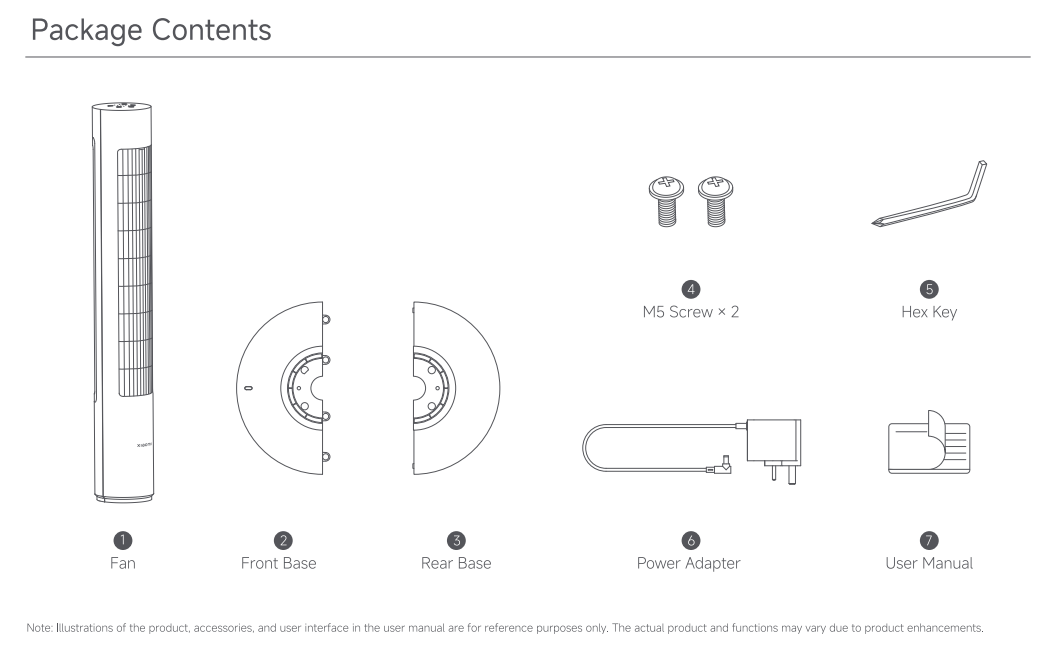
1. Q: What are the package contents of the Xiaomi Smart Tower Fan 2?
A: The package contents include a Tower Fan Body, a Front Base, a Rear Base, two M5 Screws, a Hex Key, a Power Adapter, and a User Manual.
Note:
Illustrations of the product, accessories, and interface are for reference purposes only. The actual product and functions can vary due to product enhancements.
Production Operation
1. Q: How to turn on the Xiaomi Smart Tower Fan 2?
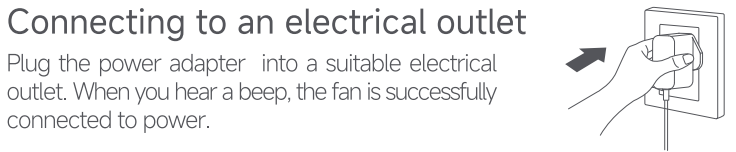
A: Plug the power adapter into a suitable electrical outlet that meets the international standards. When you hear a beep, the fan is successfully connected to power.
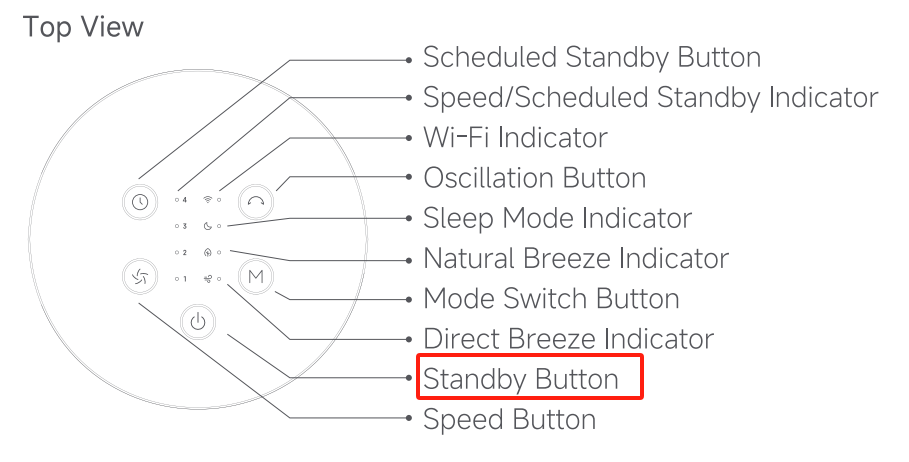
Press the Standby Button to start the fan. When turned on for the first time, the fan is at the direct breeze mode with the speed level of slow, by default.
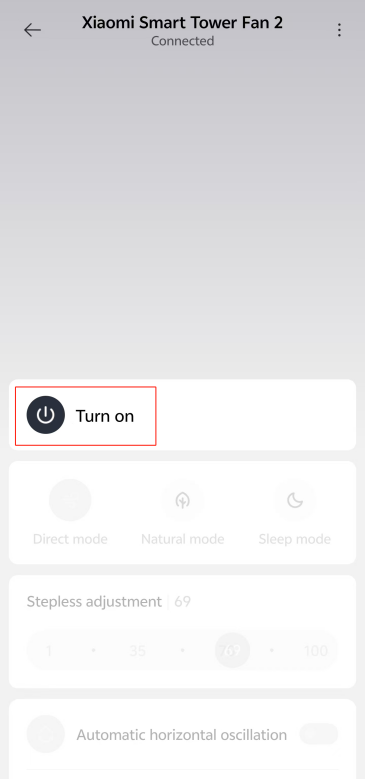
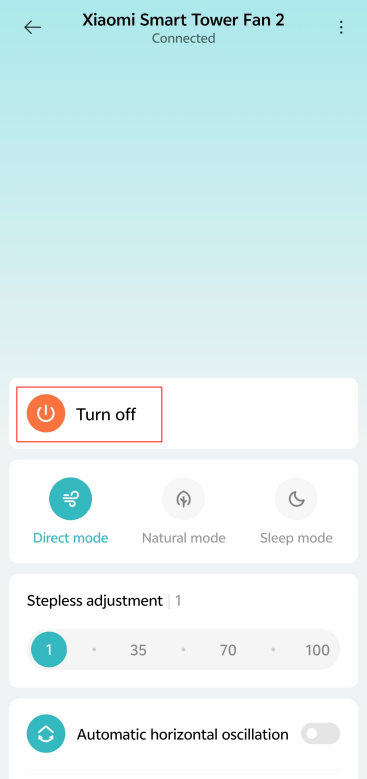
Tap the [Turn on] icon in the Mi Home/Xiaomi Home APP, and the tower fan starts to work.
Tap the [Turn off] icon in the Mi Home/Xiaomi Home APP during the power-on state, and the tower fan stops working.
2. Q: How to switch modes of the Xiaomi Smart Tower Fan 2?
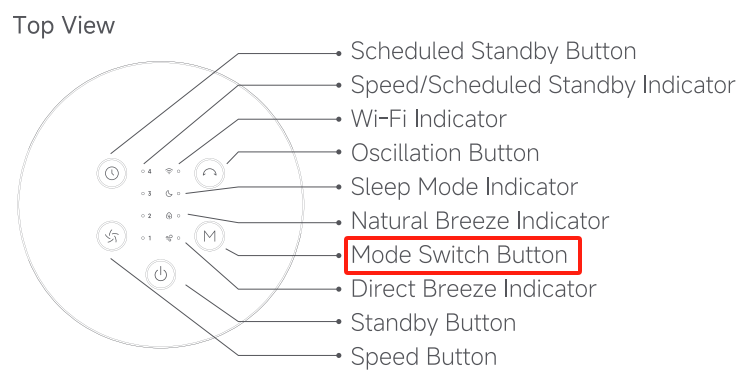
A: Press the Mode Switch Button on the tower fan to cycle through the direct breeze, natural breeze, and sleep mode, and the corresponding mode indicator will light up. After the fan is turned off and turned back on again, the mode will be the last used one.
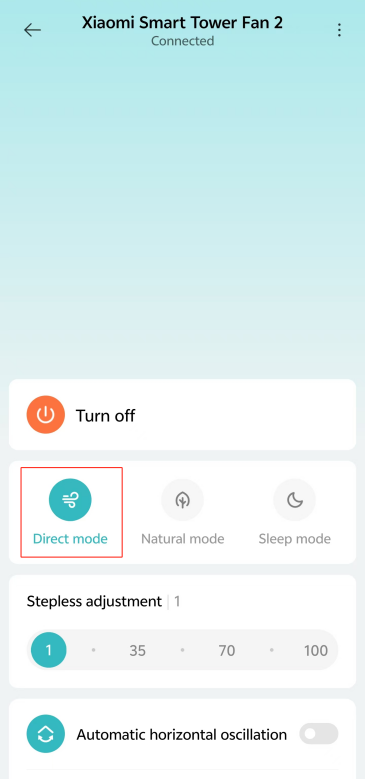
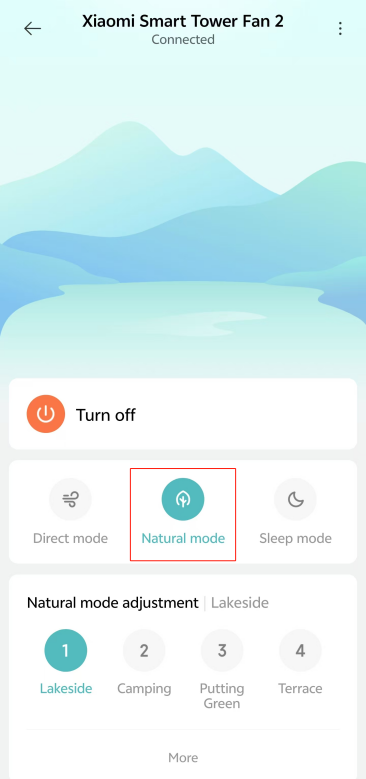
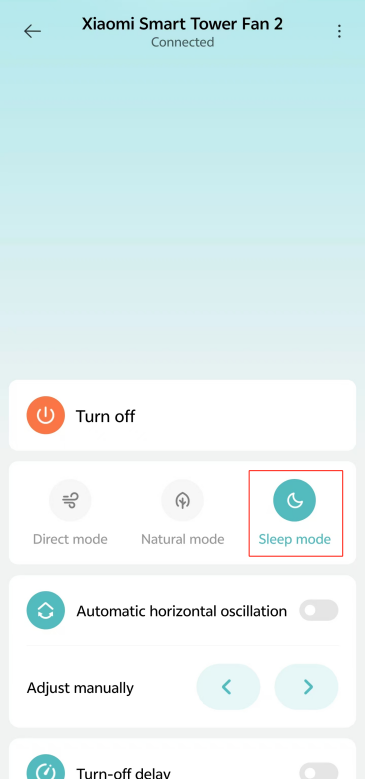
You can also tap [Direct mode], [Natural mode], or [Sleep mode] in the Mi Home/Xiaomi Home APP to switch modes.
3. Q: How to adjust the speed levels of the Xiaomi Smart Tower Fan 2?
A: Press the Speed Button to adjust the speed, and the corresponding speed indicator will light up (see table below). After the fan is turned off and turned back on again, the speed will be the last used one.
Note:
1. ☀ means the indicator is on. ● means the indicator is off;
2. In the natural breeze mode, the indicators 1, 2, 3, and 4 respectively represent the modes of lakeside, camping, green, and terrace by default. You can go to the Mi Home/Xiaomi Home APP to check the details.
You can also tap the [1], [35], [70], or [100] icon in the Mi Home/Xiaomi Home APP to adjust the speed.
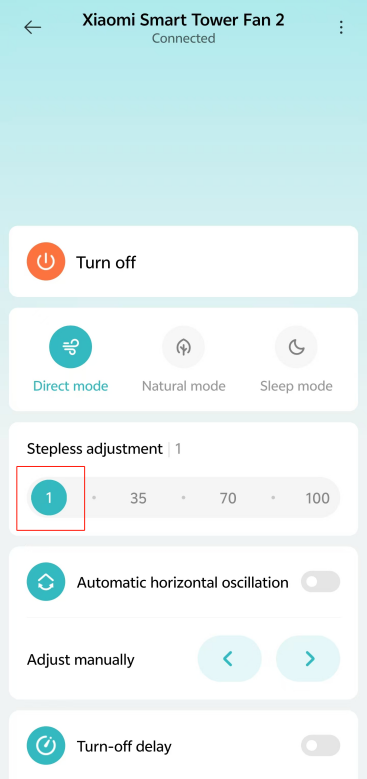
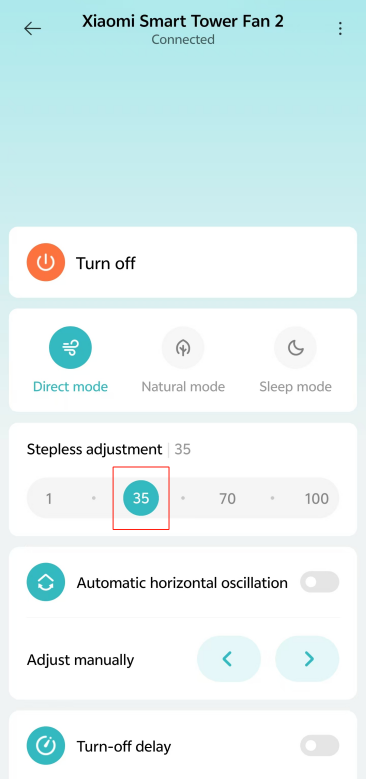
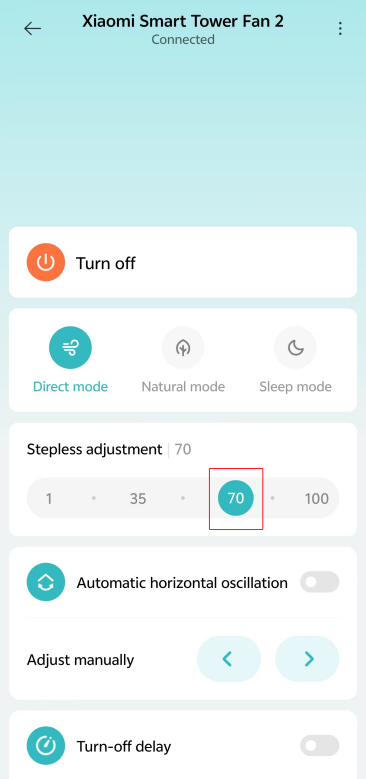
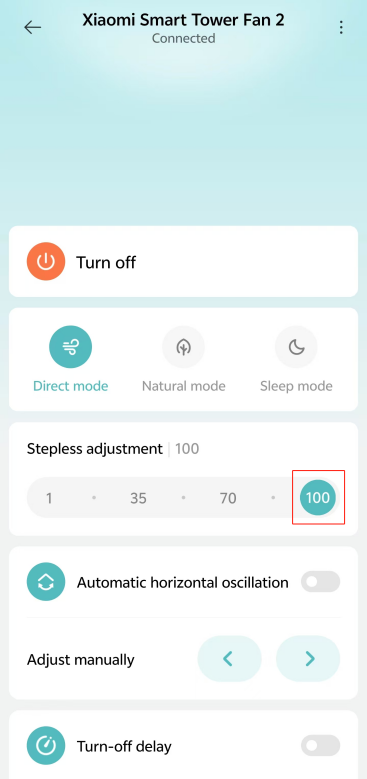
(1st gear) (2nd gear) (3rd gear) (4th gear)
4. Q: How to turn on the child lock on the Xiaomi Smart Tower Fan 2?
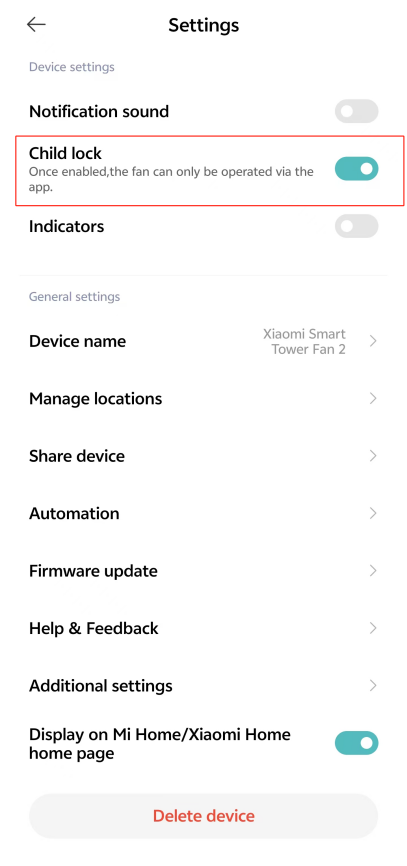
A: To enable the child lock function, go to the [Mi Home/Xiaomi Home] APP >> tap the device card >> tap the three-dot icon at the upper right corner >> turn on [Child lock]. You can also simultaneously press and hold the Oscillation Button and Scheduled Standby Button for 7 seconds until you hear a long beep.
Once the function is enabled, the fan will not respond if pressing any button but all indicators will blink twice and the fan will beep twice instead.
5. Q: How to turn off the child lock on the Xiaomi Smart Tower Fan 2?
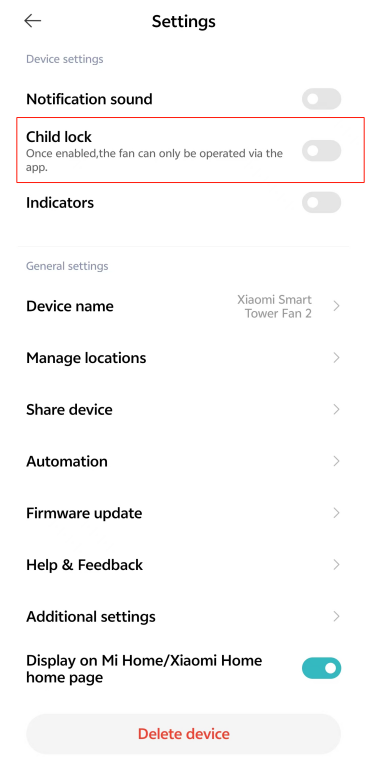
A: To disable the child lock function, go to the [Mi Home/Xiaomi Home] APP >> tap the device card >> tap the three-dot icon at the upper right corner >> turn off [Child lock]. You can also simultaneously press and hold the Oscillation Button and Scheduled Standby Button for 7 seconds until you hear a long beep.
Note:
Resetting the Wi-Fi or unplugging the power adapter and then turning on the fan can also disable this function.
6. Q: How to reset the Wi-Fi on the Xiaomi Smart Tower Fan 2?
A: Simultaneously press and hold the Standby Button and Mode Switch Button. When you hear a long beep, the Wi-Fi has been reset successfully and the fan is awaiting connection. Then follow the instructions in the Mi Home/Xiaomi Home APP to connect the fan to the APP.
The Wi-Fi connection needs to be reset under the circumstances listed below:
1. The Xiaomi Account that the fan is paired with has been changed;
2. The router that the fan is connected to has been changed;
3. The account or password of the router that the fan is connected to has been changed;
4. The Mi Home/Xiaomi Home APP is unable to control the fan.
Wi-Fi status & indicator description:
7. Q: How to set scheduled standby time for the Xiaomi Smart Tower Fan 2?
A: Press the Scheduled Standby Button to cycle through the scheduled standby time: 1 hour, 2 hours, 3 hours, 4 hours, and disabled, and the corresponding indicator(s) will light up (see table below). Five seconds after using the scheduled standby function, the indicator(s) resume to indicate the status before scheduling the standby time.
Note:
☀ means the indicator is on. ● means the indicator is off.
You can also set scheduled standby time by connecting to the Mi Home/Xiaomi Home APP. Go to the [Mi Home/Xiaomi Home] APP >> tap the device card >> [Turn-off delay].
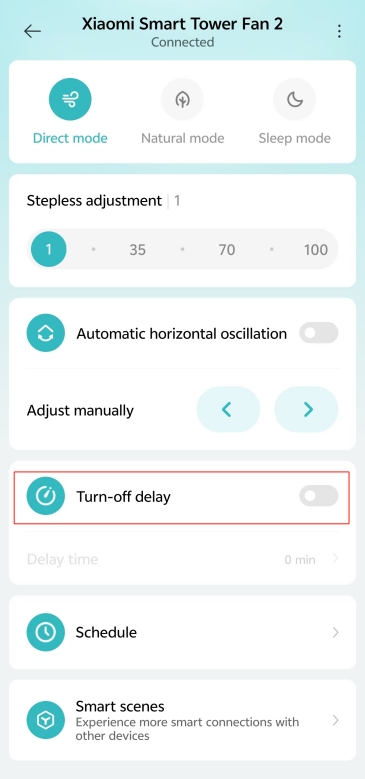
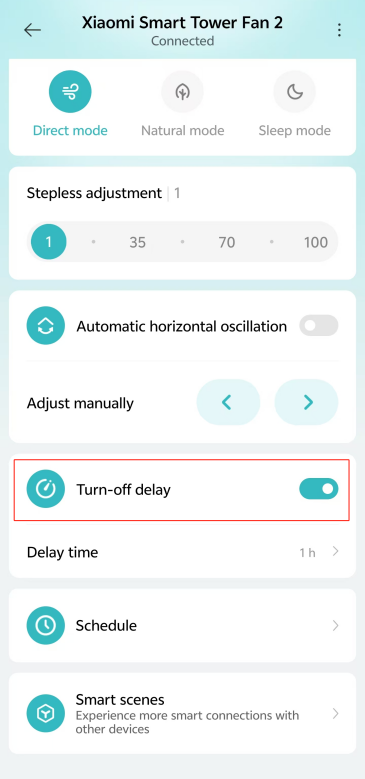
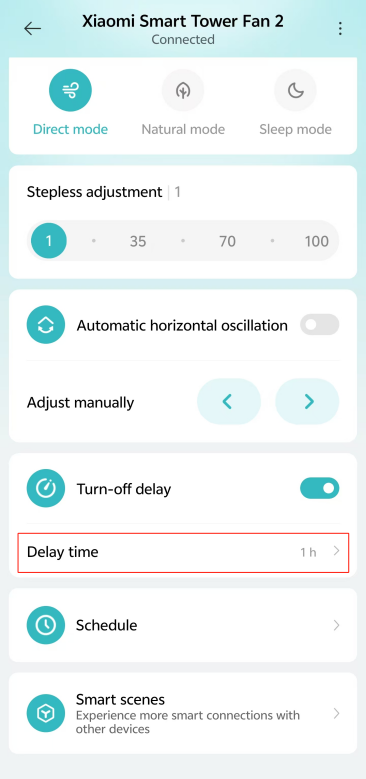
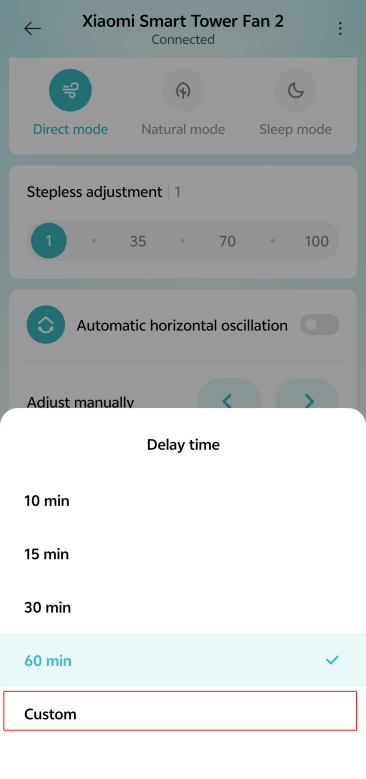
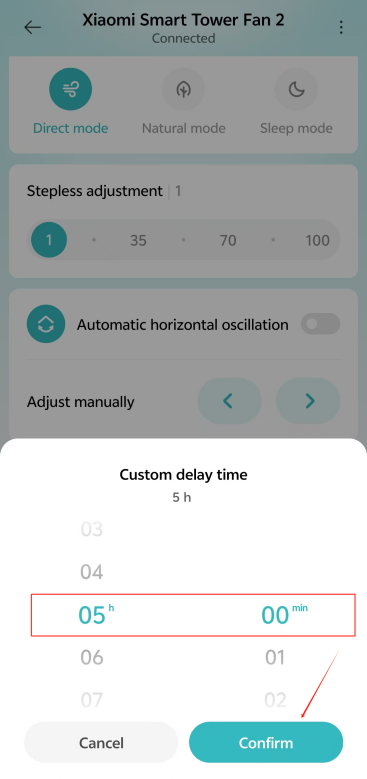
Go to the [Mi Home/Xiaomi Home] APP >> tap the device card >> turn on [Turn-off delay] >> tap [Delay time] >> select [Custom] >> set the time and tap [Confirm].
8. Q: How to set the oscillation of the Xiaomi Smart Tower Fan 2?
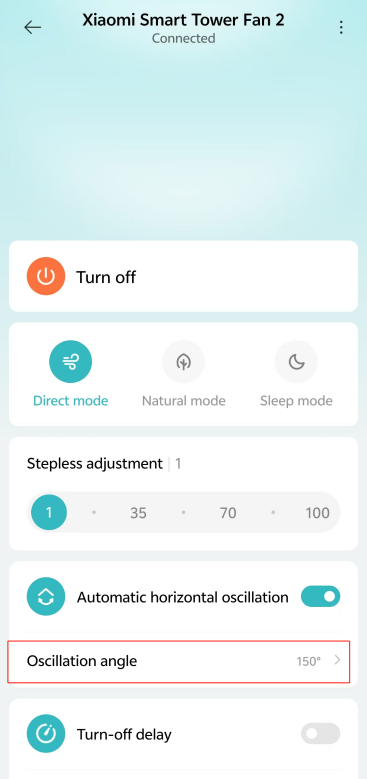
A: Press the Oscillation Button to enable or disable oscillation. You can set the oscillation angle range in the Mi Home/Xiaomi Home APP. After the fan is turned off and turned back on again, the oscillation setting will be the last used one. Unplug and power on again or reset the Wi-Fi connection, then turn on the oscillation. It will automatically calibrate its oscillating angle. The calibration time varies depending on different angles, please wait with patience.
Note:
When the Wi-Fi connection is reset, the oscillation angle range will change to the default angle of 90°.
Go to the [Mi Home/Xiaomi Home] APP >> tap the device card >> turn on/off [Automatic horizontal oscillation].
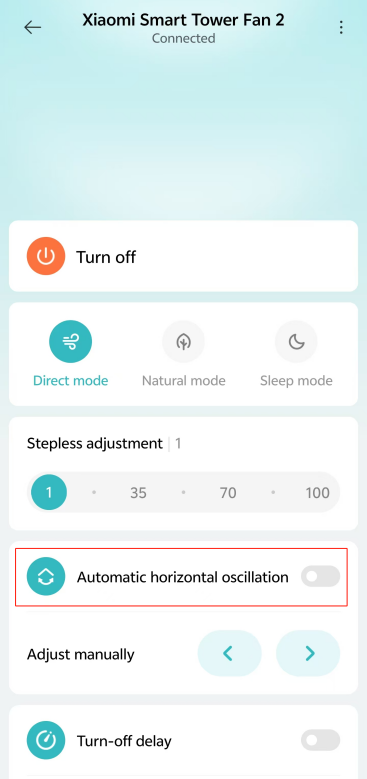
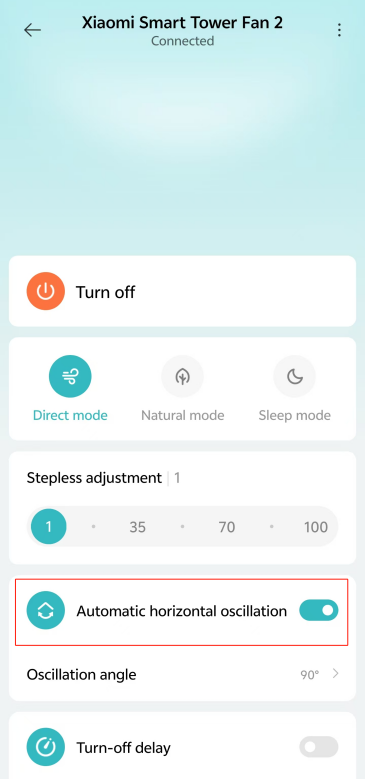
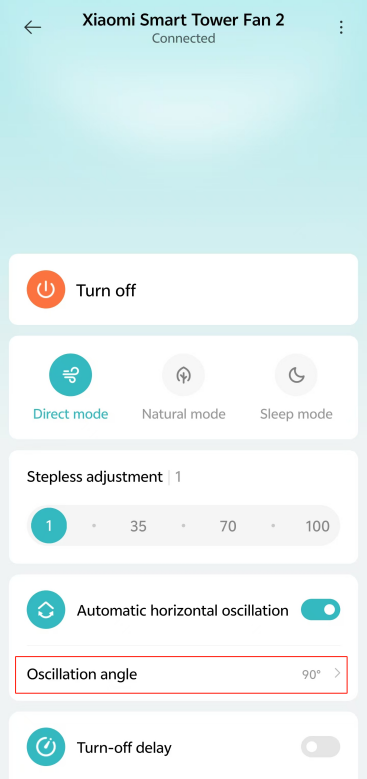
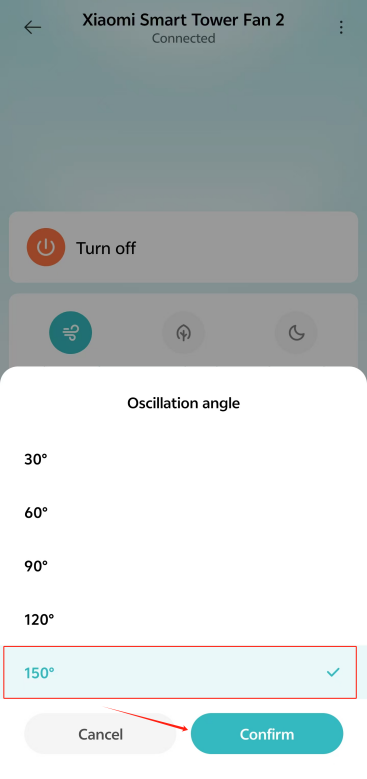
Go to the [Mi Home/Xiaomi Home] APP >> tap the device card >> turn on [Automatic horizontal oscillation] >> tap [Oscillation angle] >> select the angle and tap [Confirm].
9. Q: What settings will be lost after resetting the Xiaomi Smart Tower Fan 2?
A: After resetting Wi-Fi, settings such as speed levels, oscillation angle, child lock, and scheduled standby time functions in the Mi Home/Xiaomi Home APP will be lost and need to be set again.
10. Q: Does the Xiaomi Smart Tower Fan 2 support power-off memory?
A: Yes, the Xiaomi Smart Tower Fan 2 supports power-off memory. After shutting down without cutting off the power, it will retain the last mode or fan speed when turned back on.
11. Q: Can the Xiaomi Smart Tower Fan 2 be placed horizontally?
A: No, it cannot be placed horizontally. If the air inlet or air outlet is obstructed, it will reduce airflow, causing the motor to overheat during operation. Therefore, it will potentially decrease the fan's lifespan, and increase the risk of safety issues.
12. Q: How to place the Xiaomi Smart Tower Fan 2 properly?
A: 1. Place it in the living room to enjoy a cooling environment during family gatherings or while watching TV;
2. It is suitable for the bedroom. The gentle breeze prevents direct blowing to avoid discomfort during sleep or rest;
3. The fine grille spacing keeps children's fingers away, ensuring safe use and peace of mind for parents;
4. Suitable for environments where high airflow is required, such as hospital wards, especially in maternal and child health facilities.
Note:
Do not use this product in industrial environments to avoid dust entering the device and causing malfunctions.
13. Q: How to store the Xiaomi Smart Tower Fan 2 when not in use?
A: First, separate the front and rear base, then detach it from the tower fan body. Store it in the dust-proof bag that comes with the package.
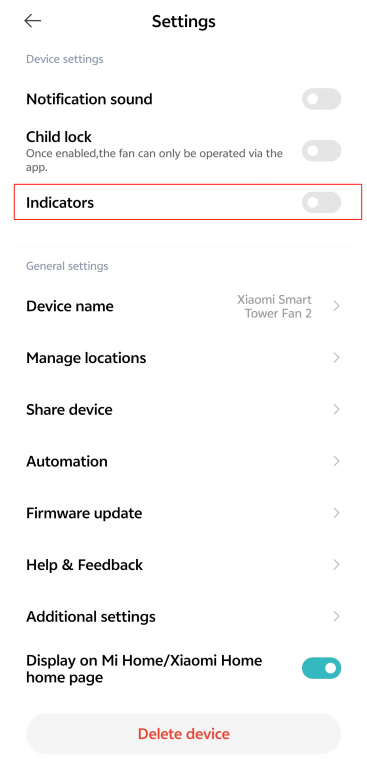
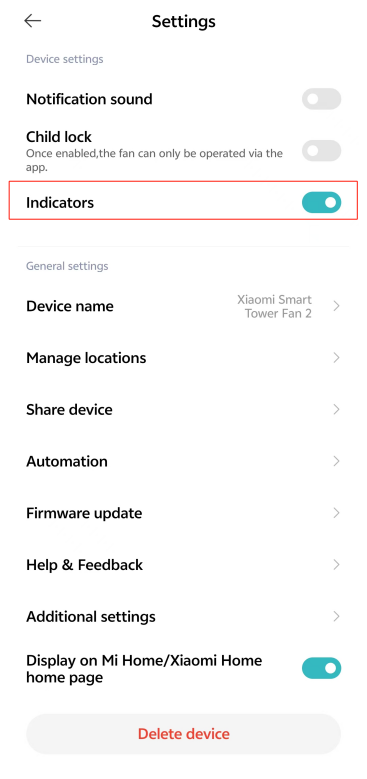
14. Q: Does the Xiaomi Smart Tower Fan 2 support an indicator switch?
A: Yes, it supports an indicator switch, which can be set in the Mi Home/Xiaomi Home APP.
Go to the [Mi Home/Xiaomi Home] APP >> tap the device card >> tap the three-dot icon at the upper right corner >> turn on/off [Indicators].
Note:
The brightness of indicators cannot be adjusted.
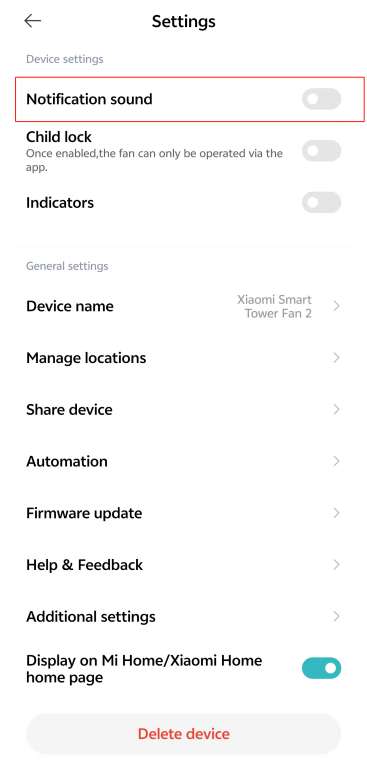
15. Q: Does the Xiaomi Smart Tower Fan 2 support a notification sound switch?
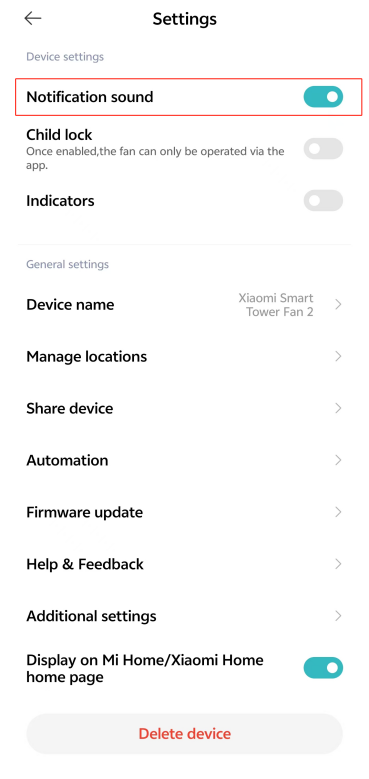
A: Yes, it supports a notification sound switch, which can be set in the Mi Home/Xiaomi Home APP.
Go to the [Mi Home/Xiaomi Home] APP >> tap the device card >> tap the three-dot icon at the upper right corner >> turn on/off [Notification sound].
Note:
The volume of the notification sound cannot be adjusted.
16. Q: How to clean the Xiaomi Smart Tower Fan 2?
A: The Xiaomi Smart Tower Fan 2 can be separated into washable parts and non-washable parts:
1. Washable parts: Rear Grille and Fan Blade (need to unplug the power cord to disconnect to the power source before cleaning);
2. Non-washable parts: Fan and Power Adapter.
After the rear grille and the fan blade are removed, you can clean these parts with a soft cloth or a sponge using water or dilute neutral detergent.
Note:
1. Make sure the fan is disconnected from power before disassembling or cleaning;
2. After cleaning the rear grille and the fan blade, dry them in a cool, dry place before installing them for use;
3. Avoid direct sunlight during daily use;
4. Do not use thinner, gasoline, or detergent to clean any parts.
Removing the rear grille:
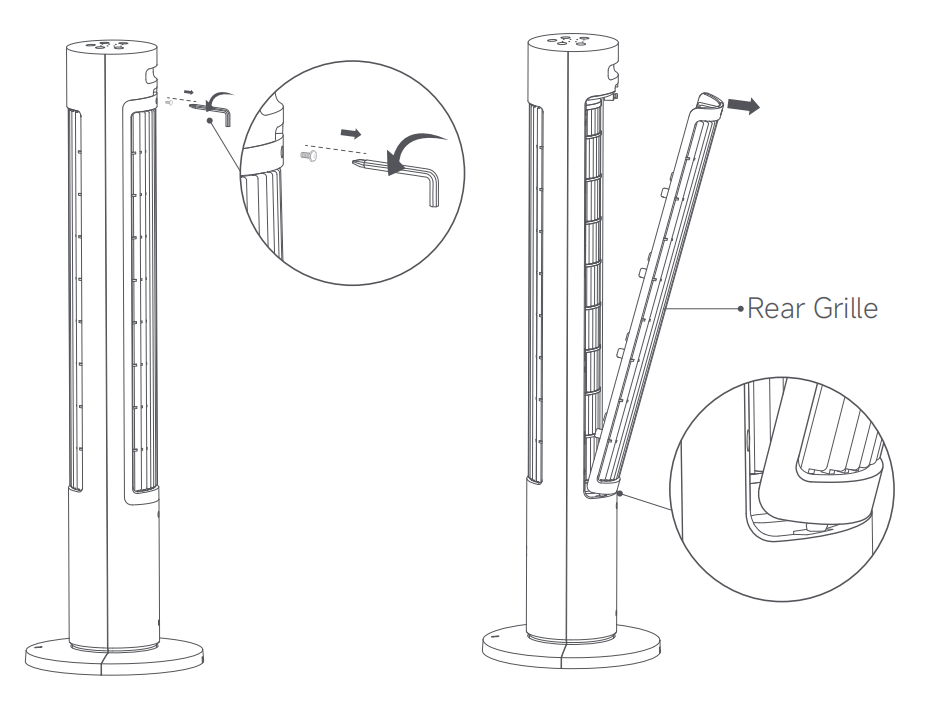
1. Use the hex key to counterclockwise turn the screw that secures the rear grille to remove it;
2. Pull the rear grille outwards from the indentation at the top of the rear grille to remove it.
Note:
When installing the rear grille back, first insert the plugs at the bottom of the rear grille into the slots of the rear shell, and then put the rear grille into place from the bottom to the top.
Removing the fan blade:
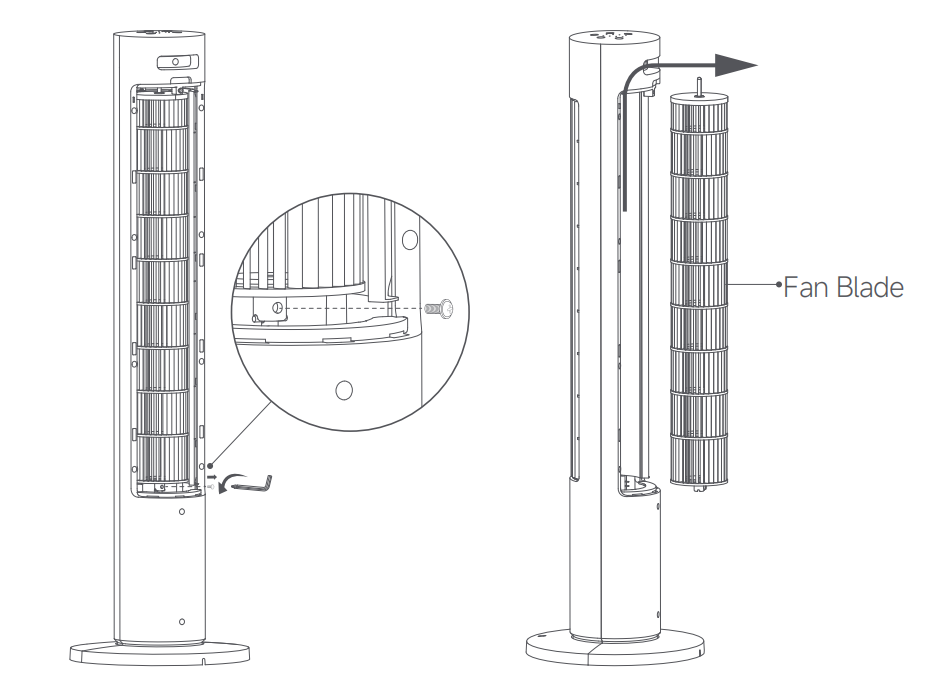
1. Use the hex key to turn the screw at the bottom of the fan blade counterclockwise to remove it;
2. Push the fan blade upward against the top of the compartment, and then pull it outward to remove it.
Cleaning non-washable parts:
Use a soft and dry cloth to gently wipe the fan and the power adapter.
Note:
Do not use water or other liquids to clean any parts, except for the rear grille and the fan blade.
APP Related
1. Q: How to connect the Xiaomi Smart Tower Fan 2 to the Mi Home/Xiaomi Home APP?
A: Find the QR code for the Mi Home/Xiaomi Home APP on the user manual or search for the APP in the Google Play Store, and download the APP. After downloading, log in or register an account. Before connecting the device, ensure that Wi-Fi, Bluetooth, and location services are enabled. Press and hold the Standby Button and Mode Switch Button on the device until you hear a beep sound, then you can connect.
2. Q: What should be noted when connecting the Xiaomi Smart Tower Fan 2 to the network?
A: The Xiaomi Smart Tower Fan 2 supports network control and is compatible with most personal routers on the market.
Please note the following requirements for the router's wireless network:
1. The fan can only connect to 2.4GHz Wi-Fi and it does not support 5GHz Wi-Fi;
2. The Wi-Fi encryption must be WPA or WPA2 and WEP is not supported;
3. The router must have DHCP enabled. The static IP, web authentication, and enterprise 802.1X are not supported;
4. To control the Xiaomi Smart Tower Fan 2, you need to download the Mi Home/Xiaomi Home APP.
3. Q: How to control the Xiaomi Smart Tower Fan 2 remotely with a phone?
A: Scan the QR code on the user manual with your phone or install the Mi Home/Xiaomi Home APP from the Google Play Store. Bind it to your Xiaomi Account. Ensure that your Wi-Fi at home is working, and connect your phone to the Wi-Fi. Turn on the fan and open the Mi Home/Xiaomi Home APP. The APP will automatically search for nearby Xiaomi smart devices and prompt you, or you can manually add the device by tapping the [+] icon at the upper right corner. After adding the Xiaomi Smart Tower Fan 2 as prompted, you can control the fan's power, switch modes, or set the oscillation angle through the APP.
4. Q: What to do if the Xiaomi Smart Tower Fan 2 cannot be found after not being bound to the Mi Home/Xiaomi Home APP for a long time?
A: If the fan has not been bound to the Mi Home/Xiaomi Home APP for about 30 minutes, the Wi-Fi will automatically turn off the device discovery feature. Simply reset the Wi-Fi to reconnect and bind the device.
FAQs and Troubleshooting
1. Q: What to do if the Xiaomi Smart Tower Fan 2 does not power on?
A: 1. Check if the power outlet is working, and ensure the power cord is properly connected;
2. Check and press the Standby Button on the device;
3. Ensure the power cord meets the required specifications;
4. If the issue persists, contact the after-sales service center for further inspection.
2. Q: Is it normal to hear a noticeable clicking sound from the motor when the Xiaomi Smart Tower Fan 2 oscillates?
A: The clicking sound is from the gears rotating, which is normal for a new product. This sound will naturally disappear after a period of use.
3. Q: What to do if the buttons on the Xiaomi Smart Tower Fan 2 are not working?
A: 1. Check if the device is powered on;
2. Check if the child lock is activated;
3. If the issue persists, contact the after-sales service center for further inspection.
4. Q: What to do if the Xiaomi Smart Tower Fan 2 is not blowing air?
A: 1. Check if the device is powered on;
2. Check if sleep mode is activated (sleep mode has lower airflow);
3. If the issue persists, contact the after-sales service center for further inspection.
5. Q: What to do if the Xiaomi Smart Tower Fan 2's oscillation is not functioning correctly?
A: 1. The fan will take some time to find the correct oscillation angle when first turned on, which will be completed in about three oscillations;
2. Check if the oscillation angle is set in the Mi Home/Xiaomi Home APP;
3. If the issue persists, contact the after-sales service center for further inspection.
6. Q: What to do if the Xiaomi Smart Tower Fan 2 is wobbling?
A: 1. Check if the base is installed correctly;
2. Ensure the base is placed on a stable surface;
3. Some minor swaying is normal when using the oscillation function, due to the fan's center of gravity being at the bottom and the long fan blades causing slight movement;
4. If the issue persists, contact the after-sales service center for further inspection.
7. Q: What to do if the Xiaomi Smart Tower Fan 2 automatically shuts down after being turned on?
A: 1. Check if the power adapter is securely connected;
2. Check if the power cord at the base is securely connected;
3. Check if a scheduled standby time is set;
4. If the issue persists, contact the after-sales service center for further inspection.
8. Q: What to do if the Xiaomi Smart Tower Fan 2 cannot connect to Wi-Fi?
A: 1. Check if the fan has been offline for more than half an hour. If so, reset the Wi-Fi;
2. Check if the router is set to the 2.4GHz frequency band and adjust to the 2.4GHz if necessary;
3. If the issue persists, contact the after-sales service center for further inspection.
9. Q: What to do if the Xiaomi Smart Tower Fan 2 experiences a power outage during a firmware update?
A: Please power the fan back on. It will automatically resume the update process.
10. Q: What to do if the Xiaomi Smart Tower Fan 2 emits a beep sound and seven white indicators flash after being turned on?
A: 1. Check if the fan blades are operating normally by observing through the airflow grille. If not, unplug the power, wait 30 seconds, and then plug it back in to try again;
2. Check if the child lock is enabled. Disable it and try again;
3. If the issue persists after trying the above steps, contact the after-sales service center for further inspection.
11. Q: What should be noted when installing the Xiaomi Smart Tower Fan 2?
A: 1. Ensure that the screws at the bottom are properly fixed to avoid the risk of the device tipping over;
2. The device is relatively light. Avoid placing it too close to walls to prevent air resistance from causing wobbling during oscillation;
3. Avoid placing objects on the device as it can affect the stability and cause wobbling.
1. Q: What are the package contents of the Xiaomi Smart Tower Fan 2?
A: The package contents include a Tower Fan Body, a Front Base, a Rear Base, two M5 Screws, a Hex Key, a Power Adapter, and a User Manual.
Note:
Illustrations of the product, accessories, and interface are for reference purposes only. The actual product and functions can vary due to product enhancements.
Production Operation
1. Q: How to turn on the Xiaomi Smart Tower Fan 2?
A: Plug the power adapter into a suitable electrical outlet that meets the international standards. When you hear a beep, the fan is successfully connected to power.
Press the Standby Button to start the fan. When turned on for the first time, the fan is at the direct breeze mode with the speed level of slow, by default.
Tap the [Turn on] icon in the Mi Home/Xiaomi Home APP, and the tower fan starts to work.
Tap the [Turn off] icon in the Mi Home/Xiaomi Home APP during the power-on state, and the tower fan stops working.
2. Q: How to switch modes of the Xiaomi Smart Tower Fan 2?
A: Press the Mode Switch Button on the tower fan to cycle through the direct breeze, natural breeze, and sleep mode, and the corresponding mode indicator will light up. After the fan is turned off and turned back on again, the mode will be the last used one.
You can also tap [Direct mode], [Natural mode], or [Sleep mode] in the Mi Home/Xiaomi Home APP to switch modes.
3. Q: How to adjust the speed levels of the Xiaomi Smart Tower Fan 2?
A: Press the Speed Button to adjust the speed, and the corresponding speed indicator will light up (see table below). After the fan is turned off and turned back on again, the speed will be the last used one.
| Indicator | 1 | 2 | 3 | 4 |
| Speed level | Slow | Medium | Fast | Turbo |
| Indicator status | ☀●●● | ●☀●● | ●●☀● | ●●●☀ |
1. ☀ means the indicator is on. ● means the indicator is off;
2. In the natural breeze mode, the indicators 1, 2, 3, and 4 respectively represent the modes of lakeside, camping, green, and terrace by default. You can go to the Mi Home/Xiaomi Home APP to check the details.
You can also tap the [1], [35], [70], or [100] icon in the Mi Home/Xiaomi Home APP to adjust the speed.
(1st gear) (2nd gear) (3rd gear) (4th gear)
4. Q: How to turn on the child lock on the Xiaomi Smart Tower Fan 2?
A: To enable the child lock function, go to the [Mi Home/Xiaomi Home] APP >> tap the device card >> tap the three-dot icon at the upper right corner >> turn on [Child lock]. You can also simultaneously press and hold the Oscillation Button and Scheduled Standby Button for 7 seconds until you hear a long beep.
Once the function is enabled, the fan will not respond if pressing any button but all indicators will blink twice and the fan will beep twice instead.
5. Q: How to turn off the child lock on the Xiaomi Smart Tower Fan 2?
A: To disable the child lock function, go to the [Mi Home/Xiaomi Home] APP >> tap the device card >> tap the three-dot icon at the upper right corner >> turn off [Child lock]. You can also simultaneously press and hold the Oscillation Button and Scheduled Standby Button for 7 seconds until you hear a long beep.
Note:
Resetting the Wi-Fi or unplugging the power adapter and then turning on the fan can also disable this function.
6. Q: How to reset the Wi-Fi on the Xiaomi Smart Tower Fan 2?
A: Simultaneously press and hold the Standby Button and Mode Switch Button. When you hear a long beep, the Wi-Fi has been reset successfully and the fan is awaiting connection. Then follow the instructions in the Mi Home/Xiaomi Home APP to connect the fan to the APP.
The Wi-Fi connection needs to be reset under the circumstances listed below:
1. The Xiaomi Account that the fan is paired with has been changed;
2. The router that the fan is connected to has been changed;
3. The account or password of the router that the fan is connected to has been changed;
4. The Mi Home/Xiaomi Home APP is unable to control the fan.
Wi-Fi status & indicator description:
| Wi-Fi Status | Awaiting Connection | Connecting | Connected | Fail to Connect |
| Indicator | Blinking in orange | Blinking in blue | Blue | Orange |
7. Q: How to set scheduled standby time for the Xiaomi Smart Tower Fan 2?
A: Press the Scheduled Standby Button to cycle through the scheduled standby time: 1 hour, 2 hours, 3 hours, 4 hours, and disabled, and the corresponding indicator(s) will light up (see table below). Five seconds after using the scheduled standby function, the indicator(s) resume to indicate the status before scheduling the standby time.
| Scheduled Turn-off | Disabled | 1 hour | 2 hours | 3 hours | 4 hours |
| Indicator | ●●●● | ☀●●● | ☀☀●● | ☀☀☀● | ☀☀☀☀ |
☀ means the indicator is on. ● means the indicator is off.
You can also set scheduled standby time by connecting to the Mi Home/Xiaomi Home APP. Go to the [Mi Home/Xiaomi Home] APP >> tap the device card >> [Turn-off delay].
Go to the [Mi Home/Xiaomi Home] APP >> tap the device card >> turn on [Turn-off delay] >> tap [Delay time] >> select [Custom] >> set the time and tap [Confirm].
8. Q: How to set the oscillation of the Xiaomi Smart Tower Fan 2?
A: Press the Oscillation Button to enable or disable oscillation. You can set the oscillation angle range in the Mi Home/Xiaomi Home APP. After the fan is turned off and turned back on again, the oscillation setting will be the last used one. Unplug and power on again or reset the Wi-Fi connection, then turn on the oscillation. It will automatically calibrate its oscillating angle. The calibration time varies depending on different angles, please wait with patience.
Note:
When the Wi-Fi connection is reset, the oscillation angle range will change to the default angle of 90°.
Go to the [Mi Home/Xiaomi Home] APP >> tap the device card >> turn on/off [Automatic horizontal oscillation].
Go to the [Mi Home/Xiaomi Home] APP >> tap the device card >> turn on [Automatic horizontal oscillation] >> tap [Oscillation angle] >> select the angle and tap [Confirm].
9. Q: What settings will be lost after resetting the Xiaomi Smart Tower Fan 2?
A: After resetting Wi-Fi, settings such as speed levels, oscillation angle, child lock, and scheduled standby time functions in the Mi Home/Xiaomi Home APP will be lost and need to be set again.
10. Q: Does the Xiaomi Smart Tower Fan 2 support power-off memory?
A: Yes, the Xiaomi Smart Tower Fan 2 supports power-off memory. After shutting down without cutting off the power, it will retain the last mode or fan speed when turned back on.
11. Q: Can the Xiaomi Smart Tower Fan 2 be placed horizontally?
A: No, it cannot be placed horizontally. If the air inlet or air outlet is obstructed, it will reduce airflow, causing the motor to overheat during operation. Therefore, it will potentially decrease the fan's lifespan, and increase the risk of safety issues.
12. Q: How to place the Xiaomi Smart Tower Fan 2 properly?
A: 1. Place it in the living room to enjoy a cooling environment during family gatherings or while watching TV;
2. It is suitable for the bedroom. The gentle breeze prevents direct blowing to avoid discomfort during sleep or rest;
3. The fine grille spacing keeps children's fingers away, ensuring safe use and peace of mind for parents;
4. Suitable for environments where high airflow is required, such as hospital wards, especially in maternal and child health facilities.
Note:
Do not use this product in industrial environments to avoid dust entering the device and causing malfunctions.
13. Q: How to store the Xiaomi Smart Tower Fan 2 when not in use?
A: First, separate the front and rear base, then detach it from the tower fan body. Store it in the dust-proof bag that comes with the package.
14. Q: Does the Xiaomi Smart Tower Fan 2 support an indicator switch?
A: Yes, it supports an indicator switch, which can be set in the Mi Home/Xiaomi Home APP.
Go to the [Mi Home/Xiaomi Home] APP >> tap the device card >> tap the three-dot icon at the upper right corner >> turn on/off [Indicators].
Note:
The brightness of indicators cannot be adjusted.
15. Q: Does the Xiaomi Smart Tower Fan 2 support a notification sound switch?
A: Yes, it supports a notification sound switch, which can be set in the Mi Home/Xiaomi Home APP.
Go to the [Mi Home/Xiaomi Home] APP >> tap the device card >> tap the three-dot icon at the upper right corner >> turn on/off [Notification sound].
Note:
The volume of the notification sound cannot be adjusted.
16. Q: How to clean the Xiaomi Smart Tower Fan 2?
A: The Xiaomi Smart Tower Fan 2 can be separated into washable parts and non-washable parts:
1. Washable parts: Rear Grille and Fan Blade (need to unplug the power cord to disconnect to the power source before cleaning);
2. Non-washable parts: Fan and Power Adapter.
After the rear grille and the fan blade are removed, you can clean these parts with a soft cloth or a sponge using water or dilute neutral detergent.
Note:
1. Make sure the fan is disconnected from power before disassembling or cleaning;
2. After cleaning the rear grille and the fan blade, dry them in a cool, dry place before installing them for use;
3. Avoid direct sunlight during daily use;
4. Do not use thinner, gasoline, or detergent to clean any parts.
Removing the rear grille:
1. Use the hex key to counterclockwise turn the screw that secures the rear grille to remove it;
2. Pull the rear grille outwards from the indentation at the top of the rear grille to remove it.
Note:
When installing the rear grille back, first insert the plugs at the bottom of the rear grille into the slots of the rear shell, and then put the rear grille into place from the bottom to the top.
Removing the fan blade:
1. Use the hex key to turn the screw at the bottom of the fan blade counterclockwise to remove it;
2. Push the fan blade upward against the top of the compartment, and then pull it outward to remove it.
Cleaning non-washable parts:
Use a soft and dry cloth to gently wipe the fan and the power adapter.
Note:
Do not use water or other liquids to clean any parts, except for the rear grille and the fan blade.
APP Related
1. Q: How to connect the Xiaomi Smart Tower Fan 2 to the Mi Home/Xiaomi Home APP?
A: Find the QR code for the Mi Home/Xiaomi Home APP on the user manual or search for the APP in the Google Play Store, and download the APP. After downloading, log in or register an account. Before connecting the device, ensure that Wi-Fi, Bluetooth, and location services are enabled. Press and hold the Standby Button and Mode Switch Button on the device until you hear a beep sound, then you can connect.
2. Q: What should be noted when connecting the Xiaomi Smart Tower Fan 2 to the network?
A: The Xiaomi Smart Tower Fan 2 supports network control and is compatible with most personal routers on the market.
Please note the following requirements for the router's wireless network:
1. The fan can only connect to 2.4GHz Wi-Fi and it does not support 5GHz Wi-Fi;
2. The Wi-Fi encryption must be WPA or WPA2 and WEP is not supported;
3. The router must have DHCP enabled. The static IP, web authentication, and enterprise 802.1X are not supported;
4. To control the Xiaomi Smart Tower Fan 2, you need to download the Mi Home/Xiaomi Home APP.
3. Q: How to control the Xiaomi Smart Tower Fan 2 remotely with a phone?
A: Scan the QR code on the user manual with your phone or install the Mi Home/Xiaomi Home APP from the Google Play Store. Bind it to your Xiaomi Account. Ensure that your Wi-Fi at home is working, and connect your phone to the Wi-Fi. Turn on the fan and open the Mi Home/Xiaomi Home APP. The APP will automatically search for nearby Xiaomi smart devices and prompt you, or you can manually add the device by tapping the [+] icon at the upper right corner. After adding the Xiaomi Smart Tower Fan 2 as prompted, you can control the fan's power, switch modes, or set the oscillation angle through the APP.
4. Q: What to do if the Xiaomi Smart Tower Fan 2 cannot be found after not being bound to the Mi Home/Xiaomi Home APP for a long time?
A: If the fan has not been bound to the Mi Home/Xiaomi Home APP for about 30 minutes, the Wi-Fi will automatically turn off the device discovery feature. Simply reset the Wi-Fi to reconnect and bind the device.
FAQs and Troubleshooting
1. Q: What to do if the Xiaomi Smart Tower Fan 2 does not power on?
A: 1. Check if the power outlet is working, and ensure the power cord is properly connected;
2. Check and press the Standby Button on the device;
3. Ensure the power cord meets the required specifications;
4. If the issue persists, contact the after-sales service center for further inspection.
2. Q: Is it normal to hear a noticeable clicking sound from the motor when the Xiaomi Smart Tower Fan 2 oscillates?
A: The clicking sound is from the gears rotating, which is normal for a new product. This sound will naturally disappear after a period of use.
3. Q: What to do if the buttons on the Xiaomi Smart Tower Fan 2 are not working?
A: 1. Check if the device is powered on;
2. Check if the child lock is activated;
3. If the issue persists, contact the after-sales service center for further inspection.
4. Q: What to do if the Xiaomi Smart Tower Fan 2 is not blowing air?
A: 1. Check if the device is powered on;
2. Check if sleep mode is activated (sleep mode has lower airflow);
3. If the issue persists, contact the after-sales service center for further inspection.
5. Q: What to do if the Xiaomi Smart Tower Fan 2's oscillation is not functioning correctly?
A: 1. The fan will take some time to find the correct oscillation angle when first turned on, which will be completed in about three oscillations;
2. Check if the oscillation angle is set in the Mi Home/Xiaomi Home APP;
3. If the issue persists, contact the after-sales service center for further inspection.
6. Q: What to do if the Xiaomi Smart Tower Fan 2 is wobbling?
A: 1. Check if the base is installed correctly;
2. Ensure the base is placed on a stable surface;
3. Some minor swaying is normal when using the oscillation function, due to the fan's center of gravity being at the bottom and the long fan blades causing slight movement;
4. If the issue persists, contact the after-sales service center for further inspection.
7. Q: What to do if the Xiaomi Smart Tower Fan 2 automatically shuts down after being turned on?
A: 1. Check if the power adapter is securely connected;
2. Check if the power cord at the base is securely connected;
3. Check if a scheduled standby time is set;
4. If the issue persists, contact the after-sales service center for further inspection.
8. Q: What to do if the Xiaomi Smart Tower Fan 2 cannot connect to Wi-Fi?
A: 1. Check if the fan has been offline for more than half an hour. If so, reset the Wi-Fi;
2. Check if the router is set to the 2.4GHz frequency band and adjust to the 2.4GHz if necessary;
3. If the issue persists, contact the after-sales service center for further inspection.
9. Q: What to do if the Xiaomi Smart Tower Fan 2 experiences a power outage during a firmware update?
A: Please power the fan back on. It will automatically resume the update process.
10. Q: What to do if the Xiaomi Smart Tower Fan 2 emits a beep sound and seven white indicators flash after being turned on?
A: 1. Check if the fan blades are operating normally by observing through the airflow grille. If not, unplug the power, wait 30 seconds, and then plug it back in to try again;
2. Check if the child lock is enabled. Disable it and try again;
3. If the issue persists after trying the above steps, contact the after-sales service center for further inspection.
11. Q: What should be noted when installing the Xiaomi Smart Tower Fan 2?
A: 1. Ensure that the screws at the bottom are properly fixed to avoid the risk of the device tipping over;
2. The device is relatively light. Avoid placing it too close to walls to prevent air resistance from causing wobbling during oscillation;
3. Avoid placing objects on the device as it can affect the stability and cause wobbling.
Does it help?
Yes
No