

How to pin APPs on the screen of the POCO F6 Pro?
Pinning APPs on the POCO F6 Pro refers to keeping a specific APP on the phone’s interface. When the APP is pinned, you can only operate the phone with this APP and cannot quit, switch to other APPs or go back to the home screen.
To pin APPs on the screen, please refer to the following steps:
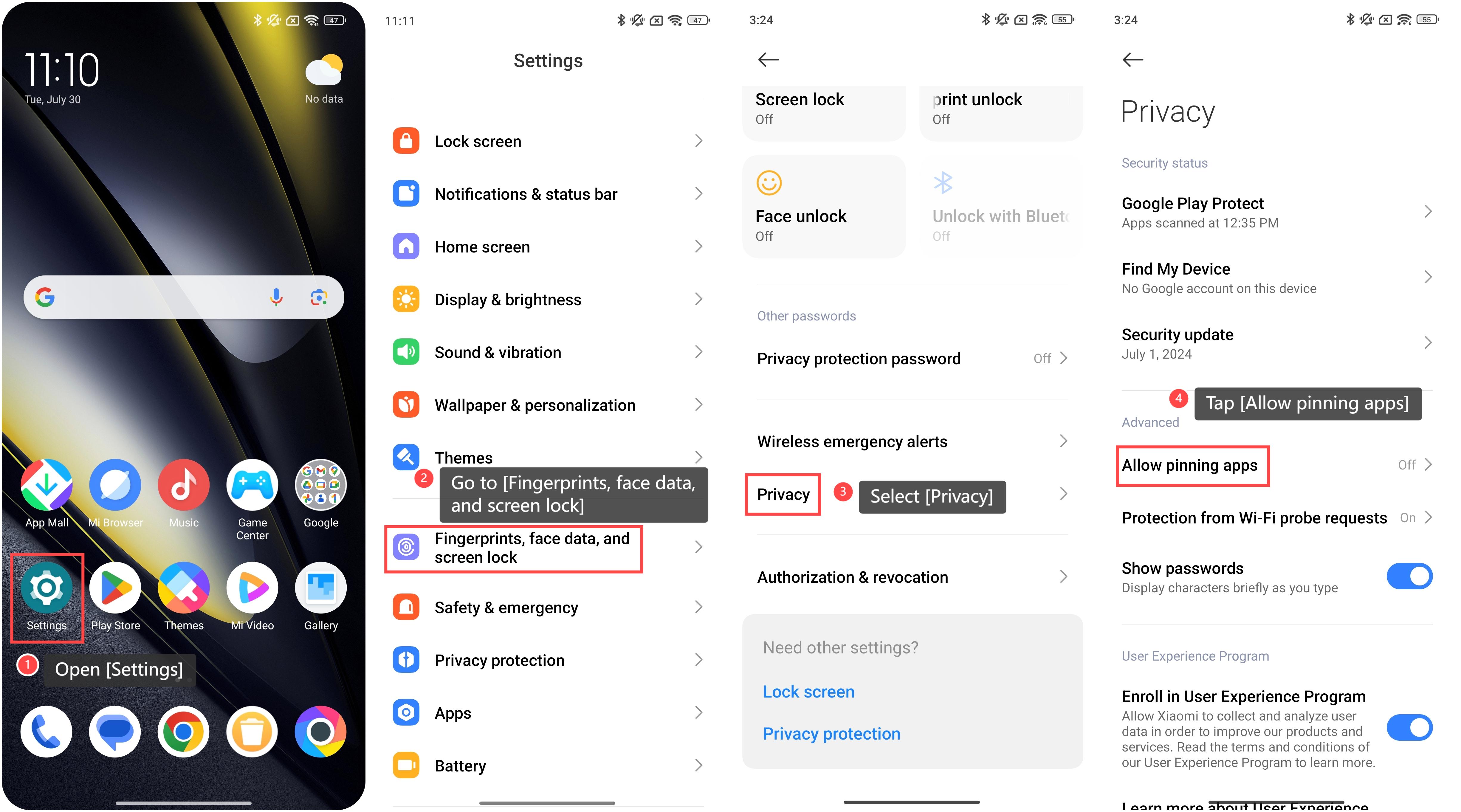
1. Open [Settings];
2. Go to [Fingerprints, face data, and screen lock];
3. Select [Privacy];
4. Tap [Allow pinning apps];
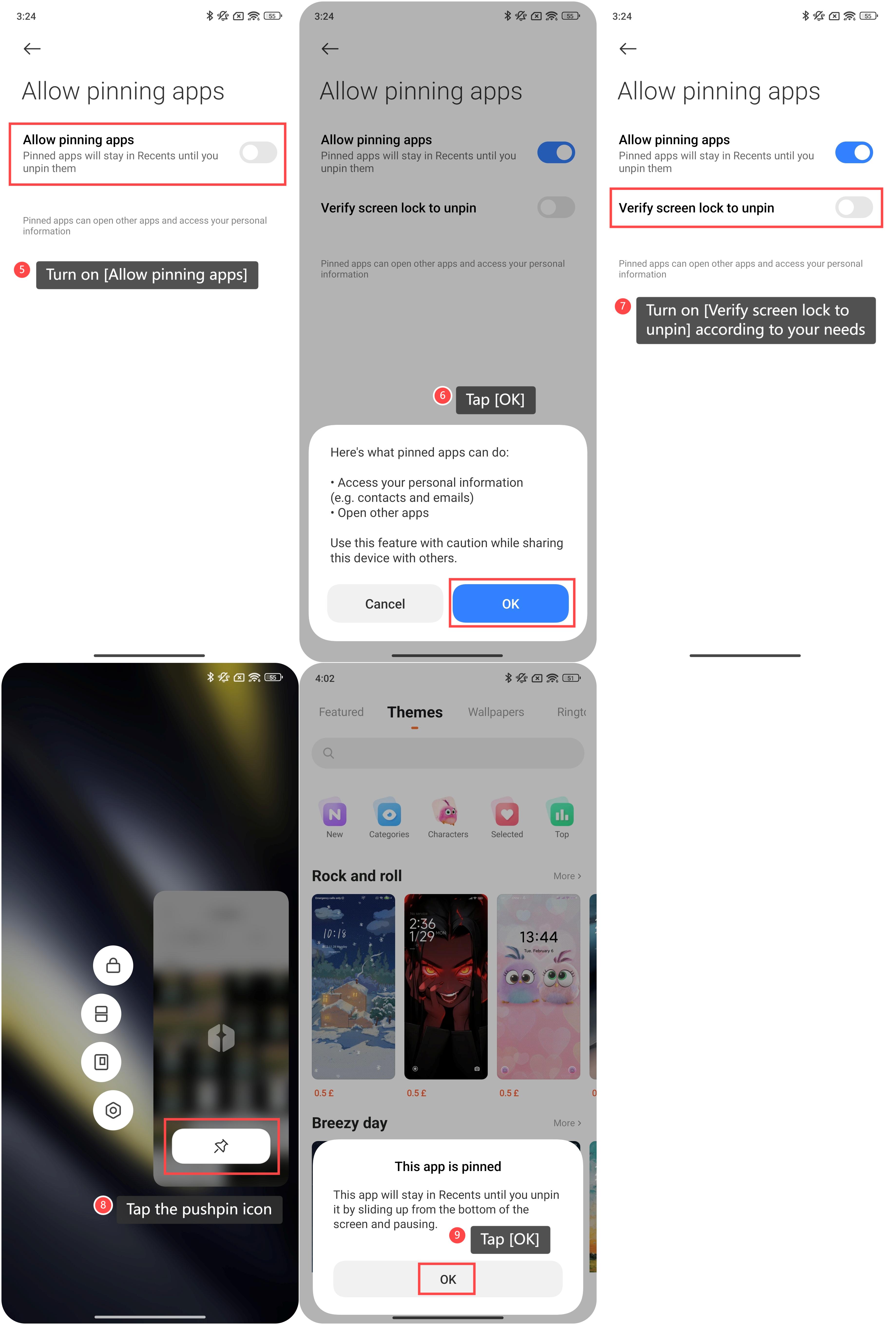
5. Turn on [Allow pinning apps];
6. You will receive a pop-up window telling you what need to pay attention to when using this feature. Tap [OK] to continue;
7. You can also turn on the [Verify screen lock to unpin] option according to your needs;
8. To pin APPs, first enter the recent APPs list. Press and hold the APP you want to pin and tap the pushpin icon;
9. Then your phone will pop up a prompt: This app is pinned. Tap [OK] to use your phone only with this APP;
10. This APP will stay in Recents until you unpin it by sliding up from the bottom of the screen and pausing when you use the system navigation of Gestures. When using the system navigation of Buttons, press and hold the back and preview buttons to unpin the APP. After you unpin it, you will receive a prompt: App unpinned. And you can use the phone normally.
Note:
Pinned APPs can open other APPs and access your personal information. Use this feature with caution while sharing this device with others.
To pin APPs on the screen, please refer to the following steps:
1. Open [Settings];
2. Go to [Fingerprints, face data, and screen lock];
3. Select [Privacy];
4. Tap [Allow pinning apps];
5. Turn on [Allow pinning apps];
6. You will receive a pop-up window telling you what need to pay attention to when using this feature. Tap [OK] to continue;
7. You can also turn on the [Verify screen lock to unpin] option according to your needs;
8. To pin APPs, first enter the recent APPs list. Press and hold the APP you want to pin and tap the pushpin icon;
9. Then your phone will pop up a prompt: This app is pinned. Tap [OK] to use your phone only with this APP;
10. This APP will stay in Recents until you unpin it by sliding up from the bottom of the screen and pausing when you use the system navigation of Gestures. When using the system navigation of Buttons, press and hold the back and preview buttons to unpin the APP. After you unpin it, you will receive a prompt: App unpinned. And you can use the phone normally.
Note:
Pinned APPs can open other APPs and access your personal information. Use this feature with caution while sharing this device with others.
Does it help?
Yes
No