

Xiaomi Wireless Mouse 3 FAQ
Overview
1. Q: What are the differences between the Xiaomi Wireless Mouse 3 and other mouses?
A: The Xiaomi Wireless Mouse 3 supports two wireless transformation modes, including 2.4G and Bluetooth.
2. Q: What are the selling points of the Xiaomi Wireless Mouse 3?
A: The selling points of the Xiaomi Wireless Mouse 3 are listed below:
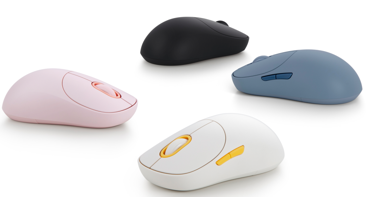
1. Four contrasting color combinations include off-white, dark gray, pink and blue for you to choose from, showcasing your fashion and personality while adding a versatile touch to your colorful desktop;
2. Repeated external appearance refinement, and meticulously crafted ergonomic contours provide comfortable palm support. Delicate surface processing enhances the skin-friendly grip sensation;
3. Silent primary buttons offer a quiet click while maintaining crisp tactile feedback;
4. The mouse is equipped with one 2.4GHz connection channel and two Bluetooth connection channels, allowing pairing with up to three devices. Switching between them is easy with a light press of the bottom function key, ensuring simple adaptation and efficient convenience.
Note:
The Bluetooth connection will be affected by the following factors:
1. Signals from other devices in the vicinity interfere with each other. For example, routers, mobile phones and other devices will interfere with Bluetooth signals;
2. The host is connected to too many Bluetooth devices (such as headphones, speakers, etc.), and the host Bluetooth bandwidth is insufficient during use, causing mouse freezes and other phenomena;
3. The mouse is too far away from the host or there is a signal block in the middle.
3. Q: What are the differences between the 2.4G connection and Bluetooth connection of the Xiaomi Wireless Mouse 3?
A: The differences are listed below:
1. 2.4G connection requires the insertion of a matching receiver, and the PC or notebook needs to have a USB-A port available for use. The connection is relatively stable during use and has strong anti-interference performance;
2. Bluetooth connection does not require the use of a port. Computer equipment with Bluetooth function can be paired and connected for use, which is convenient. Due to the different manufacturers of Bluetooth modules for each device, the compatibility and anti-interference performance during use are not as stable as 2.4G. When the surrounding 2.4G Wi-Fi signal or interference is large or the Bluetooth bandwidth of the computer host is full, Bluetooth will be affected to a certain extent. At this time, you can switch to 2.4GHz channel + receiver to solve most problems.
4. Q: What buttons does the Xiaomi Wireless Mouse 3 have?
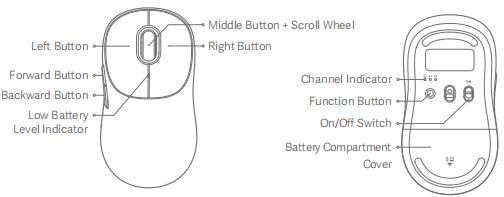
A: The Xiaomi Wireless Mouse 3 has Left Button, Forward Button, Backward Button, Middle Button + Scroll Wheel, Right Button, Function Button, and On/Off Switch.
The detailed picture is listed below:
5. Q: What are the indicator descriptions of the Xiaomi Wireless Mouse 3 ?
A: The indicator descriptions are listed below:
Note:
If the mouse is pressed or moved again within 10 seconds, the 10-second low battery reminder will start again.
FAQs
1. Q: What is the rated input of the Xiaomi Wireless Mouse 3?
A: The rated input of the Xiaomi Wireless Mouse 3 is 1.5V, 50mA.
2. Q: What is the resolution of the Xiaomi Wireless Mouse 3?
A: The resolution of the Xiaomi Wireless Mouse 3 is 1200DPI.
3. Q: What is the largest number of the connected devices of the Xiaomi Wireless Mouse 3 and can they be used at the same time?
A: Xiaomi Wireless Mouse 3 has three channels. 2.4G can connect to one device (with a USB-A port), and Bluetooth can connect to two devices. The mouse can only be connected to one device at a time, and by pressing the Function Button. You need to switch channels to use with other connected devices.
4. Q: How many colors does the Xiaomi Wireless Mouse 3 have?
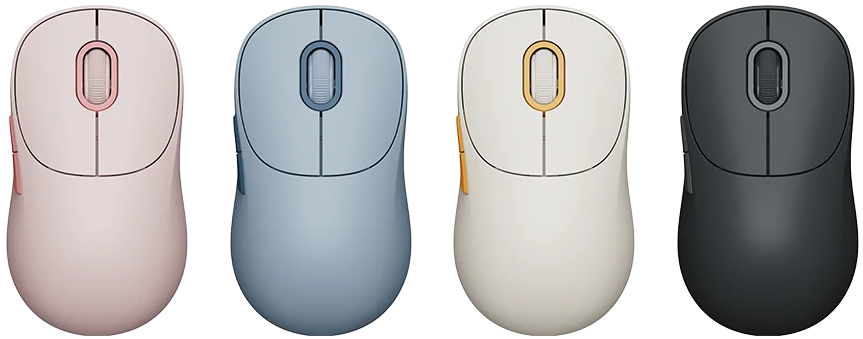
A: The Xiaomi Wireless Mouse 3 has four colors, including pink, blue, off-white and dark gray.
The detailed picture is listed below:
5. Q: What types of connection does the Xiaomi Wireless Mouse 3 support?
A: The ways for the connection of the Xiaomi Wireless Mouse 3 are listed below:
1. 2.4G wireless connection through USB-A receiver;
2. The Bluetooth wireless connection to the Bluetooth device through Bluetooth;
3. A host that supports Pair compatible devices can be quickly paired with the mouse. After the mouse is paired, the system will pop up a pairing box accordingly. Click connect and wait for the device to be automatically installed before using it.
6. Q: How to connect the Xiaomi Wireless Mouse 3 with other devices?
A: The steps for connecting via the 2.4 GHz channel are listed below:
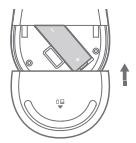
1. Slide down the battery compartment cover to remove it as illustrated;

2. Take out the dongle and plug it into a USB port on the computer;
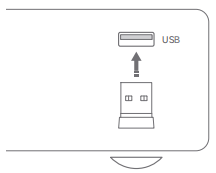
3. Install the AA battery into the mouse's battery compartment and turn on the mouse;
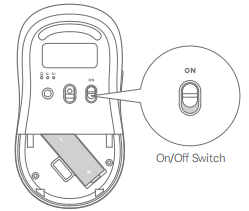
4. When the mouse is turned on for the first time, it defaults to the 2.4 GHz channel (the mouse has been paired with the dongle before leaving the factory). The 2.4 GHz channel indicator remains on for 3 seconds and then goes out after the mouse connects to your computer successfully;

5. When there is a pop-up on your computer to notify you that the mouse is ready for use, you can close the battery compartment cover and start using the mouse.
Note:
Press the Function button to cycle through the channels of 2.4GHz, Bluetooth 1, and Bluetooth 2.
The steps for connecting via Bluetooth are listed below:
1. Press the Function button to change to a Bluetooth channel;

2. Press and hold the Function button for over 3 seconds to enter the Bluetooth pairing mode, and the corresponding Bluetooth channel indicator blinks quickly;

3. In the Windows operating system, click the [Bluetooth] icon in the toolbar and click [Add a Bluetooth device] to open the Bluetooth and other devices panel, or click [ ] >> [Settings] >> [Bluetooth & other devices]. Then click [Add Bluetooth or other device] >> [Bluetooth] >> [Xiaomi Wireless Mouse 3] to complete the connection.
In the macOS operating system, open [System Settings] and click [Bluetooth], then select the [Xiaomi Wireless Mouse 3] from the device list and click [Connect]. Follow the onscreen instructions to finish pairing;
4. When there is a pop-up on your computer to notify you that the mouse is ready for use, you can start using the mouse.
Note:
1. Make sure the computer to be connected supports Bluetooth and its Bluetooth function is enabled;
2. Wireless signals between your computer and the mouse will be susceptible to interference. It is recommended to change to the 2.4GHz channel when the Bluetooth connection is unstable.
7. Q: What type of port does the Xiaomi Wireless Mouse 3 use?
A: The Xiaomi Wireless Mouse 3 uses a USB Type-A port, USB 2.0 standard protocol.
8. Q: What type of battery does the Xiaomi Wireless Mouse 3 use?
A: The Xiaomi Wireless Mouse 3 uses an AA battery.
9. Q: What are the dimensions of the Xiaomi Wireless Mouse 3?
A: The dimensions of the Xiaomi Wireless Mouse 3 are 119 × 64 × 41mm.
10. Q: What is the weight of the Xiaomi Wireless Mouse 3?
A: The weight of the Xiaomi Wireless Mouse 3 is 57g (without battery).
11. Q: What are the package contents of the Xiaomi Wireless Mouse 3?
A: There is a Xiaomi Wireless Mouse 3, a 2.4GHz receiver (stored in receiver compartment), a User manual, an AA battery (stored in battery compartment) and a Warranty card.
12. Q: Is the Xiaomi Wireless Mouse 3 waterproof?
A: The Xiaomi Wireless Mouse 3 is not waterproof. Please do not splash or soak it in water to avoid damage to the mouse.
13. Q: What is the material of the surface of the Xiaomi Wireless Mouse 3?
A: The Xiaomi Wireless Mouse 3 is made of plastic material, and the buttons and upper shell are sprayed and skin-like matte UV-treated, which makes you feel delicate, refreshing and comfortable.
14. Q: What is the Xiaomi Wireless Mouse 3 compatible with?
A: The Xiaomi Wireless Mouse 3 is compatible with Windows 10, macOS 10.13 and newer versions.
15. Q: Are the buttons of the Xiaomi Wireless Mouse 3 mute?
A: The Xiaomi Wireless Mouse 3 uses muted buttons, offering a quiet click while maintaining crisp tactile feedback.
16. Q: What microswitch does the Xiaomi Wireless Mouse 3 use?
A: The Xiaomi Wireless Mouse 3 uses TTC muted microswitch at left, middle and right button, which is reliable and endurable.
17. Q: What is the MCU of the Xiaomi Wireless Mouse 3?
A: The Xiaomi Wireless Mouse 3 has an MCU (Micro Controller Unit) of 125Hz for 2.4G USB, and 133Hz at Bluetooth.
18. Q: What material do the mouse feet of the Xiaomi Wireless Mouse 3 use?
A: The Xiaomi Wireless Mouse 3 uses PTFE mouse feet. Lubricated mouse feet with a low friction coefficient are durable and allow for smooth and effortless use.
19. Q: What are the precautions for using the Xiaomi Wireless Mouse 3?
A: The precautions for using the Xiaomi Wireless Mouse 3 are listed below:
1. Keep the desktop flat during normal use. It is recommended to use it with a mouse pad, and a cloth mouse pad is the best;
2. Avoid using it on transparent glass and high-gloss mirror surfaces, which will have a certain impact on the movement and positioning of the mouse;
3. Do a good job of cleaning. If there is dust on the bottom lens hole, please clean it in time;
4. Pay attention to waterproofing during the use of the mouse. Liquids such as beverages entering the mouse will cause poor feel and electrical problems;
5. In 2.4G mode, it is recommended that the receiver be directly plugged into the USB port of the computer for connection. There will be a problem of jamming through adapters such as USB HUB;
6. Before using Bluetooth mode, please make sure that the connected computer supports Bluetooth and has turned on the Bluetooth function;
7. Bluetooth connection is easily affected by the using environment. It is recommended that the mouse be switched to 2.4GHz connection mode when the Bluetooth connection is not smooth;
8. If you use this mouse on a desktop computer, it is recommended that the receiver be plugged into the front USB port of the chassis for a better experience.
Troubleshooting
1. Q: Why cannot the Xiaomi Wireless Mouse 3 be identified when the computer is turned on?
A: To check the problem of 2.4GHz, please refer to the following information:
1. Please make sure that the USB port is correctly inserted, or try to insert it into another USB port to see if it works normally;
2. Please check whether the current system version belongs to Windows10, macOS10.13 and newer versions;
3. Tap the icon of Scan for hardware changes in Device manager. The hardware will be scanned and the USB driver will be installed automatically. After the installation, the mouse can be used;
4. If the steps above are useless, please plug out the receiver, restart the computer and try plugging in the receiver.
To check the problem of Bluetooth, please refer to the following information:
1. Please make sure that the computer supporting Bluetooth connection has turned on Bluetooth;
2. Check whether the mouse and the computer are paired;
3. If the steps above are useless, please contact the local after-sales service center.
2. Q: What to do if the movements, buttons and scroll wheel of the Xiaomi Wireless Mouse 3 have delays?
A: To solve the problem, please refer to the following steps:
1. For laptops, try to plug the receiver into the left USB port to avoid the mouse touching the receiver when moving and affecting stability;
2. For desktops, try to plug the receiver into the USB port on the front of the host. Reception performance will be improved without obstructions;
3. The receiver is plugged into the USB HUB port of USB 3.0. There is a certain probability of high-frequency interference. You can try to plug it directly into the USB port of the computer for use;
4. Keep routers, chargers, fans, motors and other devices away from the receiver to provide a clean and unobstructed environment for wireless transmission;
5. Keep the desktop or mouse pad clean, and keep the bottom cover lens hole free of dust to make the mouse movement and positioning smoother.
If the steps above are useless, please contact the local after-sales center.
3. Q: Why is the scroll wheel of the Xiaomi Wireless Mouse 3 abnormal?
A: To check the problem, please refer to the following steps:
1. Check whether the connection of the mouse to the computer is normal;
2. Check whether the buttons of the mouse are pressed, so the functions of the buttons cannot be used;
3. Check whether the lens pole at the bottom of the mouse has the obstruction of foreign parts or dust, so the movement of the cursor will be affected;
4. The dirty mouse pat will affect the smoothness of the movement of the cursor, please keep it clean.
If the steps above are useless, please contact local after-sales center.
4. Q: Why does not the lens pole of the Xiaomi Wireless Mouse 3 light up when turned on after being installed the battery?
A: The Xiaomi Wireless Mouse 3 uses an infrared light tracking engine to improve positioning accuracy and adapt to more desktops. At the same time, infrared light is almost invisible to the naked eye, and only a faint red light can be seen through the lens hole at the bottom.
5. Q: How to pair the Xiaomi Wireless Mouse 3 after replacing a new receiver when the original 2.4GHz receiver is lost?
A: To solve the problem, please refer to the following steps:
1. After turning on the mouse, click the Function button to switch to the 2.4GHz channel;
2. Click and hold the Left, Right and Function button for 3 seconds. When the Channel indicator blinks quickly, the 2.4GHz channel starts to pair, which will last for 3 minutes;
3. Insert the new receiver into the computer’s USB port. After the computer system detects and installs the driver and prompts that the device is available, bring the mouse within 30cm of the receiver. The indicator changes from blinking to always-on, indicating that the pairing is successful and the device can be used normally.
1. Q: What are the differences between the Xiaomi Wireless Mouse 3 and other mouses?
A: The Xiaomi Wireless Mouse 3 supports two wireless transformation modes, including 2.4G and Bluetooth.
2. Q: What are the selling points of the Xiaomi Wireless Mouse 3?
A: The selling points of the Xiaomi Wireless Mouse 3 are listed below:
1. Four contrasting color combinations include off-white, dark gray, pink and blue for you to choose from, showcasing your fashion and personality while adding a versatile touch to your colorful desktop;
2. Repeated external appearance refinement, and meticulously crafted ergonomic contours provide comfortable palm support. Delicate surface processing enhances the skin-friendly grip sensation;
3. Silent primary buttons offer a quiet click while maintaining crisp tactile feedback;
4. The mouse is equipped with one 2.4GHz connection channel and two Bluetooth connection channels, allowing pairing with up to three devices. Switching between them is easy with a light press of the bottom function key, ensuring simple adaptation and efficient convenience.
Note:
The Bluetooth connection will be affected by the following factors:
1. Signals from other devices in the vicinity interfere with each other. For example, routers, mobile phones and other devices will interfere with Bluetooth signals;
2. The host is connected to too many Bluetooth devices (such as headphones, speakers, etc.), and the host Bluetooth bandwidth is insufficient during use, causing mouse freezes and other phenomena;
3. The mouse is too far away from the host or there is a signal block in the middle.
3. Q: What are the differences between the 2.4G connection and Bluetooth connection of the Xiaomi Wireless Mouse 3?
A: The differences are listed below:
1. 2.4G connection requires the insertion of a matching receiver, and the PC or notebook needs to have a USB-A port available for use. The connection is relatively stable during use and has strong anti-interference performance;
2. Bluetooth connection does not require the use of a port. Computer equipment with Bluetooth function can be paired and connected for use, which is convenient. Due to the different manufacturers of Bluetooth modules for each device, the compatibility and anti-interference performance during use are not as stable as 2.4G. When the surrounding 2.4G Wi-Fi signal or interference is large or the Bluetooth bandwidth of the computer host is full, Bluetooth will be affected to a certain extent. At this time, you can switch to 2.4GHz channel + receiver to solve most problems.
4. Q: What buttons does the Xiaomi Wireless Mouse 3 have?
A: The Xiaomi Wireless Mouse 3 has Left Button, Forward Button, Backward Button, Middle Button + Scroll Wheel, Right Button, Function Button, and On/Off Switch.
The detailed picture is listed below:
5. Q: What are the indicator descriptions of the Xiaomi Wireless Mouse 3 ?
A: The indicator descriptions are listed below:
| Indicator Status | Mouse Status |
| The selected channel's indicator slowly blinks white 6 times. | The selected channel is not paired. |
| The selected channel's indicator quickly blinks white for 3 minutes. | The mouse enters pairing mode after the function button has been pressed and held for 3 seconds. |
| The selected channel's indicator remains white for 3 seconds and then goes out. | 1. The selected channel is paired successfully; 2. The selected channel is connected properly when the mouse is turned on or woken up. |
| The low battery level indicator slowly blinks orange-red for 10 seconds. | The mouse is working under a low battery level. |
If the mouse is pressed or moved again within 10 seconds, the 10-second low battery reminder will start again.
FAQs
1. Q: What is the rated input of the Xiaomi Wireless Mouse 3?
A: The rated input of the Xiaomi Wireless Mouse 3 is 1.5V, 50mA.
2. Q: What is the resolution of the Xiaomi Wireless Mouse 3?
A: The resolution of the Xiaomi Wireless Mouse 3 is 1200DPI.
3. Q: What is the largest number of the connected devices of the Xiaomi Wireless Mouse 3 and can they be used at the same time?
A: Xiaomi Wireless Mouse 3 has three channels. 2.4G can connect to one device (with a USB-A port), and Bluetooth can connect to two devices. The mouse can only be connected to one device at a time, and by pressing the Function Button. You need to switch channels to use with other connected devices.
4. Q: How many colors does the Xiaomi Wireless Mouse 3 have?
A: The Xiaomi Wireless Mouse 3 has four colors, including pink, blue, off-white and dark gray.
The detailed picture is listed below:
5. Q: What types of connection does the Xiaomi Wireless Mouse 3 support?
A: The ways for the connection of the Xiaomi Wireless Mouse 3 are listed below:
1. 2.4G wireless connection through USB-A receiver;
2. The Bluetooth wireless connection to the Bluetooth device through Bluetooth;
3. A host that supports Pair compatible devices can be quickly paired with the mouse. After the mouse is paired, the system will pop up a pairing box accordingly. Click connect and wait for the device to be automatically installed before using it.
6. Q: How to connect the Xiaomi Wireless Mouse 3 with other devices?
A: The steps for connecting via the 2.4 GHz channel are listed below:
1. Slide down the battery compartment cover to remove it as illustrated;
2. Take out the dongle and plug it into a USB port on the computer;
3. Install the AA battery into the mouse's battery compartment and turn on the mouse;
4. When the mouse is turned on for the first time, it defaults to the 2.4 GHz channel (the mouse has been paired with the dongle before leaving the factory). The 2.4 GHz channel indicator remains on for 3 seconds and then goes out after the mouse connects to your computer successfully;
5. When there is a pop-up on your computer to notify you that the mouse is ready for use, you can close the battery compartment cover and start using the mouse.
Note:
Press the Function button to cycle through the channels of 2.4GHz, Bluetooth 1, and Bluetooth 2.
The steps for connecting via Bluetooth are listed below:
1. Press the Function button to change to a Bluetooth channel;
2. Press and hold the Function button for over 3 seconds to enter the Bluetooth pairing mode, and the corresponding Bluetooth channel indicator blinks quickly;
3. In the Windows operating system, click the [Bluetooth] icon in the toolbar and click [Add a Bluetooth device] to open the Bluetooth and other devices panel, or click [
] >> [Settings] >> [Bluetooth & other devices]. Then click [Add Bluetooth or other device] >> [Bluetooth] >> [Xiaomi Wireless Mouse 3] to complete the connection.In the macOS operating system, open [System Settings] and click [Bluetooth], then select the [Xiaomi Wireless Mouse 3] from the device list and click [Connect]. Follow the onscreen instructions to finish pairing;
4. When there is a pop-up on your computer to notify you that the mouse is ready for use, you can start using the mouse.
Note:
1. Make sure the computer to be connected supports Bluetooth and its Bluetooth function is enabled;
2. Wireless signals between your computer and the mouse will be susceptible to interference. It is recommended to change to the 2.4GHz channel when the Bluetooth connection is unstable.
7. Q: What type of port does the Xiaomi Wireless Mouse 3 use?
A: The Xiaomi Wireless Mouse 3 uses a USB Type-A port, USB 2.0 standard protocol.
8. Q: What type of battery does the Xiaomi Wireless Mouse 3 use?
A: The Xiaomi Wireless Mouse 3 uses an AA battery.
9. Q: What are the dimensions of the Xiaomi Wireless Mouse 3?
A: The dimensions of the Xiaomi Wireless Mouse 3 are 119 × 64 × 41mm.
10. Q: What is the weight of the Xiaomi Wireless Mouse 3?
A: The weight of the Xiaomi Wireless Mouse 3 is 57g (without battery).
11. Q: What are the package contents of the Xiaomi Wireless Mouse 3?
A: There is a Xiaomi Wireless Mouse 3, a 2.4GHz receiver (stored in receiver compartment), a User manual, an AA battery (stored in battery compartment) and a Warranty card.
12. Q: Is the Xiaomi Wireless Mouse 3 waterproof?
A: The Xiaomi Wireless Mouse 3 is not waterproof. Please do not splash or soak it in water to avoid damage to the mouse.
13. Q: What is the material of the surface of the Xiaomi Wireless Mouse 3?
A: The Xiaomi Wireless Mouse 3 is made of plastic material, and the buttons and upper shell are sprayed and skin-like matte UV-treated, which makes you feel delicate, refreshing and comfortable.
14. Q: What is the Xiaomi Wireless Mouse 3 compatible with?
A: The Xiaomi Wireless Mouse 3 is compatible with Windows 10, macOS 10.13 and newer versions.
15. Q: Are the buttons of the Xiaomi Wireless Mouse 3 mute?
A: The Xiaomi Wireless Mouse 3 uses muted buttons, offering a quiet click while maintaining crisp tactile feedback.
16. Q: What microswitch does the Xiaomi Wireless Mouse 3 use?
A: The Xiaomi Wireless Mouse 3 uses TTC muted microswitch at left, middle and right button, which is reliable and endurable.
17. Q: What is the MCU of the Xiaomi Wireless Mouse 3?
A: The Xiaomi Wireless Mouse 3 has an MCU (Micro Controller Unit) of 125Hz for 2.4G USB, and 133Hz at Bluetooth.
18. Q: What material do the mouse feet of the Xiaomi Wireless Mouse 3 use?
A: The Xiaomi Wireless Mouse 3 uses PTFE mouse feet. Lubricated mouse feet with a low friction coefficient are durable and allow for smooth and effortless use.
19. Q: What are the precautions for using the Xiaomi Wireless Mouse 3?
A: The precautions for using the Xiaomi Wireless Mouse 3 are listed below:
1. Keep the desktop flat during normal use. It is recommended to use it with a mouse pad, and a cloth mouse pad is the best;
2. Avoid using it on transparent glass and high-gloss mirror surfaces, which will have a certain impact on the movement and positioning of the mouse;
3. Do a good job of cleaning. If there is dust on the bottom lens hole, please clean it in time;
4. Pay attention to waterproofing during the use of the mouse. Liquids such as beverages entering the mouse will cause poor feel and electrical problems;
5. In 2.4G mode, it is recommended that the receiver be directly plugged into the USB port of the computer for connection. There will be a problem of jamming through adapters such as USB HUB;
6. Before using Bluetooth mode, please make sure that the connected computer supports Bluetooth and has turned on the Bluetooth function;
7. Bluetooth connection is easily affected by the using environment. It is recommended that the mouse be switched to 2.4GHz connection mode when the Bluetooth connection is not smooth;
8. If you use this mouse on a desktop computer, it is recommended that the receiver be plugged into the front USB port of the chassis for a better experience.
Troubleshooting
1. Q: Why cannot the Xiaomi Wireless Mouse 3 be identified when the computer is turned on?
A: To check the problem of 2.4GHz, please refer to the following information:
1. Please make sure that the USB port is correctly inserted, or try to insert it into another USB port to see if it works normally;
2. Please check whether the current system version belongs to Windows10, macOS10.13 and newer versions;
3. Tap the icon of Scan for hardware changes in Device manager. The hardware will be scanned and the USB driver will be installed automatically. After the installation, the mouse can be used;
4. If the steps above are useless, please plug out the receiver, restart the computer and try plugging in the receiver.
To check the problem of Bluetooth, please refer to the following information:
1. Please make sure that the computer supporting Bluetooth connection has turned on Bluetooth;
2. Check whether the mouse and the computer are paired;
3. If the steps above are useless, please contact the local after-sales service center.
2. Q: What to do if the movements, buttons and scroll wheel of the Xiaomi Wireless Mouse 3 have delays?
A: To solve the problem, please refer to the following steps:
1. For laptops, try to plug the receiver into the left USB port to avoid the mouse touching the receiver when moving and affecting stability;
2. For desktops, try to plug the receiver into the USB port on the front of the host. Reception performance will be improved without obstructions;
3. The receiver is plugged into the USB HUB port of USB 3.0. There is a certain probability of high-frequency interference. You can try to plug it directly into the USB port of the computer for use;
4. Keep routers, chargers, fans, motors and other devices away from the receiver to provide a clean and unobstructed environment for wireless transmission;
5. Keep the desktop or mouse pad clean, and keep the bottom cover lens hole free of dust to make the mouse movement and positioning smoother.
If the steps above are useless, please contact the local after-sales center.
3. Q: Why is the scroll wheel of the Xiaomi Wireless Mouse 3 abnormal?
A: To check the problem, please refer to the following steps:
1. Check whether the connection of the mouse to the computer is normal;
2. Check whether the buttons of the mouse are pressed, so the functions of the buttons cannot be used;
3. Check whether the lens pole at the bottom of the mouse has the obstruction of foreign parts or dust, so the movement of the cursor will be affected;
4. The dirty mouse pat will affect the smoothness of the movement of the cursor, please keep it clean.
If the steps above are useless, please contact local after-sales center.
4. Q: Why does not the lens pole of the Xiaomi Wireless Mouse 3 light up when turned on after being installed the battery?
A: The Xiaomi Wireless Mouse 3 uses an infrared light tracking engine to improve positioning accuracy and adapt to more desktops. At the same time, infrared light is almost invisible to the naked eye, and only a faint red light can be seen through the lens hole at the bottom.
5. Q: How to pair the Xiaomi Wireless Mouse 3 after replacing a new receiver when the original 2.4GHz receiver is lost?
A: To solve the problem, please refer to the following steps:
1. After turning on the mouse, click the Function button to switch to the 2.4GHz channel;
2. Click and hold the Left, Right and Function button for 3 seconds. When the Channel indicator blinks quickly, the 2.4GHz channel starts to pair, which will last for 3 minutes;
3. Insert the new receiver into the computer’s USB port. After the computer system detects and installs the driver and prompts that the device is available, bring the mouse within 30cm of the receiver. The indicator changes from blinking to always-on, indicating that the pairing is successful and the device can be used normally.
Does it help?
Yes
No