

Xiaomi Smart Band 8 FAQ
1. Q: What are the features of the Xiaomi Smart Band 8?
A: For your reference, here are the features of the Xiaomi Smart Band 8:
1. The Xiaomi Smart Band 8 is equipped with a 1.62’’ AMOLED display with a pill-shaped design, providing more information on the display;
2. The Xiaomi Smart Band 8 comes with a high-performance PPG biosensor, supporting blood oxygen detection, which makes it easier for you to understand your physical conditions;
3. With an Ambient light sensor, the Xiaomi Smart Band 8 can adjust the brightness automatically according to the intensity of ambient light to improve the experience;
4. It supports more than 200 new fashionable band displays with exclusive always-on display to give you a constant source of inspiration for your outfits. With a wide range of straps and pendant accessories, as well as a variety of official matching band displays, you can always find a unique combination to match your style;
5. Metallic midframe with high gloss NCVM, available in two colors: Gold and Graphite Black;
6. It supports all-day heart rate monitoring, sleep monitoring, all-day blood oxygen saturation monitoring, all-day stress monitoring, women's health management, protecting your health omnidirectional;
7. It supports 159 fitness modes to suit your preferences. Adopt more professional exercise algorithms, supporting four major professional exercise data: "maximum oxygen uptake", "training load", "recovery time", and "aerobic/anaerobic training effect", comprehensively measuring the exercise effect;
8. It supports vitality indicator display and supports Calories, Steps, Moving and Standing (three out of four displays), scientifically record daily activities, get results of exercise standards at a glance. You can start a week long vitality competition with friends, invite them to participate in the 7-day competition on the Mi Fitness APP, PK the Health Rainbow score, and monitor each other's sports results. Those with more total points at the end of the week will receive an exclusive challenge medal;
9. A variety of thoughtful small features enhance the experience of details in daily life, supporting Always-on display, Focus, and enabling various health monitoring functions (including all-day heart rate monitoring, blood oxygen detection, stress detection, etc.) on the band end;
10. The Xiaomi Smart Band 8 can connect to the Mi Fitness APP. Under the default settings, the typical endurance is 16 days and when the Always-on display is turned on, the typical endurance is 6 days;
11. It can be used with running beans and pendant accessories;
12. It can be paired with 8 stylish straps.
2. Q: What is the appearance of the Xiaomi Smart Band 8?
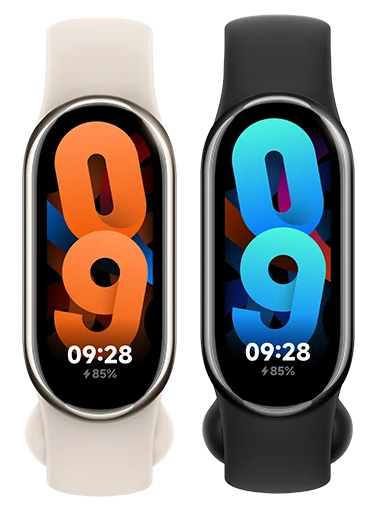
A: The dimensions are 48mm * 22.5mm * 10.99mm and the weight is 27g (including strap).
Please refer to the following picture:
3. Q: What are the application functions of the Xiaomi Smart Band 8?
A: For your reference, here are the functions of the Xiaomi Smart Band 8:
Stats, Workout, Activity, Running, Status, Heart rate, Vitality, SpO2, Sleep, Stress, Weather, Calendar, Alarm, Settings, More (Events, Alerts, Breathing, Cycles, Stopwatch, Music, Find phone, World clock, Silence phone, Camera, Timer, Flashlight, Focus).
4. Q: What are the differences between the Xiaomi Smart Band 8 and the Xiaomi Smart Band 7?
A: Please refer to the following form:
| Category | Xiaomi Smart Band 8 | Xiaomi Smart Band 7 |
| Display type | AMOLED | AMOLED |
| Display size | 1.62’’ | 1.62’’ |
| Waterproof rate | 5ATM | 5ATM |
| Auto brightness | Support | Not support |
| APP | Mi Fitness APP | Mi Fitness APP/Zepp Life APP |
| Charging type | Magnetic USB socket | Magnetic USB socket |
| Bluetooth version | Bluetooth 5.1 BLE | Bluetooth 5.2 BLE |
| Endurance | 16 days (typ)/6 days (AOD) | 15 days (typ)/3 days (AOD) |
| Find phone | Support | Support |
| Unlock phone | Support (MIUI) | Support (MIUI) |
| Music | Support | Support |
| Sleep monitoring | Support | Support |
| All-day heart rate monitoring | Support | Support |
| Remind to stand up | Support | Support |
| Incoming calls | Support | Support |
| DND mode | Support | Support |
| App notifications | Support | Support |
| Weather | Support | Support |
| Swimming anti accidental touch mode | Support | Support |
| Cycles | Support | Support |
| Stress | Support | Support |
| Camera | Support (Some models) | Support (Some models) |
| World clock | Support | Support |
| Calender | Support | Support |
| Game display | Support | Support |
| Manage display type | Support | Support |
| Stats | Support | Support |
| Workout | 159 | 120 |
| Activity | Support | Support |
| Status | Support | Support |
| Running | Support | Not support |
| VO2 max | Support | Support |
| Training load | Support | Support |
| Aerobic & Anaerobic training | Support | Support |
| Recovery | Support | Support |
| Breathing | Support | Support |
| Vitality | Support | Not support |
| SpO2 | Support | Support |
| All-day blood oxygen tracking | Support | Support |
| Abnormal heart rate reminder | Support | Support |
| Always-on display | Support | Support |
| High intensity interval training | Support | Support |
| PIN | Support | Support |
| Silence phone | Support | Support |
| Alarm | Support | Support |
| Stopwatch | Support | Support |
| Timer | Support | Support |
| Alerts | Support | Support |
| Events | Support (Only MIUI and iOS) | Support (Only MIUI and iOS) |
| Focus | Support | Support |
| Battery saver | Support | Support |
| Pebble mode | Support | Not support |
| Necklace mode | Support | Not support |
| Widgets | Support | Not support |
| Interconnection | Support | Not support |
5. Q: What are the standard configurations of the Xiaomi Smart Band 8 and what colors doesn’t it have?
A: The standard configurations of the Xiaomi Smart Band 8 are band body (including strap), charging cable and User manual. The main body of the Xiaomi Smart Band 8 is in black and gold, with a black wristband in black and a skin tone wristband in gold.
6. Q: Is the white strap with the Xiaomi Smart Band 8 resistant to dirt? How to clean it?
A: White straps are made of antibacterial TPU material. Compared to black straps, white straps are more likely to reveal various types of dirt and dyes in daily life. In daily use, please try to avoid staining red ink, watercolor pens, and various industrial dyes. If accidentally contaminated, it is recommended that you use daily cleaning agents such as laundry detergent and soapy water to wipe the straps and remove dirt. In addition, the Xiaomi Smart Band 8 comes with 8 retail straps, and if you need it, you can also choose to purchase the straps you like from them.
7. Q: How many types of straps does the Xiaomi Smart Band 8 have? What material is it? Is it antibacterial?
A: There are 10 types of straps available for the Xiaomi Smart Band 8 currently.
The standard straps that come with the Xiaomi Smart Band 8 are made of an antibacterial TPU material. The black band is paired with a black strap, while the gold band is paired with a skin tone strap.
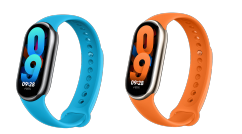
At the same time, there are 8 retail straps to choose from, as shown in the following figure:
1. The Xiaomi Smart Band 8 Strap, Blue/Orange
Material: TPU
Suitable wrist circumference: 130-210mm
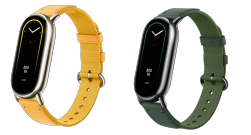
2. The Xiaomi Smart Band 8 Braided Strap, Green/Yellow
Material: Nylon + Leather
Suitable wrist circumference: 140-210mm
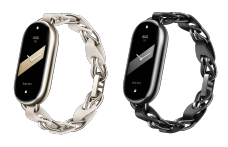
3. The Xiaomi Smart Band 8 Chain Strap, Black/White
Material: Leather + Stainless Steel
Suitable wrist circumference: 130-210mm
4. The Xiaomi Smart Band 8 Double Wrap Strap, Black and White
Material: Leather, PU (inside)
Suitable wrist circumference: 140-180mm
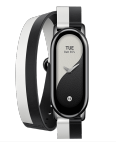
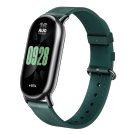
5. The Xiaomi Smart Band 8 Checkered Strap, Green
Material: Leather
Suitable wrist circumference: 130-210mm
8. Q: How to install and remove the strap of the Xiaomi Smart Band 8?
A: To install and remove the strap of the Xiaomi Smart Band 8, please refer to the following steps:
1. To install the strap, please align the strap with the main body of the band and fasten it. Before wearing, please pull the strap to ensure it is securely fastened;
2. Press the quick release buttons on both sides of the band separately, and pull the strap outward to separate it from the main body.
9. Q: Is the strap of the Xiaomi Smart Band 8 compatible with other Xiaomi Smart Bands?
A: The strap of the Xiaomi Smart Band is designed separately and is not compatible with other Xiaomi Band products.
10. Q: Does the retail strap of the Xiaomi Smart Band 8 have an impact on PPG function?
A: The double wrap leather black and white strap, metal leather chain simple white strap, and metal leather chain mysterious black strap are all worn loosely on in daily, which has a certain impact on the collection of PPG function information. If accurate testing of health-related data is needed, it is recommended to wear a tight or standard strap.
11. Q: Is the charger of the Xiaomi Smart Band 8 compatible with other Xiaomi Smart Bands?
A: The charger of the Xiaomi Smart Band 8 is compatible with the Redmi Smart Band 2 only.
12. Q: Introduction to the NCVM process for the middle frame of the Xiaomi Smart Band 8?
A: Using NCVM surface treatment technology, the product surface does not have conductivity. Its surface layer is an insulating material, the middle layer is metallic luster material, and the bottom surface is colored material. Lightweight is one of the characteristics of band products. The middle frame adopts NCVM technology, which not only ensures the lightweight of the band but also has a delicate metallic texture. At the same time, wearing it in a low-temperature environment will not give you a metallic chill.
13. Q: Is the Xiaomi Smart Band 8 waterproof? Can it be worn while swimming, bathing, or soaking in hot springs?
A: The Xiaomi Smart Band 8 supports 5ATM waterproofing, allowing you to enjoy swimming in the pool without removing it. However, it is not suitable for wearing in scenarios such as hot showers, hot springs, saunas, and high-speed water flow sports.
Note:
Genuine leather straps and woven straps are not suitable for use in scenarios contacting water such as swimming or sports scenes with high sweating. If such requirements exist, it is recommended to replace the TPU rubber and other types of straps.
14. Q: Does the Xiaomi Smart Band 8 need to be removed during MRI and health examinations? What would happen if it doesn’t be removed?
A: Electronic devices such as bands must be removed when performing nuclear magnetic resonance or entering other strong magnetic field environments. The charging of a band relies on a magnet to adsorb the charger. During nuclear magnetic resonance, a strong magnetic field is formed, which seriously affects the magnet on the back of the band. In severe cases, it can change the magnetic field inside the band, causing the magnetic poles to reverse. Same sex repulsion will cause the charging cable to be unable to adsorb and charge, and it will also damage the internal components of the screen, causing a series of problems such as the black screen. Therefore, it is necessary to follow the doctor's advice and place the band in a safe place before undergoing MRI and other health examinations. Similarly, before entering a strong magnetic environment in daily life, it is also necessary to remove the band in advance and store it in a safe place.
Device connection
1. Q: Which APP can the Xiaomi Smart Band 8 connect to?
A: Before the first use, please connect it to the charging cable to turn it on.
It can only connect to the Mi Fitness APP and the device must be Bluetooth 5.1 and the system is Android 6.0 or iOS 12.0 and above. the Xiaomi Smart Band 8 doesn’t support connecting to the Zepp Life APP.
2. Q: How to remain the connection between the Xiaomi Smart Band 8 and the Mi Fitness APP?
A: Set the Mi Fitness APP as a whitelist for mobile system applications, and ensure that the APP runs in the background. Without turning off the phone's Bluetooth, keep the band within the Bluetooth connection distance of the phone (Around 10 meters in open areas).
3. Q: What to do if the Xiaomi Smart Band 8 disconnects from the Mi Fitness APP?
A: If the Xiaomi Smart Band 8 disconnects from the Mi Fitness APP, please refer to the following troubleshooting:
1. Please keep the band and phone within a Bluetooth connection distance (In open areas, the Bluetooth range is about 10 meters);
2. Check if the band and APP have been upgraded to the latest version;
3. In the multitasking window of an Android phone, lock the Mi Fitness APP to prevent it from being removed in the background;
4. Please submit the feedback in the APP.
Note:
Due to differences in mobile phones and systems, please refer to the background running permission guide on the Mi Fitness APP for detailed operation steps.
4. Q: Can the data in the Zepp Life APP be transferred into the Mi Fitness APP?
A: Currently, it is supported to transfer the Zepp Life APP's exercise and health data into the Mi Fitness APP.
Please refer to the following steps:
1. Open the Mi Fitness APP and go to [Profile];
2. Tap the [Third-party data] option;
3. Select the [Zepp Life] APP;
4. Tap [Transfer]. You can transfer the steps count, sports recording, sleep data, heart rate, stress levels, blood oxygen levels, PAI scores, weight and cycles. You can also tap [learn what transferring from Zepp Life means] to see more details;
5. The log into the Zepp Life APP using the Xiaomi Account and tap [Allow];
6. Select [Open] or [Download] according to yourself;
7. Please wait for a moment to complete the data transfer. It is estimated to take about 10 minutes, depending on the amount of data;
8. After completing, you can see the last import time.
Note:
If importing data fails, it is possibly due to server saturation. Please try again later or wait for 24 hours before re-importing.
5. Q: Which information can be viewed before connecting the Xiaomi Smart Band 8 to the Mi Fitness APP?
A: In the unbinding status, there will be two options: Connect and settings
6. Q: How to check the System version, Bluetooth, and SN on the Xiaomi Smart Band 8?
A: Method 1:
You can check the information on the band by tapping [Settings] >> [About].
Method 2:
If the Xiaomi Smart Band 8 has been connected to the Mi Fitness APP, you can also check the information in the Mi Fitness APP by opening the [Mi Fitness] APP >> [Device] >> [About].
7. Q: How to pair and unpair the Xiaomi Smart Band 8 with the smartphone?
A: Please download and open the Mi Fitness APP, log into your Xiaomi Account and turn on the related APP permissions according to the prompts.
Android pairing methods
Method 1:
1. Open the [Mi Fitness] APP and tap the [+] icon at the upper right corner;
2. Tap [Add devices];
3. Wait for the search and place the band next to the phone;
4. Select the device whose Bluetooth address is the same as your band;
5. After connecting your band to the smartphone, there will be a check on the band;
6. Tap the [√] icon on the band.
Method 2:
1. Open the [Mi Fitness] APP and tap the [+] icon at the upper right corner;
2. Tap [Add devices];
3. Tap [Add model];
4. Select [The Xiaomi Smart Band 8] and the phone will search for the device nearby and connect to the band;
5. After connecting your band to the smartphone, there will be a check on the band;
6. Tap the [√] icon on the band.
Method 3:
1. Open the [Mi Fitness] APP and tap the [+] icon at the upper right corner;
2. Select [Scanner] and scan the QR code on the band to connect.
Method 4:
When an unpaired new band approaches the phone (only supported by some MIUI models), the MIUI system will pop up a window to discover the device. The phone will pop up a box indicating the device model, the last four digits of the Bluetooth address, and the device image. You can directly tap [Connect to this device].
Android unpairing methods
Method 1:
1. Open the [Mi Fitness] APP and go to [Device];
2. Tap [Manage your devices];
3. Press and hold on the Xiaomi Smart Band 8 and tap [Unpair];
4. After unpairing, the band will reset to the factory settings.
Method 2:
1. Open the [Mi Fitness] APP and go to [Device];
2. Swipe down and select [Unpair] when the band has been connected to the Mi Fitness APP.
Note:
If you cannot find the band during the process of pairing, or if you are unable to connect the band during use, please try sliding up and down on the pending binding page, select [Reset] on the system operating interface, and then connect the band to the Mi Fitness APP again.
iOS pairing methods
Method 1:
1. Open the [Mi Fitness] APP and tap the [+] icon at the upper right corner;
2. Tap [Add devices];
3. Wait for the search and place the band next to the phone;
4. Select the device whose Bluetooth address is the same as your band;
5. After connecting your band to the smartphone, there will be a check on the band;
6. Tap the [√] icon on the band and tap [Pair] on the phone.
Method 2:
1. Open the [Mi Fitness] APP and tap the [+] icon at the upper right corner;
2. Tap [Add devices];
3. Tap [Add model];
4. Select [The Xiaomi Smart Band 8] and the phone will search for the device nearby and connect to the band;
5. After connecting your band to the smartphone, there will be a check on the band;
6. Tap the [√] icon on the band and tap [Pair] on the phone.
Method 3:
1. Open the [Mi Fitness] APP and tap the [+] icon at the upper right corner;
2. Select [Scanner] and scan the QR code on the band to connect.
iOS unpairing methods
Method 1:
1. Open the [Mi Fitness] APP and go to [Device];
2. Tap [Manage your devices];
3. Find the Xiaomi Smart Band 8 slide left and tap [Unpair];
4. After unpairing, the band will reset to the factory settings.
Method 2:
1. Open the [Mi Fitness] APP and go to [Device];
2. Swipe down and select [Unpair] when the band has been connected to the Mi Fitness APP.
Note:
After unpairing the device in the Mi Fitness APP, you need to select the device in the Bluetooth interface and tap "Ignore this device" before repairing the device the next time. Otherwise, the current device cannot be paired.
8. Q: Why does the Xiaomi Smart Band 8 fail to connect/pair to the Mi Fitness APP?
A: If your Xiaomi Smart Band 8 fails to connect/pair to the Mi Fitness APP, please refer to the following troubleshooting:
Note:
Some mobile phone models (non-Xiaomi smartphones) have compatibility issues. If the band cannot be successfully paired and connected to the phone after the first or multiple attempts, you can connect the band to the other phone to update the system version of the band above 1.1.122 if there are other models of phones, and then repair and connect with the original model. Currently, compatibility issues have been found with phone models such as SONY Xperia.
1. If the band cannot pair with iOS phones, the reason will be that the iOS system will clean the background when there are many applications opened in the background.
Here are some suggestions as follows:
(1). Open the Mi Fitness APP to confirm if it can be reconnected normally;
(2). If unable to reconnect, tap the [Connect] icon to see if it reconnects normally;
(3). If the device still cannot be reconnected, confirm if it is connected to the Bluetooth of the mobile phone. If it is connected, ignore the device and confirm if the reconnection is normal. If the device is not connected, it is recommended to restart and try again;
(4). If the device still cannot be reconnected, restore it to the factory, ignore the device in the system Bluetooth again, and the Mi Fitness APP will scan and connect to the device again.
2. If the band cannot connect to the iOS phone after being reset to the factory settings, please refer to the following steps:
(1). Please check if the band has connected to the Bluetooth of the iOS phone. If so, please ignore it and return to the Mi Fitness APP. Follow the prompts to pair again;
(2). When there are three "X" icons when binding to iOS, confirm if the device is ignored in the Bluetooth. If the device connects to the Bluetooth, please ignore it and try connecting again.
3. When connected to iOS, the reset the band to the factory in the device end, and fails to connect the band to the APP:
After connecting the band to the Mi Fitness APP, if reset the band to the factory unilaterally and fail to connect the band in the APP, please go to Bluetooth and ignore the band, then connect it again.
4. The permission that allows the Mi Fitness APP to run in the background has not been turned on, resulting in the Mi Fitness APP being cleaned in the background.
To use the band better and avoid cleaning the Mi Fitness APP in the background in Android systems. It is recommended to keep the Mi Fitness APP running in the background.
5. After the reset the band to factory, it can not be searched for.
(1). After unpairing, the device cannot be found. Please turn off and enable the Bluetooth on your phone again;
(2). Confirm if there is a pop-up prompt on nearby mobile phones to connect, and if so, refuse.
6. The band or phone has turned on the Battery saver mode.
(1). After enabling Battery saver mode on the band, the Bluetooth of the band will be turned off, the currently connected phone will be disconnected, and it will not be able to automatically reconnect.
(2). After turning on the Battery saver mode on the phone, the Bluetooth of the phone will be turned off, the currently connected band will be disconnected, and it will not be able to reconnect.
7. During pairing, the Bluetooth disconnects or the phone turns off.
(1). If the iOS phone Bluetooth is turned off during pairing, there will be a prompt on the band to remind you that the pairing fails, and the Mi Fitness APP will prompt that the Bluetooth has been turned off and then prompts you to turn on Bluetooth to re-scan. After reopening the Bluetooth on the iOS phone, a pairing failure interface will appear. tap the [Retry] pop-up again to repair;
(2). If the Android phone Bluetooth is turned off during pairing, there will be a prompt on the band to remind you that the pairing fails, and the Mi Fitness APP will prompt that the pairing fails and then prompts you to turn on Bluetooth to re-scan. After reopening the Bluetooth on the Android phone, the band will connect to the Mi Fitness APP successfully;
(3). If the phone turns off or reboots when pairing, there will be a prompt on the band to remind you that the pairing fails. Please turn on the phone and connect the band and the phone again.
8. Other reasons why the band cannot be connected.
(1). In a disconnected state, unpair the band on the APP and it is not restored to its factory settings. It needs to be restored to its factory settings before the next binding, otherwise, it will not be able to pair with a new phone;
(2). After the iOS phone is connected to the device and the device is unilaterally restored to the factory, the Bluetooth on the phone will try to reconnect the device, and there is a probability that the new phone will not be able to search for the device (The iOS phone will remain disconnected from the device, and during the connection period, the new phone will not be able to search. During the disconnection period, the new phone is just in scanning mode and can be searched). You need to go to the Bluetooth on the phone, find the corresponding connected device, and ignore this device. At this time, use the new phone to search for the band;
(3). When an Android phone is connected to the band and the band is unilaterally restored to the factory, the Mi Fitness APP will connect back to the device and prompt you whether to "delete" or "add" the device. At this time, the new phone cannot search for the device. Tap [Delete] and then use your new phone to search for the band.
9. Q: When connecting the Xiaomi Smart Band to the phone, there is a prompt on the phone, showing that the band has been paired by another account or APP.
A: When the APP has found someone else's band instead of yours, you will see a notification that the band is paired. When the APP searches for an uninitialized band during normal pairing, the band will vibrate and display a pairing prompt.
The troubleshooting steps are as follows:
1. If the band is used for the first time, please check if it is in a pending pairing state. In the pending pairing state, the band will prompt you to download the APP to pair the band;
2. Please check whether the band vibrates during the pairing process and prompts "Received binding request, allowed". If there is not a prompt, the band connecting will be not yours. Please check if there are other bands around;
3. After the band vibrates and prompts normally, tap the [√] icon to connect it. After successful connecting, the Mi Fitness APP on the phone will show that the addition is successful, and the band will display the main page.
10. Q: Does the Xiaomi Smart Band 8 support close detection and pairing?
A: Support. Only the MIUI system will find the device and pop up a prompt. When an unpaired band approaches the phone, the phone will pop up a prompt indicating the device model, Bluetooth address, and device image.
There are some conditions that need to be met as follows;
1. You need to open the network, Bluetooth, and Pair compatible devices on your smartphone to start searching for the band;
2. To turn on the Pair compatible devices feature, please open the [Settings] APP >> [Bluetooth] >> [Additional settings] >> turn on [Pair compatible devices];
3. Please ensure that your band is in the unpairing status;
4. Please ensure that the distance between the band and the phone is within 1 meter.
11. Q: Does the Bluetooth on the phone need to be on when using the Xiaomi Smart Band 8?
A: When using the Xiaomi Smart Band 8:
1. Step counting, sleep & heart rate monitoring, stress/blood oxygen detection, vitality, breathing training, and cycles can be independently recorded without a mobile phone. It is necessary to regularly connect your phone to synchronize exercise health data. It is recommended to connect your phone to record trajectories during exercise;
2. The functions of stopwatch, alarm, focus, calendar, world clock, etc. do not require Bluetooth to be constantly turned on.
Due to the need for continuous communication between the phone and the band, functions such as call reminder, app notification reminder, phone search, schedule, weather, band search, music control, and remote photography need to be turned on to maintain Bluetooth connection between the wristband and the phone.
Note:
To better use the band, it is recommended to keep the Mi Fitness APP running in the background. To avoid removing the app in the background, please set it according to the requirements in the Mi Fitness APP >> [Device] >> [Background permissions] >> [Select “No restrictions” in Background settings].
iOS is unable to add background protection to applications. If an app enters the background and is removed, the system Bluetooth connection will not be disconnected in the background. Message notifications can be used normally. Other synchronized data applications (weather, sports and health data synchronization, schedule, etc.) need to be reopened to use the mobile sports and health app.
Enabling the power-saving mode on iOS will cause a decrease in the stability of the system's Bluetooth connection and could result in disconnection.
12. Q: What functions will be affected when the Xiaomi Smart Band 8 is disconnected from the phone?
A: If the connection is disconnected, it will affect the following functions:
1. Unable to update the band firmware on the APP;
2. The band cannot update weather information, etc;
3. The generated sports and health data cannot be synchronized to the mobile phone the first time, and this information will be lost after the band is restored to the factory;
4. Unable to receive mobile notifications and reminders and unable to search for mobile phones with the band.
13. Why is the Xiaomi Smart Band 8 disconnected from iOS phones for an extended period, resulting in unsynchronized band data?
A: When the app runs frequently in the background, it can lead to being removed in the background. The device will disconnect from the app, causing data to be unable to synchronize. It is necessary to enter the Mi Fitness APP to automatically reconnect and synchronize data. After the app is removed in the background, reopening the app will automatically reconnect to the device, allowing for normal synchronization and use.
Reason for removing the APP from the background:
The reason for the occurrence of background clearing is actually that the running memory (RAM) has been used up by the app. To free up sufficient operating conditions for other newly opened apps, the system must clear some of the apps running in the background to free up RAM. The frequency of background clearing will vary depending on the model and iOS system software version. Taking the iPhone 12 as an example, with 4GB of memory, opening four apps on iOS 16.3.1 will cause background clearing. Upgrading to iOS 16.4 official version, opening five to six apps will not cause background clearing (depending on the specific app, such as the camera occupying a relatively large amount of memory).
During normal use, pay attention to the following two points to reduce the frequency of background clearing:
1. Ensure that the phone has sufficient battery, avoid overheating, and turn off the Battery saver mode. When the battery is low, the heat is severe, or the phone is in Battery saver mode, the CPU will be actively reduced in frequency, and the frequency of background clearing will significantly increase.
2. Open the Background app refresh function on your phone and enable this feature.
To determine whether an application has been removed by the system in the background:
If the Mi Fitness APP is cleared in the background, re-entering the APP will result in the following two operation interface sequences:
Display the application startup page first, and then display the application homepage;
If the Mi Fitness APP has not been cleared in the background, the page where the previous operation was performed will still be retained when entering the app.
14. Q: Why the Xiaomi Smart Band 8 cannot be connected to the phone when logged into the same Xiaomi account?
A: There are the following reasons:
1. The current phone cannot connect back, the old phone has unbound the device, and the new phone has not synchronized the account, so it cannot connect back to this device;
2. Confirm which interface the content displayed on the band screen is on. If it is on the QR code interface or language selection interface, unbind the device from the Mi Fitness APP on your phone and scan and pair again;
3. Confirm whether the Bluetooth icon on the bracelet is always on. If it is, use "Find Phone" to confirm whether it is connected to the current phone. If it is not, unbind the device on the app and use the current phone to rebind the bracelet.
4. If the device is not available on the device management page of the old mobile sports and health app, it indicates that the old phone has unbound the device. After the new phone logs in to the same account and synchronizes, the band will not be displayed. If the band is on the QR code interface or language selection interface, scan and pair again;
5. Connect two phones with the same Xiaomi account in the app to a band. After restoring the band to its factory settings, use a new phone to pair again and turn off the old phone's Bluetooth. If the new phone cannot connect back, it could be because the new phone did not automatically retrieve the new login and pairing information.
Suggestion:
1. Please try to avoid logging into multiple phones with one account as much as possible;
2. If there is already a situation where you cannot connect back, please turn off the Bluetooth function of other devices that have already logged in to the account and try again;
3. Please keep the network in good condition, remove the app and reopen it. Trigger the cloud to resend login and pairing information to ensure that the band can be reconnected.
15. Q: Why does the Xiaomi Smart Band 8 display disconnect when connected to the phone?
A: It is possible that the background of the Mi Fitness APP has been cleared, so please confirm if all background running permissions for the app have been enabled. There are two paths for setting:
1. After the first connection between the device and the APP, tap to enter the settings option.
2. After pairing, go to the [Mi Fitness] APP >> [Background permissions] >> [Select “No restrictions” in Background settings].
16. Q: Why can't the Xiaomi Smart Band 8 be found when paired and connected with a new phone after being unilaterally restored to the factory?
A: After the iOS phone is connected to the device and the device is unilaterally restored to the factory, the iOS phone system Bluetooth will try to connect back to the device, and the probability of a new phone not being found (iOS phones will always be disconnected from the device, and during the connection period, the new phone cannot be found. During the disconnection interval, the new phone is just in scanning mode and can be found). You need to enter the iOS mobile system Bluetooth, find the corresponding connected device, and ignore this device. At this time, use the new phone to search for paired connections.
When an Android phone is connected to a device and the device is unilaterally restored to the factory, the Mi Fitness APP will connect back to the device and prompt you whether to delete or add the device. At this time, the new phone cannot search for the device. Select delete the device and then use your new phone to search for a connection.
17. Q: Why does the APP fail to connect when connecting to the Xiaomi Smart Band on iOS?
A: Possible reasons for disconnection include over distance disconnection, turning on or off the phone's Bluetooth, or ignoring the device in Bluetooth settings.
1. Please confirm if the device connected to the Bluetooth system has the Xiaomi Smart Band 8. If so, please tap to enter and ignore the device before connecting;
2. If there is a remote disconnection or device restart status and the app shows that the device is being connected, but the connection is not successful for 5 seconds, please try manually connecting or clearing the app to re-enter the app;
3. It is recommended that you switch Bluetooth on and off again in your phone settings and then re-enter the app to check if the connection is successful;
4. After the iOS phone is connected to the device and the device is unilaterally restored to the factory, the iOS phone system Bluetooth will try to connect back to the device, and the probability of a new phone not being found (iOS phones will always be disconnected from the device, and during the connection period, the new phone cannot be found; during the disconnection interval, the new phone is just in scanning mode and can be found). You need to enter the iOS mobile system Bluetooth, find the corresponding connected device, and ignore this device. At this time, use the new phone to search for paired connections.
18. Q: What to do if the phone cannot search for the Xiaomi Smart Band 8 after unpairing the band online?
A: Manually turn off the Bluetooth on the mobile phone system and restart the band and phone.
19. Q: How to solve the problem of three "X" signs appearing on the binding interface of the APP during the Xiaomi Smart Band 8 connecting to the iOS?
A: 1. please open the Bluetooth settings of the mobile phone system to check if the current device is connected;
2. If the current device is already connected, tap on the small circle behind the connected device, and then ignore this device.
Note:
If the issue persists after following this step, it is recommended to restart the band, restart the phone's Bluetooth, and then try again.
20. Q: Why does the Xiaomi Smart Band 8 sometimes not receive messages when connected to an iPhone?
1. Please confirm the Bluetooth connection between the mobile phone system and the device. If it is not connected, please select the connection. If it cannot be connected, please ignore the device and enter the APP to re-pair and bind. At the same time, when the APP pops up, select [Allow];
2. If the Bluetooth of the mobile phone system is connected, please tap on the small icon after the connected device to enter the Bluetooth details page of the band, confirm whether the sharing system notification is turned on, and if it is not turned on, please turn it on;
21. Q: Why the Xiaomi Smart Band 8 cannot be connected after clearing the Mi Fitness APP in the background of the iOS phone?
A: Open the Mi Fitness APP to confirm if it can be reconnected normally. If unable to reconnect, please tap the connect button to reconnect normally. If unable to reconnect, confirm if the device is connected to the Bluetooth system of the mobile phone. If connected, ignore the device to confirm if it is reconnected properly. If the device is not connected, it will be restored to the factory and the Mi Fitness APP will scan and connect to the device again.
22. Q: What to do if the Bluetooth address of the Xiaomi Smart Band 8 cannot be found when binding?
A: It can be caused if the Bluetooth address of the band was bound to another phone during the pairing process or it could be that the band was previously bound and the binding relationship was not cleared on the phone.
The troubleshooting steps are as follows:
1. Restart the Mi Fitness APP, turn off your phone's Bluetooth, reopen it, and add the device again;
2. Check whether the APP region is the same as the band ;
3. Check if there is a Bluetooth address for the band in the Bluetooth list of the mobile phone system. If there is, delete the pairing information and scan again to add the device;
4. On the binding page of the band, slide to the settings page, restore the band to its factory settings, and then scan and add the device again to ensure that the band is on the QR code page;
5. Restart the band and phone, try changing to another phone;
6. If other phones have previously bound bands, it is recommended to turn off the original phone's Bluetooth.
23. Q: What to do if the Xiaomi Smart Band 8 cannot be reconnected?
A: Please try clearing the background running of the Mi Fitness APP and reopening it to confirm if it can be reconnected normally. If you still cannot connect back, please enter the Bluetooth list of the mobile phone system, cancel pairing with the currently connected band, and return to the Mi Fitness APP to add the band device again.
24. Q: What to do if the data from the Zepp Life APP is incomplete when importing it into the Mi Fitness APP?
A: Please refer to the following steps:
1. Clean up the running background of the Mi Fitness APP, then reopen the APP and wait for about 1 minute to check if any missing data is displayed;
2. Uninstall and reinstall the Mi Fitness APP, then reopen the APP and wait for about 1 minute to check if any missing data is displayed.
25. Q: Can the Xiaomi Smart Band 8 control smart home devices?
A: No, it can not.
26. Q: Why do the iOS phones decrease the volume (music&videos) being played and cannot be controlled when the Mi Fitness APP opens?
A: The issue was fixed in the Mi Fitness APP version (3.13.2) of iOS phones in May. Please perform a firmware update and upgrade to solve the problem.
27. Q: What to do if can't search the Bluetooth address of the Xiaomi Smart Band 8 when binding it?
A: It could be that the Bluetooth of the band was bound to another phone during the pairing process, or the band was bound before and the binding relationship was not cleared in the phone.
The troubleshooting steps are as follows:
Restart the Mi Fitness APP, turn off the Bluetooth of the phone reopen it, and add the device again;
Check whether the APP has selected the correct region;
Check if there is a Bluetooth address of the band in the Bluetooth list of the phone system. If there is, delete the pairing information and rescan to add the device;
On the "Please bind first" prompt page of the band, slide to enter the settings page, restore the band to factory settings and rescan to add the device, making sure the band is on the QR code page;
Restart the band and phone, and try another phone;
If the band has been bound to another phone before, it is recommended to turn off the Bluetooth of the original phone.
28. Q: Why does the volume (music & video) of the music being played on the phone decrease and the volume cannot be controlled when the Mi Fitness APP is opened on an iOS phone?
A: The issue of the Mi Fitness APP affecting the volume of iOS phones is expected to be fixed in the May iteration of the Mi Fitness APP version (3.13.2) for iOS phones, so please perform a firmware update and upgrade to fix it.
Running clip + Pendant accessory accessories related
1. Q: How to use the Xiaomi Smart Band 8 necklace mode?
A: For those who are concerned about the fashion sense of accessories, we provide a wearable mode specially adapted for necklace/band pendants, in which the pendant can be worn as a necklace for better aesthetics and presentation.
We provide a variety of beautiful dials for necklaces, with better visual presentation in both bright and flat dials. For more details, please go to [Manage band displays] >> [Categories] >> [Necklace mode].
Necklace mode wearing style:
Press the button on the back cover to remove the band;
Assemble the necklace buckle and close the necklace back plate;
Assembly completed.
Supported monitoring data items: number of steps.
Unsupported monitoring data items: heart rate, blood oxygen, sleep, vitality value, calories, medium and high intensity activity duration, etc.
(Due to the wearing method, it is difficult to ensure the detection accuracy)
Note:
You cannot switch the wearing mode from the APP during exercise, Pomodoro, or countdown.
Detailed steps for disassembling and assembling the necklace:
1. Assemble the head: There are two strap assembly slots at both ends of the band body. On the reverse side, close to the charging port, assemble the head with a circular ring, with the hook facing the screen of the band body, and insert the head into the strap slot. For the head without a ring, insert it into the strap slot at the other end in the same way;
2. Assemble the pendant back panel: The charging port corresponds to the magnet cover of the pendant back panel, and the pendant back panel is adsorbed on the band body;
3. Assemble the sling: straighten both ends of the sling according to the position of the metal buckle, hold the other end and pass it through the large ring of the head particle first, and then through the small ring of the pendant. Pull out the rope and stretch it, and pass the metal buckle end of the sling rope, tighten the rope, and the pendant is assembled;
4. Disassemble the metal buckle of the sling: hold the two ends of the metal buckle and press them to the middle, and rotate the metal buckle with your left hand outward and your right hand inward to open it;
5. Buckle the metal buckle of the sling rope: align the small dot at one end of the metal buckle with the notch at the other end, assemble, and press it towards the middle, rotate it inward with the left hand, and rotate it outward with the right hand, and the metal buckle will be buckled;
6. To disassemble the head grain, press the quick release button to remove the head grain with a loop. The head grain without a loop is designed with a buckle position, and the head grain can be removed through the buckle position. The head grain without a loop can also be passed through. Move the head grain without a loop downward, press the quick release button, and use the weight to achieve quick disassembly;
7. For subsequent assembly, you only need to assemble the head grain to complete the quick assembly without disassembling the rope.
Note:
For the disassembly and assembly video of the necklace, please view the product encyclopedia video library.
2. Q: Can the hoop head of the necklace shake slightly after assembly?
A: The Xiaomi Smart Band 8 supports quick release. The quick release button is a movable part, and there is a gap between the head and the middle frame. Therefore, the head will shake slightly after assembly, which is not a fault. The gap design is to ensure the normal activity of the quick release button and ensure the quick release feel.
3. Q: What to do if the headpiece of the necklace does not return to the button after assembly?
A: The Xiaomi Smart Band 8 supports quick release. The quick release button is a movable part. To prevent the head from shaking after assembly, the head is designed to be tight and has a buffer silicone ring. If the button does not rebound in place after assembly, you need to quickly press and tighten the assembly when assembling the strap to ensure that the head is assembled in place and the button can rebound in place.
4. Q: Why is the step number deviation in the necklace mode of the Xiaomi Smart Band 8 so large?
A: Necklace mode pedometer only supports daily walking. In other scenarios (cycling, running, etc.), the step count will be more biased due to the large shaking. It is recommended to refer to the walking step count when using the necklace mode for a more accurate result.
5. Q: Why are there no exercise data and calories in the necklace mode of the Xiaomi Smart Band 8?
A: We provide a wearable mode specially adapted for necklace/band pendants for you concerned about the fashion sense of accessories, in this mode, a pendant can get better wearing aesthetics and presentation, only provides support for detecting the number of steps, and other sports and health-related data items do not support detection.
6. Q: How to use the running clip mode on the Xiaomi Smart Band 8?
A: We provide a running posture recognition function for sports enthusiasts who are concerned about their running posture. Through a specific wearing method, you can obtain some specific running posture information from the wearable device to help you analyze your running posture and improve it.
Running Clip Mode Wearing Method:
1. Press the band body into the running pod cavity in the correct direction;
2. Press the shoe buckle clip button at the bottom of the running pod to pop open the spring clip;
3. Pass the shoe buckle clip under the shoelaces and press and tighten the spring clip.
Note:
After wearing, please check whether the dial content is facing you. If the direction is wrong, the data recording will be incorrect.

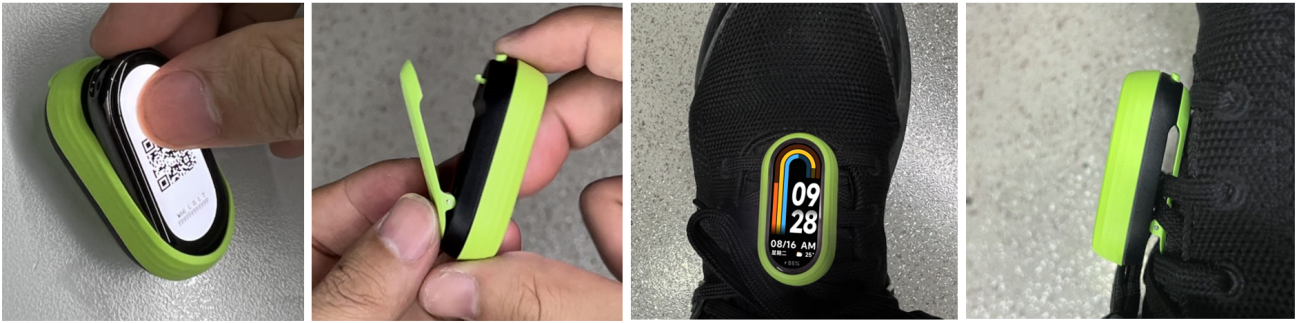
Running Clip Mode Disassembly Method:
1. Press the shoe clip button at the bottom of the running pod to pop open the spring clip and remove the running pod from the shoelace;
2. Use your fingertips or a prying piece to gently insert the top or bottom of the running pod, grab the groove of the band body and pull it up;
3. Separate the band body from the running pod.
7. Q: Why is it difficult to remove the Xiaomi Smart Band 8 after installing the running beans?
A: The running clip is designed to wrap the band with soft rubber. To ensure the stability of the wrapping during running, the soft rubber will cover part of the surface of the band.
If you encounter difficulty in disassembly, please refer to the following instructions:
1. The arc surface along the length of the band is designed with a quick-release groove. Please gently insert your fingernails into the groove position to lift the band;
2. If the groove position is clear and the finger operation is still difficult to disassemble, please refer to the following operation. Open the manual and take out the green lifter (transparent packaging bag in the manual). Push the lifter forward and insert it into the groove position to lift the bracelet. Save the lifter for the next use.
8. Q: What to do if the running clip lifter is lost?
A: If the lifter is lost during use, please use a common plastic sheet to insert into the groove of the band to lift it (try to avoid using sharp metal to prevent scratching the band, such as using paper clips, cards or toothpicks to assist in disassembly).
9. Q: What to do if the exercise data of Running Clip is missing?
A: If you encounter missing exercise data in the running clip mode, you can add the Mi Fitness APP to the background protection, and try to ensure that the APP is in an allowed state, and the band function can work normally.
10. Q: Why are the ground-to-air ratio, number of steps, etc. in the Running Clip mode different from the actual situation?
A: The running clip-related software algorithm only supports wearing the band display toward yourself. The data of reverse wearing is quite different. Please check whether it is worn correctly.
If you are running outdoors, it will be due to the differences in running habits of different persons. The latest software version has been optimized. Please upgrade to the latest version (1.1.122) to experience it;
If you are indoors since indoor running does not move the position, the exercise distance generated is estimated based on personal basic information (height, weight, etc.) and exercise conditions, and the data will be biased; the APP will add a distance calibration function. After the indoor run, you can manually calibrate the distance and correct the stride, pace and other information to obtain a more reliable exercise record.
11. Q: Why does the vitality value not increase after the joint exercise initiated by the APP ends in the Running Clip mode?
A: The vitality value has been adapted to the running clip exercise. Please upgrade to the latest version (1.1.122) to experience it.
12. Q: Why in necklace mode and running clip mode, there is no response when tapping or swiping right within 5 seconds to exit the wizard?
A: This issue has been resolved in the latest version (1.1.122). The new version supports exiting necklace mode and running clip mode by taping and swiping right. Please upgrade to the latest version to experience it.
Band displays related
1. Q: How to download/delete band displays on the Xiaomi Smart Band 8?
A: When the band is connected to the phone, you can download new band displays through the Mi Fitness APP.
Go to the Mi Fitness APP >> [Device] >> [Manage band displays]. You can use it after downloading and importing.
The way of how to delete a band display:
Enter the band interface >> [Settings] >> [Band displays] >> swipe up and down the page to select the band display to be deleted >> tap [Delete] at the upper of the interface.
Go to the Mi Fitness APP >> [Device] >> [Manage band displays] >> [My band displays] >> tap on the corresponding band display >> tap on [Delete].
Note:
The default band display does not support deletion (factory restore requires restoring the preset band display, so it cannot be deleted here).
2. Q: How to change the band displays of the Xiaomi Smart Band 8?
A: The Xiaomi Smart Band 8 comes with 7 pre-installed band displays. 200+ band displays in the market can be downloaded and used in the Mi Fitness APP. The band display style can be changed on the band.
Please refer to the following methods to change the band display on the band:
Go to [Settings] >> [Band displays] >> swipe up and down to select your favorite band display, and tap the screen to confirm to complete the band display change;
You can press and hold the band interface to enter the preview mode, swipe up and down to select the favorite band display preview, and tap the preview to change the current band display;
You can turn on or off the settings of pressing and holding on action by entering the main interface of the band >> go to [Settings] >> [Preferences] >> [Press and hold the screen] >> turning on or off the settings of pressing and holding on action (When turned on, press and hold on the band display to edit or quickly switch the band displays).
Please refer to the following steps to change the band display on the APP:
Go to the Mi Fitness APP >> [Device] >> [Manage band displays] >> enter the manage band displays interface and download and sync to complete the band display change.
3. Q: How many band displays can be installed on the Xiaomi Smart Band 8?
A: The Xiaomi Smart Band 8 supports 200+ market band displays with multiple categories, colors and styles. Different styles can better match your outfit.
The Xiaomi Smart Band 8 comes with 7 pre-installed band displays, and about 10M is reserved for band display storage. The photo band display also shares this storage space. Because each band display occupies a different capacity, the number of band displays installed is also different;
The capacity occupied by ordinary band displays is about 0.5M, and the storage space occupied by style band displays is larger, up to several M.
4. Q: Can the Xiaomi Smart Band 8 have a custom band display background?
A: The Xiaomi Smart Band 8 supports custom band display background. This function needs to be realized through photo band display.
To set the band display background, please refer to the following steps:
Open the [Mi Fitness] APP >> [Device] >> [Manage band displays] >> [Categories] >> [Custom] >> select a photo display >> [Style] (up to 8 pictures can be selected) >> tap [Apply] to download.
5. Q: Does the Xiaomi Smart Band 8 have an always-on display function? How to enable it?
A: It supports Always-on display.
In the band >> [Settings] >> [Display] >> [Always-on display], you can choose to turn on or off the Always-on display function. You can choose to turn on intelligently, turn on at a scheduled time, or turn on all day (start time = end time).
Note:
1. After turning it on, the power consumption of the band will increase significantly;
2. After turning on the Always-on display, the band will always display the exercise status when exercising, and the screen will not be off;
3. The Always-on display style varies for each band display. Please tap on [Manage band displays] to view the Always-on style corresponding to each band display.
6. Q: What to do if the light-colored band display is brighter in a completely dark (nighttime) environment?
A: The screen brightness can be adjusted to 5nit at the lowest under normal dark dial.
In a completely dark environment, the lux value collected by the light-sensitive light of the bright dial is about 60lux, and the corresponding screen brightness is 100nit. During use, you could feel that the screen is relatively bright. If you change to a dark dial, the experience will be better. In the latest version (1.1.122), the software has been optimized for light dials. The screen brightness can be adjusted to a low value of 10nit in a completely dark environment, which has a better experience. Please upgrade to the latest version to experience it.
7. Q: Can the band display function of the Xiaomi Smart Band 8 be customized?
A: The function icons on the band displays can be customized (only some band displays support customization). The band display with a gear icon below the band display list is a custom band display, which can be adjusted according to your preferences. Due to the diversity of band displays, the content displayed on each band display will be different.
To set the function icons displayed on the band interface, you can refer to the following steps:
Open the [Mi Fitness] APP >> [Device] >> [Widgets] >> tap the band display >> [Edit widgets] >> select the function you want to display on the band interface.
8. Q: Does the Xiaomi Smart Band 8 support game band displays?
A: The Xiaomi Smart Band 8 currently supports 4 classic mini-games. Open the [Mi Fitness] APP >> [Device] >> [Manage band displays] >> [Categories] >> [Fresh and Fun], the following 4 game band displays are currently supported:
Shooting game: Tap the start button in the shooting game band display interface to jump to the game interface. Players can control the movement of the ball by dragging it. After letting go, the ball will move in the direction of the starting position. After hitting the wall, the ball will bounce again until the ball ends its movement. If the ball enters the goal during movement, the player's score will increase by one, otherwise, the player's shooting chance will decrease by one. The game fails when the player's shooting chance decreases to 0.
Cross the bridge: Tap the PLAY button on the little man crosses the bridge dial interface to jump to the game interface. Players need to press and hold the screen to control the pole to extend upward. When the player lets go, the pole will fall to the bridge pier. If the pole does not reach the bridge pier or exceeds the bridge pier, the game will fail; when the pole falls within the range of the bridge pier, the little man successfully crosses the bridge, the score increases by one, and the next bridge pier is randomly refreshed. The pole growth rate will increase with every 10 points of points, and it will become the maximum speed when it exceeds 40 points.
Who is the top student: Tap the PLAY button on the Who is the top student band display interface to jump to the game interface. Players need to choose the correct answer according to the question. If the player chooses the wrong answer, the game fails; if the player chooses correctly, the player's score will increase by one, and the system will randomly refresh the next question until the player's score reaches 100 points. During the game, every time the player's score increases by ten points, the time left for the player to think will be reduced by one second.
2048: Tap the 2048 button on the 2048 game dial interface to jump to the game interface. Players need to slide the screen in four directions, up, down, left, and right, to control all blocks to move in the same direction. Two blocks with the same number in the same direction will merge into the sum of the numbers after colliding. Each operation will randomly generate 2 or 4 numbers in the blank position until the number 2048 is played, and the game wins. If all positions are filled and there are no adjacent identical numbers, the game fails.
9. Q: Does the Xiaomi Smart Band 8 have no prompt when installing the band display?
A: The Xiaomi Smart Band 8 supports background downloading of band displays. After tapping download on the APP, the progress can be viewed on the APP. After the transfer and installation are complete, the band will automatically update to the selected band display.
10. Q: Why does the Xiaomi Smart Band 8 gold ocean dial display a distorted screen when the screen is off?
A: This problem has been solved. Please delete it and then download the band display again in the band display market.
Press and hold on the band to enter the band display selection page, select the golden ocean band display and tap the delete button to delete it, or delete the golden ocean band display in the Mi Fitness APP, and then download the band display again.
11. Q: What to do if the band displays can not be customized in the Mi Fitness APP when the Xiaomi Smart Band 8 connects to an iOS phone?
A: The reason for this problem is that the display zoom function of the phone is set to "Larger Text", and some iOS phone models are not compatible. We will fix this problem in the later APP version.
To set the display zoom function, please refer to the following steps:
Go to [Settings] >> [Display & Brightness] >> select [Display Zoom] >> select [Default] >> reopen the Mi Fitness APP and you can find the Custome function.
Message reminder related
1. Q: How to set up [App notifications] on the Xiaomi Smart Band 8?
A: The Xiaomi Smart Band 8 supports the App notifications function. To receive the notifications from the APPs, you need to turn on the [App notifications] option in the Mi Fitness APP.
Path: Open the [Mi Fitness] APP >> [Device] >> [App notifications].
Note:
To turn on the [App notifications] option in the Mi Fitness APP, you need to turn on the notification permissions on the phone settings at the same time.
2. Q: Does the Xiaomi Smart Band 8 support the Wake screen upon notification function?
A: Support. After enabling this function, the band will automatically light up the screen when it receives notifications from the APP. If this function is disabled, the band will not light up but only vibrate when receiving APP notifications, which can help improve battery life;
Please check the setting path on the APP:
Open [Mi Fitness] APP >> [Device] >> [App notification] >> [Wake screen];
Please check the setting path on the band:
Enter the main interface of the band >> go to [Settings] >> [App notifications] >> [Wake screen upon notification].
3. Q: How to view the APP notifications on the Xiaomi Smart Band 8?
A: When the band receives a notification, it will vibrate to alert you and will automatically display the content of the notification. If the notification is not viewed immediately after it is received, you can access the notification center by sliding down on the main interface. When you enter the notification center, the first thing you see is the latest notifications. Scroll down in the notification center and you can view the history of notifications. If the content of the notification exceeds one screen, you can continue to swipe down to view it.
The band can save up to 20 recent notifications. After 20 notifications, the earliest notification will be automatically deleted for each new notification received.
Please check the following methods to delete or empty the notifications:
1. Tap the notification list in the notification center to enter the notification details. Tap [Dismiss] to delete the notification;
2. In the notification list, swipe left to delete the notification;
3. In the notification center, scroll down to the top and tap [Clear all] to delete all the notifications;
4. Aggregated messages are displayed as "X notification" in the list. Aggregated messages can only be deleted by swiping left or entering the group of aggregated messages.
4. Q: How to use the "open on phone" function on the notification detail page of the Xiaomi Smart Band 8?
A: Tap "open on phone" on the notification detail page of the band to quickly open the APP's message page on your phone.
This function requires the following conditions:
1. Mi Fitness APP is running in the background of your phone.;
2. You cannot jump to the APP page when the phone is locked;
3. The function cannot be realized on some cell phone models (such as Huawei, Samsung, and Honor phones).
The function cannot be realized due to the compatibility limitation of the phone system and the APP version. Currently, this function is trying to adapt to more models. Please wait patiently.
5. Q: Why is there no response when tapping "open on phone" on the Xiaomi Smart Band 8?
A: If there is no response when you tap "open on phone" on your band, please check the following reasons:
1. Check whether Mi Fitness APP is running in the background of your phone. Please turn on the APP background protection;
2. Check if your phone is currently in lock screen status. If the phone is locked, the phone can not jump to the APP page;
3. Currently, the function is trying to adapt to more Android models. Please wait patiently;
4. iOS phones do not support this feature.
6. Q: Why is the [Dismiss] option on the Xiaomi Smart Band 8 only available for some notifications?
A: The Xiaomi Smart Band 8 supports notification aggregation. The APP type is related to whether the notifications are aggregated or not. You can't delete the notifications that are aggregated or in the aggregated notifications. Tap the aggregated notification card to enter the aggregated notification list, and the [Clear all] option will be displayed at the bottom. You can tap [Clear all] to clear these aggregated notifications.
7. Q: Does the Xiaomi Smart Band 8 support Incoming call alerts?
A: The Xiaomi Smart Band 8 supports Incoming call alerts. When the band is connected to the cell phone, the band will vibrate to remind you and display the caller's number or name if there is an incoming call from the cell phone. You can tap the red [Phone] icon on the band screen to reject the call and tap [Dismiss] to mute the call.
To enable this function, please check the following methods:
Open [Mi Fitness] APP >> [Device] >> [Incoming calls] >> turn on [Incoming calls].
8. Q: Does the Xiaomi Smart Band 8 support the Reply with message function for incoming calls?
A: Only the phone of the Android system supports Reply with message.
After the band is bound with Mi Fitness APP, open [Mi Fitness] APP >> [Device] >> [Incoming calls] >> enable [Incoming calls] and [Reply with message]. When the band is connected to the APP, you can reply to the incoming call by SMS in the band interface. Also, you can set the content of the message through the following path: [Mi Fitness] APP >> [Device] >> [Incoming calls] >> [Reply with message].
Note:
As the iOS system can't get permission to reply to SMS, it doesn't support this function.
9. Q: Why can't the Xiaomi Smart Band 8 receive incoming call notifications?
A: Please make sure the Mi Fitness APP has enough permissions, including the permission to get incoming calls and the permission to run in the background. Please make sure the Mi Fitness APP can push incoming calls to the band in the background.
Please confirm whether the band is in the following modes:
1. Whether the Do Not Disturb mode is enabled;
2. Whether the Do Not Disturb synchronization is enabled and the Do Not Disturb mode is enabled on the cell phone;
3. Whether the sleep mode is enabled.
Any one of the above states will make the APP notification of the not alerted.
10. Q: Why can’t the Xiaomi Smart Band 8 receive APP notifications?
A: For your reference, please check the following troubleshooting steps:
1. Please confirm whether the [App notifications] option in the Mi Fitness APP is turned on. If it is turned off, the band cannot receive APP notifications;
2. Please confirm whether the Mi Fitness APP has enough permissions, including the permission to get APP notifications and the permission to run in the background. Please make sure the Mi Fitness APP can push APP notifications to the band in the background;
3. Please check whether the following option is enabled on the band: enter the main interface of the band >> go to [Settings] >> [App notifications] >> [Notify only when worn];
4. Please check whether the Do Not Disturb mode is enabled both on the band and the mobile phone;
5. Please check whether the sleep mode is enabled on the band and whether the band enters the sleep mode;
6. For the iOS phones, please confirm whether the Bluetooth connection between the phone and the band is normal.
(1). If they can't connect, please ignore the band in the Bluetooth setting interface of the phone and enter the Mi Fitness APP to rebind the band;
(2). If they are already connected, please tap the band name in the Bluetooth settings interface of the phone to enter the details page, and check whether the options regarding sharing system notifications are turned on.
11. Q: Why can't the Xiaomi Smart Band 8 reply to SMS?
A: SMS reply failure is a problem in the SMS reply process, not related to the band. It is related to the permissions of the phone system to the Mi Fitness APP or the non-adaptation of the cell phone system to the Mi Fitness APP. Please check whether the phone system has enabled the relevant permissions.
12. Q: Why the Xiaomi Smart Band 8 doesn't alert some third-party APP messages?
A: For your reference, please check the following methods:
1. Check if the notification permission is enabled;
2. Check whether the phone has enabled the APP lock function. You need to turn off the setting of hiding notification content in the phone system.
Take the MIUI version for example: go to [Settings] >> [Apps] >> [App lock];
Take the Mi Fitness APP for example: check whether Mi Fitness APP has enabled the function of background lock/autostart. Phone messages cannot be synchronized to the band after disconnecting from the APP.
13. Q: Why does the missed call reminder still pop up on the Xiaomi Smart Band 8 after rejecting an incoming call?
A: Sometimes, the Xiaomi Smart Band 8 still pops up the missed call reminder after performing some operations such as hanging up on the phone/hanging up on the band/entering the interface of SMS reply failed/ignoring the incoming call. The reason is that the missed call message is sent by the phone, and neither the band nor the Mi Fitness APP can control it.
14. Q: How many types of notification icons does the Xiaomi Smart Band 8 support when connected to an iPhone?
A: When the band is connected to the iPhone, all the notifications use the default APP icon except the pre-set APP to the band. The APP does not push its icon to the band.
The band is preset with the following APP icons:
Messages, Line, WhatsApp, Twitter, YouTube, Instagram, and Twitch.
15. Q: Does the Xiaomi Smart Band 8 display default icons when receiving notifications?
A: The notification icons of the band support dynamic caching of 20. If the 21st message is received with 20 icons cached, the band needs to delete the APP icon that hasn't received a message for the longest time and cache the new icon. At this time, if the band receives the message with the deleted icon again, it needs to cache the icon again. If there are more APPs on your phone and the messages are pushed regularly, the band messages will show the default icon on the global notification page and the corresponding APP icon will be shown only after entering the notification center. You can choose to turn off the infrequently used messages.
16. Q: What is the notification number and word count supported by the Xiaomi Smart Band 8?
A: Messages in the notification list keep up to the latest 20 messages. Tap to clear all messages in the current list. Support read-after-read function (read messages on the phone and delete them automatically on the band).
Messages can be viewed by turning pages. The maximum number of words displayed on the bracelet is 400, which is the same as the number of words displayed on the notification bar of the cell phone. Also, it is related to the specific APP.
It doesn't support image message display but supports some common emoji (version 1.1.122 or above). The unsupported emoji will be displayed as "□" on the band.
Note:
The emoji display on the band is related to the specific emoji. The emoji that comes with the input method is more adaptable than the emoji in the APP.
17. Q: How long can the Xiaomi Smart Band 8 store data independently?
A: The Xiaomi Smart Band 8 can store data independently. Some functions of daily activities can be used independently. Only the band needs to be connected to the phone when synchronizing data with the APP. The band can store up to about 100 hours of recorded exercise data, display 20 exercise records, and store up to 7 days of vitality data and health data such as sleep, heart rate, blood oxygen, and stress. The band can only display the data of the day.
The data that has been synchronized to the APP will be automatically uploaded to the cloud storage (Go to [Mi Fitness] APP >> [Profile] >> [Settings] >> turn on [Sync with the cloud]). If you change to a new phone, you can use the previous Xiaomi account on the new phone to bind with the band, and the previous data can be synchronized from the cloud to the new phone.
Note:
With the size of the exercise record, the number of saved entries will change. Please refer to the actual situation.
18. Q: How to turn up the vibration on the Xiaomi Smart Band 8 if it is weak during incoming calls, alarms, and APP notifications?
A: The vibration on the band is the standard mode by default, which can be adjusted by going to [Mi Fitness] APP >> [Profile] >> [Vibration].
Note:
When setting the vibration modes on the Mi Fitness APP, the band will have corresponding vibration previews according to the selected vibration modes (incoming call reminder, event reminder, alarm reminder, notification reminder, standing reminder, incoming SMS reminder, goal reminder, schedule reminder). Different reminders have different default vibration durations, which can be stopped. Please wait for the vibration to end automatically. The incoming call time and alarm time are about 1 minute, and the time of other vibration modes is approximately less than 1 minute. Engineers are optimizing and adjusting the vibration modes.
19. Q: Why does the Xiaomi Smart Band 8 not receive App notifications for some time after pairing with an Android phone?
A: Please confirm whether the Mi Fitness APP has enough permissions to run in the background. The steps are as follows:
1. When you pair the band for the first time, please follow the APP instructions to enable background permissions;
2. After pairing, you can go to [Mi Fitness] APP >> [Device] >> [Background permissions], and set it according to the APP instructions.
20. Q: Why does the third-party APP voice call connect abnormally on the iOS phone when tapping [Dismiss] for this voice call notification on the Xiaomi Smart Band 8?
A: Deleting the APP voice call notification in the notification bar of the iOS phone (related to the phone model, iOS system version, and APP version) will result in voice call rejection or connection failure. Tapping [Dismiss] on the band will delete this notification (same as deleting it on the phone), and right-swiping will return to the main interface.
If you want to hide this message on the band and do not reject the APP voice call, please do not tap [Dismiss], but swipe right to exit this notification.
Health related
1. Q: How to measure and view the heart rate on the Xiaomi Smart Band 8?
A: For your reference, please check the following details:
1. View on the band:
After entering the [Heart rate] APP, if the band has enabled all-day heart rate monitoring, you can directly view the heart rate data by taping on the heart rate icon. After entering the [Heart rate] APP, please place your arm flat, and there will be an animation when measuring the heart rate. After the measurement is completed, the heart rate value will be displayed. You can check the current heart rate range by scrolling up the screen.
2. View on the APP:
You can view the all-day heart rate curve, the maximum/minimum heart rate, the resting heart rate, and the over-high/over-low heart rate by going to [Mi Fitness] APP >> [Health] >> [Heart rate].
Note:
Non-standard wearing methods can affect the measurement of heart rate signals, such as light leakage caused by incomplete fitting of the band to the arm, arm swing, and slight movement of the band on the skin. Wearing the band too tightly, raising the arm, and clenching can affect blood circulation, thereby affecting blood flow and ultimately affecting heart rate signals.
2. Q: What is the heart rate range of the Xiaomi Smart Band 8?
A: The heart rate range refers to the range or level of the current heart rate when compared to the maximum heart rate, reflecting the level of load on the heart. It is used to measure a person's exercise intensity. Exercising in an appropriate heart rate range is beneficial for enhancing cardiovascular capacity and improving fitness levels.
There are several states in the heart rate range:
1. Warm-up range: When the heart rate is in [50,60] of the maximum heart rate;
2. Fat-burn range: When the heart rate is at (60,70] of the maximum heart rate;
3. Aerobic range: When the heart rate is in (70,80] of the maximum heart rate;
4. Anaerobic range: When the heart rate is in (80,90] of the maximum heart rate;
5. Extreme range: When the heart rate is within (90,∞) of the maximum heart rate;
6. Not counted and not included in the heart rate range: When the heart rate is in (0,50) of the maximum heart rate.
3. Q: Does the Xiaomi Smart Band 8 support automatic heart rate monitoring?
A: The Xiaomi Smart Band 8 supports automatic heart rate monitoring.
Enable on the band:
You can view daily heart rate details by opening the [Heart rate] APP on the Xiaomi Smart Band 8. You can set the heart rate monitoring frequency by scrolling the screen up to the bottom and tapping the [Settings] icon. It can be set to [1 min], [10 mins], [30 mins], and [Smart monitoring]. The band will intelligently adjust the monitoring frequency based on its own activity status when the smart monitoring is enabled.
Enable on the APP:
1. You can enable smart monitoring and set the monitoring frequency by opening the [Mi Fitness] APP >> [Device] >> [Heart rate]. The band will automatically measure your heart rate at the set frequency and record any changes in the heart rate. Under different modes, the frequency of heart rate measurement varies, which has different effects on the battery life of the band;
2. After enabling automatic monitoring, the heart rate will be monitored throughout the day, significantly reducing the battery life of the band. The monitoring frequency can be set to [1 min], [10 mins], [30 mins], and [Smart];
3. After enabling smart monitoring, the measurement frequency will automatically increase when you are in an active state, which can record more heart rate changes. When quiet, it measures heart rate for 25 seconds every 10 minutes. When active, it measures heart rate for 25 seconds every 1 minute.
4. Q: Does the Xiaomi Smart Band 8 support heart rate alerting?
A: The Xiaomi Smart Band 8 supports heart rate alerting. When the heart rate reaches the warning value in a quiet and inactive state for 10 minutes, the band will vibrate to remind you. The heart rate warning value can be set within the range of 100 beats per minute to 150 beats per minute (which can only be supported when monitoring frequency is set as smart monitoring, 1 minute or 10 minutes).
You can set heart rate warning by the following paths:
1. On the band: enter the main interface of the band >> go to the [Heart rate] APP >> [Settings] >> [High HR]/[Low HR] >> select the values.
2. On the APP: open the [Mi Fitness] APP >> [Device] >> [Heart rate] >> [Heart rate to high alert] >> select the values as your preference.
5. Q: Does the Xiaomi Smart Band 8 support sleep monitoring and what is the monitoring range?
A: The band supports sleep monitoring, which can record long sleep and sporadic naps, both of which are 24-hour monitoring. After wearing the band to sleep, the band can automatically recognize the sleep status through the built-in sensor.
Sleep duration greater than or equal to 3 hours will be recorded as long sleep. Sleep duration less than 3 hours will be recorded as sporadic naps (sleep less than 20 minutes will not be recorded).
The band supports 24-hour advanced monitoring for sleep. When turned on this function, the band tracks the distribution of the REM sleep. However, its battery life will be severely reduced. Sleep data can be viewed on both the band and APP.
To view sleep records, please refer to the following method:
Support to view the sleep records in the band. After synchronizing the data between the band and the phone, you can tap [Sleep] in the APP to view the historical sleep data (including day, week, month, year), sleep duration (including total sleep time, awake time, light sleep time, deep sleep time), and the sleep stages of each time point in the sleep period. The REM sleep is recorded only when assisted sleep monitoring is enabled.
Note:
When the band is in a relatively quiet state and shows a movement similar to sleep, the sensor will judge it as a sleep state, resulting in an error in the time of falling asleep. If you are watching TV, lying in bed and playing with a cell phone, or reading a book, the band not will record sleep accurately, as the movement amplitude and frequency in the above scenarios are relatively small and similar to that of sleep.
6. Q: What is the reason for inaccurate monitoring when entering sleep or exiting sleep?
A: The principle of entering and exit sleep monitoring is below:
The entry and exit of sleep algorithms are determined by detecting changes in the accelerometer(ACC) sensor. When the data of ACC changes continuously for a period, which can also be considered as low activity, the algorithm will judge it as entering sleep. When the ACC data continues to be changing for some time, which can also be considered as high activity, the algorithm will determine it as existing sleep. In scenarios such as playing with mobile phones and watching movies, due to the relatively small changes in ACC, there will be a phenomenon of entering sleep by mistake. If the high-precision sleep monitoring switch and sleep breathing quality monitoring switch are enabled, the PPG (Photoplethysmography) sensor data will be used, and the algorithm will analyze the sleep status through ACC and PPG data to obtain sleep staging results and sleep scores.
The reasons for inaccurate monitoring when entering sleep or exiting sleep are as follows:
1. If the wearing device itself does not record sleep or the monitoring duration is less than the actual sleep duration, it is because you have more wrist movements during sleep, and the sensor determines it as non-sleep, resulting in not recording or recording a shorter sleep duration;
2. If the device itself records more sleep than the actual sleep duration, it is because you have fewer wrist movements during non-sleep periods and are in a very quiet state (such as playing with your phone before bedtime or sitting quietly watching a movie, which is judged as falling asleep), causing the sensor to determine it as a sleep state;
3. Please check if you are wearing a double ring genuine leather black and white wristband. When using this wristband, it is easy to cause the back shell of the wristband to not directly contact the skin, which can affect the wearing detection and lead to false monitoring during sleep.
Note:
Continuous optimization on the algorithm side will lead to sleep missed monitoring and false monitoring scenarios, but due to algorithmic detection principles, similar problems exist in the industry.
7. Q: Does the Xiaomi Smart Band 8 support the breathing score function for sleep?
A: The Xiaomi Smart Band 8 supports the breathing score function for sleep.
The principle of the breathing score is as follows:
Snoring or other diseases (such as obstructive sleep apnea syndrome) will lead to a significant drop in blood oxygen saturation when sleeping. The band determines whether dyspnea occurs during sleep by monitoring the drop in blood oxygen saturation and the quality of sleep. Depending on the dyspnea times, the corresponding breathing score will be given in the APP. If the breathing score is poor, it will lead to fatigue and sleepiness during the day.
Turning on the breathing score function will significantly reduce the ring life of the band. It is recommended to turn it on according to your needs.
To turn it on the APP, please check the following method:
[Mi Fitness] APP >> [Device] >> [Sleep] >> turn on [Breathing score].
To turn it on the band, please check the following method:
Enter the main interface of the band >> go to [Sleep] >> [Settings] >> [Breathing score].
8. Q: Why there is no monitoring record or score in the APP after the Xiaomi Smart Band 8 turns on the breathing score function?
A: For your reference, please check the following details:
1. First of all, make sure the breathing score function for sleep is enabled in the APP (Path: [Mi Fitness] APP >> [Device] >> [Sleep] >> turn on [Breathing score]);
2. If the sleeping time is too short, the breathing score or monitoring data will not be displayed (The night sleeping time is more than 3 hours);
3. Inappropriately wearing the bracelet will fail to monitor the breathing score. It is recommended not to wear the band loosely (the band should be one finger's width away from the wrist bone).
4. If the above information does not help, please check whether the APP and the band firmware are the latest version. Meanwhile, it is recommended to restart the band or re-bind the band and try again.
9. Q: Does the Xiaomi Smart Band 8 support blood oxygen measurement and all-day blood oxygen measurement?
A: The Xiaomi Smart Band 8 supports blood oxygen measurement. After awakening the Xiaomi Smart Band 8, open the [Blood oxygen] APP to manually measure blood oxygen saturation. After the measurement is completed, the result of the measurement will be displayed on the band.
Measurement instructions:
1. Wear the device one finger away from the wrist bone, tighten the wristband, with the screen facing up, and keep it stationary;
2. Tightly worn, keep stationary during measurement. If the amplitude of the measurement is too large, a prompt will appear. Please follow the prompts to operate correctly;
3. During the measurement process, reminders such as incoming calls and alarms will interrupt the measurement;
4. Skin characteristics, hair, low temperature, and other factors will affect the measurement results;
5. The measurement results are for reference only and not for medical diagnosis;
6. The band supports 24-hour blood oxygen measurement. After enabled, when detected as continuously inactive, the band will automatically measure blood oxygen saturation, but the battery life will also decrease.
10. Q: What is the blood oxygen saturation of the Xiaomi Smart Band 8?
A: The blood oxygen saturation is the percentage of oxygenated hemoglobin (Hbo2) capacity in the blood to the total bound hemoglobin (Hb), and it is an important physiological parameter of the human respiratory and circulatory system.
The reference values of blood oxygen saturation in the device are as follows:
1. Daily activities: ≥95%
2. Night sleep: ≥90%
3. Need attention: ≥90%
Note:
The measurement range of this device is 75%-100%. Wearing status, skin characteristics, environment, and other factors will affect the accuracy of measurement and even measurement failure. During sleep, the device tilts due to different sleep postures, which will lead to the appearance of pseudo low blood oxygen levels.
11. Q: How long does the Xiaomi Smart Band 8 take to complete a blood oxygen measurement?
A: The Xiaomi Smart Band 8 takes about 15-60 seconds to complete a blood oxygen measurement.
Please check the reasons for timeout of measurement:
Wearing conditions, skin characteristics, environment, and other factors will cause the measurement timeout.
It is recommended to adjust the back of the band to ensure that it fits snugly around the wrist.
12. Q: What is the sensor indicator at the bottom of the Xiaomi Smart Band 8? And why is the red light blinking when the band is not worn at night?
A: If the red light and infrared light (not visible to the naked eye) turn on, it indicates that the band is measuring blood oxygen. If the green light is blinking, it indicates that the band is measuring heart rate.
If the band is not worn at night but the red light is blinking, please check the following methods:
1. If the advanced monitoring function is turned on, the band will automatically measure the blood oxygen after you fall asleep, and the red light of the band will blink. If you are not wearing the band but the red light is blinking, the monitoring function is misdiagnosed. The Xiaomi Smart Band 8 adopts a high-precision PPG heart rate sensor with infrared light, green light, and red light, which greatly improves its monitoring accuracy compared with traditional monitoring. However, when the band is placed in an environment that is more similar to the wrist, the monitoring function will also be misdiagnosed;
2. When the band is not worn, please pay attention to the heart rate light is not covered by objects (common misdetection scenarios: the band is placed in the bag, bed, table, etc.);
3. If you don't wear the band while sleeping, we suggest you turn off the advanced monitoring function, which can greatly save the power of the band.
13. Q: What to do if the blood oxygen saturation measurement of the Xiaomi Smart Band 8 fails?
A: For your reference, please check the following details:
1. Keep the body and arms stationary during measurement. Wearing too loose or shaking the band can cause measurement failure. It is necessary to place the arm on a stable place such as the desktop for measurement, with the band screen facing upwards. It is recommended to wear it with a slight sense of urgency and the band will not move when shaking the wrist;
2. The arm hair, tattoos, dirt, and dry skin of the measurement part will all affect the signal collection of optical sensors, leading to measurement failure;
3. Ensure that the back sensor of the band is clean, dry, and free from foreign objects;
4. The wearing position is incorrect. Due to the limited distribution of blood vessels in the wrist, it is difficult to measure blood oxygen levels. Please wear the band one finger away from the wrist bone (ulnar protrusion);
5. Please check if you are wearing a double ring genuine leather black and white wristband. Using this wristband can easily cause the back shell of the band not to directly contact the skin, thereby affecting the accuracy of wearing detection and measuring heart rate and blood oxygen;
6. When measuring outdoors in winter, lower temperatures will lead to failed blood oxygen measurements. It is recommended to measure in indoor environments with high temperatures, or not to expose the band to low-temperature environments for a long time during measurement;
7. If the measurement fails continuously, verify whether the APP and firmware versions are the latest. If so, it is recommended to restart the band or perform a factory reset before attempting to bind again;
8. If it keeps failing, observe whether the red light at the heart rate flashes during blood oxygen measurement. If the red light does not light up, please apply to the after-sales services.
14. Q: Why is there a significant difference in blood oxygen levels between two adjacent measurements during the same period?
A: The blood oxygen value is measured through optical sensors. The changes in emotions, slight changes in breathing and wearing status, standing movements, and changes in the state of the band will all affect the measurement results. Inconsistent body conditions, environments, and wearing positions during two measurements can also lead to different measurement results. It is recommended to conduct multiple measurements to check the overall status of blood oxygen levels, which can eliminate occasional inaccurate values and provide a more accurate understanding of the body’s condition.
15. Q: Will the Xiaomi Smart Band 8 alert the abnormal oxygen saturation values when they are at risk?
A: The Xiaomi Smart Band 8 can be set to alert you of low blood oxygen (80%, 85%, 90%). Measurements are for reference only and are not intended for medical reference or diagnosis. Please consult the healthcare provider if you feel unwell.
16. Q: What to do if the oxygen saturation measurement on the Xiaomi Smart Band 8 is very low?
A: For your reference, please check the following methods:
1. Incorrect wearing position. Due to less blood vessel distribution at the wrist, the blood oxygen value is not easy to measure. Please wear the band around your wrist about one finger's width away from your wrist bone;
2. Wearing too loose. Please wear the band tightly (there is a slight sense of urgency and the band does not move when you shake your wrist);
3. Please stretch your arm and open your elbow joint to avoid inaccurate measurements due to poor blood flow caused by squeezed blood vessels;
4. Place your arm on a stable place such as a table for measurement. Keep the screen of the band facing upwards to avoid an unstable signal due to shaking;
5. It is recommended to move the wearing position of the band to ensure that the back of the band fits the wrist. It is recommended to measure again after keeping it still;
6. The latest version has been optimized. Please upgrade to the latest version to further experience this function.
17. Q: Can the blood oxygen saturation of the Xiaomi Smart Band 8 be measured during exercise?
A: The blood oxygen saturation can not be measured during exercise.
The reasons are as follows:
1. During exercise, the exercise interface will occupy the current main screen interface and cannot open the blood oxygen measurement interface;
2. Not meeting the following blood oxygen measurement conditions during exercise:
(1). Wear the band one finger away from the wrist bone (ulnar protrusion);
(2). Wear the band tightly, with a slight sense of urgency. It is better for the band not to move when shaking the wrist;
(3). Extend the forearm and open the elbow joint to avoid blood vessels being compressed, which will cause poor blood flow and unreliable measurement values;
(4). Place your arm on a stable place such as a desktop for measurement, with the band screen facing upwards, to avoid shaking to make signals unstable.
18. Q: Can the blood oxygen saturation be measured when the Xiaomi Smart Band 8 is disconnected from the phone?
A: The blood oxygen saturation can be measured when the band is disconnected from the phone. The band will display today's blood oxygen chart and the latest blood oxygen value. If the measurement is completed when disconnected, you can synchronize the blood oxygen value to the APP.
19. Q: How to view the blood oxygen measurement records of the Xiaomi Smart Band 8?
A: In the [Blood oxygen] APP of the band, you can view today's blood oxygen chart, the latest blood oxygen value, and update time. History and detailed information need to be viewed in the Mi Fitness APP after data synchronizing (Path: open [Mi Fitness] APP >> [Health] >> [Blood oxygen]).
20. Q: Does the Xiaomi Smart Band 8 support stress detection?
A: The Xiaomi Smart Band 8 supports stress detection. You can manually measure a single stress or enable all-day monitoring.
Manual measurement method: The current stress value can be measured on the stress detail page of the band. If the measurement is successful, the current stress value will be displayed. If the measurement fails, the reason for the failure and prompt will be displayed. To ensure successful measurement, please wear the band correctly and keep it stationary during the measurement.
After enabling all-day monitoring, When a continuous quiet state is detected, the band will automatically measure the stress value. You can view the stress for the day by clicking on the [Stress] APP.
You can enable [All-day pressure monitoring] by the following paths:
On the APP: open the [Mi Fitness] APP >> [Device] >> [Stress];
On the band: open the [Stress] APP >> [Settings] >> [All-day pressure monitoring];
Note:
The pressure here specifically refers to mental stress, not including physical stress caused by high-intensity exercise. The principle of stress monitoring is to use heart rate variability to evaluate the current intensity of stress. The current heart rate variability data is compared with the individual's heart rate variability during sleep and relaxation, and combined with individual limb activity tracking to assist in judgment. When in low-intensity limb activity, if heart rate variability significantly weakens, it means that the individual is currently experiencing higher levels of mental stress.
Due to factors such as wearing status, skin characteristics, and environment, the accuracy of measurements will be affected, and even results can not be outputted. This product is not a medical device, and the results are for reference only and not used as a basis for diagnosis and treatment.
Frequent vigorous exercise or high-intensity activities can have a certain impact on the accuracy of stress data assessment.
| Stress score | Stress level |
| 1~25 | relax |
| 26~50 | mild |
| 51~80 | moderate |
| 81~100 | severe |
21. Q: Does the Xiaomi Smart Band 8 support the Standing function?
A: The Xiaomi Smart Band 8 supports the Standing function. When you turn on the Standing function, when the band detects 50 minutes of inactivity in an hour, it will vibrate and remind you to be active at the 50th minute. If the band recognizes standing and walking within 10 minutes, it will pop up It will pop up a reminder that the standing has been completed.
Being sedentary can lead to many health problems. It is recommended that you get up and move around every hour while wearing the band. Standing is a convenient way to increase energy consumption. This function can only be activated from the App, as well as setting the start/end time and DND mode (at lunch break) (Path: [Mi Fitness] APP >> [Device] >> [Standing] >> turn on [Remind to stand up] >> set the time period).
22. Q: Why does the standing reminder pop up on the Xiaomi Smart Band 8 even when standing all the time?
A: The standing reminder is designed to keep you active. The band needs to detect wrist activity and step count to determine whether the standing activity behavior is achieved or not. Therefore, if you have been standing still or making small movements, you will also receive a standing reminder. At the same time, we are constantly optimizing the algorithms related to standing determination to gradually improve the experience.
23. Q: Why does the standing reminder suddenly pop up on the Xiaomi Smart Band 8 when just started the activity?
A: Certain conditions are required to determine the standing reminder. If you receive a standing reminder from the band just after you start your activity, it is because you are in an active state but have not reached the threshold of standing behavior. You can continue to move and ignore the alert. If this phenomenon occurs frequently, you can submit feedback on the Mi Fitness APP. We are constantly optimizing the algorithms related to standing determination to gradually improve the experience.
24. Q: What is the vitality score of the Xiaomi Smart Band 8?
A: The vitality score can be used to evaluate the positive impact of personal activities on health. When the cumulative vitality score reaches 100 in the past 7 days, there is a significant health improvement effect.
Note:
Adults should engage in at least 150-300 minutes of moderate intensity aerobic activity per week, or at least 75-150 minutes of intense aerobic activity. Alternatively, a combination of moderate and intense intensity activities can yield significant health benefits. Meanwhile, a small amount of physical activity is better than no activity. The original sedentary time used for various intensity physical activities (including low-intensity activities) can bring health benefits. The vitality score is personalized based on your age, resting heart rate, maximum heart rate, and activity data from the past 7 days. You can earn vitality by wearing devices for daily activities. Meanwhile, within a unit of time, a higher intensity of activity will result in more vitality scores. As your vitality continues to increase, obtaining your vitality will also become more difficult.
25. Q: How to check the vitality score on the Xiaomi Smart Band 8?
A: The Xiaomi Smart Band 8 supports the vitality score function.
On the band:
1. You can view the vitality score for the last 7 days and the vitality score gained per day in the APP list;
2. After each exercise, you can also check the vitality score that can be increased by this exercise in the exercise report.
On the APP:
You can view the vitality score for the last 7 days and the vitality score gained per day by going to [Mi Fitness] APP >> [Device] >> [Vitality score settings].
26. Q: Why does the Xiaomi Smart Band 8 indicate that the vitality score reaches the standard at 0:00 every day?
A: The latest version (1.1.122) has optimized the logic of the pop-up window when the vitality score reaches the target. The pop-up will only appear when the accumulated vitality score has increased from below the value of 30, 60, and 100 to equal to or above the value of 30, 60, and 100 in the last 7 days. Please upgrade the band to the latest version to experience this feature.
27. Q: Why is today's vitality score lower than yesterday's on the Xiaomi Smart Band 8?
A: The vitality score of the Xiaomi Smart Band 8 is personalized based on the data of the last 7 days. At 0:00 every day, the vitality score gained 7 days ago will be considered invalid. Therefore, you will find that your vitality score is lower than that of yesterday. You need to keep gaining a vitality score to maintain your vitality score.
28. Q: How to use the women's health function of the Xiaomi Smart Band 8?
A: The women's health function requires setting basic information about the menstrual cycle on the APP. After setting, the current date and menstrual status can be viewed in [Cycles] on the band.
You can enable it by the following path:
Open [Mi Fitness] APP >> [Health] >> scroll down to the bottom and tap [Show all] icon >> [Cycles] >> set as you need.
Note:
Intelligent prediction of menstrual cycle: Based on personal data such as the length of a woman's menstrual cycle, and the start and end dates of the menstrual cycle, infer the entire menstrual cycle of the woman. A complete physiological cycle prediction includes menstrual cycle prediction, easy pregnancy period prediction, and ovulation day prediction, helping women understand their physical conditions and regulate their physiological period. Long-term continuous and complete menstrual records can help improve the accuracy of predicting physiological periods.
29. Q: How to use the breathing training function of the Xiaomi Smart Band 8?
A: Breathing training helps regulate heart rate, improves stress, and has a relaxing and soothing effect. Regular deep breathing is beneficial for health. Open the [Breathing] APP on the band and select the training duration (1-5 minutes). Please maintain a stable stationary state and click on the [Start] icon. The band screen will display a guiding animation for exhaling or inhaling. The training results will display the training duration and changes in heart rate before and after training.
30. Q: Under what conditions is the heart rate sensor on the Xiaomi Smart Band 8 enabled?
A: The Xiaomi Smart Band 8's PPG heart rate sensor detects the heart rate with a 25HZ green light. The band detects the heart rate condition at regular intervals. It has a short detection time and an accurate detection effect.
31. Q: Why is there no heart rate monitoring recorded on the Xiaomi Smart Band 8?
A: For your reference, please check the following methods:
1. Check if there is a green light blinking when the back of the band touches the skin. A blinking green light indicates that the heart rate monitoring function of the band is on properly. If there is no green light flashing, please check if the heart rate monitoring function is turned on correctly;
2. Please wear the band in the correct way (the wrist strap should not be too loose). It is recommended to adjust the wearing status and check the heart rate function again;
3. Dry skin and skin scars can affect the heart rate measurement results. In addition, cold winter temperatures can also affect the heart rate measurement results;
4. If there is no above problem, please restart the band, change the arm you wear, and try again.
32. Q: What is the correct way to wear the Xiaomi Smart Band 8?
A: Wear the band about one finger away from the wrist bone and adjust the tension of the wristband to a comfortable position to ensure that the heart rate sensor can collect data normally.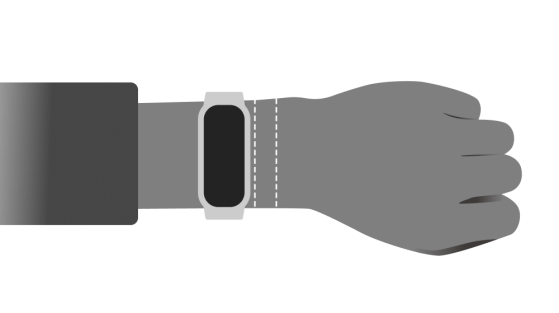
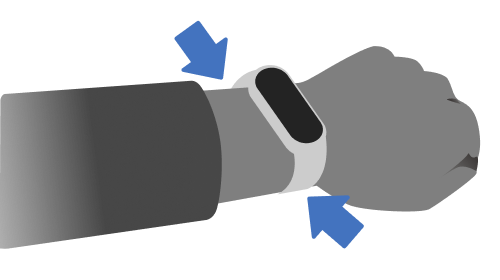
Note:
To achieve the best measurement effect of the heart rate sensor, the back of the band needs to be in contact with the skin. Wear the band correctly, neither too tight nor too loose, while giving the skin space for breath ability. You can tighten the wristband during exercise and adjust it appropriately after exercise.
33. Q: Why is there no sleep data in the sleep widget interface of the Xiaomi Smart Band 8 after waking up?
A: If you use the [Sleep] APP during sleep, the band will recognize that you have woken up and are checking the sleep data on the band. Also, it will be recorded as your wake-up time.
Please check whether the left and right sliding of the widget is caused by a mistaken touch after falling asleep. To prevent the sleep from completing by mistake, when the algorithm does not fully recognize the end of sleep, sliding the sleep widget will not record it as the end of sleep and refresh the sleep data, so you will see the data of the sleep widget is not displayed properly when you just wake up. The sleep data is refreshed as soon as you tap the sleep widget to enter the [Sleep] APP. After that, you can swipe to the widget again to view your sleep data.
System settings
1. Q: What are the functions in the [Settings] of the Xiaomi Smart Band 8?
A: There are [Running mode], [Band displays], [Display], [Vibration], [DND settings], [App notifications], [Auto detect], [Preferences], [PIN], [Battery], [System] and [About band] in [Settings] on the Xiaomi Smart Band 8.
2. Q: Does the Xiaomi Smart Band 8 support widgets? How to edit?
A: Support. The Xiaomi Smart Band 8 defaults to displaying 4-page widgets and supports circular sliding, where the dial slides right to the last page (Quick control). Simultaneously it supports the replacement of more than 25 widgets and is customized to support 1 * 1 and 1 * 2 widgets.
You can edit the widgets by the following path:
Open the [Mi Fitness] APP >> [Device] >> [Widgets]
3. Q: How to set up the Xiaomi Smart Band 8 widgets?
A: The widgets of the Xiaomi Smart Band 8 refer to the main page of the band, which can be swiped left and right to switch between quick APP entrances, including [Sleep], [Heart rate], [Weather], [music] control, [control center], etc. On the APP, you can add or remove the number of widgets or modify the sorting according to your preferences.
You can set up by the following path:
Open [Mi Fitness] APP >> [Device] >> [Widgets] >> drag to adjust the order of widgets, or drag to the bottom to delete or add new widgets.
4. Q: What is the role of the control panel in the widget? Does [Quick control] support custom editing?
A: [Quick control] provides three quick entry options, supporting the following functions:
1. [DND]: Quickly enable/disable [DND]. All Day/On for 1 hr/On for 4 hrs/Custom;
2. [Find phone]: Quickly enable [Find phone];
3. [Settings]: Quickly enter the [Settings] APP ;
4. [Quick control] does not support being defined as another quick entry point.
5. Q: Why the Xiaomi Smart Band 8 Weather (Breathing, Cycles, Vitality Stress, SpO₂) widget sometimes cannot be tapped or swiped left or right?
A: The widgets show you the main data of the application, supporting left and right sliding switching and quick tapping to enter the application. The widgets do not support up and down sliding. After tapping on a widget, it will jump to the corresponding APP (supporting up and down scrolling, right scrolling back). At this time, right scrolling will return to the widget, and you can continue to switch between left and right widgets;
The display pages of the full-screen widgets for [Weather], [Breathing], [Cycles], [Vitality], [Stress], and [SpO₂] are consistent with the initial pages within the APP, which can cause misunderstandings of ineffective tapping/sliding. It has already entered the APP, and detailed data can be viewed by sliding up and down. This experience will be optimized in future versions, please continue to follow the new version updates.
6. Q: Why are some widget icons on the Xiaomi Smart Band 8 unable to be displayed after connecting to the Mi Fitness APP?
A: If you encountered the issue with the icons of steps, calories, standing reminder, medium to high-intensity activity duration, and flashlight not being displayed in the management of widgets, please update the wristband version to 1.1.122 or higher to view. If it still cannot be displayed, please check your network conditions.
7. Q: How to set the application list for the Xiaomi Smart Band 8?
A: The setting of the band application list refers to the sorting of the primary menu functions on the band. You can customize the APPs in the list according to personal preferences. The first level menu refers to the APP that can be switched by swiping the band up and down on the homepage.
To set up the Sort apps, please refer to the following steps:
Open the [Mi Fitness] APP >> [Device] >> [Sort apps] >> press and hold on the Sort icon to rearrange items.
8. Q: What reminders does the Xiaomi Smart Band 8 support? Does it support custom vibration modes?
A: Band reminders include: call reminders, event reminders, alarm reminders, APP notifications reminders, standing reminders, SMS reminders, compliance reminders, schedule reminders, and other band APP reminders. The band supports custom vibration modes, which can be edited according to personal preferences and need to be set in the APP. Enter vibration mode on the device page of the Mi Fitness APP, select any status reminder category, and set a custom vibration mode.
Taking the settings in APP notifications reminders as an example, you can set up custom vibration modes by the following path:
Open the [Mi Fitness] APP >> [Device] >> [Vibration] >> [Notifications] >> tap on the [Add] icon.
Tap the phone screen to simulate band vibration; no vibration occurs without tapping. Upon the first tap, the progress bar starts moving and reaches the end to indicate the creation is complete.
After setting the customized vibration intensity, tap [√] at the upper right corner to save the input name, or tap [Record] to end it early. Tap [Play] to experience the vibration mode you created on the band. In the settings of a particular reminder, selecting a custom vibration pattern will cause the band to vibrate using that pattern when the reminder is activated.
9. Q: How to set and use the DND mode of the Xiaomi Smart Band 8?
A: After enabling the [DND] mode on the band, it can receive messages but no longer vibrate or light up reminders. Reminders such as incoming calls, incoming SMS, and APP notifications will no longer vibrate. The band defaults to disabling the [DND] mode, not blocking heart rate abnormality reminder, blood oxygen abnormality reminder, high pressure relaxation reminder, low battery reminder, find-device function, alarm clock, countdown function, wake up alarm clock under sleep mode.
You can set the [DND] mode by the following path:
On the band, open [Settings] APP >> [DND settings] >> set as you need.
1. If you select [off], [DND] mode is disabled;
2. If you select [All day], [DND] mode is enabled continuously;
3. If you select [Custom], [DND] mode will be enabled when it is the set time;
4. If you select [Sync with phone], [DND] mode will be synchronized and take effect on your phone(Need permission on the APP).
The band and mobile phone can synchronize [DND] status with each other in real-time, only when pairing and connecting Android phones. When using, you need to open the permission on the APP.
You can open the permission by the following path:
Open [Mi Fitness] APP >> [DND sync] >> turn on the [DND sync] option.
Swipe right on the main dial to access the [Quick control], which provides a quick entry of [DND] mode, supporting the following functions:
1. If you select [All day], [DND] mode is enabled continuously;
2. If you select [On for 1 hr], [DND] mode will take effect for 1 hour after enabled;
3. If you select [On for 4 hrs], [DND] mode will take effect for 4 hours after enabled;
4. If you select [Custom], [DND] mode will be enabled when it is the set time;
5. When [DND] mode is enabled, tap on the [DND] button to directly disable [DND] mode.
10. Q: How to calibrate the time of the Xiaomi Smart Band 8? Does it support 24-hour format?
A: The Xiaomi Smart Band 8 will automatically synchronize the time on the phone when connecting to the APP, and it supports 24-hour format.
11. Q: How to operate the Xiaomi Smart Band 8 screen?
A: After the band is successfully bound, it starts recording and analyzing movements, night sleep, and other situations. You can light up the screen by touching the screen. Swipe up and down to display the various entrances of the first-level menu of the band.
You can tap on the screen to view different application functions:
1. Swipe down from the top of the screen home page: open message notifications;
2. Swipe up from the bottom of the screen home page: open the application list;
3. Swipe left on the main screen to switch between widgets;
4. Swipe right on the main screen to open Quick control;
5. Swipe right on other pages to return to the previous level;
6. Press and hold the band display page to enter the band display preview. You can replace the desired band display after sliding up and down.
12. Q: How to set the screen brightness of the Xiaomi Smart Band 8?
A: The Xiaomi Smart Band 8 supports automatic screen brightness and custom 225 levels of brightness.
You can set the brightness by the following path:
On the band, open [Settings] APP >> [Display] >> [Brightness].
[Auto] is enabled by default, which means the screen brightness varies according to the ambient brightness. [Custom] supports manual adjustment to the expected brightness value (Need to turn off [Auto] option to remain effective, otherwise only this time will take effect).
13. Q: What is the screen on for function and how to enable it?
A: After the continuous screen on function is enabled, the band screen will remain on for a certain period.
You can enable it by the following path:
On the band, open [Settings] APP >> [Display] >> [Screen on for] >> select from the options [5 mins], [10 mins], [15 mins], and [20 mins]. The power consumption will increase dramatically after it is enabled.
14. Q: How to set the screen wake-up function for the Xiaomi Smart Band 8?
A: There are two methods to wake up the screen: Tap screen and Swipe up.
You can set it by the following path:
On the band, open [Settings] APP >> [Preferences] >> [Wake method] >> set as you need.
Note:
1. Tap screen: When the screen is off, touch the screen to light it up;
2. Swipe up: When the screen is off, swipe up the screen to light it up.
15. Q: Does the Xiaomi Smart Band 8 support covering to sleep on the screen and customizing screen sleep time?
A: The Xiaomi Smart Band 8 enables [Cover to sleep] by default and supports disabling it.
You can set it by the following path:
On the band, open [Settings] APP >> [Display] >> [Cover to sleep].
When the screen of the band is blocked, the screen will sleep, and the default screen sleep time of the band is 5 seconds.
You can customize the screen sleep time by the following path:
On the band, open [Settings] APP >> [Display] >> [Auto lock] >> set as you need.
16. Q: Does the Xiaomi Smart Band 8 support lifting the wrist to light the screen up?
A: Support. It is enabled in 8:00 - 22:00 by default.
You can set it by the following path:
On the band, open [Settings] APP >> [Display] >> [Raise to wake].
Note:
1. If the start time set is the same as the end time set, it means to be enabled all day;
2. The [Raise to wake] function will be disabled when [Always-on display] function is enabled to reduce the impact of the battery endurance. You can enable it again in [Raise to wake];
3. If the [Raise to wake] function does not effect, please check by opening [Settings] APP >> [Display] >> [Raise to wake] >> [Scheduled]. The [Raise to wake] function is disabled out of the scheduled time.
17. Q: Why does the Xiaomi Smart Band 8 not light up when turning on the [Raise to wake] option?
A: 1. Please confirm if the [Always-on display] option is on, the [Raise to wake] function will be disabled automatically if the [Always-on display] option is on;
2. Please confirm if [Pebble mode] is enabled, if so, the [Raise to wake] function will be disabled automatically;
3. Please confirm if [Necklace mode] is enabled, if so, the [Raise to wake] function will be disabled automatically;
4. Please confirm if the [Battery saver] function is enabled, if so, the [Raise to wake] function will be disabled automatically;
5. Please confirm if it is the scheduled time, which is set as 8:00 - 22:00 by default. You can set the scheduled time as your preference;
6. The [Raise to wake] function is strongly related to the postures of wrist turning, wrist falling and wrist lifting. Due to the inability of the product to accommodate all postures, there will be recognition deviations. Please refer to the standard wearing postures and try again.
18. Q: Does the Xiaomi Smart Band 8 not support the response speed setting of the [Raise to wake]?
A: The Xiaomi Smart Band 8 utilizes a new algorithm, the device lights up the screen when you raise your wrist. By considering your habits, the default speed balances the experience and battery endurance, resulting in an improved overall experience.
19. Q: What is the reason for the insensitivity or slow reaction of [Raise to wake]?
A: The [Raise to wake] function is strongly related to the postures (wrist turning, wrist falling, and wrist lifting), wearing position, and the degree of tightness of the wrist strap. If you experience insensitivity or slow reaction when lifting your wrist, it is recommended that you try adjusting the wearing position and postures while lifting your wrist to find the most suitable posture that matches your wearing style. You can also increase/adjust the wrist inward flip angle and try it again.
20. Q: What to do if the automatic brightness adjustment speed of the Xiaomi Smart Band 8 is very slow?
A: The automatic brightness adjustment speed has been optimized, please upgrade to the latest version (1.1.122) to experience it.
21. Q: How to turn on, turn off and restart the Xiaomi Smart Band 8 and how to restore the factory?
A: 1. Power on/power off: The band will automatically power off when the battery level is low, supporting manual shutdown. When the battery level is low, the band will automatically power on when the battery level reaches the power on state (about 3 minutes);
2. Reboot/reset: You can perform the operations by opening the [Settings] APP >> [System] >> [Reboot]/[Power off]/[Reset].
22. Q: What data will be cleared when the Xiaomi Smart Band 8 is restored to its factory settings?
A: 1. Daily data on the band such as heart rate, sleep, stress, blood oxygen, and daily activities (calories, steps, standing, moderate to high intensity), including historical data that has not been pulled by the APP;
2. Sports records on the band;
3. Cached weather data on the band;
4. The non-preset band displays are pushed to the band;
5. The messages in the message list;
6. The added alarm clocks;
7. All settings are reset to the default.
23. Q: How to update the firmware of the Xiaomi Smart Band 8?
A: You can check the updates by opening [Mi Fitness] APP >> [Device] >> [Update]. If you find that the new version can be updated, tap the [Download] icon to download the upgrade package. After downloading the upgrade package, it will be automatically pushed to the band. After receiving the upgrade package, the band will automatically upgrade and restart.
Note:
When upgrading the band, the battery level needs to be maintained at 20% or above. During the upgrade process, the band needs to be kept connected to the phone, and it is best to keep the band near the phone. It is also important to keep the [Mi Fitness] APP running on the front end as much as possible.
24. Q: What to do if the upgrade of the Xiaomi Smart Band 8 is slow or takes a long time?
A: If the upgrade speed of the band is particularly slow and the APP shows that the device will still have to wait for a long time to restart after the transfer is completed, please refer to the cautions as follows:
1. The time required for upgrading depends on the version download and phone model. Upgrading on Android takes about 15 minutes and upgrading on iOS takes about 20 minutes;
2. Check if the power of the band is sufficient. The remaining power will affect the upgrade speed of the band. Please ensure that the power is above 20% during the upgrade. You can connect the band to the power supply before upgrading it;
3. Check if the network status environment is good. The time required for upgrading is closely related to the network status. Please ensure that the network environment (4G/5G, WLAN) is in good condition;
4. Check the mobile system version. If you use Android for system, it is advised to upgrade your system to Android 6.0 and above before attempting to upgrade the band;
5. Do not frequently operate the band and APP during the upgrade process. Frequent operation of the band or APP during the upgrade process will result in the system taking longer to complete the upgrade.
25. Q: What to do if the Xiaomi Smart Band 8 prompts an update failure?
A: During the upgrade process of the Xiaomi Smart Band 8, if there is a disconnection (Bluetooth connection disconnected), the installation package will fail to transfer. At this time, the band will restart and prompt an update failure. If the APP is still in the upgraded transmission interface without any other operations, please try again in areas with fewer Bluetooth or Wi-Fi devices to reduce other signal interference after the device is reconnected and synchronized.
If the APP has returned to the functional interface, please go to a location with fewer Bluetooth and Wi-Fi devices, and restart the upgrade. After restarting the upgrade, the progress of the band upgrade will be continued from the last failure.
If the update fails again while in Bluetooth connection state, it is recommended to reset the device (This operation will unbind the band), restart the paired phone, wait for the phone and device to restart, and then bind with the APP to upgrade again. Keep the band and phone close and keep the updated interface on the front end. Follow the upgrade instructions and patiently wait for the upgrade to complete.
26. Q: Why does it take a long time to stay in the "Preparing for Update Verification" interface after 100% transmission completion?
A: After the transmission interface shows 100%, it indicates that the new version upgrade package has been transferred and is ready for update verification. The interface in preparation for update verification is undergoing the integrity, legality, and encryption verification of the upgrade package. This is the normal upgrade process.
27. Q: Does the Xiaomi Smart Band 8 support setting device passwords?
A: Support. The device password is disabled by default. If it is detected that you are not wearing it, the device will be locked. After re-wearing it, switching from [Pebble mode] or [Necklace mode] to [Band mode] on the band or restarting, you need to enter the password to unlock it.
You can set the password by the following paths:
1. Open [Mi Fitness] APP >> [Device] >> [Set password] >> [PIN] >> enter the password;
2. On the band, open the [Settings] APP >> [PIN] >> [Set PIN].
28. Q: What to do if forget the device password for the Xiaomi Smart Band 8?
A: If you forgot your band password, please refer to the following methods:
You can first connect your device to the [Mi Fitness] APP, and once the connection is successful, you can turn off or change your device password by opening [Mi Fitness] APP >> [Device] >> [Set password] >> [PIN] >> enter the password.
Note:
If you forget your device password and can not connect back to the [Mi Fitness] APP, please contact/apply to the after-sales service center for assistance.
29. Q: Why do need to re-enter the password during the wearing process after turning on the device password?
A: Due to the deviation in the different wearing postures, our algorithm engineers have optimized the wearing related algorithms in the latest version (1.1.122) to reduce the error of wrist detachment identification. Please upgrade to the latest version for experience.
30. Q: Why can only tap on the screen after locking to pop up the password input interface but there is no response when swiping after turning on the password?
A: The engineer has optimized this issue, and the new version (1.1.122) supports taping and swiping to trigger password input. Please upgrade to the latest version to experience it.
31. Q: Does the Xiaomi Smart Band 8 support unlocking phones?
A: Support. Band unlocking is a one-on-one binding between the band and the phone. Within a safe distance, the band serves as an identity ID, which can replace entering the unlocking password or pattern. While ensuring security, it greatly improves the convenience of operation. The unlocking function of the phone is enabled in the [Mi Fitness] APP, and can only be used when the phone is Bluetooth connected to the band.
You can set it to refer to the following path:
Open the [Mi Fitness] APP >> [Device] >> [Unlock phone] >> set it as your preference.
After the lock screen password is set, please confirm the unlocking on the band to successfully bind it. You can choose the unlocking distance (close, moderate, slightly far).
If you want to turn off this function, please refer to the following steps:
Open the [Settings] APP >> [Fingerprints, face data, and screen lock] >> [Unlock with Bluetooth device] >> [Unlock device] >> turn off the option.
Note:
Unlocking the phone function requires pairing with Xiaomi phones with MIUI 12 and above.
32. Q: Does the Xiaomi Smart Band 8 support searching for bands?
A: Support. The product adopts a motor vibration response to find the band.
You can enable the function by the following path:
Open the [Mi Fitness] APP >> [Device] >> [Find device].
33. Q: How to use the [Find phone] function on the Xiaomi Smart Band 8?
A: The Xiaomi Smart Band 8 supports the [Find phone] function, which requires the band to maintain a connection with the phone.
You can use the function by the following paths:
1. On the band, swipe right on the main dial >> [Quick control] >> [Find phone];
2. On the band, open [More] APP on the application list >> [Find phone].
3. After taping the [Search] icon, the band will display a ringtone animation, and the phone will sound a ringtone. Tap the [Stop] icon on the band to turn off the ringtone.
Sports related
1. Q: What sports modes does the Xiaomi Smart Band 8 have? How do I enable them?
A: The Xiaomi Smart Band 8 supports 159 sports modes, and the sports list displays 8 common sports and the [More] option by default. The 8 common sports are outdoor running, walking, free activities, hiking, outdoor cycling, indoor running, skipping, and swimming in the pool; a total of 15 professional sports and 144 extended sports such as rowing, cross-country, and elliptical machines are supported.
Take outdoor running as an example:
The bracelet is turned on:
1. Taping the outdoor running button on the band will prompt positioning. If positioning fails, the exercise trajectory cannot be recorded;
2. Tapping [GO] will prompt a countdown, and data will be recorded after 3, 2, and 1;
3. Slide the band to the right on the exercise interface to pause or end the exercise. tap the pause icon above to pause the exercise; press and hold the end icon to end the exercise; swipe to the left to control the music playback on the mobile phone during the exercise;
4. After the exercise is over, you can immediately view the overview data of the exercise results on the band; you can also view the historical exercise records in the exercise records on the band;
5. After the exercise is over, you can view all the historical exercise data in the exercise records on the App homepage after connecting to the App to synchronize the exercise data. tap a piece of exercise data to view detailed exercise data, such as the heart rate chart during exercise.
Indoor exercise can support exercise data projection.
2. Q: How to use the Xiaomi Smart Band 8 running course?
A: The Xiaomi Smart Band 8 has added a new running course; you can choose different course guidance according to the goal of each exercise, such as beginners can choose basic running and walking, basic fat-burning running in the fat loss period, and advanced interval running. Each course has a course introduction and course composition on the start page, and you can choose according to your own situation.
Running course supports the following schedules:
| Categorization | Classes |
| Basic introduction | Basic running and walking combination |
| Advanced running and walking combination | |
| Basic jogging | |
| Fat and weight loss | Basic fat-burning run |
| Advanced fat-burning run | |
| MIIT fat-burning run | |
| Stamina improvement | Basic aerobic endurance running |
| Advanced aerobic endurance running | |
| Cardiopulmonary exercise | Basic interval running |
| Advanced interval running |
3. Q: How to use the Xiaomi Smart Band 8 Vitality Competition?
You can also start a one-week competition with friends. Through the H5 link on the Mi Fitness App, invite friends to participate in the 7-day competition, PK health rainbow score, supervise each other's exercise results, and those with more total points at the end of 1 week will receive an exclusive skip station medal to encourage you to start the next competition.
Gameplay introduction:
Start a 1-week vitality competition with friends. In the competition, you can get 1 point for every 1% of your vitality indicators completed, and you can get up to 600 points per day in this way. If all three vitality indicators reach 100% on the same day, you will get an additional reward of 100 points! People with more total points at the end of 1 week will receive an exclusive challenge medal.
Initiate a competition:
To invite your friends to participate in a 7-day competition, please refer to the following steps:
1. Open the Mi Fitness APP >> select [Health] >> [Competition] >> [Invite];
2. Open the Mi Fitness APP >> select [Profile] >> [Competition] >> [Invite];
The competition content is the vitality index set by default for you.
If you want to adjust it, you can refer to the steps:
Open the Mi Fitness APP >> select [Health] >> tap [Stats] >> tap the three-dot icon at the upper corner of the interface >> [Stats] >> [Standing] >> you can change the length of standing, or modify the goal during the competition.
Accept invitation:
Receive a friend's competition invitation in the Mi Fitness APP, and tap [Accept invitation].
After receiving the friend's competition invitation link, open the Mi Fitness APP through the link and accept the friend's competition invitation.
During the competition:
1. After participating in the competition, you can view your friends' progress in the competition;
2. After your friends complete an exercise, you will receive a notification reminder;
3. During the competition, you will be notified of the current competition status at 20:00 every night.
End of the competition:
After the competition ends, the data settlement will begin. If you win the competition, you will receive a medal, which can be viewed on the [My Medal] page.
Note:
During the competition, please make sure that your phone and band are connected normally to avoid data synchronization affecting the competition results.
The vitality competition requires the Mi Fitness APP to be updated to the latest version.
In addition to the Xiaomi Smart Band 8, other watches and bands connected to the Mi Fitness APP also support the Vitality Race.
4. Q: How to use the Xiaomi Smart Band 8 Sports Screen Casting?
A: The band and mobile phone need to be connected, and the TV and mobile phone need to be in the same local area network. After turning on indoor exercise, swipe right to tap "Data Cast" on the band, and then select the device to see your exercise data while watching TV. Only devices with the MiShare Center installed can be cast.
Note:
If the exercise data casting cannot be connected to the TV, here is the following troubleshooting:
The data casting function requires the mobile phone and TV paired with the band to be connected to the same WIFI;
When your mobile phone has dual WLAN acceleration turned on (connecting to two WLANs at the same time for network acceleration), it will not be able to connect to the TV. It is recommended that you turn off this function and keep the mobile phone connected to the same WIFI as the TV to use the casting.
5. Q: Does the Xiaomi Smart Band 8 support reminders during exercise?
A: Yes, tap the Mi Fitness APP on the band, select the sports mode to enter, and tap the icon at the bottom to enter the settings. You can set sports goals, interval training, and smart running as needed; you can also set whether to enable automatic pause during exercise, set reminders for high heart rate, target heart rate interval reminders, pace reminders (speed reminders), distance reminders, and energy replenishment reminders. After turning on the reminder, the band will vibrate to remind you when the set target value is reached. After turning on the automatic pause, it will automatically pause the exercise when it detects that the band is in a stationary state.
Note:
If you turn on the sports mode on the Mi Fitness APP, you can also set exercise reminders on the APP's workouts interface.
Open the Mi Fitness APP >> [Workouts] >> select the workouts mode >> tap [Settings] >> select the alert you need.
6. Q: Does the Xiaomi Smart Band 8 support motion recognition?
A: The Xiaomi Smart Band 8 supports sports recognition function, and supports walking, running, cycling, skipping, elliptical machine, and rowing machine sports detection. When you are wearing the band and exercising without manually initiating the exercise, it will automatically recognize and remind you whether to start or ignore the exercise.
It takes a certain amount of time to detect the 6 modes of sports recognition. After the sports mode is recognized and you tap to confirm on the band, the sports data will be recorded.
7. Q: What to do if the Xiaomi Smart Band 8 misrecognizes or cannot recognize the exercise after the Auto detect feature turns on?
A: The Xiaomi Smart Band 8 supports an exercise monitoring function, which can automatically identify running, walking, cycling, rowing machines, elliptical machines, and rope skipping when turned on. In actual exercise, the accuracy and sensitivity of the exercise recognition function vary from person to person and are related to the posture and proficiency of the sports event; the automatic recognition function cannot be triggered if the exercise duration is very short or the posture changes frequently; some life scenes, such as driving a car, taking a bus, and special activities in life that are similar to sports events, will trigger misidentification. If a successful exercise scenario is not recognized, the exercise duration will be insufficient or the exercise posture will be substandard.
8. Q: What to do if the Xiaomi Smart Band 8 indicates that "Exercise is detected, riding outdoors", but no riding outdoors?
A: Because the wrist state is highly similar to cycling in scenes such as brushing teeth, pushing a stroller, chopping dumpling stuffing, and driving on bumpy roads, cycling will be misidentified if it lasts for more than 3 minutes. Our engineers will continue to optimize the algorithm to bring you a better experience.
9. Q: How to adjust the order of sports modes/sports items on the Xiaomi Smart Band 8?
A: The Xiaomi Smart Band 8 supports 159 kinds of sports. This item supports automatic adjustment of the order according to the number of times you use it. The more frequently used ones will be placed at the front.
10. Q: How to keep the screen on during exercise on the Xiaomi Smart Band 8?
A: To keep the screen lit up during exercise, please refer to the following steps:
Enter the main interface of the band >> select [Settings] >> [Display] >> enable [Always-on display].
After activating the AOD function, the band will continue to light up on the screen while in workout mode to display the current motion data status.
11. Q: How to view exercise records on the Xiaomi Smart Band 8?
A: After wearing the Xiaomi Smart Band 8 and finishing the exercise, and syncing with the phone, you can go to the application data page in the Mi Fitness APP, tap on the corresponding exercise record, enter and view the data details, and you can view heart rate, cadence, pace, calories and other data.
To view exercise records on your smart band, please refer to the following methods:
1. After finishing the exercise, sync the band with the phone;
2. Go to the Mi Fitness APP;
3. Tap on the corresponding exercise record to enter the data details;
4. Then you can check your exercise data here.
12. Q: What professional sports data can be checked on the Xiaomi Smart Band 8?
A: It supports four professional sports data: "maximum oxygen uptake", "training load", "recovery time", and "aerobic/anaerobic training effect". Comprehensively measure the effect of exercise.
13. Q: What data can be viewed on the Xiaomi Smart Band 8 during exercise?
A: The data that can be viewed of the typical sports modes are as follows:
1. Outdoor running: Duration, distance, heart rate & heart rate range, pace, calories, cadence, average pace, number of steps;
2. Walking: Duration, Distance, heart rate & heart rate range, pace, calories, cadence, average pace, number of steps;
3. Freestyle: Duration, calories, heart rate & heart rate range;
4. Hiking: Duration, Distance, heart rate & heart rate range, speed, calories, cadence, average speed, number of steps;
5. Outdoor cycling: Duration, distance, heart rate & heart rate range, speed, calories, average speed;
6. Treadmill: Duration, distance, heart rate & heart rate range, pace, calories, cadence, number of steps;
7. Jump rope: current group number, group duration, group count, calories, frequency, heart rate, total duration, total count, total calories;
8. Swimming in the pool: Duration, distance, number of trips, calories;
9. Expanding sports: Duration, calories, heart rate & heart rate range.
14. Q: What to do if the distance error during outdoor sports is large or there is no trajectory after the sports?
A: The Xiaomi Smart Band 8 outdoor sports require a mobile phone Bluetooth connection. Please upgrade to version 1.1.122 and above to experience it.
Before using the band for outdoor activities, on the Android phone, you should select the positioning permission of the Mi Fitness APP as [Allow] or [While Using the App], and turn on [Enable Background Unrestricted] on the Device interface. Otherwise, there will be no movement trajectory and the distance will be inaccurate after the exercise ends. When the positioning permission is set to [While Using the App], or when the Mi Fitness APP is in the background, there will be a large error in outdoor exercise distance or there will be no trajectory after the exercise ends.
Before using the band for outdoor activities, on the iOS phone, you should select the positioning permission of the Mi Fitness APP as [Allow]. Go to [Settings] >> [Mi Fitness] >> turn on [Background App Refresh], or there will be no movement trajectory and the distance will be inaccurate after the exercise ends.
15. Q: Why does the Xiaomi Smart Band 8 not generate exercise data after exercising?
A: If the Xiaomi Smart Band 8 cannot save exercise records, please refer to the following reasons:
1. During exercise, if the band is turned off or restarted, no exercise data will be generated;
2. If outdoor sports are enabled on the Mi Fitness APP, please ensure that the APP runs in the background and remains connected to the band. If the APP is disconnected from the band or the APP is hacked, it will cause the band to be forcibly exited and unable to generate motion data;
3. Outdoor sports rely on mobile GPS to record trajectories and distance. Therefore, when engaging in outdoor activities, it is necessary to turn on GPS and APP location permissions on the phone.
16. Q: Why can’t view the exercise record on the Xiaomi Smart Band 8 after starting an exercise using the mobile APP?
A: Exercises initiated from the APP will not synchronize exercise reports to the band. Exercises initiated by the band can only be viewed on the band. So if you need to view exercise records on the band, please initiate the exercise by the band.
17. Q: What to do if the steps and calorie data between the APP and the Xiaomi Smart Band 8 are inconsistent?
A: 1. If the difference is small, it is because the data on the band is synchronized once a minute, and the automatic synchronization interval with the mobile phone is 30 minutes. Please manually tap on the synchronization and check again;
2. If the difference is large, it is because the source of the APP data comes from other devices, and the data of the band only comes from the data recorded by the band itself.
18. Q: Does the Xiaomi Smart Band 8 support swimming style recognition and what swimming styles can it recognize?
A: Supports 4 swimming styles (breaststroke, backstroke, butterfly stroke, freestyle). The band will recognize the swimming style in swimming mode and display the swimming style you mainly use. If the swimming style is not standard, the band does not display the swimming style correctly. When more than one swimming style is used, it will be displayed as a medley.
19. Q: Why can’t count the strokes correctly after the breaststroke?
A: 1. Due to too few swimming lanes or strokes, your band determines that you have not reached a stable swimming state and does not record some strokes, resulting in incorrect lap detection;
2. The latest version (1.1.122) has been optimized, please update to the latest version.
20. Q: Does the band's freestyle, rowing, jump rope, high-intensity interval, and expansion sports reports not support the display of heart rate data?
A: We have received your suggestions, and our engineers have already supported the display of these features in the latest version (1.1.122). Please upgrade to the latest version to experience it.
21. Q: What should do if there is no training effect in the APP exercise report after starting indoor running on the Xiaomi Smart Band 8?
A: The latest version (1.1.122) has been adapted to this function. Please upgrade to the latest version to experience it.
22. Q: What to do if the Xiaomi Smart Band 8 recognizes outdoor walking when it is not unlocked, and when tapping to start exercising, the recognition pop-up window disappears but the exercise cannot be started?
A: This issue has been resolved in the latest version (1.1.122). Please upgrade to the latest version to experience it.
23. Q: Why is the number of laps or distances after swimming different from before (increase or decrease)?
A: Because swimming will combine the strokes and swimming style to comprehensively judge whether the real-time recognition of this swimming is accurate, there will be corrections at the end, resulting in inconsistency between the final result and the real-time result; we are currently working hard to optimize this issue and will iterate and update it later. If there are large deviations for multiple consecutive times, it is recommended that you submit feedback in the Mi Fitness APP, and it will be synchronized to R&D for analysis.
Other applications
1. Q: How to use the alarm function of the Xiaomi Smart Band 8?
A: The alarm function of the Xiaomi Smart Band 8 can be set in the Mi Fitness APP, or you can set, edit, add, and delete alarms in the alarm app in the band. You can choose only once, every day, weekdays, holidays, and custom settings for single and multiple days from Monday to Sunday, and up to 10 alarms can be set.
The Xiaomi Smart Band 8 can automatically synchronize the alarms of MIUI system phones. When connected, when one device is turned off, the other will also be turned off.
The Xiaomi Smart Band 8 supports smart wake-up ten minutes in advance. Within 10 minutes before the alarm rings, the band will automatically find the best time for you to be in light sleep and ring. If the light sleep time is not found, it will ring at the original time.
When the band alarm rings, tap the [Off] icon to turn off this alarm. tap the [Later] icon to remind again in 10 minutes.
2. Q: Does the Xiaomi Smart Band 8 support mobile phone alarm reminders and how to turn off and delete the alarms synchronized with MIUI phones?
A: Yes. This feature is only available on Xiaomi phones and currently needs to be set up in the Mi Fitness APP. To use this feature, you need to keep the phone and the band connected. When the phone alarm rings, the band will vibrate to remind you synchronously.
Connected state: Turn on the MIUI phone alarm reminder. The alarm will be triggered on both the phone and the band at the same time. You can use the band to turn off and later on the alarm reminder. The band cannot change the phone alarm information. If you need to change it, you need to modify it in the phone system alarm.
Disconnected state: The MIUI alarm cannot be synchronized to the band when it is triggered. You need to handle it on the phone.
The MIUI phone system alarm will not be synchronized to the band, only for synchronization reminders.
3. Q: How to use the stopwatch function on the Xiaomi Smart Band 8?
A: The Xiaomi Smart Band 8 has a stopwatch function. Enter the stopwatch function and tap the bottom icon to start timing. The screen will stay on during timing. After starting, tap the top icon to record points. Tap the bottom icon [⏸] to pause timing. After pausing, tap the bottom icon [ ▶] to continue timing. Tap the [⏹] icon to end timing. The stopwatch can record up to 23 hours, 59 minutes, 59 seconds and 99 seconds, and can record up to 99 seconds.
4. Q: How to use the timer function on the Xiaomi Smart Band 8?
A: Enter the Timer APP on the band, and the timer will start directly after selecting the countdown time. After starting, tap the bottom icon [⏸] to pause the timer. At this time, tap [ ▶] to continue the timer, and tap the top icon [⏹] to stop the timer. You cannot return to the band display during the countdown.
5. Q: How to use the calendar function of the Xiaomi Smart Band 8?
A: Tap [Calendar] on the band to view today's solar calendar, lunar calendar, week number and other information. Tap the next page and previous page on the calendar details interface to view the previous and next calendar information. If there is a holiday, the holiday information will be displayed. If it is not a holiday on that day, it will not be displayed.
6. Q: How to use the event reminder function of the Xiaomi Smart Band 8?
A: The Events function can display all events to be reminded. When a reminder event with a set time reaches the reminder time, the band will pop up the reminder.
You can add reminders on the Mi Fitness APP, enter the event content, set the reminder time (not earlier than the current date) and the reminder cycle (you can choose to remind only once, every day, every week, every month, every year, and a custom day of the week). When the event reminder is set successfully, the event reminder will be stored in the band, and the event reminder will be reminded in time even if it is not connected to Bluetooth or a mobile phone.
To set the Events function, please refer to the following steps:
Open the [Mi Fitness] APP >> [Device] >> tap [Events] >> tap the [Add] icon >> customize the event.
7. Q: Does the Xiaomi Smart Band 8 support synchronizing the events on the phone?
A: Yes. The Xiaomi Smart Band 8 supports the Events function. When the device is connected to the phone and all notification permissions are enabled normally, the band will automatically synchronize the events in the phone.
The band can store and display the events that have not started in the next 7 days, which need to be connected to the phone and the Sync events feature turned on.
For your reference, here are the steps to turn on the feature:
Go to [Mi Fitness] APP >> [Device] >> [Sync events].
Note:
Events synchronization only supports MIUI phones with Android 6.0 and above or devices with iOS 12.0 and above, and can only synchronize the events of the mobile phone.
8. Q: How to check the weather on the Xiaomi Smart Band 8?
A: First, you should enable weather synchronization in the Mi Fitness APP by going to the [Mi Fitness] APP >> [Device] >> [Weather] >> [Weather updates]. Then tap the weather app on the band to view the current weather, which displays update time, weather icon, current temperature, all-day temperature, air quality, location, sunrise and sunset, wind speed, humidity, and ultraviolet light. You can view the weather for up to 5 days in the future.
You can set the cities in the Mi Fitness APP:
Open the Mi Fitness APP >> [Device] >> [Weather] >> turn on [Weather updates] >> [Locations]. In this interface, you can enable weather synchronization, select the city (automatic positioning or manual selection of the city), and temperature unit (Celsius/Fahrenheit).
Note:
The band's weather data will be cleared at 0:00 every night. When the band is connected to the Mi Fitness APP on the phone, the phone will regularly send the weather data of the past seven days to be stored on the band. Weather forecast information will be updated in real time. Due to the high timeliness of weather, to avoid misleading the band offline weather, we will clear the cached data at midnight and re-issue the latest weather data.
Note:
To view the real-time weather on the band, the phone and band should be connected. If the band is not connected to the phone, the weather will show the information synchronized when it was last connected to the phone.
9. Q: Does the weather app on the Xiaomi Smart Band 8 support switching cities?
A: The Xiaomi Smart Band 8 weather function supports switching cities. After adding other cities on the APP, the button for switching cities will be displayed on the homepage. If no other cities are added, only the current city will be located and the switch icon will not be displayed.
10. Q: Why doesn’t the weather area on the band update automatically after switching cities?
A: If the region on the band is not automatically updated after switching cities, it is recommended that you re-sync in the Mi Fitness APP.
Android phone: Enter the Mi Fitness APP >> [Device] >> select [Weather] >> turn on [Weather updates];
iOS phone: Enter the Mi Fitness APP >> [Device] >> tap [Sync] and it can be refreshed.
Note:
After some time, the weather app prompts that the data has expired. When there is no data update, the weather update frequency of the Xiaomi Smart Band 8 is updated every 30 minutes, and the Mi Fitness APP background needs to be kept alive during the update. If the Mi Fitness APP background is cleared, when the APP has opened again and the data synchronization is completed, the weather will also be updated to the latest.
11. Q: Why are the weather details on the Xiaomi Smart Band 8 different from those on the phone?
A: Due to the city switch, the region on the band is not automatically updated and the weather of the previous region is still displayed. It is recommended that you resynchronize with the Mi Fitness APP.
The weather data on the band is directly sent by the server network, which will be different from the data source of various weather applications on your mobile phone. It is normal to have a small difference.
12. Q: Why does the weather app have no data after a while?
A: This issue has been resolved in the latest version (1.1.122). Please upgrade to the latest version to experience it.
13. Q: How to use the remote control camera function of the Xiaomi Smart Band 8?
A: The camera function of the band can control the phone to take photos through the band. This function needs to be used when the band is connected to the phone, and pairing is required in the APP before using this function.
The pairing method is summarized as follows:
1. iOS phone: After binding the band, the system will pop up a pairing pop-up box, tap to allow pairing;
2. Android phone: Open the Mi Fitness APP >> [Camera] >> [Turn on].
After pairing, open the camera application on the phone and tap the camera icon on the band to complete the band controlling the phone to take photos.
14. Q: Why can’t use the Xiaomi Smart Band 8 to remotely control the phone to take photos?
A: The principle of the remote camera function is to call the volume button function of the mobile phone. Before use, you need to make sure that the volume button of the mobile phone has the shutter camera function. Those who use Android phones need to enable the camera function in advance.
If you cannot use the remote camera function, please check the following settings:
1. Check whether the camera function is enabled in the APP. After the bands are connected, tap [Device] >> [Camera] >> [Turn on] in the APP and follow the on-screen prompts;
2. Check whether the volume button of the mobile phone has the shutter camera function.
Note:
The remote camera function is a laboratory function. Due to compatibility issues, some mobile phone models, such as Redmi Note 9, cannot support this function.
15. Q: Can the Xiaomi Smart Band 8 control music playback on the phone?
A: The Xiaomi Smart Band 8 can control the music playback on your phone. When the band and the phone are connected, open the music player on the phone first. After the music starts playing, the band enters the band music interface. tap the pause button on the band to pause the playback. tap the song switch button to switch to the previous or next song at any time. tap the volume [+] and [-] to adjust the volume. When the band is paired with a phone that supports the Mi Sharing Center, you can also tap [Cast] to enter the device selection page, and switch to other devices (speakers, headphones, TVs) to play music (need to connect to the same Wi-Fi).
Note:
When the band is connected to a Xiaomi phone, the Mi Fitness APP needs to enable notification usage rights before the music control function can be used.
To better control the music playback on the phone using the band t, this function needs to be used after the phone starts playing music and the Mi Fitness APP needs to be kept running in the background. To avoid one-tap memory cleaning in the Android system and some housekeeper software cleaning processes or interception, please set it according to the requirements in the Mi Fitness APP >> [Device] >> [Background permissions].
16. Q: What to do if the Xiaomi Smart Band 8 cannot access music?
A: Check whether the APP has obtained the right to use notifications and whether the APP's notification permissions are enabled. Check whether the APP has correctly enabled the permission to read notifications.
If it is the latest Xiaomi phone system, you need to enable permissions by the following steps:
Go to [Settings] >> [Privacy & security] >> [Privacy] >> [Other permissions] >> [Special permissions] >> [Device and app notifications] >> Select Mi Fitness APP, try to close and reopen.
Confirm whether the mobile phone music player is turned on and whether the APP is connected to the band.
If a certain music player cannot be controlled, but other players in the phone can, it is recommended to uninstall and reinstall the player and try again.
17. Q: Can the Xiaomi Smart Band 8 be connected to headphones?
A: No, it can’t.
18. Q: Does the Xiaomi Smart Band 8 support a flashlight function?
A: The Xiaomi Smart Band 8 supports the flashlight function. Find the flashlight in the [More] option of the band application list and turn it on. When it is turned on, tap the screen to turn off the screen flashlight function.
19. Q: Does the Xiaomi Smart Band 8 support independent satellite positioning?
A: The Xiaomi Smart Band 8 does not support independent satellite positioning. The band should be connected to the Mi Fitness APP to use the mobile phone’s GPS.
GPS positioning is strongly related to environmental factors. High-rise building obstruction, signal reflection, metal interference, water surface reflection interference (lakeside, seaside) and other environments all have a shielding effect on GPS signals, causing satellite searches to slow down. It is recommended that you exercise in an open area with less obstruction.
20. Q: What to do if the Xiaomi Smart Band 8 cannot locate itself in underground garages and other places?
A: GPS positioning depends on being able to search for satellites. It is normal that no satellites can be found in underground warehouses, failing to locate them. It is recommended to locate in a wide space. At the same time, the Xiaomi Smart Band 8 needs to be combined with a mobile phone for positioning (connecting the band to a mobile phone that can be normally positioned can be located through the mobile phone's GPS).
Common factors that affect satellite search, such as dense buildings, tunnels, underground parking lots, under viaducts, and rainy weather. When there is no GPS signal, the movement track of the band will not be displayed, such as running one kilometer and entering indoors or underground garages, and the GPS signal is lost.
21. Q: Why can’t the Mi Fitness APP on iOS phones sync Apple Health data?
A: Please follow the steps below to troubleshoot:
1. Please open Apple Health Authorization by opening the Mi Fitness APP >> [Profile] >> [Third-party data] >> turn on [Health] >> select the data items you want to sync;
2. Open the Mi Fitness APP >> select [Profile] >> [Privacy] >> [Apps and Services] >> [Mi Fitness] >> select the data items you want to sync;
3. After synchronizing the data, wait for a while and it will be displayed in Apple Health;
4. If it still does not display, please submit the log in Mi Fitness APP so that we can analyze the written data.
22. Q: What to do if the charger is rejected when placed in the Xiaomi Smart Band 8?
A: The charger and the host are connected by magnetism. Magnets have N poles and S poles. If the charger is put in from opposite directions, there will be a phase repulsion phenomenon. It is recommended that you put the charger in from a fixed direction.
Troubleshooting
1. Q: What to do if the Xiaomi Smart Band 8 cannot be turned on?
A: For your reference, please follow these troubleshooting steps:1. Connect the device to the charging cable to activate it for the first use;
2. If the device is completely out of battery and not turned on, charge it for approximately 5 minutes before attempting to power it on;
3. It's recommended to use the provided charging cable for charging;
4. When using a power bank for charging, ensure to use a standard USB adapter for charging;
5. Check for any stains on the metal contacts of the device body/back cover and the charging dock/cable. Use a tissue to wipe them clean. If there's corrosion, use a cotton swab or cloth with alcohol for cleaning;
6. Confirm if the protective films on the charging dock or the device's back cover need to be removed;
7. Ensure the charging cable is inserted correctly into both the device and the power source. Try inserting and reinserting a few times, ensuring a snug fit without force to avoid poor contact;
8. Check if the charging adapter is functioning properly. Try using a different adapter to connect the charging cable and charge the device. Ensure the USB port is providing power;
9. If available, try using another charging cable (or one from the same device model) to see if that helps;
10. Ensure the charging environment temperature is above 10°C for optimal charging;
11. If the device shows no response after prolonged charging, consider contacting the local after-sales service center for further assistance.
2. Q: Why is the Xiaomi Smart Band 8 screen black and unresponsive to taps?
A: The band automatically powers off after 30 minutes if not paired, as a protective measure. Please recharge and power it on again for use.
3. Q: Why does the Xiaomi Smart Band 8 shut down due to high temperature?
A: To ensure safety during usage, a high-temperature shutdown protection mechanism is integrated. When the temperature is high, the device will prompt an imminent shutdown. After triggering the heat protection shutdown, you can reactivate and restart the device by charging it.
4. Q: Why does the Xiaomi Smart Band 8's button not fully tap into place after assembling the strap?
A: The Xiaomi Smart Band 8's strap supports quick release, and the quick release button is movable. To prevent the button from loosening after assembly, the strap is designed with a slightly tight fit. If the button does not fully tap into place after assembly, press firmly and quickly during assembly to ensure the strap is securely in place, allowing the button to tap into place correctly.5. Q: Is it normal for the Xiaomi Smart Band 8's strap to have slight movement after assembly?
A: The Xiaomi Smart Band 8's strap supports quick release, and the quick release button is movable. There is slight movement between the quick release button and the strap head after assembly, which is not a malfunction. This design ensures the normal operation of the quick release button and maintains the tactile feedback.6. Q: Will wearing the Xiaomi Smart Band 8 cause allergies?
A: The standard band of the Xiaomi Smart Band 8 is made of professional health antibacterial materials. Due to individual differences, some people experience discomfort or symptoms resembling allergies to specific materials. Possible reasons for suspected allergic reactions include wearing the band too tightly or in a non-breathable manner, causing friction and resulting in redness and itching; wearing the band during bathing without proper cleaning, leading to accumulation of residues.Here are some methods to resolve this issue:
1. If severe allergic symptoms occur while wearing it, it's recommended to stop using it and consult a physician promptly;
2. For mild redness or itching, it's advised to wear the band following these guidelines: during exercise, ensure it is neither too loose nor too tight to prevent sliding on the wrist; for daily use, slightly loosen the band for comfortable ventilation. After wearing it continuously for an extended period, remove the band and let the wrist rest for about half an hour. After exercise, clean and wipe off sweat from the arms and band, and air-dry before wearing again.
7. Q: Why does the black strap of the Xiaomi Smart Band 8 easily attract dust?
A: During wear, the Xiaomi Smart Band 8 inevitably comes into contact with dust. The susceptibility to attracting dust is not determined by the color. It appears more noticeable on black bands due to their higher contrast, which makes foreign objects more visible.8. Q: Why is it difficult to fasten the buckle of the Xiaomi Smart Band 8's strap?
A: To ensure the buckle securely holds the strap without loosening, the buckle and the strap hole are designed with a tight fit.Please refer to the following assembly methods:
1. Place the main body of the band in the wrist-wearing position, thread the long end of the strap through the loop at the end of the short strap, and adjust it to the appropriate tightness;
2. When fastening the buckle, align the mushroom head of the buckle with the strap hole, and press firmly with the index finger pad under the long strap. Use the thumb and index finger to tightly fasten the buckle. Once properly fastened, the buckle will secure the band.
9. Q: Why does the buckle of the Xiaomi Smart Band 8's strap easily come undone?
A: When wearing the band, avoid scratching the end of the short strap (buckle end) with hard objects to prevent accidental detachment of the buckle due to scratching. The strap is designed with a curved structure resembling the wrist, so if the buckle accidentally loosens due to misoperation and is not subjected to external force, it will not automatically detach. Simply tighten the buckle promptly. If prolonged wear causes wear and deformation of the buckle hole, resulting in easy detachment of the buckle, replace the strap promptly.10. Q: Why does the Xiaomi Smart Band 8 display in after-sales mode, please contact after-sales for repair?
A: We sincerely apologize for any inconvenience caused and appreciate your support for Xiaomi. If you encounter this message, please contact the local after-sales service center for assistance.This issue occurs due to an extremely rare software bug during the device's operation, which causes an abnormal software state, triggering the protective mode (after-sales mode). The hardware remains unaffected. A new software version has fully addressed this issue, ensuring no impact on future use or updates. You should not encounter this problem again after updating to the new version.
11. Q: What to do if the Xiaomi Smart Band 8 cannot swipe on the band interface, and the touch control is not working?
A: Please follow these steps to resolve this issue:1. If the band is not paired, let it sit idle for 30 minutes until it automatically powers off. Then, reactivate the band using the charger;
2. If the band is paired, unpair it from the Mi Fitness APP. After the band automatically restarts, pair it again.
12. Q: Can the Xiaomi Smart Band 8 be worn with metal or mineral jewelry? Will it damage the surface?
A: The casing of the band is made of plastic with a glossy metallic paint on the surface. Essentially, it is a plastic product. Wearing it together with hard metal jewelry (such as metal bracelets or irregular metal jewelry) or mineral jewelry (such as jade or crystal bracelets) can cause scratches, dents, abrasions, or paint loss on the band's surface. Therefore, it is not recommended to wear the band with metal or mineral jewelry. It's best to wear them on separate wrists.13. Q: How to fix the shaking of the Xiaomi Smart Band 8’s strap?
A: During daily use, avoid forcefully pulling, twisting, or tugging on the strap. Under these abnormal usage conditions, the locating pillars at the head of the strap will deform and spread apart, resulting in slight shaking and larger gaps after installation, affecting the product experience.If this occurs, please refer to the following methods:
1. You can firmly pinch the head of the strap to restore the spread locating pillars, which can somewhat reduce the shaking and gaps in the strap;
2. the Xiaomi Smart Band 8 is also compatible with 8 different retail straps. If needed, you can purchase a strap from these options.
Note:
If the strap indeed shakes, you can contact the local after-sales service center to replace the strap.
14. Q: When using a mobile phone mute application to silence the phone ringtone, the Xiaomi Smart Band 8 has no ringtone but vibrates. However, in the same settings, the Xiaomi Smart Band 5, 6, and 7 silence the phone with no ringtone and no vibration. Why is this so?
A: This difference arises because the Xiaomi Smart Band 5, 6, and 7 activate the phone's [Do Not Disturb] mode when using a mobile phone mute application, which silences both the ringtone and vibration (except for allowed interruptions). the Xiaomi Smart Band 8 decouples these functions (mute and Do Not Disturb). When silencing the phone on the Xiaomi Smart Band 8, it only adjusts the phone to mute while retaining the original vibration settings and does not activate the [Do Not Disturb] mode.If you wish to quickly activate [Do Not Disturb] mode on your phone (no vibration, no ringtone, and no message notifications) using the band, you can directly enable the [Do Not Disturb] switch and synchronize it with your phone in the band settings.
Does it help?